The Truth about Spying in Video Chat Apps

In recent months, the COVID-19 pandemic has forced us to make widespread use of a variety of video chat apps. They have enabled us to connect face-to-face with our friends and families and to attend classes, work meetings, and even job interviews without leaving our homes. These apps are great for staying in touch, but are they secure?

We are living in the information age, and hackers and cybercriminals are well aware of the amount of personal data we share through video chats. That’s why privacy should be a concern whenever you install an app on our device. Nobody wants to be spied on or see their personal data fall into the wrong hands.

Lupa en teléfono móvil

In today’s article, we’re going to talk about security in video chat apps. We’ll analyze the most popular ones to identify vulnerabilities and give you some tips to prevent unpleasant experiences.

Are video chat apps secure?

Like any app, or even the operating system on your device, video chat apps are not 100% secure. We don’t mean to say they are potentially dangerous, but they can have security holes and vulnerabilities that could be used for malicious purposes. You have probably heard of the notorious case in which Zoom was accused of leaking personal data to Facebook, including the data of users who didn’t have an account on the social media platform. Another case was far worse, also involving Zoom, and it concerned a vulnerability in its UNC links that allowed hackers to steal their victims’ Windows credentials.

Although these two examples concern Zoom, many other video chat apps have been found to have similar problems. Does that mean you should stop using them? No, but it does mean you need to choose your video chat app carefully instead of blindly following the trends. Always do your research before installing an app that could compromise your privacy and that of your data.

What problems could I have if I use an unsecure video chat app?

Actividad hacker

As we mentioned, most video chat apps have security holes that can cause a headache or two. Here are some of the typical problems that can be caused by these vulnerabilities:

  • They can undermine your privacy and that of your data– Some video chat apps don’t encrypt the data you share, which means hackers can hear whatever you say or access any files you share. They can even distort the message you are transmitting.
  • They can change the access to your video chat– Security holes often prevent you from controlling who can access your conversation or meeting. That’s why there have been so many cases of online trolls “bombing” video conferences and even taking over calls that are underway.
  • They can create fake problems with your computer– Another security hole makes it seem like you’re having problems with your PC’s microphone or camera, and as a result, you inadvertently hand over control of them to third parties.
  • They can take control of your PC– In the worst-case scenario, hackers can use vulnerabilities in video chat apps to gain full access to your computer. Fortunately, these problems are less common, and the vast majority of video chat apps are immune to them.

How can I protect myself during a video chat?

Chico haciendo una videollamada

Before you have a video chat, it’s important to take a few simple steps to ensure your cybersecurity. That way, you’ll protect your privacy and data and enjoy your video chats with total peace of mind.

  1. Make sure your video chat app is up-to-date– As we stated above, video chat apps have vulnerabilities that are repaired every time these apps are updated. Regardless of whether you use a mobile or a desktop app, make sure it is always the latest version.
  2. Always protect your meetings with a password– If you are hosting an online work meeting or conference, never forget to add a password and activate a waiting room. That way, you can make sure that the only participants in your meeting are invited guests.
  3. Switch off your guests’ microphones and cameras– In addition to the above, if you’re going to give a chat, don’t forget to mute the microphones and switch off the cameras of your guests.
  4. Beware of uninvited guests– If you are hosting a work meeting, do a headcount to make sure that you have no unwanted visitors. This is frequent at large conferences: it seems like someone who’s not supposed to be there always manages to sneak in.
  5. Be mindful of who you’re chatting with– Never share sensitive information with someone you don’t know or trust 100%.
  6. Don’t video chat with strangers– Never accept a video chat invitation from someone you don’t know, and avoid using features available on some apps such as random video chat.
  7. Don’t click on any links you receive– As a general rule, you should never click on any links you are sent during a chat. They could redirect you to a malicious website that uses the security holes in your video chat app to gain access to your computer.
  8. Activate two-step verification– If the app you’re using has two-step verification, activate it. This makes it harder for hackers to gain access to your accounts.
  9. Never make video calls on open Wi-Fi networks– Avoid using public or open Wi-Fi networks, because you run the risk of hackers intercepting your conversations.

Are the most popular video chat apps secure?

WhatsApp

Logo de WhatsApp

WhatsApp is one of the world’s most popular messaging apps for texts, phone calls, and video chats. One might think that since it now belongs to Facebook, it might not be secure. However, all chats, voice messages, and video chats on WhatsApp are 100% encrypted, so only you and the person on the other end of the line can access their content. In fact, the company can’t even access your content. WhatsApp uses the Signal Protocol system from Open Whisper, one of the best in the world, for encryption. WhatsApp is therefore a secure app for video conferencing. If you’re interested, you can download it below.

  • WhatsApp for Android
WhatsApp (Android) DOWNLOAD
8
  • WhatsApp for iOS
WhatsApp (iOS) DOWNLOAD
8

Zoom

Logo de Zoom

Zoom has been the star app of the COVID-19 confinement season. It has allowed families separated by the pandemic to stay in touch and students to attend classes from home. However, it’s not an airtight app. In fact, Zoom has been at the center of multiple security-related scandals in recent months. Fortunately, the company has been updating the app systematically and fixing each vulnerability detected, although it’s likely that some have yet to be identified. That’s why if you use Zoom, it’s a good idea to take the security steps above.

  • Zoom for PC
Zoom Meetings DOWNLOAD
9
  • Zoom for Android
Zoom Meetings (Android) DOWNLOAD
8
  • Zoom for iOS
Zoom Meetings (iOS) DOWNLOAD
8

Messenger

Logo de Messenger

Messenger is Facebook’s messaging and chat app. You can use it to chat with friends on the social media platform or on the convenient mobile app. Although Messenger wasn’t a very secure app in the past, it has since gained a number of features that protect your privacy. Among them are Secret Conversations, which are 100% encrypted in a similar way to WhatsApp. Therefore, when configured correctly, Messenger is a relatively secure app.

  • Messenger for PC
Messenger (PC) DOWNLOAD
7
  • Messenger for Android
Messenger (Android) DOWNLOAD
8
  • Messenger for iOS
Messenger (iOS) DESCARGAR
8

Google Duo

Logo de Google Duo

Google Duo is the perfect app for video chat fans who are concerned about privacy. It encrypts calls by default, so only the person you’re chatting with can see or hear you. In addition, the app is optimized to run smoothly regardless of the kind of connection you are using. Google Duo is therefore one of the best apps to guarantee privacy in your video chats.

  • Google Duo for Android
Google Duo (Android) DOWNLOAD
8
  • Google Duo for iOS
Google Duo (iOS) DOWNLOAD
8

Snapchat

Logo de Snapchat

Snapchat is one of the most popular apps for young people and teens all over the world. Users of this social media platform can share all kinds of multimedia content and have video chats. Among its biggest attractions are its many filters and fun effects that can be added to these video chats. Although videoconferences on Snapchat are said to be encrypted, they rely on symmetric key encryption within the app itself. This makes them very vulnerable to potential hacker attacks. If you want to have a confidential video call, it’s best to avoid Snapchat.

  • Snapchat for Android
Snapchat DOWNLOAD
6
  • Snapchat for iOS
Snapchat DOWNLOAD
6

We hope our article has helped you to protect your video chats. Do you use any apps that we didn’t include on our list? Tell us about them in the comments section!

The best tricks and tips for Facebook Messenger

Who could have predicted it? After what has seemed like forever, Facebook’s exclusive messaging service, Facebook Messenger, has finally taken off. Although it’s been on the social media platform from the start, it wasn’t until a few years ago that the app finally earned a place on the phones of millions of people around the world.

That milestone didn’t come easy. First it had to make lots of improvements and go through a necessary transition: letting people use the Messenger app independently of the Facebook app (something many users had been clamoring for).

So if you’ve fallen under its spell to the point where you’re a frequent Facebook Messenger user, check out our top tricks and tips to improve your app experience on Android or iOS.

Messenger iOS DOWNLOAD FREE
8
Facebook for iPad or iPhone

Get a bigger “Like” button

Many of us have a love-hate relationship with the “Like” button. But beyond the controversy that has surrounded this aspect of the social media platform for years, this icon has a hidden feature in Facebook’s messaging service. If you want to send a big thumbs up to a friend, one that will occupy almost a quarter of their display, just tap it, hold it, and the icon will get bigger. Pretty cool, huh?

Change your default emoji

When Emojis arrived a long time ago… it was clear that they were here to stay. They’re all over social media, websites, forums (in fact, that’s where they originally came from), and above all, messaging services. Emojis are especially useful on the latter platforms, and Facebook Messenger is no exception.

If you want to change the default emoji in the app (which is always the “Like” button), follow these two steps. First, tap the “Information” button in the upper right-hand corner of your chat (or the person’s name, depending on how it appears; it all depends on the Messenger version you have installed). Next, tap “Emoji” to select the one you prefer. How easy is that? From now on, instead of the “Like” button, the emoji of your choice will appear on the right.

GIFs galore

We’re big fans of looped animated images, popularly known as GIFs, on social media and messaging platforms. Who would have predicted they would become so popular? They were created almost two decades ago, but they’re gaining more fans by the day… so let’s make the most of them!

To send a GIF, tap the emoji button and select the tab clearly marked “GIFs.” Using the search bar that appears, you can search Facebook’s huge database for the best GIF for your chat at any given moment. See? It’s not that hard.

Facebook DOWNLOAD
9
The Most Important Social Network

Hidden games

Did you know Facebook Messenger has a ton of hidden games you can play by yourself or with one of your friends? These games are also popular on other apps and programs, since they’re an easy way to stay entertained in any situation (and they’re sure to raise a smile).

This isn’t the first time we’ve discussed them on Softonic. Check out this post to find out how to unlock them all. We promise that they’re easy to access!

Create a room

One of Facebook’s latest major additions in terms of messaging has been video chat rooms. Well, they’re not exactly new, but they have become one of Facebook’s most exciting features in these times of confinement because of their potential to connect millions of people around the world through their cameras.

Messenger Rooms are video conferencing rooms where you can connect with other people through links. And that’s the key (quite literally): you need a link to join a group chat, otherwise, we’re sorry to say you won’t be able to access it.

The best thing about video chat rooms is that people can join them whether or not they have a Messenger account. They don’t need to download the app, log into a Facebook account or anything like that. That said, the room creator needs to be signed into Messenger or Facebook, logically.

To create a room on your smartphone, tap the option at the bottom called “People” The first thing you’ll see is “Create a room.” Tap it, followed by the “Try it” button and “Share link.” That’s all there is to it! Now you can share the link with whomever you want to invite into your room for some fun conversation.

Keep in mind that a Messenger Room can be locked or unlocked once a call starts. Also, the room creator can remove any unwanted participants, any participant can leave the room if they feel uncomfortable, and participants can report the room name if they believe it violates Facebook’s community standards. If you have blocked someone on Facebook or Messenger, they won’t be able to join a room you create, and you won’t be able to join theirs if they are logged into their Facebook or Messenger account.

Also, the rooms feature lets you choose from two types of sessions: for anyone with the link (anybody who has the link can join your room, even if they don’t have Facebook or Messenger) and only for Facebook users (only people with a Facebook account can join your room).

Set nicknames

We’ve all had a nickname at some point of our lives, and in fact, many of us probably still do. When we were kids, it was normal for friends to call each other by names that will probably stick with us until the day we die. The Facebook Messenger app remembers nicknames, so if you want to assign your old friend the nickname you called him in grade school, or around the neighborhood, you can.

Just find the “Information” button or tap that person’s name to access the chat options. Then look for the option clearly marked “Nicknames.” It’s a piece of cake. You can change that person’s name to their old nickname. Oh, and you can even assign yourself a nickname!

Search in conversation

Every so often, the person you’re chatting with shares some vital information, the kind that you know you’re going to need in the future. But life gets in the way, you forget to write it down, and you end up kicking yourself, because as your conversation with that person continues, the information gets lost in the chat. If you ever need to recover information from your conversations, there’s a very easy way to do it.

Just go into the chat and tap the “Information” button on the upper right side (or tap the person’s name). Under that field, look for the “Search in Conversation” option. The chat will display a search bar that you can use to find all the information you need. Our advice: make sure your search terms are as specific as possible, avoiding general words. That’s all there is to it.

Facebook Lite DOWNLOAD
8

Enable dark mode

We always say dark mode is the best option for any chat. You’ll not only extend your battery life, but also reduce eyestrain and headaches from too much glare, etc. In short, there are only advantages.

A growing number of apps have night mode as the predetermined setting from the operating system. In other words, if you enable it there, you don’t need to enable it in the app. However, if you have any issues, Messenger has integrated it as an option as well.

To enable it, just open Messenger and tap your profile photo (upper left side). “Dark Mode” is one of the first options that will appear. Here, you’ll be able to choose from three modes: “Enable,” “Disable” and “Use system setting.” The latter field will appear if you have enabled it from your operating system. But if your firmware doesn’t allow it, just select “Enable.”

Change the color

If for some reason your smartphone doesn’t let you enable night mode with the above options (you get an error message or have some other issue, which can happen), you can always change the color of your chat.

This process is easier than it may seem. Just tap “Information” or the person’s username and then “Color.” Then you can choose your favorite tone, such as black to simulate night mode, or pink to make your chat more eye-popping than ever. The choice is yours.

Partial blocking

In general, when you block someone on a social media platform, that person can no longer contact you. And they can no longer see your content, profile picture, information, etc., either. That’s the usual when you block someone, isn’t it? Well, on Facebook Messenger, it’s a bit different.

This app has an interesting blocking feature, one you might find useful. Facebook Messenger lets you partially block users; in other words, you can make your profile invisible to a person, but they can still contact you. Tap “Information” again and look for the last option on the list, called “Block.” When you open it, you’ll see the two options we mentioned.

The first one is “Block on Messenger.” When you block someone on the messaging app, they’ll only be blocked on Facebook Messenger, not on the social media platform itself. So you will no longer be able to receive calls or messages from this user (and if you unblock them in the future, the good news is that any messages sent while they were blocked won’t be resent). Another thing to keep in mind: you and the blocked person can still view each other’s profiles, exchange messages on posts and communicate through group calls (because in the end, other people are involved).

And the second option is “Block on Facebook.” This is a bit more categorical and definitive, as we mentioned above. If you select this option, you will no longer be friends with that person on the platform. And this user will be blocked on Facebook Messenger too. In short, option one only blocks them on Messenger (not on Facebook), and option two blocks them on both.

Hide your status

One of the most controversial aspects of messaging services is how “nosy” they are. Let us explain. These apps are constantly sharing information about every little thing you do: when you open the app, a green dot appears; it shows how long ago you were active; if you’ve read your messages, etc. But you can get away from prying eyes on Facebook Messenger.

Just tap your profile picture again and look for “Active Status.” In general, it should appear as “On” by default, but you can modify this option by moving the slider to “Off.”

When you turn it “Off,” your friends and contacts will no longer see when you’re online or if you were recently active; in other words, they won’t have any information. In turn, you won’t be able to see whether your friends or contacts are active (the typical law of reciprocity in these apps). By the way, you need to disable that option on Facebook as well. Otherwise, you’ll appear as “Active” on the platform.

See shared media

Have you ever stopped and thought about how many videos, photos and other files your contacts send you? We’re sure the answer is “a lot,” since messaging services are always blowing up our phones.

WhatsApp makes it really easy to go back and view all the files a person has sent us… and Facebook Messenger is no different! Just tap the “Information” icon (username) and go to one of the last options on the list: “Shared Media.” Tap it and you’ll see all the items you have shared to date.

Switch accounts

If you’re a “normal” user, this option probably won’t interest you. However, if you have a business with a separate account or a professional profile, having more than one Facebook account is pretty standard. In these situations, Facebook’s got you covered.

On Messenger, you can switch accounts without having to enter your email and password over and over. Just tap your profile picture (upper left side) and scroll down to the bottom. There you’ll see the “Switch account” option. If you tap on it, “Create new account” and “Add account” will appear. Once you enter your email and password, the account will be saved on Messenger forever, and you only have to tap on it to switch accounts.

Enable secret conversations

Our final trick/tip (or however you want to call it) is perfect for anyone who’s a bit guarded about their personal information: secret conversations. Messenger can enable these types of conversations with any user, to the point where Facebook itself won’t even know your chat exists.

To enable a secret conversation with another user, you don’t need to use any strange settings. Just tap the person’s username (or the “Information” button) and scroll down to “Go to secret conversation.” When you tap it, Messenger will start a new conversation with that person, and everything you type will be absolutely secret.

And that brings us to the end of our review of the best tricks and tips for Facebook’s instant messaging service. We hope these features make your experience on Facebook Messenger faster and easier, because in the end, that’s what counts, isn’t it?

Messenger iOS DOWNLOAD FREE
8
Facebook for iPad or iPhone

Can I delete Facebook and still keep my Messenger account?

Tired of Facebook drama, but you want to keep Messenger? You can have your cake and eat it, too!

Facebook Messenger

According to Pew Research, just over half of Facebook users 18 and older have scaled back the amount of time spent on the platform. Maybe it’s a sign that we’re collectively growing weary of the social media giant.

Facebook Download NOW ►
7

Perhaps you’re outraged following the Cambridge Analytica scandal. Maybe you’re sick of all the notifications. Or, thanks to Facebook, you now know you come from a family of monsters with fringe political views.

Whatever the case, deleting Facebook has never looked so good.

But, one of the most powerful ways good old FB keeps users hooked is the connection to its massively popular chat app, Messenger.

Messenger Download NOW ►
7

Which brings us to this — can you delete Facebook and still keep your Messenger account? The answer is… kind of.

Best bet: Deactivate your Facebook, keep Messenger

Delete Facebook

We’ll say this outright; you need to technically keep your Facebook account if you want to continue using Messenger as is.

Deactivation is almost the same thing, except, well, Facebook still hangs onto your data. You know, for later.

To do this, head over to your account settings. From there, navigate to the section on the left labeled, “Your Facebook Information.” Click “Delete Your Account Information.”

Delete Facebook

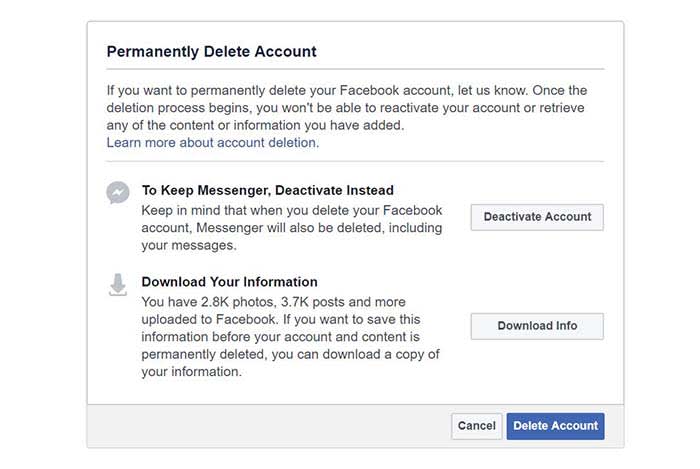
There, you’ll see two options. One is to deactivate your account and the second is to download a copy of your information before you delete your account.

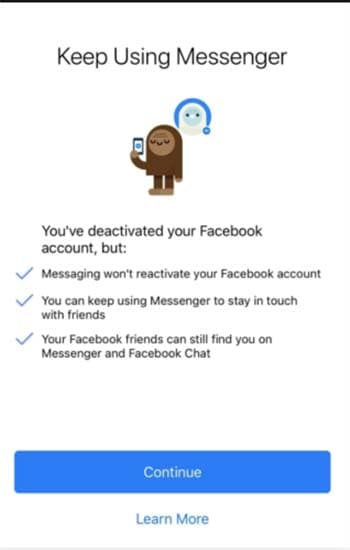
Next time you log into the app, you’ll see the following screen:

Keep Messenger

There are a couple of downsides associated with deactivating your account over deleting it. If you just don’t like the platform but want to keep using Messenger, there shouldn’t be a problem.

If privacy and data breaches are your primary motivator for getting rid of your account, deactivation isn’t a full-blown cleanse. Facebook saves all of your photos, posts, and associated data in case you decide to come back.

Photos of you that appear on other peoples’ accounts may still exist, as will any tagged comments or photos. They just won’t link to your profile anymore.

To be honest, if you want a good messaging app, you can always just download WhatsApp. 

WhatsApp Messenger Download WhatsApp ►
8

You can’t officially delete Facebook without deleting Messenger

Facebook problems

If you do decide to delete your account, Facebook will delay the actual deletion for up to 14 days. If you log in at any point during the interim, Facebook will reactivate your account.

According to the website, some data may remain in the system for up to 90 days. However, your information will not be available to other Facebook users.

As far as Messenger is concerned, Facebook is pretty clear. If you click the option to delete your account permanently, you’ll have the option to keep Messenger deactivated instead.

What’s the difference between deleting Facebook and deactivating?

Deactivate

Deactivation means you’ll disappear from the timeline and you won’t have access to the site or any built-in apps (aside from Messenger, of course).

But, as Facebook says, you can always come back.

When you delete your account, you’ll need to start from scratch if you change your mind. That said, erasing yourself from the platform means that you’ll be giving up your Messenger access.

Download your Facebook data before you go

Before you delete your account, Facebook will give you the option to download your personal data file. You may want to do this if you’ve been using Facebook to store photos or want to hang onto other information.

Downloading your data can also function as a reality check of sorts. Facebook, as well as others like Google and Apple, know a ton about you and make tons of money off of these revelations.

So, what happens to your data after you delete Facebook?

According to the Facebook help center, it could take up to 90 days to delete your entire record. After those 90 days are up, a few traces of your online past will live on.

Things like Messenger records may still exist in your friends’ accounts well after you’ve closed up shop.

Keep in mind that deleting your Facebook account doesn’t mean that your information will be pulled from elsewhere, either. FB’s business model depends on selling data to third-party vendors, so it’s possible some of your information will continue to float around the web.

You don’t need a Facebook account to use Messenger, anyway

When Facebook initially debuted Messenger, people thought that the separate app was somewhat unnecessary.

That was back in 2015. The 2016 election and subsequent privacy breaches had yet to change the public’s view of the platform.

The real benefit of the app is, you don’t need to have a Facebook account to use it at all. So, why not download the app, update your friends, and say goodbye to the Facebook scene once and for all?