Zoom will try to remain relevant with some pure comedy ads. Will it succeed?

Zoom is launching a new advertising campaign, I Use Zoom, aimed at repositioning the platform as more than just a simple meeting software. The campaign, directed by Bowen Yang and featuring contributions from prominent Saturday Night Live writers, is inspired by iconic movies and seeks to connect with consumers using a humorous approach. This ad will air during the College Football Playoff final on December 31 and the Super Bowl pre-show on February 8. I a-zoom-o The Chief Marketing Officer (CMO) of Zoom, Kimberly Storin, emphasized that the campaign is […]

Zoom is launching a new advertising campaign, I Use Zoom, aimed at repositioning the platform as more than just a simple meeting software. The campaign, directed by Bowen Yang and featuring contributions from prominent Saturday Night Live writers, is inspired by iconic movies and seeks to connect with consumers using a humorous approach. This ad will air during the College Football Playoff final on December 31 and the Super Bowl pre-show on February 8.

I zoom it

The Chief Marketing Officer (CMO) of Zoom, Kimberly Storin, emphasized that the campaign is designed not only to highlight the company’s current offerings but also to reflect the evolution of its products, which now include new features powered by artificial intelligence (AI). Storin explained that this approach does not arise from competitive pressure, but as a response to the specific needs of consumers. Positive feedback from users, evidenced in the Net Promoter scores, indicates that 100% of customers prefer Zoom over other platforms.

In the ad, Yang plays a villainous IT manager who tries to impose confusing software on his employees, who advocate for Zoom and its innovative features, such as AI assistance and translation capabilities. We are not just trying to ‘whitewash’ our image with AI; we have developed a clear perspective on how to minimize friction in meetings”, Storin assured.

Although Zoom is generally considered B2B software, the campaign is aimed directly at consumers, seeking to leverage the genuine love for the platform that its users have expressed. With the goal of achieving an effective return on investment before expanding its advertising reach, Storin emphasized the importance of making informed decisions to reach the widest possible audience.

Zoom has just released its biggest update in over 10 years thanks to AI

On Monday, the AI-powered collaboration platform became available to users in general. The redesign updates almost the entire app.

If you use Zoom for video calls at work, get ready for things to change. The technology company is using artificial intelligence (AI) to address popular complaints and optimize their video call experience in the first major revision of their flagship product in over 10 years.

Zoom Meetings DOWNLOAD

On Monday, just a few weeks after Zoom announced Zoom Workplace, the AI-powered collaboration platform became available to all users. The redesign updates almost every aspect of the application.

To begin with, the application has a different look. Users can choose from four color themes, in addition to the basic gray background that is currently behind the video screens. The call host can add different meeting backgrounds that contribute to a more immersive experience.

How Generative AI is Changing the Zoom Video Call Application

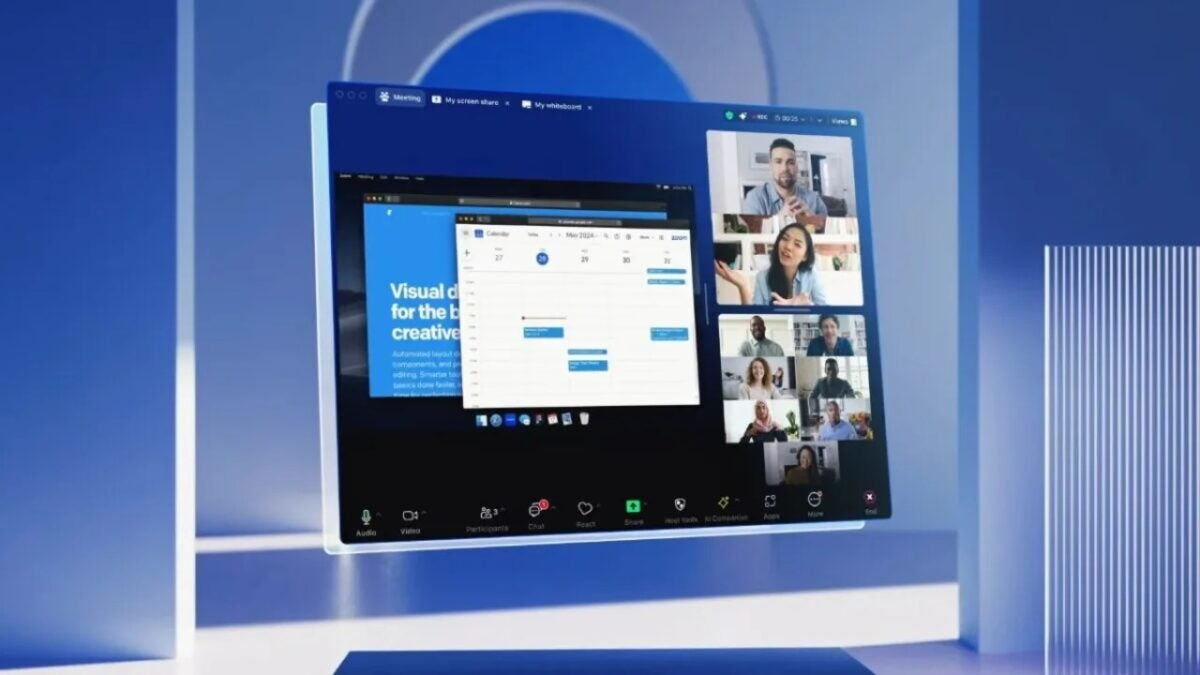
Zoom Workplace includes a new view with multiple speakers that places the participants speaking on a “stage”. The other participants are positioned below in a traditional gallery view, as seen below. This approach aims to encourage better discussion among participants.

Similar to how users currently use the “Screen Share” function to view the same screen together, users will have a document collaboration option to import third-party documents and co-edit text during meetings. Users will also be able to customize the toolbar at the bottom of the screen to keep only their preferred functions.

Zoom has also added new features to help users better interact with other participants in the call. The new portrait lighting feature uses AI to illuminate the user’s face in low light conditions while darkening the background to achieve a portrait effect.

On the other hand, the custom audio isolation feature suppresses background noise and helps users’ voices sound clear in noisy meetings in a noisy environment, such as a busy office or café. Finally, dynamic reactions allow users to display enhanced emoji expressions that are larger and more prominent than in the past.

Zoom has also implemented new collaboration features, such as the new Meetings tab, where users can find all the information they need for their meeting, including resources like PDF files, videos, and much more, as seen in the following screenshot.

After the meeting, the meeting event center gathers everything that was shared in the meeting, including meeting resources, AI-powered meeting summaries, recordings, and ongoing meeting chats.

The continuous meeting chat automatically shares a meeting summary in the team chat after the meeting, including assets, summaries, and much more. The Team Chat tab, located next to the Meetings tab, helps users access all chat-related resources such as assets, live links, whiteboards, etc., according to the press release.

The team chat will also include new generative AI capabilities within Zoom AI Companion, such as a thread summary to quickly catch up on messages, completing sentences to write new messages, and quick scheduling to prompt the user to schedule a meeting when it comes up in the chat.

Zoom Meetings DOWNLOAD

How to access Zoom Workplace

To access Zoom Workplace, the company says that account owners and users can update their Zoom application to version 6.0.0 or download the update from the company’s website.

Zoom says that Zoom AI Companion is included at no additional cost “for customers with paid services assigned to their Zoom user accounts”, which presumably means that if you are using Zoom for free, you can forget about the AI.

Best Zoom tips and tricks (advanced users)

Video calls, video conferencing, and group chats have become more significant than ever in recent times. Of all the apps available, Zoom has risen to be the ruler of them all. Step back Skype, we’re not here for you Microsoft Teams, and Google Meet needs to have a quiet word with itself too. No, it is Zoom that has won all our hearts and that’s why today we’re going to unlock all of Zoom’s best features for you.
After publishing a guide for beginners, we are sharing new tips for advanced users. Check it out if you haven’t seen it yet. The application is available on Microsoft Windows, Apple Mac, Android, and iPhones.

9

Use the space to bar mute/unmute your microphone

This one does exactly what it says on the tin. Rather than fiddling around looking for that tiny little cursor next to your microphone icon, simply hit the space bar to mute yourself. Then, when you’re ready to talk again, hit space again and your good to go.

Always mute your microphone when entering a call

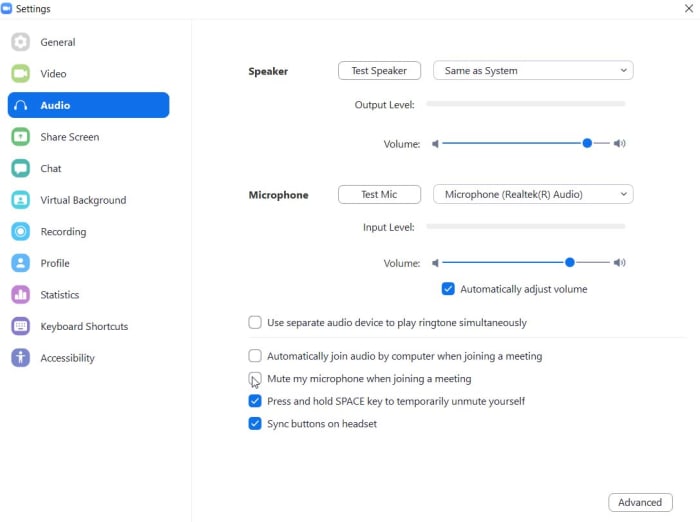
When you’re in a group video meeting with lots of different people, muting is actually a very powerful tool. Background noise coming from one feed can easily distort and dominate what somebody is actually saying on another feed. This phenomenon is even worse when somebody is already talking, and another account joins the meeting. You definitely don’t want to be that person but fortunately, Zoom has a setting that will always mute your mic when you go into new meetings.

To activate the always muted microphone you need to open Zoom and then access the Settings menu. From there you want to go to the Audio Settings tab. Here is where you’ll find the checkbox that says Mute microphone when joining a meeting. Tick this box and you’ll be saved those embarrassing blushes every time you join a new meeting.

Do the same with video

OK, we get it, first and foremost, Zoom is a video calling platform but sometimes video can really slow the app down and make effective communication harder. Like we’ve just described above, this is particularly grating when it happens every time somebody new enters the conversation. You can make sure that isn’t you by this time going to the Video Settings tab instead of the Audio Settings tab and ticking the box that says Turn off my video when joining a meeting.

Don’t forget the digital whiteboard

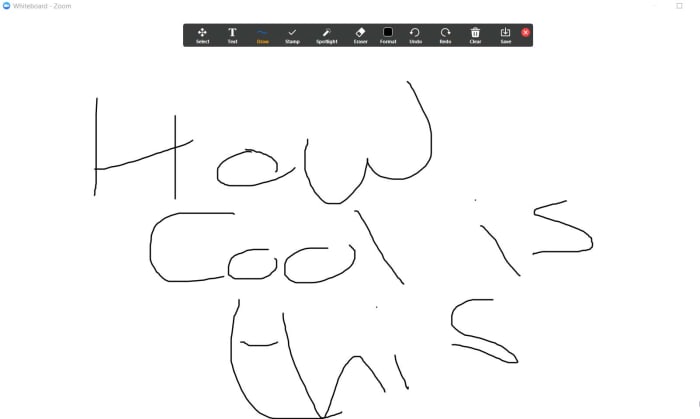
There’s a big button that says Share Screen, which makes the screen share a pretty obvious feature on Zoom. What’s not so obvious, however, is that Zoom actually has a few different screen sharing functions including a digital whiteboard that is particularly useful for meetings. It’s also good though, for upgrading that family quiz night to family games night that includes games like Pictionary and hangman. If you throw in the obvious charades too, you’re well on the way to having a full-on party.

Add a beauty filter

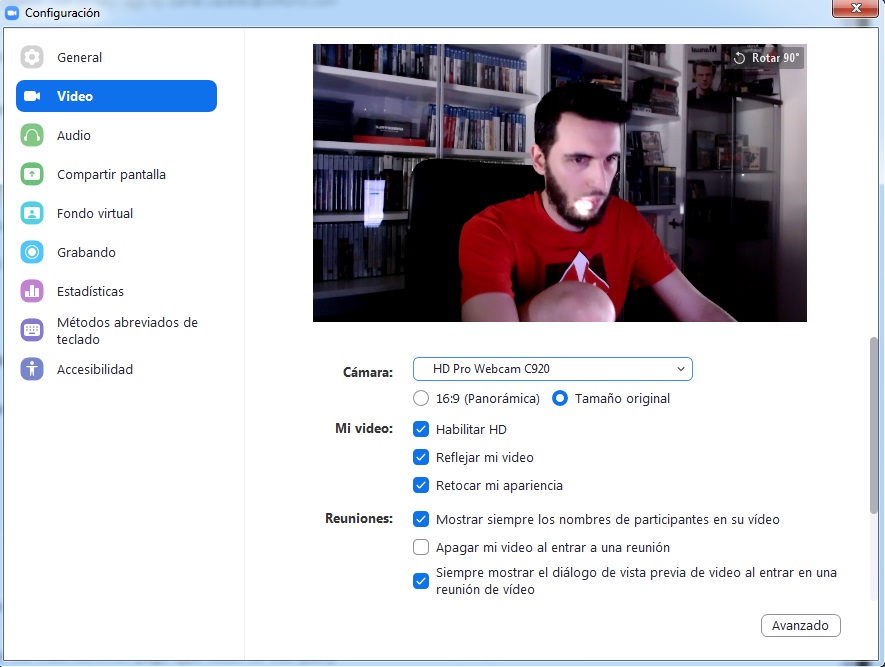
This one isn’t strictly a beauty filter, but it is supposed to smooth out any issues you may be having with your skin. The feature is called Touch up my appearance and it softens out the focus from your webcam’s camera. To give this one a go you need to go to Settings, then Video, and tick the box next to Touch up my appearance. The key here though is not to get too upset if you go there and find that it has been ticked the whole time.

The Truth about Spying in Video Chat Apps

In recent months, the COVID-19 pandemic has forced us to make widespread use of a variety of video chat apps. They have enabled us to connect face-to-face with our friends and families and to attend classes, work meetings, and even job interviews without leaving our homes. These apps are great for staying in touch, but are they secure?

We are living in the information age, and hackers and cybercriminals are well aware of the amount of personal data we share through video chats. That’s why privacy should be a concern whenever you install an app on our device. Nobody wants to be spied on or see their personal data fall into the wrong hands.

Lupa en teléfono móvil

In today’s article, we’re going to talk about security in video chat apps. We’ll analyze the most popular ones to identify vulnerabilities and give you some tips to prevent unpleasant experiences.

Are video chat apps secure?

Like any app, or even the operating system on your device, video chat apps are not 100% secure. We don’t mean to say they are potentially dangerous, but they can have security holes and vulnerabilities that could be used for malicious purposes. You have probably heard of the notorious case in which Zoom was accused of leaking personal data to Facebook, including the data of users who didn’t have an account on the social media platform. Another case was far worse, also involving Zoom, and it concerned a vulnerability in its UNC links that allowed hackers to steal their victims’ Windows credentials.

Although these two examples concern Zoom, many other video chat apps have been found to have similar problems. Does that mean you should stop using them? No, but it does mean you need to choose your video chat app carefully instead of blindly following the trends. Always do your research before installing an app that could compromise your privacy and that of your data.

What problems could I have if I use an unsecure video chat app?

Actividad hacker

As we mentioned, most video chat apps have security holes that can cause a headache or two. Here are some of the typical problems that can be caused by these vulnerabilities:

  • They can undermine your privacy and that of your data– Some video chat apps don’t encrypt the data you share, which means hackers can hear whatever you say or access any files you share. They can even distort the message you are transmitting.
  • They can change the access to your video chat– Security holes often prevent you from controlling who can access your conversation or meeting. That’s why there have been so many cases of online trolls “bombing” video conferences and even taking over calls that are underway.
  • They can create fake problems with your computer– Another security hole makes it seem like you’re having problems with your PC’s microphone or camera, and as a result, you inadvertently hand over control of them to third parties.
  • They can take control of your PC– In the worst-case scenario, hackers can use vulnerabilities in video chat apps to gain full access to your computer. Fortunately, these problems are less common, and the vast majority of video chat apps are immune to them.

How can I protect myself during a video chat?

Chico haciendo una videollamada

Before you have a video chat, it’s important to take a few simple steps to ensure your cybersecurity. That way, you’ll protect your privacy and data and enjoy your video chats with total peace of mind.

  1. Make sure your video chat app is up-to-date– As we stated above, video chat apps have vulnerabilities that are repaired every time these apps are updated. Regardless of whether you use a mobile or a desktop app, make sure it is always the latest version.
  2. Always protect your meetings with a password– If you are hosting an online work meeting or conference, never forget to add a password and activate a waiting room. That way, you can make sure that the only participants in your meeting are invited guests.
  3. Switch off your guests’ microphones and cameras– In addition to the above, if you’re going to give a chat, don’t forget to mute the microphones and switch off the cameras of your guests.
  4. Beware of uninvited guests– If you are hosting a work meeting, do a headcount to make sure that you have no unwanted visitors. This is frequent at large conferences: it seems like someone who’s not supposed to be there always manages to sneak in.
  5. Be mindful of who you’re chatting with– Never share sensitive information with someone you don’t know or trust 100%.
  6. Don’t video chat with strangers– Never accept a video chat invitation from someone you don’t know, and avoid using features available on some apps such as random video chat.
  7. Don’t click on any links you receive– As a general rule, you should never click on any links you are sent during a chat. They could redirect you to a malicious website that uses the security holes in your video chat app to gain access to your computer.
  8. Activate two-step verification– If the app you’re using has two-step verification, activate it. This makes it harder for hackers to gain access to your accounts.
  9. Never make video calls on open Wi-Fi networks– Avoid using public or open Wi-Fi networks, because you run the risk of hackers intercepting your conversations.

Are the most popular video chat apps secure?

WhatsApp

Logo de WhatsApp

WhatsApp is one of the world’s most popular messaging apps for texts, phone calls, and video chats. One might think that since it now belongs to Facebook, it might not be secure. However, all chats, voice messages, and video chats on WhatsApp are 100% encrypted, so only you and the person on the other end of the line can access their content. In fact, the company can’t even access your content. WhatsApp uses the Signal Protocol system from Open Whisper, one of the best in the world, for encryption. WhatsApp is therefore a secure app for video conferencing. If you’re interested, you can download it below.

  • WhatsApp for Android

WhatsApp (Android) DOWNLOAD
8

  • WhatsApp for iOS

WhatsApp (iOS) DOWNLOAD
8

Zoom

Logo de Zoom

Zoom has been the star app of the COVID-19 confinement season. It has allowed families separated by the pandemic to stay in touch and students to attend classes from home. However, it’s not an airtight app. In fact, Zoom has been at the center of multiple security-related scandals in recent months. Fortunately, the company has been updating the app systematically and fixing each vulnerability detected, although it’s likely that some have yet to be identified. That’s why if you use Zoom, it’s a good idea to take the security steps above.

  • Zoom for PC

Zoom Meetings DOWNLOAD
9

  • Zoom for Android

Zoom Meetings (Android) DOWNLOAD
8

  • Zoom for iOS

Zoom Meetings (iOS) DOWNLOAD
8

Messenger

Logo de Messenger

Messenger is Facebook’s messaging and chat app. You can use it to chat with friends on the social media platform or on the convenient mobile app. Although Messenger wasn’t a very secure app in the past, it has since gained a number of features that protect your privacy. Among them are Secret Conversations, which are 100% encrypted in a similar way to WhatsApp. Therefore, when configured correctly, Messenger is a relatively secure app.

  • Messenger for PC

Messenger (PC) DOWNLOAD
7

  • Messenger for Android

Messenger (Android) DOWNLOAD
8

  • Messenger for iOS

Messenger (iOS) DESCARGAR
8

Google Duo

Logo de Google Duo

Google Duo is the perfect app for video chat fans who are concerned about privacy. It encrypts calls by default, so only the person you’re chatting with can see or hear you. In addition, the app is optimized to run smoothly regardless of the kind of connection you are using. Google Duo is therefore one of the best apps to guarantee privacy in your video chats.

  • Google Duo for Android

Google Duo (Android) DOWNLOAD
8

  • Google Duo for iOS

Google Duo (iOS) DOWNLOAD
8

Snapchat

Logo de Snapchat

Snapchat is one of the most popular apps for young people and teens all over the world. Users of this social media platform can share all kinds of multimedia content and have video chats. Among its biggest attractions are its many filters and fun effects that can be added to these video chats. Although videoconferences on Snapchat are said to be encrypted, they rely on symmetric key encryption within the app itself. This makes them very vulnerable to potential hacker attacks. If you want to have a confidential video call, it’s best to avoid Snapchat.

  • Snapchat for Android

Snapchat DOWNLOAD
6

  • Snapchat for iOS

Snapchat DOWNLOAD
6

We hope our article has helped you to protect your video chats. Do you use any apps that we didn’t include on our list? Tell us about them in the comments section!

Epic fails in Zoom and other Videoconferencing Apps

Videoconferencing has been our bread and butter over the past few months. We’ve used it to call our parents, tell our partner we love them, take online classes, and discuss the new business plan at work… but wait! Why is our boss suddenly a potato? And who’s that stranger who snuck into the conference with the camera on while he was in the bathroom? These and many other bizarre, embarrassing, and hilarious situations have occurred during lockdown when videoconferencing was our window to the outside world.

In today’s article we’re going to have some fun reminiscing about some of the most epic fails of the star app of the season, Zoom, as well as other videoconferencing applications. Ready for a few laughs? Take a seat and buckle up!

1.- Honey, Zoom turned my boss into a potato

Zoom Fail patata

Imagine you’re in the middle of a business meeting and your boss turns into…a potato! And the worst thing is that she doesn’t know how to turn off the filter and you have to endure the entire meeting with a tater giving you orders without being able to laugh. Well, that’s what happened to Rachele Clegg (@PettyClegg). A meeting that will be hard to forget.

2.- Pants? Who needs pants?

Zoom Fail

This poor woman’s work videoconference seemed to be going smoothly until her partner decided to walk around in his underwear behind her. Although the poor woman tries to act normal in the end she breaks down. It’s always a good idea to put clothes on at home, just in case. You can see the video by clicking here.

3.- The councilman and his noisy visit to the men’s room

At an extraordinary plenary session to discuss safety measures for coronavirus, a councilman decided to leave his computer to go to the bathroom. So far, so good. Unfortunately, the mayor forgot to turn off his mic, so the whole plenary heard the long trickle as he relieved himself. Obviously, the rest of the plenary session attendees had a hard time keeping a straight face.

4.- Working from home with kids, always a joy

Fail teletrabajo

Due to the COVID-19 crisis and lockdown, much of the planet has had to switch to working from home. Singles or couples without children haven’t had much trouble working peacefully, but what happens to parents now that children can’t go to school? Poor Jenna Weiss-Berman was surprised in the middle of a videoconference by her son yelling “Look at my penis!” and making farting noises. A fantastic way to look in front of your boss.

5.- Videoconferences are for pets too

Loro en videollamada

The Reddit user TcpAckFrequency comments in a post how in his Zoom classes, the teacher asks students not to use their cameras. That’s why one day this young man decided to take a nap leaving the videoconference on thinking he’d get out of class. What TcpAckFrequency didn’t take into account is that he forgot to turn off his computer’s microphone and that his pet, a talkative parrot, was in the same room. While the young man was catching up on his sleep, the parrot kept up a constant stream of conversation during the videoconference. The teacher didn’t know how to kick him out of class so they spent the morning trying to negotiate with the parrot. As TcpAckFrequency explains, a classmate told him the parrot spent the entire class saying “Hello,” “What are you doing?,” and then obsessively repeating “OK” to anything anyone said.

6.- Keep an eye on daddy’s little helpers

Niña haciendo una videoconferencia

You’re used to working from home, you may even have a little corner at home emulating your office, and everything seems to be fine, but do you know where your kid is? Matt Staneff tells us from Twitter how one day he walked into his small workspace and found his young daughter videoconferencing his boss. We’re sure they discussed important business.

7.- We know talking to cats is relaxing, but make sure your mic’s off

Tweet acerca de un Zoom fail

Daniel Taroy tells on his Twitter account how in the middle of a 68-person Zoom meeting he started talking to his cat, unaware he had left his microphone on. He only suspected something was up when people started laughing and mentioning the cat. Kill me now!

8.- Never suggest class is boring with your mic on

Tweet de xoxo glosslip girl

Here’s another Zoom blooper where the culprit is once again an open mic. On this occasion Twitter user xoxo glosslip girl explains that, tired with her Zoom class going over, she said to herself “Why is she still talking? I thought this was over.” To her surprise her mic was on and the teacher didn’t miss a beat, sarcastically responding, “Friend, you might want to mute yourself.” She probably won’t get great grades this quarter, although we hope we’re wrong.

9.- Wrong class, wrong country

Tweet de Zoom Fails

There’s only one thing more embarrassing than crashing a Zoom class by mistake: if it isn’t even from your country! That’s what happened to Randol, a young man who doesn’t know how he got into a meeting that wasn’t his. Fortunately, the teacher was sympathetic to the young man’s plight and even thanked him for coming. You can see the video by clicking here.

10.- If you’re a snorer, don’t leave your mic on

Zoom fail sobre un joven que se duerme en clase

Another to add to the long list of Zoom epic fails from leaving the mic on in the middle of a meeting, or in this case, of a chemistry masterclass. A student fell asleep in the middle of his teacher’s videoconference and the whole class could hear him snoring. So now you know, if you go to sleep during a class over Zoom, you need to turn off the camera and also mute the mic.

11.- Never take your laptop into the bathroom with you with the camera on

In the middle of a Zoom meeting, a girl got the urge to go and took her laptop right into the bathroom with her. That way she won’t miss anything and no one will ever be the wiser – or will they? The fact is that the young woman not only left the mic on but also forgot to turn off the laptop’s camera while she was answering the call of nature. And worst of all, not only do her Zoom buddies know about it, but so does the rest of the world thanks to the magic of the internet and social media.

12.- Smoking in the middle of class is never a good idea

Chico fuma pipa de marihuana en una videoconferencia

Miles Berger thought his class that day was so boring that he could only get through it if he was high as a kite. The young man went right ahead and decided to start smoking marijuana in front of his teacher as if there was nothing unusual about it. Fortunately, the teacher took it with good humor.

13.- Never roll a joint with the camera on

Chico lía un porro en medio de videollamada

We continue with the fails of students who just can’t get through class on Zoom without the help of some kind of mind-altering drug. In this case, the young Jay Huyck decides to go ahead and roll a joint to truly comprehend the concepts taught in class. Too bad he completely forgot to turn off his camera. You can see the video by clicking here.

14.- Have you ever had that nightmare where you’re in class in nothing but your underwear?

Joven desnudo en una videollamada

We’ve all had that terrible dream that we’re naked or can’t find our shoes or some other essential article of clothing in class. This is exactly what happened to the kid in the next video. He unknowingly had the camera on in the middle of a Zoom call and was completely naked and showing off his attributes not only to the teacher but to the rest of his classmates.

15.- A class with a built-in soundtrack

Alumno rapeando en clase de Zoom

The class clown starts to perform his own rap ballad in the middle of a Zoom videoconference, thinking that no one will be able to hear him. Yeah, you guessed it. Again, the mic plays the part of trickster: everyone ended up listening to the song and laughing at it. You can see the video by clicking here.

16.- Live break-up

Pareja rompe en medio de clase por videollamada

We all know that lockdown has sparked conflict between couples who are not used to spending 24 hours together. In fact, it is estimated that this pandemic has exponentially increased the number of divorces and break-ups around the world. This is exactly what happened to the couple in the video, except that they break up in the middle of a Zoom class and forget to turn off their mic. The attitude of the teacher begging them to mute the microphone is truly priceless. You can see the video by clicking here.

We hope our selection of Zoom and other epic app fails has made you laugh. Did you videoconference into classes or meetings during lockdown? Did anything funny happen in any of them? Tell us your experience and if you’ve had any Zoom fails or zoombombing!

Softonic Picks: The Best Apps for Videocalls

Video calls have gone from being a sporadic source of fun to completely essential since the arrival of coronavirus. They have helped us feel closer to our loved ones while in confinement, adding much-needed social interaction to make our daily lives more bearable. Although we’ve moved into the “new normal,” video calls are here to stay, having become the most popular way to call our family and friends.

Joven haciendo una videollamada

Whether you want to have a face-to-face meeting with a distant colleague or tell your parents how much you love them, you’ll need a good video calling app. You’ve probably seen tons of video calling apps in the Google Play Store, but they don’t all work the same way. Some are designed for work meetings, while others are for two-person calls, group calls, etc. Which one should you choose?

In today’s article, we’ll look at a selection of what we consider to be the best video calling apps of 2020. We hope you find it helpful!

Zoom

Logo de Zoom

Zoom has been a revolutionary app during the coronavirus pandemic. It can be used for video calls between two people, but if desired, you can host group meetings with up to 100 participants in the free version. This makes it perfect for online classes or meetings with a large number of attendees. Zoom has a user-friendly interface, and as the chat host, you’ll receive an ID number to be shared with the rest of the participants.

During chats, you can adjust your display to see only the speaker, or a mosaic view with all of the participants’ faces. Zoom is an easy app and it’s free to use. Also, it has versions for PC, Android, and iOS. Want to try it?

  • Zoom for PC

Zoom Meetings DOWNLOAD
9

  • Zoom for Android

Zoom Meetings (Android) DOWNLOAD
8

  • Zoom for iOS

Zoom Meetings (iOS) DOWNLOAD
8

WhatsApp

Logotipo de WhatsApp

These days, it would be hard to find anyone who doesn’t have WhatsApp installed on their phone. So it is understandably one of the most popular apps for video calling. As you probably know, this messaging app is perfect for sending texts, photos, and voice notes. What many people don’t realize is that WhatsApp is also an excellent app for making audio and video calls. Just open WhatsApp like you usually would, tap on your contact, and tap the video camera icon in the upper right corner.

Once your video chat begins, up to eight contacts can participate in it. WhatsApp is a convenient way to make video calls without bugging your contacts to install a new app, because, let’s be realistic, who doesn’t have WhatsApp on their phone?

  • WhatsApp for Android

WhatsApp (Android) DOWNLOAD
8

  • WhatsApp for iOS

WhatsApp (iOS) DOWNLOAD
8

Messenger

Facebook Messenger logo

If you’re a Facebook user and you chat with family and friends through its messaging app, you’ll be interested to know that you can also use it to make video calls. Messenger lets you make voice or video calls with one or more contacts on your Friends list. In fact, you can host video calls for up to 50 people via its new service: Messenger Rooms.

Messenger’ video calling system is really easy to use. Just tap the camera icon in the upper right corner. Also, these video chats have fun filters and special effects that are updated every week. What are you waiting for? Download it today!

  • Messenger for PC

Messenger (PC) DOWNLOAD
7

  • Messenger for Android

Messenger (Android) DOWNLOAD
8

  • Messenger for iOS

Messenger (iOS) DOWNLOAD
8

Google Meet

Google Meet logo

Google Meet is Google’s latest foray into the world of video calling. It’s perfect for users of the Google suite, that is, Gmall, Drive, and Calendar. To access it, you only need a Gmail account, which is completely free. Get yours by clicking here. Google Meet offers video chats for up to 250 participants at the touch of a button. You can access them from the Gmail desktop version and through its convenient app for Android devices.

The way it works is very similar to Zoom. Create a meeting and share the link with the participants, all from Gmail’s convenient interface and without having to install any sort of plugin. Google Meet is especially good for work meetings and group video conferencing. To try it, click “Start a Meeting” in the lower left corner of your Gmail, or download the version for Android and iOS phones and tablets.

  • Google Meet for Android

Google Meet (Android) DOWNLOAD
8

  • Google Meet for iOS

Google Meet (iOS) DOWNLOAD
8

Skype

Logo de Skype

Skype was a true pioneer in the field of online voice calls and video conferencing. It is therefore one of the most stable services with the best performance in the market today. Although there are tons of ways to make video calls nowadays, Skype has the great advantage of being a multiplatform program. In other words, whether you use Windows, Mac, iOS or Android, you can make calls over Skype.

As for usability, Skype is especially convenient for group and work-related calls. This video calling service can be integrated into the Office 365 environment. We highly recommend it for job interviews.

  • Skype for PC

Skype (PC) DOWNLOAD
8

  • Skype for Android

Skype (Android) DOWNLOAD
8

  • Skype for iOS

Skype (iOS) DOWNLOAD
8

Google Duo

Logo de Google Duo

If you’re not entirely sold on Google Meet and would prefer a program for phone-to-phone video calling, try Google Duo. This app is very similar to FaceTime, the only difference being you don’t need an iPhone to use it… and it’s available for both iOS and Android devices!

Google Duo uses your phone number and lets you make free voice and video calls to anyone on your contacts list. The app has a feature called Knock-Knock that you can use to find out who’s on the other side of the camera before accepting the call. Another thing to keep in mind is that Google Duo lets you host group video calls for up to 12 people. Interested in trying it?

  • Google Duo for Android

Google Duo (Android) DOWNLOAD
8

  • Google Duo for iOS

Google Duo (iOS) DOWNLOAD
8

Houseparty

Logo de Houseparty

Houseparty is a fun app you can use to throw virtual parties without leaving your house. Every Houseparty user has a “house,” that is, a video-chat channel that users can visit, coming and going as they please.

Every channel allows up to eight visitors simultaneously, and it’s fun and easy to have little get-togethers with friends. What’s more, Houseparty features fun games you can play as a group, such as trivia or one where you have to finish the song lyric. It’s fantastic for hosting fun video chats with your friends.

  • Houseparty for PC

Houseparty (PC) DOWNLOAD
8

  • Houseparty for Android

Houseparty (Android) DOWNLOAD
9

  • Houseparty for iOS

Houseparty (iOS) DOWNLOAD
8

Snapchat

Logo de Snapchat

Snapchat is especially popular with young people. Besides being an excellent video calling app, it’s a social media platform where you can share photos and all kinds of multimedia content. Among Snapchat’s unique features are the funny filters you can use on your video calls. But that’s not all: Snapchat lets you make video calls with up to 16 people. It’s perfect for young people.

  • Snapchat for Android

Snapchat DOWNLOAD
6

  • Snapchat for iOS

Snapchat DOWNLOAD
6

FaceTime

Logo de FaceTime

FaceTime is an excellent app for making both video and voice calls. You can make one-on-one or group calls with a total of 32 people at the touch of a button. Although it’s a great app, it has a big problem: FaceTime is only available for Mac and iOS users. So if you’re a Windows person or you use the Android operating system, you won’t be able to download it.

  • FaceTime for Mac

FaceTime (Mac) DOWNLOAD
6

  • FaceTime for iOS

FaceTime (iOS) DOWNLOAD
8

Slack

Logo de Slack

Slack is a communication platform that has really taken off in recent years, especially in professional environments. Besides having chats with your coworkers and sending files, Slack lets you make two-person video calls. We should point out that if you use the app’s free version, you can’t make group video calls. Still, it’s a highly versatile app that you can use on both Android and iOS devices.

  • Slack for PC

Slack (PC) DOWNLOAD
6

  • Slack for Android

Slack (Android) DOWNLOAD
10

  • Slack for iOS

Slack (iOS) DOWNLOAD
10

WeChat

Logo de WeChat

Our final pick is WeChat, a versatile app that offers hundreds of options for users. One of its strong points is that it can be linked to your social media accounts, so you can upload photos or videos directly to your account without leaving the app.

Moreover, it has interesting features like Shake, which lets you find users in your area who want to chat and make video calls. WeChat lets you make voice and video calls to individuals and groups. And it’s free! Interested in trying it?

  • WeChat for PC

WeChat (PC) DOWNLOAD
8

  • WeChat for Android

WeChat (Android) DOWNLOAD
8

  • WeChat for iOS

WeChat (iOS) DOWNLOAD
7

We hope you found our selection of video calling apps useful. Do you have a recommendation that isn’t on our list? Tell us about it in the comments section!