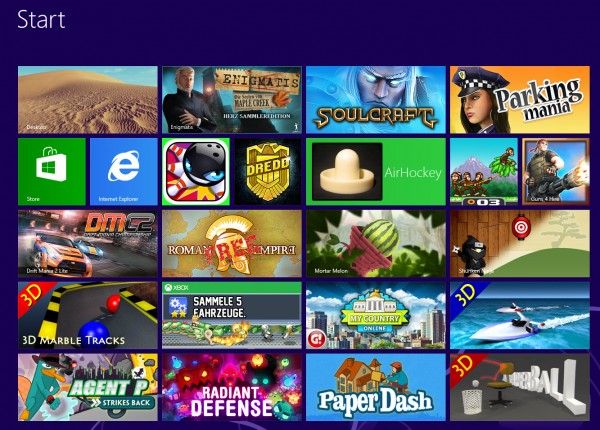
At first, there were only a few games for Windows 8, but half a year later, things are very different. Whether you’re looking for shooter, platformer, or realtime strategy game, there are lots on offer and among the (unfortunately) large number of bad games, you can find some real gems. Below is a list of games for Windows 8 that are just waiting to be played.
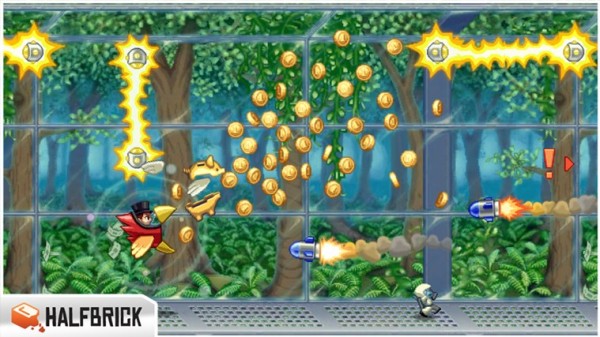
Jetpack Joyride
In Jetpack Joyride, you use your jetpack to run and fly nonstop through a never ending landscape. Just like other endless runner games, the only difference is in the obstacles and gold coins you find along the way. Great graphics and a catchy soundtrack make for a light-hearted game that’s not too difficult.
Judge Dredd vs. Zombies
In Judge Dredd vs. Zombies, you have to defend Mega-City One from a zombie attack. Using different weapons, you clean out zombies from different areas over the various levels of the game.

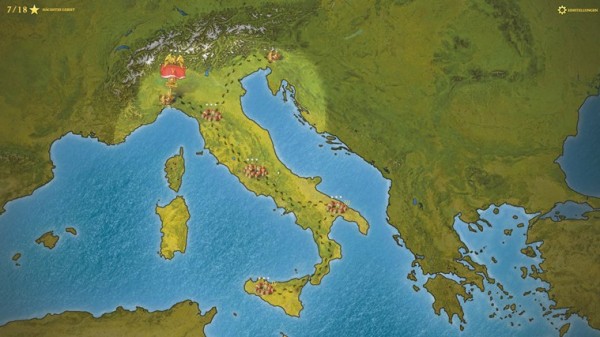
Roman Empire
In Roman Empire, you take on the role of power-hungry Caesar. Your goal? To conquer Europe. You’ll have to vanquish neighboring villages, create alliances and make spur of the moment decisions.
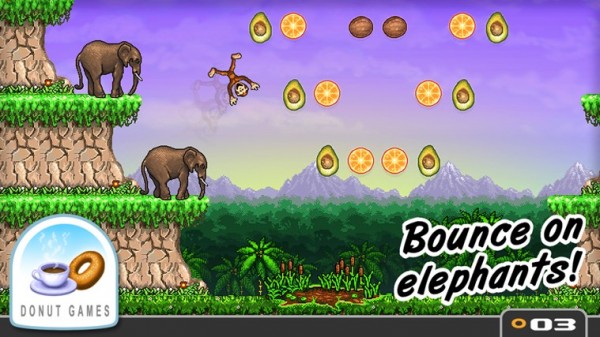
Monkey Flight
Fans of Angry Birds will enjoy Monkey Flight. Helped by special objects, the aim is to launch the monkeys so that they pick up the floating fruit.
Mortar Melon
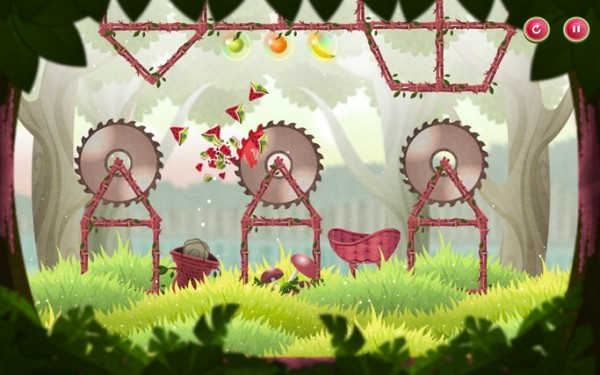
In Mortar Melon, the aim is to throw watermelons from the left edge of the screen into a randomly positioned basket. This becomes more difficult when obstacles like rotating blades are added to the mix and the difficulty increases with each level.
My Country
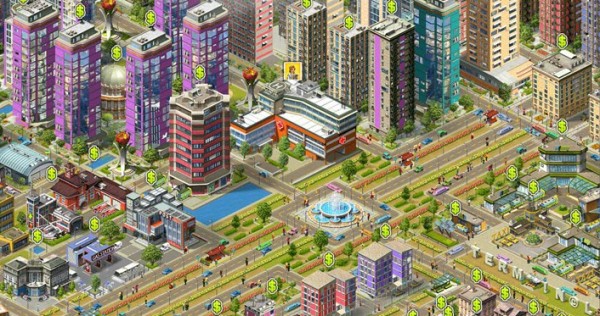
In this copy of SimCity, your mission is to build a bustling metropolis. You’ll have to build and place various buildings, roads, and other utilities to create the necessary infrastructure. If the people are happy, revenues will increase and your building plans will be safe, but if you don’t manage to organize the construction well, you’ll find that building flies out of control.
3D Boat Race
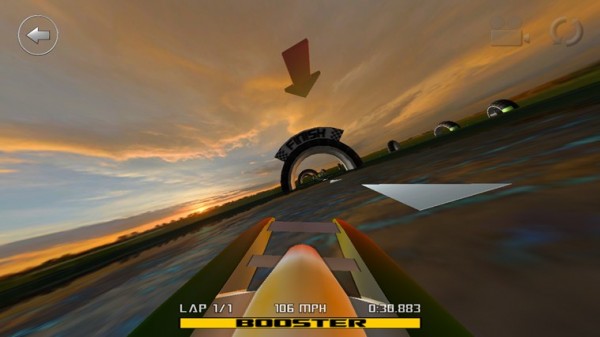
3D Boat Race lets you compete on the water in high speed boats. Arch-shaped goals show you the route to the finish.
Paper Dash
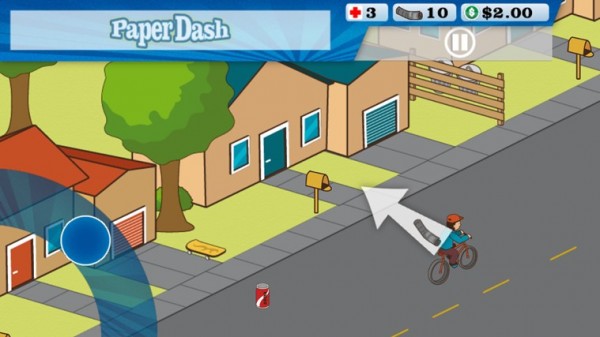
This game is a remake of the classic, Paperboy. The main character is a paperboy and you need to steer him around the obstacles that he’ll find on his route.
Parking Mania
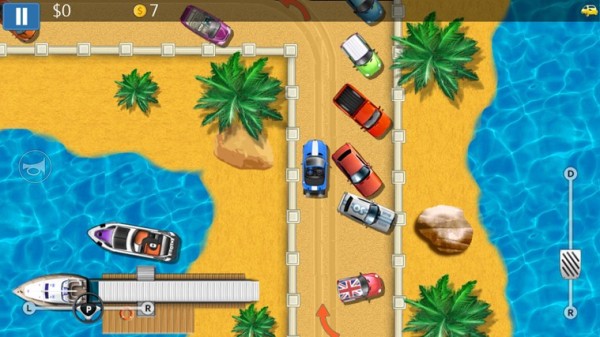
The noble art of parking is recreated in Parking Mania. The aim is to park your car in a particular space. Just as in real life, however, this isn’t always easy – there’s little room to maneuver and the best spots are already occupied by other cars. Along the way, you pick up coins and other bonuses.
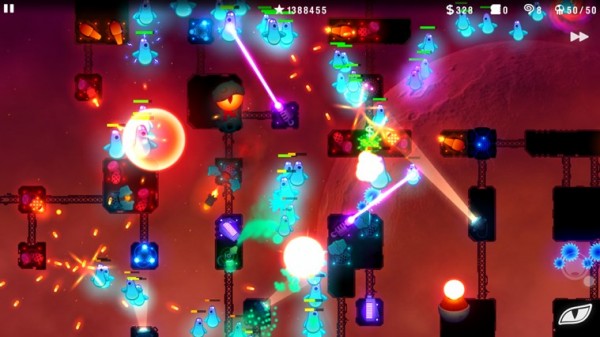
Radiant Defense
This is a colorful tower defense game. In your role as commander of a space station, you have to defend it against external attacks. Slow down your opponents by positioning defensive towers and walls.
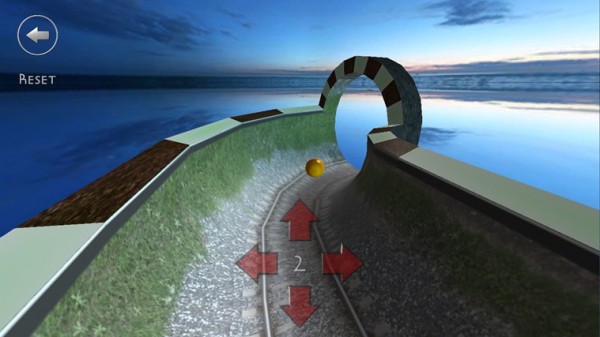
3D Marble Tracks
3D Marble Tracks is an interesting mix of mini golf, bobsled racing, and billiards. You’re going to need a lot of patience and a steady hand to get to the end!
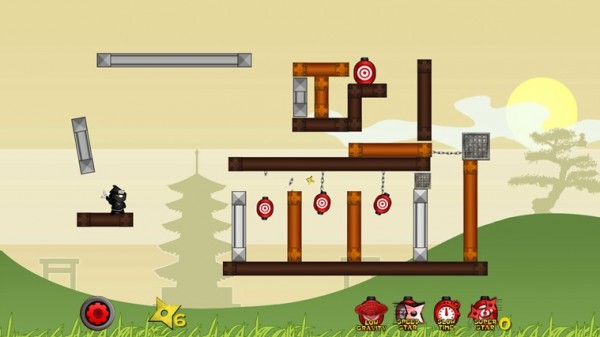
Shuriken Ninja
In this puzzle, you play the part of a ninja. Use your shuriken stars and throw them to create chain reactions so that they hit several targets at once.
SoulCraft
This time we have an action-packed role-playing game full of sinister characters. In Soulcraft, you fight your way through a colorful fantasy world as an angel, demon, or human being, building up your character by gaining experience in combat, weapons, and objects.

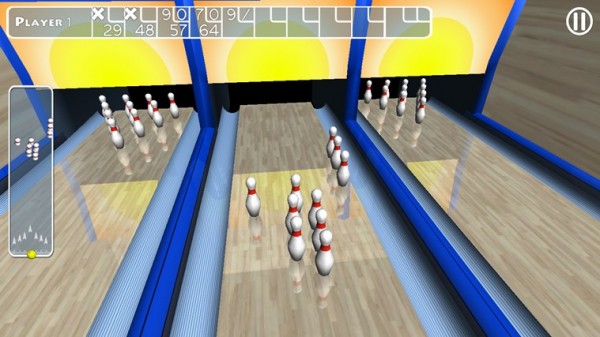
Trick Shot Bowling
Trick Shot Bowling is a classic bowling game where you can choose to play against the computer or real opponents. Decide for yourself where to aim and how hard to bowl the ball so that you can create a particular effect.
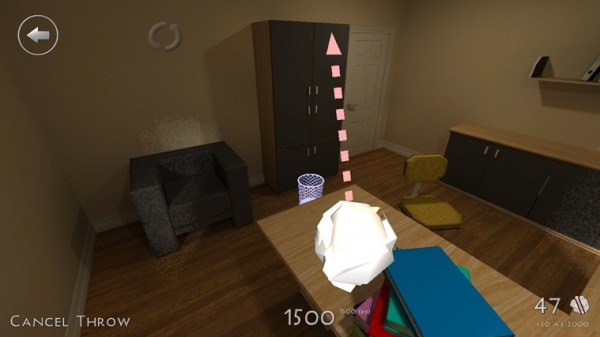
3D Paperball
Throwing a screwed up ball of paper helps to release tension. In 3D Paperball, these paper balls are virtual ones and you can show off your basketball skills by hitting the trash can in various different scenarios.
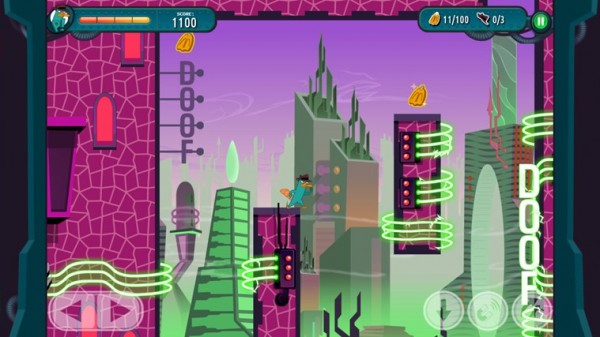
Agent P Strikes Back
This fun adventure stars Perry the Platypus, a character from the animated series Phineas and Ferb. The idea of the game is simply to jump between platforms and defend yourself against a series of animals that Dr. Heinz Doofenshmirtz has released to wreak havoc.
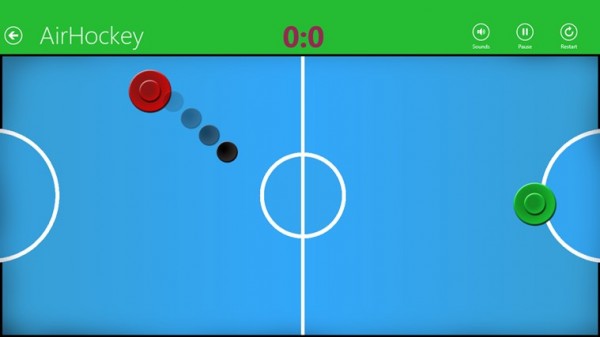
AirHockey
A good game for two people, AirHockey is classic game room entertainment. In Windows 8, the floating discs you play with become touch-sensitive controls.
Drift Mania Championship 2
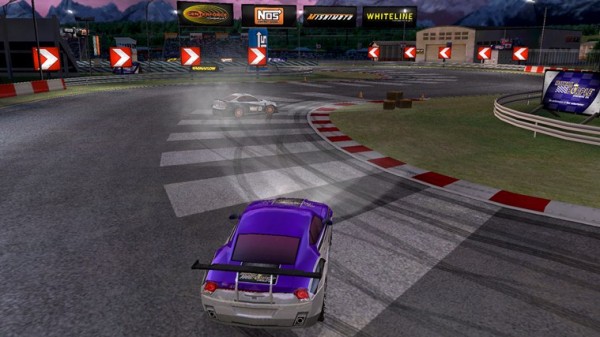
Drift Mania Championship 2 is a fun racing game with good graphics and a catchy soundtrack that makes full use of the motion sensors built into your tablet.
Enigmatis: The Ghosts of Maple Creek
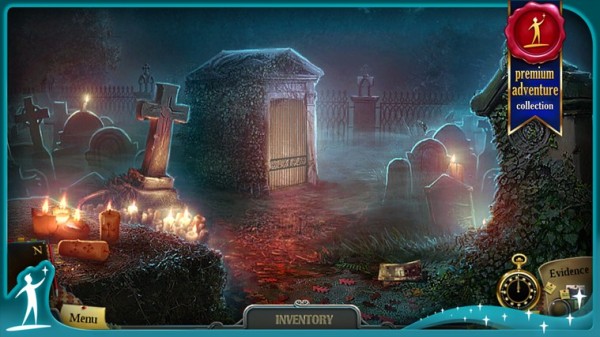
The idea behind this game is a mystery and your job is to find the hidden objects and clues in the scene. The graphics are very good and full of details. The soundtrack also helps create an eerie and unsettling atmosphere.
Guns 4 Hire
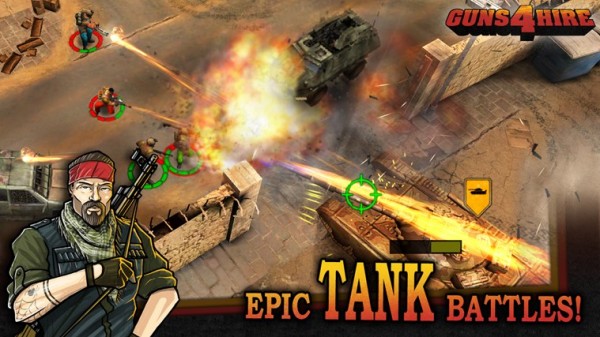
In this fast-paced action shooting game, characters are armed to the teeth. The control system is similar to that of Command & Conquer.
What do you think are the best games for Windows 8?
Original article by José María López on Softonic ES.