Little known Microsoft programs and services that are really useful

Do you know that Microsoft bundles in some cool tools with Windows? Check out the best below:

Snipping Tool

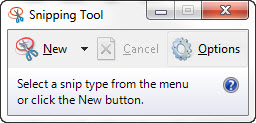
This default feature on Microsoft is so hidden that many don’t even know it exists: the Snipping Tool. What can you do with it? Well, as its name suggests, with a simple square you can crop any part of the screen you want. Type this name into the taskbar, and you’ll see the icon pop up like magic.

In general, the method we typically use is to press the “Print screen” button on our keyboard and then go to the screenshot in Photoshop or Paint. That’s also how Gyazo became famous, for taking screenshots and giving us direct links. However, with the Snipping Tool, we skip all these steps and go directly to cutting out the best from the screen. Easy, right?

Try it out soon and tell us what you think. It changed our lives when we discovered it.

Microsoft Mathematics

Have you ever wondered how to insert mathematical equations into a document? It’s an issue that regularly comes up if you use a text editor. Today we’ve got the best solution: Microsoft Mathematics.

This extension has been around for a while (nearly a decade), but it’s one of the great unknowns for almost all users. You can download it for free, and it will be installed as an extension of Microsoft Word. Give it a chance; it won’t disappoint.

Microsoft Mathematics Download now
7

Video streaming

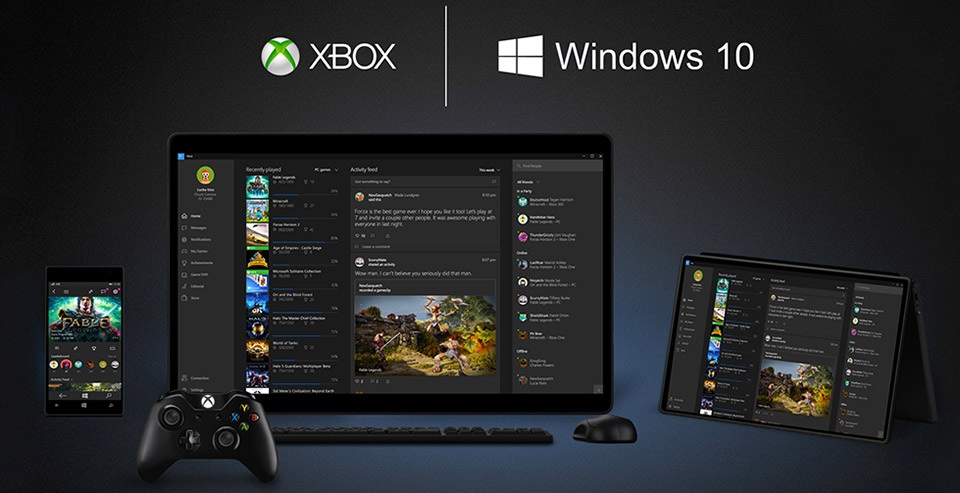
Windows 10 introduced the possibility of video streaming in a straightforward way. Yup, the operating system comes with its own software, so you only have to add a compatible tool.

If this is the case, type streaming into the taskbar and click on it. Once all compatible media appears, select “Access device, and you’re ready to go live.

Virtual desktops

We’ll wrap up this post with one of our favorite options: virtual desktops. With Windows 10, you can have several desktops instead of just one. What for? Well, imagine you want to have a place only for games. Then you can make a custom desktop, where you’ll only find game-related apps or titles. 

You just have to access Task View, on the side of the taskbar, to add them. The rest is as simple as browsing through different desktops you’ve created. If you’re messy, perhaps this service can help you out.

7

All the Best Free Software for your PC

You spend hundreds of dollars on your brand new PC, and then what happens? You have to go and spend even more money on all the software you need, to do the jobs you bought the PC for in the first place. Never mind what you bought the PC for you have to buy programs just to protect your new PC from viruses and malware.

Well, do not worry because there is a lot of free software you can get your hands on to help you out. You can get free software for Windows 10 you can get free software like Microsoft Word, you can get free software for editing photos, you can get antivirus free software and even free software for video editing. You don’t need to spend a lot of money on expensive programs for your new PC. There are plenty of free programs for PC so let us have a look at some of the best now:

Best free programs for PC

1. Best antivirus free software: Avira Antivirus

Avira header

Avira Free Antivirus offers a broad range of security features that add up to offer the best free antivirus software you’re likely to find. As well as strong antivirus scan and protection facilities Avira offers some great features like safe shopping searches, system speed up and a VPN. This is the best free software download for PC you’ll find and one of the most important. To learn more about Avira Click Here, otherwise…

Avira Free Antivirus Download Avira
8

2. Best backup free software: Google Drive

Google Drive wants to be the Ultimate Backup and Sync Tool

These days you need to do more than just install a free antivirus program to keep yourself safe. Ransomware is a modern threat that sees your data being stolen and then held for ransom. This means if you’re going to download free software you need some to get some backup free software for your computer. Free software downloads like Google Drive are essential. Drive will give you 15GB of free space to keep all of your personal data safely backed up. You need it now!

Google Drive Download Google Drive
7

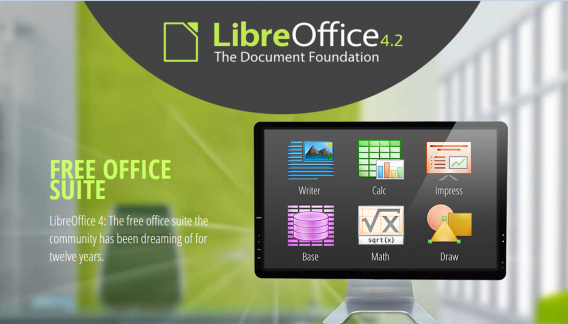
3. Free software like Microsoft Office: Libre Office

LIbreOffice header

Almost everybody needs to use programs like those found in the Microsoft Office suite so a top priority must go to getting the free software download for PC of Libre Office. Libre Office is an open source productivity suite that rivals Microsoft Office and even has programs, like Math and Draw, that can’t be found in the expensive Microsoft offering. If you work in an office this is an essential free program to download.

LibreOffice Download LibreOffice
7

4. Media Player: VLC Media Player

vlcHEADER

One of the best free programs for PC is VLC Media Player. It is one of the most popular programs in the world and carries the codecs required to play almost every kind of video file. Once you’ve downloaded VLC you will be able to play almost any type of video you can find. As well as offering a complete video playback solution VLC has plenty of other features and you can check out 5 of the best here.

VLC Media Player Download VLC
8

5. Free software for photo editing: GIMP

Do you want the photos you share to be breathtaking - GIMP

If you want free software like Photoshop you should look no further than GIMP. GIMP stands for GNU Image Manipulation Program and it is almost as powerful as Adobe Photoshop. With this free software editing becomes possible for all. Whether you’re merely touching up an old image or creating a brand new one, GIMP offers you a complete set of tools to take care of whatever editing job you have in front of you. GIMP may be the best photo editing free software but we’ve also put a list together of 5 free photo editing programs. Check it out here.

7

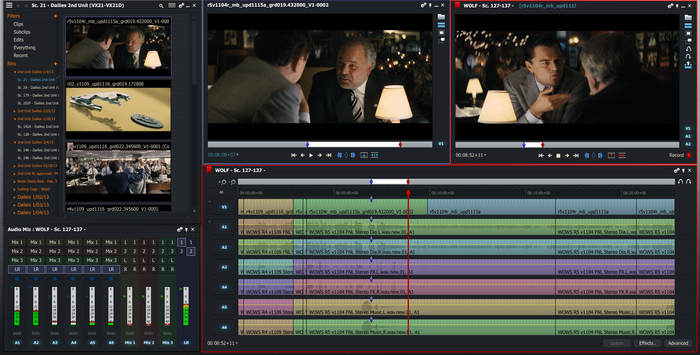
6. Free software for video editing: Lightworks

5 Free Programs for Editing Videos lightworks

Lightworks is available on many free software download websites but you can get it right here. It is one of the best editing free software programs you can get and is used by professionals as well as amateurs. If you’re a budding video editor or director this is great free video editing program for you to download. For info on other free video editing programs click here.

Lightworks Download Lightworks
7

Follow me on Twitter: @PatrickDevaney_


How to unsubscribe from push notifications (Chrome, Firefox, Edge and Safari)

Have you accidentally given permission to receive notifications from a website or are you tired of getting notification requests? Below, we’ll tell you how to disable them according to the browser you’re using.

Google Chrome (laptop)

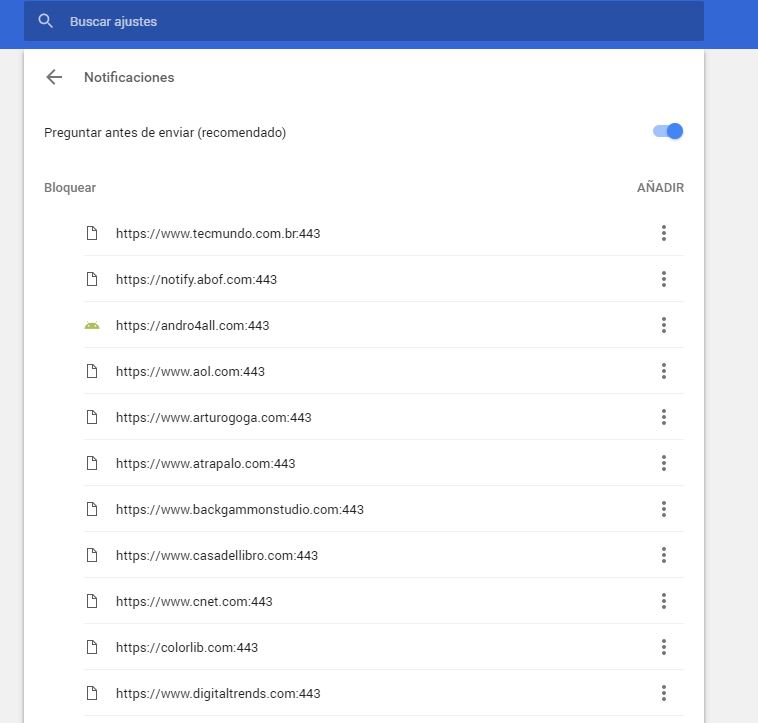
To disable Chrome notifications, copy this address chrome://settings/content/notifications and paste it in your browser. This way, you’ll go straight to the “Notifications” section of Chrome Settings.

461

If you want to stop receiving permission requests for notifications, disable the “Ask before sending (recommended)” option to “Block all.”

Want to block notifications for a specific website? You’ll see that you’ve got two options: “Block” and “Allow.” Under “Allow,” look for the web page you want to stop receiving notifications for, click on the three vertical dots beside it and then select “Block.” It’s that easy!

Google Chrome (cell phone)

Go to “Settings” (by tapping on the three vertical dots in the top right). Press “Web page settings” and then “Notifications.”

If you want to stop receiving permission requests for notifications, disable the “Ask before allowing websites to send notifications (recommended)” option to “Blocked.”

Want to disable specific notifications? Below, you’ll have two options: allowed and blocked notifications. Select one that is allowed and then the “Notifications” option to block it. Easy peasy.

Mozilla Firefox (laptop)

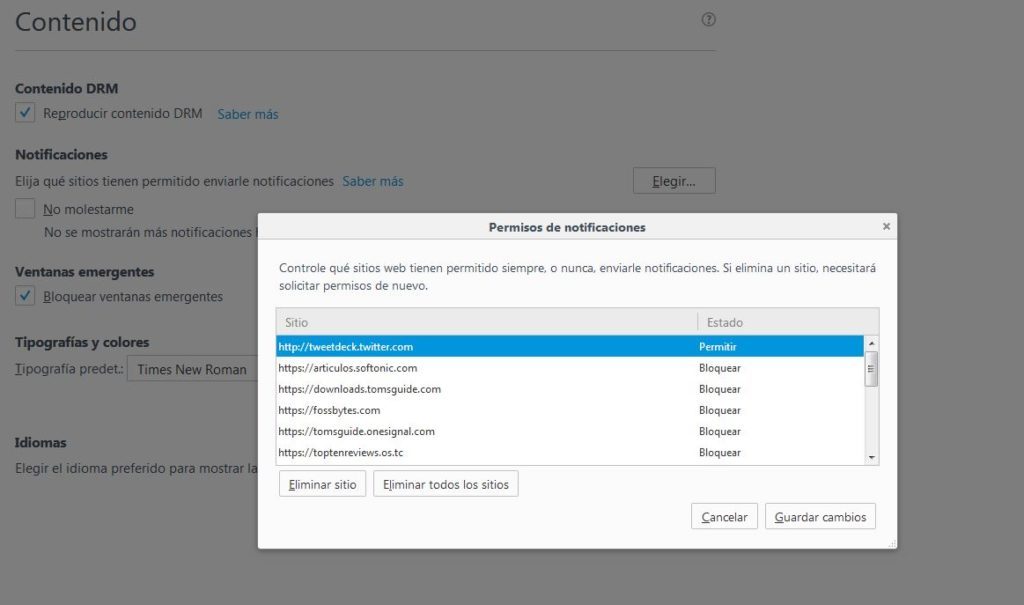
To disable notifications on Firefox, copy this address about:preferences#content and paste it in your browser to access the “Content” section of Firefox Options. Here you’ll see the “Notifications” subsection.

If you want to stop receiving so many permission requests for notifications and notifications themselves, enable the “Do not disturb me” option.

464634-1024x605

Want to block notifications for a specific web page? Click on “Select.” A list with all the notifications you’ve allowed or blocked to date will show up. Look for the website you no longer want to receive notifications from and select “Remove site.”

When you go to that page again, it will once again ask for permission to send you notifications (unless you’ve enabled the “Do not disturb me” option). Select that you don’t want to receive notifications. Case closed.

Unfortunately, there’s no easier way to block specific notifications on Firefox.

Mozilla Firefox (cell phone)

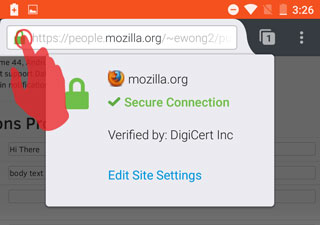
For now, there’s only one very basic way to disable notifications for this version of Firefox. You must go to the page that you want to disable notifications for and click on the Control Center (the green lock to the left of the URL).

2016-07-18-15-42-33-81e41b

Then select “Edit site settings.” Tap the white square to “check” it and then press “Clear.” This way, the website will stop sending you notifications unless you go back and give it permission.

Microsoft Edge (Windows 10)

To get started, click on the Over Edge section at the top right of the window. It’s a three-dot horizontal icon. Click Settings, and then click Advanced Settings.


Under Notifications, click Setup. Find the webpage you don’t want to be notified about and click the slider point to go to Disabled.

Apple Safari

To stop receiving notifications for a web page, go to “Preferences” and then click on “Notifications.” Look for the website on the list and select “Block.”

If you want to stop receiving permission requests for notifications, don’t leave the “Notifications” section; simply uncheck the box “Allow websites to ask for permission to send push notifications.”

The Best Free Alternatives to MS Paint

With Microsoft’s decision to leave Microsoft Paint out of the next update for Windows 10 we thought we’d put a list together of all the best free programs out there for all you digital artists. MS Paint has been around for 32 years and will have been the first graphics program that many designers will have ever used. It is sad that it’ll no longer be bundled along with Windows, but don’t worry, there are plenty of free alternatives out there including a pleasant surprise.

Some are a little more advanced than others are but they’re all free so let’s get started.

5 free alternatives to Microsoft Paint

1.  Microsoft Paint

The Best Free Alternatives to MS Paint ms paint

That is right. Microsoft will remove Microsoft Paint from your Windows 10 PC the next time they update it but they’re not killing it off altogether. According to the Microsoft blog, MS Paint will still be available for free via the Windows Store. The same blog post reminds us that many of the MS Paint features we know and love are now a part of Paint 3D but who cares. Don’t take away our childhood.

Get MS Paint Now

2. Paint 3D

The Best Free Alternatives to MS Paint paint 3d

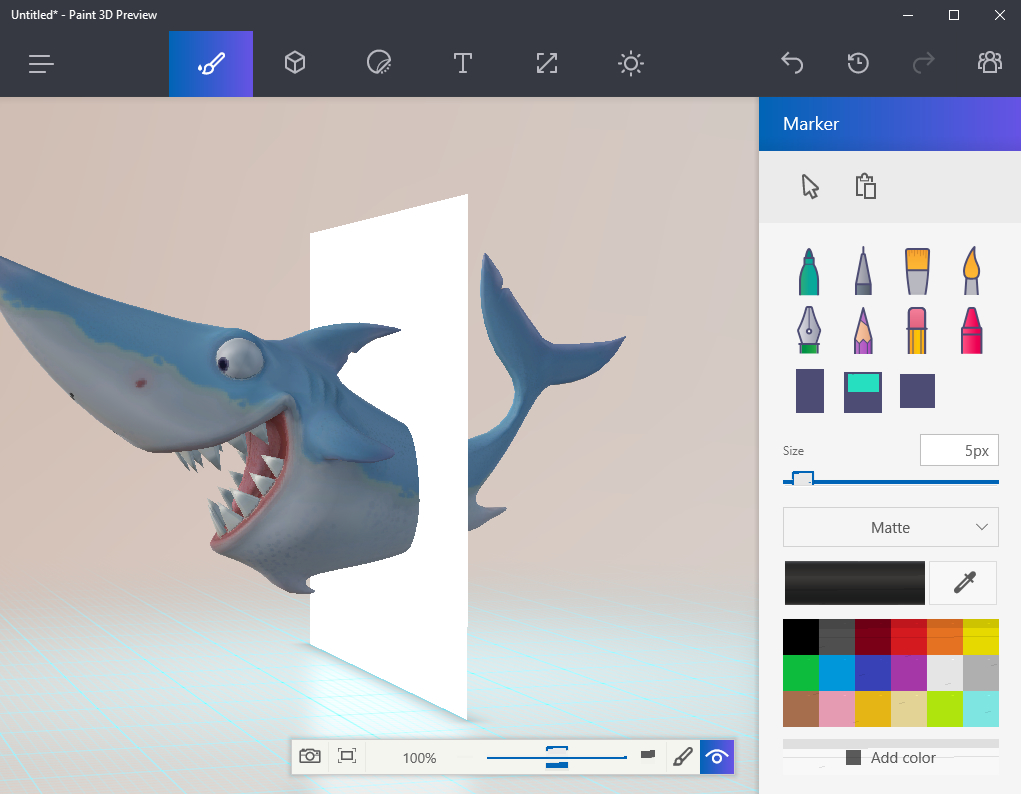
Paint 3D is the shiny new 21st Century version of MS Paint that Microsoft are now shipping out with Windows 10. Paint 3D first rolled out, alongside MS Paint, with the Creators update and will full on replace MS Paint once the Fall (or Autumn) update drops. It pretty much does exactly what it says on the tin. It is an updated version of MS Paint that allows you to create digital masterpieces in 3D.

Get Paint 3D Now

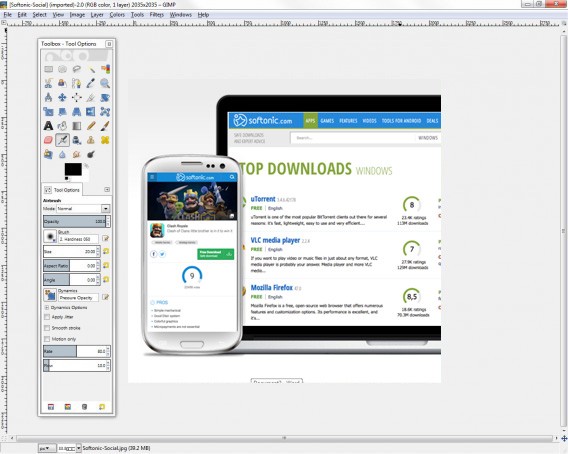
3. GIMP (Mac)

GIMP1-568x454 copy

GIMP stands for GNU Image Manipulation Program and it is almost as powerful as Adobe Photoshop. It is an open sourced program, which means it has an army of volunteer developers working in the background to ensure it has all the best features. GIMP offers a complete set of tools for all types of photo editing. It might be a little more advanced than the humble MS Paint but if you’re looking for complete graphic design suite you should look no further than GIMP.

Get GIMP Now (Mac)

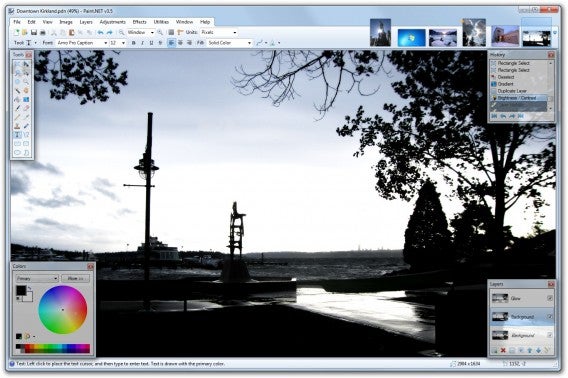
4. Paint.net

Paint.NET

Paint.net is like MS Paint’s older and more mature cousin. It offers a similar layout to MS Paint but enjoys many more features. Features like color correction, contrast, sharpen and blur and even a layer-friendly interface make Paint.net a more complete graphic design suite than MS Paint ever was. The simple user interface, however, means that it won’t appear intimidating and doesn’t demand that new users learn how to use it quickly. If you still consider yourself to be a beginner, Paint.net is the alternative you want.

Get Paint.net now

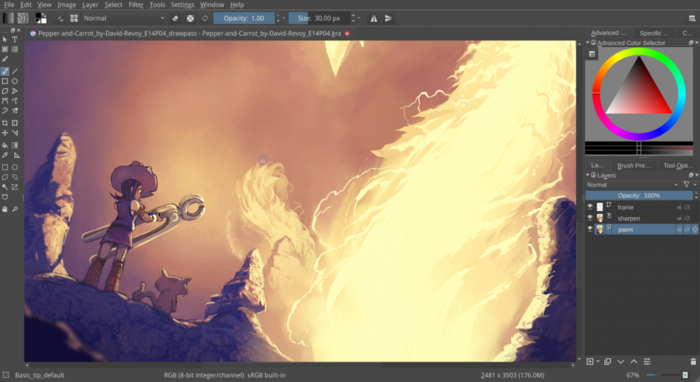
5. Krita

The Best Free Alternatives to MS Paint krita

Krita was made with comic and Manga artists in mind. Krita has plenty of features for all budding illustrators and definitely marks a step up from MS Paint. You can work using layers and can customize brush sizes, textures, palettes and more. You can even import brush and texture packs that have been made by other artists. If you feel like you’ve learnt a lot from MS Paint and would like to continue your development, Krita would be a great option for you.

Get Krita now

Similar Articles

All the Best Free Software for your PC

Want The Photos You Share To Be Breathtaking?

Why the latest Windows 10 Update is called the Creators Update

How to Download Windows XP for Free

Nostalgia. How do you feel about it? I like the warm fuzzy feeling I get when thinking about stuff from back in the day but hate the crushing disappoint I feel when I reacquaint myself with things from the past. Spoiler alert, they almost never live up to the unbelievably high expectations I have of them.

That is why I’m not that sure about this little guide but as you may feel differently or may have a genuine need for it I’m going to walk you through this completely free and legal way I’ve found to get your hands on Windows XP. Microsoft may have stopped providing support for the most dominant operating system the world has ever seen but still, it is Windows XP.

Now whether you’re a developer and you need to test your coding creations across different operating systems or if you’re simply hankering for a dose of nostalgia doesn’t matter. If you want XP this is how to get it.

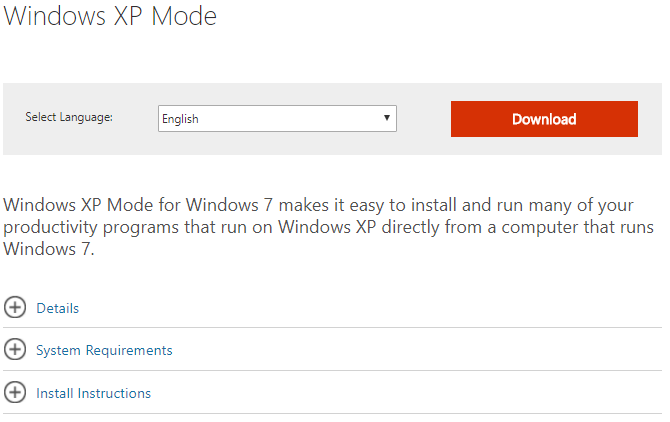
Stage 1: Go to the Microsoft Windows XP mode page and select Download. The executable file will download but when it is finished you don’t want to install it.

How to Download Windows XP for Free 1

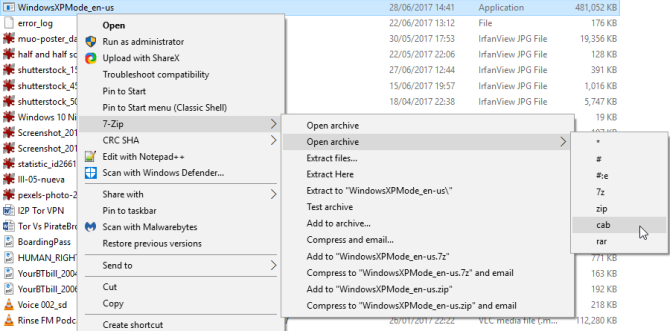
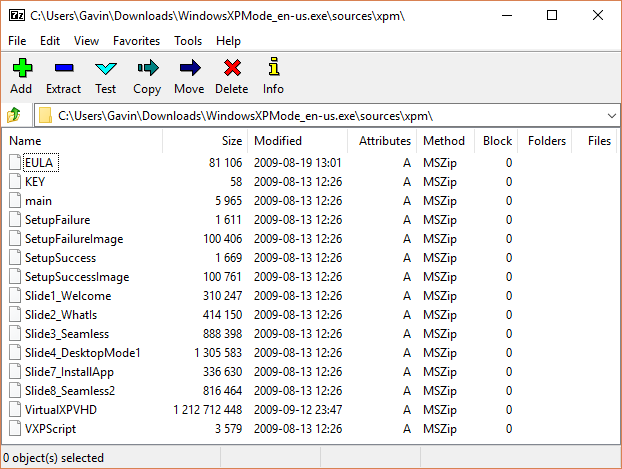
Stage 2: Right click on the exe file and then select 7-Zip, then Open archive and then finally cab.

How to Download Windows XP for Free 2

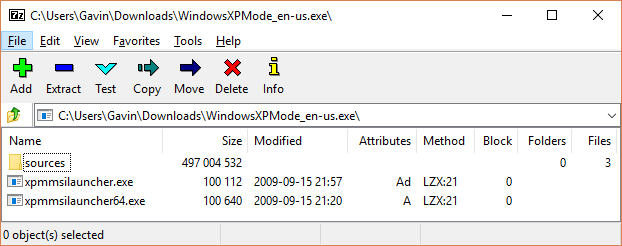
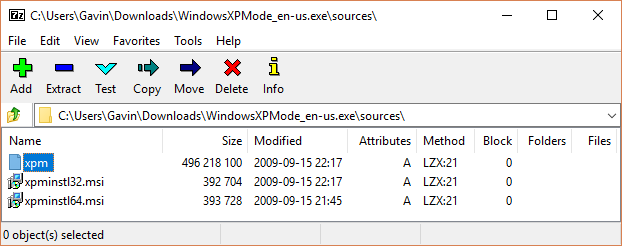
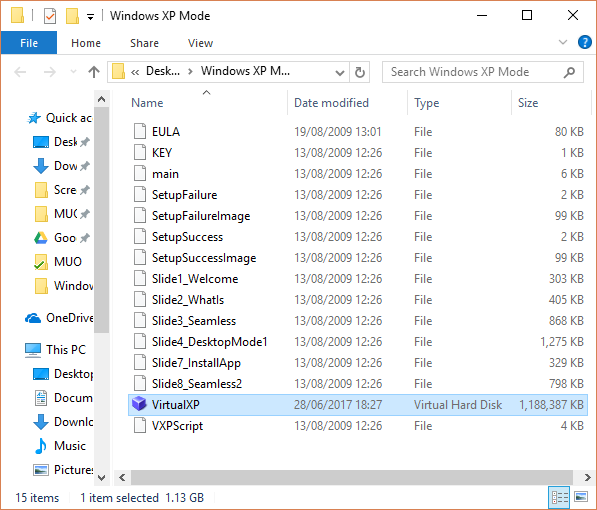
Stage 3: You’ll find 3 files and if you click sources you’ll find another 3 files. If you double click xpm you’ll open up the Windows XP mode virtual hard drive folder.

How to Download Windows XP for Free 4

How to Download Windows XP for Free 3

Stage 4: Extract the files by clicking Extract in the toolbar. Then select where you’d like to extract the files too and create a new folder. Pressing OK will then start the process.

Stage 5: Once the files have all been extracted, head over to the location you selected and select the file VirtualXPVHD. Rename the file and simply add a . between the P and the V so that the file is now called VirtualXP.VHD. This will change the file into a virtual hard disk.

How to Download Windows XP for Free 5

How to Download Windows XP for Free 6

Stage 6: Now that you have the virtual hard drive you’re going to need a virtualization program to run your virtual copy of Windows XP on. VirtualBox is the best and you can download a copy of it here.

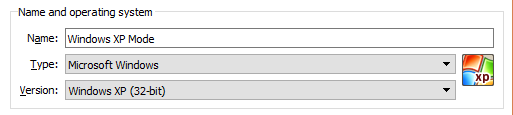
Stage 7: Once you’ve downloaded and installed VirtualBox open it and select New. Select Expert Mode and then give your virtual machine a suitable name, like Windows XP Mode.

How to Download Windows XP for Free 7

Stage 8: Now you have to assign the RAM you want your virtual machine to be able to use. Anything between 512mb and 2048mb will be fine but remember that your computer needs to use RAM too.

How to Download Windows XP for Free 8

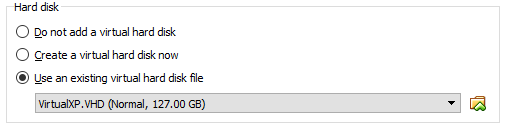
Stage 9: You now need to assign a hard disk to your virtual machine. This is where we go back and get the virtual hard disk we created earlier.

How to Download Windows XP for Free 9

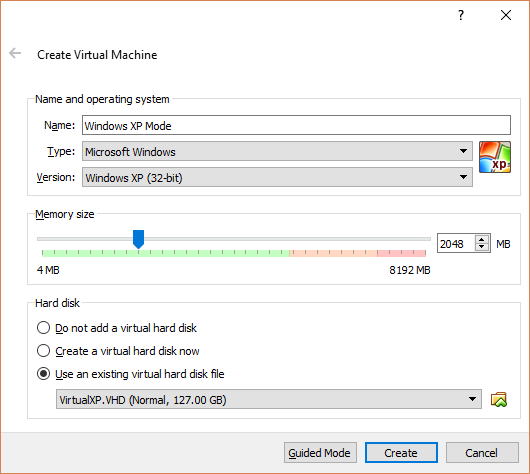
Once you’re done you should have something that looks a little like this:

How to Download Windows XP for Free 10

If you have click create.

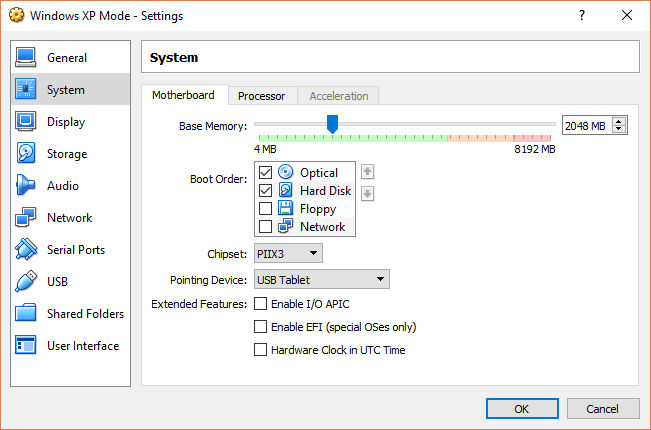
Stage 10: Before you get started on your new virtual machine running Windows XP you need to do a little playing around with various settings. Go to the VirtualBox toolbar and select Settings. Then go to System and select Boot Order. You want to put Hard Disk to the top of the list.

How to Download Windows XP for Free 12

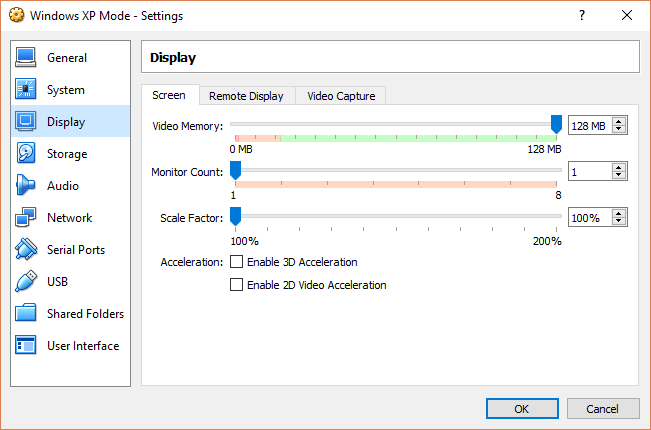
Stage 11: Then go to Display and increase the video memory to 128mb.

How to Download Windows XP for Free 11

Stage 12: Go to Network settings in VirtualBox and check that all of your network settings have been automatically applied to the virtual machine.

How to Download Windows XP for Free 13

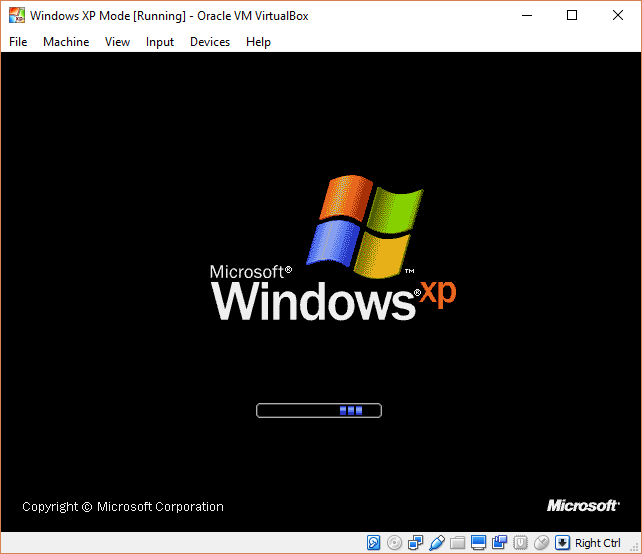
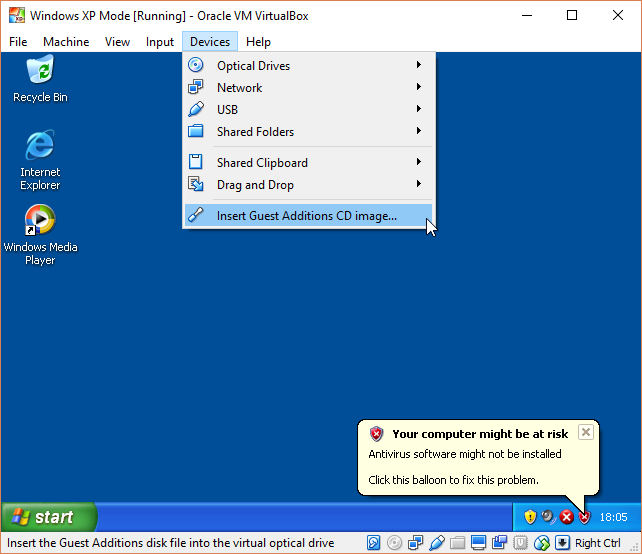
Stage 13: Boot that baby up. Don’t too excited just yet, however, as there are a couple more stages to get through. When you get to a completely black screen press Right Ctrl + R to restart the virtual machine. Cancel all of the new hardware installation and Microsoft Automatic Update wizards and head to Devices.

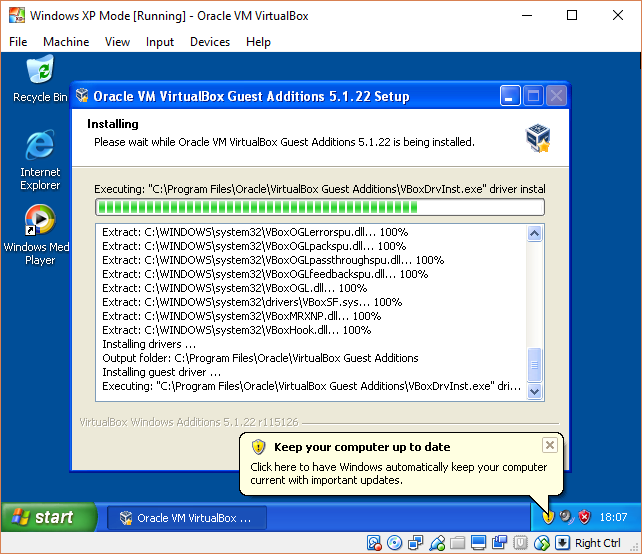
Once there select Install Guest Additions CD Image and use the default installation location.

How to Download Windows XP for Free 13

Stage 14: Once this is complete Reboot the machine again and you’ll have a fully functional virtual machine running Microsoft Windows XP. You’ll be able to use it for 30 days unless you have an old XP code lying around. If not then you can go through the whole process again in 30 days time.

How to Download Windows XP for Free 14


Follow me on Twitter: @PatrickDevaney_

Via: Makeuseof

Why doesn’t uTorrent open?

Why doesn’t uTorrent open por softonic-en

You’ve just installed uTorrent and restarted your computer, but the program won’t open. We know, it’s so irritating! But why does it happen? Usually, by double-clicking on the desktop uTorrent icon, the program should open. However, sometimes, this doesn’t work.

Once uTorrent is installed, it should open automatically when you start Windows and remain minimized in the system tray. Because of this, it sometimes seems like the program won’t open, when in fact it’s already running. This happens because the program’s settings are designed by default to resume downloads as fast as possible when you turn on your computer without having to open the program.

To ensure that uTorrent is open, first locate the uTorrent icon in the system tray, which should be next to the Windows clock.

Once you’ve located the uTorrent icon, double click to open it. uTorrent will open and you’ll be able to use it.

If you do not want uTorrent to open automatically when Windows starts, open the program, click on “Options“, and go to “Preferences“. In the “General” tab, find the option “Start uTorrent when Windows starts“. Then, all you need to do is to unmark this option to avoid uTorrent opening when you turn on your computer.

To close uTorrent, right-click on the icon in the system tray and select “Exit“.

uTorrent has many settings, so you might want you take a look at them and choose those that fit your needs!

Five fantastic free alternatives to Microsoft Office

Microsoft Office is beyond a doubt the most recognizable productivity suite out there. But not everyone wants to invest in office software, so we have found you the five best free alternatives.

OpenOffice (Windows|Mac)

Perhaps the best known of our list is OpenOffice. This is a powerful package that provides four main applications: Writer (Work), Calc (Excel), Impress (PowerPoint), and Base (a management tool). All of these are great, but what makes Open Office standout are it add-ons that further increase its power.

LibreOffice (Windows|Mac)

LibreOffice is an off shoot of OpenOffice that is developed with the same ethos. It is a complete suite that continues to grow and renew itself thanks to the support of its ever growing number of followers. Though it is similar to OpenOffice, LibreOffice provides greater compatibility and a faster update cycle.

Google Docs (Web|iOS|Android)

You are probably already well aware of Google’s incredibly versatile online productivity suite. To use Google Docs all you need is a Gmail account to access Drive. From there you can store, manage, and edit all kind of documents for free, either through your browser or with the mobile apps. Best of all these all sync automatically, letting you continue working when on the move.

FreeOffice (Windows)

It may not be the most well-known on the list, but that does not impact FreeOffice’s quality. Offering TextMaker, PlanMaker, and Presentation’ll, you won’t feel like you are missing anything with this suite. In addition to this, it is fully compatible with all Microsoft file types and it is lightweight, making it perfect for older PCs.

Office Online (Web)

That’s right, a great free alternative to Office is Office… well, Office Online. Microsoft’s connected service that integrates OneDrive, slightly stripped back versions of Word, Excel, and Power Point, plus a few extras like OneNote and Sway. Each of these tools also integrates Skype to better facilitate collaborative work.

And there you have it, 5 apps to help you get productive without spending a cent. If you think we have forgotten any, just let us know in the comments

Next week we’ll talking about Chromecast apps. Subscribe so you don’t miss that, and I’ll see you then.

Related Stories

The best antiviruses of 2016

Top 5 battery saving apps for your smartphone

2016’s most anticipated games

Follow me on Twitter: @DoFuss

20 Windows processes you can kill to make your PC run quicker

In Windows, all processes are listed in the Task Manager. Among the processes that use the most resources, some are useful, while others run unnecessarily in the background. So, which processes can you easily eliminate to increase the speed of your PC? We’ll show you 20 processes that your PC doesn’t need.

We’ve divided the processes into 5 categories: quick starters, software updates, processes from hardware manufacturers, software processes and Windows processes. For each of these, you’ll find a short explanation.

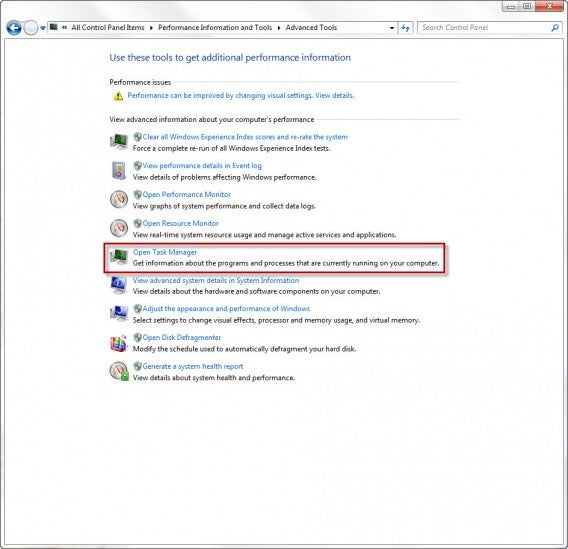
First, you’ll need to access Task Manager. Do this by going to Control Panel> All Control Panel Items> Performance Information and Tools> Advanced Tools> Open Task Manager. Alternatively, press CTRL + ALT + DEL and click on Task Manager.

Task Manager

Then, click on the tab that says Processes.

Quickstarter

Quickstarters preload parts of a program in case the user wants to open the program later. If you don’t open and close these programs often, however, the process can be eliminated.

  • reader_sl.exe is a part of Adobe Reader and stands for Adobe Acrobat Speed Launcher. It speeds up the launch of the reader, but isn’t actually necessary.
  • jqs.exe accelerates the launch of almost all software that works with Java. The Java Quick Starter isn’t really necessary.
  • Osa.exe enables some Microsoft Office programs in Windows XP to launch more quickly and anchors certain Office functions to the start menu. The Office Source Engine may be of interest to regular Office users, but probably not to others.
  • soffice.exe fulfills the same purpose as Osa.exe, but for the Office packages StarOffice and OpenOffice.

Software-Updates

Update managers periodically check whether a new version of the program is available. To save memory, you can change the update options in the program and regularly look for updates when you open it. In the meantime, you can simply end these processes.

  • AdobeARM.exe belongs to Adobe Acrobat and Adobe Reader. The process runs in the background and checks for updates to Adobe products.
  • AAM Update Notifier.exe comes with Adobe Creative Suite products. The process manages updates for multiple Adobe programs.
  • Jusched.exe actually stands for Java Update Scheduler. Once a month, the process checks whether there is a new update for Java, which is quite infrequent for a process that’s always running.
  • DivXUpdate.exe runs in the background and checks for updates to DivX Plus. You can simply terminate the updater; it launches automatically when you open any DivX program.

Processes from hardware manufacturers

Hardware manufacturers generally supply the appropriate software and drivers for their devices. Many nice additional features are automatically added on the computer, but in most cases they’re not used very often.

  • NeroCheck.exe searches for drivers that could trigger conflicts with Nero Express, Nero, and NeroVision Express. You can also start this service manually if necessary.
  • HKCMD.exe accompanies Intel hardware. The process allows the user to allocate any function to the keys, but also often leads to a sluggish system.
  • atiptaxx.exe/ati2evxx.exe comes with ATI video card drivers. The processes provide faster access to the graphics card settings on the taskbar or individual keys.
  • RAVCpl64.exe stands for Realtek HD Audio Manager. The process detects which audio devices are connected to your computer, including headphones or a microphone. Conveniently, the devices are also recognized without the process and will run anyway.
  • Nwiz.exe usually accompanies a NVIDIA graphics card. Anyone who uses NVIDIA nView functions needs the process. but it’s otherwise unnecessary.
  • CCC.exe stands for ATI Catalyst Control Center. For gamers and users with higher demands for the graphic settings on their PC, this is certainly interesting; for everyone else, it’s not necessary.
  • SynTPEnh.exe is used on many laptops and has drivers for touchpads, but Windows can provide these too. In addition, Synaptics TouchPad Enhancements is a known solution for stability problems.

Software Processes

In addition to updates, many programs offer useful and less useful services in the background. Anyone can decide for themselves whether they really need a button for each application in the start menu.

  • winampa.exe places Winamp to the right at the bottom of the taskbar and makes sure that no other programs with media content are linked.
  • iTunesHelper.exe/iPodService.exe works in the background for iTunes and QuickTime. If the process runs without these programs, it can be stopped safely – iTunes starts it automatically if needed.
  • OSPPSVC.exe comes with Microsoft Office 2010. The Office Software Protection Platform verifies that Office still has a valid licence.

Windows Processes

Windows also comes with a number of interesting, yet resource-intensive processes. Decide for yourself what to make of them.

  • Sidebar.exe makes the practical widgets on Windows 7 and Vista possible, but also eats up a lot of memory. Anyone who doesn’t use the widgets can stop Sidebar.exe.
  • wmpnetwk.exe searches the network for media files in order to populate them into Windows Media Player. If you don’t use the media player, or don’t want to search for new files, you can stop the service.

Here, you can find more processes and explanations

If you have more questions about processes and their functions, you can also consult various databases. Please note, most databases are compiled by users, so you should always consult multiple sources.

  • I am not a geek – about processes and their dangers
  • Neubert – with less content, and no search function
  • Searchtasks – with search function and recommendations on processes

[Original article by on Softonic.de]

The Best 24 Apps for Windows 10

One of Windows 10’s biggest features as an operating system is its flexibility moving between devices. Whether you are on your home computer, tablet, or phone, Window 10 is designed to offer a cohesive experience. Here is our pick of apps that offer you a great experience where ever you are.

Adobe PhotoShop Express

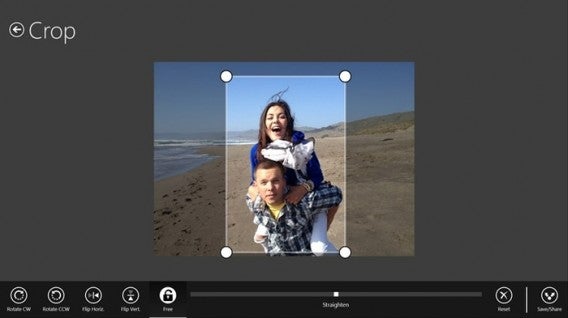
Adobe’s fantastic photo editing suite has long been the gold standard, and with PhotoShop Express they have managed to perfectly adapt the experience to touchscreen. The app allows you to quickly and easily tweak you pictures with options like red-eye removal, noise reduction, and a range of filters. The free version even lets you upload 50 photos a month to the cloud.

Download it here
Adobe Photoshop Express

AllRecipes

Cooking apps are a wonderful tool for any budding chef, and AllRecipies maybe the best of them all. With a fantastic clean layout, it’s easy to find, favorite, and read any recipe you want. Plus, I find the recipes on the app fantastic.

Download it here

AllRecipes

Age of Empires: Castle Siege

Constructing your town and army to pit them against other player’s armies and towns is becoming one of the biggest social gaming genres. However, Microsoft have used the trend to relaunch their beloved Age of Empires franchise with Age of Empires: Castle Siege. It has worked brilliantly, as the game offers more direct unit control than the competition, making it feel significantly more involved.

Download it here
Age of Empires

Angry Birds Space

Ah yes, those mad birds have been to many wild and wacky places – but to our mind space is the greatest. Angry Birds Space doesn’t add any new or weird abilities, it simply places you in space and forces you to deal with the physics and gravitational forces that apply in the cold dark vacuum that is most of the universe.

Download it here

Angry Birds Space

Asphalt 8: Airborne

Gameloft’s Asphalt series has long been mobile gaming’s go to arcade racing experience, and Asphalt 8: Airborne is just the latest, most over-the-top interpretation of this. Keeping the high-speed racing and crisp graphics the franchise is known for, the eighth installment adds high-flying ramps and aerial maneuvers to really take the action to the next level.

Download it here

Asphalt 8: Airborne

Crossy Road

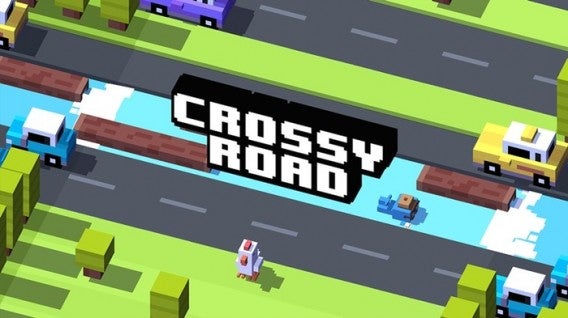
Why did the chicken cross the road? Well, we are not sure, but probably to download Crossy Road. This endless take on the Atari classic Frogger uses simple taps and swipes to give you precise control of a road-running chicken as it desperately tries to navigate highways, rivers, and railway tracks without being turned into nuggets.

Download it here
Crossy Road

Cut the Rope 2

What makes physics intriguing as an element in puzzles? Is it that we feel we have an innate understanding of how it should work and the ways we fail fascinate us? Or is it simply that inside we all want to be part of some huge Rube Goldberg machine? Who knows, but it is what Cut the Rope 2 taps into as you slice your way through ropes to drop and swing candy into Om Nom’s gaping maw.

Download it here

Cut the Rope 2

Dropbox

You probably already have a Dropbox account, making the Dropbox app even easier to recommend. This cloud storage/sharing solution gives you 2GB of storage for free when you open an account. The app’s clean and simple design also allows you to easily find the files you want, with photos particularly well displayed in albums.

Download it here
Dropbox

Facebook

If you use Facebook, as I am prepared to guess most people reading this do, then it’s hard to ignore the usefulness of the official Facebook app. Providing a simple layout which allows you to easily access all of the social platform’s options whether you are using a touchscreen or a mouse, you probably need this installed.

Download it here

Facebook

Firefox

Firefox is already many peoples go to browser of choice thanks to its high-level of customization and fast surfing experience. Well, add to that the fact that Firefox offers full Windows 10 integration, and Mozilla’s browser could easily become the number one choice for internet on the Microsoft platform.

Download it here

Firefox

Flipboard

Flipboard is a magazine viewer that offers you a curated news-feed of your interests, all beautifully laid out to look like a magazine. It’s a far more compelling way of viewing the sites you regularly visit, particularly on mobile devices.

Download it here

Flipboard

Flow Free

So simple, so free, Flow Free is another of those puzzle games that can really take over your mind. You know you are in trouble when you start day dreaming about a game and solving puzzles you create for yourself while you’re meant to be work. If you have a job that demands your full attention, maybe don’t download this.

Download it here

Flow Free

Fresh Paint

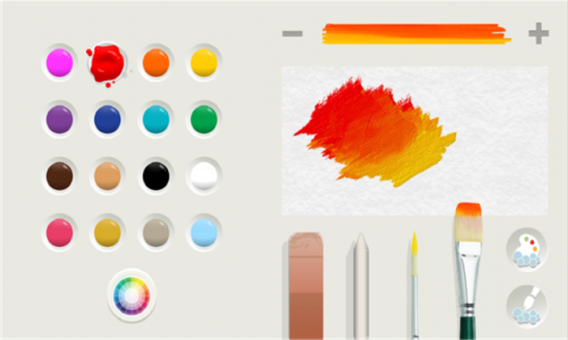
Providing you with a full featured painting app, Fresh Paint is a fantastic way to unleash your creativity. What is so wonderful about Fresh Paint is its tactile nature as, alongside a standard color wheel it also allows you to mix your own colors on a digital palette before applying them to your canvas.

Download it here
Fresh Paint

Frozen Free Fall

You can take your pick of match-three games, from Bejeweled to Candy Crush, they are all much of a muchness. However, I have struggled to let go of Frozen Free Fall. Well, I say that, what I really mean is that my friend’s daughter has struggled to let it go, so it remains installed on my phone.

Download it here

Frozen Free Fall

Jetpack Joyride

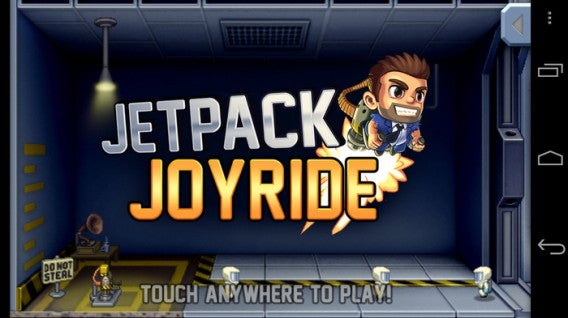
Escape mad scientists with a rocket pack. No, there isn’t much need to expand on Jetpack Joyride’s core concept to make it appealing. The only other thing you really need to know is that the simple controls and comical power-ups mean that it is, in fact, as fun as it sounds.

Download it here
Jetpack Joyride

Minecraft

If you absolutely have to have a game to launch on the same day as your new operating system, then none could be better than Minecraft. Whether this was a driving force behind Microsoft’s purchase of Mojang we will never know, but it certainly is not going to hurt the company to have the Minecraft Windows 10 Beta on its store front.

Download it here

Minecraft

Minion Rush

Endless runners are everywhere, and at this point you can get them in any flavor you fancy – from Spider-Man to Tomb Raider. Personally, however, I find it hard to resist the little yellow minions as they waddle their way through Minion Rush. The game itself is a fine example of the genre, and the minions make the perfect slapstick fodder to be on the end of every failed jump.

Download it here

Minion Rush

Modern Combat 5: Blackout

While Call of Duty’s mobile incarnations may all have been awful, that hasn’t stopped Modern Combat borrowing the idea of an extravagant modern military story. Modern Combat 5: Blackout offers everything CoD does, with a solid country hopping plot, loads of weapons, and a robust multiplayer mode that allows up to 12 players to compete together online.

Download it here
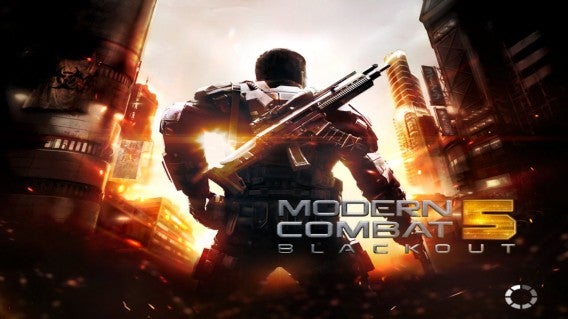
Modern Combat 5: Blackout

Nook

If you use your phone or tablet as a portable personal library, then Nook is the perfect app for you. With a huge library curated by Barns and Noble, and plenty of options to make your reading experience easy on the eyes, Nook is the app for bookworms.

Download it here
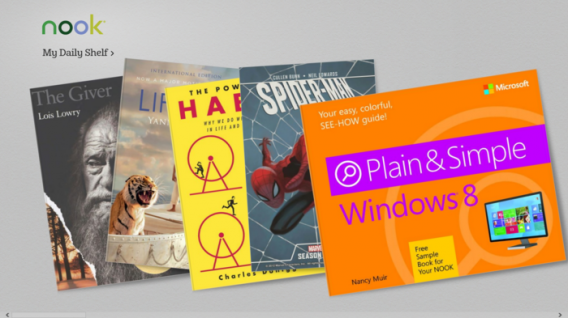
Nook

OneNote

In isolation, Microsoft’s note taking tool is just good. Add in a Microsoft 365 account, and all of the cross app and cloud storage options it opens up, and OneNote becomes a truly fantastic tool. Allowing you to edit across devices, great touchscreen support (such as the intuitive radial menu), and the ability to pull pictures from social media platforms like Facebook, OneNote is a must.

Download it here
OneNote

Pako

If you enjoyed the bit in GTA where you are trying to outrun a seemingly endless sea of police officers, then you are in luck, because that is all Pako is. Viewed from an isometric perspective, you must speed around the urban arenas trying to stay ahead of the cops for as long as possible. With a nifty 70s gangster movie motif, Pako is brilliantly playful.

Download it here

Pako

Skype

Even with every other messaging service starting to offer calls and video, Skype is still up there as the best ways to connect with friends and family around the world for free. Since its acquisition by Microsoft the service has continued to improve, and its cross platform functionality on Windows 10 makes it an even more flexible communication tool.

Download it here

Skype

Threes!

Threes! maybe one of the most perfectly conceived mobile games ever. Simple, fast, and skillful, trying to combine tiles of the same number together with simple swipes, while not boxing yourself into an impossible situation, is the kind of addictive challenge that can ruin whole afternoons.

Download it here

Threes!

Twitter

“Twitter is many people’s social network of choice. If you are one of these people, like me, you need this app. That’s 140 characters, right?”

Download it here

Twitter

Related Stories

Which Windows 10 version should I get?

What’s new in Office 2016 for Windows

Microsoft will fight Windows 10 piracy by giving it away this summer (update)

Technical Preview of Windows 10

Follow me on Twitter: @DoFuss
20 best free games for Windows 8

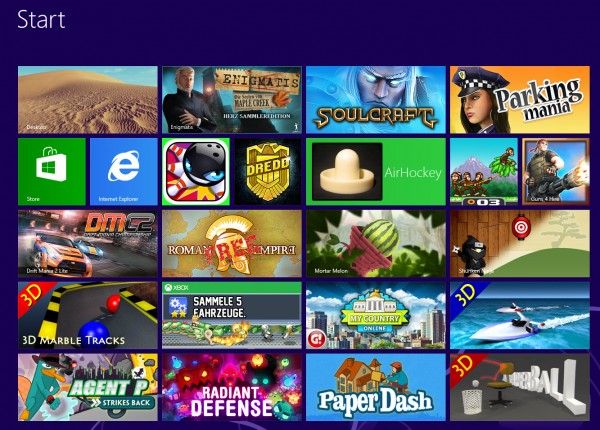
At first, there were only a few games for Windows 8, but half a year later, things are very different. Whether you’re looking for shooter, platformer, or realtime strategy game, there are lots on offer and among the (unfortunately) large number of bad games, you can find some real gems. Below is a list of games for Windows 8 that are just waiting to be played.

Windows 8 Games

Jetpack Joyride

In Jetpack Joyride, you use your jetpack to run and fly nonstop through a never ending landscape. Just like other endless runner games, the only difference is in the obstacles and gold coins you find along the way. Great graphics and a catchy soundtrack make for a light-hearted game that’s not too difficult.
Jetpack Joyride on Windows 8

Judge Dredd vs. Zombies

In Judge Dredd vs. Zombies, you have to defend Mega-City One from a zombie attack. Using different weapons, you clean out zombies from different areas over the various levels of the game.

Judge Dredd vs Zombies on Windows 8

Roman Empire

In Roman Empire, you take on the role of power-hungry Caesar. Your goal? To conquer Europe. You’ll have to vanquish neighboring villages, create alliances and make spur of the moment decisions.

Roman Empire on Windows 8

Monkey Flight

Fans of Angry Birds will enjoy Monkey Flight. Helped by special objects, the aim is to launch the monkeys so that they pick up the floating fruit.

Monkey Flight on Windows 8

Mortar Melon

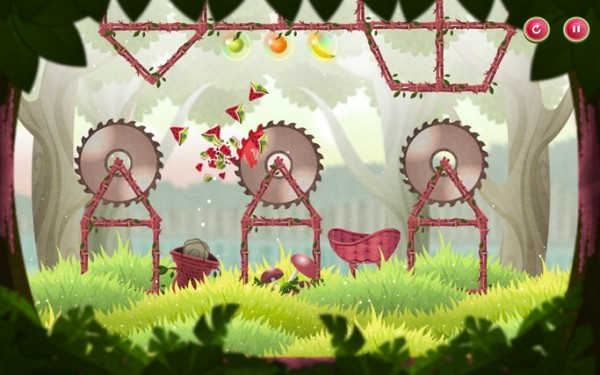
In Mortar Melon, the aim is to throw watermelons from the left edge of the screen into a randomly positioned basket. This becomes more difficult when obstacles like rotating blades are added to the mix and the difficulty increases with each level.

Mortar Melon in Windows 8

My Country

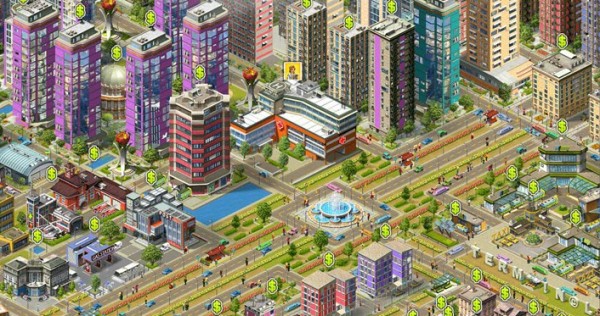
In this copy of SimCity, your mission is to build a bustling metropolis. You’ll have to build and place various buildings, roads, and other utilities to create the necessary infrastructure. If the people are happy, revenues will increase and your building plans will be safe, but if you don’t manage to organize the construction well, you’ll find that building flies out of control.

My Country on Windows 8

3D Boat Race

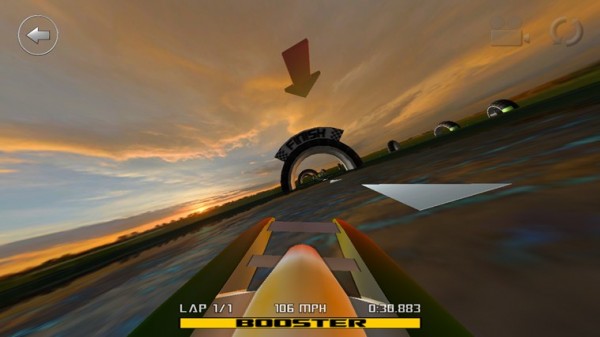
3D Boat Race lets you compete on the water in high speed boats. Arch-shaped goals show you the route to the finish.

3D Boat Race on Windows 8

Paper Dash

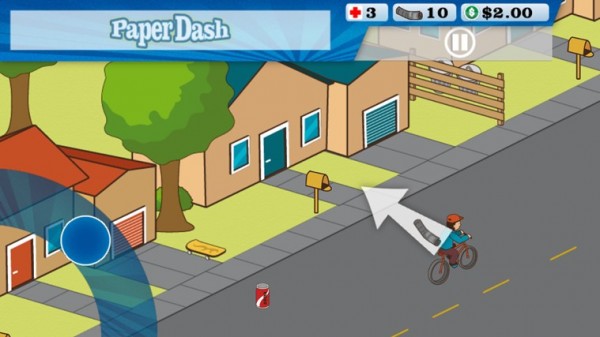
This game is a remake of the classic, Paperboy. The main character is a paperboy and you need to steer him around the obstacles that he’ll find on his route.

Paperdash on Windows 8

Parking Mania

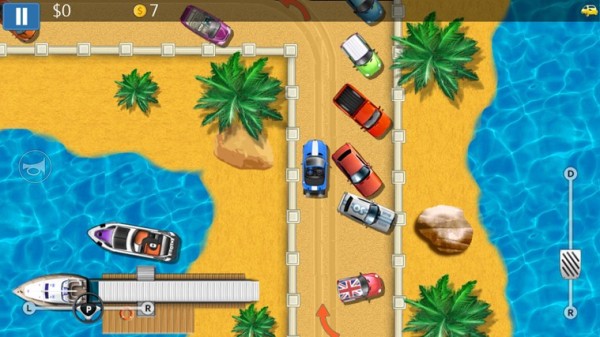
The noble art of parking is recreated in Parking Mania. The aim is to park your car in a particular space. Just as in real life, however, this isn’t always easy – there’s little room to maneuver and the best spots are already occupied by other cars. Along the way, you pick up coins and other bonuses.

Parking Mania on Windows 8

Radiant Defense

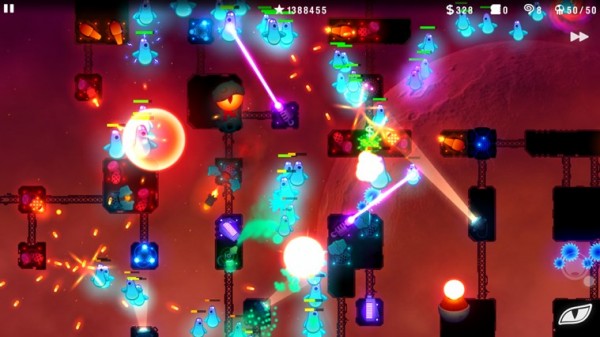
This is a colorful tower defense game. In your role as commander of a space station, you have to defend it against external attacks. Slow down your opponents by positioning defensive towers and walls.

Radiant Defense on Windows 8

3D Marble Tracks

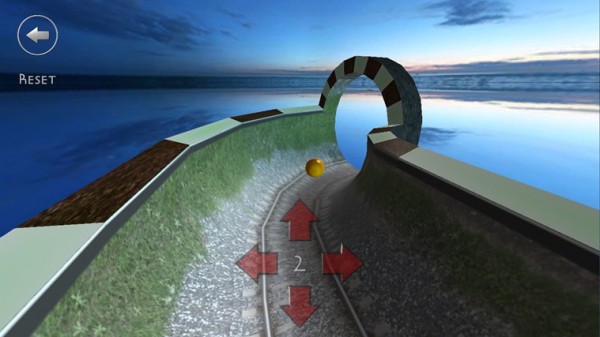
3D Marble Tracks is an interesting mix of mini golf, bobsled racing, and billiards. You’re going to need a lot of patience and a steady hand to get to the end!

3D Marble Tracks on Windows 8

Shuriken Ninja

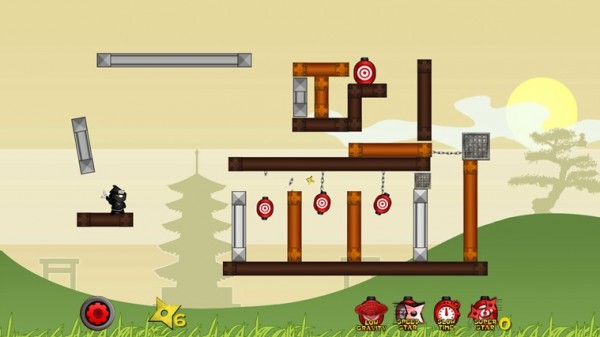
In this puzzle, you play the part of a ninja. Use your shuriken stars and throw them to create chain reactions so that they hit several targets at once.

Shuriken Ninja on Windows 8

SoulCraft

This time we have an action-packed role-playing game full of sinister characters. In Soulcraft, you fight your way through a colorful fantasy world as an angel, demon, or human being, building up your character by gaining experience in combat, weapons, and objects.

SoulCraft on Windows 8

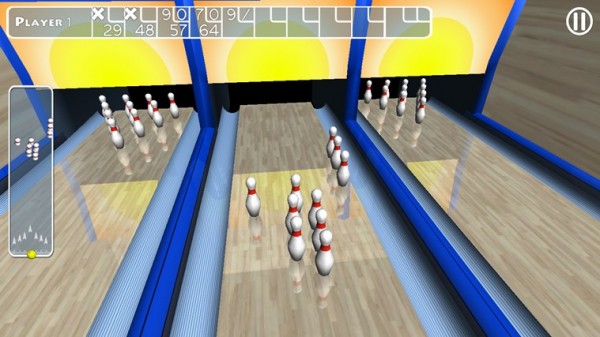
Trick Shot Bowling

Trick Shot Bowling is a classic bowling game where you can choose to play against the computer or real opponents. Decide for yourself where to aim and how hard to bowl the ball so that you can create a particular effect.

Trick Shot Bowling on Windows 8

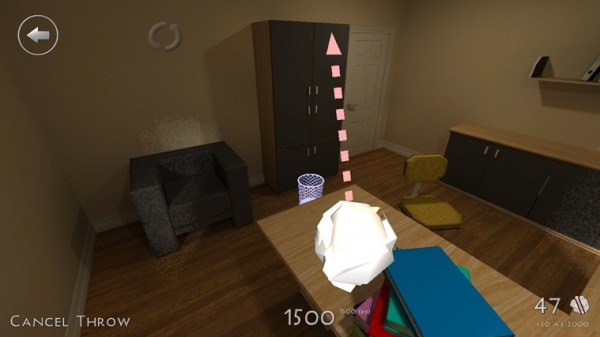
3D Paperball

Throwing a screwed up ball of paper helps to release tension. In 3D Paperball, these paper balls are virtual ones and you can show off your basketball skills by hitting the trash can in various different scenarios.

3D Paperball on Windows 8

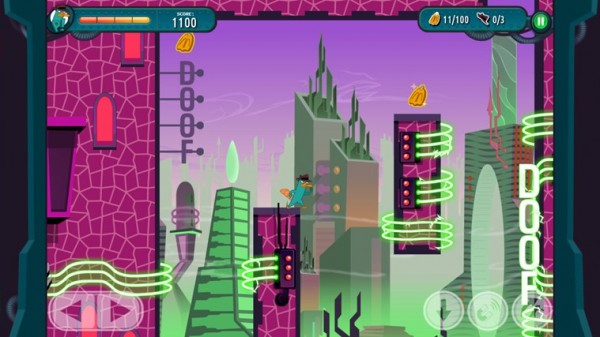
Agent P Strikes Back

This fun adventure stars Perry the Platypus, a character from the animated series Phineas and Ferb. The idea of the game is simply to jump between platforms and defend yourself against a series of animals that Dr. Heinz Doofenshmirtz has released to wreak havoc.

Agent P Strikes Back on Windows 8

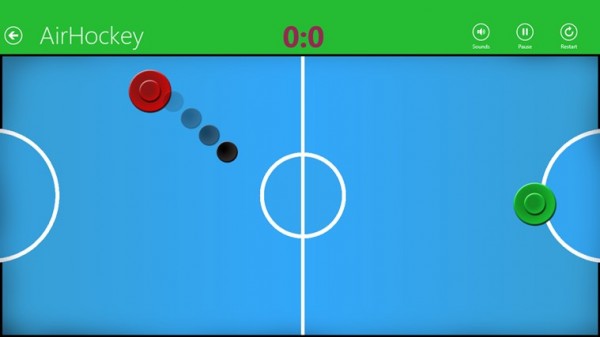
AirHockey

A good game for two people, AirHockey is classic game room entertainment. In Windows 8, the floating discs you play with become touch-sensitive controls.

Airhockey on Windows 8

Drift Mania Championship 2

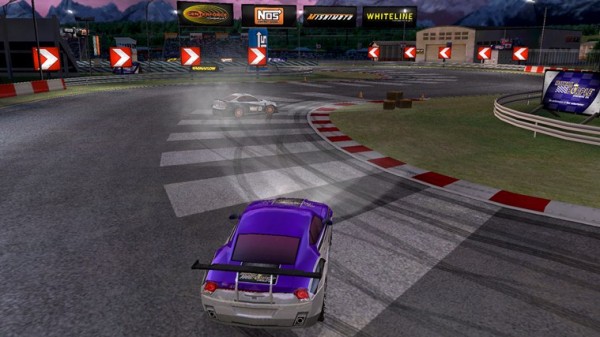
Drift Mania Championship 2 is a fun racing game with good graphics and a catchy soundtrack that makes full use of the motion sensors built into your tablet.

Drift Mania Championship 2 on Windows 8

Enigmatis: The Ghosts of Maple Creek

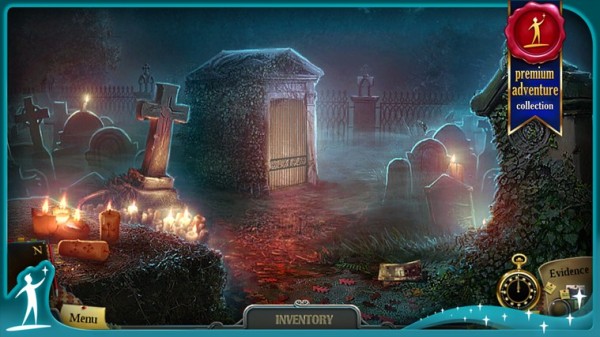
The idea behind this game is a mystery and your job is to find the hidden objects and clues in the scene. The graphics are very good and full of details. The soundtrack also helps create an eerie and unsettling atmosphere.

Enigmatis: The Ghosts of Maple Creek on Windows 8

Guns 4 Hire

In this fast-paced action shooting game, characters are armed to the teeth. The control system is similar to that of Command & Conquer.

Guns for Hire on Windows 8

What do you think are the best games for Windows 8?

Original article by José María López on Softonic ES.