Siri + Safari = Your Perfect Pair: How to Tailor Your iPhone’s Recommendations to Your Needs

Thanks to Safari’s Siri suggestions, we can quickly and comfortably access certain websites without having to go to bookmarks or searches. And also, we can customize them.

Thanks to Safari’s Siri suggestions we can quickly and conveniently access certain websites without having to go to bookmarks or searches. A system of recommendations that learns from our tastes, but to which we can offer a little help to better adapt to our day to day.

Continue reading “Siri + Safari = Your Perfect Pair: How to Tailor Your iPhone’s Recommendations to Your Needs”

With this setting, Siri will answer “Hey Siri” even when the iPhone is upside down or covered

A very useful resource if we are in the habit of supporting our iPhone while we work or if we use a case that also protects the front of the phone.

When we place our iPhone face down on a flat surface or cover its screen with some kind of case, the device interprets that we don’t want to receive notifications, calls or respond to “Hey Siri”. This is done intentionally, because when faced with messages we don’t want to read or a call we don’t want to answer, turning the iPhone over so that we can’t see the screen on the table is a fairly common gesture.

Apple Books DOWNLOAD

In addition, Siri is prevented from responding to our requests. But do we want Siri to ignore our requests with the iPhone face down? Maybe not. If so, there’s a setting that will come in handy.

Hey Siri, can you hear me?

Sometimes we try to call our favourite virtual assistant and get no response. After raising the tone of voice and repeating the call several times, we realise that we simply have our iPhone face down, which prevents Siri from answering us. A very similar situation occurs with some cases that completely cover the phone screen, which makes the function of calling our assistant without having to touch the iPhone unavailable.

Fortunately, the situation is easily solved, as there is a setting that we can modify so that Siri responds regardless of how the screen is displayed. The steps to follow to configure it are as follows:

  1. Open the Settings app on your iPhone or iPad.
  2. Go to Accessibility.
  3. Tap on Siri.
  4. Activate Always allow to activate when you hear “Hey Siri”.

Now, although our iPhone will respond to us regardless of whether the screen is covered, when it is, it will silence notifications and behave as we mentioned at the beginning of the article. Thus, we can continue to use this gesture as an alternative to Do Not Disturb mode, for example, but knowing that our assistant is at our disposal.

A very useful resource if we are in the habit of resting our iPhone while we work or if we use a case that also protects the front of the phone. A configuration that we can easily change whenever we need to.

Apple Books DOWNLOAD

Some of the links added in the article are part of affiliate campaigns and may represent benefits for Softonic.

Siri on your iPhone: Discover the possibilities and how to use it to the fullest

Whether it’s for a simple question, to set alarms or events, or simply to know if we need to bring our umbrella, Siri is always there to help us.

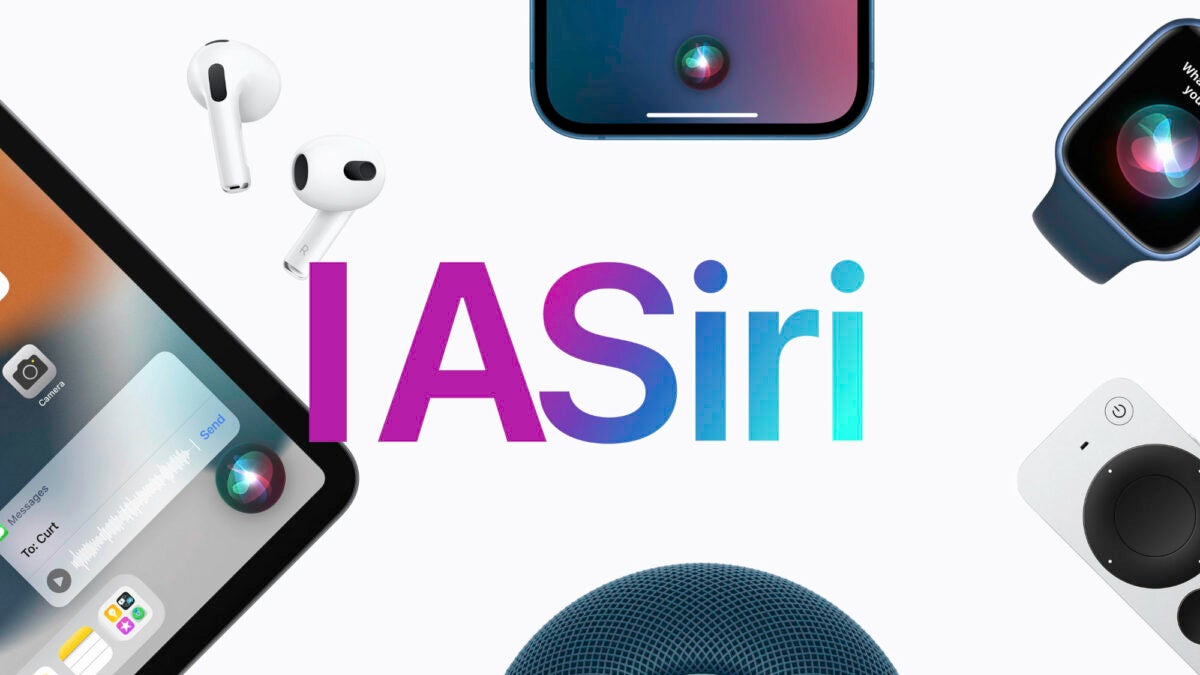
Siri is Apple’s voice assistant. An assistant that has evolved over the years to become a fundamental tool in our iPhone, iPad and other Apple devices. Siri allows us to interact with our devices efficiently, quickly and naturally, using only our voice.

Continue reading “Siri on your iPhone: Discover the possibilities and how to use it to the fullest”

Testing Apple’s AI in Siri: How Well Does It Really Work?

Apple is testing its own AI with Siri and we can test it too. For now only on one device, but this is just the beginning.

In recent years, artificial intelligence has become a key technology in the development of virtually anything, and Siri is no exception. Aware of this, Apple has been working on new technologies that can enhance the capabilities of its virtual assistant and take it to a new level.

Continue reading “Testing Apple’s AI in Siri: How Well Does It Really Work?”

Is Apple About to Blow Our Minds with Siri 2.0? Inside the WWDC 2023 Rumors

Apple is working on an artificial intelligence similar to ChatGPT in order to improve Siri, according to rumors. Will we see any of it at WWDC 2023?

Apple is working on generative AI concepts that could be intended to improve Siri. Apparently, the company has been developing a large language model and other AI tools that were reported at the AI meeting held for Apple employees last month.

Continue reading “Is Apple About to Blow Our Minds with Siri 2.0? Inside the WWDC 2023 Rumors”

Siri is listening in on your private conversations

Siri has recorded drug deals, doctor visits, and even sexual activity!

Siri

It’s looking like Siri is one bad apple.

People working for Apple have heard users talking about confidential medical info, buying drugs, and even having sex, according to an article from The Guardian.

How are they hearing this? They’re doing it through Siri! 

Contractors hired by Apple are paid to listen to user recordings. Their job is to grade the responses that Siri is giving to determine if it is functioning properly. The problem is that Siri sometimes picks up on something inappropriate, and has been known to wake and record unintentionally. 

These contractors are working to improve Siri’s human understanding so that it only wakes when it is supposed to wake up. They’re also working to make sure Siri actually says something of value when you ask it a question.

When you hear about issues like this, the first thing that comes to mind is probably all of the issues with Amazon’s Alexa listening in on users. Unfortunately, Siri is just as guilty as Alexa.

Should I be worried?

This information came from a whistleblower who worked for one of these contracting firms. They chose to remain anonymous but came forward as they thought the lack of disclosure from Apple was so egregious.

In a statement to the Guardian, Apple said that the recordings are not tied to a user’s Apple ID.  However, according to the whistleblower, the recordings typically come with location information, contact information, and app data.

What should I do if I have an iPhone?

We’re not going to act like there aren’t also security issues or concerns with Android.

There’s no need to throw your iPhone in the nearest blender. However, you might want to disable Siri from listening in on you. On your iPhone, go to Settings and choose “Siri & Search.” From here, if you tell Siri to stop listening and if you remove the option to “Press Home for Siri,” you’ll get the option to turn it off altogether. 

At Apple’s recent WWDC, the company gave users tons of information in a huge privacy push that they are making. It looks like the company really needs to put more effort into how Siri works, and what she listens to without your knowledge.