Which apps use the most data and how to cut down

Keep going over your data limit? Here’s how to fix that.

APPS

For those who don’t have unlimited data included in their phone plan, every bit of data that you do have is like gold. The feeling of having data left at the end of the month is the euphoric equivalent of reaching the cool-down part of your workout, clocking out of work on a Friday, and huge discounts on Halloween candy on the first day of November. If you’re active on social media, not flying through your monthly data is nearly impossible, so we’ve compiled a list of the apps that use the most and how to cut down on the usage.

These apps are likely to be using most of your data

Social media

Facebook, Instagram, WhatsApp, Twitter, Tumblr, and Snapchat. The number one killer of data is social media apps. Facebook is like a black hole, since most posts now include videos that auto-play as you scroll down your timeline. Twitter is always live and sends you notifications if you opt in, and Whatsapp and Snapchat are the same.

Entertainment and music

YouTube, Netflix, Hulu, Twitch, and other streaming apps. Any app that is streaming video or audio like Google Play, Spotify, and Pandora will majorly drain your data life force as they need a constant connections to give you clear sound and video.

Ride sharing and GPS

Lyft, Uber. Similar to streaming apps, ride sharing and apps that use GPS also need a constant connection. You need to know where your Uber is taking you, and you don’t want Google Maps to send you into a lake. This also includes games that use location services like Pokemon Go as they are constantly updating and changing as they receive input from other players. Games that need to log your progress have to be online, and they’re terrible with data because you often lose track of how long you’re playing.

Exercise apps

Google Fit, MyFitnessPal, and Stepz. Most fitness apps count your steps and how much you move around in a day, they’re always on and running even if you don’t have the app open.

How to save data

Don’t panic! You can check your usage and see which apps are stealing the most of your precious data. Once you know, it’s easier to have an idea of how you can cut down. iPhones have some handy functions to help.

Save data in iOS

In your settings, tap ‘Screen Time.’ There, you’ll have it all laid out in front of you; what areas you spend the most time viewing and which apps you use the most.
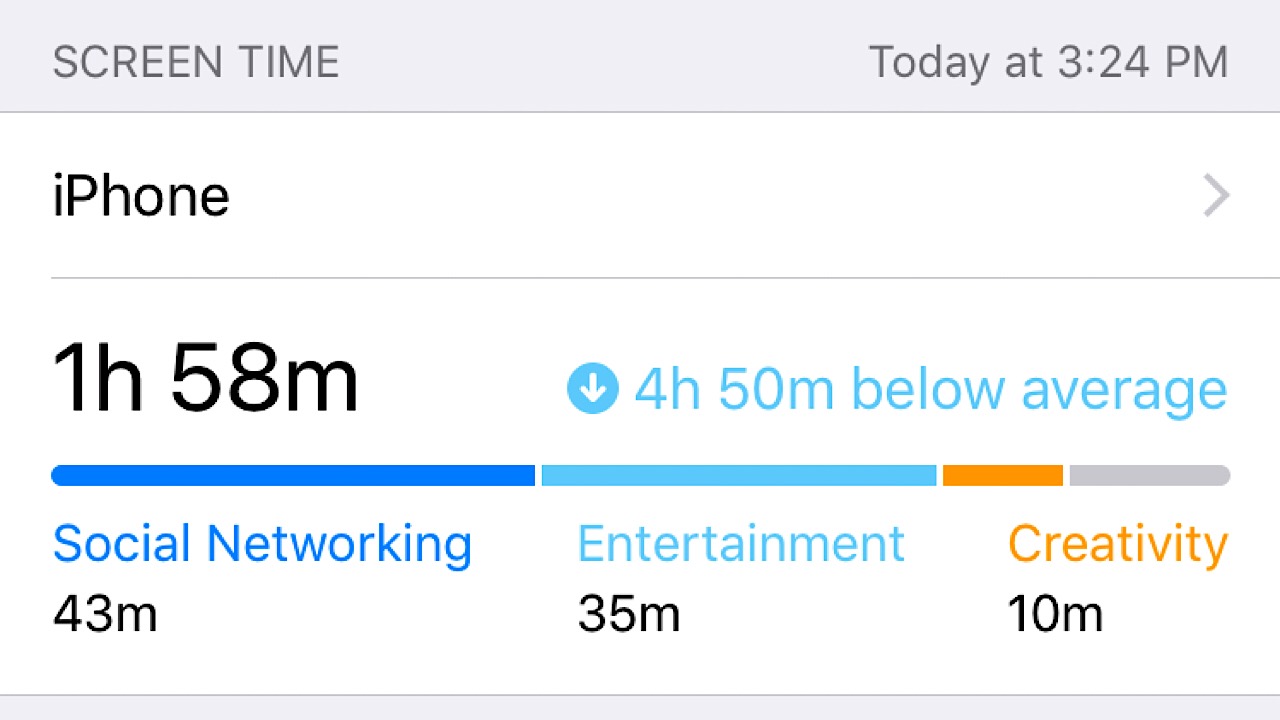
screen time screenshot

From there, you’ll have three sections where you can manage usage. If you turn on ‘Downtime,’ you can schedule a period of time in which only apps that you choose to access can still run. ‘App Limits’ is exactly what the name suggests; choose a category, like social media, and then set how much time daily that you can use any and all of those apps. You’ll get an alert five minutes before your limit expires, and then you won’t be able to use any of them until your time resets at midnight. Configure this further with ‘Always Allowed,’ and you can choose apps like Mail that you’ll always be able to access.
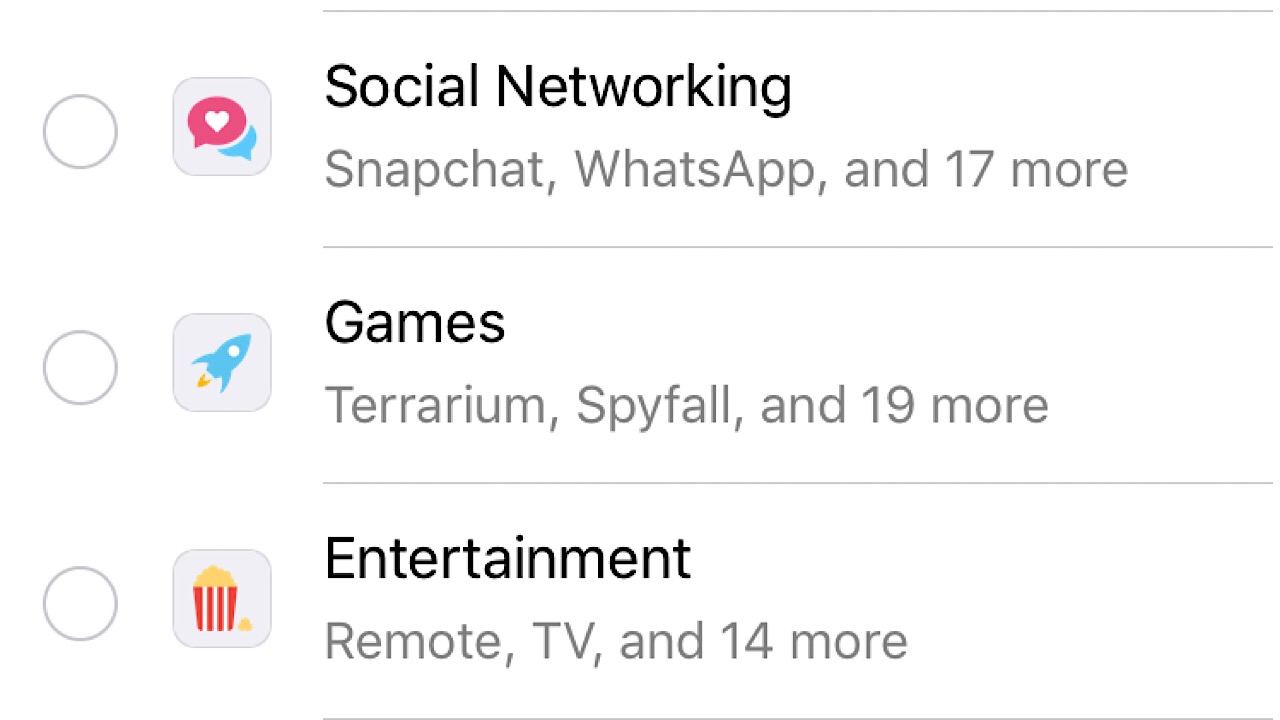
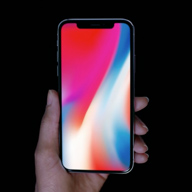
data screenshot

Save data in Android

Android phones have a similar function in ‘Set Data Limit,’ and you won’t be able to use any after your time is up. Android Nougat’s Data Saver disables apps that run in the background, and you can whitelist apps that you want unrestricted access to. Without Android Nougat, try Google’s Datally app which works exactly the same way.

Datally Download Now
9

Try these tips to keep your data usage to a minimum, and you’ll have some juice left for when you really need it.
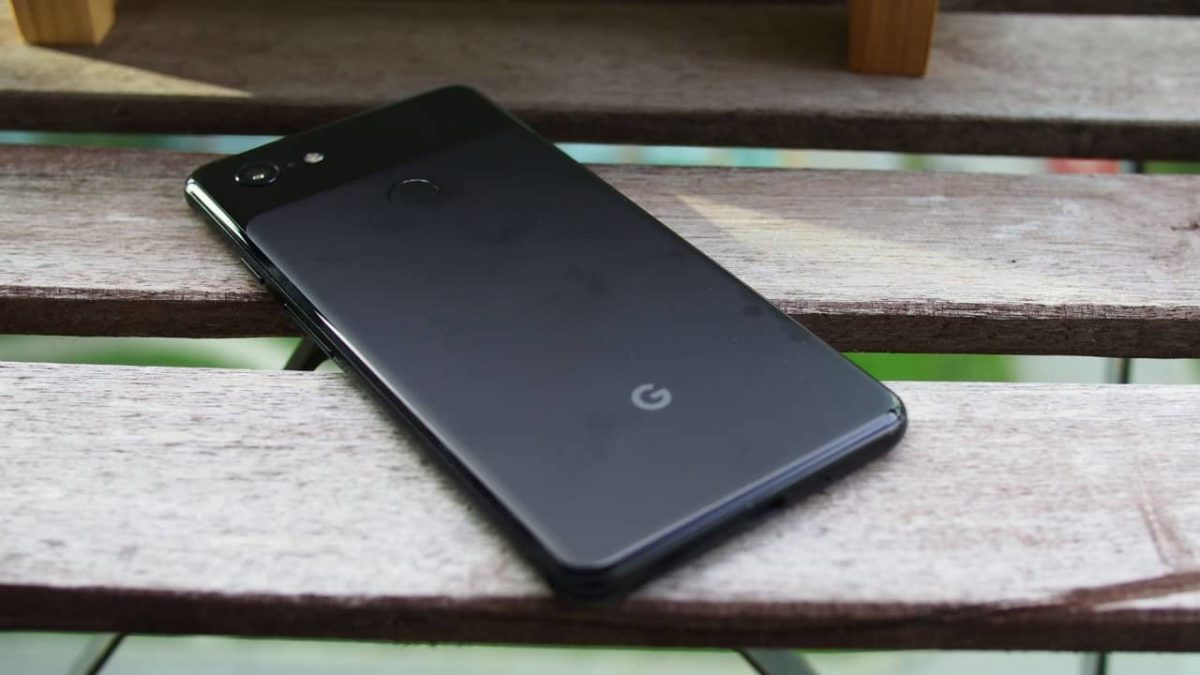
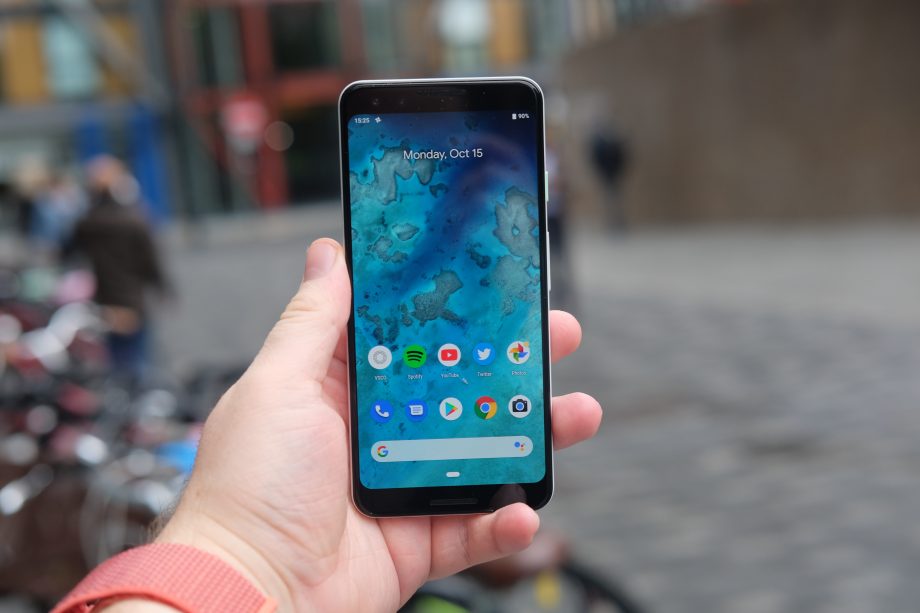
Why the Pixel 3 is the best smartphone on the market

Should you shell out for the Pixel 3? Yes! Here’s why.

After the leaks, unboxing videos, and the generally unremarkable unveiling event it’s no surprise that the reception for the Google Pixel 3 was less than resounding. Aside from not presenting us with anything we didn’t already know about from the abundant leaks, the phone doesn’t appear to offer much in the way of competition with other smartphones on the market.

There’s no pen stylus, it doesn’t have three lenses on the back, and the Snapdragon 845 that powers both the Pixel 3 and the XL can’t consistently match up to Apple’s A11. There don’t seem to be any features on this phone really making it stand out or crush the competition. In many ways, it’s overly similar to the Pixel 2, which is why the leaks before its release were so disheartening.

So why would this phone possibly be worth your time?

Why you should choose Pixel 3

The Pixel 3 is ready to trade blows with the smartphone competition of 2018

Right away you’ve got a good screen with OLED and HDR (despite the infamous notch up top) that makes for a crisp display and a high resolution. The Pixel 3’s battery life is quite good, too; after a day of using it heavily we found we still had around 30% battery life remaining.

Android 9.0 utilizes new gesture-based interactions that are reminiscent of the iPhone X, and the rear-mounted fingerprint sensor is now on the back of the phone. Both the Pixel 3 and the 3 XL have dual front-facing stereo speakers, which Google says are 40% louder than the Pixel 2.

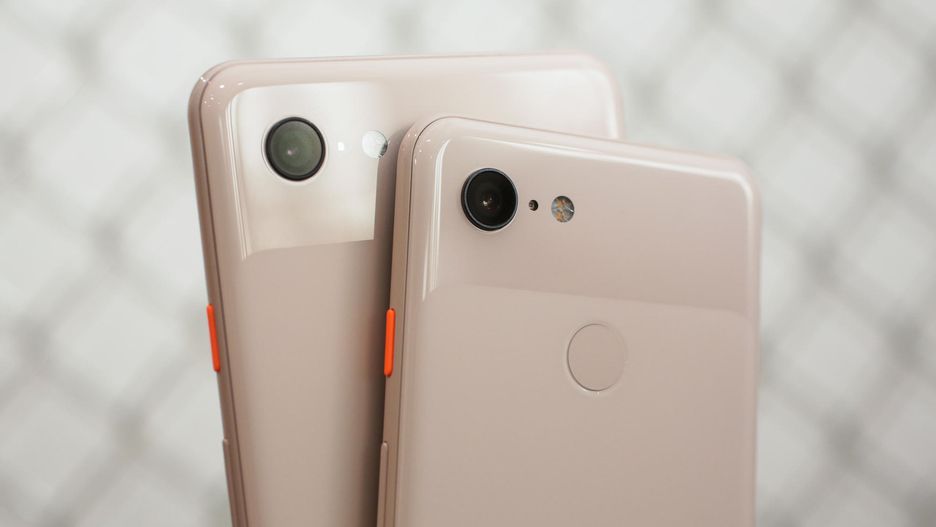
Kind of like how Apple’s design stays true to its roots, Google’s Pixel 3 is also in keeping with the recognizable glass visor. This time, though, the back is glass instead of metal (which looks really cool against the frosted texture) and on the front, there’s an extended aspect ratio display.

Cameras

A smartphone has to have a great camera, or at least a good one. With social media platforms like Snapchat or Instagram focusing so heavily on high-quality photos and vidoes, it’s a necessity. The Pixel 3 doesn’t incorporate the same cutting-edge camera hardware that Apple uses, and shockingly still opts for a less powerful single-lens camera system.

The single-lens camera is surprisingly powerful, thanks to Google's superior software

On the surface, this may seem like a detriment when compared to, say, the iPhone XS, but you need to look at the results. The Pixel 3 has an astonishingly detailed portrait mode that it can capture with its single-lens rear camera. Check the picture quality comparison between the two phones for yourself:

There’s also the new Top Shot feature which takes a dozen or so photos whenever you take a selfie. This allows you to pick your favorite shot from the set; useful if you accidentally blinked or the lighting changed. Not groundbreaking, but a nice addition!

As it stands, Google is able to do with a single lens what Apple had to add completely new hardware to accomplish. On top of that, Apple spiked the price and had to remove hardware to do it:

The inclusion of new hardware in Apple products has been a point of frustration as early as the iPhone 7. Removing features like the aux jack might not seem overly bad on the surface, but it feels like Apple is pushing things off the shelf to make room for others – and oftentimes these aren’t features we asked for or needed.

So does the Pixel 3 have an aux jack?

No. No i,t does not.

However, at least Google had the decency to include a USB-C to 3.5mm adapter in the box, though. Buy a Pixel 3 and you’ll receive a fast-charger USB cable in the box as well as a portable charging brick:

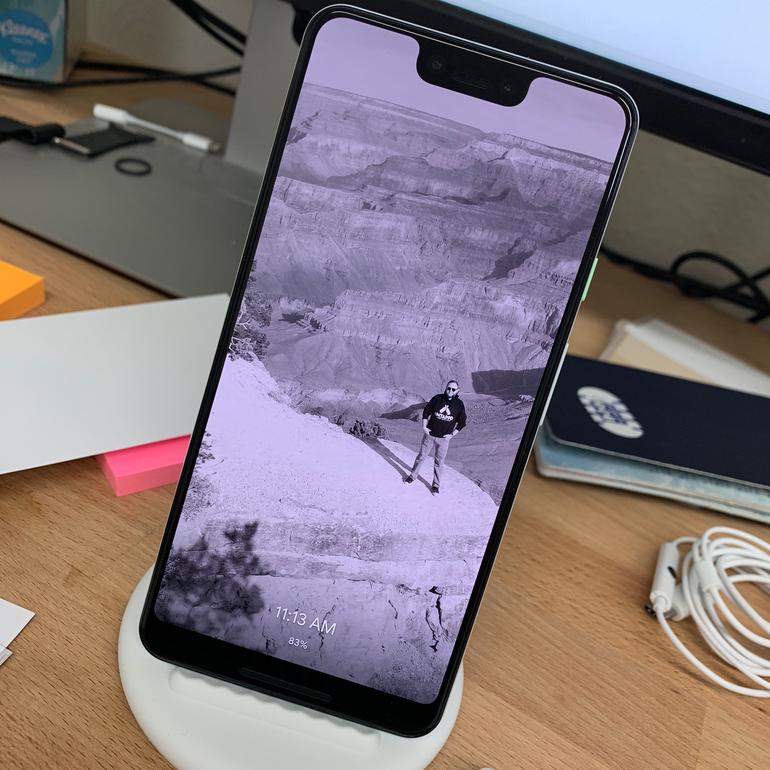
Pixel 3 comes with a portable wireless charger. You seeing this, Apple?

You can do so wirelessly now, too, which is pretty neat.

Regardless of whether you need it, you can’t argue that you’re getting a lot more gadgetry for the money than if you buy that XS. You’ve got to pay Apple an extra $9 for the privilege of restoring a functionality that you enjoyed several models ago.

The Pixel 3 has 4 GB of RAM and the snapdragon 845 is the latest chip from Google. Is it a couple seconds slower than Apple? Sure, but we have to say that unless there was a side-by-side comparison we wouldn’t have noticed. Snapdragon 845 is incredibly responsive and smooth, and makes for a phone that’s intuitive and quick. It’s one of those things you won’t necessarily think to buy a phone for, but the fact that it’s response time isn’t a problem is something you’d immediately notice were it not the case.

Not buying it?

Want a piece?

With Pixel it’s less about the hardware and more about the software, and that’s where the phone really excels. Some of the changes took a little getting used to – particularly the home button swipe and varying gestures – but once you surpass that learning curve (probably a day, maybe two) you’ll start operating the phone as if you’ve always owned one; it’s smart, the gestures are logical, navigation is intuitive and altogether faster than the Pixel 2.

Android 9.0 is the fastest OS to date for the company. Pixel 3 rocks it.

We’ve reached the point where our smartphones can do so many things that adding new elements to the mix almost feels superfluous. It’s arguably better to not have a phone that’s chock full of unused features, like Samsung or LG are infamous for doing. With the Pixel 3, there’s no bloatware, it’s really smooth, and it doesn’t have an abrasive number of bells and whistles that a smartphone doesn’t need.

The Pixel 3 does everything you’d expect a smartphone to do, and it does those things really well; it’s like a perfect steak or a good sushi restaurant: You don’t need to add excessive, desultory items to something that’s already good; you just need to make slight improvements to the formula to improve the aspects people already expect.

Is Pixel 3 the phone for you?

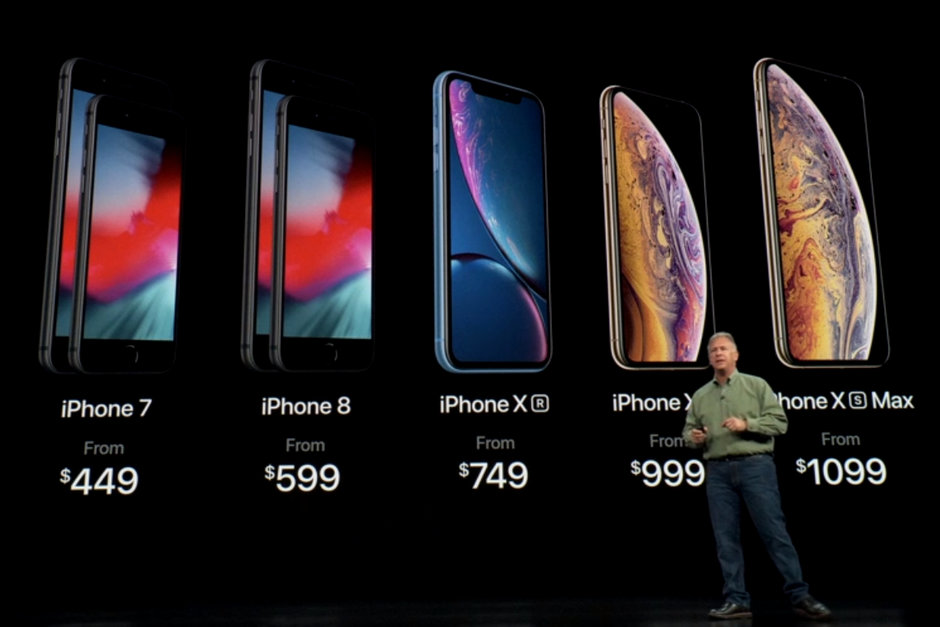
The Pixel 3 starts at $799, while the larger Pixel 3 XL sells for $899. (The iPhone XS by comparison is $999 while the XS Max is $1099.)

For further comparisons between the phones, you can check right here. Let us know in the comments below whether you think this is the smartphone for you!

Switching smartphones? Here’s what you need to know

Ready to trade up for a new phone? Here’s how to move all your stuff to the new one.

phones

Your smartphone holds all kinds of information you don’t want to lose. That’s part of the reason that upgrading to a new phone can be intimidating. What if all of your important data disappears? Don’t worry. Getting your new phone ready to go may not be as difficult as you thought.

If you already use Google or Apple for your contacts list, your calendar, and your email, you are halfway there. Here’s a step-by-step guide.

Switching smartphones? Here’s what you need to know

1. Look to your system’s backup settings

iTunes

Open your iTunes account and connect your iPhone to your computer. Or, go to your new phone’s settings page, click on your Apple ID name, and choose iCloud. Select the items you want to keep under “APPS USING ICLOUD.”

If you choose to transmit personal data, such as passwords, select “Encrypt iPhone backup” to keep your info secure. Either way, your selected apps are safe and sound and are ready for transfer.

Android

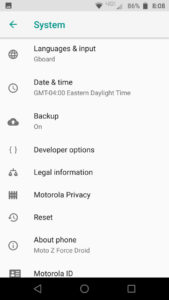
From Android, go to Settings and then System, and then pop into Backup. Is the setting enabled? If not, click it and make the change.

Scroll through the list of items available to back up. What content do you want to move over onto your new phone? Check the boxes and press the button to back up your data.
2. Restore from your backup

Auto backups are a great start, but you aren’t quite finished yet. Grab your new phone and sign in.

When you first turn on your new phone, you will need to set it up. You’ll be asked for details such as your country and your Wi-Fi network. As you make your way through the process, a prompt will appear asking if you would like to restore your data from a backup. Yes, you do.

Select the most recent backup (if given the option). Like magic, your phone will suddenly look a bit more familiar. Your contacts, email, and calendar will be ready to roll.

3. Check your favorite apps

What’s a smartphone without apps? Some of your apps may have made the transfer. Hooray! Visit your must-have apps to see if they have been included too. Is anything missing?

If you have favorite games, productivity apps, or anything else you don’t want to lose, click on the app on your old phone. Is your information saved in the cloud? Dig in and see how and where the developer saves your information.

A successful smartphone switch

Before you wipe your old phone clean, go through your pages of programs and apps. Did you save everything you need? If you are missing anything, click on the app, and see how the app stores your information.

Once you’ve installed your apps and restored your information, you may want to take a look at ways to keep your phone secure. After that, it’s time to enjoy your new phone.

Google Photos: How to use the cool new Live Albums feature

We look at Google Photos’ newest feature, Live Albums, and show you how to create them

How to use Google Photos Live Albums

With so many details leaked about Google’s latest handsets, the Pixel 3 and Pixel 3XL, it was easy to forget this year about the other big announcements that usually come with the Pixel announcements. Every year, alongside the Pixel devices, Google unveils some brand-new features for Google Photos and this year didn’t disappoint.

Google Photos Download Google Photos
7

What are Live Albums in Google Photos?

You know a new feature or product is good when it makes sense the first time you hear about it. Live Albums is one such feature. They allow you to select the people and even the pets you’d like to be a part of the album. Then, whenever you take a photo that includes any of the selected people or pets they’ll automatically be added to the album. These Live Albums can then be shared, just like normal albums, and everybody will be able to access the new and updated albums whenever new photos are taken and added to them.

Using this latest feature for Google Photos is really easy. All you have to do is:

  1. Open your Google Photos app on your iPhone or Android device.
  2. Select New Album.
  3. Hit the option Automatically add photos of people & pets.
  4. Select the people and pets that you want Google Photos to automatically add to the album.
  5. Hit Turn on in the top-right of the screen.

Once you’ve created your Live Album, you’ll also be given the option to share it with whomever you wish. Another cool feature is that you can turn any album into a Live Album by activating the setting in step 3 when the album is open.

Behind the scenes, there will be a lot of heavy lifting being done by Google’s AI. Facial recognition for humans and animals is no mean feat. The end product, however, makes perfect sense. Google has made it easier than ever to make and update albums that are filled with our loved ones. Live Albums are definitely photo albums 2.0. Well done, Google.

Google Home hub Perfect Photos Gadget
The Google Home Hub will automatically update and show Live Albums

To make the most of Google Photos newest feature, and all of the other AI powered features that come with it, Google has built Photos into its latest Assistant powered device, the Home Hub. As well as automatically updating the family photo albums the Hub displays, it’ll also respond to voice commands. You’ll simply have to ask to see photos of your trip to Italy and Photos and the Hub will work their magic.

Photos is taking bold strides into the future with its new features and Google is building hardware to showcase its new skills. If you love taking photos, this can only be good news for you.