Thanks to the cloud, we can see the notes on our iPhone from any device.
The Notes application on our iPhone is a very useful tool for saving information of all kinds, from text to photos, documents, passwords and much more. If we have a PC within our ecosystem, it is important to know how to access this information. Let’s see how to access notes from Windows.
Create and edit professional documents in the blink of an eye thanks to our selection of the best free word processors of 2023.
Word processors are an indispensable tool on any PC. Every day we need to write all kinds of documents and reports, whether for our studies or in our working day. No wonder that one of the classic requirements when buying a new computer is that it comes with Office or Word installed, but… What happens if we can’t afford Microsoft’s office suite? Very simple: We will need to download a free word processor.
In today’s article we are going to offer you a selection of what we consider to be the best free word processors for 2023. All these alternatives to Word have been carefully chosen for their functions and tools as well as for their compatibility and ease of use. Are you ready to get to know them?
What should a good word processor have?
Choosing a good word processor is not easy. Searching the Internet, you will find an endless number of options, both free and paid, that promise to solve any problem when it comes to writing a document. However, not all word processors are the same and not all offer the same functions. What features should we take into account when choosing one?
First of all, we must take into account its file compatibility. Bear in mind that the most widely used word processor in the world is Microsoft Word, so it is essential to look for a program that is compatible with the DOCX format. This is the only way to ensure that we will be able to open documents saved in this format and at the same time be able to share our files so that others can open them without any problem.
Another important factor is that it does not slow down our computer. Many free word processors are not optimized and even though they are functional, they use too many computer resources. This translates into having to deal with a slow PC, decreasing our productivity and with the constant danger of the program not responding or losing the document.
It is also essential that the word processor is updated often. This will ensure that any errors or bugs in the program will be repaired by its developers, as well as protect us from possible security holes. In addition, a word processor that is updated often indicates a development team involved in the program, so it is more likely that we will see new features, tools and improvements added in a future update.
Finally, it is interesting if a word processor is cross-platform or includes cloud functionality. This way we will be able to work on the same document regardless of the computer or device we are using, as well as making it easier for other users to access the document.
1. WPS Office Free
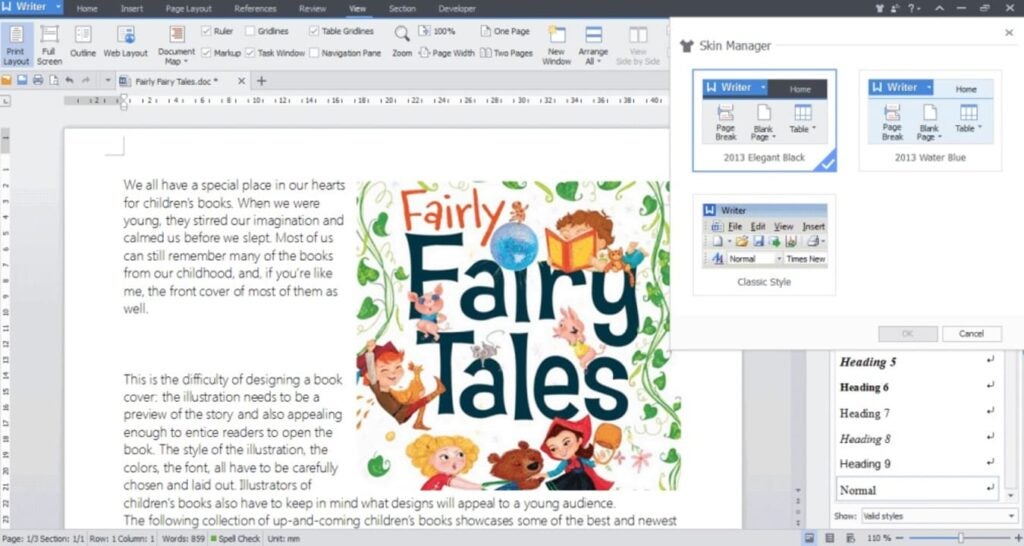
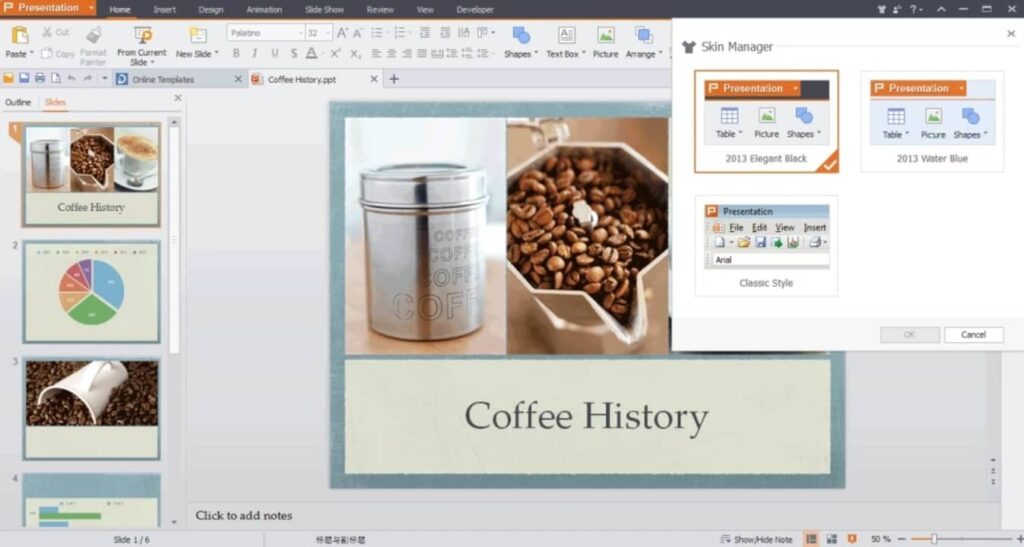
We start our selection with WPS Office Free, a totally free productivity suite that will surprise all former Word users. It offers a text editor almost identical to Microsoft’s word processor, making it ideal for not wasting time learning its functions. From its interface you can create all kinds of documents, either from scratch or using its wide selection of default templates.
WPS Office Free is compatible with the main text file formats on the market, including DOCX. Thus, it is a perfect option if you want to make sure you don’t have any problems when opening or sharing files. On top of that, it has an interesting cloud storage service very similar to OneDrive.
The only weak point of WPS Office Free is that, being a free tool, it has ads that appear on screen. Even so, these are really discreet and can hardly be seen. Overall it is the best free option to do without paid suites like Word.
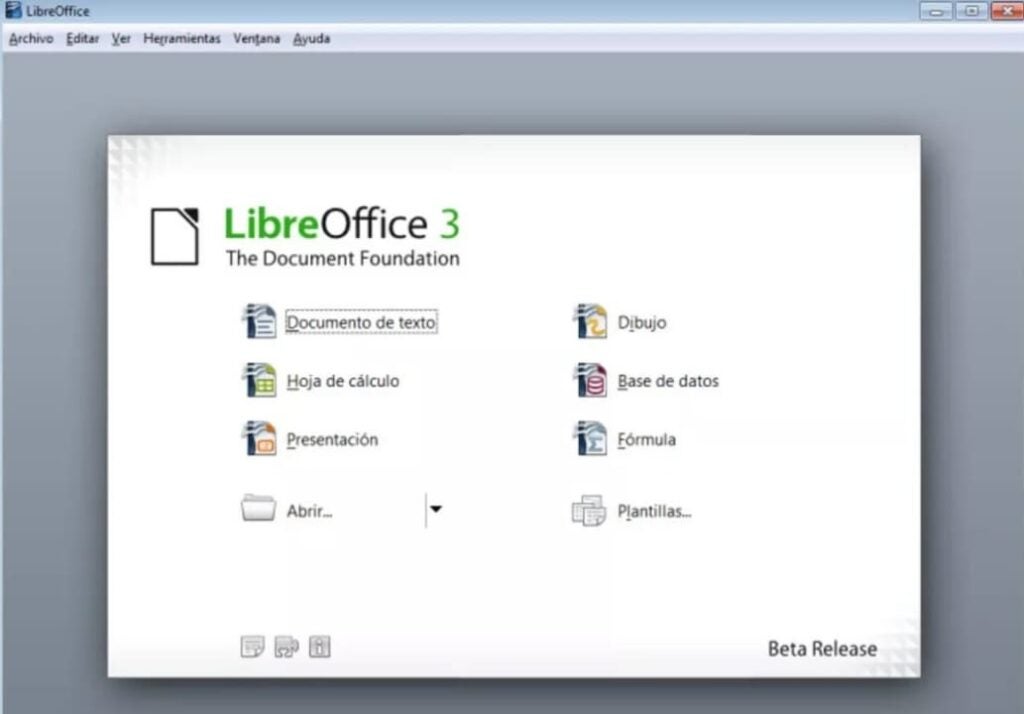
LibreOffice is a complete open source office suite that includes a powerful word processor, Writer. In a similar way to WPS Office, Word users will feel at home using Writer. This is a program for creating and editing documents that is very visual, simple and intuitive to use. And best of all, it is always being constantly updated.
Writer is a free word processor perfect for all those who are not used to using one or simply looking for a complete program with which to create any type of text. From LibreOffice you will be able to write any document easily thanks to its wide selection of templates and tools. Not sure how any of them work? Don’t worry. Thanks to its wizard you will easily learn the specific functions of the program.
A very interesting point of Writer is that, being included in LibreOffice, you will be able to interact with the other tools of the package and therefore, add spreadsheets or make bibliographies in the blink of an eye. being an excellent candidate for best free word processor on the market.
In terms of compatibility, Writer supports all types of text files, although sometimes it does not display some Ofice documents correctly. Still, it remains an excellent candidate for best free word processor on the market.
PROS:
Complete office suite
Compatible with most text formats
Almost non-existent learning curve
Multiplatform
CONS:
Occasionally some Office documents may have errors.
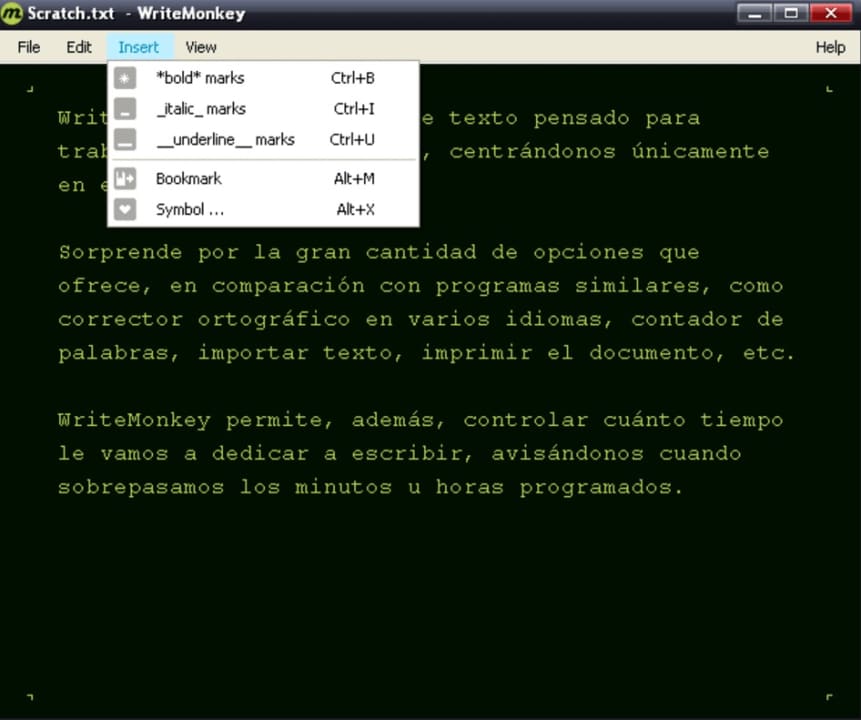
WriteMonkey is a free word processor designed especially for writing without spending a lot of time editing or formatting our document. It is therefore ideal if what we want is to make drafts, capture ideas or simply create a base document from which then shape a text.
An interesting point of WriteMonkey is that it has been designed so that you do not get distracted while you write your text. That’s why the word processor has a very simple interface and at the same time hides any kind of option that can detract your attention from the text you write. But don’t let its almost non-existent interface fool you. It is as powerful and useful a word processor as any of the ones mentioned in the list.
As a main attraction, WriteMonkey offers the possibility to search for words in Wikipedia automatically. The same happens with Google Images, so we will not need to use the browser and we will be able to concentrate completely on the text we are writing.
Finally, it is interesting to note that WriteMonkey is a portable app that does not require installation, so it is perfect for those who are not very fond of leaving programs installed on your computer. Mind you, it only supports TXT format, so it is only recommended for writing drafts and then editing them in another program.
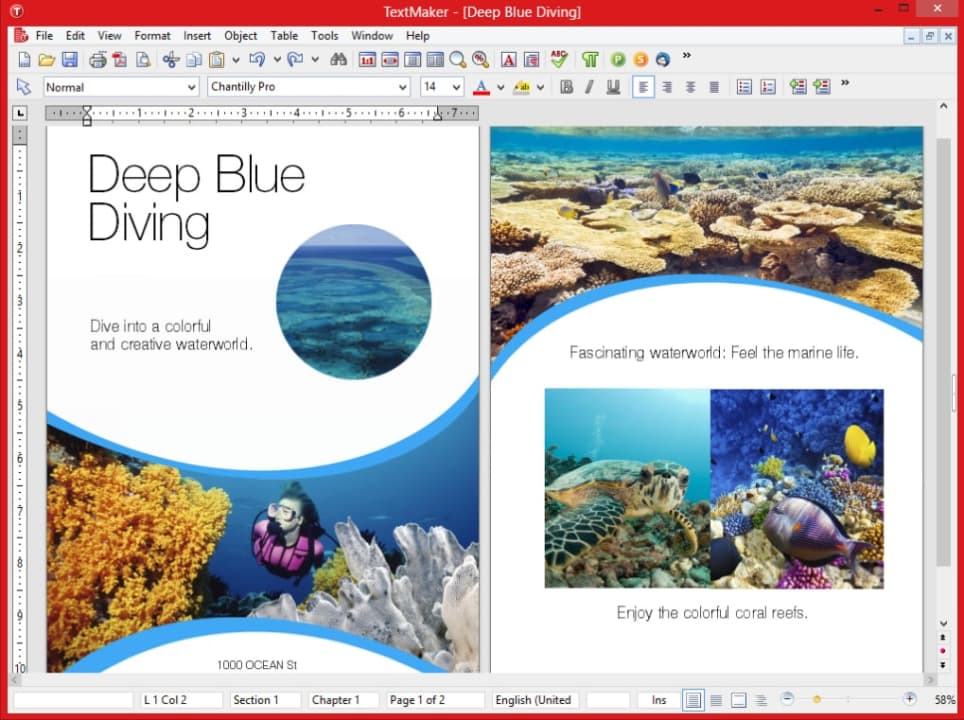
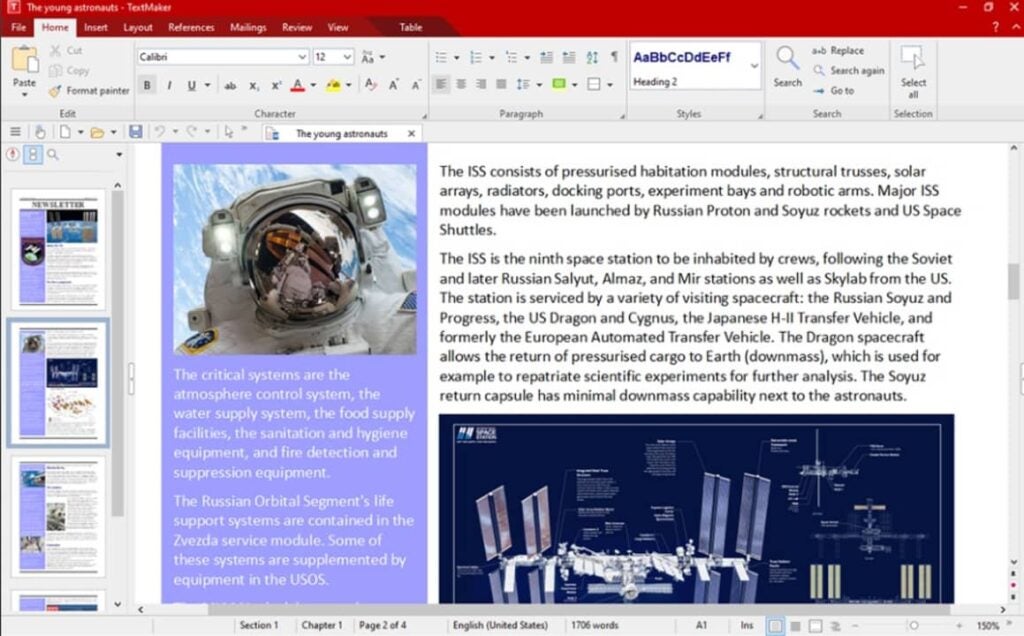
SoftMaker FreeOffice is a free productivity suite along the lines of LibreOffice and WPS Office. It is simple, easy to use and provides all the necessary templates and functionalities to create a good document in just a few clicks. Its word processor, TextMaker, is an excellent alternative to Word that, despite being somewhat simpler than the previous options, allows you to create and edit professional documents in a matter of seconds.
One of the great attractions of TextMaker is that it allows you to create databases and bibliographies quickly and easily. In addition to this, the program is able to manage and record any changes in a document, making it perfect for teamwork.
The only negative point is the fact that although this tool allows you to open a file in DOCX format, it does not let you save it as such. This is not because it is a bad editor, but because you have to pay for the premium version of the suite, so it is no longer free. Still, if DOCX is not your preferred format, it is an excellent free word processor.
PROS:
Complete office suite
Eye-catching and intuitive interface
Allows team work
Very complete text editor
CONS:
Does not allow saving in DOCX format in its free version.
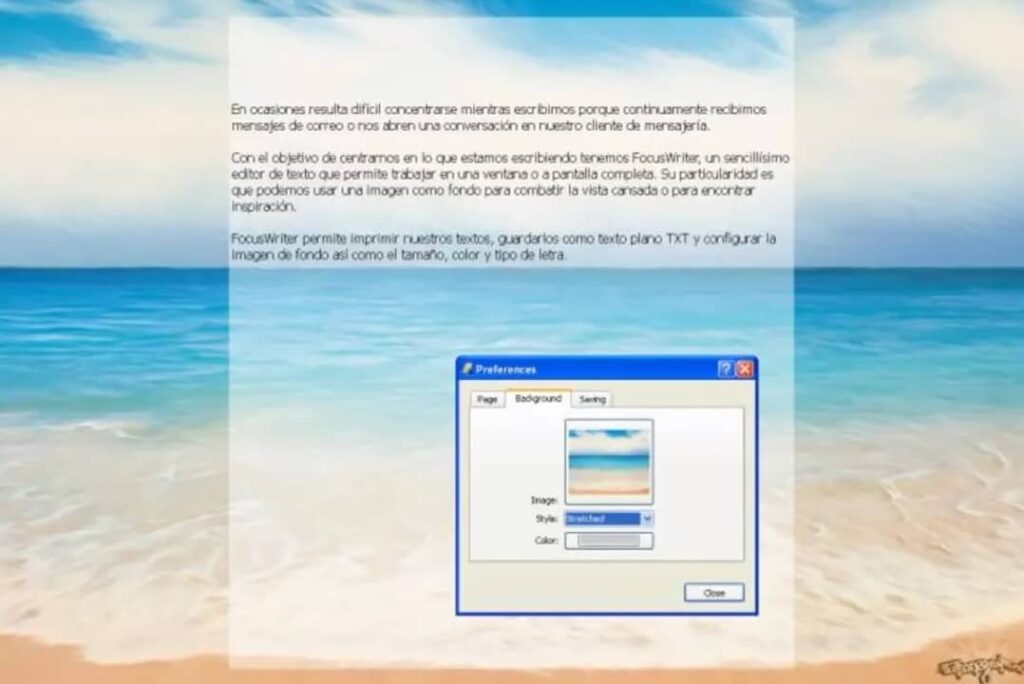
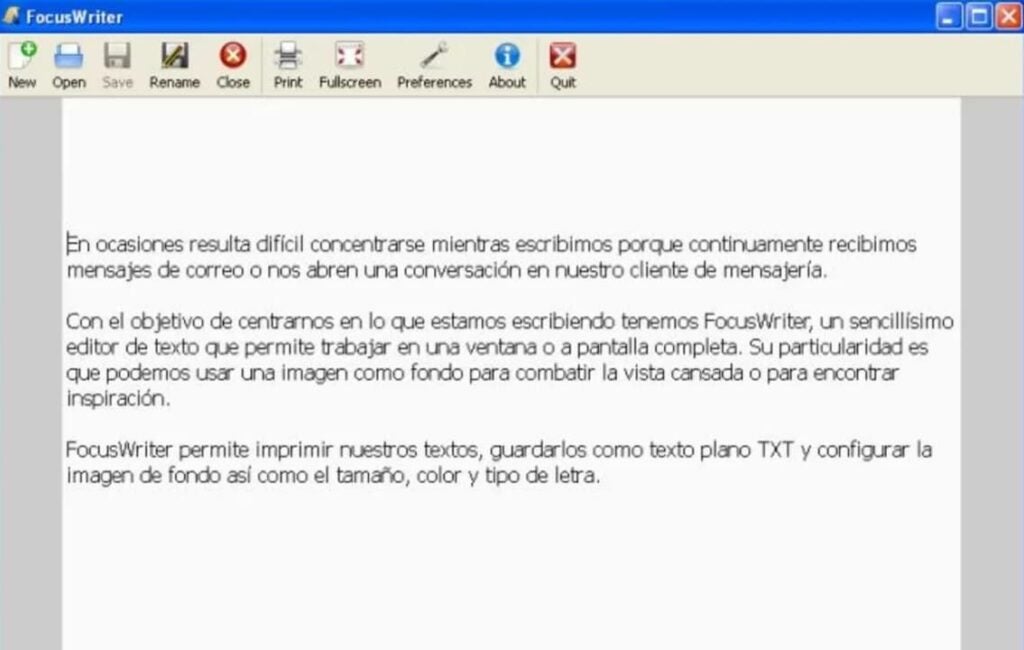
We close this list with FocusWriter, a free word processor different from everything you have seen so far. FocusWriter has not been developed to be used as an old-fashioned text editor, but as a notepad. Does this mean that it is no longer functional? Of course not!
Surely you will think that to write notes from your PC there is already the famous Windows Notepad or WordPad, but FocusWriter has been developed in such a way that it makes the Microsoft application obsolete. It has been created in such a way that it prevents you from getting distracted, forcing you to use your mental potential to write ideas or create a draft for a text.
FocusWriter has two writing modes, both designed to get the most out of our productivity:
The first one, the normal mode, turns our entire screen into a notepad, leaving only the Windows toolbar visible in case we need to open some other program.
The second one called “Focused Text” prevents us from seeing anything except the sentence or paragraph we are writing.
As a weak point, FocusWriter only allows saving files in TXT format, so an extra word processor is needed to format the document. Even so, this is an original, powerful and ideal tool to get the most out of our mind. Perfect for anyone who needs a word processor designed to promote their creative processes.
We hope that our selection of free word processors has helped you. As you have seen, it is not necessary to spend a lot of money for an Office or Word license to be able to create professional documents in a few seconds. Have you found what you have read helpful? Don’t forget to share it with your friends on social networks!
FaceTime video calls go beyond the Apple ecosystem. We can use them on Android, Windows, Linux and much more.
From company meetings to conversations with our friends or family, video calls are becoming more and more common. Even for shopping at an Apple Store. In this sense, FaceTime is presented as a simple and secure option to carry them out. And if we add to that the fact that we can make video calls regardless of the operating system used by the receiver, even better.
Making an advertising poster is a must for any graphic designer. They make the difference between a successful marketing campaign or a product failing miserably in the market. Events, exhibitions, concerts or parties are nothing without a good poster to advertise them. With the rise of digital media, most posters and billboards are made with some expensive image editing software. Is there no affordable program to design a poster with?
In today’s article we are going to offer you a selection of the best programs for making free posters, which will not only help you to create posters as you wish, but also to amaze those who see them thanks to their professional appearance. There are free tools to create posters that have nothing to envy to the great design suites. Would you like to know which ones we like the most?
1. GIMP
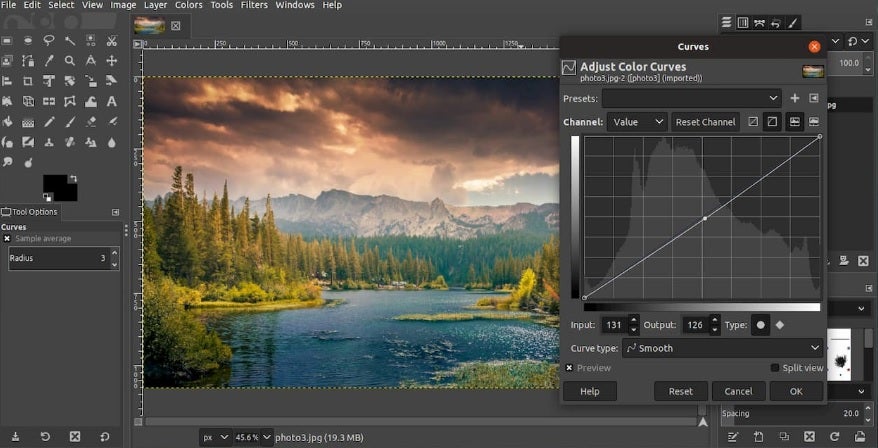
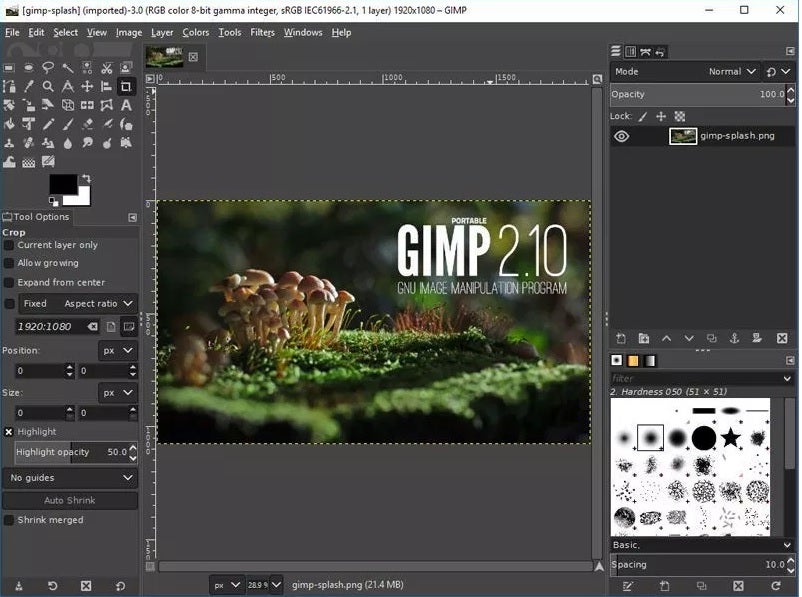
GIMP is already a classic in any list of the best free image editors. The eternal rival of Photoshop is the favorite of illustrators and graphic designers around the world thanks to its good results, wide range of tools and, of course, for being free.
One of GIMP’s strong points is that, being an open-source image editor, it offers unlimited versatility to its user. With it you can not only manipulate photographs for your posters, but also make your own illustrations or designs and thus create the perfect poster.
GIMP provides all the basic and advanced options that any photo editing program needs. That is why basically the resulting product you get will be directly proportional to your experience with such programs.
The only drawback of this editor is its high learning curve for those who are not used to this kind of programs. Although a really useful alternative is to download any poster or poster template you find on the Internet and start working with it.
PROS:
Includes all the tools to make professional posters
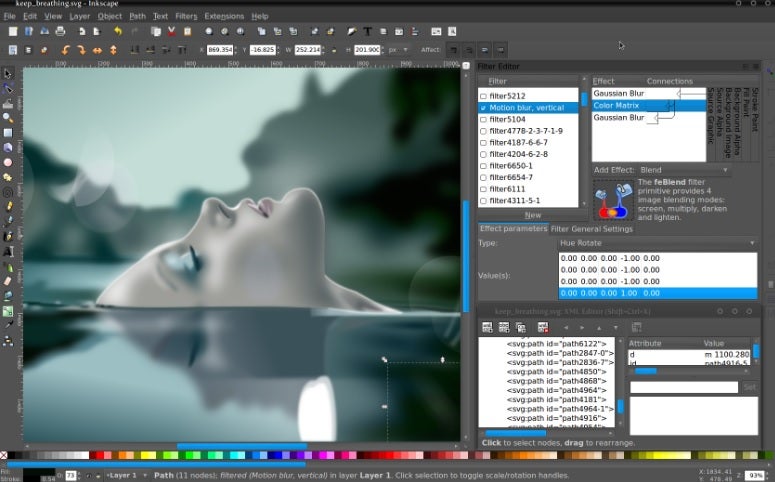
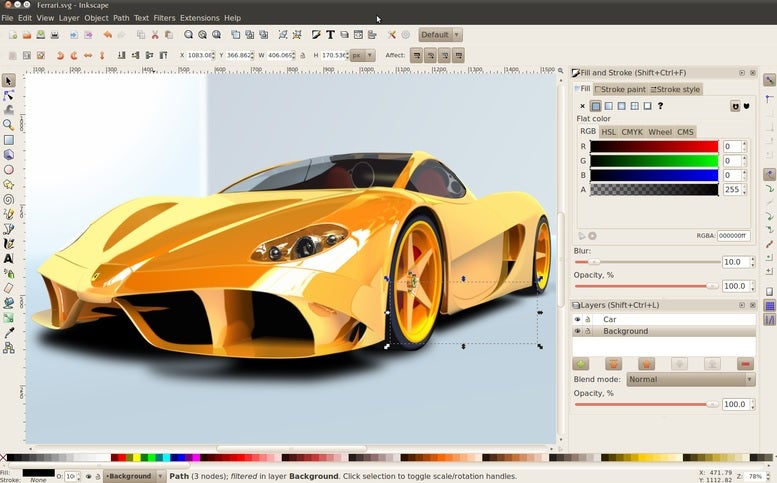
Inkscape is a powerful open-source vector graphics editor and a perfect alternative to paid programs such as Illustrator, Xara Xtreme or CorelDRAW. This graphic design software is ideal for creating all kinds of posters, as well as being widely used in the web design industry.
With Inkscape you will be able to perform any task typical of a drawing or design program. You will find tools as well known as the pencil, cut shapes, add text to images and of course the ability to add layers or clone parts of the image.
One of Inkscape’s strong points is its high compatibility between files, allowing you to open, edit and save projects in standard formats such as XML, SVG or CSS. In addition to this, it is also possible to work in PDF format and add text to any design, something really essential when making a poster.
Inkscape is a program as complete as GIMP but it is a much more intuitive and easy to use option for those of us who are not experienced in digital illustration.
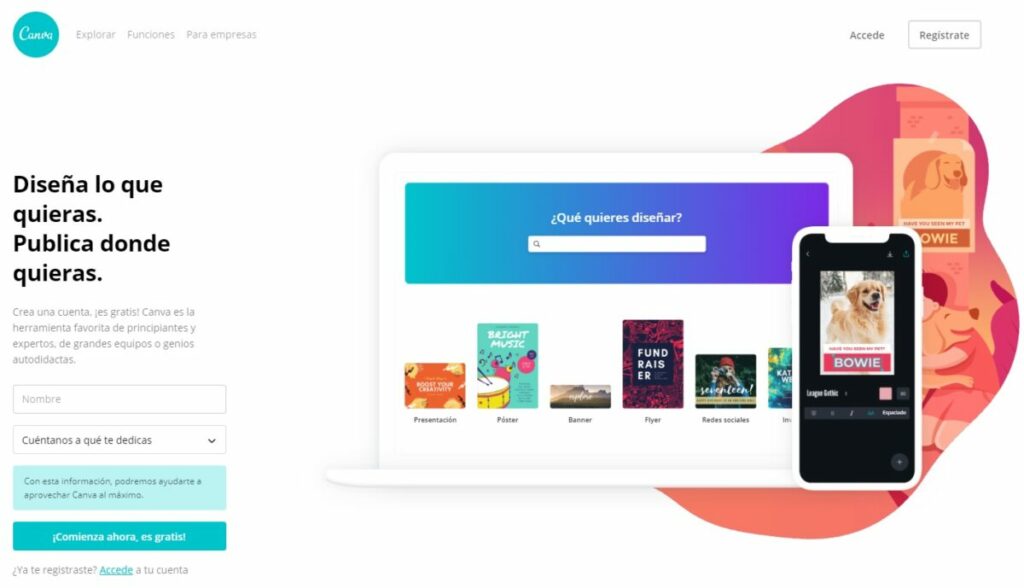
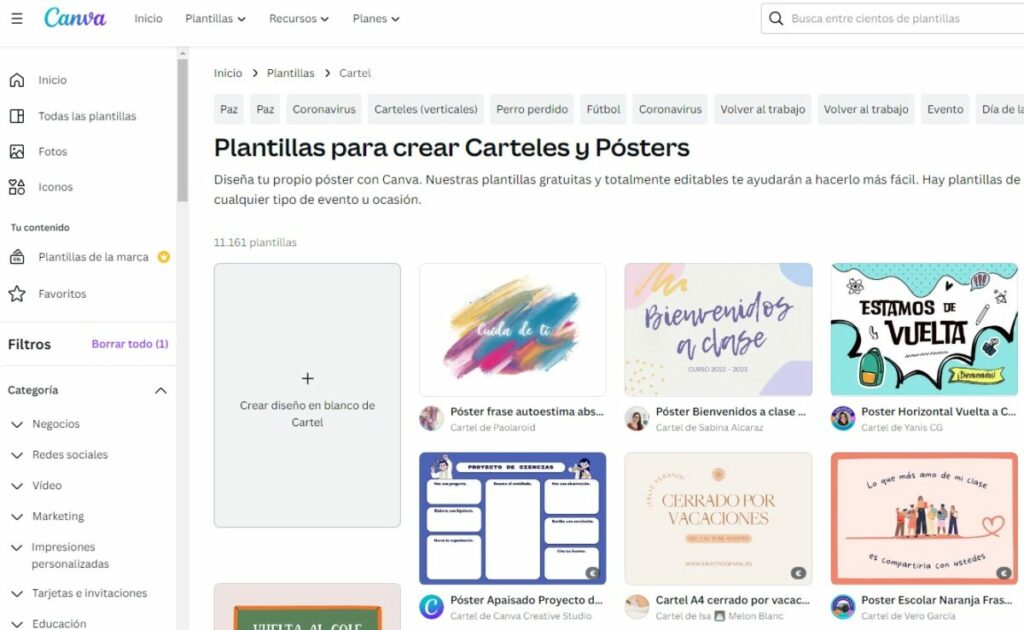
If you want to make a professional-looking poster without complicating your life too much, you’ll love Canva. This wonderful online graphic design tool is not only free, but also very easy to use. You can easily access it by simply visiting its website or, if you wish, download its desktop version or for Android and iOS mobiles.
Canva stands out for being a very easy to use program. It has a really simple and intuitive interface, where you can create all kinds of designs in a matter of seconds. Just select the type of project you want to carry out, upload your images and start processing them thanks to its complete selection of tools. We assure you that you will have your poster done in no time.
To create your poster on Canva you will first of all need to register on their website. Don’t worry, the service is completely free. Once in its interface, select the “Templates” option that you will find on the left side menu and slide the project bar until you find “Posters”. Finally, select the template that comes closest to the design you were looking for, upload the images you want to add and edit your poster to your liking.
From Canva you’ll be able to add customized elements to your posters, add frames, shapes, illustrations, etc. In addition, the tool includes a complete selection of fonts, perfect for conveying the message you want. Once your project is finished, you can easily download it in multiple formats, including PDF – ideal for having a poster ready in just a few minutes!
PROS:
Very easy to use
Multiplatform
Includes a good selection of tools to create posters
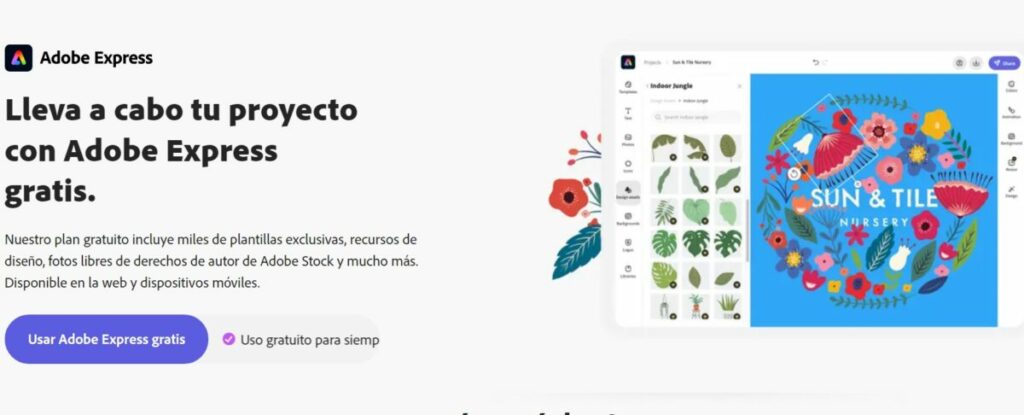
It is impossible to talk about creativity and graphic design without mentioning an Adobe program. Since we are talking about free programs, this time we want to talk about Adobe Express (formerly Adobe Spark). This online tool is a real gem for anyone who wants to give shape in a few seconds to any type of design you have in mind. Images for social networks, collages, brochures, logos, posters… All this is at your fingertips from Adobe Express!
In a similar way to Canva, Adobe Express is a perfect option for all those users who are not used to using image editors. Its operation is very simple thanks to its system of templates, all of them completely customizable and in which you can add any image or illustration you want. Besides, being an online tool, you will be able to access any of your projects regardless of the computer or device from which you connect.
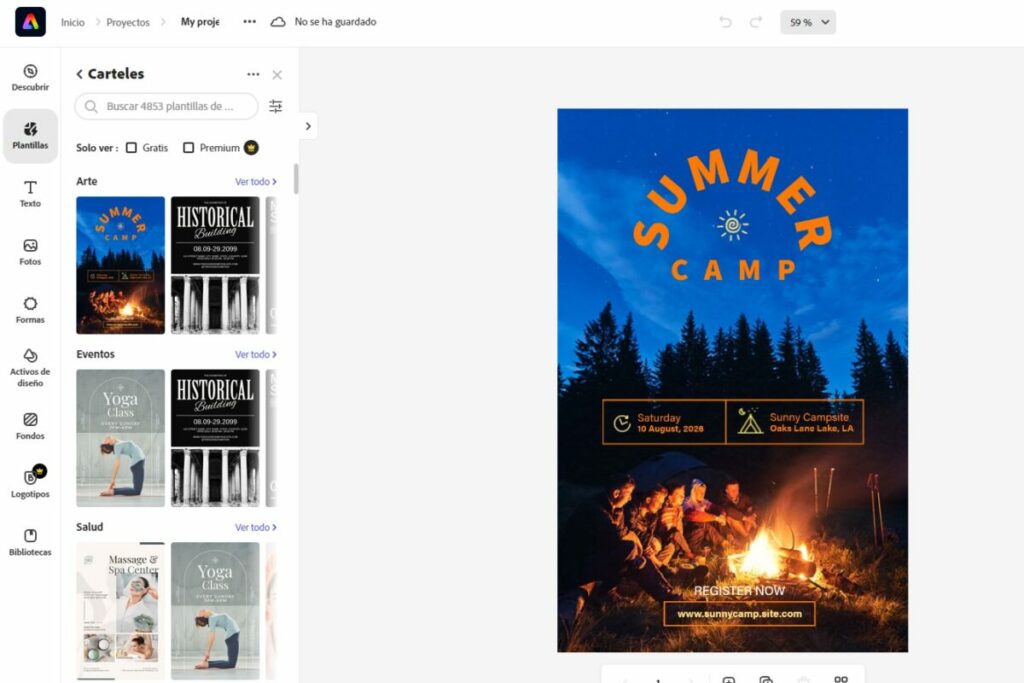
If you want to make a poster from Adobe Express, first of all it will be necessary to create an account with Adobe. These are completely free, but if you have used any of the company’s programs in the past, it is very likely that you already have one. Once in the main interface, select the “Poster” option in the “Create a new project” section. This will take you to a very complete selection of poster templates.
Now simply upload the images you want to add to the poster by clicking on “Photos” followed by “Upload photo” and edit the poster to your liking. Adobe Express incorporates all kinds of editing tools with which you can change the background, add shapes, text and even textures. Once your poster is ready, you can easily download it in PNG, JPG or PDF format. All this in a simple, easy and very intuitive way.
PROS:
Professional results
Allows the use of Adobe Stock images
Very intuitive
CONS:
Their best templates are available for a fee
Create a banner or poster easily
We hope we have been able to help you when it comes to downloading a free program to make posters. As you can see, there are totally free graphic design tools that have nothing to envy to the most expensive ones on the market. If we have given you a hand, don’t forget to share the article with your friends on social networks.
Making a photo collage from your PC is never an easy task. First you have to choose the perfect images, resize them and create a good composition from editors such as Photosohop or GIMP. If you are not an expert in them the results are usually disappointing, something that can frustrate you if you have spent several hours on it. Fortunately there are specialized programs with which you can create a collage with photos in the blink of an eye. Would you like to know them?
If you often wonder how to make a collage with photos from your PC, you’ve come to the right place. In today’s article we are going to share with you the best free programs with which you can make a collage of your photos in just a few minutes. Here we go!
1. Canva
Canva is an excellent app and online platform from which you can design, create and publish any type of image, including collages. It is completely free (although it has some paid premium features) and has endless tools and templates to shape your ideas. If you want to make a spectacular poster or photomontage with your photos, Canva is undoubtedly the best option.
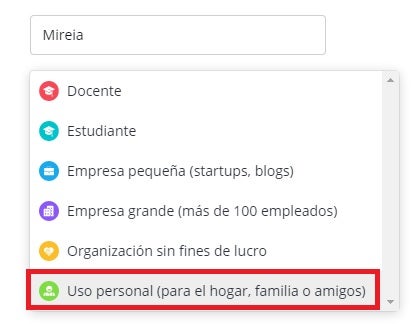
Creating a collage with Canva is very simple, whether you opt for its web version or its desktop application. First of all you will need to open an account on the platform. You will see that there are paid versions of Canva but don’t worry, the program is fully functional from its free version. Simply opt for the “Personal use (for home, family or friends)” option when opening your account.
Once your account is open, log in and select the “Photo Collage” option. If you can’t find it, don’t worry, you can create a new project and then type “Collage” in the search engine. You will then see a selection of free collage templates that are really useful and 100% customizable, so you will have your photo collage finished in no time. Choose the template you like the most and think about which photos you want to use.
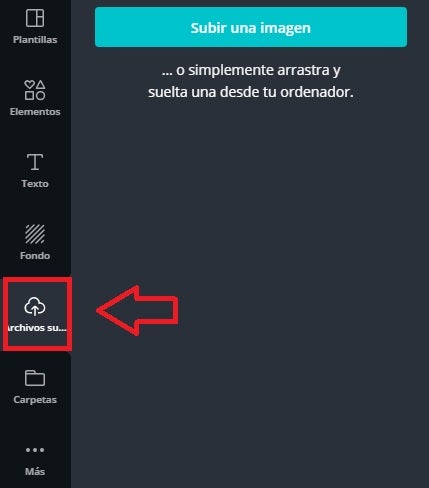
Once you know which images you want for your collage, click on “Uploaded files” and upload your images to Canva. If you prefer, you can also drag and drop them into the dark gray box to upload them all at once.
Once you have finished the previous point you will see how all the images appear in the Canva interface. Now simply drag them to the section of the template you want to create the collage of your dreams. Note that you can resize the images, add text and customize the template to your liking.
It’s that simple! Once your project is finished you will be able to save it on your computer or share it on social networks. As you can see, this is an ideal option for making collages in a jiffy.
2. Fotojet
Fotojet is an online tool for creating collages without the need to download anything. It is very similar to Canva, offering a simple and intuitive interface but providing excellent results in a matter of seconds. All in all, it is a very good option for anyone looking for an uncomplicated tool with which to make a great collage without complicating your life.
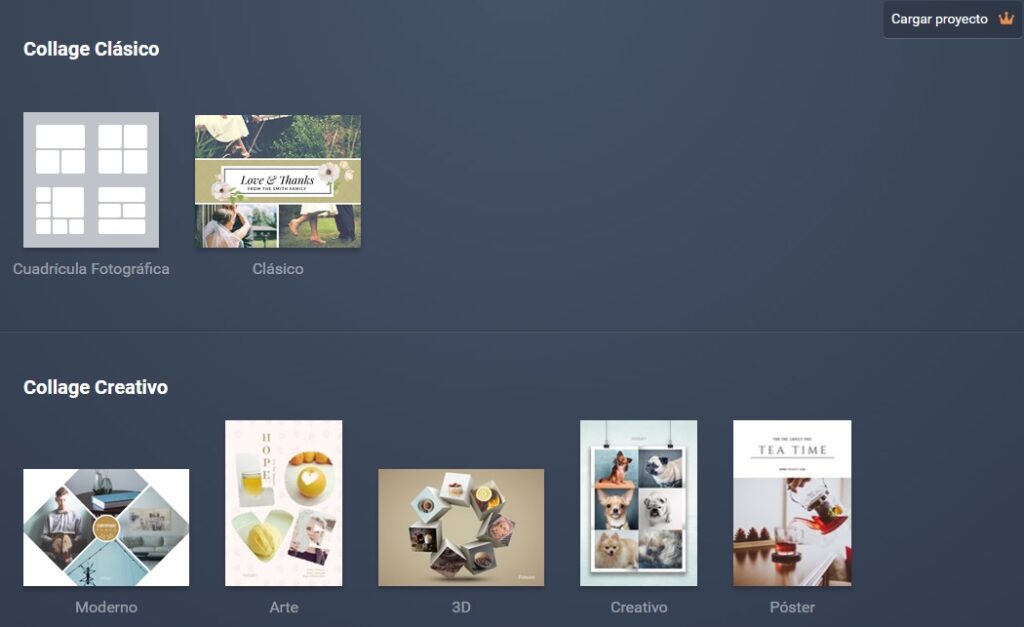
To create a collage with Fotojet, first of all click on the “Create a Collage” button. You will then be presented with a selection of free templates that you can use as a basis to shape your project. You will find the classic grids, templates that use a photo as a base, templates with 3D objects, etc. Choose the one you like best for your collage.
Once you have selected your template, select each of the spaces for images and upload the photo you want. If you prefer, you can also choose an image from the Fotojet catalog, thus creating a much more complex collage.
If you have chosen to use Fotojet’s image catalog, you will see that some of the photographs and illustrations have a small crown associated with them. These are premium images, to which only users with a paid account have access. However, they are not really necessary for anything.
Uploading a photo to the collage is very easy. Just click on the blank space you want and select the image from your computer. Once it appears on the screen you can resize and edit it to your liking.
It is important to note that Fotojet allows you to add effects and filters to the images once they are in your collage. After finishing it, you will be able to download your creation in PNG or JPG format. As you can see, it is a powerful tool, easy to use and really useful.
3. Fotor
Fotor is a free but very complete photo and image editor. In fact, because of its many tools and good results, the BBC has called it the “Photoshop Light” and an excellent choice for those who can’t afford Adobe software. Offering both an online and desktop version, it is also very versatile, allowing you to create graphic designs at any time and with professional results.
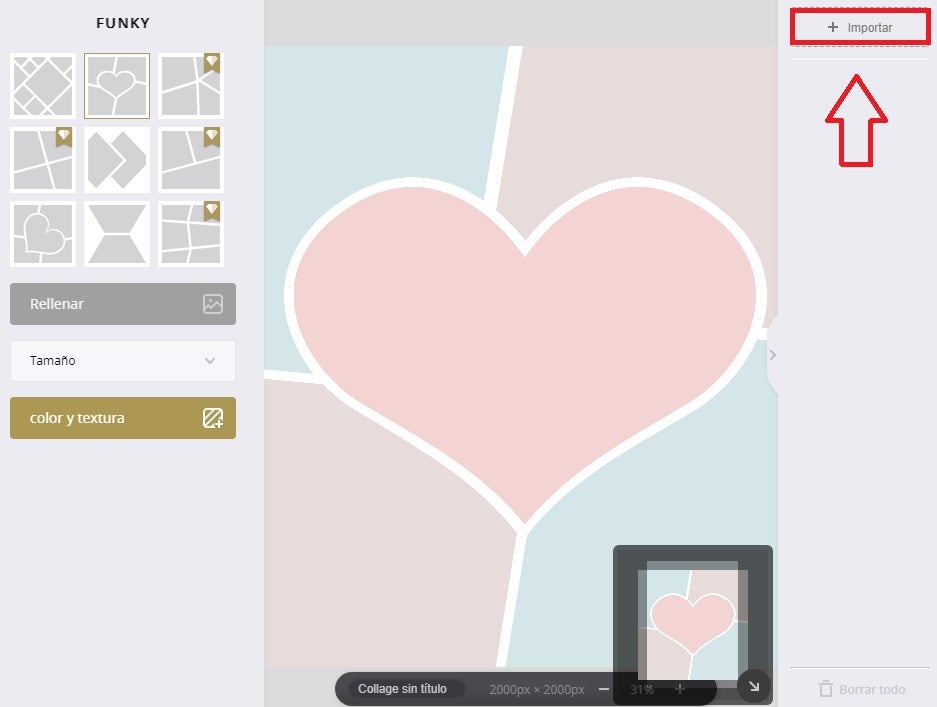
If you want to create your own collage with Fotor, first of all select the “Make a collage” option. Then select the type of collage you want to create and choose one of the many default templates that appear. All of them are fully customizable, so even if you are not completely satisfied with one of them, you can modify it later. You will also see that some templates come with a small diamond. These are the premium templates and are only available to paying customers.
Once you have selected the template, click on the “Import” option in the upper right corner of the screen. From there you can upload all the photos and images you want to add to the collage. Once you have done this, drag the photos to the section of the collage you want them to occupy.
If you are not sure which photo to place where, don’t worry. Fotor has an option called “Fill” (on the left side of the screen) that will place all the photos you have uploaded in the way the program considers optimal. We assure you that it will surprise you!
Once you have finished your collage you will be able to save it in JPG, PNG and even PDF format. As you can see, although it is not as intuitive as the previous options, it is still an excellent resource for making free collages.
4. Adobe Express
Adobe Express (formerly Adobe Spark) is an excellent option to make online collages without having to download any program. This tool is really easy to use and provides excellent results, although we couldn’t expect anything less from the parents of Photoshop.
PROS:
Fully online
Over 2000 free collage templates
Allows you to use Adobe Stock images
CONS:
The best templates are paid templates
How to make a collage with Adobe Express
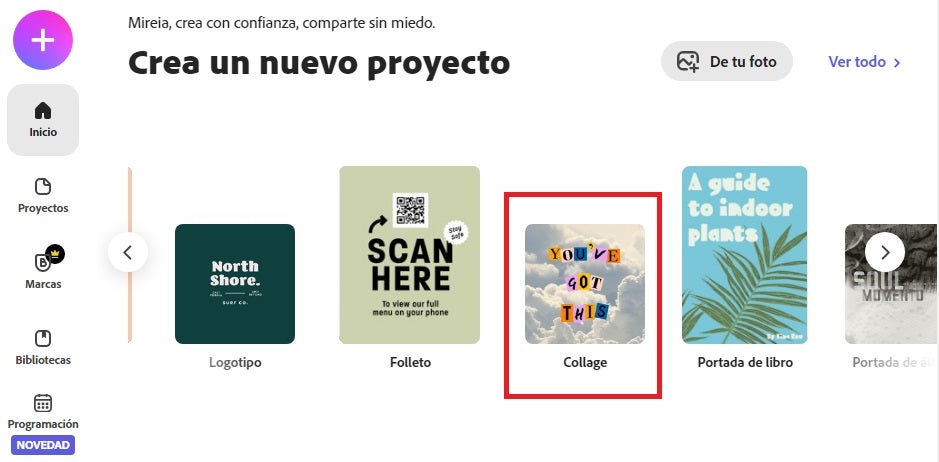
To start using Adobe Express you will first need to log in with an Adobe account. Don’t worry, it’s completely free. Once in the tool’s interface, select the “Collage” option that you will find under “Create a new project”.
Next, upload the photos you want to add to your collage by clicking “Upload” or select the ones you like from Adobe Stock. Once done, choose the size of your collage and click the “Next” button.
After that you only have to design your own collage. You will see how all your photos will appear on the screen and you will be able to move or resize them simply by dragging them. You can also choose one of the program’s free collage templates. Once the collage looks the way you like it, you can add text by double-clicking on the image.
Once your collage is finished, you will be able to download it by clicking on the “Download” button in the upper right corner of the screen. Simply select whether you want to save the file in PNG, JPG or PDF format and click the “Start download” button. Last but not least, Adobe Express can now schedule your content on social networks.
5. PhotoPad
To finish the selection we want to recommend PhotoPad, a free image editor with which it is really easy to edit all your digital photographs. Besides being a really intuitive program, PhotoPad includes as an extra an option to make collages. Thus, this little gem is an invaluable help to make photo collages in just a few seconds.
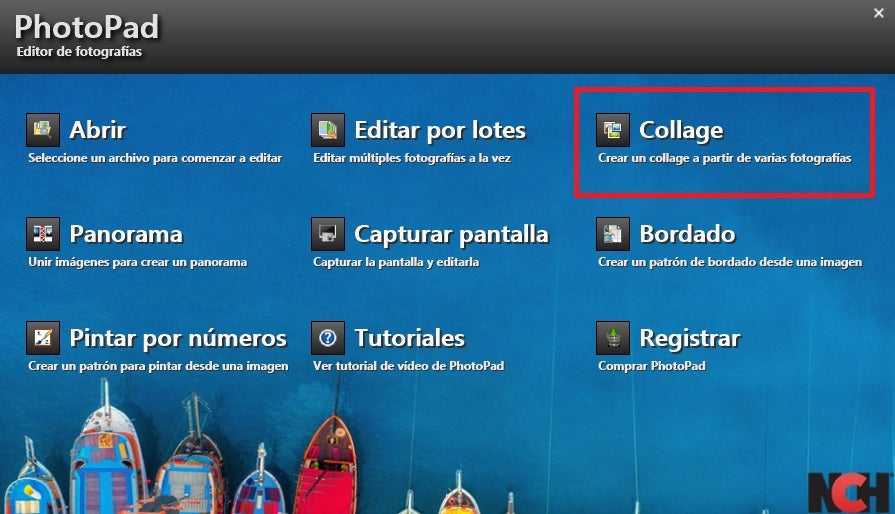
To start creating your collage with PhotoPad simply click on the “Collage” button and click on the “Create” button. Once you have a blank canvas, click on the “Collage” drop-down button on the right side menu of the screen and then click on “Edit Collage”.
After choosing the background, select the type of template or grid in which you want to place your images. You will be able to choose the location, spacing and even the shape of each of the spaces where your photos will appear. You will find all this in the menus “Canvas options”, “Background options”, “Design options” and “Image options”.
Once you have done this, all that remains is to choose the photos you want to add from your PC. To do this click on the “Add” button at the bottom of the right side menu.
Alternatively, you can double-click on the spaces of the pictures and add them directly. Voilà, your collage is ready. Wasn’t that easy?
Create collages with photos quickly and easily
We hope that our selection of free programs to make collages has helped you. As you can see, there are many options to easily create beautiful montages with all your memories. If you liked the article, don’t forget to share it with your friends on social networks!
The Sims 4 is an exceptional life simulator with unlimited possibilities thanks to its mods. These allow you to add free custom content (CC) to your games, such as new hairstyles, clothes, houses, furniture… even remove censorship! Since its first release, mods have always been one of the star points of the Maxis franchise. And with them, anything you can imagine can happen in the life of The Sims. But… Do you know how to install them?
In today’s article we are going to show you how to download and install mods and CC in The Sims 4. Don’t worry, it’s a really simple process that won’t jeopardize your games, and they’re free! So if you are bored of waiting for the release of The Sims 5… Why don’t you give new life to its fourth part with the best mods? Follow our steps and in a few minutes you will start enjoying all the customized content you can imagine.
What are mods and CC for The Sims 4 and what are they for?
When we talk about mods we mean any modification or custom content that players have created for The Sims 4. These can be downloaded from the Internet and easily added to the game, adding all kinds of improvements and new options. Since its first release, mods have been a fundamental part of The Sims. In fact, the game has one of the largest and most prolific creative communities in the video game world. Thanks to mods, The Sims 4 can be considered a timeless game.
Among the main mods that exist for The Sims 4 we find:
Custom Content – Also known as CC (Custom Content). It includes all the objects, clothing, hairstyles, furniture, etc. that a player has created for the game.
Game Mods – Refers to those modifications that, instead of adding an object, create new functions for the title. For example a mod to add new personality traits, new jobs, UI functions or simply remove censorship from the game.
What do I need to install mods or CC for The Sims 4?
Fortunately, installing custom content in The Sims 4 is very simple. In fact, you’ll only need these three things:
If you have all this on your computer, we can start installing mods now!
How to install mods and CC for The Sims 4
Installing mods or custom content in The Sims 4 is a very simple process that will only take you a few minutes. All you have to do is follow these steps.
Step 1. Update The Sims 4
Before you start installing anything, you should make sure that your version of The Sims 4 is completely updated. This is important because this way you will ensure that none of the mods or CC that you install will create any kind of incompatibility with the game.
To update The Sims 4 you will simply need to open Origin, find The Sims 4 in your game library and within your options click on the update button.
Step 2. Download the mods or CC
Now that you know you have The Sims 4 updated, it’s time to get downloading the mods or custom content you want. You will find thousands of websites where Simmers will share their creations but we especially recommend the big sites like modthesims to download your files. These are updated very often and you will always have the assurance that the mod you download has been tested by other players and works without any problems.
To avoid unpleasantness it is also recommended that all mods you download are from reliable sites. If you doubt any file, do not hesitate to use some antivirus software to ensure that the file you have downloaded does not contain any type of Trojan or malware that can put your computer in check. If you do not have any installed, we recommend that you try the free version of Avast, it is very reliable and ensures the protection of your computer.
Step 3. Unzip the mods or CC files
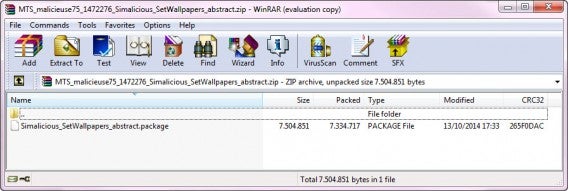
In most cases, both mods and custom content for The Sims come compressed in .ZIP or .RAR format. In order to use them, you will first need to unzip the files and then move them to their folder. You will see that some of these files are in .pyo, .package or .ts4script formats, do not try to unzip them as you will only need to move them to the mods folder.
Step 4. Organize your mods or CC by folders
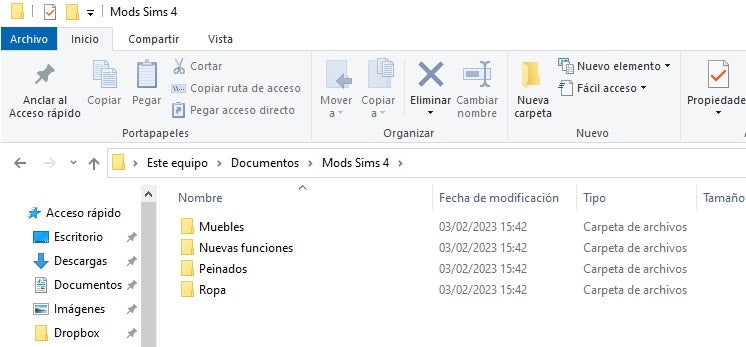
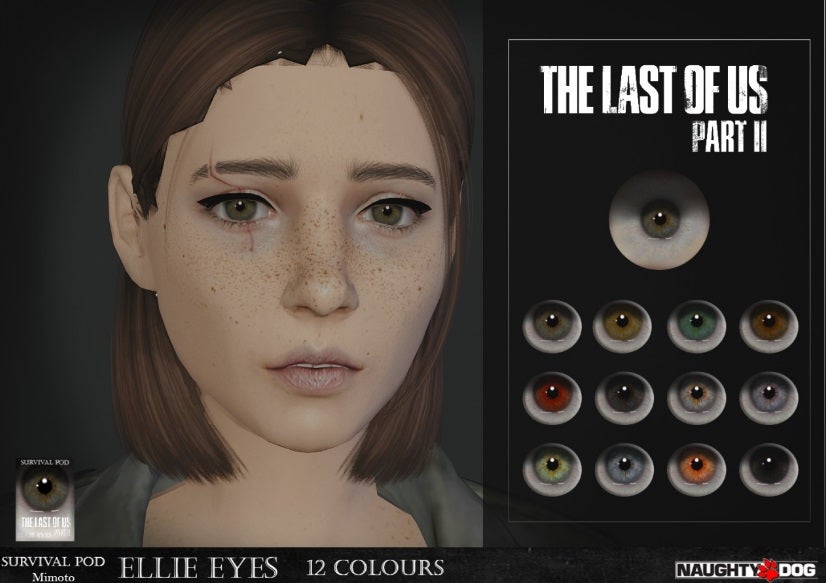
Although this is an additional step, it is highly recommended that you create folders to organize the mods or custom content you want to install. Keep in mind that there are an inordinate amount of mods that you will probably want to download and install and their files will all have generic names. To be able to locate and have control over the added content you install, it is good to classify it by content folders (“Clothes”, “Build mode”, “Modifications in Create a Sim”) or by specific mods (“Rock band t-shirts”, “Eye colors”, “Mod to remove censorship from The Sims”).
Step 5. Copy the mods or CC to the mods folder.
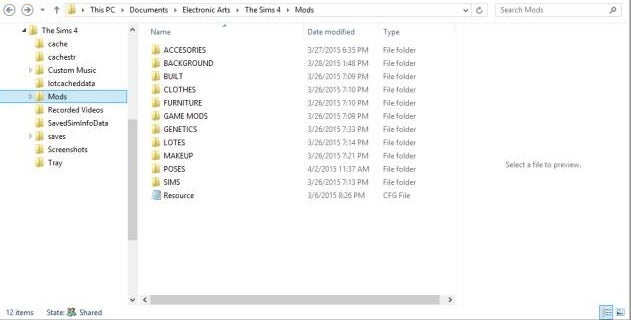
Now that your .ZIP or .RAR file is unzipped, it’s time to copy its contents to the Documents/Electronic Arts/The Sims 4/Mods folder. You will see that by default, in this folder there is a file called Resource.cfg. Do not delete it! This is the file that allows mods to work in the game.
If by mistake you deleted the resource.cfg file, nothing happens. It will be generated again once you start a game in The Sims 4.
step 6. Activate mods or CC in The Sims 4
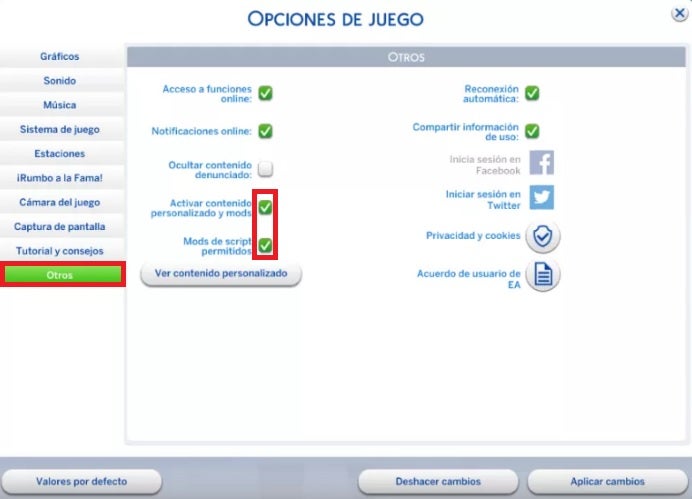
Finally, you need to activate the mods within the base game of The Sims 4. To do this, go to the main menu of the game and press the “Esc” key to access its options. Once this is done, click on the “Others” button that you will find on the left side menu of the screen. Finally, check the “Enable custom content and mods” and “Script mods allowed” boxes. After that the game will ask to restart and all the mods you added in the folder will be active. And enjoy the mods!
How do I know which mods or CC I have installed?
Are you one of those who have added countless files to the mods folder and don’t know exactly what you have installed? Don’t worry! From The Sims 4 you will be able to check which mods are active in your game. To do this go into the game options and click on the “Other” button followed by “View custom content”. You will now be able to check which custom content is active in the game.
How to delete mods or CC for The Sims 4
If you are tired of a mod or you think it is giving you problems in your game, simply delete it. To do this, close the game, go to the mods folder (Documents/Electronic Arts/Los Sims 4/Mods) and delete the files manually, whether they are separate files or entire folders. It is for this reason that it is always advisable to copy each mod into a separate folder so that you can locate them later.
How to recover your game, mods and CC if you change PCs
It’s not uncommon that over time, you end up retiring your old computer and buying a new computer. Fortunately that doesn’t mean you have to say goodbye to your Sims and mods. You can create a backup copy of both your mods and your save games and CC from the “Documents/Electronic Arts/The Sims4” folder. Simply create a copy of the “Saves”, “Mods” and “Tray” folders and paste them on your new PC after installing The Sims 4.
What to do when a mod or CC has stopped working after an update in The Sims 4
It is very common that as The Sims 4 is updated some of the mods stop working. In most cases you should not worry because fortunately, the community of Simmers of this video game is very active and will be offering updated versions of the mods. To reactivate them simply access the web page from where you downloaded the mod and see if there is a new version for it. Once this is done, download the updated mod and install it following the steps in this tutorial. It’s that simple!
Where to download free mods and CC for The Sims 4
Now that you know how to install mods and custom content for The Sims 4, you’re probably eager to start downloading CC left and right. If you have searched the Internet you will have realized that the offer of mods sites for The Sims 4 is really overwhelming. That is why we want to recommend you a list with the best sites to download mods and CC for The Sims 4 of this 2023.
If you prefer a selection of the best mods of the moment, read on. At Softonic we have compiled a list with all the mods that we consider essential for a self-respecting Sims player.
The Sims 4: improve the game with these 8 amazing mods
The Sims 4 essential mods to customize your sims
The best Sims 4 mods that change the way you play the game
Is there any other method to add additional content to The Sims 4?
If the idea of adding user-created mods doesn’t appeal to you, this doesn’t mean that you’ll be stuck with a version of The Sims with fewer options. Maxis offers a very good selection of both expansion packs for the game and additional content to add new features and gameplay to the title. At the moment these are the ones that have appeared on the market:
We hope that all our recommendations have helped you to get the most out of The Sims 4. If you found it helpful, don’t forget to share this article with your friends through social networks. And remember, the release of The Sims 5 is just around the corner, full of juicy new features!
Is your computer running very slowly or suddenly getting very hot? If you are a Windows user and lately your PC is not performing as well as it used to, the Windows Modules Installer is most likely the culprit. This process appears in the Task Manager under the name Windows Modules Installer Worker and often makes high CPU usage due to an error. The result? Your PC slows down and no longer runs as it used to.
If Windows Modules Installer Worker is using 100% of your disk and your computer is barely working, don’t worry. In today’s article we are going to help you solve this problem in a quick and easy way. Read on and in no time you will reduce the load on your CPU and your PC will be back to working as before.
What is Windows Modules Installer Worker and what is it for
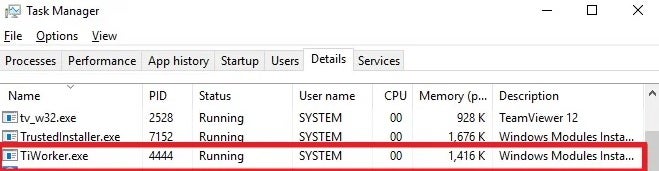
The Windows Module Installer, also known as WMIW or TiWorker.exe, is a fundamental component for the proper functioning of your operating system. It performs the basic maintenance tasks of your computer as well as searching for and installing all the updates that your operating system may need. It is, therefore, a process closely linked to Windows Update.
One of the primary functions of Windows Modules Installer Worker is to ensure that your computer will continue to work after any Windows update. To do this, WMIW updates all Windows files as well as creating a backup copy of any old files that may remain installed.
Why does Windows Modules Installer Worker consume so much CPU?
As we mentioned in the previous point, the Windows Module Installer is responsible for performing updates to your computer and ensuring that, once completed, it will continue to function normally. This is a resource-intensive and intensive process, so it is quite normal that during an update, TiWorker.exe triggers CPU usage. After the process is finished, the values should return to normal.
If your disk or CPU usage is still at 100% after upgrading your computer, it is likely that there is a bug in theWindows Modules Installer Worker. This would lead to a considerable decrease in your computer’s performance, constant slowdowns, frozen screens and an increase in PC temperature.
How to fix the high CPU consumption of Windows Modules Installer Worker
If your PC is running slow, we recommend that before following any of these methods, you check that the culprit is really WMIW. To do this, open the Windows Task Manager and find out which file is responsible for the high CPU usage. If the file is Tiworker.exe, it is time to get to work with one of these solutions.
Method 1. Use the Windows Troubleshooter
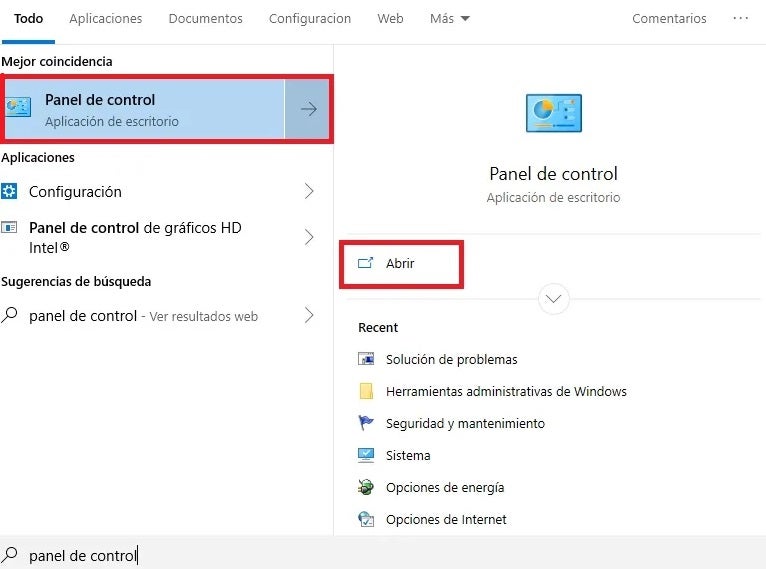
The easiest way to fix the Windows Modules Installer Worker bug is to use the Windows Troubleshooter. To get to the Troubleshooter, first you need to access the OS Control Panel. If you do not know how to get there, click Start and then type “Control Panel”. Click on the result that Windows offers you.
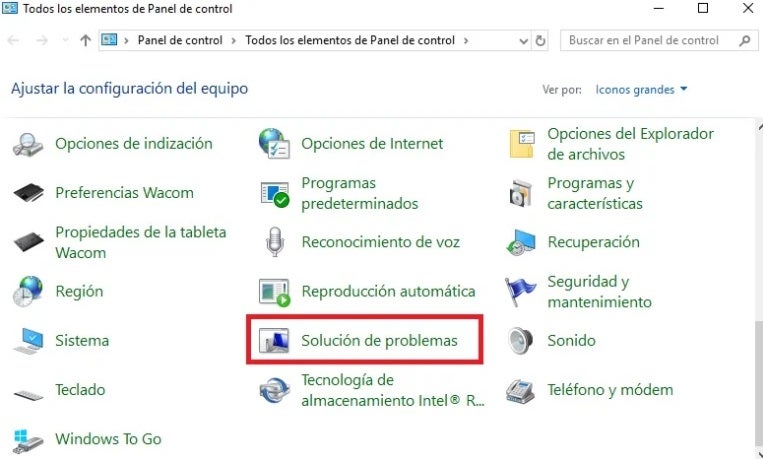
Once in the Control Panel, find and click on the “Troubleshooting” option.
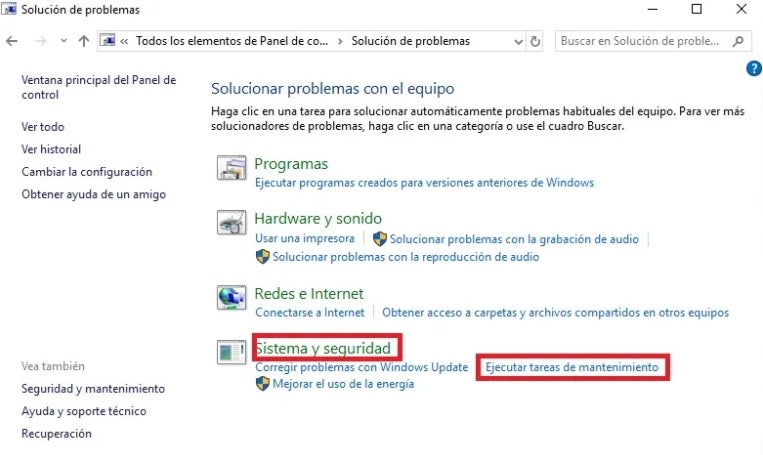
Next go to the bottom of the list to “System and Security” and click on Run maintenance tasks. This will open the Windows program aimed at fixing any problems or errors that your operating system is currently experiencing.
Finally, Windows will ask you if you want to troubleshoot your computer as an administrator. Select this option and let the program analyze any problem that is affecting your PC. If everything goes well, Windows will repair the problem with Windows Modules Installer Worker and your computer will work as before.
Method 2. Use the Windows Update Troubleshooting Wizard
If the previous method did not work, we recommend that this time you use the Windows Update troubleshooting wizard. Note that WMIW is closely linked to operating system updates, so an error in Windows Update could be the cause of the problem.
Depending on the version of Windows you are using, you will have to follow these steps.
If you are a Windows 10 user:
Access Windows settings (Windows Key + I)
Select the Update and Security option
Click on Solution of problems followed by Additional troubleshooters.
It pulsates in “To begin to work” and it selects “Windows Update”.
If you are a Windows 11 user:
Access Windows settings and go to “System”.
Click on the “Troubleshooting” option.
Click on “Other troubleshooters” followed by “Most frequently used”.
Select “Windows Update” and run the troubleshooter.
After that, restart your computer and check if the CPU usage has normalized. Remember that it is possible that the CPU usage is at 100% when you start your computer, so before moving on to the next method it is advisable to wait a few minutes to see if the Windows Update fixer has repaired the problem.
Method 3. Make sure that Windows is not being updated
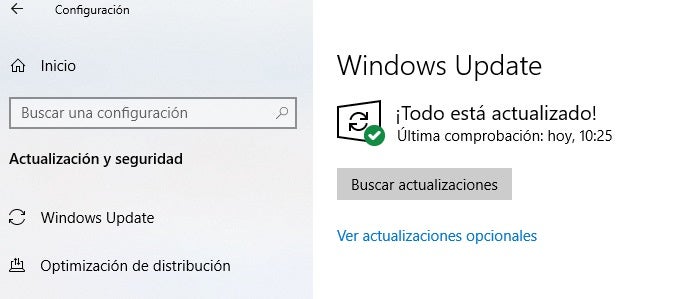
It is common that when your PC is in the process of downloading or installing an update, it will run much slower. Before being alarmed by the high CPU usage of Tiworker.exe, make sure that an update is not being installed. To check, you can access the Windows Update window by going to Settings (Windows Key + I) followed by “Update and security“.
In the new window you will see the Windows Update status. Here you will check if your computer is downloading an update, installing it or if, on the contrary, any of these updates is blocked. If this is the case, you will need to stop the Windows Update service, delete its history and restart its service. Don’t know how? Don’t worry, we have a step-by-step guide to fix the Windows Update can’t check for updates error.
Method 4: Troubleshoot 100% CPU usage in Windows
If none of the above methods have worked, don’t worry. There are plenty of ways to speed up your computer and thus reduce your PC’s CPU usage. Tricks as simple as restarting your computer, removing annoying bloatware or disabling startup programs you don’t use can drastically increase the performance and speed of your computer. If you want to know them all, we recommend that you take a look at our guide to tricks and programs to speed up Windows.
Get your PC running like new again
We hope that our article has helped you to solve the problems with CPU usage caused by Windows Modules Installer Worker. This error, despite being quite common, can cause more than one headache due to its annoying consequences. If any of the methods we have shared worked for you, don’t forget to share it with your friends on social networks.
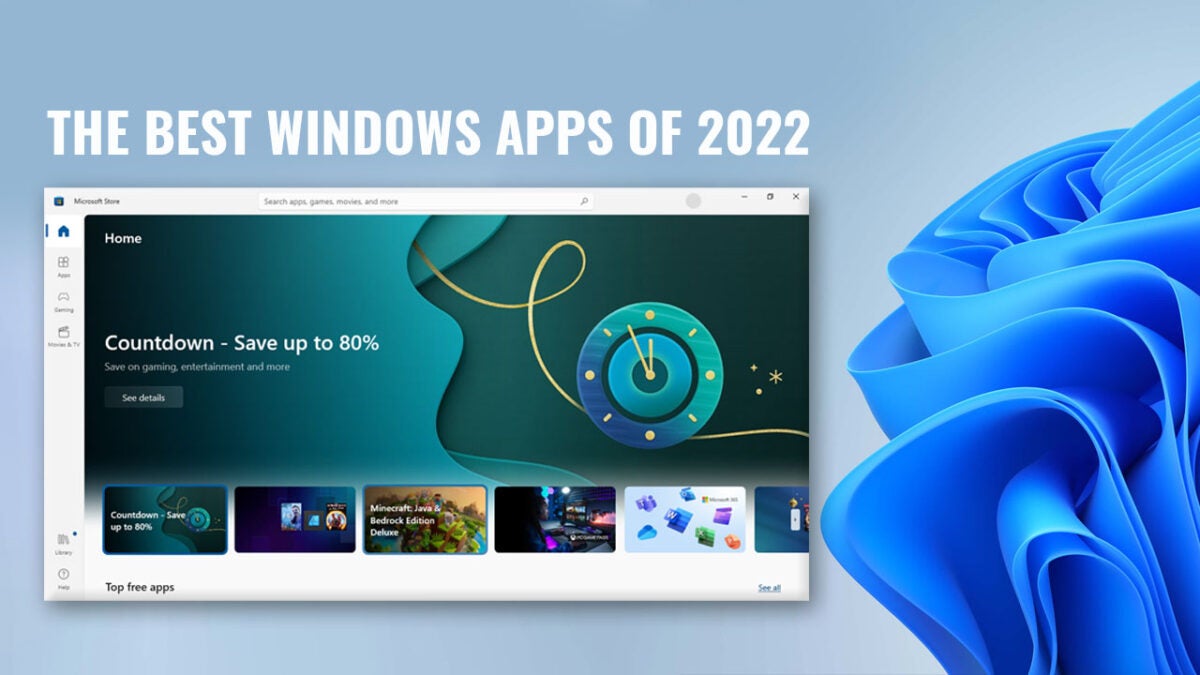
Whether or not we realize it, we depend on apps for multiple reasons, personal and professional. Windows has a multitude of apps to choose from, and it’s common to wonder which ones are worth investing your time in and which ones should be avoided.
A smart way to judge which apps are good is by checking the number of downloads. Here’s a list of the most popular Windows apps downloaded in 2022.
With virtual interactions becoming more prominent, Zoom Meetings became one of the most downloaded apps in 2022. Founded in 2011, Zoom was noticed more than ever when people stayed home and couldn’t travel either to work or to meet their loved ones.
Zoom became synonymous with virtual meets since 2019, and the number of downloads started to increase rapidly. Zoom is free to use with the basic features, but you need to pay a fee if you wish to use it on a larger scale and for longer durations. Many companies integrated the app into their system to seamlessly connect with coworkers without having to worry about geographical restrictions anymore.
Microsoft Word was first released in 1983 and has since become the most popular word processing tool to be used to date, with several upgrades since its first release. Today, Microsoft Word comes with built-in intelligent features that make it easy to create documents seamlessly. The documents can now be used for collaboration too, and people can edit and update the document conveniently. It offers various localizations and language correction tools as well.
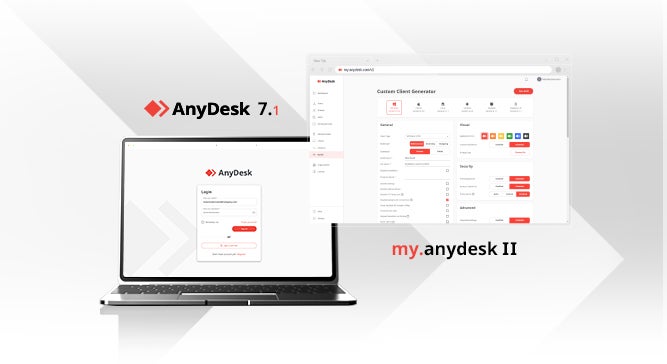
Remote access was once a distant dream, but thanks to Anydesk, it’s now something that’s not only possible but also comes with an array of features one never thought possible. Released for the first time in 2015, Anydesk took virtual workspaces to a whole new level by enabling people to access their work computers even when they were away from the system, thereby preventing any delays in the workflow. It’s no wonder this app was one of the most downloaded apps in 2022.
Game development is one of the most promising careers today, and the best way to learn the skill is to practice regularly. Roblox is a gaming platform and creation system that helps young minds discover their passion for developing games using simple tools. Released in 2006, this platform is loved by people of all ages, and it’s no surprise the app is so heavily downloaded even today.
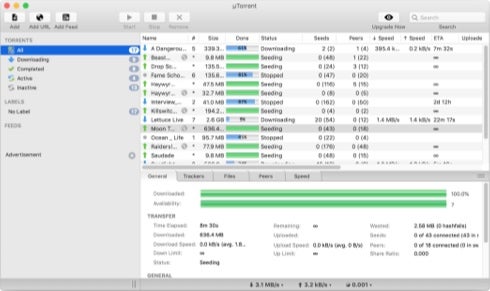
Downloading large files is no longer a struggle thanks to apps like µTorrent. Torrents are easier to download because it pushes smaller portions of a large file, so you get the best download speed. Whether it’s a high-definition movie clip or a large file that you’re unable to email to your coworker, this app is the best way to share these files. Released in 2005, µTorrent is simple to use, making it a popular choice for sharing large files.
Over-the-top streaming apps have gained a lot of popularity since the introduction of smart televisions, but Netflix was one app that people downloaded even on their computers way before smart televisions became a thing. The app was so popular people relate it to binge-watching while relaxing at home. Although the app is available on televisions, it’s still one of the most downloaded apps on windows devices.
When was the last time you sent out a conventional text message to someone? Whatsapp has taken over text messages for the better by making them more interactive, creative, and accessible. The free-to-use app is compactable with almost any mobile device and offers features that make conversations a breeze, irrespective of the location of the sender or recipient.
Released in 2009, Whatsapp gave Blackberry a run for its money by introducing cross-platform messaging. Today Whatsapp offers a plethora of features, including making calls, sharing images, locations, and even payments in certain countries.
Spreadsheets are the most effective way to compile information, compare statistics, draw up graphs or make notes of tasks to do. Microsoft Excel comes with computation capabilities that offer limitless options to edit and create spreadsheets that are capable of storing any sort of information. From basic calculations to complex formulas that help separate data, you can get it all done using Microsoft Excel, and that’s just scraping off the tip of the iceberg. Microsoft Excel is so extensive, people take courses to learn how to make optimal use of the app.
People today have become more aware of security, and that’s where Norton 360 Deluxe comes into the picture. Back in the day, one wouldn’t know the difference between Norton 360 – an antivirus, and Norton 360 Deluxe, an antivirus on steroids. Norton 360 Deluxe not only protects against viruses, but it also provides dark web protection, parental controls, a VPN, and more. This app became a hot favorite at corporates, making it a highly downloaded app.
Imagine having to download multiple apps to listen to music, watch videos in different formats or play clips shared on your device. It’s not convenient, is it? That’s where VLC Media Player comes into the picture. The app enables cross-platform media storage and allows you to watch videos or listen to music using the same app. It’s a great way to share video presentations on multiple devices without worrying about the format getting messed up or the file not opening on the recipient’s end.
Apps You’ll Love
The apps mentioned above are from different walks of life and come in handy at some point or another, whether it’s on the personal or professional front. Considering how popular they are, you won’t regret giving any one of them a try.
It’s that time again! 2022 is winding down, and we’re all cautiously awaiting the start of the brand new year, 2023. While we cannot know what 2023 has in store quite yet, we can take this time to reflect upon 2022 and the incredible Windows 11 apps it brought forth.
In that spirit, here’s our overview of the best Windows apps of 2022!
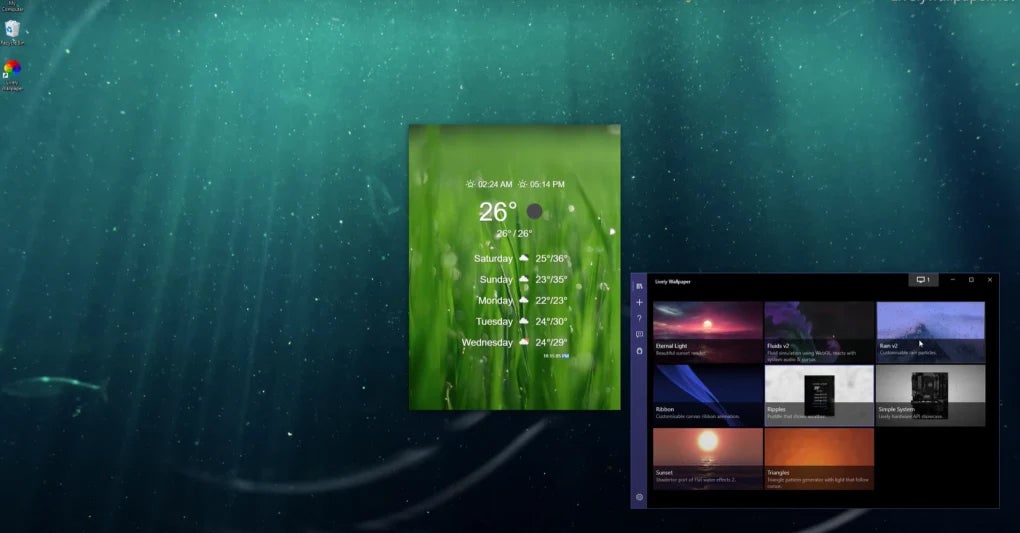
Windows 11 comes pre-loaded with a few compelling wallpaper choices, most notably, The Bloom series. However, none of these are animated live wallpapers. Live wallpapers add even more depth and dimension to your Windows 11 home screen, and we’ve got the best application by which to achieve this.
Lively Wallpaper is a free utility that grants you access to numerous live wallpapers that you can use to add visual interest and dimension to your Windows 11 home screen. There’s a reason we called this app the ‘best among the rest.’ In addition to furnishing you with a selection of beautiful wallpapers, this app also lets you customize each one perfectly to your taste. The app also pauses playback on any wallpaper automatically if you open a game or any other media utility in full screen, so that you don’t experience any performance loss. If you’re looking for high-quality, free, highly-customizable live wallpapers, look no further than Lively Wallpaper.
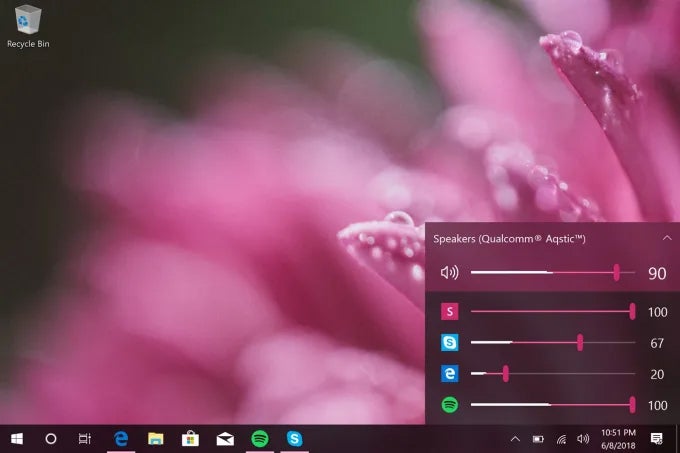
EarTrumpet is one of the coolest apps on our list simply due to how useful it is in everyday situations. This app lets you individually adjust the volume for apps. Windows 11’s volume controls are certainly more efficient and intuitive than previous operating systems. However, you still only have one master volume slider in the volume flyout.
EarTrumpet expands the volume flyout to incorporate separate volume sliders for each app you have open. To save on space, screen real estate, and processing power, the expanded flyout only shows apps that are currently in use. Therefore, if you close an app, the associated volume slider in the flyout will disappear. This is perfect for when you need to listen to a work presentation but still want music to play softly in the background.
Concepts
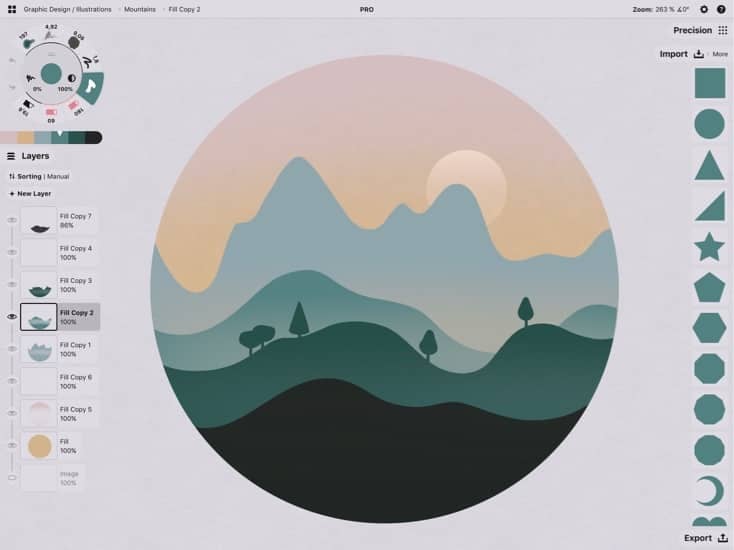
Windows 11 has many apps and features, but there are some areas in which Apple devices are still ahead of Microsoft’s golden child. One of those areas is Procreate. Now, while you can’t have Procreate on a Windows 11 PC – or any Windows PC for that matter – you can have the next best thing; Concepts.
Concepts is a visual design and sketching app similar to Procreate that gives you an infinite canvas upon which to express your wildest imaginings. The benefit of an infinite canvas is that you won’t run out of space, no matter how much you sketch in any particular direction. Concepts is perfect for doodling, designing products, drawing storyboards, and even creating vector designs. The best thing, however, is that Concepts is completely free to use.
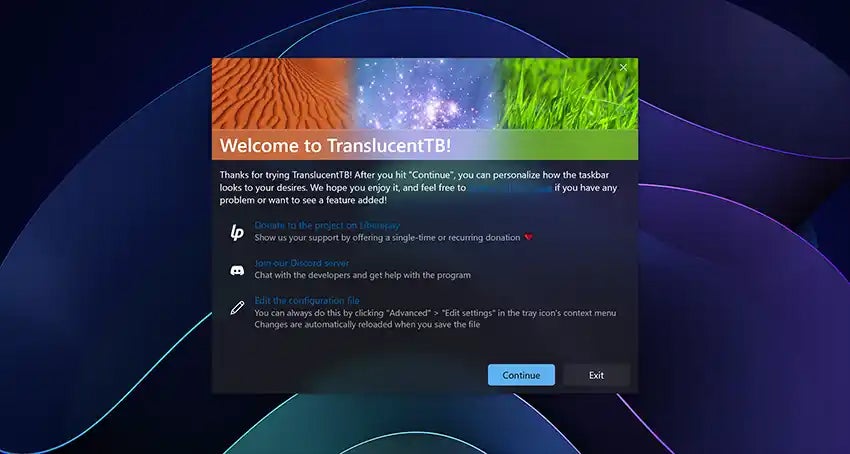
Do you remember Windows 7, the OS that shifted how much we could customize Windows? One of the coolest features I used all the time was the ability to make the padding of each window translucent so that it looks like glass. Windows 10 allowed much customization when it came to padding, but Windows 11 dropped many of those features. However, if you want a translucent task bar that sort of mimics the feel of Windows 7’s peak customization options, try TranslucentTB.
TranslucentTB lets you alter the transparency of the taskbar interface in Windows 11 so that you can make your PC look a little different from stock PCs. The app is incredibly easy to use. All you need to do is download and install TranslucentTB and fiddle with the various tick boxes and sliders to achieve the desired outcome. There’s another app that works in tandem with TranslucentTB called RoundedTB. This one lets you increase or decrease the intensity of the task bar’s rounded corners. Both apps are completely free to use.
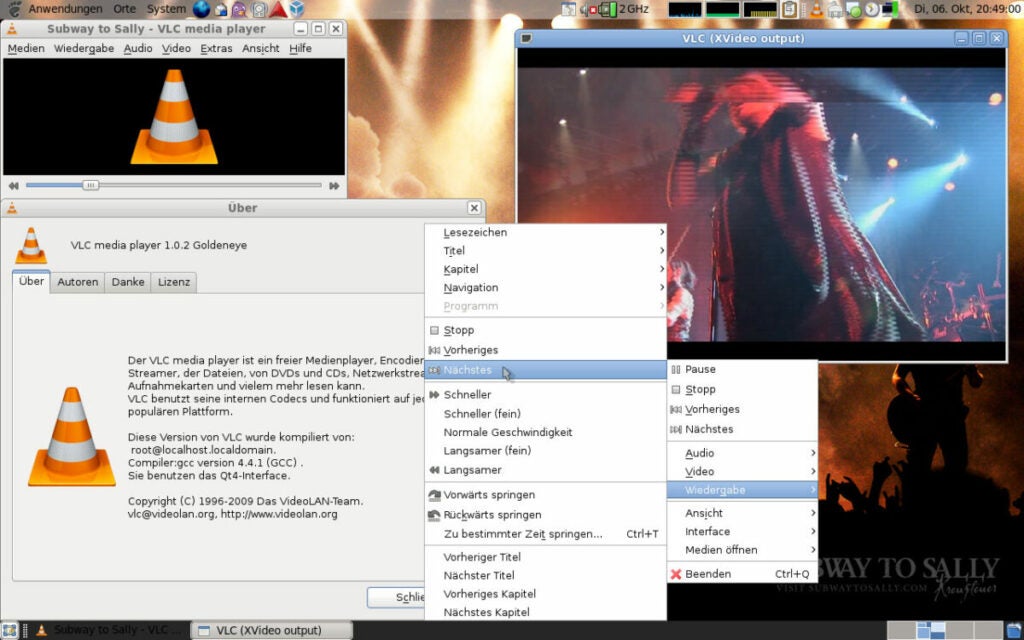
This app needs no introduction. Its sheer popularity and efficacy earn it a place on our list of the best Windows apps of 2022. VLC Media Player is essentially an alternative to Microsoft’s redesigned Windows 11 Media Player. However, it offers a bunch of options and functionality that the stock media player doesn’t have. For starters, VLC Media Player lets you convert file types. For instance, you can convert an MP4 file to MKV and vice versa. This is helpful when a certain other media player doesn’t offer support for a particular file type.
With VLC Media Player, you can look forward to crisp visuals, an easy-to-use layout, and loads of functionality that other media players don’t offer. The best part about VLC Media Player is that it’s open source, so anyone with the required skills can customize it to their liking. And, it’s also completely free to use on Windows 11.
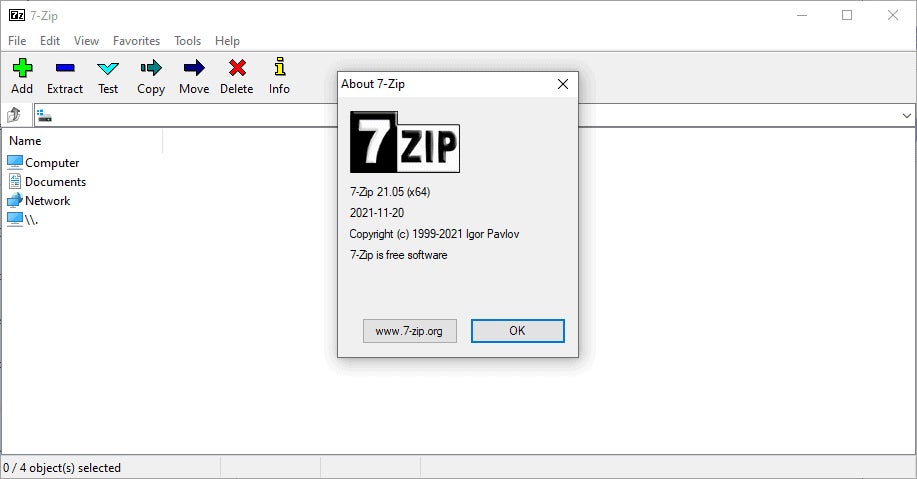
If you’re looking for an archiving utility to deal with zip folders, give 7 Zip a go. The Windows 11 operating system supports many archiving utilities, but most are either far too buggy to be good, or far to expensive to be worthwhile. 7 Zip, however, is free to use and as efficient as it gets. The app is also a total lightweight while packing a heavy punch, so you don’t need to worry about it using excessive resources or slowing your PC down.
We’re not even kidding about the heavy punches bit either. 7 Zip lets you unpack all sorts of file formats, like its native 7z, TAR, GZIP, MSIX, ZIP, and even FAT. 7 Zip is also completely free to download and use. The last feature we’d like to mention is that this utility has built-in AES-256 encryption support, so you’ll never need to download any additional encryption software.
Spoiled for choice
There are so many more utilities and programs that defined productivity and efficiency in 2022, but there are our absolute favorites. 2023 is due to be a massive year for software releases though, so do stick around and keep your eyes peeled for our coming articles.
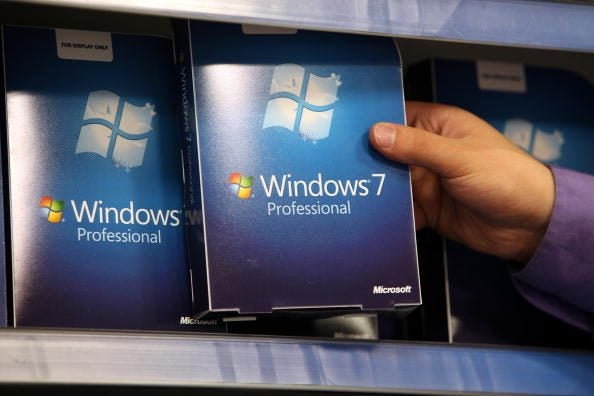
Microsoft has decided that it no longer needs to waste tech support time and money on Windows 7 and Windows 8. In January 2023, you’ll no longer see any updates appear or fixes to any bugs. What it also means is that there won’t be anymore support for Microsoft Edge for either of these operating systems. Thankfully, it will remain on Windows 11.
When Microsoft moved toward an Edge Chromium platform, it offered vast improvements, especially for Windows 10 and 11. With the company no longer offering support for the older operating systems, there won’t be updates for ME on them either. Even the former paid model for extended support will fall away.
Of course, that means that anyone still using Windows 7 or 8 and the associated Microsoft Edge app on them may be in for security issues. If you don’t know this already, let me teach you something. Hackers love to use malicious software to attack vulnerable systems. If operating systems become outdated, they end up being prime security targets.
This move by Microsoft not to update Edge on older operating systems may be to force members to upgrade to Windows 11. Even Windows 10 may become redundant, with apps like Media Play only receiving the latest updates on the latest system. Since the upgrade to W11 is free for current users, why aren’t more people doing so?
The issue is primarily with Windows 11 requirements. Not everyone can afford the high-tech systems needed to run it, as computers and laptops haven’t really come down in price by much. That means many people are forced to remain on outdated systems that become security risks. Perhaps if Microsoft offered free computer upgrades, that would help. Unlikely, but we can dream.









.png)