
All the best Space wallpapers

These five sites have all the best space wallpapers you can download for free. Check them out now.

This week at Softonic HQ we’re concentrating on bringing you fantastic wallpapers for your Windows PC or Apple Mac, and also all the best places to find them.  If you’re looking for cool desktop backgrounds including scenes and images from your favorite video games, the biggest sporting events around the world, the latest movies, and hip minimalist pictures we have you covered. Today though, we’re covering wallpapers and backgrounds from space. We don’t mean they’ve come from space; we mean desktop wallpapers of all things space related. We’ve got to say, some of these are incredible!

With these Space wallpapers we’re going to do things a little differently. Rather than highlighting particular images we like such as famous nebulas, supernovas, black holes, spiral galaxies, and planets like Saturn and Jupiter; we’re going to concentrate on where to find them all. Let’s go.

HD and 4K Space Wallpapers

Wallpaper Access

As you’ve probably guessed from the name of this website, it doesn’t specialize in space-related matters. Clearly, what Wallpaper Access specializes in are wallpapers and backgrounds. That doesn’t mean though, that the space images you find here won’t be special. On the contrary, Wallpaper Access is a great place to go find a huge collection of ultra-high-resolution space images that you can use as the background on your PC or Mac. In particular, the 4K Space Wallpapers collection is fantastic, with 69 breathtaking scenes both of outer space and views from outer space looking back to earth.


Hubble Space Telescope

The Hubble Telescope is one of the most iconic human machines ever built. Thanks to its earth orbiting platform, the Hubble has been able to capture some of the most incredible scenes of space the human race has ever laid eyes on. If you have a particular image of outer space stuck in your mind, chances are it was taken by the Hubble. By going to straight to the source of those space images here, you’ll be able to get your hands on space images with ridiculously epic titles like A rose made of galaxiesThe pillars of creation, and Galactic wreckage. What’s also great about the Hubble website is that it gives you free access to the full size original image meaning you won’t have to compromise on quality, if you don’t want to, and you’ll also get interesting explanations about all the images written by teams that captured them. If you’re looking for HD space wallpapers of the Milky Way, Orion’s Belt, our Solar System and beyond; this is the place to start your search.


Unsplash

Unsplash might just be the coolest stock photography library on the internet. It has thousands, if not millions of fantastic images, which have all been uploaded by the artist or photographer behind them. What’s even better about Unsplash is that all the images are available for free. As you’d expect from such a site, Unsplash has a fantastic section on space images that has many great space scenes and vistas that would be perfect as your wallpaper.


Space.com

Space.com describes itself as, “the premier source of space exploration, innovation, and astronomy news, chronicling (and celebrating) humanity’s ongoing expansion across the final frontier.”  Sounds cool, doesn’t it! As you’d rightly imagine, all that makes space.com the perfect place to find some truly awe-inspiring space-related backgrounds. Also, just like with at the Hubble website you’ll not just get the images to use as your background, you’ll also learn about what is going in the images and how they were taken. If you’re looking for something a little deeper than merely an image that looks cool, this is the place to go.


NASA

Our final source of amazing space-related wallpapers is NASA. As you’d expect from the most famous space agency on the planet, NASA has a huge library of space images. These include photos captured by telescopes on earth and in orbit, photos of cool equipment such as radio telescopes, mission mockup images like those of the famous Curiosity Rover, historic mission photos, and much much more. If you want backgrounds with space shuttles and International Space Station missions, this is the site you’re looking for.

Out of all the sites we’ve brought you today, the NASA website is our favorite because on top of offering you some fantastic images that will make great backgrounds, being a fantastic place to learn about space, and doing all of that for free; many of the images on the NASA site will make you feel emotional as you’ll recognize them. You might know who the person is in the image, what the shot is of, or even just feel an emotional attachment for the robot you’re looking at. NASA is a huge part of our global culture these days and that really gives the desktop wallpapers you’ll find here a lot more weight.


Wrapping up

We’ve shown you five great places to source all the best space wallpapers available on the web. If you’re a big space fan, you’ll definitely find the wallpaper you’re looking for on one of the five sites above. In fact, you’ll find a lot more than just backgrounds on three of the sites meaning it all depends just how deep you want to go. You might log on to the Hubble or NASA websites simply looking for a new background for your PC and emerge hours later having ended up researching anything from the composition of moon rocks to the age of the oldest and youngest galaxies. That’s just it with space though, the possibilities are endless.

7 tricks to use Microsoft Office free, without paying a cent

Ever wondered how to use Microsoft Office for free? Get instant access to several Microsoft Office versions without paying a cent. Learn how to do it here!

Microsoft office apps

Office for free? You want it, right? Microsoft Office remains the top dog of office apps. As good as the apps are, however, we understand that not everybody can afford to pay for them. We’ve covered here the best free Office alternatives, like Google Docs and LibreOffice, but we also know that some of you might want the real version of Office. Don’t worry though, Softonic has your back: put that credit card away (except for number 5) because here are 7 ways to get free access to the Microsoft Office suite on Windows and Mac.

6

7 tricks to get access to free Microsoft Office

1. Use Microsoft Office Online

Little by little, Microsoft has been growing the number of Office apps that you can use for free online. You’ve got Microsoft Word, Excel, PowerPoint, OneNote, Sway, Email, Contacts, Calendar, OneDrive and Docs.com all without the need to install Office on your hard drive. If you have a Microsoft account and a reliable internet connection, you can use these free office programs on a Windows PC, Apple Mac, or Linux using web browsers like Google Chrome and Microsoft Edge. Microsoft Office Online programs even offer some cool and unique features like real-time Skype chats while collaborating on documents with friends or colleagues.

Try out Microsoft Office online here, choose the app you want to use, and log into your Microsoft account. You’ll also find Office Online in the Products menu over at office.com.

You won’t get all the Office 365 features with Microsoft Office Online, but you will at least be able to edit documents

Office Online Download now
7

2. Use mobile apps

The Mobile office apps work just like the online versions we’ve already mentioned. The difference is that they’ve been optimized for mobile devices.

Here we’ve listed the available Microsoft Office mobile apps, which are available for free on Android:

Word

Microsoft Word for Android Download Now
8

Excel

Microsoft Excel for Android Download now
8

PowerPoint

Microsoft PowerPoint for Android Download now
8

OneDrive Cloud Storage

OneDrive for Android Download now
8

Outlook

Microsoft Outlook for Android Download now
7

OneNote

OneNote for Android Download now
7

SharePoint

For iPhone and iPad, it’s more difficult to list the mobile Office applications as there are different versions for both Apple devices. You can find the list of all Office apps for Apple devices, including those for the new iPad Pro, on Microsoft’s iTunes listing.

Again though, don’t expect the full Office 365 experience, but this free version of Office will allow you to do basic editing.

If you want to get Office 365, you’ll have to try one of the following methods.

3. Get Office from your school

If you’re a student or teacher, you may be entitled to an Office 365 education subscription. Enter your school email address hereYou’ll get Office software including Word, Excel, PowerPoint, Microsoft Teams, and OneDrive storage among other tools, totally free. If your school isn’t registered, let them know what they’re entitled to ASAP!

4. Persuade your boss

Huh? What kind of company doesn’t have Microsoft Office 365? If yours doesn’t, it could be time for you to step up. You’ll have to sell it though, and go through the numerous Office 365 options available and the benefits they’ll bring to the business. The important thing is that your company will foot the bill!
Microsoft Office for companies

5. Sign up for a free month trial of Office 365

Try out the Office 365 Home version. You’ll have a 1 month trial to experiment with the Office 365 personal package that includes Word, Excel, PowerPoint, Outlook… Also, the trial gives you access to 1TB of cloud storage on OneDrive.

Office 365 trial

Keep in mind, however, that to download the trial, you’ll have to enter a current debit or credit card number. When your one-month trial ends, you’ll automatically be charged for an Office 365 subscription so make sure you don’t forget to deactivate your account before the trial ends.

6. Sign up for a free trial of Office 365 ProPlus

Have you already finished your one-month free Office 365 personal trial? What about 30 MORE days? Well, here you go. Sign up here for Office 365 ProPlus. You’ll have to sign up for the Evaluation Center, but in our final trick, we’ll go into this in a little more detail.

Office 365 ProPlus

7. Try your luck with the TechNet Evaluation Center

Microsoft likes having users try out their products’ new features before officially launching them and this includes everything from DocX Word documents to Microsoft’s latest and greatest software innovations. This allows the software giant to resolve any software issues and problems, before they’re rolled out to all users.

Microsoft Office online - TechNet Evaluation Center

This is where Microsoft’s TechNet Evaluation Center comes into play. If you sign up, you can get free access to the products Microsoft needs testing. This usually means you’ll get to try them for 30-60 days. Sometimes, you might even cross paths with Office, like with the trial for the ProPlus version we just told you about.

Remember though, that the versions you’ll find in the Evaluation Center are still rough around the edges. You should expect all sorts of surprises!

What if you’ve used up all these options?

What happens if you’ve already used up all your free trials? Then you’ve got no choice but to buy Office (unless you’re satisfied with the online and mobile versions). Our personal recommendation is Office 365 Personal, which costs $69.99 a year or $6.99 a month.

If you don’t want to invest in the office package, don’t worry because there are other options out there! Try out these free alternatives to Microsoft Office and you won’t be disappointed.

Is Gran Turismo finally coming to Windows PCs?

Gran Turismo is arguably one of the best-known and most compelling real-life inspired racing games. However, the game has long been a PlayStation-exclusive title, leaving PC gamers to either invest in consoles or turn to far less polished and exciting titles. That may all be about to change as Polyphony is looking into porting its resident high-stakes racer to Windows PCs

In a recent interview with GTPlanet, the creator of the Gran Turismo series, Kazunori Yamauchi, expanded on this statement. Speaking on the possibility of a Gran Turismo PC port, Yamauchi said: ‘Gran Turismo is a very finely tuned title. It’s not a very easy subject, but of course, we are looking into it and considering it.’ 

The ‘finely-tuned title’ and its potential port to PC, as Yamauchi put it, is a topic of contention for developers due to the different constraints that PC-based games face. One of the issues that Yamauchi is most concerned with is whether the devs will be able to achieve a 60 frame-per-second running speed in 4K resolution across all platforms. However, with the current availability of GPUs and CPUs, we’d expect that a PC port of Gran Turismo would result in even more advanced graphics and performance. 

Is Gran Turismo finally coming to Windows PCs

Gran Turismo has been running in various iterations for 25 glorious years. During that time, the game has never been playable anywhere other than on PlayStation. Even the latest installment, Gran Turismo 7, was released for PlayStation 4 and PS5 exclusively. Even the previous iteration, Gran Turismo 6, was announced as an exclusive title for PS4. However, should the game be ported to PC, it wouldn’t be the first time that a previously PlayStation-exclusive title would execute an expansion into the PC market.

We’ve seen other gaming titles expand their platform suitability in the past, such as God of War, Uncharted: Legacy of Thieves, and Horizon Zero Dawn. This trend isn’t even lost on Sony, the company behind the PlayStation consoles. During an investor presentation held in May of this year, Jim Ryan, the president of Sony Interactive Entertainment, stated that the company expects that within the next five years, half of its offerings will be available on either PC or Mobile, as well as on the next-gen PlayStation 5 console. 

We don’t yet know conclusively whether we’ll get a PC port of Gran Turismo, but thanks to Yamauchi, we at least know that the company behind the incredible realistic racing simulator is considering it at length.

Microsoft nags Windows 8.1 users with fullscreen end of support warnings

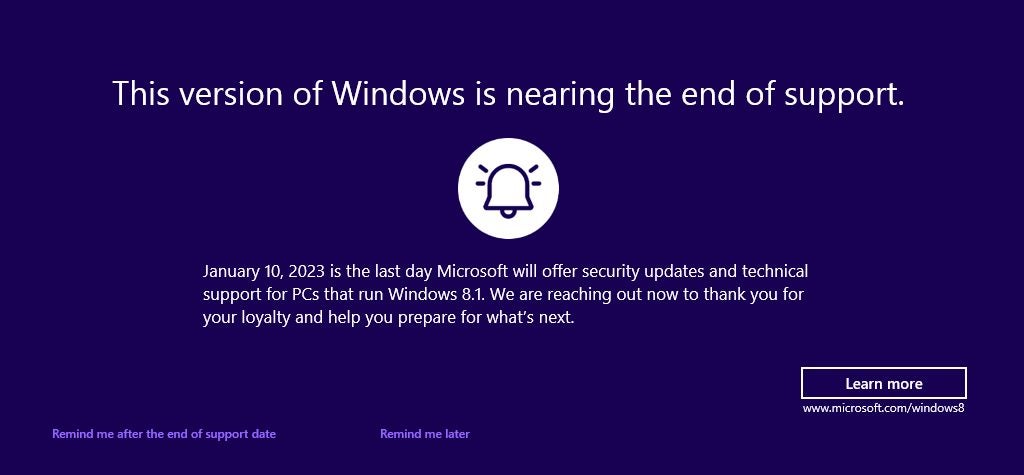
Windows 8.1 users who boot into the operating system may see a warning about the operating system’s upcoming end of support. The alert reminds users that the operating system will no longer be supported by Microsoft after January 10, 2023.

Users of Windows 8.1 began to notice the fullscreen warning this week after installation of the July 2023 cumulative update for the operating system; this update fixed several critical security issues in the operating system and addressed non-security issues. Important security updates are installed automatically on most Home systems running Windows.

This version of Windows is nearing the end of support

January 10, 2023 is the last day Microsoft will offer security updates and technical support for PCs that run Windows 8.1. We are reaching out now to thank you for your loyalty and help you prepare for what’s next.

Windows 8.1 End of Support notification

Microsoft included the notification as part of July’s Patch Day cumulative updates for the operating system.

Microsoft’s Windows 8.1 operating system reaches end of support in January 2023. A last round of security updates for the operating system will be released in January 2023 before support ends. Support end means that Microsoft won’t release security updates for the operating system anymore, nor offer any other form of support, including paid support.

Other products, including Microsoft 365 and products by third-party developers, may reach end of support as well.

Windows 8.1 users may select “remind me after the end of support date” to get another reminder in January 2023. Selecting “remind me later” will show the fullscreen warning again in 35 days. “Learn more”, finally, opens this support page on the Microsoft website. It includes a FAQ, but also advertises Microsoft’s Windows 11 operating system.

How to block the Windows 8.1 end of support warning

Windows 8.1 users who don’t want to see the fullscreen message repeatedly may select the “remind me after” option. Doing so displays the next warning after January 10, 2023 again on the system.

There is also an option to block it completely, but this requires editing the Registry.

Note: we recommend that you create a backup of the Windows Registry or the operating system before editing the Registry.

  1. Use the keyboard shortcut Windows-R to open the runbox.
  2. Type regedit.exe and select the ok-button to start the Registry Editor.
  3. Confirm the UAC prompt by selecting yes.
  4. Use the folder structure on the left to navigate to the following key: HKEY_CURRENT_USER\Software\Microsoft\Windows\CurrentVersion\EOSNotify
  5. Right-click on EOSNotify and select New > Dword (32-bit) Value.
  6. Name it DiscontinueEOS.
  7. Double-click on DiscontinueEOS and set the value to 1.
  8. Close the Registry Editor window and restart the PC.

The operating system won’t display end of support fullscreen warnings anymore afterwards.

Windows 8.1 Support End: your options

Windows 8.1 devices won’t receive security updates after January 10, 2023; this means, that security issues won’t be patched and that these issues may be exploited successfully.

Microsoft extended support of its Windows 7 operating system by three years when it reached end of support. The company announced already that it won’t offer extensions for Windows 8.1. Microsoft offered no explanation, but a look at the usage numbers highlights why. Windows 8.1 is not widely used, even when compared to Windows 7.

Microsoft recommends that users switch to the company’s Windows 10 or 11 operating systems. Windows 8.1 users who want to remain on Windows can only choose one of these systems, as these are the only two that Microsoft supports after January 2023.

Remaining on Windows 8.1 may look like an option, but running unsupported operating systems increases the risk of successful attacks.

Windows 10 is supported until October 14, 2025. While that is less than three years, it may be sufficient for many use cases. There is also a chance that Microsoft may extend the end of support date, considering that a percentage of devices can’t be upgraded to Windows 11.

The operating system has two advantages over Windows 11:

  • A direct upgrade path from Windows 8.1 to Windows 10 exists.
  • System requirements are identical.

Microsoft changed the system requirements of Windows 11 so that unsupported devices can’t be upgraded easily to the new operating system. A direct upgrade from Windows 8.1 to Windows 11 is not possible, even for devices that meet all requirements.

The only option is to upgrade from Windows 8.1 to 10, and then from Windows 10 to 11.

A new installation of Windows 11 is an option, but it would leave all files, settings and installed programs behind.

Other options

Switching to a Linux distribution may be another option. Certain distributions, such as Linux Mint or Ubuntu, provide similar user experiences. Many applications, including games, are available for Linux.

There is also the option of buying a new PC, one that runs Windows 11 or is compatible with the operating system. It is a valid option, especially if the Windows 8.1 PC is showing signs of age.

Windows 8.1 users have several options to deal with the upcoming support end, as shown above. Users who want to keep their files and programs may want to consider upgrading to Windows 10. All Windows 8.1 PCs should be compatible with Windows 10, and since there is a direct upgrade path, it is a straightforward process. Upgrades may still be free, even, in some cases.

The best screenshot tool for Windows just got a whole lot better

Windows users have plenty of options when it comes to taking screenshots of the desktop, applications, games, or anything else they see on the screen.

ShareX Download Now

The built-in screen capturer for Windows, for example Windows 11’s Snipping Tool — provides a good but basic experience. These tools support popular capturing options, such as capturing a program window or the desktop, but they lack advanced features.

Consequently, Windows users are looking for better tools. Third-party applications include image editors, more screen capturing options, better sharing options, or better post processing of images.

One of the best screenshot tools for Windows, the free open source application ShareX, is now available in a new version that improves it even further.

ShareX open source screen capturing for Windows

ShareX, for those who did not come across the name before, is one of the most popular choices when it comes to extending Windows’ screenshot functionality.

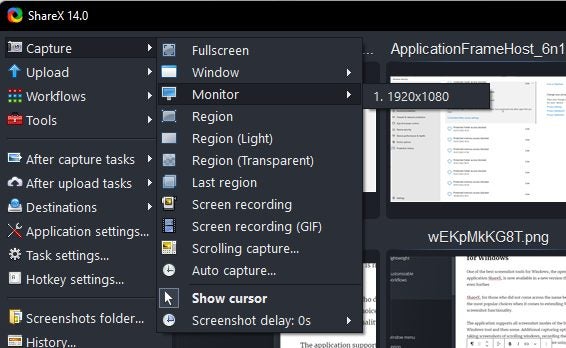
The application supports all screenshot modes of the built-in Windows tool and then some. Additional capturing options include taking screenshots of scrolling windows, recording the screen, auto-capture, multi-monitor support, and text capture using OCR.

Take the regional screen capturing feature, as an example. Instead of providing just an option to capture a region, ShareX supports light and transparent regional captures.

Auto capture is another handy feature. It allows you to repeat screen captures in specified intervals. Use it to capture a window or region repeatedly, without having to repeat the process actively each time.

Automation and shortcuts are one of the application’s strong features. Use the Windows menu to capture any open program window, without activating it first. The same is true for capturing content on different monitors; every option is just a click or two away in the program.

It goes without saying that ShareX supports keyboard shortcuts for all major operations.

Scrolling capture takes screenshots of entire webpages and application windows with scrollbars. The feature is a bit more complicated, as it is necessary to give ShareX cues regarding the scrolling.

OCR capturing, the OCR stands for Optical Character Recognition, captures any text on the screen, so that it can be copied or edited. ShareX 14.0 made the program’s OCR feature better, as it is now possible to use it without active Internet connection on Windows 10 and 11 devices.

The screen recording functionality requires the free application ffmpeg, which ShareX downloads on user request. Once that is out of the way, screen recording supports mp4 and gif captures.

ShareX post processing

ShareX saves screenshots and captures to the local system by default. Options to upload screenshots directly after capturing to image or file hosting sites are supported. The same is true for text captures, which may be uploaded to text hosting sites.

Images may be uploaded to services such as Google Photos, Twitter, Photobucket, Flickr, or Imgur directly. Text uploading supports Pastebin, GitHub Gist and others, and file uploaders support Dropbox, Google Drive, OneDrive, and dozens more.

Post processing options do not end here though. ShareX supports a whole bunch of after capture and after upload tasks that automate certain processes.

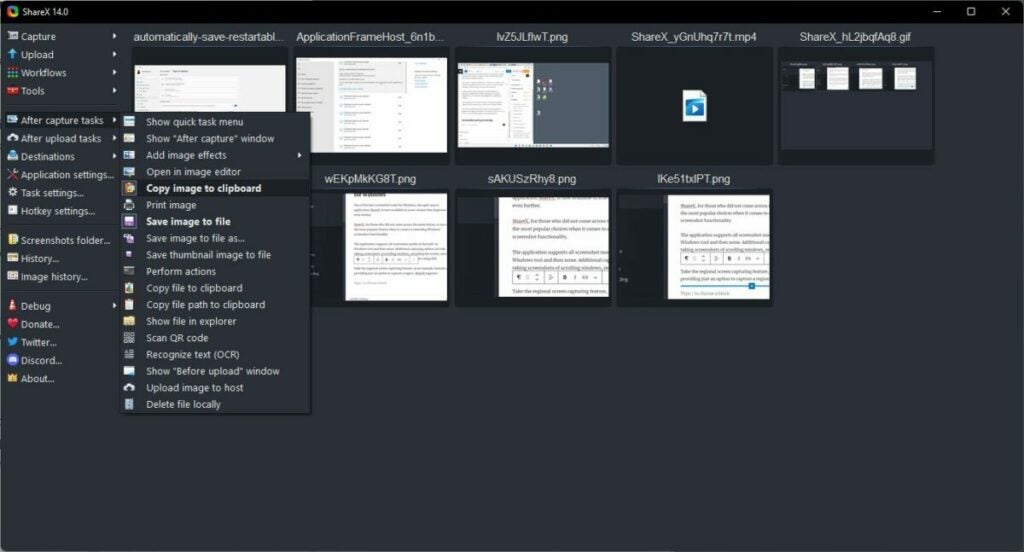
After capture defines automatic actions that the program executes whenever you take a new screenshot or record the screen. Options range from opening the image in an image editor, over copying it to the Clipboard or saving a thumbnail file of the image.

After upload, similarly, defines tasks that ShareX executes after file uploads. It may open the URL for you in the default browser, copy the address of the uploaded file or image to the Clipboard, or create a short version of the URL for easier sharing.

Other features

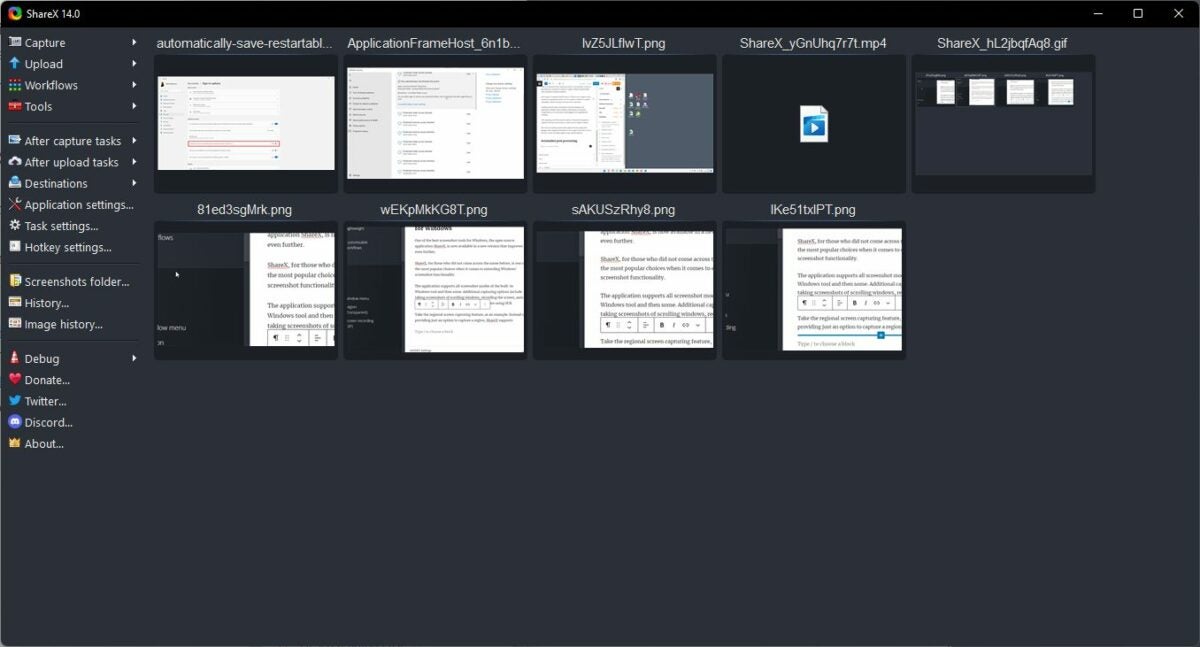
ShareX displays thumbnails of previously captured images and videos in the interface on start. It is a useful feature to open or interact with previous captures, without having to open the directories of the files.

Image history and history provide even better access to past captures. The application lists captures in chronological order and includes a search filter to find content quickly.

The Tools section includes more than a dozen tools, including a color picker, image splitter and combiner, image effects, or a video converter.

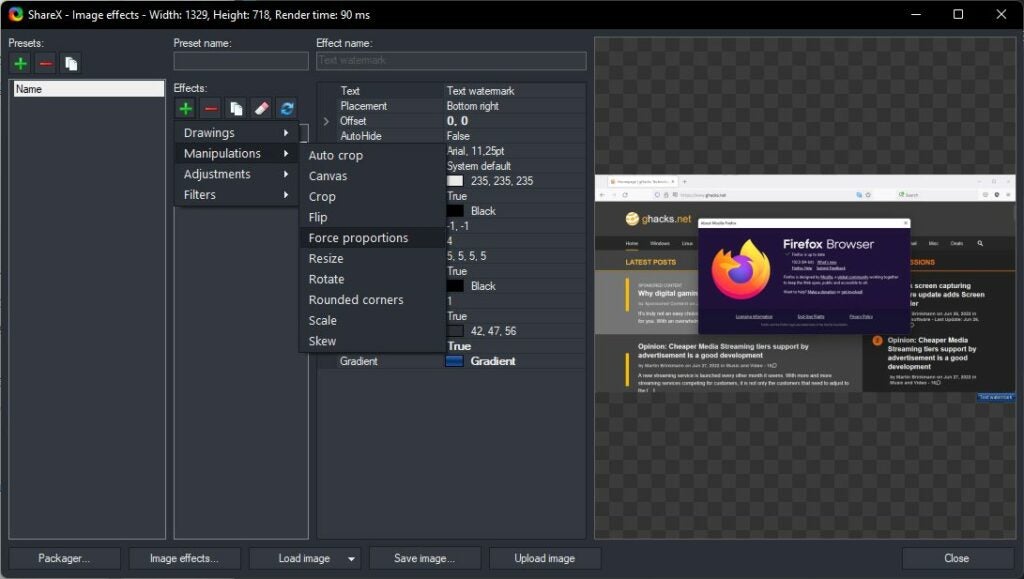
These tools are powerful. Take the image effects tool as an example. It supports dozens of options, such as adding watermarks to images, adding borders or backgrounds, applying a sharpening filter, or resizing the image.

Individual filters or groups of filters may be saved as presets, which may then be executed whenever they are needed with just a few clicks.

ShareX 14.0

ShareX 14.0 is the latest version at the time of writing. It introduces several useful new features and improvements to the screenshot tool, including:

  • Offline OCR capturing support on Windows 10 or newer.
  • Option to capture screens with bigger cursor sizes.
  • Zoom support in the built-in image editor.
  • Hotkey support for the image viewer.
  • Lots of history window improvements, including find as you type functionality.
  • Custom image uploader improvements

You may check out the full release notes on the official website.

Verdict

ShareX is a powerful screenshot and screen recording tool for Microsoft Windows devices. It supports more screen capturing options than the default Windows tools, but does not sacrifice speed or usability for the extended functionality.

Automation is another key feature of ShareX. It is easy to create workflows that save you a dozen or more clicks using the built-in automation options.

All in all, it is as good as it gets when it comes to screen capturing tools for Windows.

The Best Windows Security Tips

We live in a world full of dangers, including cyberattacks, viruses, malware and online scams. They can infiltrate your operating system before you even realize it, and by the time you do, it’s already too late. It may seem like a hassle or a waste of time, but spending a few minutes strengthening Windows 10 security on your computer can prevent a bad experience or two. And believe us, it’s worth the trouble.

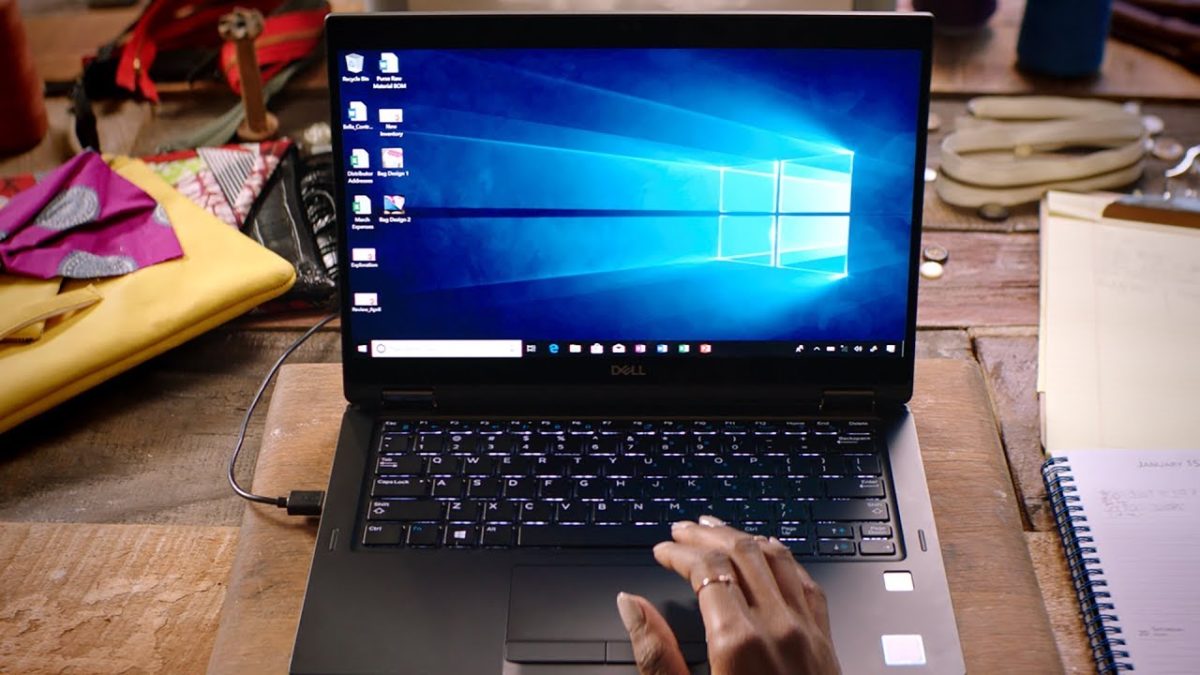
Person using laptop

At first glance, Windows may seem like an impenetrable operating system, but it’s actually a prime target for hackers around the world, who are discovering new security holes every day. Want to use Windows without worrying about online attacks? Keep reading for some useful tips!

Windows 10 DOWNLOAD
8

1. Keep your PC up-to-date

Many people think of Windows updates as a hassle that slows down their work or asks them to reboot at the worst possible time. But did you know these updates play a vital role in keeping your computer secure? Every time you update Windows, Microsoft repairs the security holes in the operating system and strengthens its line of defense, ensuring your security and that of your data.

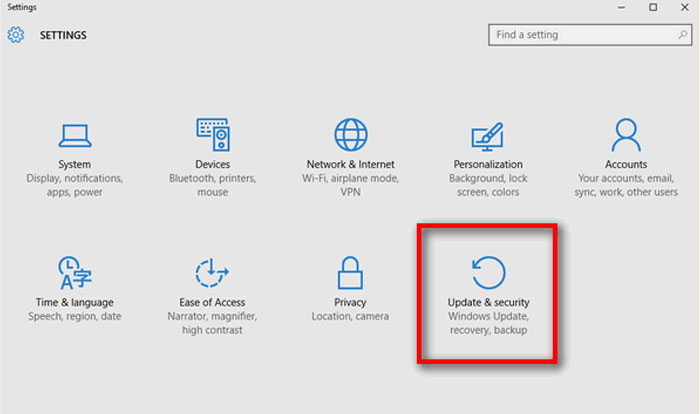
If you don’t know how to update Windows 10, don’t worry. It’s a piece of cake! Just click the Start button (the Windows icon on the lower left side of your screen) and then Settings (the gear icon). Alternatively, you can press the Windows key + I. Next, click “Update & Security.”


How to get to Update and security

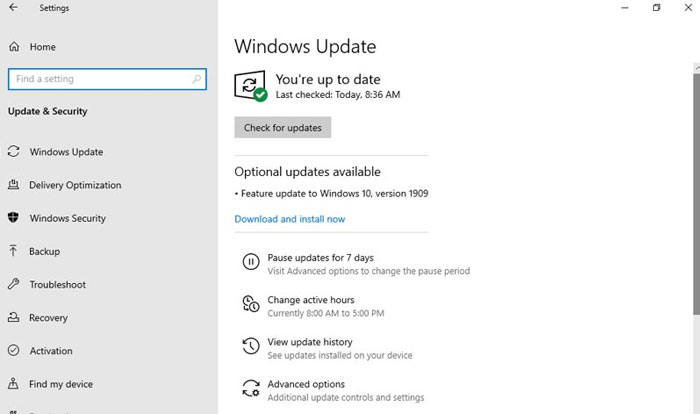
In the new window, click on “Windows Update,” which appears in the menu on the right side. Finally, click the “Check for updates” button and wait for Windows to be updated. See how easy that was?

Windows-Update-interface

2. Secure your computer with a password

Your PC’s security can be compromised not only over the internet, but also in the physical world, right where you are. If you use your private computer in a public place, for example, you use your laptop in a coffee shop, or if your home or office is robbed, your data will be at risk as well. If you haven’t set a password to log into your computer, it will be vulnerable if it falls into the wrong hands.

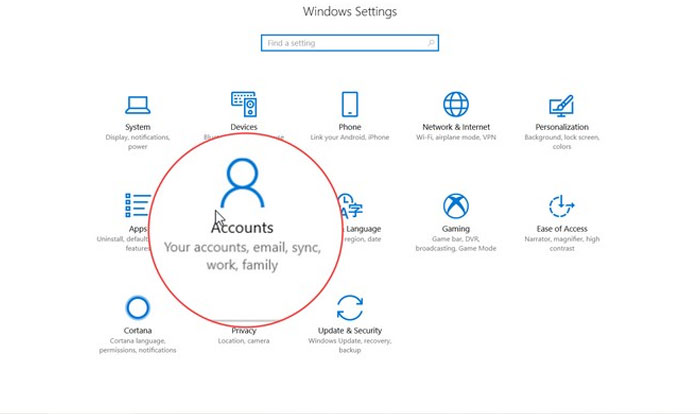
To set a password for Windows 10, follow these easy steps. Click Start (the button with the Windows logo on the lower left side of the screen) and then Settings (the gear icon). If you prefer, you can also click the Windows button + I. Next click the “Accounts” option.

How to get to the Accounts window

In the new window, go to “Sign-in options” in the menu on the left. Then a new menu will appear where you can set a password to sign into Windows and other new options for unlocking your device (a physical security key, a PIN, your fingerprint, a picture password, facial recognition, etc.).

3. Make sure you have the only administrator account on your computer

Not all Windows accounts are created equal. There is one kind of account that lets you make any change on your computer without the other users’ consent. We’re referring to administrator accounts. To see which user accounts are linked to your computer, follow these steps.

Click the Start button (the Windows icon in the lower left corner of your screen) and then Settings (the gear icon). You can get to the same window by clicking the Windows button + I. Next, just go to “Accounts.”

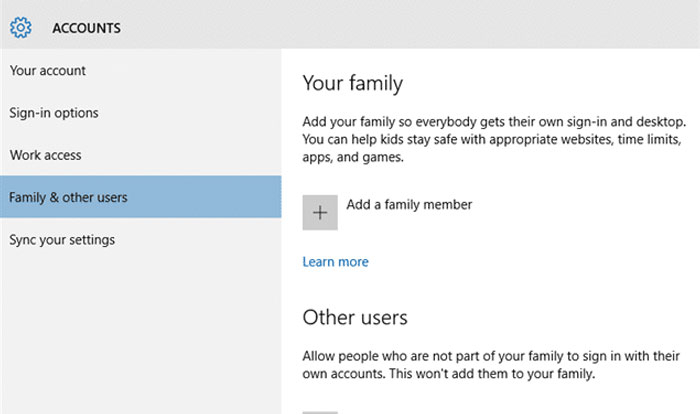
Family accounts and other users

In this new window, click “Family & other users.” This will show you everyone who has an account to access your computer. Make sure that nobody but you can log on as an administrator.

4. Update all computer programs regularly 

Keeping your operating system up-to-date isn’t enough to prevent a security hole from compromising your data. It’s important to make sure that all the programs and internet browsers on your PC are always up-to-date.

Fortunately, many programs are updated automatically whenever you open them, but others need some extra help. That’s why we recommend that you visit their websites regularly to check for new versions.

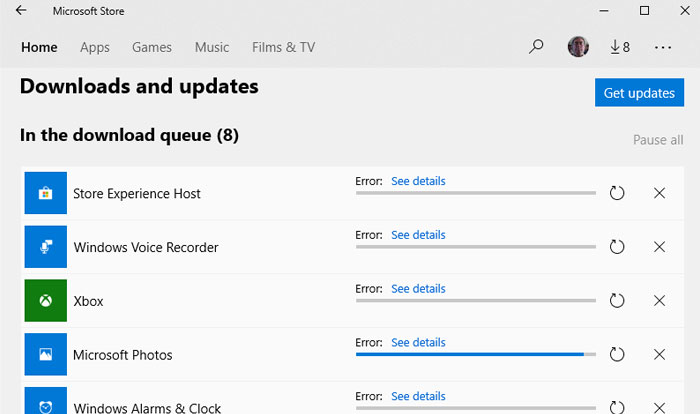
If you have downloaded programs from the Microsoft Store, the process is a lot easier. To check for updates, just open the Microsoft Store, click the three-point icon on the upper right side of the window and go to “Downloads and updates.”

5. Delete programs and apps you don’t use 

Hard drives have so much space these days that it’s easy to install programs over time and never delete them, even if you don’t use them. But it’s important to clean your PC of old programs or ones that are just taking up space. By deleting them, you’ll make sure they never cause any security problems. At the same time, you’ll be surprised how much your computer’s performance will improve.

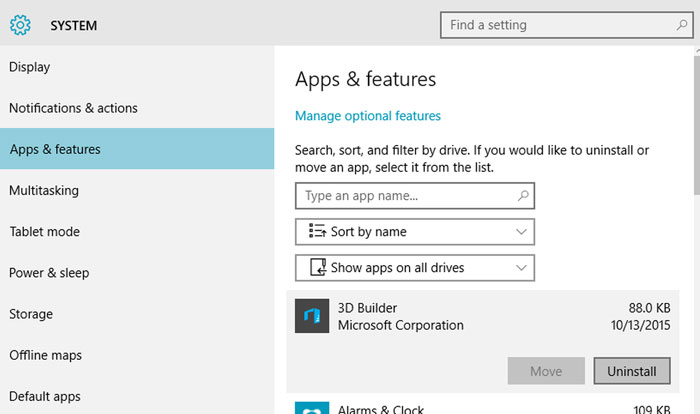
Access Applications in Windows 10

To get rid of a program on Windows 10, always use the uninstaller. Go to the Settings menu (click the Windows button + I) and click the “Apps” option. Next, you’ll see a menu with all the programs and apps installed on your computer. Click the one you want to delete and then “Uninstall.” If you prefer, you can also use software to uninstall programs. Check out the article below to find out which ones we like the most.

6. Deactivate “spyware” on Windows 10

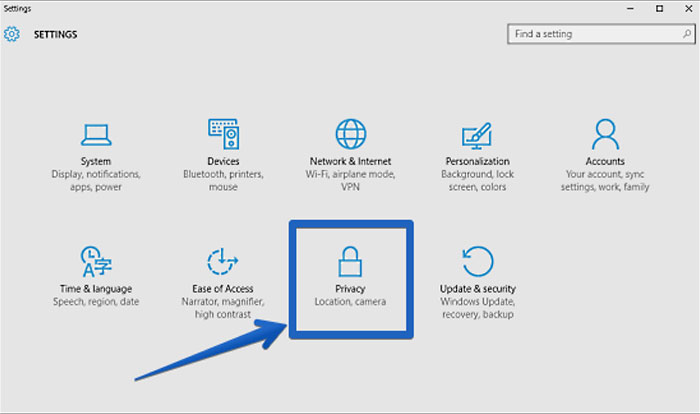
Windows 10 is an excellent operating system, but it has always been criticized for invading users’ privacy. Unless we disable them, Windows 10 comes with a series of enabled options that share our data without us even realizing it (our location, data to help it decide what ads to display, activity, etc.)

How to access the Privacy menu in Windows 10

To disable them, go to Settings (click the Windows button + I) and the “Privacy” option. In the new window, turn off the options under the “General” tab, and under “Activity history,” disable “Send my activity history to Microsoft.” Finally, under “Diagnostics & feedback,” turn off “Tailored experiences.”

7. Install good antivirus software

This may come as a surprise, but many Windows 10 users don’t have antivirus software, making them an easy target for potential hacker attacks. Good antivirus software is not necessarily expensive, and in fact, there are many free antivirus products that are excellent and will protect your PC without impacting its performance.

Hacker attack

Here at Softonic, we especially recommend Avast Free Antivirus. It detects the vast majority of viruses, and you’ll barely notice you have it installed. Click below to download it completely free.

Avast Free Antivirus DOWNLOAD
8

If you’re not a fan of Avast, don’t worry. We have a great article about the best free antivirus programs to protect your computer with Windows 10.

8. Always keep your firewall on

This point is closely related to the one above: always keep your computer’s firewall on. If you use Windows Defender, we recommend checking regularly to make sure that it’s on.

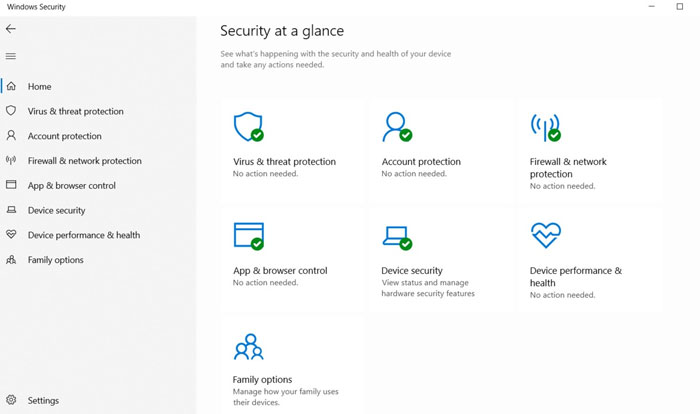
Windows Security Interface

Go to Settings (click the Windows button + I) and the “Update & Security” option. When the new window opens, click “Windows Security” and make sure there is a green check mark beside “Firewall & network protection.” You can also make sure by going to the Control Panel and clicking “Windows Defender Firewall.”

9. Use a paid VPN

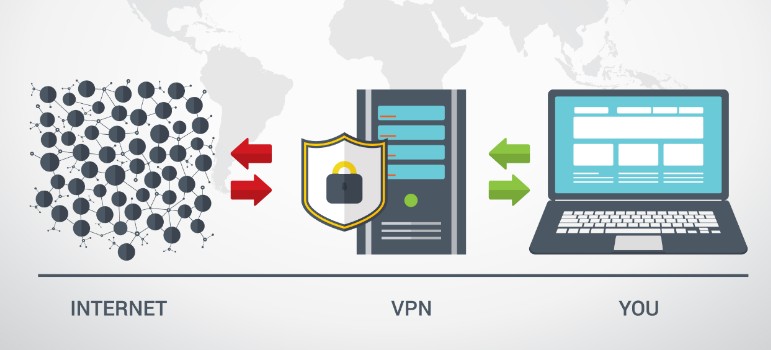
Many of us browse the internet without using a VPN. This isn’t a problem if you only use your computer on your Wi-Fi at home. But everything changes if you access open Wi-Fi networks on your laptop at a library, coffee shop, airport, etc. Unless you use a VPN, your data won’t be encrypted and can be intercepted by any malicious user who is using the same network at the same time. So why is it important to use a paid VPN?

Free VPNs could seem like a bargain at first, but keep in mind that unless they cover their costs via subscriptions, they do so by other means. One of the most typical ways these free VPNs earn money is by selling your data to third parties, and they’re even capable of selling your internet bandwidth to other users without you realizing it. Want to know more about why we advise against free VPNs? Read the article below.

When choosing a VPN, make sure that it’s the right one to meet your needs, so consider how you use your computer. A good VPN for browsing the internet isn’t the same as one for streaming content or, for example, online gaming. To make your decision easier, read our roundup of the best VPNs for safe browsing.

We hope our list of tricks and tips helps to protect your operating system from hacker attacks. Know of any we didn’t mention? Feel free to share it in the comments section!

LibreOffice: All the best extensions for the free Word alternative

These are the best LibreOffice extensions and templates you can download now to make your life easier.

Lbre Office

LibreOffice is a wonderful thing. A completely open-source, and therefore free, fully functional productivity suite. If you need something like the Microsoft Office suite, yet can’t afford a license or subscription, LibreOffice is what you are after. Like Microsoft Office, LibreOffice has a lot of cool new features and apps designed to help make your life easier. There are lots of programs that fall under the LibreOffice umbrella including LibreOffice Calc, LibreOffice Draw, and LibreOffice Impress.

As well as just built-in features, however, LibreOffice also offers access to an extensive library of useful extensions, add-ons, and plugins that offer even more functionality to LibreOffice users. That is what we are here for today. In this article, we are going to walk you through the best extensions for LibreOffice that will help you be more productive and how you manage them using the extension manager. Whether you’re working from home or heading into the office, this guide will help make your life easier.

LibreOffice Download LibreOffice
7

Best LibreOffice extensions

These LibreOffice extensions will make your life easier and help you get your work done quicker and more efficiently. Check yourself here, if you’re using OpenOffice and not LibreOffice. Although similar, these are different programs and you should head to openoffice.org for information on how to use OpenOffice.

The extension manager

The Document Foundation that set up LibreOffice has also set up a library of extensions for the software that you can find over at extensions.libreoffice.org. You can also download the extensions we’ve listed below using the links we’ve provided. You can then manage your LibreOffice extensions inside the LibreOffice apps by heading to the Tools menu and selecting the Extensions Manager.

AltSearch (Alternative Dialog Find & Replace)

altsearch libreoffice

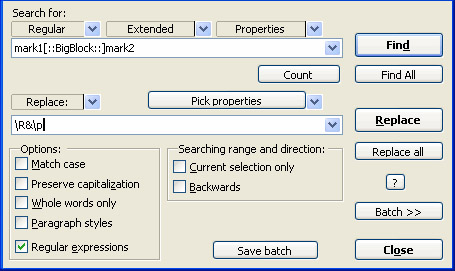
LibreOffice Writer does have a decent Find & Replace feature already, but it can prove frustrating at times. The AltSearch extension goes a long way towards remedying this situation by augmenting the native Fin & Replace feature with some added tools. The extension facilitates multiple searches at once and opens up the possibility to search for text in specialized elements of your documents such as bookmarks, notes, tables, footnotes, and endnotes.

Stop Begging

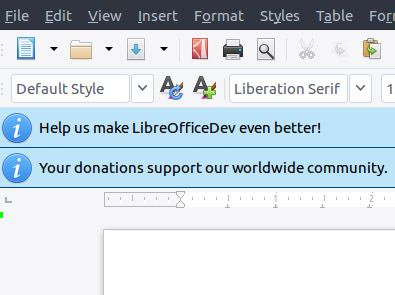
There is no doubt that LibreOffice couldn’t be what it is without support from a dedicated global following built up of developers and financial supporters. To maintain these levels of support, LibreOffice needs to constantly campaign for new supporters and one of the ways it does is by asking every user for support every 90 days. It is not much to have to deal with these requests but if it is too much for you, the Stop Begging extension will stop these requests from ever showing up again. We recommend you only download this extension after you’ve supported the Open Document Foundation and the LibreOffice project somehow.

Calendar Creator Template

calendar creator

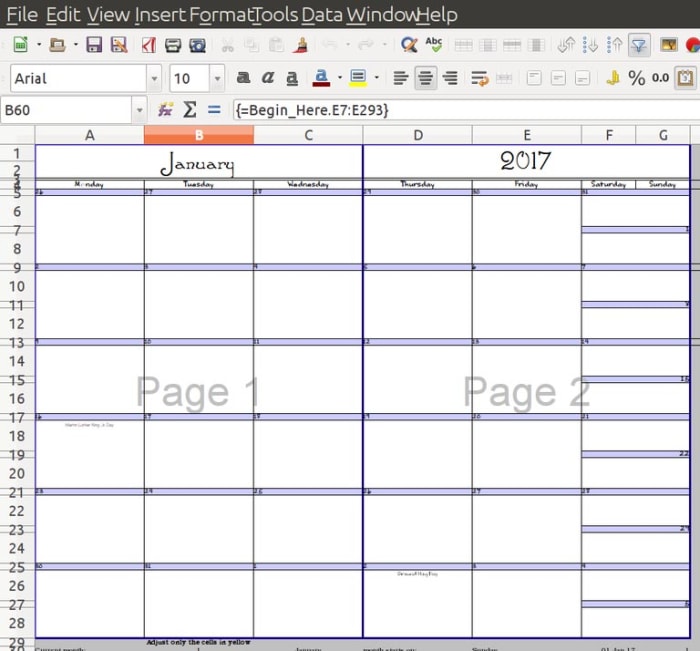
It’s not just extensions that you can download to augment your LibreOffice experience. There’s also an extensive library of LibreOffice templates that you can download for free and use on whatever projects you’re working on. This calendar Creator template is one such tool that makes it very easy for you to create weekly, monthly, and yearly calendars on printable sheets. You can also create single day calendars and automatically add events to your printable sheets when you add them to your document.

MultiSave

One of the frustrating aspects of working with LibreOffice is the Open Document Format that Writer saves your documents in. The open-source nature of the file does mean it can be used across multiple formats and programs but that isn’t the case straight off the bat. This is where the MultiSave extension comes in. With the extension installed you can easily save a document in different file formats at the same time including the Open Document Format, Microsoft Office format, and other useful file types like PDF.

Language Tool

Language Tool

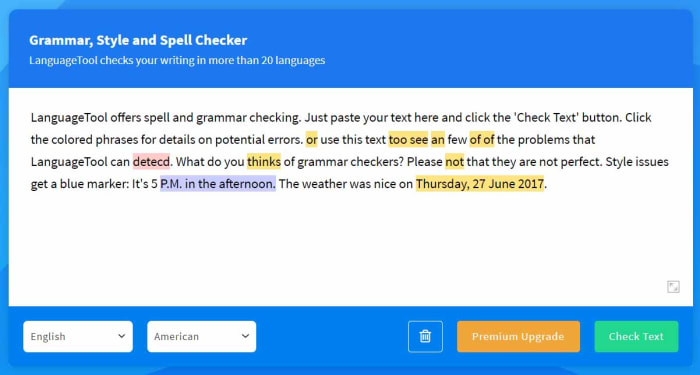
The Language Tool extension for LibreOffice offers grammar and proofreading support to LibreOffice users across a whole host of different languages. These languages include English, French, German, Italian, Spanish, and Russian. You can see all the different languages the extension supports on its homepage here. Please note, though, that the level of support the extension offers depends on the language.

Daily Planning Template

Daily planner

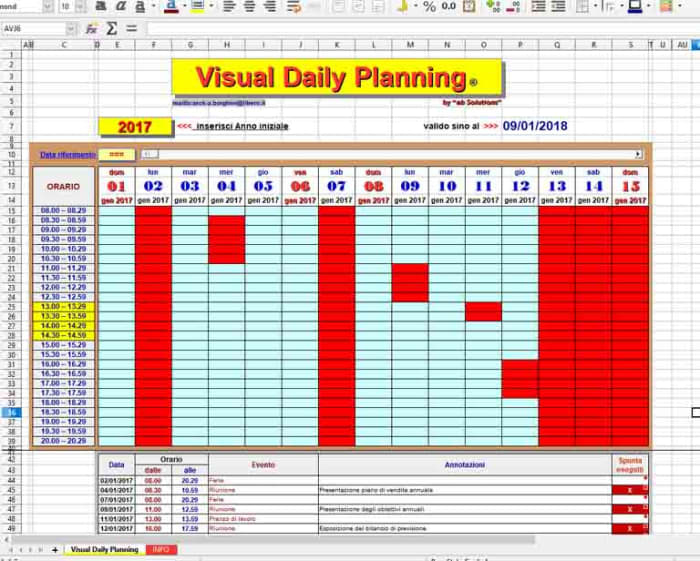
This Daily Planning Template makes it very easy for you to organize your time more efficiently. It compartmentalizes your day, breaking it up into individual timeslots that you can then allot to certain activities. You can easily add events to your calendar and control regular activities and appointments too.

Transcriber

The Transcriber extension for LibreOffice Writer is a great tool for anybody who has to interview people for the articles they write. Anybody who’s ever had to transcribe an interview will know how slow and frustrating the experience can be as you flip from one app to another or fiddle around with recording equipment. The Transcriber extension puts the playback buttons right there in the Writer app giving you quick access to the basic controls you need to control the audio as you write down everything that’s being said. It even offers keyboard shortcut controls too for quicker control.

Productivity tips for lazy people

These productivity tips will help you get more work done when you need to do it.

productivity plan

Getting things done can be such a chore. It is not just the finishing of jobs that is hard neither. Starting them can be bad enough too. Whatever the reason or distraction that is standing in the way of the work that needs doing does not matter. The only thing that counts is that it is there, and the work is not getting done.

Fortunately, however, there are a number of coping techniques and tips that you can utilize to break through these difficult times when distraction reigns supreme. You are not lazy, you just like to occupy your mind with other pursuits when there is work to be done. Well, these tips are here for you to help you regain control of your consciousness and start getting stuff done. These are the top productivity hacks to help you improve productivity in your daily life.

Tips for productivity

These tips aren’t necessarily related to apps or software, they’re simply good practices to have at hand any time you feel distracted or struggle to start a task. The truth is we do a lot of jobs on our computers these days, and they bring with them a whole new world of electronic distractions such as social media and online procrastination. These tips are here to help you fight them.

The 2-minute rule

2 min rule

The two-minute rule is a simple yet brilliant way to increase productivity. It offers a way to instantly deal with the small tasks that end up in your in-tray and forces you into taking action on similar tasks that would eat up a larger amount of time. The two-minute rule states that:

If a job can be done in under two minutes, you should just do it there and then.

If a job is clearly going to take longer than two minutes, then you should start it right there and then.

This rule is brilliant because it instantly activates your brain to the task at hand. It declutters your to-do list by making sure none of those little tasks clog it up when they’re so easy to complete. On top of that, the rule also ensures that those bigger tasks are already underway when you move not the next item. It is always easier to come back to a task you’ve already started than it is to start a new one.

Chew gum

OK, this one sounds a little strange. Let’s all be honest though; you’re not looking for productivity tips here that are going to take a lot of effort. Really, you’re after the easiest tips that will have the biggest results. Well, that’s what we have here. Scientific studies have found that chewing gum can make you more productive. Amazingly, chewing gum can make you work 10% faster, can stop you feeling sleepy, and can even make you more charismatic. Start chewing gum now!

Break lists

This is a cool little tip that will make so much sense once you read through it. It is imperative that we take breaks during the day if we’re to work as effectively as we can. In fact, be should be taking 15-20-minute breaks roughly every 90 minutes. Shutting down one program on your computer and opening another one, say Twitter or Facebook, for example, is not going to have the regenerative effect a proper break will. This is why you should create break lists; write down all the short pleasurable activities you can think of that help make you feel better. Now, this could be something like “check Twitter” but only add activities to your list that help you feel like you’ve had a break. Mine would be something like read from a book or magazine, take a walk, make a coffee, call a friend, etc.

Microsoft To-Do Download
8

The Pomodoro method

Image via: Flickr

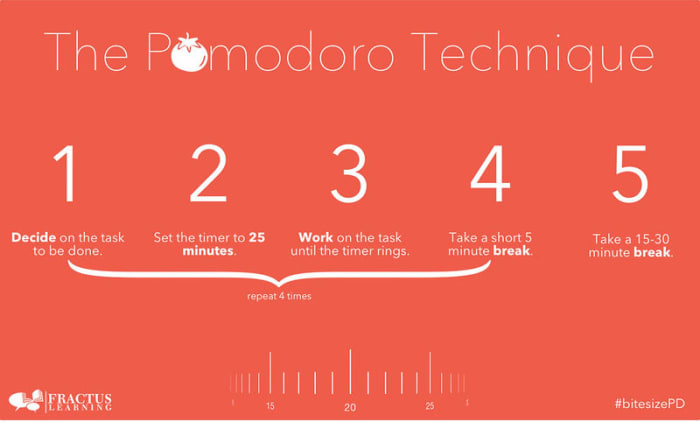
If you really want to take your breaks to the next level, you should look into the Pomodoro technique. Pomodoro works off the idea that your brain can only remain truly active for around 25 minutes. You set a timer for 25 minutes and then every time it rings you take a short five-minute break. This could be when you go make a coffee or check your phone. Then, when you’ve done this work-break cycle four times, you take a longer 15-30-minute break and then start the process all over again. This way you get to go through all the different items on your break list while training your brain to focus for shorter periods.

Pomodoro Timer Donwload
8

Don’t break the chain

We’re not talking about a Fleetwood Mac song here; we’re actually talking about a Seinfeld hack. Yep, Jerry Seinfeld actually shared one of the productivity tips he used to help him develop as a comic by trying to write better jokes every day. To do the same you need to get yourself a huge calendar poster that covers an entire year. Then every day you work on the task you want to work on you get to put a giant red x in the square for that day. Pretty soon, you’ll have a chain of red x’s and you’ll be a hell of a lot more motivated to work on your task because you won’t want to break the chain!

Do the hardest thing first

The final tip of the day is about what you should work on first. It is no secret that the most productive time of day is first thing in the morning just after we wake up. This means that it is first thing in the morning when we begin working that we should tackle our hardest tasks. This way you will take care of the most challenging and pressing issues when you’re at your best, but it also helps build momentum for the rest of the day. Once that first big task is out the way, everything else will feel smaller and less daunting.

Chrome extensions for a better Instagram experience on your PC

In the same league as Tik Tok, Instagram has become the most popular social media platform for teens and young adults today. As audiovisual takes precedence over text, it has managed to hook millions of people around the world. However, it continues to gain ground among an older audience, and here, a key variable comes into play: the Instagram version for desktop leaves a lot to be desired.

Although Facebook – the owner of Instagram – continues to add new features, it still can’t hold a candle to the smartphone version. So today, we’ve brought you a few Chrome extensions to improve your Instagram experience on your PC.

First of all, make sure you have updated Chrome. You can download it below for free.

Google Chrome Download
7

Real-time notifications

We’re going to start our article with a basic feature: real-time notifications from your account. If Instagram had a drawback, it would have to be the notification system. It doesn’t matter if it’s on Android, iPhone, iPad, PC, etc. In all cases, the service doesn’t work as well as other social media platforms.

On desktop, we can at least add a “patch” through a Google Chrome extension called WebClient for Instagram. This tool simply notifies us about comments, likes, new followers, and more from our profile. Just enable the extension on your Chrome browser and make sure you’re logged into your Instagram account (this applies to all the extensions going forward). You’ll start to receive real-time notifications about everything as it happens. How cool is that?

Download photos and videos

https://www.youtube.com/watch?v=NYYjp83aUH8&feature=emb_title

As you may have already noticed, Instagram won’t let you download images or videos from its platform. On your phone, you have no choice but to use a mobile app or your operating system’s tools, while on desktop, you can’t do the classic “Save image as.”

To make it happen, you need the Downloader for Instagram extension. As the name suggests, this tool lets you download any photo or video from the famous social media platform. You can save something with just a few clicks of your mouse.

Likewise, this extension lets you read and reply to direct messages from the Instagram website, something that wasn’t possible until recently (however, since the latest update a few weeks ago, you can check messages without a problem).

WhatsGreen Multi Messenger

This extension is for not only Instagram but all the social media platforms and messaging services you use on a daily basis. WhatsGreen Multi Messenger is a tool that lets you check all your linked apps with a few clicks of your mouse.

For example, imagine if you use WhatsApp, Telegram, Twitter, Instagram, Skype, etc., every day. Well, with this extension you can keep all the icons for these apps organized in the same folder. It’s like having a smartphone display right on your Google Chrome browser.

GrowBot Automator

The next extension isn’t our favorite if you want a clean, healthy Instagram account, but it could be convenient for a business account: GrowBot Automator.

This automated tool follows other accounts to flesh out your Following and Followers lists. You can program the “bot” to follow accounts with a minimum and maximum number of followers, with a minimum and maximum ratio of followers to following, with a minimum number of posts on their profiles, that are verified or unverified, that are private and much more. There are so many options that it could be overwhelming when you install it, but the idea is to automatically gain followers.

Improved Layout for Instagram

This extension is one of the most popular in Google’s online store for a reason: it enhances all of Instagram’s features to the point where the mobile version will seem too limited to you.

Improved Layout for Instagram is based on the following premise: “The default Instagram.com layout is not optimized for desktop.” That’s how blunt the developers are, and what they do is implement several functions: for example, you can view several posts simultaneously, since they appear in a horizontal format as opposed to vertical; controls are added to videos, such as fast-forward, rewind, pause, etc. (something the mobile version lacks and we miss), and there is full-screen mode and much more. You should definitely try it because the difference is amazing.

Night Mode

This extension is easy and straightforward: Night Mode for Instagram. As you may well know, this dark tone has become a favorite among users, and practically all the applications, programs, etc., on the market are including this feature.

Instagram Night Mode dims the entire page. And we mean that quite literally, as everything is displayed in this dark tone. Backgrounds, posts, stories… If anything ever appeared as white in the original version, it will be reversed with this extension. It’s an easy way to rest your eyes so the brightness doesn’t fry your pupils.

App for Instagram

Last but not least, we have an extension called App for Instagram. Its purpose is clear: to let you use Instagram on a PC just like you do on your phone. It’s that simple.

The developer of this extension, one of the most popular in the Chrome Web Store, wants to ensure the same experience on both systems: you can view (and respond to) Instagram stories just like you would do on a smartphone, display “Likes” the same way, at the bottom of the page instead of the top (as usual on the PC version), have an identical layout, etc.

In short, it aims to eliminate any visible differences between the mobile and desktop versions, so it’s the same app for everyone.

And those are the best Google Chrome extensions to make the most of Instagram. They’ll let you download photos and videos and even use the PC version just like the mobile one. Which one is your favorite?

The Best Features in Virtual DJ Explained

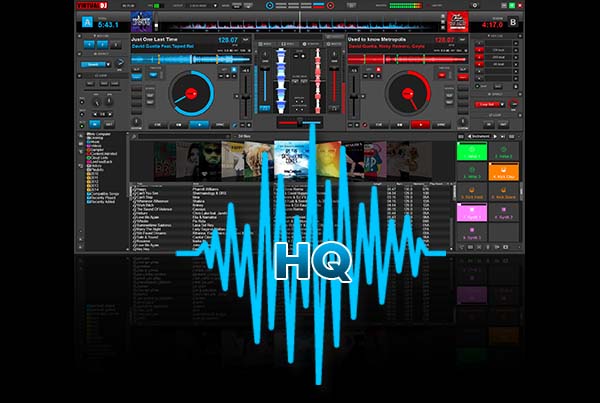
VirtualDJ is a powerful Pro DJ Software for Windows and Mac desktop and laptop computers. With the release of version 8, VirtualDJ adds great new features that make DJing so much easier, whether at a professional DJ gig using a DJ controller or virtual turntables or for fun at home. Sure, there are other media players and DJ mixing midi controllers such as Serato DJ and Traktor, but the Virtual DJ software from Atomix has been around for over 30 years and is well established as pro DJ favorite.

Virtual DJ has been around since 1996 but the last few years, beginning with the Virtual DJ 8 upgrade, have seen a full rewrite of the software code. As well as established plug-and-play features like the BPM detector, virtual crossfader, vdj video mixing features, hot cues and more, there’s now a lot more going on with Virtual DJ. Here is a look at the new main features.

Virtual DJ Download now
8

Timecode Vinyl

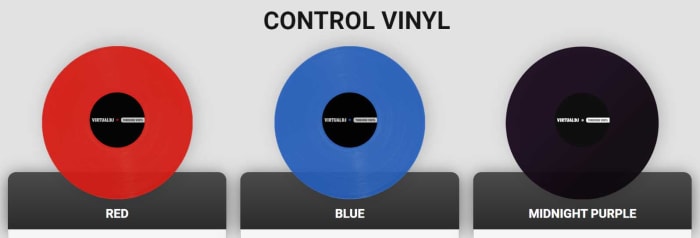
Virtual DJ now rivals Serato by offering digital DJs the chance to use real records when they’re mixing songs from their digital music library. Timecode vinyl now allows laptop DJs to incorporate their old Pioneer, Numark, or Technics decks into their routines. The vinyls transmit timecodes to the software so that Virtual DJ knows exactly what part of the song would be playing if it were coming from the vinyl itself. Not only does this bring an added flair to your mobile DJ live performances it also opens up scratching for your shows and mixes too.

Sandbox

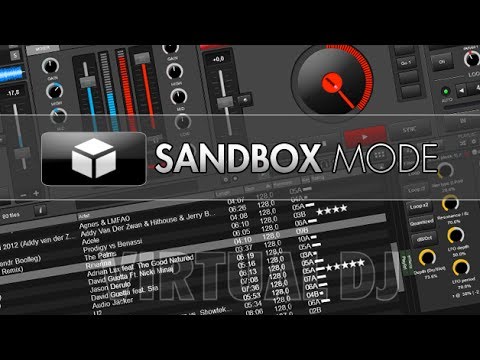
The sandbox concept helps you get ready for your next mix at the same time your audience is enjoying the current song. In the sandbox, you can move to the end of the playing track and mix in the next track.

sandboxmode

The mix is picked up only by your headphones. When you find the right transition points, disengage the sandbox feature and your mix will play effortlessly.

Sampler

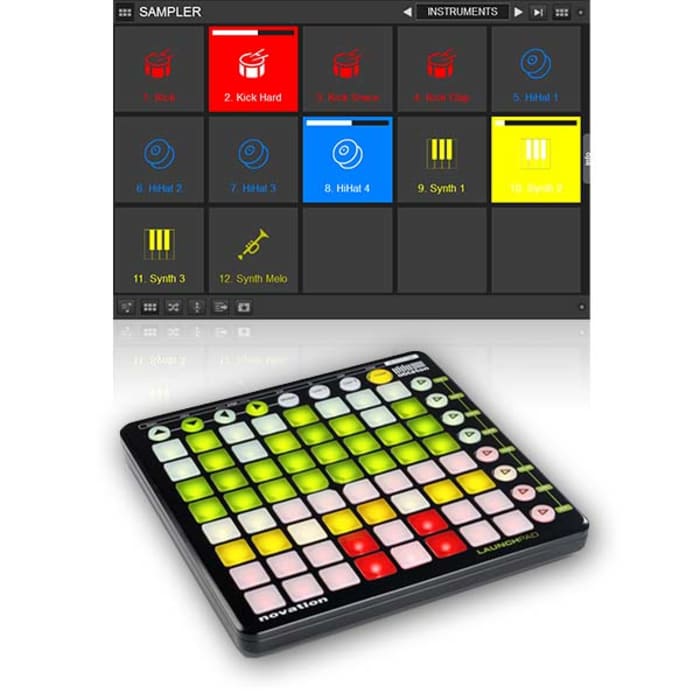
The version 8 sampler lets you play unlimited samples at the same time. The selected samples can be audio tracks, videos, or even still images. You can organize and group samples, triggering them like an instrument bank. Samples are like sound effects and elements that you can add to your mixes.

Sound Engine

Audio components such as an equalizer, filter, limiter or pitch-stretcher are all re-designed, leveraging the strength of modern computers. These features deliver crystal-clear sounds, and the re-worked engine delivers 32-bit audio, though the sample rate can be tweaked if preferred.

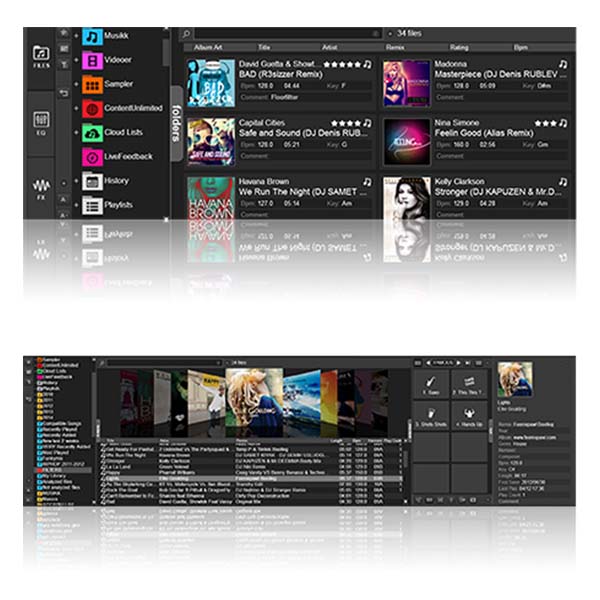
Browser

The latest browser has three components: folders, file view, and side view. Side view lets you show and switch between folders or lists, including automix, karaoke list, and side list.

Drag and drop folders into the side view, letting you park preferred tracks for easy access, and create your own shortcut buttons using this powerful tool.

A new folder organizational system also lets you organize track groupings in new ways and apply content from one folder into another. You can use folder filters such as “group by genre” to ease organization.

Effects

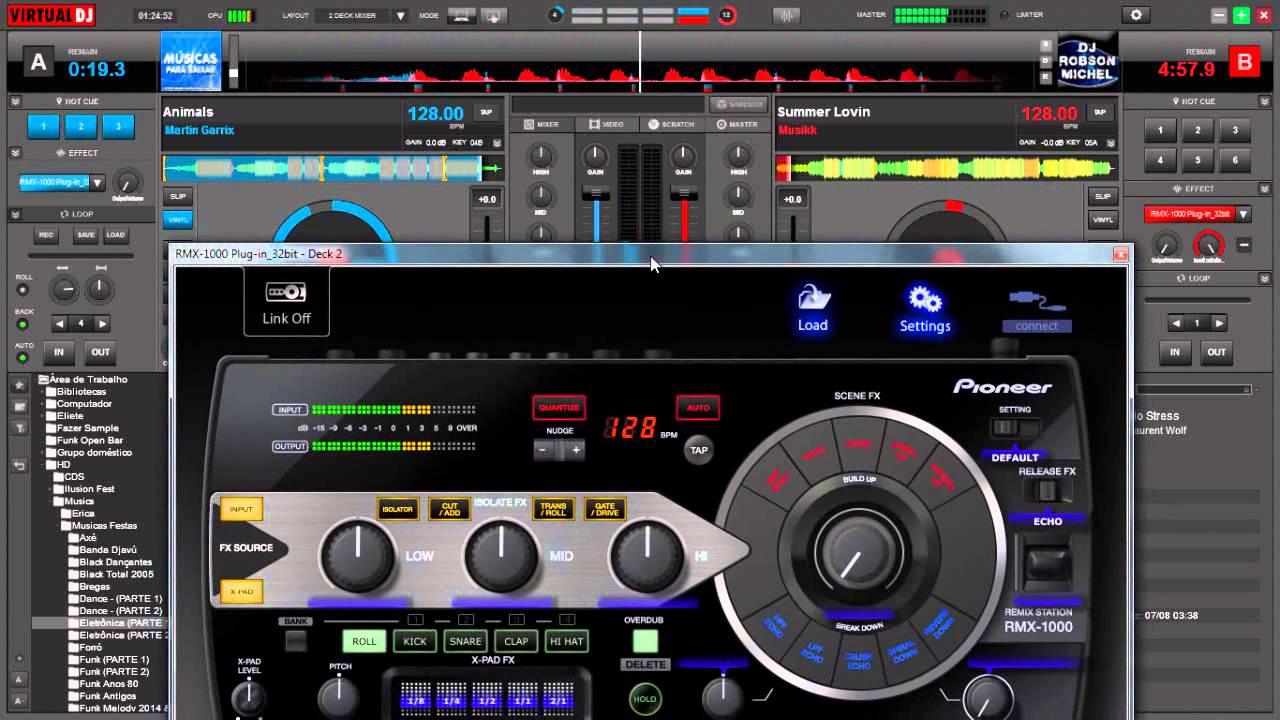
Effects windows can float and be moved around your computer screen now. You can un-pin the effects list to place it where you want. In this version, effects can be applied to one deck or as a master output function.

virttualdjeffects

Editors

This version includes a number of built-in editing functions, including:

Automix: Lets you pre-edit an automix sequence, fine-tune mix-out and mix-in marks, the transition type and, with videos, the video transition to use. The program remembers mix tuning, letting you use those settings when you use the same two songs next.

Track Cleaner: Make edits to your tracks by removing inappropriate lyrics, deleting unwanted intros, or looping sections.

Video: Add text effects or lyrics, or add new video tracks to audio-only tracks.

Sample: Adjust how you use audio, video, or image samples, including tweaking transparency on videos or cropping audio clips.

Point of Interest (POI): Manage your cues, including beat grid anchors, saved loops, and automix points.

If you like VirtualDJ, you’re sure to love DJ Mixer Express!