Microsoft’s roadmap with Windows 11 continues to advance, and this time, with Outlook and Teams in the improvement plans, the company will imminently update these two services to expand their coverage and functionalities. In this way, both services will enjoy greater usability and users will have a higher quality service.
In the case of Outlook, the improvement is related to organization and classification with folders, while in the case of Microsoft Teams, it will be a lighter improvement, but it will allow you to hide channels to enjoy a cleaner interface when using the application focused on businesses.
Many times, organizing an email in an email client that receives a large volume of messages daily can be a bit complicated. For that reason, Outlook will improve this functionality so that users have more options when it comes to classifying the messages they have in their email.
Outlook is also in the process of receiving a major upgrade, as it will soon have Microsoft Copilot through 365, which will expand and offer various services to the user to improve message response, text summarization, content search, among many other services provided by AI.
Outlook wants to continue expanding among non-Microsoft users
Teams will allow hiding channels
Microsoft Teams, on the other hand, will add a functionality that allows archiving channels, something they have been preparing for a while, and that will arrive imminently to users. With this, it will be easier to organize the chat and channel tab, being able to remove those that are inactive or have no priority.
On the other hand, Teams is also actively preparing to offer 365 users functions related to Microsoft Copilot, the generative Artificial Intelligence capable of performing services such as joining meetings and making summaries of the mentioned content. In addition, for the celebration of subscription users, this Copilot summaries feature is expected to arrive before the end of January.
Microsoft continues to work on improving its ecosystem of products and services, which is why, in 2024, Windows will feature a completely revamped application for you to efficiently organize your appointments and tasks. This can be done comfortably from your device through Microsoft Teams.
With this, Microsoft aims for you to enjoy a comprehensive and fulfilling experience within its suite of services, without the need to use any other third-party services. Microsoft Teams stands as one of the company’s most important productivity applications, and with this enhancement, they aim to increase your satisfaction with their ecosystem.
At the moment, not many details have been disclosed, but Microsoft has highlighted that the task planner within Microsoft Teams is currently undergoing updates. Starting from spring 2024, any user will be able to enjoy a more comprehensive application and a more useful and user-friendly interface.
This is just one of the many improvementsMicrosoft is working on within Microsoft Teams. In today’s times, where remote work has been adopted by numerous companies, the quality of communication services focused on the workplace is crucial for companies to choose one service over another when it comes to keeping employees connected.
Microsoft and Windows are encouraging you to use Bing.
The Microsoft ecosystem
Microsoft has been taking significant steps forward in evolving its ecosystem recently. As a result, among other things, Microsoft Copilot emerged—the Artificial Intelligence foundation upon which the company aims to build its long-term project. And how do they do it? Simple: by integrating this service into their various applications to provide a comprehensive experience.
Thus, Microsoft Copilot, which has officially absorbed Bing Chat, also supports widely used Windows applications like Outlook for managing emails with a range of personalized services. It aids Microsoft Teams in efficiently managing key informationand meetingsand assists Edge users in searching for information and content.
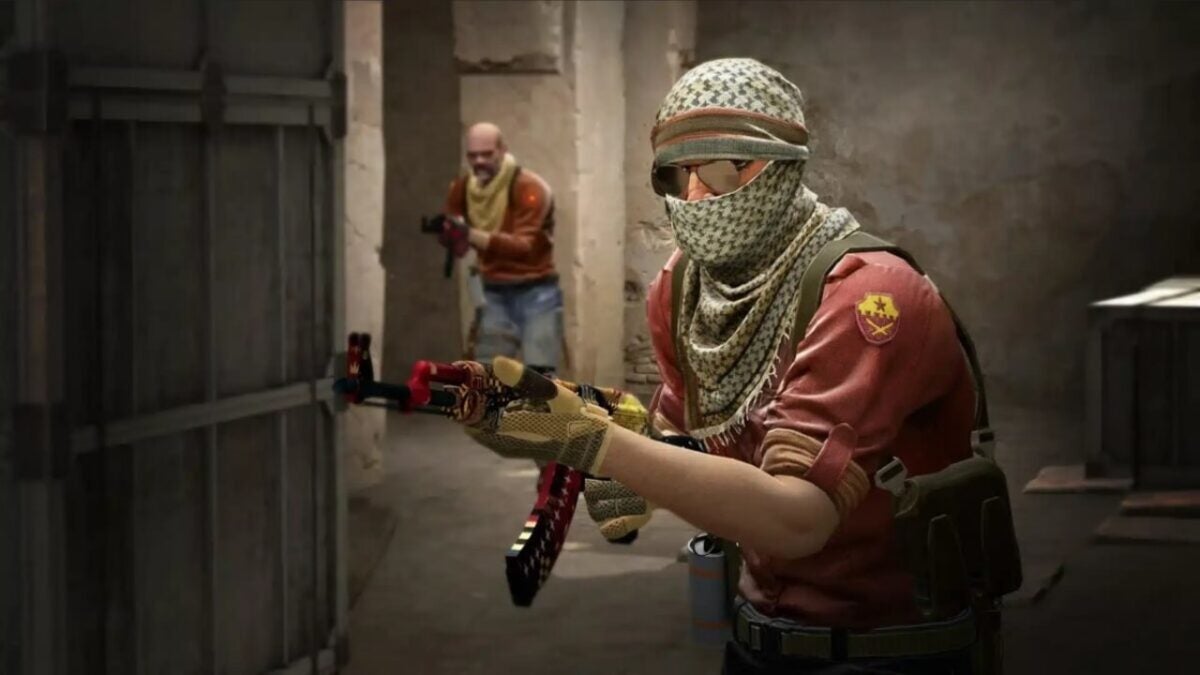
Counter-Strike 2 has been launched completely by surprise and with a bug that crashes the game, but we explain how to fix it
Counter-Strike 2 has been released completely by surprise, replacing Counter-Strike: Global Offensive in your Steam library. With improved graphics and sounds, new physics for smoke grenades, and completely revamped maps, among many other changes, it feels almost like a new game. Unfortunately, not everything is good news. Many players are complaining that the game is plagued with bugs. And one of them is so severe that it actually crashes the game to the desktop as soon as it’s launched.
This issue occurs on both Linux and Windows, and for now, the reason behind it is unknown. While Valve is likely working on a patch to fix it, you don’t have to wait for that to enjoy the game. That’s why we’re offering you a series of possible solutions that may help you, hopefully, resolve this issue.
Update your drivers
It’s common sense, but we all forget it from time to time. The main reason a game doesn’t work as it should is often outdated drivers on our computer, especially our graphics card drivers. Make sure to update them before trying anything else.
Try this series of small changes
The community has found a series of small changes that have generally helped with crashes in Counter-Strike 2. If you already have updated drivers, it’s worth trying these five things before resorting to more drastic measures:
Remove any launch options from Steam’s Launch Options.
Disable AMD FSR.
Launch the game in compatibility mode and disable fullscreen optimization.
Disable Faceit Anticheat.
Disable computer overclocking.
Close the background applications you have running
If none of the above works, you may have a resource issue. Counter-Strike 2 can be a demanding game in terms of RAM and CPU usage, even if your system meets the requirements. You should try closing all background applications. Open Task Manager, close all these applications, and try launching the game again.
Scan and repair game files
This is the last resort for Windows users. To do this, you have to open Steam, go to the Library tab, and search for Counter-Strike 2. Right-click on it, go to Properties, and look for the Local Files tab. There you will find the Verify Integrity of Game Files button. If something is wrong with the game installation, Steam should be able to fix it.
You need to access the command console (only if you’re playing from Linux)
If your operating system is Linux, there’s still another possible solution. You have to open PowerShell as an administrator and enter the following two commands:
dir “$env:systemroot\system32\driverstore\filerepository\*NvCameraEnable.exe” -rec |% {& “$_” off}
dir “$env:programfiles\nvidia corporation\*NvCameraEnable.exe” -rec |% {& “$_” off}
According to reports from some players, this has helped them fix their issues with the game. But at the end of the day, everything we propose here are temporary solutions. Things you can do to try to enjoy the game while Valve finds a permanent fix. Because, until that happens, we’re afraid there is no surefire way to safely eliminate crashes in Counter-Strike 2.
According to the reports, Microsoft is working on a new lock screen, login screen, and notification center.
A very real possibility: Windows 12
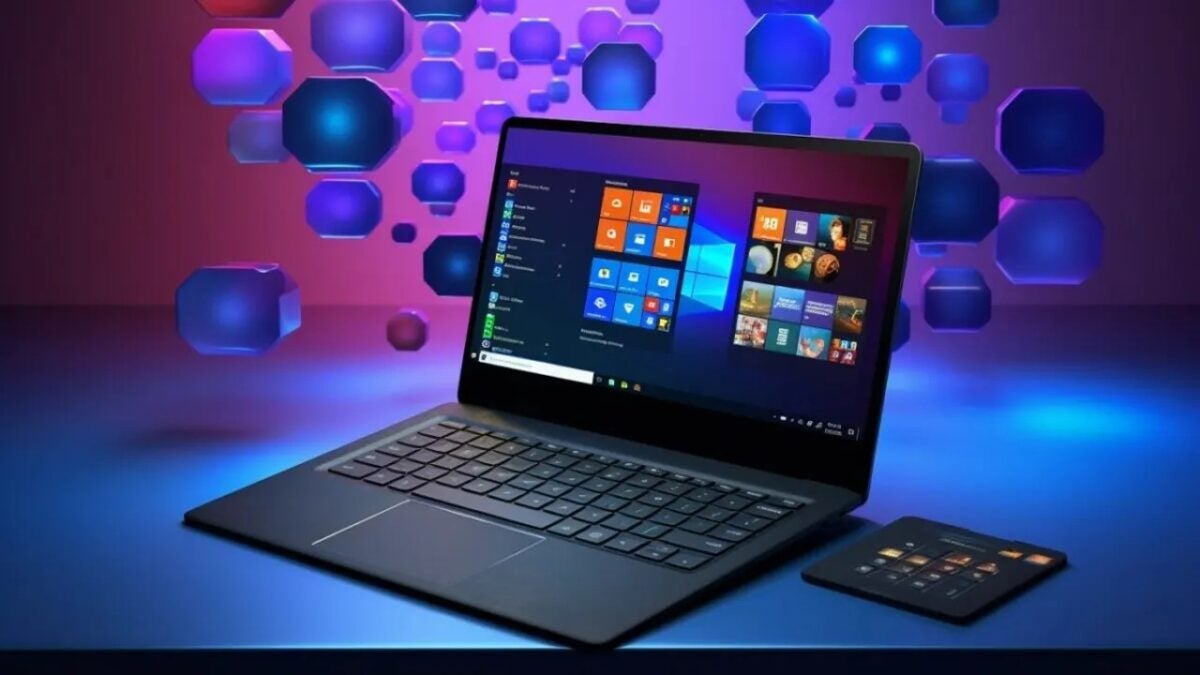
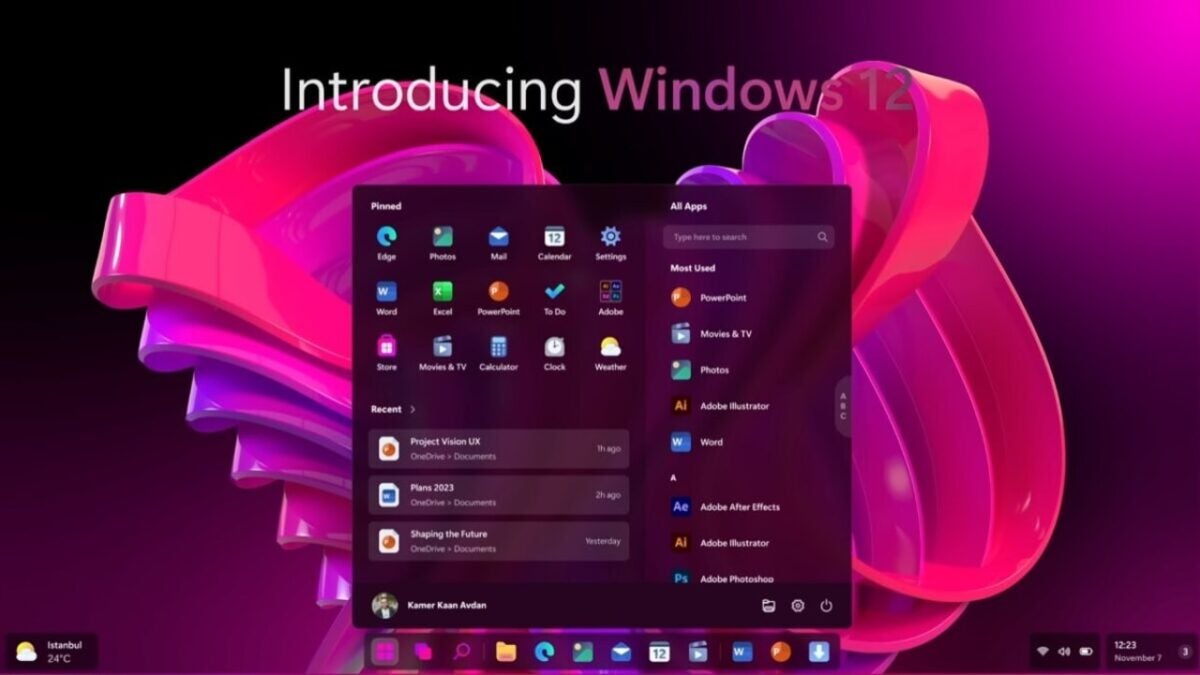
While all of this is exciting, Windows 12 is not real yet. That’s where a new concept video by YouTuber AR 4789 comes into play. Although the video is just a dream of what Windows 12 could be, it opens up the opportunity to discuss the future of Windows.
The Start menu shown in the video appears to be a fusion of the menus from Windows 11 and Windows 10. It features transparency effects and is centered like the Windows 11 Start menu, but it has the menu for all apps on the side like Windows 10.
The recommended section of the Start menu has been replaced with a list of Recent Items that you can scroll through to see more.
The widgets dashboard from Windows 11 is still alive in the Windows 12 concept, but with some significant enhancements. Widgets can be dragged and dropped onto the desktop. They can also be freely rearranged within the panel in a similar way to Live Tiles in Windows 10.
New and useful widgets: an application launcher
In what many would consider a welcome change, the concept’s widgets panel lacks ads and the MSN feed.
The concept video also showcases some new theming options. While not as dramatically different as those seen in the widgets panel, they offer new ways to personalize the look of your PC.
We have heard a lot of rumors about Windows 12 this year, but now it seems that we are facing the final one. Windows 12 will be out in…
Either you are a fan of Windows 11 or a hater who sticks with Windows 10. I won’t tell you which one I am, but I will say that I don’t like the taskbar being centered instead of in a corner… and that’s all I’ll say.
According to rumors, Windows 12 will begin rolling out by the end of next year, and with it will come new features like a floating taskbar.
Windows 12 has been announced… in its own way
We have heard many rumors about Windows 12 this year. Although Microsoft has not officially confirmed its existence, there have been several hints indicating its development.
One of the hints came at the Build 2023 developer conference in the form of a video screenshot referencing a “next generation” of Windows. It is presumed to be referring to Windows 12 and, hopefully, not a completely cloud-based Windows 11.
Microsoft has also referred to a “Next Valley Prototype Design,” which is rumored to be a codename for the next generation of Windows.
Windows Latest points out that Microsoft accidentally teased a version of its operating system with a floating taskbar at the company’s Ignite 2023 conference. It is believed to be part of internal testing exploring new design changes for the upcoming Windows.
As early as March, it was reported that Intel, and likely AMD, are collaborating with Microsoft to provide advanced artificial intelligence capabilities to Windows. This is not surprising considering the direction the industry is taking.
Ironically, we are discussing Windows 12 at a time when Windows 11 is starting to gain traction among PC users. Last month, its global market share reached a record high of nearly 24%, although Windows 10 still maintains a lead with 71%.
Is your PC running slow because your antivirus uses too much of your CPU resources? Download these antivirus and make your computer work like the first day.
Antivirus software has become an indispensable tool for surfing the Internet. They protect us from all kinds of online threats such as viruses, Trojans and malware ready to put our data at risk. However, most antivirus programs consume a lot of resources and can slow down our PC considerably. Does this mean that we should do without them? Of course not.
At Softonic we have analyzed one by one the most popular antivirus programs on the market to come up with a list of those that hardly use any CPU. Thanks to them, the speed and performance of your PC will not be affected while you protect your computer from all viruses and malware. Would you like to know them? These are the antivirus for low-resource computers that we like the most.
Kaspersky Free is the undisputed winner among the free antivirus programs with the lowest impact on your PC’s CPU. It offers protection on both desktops and Android devices against viruses, infected files as well as suspicious sites and apps. And best of all, your computer will hardly notice that you are using it.
Among the main features of Kaspersky Security Cloud Free is its powerful protection against viruses. But that’s not all; the program is capable of detecting malware, Trojans, ransomware and other threats that can put your data at risk. It also offers efficient protection against stalkerware, allowing you to detect apps and installed programs that spy and track your activity.
In terms of performance, Kaspersky has less impact on a PC than Windows Defender, so its installation can even speed up your computer… All this for free and with the peace of mind of betting on trusted antivirus such as Kaspersky.
ESET Antivirus may not be the best known option in the antivirus sector, but that does not make it any less efficient. This is an effective program, highly customizable and with a large number of options to ensure that our computer is always protected.
If ESET Antivirus stands out in something, it is precisely in its many options and modes for the analysis programs that we will perform on our computer. Although it is very complete, sometimes it can be somewhat complex for novice users who prefer few options and good results. However, it will delight users who prefer to have an antivirus literally made to measure.
In terms of resources, ESET Antivirus will hardly make use of your CPU, so you can have it on and be working or playing your favorite video game without noticing any slowdown in your computer. There are three versions of this same antivirus (ESET NOD32, ESET Internet Security and ESET Internet Security Premium), each of them differing only in some small extra. That is why in terms of quality-price, we recommend ESET NOD32.
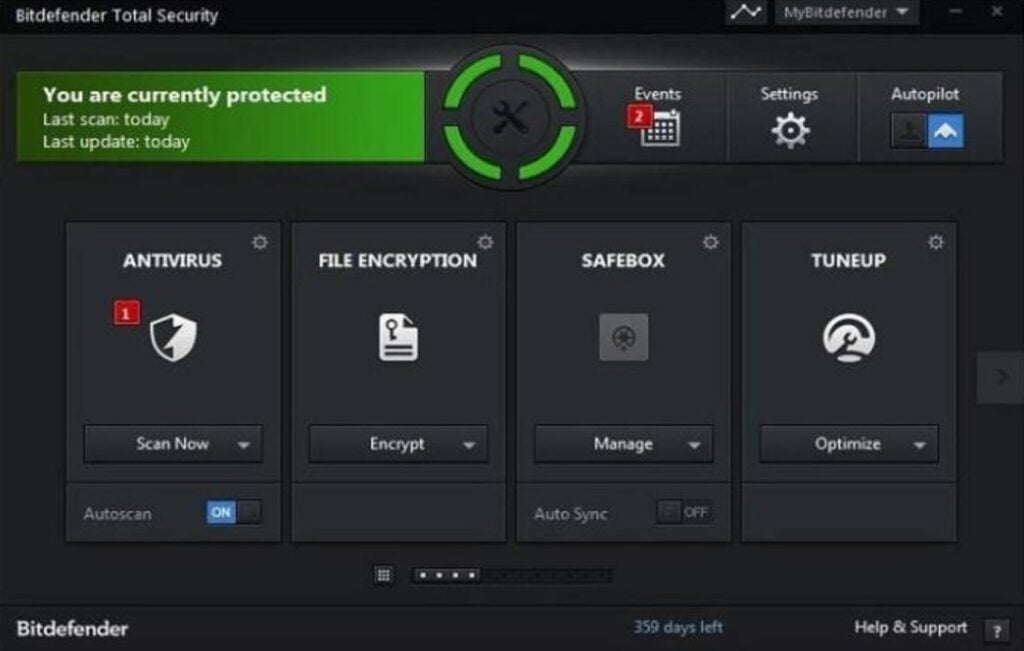
Bitdefender is another excellent option when it comes to protecting your computer without affecting its performance. It has a very complete virus database that is updated regularly and has also achieved excellent results in AV-TEST studies. But it doesn’t end there, Bitdefender also offers a good number of tools to improve your computer’s performance, making it one of the favorite antivirus around the world.
Depending on the features you want in your computer you can purchase two types of Bitdefender Antivirus: Bitdefender Internet Security or Bitdefender Total Security. Here are their main differences:
Bitdefender Internet Security is a lighter version of the antivirus in question and therefore with fewer options. In addition to offering you complete protection from viruses and malware, the antivirus also provides the Safepay secure payment system, a password manager and an interesting vulnerability scan on your computer.
Bitdefender Total Security is a more complete version of the antivirus, adding features such as an anti-spam filter, a powerful parental control system and an efficient firewall.
Regardless of the option you choose, Bitdefender Antivirus is perfect for protecting your computer against any possible attack over the Internet without compromising the speed of your operating system.
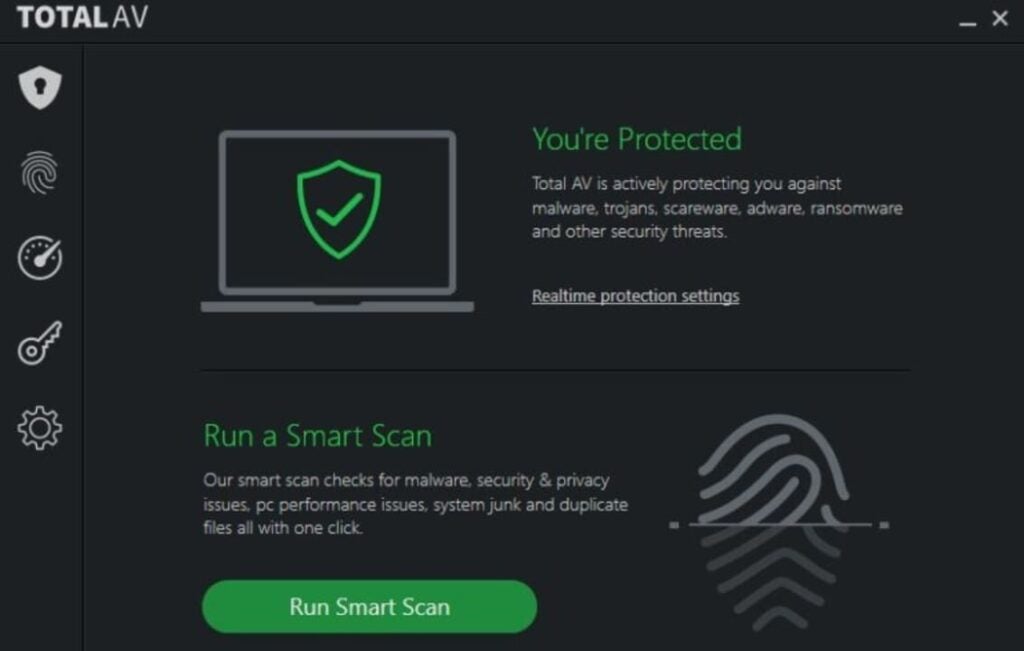
TotalAV is a powerful antivirus that while protecting you against all Internet threats, it won’t put a dent in your computer’s CPU. It will be running silently in the background at all times and will only scan your hard disk when strictly necessary.
Among the main features of TotalAV is a powerful real-time filter against viruses, ransomware, malware and malware as well as being able to block phishing attempts instantly. In addition, it also includes extra tools, such as a hard disk cleaner to improve your PC’s performance or a VPN to surf the Internet securely.
In short, TotalAV is the perfect choice for anyone looking for an antivirus that is not very intrusive but at the same time efficient enough to protect their PC.
Avast Free Antivirus is one of the best options whether you are a laptop user or if your PC is a few years old. Its more than 400 million users and its excellent results when it comes to detecting and eliminating viruses are just a few of the many attractions of this antivirus. Although this is a completely free program, it offers protection that is on a par with the best antivirus programs on the market.
The free version of Avast offers a wide range of options to have your computer always protected. We find the browser shields, real-time protection, custom scans and a great virus library always updated. In addition, Avast Free Antivirus offers extra options such as a game mode, a password manager or the ability to scan your computer for malware.
However, if we have included the free version of Avast in this list for any reason, it is because it hardly affects your computer’s performance. In fact, you will not notice much difference in the speed of your computer whether or not you have Avast installed. However, your computer will be completely protected from any hacker attack.
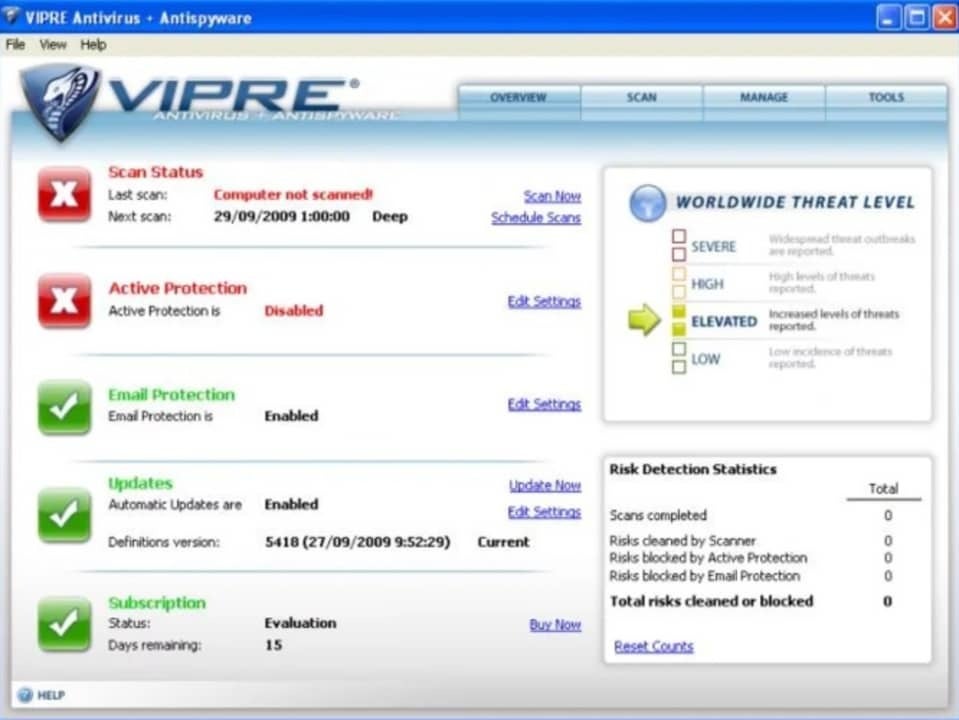
VIPRE is an antivirus designed to protect your PC from the latest threats circulating on the Internet. In fact, it is one of the best options on the market to protect your computer from the dangerous ransomware. However, the power of VIPRE does not come at odds with the use of your computer’s resources, preventing the entry of viruses but without affecting the speed of your PC.
As we have already mentioned, VIPRE stands out for its good results without impacting your computer’s resources. It is able to protect your computer from viruses, Trojans, rootkits, spyware, ransomware and much more. On top of that it is very easy to install and has a perfect user interface for any user who doesn’t want to drown in complicated configuration options. It is, therefore, a perfect choice for anyone looking for a good antivirus that is also very easy to use.
VIPRE is one of the best options on the market if you want to protect your PC from any malicious activity coming from the Internet. It will block any attempt to steal your data without affecting your PC’s performance. Highly recommended.
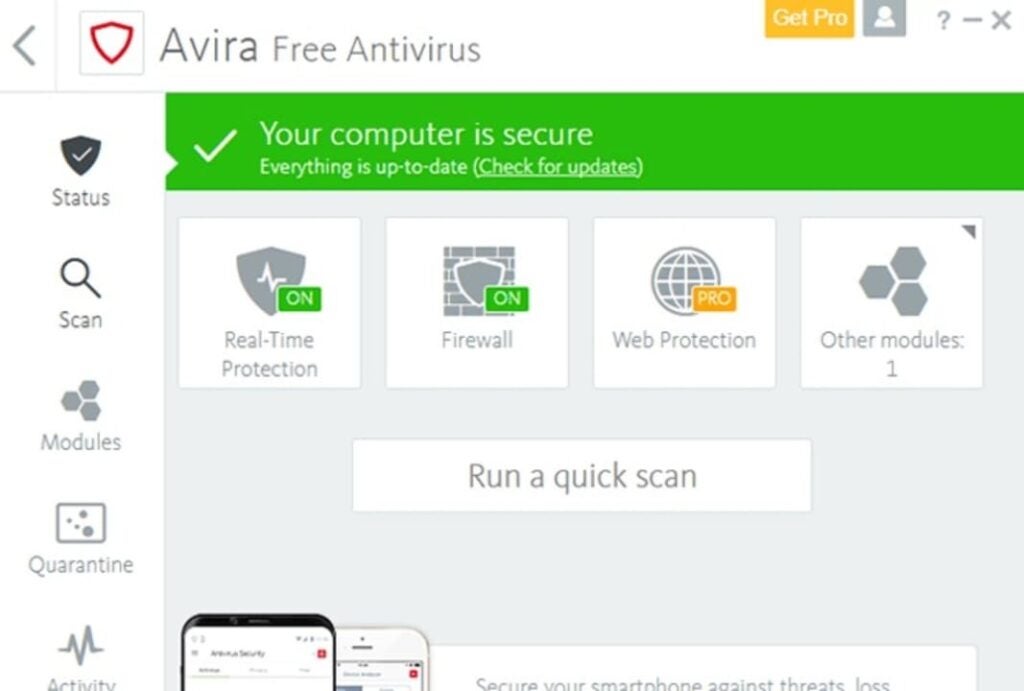
Avira Free Antivirus is a good option if you are looking for a good free antivirus with very good results and that also has a minimal impact on the performance of your PC. Avira is known around the world for its good results and it’s no wonder. It is capable of detecting 99.97% of the viruses and attacks that your computer may suffer, allowing you to always browse with total peace of mind.
If you are a novice user or simply do not like cryptic antivirus or with many options, you will love to know that Avira has a simple and easy to understand interface. From it you can scan your computer for viruses and optimize your computer’s performance, something really useful if it is not working as it should lately. To all this we must add a powerful protection against phishing and the possibility of browsing through its integrated VPN, and all this without slowing down your computer!
The only negative point of Avira is that, being a free antivirus, it has quite a few ads and pop ups that can be frustrating. In addition to all that, it is important that when you install the antivirus you are very careful about which options you choose, because it will try to install other Avira programs that surely do not interest you. Nevertheless, it is a really interesting option to take into account.
Your PC is slow even if you change your antivirus? Here is the solution.
If you have downloaded and installed any of the programs on this list but your computer is still running slow, it is likely that the problem lies elsewhere. There are many factors that directly affect the performance of our computer and they do not always have to do with the antivirus. The state of our hard disk, its fragmentation, a program that has been uninstalled incorrectly, having your operating system outdated or a malicious process that starts when you boot your computer could be the problem.
To find out for sure, we recommend that you first scan your computer for any viruses that may be affecting your computer. If your computer is clean, we then recommend that you use some software to speed up your operating system. These scan your computer for system errors and unnecessary processes that are slowing down your computer.
Download the best antivirus for your PC
As you can see, there are many antivirus programs with which you can keep your data safe without affecting the CPU of your PC. Did you like what you have read? Don’t forget to share it with your friends on social networks!
Get rid of outdated programs, bloatware and junk that affect the performance of your PC
Silverlight is an application development platform created by Microsoft. It emerged as an alternative to Flash and was once widely used by streaming content sites. However, with the passage of time and the arrival of HTML 5, Silverlight has passed away, being used by only 0.02% of web pages. Even so, this Microsoft application is still taking up space on most computers, so why not uninstall it?
Similar to Silverlight, many unnecessary programs have become zombies on every Windows 10 and 11 computer. These are basically divided into bloatware and outdated apps that are still installed by default on every PC. To help you free up space and protect your data, in today’s article we’re going to give you a selection of Windows apps that you should uninstall. We hope they help!
A few years ago, if you wanted to enjoy high quality videos, you had to turn to QuickTime. The MOV format coined by Apple offered not only high image quality, but also high sound quality. To open this type of file, it was advisable to use the QuickTime video player. However, in 2016 TrendMicro announced that the popular video player was full of vulnerabilities that could put users’ computers and data at risk.
Given Apple’s refusal to make any changes to the QuickTime player for Windows, it is advisable to uninstall this programme from any PC. Does that mean you have to give up the MOV format? Of course not! As an alternative, we recommend using VLC Media Player, an exceptional free media player that allows you to play this and any other format without any problems.
Adobe Flash was killed off in January 2021 when it was blocked by the majority of browsers on the market. Poor security, a long history of vulnerabilities, poor performance and high battery usage were just a few of the key factors in saying goodbye to the plug-in. If you still have it installed, we recommend that you remove it from your computer right now. Don’t know how? We explain it step-by-step in our guide to uninstalling Adobe Flash.
3. Adobe ShockWave
In a similar way to Flash, the ShockWave plugin is no longer supported by Adobe in 2019. It can no longer be downloaded from Adobe’s website and virtually no websites still use this service. We know that if you are nostalgic and love Flash games, it is hard to say goodbye to these classics. However, both Flash and ShockWave are useless nowadays, except for leaving an open door on your PC for possible malware.
4. Microsoft Silverlight
As we mentioned at the beginning of this article, Silverlight is a web application development platform designed to run rich Internet pages. As a product of Microsoft, it enjoyed strong popularity until the plugin was no longer needed with the arrival of HTML5. The main browsers on the market (Chrome, FireFox and Edge) are incompatible with Silverlight and you can only access it with the old Internet Explorer (which was abandoned by Microsoft this past 2022).
5. Java
Java is another classic, essential some years ago but that nowadays, it doesn’t make much sense to have installed. It is made up of two components: a desktop version and another as a plugin for your browser. Nowadays there are hardly any pages compatible with Java and browsers such as Chrome or Firefox do not accept this plugin. In the past, Java has been at the centre of some security scandals, so if you want to keep your data safe, you should consider uninstalling Java.
6. Programmes to improve the performance of your computer
If your computer is slow or not running as smoothly as before, you may have been tempted by cleaners or programmes to improve your PC’s performance. All of them are advertised as a panacea and claim that in just a few minutes, your computer will be back up and running as fast as it did on the first day. However, most of them fall into two main categories: those that are useless and those that can damage your computer even more. We recommend that you be wary of all programs capable of making changes to the Windows registry. Or better yet, remove them from your PC.
7. Bloatware from your PC or laptop manufacturers
When buying a computer, especially if it is a laptop, manufacturers tend to fill your new computer with all kinds of bloatware and unnecessary programs. Dell, HP, Lenovo, Toshiba… nobody is spared from this practice. These apps are usually clones of those that you already find in the Windows installation, such as programs for editing photos, games, etc. However, when deleting them, make sure you keep the ones that automatically update your PC’s drivers, plugins and BIOS.
8. Windows 10 and 11 bloatware
Believe it or not, Windows includes in its installation a good number of programs and applications that have little to do with the proper functioning of your PC. Most of these take the form of video games such as Candy Crush Saga or Solitaire & Casual Games or entertainment and information apps such as News, Money, Sports or Weather. If you’re not a console user, you won’t need the Xbox stick or its companion. It is therefore recommended that you take stock of these Microsoft apps and uninstall all those you don’t use.
9. Useless toolbars and extensions
We end our article by focusing on Internet browsers. They accumulate a lot of junk that affects the performance of our computer in the form of toolbars and extensions that are of no use whatsoever. Despite the fact that in recent years Chrome has removed a large number of malicious extensions from its Web Store that only consumed system resources, there is still a lot of work to do. Have you checked yours?
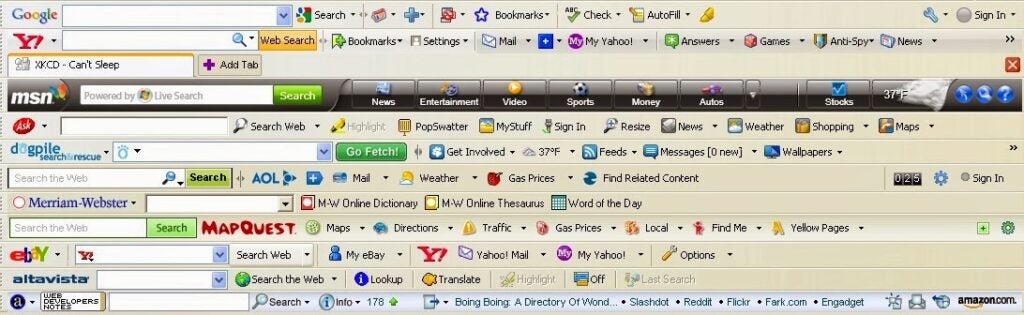
We recommend that you open the browser you use on a daily basis and check if there are any toolbars installed. To recognise them, simply look at the top of the browser and see if you have a small section with its own search box and the logo of Google (Google Toolbar), Bing (Bing Toolbar), Yahoo! (Yahoo Toolbar), etc. Also check your browser extensions and if in doubt, uninstall any that you don’t recognise or don’t use often.
Get rid of all these programmes now
We hope that this article will help you when it comes to uninstalling programs that do little for Windows, apart from taking up space on your hard drive and slowing down your operating system. Don’t be afraid to remove them, because if you regret it later, you can always reinstall them.
Still, we recommend that from time to time you take a look at your hard drive for any applications that have settled on your system and are not performing any function. Believe it or not, many of them can become a major security hole used by hackers.
If you liked what you read, don’t forget to share it with your friends on social media!
Learn to make diagrams and concept maps quickly and easily thanks to our selection of free programs to make diagrams online.
Making outlines and concept maps are the best method to study and improve our mnemonic skills. Thanks to them we can summarize in a clear way that subject or class that we can’t remember and see how each of its topics interrelate with each other. It is not surprising that it is a key tool when reviewing and preparing for exams.
In a world as computerized as ours, it would be strange if there were no programs to make diagrams from our computer. Many of them can have a high price and not all of us can afford it. But… Did you know that there are also many tools to make diagrams online?
In today’s article we are going to offer you a selection of the best free web tools to make diagrams and diagrams online. From them you will be able to create a concept map quickly and easily and then download it to make it easier to study from it. Here we go!
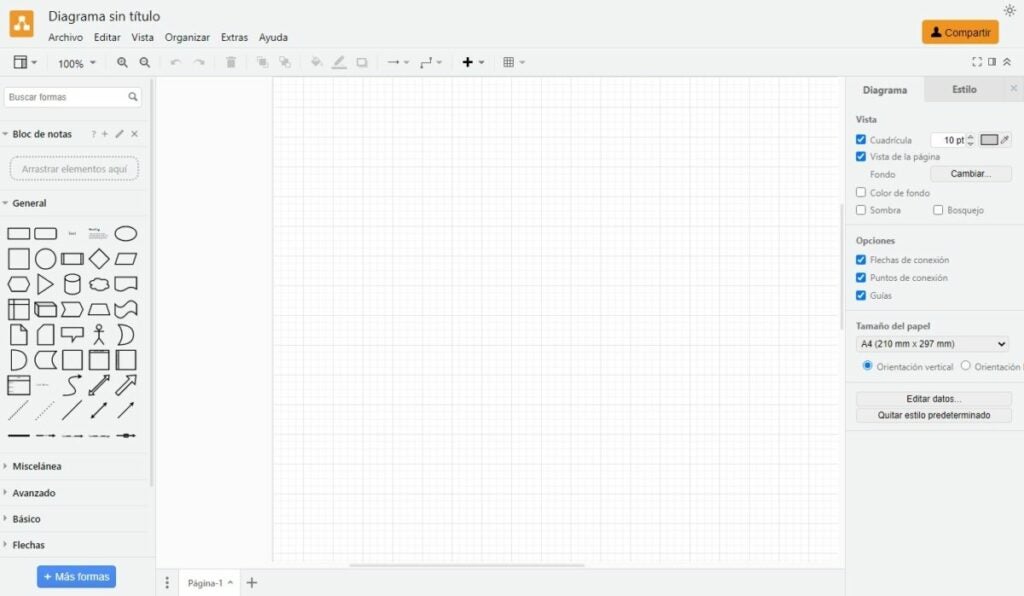
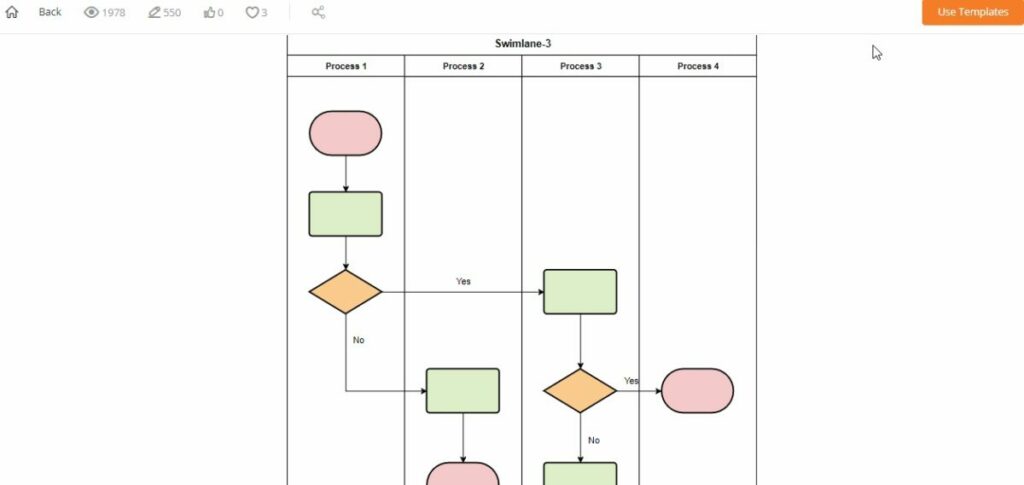
Draw.io is an interesting open source tool from which you can create diagrams, charts, tables and all kinds of concept maps designed for studying. To start using this online application you will not need any kind of previous registration. Just visit their website and start filling in a blank sheet of paper with your diagram. It’s that simple!
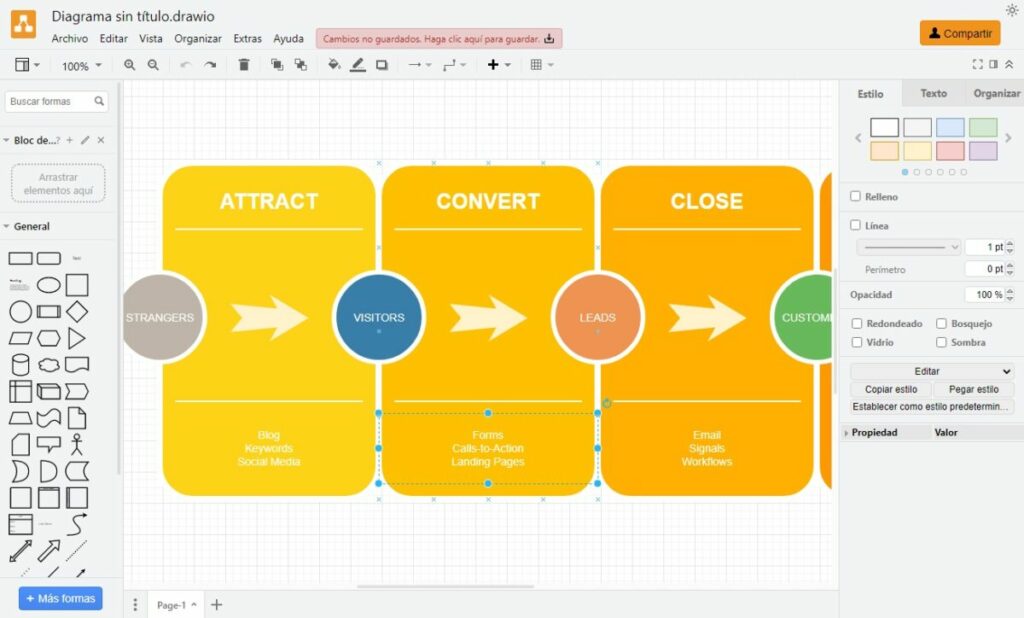
Creating an online concept map with Draw.io is very easy. Just choose the default elements and figures from the left side menu and drag them to the central part of the screen. Once there you can edit the text, add colors, change the size of the figures, etc. This way, in the blink of an eye you will have your diagram ready to export in PDF, PNG or JPG format.
Not used to making diagrams or just don’t want to waste time placing arrows and concepts? Don’t worry. Draw.io also includes a good selection of templates with which you will be able to shape them in no time. In addition, the tool includes the possibility of saving your diagrams online in the main cloud services, such as Google Drive, OneDrive or Dropbox.
BUBBL.US is an online platform that allows you to quickly and intuitively create visual diagrams in just a few clicks. It is, therefore, a perfect free online tool to manage projects, visualize complex tasks, create concept maps for studying or brainstorming sessions with colleagues.
Using BUBBL.US is very simple, just visit their website, click on the screen to create a bubble, choose the color, write the necessary data in it and relate it to other ideas using arrows. It may not seem so simple at first glance, but thanks to its intuitive interface you will become the absolute king of diagrams in just a few seconds.
It is interesting to note that BUBBL.US is a free online platform that does not require prior registration to use. Simply click on the “Start Brainstorming” button and create as many schemes as you wish for free.
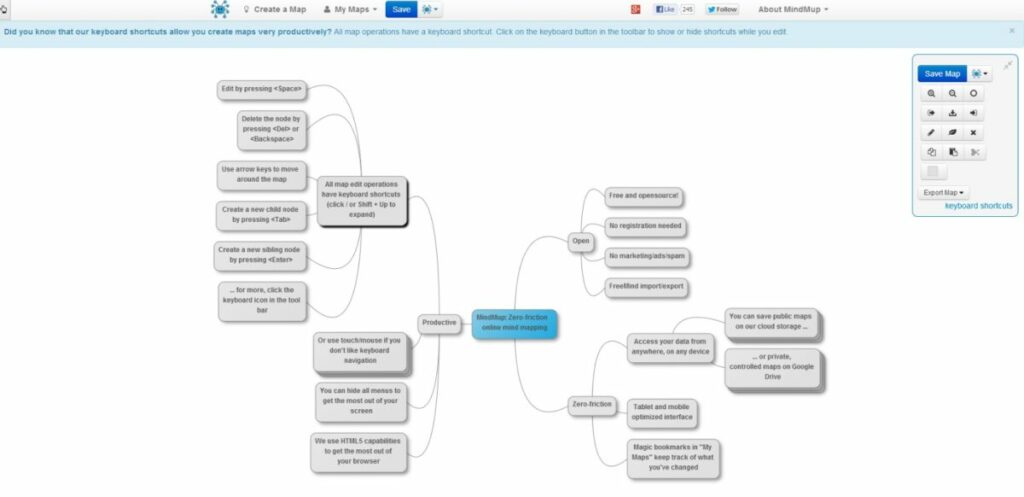
MindMup is a perfect alternative to BUBBL.US. In a very similar way to the previous tool, MindMup allows you to create outlines and concept maps from an online platform without the need for prior registration. It is therefore an excellent resource for anyone who needs to create a quick diagram without having to open an account.
MindMup offers a very intuitive interface, so it is very easy to make diagrams in just a few seconds. In addition, even if you do not register to the site, it will store your diagrams for six months, so you will never really need to open an account if you do not think it is convenient.
Finally, it is important to highlight that MindMup offers the possibility of exporting our schema in PDF format, something that BUBBL.US does not let you do. This is why it is a highly recommended option if this is your preferred format for archiving documents.
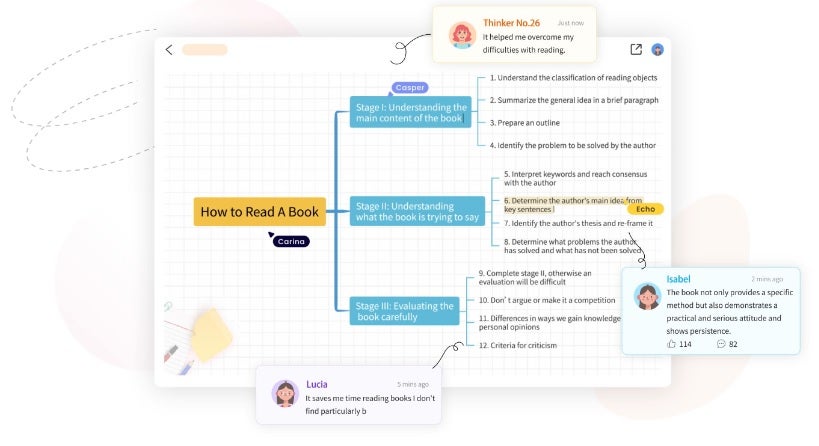
As its website says, GitMind is the online platform to make your ideas count. This free software for creating outlines and concept maps is an ideal method for summarizing notes, reports or brainstorming sessions.
In terms of operation, GitMind stands out for its simple interface. In addition to the classic tools for creating diagrams, the platform includes a good number of templates to make your life much easier. Do you like to create diagrams from scratch? No worries. Simply set up themes and their peripheral nodes to visually capture an idea.
As with the previous options, an interesting point of Gitmind is that you don’t need to register to start making your schemas. It is also remarkable how GitMind allows you to add priorities, comments and a progress meter to each of the parts of the schema, being perfect for group work. What are you waiting for to try it?
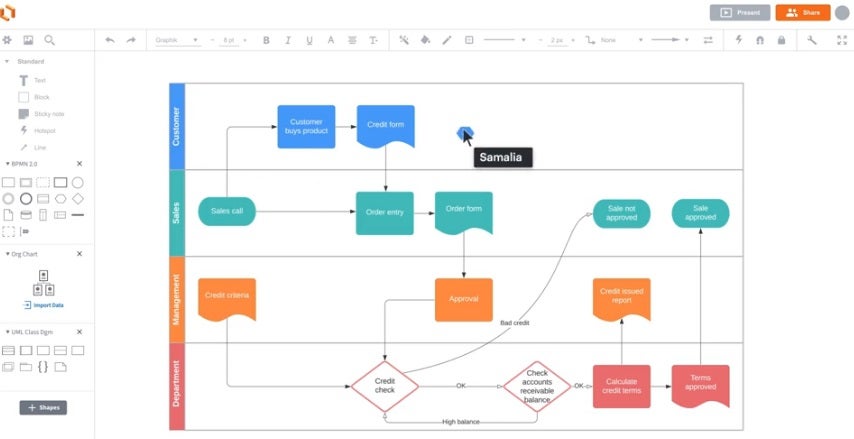
LucidChart is one of the most powerful tools for creating diagrams and schemes on the market. From it you will be able to make plans, concept maps and professional organization charts in a matter of seconds. Despite being a paid service, the platform offers a fully functional free version. It provides access to all its basic figures as well as 100 templates to shape your diagrams. Once the work is finished you can save it in JPG, SVG, PDF and PNG formats.
As we have already mentioned, LucidChart is one of the star platforms when it comes to making diagrams. In fact, companies of the caliber of Google, NBC, Amazon or even NASA use it in their work environment. In addition, its tools are integrated with a large number of cloud services such as Google Driveor Microsoft Teams.
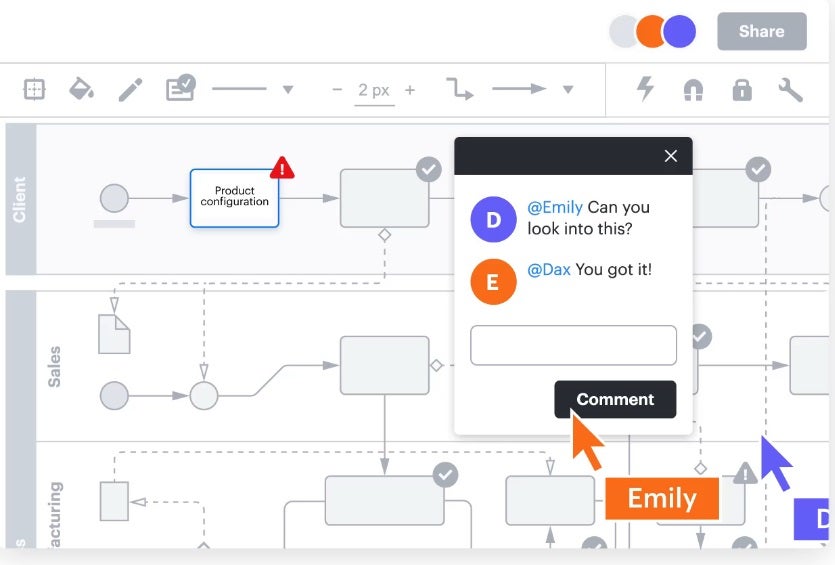
Finally, LucidChart is a tool developed with teamwork in mind. It allows several people to have access to a diagram and interact with it, making it an excellent option for telematic brainstorming. This is why the service can be integrated into applications such as JIRA, Microsoft 365 orSlack.
We close our selection with Coggle, an intuitive online tool designed to make diagramming a real delight. Unlike some of the alternatives on the list, Coggle is not a platform designed to create complex concept maps. However, it is the most intuitive and fastest option for creating a simple diagram with a central theme and its corresponding constellation of entities.
Coggle has a free version as well as two paid options. From your free account you will be able to create a total of 3 private diagrams and an unlimited number of public diagrams. In addition, you will have at your disposal more than 1600 icons, you will be able to incorporate your own images as well as collaborate in real time with other users.
In short, Coggle is an excellent option if you are looking for a tool without many complications but full of possibilities to make your diagrams and schemes online.
We hope that our selection of free online diagramming platforms has helped you. As you can see, there are countless excellent services from which you can create your own concept maps without spending a fortune. Did you like what you have read? Don’t forget to share this article with your friends on social networks!
Personalize your PC desktop with the best geek and geek themed wallpapers. Series, Animation, Star Wars, Marvel, Videogames and many more!
Wallpapers are an excellent resource to turn an ordinary PC into a brand new computer created in our image and likeness. They reflect our personality, tastes, hobbies and, of course, our geek side. And we have to accept it, even if we are serious and hard for life, inside us there is a geek who enjoys like a little kid watching series, movies, reading comics and of course playing video games.
Whether you follow a 100% geek lifestyle or you prefer to dedicate yourself to the geek world in the shadows, the idea of having a wallpaper of your most beloved hobbies will surely appeal to you. Funny images about programming, Joel and Ellie escaping the apocalypse, Mando and Grogu running through the galaxy or the epic battle against Thanos are just some of the examples that could be right now adorning the screen of your computer…. but do you know where to find them?
In today’s article we are going to offer you a complete selection of wallpaper ideas for you to decorate your computer with the most geeky images of the moment. TV series, comic backgrounds, superheroes, anime, video games… whatever you like, you’ll find it. We hope you like them!
How to customize your PC screen
Before we start with our selection of wallpapers, let’s make a mandatory review of how you can customize the screen of your computer with the image you like the most. Don’t worry, it’s very simple and won’t take you more than a few minutes.
Step 1: Know your screen resolution
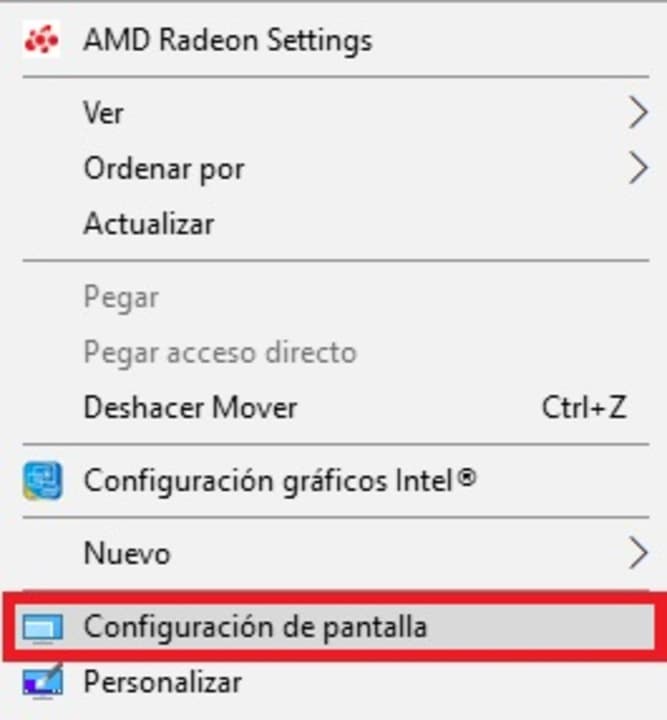
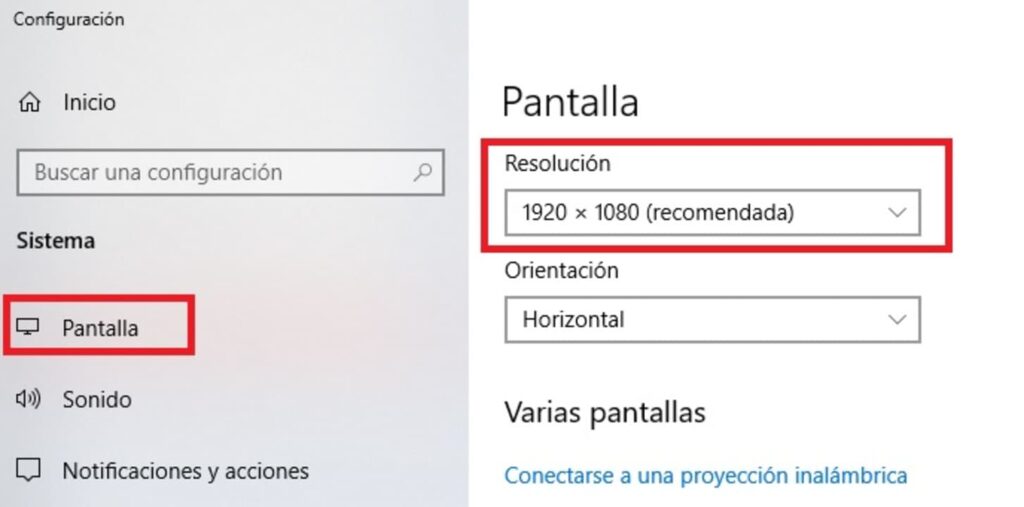
The first step to follow to download and correctly use a wallpaper on your computer is to know the resolution of your screen. To do this, right-click on the desktop and once the drop-down menu appears, click on the “Display Settings” option. If you wish, you can also get here by accessing your computer’s Settings window (Windows Key + I) and clicking on the “System” option followed by “Display”.
If you have followed this step to the letter you will get to a new window where you can see all the information about the screen of your computer. Look for the point called “Resolution” and write down the number that appears. If you want your wallpaper to display correctly, make sure it has this same resolution or a multiple of it.
Step 2: Get a desktop wallpaper with the correct resolution
Now that you know the resolution of your computer, simply download a wallpaper that fits this size. We recommend that you save them in the Windows gallery so that you don’t have problems locating them later. If you only find wallpapers of different sizes, don’t worry, Windows offers the option to adapt the background to your screen resolution. We will talk about it in step 3.
Step 3: Set the wallpaper you want
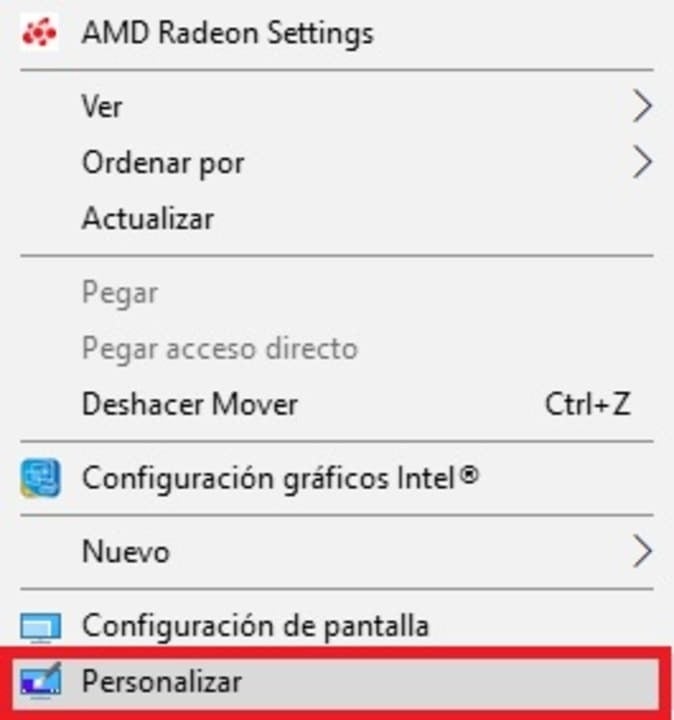
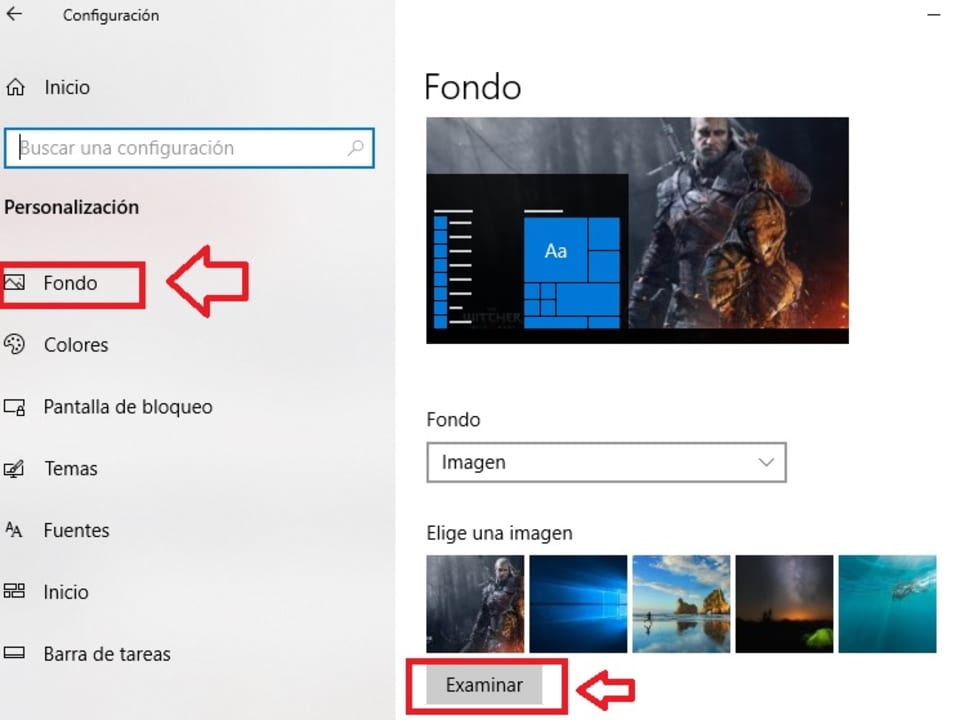
Now that you have your files on your computer, it’s time to change your wallpaper. To do this, right-click on your desktop and click on the “Personalize” option. Alternatively you can also get to this menu through your computer’s settings (Windows Key + I) and then click on “Personalization”.
Once you get to this new window, look for the “Choose an image” option and click on the “Browse” button. Select the image you downloaded and want to use as your wallpaper. If this image doesn’t quite fit your desktop, select “Fill” from the drop-down menu to let Windows adjust it to your resolution. You now have your custom geek wallpaper!
How to customize the screen of your mobile
If you want to change the wallpaper of your smartphone, the process is just as easy and simple. To do this you simply need to download the image you want to use as wallpaper for your phone and save it in your gallery. Remember that the dimensions of a mobile wallpaper are not the same as those of a smartphone.
Once you have done this, access your phone’s settings and click on the “Display” option followed by “Wallpaper”. If you are using a Samsung smartphone you will simply need to click on “Wallpaper & Themes”.
After that, select the “Photos” option and choose the picture of your choice from your phone’s gallery. If you are using a Samsung mobile simply click on Gallery from the Samsung Themes window. Once you have selected the image, it will appear on the home screen or lock screen (or both) of your mobile.
If you are more of an iPhone or iPad user, the procedure is just as simple. In “Settings” tap on “Wallpaper”. Already in the new window, click on “Add new wallpaper” and then select the image you want to adorn your iOS device.
Creative and geeky wallpapers with illustrations
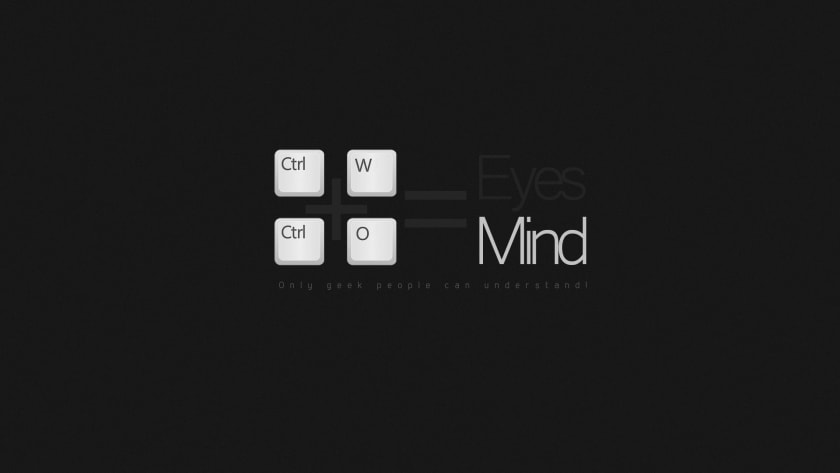
The geek universe has inspired millions of digital art creators to give life to funny illustrations that will make us smile just by looking at them. Most of them have a secret message, reference or joke that only the geekiest will understand. So you know, if someone in the office laughs when they see your wallpaper, they are one of your own.
One of the main activities of any self-respecting geek is to spend hours and hours watching TV series. Over the last few years and thanks to platforms like Netflix or HBO Max, watching TV series has become a real pleasure. Do you like to spend your weekends with a blanket, a sofa and a good TV series? Then you’ll love these wallpapers.
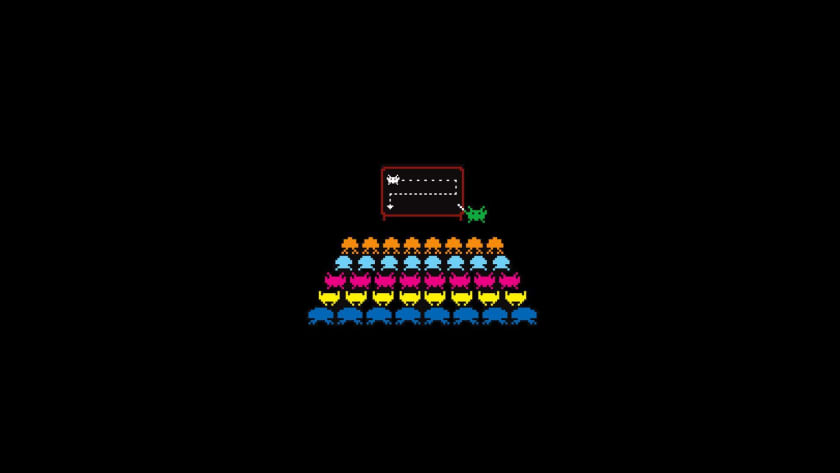
Video games never go out of fashion and regardless of whether you are a PC or console gamer, you always want to spend hours and hours enjoying all kinds of challenging adventures. Why not decorate your computer with some wallpaper from your favorite franchise?
No selection of geek wallpapers can be considered as such without its own section of Star Wars images. George Lucas’ timeless saga will always be closely linked to the geek world. May the force be with you.
In a similar way to Star Wars, Game of Thrones was a revolution in television series, especially among fantasy lovers. Throughout its 8 seasons we have lived all kinds of betrayals, political tribulations, deceptions and epic battles throughout Westeros. It is only natural that after so long following Daenerys or Jon Snow we want to immortalize them on our computer screen.
Although we have already included a section of Star Wars wallpapers, we could not resist creating our own section for The Mandalorian. And the fact is that the Disney Plus exclusive series starring Pedro Pascal has made everyone fall in love with it throughout its (so far) 3 seasons. Besides… Who could resist having the charming Grogu as a desktop background?
Marvel and DC superheroes (and supervillains) wallpapers
Whether you are a Marvel or DC fan, it is undeniable that thanks to the movies and especially to The Avengers film saga, superheroes are having their best moment. Celebrate with them their well-deserved popularity thanks to a colorful wallpaper full of super-charm.
Both comics and Japanese cartoons are still one of the favorite entertainment for anyone who considers himself a geek. And in them you can find everything from tender stories of love and friendship to the craziest adventures you can imagine. Do you dare to turn them into your desktop backgrounds?
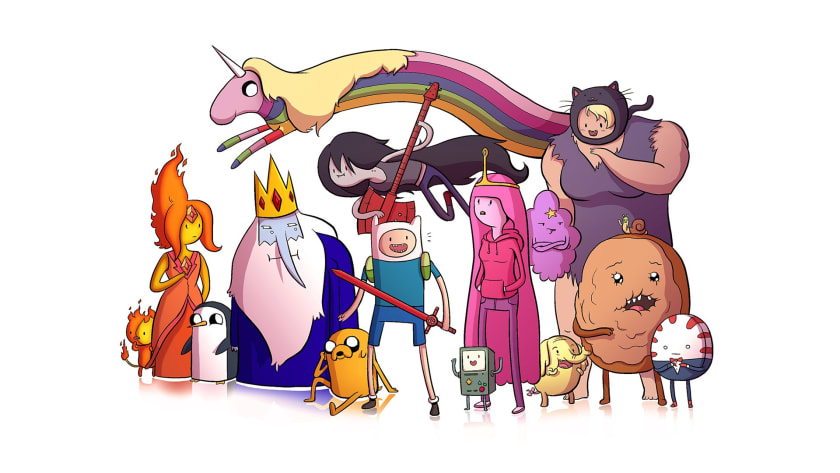
Not all animated series are Japanese and many of them are considered cult within the geek world. Who has not spent hours and hours laughing with the adventures of the Simpson family, accompanying Fry in all his deliveries of the Galaxy Express or getting carried away by the follies of Rick and Morty? Here are a few wallpapers so that you can continue to enjoy them all from the screens of your computer.
The geek world is as wide as the human mind, so it is very likely that even if you have looked and looked through our selection, you will not be able to find the wallpaper you were looking for. However, that does not mean you should throw in the towel, there are hundreds of websites where you can find that image for your desktop or the perfect wallpaper for your cell phone. These are the ones we like the most:
We hope that our selection of geek wallpapers has helped you find beautiful wallpapers to enjoy your geeky hobbies to the fullest. Did you like what you read? Don’t forget to share this article with your friends on social networks!
Step-by-step tutorial to solve the error code “ssl_error_rx_record_too_long” in Mozilla Firefox and thus be able to navigate normally again.
The error code “ssl_error_rx_record_too_long” is very common among browsers, especially Mozilla Firefox. It is accompanied by the message “Secure Connection Failed” and responds to a discrepancy between the security of the data sent by a web server and the data expected by the browser. The result prevents the normal display of the web page, which is very annoying if, for example, we need to use the Internet constantly for work.
What causes the error code “SSL_ERROR_RX_RECORD_TOO_LONG”?
As we have already told you, the main cause of the ssl_error_rx_record_too_long error in Firefox is due to the inability to verify the data received. This can be due to a number of factors, including a misconfigured SSL certificate or some other type of security flaw on the part of the website. As a result, Firefox is unable to complete the connection to the server port, blocking access to the website.
Solution 1: Access the URL with the HTTP protocol
This is perhaps the easiest way to resolve this error. As we have already told you, the error “ssl_error_rx_record_too_long” is due to the fact that Firefox is unable to verify the secure data (SSL) of a page and therefore blocks it. One way around this is to access that same URL by replacing “https://” with “http://”. To do this simply open a new tab in the browser, copy and paste the address and change the beginning of the address to “http://”. If this does not work, try one of the other methods we offer.
Solution 2: Use a connection without Proxy
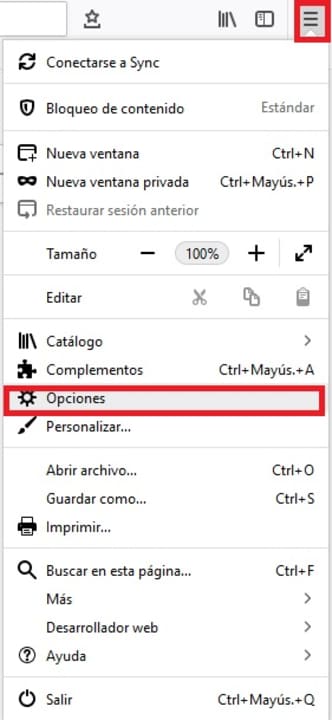
Another simple and usually effective way to solve this annoying error message is to change the settings with which Firefox connects to the Internet. To do this first of all click on “Open menu” (it is the icon of the three horizontal lines in the upper right corner of the screen) and then click on “Options”.
Once in the Firefox options, scroll down to the “Network Settings” section (it is the last one in the list) and then click on “Settings”. Within this menu check the “No Proxy” option under “Configure proxy access to the Internet” and click OK. Restart the browser and try to access the page that gave you the error. If the problem persists try one of the other methods mentioned above.
Solution 3: Use Firefox in Safe Mode
Although many users do not know it, Firefox has a Safe Mode that is able to solve most of the errors that the browser suffers from. This will deactivate all the extensions that you have installed and also all the hardware acceleration options that you have active. In this way, the browser will work only with its minimum options, being able to easily detect what generates the error “ssl_error_rx_record_too_long error”.
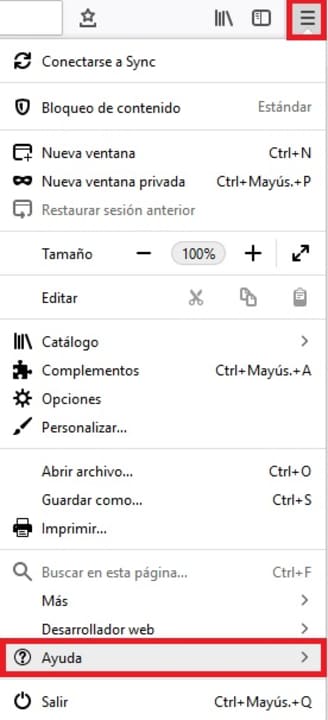
To activate Safe Mode simply click on “Open menu” (it is the icon with the three horizontal lines in the upper right corner of the screen) followed by the “Help” option. You will see this will open a new drop-down menu.
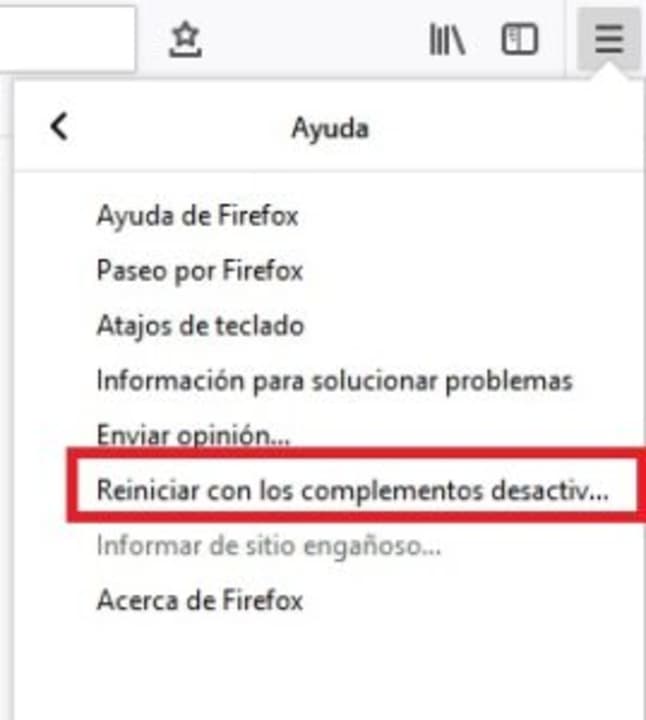
To continue with the process, click on the “Restart with add-ons disabled” option. This will open a new window in which Firefox will ask you to confirm that you want to restart the browser. Click on the “Restart” button.
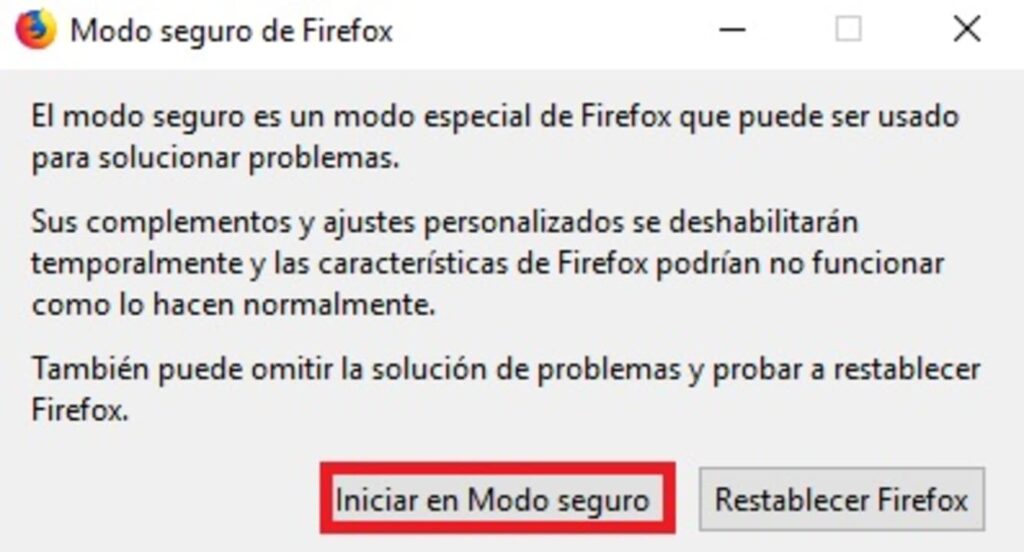
Finally Firefox will ask if you want to access the browser in Safe Mode. Click the option to restart the tool in safe mode and try to access the page that gave you the error. If it persists try one of the other methods.
Solution 4: Disable Firefox Extensions
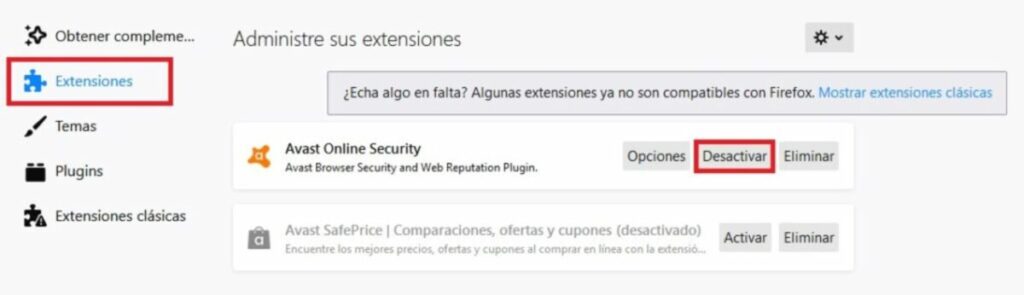
If you prefer to disable extensions directly without reverting your browser to Safe Mode, you can also do so. To do this just click on “Open menu” (it is the icon with the three horizontal lines) and then click on “Add-ons”.
Click on “Extensions” in the left side menu of the screen and deactivate all the extensions that you see fit in the right side menu. Once you have done this, restart your browser and try to access the page that gave you errors. If it persists, try one of the other methods.
Solution 5: Reset Firefox to its original settings
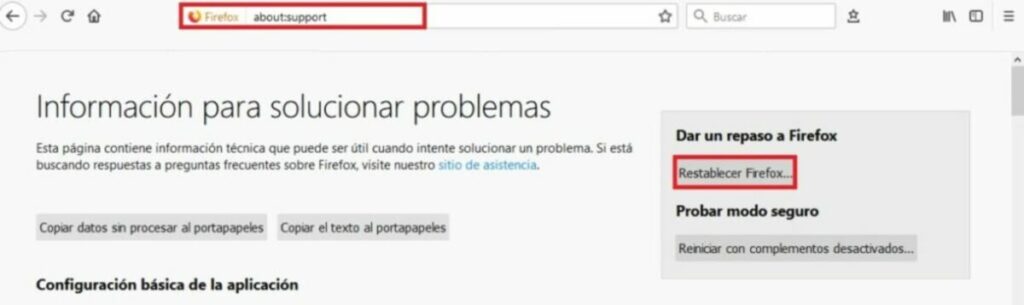
It may be a change you have made to your browser that is causing it to not work as it should. To return Firefox to factory default simply type “about:support” in the navigation bar and press Enter.
In the new window you will see all the technical information about your browser. Click on the “Reset Firefox” option on the right side menu of the screen. After that try again to access the website that gave you errors and if the problem persists, try another of the methods we offer.
Solution 6: Change your TLS preferences
The error code “ssl_error_rx_record_too_long” may appear as a result of a transport layer security (TLS) misconfiguration. This type of encryption, very similar to SSL, protects the transparency of data and information over the Internet. That is why altering your preferences can solve this annoying problem.
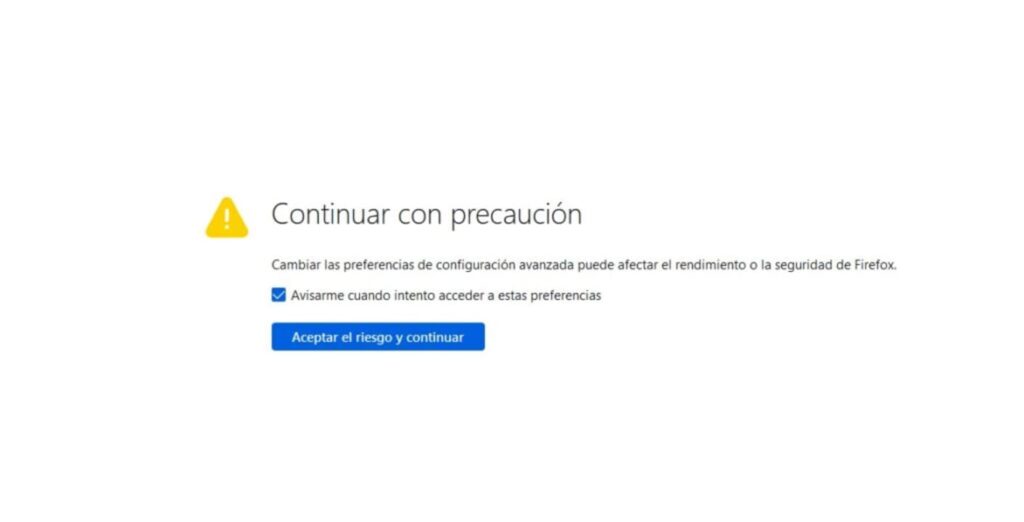
To do so, open Firefox, type “about:config” in the navigation bar and click on the blue “Accept risk and continue” button.
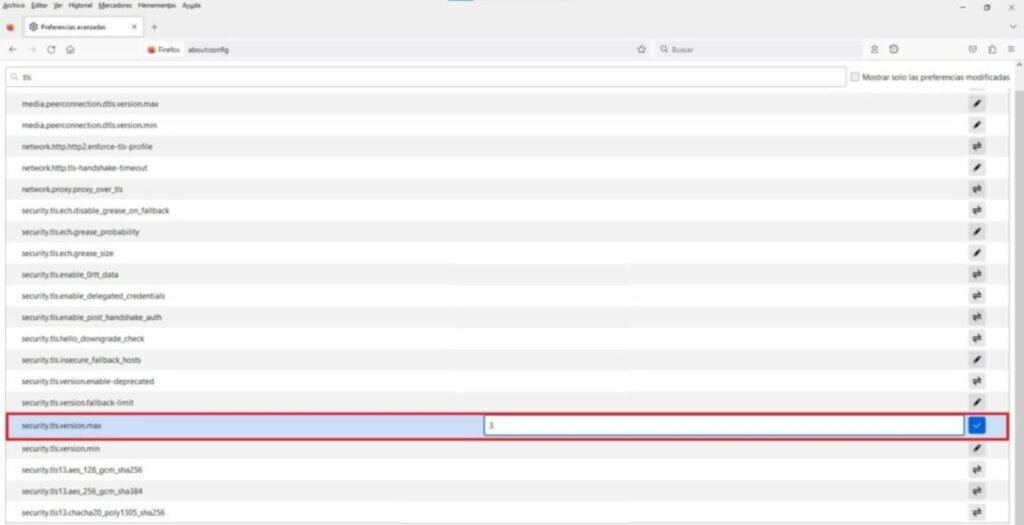
Once this is done, type “TLS” in the search bar and press Enter. Now with the list of addresses displayed, search for “security.tls.version.max”. Double-click on it and change the value from 4 to 3. Now simply restart the browser and try to visit the web page. If it does not work, it is recommended that you leave the TLS value as it was before.
Solution 7. Add the URL to your trusted pages
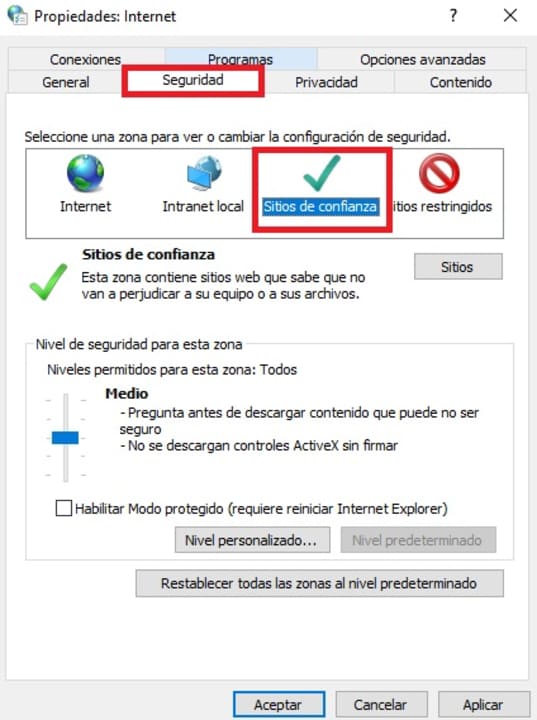
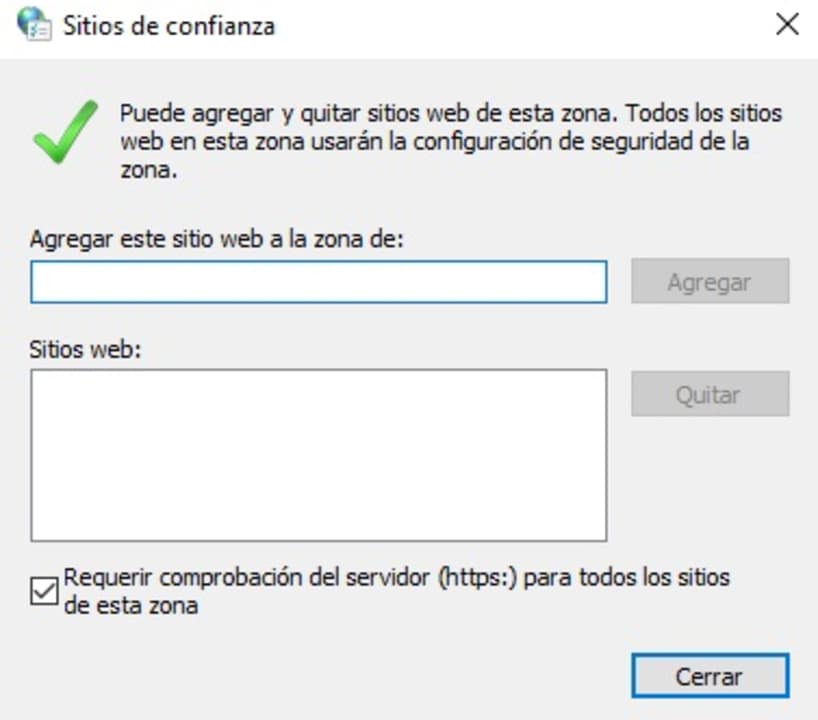
Another effective solution to resolve the “ssl_error_rx_record_too_long” error message is to add the URL that is giving you problems to the Windows trusted pages. For it you will have to accede to the Internet Options inside the Control Panel of your operating system. Once there, click on the “Security” tab and select the “Trusted Sites” option.
Now simply click on the “Sites” button and, in the new window, type the name of the URL that is giving you problems and select “Add”. Once done, apply the changes and open Firefox to see if it works.
Solution 8: Disable your antivirus
Sometimes this error is due to the fact that our antivirus is blocking secure pages by mistake. One way to detect if this is the case is to deactivate our antivirus software for a few seconds and try to access the web during that period of time. If this works, the problem lies in your antivirus and not your browser, so you may want to consider changing it.
It is very important to emphasize that this step is only recommended if you know that the website you want to access and appears blocked is trustworthy. Otherwise, never disable your antivirus software.
Solution 9: Update Firefox
An outdated version of your browser may be the culprit for not being able to access certain web pages. Updating Firefox is very simple, just click on “Open menu”, “Help” and finally “About Firefox”. A new window will open informing you if you have the latest version of the browser or if you need to update it.
Solution 10: Reinstall Firefox
If the problems persist after trying all the above methods, you may want to reinstall your browser. To do this, first of all uninstall Firefox from your computer and then download the latest version below.
Double-click on the installer and follow the on-screen instructions. After finishing the process, try again to access the pages that gave you an error.
Solution 11: Change your browser
If after performing all the methods we have suggested you are still unable to access most of the web pages, try installing another browser. There are some really good alternatives that will make you not miss Mozilla’s browser at all. These are the ones we like the most:
After installing your new browser, try to access the pages that were giving you errors.
Get rid of the annoying message “SSL_ERROR_RX_RECORD_TOO_LONG”
We hope that our selection of tricks has helped you to solve the code “ssl_error_rx_record_too_long” in Firefox. As you have seen, despite being a rather annoying error, it is easy to solve once you know the steps to follow. Did you like what you have read? We encourage you to share this article with your friends through social networks.