Microsoft has launched a version of its Edge browser specifically designed for gamers, known as Game Assist. This new feature allows users to access guides and tips in real-time while playing, thus offering a valuable resource to enhance the gaming experience. After a successful testing period, Game Assist is now available to all Edge users. Game Assist will also automatically detect what you are playing. The operation of Game Assist resembles the Steam overlay browser, allowing browsers and windows to appear over active games. This […]
Microsoft has launched a version of its Edge browser specifically designed for gamers, known as Game Assist. This new feature allows users to access guides and tips in real-time while playing, thus offering a valuable resource to enhance the gaming experience. After a successful testing period, Game Assist is now available for all Edge users.
Game Assist will also automatically detect what you are playing
The functionality of Game Assist resembles the Steam overlay browser, allowing browsers and windows to appear over active games. This system can automatically detect certain compatible titles, such as Marvel Rivals, Indiana Jones, and Dragon Age: The Veilguard, offering relevant information in a side panel. However, it is also possible to use this feature with other games, although only compatible titles will enjoy automatic guides.
Players can access Game Assist by going to the Microsoft Edge settings and locating the corresponding widget. Once activated, the feature will appear in the Game Bar, providing immediate access to data such as favorites and browsing history. This means that players will be able to maintain their usual settings by sharing information with the Edge browser, including cookies and browsing data.
Despite its availability, Game Assist remains in preview status, and Microsoft plans to add support for more titles in the future. This initiative aligns with the company’s ambitions in the gaming sector, which include integrating all PC games with Xbox features in the Xbox app. Additionally, there are rumors about a pilot program that will allow Game Pass Ultimate members to stream certain games from their Xbox consoles.
Microsoft’s browser, Edge, has recently received a new update that will give users more reasons to start using this service. The official browser for Windows computers will now have important improvements such as an integrated network speed test, to check the speed at all times, and new security enhancements that aim to continue protecting users as much as possible.
Microsoft Edge has been on the market for a long time, and continues to take steps forward in terms of features and service quality to attract more users to its browser. It is an active interest on the part of the company, since, in the end, the browsing data that each user leaves in the browser is valuable for any brand.
As highlighted by Neowin, Microsoft Edge, the flagship browser of the American company, continues to move forward with the goal of increasing its user base. In this way, its most recent update, in addition to the always important security improvements, also adds a tool that allows you to carry out network speed tests from the browser itself without the need to access other websites or services.
It may not seem like it, but this type of tools can be very useful when there are network issues, or when the speed is perceived to be lower than it should be. Along with other substantially powerful improvements such as the implementation of Copilot within Edge, this browser continues to show itself, once again, as one of the most interesting alternatives for daily use.
Microsoft Edge and its popularity
Despite the fact that Microsoft Edge represented a significant leap in quality compared to the outdated Internet Explorer, this browser has never managed to achieve the amount of traffic that Microsoft would like to have on its service. That is why they constantly try to improve its quality with all kinds of updates, which the company already considers superior to its main competitor, Google Chrome. In fact, Microsoft doesn’t understand why Edge isn’t taking off in popularity at this point.
Unfortunately for Microsoft, even though their service may currently be of great value, and despite the fact that Google Chrome has gone through critical moments, such as the million-dollar lawsuit over the deceptive “incognito” mode, the browser has managed to retain its user base with a service that is reliable enough for them not to want to change their internet browsing habits by using another browser.
After Microsoft Edge was discovered collecting data from other browsers, it seems that the company has decided to cover it up by claiming that this “bug”, which was supposedly unintentional, has already been fixed so that the application only collects usage data from other browsers if the user explicitly gives permission for it.
Weeks have passed since the first reports indicating that Edge was feeding on information from other browsers, mainly Google Chrome, after an update with this alleged error by Microsoft’s service. Now, however, the company has announced that said “error” has been patched and that now data from other browsers will only be collected if the user gives permission for it.
As 9to5google states, this issue was discovered by many users on the internet, who were surprised to see how Edge was even able to replicate the active tabs in other browsers like Chrome, which caused a very negative impression due to its invasive nature. Now, however, this issue is finally fixed and there is no need to worry about it, as it will only be activated if the user consents to it.
Fixing design problems or failures
It is common for companies to try to make changes in order to cover up problems or failures caused by previous bad decisions. In fact, recently, one of the new changes that Microsoft has made in Edge is to not impose on users the sidebar with Copilot services that had been implemented mandatory within the browser, thus providing a button to activate or deactivate this function.
However, not all changes are usually well-intentioned, as it is also known that Edge, along with Bing, is trying to evade the strict European laws of “gatekeeping” on the Internet by claiming that neither of the two services has a dominant position in the market, despite having millions of daily users on both systems.
Microsoft Edge continues to seek improvements in every possible aspect in order to convince users that their browser is worth using more, but they haven’t quite hit the mark. In fact, not even with the toolbar, which is being heavily criticized by users who have no interest in the sidebar that the company has wanted to place. For that reason, in the latest update, Microsoft has added a button to disable it.
The sidebar plays a key role in the current design of Microsoft Edge because it is part of the space occupied by Copilot, the Artificial Intelligence currently integrated into Windows, to be used simultaneously with browsing. But it was not receiving favor from the community, and Microsoft has decided to listen to it.
The sidebar that has been implemented in Microsoft Edge for some time now was not liked by all users. That is why Microsoft, as shown by Neowin, has chosen to enable a button that allows activating and deactivating said sidebar, so that the user can have more screen space whenever they want.
It is important for Microsoft to listen to userfeedback, and it also matters that they make these kinds of decisions with their community’s desires in mind. The company’s frustration with their inability to attract users to Edge is well known, but if they start taking their wishes and interests into account, it is easier for the community to embrace their services.
Not everyone wants Copilot
The basis of this change lies in the Copilot service as one of the star features of Microsoft Edge. In a segment where more and more users were being seduced by what generative Artificial Intelligence offers, the company founded by Bill Gates decided to bet on Copilot as one of its main assets. In this way, this system began to be gradually integrated into Microsoft’s portfolio of services and applications.
Its presence in Microsoft Edge is one of the most used, but the reason is because in most services, Copilot is only available with a Microsoft 365 subscription, something that drastically reduces the target audience. Similarly, many users have chosen to respond to the imposition of Artificial Intelligence with programs specifically designed to disable these services, showing that, in reality, it is not a service that is overwhelmingly popular.
Microsoft Edge and Bing have wanted to avoid problems. The European Union’s regulation in digital areas is one of the most restrictive in the market, always prioritizing user protection over brands. For that reason, Microsoft is trying to find a formula that allows Edge and Bing to evade the new Digital Markets Law that comes into effect this year.
As Bloomberg has revealed, Microsoft plans to argue that both the Edge browser and Bing search engine are far from having a dominant position in the market, a strategy they will rely on to justify the European Union receiving a more lenient treatment in compliance with the Digital Markets Act which comes into effect on March 6th. This way, Microsoft would avoid a complicated hurdle and save itself from making numerous changes to its systems to comply with the regulations demanded by the European Commission.
The change will not benefit Microsoft in many other areas, as there are not many services it owns that can justify a non-dominant position to avoid the scrutiny of the law. In fact, the Windows 10 and Windows 11 systems are making these changes, since as Operating Systems, they cannot evade their function as Gatekeepers in that space.
Edge and its synergy with Copilot
Microsoft Edge is one of the applications whose synergy with Copilot can be most beneficial. Unlike other widely used Microsoft services such as Teams, Outlook, Word, Excel, in the case of Edge, the company fails to attract the amount of audience they would like, unable to get rid of the infamous legacy left by Internet Explorer in the past, in addition to being key years for the establishment of alternatives such as Chrome, Firefox, Safari, and many other browsers.
In fact, the desperation of Edge developers when it was evident that they still don’t understand the reason for the lack of penetration of their service in the browser market caught a lot of attention. In fact, there is even the possibility now to uninstall Edge, both in Windows 10 and Windows 11 if you really want to get rid of that browser on your system.
Microsoft Edge, default browser of Windows systems, continues to update to offer the most attractive service possible for users. Therefore, Microsoft Edge beta 121 is now available for users to test the new features that are being tested in this version of the Microsoft browser.
This beta includes interesting improvements that, although they do not align with Microsoft’s general roadmap (which is very focused on Artificial Intelligence and, above all, on its future hope, Microsoft Copilot), aims to improve specific aspects that corporate users miss when using their PC’s default browser.
In order to appear more attractive in the corporate landscape, Microsoft Edge beta 121 aims to improve its compatibility with commonly used assets when working in front of a screen. As a result, creating organization profiles will be much easier and will require less tedious processes than before.
The field of productivity is one of the most important when it comes to directing a browser towards a quality service. Casual or leisure use also matters, but an attractive interface for working on it is also essential in a world where there are hundreds of millions of jobs in the world that are performed, partially or totally, through computer screens. Thus, with this move, Microsoft will try to capture one of the most loyal audiences, since, after all, work will always be there for everyone.
Copilot is one of Microsoft’s big bets for the future
The growing power of Edge
Microsoft Edge has been working extensively to improve its appeal in recent months, as despite being the default on all Windows systems, sometimes the only time Edge is used is to search for your trusted browser and download it, whether it’s Chrome, Firefox, Opera or any other. That’s why Copilot has emerged as one of the main Edge tools, being exclusively used as part of Microsoft’s internal ecosystem.
In fact, Microsoft has made a great effort to convince users of how improved Edge has become in recent times, so during this 2023 they launched campaigns with surveys and banners to understand why users prefer other browsers over Edge.
Microsoft has decided that it no longer needs to waste tech support time and money on Windows 7 and Windows 8. In January 2023, you’ll no longer see any updates appear or fixes to any bugs. What it also means is that there won’t be anymore support for Microsoft Edge for either of these operating systems. Thankfully, it will remain on Windows 11.
When Microsoft moved toward an Edge Chromium platform, it offered vast improvements, especially for Windows 10 and 11. With the company no longer offering support for the older operating systems, there won’t be updates for ME on them either. Even the former paid model for extended support will fall away.
Of course, that means that anyone still using Windows 7 or 8 and the associated Microsoft Edge app on them may be in for security issues. If you don’t know this already, let me teach you something. Hackers love to use malicious software to attack vulnerable systems. If operating systems become outdated, they end up being prime security targets.
This move by Microsoft not to update Edge on older operating systems may be to force members to upgrade to Windows 11. Even Windows 10 may become redundant, with apps like Media Play only receiving the latest updates on the latest system. Since the upgrade to W11 is free for current users, why aren’t more people doing so?
The issue is primarily with Windows 11 requirements. Not everyone can afford the high-tech systems needed to run it, as computers and laptops haven’t really come down in price by much. That means many people are forced to remain on outdated systems that become security risks. Perhaps if Microsoft offered free computer upgrades, that would help. Unlikely, but we can dream.
In recent years, the internet has become an essential tool in our daily lives. We use it to search for information, make purchases, work remotely, and stay in constant contact with our family and friends. Just about anyone would have a hard time getting through a full day without connecting to the internet, but few of us are aware of the importance of a fundamental tool we need to do so: our browser. Without it, we wouldn’t be able to access the web or spend long hours surfing its endless sea of information.
Browsers are the gateway to the internet, and although we all have our favorites (Chrome, Firefox, Edge, etc.), sometimes we wish they had extra features. Just like you need a comfortable pair of shoes to enjoy a long walk, having a good browser is essential to enjoy everything the internet has to offer. So, what features should the ideal browser have?
In today’s article, we’re going to use our imaginations and write a wish list of all the features and characteristics we would like to see in the “perfect browser.” So, without further ado…
It should be fast when searching for and loading websites
One of the main features a good browser needs is the ability to quickly take you to the websites you want to visit. This is important not only when using the internet during your precious free time, but also when you’re trying to perform your best at work.
Right now there are some really fast browsers, such as Chrome and Firefox. While Chrome itself is already quite speedy, it lets you add extensions that will make all your searches exponentially faster. If you’re interested, click here for a roundup of the best extensions to speed up your browser. Firefox is not far behind Chrome in this respect. This browser has always stood out for its speed, and it even includes a native feature that makes it quicker. Want to know how to enable it? Click here to find out.
In short, the perfect browser should be fast and take you to the pages you want to visit without delay. Because, as the saying goes, “time is money”!
It shouldn’t slow down your computer
One of the biggest problems with browsers is that they often end up using a lot of system resources. This leads to your computer slowing down significantly, which can be frustrating for the user. A good browser should not only display search results quickly, but also ensure the PC or mobile devices it’s running on are not affected by its use.
In terms of performance, the browsers that we like the most are the Chromium-based ones. Among them we obviously find Google Chrome and the most recent Brave. Both run seamlessly and barely use any resources from your operating system.
If your browser has been slow lately or seems to be consuming a lot of system resources, there is probably a problem. To solve it, we recommend clearing your history and cache and following some of the tips in the article below.
7 tricks to increase the speed of Chrome you should use right now
The internet is a wonderful place for finding information, shopping, and connecting with your friends. However, the sheer amount of personal data you share online is greater than you could ever imagine. The perfect browser needs to be extremely secure to keep the information you share online out of the hands of hackers and cybercriminals.
With the massive use of the internet, countless threats have arisen, so it’s important to tread carefully. There are types of malicious content that, after contacting your browser, can detect anything you write (including your banking details). Others are even capable of hijacking your browser and redirecting your searches to pages with highly dangerous content for your computer. Your browser must be able to both detect and block these threats.
A browser that excels in this regard is undoubtedly Mozilla Firefox. Over the last few years, Firefox has emerged as one of the safest options on the market, making it possible to navigate the web with total peace of mind.
It should block annoying ads
There are few things more annoying during an internet session than constantly seeing pop-ups and banners on your screen. Although there are extensions that block these irritating ads, wouldn’t it be wonderful if your browser had an integrated ad blocker in its code?
Currently a good option to get rid of ads is Brave, a browser that includes a completely free ad blocker as standard. That way navigating the internet is a far more pleasant experience.
It should have a safe extension store
One of the best things about today’s browsers is the fact that they use extensions to add new features to your internet sessions. Browsers such as Google Chrome or Firefox are favorites not only because they’re ultra fast and secure, but also because they let users customize their features in just a few clicks. And this is all possible thanks to extension stores.
For this reason, the perfect browser must guarantee that all the extensions in its store are 100% secure. As useful as they might be, these new downloadable features can be dangerous. Bear in mind that unless they have been previously verified, extensions can put your data and computer at risk. The perfect browser therefore must have an extension store whose extensions have all been vetted by a team of experts.
If you want to find out how to identify a safe extension, we recommend reading the article below.
This Google Chrome extension helps you block out internet trolls
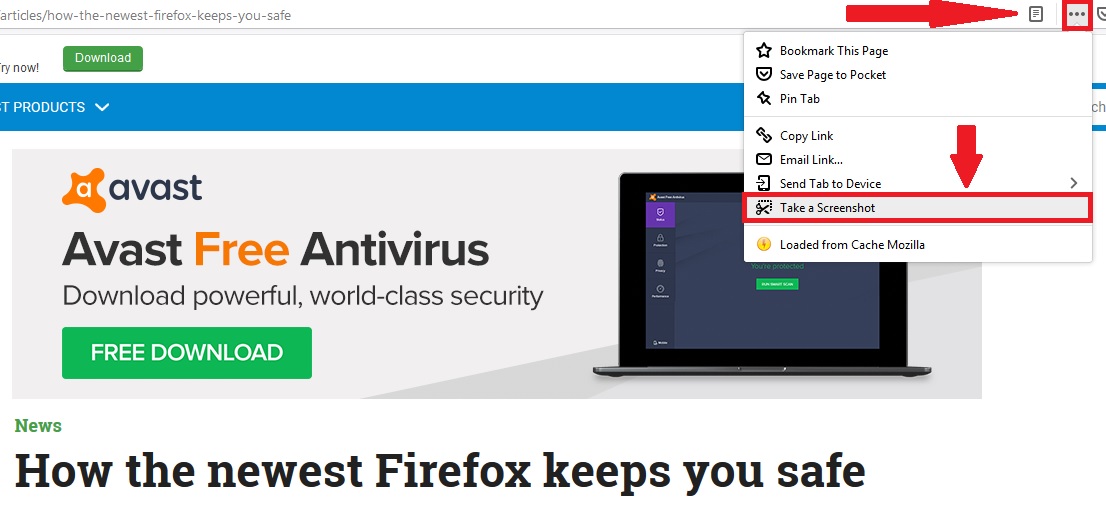
One of the most convenient features when working online is the ability to take screenshots. Although this can be done easily using the “Print Screen” key or the Windows 10 screenshot keyboard shortcut, our perfect browser would have its own embedded screenshot button.
Currently browsers like Mozilla Firefox include this option natively, without the need to install any extension. To find out how to enable it, just look at this.
It should be capable of syncing data across your devices
A truly interesting feature of the latest browsers, such as Firefox, Edge and Chrome, is their ability to sync data. In the case of Chrome, this is especially useful for Android users, as it allows immediate access to all Google services (Gmail, Drive, etc.) and syncs your data and bookmarks from your phone or tablet. In the case of Firefox, syncing lets you export and import all your bookmarks quickly and easily between different devices. Edge, on the other hand, can integrate seamlessly with Windows 10, import and export your bookmarks as well as sync with your Microsoft account. Our perfect browser should be able to do the same thing with any account.
It should have a good password manager with a master password
Over the years, there has been a dramatic increase in the number of subscription-based online services. All of them require a username and password, so ultimately you have to remember hundreds of passwords if you want to continue using them.
A good browser needs an efficient, natively integrated password manager that can remember your login details and enter them automatically whenever you want to access one of these services. However, it’s also important for your browser to have a master password system. This means you’ll need to enter a master password before your browser can autocomplete the login details for any online service you want to access. That way you’ll be sure that even if someone else gets ahold of your computer, they can’t access your passwords.
Among the main browsers on the market, we recommend Mozilla Firefox, which has a good password manager and gives you the option of setting a master password.
The perfect browser doesn’t exist, but here are the best ones
Although there is no perfect browser just yet, there are options that come very close. Among them are Microsoft Edge, Mozilla Firefox, Brave, Opera, and of course, the all-important Google Chrome. All of them have interesting features and are truly secure, so your data will be protected at all times. You can download the latest versions of them below.
We hope you liked our article about the perfect browser. Which features would you like to see on your browser? Tell us about them in the comments section!
Nowadays we spend a large part of our workday and even our free time navigating the internet. That’s why, more often than not, our browsers end up cluttered with bookmarks, whether it’s for that website you’re using to write your next report or the one you always visit for a few laughs. This isn’t a problem when your browser is clean and newly installed, but sooner or later you’ll have so many bookmarks that it frankly gets hard to find the one you’re looking for.
One of the best options for tidying up the bookmark chaos in your browser is to create folders. However, in the long run it becomes as chaotic leaving them on the taskbar. Is there no way to manage bookmarks that doesn’t involve spending several minutes hunting for the one you need?
In today’s article, we’re going to share our roundup of apps and tools that make it easy to organize your bookmarks. Time to tidy up that virtual “junk drawer” in your browser! We hope you find them helpful.
First, make sure your browser is up to date
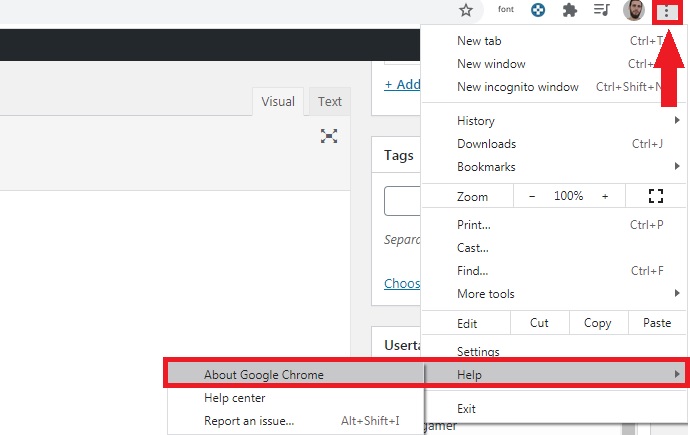
Before we get started with our selection of apps, we highly recommend checking to make sure your browser is up to date. That’s the only way you can be certain the app you’re using works correctly and at the same time, that all your browsing data is safe from hackers.
Updating your browser is easy. All of them use a similar system: just go into the options menu and select “About” or “Information about browser.” Then it will check to see if you have the latest version installed and give you the option of downloading it.
Alternatively, you can manually download the latest version of your favorite browser. Just click below to download them quickly and safely:
Dewey Bookmarks is a complete extension for Google Chrome that will change the way you see your browser bookmarks. It lets you view each and every one of your bookmarks as cards, so it’s much easier to find them at a glance. What’s more, Dewey Bookmarks lets you manage your bookmarks by adding tags, so you can search for them quickly, and they’re always just a click away.
One of the strengths of Dewey Bookmarks is this extension’s internal search engine. Find any bookmark by typing its name, tag or even part of its URL. In addition, you can import bookmarks directly from other Chrome browsers and edit any of them in just a few clicks.
You can download the Dewey Bookmarks extension here.
Pocket
Pocket is an incredible service you can use to save all kinds of articles, videos and stories from any website or even app. It’s the best app by far for managing browser bookmarks, since it’s a multiplatform service you can use to save and easily access anything.
In fact, Pocket’s greatest asset is that it saves bookmarks across your devices, on your PC, phone and tablet, so you’ll never have to search for compatible programs. So, how does it work? Pocket is really easy to use: just click a convenient button on your browser to save anything that interests you in one place. What’s more, its useful tagging system makes it so easy to find your bookmarks. Don’t miss your chance to try it!
Neater Bookmarks is an interesting extension for Chrome that displays all your saved websites in a cleaner, more attractive format. Although at first glance it doesn’t seem particularly innovative, it’s a really useful extension for anyone who uses the Google browser on a daily basis.
Now it will be much easier for you to find your bookmarks thanks to its powerful internal search engine. In addition, Neater Bookmarks remembers the last bookmark you used and shows it first. That way, you’ll always have your most visited pages just a few clicks away.
You can download the Neater Bookmarks extension here.
Evernote
If you’re one of those people who loves to plan your day down to the last detail, you’re probably more than familiar with Evernote, but… did you know this app can also manage your bookmarks? In fact, it’s one of the most comprehensive, complex bookmark managers you can find online.
Evernote is an especially useful application to store all the bookmarks you use, for example, throughout the workday. This is because although it’s a powerful application, it’s not directly integrated into your browser, so you have to open the program to access your bookmarks. Fortunately, this little problem can be solved thanks to convenient extensions.
Another strong point of Evernote is that, since you can use it on your phone, you can save all the bookmarks you want, whether you’re on your way to work or on vacation. You’ll never have to use your PC. What’s more, there are different subscription plans (one is completely free), with new tools to better organize and manage your bookmarks.
You can download Evernote quickly and safely below.
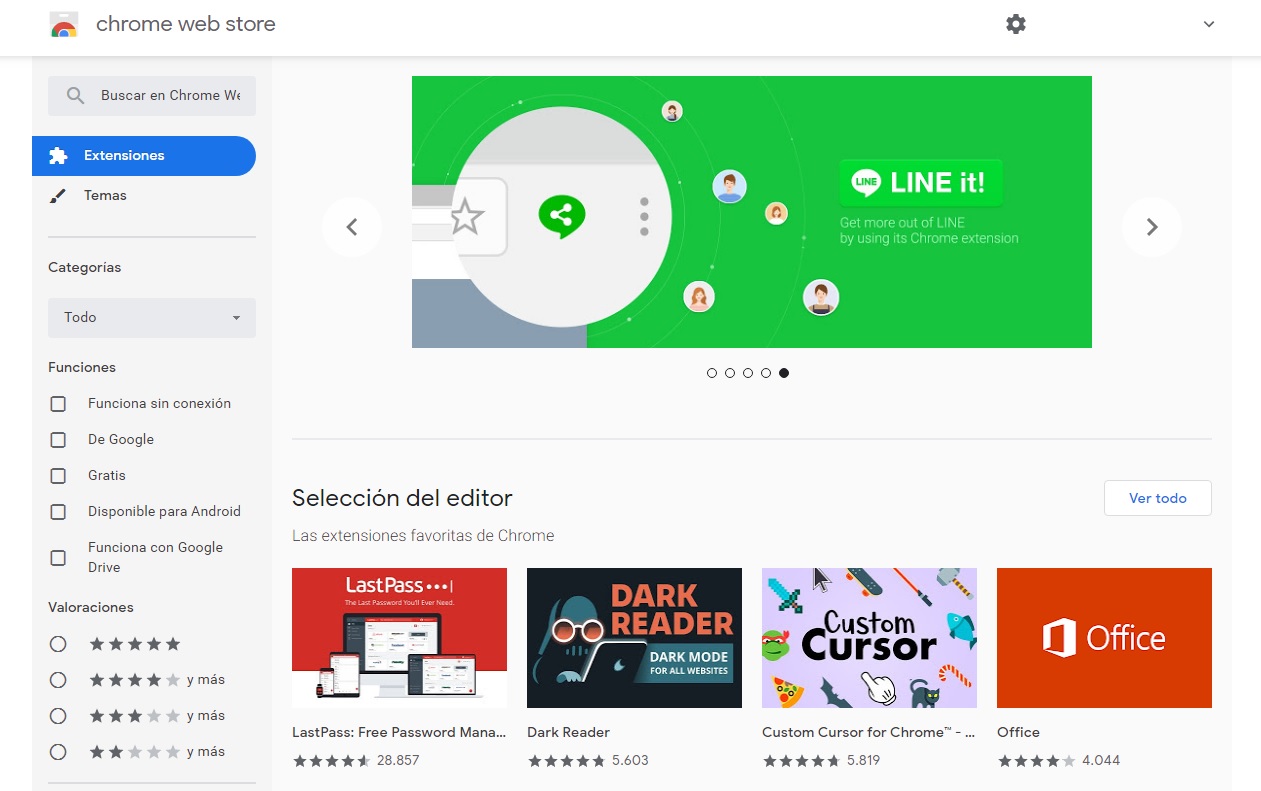
Bookmark Manager is an excellent tool for managing your Google Chrome bookmarks. As it’s an extension for your browser, installing it is as easy as visiting the Chrome Web Store and downloading it to your device. Unlike similar extensions, Bookmark Manager can not only add and organize new bookmarks, but also identify the ones you already have in your browser and put them in perfect order.
Among its most outstanding features, Bookmark Manager provides a much more visible and intuitive interface for your bookmarks. When you have it installed, it lets you restore old browser sessions and eliminate duplicate bookmarks. Using its internal search engine, it becomes much easier to find that website you were looking for.
In terms of usability, Bookmark Manager is very intuitive, so there’s no learning curve for casual internet users. In short, it’s a sure bet for anyone who uses Chrome users and wants a simple, useful bookmark manager for their browser.
You can download Bookmark Manager from the Chrome Web Store here.
Diigo Web Collector
Diigo Web Collector is a browser bookmark manager designed for users who are looking to do far more than just organize their saved websites. Although it’s not one of the most visually stunning apps on our list, it couldn’t be more useful.
Diigo is widely considered to be the benchmark app for annotating and archiving bookmarks. Use it to save websites and visit them whenever you want, and even add notes and even reminders to them. This is especially useful if you use the internet to work or write reports for work.
One really interesting aspect of Diigo Web Collector is that, besides using the service on its website, there is an extension for most browsers (Google Chrome, Mozilla Firefox, Internet Explorer and even Safari). What’s more, Diigo has an app for both Android and iOS devices. That way you can work and organize all your bookmarks whether you are using your PC, tablet or phone.
You can visit the Diigo website here. You can download its extension for Google Chrome and its Android and iOS apps quickly and safely below.
Our final pick is the “crown jewel” of our list. Raindrop.io is a fantastic bookmark manager that stands out for its visually stunning interface. It offers a card-like thumbnail of all your bookmarks, making it incredibly easy to find websites and tell them apart. If you have lots of bookmarks or simply prefer a more minimalist option, Raindrop.io can also display your organized websites in the quick, classic list view.
Here’s how it works: Raindrop.io lets you organize all your bookmarks in collections or folders within the program. You also have the option of tagging your bookmarks to make it much easier to find them. Finally, Raindrop.io is able to analyze all the bookmarks you have stored in your browser and eliminate any duplicated ones, or bookmarks whose URLs no longer work.
You can access Raindrop.io on its website, and this manager is compatible with today’s most popular browsers (Chrome, Firefox, Safari and Opera) and also has apps for Mac, iOS and Android. So, what are you waiting for? Download it today!
We hope our selection of tools for organizing your bookmarks has been helpful to you. Do you use any that don’t appear on our list? Tell us about them in the comments section!
Google Chrome is the most popular major web browser. Here we walk you through all the biggest new features that landed on Google Chrome in 2019.
Modern browsers like Mozilla Firefox, Microsoft Edge, Safari, Opera, and of course Google Chrome are monster programs that can do amazing things. The days of Internet Explorer are long gone. You only have to consider the fact that Google used its web browser Chrome to develop a whole new operating system that runs Google powered laptops called Chromebooks, and rivals the likes of Windows and MacOS. This incredible feat has been made possible by Google’s policy of continually updating the Chrome browser.
It can be hard to keep up with all these updates, however, as they just keep coming. What use is a shiny new updated feature, if you don’t even know that it’s there. Well, that’s what we’re here for today. We’re going to walk you through all the new features that came to the Google Chrome web browser in 2019.
The Google Chrome web browser received a massive 7 updates in 2019 with the first, Chrome 72, landing in January and the last, Chrome 79, arriving just before the new year in December. Let’s look at all the best new Chrome features that these updates brought with them.
Default Flash blocker
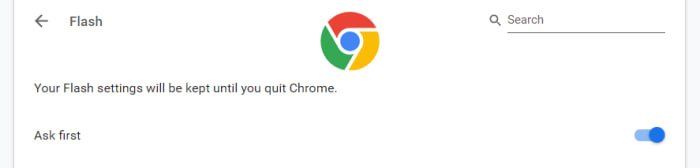
Google has already said that it will remove the Flash plugin from Chrome towards the end of 2020. In 2019, however, Google put the impetus on users to activate Flash in Chrome by making the browser block the plugin by default. You can set the browser to ask you before blocking it, however, on each site you visit. To do so copy and paste chrome://settings/content/flash into the Chrome address bar.
Password checkup tool
Google has integrated a former Chrome plugin directly into the browser, meaning it is now available for all Chrome users. The feature will scan your passwords and then check them against known databases of leaked passwords. Basically, if any of your accounts and passwords have fallen victim to any of the massive data breaches you hear about all the time, Chrome will now tell you. To activate this feature copy and paste chrome://flags/#password-leak-detection into the Chrome address bar.
Send tabs to other devices
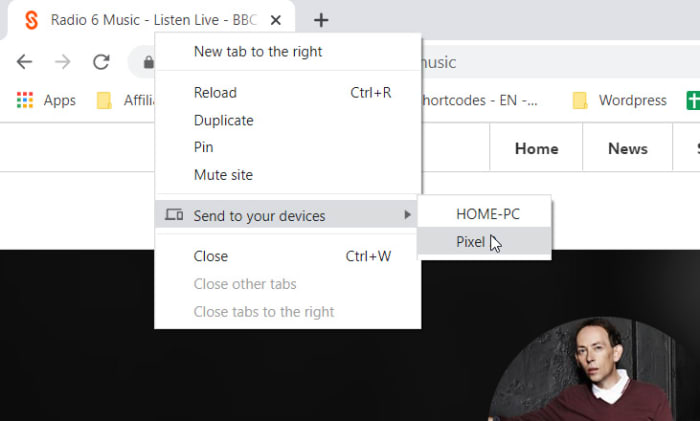
Chrome 77 introduced an interesting feature that allows users to send tabs to other devices that use the same Google account on Chrome. If you use the same Google account on Chrome across different devices, you can now right-click on any of your open tabs on Chrome for desktop and hit the Send to your devices option to see a list of devices you can share the tab with.
Copy and paste across devices
Another cool Chrome Sync feature that was introduced in 2019 is the clipboard synchronization feature across multiple devices. This new feature means you can copy something on one device and then paste it on another that is using the same Google account for Google Chrome. This feature came with Chrome 79, which means both devices will need to be updated to Chrome 79 before it will work. If you have two devices that qualify, however, you’ll be able to right-click anywhere on the webpage and then select Copy to (your device’s name).
Chrome backgrounds and themes
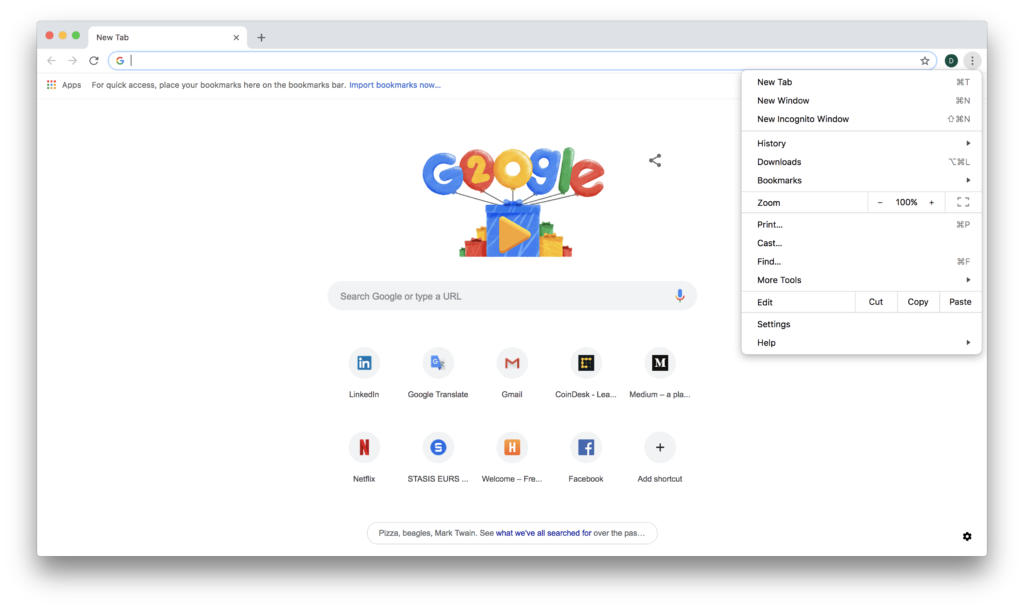
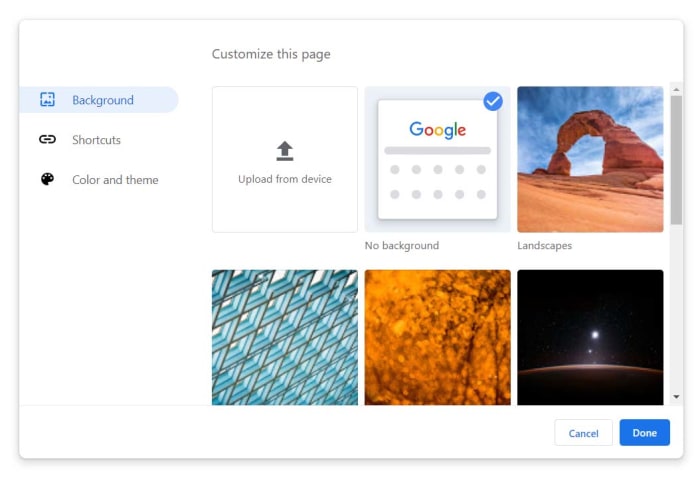
Another cool feature that landed with Chrome 77 is the Customize button you’ll find in the bottom-right corner of the Chrome homepage. Clicking this will give you a series of different customization options including Background, Colors & Themes, and Shortcuts. You can decide on the shortcuts Chrome will show on the homepage, pick from a whole host of interesting background images, and set different themes and color schemes for the browser.
The Dark Mode
Google split the Chrome Dark Mode roll-out over two separate updates with the Mac Dark Mode coming with Chrome 73 and the Windows Dark Mode coming with Chrome 74. Both operating systems now support Chrome’s Dark mode but there are no controls for this on the web browser itself. Instead, Chrome simply copies your system OS color scheme meaning if you’ve set your Mac or Windows system to run in Dark Mode then your Chrome browser will do too. The Chrome support page here shows you how to do so.
Take an early look at WhatsApp’s brand-new dark mode
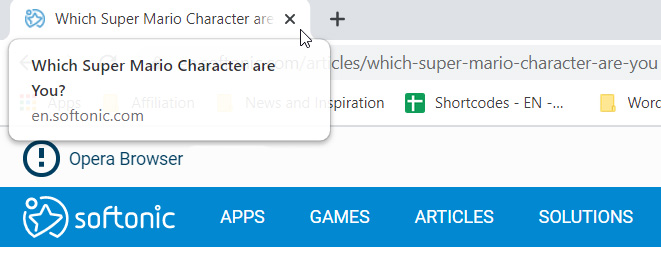
A small but useful change is the introduction of tab info cards. All you need to do here is hover your cursor over an open tab and Chrome will show you the name of the site open on the tab, and its URL.
Dodgy site warning
Chrome’s password protection features were updated again when Chrome 79 landed. Chrome now offers real-time protection and will warn you whenever you enter your passwords on sites that are suspected of phishing.
Hardware support for media controls
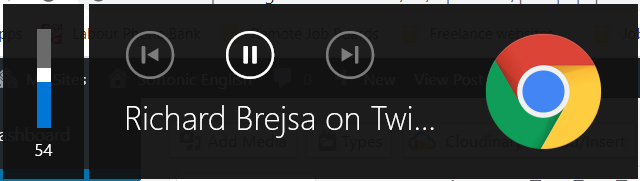
Chrome now supports media control buttons on any hardware you have connected to your device. This means if you have a keyboard with a Play/Pause button, you can now use that button to control playback on any media that is active in Google Chrome. The same goes for other controls and other types of hardware such as headphones etc.
Tab freezing
This updated feature might not sound too exciting, but it will actually make a big difference for laptop users. Basically, Chrome now automatically freezes tabs that you’ve had running in the background for a while. Chrome will no longer load ads or perform other CPU heavy tasks in tabs you’re not using, but will instead pause them and then resume them when you open them again. This is to put less pressure on your device’s CPU and then, accordingly, make your laptop’s battery last longer.
Password manager
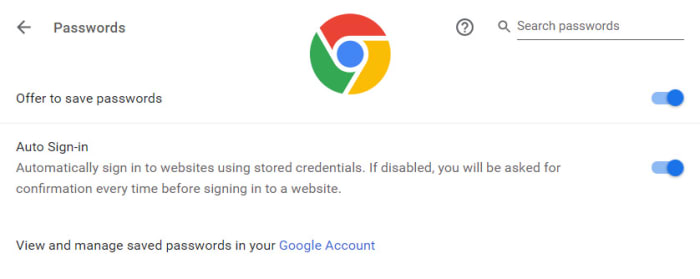
Chrome 75 introduced the built-in password manager to Android and iOS devices meaning Chrome can now generate and store strong and unique passwords for you every time you open a new online account. This is an incredibly useful and essential feature as any time you duplicate a password across different accounts you leave yourself vulnerable to hacking.