SpeedFan is a powerful and useful program, but its interface can be intimidating and confusing to use. In this post, we’ll guide you through the basics of SpeedFan.
The first thing you want to do is see if your motherboard is compatible with SpeedFan’s fan control feature. A master list of supported motherboards can be found here. If your motherboard isn’t supported, you can still use SpeedFan as a monitoring or troubleshooting program. Continue reading “How to: use SpeedFan to control PC’s fan speeds”
Do you want to improve or change Elder Scrolls V: Skyrim on PC? Here’s how to install a mod in Bethesda’s huge role-playing epic:
1:Choose your mod and download it. There are tons of mods on offer; for this guide example I’m going to install an enhanced night sky, called Enhanced Night Skyrim. This adds an attractive colored galaxy effect at night. You can find a range of Mods at Skyrimnexus, and a good selection here at Softonic too.
2:Unzip, or expand your file. Almost all mods are offered in compressed form, either ZIP or RAR files. We use free app IZArc to decompress files. To open a compressed file, simply right click, and choose ‘Open with IZArc’. Open the target folder and leave it.
3:Open your Skyrim folder. You have to move your mods in here, so lets find it now. Open Windows Explorer, double click your hard drive (C:), then open the folder Program Files (x86), then Steam, then steamapps, then common, then skyrim.
4:Move your mod file. Finally, we’re here! Now, simply drag the mod folder – in this case it’s called textures – into the folder called ‘Data‘ in skyrim. That’s it! When you next run Skyrim, you’ll see your mod has taken effect!
Your PC is slow. Really slow. You’ve used CCleaner to get rid of the garbage, you’ve lightened the load by uninstalling bloatware with Revo, you’ve checked inside, outside, upside down and backwards for a virus, and you still have time to make a coffee by the time it takes your computer to start up. Is it time to reformat your hard drives?
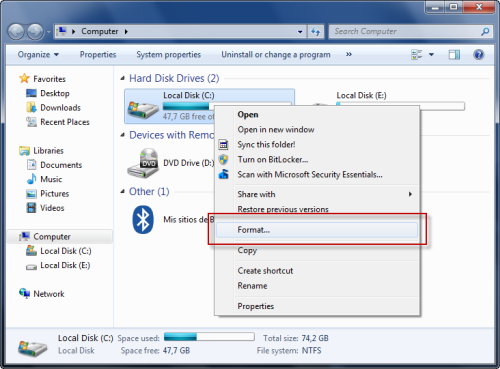
Luckily for you, reformatting your computer is really simple. Go to My Computer, find the offending hard drive (in all likelihood, C:) and right click. You’ll see Format… under the context menu options, and find all the information you need when you click.
What takes a little more effort, however, is preparing for the reformat. As it will erase absolutely everything on the disk, if you don’t make the right preparations, you could find yourself with a faster computer, but absolutely nothing to do on it. Follow the steps laid out in our list first to make reformatting your hard drive as easy and safe as possible!
I bought a graphics tablet for my PC, and I must say I’m very happy with it. I’ve always liked drawing and computers, and a gadget like this was the perfect link between two of my favorite pastimes. After installation and initial set-up, I spent some time searching for the appropriate software to make the most out of my new toy. Besides Adobe Photoshop (which works great with pressure-sensitive input devices like my tablet) there are also other drawing editors you may not know about. Here are free art apps:
Artweaver – Includes a dozen customizable brushes that recreate different drawing tools: oils, pencils, charcoal, chalk, acrylics, felt pens, and more. It also has support for layers and transparency and a history window that lets you undo any previous action.
TwistedBrush – This free app doesn’t have as many features as its full version, but makes up for it with a bunch of great features: lots of brushes to choose from, support for layers, photo cloning and tracing, pattern, textures, and more. And it does feel like actual painting on canvas!
ArtRage – Delivers an impressively realistic canvas feel when drawing on your tablet. The latest release includes tools like watercolor, glitter sprinkling, and sticker spray. You can also trace a real image and turn it into a beautiful drawing – even if you’re not very artistically-gifted.
Flowpaint – Though it’s not the best drawing apps around here, Flowpaint still lets you grasp the feeling of actual drawing tools when using digital brushes on the computer. It doesn’t require installation and runs under Java.
Greenfish Painter – Not as fully-featured as other drawing apps, but still a reasonably good piece of software to use as virtual canvas. You can freely paint on its interface, mix different colors on your palette like in real life and tweak brushes to meet your needs.
If you work with PDF documents on a regular basis, then be sure to check out the new Adobe Reader X, which is now available for download. The tenth version of the ubiquitous PDF reader comes with a host of new features to make working with electronic documents more comfortable.
New features of Adobe Reader X include sticky notes and a highlighter tool for sharing ideas and comments about documents. Adobe has also ramped up theamount of content viewable in PDF format, to include drawings, email messages, spreadsheets, video, and more. Document security has been tightened, thanks to a new Protected Mode for safer viewing of PDFs.
Adobe Reader X is available to download for free now, for Windows, Mac, Linux and Android operating systems. Watch this space for a full review of the program.
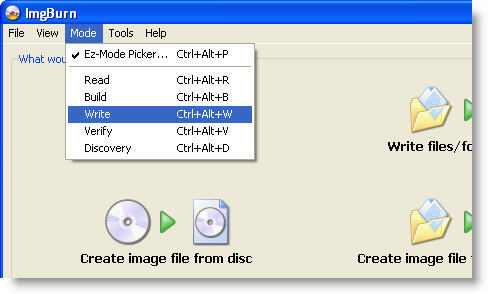
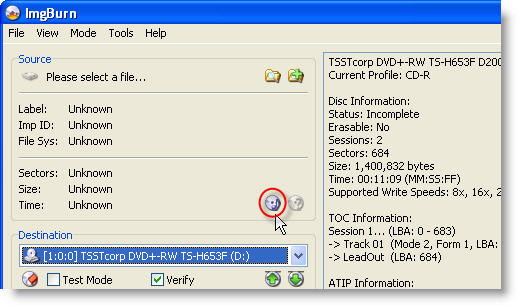
Most of us enjoy our favorite music on mobile phones and MP3 players. But every now and then I still need CDs to listen to music – for example, when I’m in my car. Ands this is when ImgBurn comes in handy: a free, easy CD and DVD burning tool that lets you perform all sort of disk burning related tasks. Here’s a short tutorial on how to use ImgBurn to create custom audio CD:
1. Open ImgBurn, go to Mode and select Write.
2. On the next window, click the icon with a CD and a musical note, so that ImgBurn knows you’re creating an audio CD.
Drawing applications are a dime a dozen and can go from the professional 3D drawing tool to just fun brush and pencil sketching programs. More serious users will go for advanced solutions with animations, layers and advanced drawing tools while normal users will look to a simple solution to scribble around. Let’s take a look at the some of the top drawing software and what you can do with them:
Toon Boom Studio – Aimed at people in the animation industry, this program lets you create cartoons in the cut-out way by using motion paths.
OpenCanvas – This is more of a sketching app, with lots of highly realistic brushes. The program is very similar to Photoshop, uses layers and offers a friendly interface easy for newcomers to handle.
Manga Studio – Ever wanted to recreate Ranma 1/2, Dragonball Z or Astro Boy? Create your own anime with Manga Studio, which has more than 3,000 screen tones and 80 different templates.
Google Sketchup Pro – Easy to use yet very powerful, it lets you create realistic 3d models. Good for architects and field planners.
Facial Studio – You can use this tool to quickly draw up anybody’s face. Just scan a portrait, let Facial Studio analyze it and you’ll then be able to change anything from the skin texture to chin, nose or hair.
Artweaver – A free drawing tool that offers a wide range of brushes and layers and can load up plugins. Accessible to beginners.
Paint.NET – One of the best free apps you’ll ever find, Paint.NET offers you loads of powerful tools and special effects in an intuitive interface.
Sketch Master – One of my personal favorites. Create sketches out of any photo. Use one of the many brushes provided or just let the random settings generator come up with a sketch for you.
With broadband now commonplace, internet accelerators have gone out of fashion somewhat with creaky old modems consigned to the bin. However, as broadband speed is often subject to wild variations depending on where you live, who your ISP is, how far you are from the telephone exchange etc, some people might find that there’s still a place for internet accelerators in their lives. Here’s a selection of the top 10 that cover broadband modems, dial-ups and network connections. None of these can guarantee to speed-up your connection and you should contact your ISP if you’ve got serious problems.
 SpeedFan is a powerful and useful program, but its interface can be intimidating and confusing to use. In this post, we’ll guide you through the basics of SpeedFan.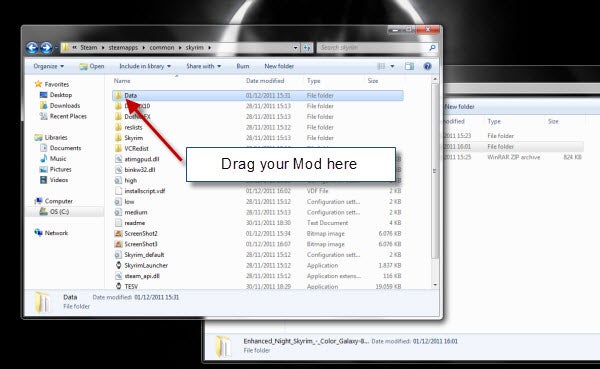


 Drawing applications are a dime a dozen and can go from the professional 3D drawing tool to just fun brush and pencil sketching programs. More serious users will go for advanced solutions with animations, layers and advanced drawing tools while normal users will look to a simple solution to scribble around. Let’s take a look at the some of the top drawing software and what you can do with them: