Three things I hate about Firefox 3

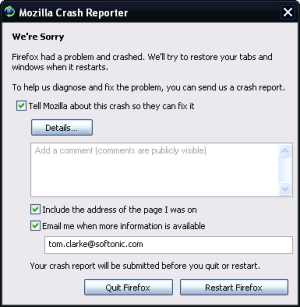
Firefox 3 crashing. Again.So the pomp and publicity is over. Firefox 3 was downloaded a gazillion times in 24 hours and was given a big gold medal by everyone (including Softonic). But just how good is Firefox 3.0? In my opinion, it deserves most of the praise it receives but it is still far from perfect. In fact, there are at least three things I really hate about Mozilla’s latest browser.

1    Firefox 3 crashes all the time

I haven’t used a program this prone to critical errors since Firefox 2.0 was released. In the last seven days, Firefox has crashed on me about 10 times. And like the very best program crashes, Fx 3’s problems seem impossible to predict. Sometimes, I’m editing a bookmark’s properties and Bang! Or maybe I used a search box on a frequently used and perfectly stable website and Boom! This happens on my Mac and my work PC but most specifically on the Mac, I also get frequent hangs due to other applications working. None of this happened during my extensive testing of the betas for Fx 3, so why now?

2   The memory hog that grew and grew

Everyone knows that the main problem people faced with Firefox 2 was that it was prone to gobbling up all your system resources like a fat, greedy, RAM-eating pig. We were given assurances by Mozilla and various reviewers that this problem had been fixed but… I still see Firefox using up a hell of a lot of memory for just two open tabs. Of course, extensions can be the root cause of this kind of problem but as far as I’m concerned, it’s mad to say “Well, as long as you don’t install any extensions, you should be fine”. If I can’t install extensions without Firefox turning into Mr. Creosote then I don’t want the option to install them. Continue reading “Three things I hate about Firefox 3”
First look at Pogo, the 3D web browser by AT&T

Pogo 3D browserFirefox 3 has rightfully dominated the browser headlines over the last few weeks, but that doesn’t mean there are other interesting alternative applications coming on stage.
One of them is Pogo, a 3D web browser developed by AT&T and Vizible. Pogo is based on the Mozilla engine and also uses Vizible’s 3D rendering algorithms to deliver a more visually appealing user experience when browsing the web. According to the developers, “Pogo’s graphical nature evolves the browsing experience from a text-centric interface to one that is highly visual, and therefore more intuitive, in line with the way people think and use the Internet.” Pogo is currently at a closed beta stage but fortunately I managed to get a invite, so I decided to give it a try and see that visual revolution by myself.

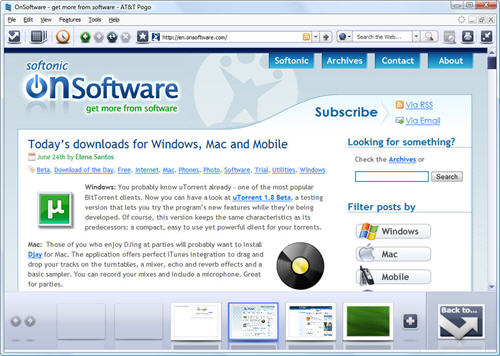
To begin with, Pogo’s main interface looks strangely familiar – it’s based on Mozilla, so all toolbars, menus and dialog windows are almost identical to those in Firefox. But that’s pretty much the only thing this browser has in common with others. When you launch it for the first time, Pogo offers to import bookmarks from other web browsers, and also import built-in sets of bookmarks based on your personal interests (sports, technology, news, games, etc.).

Pogo 3D browser

The standard tab bar has been moved down to the bottom and turned into a resizable panel that contains the so called “cells” (that is, tabs). Tabs now appear as thumbnails, which may look prettier than just a favicon but are not that useful – they’re so small you can hardly distinguish the website. Continue reading “First look at Pogo, the 3D web browser by AT&T”

Bill Gates’ retirement software package

Keeping Bill off the streetsAs the World’s most successful businessman prepares to stand down, I got to wondering what Bill Gate’s will get up to after he leaves Microsoft. Will he run for president? Move to Space? Throw all his money in the sea? I’m not sure. The one thing I do know is that the planet’s biggest geek will not be throwing away his PC. So I decided to put together a collection of potentially useful software as a leaving present for my favorite tycoon.
  • Orbital Trader– He’s already conquered the business world here on Earth, so perhaps Bill is now thinking of branching out it other areas of the Galaxy. This space trading game will give him a chance to see if his corporate nouse extends to interplanetary economics.
  • XP Gloss Wallpaper – Here’s a cool download to help Bill celebrate one of his greatest hits. Once he’s installed this funky version of the XP logo as his desktop background he’ll hopefully forget he ever released a follow-up.
  • Microsoft Money Deluxe – Not sure if you’ve heard of this one Bill, but it might be a useful app for you to calculate your pension payments. It contains a range of analysis tools that will help you work out if you can still afford that week in Florida this summer.
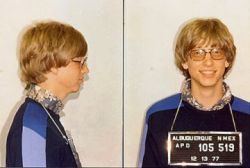
  • Need for Speed Carbon – In his early years at Microsoft in 1997, Gates was arrested for speeding in his Porsche (as you can see from his mugshot it didn’t seem to bother him too much). This classic racing game might help him contain his passion for burning rubber to his PC.
  • OpenOffice – Now that his days as a corporation bigwig are numbered, perhaps Bill will turn his back on commercialism and embrace the open source community by using OpenOffice rather than MS Office to publish his memoirs. Somehow I doubt it.

10 new features to expect in Mac OS X Snow Leopard

So there’s one year to wait till Apple releases its next operating system, Mac OS X 10.6, also known as Snow Leopard. Although it was claimed that the new version would more or less be a more effective, faster and stabler update, nothing as big as the switch from 10.4 to 10.5, it seems we can still expect a number of significant improvements. RoughlyDrafted Magazine lists ten new features that we should find, come July 2009, in the shiny new Mac OS. Here is a quick round up of them:

  •  Use of the Low Level Virtual Machine (LLVM) architecture project should ensure faster and more effective code.
  • The integration of version 1.4 of the Common Unix Printing System (CUPS) will guarantee better and safer printing performances.
  • Read and write support for Sun’s 128 bit ZFS file system should replace the Mac native HFS+.
  • Apple’s Push Notification Service (PNS) will keep your iPhone and iPod always connected to receive updates of events any time.
  • Integration between mobile devices and desktop products, most probably via Bonjour.
  • Even better than widgets, Snow Leopard could include self contained web apps.
  • Integration of the best new Microsoft application features, like Fast User Switching, which came in Panther.
  • Presence of Data Detectors anywhere there is text on your Apple computer.
  • A new framework for Multi Touch trackpad gestures. Expect to put your fingers on the screen even more.
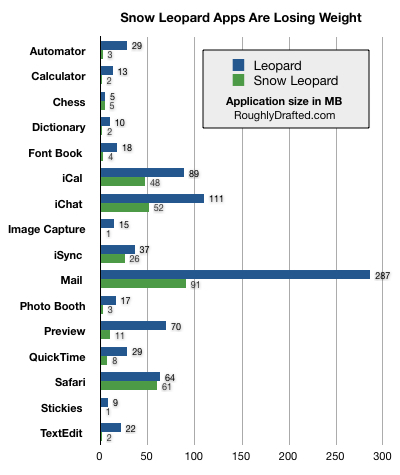
  • Last but not least, Snow Leopard should bring with it much smaller applications. Just take a look at the graph below to get an idea.

200806182326.jpg

Launch any application with a keyboard shortcut

Launch any application with a keyboard shortcutThere are many app launchers that can help you open you more frequently used programs and files in a faster, easier way. But if you don’t like having to install software and prefer using built-in system workarounds, pay attention to this simple trick that lets you launch any application with a keyboard combination.
The first step is creating a shortcut to that application on your desktop. Then right click on the icon and select Properties. In the Shortcut key field, enter the combination you want to use for this program and then click on OK.

From now on, you’ll be able to launch this program with the keyboard shortcut you have defined. A time saver for keyboard junkies – you won’t have to switch to the mouse – but also a challenge for your memory: you’ll need to remember every shortcut.

[Via: OnSoftware Spain]

Video: Firefox 3 new features

Unless you’ve been living on a desert island for the past week, you can’t have missed the release of the brand new Firefox 3. Although the event was marred by a few connection issues, which prevented users from downloading the program for a few hours, Mozilla’s Download Day was globally a success and the new version of the browser has already been downloaded more than 13 million times worldwide. This week, Nick and I took to testing Firefox and exchanged our impressions. Today, I invite you to check out a video review of the new features in Firefox 3:

//

Enhance your phone’s battery indicator

iBattery offers an iPhone-style battery guage for your Symbian phoneI find it amazing that despite all advances in modern mobile phone technology, we’re yet to see a handset that doesn’t run out of battery. What’s more, in my experience, many models are pretty poor when it comes to letting you know how much charge you have left. Some bleep and flash at you for hours even though there’s plenty of power left, while others give you about 3 seconds warning that they’re about to shut down. If you’re fed up with this too then fear not because there are plenty of ways to improve your battery indicator.

For instance, if you’re rocking a Pocket PC at the moment you may want to install SmartBatt. This handy little app stores itself in your task tray and launches every time you start your device to provide constant battery monitoring. Those of you who are a little more geeky about phone charge will love Batti, because it provides you with a huge array of stats about your battery, including voltage, temperature, chemistry, and backup battery details.

The default battery indicator on Windows Mobile Smartphones isn’t the most advanced I’ve seen, and I find the gauge too small to be precise, plus it only shows up on the home screen. This problem is quickly remedied by SPBattMet, which adds a subtle, thin green bar across the width of the top of the screen, which decreases based on remaining charge. What’s more, this shows up wherever you are inside the OS.

The Symbian battery indicator is more precise than its Windows Mobile counterpart, but its bars format is starting to look a little old hat now.You can freshen things up a bit by installing Lady Flash Lite, a dazzling Flash-based wallpaper that displays a funky pink battery indicator. Those who prefer a ‘classier’ look might plump for iBattery, which mimics the cool battery icon you see on the iPhone.

How to: apply an Andy Warhol effect to your photo

Many people find Andy Warhol’s pictures fascinating. I personally don’t like them that much, but still feel attracted by the bright colors he used in his famous portraits of Elizabeth Taylor and Marilyn Monroe. We can’t certainly teach you an Art lesson here, but I can at least show you how to apply an Andy Warhol effect to your pictures.

Andy Warhol effect Photoshop tutorial

Continue reading “How to: apply an Andy Warhol effect to your photo”

Get to know your Mac’s Terminal

Apple TerminalApple have succeeded in creating a user interface that is both attractive and intuitive to use. The latest iteration of Mac OS X, Leopard, features even more improvements that really make you wonder what Snow Leopard (MAC OS X 10.6) and later versions can improve on. Just comparing Leopard to Panther, the difference is huge. Mac’s attractive interface has made me ponder how many people still use the Terminal, apart from those with a technical background. When you think about it, a few years back, the Terminal was central to almost anything you wanted to do on your Mac. It still remains highly useful, but only if you know how to use it. The trouble is, most users simply get scared off by the dark screen and lines of text.
If you’re curious as to how it works and want to gain a bit more control on your Mac, it’s well worth getting familiar with it. I found this excellent guide by Chris Stone, which explains in a number of steps how to master it. It’s a pretty big read though, so I’d really only suggest taking a look at it if you’re really excited about the Terminal. Others could turn to another guide I found which lists the basics, shows you how to get detailed information on your Mac and teaches you how to search for files from a command line instead of by using the Finder.

How to: Apply third-party themes to Windows XP

Windows XP includes three color schemes you can choose from to customize the system’s native visual theme, namely blue, silver and an olive green that nobody I know has ever used. But what if you grow tired of this theme? You can download additional styles from many different online resources, and use them to give your XP a fresh look.

The problem comes when these themes don’t come from official Microsoft sites and are not signed by the Redmond firm. This doesn’t mean they’re dangerous at all; it’s just that they have been created by third-party designers who don’t work together with Microsoft. These themes therefore are not signed for Windows, and don’t work properly: they show glitches, dark spots and shadows that end up ruining the final appearance.

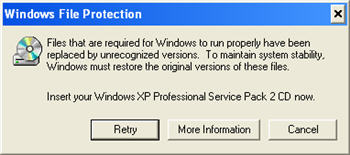
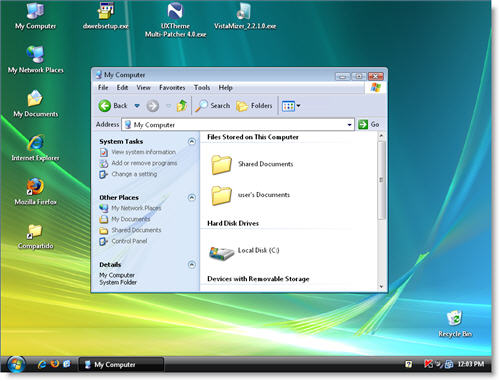
So if you want your newly downloaded themes to look perfect on Windows XP, you need to patch the uxtheme.dll file first. Simply download the UXTheme Multi-Patcher tool and run it. Your Windows theme will go back to a basic, gray design and you’ll eventually see this window:

Apply unsigned visual themes

Press the Cancel button (and the Yes button on the following dialog window), go back to the UXTheme Multi-Patcher interface and click on OK. Then restart your system and you’ll be ready to apply whatever visual theme you prefer, signed or not. See how my Windows XP looks like with the Vistamizer style!

Apply unsigned visual themes