A quick look at Flock 2

Flock logoSo Firefox 3 is now officially released but hang on, Firefox isn’t the only one that’s gone through a major overhaul recently. This week has also seen the beta release of Flock 2, a browser that I recommended to readers last year.

If Firefox ever does go down the wrong road or starts to decline, I’m certain that Flock will be one of the main contenders to take its place mainly because it’s based on the same engine but with a greater focus on social networking integration. Most of the improvements relate to security, performance and the interface basically taking in all the same enhancements to the Gecko engine that Firefox 3 now enjoys. In fact, many of the enhancements are identical to Firefox 3 such as the enhanced Add-Ons window which now shows the plugins you have installed in the browser and allows you to disable those that might be causing issues. Similarly, when you close the browser and have multiple tabs open, Firefox 3 and Flock 2 now both ask you if you want to save the current collection of tabs for next time.

Flock Feed refresh

One of the biggest individual improvements as far as I can see is that Flock’s Feed Reader is now much easier to update. In the old version, you’d have to wait hours for it to update itself but now you can just manually refresh it at your leisure. This includes individual feeds, a collection of feeds or all of your feeds. It also now tells you when you last updated each separate feed which is useful. Continue reading “A quick look at Flock 2”
140+ plugins and add-ons for Apple Mail

Apple MailSo you like working with Apple Mail? Did you know that you can fully customize the client with all sorts of plugins, add-ons and scripts? Most of them are easy to set up and can make your Apple Mail a bit more powerful and original than it normally is. The Hawk Wings website seems to be an expert on the matter and lists out more than 140 add-ons, plugins, mail templates and other apps that work with Apple Mail. Although a few are shareware, the majority are free and should only take a couple of seconds to install.
You’ll find plenty of notification tools for unread messages like GMail Notifier or MailAppetizer. Hawk Wings also lists apps that add extra functionalities to the mail client, like the Apple Mail Signature Generator or MacResponder, which sends auto-replies. The Mail.app being an Apple product, it integrates easily with other applications, particularly Apple ones like Spotlight or Bonjour. Hawk Wings lists plugins that work with other programs such as Apple Mail Conduit to sync mail between the client and your Palm device or Daylite Mail Integration which integrates Apple Mail to the Daylite project management app. You’ll find some more switching tools to move from another client like Eudora to Apple Mail, lots of iCal and Address Book plugins, archiving and spam tools.

If the appearance of the program and your emails  is what matters to you, you’ll also find many interface tweaks and lots of Leopard templates to send original messages to your friends.

Well worth taking a look at, this list should provide some useful add-ons if you’re a big fan of the Apple Mail client.

Clean up your MP3 collection with MP3tag

My niece recently turned 20 and her parents gave her an iPod as birthday present. After unwrapping the box, the very first thing she did was connect the iPod to her laptop to transfer some music to her brand new MP3 player. It was in that very moment when she realized most of her MP3s were not properly tagged.

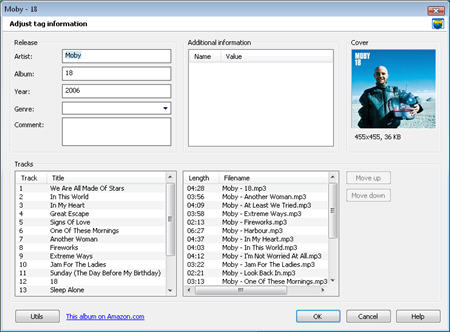
My advice to her – and to all of you with highly messy music collections – was to use MP3tag. This gorgeous tag editor lets you easily tag your music, edit wrong tags, rename rename files, find album covers online… in short, pretty much anything you need to pimp your music collection and give it a fresh, new look.

MP3tag

Using MP3tag is easy as pie. Start by adding a directory from the File menu (this is the folder the program will scan for music) and then decide what needs to be done. If your files don’t have ID3 tags or they’re wrong, use the Tag Sources menu to download them from any of the provided source websites. Bear in mind that you may have to try a few before getting the right data, and that sometimes you’ll need to adjust tag information (i.e. matching your files with the right album information). Continue reading “Clean up your MP3 collection with MP3tag”

How to: Play Snake in Gmail

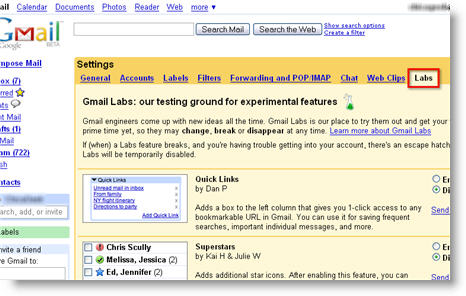
The Gmail development team is permanently working on improving Google’s email tool and also adding new features to make it even more useful. But more often than not, they need help from us, Gmail users, to test those new tools and give them feedback about their functionality and performance. This is why they decided to add a new tab to the Gmail Settings menu, called Labs.

Play Snake in Gmail

If you enter this tab, you’ll be presented with a list of new features developed for Gmail but which haven’t been implemented yet. These new tools need to be thoroughly tested before becoming part of Gmail’s set of features, so now you’re offered the possibility to test them live in your own Gmail account and report bugs, should you find any. Continue reading “How to: Play Snake in Gmail”

Firefox 3 in depth review

We’ve had a good look at the final edition of Firefox 3 which is released today. In this review, Cyril and Nick chat about the various changes and improvements, and discuss just how good the new version is.

Firefox 3 iconCyril: Let’s start out with the interface. Now based on the Gecko 1.9 rendering platform, Firefox 3 has undergone a significant makeover, with sleeker icons and a cleaner look. In some ways I’d say it looks a little more like Flock, which is not my favorite browser but has an attractive design. The ‘Go back one page’ button is bigger and elements in the location bar, like title and url, are more easily recognizable. A native Vista look is available for users of Microsoft’s latest operating system. One of the things that impressed me most though is that version 3, finally passes the Acid2 Test, so you can be guaranteed to render any web page out there.
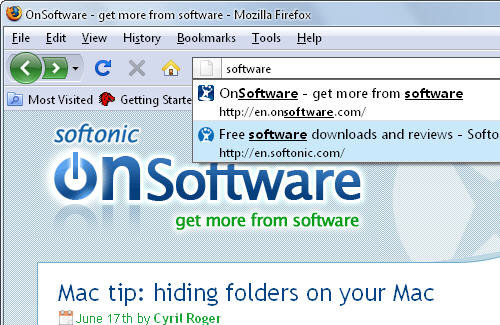

Nick: There’s no doubt that Mozilla have improved on the look of Firefox 2 although I never had any major aesthetic issues with the former anyway – it’s always been a million times better than Internet Explorer and that’s all I cared about. I can see what you mean about Flock although as I argued a while back, that’s no bad thing in my book as I quite like the browser. As you say, while Vista users can now enjoy a native look, I think Mac owners have more to get excited about. The default theme for Mac now looks a lot more like Safari in Leopard with a cleaner interface and Safari style icons.

C: Yeah, I also quite like the updated interface on Mac. I don’t know what to think of Places, the new system for managing bookmarks and history, though. I like being able to bookmark any page just by adding a star in the address bar or how the browser lets you search both your history and bookmarks just by typing in the address bar. Tags are also a welcome addition, although I wonder if that many people will make use of them. I’m also glad that you can now properly save sessions, although it’s a bit annoying how Firefox asks you every time you close the browser.

Firefox 3 user interface

Places itself comes as a folder in your toolbar and includes all sorts of advanced lists like recently starred, most visited starred or most used tags. I do think that’s a little too much information given to users though. I would have preferred being able to create my own smart bookmark folders. Continue reading “Firefox 3 in depth review”

Mac tip: hiding folders on your Mac

hide your folderSecurity is no laughing matter, and when it comes to your personal files you want to make sure you know they’re safe and protected from prying eyes. You can password protect them, but hiding them is also an excellent idea and a good precaution.

One of the best ways of controlling what people see on your Mac is by making them use a guest account. You can set it up and decide what folders appear and not worry about your friend messing up your settings and preferences. The only trouble with the guest account is that you have to make sure you actually launch it every time a friend comes over. If you’re really paranoid, the best way to work is to have a password for your own account and have your Mac automatically logout after a few minutes. Don’t set any password for the guest account, so that people are encouraged to use that one.

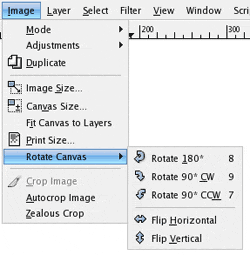
What about if a friend of yours accidentally ends up using your account though? You can hide information that you really don’t want him or her to see. One way is by opening up your Finder, pressing Go> Go to Folder… then searching for “/private”. Just drag anything you want to hide into that folder.

Another old trick known by Unix users is to add a dot in front of your folder name. This renders the file invisible. You normally get an error message if you try to do this from the desktop. The thing to do is open up your Terminal and type mkdir followed by the path to your folder and finish with .folder. Which gives something like this:

mkdir/Users/Bob/Desktop/Very Secret Stuff/ .folder

Your folder isn’t really protected though, as all you’ll need to do to access it is press Go> Go to Folder… from the Finder and type the name of the folder. Make sure no one knows the name of that folder to keep it protected.

To unhide the folder, go back to the Terminal and type: mv /Old/Path/.test /Old/Path/test

The folder will reappear in its normal location and will be viewable by anyone.

Another last trick is to prevent Spotlight from indexing certain files. Go to Spotlight Preferences, select the ‘Privacy’ tab and use the little ‘+’ button to add all the folders you don’t want Spotlight to index.

Make good use of these tips and your personal folders should be safe and hidden from anyone using your Mac.

Make Gimp look like Photoshop

Gimp logoGimp for Mac and Gimp for Windows is one of the most popular free open source image editors around and quite rightly – it’s remarkably powerful and easy to use for a free image editor. However, those Mac users used to the the luxurious surrounds of Photoshop probably have a hard time a) using a program called “Gimp” to edit their work and b) using the rather amateurish interface and weird naming conventions that Gimp uses.

Gimpshop screenshotIf you wish you could combine the two in someway then you should definitely checkout GIMPshop for Windows or GIMPshop for Mac. GIMPshop emulates the look and feel of Photoshop remarkably well and changes all those weird Gimp labels such as “convolve” and changes it into the more familiar Adobe Photoshop term of “blur/sharpen”. In fact, the program renames and reorganized almost all of GIMP’s tools, options, windows, and menus to closely resemble Adobe Photoshop’s menu structure and naming conventions. In addition, many of the menu options and even whole menus have been recreated to faithfully reproduce a Photoshop-like experience.

Of course, GIMPshop is no replacement for Photoshop in terms of functionality but it does a pretty impressive job looks wise.

Top 10 mind mapping tools

Create mindmapsMind maps – also known as concept maps – are visual diagrams used to represent ideas and tasks relating to a given topic. They come in especially handy when you need to generate and manage ideas for a work project, because having a visual representation of all available concepts helps you organize the necessary workflow in a more optimized way.

There are several ways to create mind maps, being the most traditional one a notebook and a pencil. White boards are also quite popular, mainly in companies and other working environments. But in a software-ruled world like ours, we prefer to pay attention to software and web tools that can help you create and handle those mind maps in a comfortable, practical way. Check out this list with the best mind mapping software apps out there.

  • MindManager – capture ideas from several sources and create mind maps with them
  • MindGenius – easy, intuitive mindmapping tool for everyone
  • FreeMind – a mind map tool based on Java
  • MindPad – create colorful, complete mind maps
  • Visual Mind – mind map tool with a flexible graphic interface
  • NovaMind – conduct brainstorming sessions and create mindmaps with their outcome
  • CMapTools – free mindmapping tool with exporting capabilities
  • Cayra – an open-source mind map program with basic functionalities
  • ConceptDrawMindmap – professional tool to create concept maps
  • Mindomo – online mind map tool in two flavors: Basic (free) and Premium ($6/month)

Get Pandora on your desktop

Pandora logoA while back I bemoaned the fact that Pandora is now only available to listeners inside the USA. Well, the situation hasn’t changed but they have released Pandora Desktop which as the name suggests, is the desktop version. After experimenting with some of the tips suggested on the Digital Alchemy site, I managed to get it working with limited success and took it for a test drive.

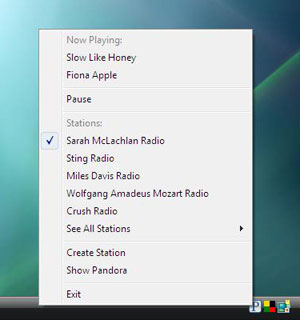
In reality, there’s nothing particularly different from the online version of Pandora. The difference is that it’s much more easily accessible. You can access it in a jiffy from Windows tray or Mac dock and they’ve built in some instant access links to common Pandora features such as pause, change stations, etc. As the developers admit themselves though there are no major changes and, “If nothing else it ensures that you’ll never accidentally browse away from Pandora and lose your stream.”

Panodra Desktop screenshot

The one thing that you can’t avoid on the desktop version is, yes you guessed it, advertisements. To pay for all the music licensing, Pandora need to use advertising to keep it going. The difference, and I prefer this to the online version, is that the ads are graphical rather than audio. The big downside is that because the program requires so many pixels to run the ads, Pandora Desktop is not exactly a small desktop application and can tend to hog your RAM. The other slightly annoying thing is that it requires installation of Adobe AIR to work (which it does automatically) which is worth having anyway because there are so many cool applications coming out for it. However, Mac users be warned that Pandora Desktop is apparently particularly heavy on RAM and the CPU which the developers have identified as an Adobe AIR issue which they are working to resolve.

Pandora Desktop is currently in beta stage so if you experience any other added problems or issues, e-mail them to beta-feedback@pandora.com

Six ways you might get fooled on the Web

We all run the risk of being cheated in many aspects of our daily lives and computers are not an exception. If you don’t pay enough attention you may easily end up swindled, robbed or just made to look like a complete fool.

There are several ways you can wind up in any of these unpleasant situations, so we thought it would be a good idea to create a list of the most common ones to help you avoid them now and in the future.

Don’t let yourself be fooled1. Download magic software
Any relatively popular program has its own fake version, usually bloated with ads, viruses and malware. Apps like Ares or eMule are the most forged ones. You should suspect it’s a fake when, after installing eMule, you’re asked to enter a serial key, call a given phone number or send a text message. Obviously, the easiest way to avoid these fake copies is downloading software only from a reliable source such as Softonic.

There are a couple of alternative situations to this case: one is when you suddenly find the latest version of a well-known program that includes new, incredible features. Did you hear about that new Live MSN Messenger with support for satellite connections, air conditioning and remote assistance to manage the dishwasher? I don’t think that’s the original program! The other alternative is downloading software you intend to use for nefarious purposes, such as multiplayer game tricks, key generators and the like. You’d better have an updated antivirus tool in this case: a lot of the guys who develop a lot of these programs aren’t exactly into truth and honesty themselves.

Continue reading “Six ways you might get fooled on the Web”