Firefox add-ons for food lovers, gourmets and gluttons

There’s no better foodie fun than spending a few hours browsing the web for new recipes, ideas, information and discussion. Get the most out of your surfing by leveraging a few Firefox add-ons that will make the experience even more fun!

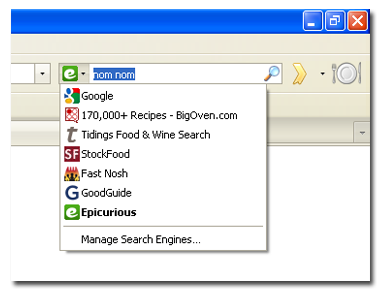
First, you’ll need to search for delicious recipes. There are loads of add-ons that simply add a foodie search engine to the options in the navigation toolbar search. This is a really easy way of making recipe searches even faster, and you can add several without weighing down the browser. I’ve tried a few personally – Epicurious is great for big-name US chefs and BigOven.com will appeal to BigOven users. GoCook, meanwhile, has something for everyone while Opensourcefood takes you to NibbleDish.com, an irresistible web 2.0 recipe resource. If you find recipes you really like, use an add-on like recipefox to “grab” and add them to your collection.
final1.png

There’s also plenty of tools for Firefox that you might not have thought of, but will come in really handy on your culinary explorations. If you are a fan of international cuisine, you might need a converter for those funny recipes in pounds/grams/fathoms (delete as appropriate). Converter‘s a great one that I can’t live without – although for the dreaded cup/gram problem, you’ll have to manually input the conversion.

Now, I hate to end the post on a negative, but both you and I know that dedicated foodies have a tendency to become a bit chubby. Make sure you keep a handle on your calorie intake with Food and Calorie Finder, a cool add-on that automatically scans the page for food items and displays their nutritional value in a side bar. Now there’s no excuse!
Office 2011 for Mac – nothing to get excited about

Microsoft Office logoLike it or loathe it, Microsoft Office is here to stay on Mac until 2011 at least and more details have emerged of what to expect from it. The unveiling took place at the Macworld Expo 2010 and revealed Microsoft Office 2011 will arrive by the end of this year.
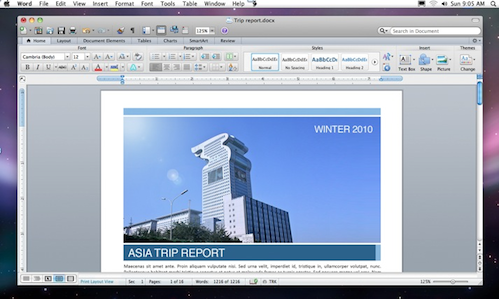
However, as far as I can see, there’s nothing to get very excited about. According to Macworld, the suite will concentrate on improving three areas – better compatibility across platforms, improved collaboration tools, and a more refined interface.

As regards better compatibility across platforms and improved collaboration tools, I’ve never had a problem so far collaborating on Word documents so I’m not sure how this can be dramatically improved to convince me to upgrade from Office 2008. A Word document sent to me by a Windows user opens and edits perfectly as if it had come from a Mac.

Apparently, the major innovation in Office 2011 is that users will be able to share and edit documents via Microsoft’s Sharepoint and Skydrive but surely most companies have their own servers for sharing internal documents and most home users are happy to just to e-mail the odd document or two created in Office? However, I can see that the new Google Docs style ability to edit documents simultaneously may be useful for teams in different locations who regularly create or edit group documents.

Microsoft Office 2011 screenshot

As far as the interface is concerned, I think Microsoft should just leave it alone. Office is one of the few Microsoft packages where I think they’ve generally got it right already and we’re all used to it by now. It seems the most radical change is going to the introduction of the ribbon which was one of the most controversial introductions in the Windows version of Office which isn’t exactly encouraging. Continue reading “Office 2011 for Mac – nothing to get excited about”

My favorite features in Google Maps Labs

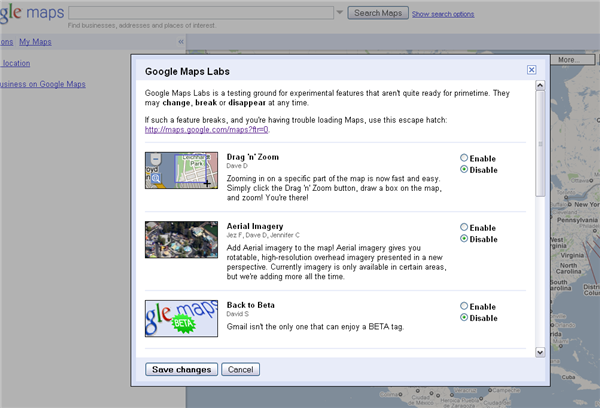
After coming to Gmail and Google Calendar, now it’s the turn of Google Maps to have its own set of experimental tools: Google Maps Labs. Google has added a total of nine new features to its gorgeous online atlas, as you can see in the pop-up windows layered over the Google Maps site when you open it on your browser:

Google Maps Labs

Some of them are a bit silly (like Back to Beta, which adds a Beta tag to the Google Maps logo, or Rotatable Maps, which lets you turn maps upside down. But some others seem to be quite interesting, and I hope they make their way as Google Maps permanent options. My favorite ones so far are:

  • Drag ‘n’ Zoom – Makes zooming in on a specific area on your map much easier. Click the Drag ‘n’ Zoom button (right under the zoom slider), draw a square around the are you want to zoom in and you’re done!

Google Maps Labs

  • Aerial Imagery – Displays satellite images in a new perspective (a more angled one) that lets you see more than just the building’s roofs. Unfortunately it’s only available in certain locations in the US, but it’s worth a try.

Google Maps Labs

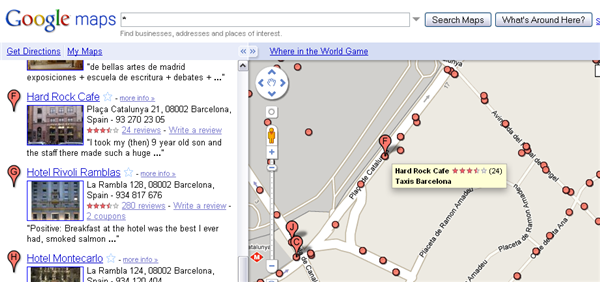
  • What’s Around Here? – A handy add-on that displays all sorts of interesting places (hotels, bars, restaurants, shops…) located in the are you’re currently viewing. A whole new way to explore your map!

Google Maps Labs

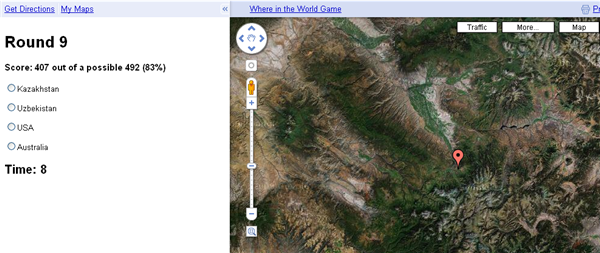
  • Where in the World Game – Labs wouldn’t be the same without a game. Try this one and put your knowledge of geography to the test. Don’t be fooled by the first few easy questions… it gets increasingly difficult!

Google Maps Labs

Friday Timewaster: One Button Bob

If you’ve dreamed of being Indiana Jones, but find the idea of learning about history and then organizing adventures to go one too complicated, never fear: I have a game that can help:

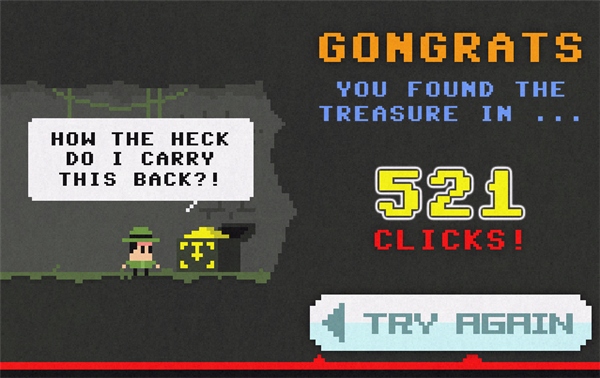
One Button Bob is a great little flash game that manages to be really inventive, funny and playable, despite only using one button. Take Bob on a treasure hunting adventure, full of killer spiders, monsters, perilous drops and leaps. All you need to play is one button – of course, in One Button Bob, that button will do different things, depending where you are, and that’s what make is so fun to play. The button might mean jump, reverse, or speed Bob up.

The game records how many clicks you make, and if you complete the game, that total will be your score. Can you get a lower score than me? Requires Flash.

Follow the Winter Olympics on your iPhone

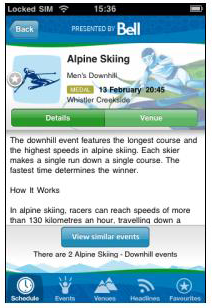
Winter Olympics on the iPhoneToday sees the start of the 21st Winter Olympics, in Vancouver. If you’re thinking of following the Games on TV or, if you’re lucky enough in Whistler, then I can heartily recommend the official iPhone app. The 2010Guide – Vancouver 2010 Olympic Winter Games application is the perfect companion for anyone who is dipping their toe in the icy waters of alpine sports for the first time.
Not only does the app provide a full calendar of events, but it offers concise and succinct guides to each discipline so you can tell your skeleton from your two-man bob. The great thing about the Winter Olympics app is that it allows you to add events to your favorites, building a schedule of all of the competitions you want to watch.

Once you start getting into the Games, you’ll find the Headlines section very handy. It allows you to view all of the latest news from Vancouver, as well as viewing medal tables and following the Games on Twitter.  The 2010Guide isn’t just about sport either, and the app also contains lots of information about all the off-piste activities that will take place over the course of the Games. You can view dates and descriptions of all the dance, comedy, music and arts that will take place.

How to: Share Google Reader starred items on Twitter

Google Reader has already a handy feature to share interesting articles and blog posts in an easy way: the Share link that appears below each item. With this link, as we explained before, Google Reader marks those items as shared and puts them online on an automatically generated web page. However I tend to star items more than to share them – I just find it easier to manage starred articles later on when I want to read or reuse them for any purpose, like Favorites. And the good thing is that starred items can also be shared… even on Twitter! All you need is three user accounts (one for Google Reader, one for Twitter and one for Twitterfeed) and follow these simple steps:

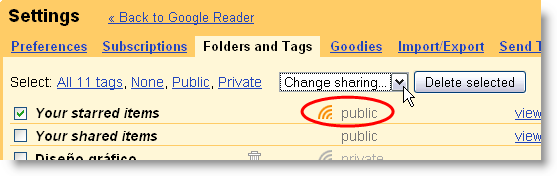
1. The starred items feed is set to Private by default, so first of all you need to go to Settings > Folders and tags and mark it as “Public” from the drop-down menu.

Share Google Reader starred items on Twitter

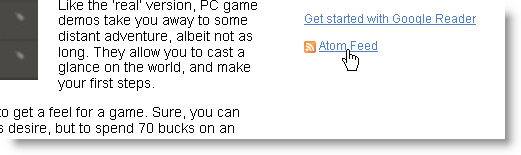
2. Click the View public page link. This will open a website generated by Google Reader with all the items you’ve starred. Right click the Atom feed link and copy the URL.

Share Google Reader starred items on Twitter

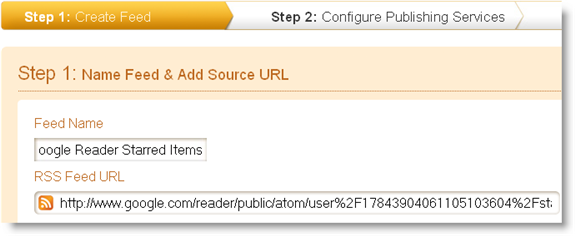
3. Go to your Twitterfeed account and set up a new feed with the URL you just copied. Tweak settings according to your needs (update frequency, post prefix, number of posts to be published) but try not to take over your follower’s timeline with too many starred items.

Share Google Reader starred items on Twitter

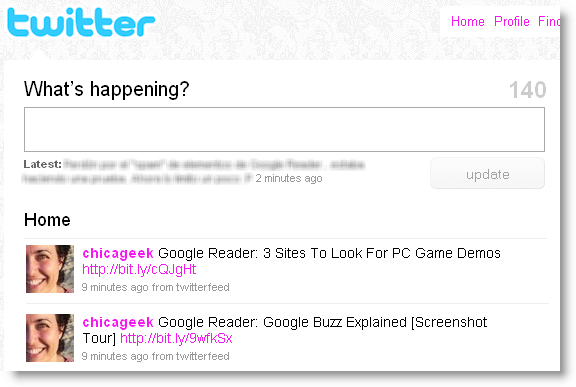
4. Twitterfeed will take a while to check your feed and update it for the first time. From that moment on, all the items you star on Google Reader will be automatically published on Twitter.

Share Google Reader starred items on Twitter

Own the world with the Google Buzz graffiti game

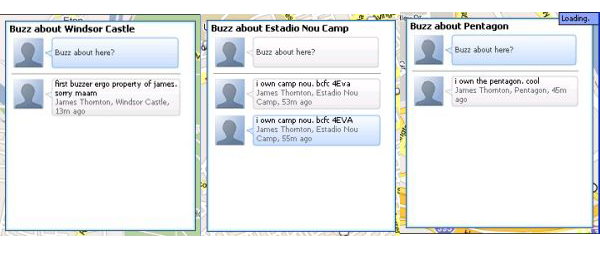
This afternoon I claimed ownership of The Pentagon, Windsor Castle, and Camp Nou, home of FC Barcelona. Don’t worry, I’m not part of some evil terrorist plot, I’m just playing the new Buzz graffiti game that’s sweeping the World*. The object of the game is to be the first to tag a famous building, government office or monument, using the new Google Buzz feature within Google Maps for Mobile.

Google’s new Buzz geo-tagging feature has today been added to the latest versions of Google Maps for iPhone, Android, Windows Mobile and Symbian devices. It allows you to post details of where you are and what doing, for the whole World to see. Your phone will auto-detect your location and you can simply hit the ‘Add Buzz’ button to put your comment on the map.

More interestingly though, you can now search Google Maps for any company or famous building and get an option to ‘Buzz about this place’. And this is where the game comes in. According to the rules of Buzz graffiti, if no one has buzzed about it before, you can claim control of it simply by tagging it with a comment to the effect that you’re the new owner. OK, so go get the new Google Maps for your mobile and start tagging. I’m off to take over all the Starbucks in my town…

Buzz graffiti

*Actually, I’m the only competitor in Buzz graffiti at the moment, but all the more reason for you to start playing, before I take over the planet – mwah hah hah hah!

Do you prefer streaming or downloading?

Voddler OfficeYesterday I got a rare chance to travel to Stockholm and meet the team behind the new film streaming app Voddler which is currently only available in Sweden. Next week, we’ll be publishing an exclusive interview with Voddler’s Mathias Tönnesson so watch this space for a fascinating look behind the scenes and for some answers to all of your questions about one of the most exciting applications of the year.
After the interview though, it struck me that Voddler are banking a hell of a lot of their hopes on people being willing to stream content rather than download it whether legally or illegally.

In Voddler’s case, the content is films and documentaries (and eventually TV shows) and the success of the project largely depends on users being happy to stream, rather than own content.

Fortunately for Voddler, the law is on their side in Sweden. It was pure coincidence for Voddler that it was launched last year just as the Pirate Bay trial deemed the P2P file sharing site illegal. Suddenly, Swedes were faced with either breaking the law to download films or turn to more legal methods and Voddler came along at just the right time to take advantage of this.

Technology is also on their side. Internet connections are getting faster and more widely available. Tönnensson explained to me how he’d already been given a preview of Sweden’s next generation 4G mobile network and it streamed Voddler films onto a laptop perfectly with no fixed internet connection. In theory, within a few years there will be little need to physically own films or video content available on Voddler because you will be able to watch them anywhere, anytime absolutely free.

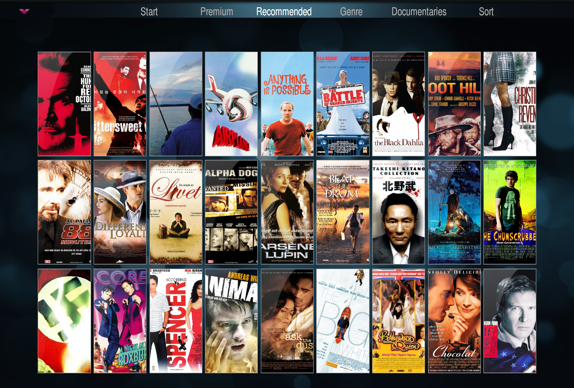
Voddler Wall View.png

However, old habits may be harder for Voddler change. We’re used to owning data, especially music and films on our iPods, hard drives and even simply for aesthetic reasons around the home. There’s something very satisfying about physically browsing through a DVD or CD collection.

I for one am happy to stream, though. For example, I’ve come to depend on Spotify for most of my music needs and if I had an Android device or iPhone, I’d be willing to pay the subscription fee to use it on the move. But this is only because Spotify offers me almost all of the music I want. As happy as I am to watch streamed movies and videos, it will be very much dependent on Voddler providing the same exhaustive and comprehensive choice of films.

I see no reason to clog-up my hard drive or bookshelves with films and music I’ll probably never watch again. I’m proud to say I’m a swanky streamer and not a downloading dinosaur. What are you?

Google Buzz: Wave’s worthy successor?

I’m just going to come out and say it: Google Wave sucks. In fact, I was tempted to use the past tense there, because it’s hard to believe that Wave isn’t dead and buried. The whole experience was so disappointing that I couldn’t help but greet Google Buzz, Google’s latest attempt at web 2.0, with a certain amount of skepticism.

[youtube]http://www.youtube.com/watch?v=yi50KlsCBio[/youtube]

Well, Buzz has arrived in my Gmail, has it made it to yours? There it sits, plonked beneath my inbox, inviting me to “share what I’m thinking”, a sorry-looking cross between Twitter and Facebook. Ok, so it’s barely a day old, but even in the early stages, new services should fill you with excitement and anticipation, not leave you scratching your head and wondering what on Earth Google were thinking of. In fact, this article from ReadWriteWeb is a great rundown of what exactly looks wrong so far.

buzz2.png

To those of us who use services like Twitter and Facebook, the concept of Google Buzz is fairly simple, even if we doubt (for the moment) whether there’s a place for it in our lives. But Buzz automatically adds contacts you email frequently, and as we all know, sending an email does not always equal social media literacy or willing. I’m happy to give it a chance and see what the Buzz brings, but not everyone feels the same. The first question from one of my auto-added, technophobe followers, for example? “Ugh, how do I remove this option?!”. I think that just about sums it up….

Visit the Winter Olympics in Google Earth

If you’d like to get a feel for the Vancouver Winter Olympics, Google Earth is a great resource. Google have added 3D models of the city and the nine venues, and you can go on a flying tour of them all.

If you haven’t got it installed, download it here – it’s fantastic. Open the program then click Layers and check 3D Buildings, which will allow you to see all 3D models around the world. To See the Winter Olympic buildings, you can search for them yourself, or download this file which automatically opens Google Earth and takes you on a tour of the venues.

Google Earth relies on your internet connection to load images and you may find 3D models take a few moments to appear – click the pause button to give them a chance to appear. The tour is cool but it misses the newest addition, the Bobsled course – to fly there download this small KML file. It’s one of the best looking models on Google Earth I’ve seen, and it’s a shame there’s not a virtual sled to ride the course!

[Via: Google Earth Blog]