Firefox 16: the browser’s future begins to take shape

Mozilla recently released version 16 of its popular Firefox browser. The vast majority of changes and features that were added to this newest browser version were security fixes and other back-end tweaks that general users will likely not find noticeable.

However, this particular Firefox release is the beginning of a transitional phase, one that promises big changes in the near future.

I’ll show you what’s new in Firefox 16, as well as give you a sneak peak of what’s to come. Continue reading “Firefox 16: the browser’s future begins to take shape”

Xbox Music brings free streaming to Windows 8 PCs

windows 8 music iconMicrosoft has rolled out its new Xbox Music service today on the Xbox 360 and on PCs running Windows 8. It will slowly replace the existing Zune Music Pass. Xbox users with an Xbox Live Gold membership will be the first people to have access to its free music streaming service. While the Xbox Music library is impressive, featuring over 30 million songs in its global database, it is up against stiff competition from the likes of Spotify, Rdio, and Pandora.

The Xbox Music Pass is $9.99/month or $99.90/year. Spotify charges the same money and offers similar features like ‘pinning’ songs to be played offline and syncing with mobile devices.

Let’s take a look at this new music service from Microsoft. Continue reading “Xbox Music brings free streaming to Windows 8 PCs”

5 Great add-ons for Mozilla Firefox

The stock version of Mozilla Firefox is a great web browser that offers smooth performance. The included security options, like private browsing, blocking reported web forgeries, and a low-level do not track option, are great starts to a secure web experience, but Mozilla’s add-ons can offer an even more customized browser tailored to your specific interests.

There are some add-ons that are essential to protect your web presence and add usability in Firefox.

Continue reading “5 Great add-ons for Mozilla Firefox”

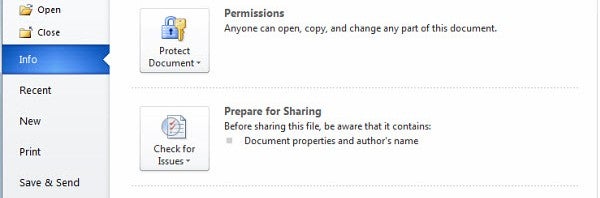
How to prevent losing your work in Microsoft Word

Imagine this scenario: you’ve been slaving away all afternoon on an important document in Microsoft Word. Unexpectedly, the program crashes, or worse, you close out and forget to save one last time.

Don’t panic. Microsoft Word actually backs up your work regularly to prevent losing your document. The auto-save interval is usually set to automatically save your work every 10 minutes. How much of your hard work would be lost in that time span though? My guess is it’d be more than you’d like.

Fortunately, there’s a simple way to tweak the auto-save settings in Word and set it to back up your documents more frequently. Continue reading “How to prevent losing your work in Microsoft Word”

Giveaway: Flip4Mac Studio

We’ve got 5 licenses for Flip4Mac Studio worth $49 to giveaway courtesy of the developer Telestream.

To have a chance of winning a free copy of Flip4Mac Studio, all you have to do is leave a comment explaining exactly why you need it. Don’t forget to leave your name and e-mail address so that we can contact you if you win. The best answers will win one of the 5 licenses. Entries will be accepted for 7 days from the date of publication of this post. Please check our terms and conditions for any doubts about this giveaway. Good luck!

Continue reading “Giveaway: Flip4Mac Studio”

Batch edit your photos with Photoscape

Batch editing is a quick way to quickly make an album of photos look great, by cropping, resizing, adding filters and more. Here we’ll show you how to batch edit your photos with Photoscape.

Photoscape is our favorite free photo editor. It’s not as powerful as GIMP, but it’s much more user friendly, and has lots of neat editing tools that are enough for most users. Read on for how to save time by batch editing your photos.

Continue reading “Batch edit your photos with Photoscape”

How to use TubeMate YouTube Downloader

When you don’t have a data connection, you lose the ability to stream videos. A quick solution is to use TubeMate YouTube Downloader, an app that can download your personal YouTube videos to your device for later playback. TubeMate YouTube Downloader can also encode audio from YouTube videos and create an MP3 of the video. The app is a great option when you want local copies of your videos without having to worry about connecting to a data network.

If TubeMate doesn’t work for you, you can also download other youtube downloaders.

Here’s how to use TubeMate YouTube Downloader.

Installation

TubeMate YouTube Downloader isn’t on Google Play so you have to go directly to its download page. You can also use the website to download the apk file to your computer and copy to your Android device. If you’re using Windows 7 and Android 4.0+, simply connect the device to your computer and it will appear as a removable drive. Copy the apk into a folder that you can locate.

For Android 2.3 or 3.0 users, downloading the file directly from TubeMate’s mobile site is easiest way, or you can use the installation method described for Windows XP.
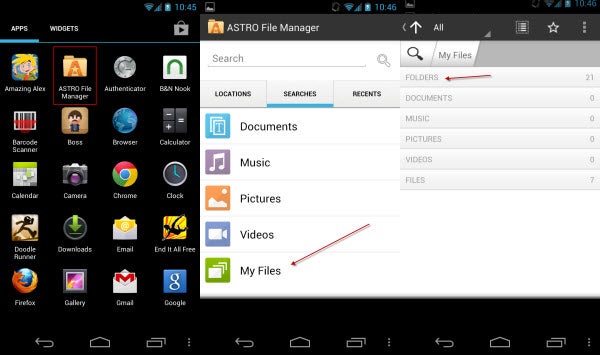
After you download TubeMate YouTube Downloader’s apk, open Astro File Manager. In Astro File Manager, open the “My Files” option and select “Folders.” Open the folder where you saved the apk to and install it.  Make sure you have allowed installation of apps from unknown sources or the Android OS won’t allow it.
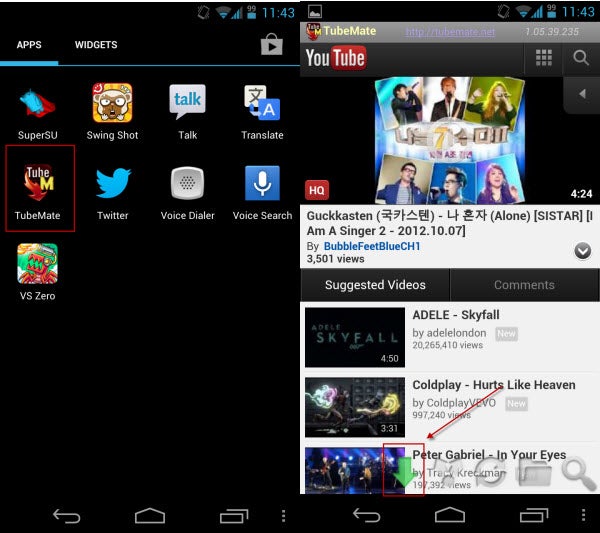
Once installed, you are ready to use TubeMate YouTube Downloader.

If TubeMate doesn’t work for you, you can also download other youtube downloaders.

Downloading Video

TubeMate YouTube Downloader accesses YouTube as an overlay. When selecting a video, you are given the choice to download or watch a video. Since you’re here to download videos, click on the green arrow on the bottom of the screen.
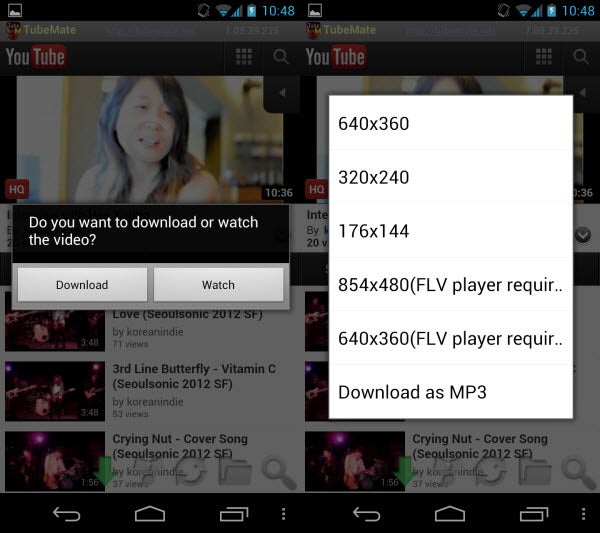
The pop-up menu has two options: Download or Watch. The quality of the video file depends on the source of the video. YouTube gives different streaming options; those are also the same options you are given when downloading the video.
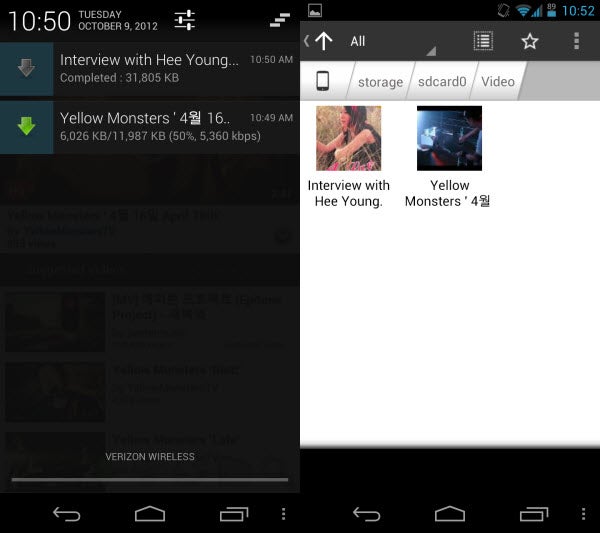
TubeMate YouTube Downloader’s downloads videos in MP4 format. They are saved by default in the Videos folder.

Downloading Audio

Follow the same steps to download videos except choose Download as MP3. The audio quality will differ based on the quality of the video. It’s not uncommon to import a slightly lower quality MP3. It will be listenable, but not worth keeping for a long time.
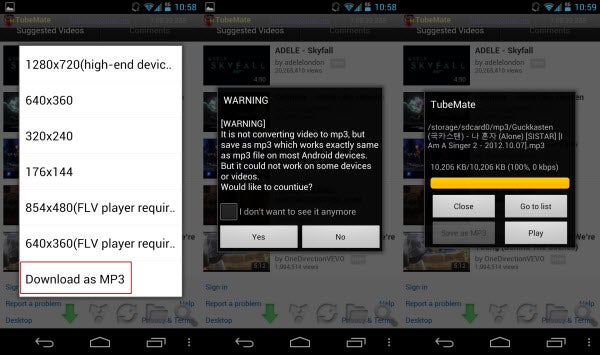
TubeMate YouTube Downloader saves the files in a folder called MP3 on the device so you can transfer them at your convenience.

Great utility for offline content

Saving your videos is easy with TubeMate YouTube Downloader. The different number of video quality options is great so you can have a lot of high quality videos. Audio sounds more like streaming previews, but is passable when you want to sample an audio clip.

If TubeMate doesn’t work for you, you can also download other youtube downloaders.

TubeMate YouTube Downloader is an excellent app for people constrained by data caps, but who want to watch their videos.


Lookout for Android adds ‘Signal Flare’ feature for better device tracking

lookout iconThe mobile security experts at Lookout have completely overhauled their Android application. On top of a complete redesign, Lookout also added some features to make your phone more secure.

The most notable addition to Lookout Mobile Security for Android is the new ‘Signal Flare‘ feature, which forces a lost or stolen phone with low battery power to send out its location before it dies. This allows users to know the last known location of the phone before it runs out of juice. This is great for when you’ve misplaced your phone with low power. If your phone has been stolen, Signal Flare will will most likely not help as much.

Let’s take a look at the other new features in Lookout Mobile Security for Android. Continue reading “Lookout for Android adds ‘Signal Flare’ feature for better device tracking”

How to: send large files over the internet with uTorrent

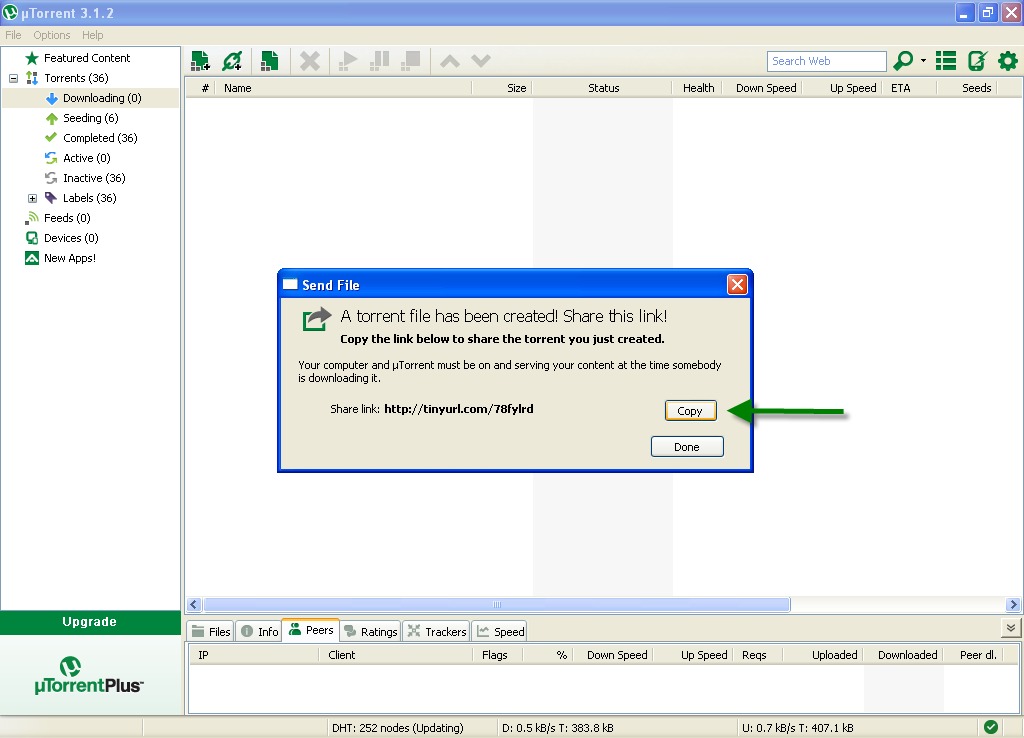
utorrent iconIf you’ve got a large file or a bunch of files you need to send to a friend or family member, it can often be a big headache. Email has a size limit (25MB for Gmail), and uploading/downloading to and from a cloud storage service like Dropbox can take forever. On top of that, if you or your friend has a spotty connection, you’ll have to restart the file transfer every time the connection drops.

Thankfully, there’s an easy solution to send large files over the internet using uTorrent, which is available for both Windows and Mac. Torrents are a good way to send large files as they have the ability to pick up where they left off, comparing the data you’ve downloaded to the data that you have yet to download.

Here’s how to set up uTorrent for sending large files over the internet. Continue reading “How to: send large files over the internet with uTorrent”

How to use Skype: audio and video

Skype iconBack in April, I gave an overview of the popular instant message program, Skype. I covered how to sign up for and install Skype, as well as explained some of its functionality as a convenient IM tool.

Skype is a fantastic (and free) way to audio or video chat from computer to computer. Now is a great time to learn how both audio and video chatting work on Skype so you can keep in touch with friends and family, no matter where in the world they happen to be. Continue reading “How to use Skype: audio and video”