How to: prepare for a Windows 8 upgrade

Windows 8 iconWindows 8 will be released this Friday, October 26. If you’ve already made the decision to upgrade, you have two new user interfaces and Windows Store apps to look forward to.

You’re supposed to be able to effortlessly upgrade older versions of Windows to Windows 8, according to Microsoft. In a perfect world, operating system upgrades work without issue. If you have important programs or files on your computer that you don’t want to lose, you’ll want to be prepared for the possibility of an upgrade failing.

Here are helpful tips to help you prepare for an upgrade to Windows 8. Continue reading “How to: prepare for a Windows 8 upgrade”

Essential eBook apps for the iPad mini

ipad mini iconApple has today announced its compact new tablet, the iPad mini. The device, launched at a special event in San Jose today, boasts a 7-inch display and will run iOS 6.

With a price of $329 the iPad mini is significantly more expensive than the likes of the Nexus 7, Amazon’s Kindle Fire, and the Nook HD. However, that extra cash should not only get you a more solid, quality feel in terms of design, but also a tablet device that delivers a great reading experience.

The small form factor of the iPad mini will be great for reading eBooks. Given the range of excellent electronic book and magazine apps available for iOS, the iPad mini has the potential to be the best eBook reader on the market, beating even the Kindle Fire in terms of quality. If you’re planning to get an iPad mini, and you’re a book lover, be sure to grab these apps to power up the device into a super eBook reader!

Continue reading “Essential eBook apps for the iPad mini”

Windows 8 Guide: in-depth look at the Charms Bar

windows charms iconIf you’re new to Windows 8, it can be a bit confusing to do simple tasks as much of the operating system has changed. Where’s the power button? How do I restart Windows? How can I see what devices are connected? The answer lies within the new Charms Bar. The traditional start menu from Windows is gone and is replaced by the Windows 8 Modern UI.

The start menu from previous versions of Windows allowed users to launch programs and access important features like the control panel, power button, and file locations. These functions are still in Windows 8 but they have moved around. The Modern UI takes care of launching apps but it’s the Charms Bar that will allow you to do the rest.

Let’s see how it works. Continue reading “Windows 8 Guide: in-depth look at the Charms Bar”

How to completely uninstall avast! Free Antivirus from a PC or Mac

It’s a good idea to use an antivirus software on your Mac or PC, but sometimes they can be a headache. Some antivirus applications are so integrated into the operating system that it leaves bits and pieces behind. In the case of avast! Free Antivirus, it can take a little bit more effort to make sure it’s fully removed if you want to install another antivirus program.

Sometimes the traditional methods of uninstalling an app doesn’t work. Luckily avast! has provided a handy tool to help you uninstall avast! Free Antivirus if the program is giving you error message or refuses to uninstall.

Here’s how to make sure you fully uninstall avast! Free Antivirus from your PC or Mac.

Uninstalling on a PC

First, you’ll want to try uninstalling avast! using the traditional method. Click on the start button and click on Control Panel.
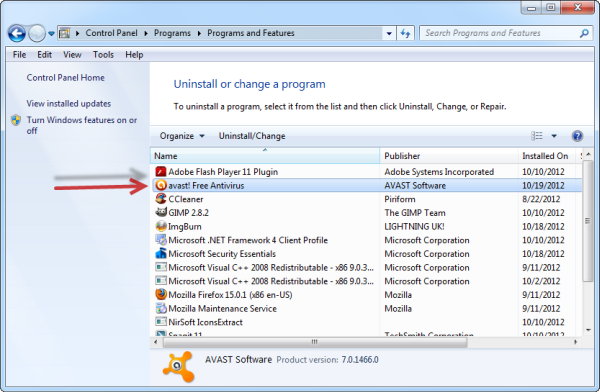
uninstall avast control panel

From the control panel, click on ‘Uninstall a program’ and then find Avast! in the list. Click ‘Uninstall/Change’ and avast! will prompt you with a setup menu. Choose ‘Uninstall’ at the bottom and click ‘Next.’
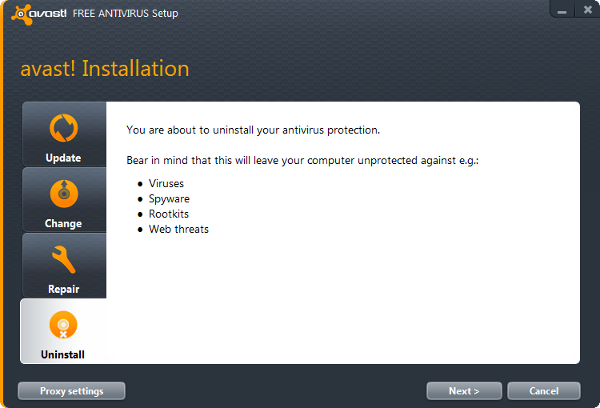
uninstall avast!

You’ll get a warning that “an attempt has been made to uninstall avast!” Confirm that you want to uninstall and it’ll start the installation process. You’ll have to restart your computer to fully uninstall.
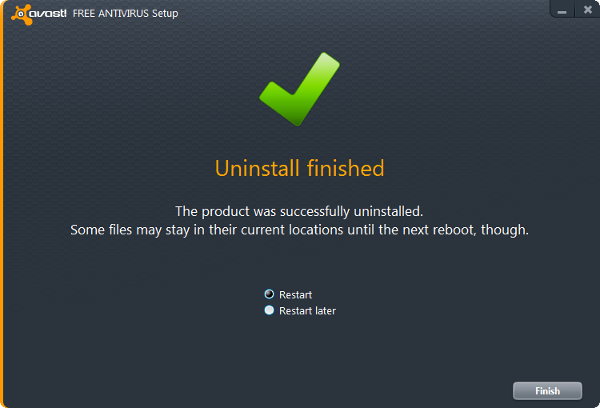
reboot uninstall avast

Force uninstalling on a PC

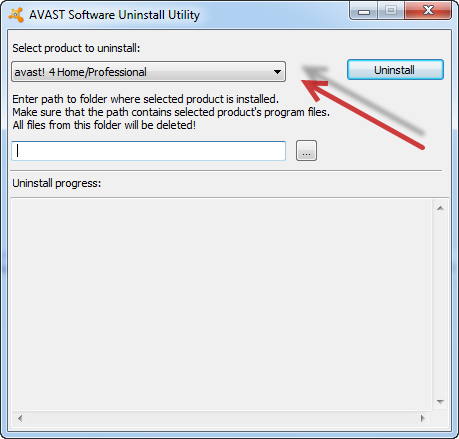
avast uninstall utility If you’re experiencing errors or a stubborn installation of avast!, try using the avast! Uninstall Utility. Simply select the avast! product you wish to remove. Click ‘uninstall’ and confirm you want to remove the program. If you’re getting an error message saying that the ‘self-defense module’ is preventing uninstallation, launch avast! and head over to the settings. Go to the ‘Troubleshooting’ tab and uncheck the box that says, “Enable avast! self-defense module.”
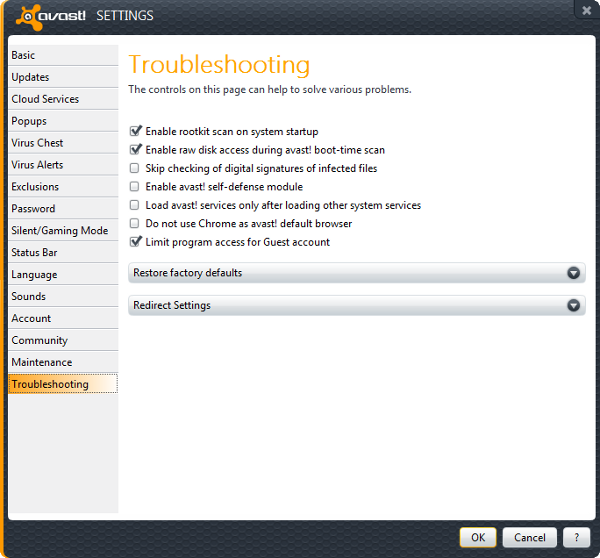
avast self defense module

This should allow the avast! Uninstall Utility to work.

Uninstalling on a Mac

Uninstalling avast! on a Mac is much simpler. Launch avast! and click on the program name in the menubar. You’ll see an option to uninstall. Confirm you want to do this an the program will uninstall. You won’t even have to reboot!
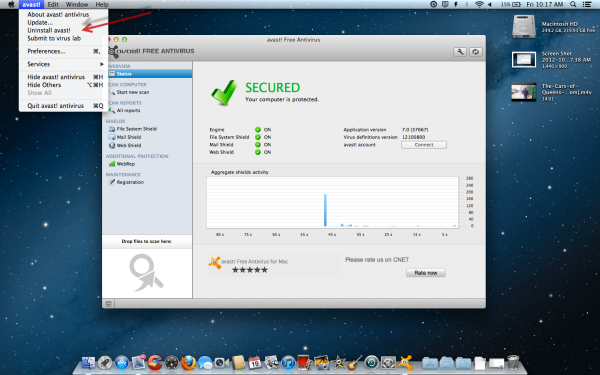
uninstall avast! mac

There you have it. Hopefully this guide has helped those having trouble uninstalling avast! Don’t forget to install another antivirus program for your PC or Mac to stay fully protected.


Firefox Marketplace released for Firefox Aurora on Android

If Google Play isn’t enough for your Android app store needs, you’ve now got another option. Firefox Marketplace is now available through the latest Firefox pre-beta for Android.

This comes only a handful of days after the launch of Firefox 16 on desktop PCs, and was an anticipated element of Mozilla’s development of its popular web and mobile browser platforms.

Let’s take a look at the Firefox Marketplace. Continue reading “Firefox Marketplace released for Firefox Aurora on Android”

Google Play adds wishlists and app removal

Google Play’s Android app update offers the ability to add apps to a wishlist and remove apps from your download lists. Adding paid apps to the wishlist allows you to keep track of apps that you may eventually buy.

Removing apps from your download lists is an excellent addition because Google Play’s lists of apps you download can include apps that you may have just wanted to sample, but that are taking up more space from your core apps.

The update to Google Play is pushing to devices and adds the new functions to Android devices.

Continue reading “Google Play adds wishlists and app removal”

Tweetbot 1.0 for Mac released

Following the much publicized release of Tweetbot Alpha in July, the final stable version of Tweetbot 1.0 has been released. You’d better be quick if you want a copy however. Twitter recently limited the number of users per Twitter client that can access its API so the developer Tapbots will have to limit availability at some stage. This explains why they’ve priced it at a relatively hefty 19.99 to limit the user base to those that really love Tweetbot.

Continue reading “Tweetbot 1.0 for Mac released”

Google releases Google Calendar standalone app

Google has a few Nexus-branded devices running the stock version of Android 4.0+. The first party apps like Google Talk, Gmail, and the Google Play apps are portals to different services that are offered in the Android ecosystem. Google Calendar is another app that was previously locked into the stock operating system while other device manufacturers developed and released their own calendar apps that worked the same way.

Now Google has released a standalone Google Calendar app to the public. Unfortunately it only supports Android 4.0.3 or later so Gingerbread (2.3+) and Honeycomb (3.0+) users are still missing out. Allowing users to use a first party app is a great way to preview the stock Android experience while unifying a Google account over different devices.

How does Google Calendar compare to other built-in calendars like on the Samsung Galaxy SIII?

Continue reading “Google releases Google Calendar standalone app”

Google starts Gmail and Search field trial

It’s likely that everyone has a Gmail account in addition to other email accounts. An all-encompassing Google account features access to Google Drive, the Google Play Store, Maps, and numerous other lesser known services. Google is now bridging services by starting a trial, connecting Gmail with Google Search.

Bridging Google Search to Gmail is a great way to search for your email or Google Drive content without directly loading either service in your browser. Gmail’s quietly expanding storage means you could have a massive amount of email to manually search through. But Google Search’s keyword filters are simpler and work great.

Continue reading “Google starts Gmail and Search field trial”

How to backup Android with Astro File Manager

Android users have a lot of options when it comes to creating backups. One of the easiest is to copy files from the Android device to a PC through the USB connection. But sometimes your files are sorted in strange ways that might not be read correctly when copying them back to a new Android OS.

Astro File Manager is an essential app that should be one of the first installed on any Android device. From backing up apps and files, you can also access your Google Drive or Dropbox accounts directly from the app, giving you the ability to back up your entire device over a data connection.

Astro File Manager hasn’t changed how to back up apps, but creating backups of important files and data is made easier.

Continue reading “How to backup Android with Astro File Manager”