How to install Windows 8.1 Update 1

The first major update for Windows 8.1 is finally here. Much like a service pack for older versions of Windows, it expands on the system, making improvements to existing features and security issues, while including some significantly new functions. Take a look at our installation guide below to make sure that you get all the critical updates for Windows 8.1 Update 1. You can install Windows 8.1 Update 1 in two ways: automatically via Windows Update, or manually. We’ll go through both options below.

Automatically install via Windows Update

1. Open Windows Update

Windows update

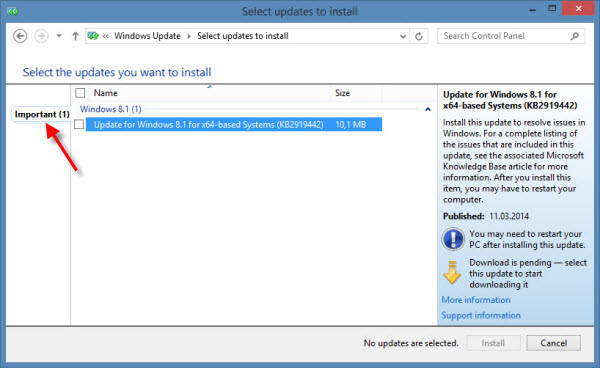
2. Select and install all Important updates

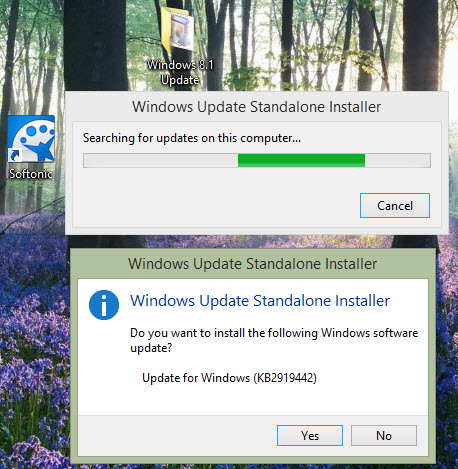
Windows 8.1 Update 1 is not offered as a single package, but consists of several separate updates. The Windows Updater will only gives you the first file, which can be identified as KB2919442. After installing this update and restarting your system, you can gradually find the other files you’ll need to install. Tip: Open the Windows Updater until you no longer see any new updates; this will ensure that you actually installed all the individual files.

Make sure you've installed all the Important updates

Manually install Windows 8.1 Update 1

As mentioned, Windows 8.1 Update 1 consists of individual smaller updates that you have to install one after the other in a specific order. Depending on your version of Windows, there are separate updates for 32 bit and 64 bit.

1. Identify your version of Windows

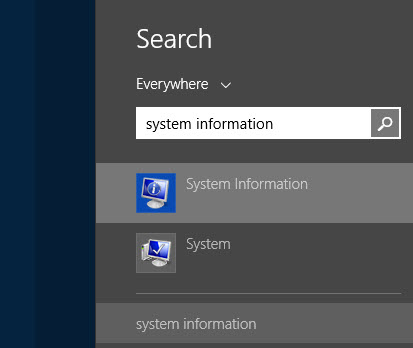
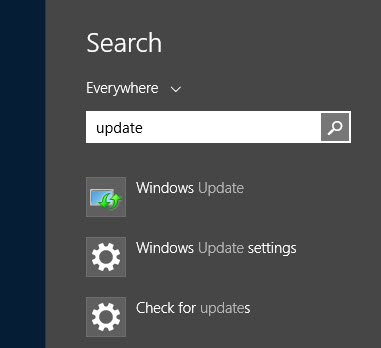
Using the search function, find System Information.

System information

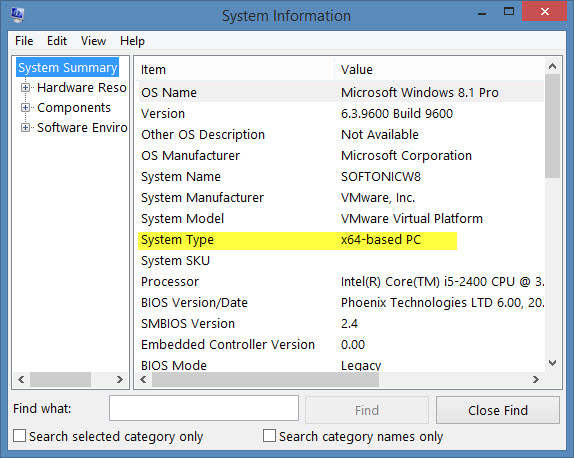
This will open the System Information window containing important system data. Here, you can see if you’re running Windows with 32-bit (x86) or 64-bit (x64).

System information

2. Install the first update: KB2919442

Before the actual Windows 8.1 update, you have to install the pre-update, identified as KB2919442. Download the file and start the installation by double clicking on it. After a reboot, you’ll be able to continue with the update.

3. Download individual updates for Windows 8.1 Update 1

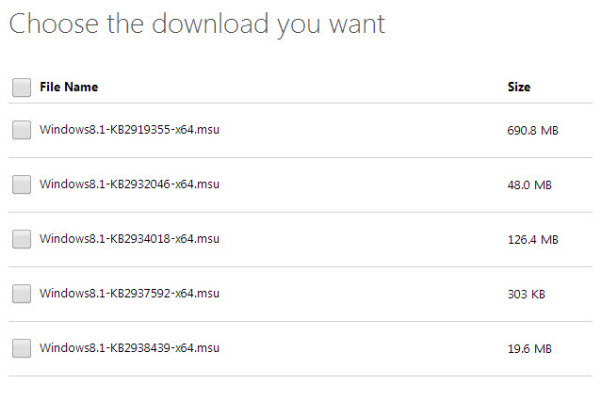
The following links will take you to Microsoft’s overview page. You can download all single updates at once to save yourself some time.

Microsoft Download Center

Choose which updates to download

4. Install each individual update

Install each update by double-clicking in the following order, reboot your computer, and you’ll be all set with the latest update to Windows 8.1

  • KB2919355
  • KB2932046
  • KB2937592
  • KB2938439
  • KB2934018

Windows Update installer Related articles:

New ‘terrain generator’ in latest Mincraft snapshot

Last week we showed you Mojang’s upcoming customizable terrain generator, and now you can try it yourself with the latest Minecraft snapshot, 14w17a.

You can test snapshots by opening Minecraft, clicking ‘New Profile’ and naming it ‘snapshots‘. You need to check the box that says ‘Enable experimental development snapshots‘ and save. This means you’ll be playing early, test versions of Minecraft which may sometimes be less reliable than the stable release.

You can switch back to the stable release by clicking on the dropdown menu in the bottom left corner of the Minecraft launcher.

Minecraft snapshot 14w17a contains these notable changes:

  • New highly customizable terrain generation! (Create new world -> “World Type: Customized”)
  • New customizable world borders! Check out the /worldborder command.
  • Lots of bug fixes, performance gains and code cleaning

RELATED STORIES

All versions of Internet Explorer have major security vulnerability

Microsoft has announced the discovery of a security vulnerability that affects all versions of Internet Explorer, from 6 to 11. Together, this means a quarter of the browser market is affected by the problem.
Microsoft is working on a patch to fix the issue, but until then, the best advice is to stop using Internet Explorer. Google Chrome and Firefox are good, safe alternatives.

This is how Microsoft describes the vulnerability:
“The vulnerability exists in the way that Internet Explorer accesses an object in memory that has been deleted or has not been properly allocated. The vulnerability may corrupt memory in a way that could allow an attacker to execute arbitrary code in the context of the current user within Internet Explorer. An attacker could host a specially crafted website that is designed to exploit this vulnerability through Internet Explorer and then convince a user to view the website.”

A further problem is for XP users. As was widely advertised, Microsoft has stopped support for the operating system, meaning when a security risk like this emerges, users will be at risk. That a big risk like this has appeared so soon is evidence of how dangerous it can be to continue using an operating system that no longer has security support.

Source: Microsoft

RELATED STORIES

Apple TV vs. Chromecast: which one’s better for you?

iOS and Android continue to be the main competing platforms for mobile devices. Both Apple and Google have taken steps entering the set-top box world. The Apple TV remains a secondary device next to its family of iOS devices, and the Google TV and Nexus Q were both products that didn’t live up to the promise.

While Apple continues to produce the Apple TV, it hasn’t shown a lot of support for the device with third party apps. Apple TV is securely tied to your iTunes account and the use of AirPlay to display or mirror content on the device.

Google’s Chromecast is essentially a mixture of the features of the Google TV and Nexus Q. It streams content to the device through supported apps. What this means is that all the content on Chromecast is streamed through a wireless connection and controlled through the compatible app. Like Apple TV, Chromecast-supported apps are still a bit shallow, but now that developers are free to work with the device, there should be more apps available in the future.

But like Roku and Amazon Fire TV, some apps require separate subscription fees to access content. So, which one is best for you? Let’s take a look at these streaming services to find out.

Apple TV

Apple TV is securely locked into the iTunes ecosystem. Apple wants you to use your iTunes account to stream your purchases, but it doesn’t ignore the biggest streaming services, so it also supports Netflix, Hulu Plus, and HBO GO as featured apps on the Apple TV.
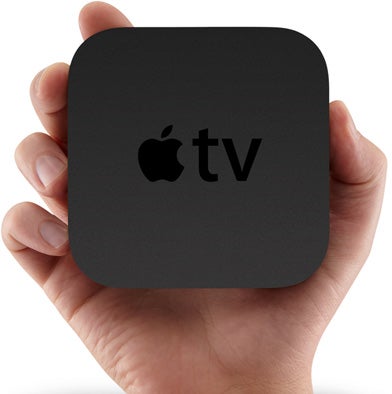
Apple TV

If the app isn’t directly available, you can use AirPlay, which lets you stream or mirror your iOS device on the TV. This gives Apple the ability not to include apps on the Apple TV dashboard. The list of AirPlay supported apps is much larger and expands beyond streaming movies and TV.

Flipboard for iPad, Sketchbook Pro, Spotify, and Pandora Radio are apps that aren’t available on Apple TV, but can be streamed to the device. AirPlay is also available for some gaming apps which can take advantage of two screens. You can also use AirPlay on a Mac with mirroring. Considering the $99 price of the Apple TV, however, is it worth it to have access to your iTunes account to stream music to your TV, or to have to use AirPlay to gain more functionality?

If you have a lot of iTunes purchases, the Apple TV is a great way to be able to watch them on a bigger screen. Unfortunately, the lack of third-party app support on the Apple TV is disappointing.

Chromecast

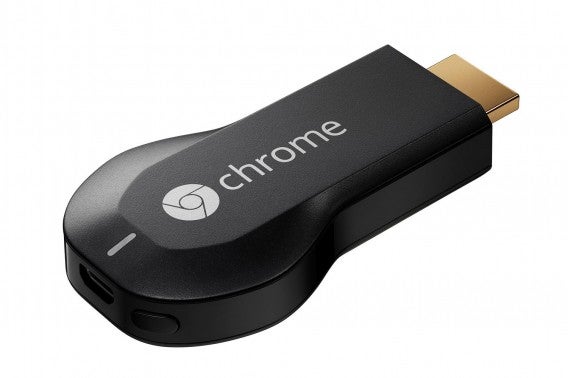
Chromecast isn’t a set-top box at all. It’s a HDMI dongle that fits into your TV whose purpose is to control content streams from apps. You can also mirror a tab within the Chrome browser on Chromecast using an installed extension.

In comparison with Apple, Chromecast is using the same idea as AirPlay by letting you stream content wirelessly. The difference is that all the content is being streamed directly to Chromecast and can be controlled through the app.

Connecting an Android tablet to Chromecast within your wireless network through Netflix and streaming the content directly to the TV is just one example of its use. Netflix on the tablet would be considered the remote control, but it’s not playing the video at the same time. This effectively lets you do other things on the tablet while Netflix is running via Chromecast.
chromecast

Another great feature is that Chromecast supports both iOS and Android devices, making it up to the app developer to add support. Google opened up access to developers, meaning that there should be more supported apps being released and updated soon.

Currently, app support is still a little sparse, with Google Play Movies & TV and Google Play Music offering Google’s store. Considering third-party services, all the majors are again supported, including Netflix, HBO GO, Hulu Plus, Pandora, and Rdio. Of course, there’s also support for YouTube, which makes watching longer videos more enjoyable than on smaller screens.

Even though Chromecast’s selection of supported apps is still small, now that all developers can code apps to support the device, there should be updates coming soon.

Which is better?

If you consider first party support, iTunes is much more developed as an ecosystem for movies, TV, and music. The ability to stream your library is a strong reason for Apple TV. The hesitation would come from the lack of support from Apple to further develop the device. AirPlay feels like a stop-gap solution rather than an expansion to the library of apps on the device itself.

Chromecast is also somewhat weak because it’s a streaming device that extends from Android apps. It requires direct support from developers to have greater usability. On the other hand, a $35 price tag and potential expansion from its open development make it really compelling. Google isn’t making a giant leap with the Chromecast, but its supplying a cheap and useful feature for TVs with an extra HDMI slot, although that could all change when Android TV is finally launched.

Of course, you’re not limited to these two options. Set-top boxes are an alternative to streaming with services like Roku and Amazon Fire TV.

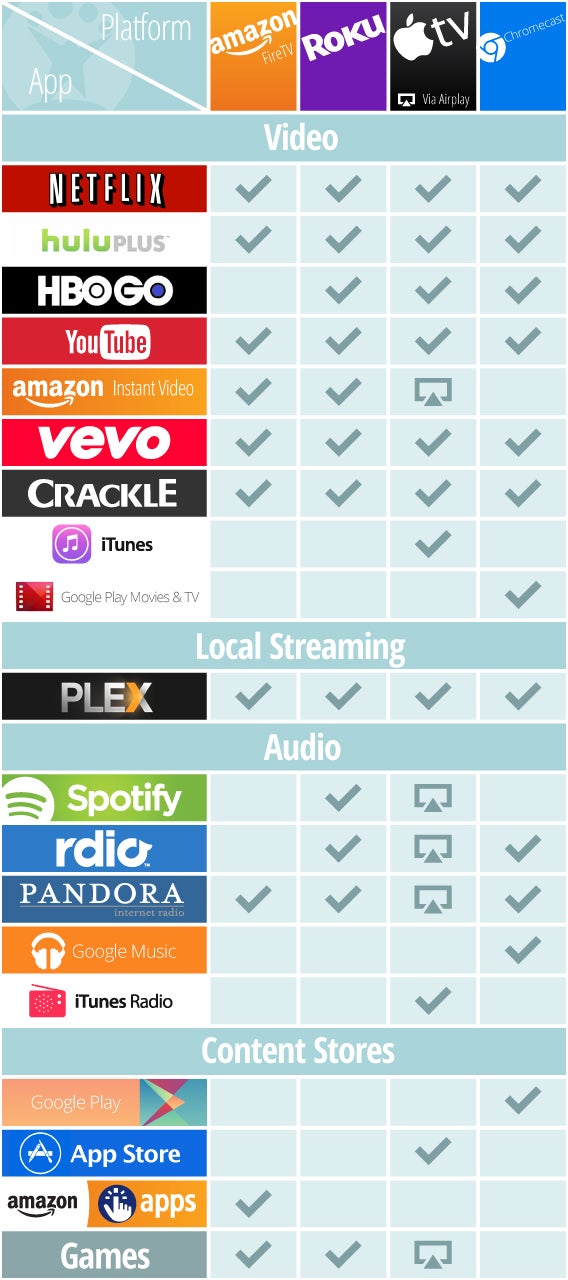
Check out this chart comparing Amazon Fire TV, Roku, Apple TV, and Chromecast to see which one might be the best for you, and check out my analysis of Amazon Fire TV vs. Roku to see if either of these services are a better fit.
Apple TV, Amazon Fire TV, Chromecast, Roku comparison

Related Articles

6 tips to make it easier to read on your iPhone

Do you have trouble reading things on your iPhone’? Here are 6 things you can do to make your phone more accessible.

Your iPhone is a nice device; it’s solid, efficient and reliable. But the text on the screen isn’t always easy to read. First of all because of its size: compared to other smartphones, the iPhone 5’s 4 inches seem small. Then there’s the iOS 7 design: although it’s beautiful and elegant, the default font is so thin it’s not always easy to read.

But don’t worry, there are 6 things you can do to improve the accessibility of your iPhone running iOS 7.

Activate Bold Text

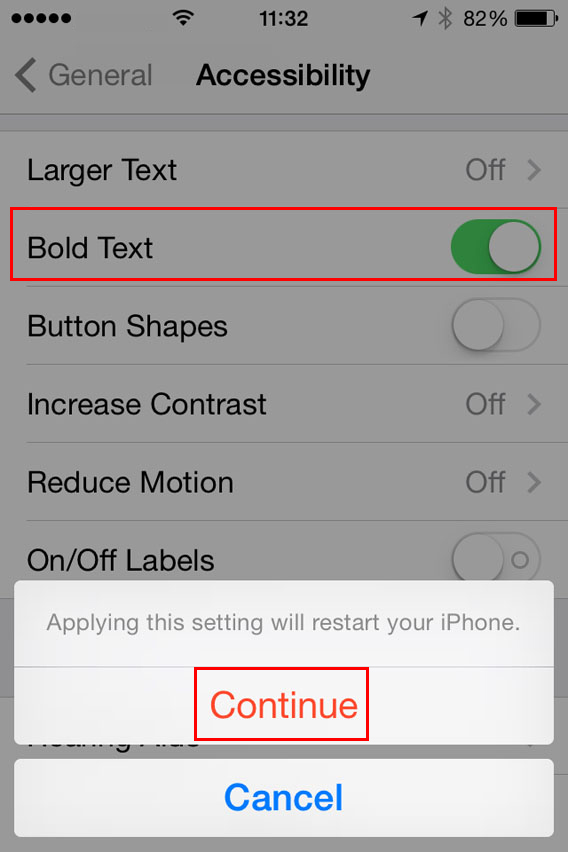
First of all, try to activate bold text as the default font. To do so, go to Settings > General > Accessibility and select Bold Text.

Bold the text

To apply this setting you’ll have to restart your iPhone.

Increase the text size

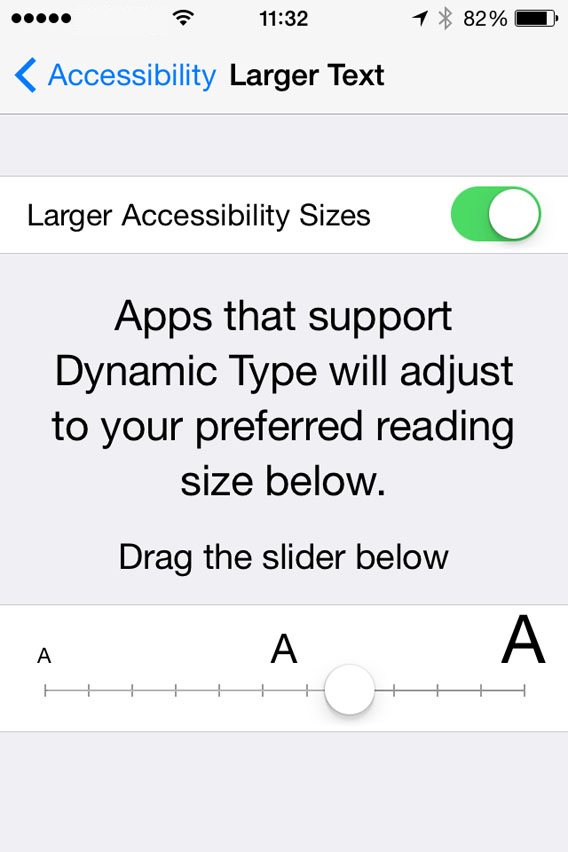
If you’re still having trouble reading the text, you can make the font size bigger. To do so, go to Settings > General > Accessibility and select Larger Text. You can choose the font size you want by dragging the slider along the horizontal bar.

Make text larger

Activate zoom

Zoom substantially magnifies all the content on the screen. You can activate it by going to Settings > General > Accessibility > Zoom. To zoom in, double-tap the screen with three fingers. If you want to move around the screen, move three fingers around the screen.

Only the area you double-tap on will zoom in.

Zoom

Increase contrast

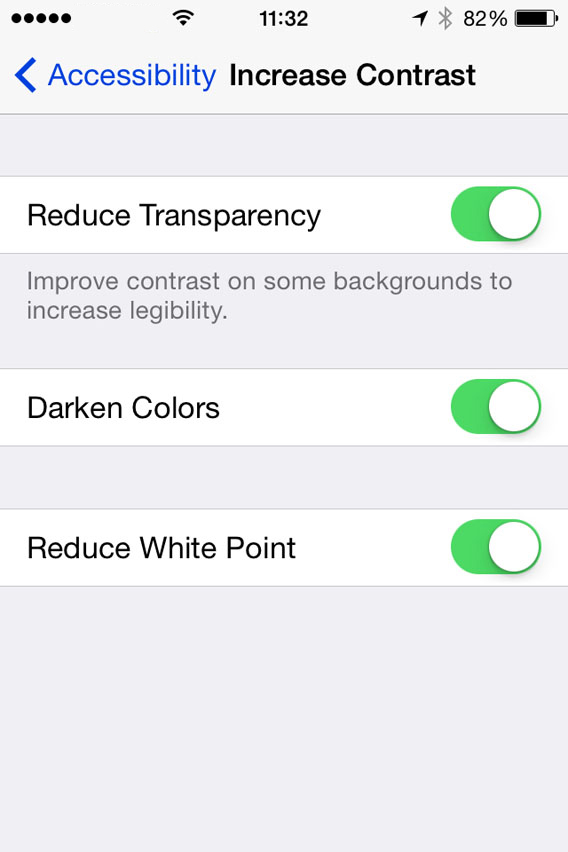
In Settings > General > Accessibility > Increase Contrast you have three options that might improve your reading experience.

The first is Reduce Transparency, to increase the contrast on the backgrounds. The second is Darken Colors. The third, Reduce White Point. Try all three, together or separately, until you are happy with the result.

Increase contrast

Invert Colors

The Invert Colors option creates a negative of what you see on the screen which, for some people and in some cases, can make the text easier to read. If the other solutions haven’t worked, you can try this. One thing is certain: if you invert the colors your iPhone will look very original!

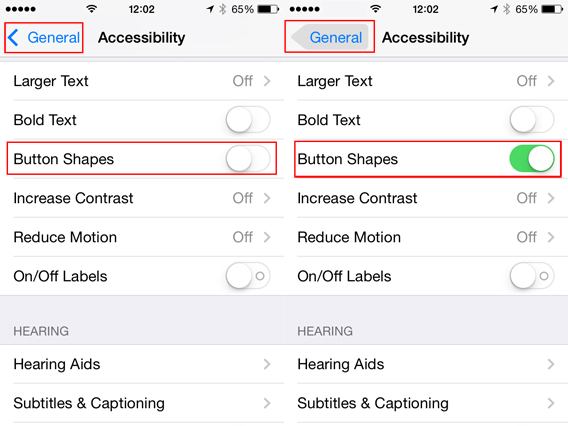
Activate Button Shapes

The minimalist design of iOS 7 can sometimes make it difficult to identify what part of the text you can see is a button. To overcome this problem, you can enable Button Shapes on Settings > General > Accessibility.

Button shapes

Optimize the screen? Easy!

Thanks to these accessibility tools that Apple has added to iOS 7, most people can the right formula to enjoy their iPhone without straining to see, and without sacrificing the benefits of Apple’s smartphone.

If you want to know more about iOS 7, check out our guide.

The best Android games to relax

In our The best Android games to… series, we go through the best Android games to play for any given time or place. This week, we continue with our quest for the greatest Android games, this week bringing the most relaxing games we could find on Google Play.

The 5 games we’ve picked are open invitations to kick back and relax. These little oasis of Zen are perfect for de-stressing between meetings or relaxing after a long day of work. Sit down and chill out; you’re in good hands.

KAMI: For origami fans

Kami

KAMI is a relaxing puzzle game where you have to fill the screen with colored folded paper within a predetermined number of moves. The early levels are pretty easy to master, but later ones will still stretch your brains with a carefully chosen dose of difficulty.

KAMI is super-relaxing, with Asian-inspired music and a visual style that takes its cue from Japanese origami. The game looks impeccable, and is easy to play. The app is perfect for chilling out without tying yourself in knots!

LYNE: A little game to stay on track

Lyne

LYNE is a stripped-down puzzle that asks you to connect geometric shapes on a grid. Too easy? Behind the initial impression of simplicity, LYNE has worked a game mechanic that will require plenty of thinking.

You can’t cross connections, and each node has characteristics with strict requirements: some need multiple connections to activate, while others always need to be at either the start or the end of a chain. In addition to its interesting game mechanic, LYNE has beautiful minimalist menus, relaxing graphics, and discrete, chilled out music. It’s a haven of video game peace.

LYNE

Strata: Zen ribbon-lacing

Strata

Strata is a handmade game that helps you relax by asking you to interlace ribbons. Choose the right combination of colors to match up the bands of color and complete the pattern.

This game is super-atmospheric thanks to its minimalist, but imaginative score. The soundtrack is composed in real time – each move you make, whether harmonious or dissonant, creates the music. It’s an original concept in a lush game world.


Splice: Relaxing puzzles in a small infinity

Splice

Splice is a puzzle game that plunges you into a mysterious, relaxing universe. In order to solve this little game’s micro-puzzles, you need to assemble groups of cells into predetermined arrangements. Splice is worth a try if only for the unique gameplay and trippy music – it will help you relax without numbing your brain.

Splice

Color Zen: Puzzles in technicolor

Color Zen

As you might have guessed from the title, Color Zen invites you to manipulate colored shapes. Like KAMI, the aim is to fill the screen with color. This time, though, you’re not dealing with origami: in Color Zen, you’ll have to crash the colors together to make them spread around the screen.

Your mission is to choose the correct order the colors need to spread to fill the screen. Ambiance-wise, Color Zen is indeed very Zen, with minimalist geometric shapes and vibrant music with hints of trip hop and jazz fusion.

Life can be a little stressful, and from time to time, you need to let go a little. Forget the frantic games that monopolize the Google Play rankings, and put your time into these 5 Zen womderlands instead

If we’ve forgotten a game that you think is perfect for chilling out, let us know in the comments.

If you liked this article, take a look at last week’s installment in our The Best Android games to… series:

Amazon Fire TV vs Roku: which one’s better for you?

It’s becoming more common for people to sever cable subscriptions and watch all of their movies and television shows through other services. Whether built into a smart TV (Internet-connected television) or a set-top box, streaming devices are replacing normal cable and allowing people to watch on demand. This means they can watch their favorite shows anytime they want, as long as the show is available through one of many services.

These devices support different apps that stream content through your Internet connection. While there are a lot of set-top box options, the comparison of Amazon Fire TV and Roku is between two of the oldest and newest streaming devices on the market.

One thing to note is that while these set-top boxes support a lot of apps, many of them require separate subscriptions to access movies and shows.

Amazon Fire TV

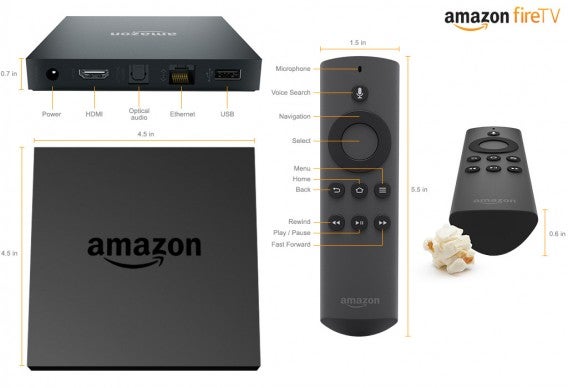
Amazon has been making a lot of moves to expand from an online retailer, to a digital content provider. It started with ebooks and the Kindle, and with the Amazon Fire tablet, showed its desire to get people inside its ecosystem as much as possible. Most recently, Amazon debuted Fire TV, its set-top box that’s an evolution of the Fire tablet.

amazon fire tv

Fire TV is based on the same idea, wanting you to stay inside Amazon’s ecosystem. While it does offer the most popular apps, Amazon is focused on getting users to use Amazon Instant Video, its video on demand service. Amazon is also a prominent investor in original video series exclusives, giving an incentive for people to buy into the ecosystem.

Fire TV doesn’t have a huge selection of media apps right now, but it does support Netflix and Hulu Plus. It’s biggest strength is Amazon’s first party apps.  The Fire TV also supports gaming apps from Amazon’s App Store, but you will need the controller to play them, which is an extra cost.

If you want an in-depth look at the Fire TV, read Ars Technica‘s review.

Roku

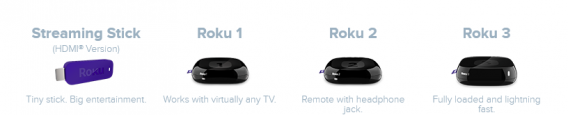
The Roku is one of the first manufacturers of Internet-connected set-top systems. The Roku DVP launched in 2008, but the company now offers four different versions of Roku. Each Roku has different capabilities and compatibility for the TV it’ll connect to, so it’s important to buy the one that fits your needs.

roku versions

Roku’s biggest strength is its huge number of supported apps. It features the most popular apps like Netflix, Hulu Plus, and HBO GO. The app selection goes even further with support for major sports channels like NBA Game Time, MLS LIVE, UFCTV, and WatchESPN.

Roku’s music streaming service supports Spotify, Rdio, TuneIn Radio, and iHeartRadio. One impressive strength over Apple TV and Chromecast is that it supports Amazon Instant Video; this allows Roku users to access content from Amazon.

The unfortunate thing is that most of the extra channels aren’t really useful, and a lot of them are easily ignored. Roku also supports games, but you’re not looking at the best quality of available titles.

Which is better?

While Roku is an established brand, it’s a simple set-top box. Major apps are available on other platforms, and many other apps look like bloatware. Roku does support all the major streaming apps like Netflix, Hulu Plus, and Spotify, but these can also be found on other platforms.

In terms of a plug-and-play device, Roku might be the best set-top box for those unfamiliar with how these devices work. Setup should only take a couple minutes, and ease of use has been proven. It’s the simplicity that makes Roku great for new users.

On the other hand, Amazon Fire TV has a lot of unproven potential. While it’s locked in the Amazon ecosystem, the device is also made for the common consumer. It’s designed for a very simple use. It might not have the same amount of apps like Roku, but it won’t be long before Fire TV expands its support for apps like HBO GO and Spotify. The only real worry is how much Amazon curates its app ecosystem.

Right now, either device would be great for streaming media services since a lot of apps are cross platform. Roku is a stable platform, but Amazon Fire TV may see improvements much faster.

Still, there are other options aside from set-top boxes that include streaming services Apple TV and Chromecast.

Check out this chart comparing Amazon Fire TV, Roku, Apple TV, and Chromecast to see which one might be the best for you, and check out my analysis of streaming services Apple TV and Chromecast to see if either suites your needs better.

Apple TV, Amazon Fire TV, Chromecast, Roku comparison

Related Articles

Malware found in Google Play Store mined Bitcoin

Security company Lookout found wallpaper apps in the Google Play store that contained malware called ‘Bad Leprecon’, which uses your phone’s processor to mine Bitcoin, the virtual currency.

Five examples of ‘live wallpaper’ apps were discovered and removed by Google after the malware was found. In this case, each app only had between 100 and 500 downloads, so luckily not many people were affected.

The apps in question did perform their advertised task – giving you live wallpapers. However, every five seconds the apps scanned your phone to check the battery level, connectivity, and whether the phone’s display was on. If the battery was over 50% charged, the display off and a network connection available, the app will start using your phone to mine Bitcoin. This would run down your device battery, and use your data plan.

One of the malware wallpaper apps, Epic Smoke Live Wallpaper.

One phone will not be able to mine many Bitcoins, but the malware creates a network of phones, which together would have created quite a powerful resource. The apps did not explain to users that they mined Bitcoin while you were not using the device.

These wallpaper apps are not the first to hide currency mining in their code. In March, two apps, Songs and Prized were discovered to be mining crypto-currencies, and they each had between one and five million downloads. Both were also removed from Google Play, but the malware has been found packaged with other apps that are available outside Google’s official store.

This highlights the danger of using some unofficial stores, and is also yet another example of malware finding its way into Google Play.

Symptoms of having this kind of malware are faster than usual battery drainage, phones running ‘hot’ even when you’re not using them or phones that charge unusually slowly.

Source: Lookout Blog, The Guardian

RELATED STORIES

Cerberus anti theft app goes free for its third birthday

Android anti theft app Cerberus is free for a limited time. Developer LSDroid is celebrating the app’s third birthday with free lifetime licenses for the next 30 hours.

Cerberus allows you to locate and track your lost or stolen device. The app can turn on your phone’s GPS remotely for accurate location data. If you’ve misplaced your phone, Cerberus can play an alarm to help you find it.

More advanced features include the ability to wipe the device’s memory as well as record audio from the microphone. These features should help you recover your device or wipe its contents as a last resort.

Google provides a similar service and app called Android Device Manager but it isn’t as powerful. Android Device Manager allows you to locate, lock, send a message, and wipe your device but if you want more powerful features, Cerberus is worth trying.

The app will be free for the next 30 hours (ends on April 26th at 6:00AM GMT)  so get it while you can.

Download Cerberus for Android

Source: Cerberus (Google+)

Via: Droid Life

RELATED STORIES

Softonic editors: what apps do you prefer to use on a PC?

What have we learned so far in our series, Ask the Softonic Editors? Well, we’re addicted to our mobile devices, big fans of Wunderlist and Instagram, and still haven’t really gotten over the demise of Google Reader. This week, I’ve decided to force us all to concentrate on desktop by asking what apps are better if you use them on PC or Mac. I know we’ve got photographers and DJs among our numbers, and I was interested to know if there was any other areas where the portability and accessibility of a mobile app just wasn’t a major selling point.

Niamh Lynch, editor

This one is easy – writing. When I’m not working in Softonic, I write and translate at home, and if I’m not on my trusty Macbook, I just can’t get comfortable for any length of time. There are some really nice-looking writing apps out there, like Montage and Celtx, but they seem aimed at writers of fiction or screenplays, not one-off articles and translations. Since I need to get work to clients, I work in Google Drive. I can access it from anywhere, and writing in the browser gives me easy access to my translation tools and references. Obviously, you can get Google Drive for mobile, and I do use it, but the important thing is the keyboard and mouse, and that’s best on a desktop.

Jon Riggall, news editor

I DJ with Traktor, which has a very good iPad version, but it’s not quite as good as the full version (nor do iPads have enough storage for all my music). I also prefer using Photoshop on a laptop or desktop – the most important thing is screen size. An HD monitor is still easier to work with than a tablet-sized retina display, for example, and there are still times when a mouse gives you just that much more accuracy that’s lost as soon as you stick your finger on a screen. Although both of these apps have tablet/mobile versions, the full desktop versions are more complete, and offer more control.

James Thornton, editor

I’ve not used a PC at home for several years, as all my entertainment, and communication needs are catered to by my phone/tablet/PS4/Chromecast. The only thing that occasionally drags me back to my dusty old Dell is to use office apps. But as Microsoft Office 365 for Mobile continues to improve, even word processing and accounting is now comfortable on a tablet with a Bluetooth keyboard. My advice: burn your computer and be free!

Lewis Leong, news editor

Our phones handle most of our day-to-day tasks but there’s still many uses for using a desktop computer. Video editing, playing games, and even writing are more enjoyable using my PC with multiple monitors. Multitasking with a mobile device is difficult and writing the news every day would be impossible without a computer. Photo editing is also much better on a PC, since photo editing software like Lightroom and Photoshop is much more advanced than the versions available on mobile.

Chris Park, editor

There’s only one type of app that I only use on my PC and that’s photo editing apps. I use a mix of Adobe Photoshop and Paint.net to manipulate photos when posting to my website, and that’s just not as easily done through a mobile device. Even though there are apps that can edit photos, they’re too clumsy to complete the tasks I need accurately and quickly.

Suzie Blaszkiewicz, editor

As unoriginal as it sounds, I actually prefer to use Facebook on desktop. I mainly use Facebook on my phone via the separate messenger app, but if I want to check my Newsfeed or Timeline, I find it a lot easier and quicker on desktop than on mobile, especially with an older iPhone model. I’ll use the mobile app to check notifications, but I don’t spend much time on Facebook’s mobile app scrolling through the Newsfeed or checking in on what my friends are up to– I save that for the desktop version.

Nick Mead, editor

Any app that involves watching video, I always choose to use on PC over a mobile. I really don’t like watching videos on a small screen, and I generally find playback on mobile devices using 3G painful. This obviously means that I rarely use the YouTube app for Android, but I wouldn’t even dream of using SopCast on a mobile device, for example. I also rarely edit documents on a mobile device. I much prefer Word and a trusty plastic keyboard.

And there you have it. Interesting! Although I was expecting the photo editing answers, I didn’t realize that mobile favorite Facebook would enter into the mix. Lewis’s comment about multitasking is a relevant one. Even though for many of us, mobile devices are the epitomy of multitasking (check Twitter while listening to music on the subway – don’t mind if I do), when it comes to actual task-based mutitasking, the PC often wins out, offering winning physical speed and accuracy over portability and fancy features.

RELATED ARTICLES