Minecraft Realms subscription helps parents keep their kids safe

Minecraft developer Mojang announced its new $13 per month subscription aimed at parents. Minecraft Realms will allow parents to create safe and secure servers for their kids to play online. Only invited players can join a Realms server so parents have absolute control over who can play with their children.

Backups are included in the subscription, which allows you to revert to an earlier version of your Minecraft map. You can invite up to 20 players to a Realms server but only 10 can play simultaneously.

Hardcore Minecraft fans may not find Minecraft Realms compelling as there are cheaper, more powerful hosting services out there. That said, Realms is the only first-party hosting service and is aimed at making server set up as easy as possible for parents. While $13 per month is a lot, Mojang does offer discounts for 6 month and 1 year subscriptions.

Minecraft Realms is available now on Mac and PC. Mojang plans to bring it to more platforms in the future, including Minecraft: Pocket Edition.

For more about Minecraft Realms, check out their FAQ.

Source: Mojang

Follow Lewis on Twitter @lewisleong

RELATED STORIES

Fans start releasing early Watch Dogs gameplay videos

Update 27-05-2014: The gameplay videos have since been removed.

Gameplay videos of Watch Dogs, this month’s highly anticipated game release from Ubisoft, have already started popping up ahead of next week’s launch. The videos have been posted by fans who’ve gotten their hands on copies of the game before the scheduled release.

With the videos come the first analysis of the game. Taking things in stride, Ubisoft, the game’s developer, took to Twitter to respond to the videos, claiming that these “analysts” were Watch Dog hackers (hacking is a staple of the game).

Watch Dogs is scheduled for release on May 27th.

Follow Zuzanna on Twitter @suzieblaszQwicz

Related articles:

Facebook to take on Snapchat with Slingshot

According to rumors, Facebook is working on a Snapchat competitor app, code-named Slingshot. Like Snapchat, the app will let users send photos and videos with a limited lifespan.

It’s no secret that Facebook is trying to get in on the ephemeral-messaging game; last year, it offered Snapchat $3 billion dollars to buy the app, which Snapchat co-founder and CEO Evan Spiegel kindly declined. Now, Facebook is working on it’s own app that’s hoping to compete with the especially teen-friendly Snapchat, a market which Facebook is quickly losing.  As the Financial Times reports, Facebook has been working on the app for several months under the close supervision of Mark Zuckerburg himself.

A simple interface will let users send quick photos or videos to each other that’ll disappear after a few seconds. It’s said to based on similar app TapTalk, which shows a grid of profile pictures that you tap or hold down on to send a photo or video.

The app isn’t the first time Facebook’s tried going head-to-head with Snapchat, and with a name like Slingshot, there’s no question who they’re aiming it at. Poke was Facebook’s first attempt at a Snapchat-like messaging app, but after a year in the App Store and minimal downloads, it was discontinued this past March. Undeterred, Facebook continues to focus on mobile, with a whole slew of standalone apps, including Messenger, planned for this year.

Facebook is yet to confirm the project, but sources close to the social network claim that the app could be released as early as this month.

Follow Zuzanna on Twitter @suzieblaszQwicz

Related articles:

How to edit a video with GoPro Studio

GoPro videos are of exceptional quality and, if they’re edited carefully, can become really awesome mini-movies.

There are a ton of programs you can use to edit GoPro videos, from the simple Windows Movie Maker, to the most advanced Adobe Premiere and Final Cut. There is one, however, that’s created specifically for videos recorded with a GoPro, and it’s a perfect compromise between simplicity and quality. It’s called GoPro Studio.

In this tutorial, I’ll show you how to create a video recorded using a GoPro Hero, from the point of importing, through to exporting, and everything in between.

Before you begin:

  • Make sure you’ve downloaded and installed GoPro Studio for Windows or GoPro Studio for Mac.
  • Import videos from GoPro to your computer

1. Import and convert files for the project

First, you have to import the video files you recorded. To do this, open GoPro Studio and click on the blue Import new files button in the top left corner. Choose the files you want to include and hit Open.

Choose videos to includeBefore you begin assembling the video, you can already start cutting any unnecessary sections that you want to delete. Click on one of the thumbnails in the left column and then on Play, in the bottom center, to start watching the clips.

On the left you’ll see two play buttons: you can use these to select sections of the file that you want to keep. The one on the left will determine the beginning of the clip, while the one on the right sets the end of the clip. You can choose several clips for one single movie.

Select segmentsUse the Advanced settings button to change the video settings. You can choose the video size and frames per second, increase the speed of the video, change the format, adjust the quality, or remove the “fish eye” effect typical of GoPro videos. Select the last option, Remember Settings, to make sure that the program will remember the settings you’ve chosen for the next video you want to edit. Press OK.

Advanced settings

To move the video to the conversion list, click Add Clips to conversion list (1) in the bottom right of the screen. Repeat these steps for all the videos you’d like to add, although you can go back and add more videos during the editing phase by pressing on the Import & Convert tab at the top. When you’re done and your video files have been added to the right column, click on Convert to (2) below.

Convert videos

When the videos are ready to be converted, the Proceed to step 2 option will appear at the bottom right of the screen. Click it to move on to the next step.

2. Add a title

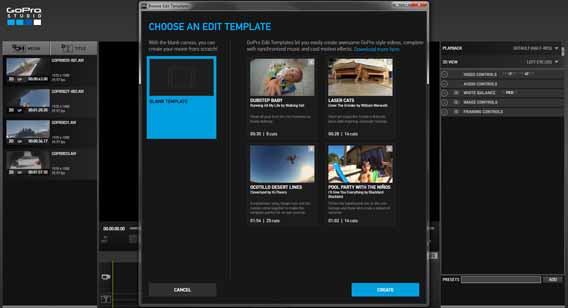
On the next screen, GoPro Studio offers you 2 alternatives: create a video from scratch, or use one of the templates in the software. If you choose the template option, all you have to do is replace the videos with your files. Below, I’ll show you how to create one from scratch.

Click Blank on the left hand side, and then click Create on the bottom right.

Create a video from scratch

To start, you can create an opening title for your video. To do this, click on Title in the top left corner (1). Then, type the text that you want to appear in the box in the top right corner, an option called Title properties (2). In the right column, you can change the text settings, including font, color, length of the gradient (fade), or select one of the presets from the list below.

Title your video

Then, drag the title from the left column into the box in the bottom right hand corner, next to the video camera and the  Drag videos here option, as shown in the image below. If you want the text to appear superimposed on the video, drag it to the second line, where you see Drag title here.

Drag video here

3. Edit the video

Next, add the video. Select the video you want to import first, and again drag and drop it to the timeline next to the clip you added earlier. In the right column, you can adjust various parameters such as the speed of the video, the duration of the fade, the audio levels, white balance settings, and the frame. At the bottom, there are also presets to give it a vintage or night vision feel.

Adjust settings

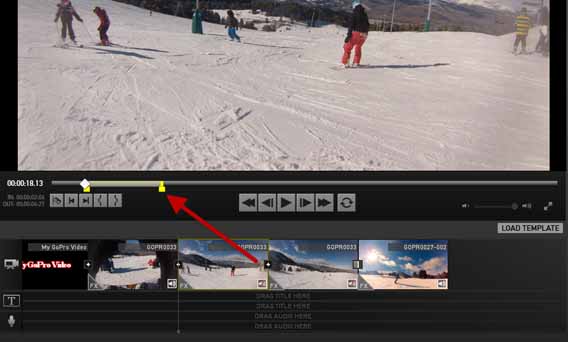
Similar to the import stage, you can also change the duration of each clip using the brackets at the bottom left of the preview screen, or by dragging the yellow lines in the video bar.

Change length of each clipUse the button with the razor blade symbol to cut files into two clips (1) if you want to apply different effects to each one. By clicking on the “+” symbol between the two clips, you can create a fade (2) effect, which is haha okay. sorry toa gradient between clips.

Create clips

When you’ve finished adding each clip, you can create a fade out effect to avoid the video being cut off abruptly. To do this, click on the last clip in the timeline. In the right column, under the heading Video controls, increase the line to fade out.

4. Add Music

If you want to give a little rhythm to your video, you can add audio tracks. To do that, click Media in the top left and then select the music you want to import. Then, drag the audio file into the timeline, where you see Drag your title here.

5. Export video

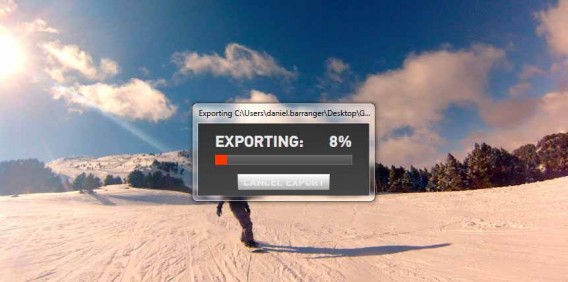
When you’ve finished editing the video, all you have to do is export it by clicking on the Export tab. Next, a window will open, where you can choose which video format you want to export it to. There are lots of video types, each suitable for different needs and devices.

Export videoIf, for example, you want to upload it on to YouTube, you have to choose the first option. If you want to see it on your computer or project it onto your TV at home, you need to select 1080p HD . Through the Custom option, you can set the parameters that you want. Once you’ve decided on them, hit Export .

Export your video

Press play

And you’re done! You’ve edited your first GoPro video and can upload it to Vimeo, import it to your smartphone, or project it onto your TV to show your family and friends.

If the process seems a bit difficult, don’t worry: mastering video editing takes time, but with a little practice, it’ll get easier. If you found that using this editing software was easy, you might want to try using professional software like Adobe Premiere Pro, which lets you add effects and has a lot more features to make your video a bit more personalized.

If you’re interested in video editing, check out our tutorial on How to edit videos using Free Video Dub.

The best Android games to test your reflexes

We continue our series of the best Android games with a selection specifically designed for the most daredevil among you. Love challenges and not afraid of a little competition? Then you’ve come to the right place – the days of Sudoku and Bejeweled clones are numbered!

These five games are filled to the brim with frantic action in the purest tradition of arcade games from yesteryear. If frantic action doesn’t put you off and you’re a bit of a thrill seeker, then these games should make you happy.

Vector

VectorVector just might be one of the best running games available today on Android. Your mission? Run as far as possible, taking care to avoid obstacles in your way. If Vector resembles any game, it’s probably Canabalt, although Vector’s realistic parkour movements take it much further.

More lifelike than, well, life, Vector incorporates the fundamentals of the art of Movement: rolls, climbing, somersaults, acceleration. Players who might be missing Yamakasi will be in heaven! Vector pushes realism to the limit, so your character will stumble and stagger about when moves don’t go to plan.  It’s a nervous little game that goes the distance with a tailored atmosphere and addictive gameplay to which a variety of new-to-the-genre movements are bring life.

Download Vector

Vector Android

Boson X

boson xDon’t make the mistake of thinking that Boson X is just another running game. This game really impressed me with its superhuman challenges, fiercely arcade-style gameplay and inimitable geek atmosphere. The toughest levels are pretty hard to overcome, but almost anyone can give the earlier levels a go. In a nutshell, put your Boson X reflexes to the test!

Like any good running game, you’ve got to run as far as possible while avoiding cliffs and other obstacles that will make life difficult for your beloved scientist. Your route will be blocked by various elements and trapped slabs which change with each game. One collision, and it’s game over.

But, unlike other titles in the genre, Boson X gives you a very specific mission. When you pass the blue tiles, you gain speed and get closer to your goal: 100% synchronization with elusive particles analyzed by your researcher.

Download Boson X

Boson X Android

Rayman Fiesta Run

Rayman Fiesta Run

Rayman Jungle Run was surely the best thing that’s happened to the Ubisoft saga since its return to 2D in 2011. If, like me, you loved the first forays of Ray Man onto mobile platforms, then there’s a good chance that you’ll fall in love with Ray Man Fiesta Run, the next in the adventures of the blond puff hero.

To the delight of fans of the series, Rayman Fiesta Run adopts the quick, nervous style of gameplay that made its big brother such a runaway ​​success.

This time you’ll need to work your way through 75 levels pitfalls in your mission to try and collect as many Lums, those little yellow bugs that look like bees, as possible. Although hidden in all 4 corners of the levels, these fireflies might give a bit of trouble to the most hardcore of collectors. Can you manage to find them all?

Download Rayman Fiesta Run

Rayman Fiesta Run Android

Punch Quest

Punch QuestPunch Quest is a high-speed action game with a stunningly simple concept. Your character will have to venture as far as possible into a dungeon while trying to survive waves of punches, slaps and uppercuts from enemies.

It’s useless worrying about the progress of the hero. In Punch Quest, your character will advance automatically and you’ll be free to focus on the distribution of punches thanks to the simple controls: one button for hitting directly in front of you, while the second button lets you to deliver uppercuts and make your character jump at the same time. It’ll be up to you to link these basic moves to create devastating combinations. This is truly an ode to the arcade games of the 90s!

Download Punch Quest

Punch Quest Android

Oh My Goat

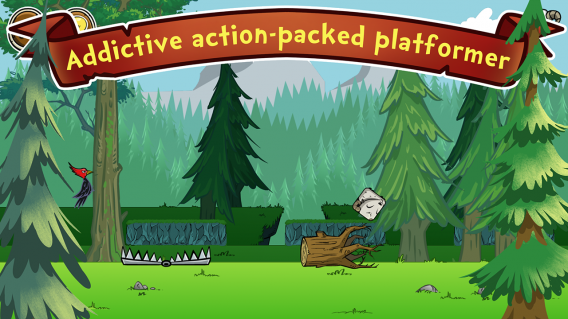
Oh My GoatOh My Goat is a small, but horribly addictive game in which you help a small goat cross levels filled with obstacles that get increasingly dangerous. If your four legged friend is to advance through the 480 levels of the game, it’ll be down to you to control his jumps.

Contrary to what the colorful graphics and kid-friendly (see what we did there?) animations might indicate, Oh My Goat offers grown-up challenges and you’ll need skill and dexterity if you hope to overcome the most devious of the levels. Spread over 5 different environments, the game manages to remain varied through its Machiavellian obstacles. Wolf traps, sharp rocks, vultures…everything works together to put your reflexes to the test.

Luckily, your little ibex acquires new skills throughout his journey: acceleration, hovering, double jumps…you won’t be bored for a second. A really surprising gem of a game!

Download Oh My Goat

Oh My Goat Android

Players looking for real challenges will see these 5 titles as worthy heirs of the arcade games of yesteryear. The ideal solution for pushing your limits and putting your reflexes to the test!

If you think we forgot your favorite or you’ve got an Android game in mind that’s perfect for testing reflexes, then share your finds in the comments!

If you want to check out even more Android games, take a look at our entire best Android games series.

Google Translate to get live translations with Word Lens purchase

Google has purchased the live translation app Word Lens and will be integrating its technology into Google Translate. Word Lens is an app that uses your phone’s camera to scan and translate words in real-time.

Google Translate has the ability to translate photographed text but the feature is slow. By integrating Word Lens’ technology, Translate will be able to translate written text quickly. This can make international travel less intimidating.

Below is the official statement from Word Lens about the acquisition:

“With Word Lens, we’ve seen the beginnings of what’s possible when we harness the power of mobile devices to ‘see the world in your language.’

By joining Google, we can incorporate Quest Visual’s technology into Google Translate’s broad language coverage and translation capabilities in the future.

As a thank you to everybody who supported us on our journey, we’ve made both the app and the language packs free to download for a limited time while we transition to Google.

We’re looking forward to continuing our work at Google – stay tuned!”

The statement implies that development for Word Lens will stop. This makes sense if Google is planning on integrating the app’s technology into its own Translate app.

If you haven’t tried Word Lens, you can download the app for free. Language packs are also free for a limited time while the company transitions to Google. The app currently supports Russian, Spanish, French, Italian, German, Portuguese, and English.

Download Word Lens: Android | iOS

Source: Word Lens

Via: Android Police

Follow Lewis on Twitter @lewisleong

RELATED STORIES

Follow the 2014 World Cup in Brazil using social media

The 2014 World Cup in Brazil won’t just be the world cup of soccer; it’ll also be the world cup of social networking. With this in mind, we’ll explain how to stay up-to-date on games, players, and the national team through various social networks.

You probably followed the 2010 World Cup in South Africa on TV, streamed the games online, or kept yourself informed through a mix of print and online newspapers.

But even back in 2010, there were those who diligently used social networks to update and share messages. Japan’s 3-1 victory over Denmark was enough to set a new record for tweets per second, at 3,283. During the final, Twitter users were tweeting from 172 countries in 27 different languages.
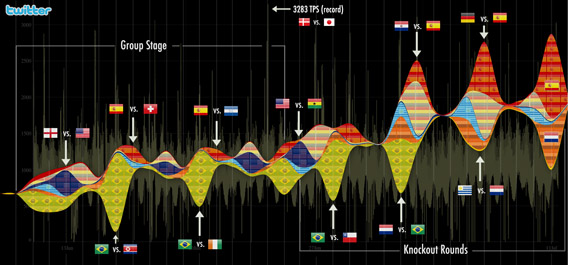
Use of Twitter in South African World Cup

Use of Twitter during South African World Cup. Infographic created by @miguelrios

Four years later, and with an even greater variety of social networks and digital media at our disposal, predictions from the president of global customer marketing and sales at ESPN, Ed Erhardt, aren’t surprising. According to Erhardt, the World Cup in Brazil will be “the biggest social event ever.”

So how can you prepare for the 2014 World Cup? For starters: use the right tools on Twitter to follow the most important accounts, “Like” the right Facebook pages, and don’t miss key hashtags that will dominate social networks from June 12th.

Following the most important players

The first step is to follow the best players participating in the World Cup. The National Championships have come to an end, and the attention of fans and players is now focused on the World Cup itself.

As teams start to prepare for the championship, some players have actually been banned from social media, like the French national team or Mario Balotelli, in order to keep his head free from distractions. There’s also some big names, like Messi, who actually don’t have a Twitter account.

Despite some players not having access, it’s likely that Facebook or Twitter administrators will continue to post on their behalf, and even popular unofficial accounts will be flooded with updates. In short, posts and tweets will find their way into cyberspace, and if you want to keep up, you’ve got to follow the top players.

Here’s our list of the top 11 players that are most active on social media and will undoubtedly be updating their status’ regularly at the 2014 World Cup in Brazil.

Follow the official (and unofficial) World Cup channels

Another way to follow the World Cup and get immediate news, even before any news outlet breaks it, is to follow hashtags and specific accounts.

FIFA itself has two Facebook pages (FIFA World Cup and FIFA), two Twitter accounts (@FIFAWorldCup and @FIFAcom), and a Google+ account (FIFA World Cup), where you’ll find public information, photos, and updates.

FIFA also has a Twitter account dedicated to media called @FIFAMedia, where you can find other information from the press, radio, and TV. Meanwhile,  FIFA has its own YouTube channel, where it publishes videos about the competition.

There are also a ton of unofficial accounts that you can follow on Twitter, including @FIFAcomClub (an account for connecting fans), @FIFAworldcup14 (the unofficial guide to the World Cup), @FIFAWorldCupTM (news), @2014WC_Brazil (news), @FifaWrldCup_14 (a parody), and many more.


Official account of the 2014 FIFA World Cup in Brazil

Use Hashtags

Another essential tip for following the 2014 World Cup in Brazil is to search for and use hashtags from other Twitter users. You can find tweets about the most popular topics and get involved in conversations, without having to follow the accounts that tweeted it.

The most popular hashtags globally will be #WorldCup, #FIFA, #WorldCup2014#Brasil2014, #FifaWorldCup and #FifaWorldCupBrazil. Many more will pop up during the course of the tournament– to find out which ones are most popular, keep an eye on global trending topics.

The official Twitter Brazil account has created a public list to make following each individual national team easier. To get a complete view of tweets from the teams that’ll be participating in the World Cup, you’ll want to subscribe.

Stay connected with the US Men’s Team

Aside from the international superstars, you can also follow the US Men’s National Team on Facebook, Twitter, and even Instagram. On Twitter, @ussoccer is the official feed for the US Men’s Team, along with an official Facebook page (U.S. Soccer) and an official Instagram account (@ussoccer).

US Soccer Twitter

Hashtags are important for following your team too. The most popular hashtags so far are #1N1T and #OneNationOneTeam, which is the slogan for the US’ World Cup campaign. Once the tournament gets into full swing, #USAv— (the three letter acronym of the opposing country) will be easiest way to follow individual games.

Of course, it’s not just the national team accounts that’ll be sharing info about the tournament. A lot of players on the US National Team are really active on social media and can give you up-to-date info right from the field, including a behind the scenes look at what’s going on in between matches. Below are the US Team’s 11 most active players on Twitter, Facebook, and Instagram, as well as the ever popular coach Jürgen Klinsmann.

Coach: Jürgen Klinsmann (Twitter | Facebook)

Forwards:

Midfield:

Defenders:

Goalies:

Use the right tool for you

Keeping track of all your accounts, hashtags and pages can be difficult, especially if you’re not an expert Twitter user. To make your life a bit easier, here are two pieces of advice.

If you’re a bit less experienced, the best thing you can do is create lists on Twitter to get all the accounts relating to the World Cup in one place, not confusing it with your normal social network stream.

To create a list, log in to Twitter and click on the gear wheel in the upper right of the screen: from the menu that pops up, click on Lists. On the next page, click on Create New List in the bottom right. Here, you can add as many accounts as you want to follow, and share the list with whoever you want.
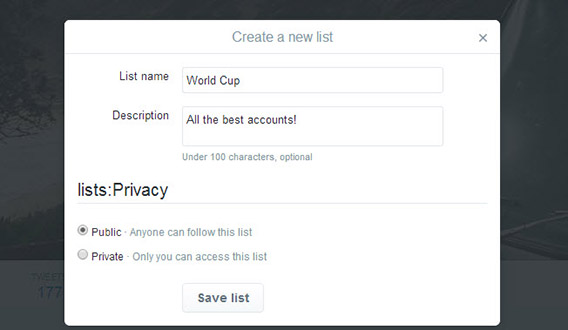
Create list on Twitter

Create a new list for the World Cup

If you’re a more advanced user, you might want to use Hootsuite (available as a web app, but also on Android and iPhone), an app that lets you aggregate all your social networks in one place. From here, with a single tab in the browser, you can manage Facebook, Google+ and Twitter, creating a personalized stream of feeds or hashtags so that you don’t miss a single second of the competition.

Either way, this is going to be one of the most social World Cups yet, and if you want to get as close to the action as you can without being in Brazil, social media will definitely help.

Will you be following the 2014 World Cup Brazil on social media?

The Softonic Minute: Android, Twitter, Gmail and The Sims 4

A research group finds a way to run iOS apps on Android, Twitter lets you mute followers, Gmail gets a radical redesign, and The Sims 4 previews its new character creator. Check out this week’s hottest software news in the Softonic Minute.

Default player

<!–
By use of this code snippet, I agree to the Brightcove Publisher T and C
found at https://accounts.brightcove.com/en/terms-and-conditions/.
–>

<!–
This script tag will cause the Brightcove Players defined above it to be created as soon
as the line is read by the browser. If you wish to have the player instantiated only after
the rest of the HTML is processed and the page load is complete, remove the line.
–>
brightcove.createExperiences();

Cider – a system that allows iOS apps to run on Android

A research group at Columbia University is developing a system that can run iOS and Android apps together on an Android device. The prototype runs on a Nexus tablet with the latest version of Android. Continue reading…

In other iOS news, leaked images of iOS 8 show a new split screen feature. Continue reading…

Twitter update lets you silence your friends

Twitter is rolling out a new feature that lets you mute a person you’re following. Instead of unfollowing someone altogether, you can spare their feelings and mute them instead. Continue reading…

The Sims 4 trailer shows off powerful character creator

The latest trailer for the upcoming The Sims 4 game shows off a powerful character creator. Called “Create A Sim,” the tool lets players drag their mouse to manipulate character features. Continue reading…

Google experiments with dramatic Gmail redesign on the web

Last month, we saw some leaked screenshots of a dramatic Gmail redesign for Android that brought pinning and snoozing features. Now, we have more evidence that this dramatic Gmail redesign is coming to the web as well. Continue reading…

Make sure to check out all of our past Softonic Minutes.

Google Sheets is easy to use, difficult to master

Spreadsheets can be used for lists or simple sets of data, but they can also be insanely complex, consisting of equations running through multiple tabs. Unless you’re some kind of accountant or data analyst, you probably won’t need to use the complex equations in Google Sheets.

But as a organization tool, Sheets is an excellent alternative to Microsoft Excel. It loads much faster than a desktop app, and simplifies the interface so that you don’t immediately get overwhelmed.

A lot of options

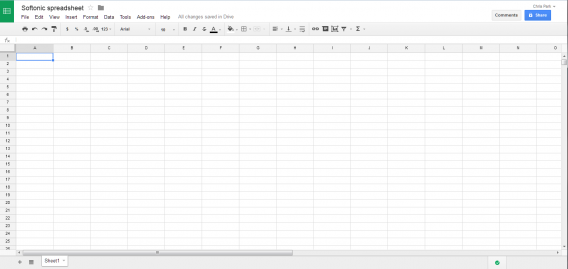
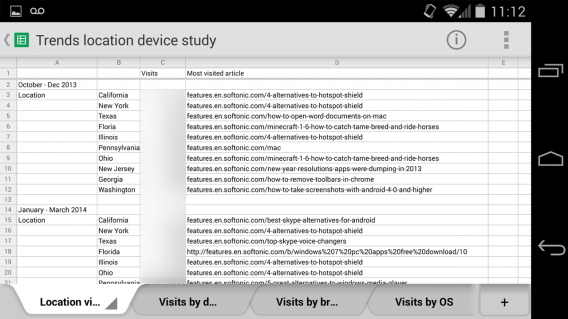
The basic layout of Sheets is just like other spreadsheet programs. A blank sheet contains the recognizable columns and rows, allowing you to manipulate data. It works really well for lists and combining data, but when it comes to those complex equations that use multiple tabs of data, you may get confused.

Google Sheets

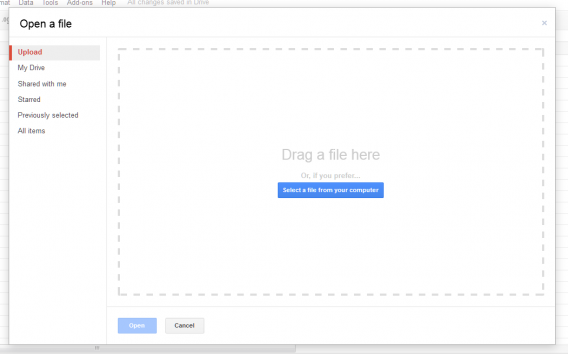
Sheets supports .xls, .xlsx, .ods, .csv, .tsv, .txt, and .tab. This covers Excel, OpenDocument (OpenOffice), and other less common formats. One issue I ran into was importing some Excel files into Sheets; the files were Facebook Page analytical data and were around 3 MB. It could be that file size is an issue, or it could be the fact that exporting the report as an Excel also shows a warning when opening in Excel, but regardless, Sheets couldn’t covert the file.

Google Sheets upload

Other smaller reports I previously made in Excel converted without issue.

That’s one thing to keep in mind: Sheets doesn’t simply read and edit Excel files, it converts them to Sheets format. With more advanced spreadsheets, you can see some data loss, like equations not working.

Common equations

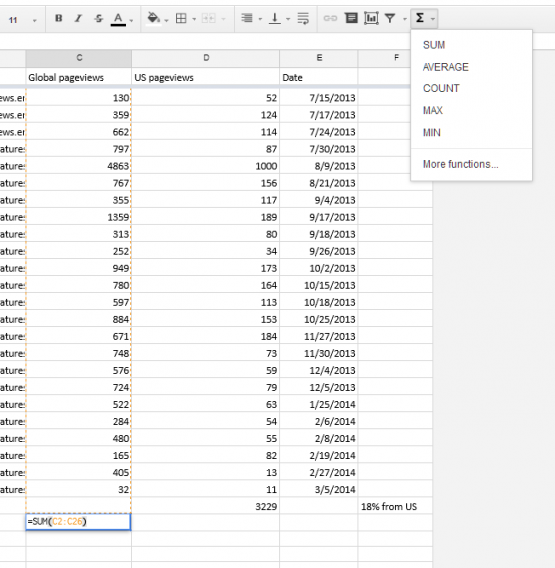
Generally, I only use the SUM function in Sheets to add up simple figures. Sheets has these simple functions in an dropdown menu that’s easy to navigate, but if you need more advanced equations, Google has a functions list.

Google Sheets functions

Collaboration

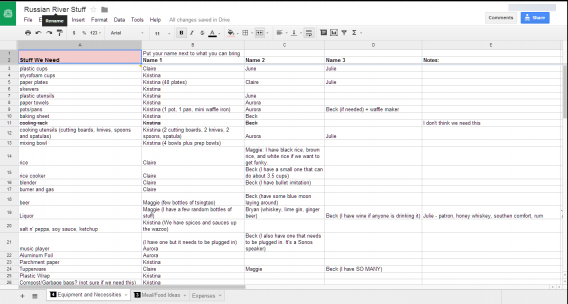
The most useful tool in Google Sheets is the collaboration function. The ability to add multiple users to a sheet and have real time edits and chats is really useful, especially for group projects, and workrs just like Google Docs or Presentation. Instead of emailing one file around over and over, an entire group can use a centralized sheet.

Google Sheets collaboration

Since there’s a lot of versatility in Sheets for managing data, the way you use it is open.

Android and iOS

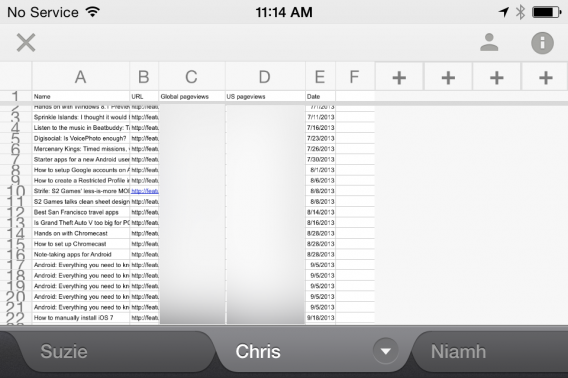
Google Sheets for Android and iOS require separate apps to edit. You can still view them in Google Drive, but you can’t complete any work in the cloud storage app. The apps also suffer the same fate as Google Docs: you can edit them, but the screen size of the device is the limit for how much use you can get from the app.

Google Sheets Android

It works for quick edits, but I don’t think it’s really possible to create a spreadsheet from scratch unless you’re working with a wireless keyboard. The screen takes up so much room on the iPhone and Nexus 5 that you can barely see the data.

Google Sheets iOS

It’s good that the apps are available outside of the Google Drive app because updates can be released more frequently, but the usability of the app isn’t quite there for everyday usage.

A versatile spreadsheet app

Google Sheets is, on the surface, an easy to use web app. The presentation of tools promotes the app for basic users who need to organize data quickly. Advanced users, on the other hand, may have some trouble adjusting to the layout because some of the tools are hidden or located on a different page, like the full functions list.

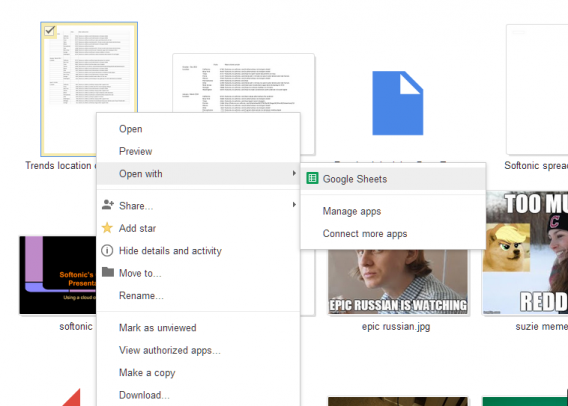
Google Drive open with Sheets

The mobile apps are still fairly unusable for natively creating spreadsheets, although they work well for edits. That’s not to discount the usefulness of having the app, but it definitely doesn’t have the same usability as the web.

Collaboration is still the best tool within all of Google Docs’ apps, and the centralized editing made possible with Sheets makes it very useful as a replacement for Excel and other spreadsheet apps.

Next up, Google Forms and Drawings.

Related Articles

Flappy Bird developer’s next game features a guy jumping across buildings

Yesterday I reported that Flappy Bird will return in August and may feature “one guy jumping form building to buildings [sic].” Today, Flappy Bird developer Dong Nguyen revealed that this will actually be a completely new game.

Nguyen tweeted out a teaser picture of an 8-bit man jumping on a building, which looks very similar to the game Canabalt. The game features the same retro-styling of Flappy Bird.

“I am making a new game. So people can forget about Flappy Bird for a while,” tweeted Nguyen.

Perhaps the new jumping game will tide fans over until the re-release of Flappy Bird.

Source: Dong Nguyen (Twitter)

Follow Lewis on Twitter @lewisleong

RELATED STORIES