The leaked images were correct. Instagram’s Bolt messaging app is now a reality but you can only get it if you’re in New Zealand, Singapore, and South Africa. The app is currently being tested in these countries but will make it to other countries soon.
Using Bolt is simple; tap on a friend’s face at the bottom to send him or her a photo. Hold on to their face and you’ll send a video. Once a photo or video is viewed, it’ll disappear forever.
What you’ll notice is that Bolt doesn’t let you send photos en masse. That keeps the experience one-to-one, and more intimate. Facebook, who owns Instagram, has their own Slingshot messaging app (Android | iOS) which does support blasting photos to multiple contacts.
Instagram already has a traditional messaging feature called Instagram Direct, which allows you to message users privately. The company claims the feature has 45 million users every month.
Facebook is still trying to nail ephemeral messaging, which is dominated by Snapchat (Android | iOS). With Slingshot and now Bolt, Facebook can experiment and figure out what users really want.
Instagram admits Bolt is influenced by many other apps like Snapchat and Taptalk. “When Instagram itself launched four years ago, we weren’t the first photo filter app. Our tradition is that we look at a space and create a super simple, pretty experience to fit it,” said a spokesman speaking with The Verge.
Facebook’s Slingshot app hasn’t taken off, but maybe Bolt will be different.
Popular Android keyboard replacement Swiftkey received a major update today. If you’ve noticed some lag using the keyboard, that’s all fixed now.
Both traditional typing and Swiftkey’s Flow gesture typing have been sped up. I’ve been using the keyboard for years now, and there’s always been a slight (but still annoying) lag when typing quickly. That lag has been eliminated in this latest update. Flow now offers better prediction and finger tracking too.
The update also brings bug fixes for random crashes, disappearing backgrounds for certain themes, and more.
If you haven’t tried Swiftkey yet, you can get it for free at the download link below. Themes are 33% off for a limited time.
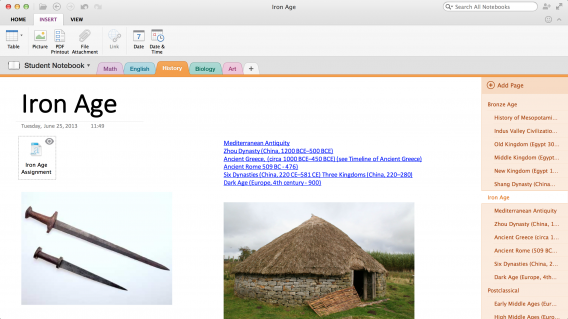
Microsoft updated OneNote for iOS and Mac, just in time for back to school. Now you can access your notebooks from OneDrive for Business as well as attaching files.
You can attach audio clips, PDFs, and more and manipulate them in OneNote. This is handy for adding audio recordings to your notes to help you study. You can even attach other Office documents into your OneNote notes. Files can be previewed in the app or you can open them in their respective apps.
On an iPhone or iPad, you’ll see a new option to “Open in OneNote” from the share menu. This is how you can attach pictures and documents from other apps into OneNote.
Microsoft also updated the iOS and Mac apps to allow access to password protected sections of your notes. You’ll be prompted to enter a password when you reach a protected area in your notes.
OneNote is a great note-taking application especially now that it’s free across all your devices.
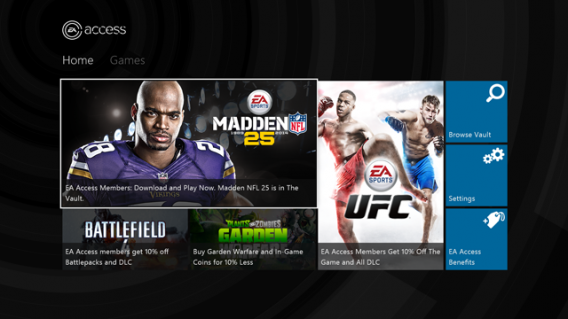
Electronic Arts has announced a premium subscription service called EA Access exclusively for the Xbox One. This partnership with Microsoft will bring EA’s titles to subscibers for $4.99 per month or annually for $29.99.
Currently in beta, EA Access has FIFA 14, Madden NFL 25, Peggle 2, and Battlefield 4 as trials with more games to be added.
The EA Access membership will also include:
Members get 10% off EA digital content from the Xbox Games Store
Digital rentals for up to five days before the release date
EA Access will “launch on Xbox One soon,” but there’s no specific date given.
There are some questions with this: Is EA Access a response to PlayStation Now? Does EA Access require an Xbox Live Gold account?
You can’t argue that Ubisoft produces really great trailers for its games. That’s no different with the newest Assassin’s Creed Unity trailer featuring Assassin Arno Dorian running through the streets of Paris towards a town square where the French government is rapidly beheading criminals with its favored tool, the guillotine.
The CG-only trailer shows off Dorian’s acrobatic movement and combat before he reaches the guillotine and rescues Elise, a woman wearing a Templar cross. Whether she’s a spy for the Assassin’s Guild is unknown, but according to Polygon, Ubisoft states she’s central to Unity’s story.
Default player
brightcove.createExperiences();
Elise will also be featured as the main character in a book tie-in by Pengiun Random House where the story unfolds from her perspective.
Assassin’s Creed Unity will be available October 28 for PlayStation 4, Windows, and Xbox One.
The Software Clinic is our series to help diagnose and solve any software issues you may be having. Send us a question, and we’ll do our best to find the solution.
This week, Manuel thinks that someone may be piggy backing on his Wifi connection. Luckily, with the help of some apps, you can spot any suspicious intruders. Check out the video below to see how.
Default player
brightcove.createExperiences();
If you need more help from the Software Clinic, check out some of our past questions:
Chrome, Firefox, Internet Explorer, and Opera: which one is themost powerful browser? As the window to your online world, your browser is probably one of the most important programs you have on your computer. For this reason, we decided to put the top four to the test to see how they stack up against each other.
Unsurprisingly, not all browsers are created equally. Some have more experience, like Internet Explorer, others are open source, like Firefox, some are sponsored, like Google Chrome, while some are shy, like Opera. To properly compare these browsers, we did an objective test in a controlled environment.
We used a computer with Windows 7 (which is why we excluded Safari from the list), and established criteria to define the winners: speed, memory usage, and web performance (speed and efficiency). Here, the tests are strictly based on objective rather than subjective criteria, because at the end of the day, personal taste always comes into play when choosing your browser.
For a full explanation of exactly how we carried out our tests, check out the complete methodology we used for the browser comparison.
To make it even easier, consider each browser like a car: each one serves the same purpose, but some are more suitable than others depending on what you need it for. You wouldn’t use a Range Rover to drive around a race track, just like you wouldn’t use a Lamborghini for off-roading.
With this analogy in mind, let’s see how the browsers stack up in each category and figure out which browser is best for you.
Speed: ready, steady, go!
Every time you start your browser, does it open a new window, or does it open the tabs you had open last time?
We wanted to be as close to reality as possible when it comes to browser usage, so in the speed tests, we considered both cases: we opened each browser with a single tab, and then with 11 tabs at the same time.
On top of that, we also split the test into two separate trials: cold start-up and warm start-up. For the first, we opened the browser as Windows’ first program. We then closed it, and opened it again for the second round.
In this video, you can see the test carried out by opening the browser for a second time (warm star-up) with 11 tabs.
Default player
<!–
By use of this code snippet, I agree to the Brightcove Publisher T and C
found at https://accounts.brightcove.com/en/terms-and-conditions/.
–>
<!–
This script tag will cause the Brightcove Players defined above it to be created as soon
as the line is read by the browser. If you wish to have the player instantiated only after
the rest of the HTML is processed and the page load is complete, remove the line.
–>
brightcove.createExperiences();
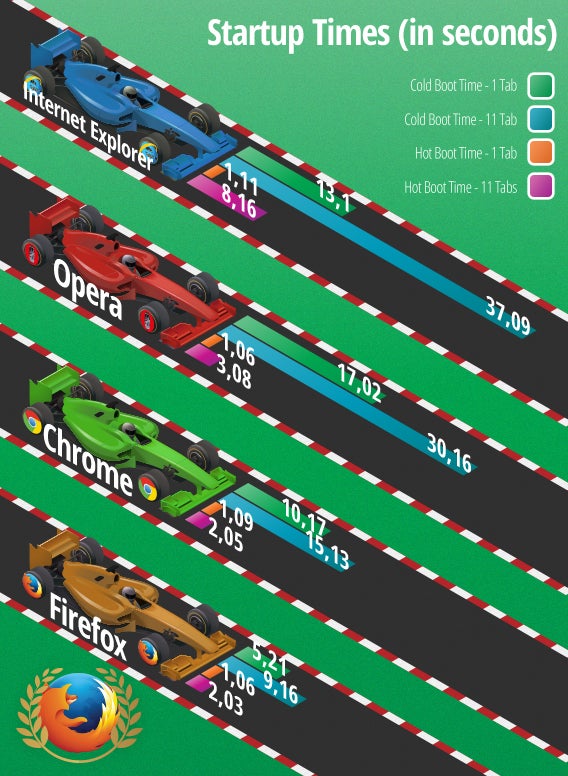
The results speak for themselves: Firefox is the fastest browser.
If you’re most concerned with how quickly your browser can open, Mozilla’s browser is a safe bet. The difference with its competitors is significant: opening a single tab in cold start-up is almost twice as fast as the runner-up, and 4 times faster than the last place browser when opening 11 tabs in warm start-up.
The silver medal goes to Chrome, while Internet Explorer and Opera struggle behind the other two. What’s interesting is that although Opera is based on Chromium, the same open source browser that Chrome is based on, it was significantly slower than Google’s browser.
Given the results, we can’t go without mentioning that Firefox uses a really great trick that gives it an advantage over its competitors when opening multiple tabs at the same time: while Chrome, Internet Explorer, and Opera load all tabs at once, Firefox focuses only on the first one, leaving the rest in the background to load only when you need them.
The advantage is considerable: not only does it reduce unnecessary energy usage, it only concentrates on opening the tab you need immediately, making it faster and giving it an edge over the others.
Firefox beats its competitors by a head and takes the lead thanks to a lighter and more streamlined structure.
Memory usage
How much RAM memory does each browser use? In other words, does the browser slow down your PC? This is what we took into account in the memory test.
We analyzed the consumption of resources in several situations: with a tab open, with 20 tabs open, and with only one tab left after closing the other 19 that were open. For this test, we used Chrome’s memory tool.
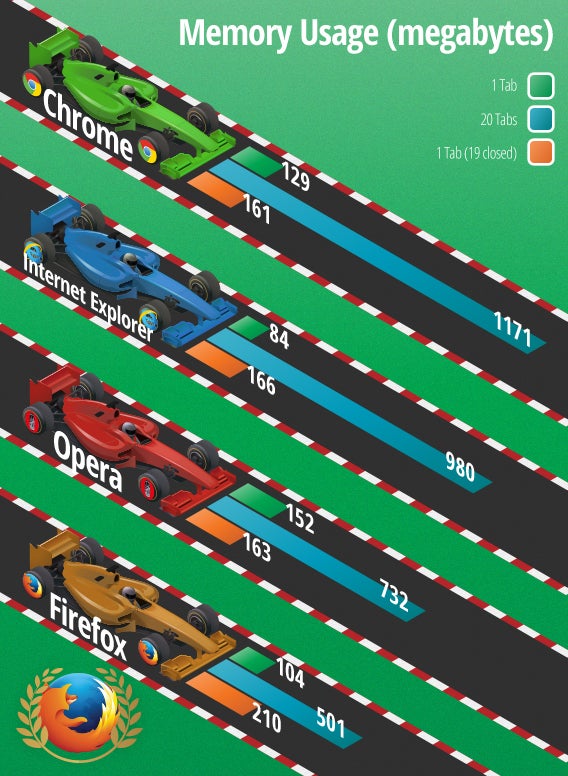
Although it didn’t win by as much of a landslide as in the previous tests, Firefox clearly came out on top, using the least memory.
Going into detail, you can see that Internet Explorer uses less RAM with only one tab open. On the other hand, Firefox is best if you have many tabs open. Chrome was able to free the most memory after closing many tabs, although the difference with Opera is very small.
Why is Firefox the best for RAM usage? Not only did it finish first in our tests, but given the fact that you generally browse with more than one tab open, Firefox’s victory over other browsers is actually quite overwhelming.
To summarize, Internet Explorer is like a car that optimizes fuel consumption at the start, while Chrome and Opera save resources in the long run. Firefox, on the other hand, optimizes fuel consumption when you need it most thanks to a system that allows it to focus on only the open tab.
Mozilla’s browser has the lowest consumption and the best megabyte per second performance.
Web performance and speed
Which browser opens pages the fastest, and which opens websites with the highest quality?
To establish the efficiency and speed of each browser, we used comparison sites, websites which measure the performance of a browser through specific tests carried out in real time, directly from your computer.
Specifically, we used Peacekeeper, which focuses on speed and JavaScript performance, and Browsermark, which analyzes several factors related to the performance of the browser. These sites have their own scale, independent from one another.
Default player
<!–
By use of this code snippet, I agree to the Brightcove Publisher T and C
found at https://accounts.brightcove.com/en/terms-and-conditions/.
–>
<!–
This script tag will cause the Brightcove Players defined above it to be created as soon
as the line is read by the browser. If you wish to have the player instantiated only after
the rest of the HTML is processed and the page load is complete, remove the line.
–>
brightcove.createExperiences();
Default player
<!–
By use of this code snippet, I agree to the Brightcove Publisher T and C
found at https://accounts.brightcove.com/en/terms-and-conditions/.
–>
<!–
This script tag will cause the Brightcove Players defined above it to be created as soon
as the line is read by the browser. If you wish to have the player instantiated only after
the rest of the HTML is processed and the page load is complete, remove the line.
–>
brightcove.createExperiences();
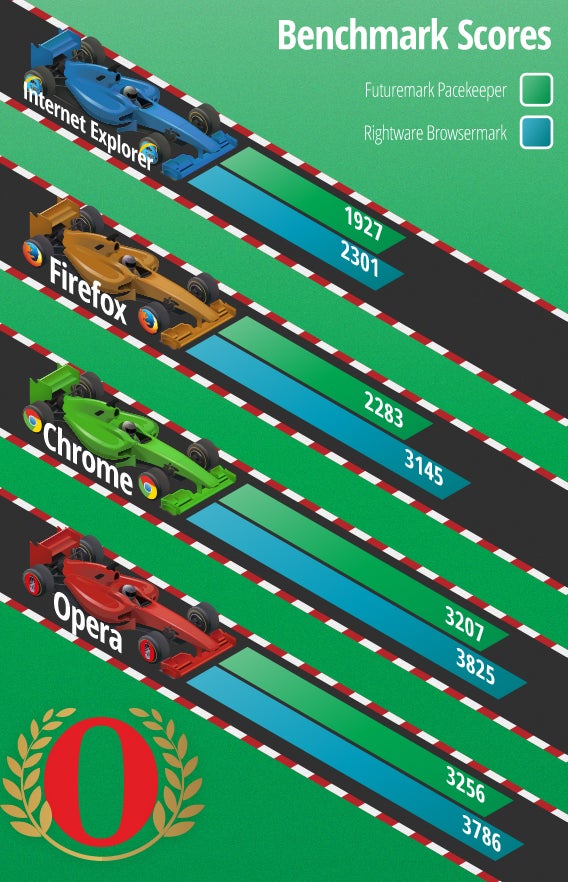
For both sites, Chromium-based browsers Chrome and Opera proved to have the best web performance.
With Peacekeeper, Opera was the best, beating Chrome, while with Browsermark, it was the other way around: Google’s browser came in first, immediately followed by Opera.
In both tests, Firefox and Internet Explorer are far behind the Chromium-based browsers. The browsers developed by Mozilla and Microsoft placed third and fourth respectively in both tests.
Chrome and Opera have the bodywork that hides a very powerful engine, giving them a performance and browsing speed far superior to its competitors.
Final result
So, what is the best browser? According to the results of our comparison, the best browser is Firefox, winning two out of three rounds, as you can see in the ranking below.
In the end, however, your choice of browser will depend on your needs, on the websites you visit, and on how you use it: the best browser is the one that works for you. In fact, there are also many other factors, such as aesthetics, available extensions, integration with other services, and usability, that you can consider. For this reason, we only went through the most basic and necessary criteria to help guide your choice.
Default player
<!–
By use of this code snippet, I agree to the Brightcove Publisher T and C
found at https://accounts.brightcove.com/en/terms-and-conditions/.
–>
<!–
This script tag will cause the Brightcove Players defined above it to be created as soon
as the line is read by the browser. If you wish to have the player instantiated only after
the rest of the HTML is processed and the page load is complete, remove the line.
–>
brightcove.createExperiences();
Firefox is the best browser if you have a last generation computer. It’s fast and uses fewer resources, which guarantees good performance on any PC. It’s like a high-level subcompact: low fuel consumption, and quick. In addition, it’s an open source software that can be customized with many extensions, a smart and reliable choice.
Chrome is a good option if you have a powerful computer. Google’s browser (along with Opera) has the best performance and speed online, according to the results provided by the comparison sites. You can think of it as an all-terrain vehicle: big and with a powerful engine, but also heavy and not very agile.
With similar features to Chrome, Opera is the browser for those who have a powerful computer but want to be independent from Google. In fact, the Norwegian browser has a longer start-up time but uses less memory than Chrome, and has nearly identical performance online. It’s like choosing a car with an engine manufactured by a famous company but sold to another.
On the other hand, Internet Explorer is recommended for those who are faithful to Microsoft. Lagging behind in the start-up speed test and in online performance, it could be better on Windows 8. Internet Explorer is like a locally manufactured engine that fails to succeed abroad.
It’s not over yet!
In the coming months, we’ll run tests on the new versions of each browser to see if the updates improve their performance. In November, we expect to have Firefox 36, Chrome 38, Opera 25 and (maybe) Internet Explorer 12, so stay tuned for the next race.
Given most people’s heavy usage of the internet, browsers are increasingly one of the most important programs you have on your PC, and we wanted to test things which can be objectively measured but which are key when deciding which browser you should use. Most importantly, it’s considering whether a browser is both fast and light.
We’ve designed a methodology to measure the performance that, in addition to being as objective as possible, aims to be easily understood by anyone who wants to recreate it themselves.
The PC we used
The computer we used for all tests is a standard PC with 4 GB of memory. The operating system is 64-bit Windows 7 Ultimate with all the updates, and it has Windows 7 because it’s the most popular OS.
This is the PC we use for the tests; the hard drive is completely defragmented
During the test, we didn’t run other software (not even the antivirus) to avoid it interfering with the tests. All power-saving options were disabled so that the PC wouldn’t shut down due to inactivity.
We restarted the PC before each test, and we left it for 30 seconds before logging in, which we timed to make sure that all tests were done on an even playing field.
During the speed tests we don’t run any other program, not even an antivirus
Loading pages from the Internet implies that speed will always change, so the pages we used for the speed test were loaded from a PC running Nginx, a very fast and reliable web server.
A local server avoids errors due to the reliability of the connection
Browsers were always run in clean configuration with no history, cookies, or extensions, to make sure that there was no code external to the browser running at the same time.
Finally, the PC we used for the tests was connected to the Internet via a fiber optic connection. All tests are recorded with Adobe Premiere and an HDMI capture.
The tests we run for each browser
We chose to run only the tests that we considered to be accurate and as close of a representation to its daily use as possible, which included looking at the speed when loading many tabs, and performance measurements that use graphs and common operations.
Programs such as Peacekeeper test the page for common tasks.
The tests we carried out are:
Cold start-up with one tab on the home page of each browser. We measured the time it takes the browser to run and open Google after starting the computer.
Warm start-up with one tab. The same test was repeated half a minute after a cold start to see if the browser is faster after running it once.
Cold start-up with 11 tabs. 11 pages were loaded from the local web server and the clock stopped when the browser responded to scrolling using the mouse wheel.
Warm start-up with 11 tabs. Similar to the cold test with 11 tabs, we tested it 30 seconds after closing the browser from the cold start-up test.
Memory usage in megabytes. Memory usage was measured with 1 tab loaded, with 20 tabs loaded, and again with 1 tab loaded after closing the others, to verify how the memory recovers.
Speed tests with web technologies, which are used to create complex web apps. We chose to consider two independent tests which we believe are more reliable and closer to the real use:
Peacekeeper, from the independent company Futuremark
Times were measured with Adobe Premiere: in each case, we took into consideration the time lapsed until the frame that marked the end of the test. The sites we used to measure speed include:
In the memory test, we opened Google’s homepage and Softonic Spain’s Top 20 reviews. We waited a minute before measuring the memory again after closing all 20 tabs.
Chrome’s memory monitor is very reliable when measuring usage
Measurements were taken three times for each situation and then averaged. We used Chrome’s memory monitor for measurement, a very reliable tool when it comes to checking the memory usage of modern browsers.
A method that’s evolving
We want this methodology to improve with time. It’s open to change and suggestions, which we’ll evaluate and apply in subsequent editions of our performance comparison.
Facebook is finally moving forward with plans to remove Messenger from its main apps. The company announced plans to separate the apps April of this year. This week, Facebook will require users to download the Messenger app if they want to chat.
The company isn’t removing Messenger from its main apps to be a jerk. It actually makes a lot sense. Facebook’s main app is already pretty bloated so removing messenger will speed things up.
The Messenger app also offers a unique feature on Android called Chat Heads. It’s basically a persistent notification that sits on the side of your screen for quickly chatting. Chat Heads are great for multitasking.
When Facebook removes Messenger from its main apps, the chat button will still remain, but will take users into the Messenger app instead. If the app isn’t installed, it will take users to their respective app stores to download it.
You can find the full Facebook press release below:
In the next few days, we’re continuing to notify more people that if they want to send and receive Facebook messages, they’ll need to download the Messenger app. As we’ve said, our goal is to focus development efforts on making Messenger the best mobile messaging experience possible and avoid the confusion of having separate Facebook mobile messaging experiences. Messenger is used by more than 200 million people every month, and we’ll keep working to make it an even more engaging way to connect with people.
Do you ever need to scan documents, but don’t have a scanner? It’s now possible to scan, edit, and send PDF copies of important documents with your mobile device.
There are a lot of different apps that can help you scan, but they all differ in usability and quality. The best app that I’ve found, is CamScanner.
A good picture of a document
To take the best scan, the document shouldn’t be plastic or reflective, should have portrait orientation, and be as smooth as possible. Lighting is important so that there aren’t any shadows or unwanted glare. If there are any problems, you can edit the image after you’ve taken the photo.
CamScanner makes its purpose obvious.
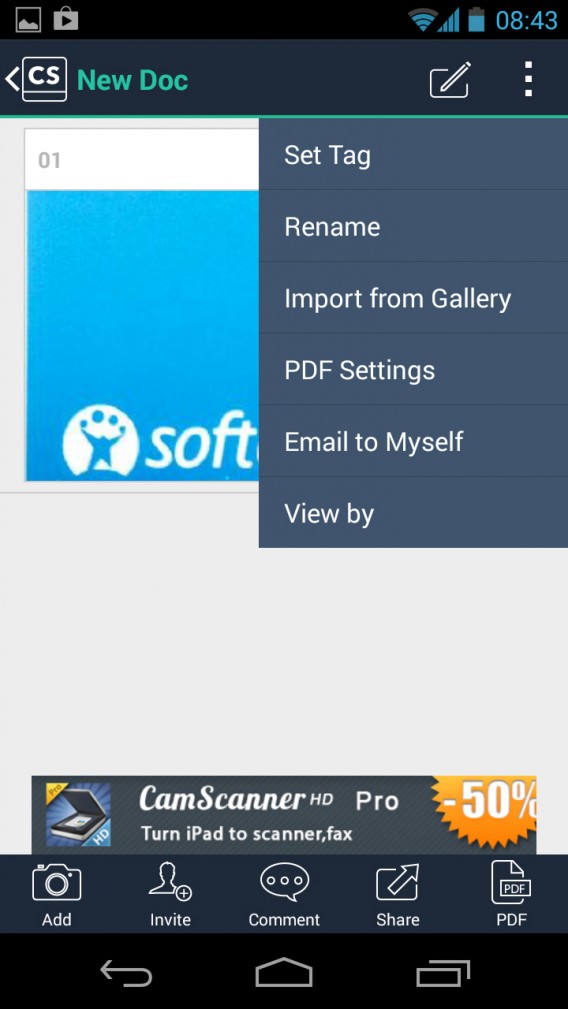
CamScanner uses your device’s camera to scan, but also has other options to fine tune the scan.
Edit your image
If you need to share documents, it’s important that they are good quality. CamScanner’s editing tools are great to fix problems. The auto-edit works well in CamScanner, and these improvements work in most cases.
Examples of use by CamScanner.
If you want to really optimize scans, learning the cropping settings is important.
Crop the scan
Since CamScanner takes photo, it might include the background, like your desk or table top. CamScanner can automatically detect the difference between the document and the background. It’s also important to note that you can manually edit the image and crop the scan until it’s perfect.
It’s important to take a good photo, but editing can help too.
Edit manually if necessary
You can edit a lot in CamScanner, including enhancing the document text and lighting. The app also has several presets already included. With manual editing, you can also change color settings like contrast and brightness.
Automatic or manual editing.
Make multi-page documents
If you’re scanning a multi-page document, CamScanner lets you combine them into one document in PDF format so that you don’t need to send each file separately.
Make an unwanted change? Return to the original scan.
Share or save
After you take the scan, you’ll probably either need to send or save it. CamScanner will export the scan as a PDF and send it to whoever you want.
If the scan is for personal use, you can upload the file to cloud storage like Google Drive or Dropbox.
If you use CamScanner often, I’d recommend you make a user profile.
Extra options
There are a few more cosmetic options in CamScanner. The app also has tags so that you can categorize documents or add people.
A simple scanner that works
CamScanner is a simple replacement for a physical scanner. It might not have the same quality results as a physical scanner, but it works. If you have a lot of things you need to scan, this is a good app to use.

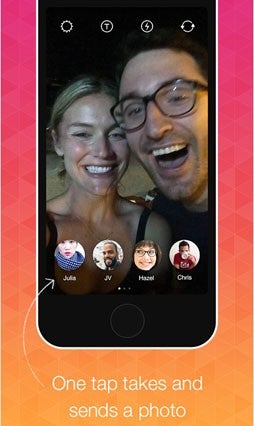 What you’ll notice is that Bolt doesn’t let you send photos en masse. That keeps the experience one-to-one, and more intimate. Facebook, who owns Instagram, has their own Slingshot messaging app (Android | iOS) which does support blasting photos to multiple contacts.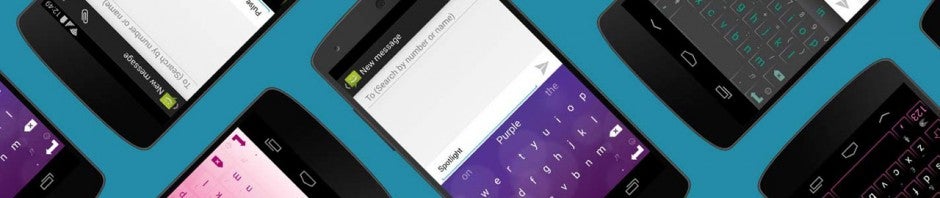
 On an iPhone or iPad, you’ll see a new option to “Open in OneNote” from the share menu. This is how you can attach pictures and documents from other apps into OneNote.