9 delicious alternatives to peanut butter

Allergic? Don’t like the taste? Try these alternatives for a tasty twist on peanut butter!

If you (or your child) have a peanut allergy, odds are the trouble was not so much literal peanuts but rather the ubiquitous ingredients made from peanuts. Peanut oil or peanut butter are the worst offenders.

It’s rough because despite them being such a common allergen, peanuts are still the most popular nut in the world, with almonds coming in as a close second. Funny enough, peanuts aren’t even a nut. In fact, the peanut is a legume, growing underground like a pea or a bean. That’s why other nuts are largely referred to as tree nuts.

While you can’t always be too sure what you’re getting into on the road and out of the house, you can start by controlling what’s under your own roof. Peanut butter might seem like a tough thing to live without (life with no PB&J is harder already), but fear not; we’ve put together a list of nine alternatives to the popular spread, some of which use nuts other than peanuts, and others that don’t use nuts at all. See what we’ve got to share.

9 alternatives to peanut butter

1. Pecan Butter

picture perfect pecan

If you’ve had pecan pie, you already how good this nut can taste! Their delicious flavor comes as a result of pecans being a little higher in fat than peanut butter. Despite that, there’s an argument that pecans are actually able to help lower cholesterol. A good source of fiber and vitamins (A, B, and E), pecan butter is a great way to go if you want an alternative to peanut butter that’s still got the familiar flavor and texture. Pecan butter also goes really well on pumpkin bread or put on sliced bananas.

You can buy it here.

2. Almond Butter

almond butter ftw!

If you’re looking for a healthy substitute for peanut butter, look no further than almonds. An awesome source of potassium, calcium, and iron, almond butter is even considered the most nutritionally dense nut, meaning it has the most nutrients per calorie and per ounce. You can even save money by making this superfood yourself. All you’ll need is almonds, honey, and salt! Check out this recipe here.

If you think almond butter is the solution you’re looking for, you can purchase it easily right here.

3. Pistachio Butter

pistachio butter is good on everything

Dubious? Before you scroll down further, remember that pistachio ice cream is a thing of beauty. Nutty, rich, and lightly sweet, pistachio butter is a more delicate alternative that boosts antioxidant levels, lowers cholesterol, and is a good source of protein. If you’re looking to overhaul your PB&J already, we’d recommend pairing this with cherry jam.

Get it right here.

4. WowButter

looks like peanut butter

If you’re allergic to any and all nuts, then this soy butter is probably the best possible solution for you. Gluten-free, nut-free, seed-free, and dairy-free, you’d be hard-pressed to find someone who couldn’t eat this product unless they specifically can’t have soy. Carrying all essential amino acids, as well as great source for omega fatty acids and protein (there’s even more protein here than in peanut butter!), WowButter is a spread that will fill you up quickly and efficiently. It may even help to prevent cancer.

Not a believer in this product? Don’t knock it until you try it!

5. No-nut butter

no nut butter has no nuts!

Much like the above WowButter, here’s another great pick for a kid who’s allergic to any and all types of nuts. Sneaky Chef’s No-Nut butter is exactly what the label claims: A peanut butter texture and taste with zero nuts of any kind. So what is the butter made of if not nuts?

Peas.

Yeah. We were surprised too. No-Nut butter is “all the taste without the nuts” and is a decent source of fiber, protein, and iron to boot!

If you’re skeptical, see what we’re talking about by buying it yourself.

6. SunButter
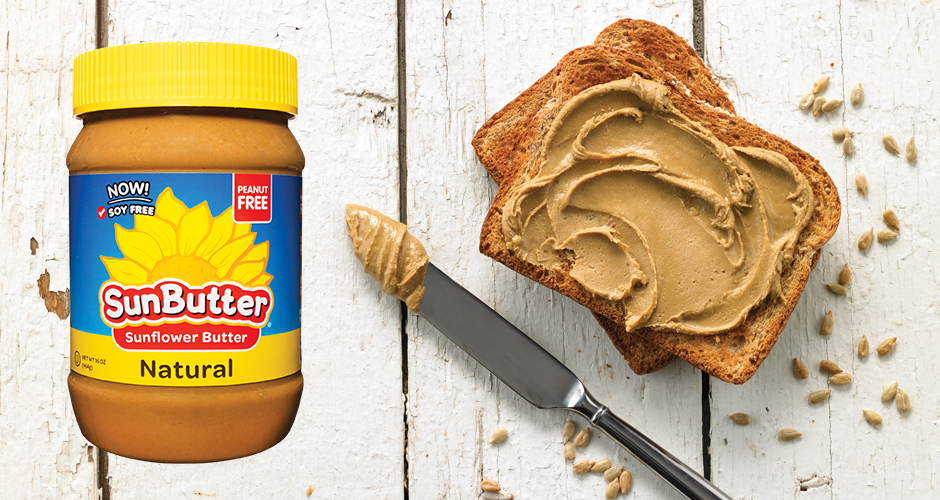
sunbutter spread

If you’re allergic to nuts but not to seeds, Sunbutter is a spread made of crushed and pureed sunflower seeds. Salty and nutty, you can see why these seeds could pass for peanut butter. With much more protein than No-nut butter, Sunbutter also has less sugar and fat than many peanut butter brands, and has a crunch on top of it all! In fact, if you’re looking for the texture of peanut butter, Sunbutter might actually be your top contender.

Buy SunButter here.

7. Tahini
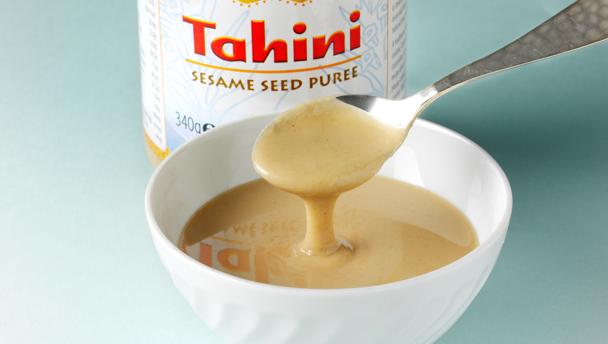
beautiful tahini

Our favorite pick from this list, tahini is a Middle Eastern staple that’s a key component of hummus. We like tahini because it not only replaces peanut butter (or really any nut-based butter) for those who are allergic, but it provides a different enough flavor that you might find yourself alternating between tahini and peanut butter if you’re not allergic to either. Tahini is not sweet, however, which means it pairs really well with sweeter flavors like peach jam or honey.

Get some tahini here.

8. Hazelnut Butter

pretty hazelnut butter

Though it’s not nearly as good of a source of protein, hazelnut butter is still a possible alternative for people with peanut allergies. Hazelnuts (filberts) are a valid source of omega-6 fatty acids and can be used for way more than just spreads, and are a viable replacement for peanuts in many different kinds of dishes. Try sprinkling hazelnuts on rich, creamy pastas, for example, or even salads.

You can purchase hazelnut butter right here.

9. Pumpkin Seed butter

pumpkin pesto alternative

Often overlooked as nothing more than a Fall season fad, pumpkins have way more to offer than people give them credit for. Besides the glorious pumpkin bread (good any time of year!) and pumpkin lattes (which should also be served all year round), pumpkin seeds are perfectly edible and are a delicious snack with a little butter, brown sugar, and nutmeg.

Roasted Pumpkin Seeds

Grind the seeds up and add some olive oil, honey, and salt, and you’ve got an effective peanut butter replacement that’s higher in protein! Lastly, pumpkin seeds can also be a safe replacement for pine nuts if you’re trying to make a fresh pesto. Restaurants like Bonefish Grill have already started subbing pumpkin seeds into their pesto for that exact reason, and we applaud them for it.

You can buy pumpkin seed butter right here.

If you’re worried about living life without peanut butter and jelly sandwiches, you can clearly see those fears are misplaced. There’s a bunch of alternatives out there for you and your family. You’ve just got to get out find which one tastes the best!


Facebook Jurassic World promo features AR dinosaurs

Jurassic World AR stickers linked to the DVD and Blu-ray release of the movie take Facebook ads out of your feed and into the real world

Jurassic World Facebook AR ad partnership

Jurassic World AR stickers linked to the DVD and Blu-ray release of the movie take Facebook ads out of your feed and into the real world

Facebook is a strange place these days. It is hard to put your finger on who is using the social network as tales of younger users abandoning Facebook for Snapchat and Instagram just won’t go away. Add to that the auto-playing video ads, and constant attempts to create new products and ways of engaging with users and it is hard to put your finger on what a normal Facebook experience is like these days.

In spite of all the social network’s public image woes recently, Facebook’s gaze is fixed firmly on the future. This may be contributing to its lack of definition, but it does mean that some of the new things we’re seeing are quite innovative. While Facebook is certainly guilty of cramming more ads into every part of the social experience, a recent attempt to use AR (Augmented Reality) as a way of enhancing the ads for both vendor and customer has been impressive.

The latest AR innovation from Facebook takes the ad out of users’ news feeds and into the real world and looks set to genuinely excite kids up and down the country. Facebook has teamed up with Universal Pictures Home Entertainment to help promote the DVD and Blu-ray release of Jurassic World: Fallen Kingdom.

The promotion links the Facebook app on your phone to over 17,000 locations across the U.S. where the movie will be on sale. At each location is found a QR code that, when scanned, will show the deadly Indoraptor right there in the real world. Anybody who buys a copy of the movie will get a code that will enable them to take the friendly raptor Blue home with them.

You hunt the virtual dinosaurs in the stores and when you find them, if you buy the movie, you get to take your very own dinosaur home with you. Say what you want about the movie, but this ingenious way of promoting its release on physical formats is bound to move some discs.

Facebook Access Facebook
7

This move is the first time Facebook has used its platform to get people out shopping in the real world. It isn’t hard to imagine that Universal must have paid the social network a huge amount of money for the privilege. It is a massive break from the norm as, although Facebook has been experimenting with AR for some time, it has never done anything quite like this before. We’ll keep our eyes open for more stuff like this, so stick with us to stay up to date.

Who would win? Netflix Godzilla vs. MonsterVerse Godzilla

In the battle of Godzilla vs. Godzilla, who wins?

DING! DING!

Let them fight!

Everyone loves a battle of titans. So, with “Godzilla: King of the Monsters” (theater release) building up a thunderstorm of hype, and “Godzilla: The Planet Eater”(Netflix original) tossing up a whirlwind of controversy, we decided to stir the pot a little more by asking: who’s more powerful? MonsterVerse Godzilla, or Netflix Godzilla?

Let’s get into it with section one: physical characteristics!

Physical Characteristics

MONSTERVERSE

Standing 355 feet tall, 550 feet long, and weighing 90,000 tons, the MonsterVerse Godzilla has the power and agility to knock down buildings while fighting two enormous winged creatures its own size.

You feel the ground shaking like an earthquake at his approach. Easily.

Here’s a barely related video:

NETFLIX

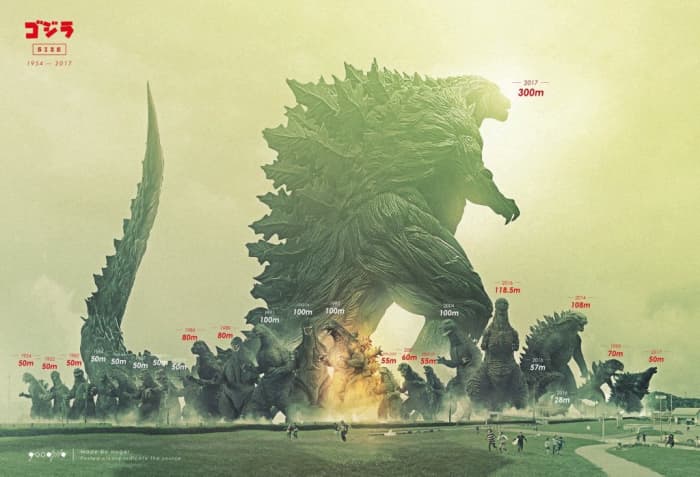
Netflix’s anime Godzilla rises about 300 meters tall. Facetiously assuming this means a corresponding increase in weight, this beastie probably sets in at about 800,000 tons.

The mere act of this creature standing can destroy most of the surrounding landscape. Here’s a good visual of the size difference.

Godzilla comparison

Bear with us. As we go on, the hilarity of this matchup gets better.

Breath Attack

MONSTERVERSE

With a badass, rumbling hum like an approaching jet fighter, Godzilla powers his spines from the tip of his tail to the top of his head, then releases a stream of searing blue flame!

Admittedly, it looks a little wispy, and although it has great stopping power, the fire breath doesn’t seem to kill or harm the flying Mutos (Massive, Unidentified Terrestrial Organisms) until sent directly down one’s throat (see at 3:00 in the video).

NETFLIX

It isn’t even called fire breathing, it’s known as Atomic Breath. That should tell you exactly what kind of difference we’re looking at here.

Netflix’s monster sends an enormous jet of radioactive power that doesn’t seem to come from its mouth so much as gather from an invisible forcefield of power developed by every cell in its body. After that startup, the energy launches wherever its head is pointing… with daunting accuracy.

We could stop now. But where would be the fun in that?

Defenses

MONSTERVERSE

This Godzilla can withstand direct artillery fire with ease. His backstory indicates that, rather than being destroyed by an atomic bomb, it gladly absorbed the energy. In fact, both Godzilla and the Mutos have been known to purposefully live near powerful energy sources – nuclear generators or the earth’s core – simply to gather strength.

NETFLIX

Here we go again.

This version of the popular thunderlizard has cells that create an “impervious” field, which only shuts down after the shield-organ within its dorsal spines has been temporarily destroyed. The organ must then be fully shattered by an EMP probe, at which point its own body spontaneously combusts with uninhibited energy.

So, it’s like the Death Star: nearly invincible, with one obvious weakness…

Wait a minute. Holdup. Is there… a chance for MonsterVerse?!

Personality

MONSTERVERSE

Hope continues!

The MonsterVerse Godzilla originally threatens humanity, but becomes its protector when two Mutos attack. After much fighting, it takes serious damage and even appears to consider dying until it sees the movie’s main character and remembers why it fights: to protect the balance of nature.

This type of fortitude has to count in a battle of behemoths. Not only that, but the movie’s end shows humanity questioning whether Godzilla saved their hides. So, if humans are involved in the battle between two Godzillas, who would we side with? The answer will soon be clear:

NETFLIX

Despite its enormous size and accurate atomic breath, Netflix’s Godzilla lumbers around without fighting much at all.

All we know is that it seems to dislike humanity with a burning passion, but doesn’t really have much of a fighting spirit – more of a disgruntled frumpiness unfortunately supplied with insane natural weapons.

However, it still walks confidently and predictably into very simple traps. Not much of a plus there.

Performance

We’ll discuss both here:

While MonsterVerse rises to the occasion of battle and fends off two creatures its own size, Netflix pretty much mails in the job to a smaller version of itself… until that one is killed.

MonsterVerse battles the entirety of humanity tooth and claw with skill and will; Netflix allows its one, terrible weakness to be exploited and nearly dies at the hands of a tiny regiment of lost humans.

Put simply, the Netflix Godzilla is all muscle and no hustle.

Conclusion/Analysis

The conclusion is… on an even playing field with all else held equal, Netflix Godzilla probably wins, thanks to the obvious benefits of size and atomic breath.

The real question is, what would MonsterVerse Godzilla have to do to reign victorious?

First: close the distance to avoid the beam. Despite having a natural absorption to atomic energy, the powerful beam from Netflix would likely override any defenses with a direct hit.

Second: avoid being stepped on. Netflix Godzilla moves slowly due to its large size, which gives the relatively nimble MonsterVerse a chance to outmaneuver the opponent. That could give time to score a few hits!

Third: destroy. We’re going to speculate here: Netflix Godzilla is considered invulnerable to attack, but the humans involved only use projectile and laser weapons every. Single. Time. Taking this into account, MonsterVerse’s brute force physical attacks may completely get around the defensive shield, allowing for attack anywhere.

Then, it’s just a matter of David vs. Goliath, perhaps even Shadow of the Colossus:

With its surprisingly determined nature and relative speed, this may just be possible for MonsterVerse Godzilla. Still, it’s unlikely. Netflix’s monster is a beast. But, take away the size alone, and we believe MonsterVerse Godzilla has the unshakable advantage.

Final Words

At its heart, the power disparity between Godzillas comes from what they represent: MonsterVerse harkens to the original Godzillas, which are physical symbols of the danger and benefits of atomic energy. Netflix’s creature embodies nature’s punishment for humanity’s destruction of the planet, and seeks to wipe them from earth (and any other world) entirely.

MonsterVerse is meant to be powerful, yet personified in its vulnerability. Netflix is supposed to be an insuperable, uncaring wall. Both are cool!

Thanks for reading, we hope you found this entertaining and enlightening. If you wish to add to the argument, please do so below!

How to quickly delete programs you do not use from your PC

Clean up your PC in a flash! Simply follow our guide.

The longer you have your PC the more it gets bogged down with programs, documents, and other files that we will never use again. They just collect (virtual) dust like those books you got for Christmas and you swore you’d read on vacation six years ago.

The best thing you can do is delete them to clear up space on your hard drive and help your system work more smoothly. Don’t worry. We’ll show you how.

How to quickly delete programs you do not use from your PC

Standard method

The classics never die. Just click on the Windows icon in the lower left, click on the “Settings” gear and then click on “Apps & features.

Once you are inside this section, just identify the programs that need to hit the bricks. Click those dusty old programs and click “Uninstall.” Remember to restart the computer once you have finished the different uninstallations.

Quick method

The old method showed you all the applications in one place. However, you may only want to delete one program. If this is the case, right-click the program and click “Uninstall“.

In previous editions of Windows, this only allowed you to delete the icon. However, in Windows 10 was “corrected” to allow the complete removal of the program and/or application. That’s all there is to it!

Try MacPaw

If you really want to make your computer run faster, we would recommend MacPaw. Don’t be fooled by the name, MacPaw products are available for both Mac and PC. 

Try a VPN!

If you’re looking for a decent VPN service to try out on your computer, we would recommend Express VPN. By clicking this link, you can get 15 months of Express VPN for the price of 12!

The Complete Fortnite Weapons Guide: Snipers

Our guide to all the sniper rifles you’ll find in Fortnite.

Fortnite: Battle Royale is a chaotic fight for survival against as many as 100 ruthless opponents. If you hope to survive and achieve the coveted Victory Royale, you need to make sure that you’re better equipped than the competition. With a huge arsenal of weapons to choose from, it can be tough to make split-second decisions about what to take with you and what to leave behind. We’ll do the work so that you don’t have to, with an in-depth examination of each weapon in Fortnite. For this guide, we’ll be looking at sniper rifles.

Fortnite: Battle Royale Download Fortnite: Battle Royale
10

One overarching rule to remember when it comes to Fortnite’s weapons: all guns in the game are available in varying levels of rarity, ranked based on a color system. Refer to the list below to see each level, and make sure you go for rare guns whenever you find them.

Common- Grey

Uncommon- Green

Rare- Blue

Epic- Purple

Legendary- Orange

Hunting Rifle

Fortnite Hunting Rifle

Rarities: Uncommon/Rare

Damage Per Shot: 86/90

Ammo Type: Heavy Bullets

Magazine Capacity: 1

Description: The Hunting Rifle is your standard, run-of-the-mill sniper rifle. It’s the easiest member of the sniper rifle family to find, so you’re more likely to come across a Hunting Rifle than some of its rarer cousins.

This rifle is a high-damage bolt-action with a single-shot magazine, meaning operators will have to cycle the bolt between each shot. Despite this, it actually has the second fastest fire rate of any sniper rifle, making it easy to quickly fire follow up shots. Its main drawback is the lack of a scope, making engagements at longer ranges difficult. Think carefully before trying to land any crack shots.

Bolt-Action Sniper Rifle

Fortnite Bolt-Action Sniper Rifle

Rarities: Rare/Epic/Legendary

Damage Per Shot: 105/110/116

Ammo Type: Heavy Bullets

Magazine Capacity: 1

Description: The Bolt Action is the gold standard of sniper rifles. It combines high damage with long-range capability, and can easily eliminate most enemies with a single well-placed shot. These advantages are balanced with a few drawbacks, however. It’s got a fairly long reload time, meaning careful aim is necessary. If you miss, you’ll have to pop out of the scope to reload the gun, which means it might be difficult to get back on your target.

The Bolt Action is best suited to long ranges and situations where you can get the drop on enemies, so you can take the time to aim before opening fire.

Semi-Auto Sniper Rifle

Fortnite Semi-Auto Sniper Rifle

Rarities: Epic/Legendary

Damage Per Shot: 75/78

Ammo Type: Heavy Bullets

Magazine Capacity: 10

Description: The Semi-Auto sniper does just what the name implies. Feeding from a 10-round magazine, you don’t need to cycle a bolt or reload between shots. Simply aim your sight at the target and pull the trigger until your enemy is down. This quick fire rate makes the Semi-Auto excellent for landing follow-up shots, which you’ll likely have to do. Its damage level is on the lower end of the spectrum, so be prepared to take a couple shots before your opponent bites the dust. When you run empty, simply pop in another magazine like any other standard rifle and keep on firing.

Heavy Sniper Rifle

Fortnite Heavy Sniper Rifle

Rarities: Epic/Legendary

Damage Per Shot: 150/157

Ammo Type: Heavy Bullets

Magazine Capacity: 1

Description: The Heavy Sniper is a shoulder-fired cannon and an absolute beast of a gun. The booming crack of this rifle across the battlefield is enough to send any enemy scurrying for cover, and with good reason. It does the most damage of any weapon in the game short of explosives, and will make short work of any enemy that happens to wander past your scope.

However, this awesome power comes with significant drawbacks. The reload time is almost a full 5 seconds, meaning you’d better have very careful aim to make the most of this gun. This slow reload is a significant drawback, but Heavy Sniper rifle users can make good use of this weapon in other ways. The Heavy Sniper can destroy most walls and other barricades in a single shot. If you’re dealing with pesky enemies in cover, you can use the Heavy Sniper to blow through their defenses before switching to another weapon to quickly finish off your hidden opponents.

Sniper rifles are the lynchpin of long-range combat. It’s good practice to have a sniper on hand to deal with distant enemies, allowing you to land easy kills while staying safely out of range of any counter attacks. Mastering snipers takes skill, but doing so makes it that much easier to attain Victory Royale.

How to capture video game footage

Want to capture and share your video game footage? Follow our guide!

Thinking of creating videos of yourself playing video games? Awesome! First off, you should know there are two types: streaming and posting.

Ask yourself: are you looking to send out your game videos in real-time, using only your quick wits, charm, and gaming experience to hook fans? You’re probably thinking about streaming. Hop on a program like Twitch, and learn from other top video game streamers like Ninja.

On the other hand, do you want to create entire “Let’s Play” series for your favorite titles, much like the Game Grumps? Or do you want to create detailed walkthroughs like FightinCowboy or make funny, edited videos like Pewdiepie? If so, you want to create video posts! This article has a solid piece of advice for these types of creators:

The best way to secure footage of your gameplay is via a capture card.

What is a Capture Card?

Simply put, capture cards are tools specifically designed to help re-route your gameplay footage into a computer so the content can be edited and mixed in mp4 (standard video) format.

gamer

General Guide to Using Capture Cards

Modern gaming consoles send graphic and audio information through HDMI (High Definition Multimedia Interface) cords.

A capture card takes your gameplay from the HDMI cord and sends the information in two directions: first, to your computer and then to your TV or monitor as usual.

On that note, make sure the receiving device has enough data capacity, or consider investing in a remote storage device! As video games become more data-intensive, even terabyte storages will become too small.

Moving on, we’d like to note that the best capture cards, like those from the popular Elgato series, also include software programs to help make storing, collecting, and using video easier. Recent updates may also provide more advanced functionalities: for example, combining game and webcam footage.

With the software and hardware working together, all you need to do is turn on the capture card, start up your video game, hit record, and begin recording your game. You’ll have your files ready in no time!

Now, all you have to do is decide which capture card to purchase…

A Few Capture Card Options

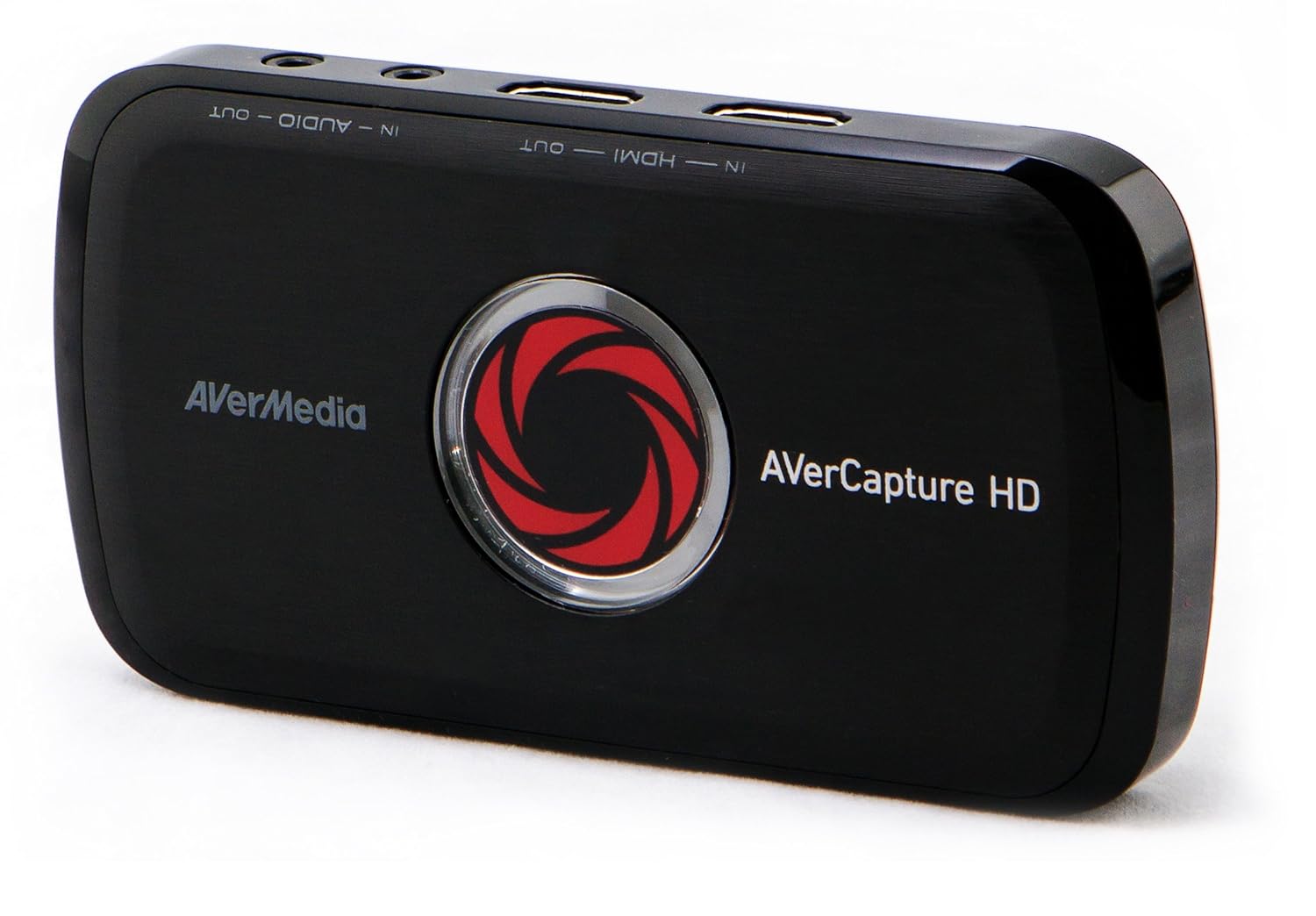
Currently, the “Amazon’s Choice” for capture card is the AverCapture HD. It has a decent rating of 3.5 stars from 126 ratings, and only costs around $100. Beginners should definitely consider this option, which balances reliability and price.

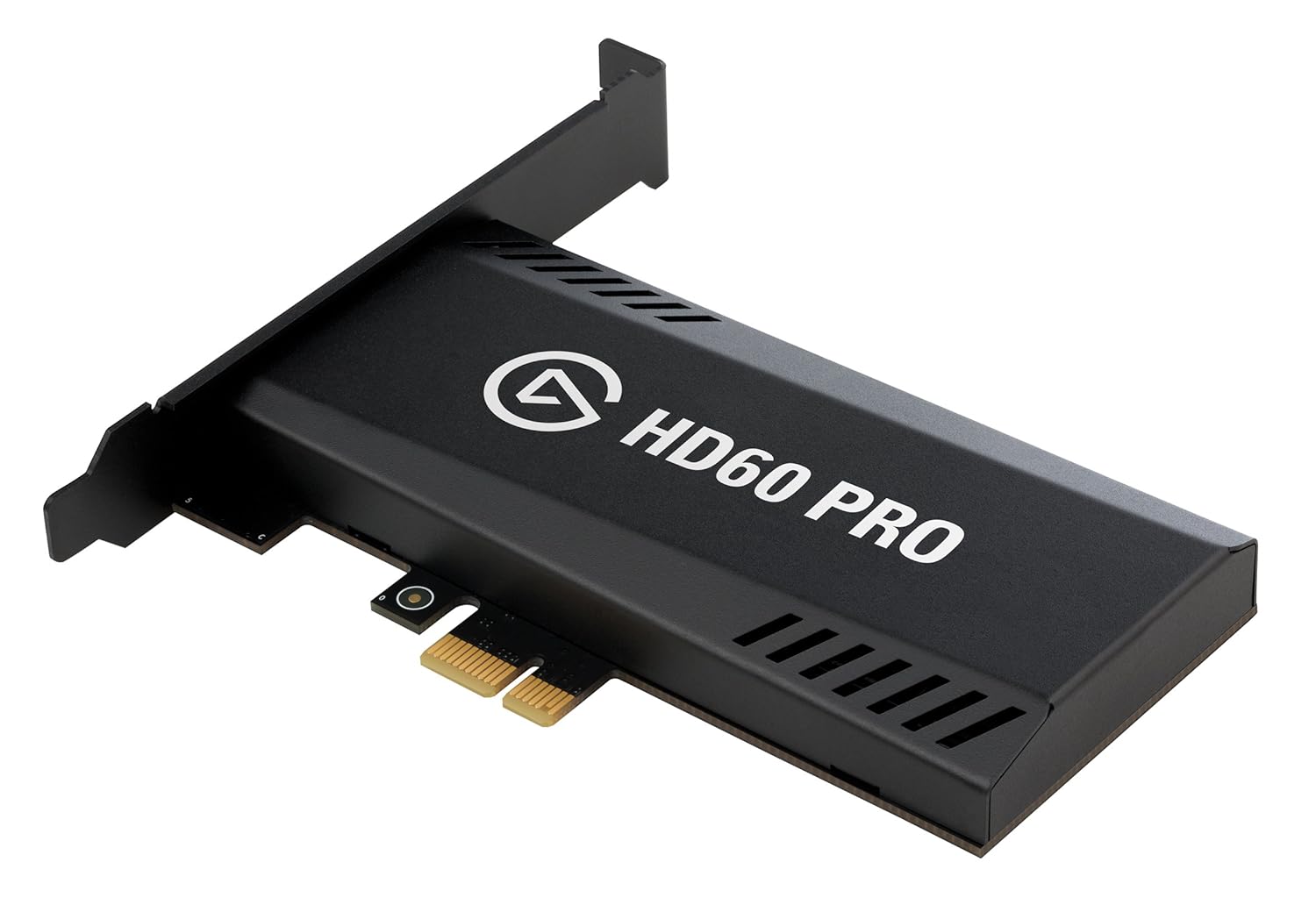
However, as we’ve mentioned, Elgato currently offers some of the most popular, well-rounded capture cards. Their HD60 Pro has a 4-star rating from over 2,000 users, the downside being a cost of $180. Also, from our experience, the Elgato program can be taxing on a slow computer, but the capture still works great and looks good. If your laptop was created with video editing in mind, you may have nothing to fear.

Still, don’t take our suggestions alone! If neither of these choices appeal to you, there are plenty of other options out there. Keep looking, and you’ll find what you want.

Editing

While capture programs may allow some level of video editing, we still recommend using specialized software!

There are some great options available for free. If you’re using Microsoft, consider Movie Creator. For Mac users, iMovie.

Whatever you choose, you’ll need to figure out a number of things, for example: how to import various types of media, edit and rearrange footage, adjust sound volume levels, alter transitions, enter titles, and finally how to export those items.

Final Notes:

Remember, there are other things to record… like yourself! Consider investing in a decent microphone or webcam. You may require multiple ports on your laptop, unless those devices store videos themselves.

Remember: in a pinch, a smartphone can perform both of these functions at once! Unlike game capture, you don’t need a special device to capture normal videos with decent quality.

At then, once you have everything you need, you’re ready to edit!

Get the most out of the Mac’s Preview editing software

Apple’s Preview tool offers a lot of image editing options you may not be aware of. Take a look at this powerful option!

Mac users have a surprisingly powerful image editing tool: the Apple Preview program! If you haven’t tried this app, double-click any picture on the desktop and Preview will help you view the image:

Apple preview

If you think Preview only assists with image viewing – and we thought this ourselves for way too long – you’re wrong! The functions available can be used to crop, create memes, focus attention, improve image quality, and more. There’s a lot to do!

How to get the most out of Apple Preview’s editing software

Navigating Preview

As we mentioned, double-clicking an image will open the Preview application to that specific image. However, you can also do this by selecting the program itself. The icon looks like this:

Preview icon

Doing this opens the “Finder” window. There, you can search for your image and double-click to open it with Preview.

View, Sizing, Export, and Rotation (Simple Stuff)

Preview’s toolbar places its viewing, sizing, and editing buttons at the top left:

Preview toolbar

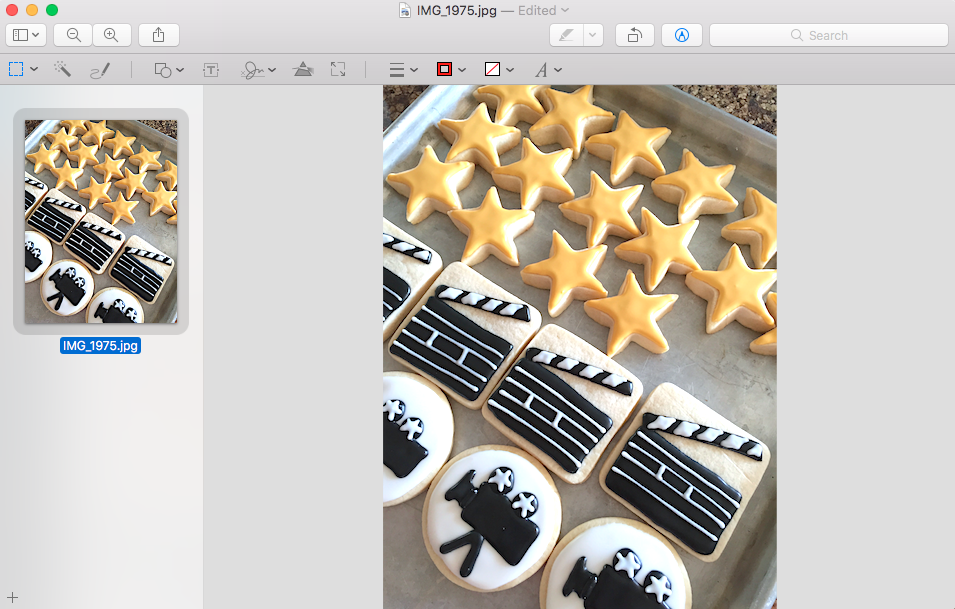
The first button, “File List”, allows you to see all images that are currently open in the window as thumbnails or a table of contents on the right side. Here’s an example of the thumbnail version, showing a plate of cinema-themed tray of cookies:

Preview image

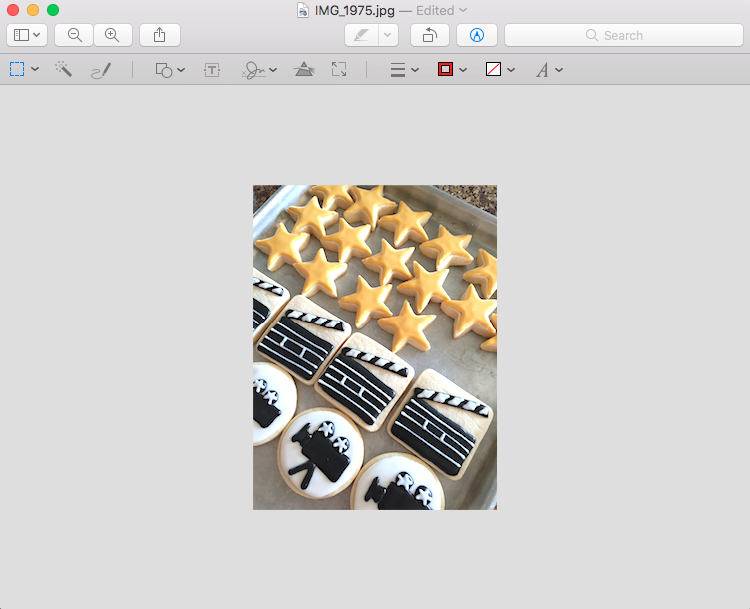
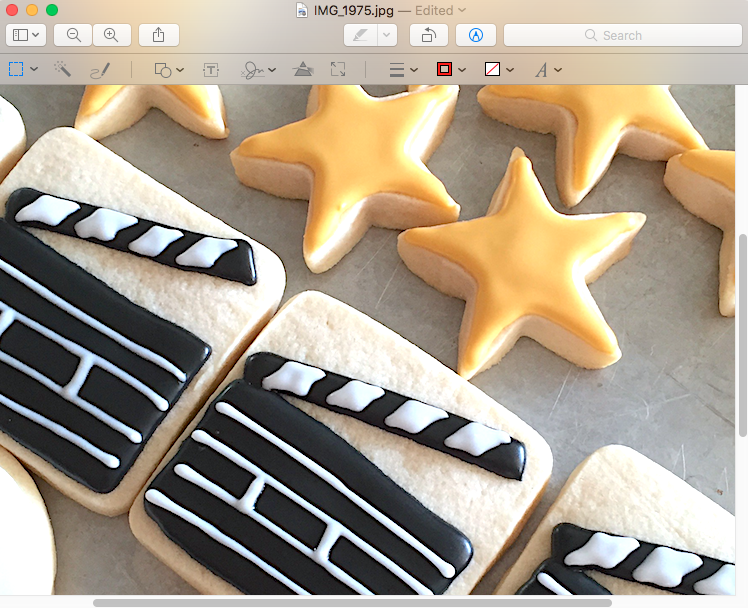
Next, the zoom in/out buttons naturally make the image larger or smaller, without changing the size of the viewing window:

Zoom in preview

Preview zoom

The “Export” button allows you to send images through various means, including email, airdrop, and social media sites:

Share options

Last… the rotation button!

rotation buttonThis rotates your picture as expected, but only in 90-degree increments. For any other gradation (5 degrees of rotation, per se), you’ll have to use another program. Still, this works great for turning pictures upside-down!


Rotated image
Why not?

The Toolbar (The Main Course)

For such a small button, Preview’s toolbar icon packs the biggest punch:

The Bar!

We’ll discuss each section:

Selectors, Wand, and Paint (First Three)

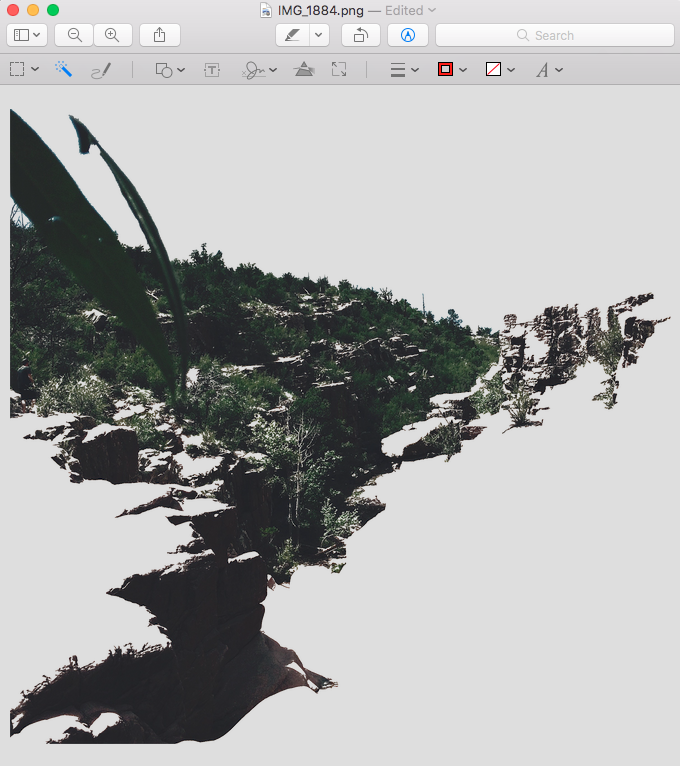
The first item, the Selector, allows you to choose areas in various shapes while the “Wand” tool allows you to make selections by dragging the cursor over an isolated area. Both can be used to crop the image:

The various Selector options
Isolating the greenery with the Wand tool
Isolating forest greenery with the Wand tool

NOTE: when you crop with the Wand, your image becomes a PNG file, which may be more data-intensive than JPEG. Food for thought.

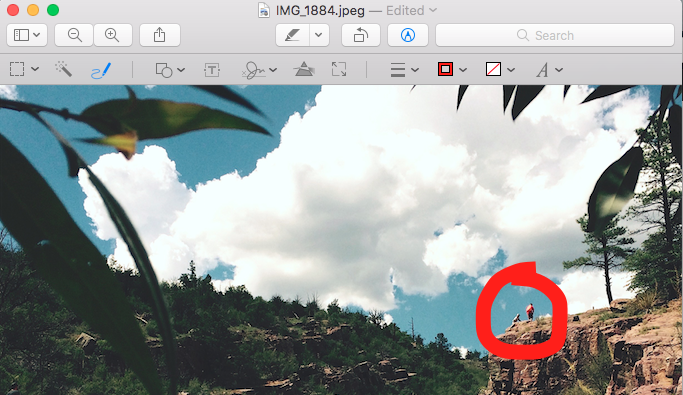
Last, the painting tool lets you… paint. This can be great for sketching words, or pointing out visuals:

Shapes, Text, Signature, Color, and Sizing (Next Five)

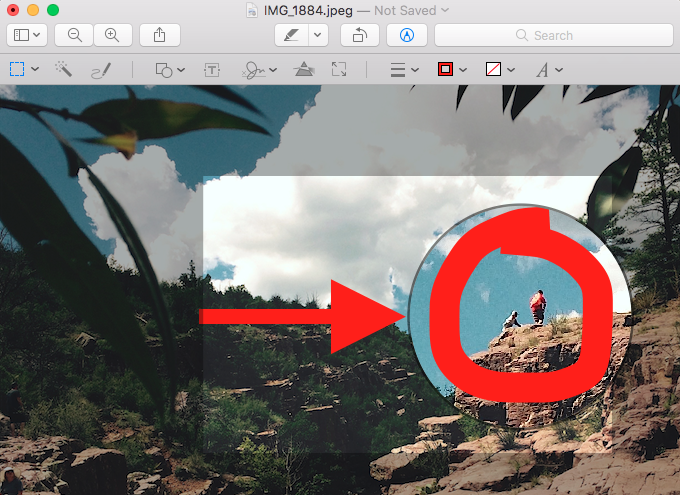
The shapes tool allows you to put various shapes into the picture. Clicking it opens a box that holds eight regular figures, with a box vignette and magnifying glass at the bottom:

The Shapes

For your viewing pleasure, we’ve placed an arrow, box vignette, and magnifying glass in the forest image!

Its a bit overkill, but it works!

Moving on, we have Text. This helps you place words in the photo, which can be used to make memes or give information about a location:

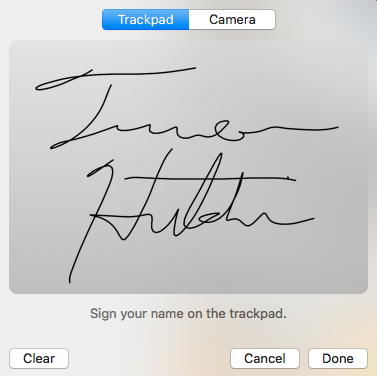
The Signature function allows you to create a signature with the Mac’s trackpad and then place it in the picture:

That turned out pretty good, actually.

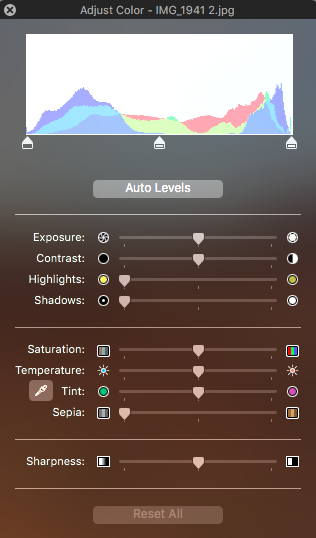
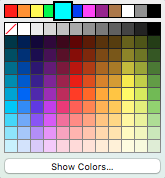
The Colors window grants the user power over electromagnetic radiation! Check out all of these snazzy options:

Colors Window

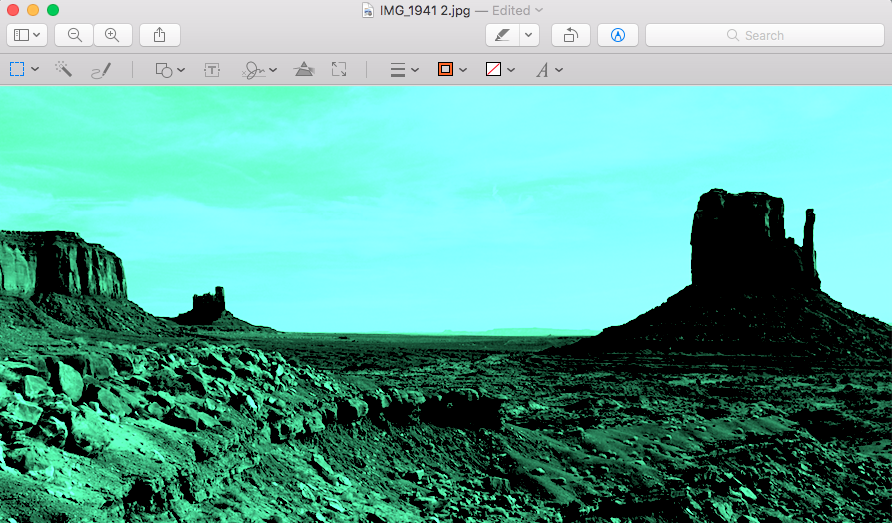
Look, we used the Colors box to turn Monument Valley green:

“Your scientists were so busy asking whether they could, they never stopped to ask whether they should” – Ian Malcom

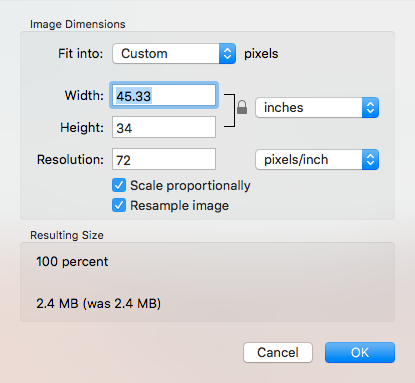
Last but not least, the sizing tool alters the picture’s dimensions with ease… as long as you aren’t trying to choose a greater size than an image already has. The dimension cannot be scaled up from the original.

Lines, Line Colors, Fill, and Text Tools

If you were wondering how to alter font, letter size, text box fill, or outline form ever since we mentioned the Text tool, don’t worry: everything’s here!

The Lines box will help you alter the shape of lines, whether it’s the outline of a geometric shape or a paint sketch. As you can see below, the first set of options change the line width, the second set alters style, the third adds arrows at the end, and the final one provides a shadow:

Next, we have the Line Color boxes. They each appear exactly the same:

The difference is, the first color box changes a shape’s outline, while the second alters the fill. Moving on!

At the very end, we find our Text Tools, which allow you to manipulate the words and captions at will:

Put them all together and you can make text, words, and painting with various shaped lines, different colors and fills, and words in multiple sizes and fonts. It’s your playground, so have fun!

Final Words

We hope these examples prove just how much Preview offers. There’s a lot to work with, and almost infinite possibilities to the creative mind.

Admittedly: there are a number of things Preview can’t do. You may need more powerful software like Adobe PowerPoint or Photoshop for intense graphic design, but…

You’ve now seen the hidden gems within Preview. Next time you’re editing an image, remember to ask if the job can be finished with this simple, yet effective workshop!

How to back up files on the Cloud with Google Drive

Google Drive is a great option to back up your data for free. Here’s how to do it!

These days, some of our most treasured possessions are not physical, but digital: photographs of family occasions, word documents that contain that novel you’re writing, or blocks of code for the game you’re designing with friends. All those creative files represent the hard work and memories, and are often considered more important than the storage device itself. You probably know this feeling if you’ve ever had the thought, “If my laptop gets stolen, I just hope I can get my files back”. 

Of course, there’s an issue with this line of thought: data can be lost a thousand ways: stolen devices, computer glitches, poolside accidents, or even floods and other natural disasters. How does one protect their creations, their work, and those all-important family photos?

There are many good choices. Many first consider a backup hard drive. However, while a viable choice, they can also be stolen, lost, or broken (not to mention costly). You may also consider taking extra good care of the device in question… but accidents are bound to happen!

So, we’re looking for an easy and free way to back up those important files in a place safer than any other. Where else has those qualities but the internet itself?

What is this… Internet?

The internet itself is actually composed of huge data banks owned by large corporations, which place those files in storehouses located in the safest places on earth – like Sedona – which are known for experiencing the fewest number of natural disasters.

Data Center
Also, fun fact, there are apparently over 1,000 petabytes stored at this time, and the number is rising. So they say.

When you upload documents to the cloud, companies like Amazon, Facebook, or Microsoft store your information here. Since a great part of their business actually comes from housing data, these companies stake much of their reputation on keeping their storage houses safe. You can rely on them if you can rely on anything.

What is this… Google Drive?

If you want your information stored in one of those huge, secure, internet storage banks in an easily accessible way, Google Drive supplies an outlet for just that purpose! While Google also provides services to other large corporations, they initiated Drive for the average, everyday user.

Google Drive Download Free ►
8

If you’re not already sold…

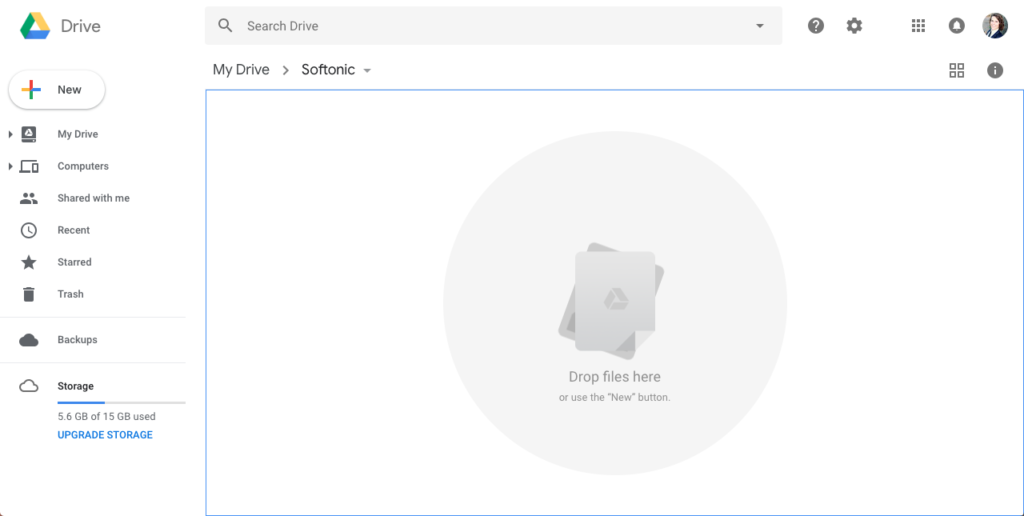
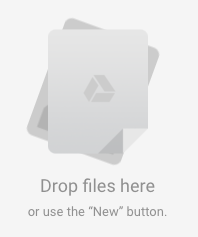
Go to the Drive website and make an account. Immediately after that, you’re given a space for your files. Here’s a mock file we created!

Google Drive

As you can see, there is a space meant for backups on the bottom left side:

Backup

If you don’t wish to use this, remember that any file will store your data much the same. Open any folder – “Backups” included – and adding files will be simple as dragging and dropping. Try it out!

File Drop

Guess what? Your files are now safe! You can access them easily, download new versions, and delete them if you wish.

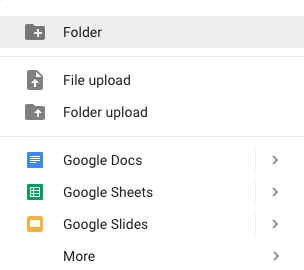
Even better, Google allows you a number of other options. By selecting the “New” button you can create spreadsheets, presentations, and word processing files, along with new folders to house and arrange your documents:

New

Others

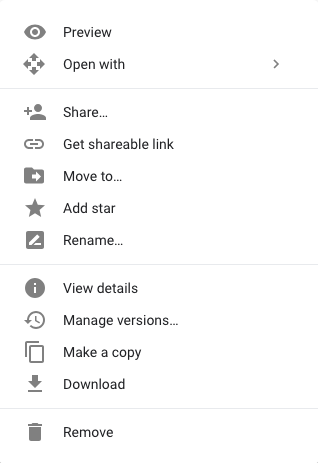
Want to work with one of your documents? Open Drive, go to its folder, and use a right-click on the file. You receive these options:

Going down the list, there are tons of quick options! View the file, share in multiple ways, designate a star or new name to the file, manage details, copy, download, and delete. It’s as easy as that.

Outtro

There are a number of great websites that store your information in a centralized location. However, Google’s wealth of experience and their free services (up to 15 gigabytes, as you may have noticed) have no equal at this time. If you’re looking to store important files under the data limit, we recommend trying Drive!


Major Game of Thrones season 8 spoiler leaks

Major spoilers just leaked about the fate of Jaime Lannister. Read on if you dare.

Spoilers ahead! Tread lightly!

“Game of Thrones” season 8 roars back to HBO on January 4, 2019. It’s been a long, long wait to see how this song of fire and ice will come to a close and we just got a major spoiler, courtesy of an unusual source.

Here’s your last chance. Click away to something more benign if you don’t want to be spoiled. Here’s a video to give you a little buffer before you get a message from the three-eyed raven.

Still with us? Here we go. The spoilers involve the fate of the one-handed wonder, Jaime Lannister. Last we saw Jaime, he was arguing with Queen Cersei to send their armies to fight the White Walkers approaching from the north. He told her that if the White Walkers win the fight, they’ll swoop down to King’s Landing and slaughter Team Lannister. And if the Targaryen-Snow-Stark team wins the war, they’ll also slaughter the Lannisters for failing to join the anti-zombie effort.

Jaime Lannister
“Uh, sis? Little help with the zombie army?”

Cersei was like, “Nah. We’ve got the Iron Bank willing to fund a mercenary army and Team Greyjoy is still with us and I’m pretty sure we can kill those dragons or burn the zombies. Let ’em fight without us.”

Jaime was beside himself. And Cersei, pregnant with another of her brother’s babies, let Jaime walk away.

So what will season 8 hold for the man with the golden hand?

The answer lies in a lawsuit. Nikolaj Coster-Waldau, who plays Jaime, is fighting a legal battle against his former manager. As the court battle unfolded, documents revealed that Coster-Waldau will appear in all six episodes in the final “Game of Thrones” season.

It had been rumored that Jaime might die mid-season, but if he appears in all six episodes, that pretty much kills that rumor. That said, there is a possibility Jaime could die and still appear. Let’s say the Night King gets his hands on Jaime and turn him into an undead frost monster. It worked on Dany’s dragon, Viserion!

So while some people think it’s an open-and-shut case of Jaime riding off into the sunset, there is a chance he could die and fight for the White Walkers. Or maybe he dies in the final episode. Or maybe he dies and appears in later episodes as a ghost or flashback.

The most likely scenario has him fighting to the death with Tormund for the honor of Brienne’s hand.

And Brienne will walk away from the victor because Brienne has no use for those fools. Is it 2019 yet?


Watch: Supercut of every Owen Wilson ‘Wow’ since 1996

A YouTube channel called Owenergy just posted a supercut of every “Wow” Owen Wilson has said on film since 1996. Take a look!

If you’re a movie director looking for an actor who can deliver a “Wow,” you get Owen Wilson. And even if your script doesn’t call for a “Wow,” it’s likely Wilson will toss one in. It’s his thing.

Anyway, a YouTube channel called Owenergy just posted a supercut of every “Wow” Owen Wilson has said on film since 1996. That’s 21 years of wows.

The final tally is 102 wows. That averages out to nearly five wows per year.

We’d react to that, but we simply don’t have the vocabulary.