Adobe Photoshop review: What to know about the latest updates

It wasn’t long ago when Adobe Photoshop users were leery when the creative software became a subscription-only service in 2013. It wasn’t immediately apparent how the new annual fee would be justified through continual enhancements to the application. Such concerns among the loyal Photoshop (PS) user community didn’t fall on deaf ears. In many respects, the new user expectations elevated the photo editing app to many new and unprecedented performance levels.

While Adobe Photoshop remains the overwhelmingly popular choice among photographers, designers, and graphic artists across all skill levels, several groundbreaking advancements from newcomers like Affinity Photo and Luminar place the two in much closer competition. Lightroom, the counterpart to Photoshop that can be purchased from Adobe separately, continues to place itself as a strong competitor in this same segment, as well.

Is the latest installment of Photoshop up to task?

Adobe’s Photoshop underwent significant updates in October 2020, then later in February 2021, leading into the latest edition, updated Photoshop 23.2.2 released in March 2022. This current version of the software offers the most advanced features Adobe has ever produced. The company implemented Sensei machine-learning technology to automate specific advanced and time-consuming edits from the Cloud.

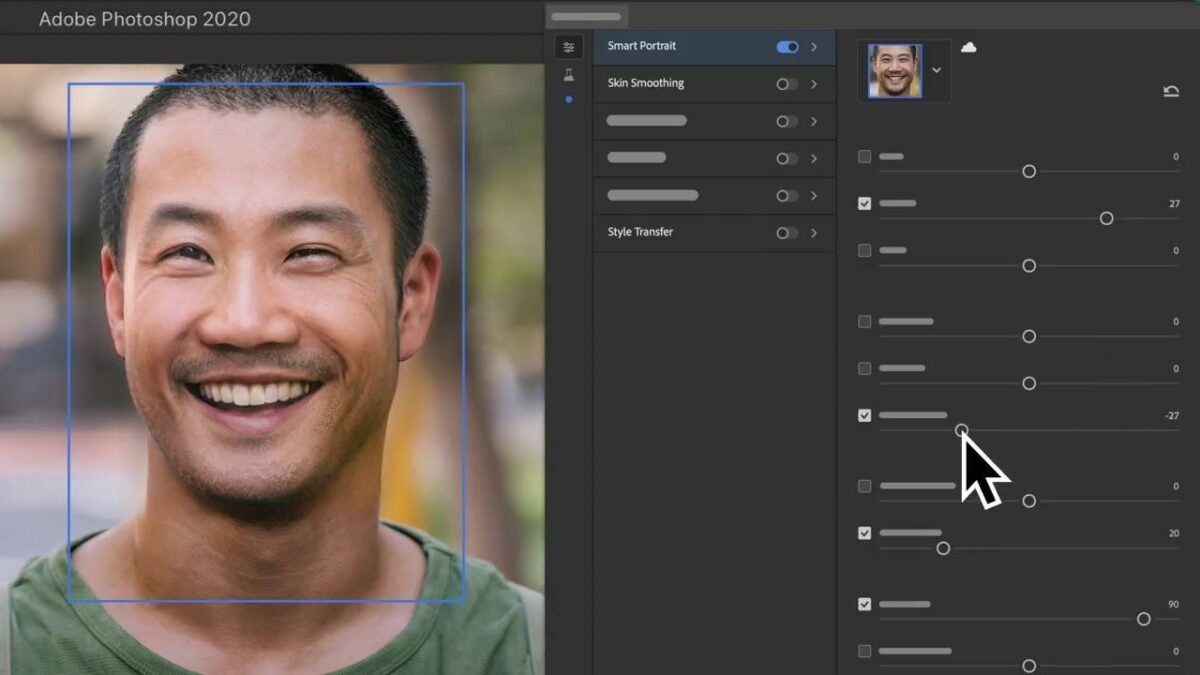
For the first time ever, the latest PS application lets you make single-click adjustments that will alter the mood appearance of your portrait. The mood itself depends on the slider you choose and can range from happier to sadder, angrier to older, and even an expression of surprise. Unlike the Lightroom application, which orientates itself on traditional photo editing concepts, Adobe PS is a powerful graphic design tool. With Photoshop’s Be Happy filter, for instance, the adjustment slider lets you draw your subject’s mouth open to the desired expression as it fills in a set of teeth.

What sets Photoshop’s newest features apart?

The latest filters from Adobe for portrait photography are consistent insofar as they’re irreproducible by other photo-editing applications. Unlike its competitors, the most recent filters from Photoshop allow you to achieve advanced technical results with little to no user intervention. But there’s one caveat to this. While these filters always deliver uncannily realistic results, at second unwitting spectators invariably notice something peculiar about your subject’s expression.

Industry experts and insiders describe such a reaction critique as “beta.” This means the filters are not complete, and the developers are still sorting out the finer details. As you subscribe to Adobe’s Cloud services, expect these inchoate machine-learning features the company recently introduced to improve drastically over a short time. Also, while a few excellent filters are already part of the current repertoire, filters like Skin Smoothing and Light Adjustor, for example, not all of the new neural filters are quite as advanced.
What are Photoshop’s best neural filters?

Skin Smoothing is a highly advanced filter that saves users time. Until now, fashion-orientated portrait photographers have relied on a technique called “frequency separation” for maximum control over the delicate textures and colors in their images. In past times, when the photographic medium was strictly celluloid, the equivalent photo editing process was known as “retouching.” Frequency separation entails the use of multiple tools, blurs, brushes, and several layers to render professional, high-end-looking images while Skin Smoothing can produce these results right off the Cloud in a single click.

The two other impressive filters, Light Adjustor and Refine Hair are powerful filters that professional photographers and editors resort to frequently. Light Adjustor creates an image that looks like you were moving a physical light source around your subject on location. Refine hair also helps speed up the workflow by allowing you to fine-tune how you select your subject’s hair. While they aren’t perfect tools and won’t likely win you a coveted photo editor position at a leading agency, the two still produce stunning results in as little as one click.
Photoshop Sky Replacement

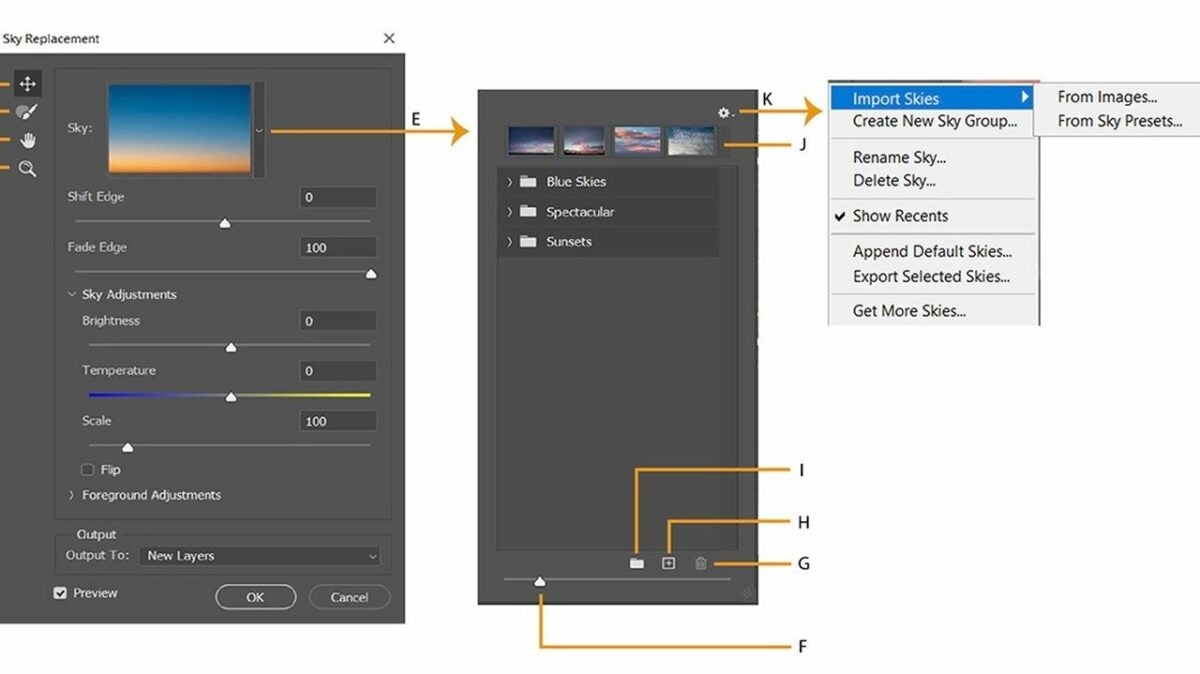
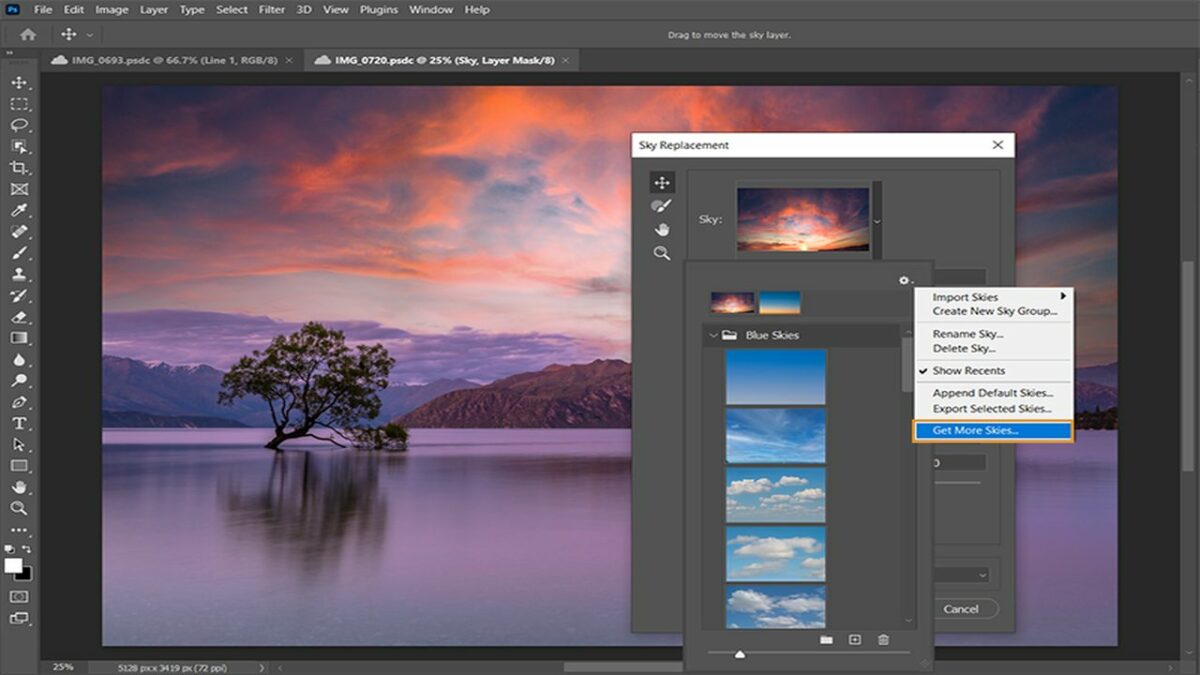
The neural filters may feel too beta for experienced Photoshop users, but another recent Photoshop feature surely won’t. Sky Replacement is decidedly one of the most advanced additions to Adobe Photoshop and any photo editor since the technology first came to pass. With Sky Replacement, you can choose your preferred sky from a series of preset options, or you can customize one of your own.

When you deploy this feature, Photoshop automatically detects the horizon of your image, masks it for you, and drops in your new dynamic sky. Sky Replacement also detects and adjusts white balance to ensure that your insert properly blends with your image. The one drawback to this feature is handling snow-capped mountains. If the peaks are set against a pale blue sky, Photoshop may fail at recognizing the minor difference in contrast and insert sky over the foreground. In this case, you’d resort to the traditional manual masking process.
Practical uses for Sky Replacement

As with many of the tools discussed here, the commercial photographer may start to feel ill at ease relying upon one-click features, especially if you’re after a unique high-end look. That said, each of these tools and features can shave quite a bit of time off your typical workflow and are extremely practical if you’re not under pressure to produce award-winning images every time.

For obvious reasons, up-and-coming real estate photographers quickly benefit from Sky Replacement, while the Discover Tab lets them remain in the Photoshop app and learn about the latest features without filtering through hours of relevant material on Google and YouTube. Likewise, the CMD+F allows you to quickly type in a keyword to search an array of high-quality instructional material on the subject.

Final verdict: Despite impressive newcomers, Photoshop reigns supreme

Photoshop has been leading the desktop photo editing industry since 1990, and its cloud-based service has only amplified its quest to continue innovating on behalf of its oldest and newest users alike.

Photoshop’s color management, layout handling, precision selection tools, neural tools, and new automated features leave the software handily unrivaled in 2022. If you are semi-professionally handling a lot of images for your small business, Photoshop will take your work to the level. If you’re an industry professional, it’s safe to assume you already know.

Pros

  • Powerful and stable application
  • Best Sky Replacement tool in the industry
  • New collaborative tools

Cons

  • Subscription-only service
  • No image organization as in Lightroom’s feature

WhatsApp is soon getting new voice message features

After seeing a great need for improvement, WhatsApp will finally be rolling out new voice messaging features that were in development. These include the previously-reported global voice note player feature for WhatsApp that lets users play voice messages in the background while navigating the app.

WhatsApp’s drive to constantly introduce handy features and improve existing ones is what makes it one of the most popular instant chat apps around. From allowing users to blur images on WhatsApp for Android to expanding WhatsApp’s file size limit when sharing media, there’s definitely much to look forward to in these new voice note features.

The upcoming voice message update will arrive in the coming weeks, after rigorous beta testing. There are primarily six features to expect. The first is the global voice note player or the “Out of Chat Playback” feature, which is great for multitasking. There is also the Pause/Resume Recording feature, which allows you to pause during recording and create a uniform and uninterrupted voice note.

The third new function is the Waveform Visualization, which displays a visual representation of the voice message so you know where you are. This feature will also be added to voice calls soon. Next is the Draft Preview, which lets you review your recording before sending it. There’s also the Remember Playback feature, which will let you pick up where you left off after pausing the voice message.
Lastly, there’s the Fast Playback on Forwarded Messages, which adds speed controls for the recordings and offers 1.5x and 2x speeds to choose from. This update will soon be available for WhatsApp for Android, WhatsApp for iOS, WhatsApp Desktop, and WhatsApp Web so be sure to check if you have the latest version. 

Image credit: Newsroom | Meta – WhatsApp

Twitch is removing the desktop app at the end of April

Twitch is a popular live streaming service used by many gamers, entertainers, and musicians to share their latest content. However, the Amazon-owned company has surprised users with a recent announcement regarding the Twitch desktop app.

Twitch revealed that their desktop app will be shutting down on April 30th. Along with the announcement, they also advised users to delete the app properly. Many Twitch users weren’t even aware that such an app existed, but those using it were not very happy about the news.

The company released an official statement on its website, further explaining its reasoning for removing the app. They stated that they haven’t taken the decision lightly and made it based on user feedback and the number of users who use the app. The company simply feels that the amount of time and resources spent on the desktop app could be better spent improving and creating new ways to connect with creators and the community. For now, they’ve advised users to bookmark the browser version of the site for easy access.

While the news of the removal of the desktop app won’t affect the majority of Twitch users, many fans of the desktop app have already taken to Twitter to share their disappointment. However, considering how Twitch responded to past criticisms seems highly unlikely that they’ll reverse the decision. 

Despite the reservations and disappointment at these decisions, Twitch will be able to recover if they stay true to their promise and work to improve the current ways to communicate with the creators and community, as well as develop new ways for users to gain easier access (other than a browser bookmark) to the platform.

Fortnite is in the middle of another legal battle regarding dance moves

Since its first release, Fortnite has featured dance moves that players can use to personalize their characters. These dance moves are essential as the money players spend on purchasing dance moves, characters, and costumes are used to make necessary updates to the games. However, they have also turned out to be a point of contention for the developers, Epic Games.

Epic Games has been very good at keeping Fortnite relevant by staying on top of current trends. For example, when a famous artist releases a new album, Fortnite will partner with them and release an in-game concert promoting it. Alternatively, they will also introduce new characters and skins according to what’s currently popular. The same goes for dance moves. If they notice a new Tik Tok dance sensation, you may soon see the dance moves appear in the game.

For the most part, these partnerships are rewarding for everyone involved. The artists get recognition and publicity, and Fortnite stays relevant in an ever-changing market. However, in some cases, artists feel they haven’t received fair compensation. Dance choreographer, Kyle Hanagami, has laid charges against Epic Games for using one of his original dance moves in the most recent event.

This isn’t the first time Fortnite has been taken to court for using a dance move created by someone else. A few years back, Alfonso Ribeiro, who played Carlton in The Fresh Prince of Bel-Air, claimed Fortnite stole his signature dance move from the popular series. However, in that case, the court ruled that since the dance move wasn’t copyrighted and therefore not the property of Ribeiro.

In the case of Kyle Hanagami, his dance moves, referred to in Fortnite as ‘It’s complicated,’ are copyrighted. As such, it would be interesting to see the outcome of this case. We’ll be keeping an eye on this case to see how it develops. At least there should be approval for the potential Billie Eilish concert coming to Fortnite.

Windows 11 might finally have a fix for the dreaded blue screen of death

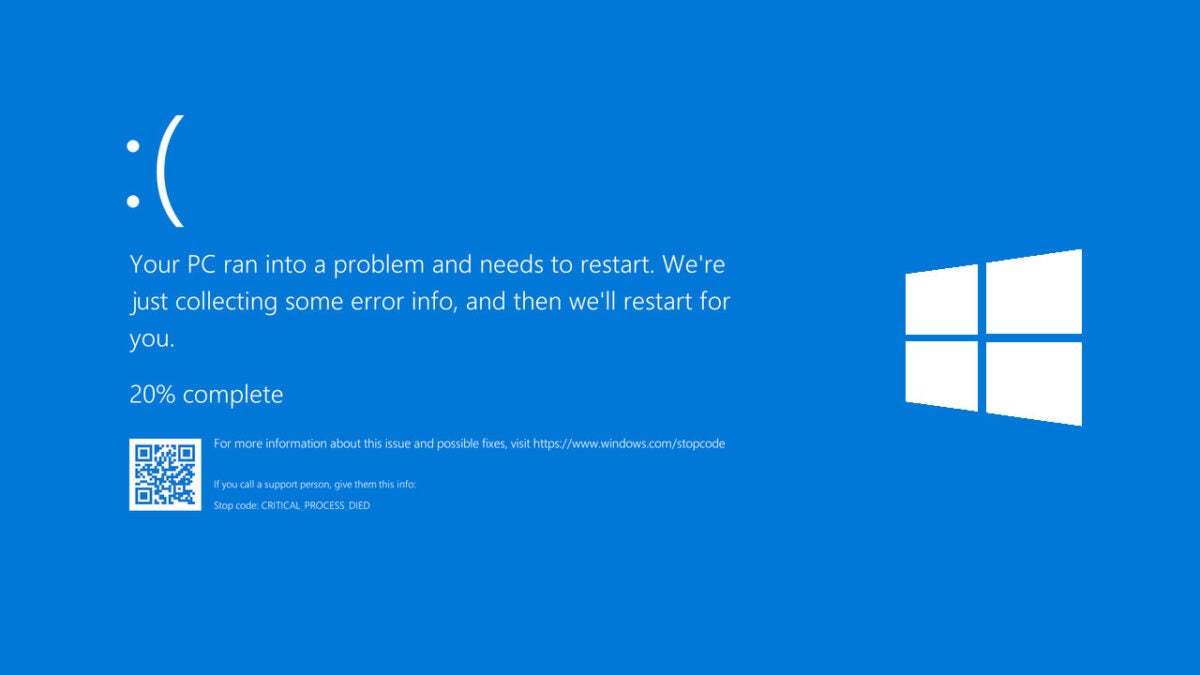
Microsoft might finally be tackling the issue of the dreaded Blue Screen of Death that plagues so many Windows users. A new update to Windows 11 might put an end to the awful experience once and for all. The update specifically targets BSoD occurrences brought on by DirectX. 

The Blue Screen of Death is a harrowing experience, one that most Microsoft users have encountered at least once in their lifetimes. The screen itself has undergone a few changes over the years but never simply disappeared as most users would prefer it to. Most users know it as a Windows 10 staple, but actually, BSoD is much older than that. Windows 10 is a darker blue, Windows 11 was first black and then reverted to a slightly lighter shade of blue, and Windows Servers offers the dreaded experience in dark green. Windows 3.1, 95, and 98 even supported the option to change the color. If you wanted a Pink Screen of Death, you could have it. 

The update in question was first spotted by HotHardWare and stated that it ‘Addresses a stop error (0xD1, DRIVER_IRQL_NOT_LESS_OR_EQUAL) in the DirectX kernel component.’ This means that it seeks to combat errors that weren’t on the drive to start with but rather a more specific Windows problem involving the DirectX utility. The update isn’t exclusively for the BSoD error but, as usual, also features a number of other fixes and additions, so it’s definitely worth checking out. Currently, the patch is only available to Windows Insiders on the preview platform, but it is expected to hit the general public as soon as April 5th

It is, however, pertinent to note that not all BSoD errors are because of DirectX. Sometimes it is an issue with your driver that brings about the harrowing experience, and other times bad RAM can be the root cause.

If you are no stranger to the Blue Screen of Death and wish for it to be a thing of the past, consider signing up to the Windows Insider program for instant access to a preview version of the patch. You’ll also be first in line for any other new updates coming to Windows 11, of which there are many. The OS is currently preparing for a fall feature update known as Windows 11 version 22k2.
Google Chrome 100 drops with a brand new logo

Google Chrome 100 recently hit the stable channel, and along with various improvements and new additions, the browser has received an updated logo. The new Chrome 100/ Chrome 2022 logo sees the browser heading in the same direction as Google Pixel icons with a flat approach to the classic Google design language. But it’s a little more complex than that. 

As mentioned above, the new logo is completely flat, devoid of even the minor shadows that the Windows 10-era browser introduced. The colors are also slightly more saturated and appear brighter. Overall, it’s an interesting approach to the company’s classic design language and seems to suggest a theme of simplicity but better integration and a more ‘vivid’ experience in the new browser. 

As flat as the new logo is, however, there’s a certain amount of dynamic design involved too. As it turns out, the new flat logo is exclusively for Google OS and associated devices. If you download the new browser for Windows, the logo will take on a design language that brings it in line with the rest of the Windows 11/ 10 ecosystem. When downloaded for macOS, the logo will appear three-dimensional to match the rest of the macOS icons. As explained by Google designer @elvin_not_11, the new logo was designed for an integrated, OS-specific experience. 

It is unclear whether the new logo will ship to mobile devices or when. As most mobile brands use some native variation of ChromeOS but not the exact OS itself, we might see brands like OPPO creating a logo in line with Chrome 100 but still fully integrated into the ColorOS ecosystem. 

Logo design is a personal and highly specialized form of communication. This latest design language update of the Chrome browser is a step toward a more integrated future, comparative and possibly synchronous with the advent of new features in Windows 11. There seems to be a greater interest in, for lack of a better term, translating the old individual operating systems into design languages that each understands. This minor choice to adapt the Chrome 100 icon to other operating systems could speak to something bigger—a more connected and harmonious and less competitive future.

Five tactics to survive at all costs in PUBG Mobile

PlayerUnknown’s Battlegrounds, aka PUBG, is an addictive free-to-play game that comes down to survival of the fittest. In this battle royal game, players parachute onto a large battlefield and must employ a number of tactics to be the last one standing. However, winning is not always as simple as finding the weapons and getting the upper hand quickly.

When PUBG was first released on Steam in 2017, its multiplayer premise of pitting dozens of players against each other became a hit almost immediately. Whether you are crawling or jogging, there’s no argument that PUBG is a pure adrenaline program. But it can be tricky to survive against more experienced players if you’re new to the game. Here are five tactics to last in PUBG mobile.

Look to higher ground or lower properties

The game starts with your character’s choice parachuting onto a cliff or into a small group of buildings. A strong tactic is to explore your surroundings as your enemies are under your feet. Grab as many supplies as you see necessary before beginning your battle. The crouch feature allows you to look over hills to see active wars between players.
From here, you can decide whether you want to jump into an active free-for-all battle or wait until the action dies down. Keep in mind that other players can join at any moment, so timing is key. This tactic depends on your preferred gaming technique if you choose to be aggressive or strategic.

Take your time as a character

Avoid getting into early battles when you are just starting off. You’ll need to arm yourself with weapons to advance in the game and not go straight into hand-to-hand combat. If you stall for too long then your enemies have time to arm themselves with advanced guns and ammo.

You also have the option of staying in the area to complete a fight or moving to a different battleground. When you’re feeling overwhelmed with too many players, this is a good tactic to find a different area to explore and learn new fighting techniques. You can choose to take cover when you’re not ready for a big fight and get back into the game whenever you’re comfortable.

Stay away from open areas and windows

Lack of cover is bad in any situation. But even while moving it’s important to always know where you can get cover from enemies. Plan routes out ahead of time to try to make sure you are out of the open as much as possible.

Windows are very dangerous when an enemy knows that you’re in a building. They will also know that the only place that you can attack from is a window or opening. There are a limited number of windows that enemies need to take over in a fight. If you need to use sniper tactics in your fight, move to other windows to throw off your opponents.

Plan your battles before you attack

A great thing about PUBG is the option to plot your route and map out your conquests. This survival game will test your patience and tease you to create the wrong moves. You will have to get creative with tactics and use techniques such as setting traps to eliminate other players.

Look to special tutorials on YouTube and Steam that showcase what the experts are talking about. They can tell you to change positions from sitting to crouching to save your energy for a battle. If all fails, you can run away from fights to stand your ground. With this technique, you can conserve your energy for a big battle.

Use your advantages whenever you can

It’s no secret to established gamers that scoping out your surroundings from a higher ground gives you a better perspective of the game. When you’re cautious going into PUBG you might want to explore the lands before going right into battle. If you’re feeling brave, test out your level and skills as you can always restart PUBG on the mobile app.

Getting a kill from a fair fistfight that ends at 1% health and getting a kill from a single headshot are both equally valued towards progressing the game in active combat. You need to use your skills and strategies wisely if winning is important to you. Keep in mind that this is a free-for-all battle royal.

Use your strengths to the fullest while playing PUBG Mobile

PUBG Mobile can be approached with caution or played as an exciting game where you face combat right from the beginning. The trick is to collect weapons and stand your ground in order to become the lone survivor at the end of your mission. You can do this by fighting or hiding, as well as joining alliances.

Gamers interested in an action game within their mobile device will appreciate the high-quality graphics and intense gameplay of PUBG. If you’re new to the game, be prepared to learn by trial and error. Patience is a virtue, and remember not to rush into an active battle unless you’re truly ready to win.

How to make a presentation on Apple Keynote

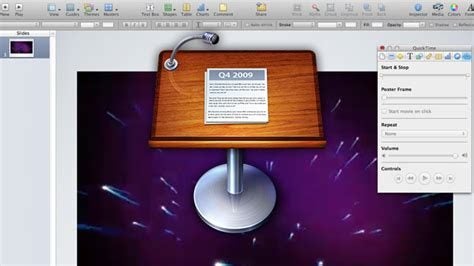
Apple Keynote is a presentation tool that comes with all iOS devices like Macs, iPads and iPhones. It’s not available for PCs, where PowerPoint and Google Slides, among other programs, are mostly used to make presentations. But you can save Keynote documents as PowerPoint files or import and edit PowerPoint documents in Keynote. This can be very helpful, for instance, if you want to collaborate on a presentation with someone using a different operating system.

Among Keynote’s advantages are how easily you can incorporate charts and graphics into your presentations. They are easily accessible in the toolbar. Here’s a quick guide to making presentations on Apple Keynote.

Getting started with Apple Keynote presentations

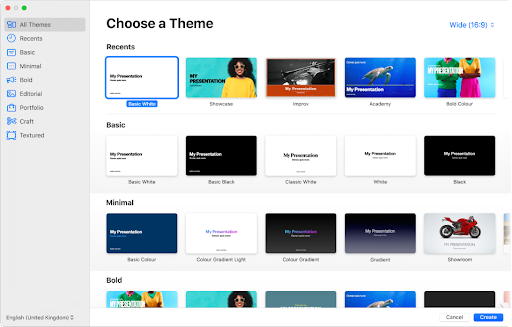
Keynote has at least 30 templates to use when you’re determining the design of your presentation. They will give whatever you do a professional look that will have our viewers sitting up and taking notice. You can also download themes if you think they will show off your presentation’s personality and style better.

With Keynote, similar to PC presentation tools, you also build your presentation using slides. But Keynote goes a step further with a touch interface that allows you to draw and sketch on your slides. To make your presentations pop, you can also add elements like text, images, video, and animations, including 2D, 3D, and interactive options. Our step-by-step guide will help you quickly create a Keynote presentation.

  1. Choose a theme

    How to make a presentation on Apple Keynote

    Keynote offers layouts for slides grouped into themes. You can use them to give your presentation an overall cohesion in its design. Each slide layout includes images and text that you replace with your own content as you go along. To get to the themes, open Keynote, then go to the theme chooser. You can look at themes you might want to use by category or open All Themes and double-click the one you want to open.

  2. Choose a slide layout

    How to make a presentation on Apple Keynote

    To choose a layout for the first slide of your presentation, click the Slide Layout button in the Format sidebar. Each layout has its own unique design containing placeholder images and text. The idea is for you to replace it with your own content of text and images as you create the slides for your presentation. You can add a slide, replace or delete one at any stage.

  3. Add your own content

    How to make a presentation on Apple Keynote

    To add text, you have to double-click the placeholder text in the slide layout design, then type or copy and paste your own text in its place.

    To add an image, drag one onto a placeholder image in the slide layout design to replace it with your own image.

  4. Save your presentation

    How to make a presentation on Apple Keynote

    When you have finished adding your own content to as many slides as you have decided to use in your presentation, you should save it. Then you’ll be able to access your presentation easily when you want to show it to others. If you have iCloud set up on your device, Keynote will automatically save your presentation there.

  5. Play the presentation

    How to make a presentation on Apple Keynote

    In the toolbar, you will find a big Arrow sign. Click on it to play your presentation. To look at each slide in turn, press the arrow key once to look at each slide in turn. Have a good look at your presentation to ensure you’re satisfied with how it looks before you show it to other people

  6. Finish and close the presentation

    How to make a presentation on Apple Keynote

    To indicate that you have finished your presentation, press the Escape key. 

    If you want to close your new presentation, click on the red Close button. And you’re done! You have made your first professional-looking presentation on Keynote and are ready to show it to your clients or colleagues!

It’s fun with serious intent

It’s enjoyable to play around with Keynote, trying out different designs for your slides and learning how to quickly and easily replace the placeholder images and text with your own. Doing so will ensure that you are totally familiar with the software. This will give you confidence in your ability to use it to create brilliant presentations.

Remember, though, that the core of this software has very serious intent. It’s a sleek Apple product with all that implies: excellent design at your fingertips using remarkably easy tools to locate and use. But you don’t have to spend a considerable amount of time looking for clever new ways to incorporate what you want to show off in your Keynote presentations.

Everything you need has been arranged in the software to find exactly what you need with very little effort. It will seem much easier than you ever anticipated to make your presentation pop than with any other software out there designed for you to use for making presentations. So, get ready to enjoy the process!

Lego Star Wars: The Skywalker Saga tips and expectations

Lego Star Wars: The Skywalker Saga has taken fans on a whirlwind roller coaster since it was announced. Despite the massive excitement of this very ambitious game, the amount of delays has fans wondering if we’ll ever see it released. Luckily, a release date is just around the corner, and pre-ordering the game is now available. 

This is one of Traveller’s Tales’ most ambitious releases to date. Covering all nine movies in the beloved Star Wars universe, the game offers both Lego and Star Wars fans a new way to experience the franchise. 

When does Lego Star Wars: The Skywalker Saga come out?

Release dates for this game have been quite unreliable, with many delays pushing back the release date numerous times. Despite the delays, TT Games have announced that Lego Star Wars: The Skywalker Saga will release on April 5, 2022

Pre-orders are now available for fans who want to jump into the game immediately after the release. This latest Lego game will be available on PS4, PS5, Xbox One, Xbox Series X, Nintendo Switch, and PC. A note when playing on a PC, make sure that your PC has the specs required to play the game, as it will require a high-performance PC with at least 40GB of free storage.

Differences between the packs

If you’re looking to pre-order the game, you’ll find that there are two different packs available:

  • Lego Star Wars: The Skywalker Saga Standard Edition available for $59.99
  • Lego Star Wars: The Skywalker Saga Deluxe Edition available for $69.99

The difference between the packs is a simple one. The standard edition includes just the base game, without any additional extras. In contrast, the Deluxe Edition includes the base game, along with a slipcover case that lets you unmask Darth Vader, a Luke Skywalker with Blue Milk mini Lego figurine, and a 6-pack character collection. Some individual retailers also offer their own pre-order extras when you buy the game early. 

Lego Star Wars2 The Skywalker Saga tips

8 things you yan expect from Lego Star Wars: The Skywalker Saga

The game has been in development for many years, and while Star Wars games in the Lego franchise are nothing new, this one is set to blow the others out of the water. While the most basic gameplay remains the same, the developers have made many different improvements and changes to create a game that feels completely different and fresh. Here are a few things that you can expect from the new game.

General gameplay of Lego Star Wars: The Skywalker Saga

The latest Lego Star Wars game will feature a much more open-world approach rather than the usual linear gameplay we’ve seen in the past. Each Star Wars Episode will contain up to five-story missions. These missions follow along with some of the most iconic moments from the movies. Once each story is complete, players can return to Freeplay to extensively explore the different planets and worlds. During this exploration, players can discover unique puzzles, gather collectibles, and complete side missions. 
Keeping the new game fresh and innovative

This is not just another Lego game. The developers have taken the RPG aspect to a whole new level and made many innovative changes to keep the game fresh. For one, they introduced more complex combat mechanics. Instead of just pressing the attack button to throw or hit, players equipped with a blaster can enter an over-the-shoulder view mode to aim where they want to shoot. Players can also enter cover, a mechanic introduced in Lego Star Wars: The Force Awakens, but it was very restrictive, whereas now it’s improved drastically.

Players can also use melee attacks and are now combo-based, meaning players can line up multiple attacks. The same combo-based mechanics also apply to lightsaber-wielding characters, with their own set of animations, keeping the gameplay exciting and new. The upgrade paths have also seen a massive overhaul, with players being able to collect and use Kyber bricks to upgrade their different characters.

Lego Star Wars2 The Skywalker Saga tips

Lego Star Wars: The Skywalker Saga multiplayer

Like most other Lego games, this one will include a full couch co-op available from the game’s launch. This means players can play together, using different characters and strengths to navigate through the worlds, complete puzzles, and follow the story. Unfortunately, online co-op and competitive multiplayer modes are not available.

New camera angles

The game features new camera angles that bring the player closer to the worlds and characters. This gives you the chance to see the immense details that went into creating these worlds and the characters. This is by far the best visual Lego game to date. The camera angle during gameplay and cutscenes isn’t the only new camera feature introduced in this game. As we mentioned, if a player equips a blaster, they can enter an over-the-shoulder view, making the gameplay feel more like a first-person shooter.
RPG-styled choices added

The developers also included some choices in the game’s narrative. While these choices aren’t significant enough to affect the overall storyline, they make the game more entertaining and enhance its replayability. An example of this choice is when Leia is on the Tantive IV, she can choose to build a laser turret or water cannon with bricks to clear a path to the next section. While these choices don’t affect the storyline, they make the player feel more in control of how the game progresses.

Lego Star Wars2 The Skywalker Saga tips 3

Play any or all of the Star Wars episodes

One question asked repeatedly since the announcement of the saga is whether you have to play all the episodes or if you can do just your favorites. This game doesn’t follow a set linear progression like many of its predecessors. Players can choose which episodes they want to play and the order they want to play. If there is a particular arc that you’re not a fan of, you don’t have to complete it – although you might miss out on collectibles and valuable Kyber bricks.

Character classes

There are several different classes of characters, and they all have unique abilities to use in different ways to solve puzzles and complete the stories. There are nine classes: Jedi, Hero, Scavenger, Scoundrel, Bounty Hunter, Villain, Dark Side, Astromech Droid, and Protocol Droid. Additionally, each of these classes has four unique abilities, which players can upgrade using Kyber bricks found across the different planets and stories. Choosing which players and abilities you upgrade can have a massive effect on your game and mean you won’t be playing the same game twice.

Galaxy map

The galaxy map is another stand-out feature introduced with the latest Lego Star Wars saga. This map was first revealed at Gamescom 2021 during the Opening Night event. This map will allow players to travel between different planets.

Lego Star Wars2 The Skywalker Saga tips 3

Get ready for a starry adventure

We’ve been waiting for Lego Star Wars: The Skywalker Saga for many years, and it’s finally close to the release date. While the developers kept many of the basics the same, they also added many new features and improvements to make the game stand on its own.

We’re eagerly awaiting the release to try it out and see if these improvements were worth it. In the meantime, check our Minecraft review for another blocky adventure game.

Microsoft Excel review | Spectacular spreadsheets

Microsoft Excel is one of the top spreadsheet programs that’s been around since 1985 when it was developed for Apple devices. We used to see different versions listed by year, and they were usually launched to meet a new operating system’s requirements. All of that has changed with Microsoft 365, where you can instead download and install the primary app for Windows 11.

What was once used for simple data manipulation has advanced to macros and complicated formulas. There are so many advanced features in Microsoft Excel, that it’s easy to become lost. Therefore, I’ll supply some handy tips in this detailed review.

Getting started with Microsoft Excel

It’s better to begin this Microsoft Excel review with the basics as easier to show what’s available without getting into the technical details. Here’s what you can expect when you open your first spreadsheet.

Creating new spreadsheets

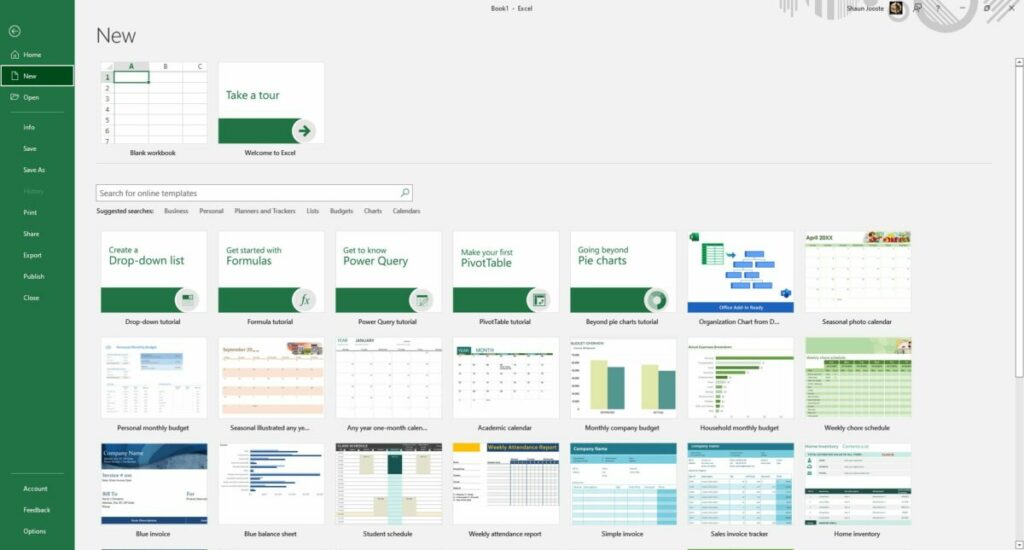
Starting your first spreadsheet is as easy as clicking on File and New. Microsoft Excel will ask you if you want a blank sheet or one of the included templates. There’s also a tour you can view so that you can try many of the features. I recommend you spend some time on it if you’re never used the program before. 

Microsoft Excel Review

Establishing ribbon shortcuts

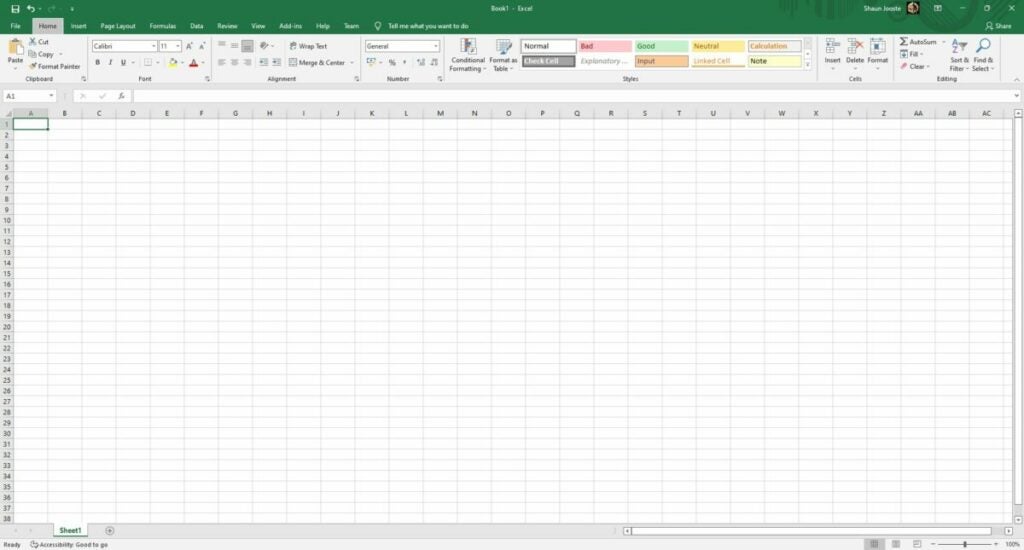
Before you begin inserting data into the cells, it may be beneficial to take a look at the ribbons in the top menu. There are many tabs, so browse through them so you can see where all the functions are. You don’t need to study them; it’s just to get a general idea of the layout.

Microsoft Excel uses most of the basic shortcuts you’ll find in other 365 apps, such as copy, paste, and undo. However, the spreadsheet also has unique shortcuts for the ribbon items. When you press the Alt key, you’ll see small buttons appear, revealing which shortcuts you can use when combined with the Alt key. It’s an excellent way to save time from moving the mouse around.

Become familiar with the spreadsheet grid

Now that you know what the menu holds for Microsoft Excel, let’s head to the main sheet. Each block is called a cell, which is where you’ll insert your data and formulas. If you move across one line horizontally, it’s called a Row. From top to bottom is referred to as a Column. Rows have numbers and Columns have alphabetical letters. You’ll need to learn how to identify a cell on the grid for more advanced functions. For example, the first one on the top left is called A1.

Microsoft Excel Review

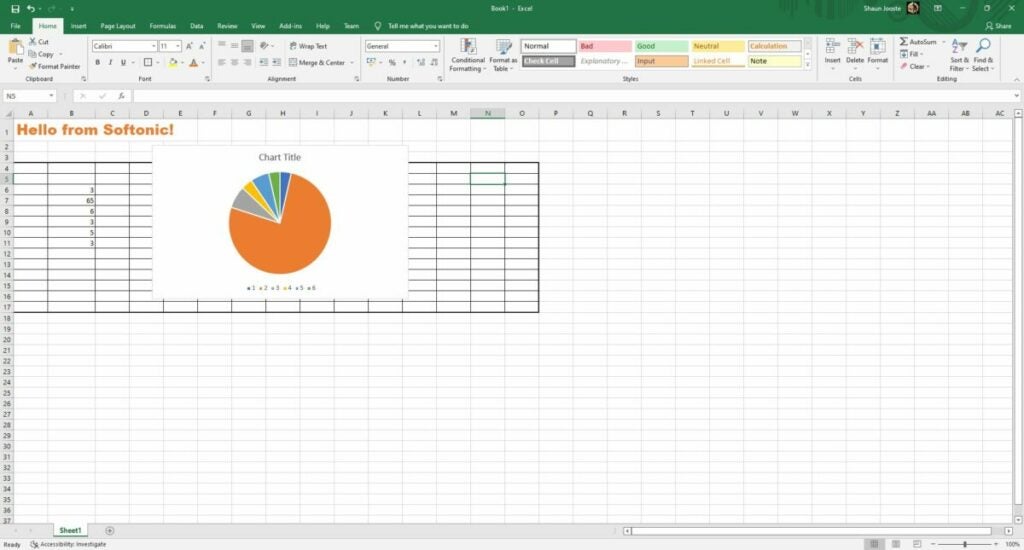
Change font sizes and styles

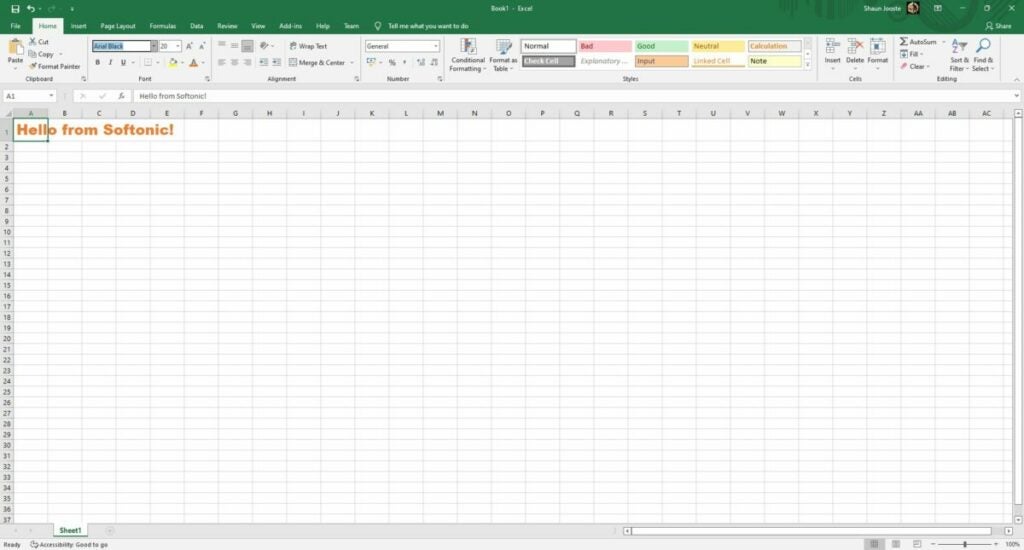
When you’re creating spreadsheets for companies and detailed reports, you’ll want to change some font aspects to make certain areas stand out more. You don’t need to settle for the default black Arial 12 text. Head to the font ribbon, and you can change the color, size, type, and so much more.

Microsoft Excel Review

Creating borders

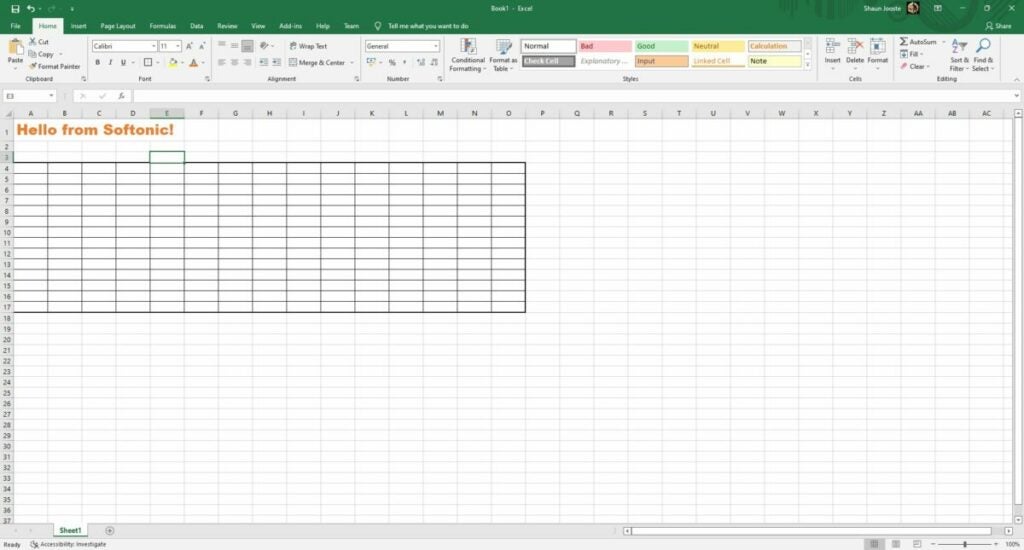
One of the unique features that sets Microsoft Excel apart from the other 365 apps is how easily you can create borders. You can select multiple cells and then head to the font ribbon again. You’ll notice a drop-down box for various border types. There’s also an option to change line colors, which means you can become creative in your design.

Microsoft Excel Review

Freezing and unfreezing rows

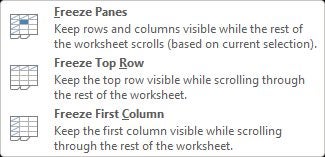
Here’s a handy trick that will help you when you have so much data to work through. If you want to keep the top rows while you scroll down, especially when you want to keep them in view, you can freeze rows and columns. It’s easy to undo when you’re done, so don’t panic when you see it worked. You can check out our guide on the top 2 methods to freeze rows in Microsoft Excel for more advice.

Microsoft Excel Review

Resizing cells for loads of text

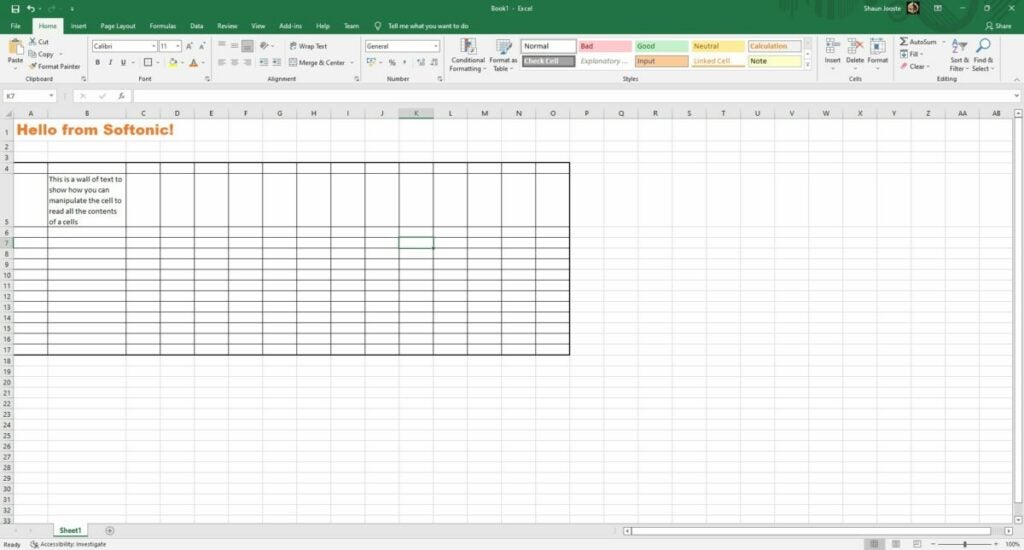
If you’re well on your way to using Microsoft Excel for work, you’ve probably reached a point where you’ve needed to enter a lot of text in a cell. The issue is that it stretches over other cells or you can’t see all of it. 

Fortunately, you can widen cells or wrap text to make it look better for your reports. Here are some tips for presenting loads of text in a single cell in Microsoft Excel.

Microsoft Excel Review

Moving rows and columns around

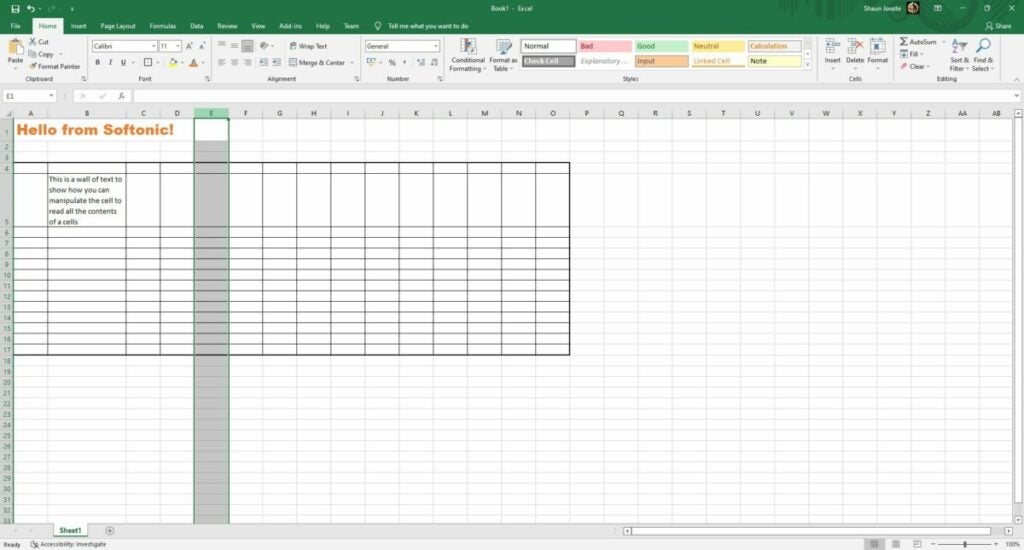
Another handy feature to learn is that you can move rows and columns around to save you time. For example, you can click on the column letter if you want to shift all the content between other columns. The same rule applies to rows. There’s also an option to relocate the contents of individual cells wherever you want, but just be careful when it comes to formulas.

Microsoft Excel Review

Keeping Microsoft Excel updated

One last basic aspect of Microsoft Excel I want to touch on for this review is keeping Microsoft Excel updated. While most of the features and functions will still work and you can use the program when offline, you may lose out on some new functionality with an update. Also, patches help to fix bugs. More importantly, outdated software programs make your PC an easy target for malware and spyware.

Exciting Microsoft Excel functions

Many competitors have arisen over the past few years to offer an alternative to Microsoft Excel. Some prime examples include Google Sheets, OpenOffice, and WPS Office. Here are some of the top functions that many people still praise Excel for.

Using Microsoft Excel formulas

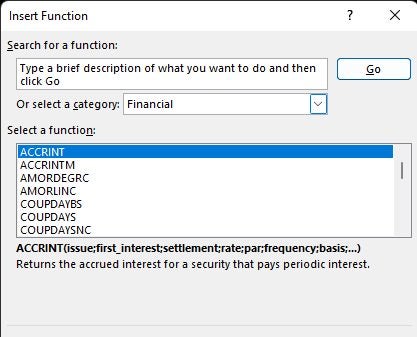
The number one reason most people use Microsoft Excel is for its advanced formulas. When you go to the Insert menu, you’ll see several categories of formulas. Even if you spend months using them, you won’t really master everything there is to learn about them. It’s incredible just how many there are and how powerful they can be.

Check our quick tutorial on how to use Microsoft Excel formulas, as there are too many to write about to fit in one review guide. The most common one is the Sum formula, but there are many other ways you can manipulate data and obtain results.

I would like to just caution you again about moving cells around with formulas in them. It may change the results depending on the formula you used. If you want to repeat the same one over multiple cells, you can just drag it down from the main cell.

Microsoft Excel Review

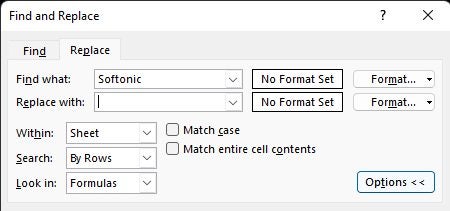
Search and replace

One tip of advice I can give you from experience is how valuable the search and replace button is. Every year, I spend time doing my accounting across several spreadsheet tabs. While I use a template, I sometimes need to replace the same information in all of them.

The search and replace function saves you time and helps with productivity. You don’t only need to search cells, but can also dig deeper into formulas. So, if you need to change the year in all tabs, you can do so with one click.

Microsoft Excel Review

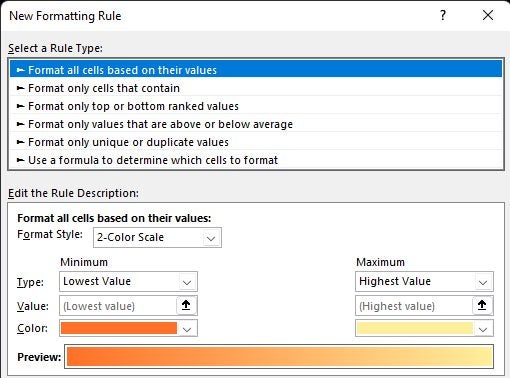
Mastering conditional formatting

Sometimes, it helps if Microsoft Excel can alert you when the results of a formula meet a specific condition. To aid in this situation, you can assign conditional formatting. Basically, you set an “if-then” rule for a cell to change color and style should it meet the right specifications. You can read more about this and other advice in our top Microsoft Excel tips.

Microsoft Excel Review

Splitting and combining data

You may reach a scenario where your boss or client sends you loads of data in one cell or email. It wastes time and is less efficient when you go into the cell and cut and paste each one individually. Two ways you can deal with this is via Flash Fill or Delimiters, which separates the information into various cells.

On the opposite side of that coin is when you have data in different cells, but you need to combine them into one. Fortunately, the Concatenate formula works well in this regard. Just make sure you include spaces where text is concerned.

Tables, graphs, and charts

Reports really stand out when you show data in graphical form. Microsoft Excel has several ways you can present it, such as tables, bars, pie charts, and so much more. You’ll find them in the Insert menu under the Charts ribbon. You’ll need to give the sheet a location for the source data; otherwise, you’ll end up with a blank window. 

For more detailed information, check our guide on how to make a graph in Microsoft Excel.

Microsoft Excel Review

Transposing cell information

Now that you have the hang of tables, you might run into a situation where you want the content in your rows to go to the columns or vice versa. To help you be more productive and safe time, there’s a simple transpose function you can use. It’s as easy as copying the information and then using a special paste condition to transpose the data around.

Interactive cells

Your colleagues might need to select answers from a drop-down list that will feed into your report or survey. It also helps when you’re dealing with loads of data and you need interactive cells to help sort them. When you head to the Data menu, look for the Data Validation function in the Data Tools ribbon. Follow the steps and you can make the cell more engaging for others to use.

Understanding how Microsoft Excel macros work

My final tip for improved productivity in Microsoft Excel is to set macros. This function records keystrokes and actions you perform to replicate at a later stage. You’ll save it in a workbook so that Excel can call the function later. The option is available in View and then the Macros ribbon.

It’s essential that you study at length how macros function. One small mistake can destroy your entire spreadsheet. You need to ensure that the conditions are right for your recorded macro before you apply it to your document.

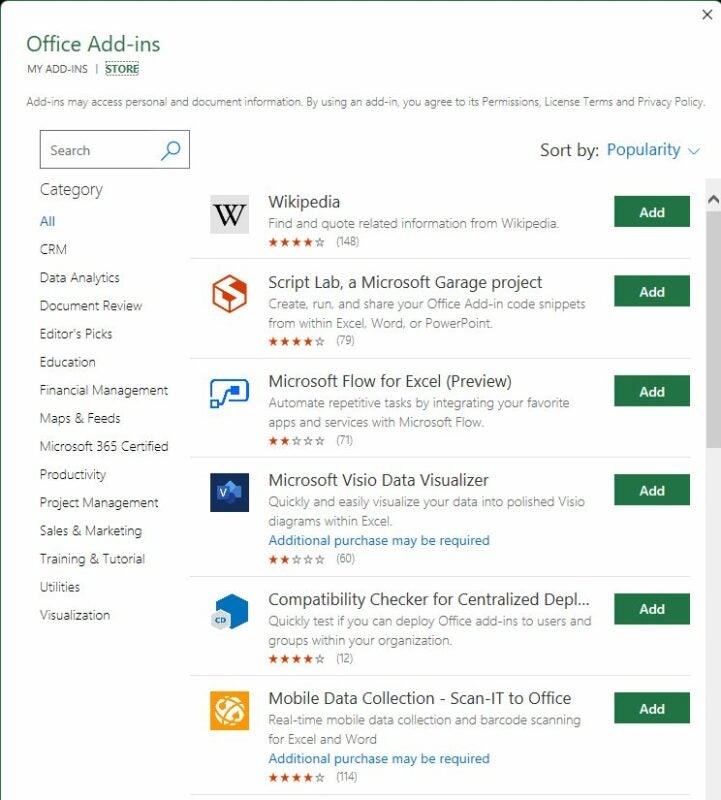
Enhance Microsoft Excel with add-ins

Fortunately, you don’t need to start from scratch in Microsoft Excel. I’m not only referring to the templates but there are also add-ins you can install. These are located under Insert in the Add-ins ribbon

A small Microsoft store will open with all plug-ins that work with Microsoft Excel. You’ll notice various categories on the left to make browsing easier. There are so many available, it’s not possible to cover them in one article. Some of the top ones include Wikipedia integration for references, budget creators, and data mining tools.

Microsoft Excel Review

Working online with Microsoft Excel sheets

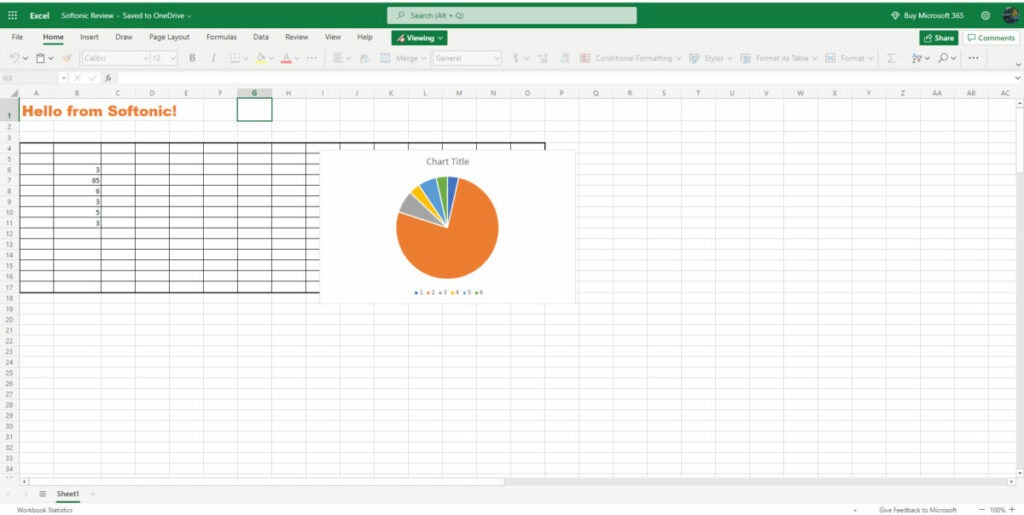
The last aspect I want to cover in my Microsoft Excel review is the online capabilities. If you’re away from your computer that has the app installed, you can still access your spreadsheets with Microsoft 365 online. The best part is that you can switch between docs, sheets, and presentations you have saved in the Office family.

Opening your Microsoft Excel spreadsheets online

When you head to your Microsoft account on your browser, you’ll have a list of applications on the left. You’ll notice the green one that represents Excel. When you click on it, you’ll see a pane open with the latest sheets you’ve worked on. You’ll see I managed to open the same sheet I created for this review in Avast Secure Browser.

Microsoft Excel Review

Dangers of working online

Before you follow this route, I need to mention some dangers of working with spreadsheets online. If you don’t have malware protection installed or a secure browser, hackers may be able to view or access your sensitive data. It can be devastating if you’re working with financial or confidential information that can get your company into trouble.

Converting to other formats

Finally, let’s discuss changing formats and transferring Microsoft Excel files. If you need to send a report in a protected format, you can easily save it as a PDF directly from the program. There’s also a way you can convert Microsoft Excel sheets to Google Sheets if you prefer that medium.

Microsoft Excel: Top spreadsheet functionality

It’s undeniable that Microsoft Excel is an incredibly powerful spreadsheet program. It can be easy for beginners to feel daunted by all that it has to offer, but there are many basic features that are easy to use. Companies will often request experience in this program when looking for someone to develop reports and spreadsheets for them. Fortunately, it’s easy to learn how to use it.

Pros

  • Plenty of functions
  • Easy to move columns and rows
  • Stunning visual elements
  • Macros can record keystrokes
  • Saves to the cloud
  • Connects to the central Microsoft account
  • Ribbons are well organized

Cons

  • Can be daunting for beginners
  • Doesn’t synchronize with the cloud when offline

Developer: Microsoft

Publisher: Microsoft

Top features: data manipulation, graphs and charts, macros, conditional formatting, formulas

Platform reviewed: Windows 11