Adoption of Windows 11 seems to be slowing down

Windows 11 is already six months old, having been released to the public in October 2021. While the first few months saw a resoundingly positive reception of the break-out new OS by Microsoft, the initial hype seems to be waning. According to AdDuplex, Windows 11 only managed to achieve a 0.1 percent market share increase over the course of March. 

This slow trickle stands in contrast to previous months, where Microsoft was able to build up an overall usage percentage of 19.4. Microsoft has been relentless in its pursuit to get users to upgrade to the new OS, to not much avail. But as Steve Kleynhans, a vice president of research at Gartner, says, it might be a little bit early to draw any conclusions regarding Windows 11’s success.

Steve pointed out ‘While technically the OS update is six months old, a very large percentage of machines weren’t being offered the update until just a couple of months ago; the current install rate is likely just normal market evolution during the early stages of any new OS version and not a sign of anything really problematic.’ Steve also mentioned that Windows 11 is not the first OS to experience such a lull. Windows XP, 7, and even 10 had a surge of new users followed by a slow period. As we well know, however, all three operating systems ended up becoming massive successes down the line. 

Steve also pointed out that the uptake rates of new operating systems have more to do with PC sales than you’d think. ‘For most consumers who aren’t PC enthusiasts in some way, this is not really a high priority, and they won’t actively seek out the upgrade. Until Microsoft starts forcing the upgrade, or at least more aggressively marketing it to users on eligible machines, things are bound to stall out a bit.’ 

The other thing to note is the eligibility of existing devices according to Windows 11’s increased system requirements. Not everyone can afford to replace a PC every two years, and that’s how fast technology moves, if not faster. The reality is that Microsoft may simply have exhausted the pool of Windows users who can afford to buy new PCs that natively come with Windows 11 and those whose current PCs can handle the increased demands of Windows 11. 

It’s irrational to think the adoption rates won’t pick up again, according to everything that Steve Kleynhans has said. We fully expect Windows 11 to become the next titan of the OS industry and take the reins from old-reliable Windows 10. There have also been more Windows 11 bug-fix-related updates of late, bringing it closer and closer to peak stability and user-friendliness.

We are finally set to Return to Monkey Island, 32 years later

Our Return to Monkey Island is set in stone for 2022. Although, it’s worthy to note that many didn’t believe the announcement when it was spotted on series creator Ron Gilbert’s personal website on April 1st. As a society, we’ve become accustomed to not putting any stock into announcements made on April Fool’s day, but this time, the announcement could not be more legitimate. 

Some fans may even remember that the setup for this clear punchline was developed all the way back in 2013 when Ron Gilbert posted to Twitter: ‘If I ever get to make another Monkey Island, I’m going to announce it on April 1st.’ He’s stuck with his guns, and on April 1st, 2022, he announced the new title, Return to Monkey Island, which is in development and will be released later this year. 

This will be the sixth installment of the critically acclaimed game by Devolver Digital and Lucasfilm Games and will be directed by Ron Gilbert. Gilbert will be joined by Dave Grossman as co-writer, who loyalists will remember worked on 2009’s Tales of Monkey Island in addition to the first two Monkey Island games. Even though the game is still heavily in development, we do have some information on the rest of the team working on Return to Monkey Island. Peter McConnel, Clint Bajakian, and Michael Land are set to be the composers of the sixth installment’s score, and Dominic Armato will return to once again voice the series Protagonist, Guybrush Threepwood, a role he has had in every previous Monkey Island game. 

The game’s official website does offer you the opportunity to view the official trailer, which doesn’t give much away. We can, however, tell that the game will be a pirate-themed adventure, sticking true to Gilbert’s well-known aversion to fantasy-themed games. Return to Monkey Island will likely contain a healthy dose of characters getting Guybrush’s name wrong, new takes on the old trials, and if the trailer is anything to go by, incredible visuals.

We look forward to the Return to Monkey Island and all the adventure, swordplay, thievery, and treasure hunt-ery it will most likely have to offer. In the meantime, why don’t you check out Tales of Monkey Island to see what the game’s about if you are new to the franchise?

How to use Photoshop for your iPhone

Photoshop Express is basically a lite version of Adobe Photoshop that you can use on your iPhone. You can edit a single photo or layer multiple images into collages or composites.

The app is full of filters and effects that use sliders to help you find exactly the right settings. You can also apply text, border, or sticker overlays to your images to make memes or add watermarks or captions. In this article, we’ll take a look at all the most exciting features of Photoshop in iPhone and show you how to perform some of the most common photo edits.

Adobe Photoshop FREE TRIAL
9
  1. Get familiar with the panels

    Photoshop Express is divided into three spaces. The Tools Panel is at the bottom, the Image Workspace displays in the middle, and the more technical Options Panel is at the top.

    When you open the app, the Options Panel shows icons like Edit, Mix, Collage, and Retouch. We’ll start with the Edit section, where you can apply effects and filters to a single photo.

  2. Load images through Edit option

    Click on Edit at the top and then tap the camera, plus sign, or globe icon in the bottom panel to load the image you want to edit. Once the picture from your camera, photo gallery, or network loads up, the Options Panel at the top will change to show you the Undo and Save buttons plus a few more.

    You’ll also see the Tools Panel at the bottom of the screen change to show you the most common editing tools. Tap any icon there and a secondary menu will appear just above the bottom menu. Each tool in this menu comes with a slider so you can adjust its intensity.

  3. Using filters via the Looks menu

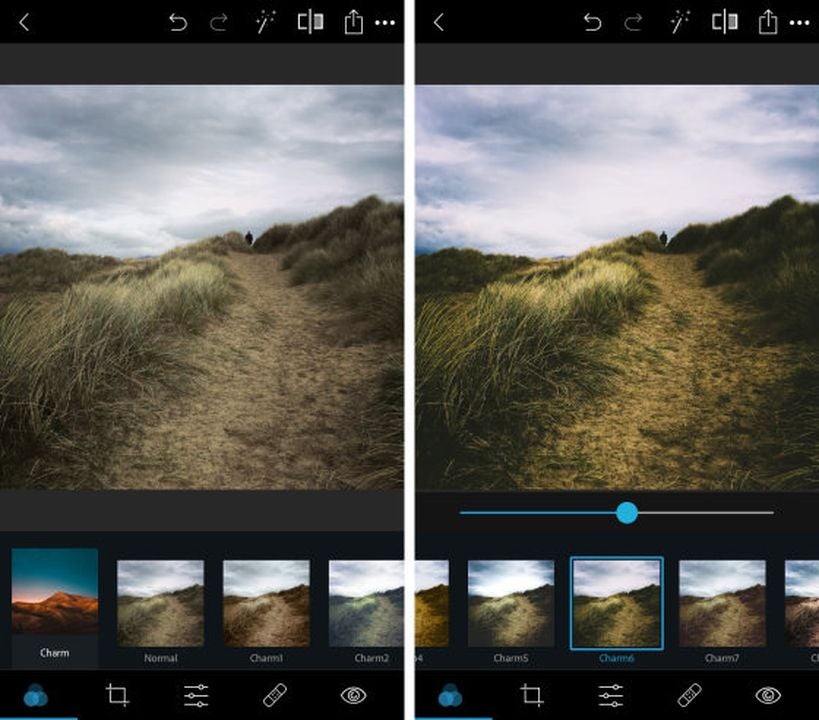
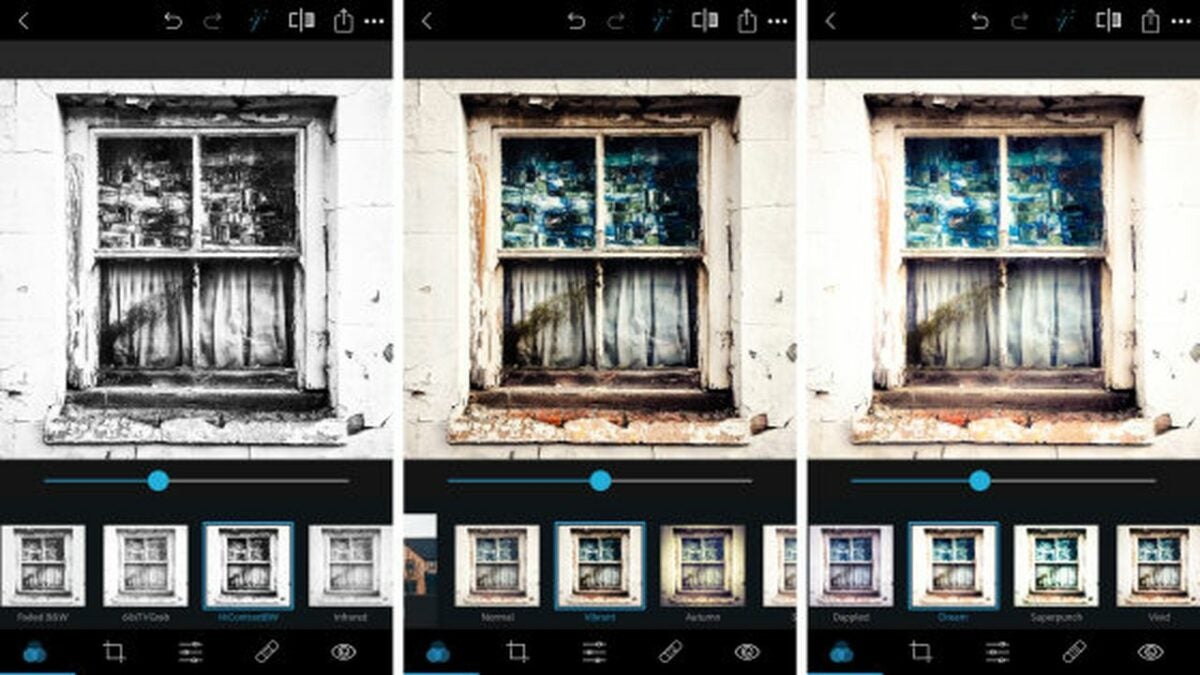
    The first icon in the bottom panel, showing three intertwined circles, pulls up the filter menu, which Photoshop Express calls Looks. The Looks are divided into categories like Nature, B&W, and Duo Tone.

    You’ll find plenty of individual filter options inside each category. The large thumbnail over each one will show you how your photo will look if you apply the filter.

  4. Access more effects through Light Leaks

    The Light Leaks icon in the bottom panel looks like two overlapping circles, one white and one black. This menu has an enormous selection of lens flares, raindrops, bokeh, and other fun lighting effects that can spice up your image. Pick one, and the AI will do most of the work. All you have to do is adjust the effect’s size using the slider.

  5. Modify size and fit

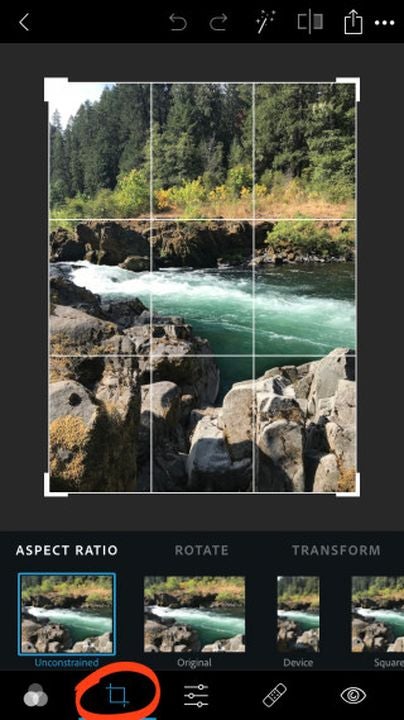
    To play around with your photo’s size and fit, tap the icon in the low panel showing two intersecting 90-degree angles. You can crop your picture, change the aspect ratio to adjust its artistic composition, straighten out the horizon, create an upside-down or mirrored version, or correct perspective issues using the Skew tool.

  6. Using adjustment tools

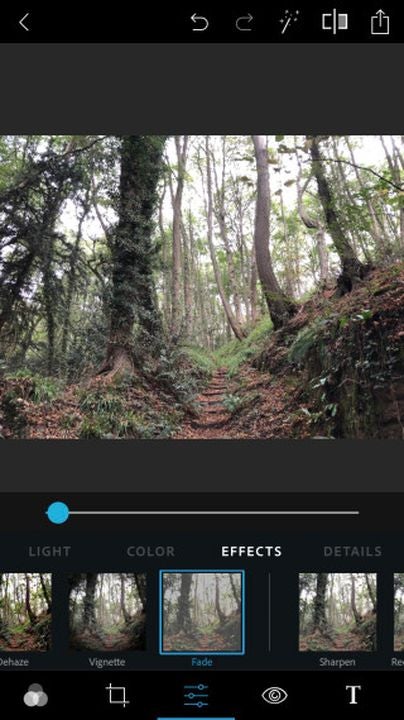
    The bottom toolbar’s next icon, showing two horizontal sliders, gives you access to the app’s adjustment tools. These include Light, Color, Effects, Details, and Blur.

    The Light menu lets you tweak your photo’s highlights, shadows, exposure, and contrast. The Color panel lets you adjust the temperature, tint, and saturation.

    In the Effects menu, you’ll find whimsical enhancements to bring out specific textures, fade colors, and add fog, grain, or vignette effects for an old-fashioned look. In the Detail category, you can sharpen your image and adjust the amount of noise. The Blur section lets you selectively add different kinds of blur effects to different parts of your pictures to help direct the viewers’ attention.

How to selectively adjust colors and brightness

The Adjustment workspace comes with an automatic selection tool that uses AI to identify specific features like the subject and the background. To selectively change the brightness or colors of a certain part of your photo, use the selection tool to target the problem area with a single tap, and then use the slider to tell the app how much of the effect to add.

Adding text

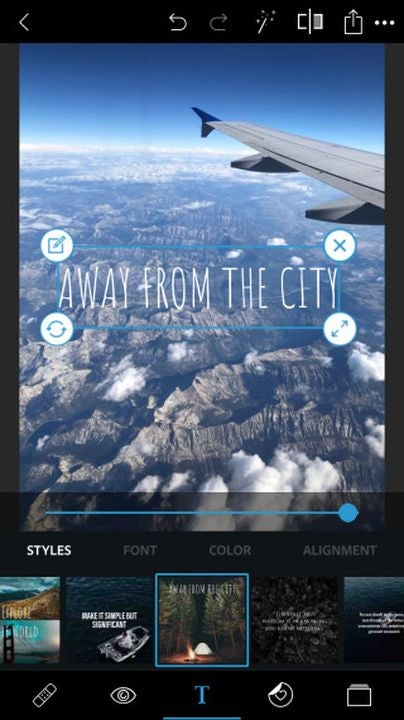
If you want to add some text, tap the T icon in the bottom panel, and use two fingers to draw a text box on your photo. Tap the pencil icon in the text box’s top left corner to type your message, or rotate, resize, or delete the box using the icons in the other corners. You can change the style, font, color, or alignment of your text in the secondary Tools menu that pops up at the bottom.

Adding text to an image in Photoshop Express

Adding stickers and borders

Beside the Text icon in the bottom panel is the Stickers icon, where you’ll see a tiny heart in a circle. The stickers are divided into convenient categories, and you can resize or rotate them using two fingers.

The Borders icon in the bottom panel looks like a square frame. This is where you can fade the edges of your image or use decorative outlines and frames to add style.

Combining multiple photos

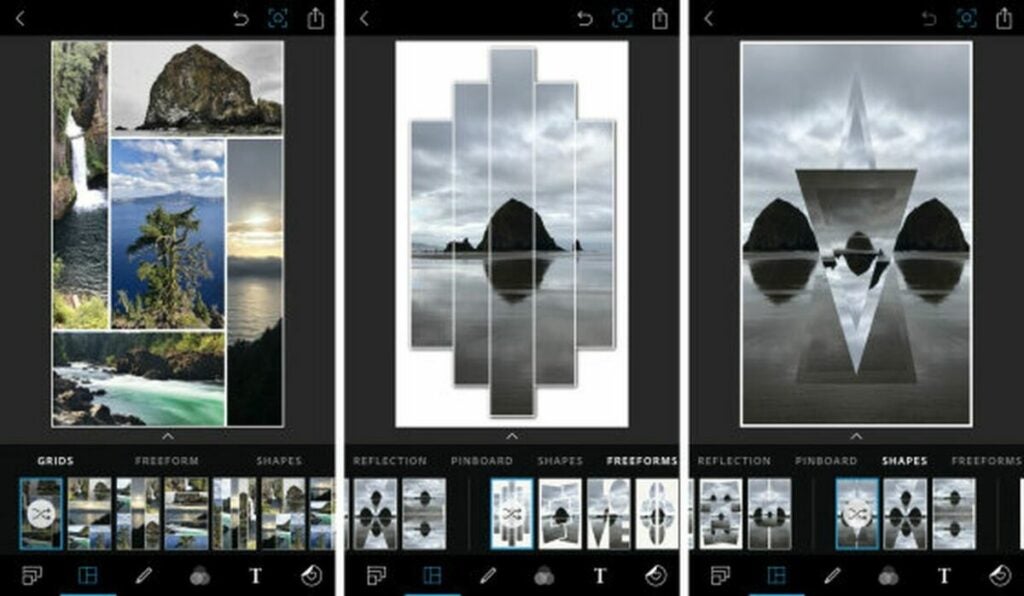
To make a collage from multiple photos, select Collage from the Options Menu when you first open the app. Once you choose the photos you want to use, the app will show you its massive collection of collage templates so you can get creative. You can combine various photos on your iPhone, adjust the position and size of each photo in your collage, or even merge two images into a single image.

Combining multiple images in Photoshop Express

Mixing images

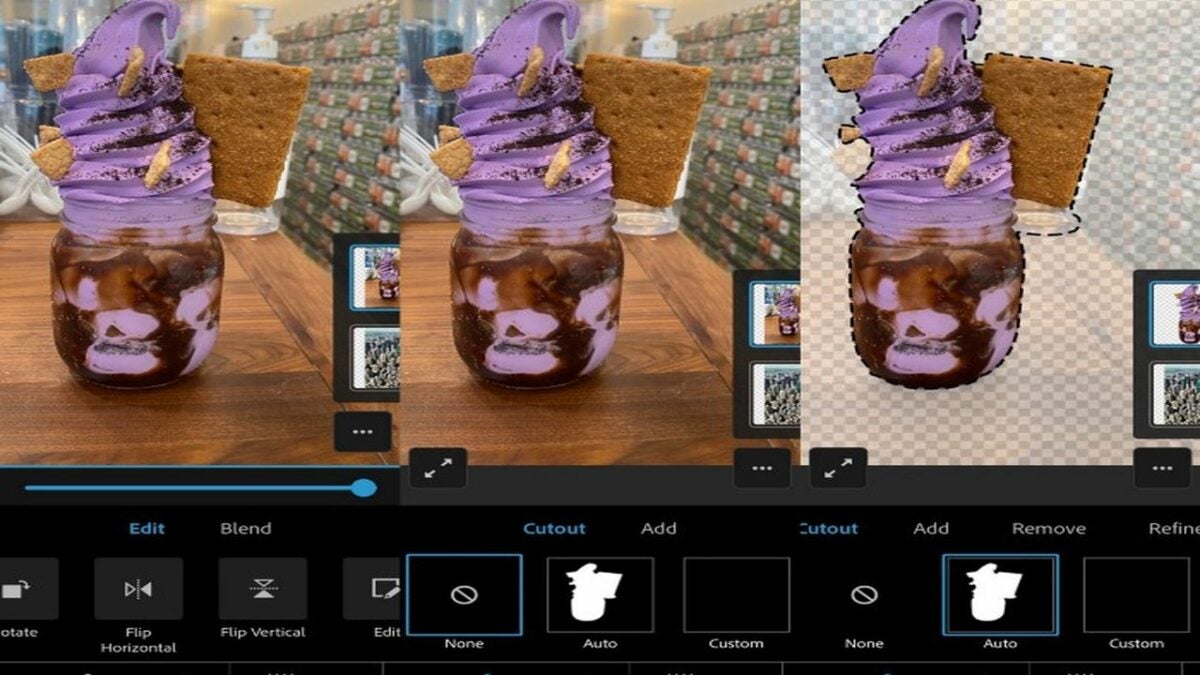
The Mix workspace allows you to layer multiple images on top of each other. You can add a person to a photo on your iPhone using the Cutout tool from its bottom panel. The tool comes with a Manual Mode and an Auto Mode that uses an algorithm to let you select people or objects from one image with a single tap and then place them over a background from another image.

Retouching facial features

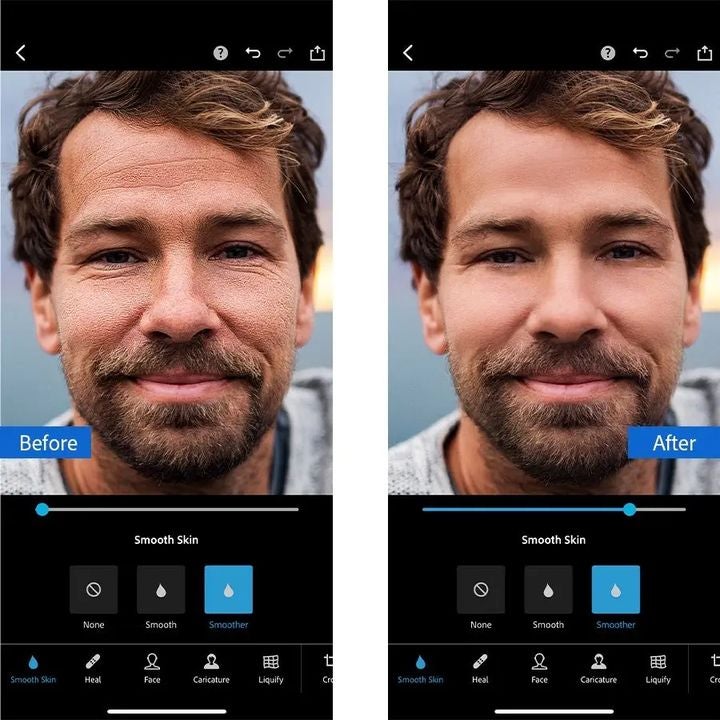
The Retouch workspace is designed for touching up facial features and skin. In its bottom panel, the Smooth Skin icon, shaped like a water droplet, uses AI to find relevant areas of skin and smooth them out as little or as much as you want. The Face tool lets you change the dimensions, angles, and contours of your whole head at once or just specific facial features, like your bottom lip or nose.

The neighboring Caricature tool is like an exaggerated version of the Face tool. It tweaks specific facial features to make you look like a cartoon. You’ll also find also a familiar tool, Liquify, from the desktop version, which lets you reshape parts of your photo with artistic twirls, smudges, and swells.

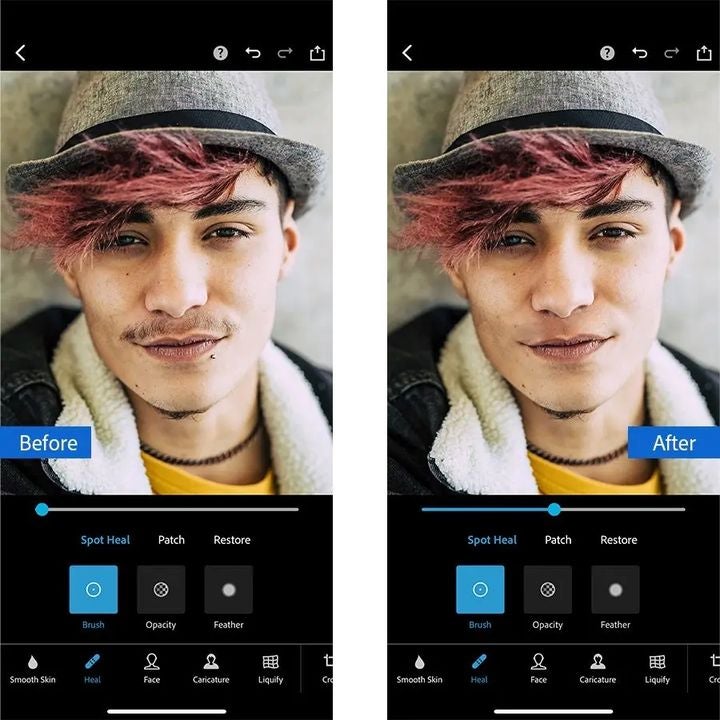
The icon showing an adhesive bandage is a smart Healing tool. It works like the Content Aware tool in the desktop Photoshop app, with a special algorithmic focus on facial blemishes.

For instance, to remove an unwanted freckle:

  • Start by using two fingers to zoom in on the freckle.
  • Adjust the fader to set the size of the spot you want to remove.
  • Tap on the spot to automatically and intuitively replace it with the app’s best guess of pixel colors from the surrounding area.
Retouching facial features in Photoshop Express

Using Photoshop with your iPhone is easier than ever

The menu systems in Photoshop Express may seem a bit cluttered, but that’s because the app is stuffed full of features. These include all the features from the late Adobe iPhone apps Photoshop Mix and Photoshop Fix, which were discontinued in 2021.

Accessing more retouching features in Photoshop Express

Photoshop Express is free for basic use, and there’s also a subscription option and in-app purchases if you need more advanced editing.

Start making masterpieces. with Adobe Photoshop FREE TRIAL
9

6 of the best uses for CamScanner

CamScanner is a handy, free app that allows users to scan documents without needing a separate scanner. Most of us have been in positions where we need to scan a document, but we don’t have a scanner nearby. Sometimes, you just need to send a scanned copy of your ID or driver’s license, so what do you do if you don’t have a scanner handy? Use an image scanning app, like CamScanner, of course. 

How to use CamScanner App

CamScanner is a straightforward app to use. It is available for free on Android, iPhone, and Windows devices, making it even more helpful. With CamScanner, there’s no need to invest in expensive scanners. You simply download the app from the Google Play Store. Once you’ve created a free account, you can start using the app to scan documents and other important information.

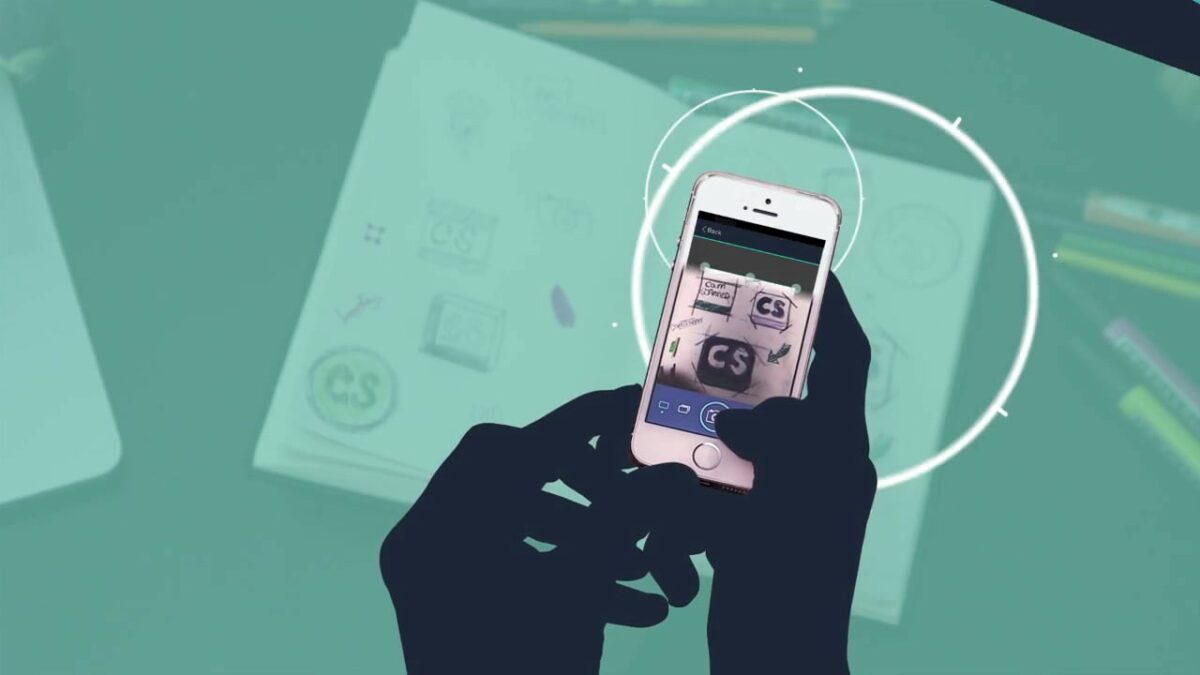
You simply use the app and your phone’s camera to take a photo of the document. The app will enhance it and save it in an appropriate format so that you can easily keep your scans organized.

best uses for CamScanner

What is CamScanner used for?

CamScanner was initially developed to enable users to scan, store, sync and share essential documents from the convenience of an app on their smartphone. While scanning is the app’s core feature, there are many ways that the app can be used.

Do you need to scan your receipts for tax purposes using the CamScanner app to take a picture of your receipt and store it securely? Perhaps, HR needs a copy of your ID, and you don’t have a digital copy to send them? You can use CamScanner to take a photo and save it as a PDF which can be sent directly to HR via email.

6 of the best uses for CamScanner

Aside from simply scanning documents and images, CamScanner has many different uses. Let’s take a look at the six best uses of CamScanner.

Find important images easily

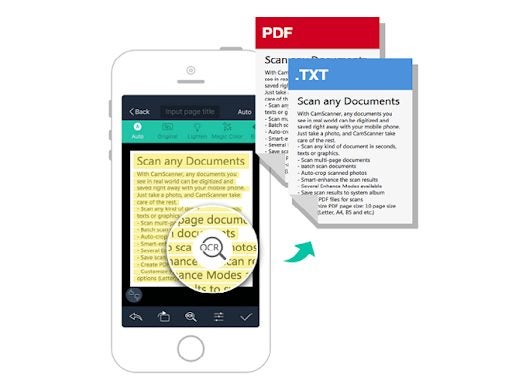
CamScanner makes it very easy to find important information. The app uses OCR (optical character recognition), which means it can read and understand (to an extent) the text in your scanned document. This means that when you search for scans of a particular topic, all the images that contain those words will be shown in the results. For example, if you’re looking for a recipe that you scanned about chicken pasta, all images containing those words will be shown when you type in ‘chicken pasta’ in the search bar. This means you can easily find any important information using the search function and OCR.

Convert the format of images and documents

Like traditional scanners, when an image or document is scanned using CamScanner, it’s converted into PDF format instead of a .jpg or .png like other images taken with your camera. This means the scan is already optimized to be sent and can also be printed in high quality with good clarity. 

best uses for CamScanner

Capture information easily

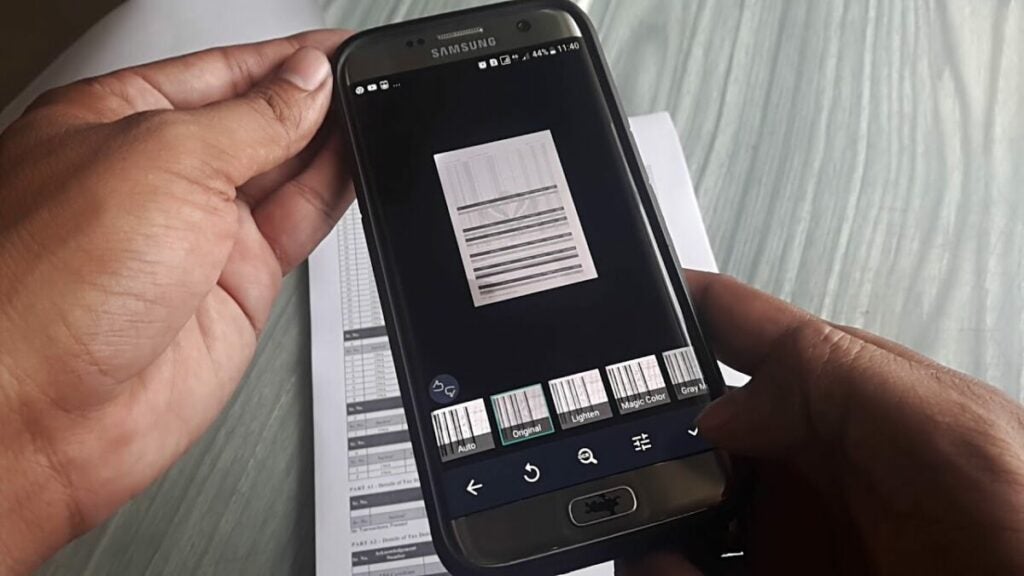
The app also features advanced crop and enhanced features, making it easier than ever to capture information. You can use the advanced crop features to straighten out and remove any useless information from the scanned document or image. This way, you only keep the most useful information. Furthermore, you can use any of the four different enhancement features to make the pictures clearer and easier to read.

The four enhancement features of CamScanner are:

  • Magic color – improve the color and sharpness of images scanned in full color.
  • B&W – removes any color and shadows that clutter an image and enhance black and white. Best used for faxes, emails and printing.
  • Greyscale – allows you to preview how the document will be printed.
  • Lighten – adds fill in lights to brighten sections of the image taken in insufficient light.

Extract text

Another useful feature of CamScanner is extracting text from your images using OCR. If you have to collect various pieces of information and compile them into a single document, CamScanner is a very useful tool. You take images of the different pieces of information and then use the extract tool to gather the text in another document.

Print or fax directly from the app

Another useful feature of CamScanner is that you can send images to be printed or faxed directly from the app without needing another program. You can send the image to a local printer for printing directly from the app or fax a copy to over 30 countries.

Easy file sharing and collaboration

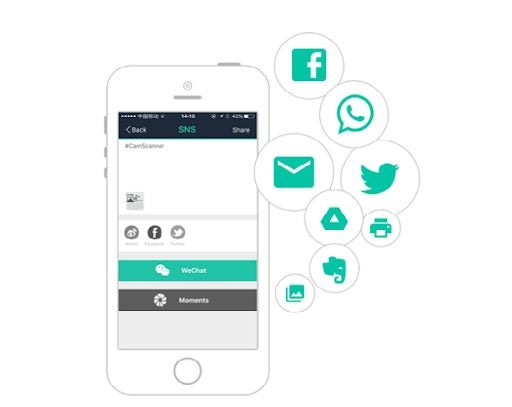
CamScanner also makes it convenient to share files and collaborate with friends, family and co-workers. You can share your scanned documents via email, WhatsApp, Facebook, Twitter, etc. You can also invite friends and colleagues to view and comment on files. They will also be able to make annotations, add watermarks and sync the documents to a central cloud storage space. Worried about sharing documents that may contain sensitive information? Don’t worry; you can set passcodes to add an extra layer of security when sharing images from CamScanner.

best uses for CamScanner

The power of CamScanner in your hands

CamScanner is a very useful app. Armed with this app on your smartphone, you can have the convenience of a fully functioning office in the palm of your hand. So, even if you’re working remotely or need to send an urgent scan of a document, CamScanner allows users to do all of this and more from one simple app.

WhatsApp limits forwarding messages to deter fake news

Previously testing this feature only in Brazil, WhatsApp is now rolling out a new update on forwarding message restrictions. Now, users can only send forwarded messages to one group chat. This is to further combat the spread of misinformation and spam via the app. 

As a popular instant messaging app, WhatsApp can be vulnerable in many ways and be used for the wrong purposes all the time. While it has features like WhatsApp Web’s “Code Verify” that secure user privacy, they’re also pretty easy to exploit. Thus, the addition of this new feature will at least deter malicious intent.

The new limit on forwarded messages is mainly applied to users who received them and to already-forwarded messages. Whether it came from a private chat or a group chat, the user can only send them to one group chat. If you happen to be the origin of the message, though, there’s no limit imposed.

This update will be available on both WhatsApp Beta for Android and WhatsApp Beta for iOS in the coming weeks. It’s a great addition to WhatsApp since being able to easily share messages isn’t always a good thing. There’s no news yet on when this will be implemented for WhatsApp for Web and WhatsApp for Desktop.

Aside from that, other great new beta updates include a new chat bubble that notifies you if the phone number you’ve tapped on is owned by someone with a WhatsApp account and the file size limit on sharing media on WhatsApp is expanding to 2GB. Additionally, there are new WhatsApp voice message features being rolled out too.

Image credit: WABetaInfo

Google Translate gains dominion over Gboard temporarily

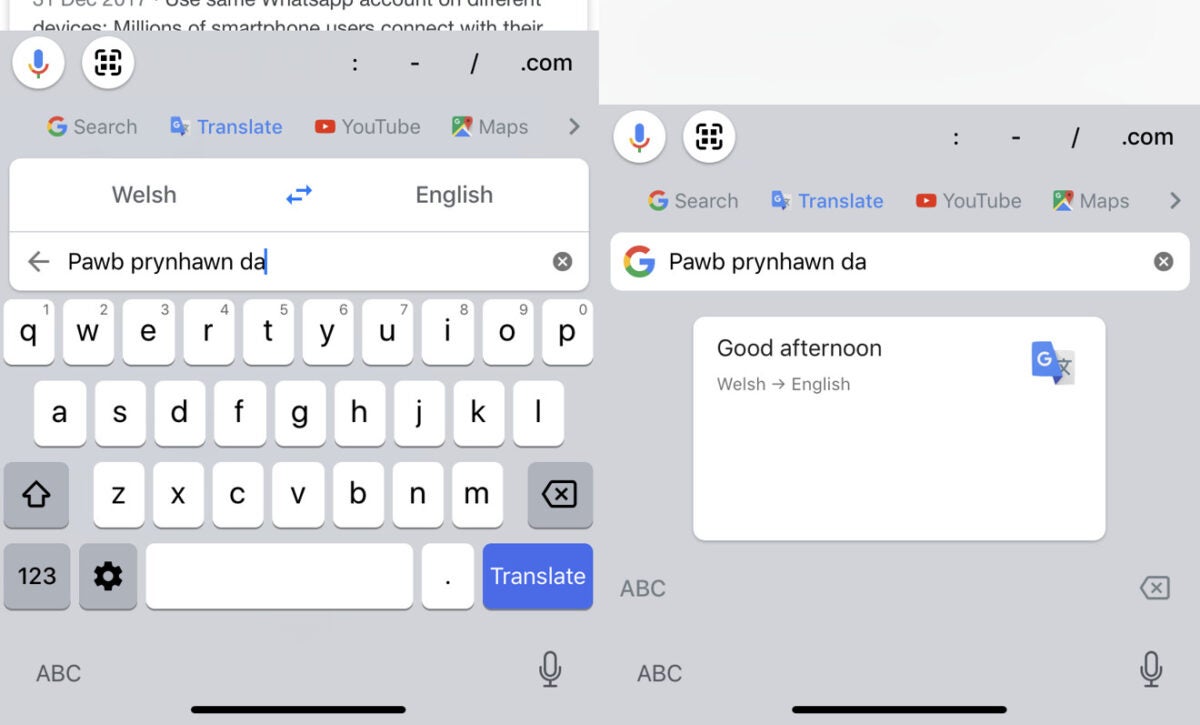
Google Translate has long been one of Google’s most user-friendly and comprehensive experiences. The latest update to the more-than-just-translation utility sees it becoming even more intuitive and integrated into the general landscape of your Android device. Google Translate will now change your built-in Google keyboard’s input language to match the language you’re translating from. 

This latest feature integration between Google’s built-in Gboard and its Translate utility makes the apps even more intuitive as the input into one, will change the layout and landscape of the other. As an easy example, if you wish to translate a Spanish phrase or word into English, you’ll notice that your built-in Gboard interface will change to represent Spanish characters as opposed to the usual English letters. This makes typing in the input language much easier.

Previously, any keyboard language alterations needed for Gboard could only be accessed through the utility’s settings and had to be toggled intentionally by the user. Now, that process has been automated as your Gboard language within the Translate environment will depend on the language you have set as the input language, in this case, Spanish. 

Your space bar was, and is still a quick access tool to your language settings, as long-pressing the spacebar within the Gboard interface triggers the selection of your favorite languages. You’ll also notice a globe icon appearing next to your space bar in the new update. This icon makes it easier to switch back to your device’s native language. Your device will also now switch back to its native language automatically when you exit the Google Translate environment. 

Currently, the updated versions of Gboard and Google Translate are in beta testing, and the new features don’t appear on phones running the previous versions of the apps, versions 11.5 and 6.30, respectively. This new feature is similar to when Google Translate received an A.I. boost a few years ago.

Microsoft Edge releases version 100 with PDF updates and protection

Recently Google hit version 100 general availability (GA) and celebrated with a new logo (among other updates). Now, it’s the turn of Microsoft Edge to reach the same version number. Microsoft Edge 100 has reached GA with a few exciting updates regarding PDFs and added protections.

There are a couple of notable updated features included in this latest release. The first one to be aware of is that the browser will use a three-digit User-Agent string instead of the usual two-string. This may cause some websites that haven’t updated their parsers to break. To remedy this, Google has included an option in edge://flags to freeze the major version number at 99 instead of rolling over to 100.

Another update is that when users open specific URLs for Microsoft 365 programs, it will launch apps automatically for other services using Microsoft 365 Applications Protocol Activations. Policies can control this behavior if it becomes annoying.

One of the better enhancements was made to preserve the integrity of memory. This is achieved by protecting the system from indirect calls to memory. This feature is only available to Windows 8 and newer, as it’s an enhancement to hardware-enforced stack protection. There are also numerous other security improvements made to CVEs.

There are also two separate updates affecting PDFs in this latest release. Edge 100 includes a lightweight PDF reader to preview files without the need for third-party apps. This is especially useful for viewing PDF documents from email attachments. You will also be able to use digital signature validation directly from this reader without needing other programs.

There are many new features in the latest update of Microsoft Edge 100. You can find the full release notes here. The update is rolling out automatically throughout the next few days. However, if you notice a delay, you can manually update your Edge version to 100.0.1185.29 from the settings menu in your browser.

Building returns as one of Fortnite’s main modes

Building is back. For all the Fortnite loyalists out there, you can now build again in Fortnite! The building game mechanic disappeared from Fortnite for two weeks as part of the launch of chapter 3 of season 2 of the wildly popular MMORPG. The in-game story was that it was ‘up to the Resistance’ to get the popular game mode back. And it seems that collectively, we’ve done more than enough to assist The Seven in uncovering the ‘Imagined Order’s nefarious plan.’

‘Wiping out’ the building game mechanic came as a massive twist on the part of the game’s developers, Epic Games. Another part of the Season 2 Chapter 3 launch was the new Overshield. The developers took to Twitter recently to skillfully turn things around and reintroduce building to the impressive retinue of main game modes. At the same time, however, Epic Games also announced another twist:

‘Building Is Back – Play Your Way! Sprint, climb, and smash your way to a Victory Royale whether you choose to build up in Fortnite Battle Royale or go no-builds in the new Fortnite Zero Build.’

The new Zero Build game mode means that players who were happier with building gone can still play the way they’d like to play. In an announcement on the Epic Games website, the developers said that ‘Zero Build is a pure test of weapon, item, and traversal ability. They also confirmed that the new Zero Build game mode is available in solos, as well as duos and trios, and that the squads playlist is available in Fortnite’s Discover menu. 

We love Fortnite! And we are super excited to be able to build again, but also to have the choice not to, if we don’t feel like it on a particular day. There’s a lot more happening, so why not check out our legal battle that Fornite now finds itself in related to dances?

Lego Star Wars: The Skywalker Saga Recommended PC Requirements

Lego Star Wars: The Skywalker Saga is one of the biggest and most ambitious Lego games ever made. The game features more than 45 missions, including five-story episodes, following the nine Star Wars movies. The developers, TT Games, spent a lot of time making this Lego game better in every aspect so that fans of both these popular franchises will be pleasantly surprised. But, with a more extensive and visually stunning game, what systems requirements are there to play the game on PC?

As we mentioned in our guide on what to expect from this latest Lego game, Star Wars: The Skywalker Saga is much bigger than previous Lego games. This means that there will be an increase in the required specs to play the game on PC. However, before you start stressing that your current PC build might not be able to play the game, the recommended system requirements are:

  • Windows 10 64-bit operating system
  • Intel Core i5-6600 or AMD Ryzen 3 3100 processors
  • 8 GB RAM
  • GeForce GTX 780 or Radeon R9 290 graphics
  • DirectX version 11
  • 40 GB available space

Although most of these specs are nothing out of the ordinary for modern games, the only requirement that may be difficult for some is the Windows 10 OS, as there are still quite a few users on older versions of the operating system.

Steam currently has the PC version space requirement listed at 40 GB, and this includes space needed for the installation, saved games, etc. We estimate the final PC version to require slightly below 40 GB of free space.

As we count down the hours to the release, now’s the time to make sure that your current PC build can support the game so that you can enjoy the most ambitious Lego game to date. To keep an eye on the countdown to the release of this game, check out the official Steam page.

Mirror Forge preview | Intense horror game

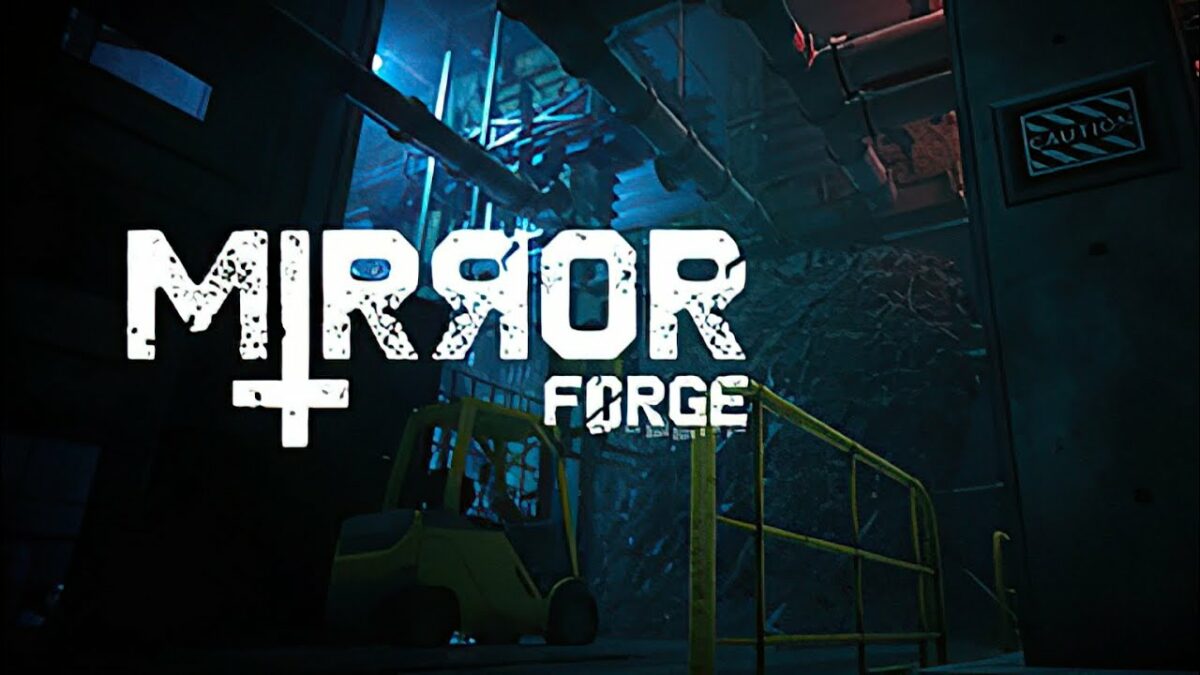
Mirror Forge is a free demo of a survival horror game developed and published by MystiveDev, with a planned full release on September 30, 2022. The developer states that it’s inspired by Silent Hill, which is why I had to test it for a review. Being a long-time fan of the SH franchise since the start, I needed to see how well the game holds to these claims.

The demo certainly has a dark overtone, and there are certainly hints to the Konami classic. How are the gameplay elements in Mirror Forge, and are there good graphics? How long is the demo, and will you be scared? Find out all the terrifying, horrific details in my review below.

Mirror Forge inspired by Silent Hill

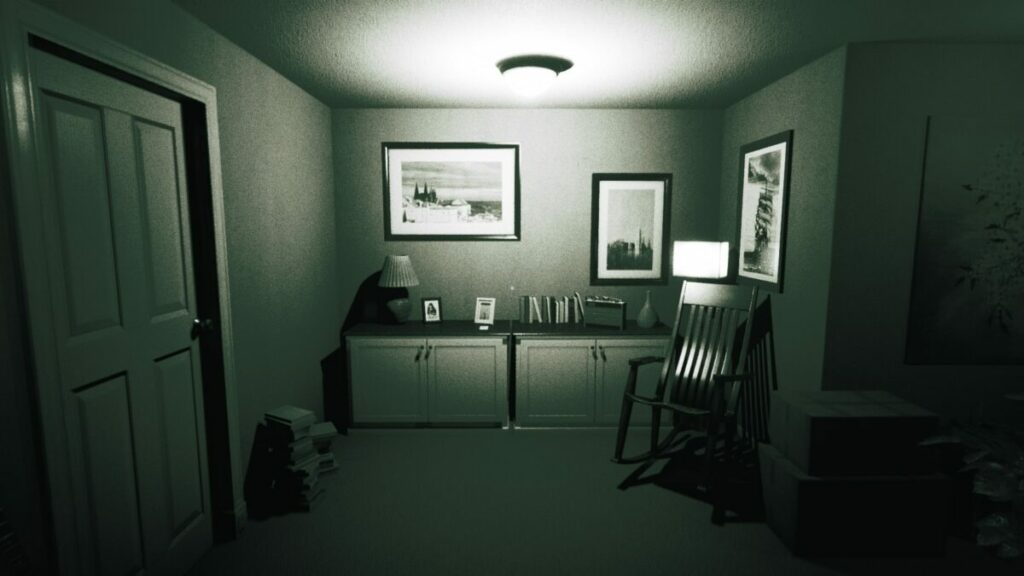
Let me start my Mirror Forge review by addressing the statement that Silent Hill inspired it. Playing through the demo, I definitely felt similar elements from titles like Silent Hill 2 and Silent Hill 4: The Room. There’s even a section where you enter the memory of your home, which certainly connects to Silent Hills, or P.T. as we originally called it.

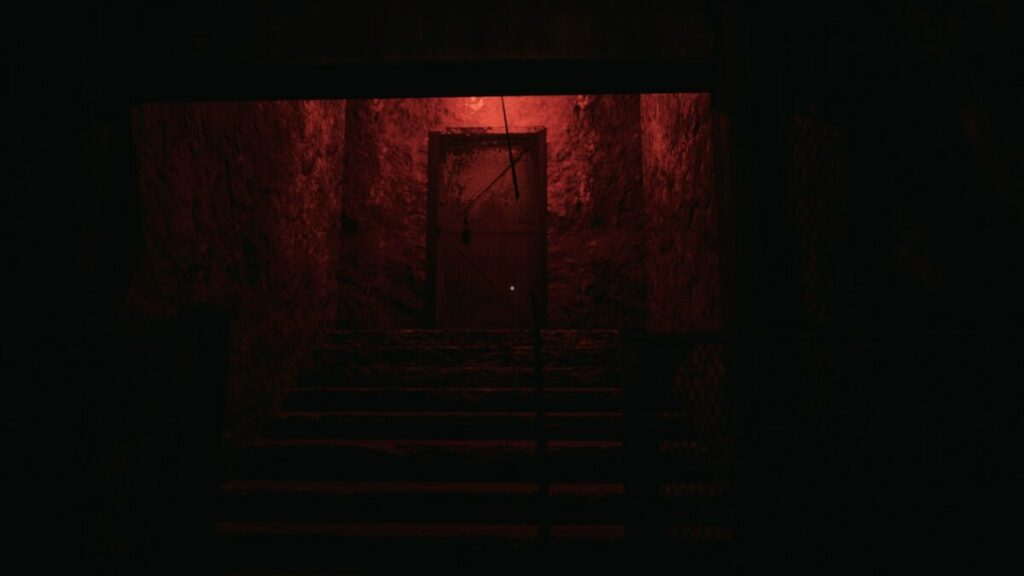
So, which parts were similar to Silent Hill? Well, the graphics and horrific elements definitely are. When you enter the hospital area later, some aspects and the map reminded me of Alchemilla Hospital. There isn’t any fog like in SH streets, but you get the same dark atmosphere within the buildings.

Besides some creature similarities, the aspect that connected Mirror Forge to Silent Hill the most for me is how it messes with your mind. I’ll cover this a bit more in the review below, but there are areas where you see one thing for a moment, and then it changes when you turn around. This tastes like every SH title I’ve played. There’s even a Silent Hill achievement for finding the Easter egg related to the game series.

Mirror Forge Preview

Mysterious clues to the story

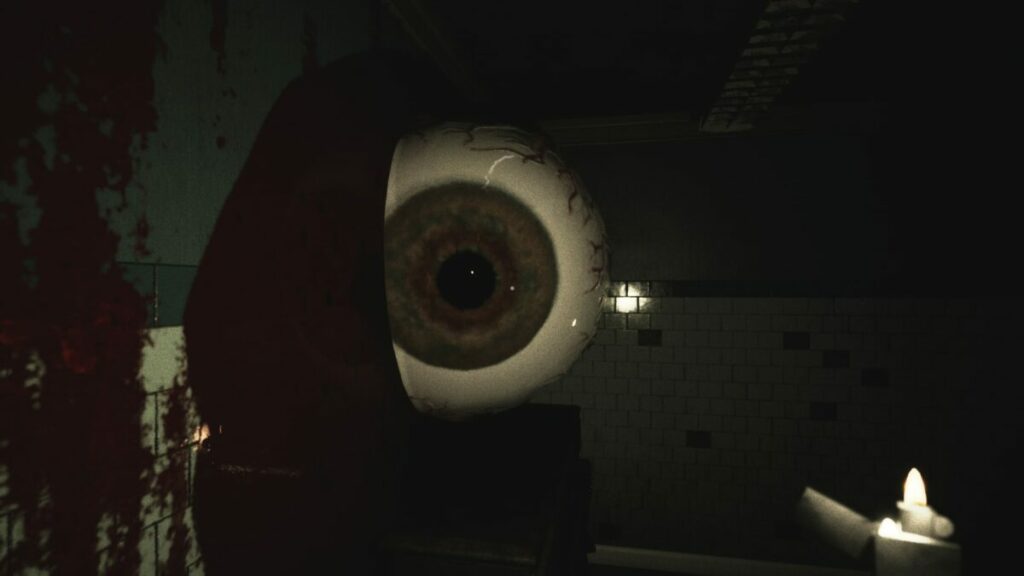
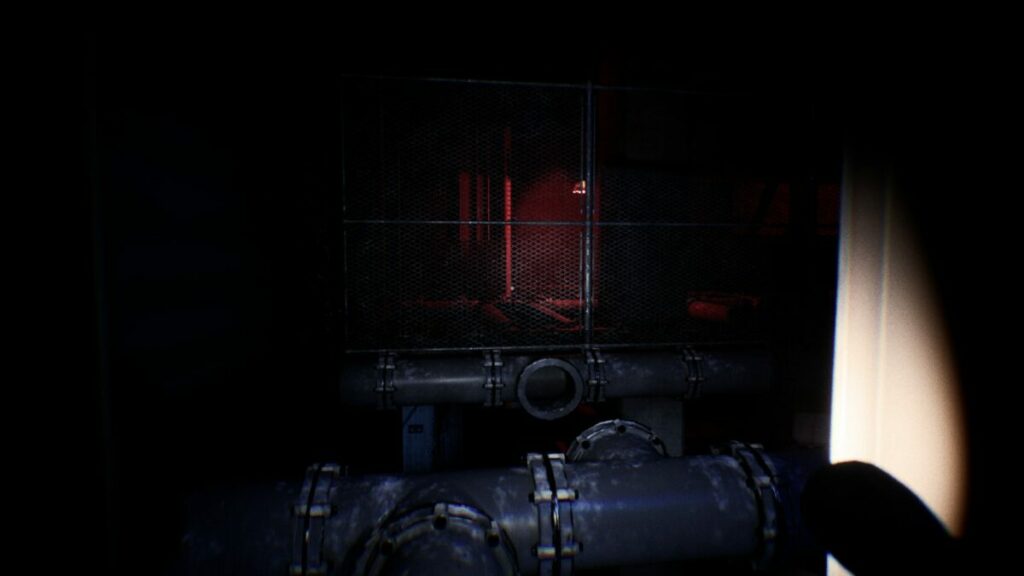
So, let’s get to the Mirror Forge demo. When you begin, you’re standing in a strange storage area with blood and frightening objects covering the walls. There are corpses with body parts within walls — to give you some idea. You don’t really know what’s happening except for the notes you find and the literal writing on the wall.

Each room and area is a puzzle you need to solve to get to the next phase, almost like an escape room scenario. It starts easy with hints of how to solve them, but when you reach the hospital, it’s all up to you to figure things out. I love how challenging the puzzles seem, but many times there’s such a simple solution, such as doing the opposite of what they say. 

The main story so far is definitely intriguing, but it does in some ways feel a bit like Silent Hill 2. What I mean is the relationship between your character and your wife and the hint that you killed her. However, Mirror Forge takes a fresh approach to this premise, and I can’t wait to see how it unfolds in the complete game.

Mirror Forge Preview

Terrifying visual effects

I need to place a disclaimer that I’ve played horror games for most of my life, and there are few things that still scare me in this genre. Yet, there are plenty of terrifying moments that made me jump for an instant and swear happily at the developers for making me feel that way again. What makes it more frightening is that you play in first-person view, much like Resident Evil 7.

The terror is a welcoming combination of gore, jump scares, and suspense building that’s hard to find a balance in most games. Fortunately, Mirror Forge seems to be getting it right. It’s definitely not for the faint of heart, especially for anyone dealing with anxiety issues.

Mirror Forge Preview

Walking through an eerie atmosphere

The main gameplay aspects in Mirror Forge mostly revolve around walking around, finding items, solving clues, and evading death. There are no combat actions as yet, so everything hinges on survival. In the hospital, you have to do your best to avoid the deformed nurses without a weapon in hand. You don’t know how badly I wished for a crowbar to smash their skulls in. Thank goodness for the painkillers. There were some moments where the movement was awkward, though.

I’m at a crossroads about having no combat. I understand how it adds to the survival element, where you need to avoid creatures to continue playing. However, I do miss being able to clear the floor with a weapon so I can appreciate the beauty of the halls and rooms in peace. We’ll have to see if this element changes in the full game.

Mirror Forge Preview

Nothing is as it seems in Mirror Forge

Finally, I need to add how much I adore how nothing is as it seems in Mirror Forge. One moment, you’re walking down a corridor to a door where a memory scene plays. When you turn around, the scenery has changed. 

There’s also an alternate universe, much like Otherworld in Silent Hill. It mostly works with a mirror that transports you elsewhere and everything looks different. While it’s all the mirror does for the moment, I’m keen to see how they evolve this feature over the entire game.

Mirror Forge Preview

Mirror Forge: Do you have the guts?

The Mirror Forge demo took me 1 and a half hours to complete. There’s a surprising amount you can do in that time, so don’t let that put you down. It’s a terrifying experience that I loved as a horror gamer and author, and especially as someone that has written Silent Hill novels. It took me deep into my fears, and yet I smiled at all the puzzles, horror, and scenery I encountered. The full game will be nothing but epic.

If you love horror, check out my Death Stranding Director’s Cut review.

Pros

  • Intense horror experience
  • Interesting puzzles
  • Escape room atmosphere
  • Silent Hill Easter eggs
  • Terrifying scenes
  • Intriguing storyline

Cons

  • No combat
  • Movement is sometimes awkward

Developer: MystiveDev

Publisher: MystiveDev

Game Modes: Campaign

Platform reviewed: Windows 11 – Steam