How to use Acrobat Pro DC highlight effects to grab a reader’s attention

Due to their versatility in displaying text, pictures, links, and more, PDFs are among the most popular types of shareable documents.

Highlighting text in a PDF is a great way to better display or point out important information. Keep reading to learn a few tricks in Acrobat Pro DC to make your highlighted text as bright and noticeable as possible.

Adobe Acrobat DC Buy Now
  1. Select and highlight a text excerpt

    Acrobat Pro DC allows you to highlight any text in any document that allows modifications. If your highlight tool is greyed out, make sure your PDF contains actual text, not just a scanned picture of text, and isn’t marked as read-only.

    Start by highlighting an excerpt that you want to call your readers’ attention to. Click on the selection tool in the toolbar at the top of the app. It looks like an arrow beside a cursor. You can find it just to the left of the hand tool.

    Using the selection tool, select the text you want to highlight. Right-click on the selected text, and press H or click on Highlight Text. You should see a colored box appear behind and around your text selection. The default highlight color is yellow.

  2. How to change the Acrobat Pro DC highlight color

    One of the best ways to make your highlights as obvious as possible is to choose a color that highly contrasts both the selected text’s color and the document’s background color. Yellow or red can be great options for highlighting black text on a white background.

    If your text or page color doesn’t contrast well with the default highlight color, you’ll need to choose a different shade. You can change the color of one specific highlight at a time, change all past highlights to a different color, or make all future highlights a different color by changing the default highlighting color.

  3. Changing the color of one highlight

    – Right-click on the highlighted portion of the text.

    – Press P, or click on Properties in the drop-down menu.

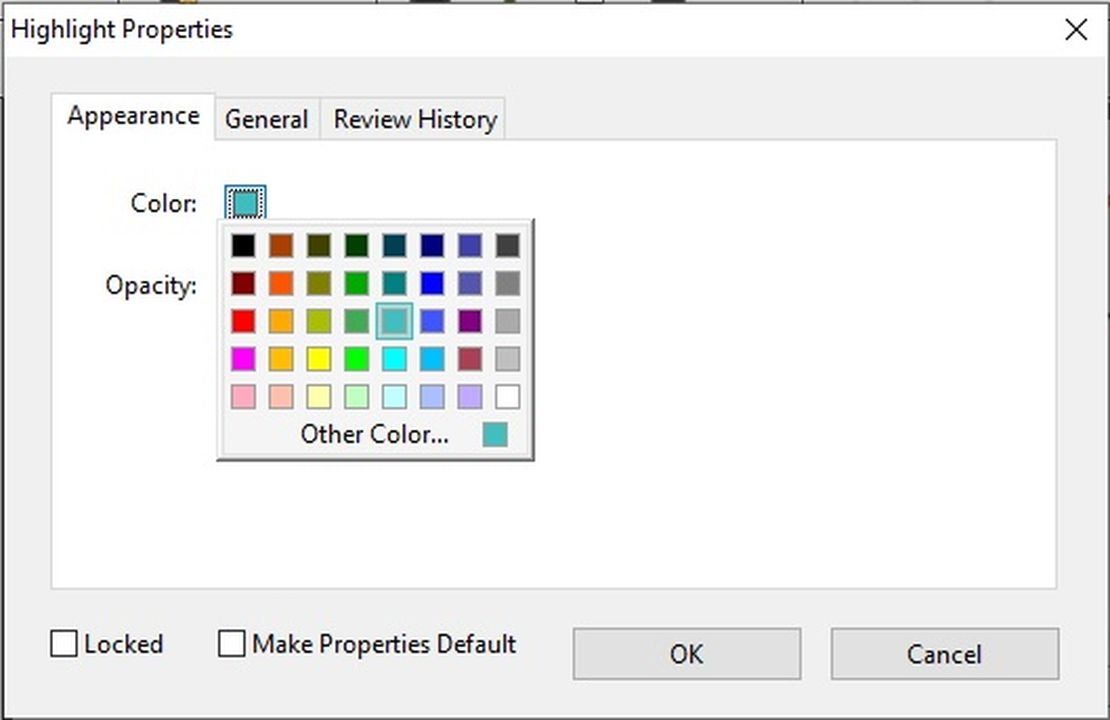
    – In the Appearance tab of the Highlight Properties window that pops up, click on the box marked Color.

    – Choose a highlight color that contrasts well with your text and background.

    – Click OK.


  4. Changing the color of all existing highlights
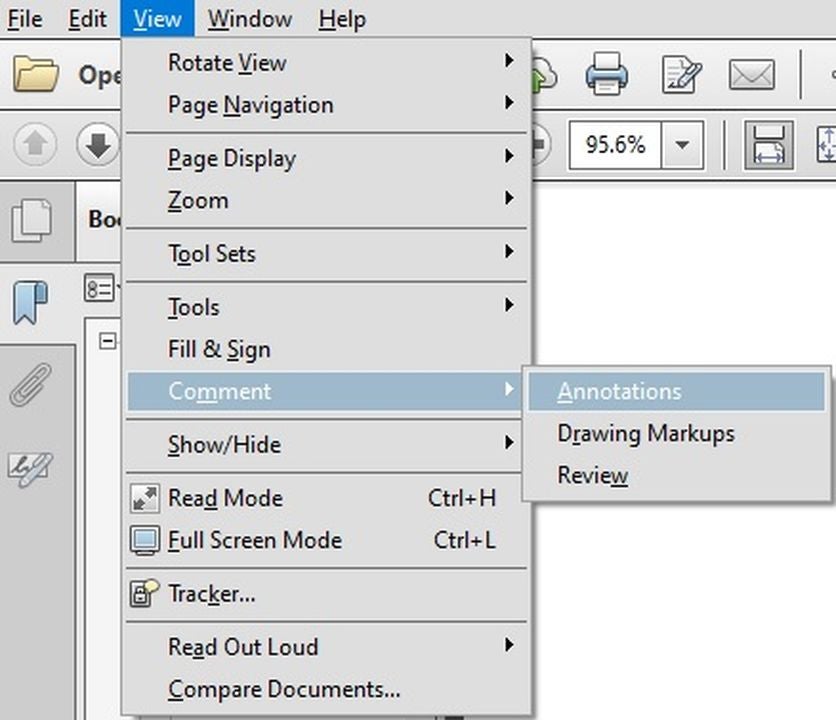
    – Click on the View menu in the top toolbar.

    – In the View menu, click on Comments and then Annotations to open the Annotations sidebar.

    – In the Annotations sidebar on the right of your screen, under the Comments List tab, you’ll see a list of highlighted sections. When you select one, it will turn yellow in the sidebar, and an animated selection border will appear around the highlighted text in your PDF.

    – Click on the first highlight, and then scroll down to the bottom. Press Shift while you click on the last highlight in the list. This will select all the highlights in your document. You should see them turn yellow in your sidebar.

    – Right click on any of the highlights, and select Properties from the drop-down menu. The Highlight Properties menu will pop up.

    – If your PDF contains highlights with more than one color, you’ll see a question mark in the Color box. Click on the Color box, and choose a high-contrast color. All your existing highlights will immediately change to that color.

    – Click OK to keep the change.


  5. Changing the default color for all future highlights
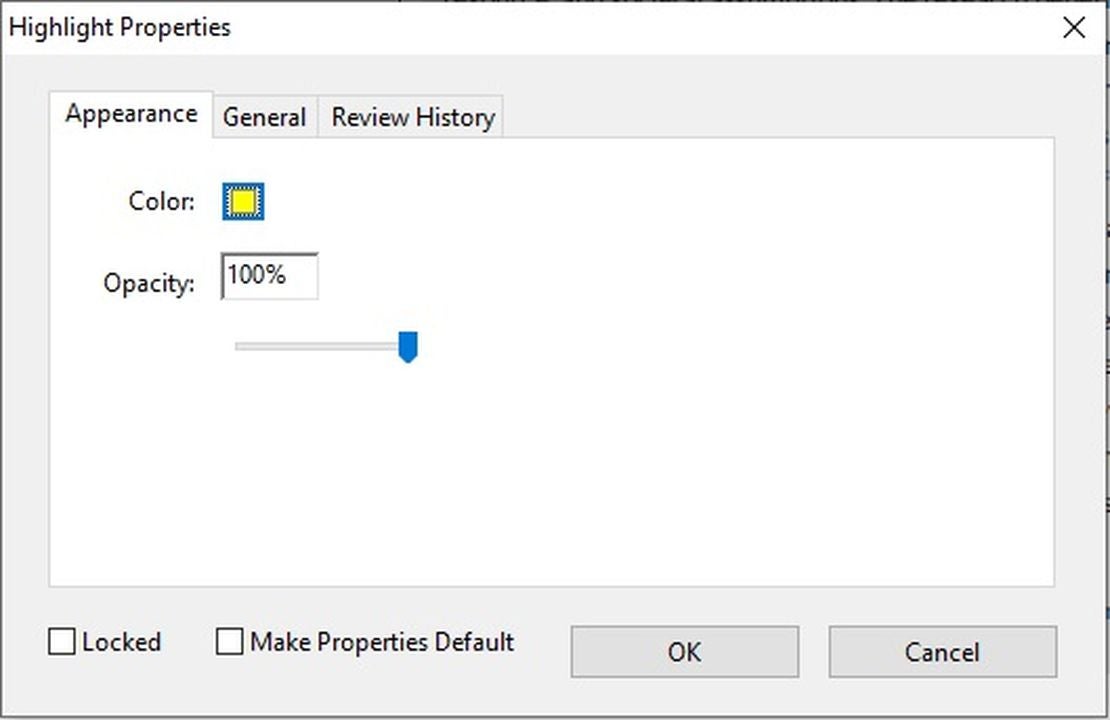
    – Right-click on any single highlight, and click on Properties to call up the Highlights Properties menu. If you have multiple highlights selected, the Default box will not appear.

    – At the bottom center of the Highlight Properties menu, you’ll see a box labeled Make Properties Default. Select the box, and press OK.

    – Your existing highlights will keep their own colors, but now any new highlights you create will show your new default color.

  6. How to get the brightest highlights with Acrobat Pro DC

    In the Highlight Properties menu, you’ll also see a slider to adjust the opacity of your highlight. The more opacity, the brighter and more noticeable your highlight will be, so we recommend you leave it at 100%.

Some versions of Adobe Acrobat let you change the size, thickness, and placement of your highlights, which can make them stand out even more.

If you’re ready to try out these tips, download Acrobat Pro DC and start highlighting today.

Adobe Acrobat. Discover all the things your PDF can do. Start for Free.

You can now share YouTube videos directly on Snapchat

Snapchat has recently launched a unique integration feature with YouTube, which allows users to share YouTube videos directly from the app to Snapchat Camera. Not only does it completely remove the tedious copy-pasting of links, but this feature also displays the links as custom stickers usable for Snaps and Snapchat Stories.

Despite having numerous competitors, Snapchat remains one of the most popular social media apps around. Sharing content to followers is a favorite pastime on the app—which is why Snapchat now also lets you share your real-time location—so this integration with YouTube makes it a more seamless and creative experience.

Previously, sharing YouTube links on Snapchat required manually copying and pasting links from the app via its Share button. Now, however, you can tap that button and a Snapchat icon will appear to redirect you to Snapchat Camera. This then allows you to use the link as a custom YouTube sticker you can paste on your Snap or Snapchat Story.

This is the first time that YouTube links are visually represented for sharing, with thumbnails and titles appearing as little boxes instead of plain old text. Thus, you can get creative with how you share it as you still get full access to Snapchat Creative Tools when in Camera Mode. When you post your Snap, followers can simply tap on the sticker to redirect them to the video.

To enjoy this feature, you need the YouTube mobile app installed. Open a video, tap “Share,” and tap the Snapchat icon to open Snapchat itself. Then, create an original Snap with the automated sticker and use the creative tools however you want. This feature is available on both Snapchat for Android and Snapchat for iOS. 

Image credit: Snap Newsroom

Instagram users will see a lot of new messaging features with the next update

Meta, the owners of the popular social media platform Instagram, have announced many changes coming to the platform with the next update. The company announced that these new features are currently being tested in a few select countries before being rolled out to a global audience.

The most significant changes occur with Instagram’s messaging experience to make messaging more fun and seamless. Some of the new messaging features include music sharing. Users can now integrate with Apple Music, Amazon Music, and soon Spotify and share up to 30-second music previews in their chats.

Instagram will also see improvements in how you reply to messages. Instead of navigating to your chats and losing your place in your feed, you can reply to chats directly while browsing your feed. The platform will also be introducing a quick sharing feature that will allow the user to quickly reshare posts to their four closest friends.

Following this newest update, users will also be able to easily see statuses at the top of their inboxes. This will include seeing which of your contacts are available to chat with, similar to Messenger. Another new messaging feature that might be very useful is the silent messages feature. By adding ‘@silent’ to your message, it won’t bother the recipient with a loud notification. This can prove useful if you know the other person is in a meeting, test, exam, or other situation where they can’t be disturbed.

Finally, you’ll also be able to use the new low-fi chat theme to make your messages feel more personal, and you’ll be able to add polls directly to any group chat. Users simply use the new poll sticker in their chat to create a poll.
Meta is making many changes to the Instagram experience to improve the messaging functions. For a complete list of what to expect with the update, check out this release from Meta. At the moment, we don’t have a release date for the update, but we look forward to getting it soon.

Classic Angry Birds is back in its OG feathers

Angry Birds has become a staple on numerous app stores, play stores, and gaming marketplaces, but its current iteration has changed a lot since the game’s initial release back in 2009. Now, however, the old-reliable game is back, keeping true to the ‘no-ads and in-app purchases’ ethos behind the 2009 classic. Here’s the best bit; this time, it ships with support for newer devices. 

Rovio is no stranger to trying to bring back the look and feel of the 2009 iPhone staple; they’ve officially done it twice. Last year, Rovio hit the App Store with Angry Birds Reloaded, which was an iOS-exclusive attempt to bring back the nostalgia of the old game – but with a few new characters and additional levels. The new attempt, however, goes all the way back to the 2009 business model and is almost an identical replication of the old game. 

This back-to-basics approach to modern game development isn’t really anything new, except when you consider the lengths that Rovio has gone to in order to bring back the old experience. Usually, remasters and remakes are brought out to change some aspect of a much-loved original and bring it in line with modern gaming trends, but Rovio has essentially stripped down what the Angry Birds franchise has become in favor of the simple, no-nonsense tear-em-down game that somewhat personified what it was to be an iPhone user in 2009. 

On the subject of the new Angry Birds game, executive producer Sami Ronkainen had the following to say: 

‘While we were rebuilding Angry Birds, we took great care to preserve the feeling of the original Angry Birds game. We know our fans are a discerning bunch and will be able to pick out even small differences. Matching the gameplay, and appearance of the game next to the original was crucial.’

Have we mentioned that the new game ships to the App Store with no in-app purchases or incessant ads? The latest Angry Birds remaster is available on the App Store for $0.99. In the spirit of this incredible new release, here are some other Angry Birds releases for iOS and Android.

Google Docs adds new stylistic writing suggestions

Google Docs has long been one of the leaders in textual processing, in some instances even beating out the old-reliable corporate staple Microsoft Word. But the Google textual ecosystem is getting even more advanced with the recent addition of stylistic writing suggestions, which will now appear as a purple underline. 

This latest move takes Google Docs even further down the path to text-based processor domination, as it adds in even more features usually only seen in paid versions of software such as Grammarly. Essentially Google Docs will now be able to correct not only your spelling and grammar but also the finer points of how you intend to carry your message across to other people. 

Here are the new stylistic and writing suggestions that will be underlined in purple:

  • Alternative wording
  • Instead, using active voice
  • More concise sentence structure
  • More inclusive language suggestions
  • Alerts of potentially inappropriate language

The above additions mean that Google Docs is going to start intensifying its machine learning protocols in an attempt to try and refine your writing and make it less prone to offend even the more sensitive individuals in modern society. The new, more artificially intelligent Google Docs might even have its sights on editing giants like Grammarly or Hemingway in an attempt to garner favor as a completely full-service, free writing assistant and text-based processor. 

There’s a lot more going on over at Google these days than more inclusive and assistive AI. Chrome version 100 dropped on stable channels recently and features a new, more adaptive logo. Want to know more?

Pokemon Go’s April Fools day event includes more encounters with Ditto

It’s April Fools, and along with this mischievous day comes another single-day event in Pokemon Go. This event will last from April 1st until midnight, and during the event, you might get a few surprises.

As part of the April Fools day event, Pokemon Go will be swarmed by Ditto. These little shape-shifting cuties will appear more frequently in the wild, disguised as other Pokemon. The only way to know for sure is to capture the Pokemon, and you’ll find out once it’s caught whether it’s a Ditto.

There will also be an increase in the number of Pokemon that will also be this year’s most frequent Ditto disguises. The list of Ditto disguises for 2022 are:

  • Ekans 
  • Gastly 
  • Natu
  • Surskit 
  • Finneon 
  • Dwebble 
  • Swirlix 
  • Lillipup

So make sure that you don’t miss the chance to catch any of these while exploring, as you may end up with a lovely surprise and a new Ditto for your efforts. 

Along with the increase in encounters with the Pokemon mentioned above and the possibility that one of them is a Ditto, Pokemon Go also has unique Field and Special research tasks for players to complete during the event. By completing these tasks, players will get rewarded with special items, additional chances of catching a Ditto, and the rare opportunity to encounter a shiny Ditto. Pokestops will also give you limited edition Ditto stickers, and the in-game store also has special gifts.

This one-day event is also not the only thing Niantic has in store in April. It’s reminiscent of what Pokemon Go did for Valentine’s Day. There are quite a few different events lined up, including a Community Day Classic and the debut of a new pokemon, Tapu Bulu. To see everything happening on Pokemon Go in April, you can look at this handy events guide.

Google Play Store review: the best app for apps?

The Google Play Store has to be one of the most well-known digital storefronts. It is to mobile apps what Steam is to video games. But that doesn’t mean that it offers the best digital app storefront experience you can have on a mobile device.

Let’s explore the features and limitations of the Google Play Store, as well as its main competitors.

What is the Google Play Store?

Google uses the Google Play Store to offer digital content to users. This could be a gaming application like PUBG Mobile, the Spotify app for music, or another Google app like Google Docs. It now encompasses books, music, games, movies, and function-oriented apps. User ratings and reviews offer insight into features, reliability, and usability of apps, as well.

Note: it does NOT come pre-installed on all Android devices, but it does come pre-installed on Google devices.

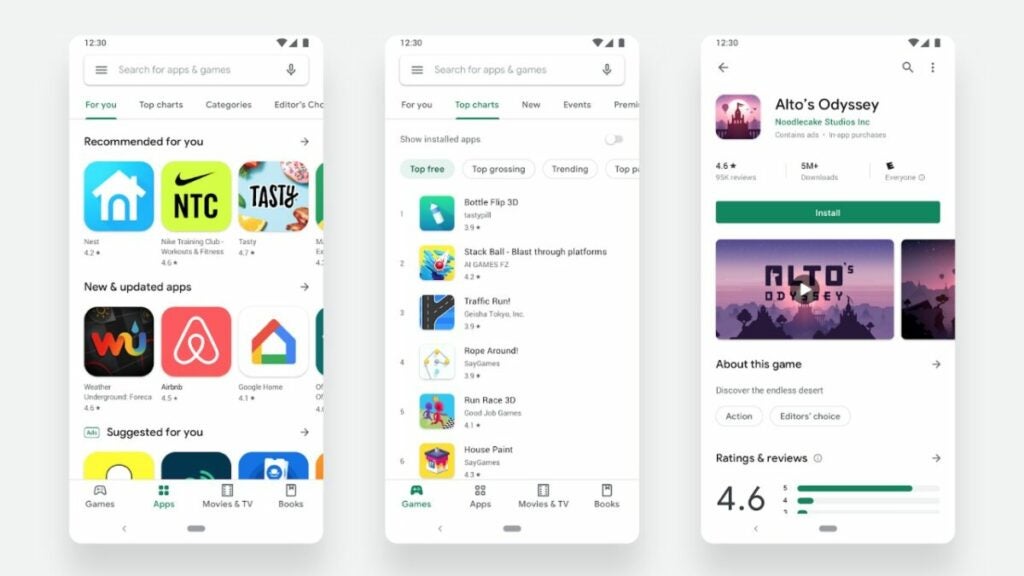
image of the Google Play Store UI

Main features of the Google Play Store

Google has tweaked the app store’s UI over the years to enhance user experience and declutter the screen. Its latest visual refresh came in 2019 to promote faster browsing and more efficient searching.

Users will find a search bar at the top but can search categories located at the bottom of the screen. They can also access user-specific tabs at the top left using the three horizontal lines icon.

How to use the Google Play Store

Using this app requires a Google account and offers the option to tie in your Google Pay financial information. This may not sit well with everyone as it means that Google has access to whatever app data you might accrue.

To use the store, follow these instructions:

  1. Open the native digital storefront app you have on your mobile device.
  2. Search for “Google Play Store”.
  3. Download the app.
  4. Login to your Google Account and set up your profile.
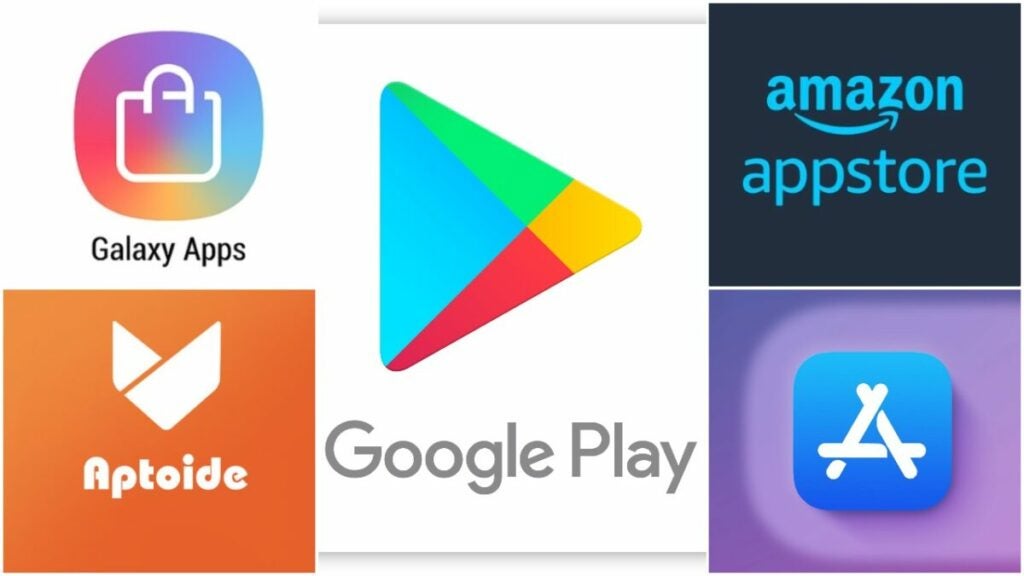
image of app store logos

Google Play Store alternatives

Though it might not seem like it, there are plenty of alternatives when it comes to Google programs and offerings. This rings just as true for the Play Store as with other options.

Interested in finding the best app store apps for Android and Apple? Let’s compare some of the top competitors to see how they stack up.

Samsung Galaxy Apps

This program comes pre-loaded on most Samsung devices and is Samsung’s official mobile app store. As with its Google counterpart, people can use the app to search for and download Android games and apps. The big plus here is that you do not need a Google account to do that. However, you do need a Samsung account instead.

Since Samsung Galaxy Apps is designed for Galaxy products, it works best with those items. But overall, the interface is easy to use and similar to Google’s.

Mac App Store

The Mac App Store is Apple’s official retail app that directly competes with the likes of Google and Samsung’s alternatives. However, it offers Apple-exclusive content and apps, as well as ringtones and other items.

Similarly, it requires an Apple account to use and works best with the hardware for which it was designed (Apple products). It offers quick installations, but the UI can be a bit overwhelming at times compared to the Google Play Store.

Aptoide

This third-party app storefront serves Android devices and competes directly with the Google Play Store. The community-driven, open-source software makes it easy for users to upload apps, as well as create and manage a store.

As it is community-driven, Aptoide relies heavily on input from its users. It awards green badges to the most trusted apps among more than one million options. It’s a fantastic alternative to the Google Play Store.

It offers a straightforward UI, quick downloads, and filters to make searching easier. Aptoid also provides a safer third-party alternative vs. other options such as 9Apps.

Amazon Appstore

That’s right: Amazon has its own app store, too. Its primary purpose is to serve games, ebooks, and apps for Kindle and Kindle Fire users. Amazon’s secret here is that the app relies on Android for its operating system. As such, it works best on Android devices.

The big difference here is the number of apps available to users. Amazon’s app store offers far fewer programs than Google’s does. If you want lots of options and diversity, this is not competitive with the Google Play Store.

image of the Google Play Store image and other Google icons

Expert review verdict

For people with Google-branded mobile devices such as Pixels and Android-based devices, the Google Play Store makes a fantastic option to connect with all the apps you need in life. However, if you aren’t comfortable with Google gathering data on your app usage and habits, you may opt for a different digital app storefront.

Download the Google Play Store program for yourself to see if you prefer it over other digital app storefronts.

PROS

  • Allows access to millions of apps and media options
  • Quick downloads most of the time
  • Works on Android devices
  • Sleek, intuitive UI

CONS

  • Requires a Google account
  • Allows Google to gather data on your habits
  • Not native to many Android devices
  • Not available to Apple device users

Developer: Google

Publisher: Google

Top features: Connects users with apps, movies, books, music, and more

Platform reviewed: Android device

Create the ultimate resume and covering letter with Canva

Whether you’re fresh out of school or have several years of employment under the belt, looking for a new job can be daunting for most people. There’s the fear of rejection, especially with so many out there applying for the same positions. If you want to stand out from the crowd, you need a resume that reflects your skills in the best possible way.

When it comes to first impressions, nothing works better than a beautiful application that catches the eye. We’ll show you how you can create a resume on Canva with an assortment of templates and designs.

Canva TRY IT NOW
9

The importance of an excellent resume

There are two main purposes of a resume. The first is to show your potential employer who you are while the second showcases the skills you have that will benefit the company. When the interviewer received over a hundred applications, you can be assured that they’ll spend as little time as possible working through each one looking at key points.

In essence, the resume is a marketing campaign for you and what you offer. If you just have a bland document with no proper outline or incorrect grammar, the reader will quickly yawn and move on. You need to find a way to quickly highlight your skillset and how you can be an asset.

Create the ultimate resume and covering letter with Canva

Design elements for your resume and covering letter

Including your personal information and experience are only some aspects of an outstanding resume. What you’ll want is a design that draws focus on the elements you want the interviewer to see first. To this end, you can look into various resume layouts on Canva that will suit your needs:

  • Traditional: straightforward design that’s easy to skim for the essential information
  • Graphics: when applying for marketing and creative industries, you can add some color and themes
  • Photographic: images can be added if you want to show how you look or some of your work

Using Canva templates for professional designs

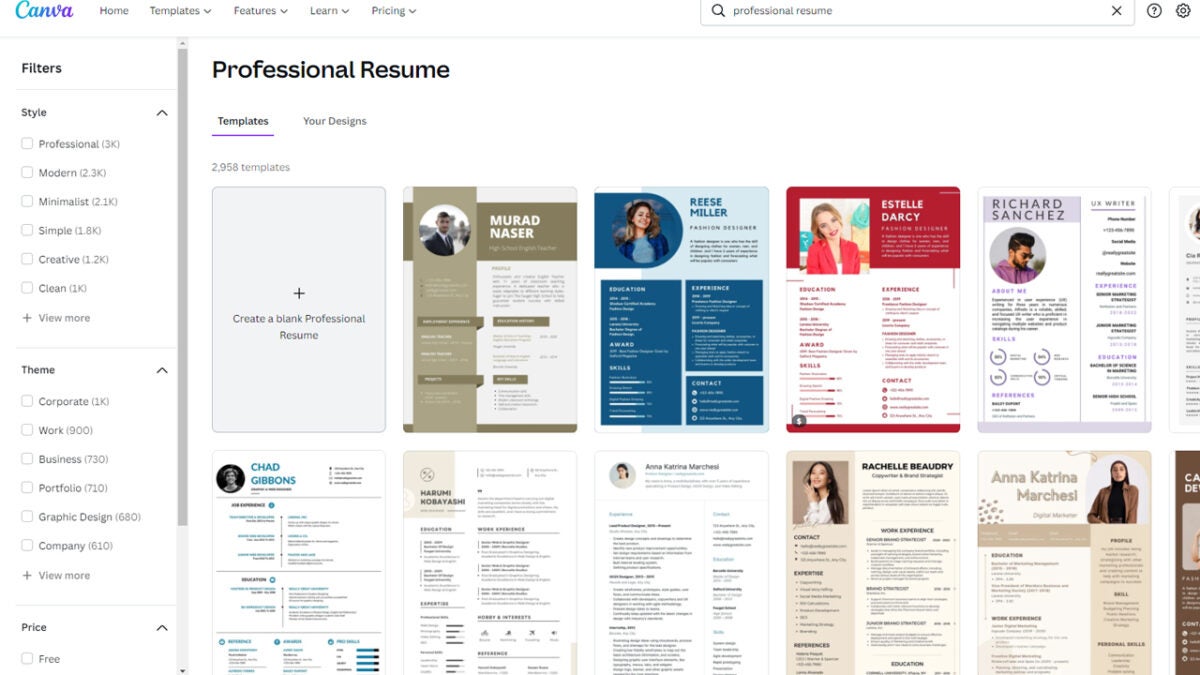
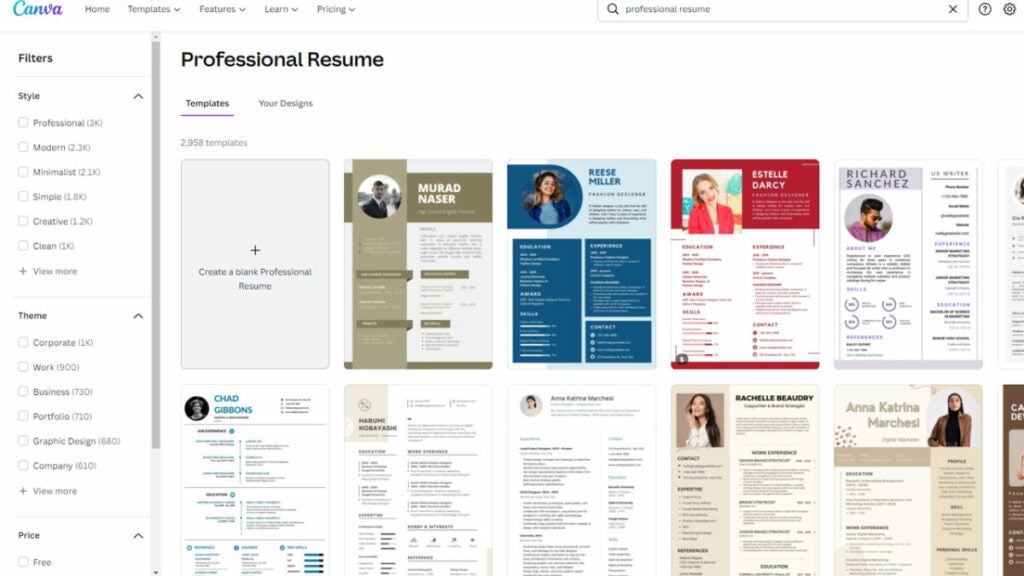
No matter which industry you’re applying for, you can find an appropriate resume and cover letter design on Canva. There’s a search bar where you can look at what templates are available, showcasing the best layouts for professional CVs. The only work you’ll need to put into it is the information the interviewer is looking for.

You don’t need to settle for using the Canva templates as they are. There’s plenty of functionality on the program to quickly edit any of the outline styles. It’s a much better approach than creating a resume from scratch for hours wondering which colors and design elements to use.

Create the ultimate resume and covering letter with Canva

Choosing the resume format

Once you’ve selected the design and template, you still need to work on a format. You may think that format is the same as an outline, but it’s a completely different element. Here, you’ll decide in what order you’ll present your information that will drive home why the company should hire you.

Many people aim for a chronological format that shows your work history and how you’ve progressed from your first job. There’s also a functional resume where you tailor specific elements to the interview and work requirements. You can also combine these formats into a new design that uses the best of both types. These are only a few examples.

How to create a resume on Canva

There are two ways you can create a resume on Canva using the elements mentioned above. The first is searching for templates, selecting one, and altering the format to suit your needs. We recommend the second technique that uses the resume design wizard.

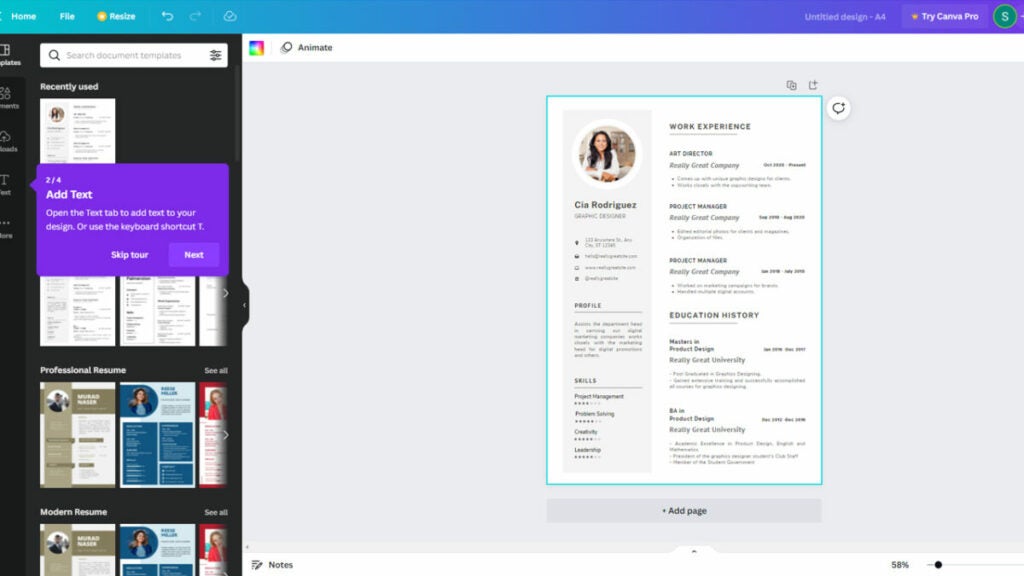
Once you start the Canva resume wizard, you’ll see a new window with a blank page. You’ll follow the steps that appear on screen, but here are some tips:

  1. Select a template from the left pane
  2. Edit the text to include your information
  3. Add font combinations or colors to attract attention
  4. Insert media elements like videos or photos where needed
  5. You can also add a frame if appropriate for the industry
  6. If you’re sending a digital resume you can add audio
  7. Name and save your resume
Create the ultimate resume and covering letter with Canva

Impress others with your outstanding skills

Creating the ultimate resume doesn’t need to take you all day if you have the right tools. There are many applications that let you do so from scratch, but few have the powerful design templates and utilities that Canva does. They’re easy to use, and you can see the visual impression as you work on the document.

The best part of using Canva for your resume is that you can tailor the format, layout, and design for the company’s industry. It shows them that you paid attention to the job advertisement and what you can do if you join forces with them. Of course, there’s more to Canva than just crafting resumes, so make sure to check out all the other features and templates.

Create your CV with Canva TRY IT NOW
9

X-Mouse Button Control review: still useful today

If you thought there was just one way to use a mouse, X-Mouse Button Control (XMBC) can show you a whole new world. This alternative control methodology lets you harness more control over your computer mouse. It also lets you fully unlock the potential of mice that do more than just “point and click”.

For instance, your mouse wheel that you use to scroll also acts as a button that can be programmed. XMBC, a totally free program, can be used to unlock more controls for your mouse or just offer more versatility. Let’s break down the XMBC tool, its features, and its rivals to see how it performs.

What is X-Mouse Button Control?

Starting at the beginning, XMBC is a program that remaps the mouse button controls. It offers the following features:

  • Button remapping
  • Navigation customization
  • Context-dependent changes
  • Window-specific mouse behavior
  • Profile creation
  • Automatic profile activation
  • 10 layers of unique button configurations
  • Distinct macros for specific actions such as screen-swapping
  • Timed button actions that vary with press time
  • Combining or shifting button actions
  • Simulated keystroke mapping
  • Key sequences

How do I download X-Mouse Button Control?

You can easily download the XMBC program from this Softonic page. After that, simply follow the setup and get started customizing your mouse button control configurations.

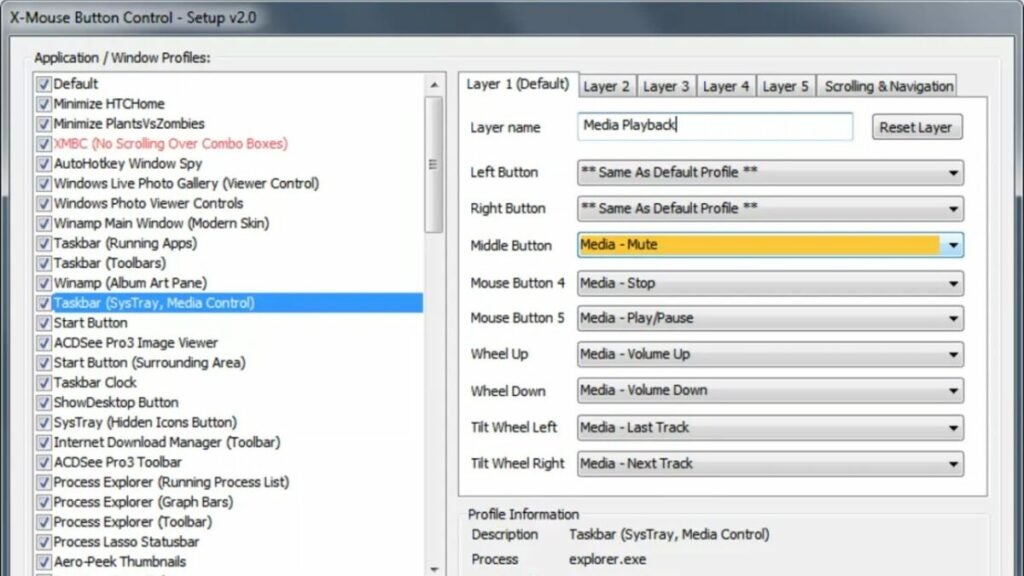
image of the X-Mouse Button Control interface

What are the benefits of this utility?

While XMBC lets you have more control, it also allows for increased usability across multiple users. In essence, XMBC sets up profiles to prevent your individual mouse controls from changing. If you share a computer with others such as family members, this is an ideal solution. But you need to think bigger.

Want a shortcut for copying text? XMBC can deliver that. Interested in altering what double-clicking the left mouse button does? XMBC can do that, too. Users can even introduce fourth and fifth mouse buttons into video games that don’t natively have them.

Each profile can host 10 different button configurations across “layers”. Simply use the mouse buttons themselves or hotkeys to switch them.

Is X-Mouse Button Control dangerous?

While some internet downloads can harbor malware, XMBC is a virus-free and safe program for Windows PCs. Rest assured that you are a getting quality program.

How do I use X-Mouse Button Control?

Getting to know the software is a matter of familiarizing yourself with how things are organized. This is easier said than done as there are 100 actions that users must specify. YouTuber Cannibal Haire has a very useful video as seen above to get started.

Moreover, you can consult the user guide for more specific instructions on multi-layered button mapping, profile setup, global settings, and more.

How do I remap mouse buttons?

Remapping buttons let users change how the scroll wheel and mouse buttons function. You can assign different tasks to each button. For example, instead of using the left click button to “select”, you do that with the middle mouse button instead.

There are lots of options when it comes to remapping buttons, but you can easily adjust what they do within the XMBC interface as seen in the screenshot earlier in this article.

image of a mouse scroll wheel and the X-Mouse Button Control logo

Common issues with XMBC

As with any program, XMBC has its quirks and a learning curve to it. The obvious issue with XMBC is that it is entirely text-based. Visual learners may struggle with dialing in certain features.

This trait also presents a hurdle for users not knowledgeable of computer hardware or Windows OS features beyond installing and using programs. Getting into the more granular features requires becoming intimately familiar with not just XMBC, but other aspects of Windows itself.

What’s more: the forums available to users specifically for XMBC are not very active. If you go looking for help there, you may not find anyone. Going to a hardware subreddit might be a better option if you need specific guidance.

image of an illuminated RGB gaming mouse

Can XMBC supplement gaming mice?

Many gaming mice from big companies like Razer and Corsair come with their own button customization programs. However, not all of them offer as robust of options as users may need.

To supplement that, XMBC makes a wonderful addition for those who need more features. It’s especially handy for people who work and game on the same PC. You can have one profile for when you are playing video games and one for when you are working.

X-Mouse Button Control competitors

XMBC offers lots of utility for users with specific needs. It can be especially time-saving if you have “dumb” hardware or hardware that is more plug-and-play vs. something with a companion app with other features.

However, some mice (including gaming mice) tend to ship with more sophisticated programs for the hardware. You can review how similar programs compare to X-Mouse Button Control on this page. But let’s see how the top-rated built-in software on some mice fares against XMBC.

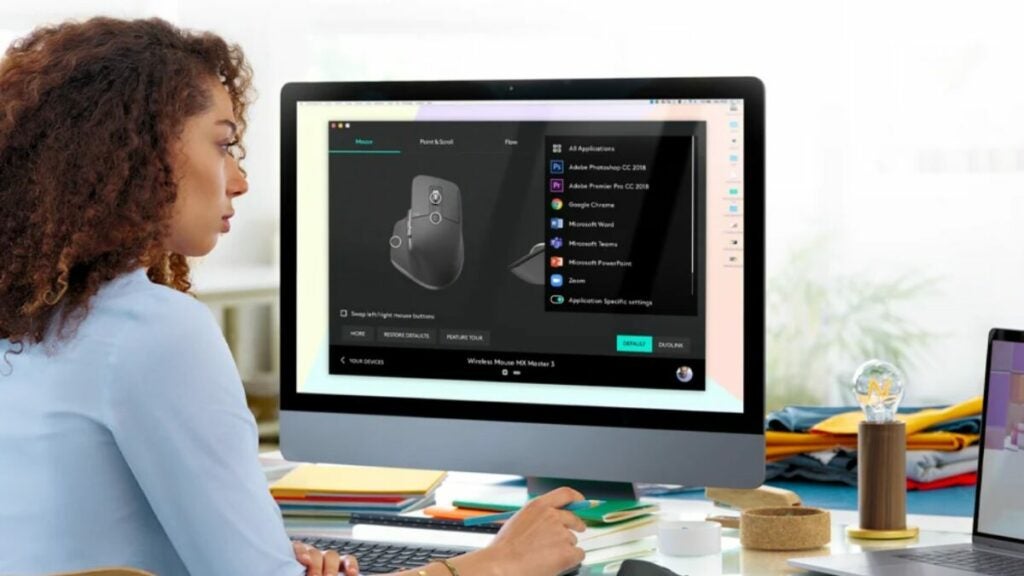
image of a woman using the Logitech Options software

Logitech Options vs. XMBC

Logitech software has come a very long way over the years. Though the company is known for tons of peripherals from webcams and speaker systems to smart home items, their mice and keyboard options are solid, too.

The company has revamped the interface of its software to offer more options for working. You can create hotkeys for Zoom, Photoshop, or even Google Chrome. It even provides app-specific settings as XMBC does.

From a utility standpoint, the software works well for those who have more professional needs.

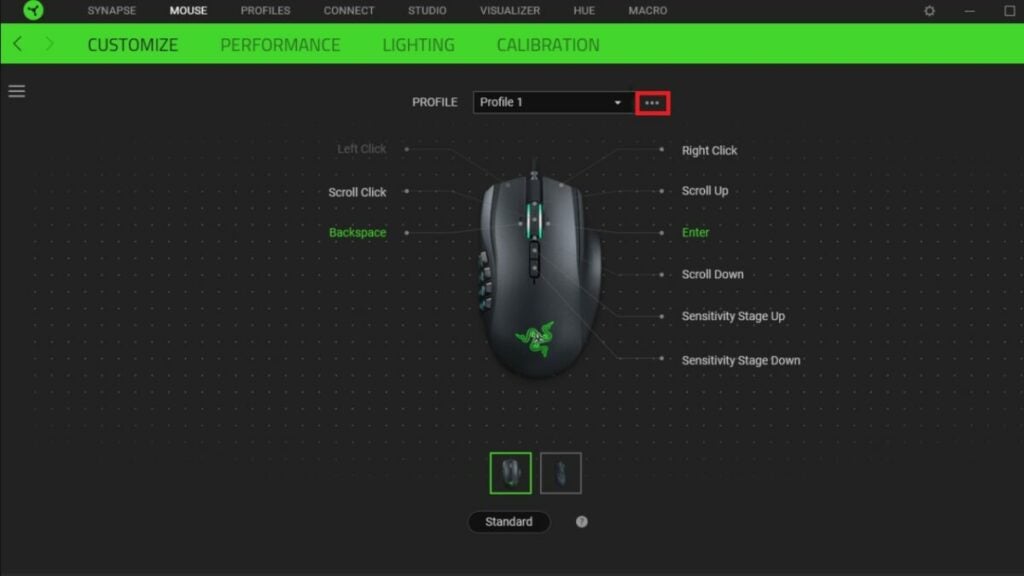
image of Razer Synapse program

Razer Synapse vs. XMBC

Razer is one of the most popular brands when it comes to gaming peripherals like mice and keyboards. But gamers also rave about its onboard software Razer Synapse. The sleek interface is clear, concise, and uncluttered.

As you can see in the image of the UI above, Razer now has profiles just like XMBC, along with controls for RGB lighting, DPI settings, and more. In comparison to XMBC, it is a much more user-friendly option if you don’t need as much utility or versatility out of the program.

image of different mice types

Verdict on X-Mouse Button Control

XMBC has been an incredibly useful tool for people who need more options when it comes to mouse controls. It still offers nearly unmatched features and versatility.

However, many readily available and affordable options from companies such as Logitech now come with comparable software that is easier to use for average people. XMBC is also not readily available for macOS users.

Download X-Mouse Button Control to see how it can improve your computing experience.

PROS

  • Free program
  • Supports multiple users
  • Features a straightforward interface
  • Establishes window-specific and application-specific profiles
  • Activates those profiles automatically
  • Navigation customizations
  • Extremely useful for advanced users

CONS

  • Can be non-intuitive for people without more advanced knowledge of computer hardware
  • Little to no guidance for new users
  • Items and features can be locked to certain operating systems
  • Not readily available for macOS users