It looks like Telegram Premium mode is on the way

It’s looking like the very popular messaging app Telegram is on the hunt for ways to boost revenue generation through the use of the app. Following a recent Telegram update allowing users to add custom notification sounds that could theoretically be “any sound on planet earth”, it looks like the team behind Telegram have not slowed down one bit. Some very interesting words have turned up in a beta version of the app.

Telegram Download Now

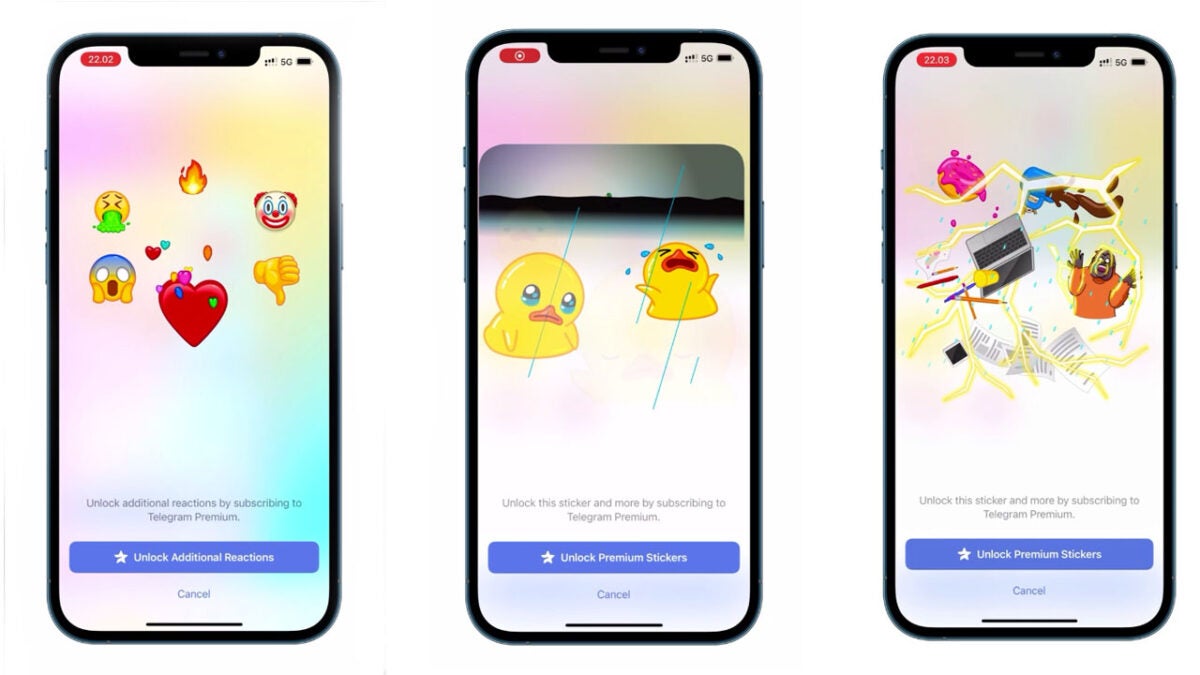
First spotted by Android Police, the words “Unlock additional reactions by subscribing to Telegram Premium” are clearly on show in version 8.7.2 on the Telegram Beta Channel. This would seem to indicate that new premium reaction emojis and stickers will only be available to subscribers to a new Telegram Premium service.

Interestingly, according to the version currently under beta testing, this premium subscription isn’t only required to send these new features either. It looks like anybody receiving a new premium emoji or sticker will have to subscribe too. Non-subscribers will only get to see a blurred-out version of their messages alongside a prompt to sign up for the new premium service.

Just like with WhatsApp, Telegram has long suffered from the ‘how to make money question’ that hangs around the necks of all free messaging services. WhatsApp decided to avoid charging the personal users of its service, instead opting to experiment with Business charges. This move from Telegram indicates a move in a different direction, with premium tiers offering Telegram’s most devout users a chance to enhance their experience by paying a premium. If you think about how much money Fortnite has made selling skins, you can see why this might be an attractive option for the messaging app.

The question, though, is will this service be attractive to Telegram users with the app having a slightly more serious image than some of the other massaging apps out there. Other services like Discord have implemented a similar service, with the Nitro subscription coming in at $10 a month. Nitro offers a lot more than just emojis and stickers though, also giving users access to more bandwidth to help stream higher quality audio and video.

As Telegram Premium still doesn’t exist it is safe to safe there is still quite a bit of development to come before it launches. We’ll keep you updated on developments as they come. In the meantime, why not check out these 6 useful Telegram features.

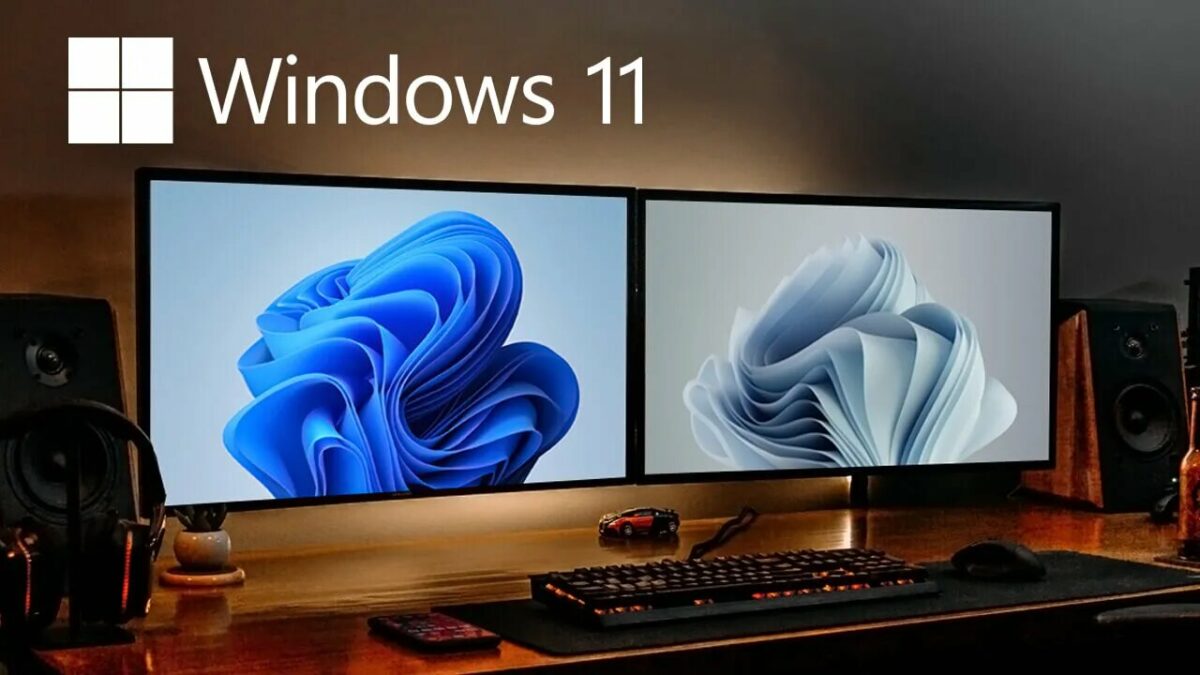
How to Set Different Wallpapers on Dual-monitors: Windows 10 & Windows 11

Windows has long been the king of PC personalization within the OS world. Windows 10 expanded on the already incredible personalization power showcased in Windows 7 and added so many more options for the perfect PC experience reflecting its users’ creativity. 

Windows 11 DOWNLOAD

Now, we’ve had some time to get to know Windows 11 a little better. While there may still be a few bugs to sort out within the new OS, no one can argue that Windows 11 is just as powerful and creative a space as its predecessor. However, there are a few new tricks up Windows 11’s sleeves, a feature mimicking one not many people are aware Windows 10 also has. We’re about to show you how to set different wallpapers on a dual-monitor setup.  

Windows and Wallpapers

Ever since one of Charles O’ Rear’s photographs, entitled Bliss, took the world by storm as the default wallpaper for Windows XP, the company has had a creative, individualistic approach to how its operating system looks. Windows 7 saw an incredible selection of default wallpapers ranging from nature to pop art-esque digital drawings. Windows 10 contributed to this long, beautiful visual journey with its own array of bold, classic wallpapers, many of which feature vibrant displays of natural and architectural wonders. 

Windows 11 recently broke the mold of classic nature photography and opted for a short series of dynamic, vibrant forms inspired by flowers. Entitled Bloom, this new experience seems to signify a new beginning of sorts for Windows. Being only a few months old now, we are incredibly excited to see how Windows 11 blooms further.

Upgrade to Windows 11

Setting different wallpapers on dual-monitors on Windows 10 & Windows 11

  1. Windows 10

    How to Set Different Wallpapers on Dual-monitors

    At last count, there are two methods you could use to set different wallpapers on each of your monitors with Windows 10. There was a third, but a subsequent update to Windows 10 rendered it ineffectual. We don’t mind; the command that would have been used in method three essentially brings up the method one screen.

    So it would have been method one with extra steps. Each method below is easy to follow, and completely Windows approved. No third-party apps, tricks, or hacks here. Just honest to goodness Windows functionality. 

    Method 1: From the Settings App

    This method is arguably the easiest to perform. 

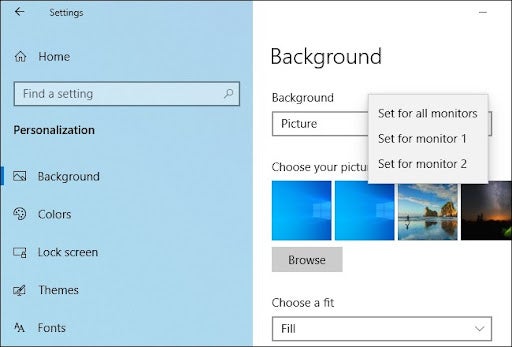
    All you need to do is head to your Settings app in Windows 10. Next, click on Personalization and then Background. Under the option to Choose your Picture, right-click on any of the background images and select Set for Monitor 1, or Set for Monitor 2

    Method 2: From File Explorer

    This is not really what you’d call a terribly intuitive method, but it’s easy enough to get right. 

    Step 1

    Head to your File Explorer, and locate the file where your desired image is saved. Use Ctrl or Shift to enable the multiple-image selection mode. 

    Step 2

    Once you’ve selected all the images you want to use, right-click on the image you want to display on your primary monitor and select Set as Desktop Background. A primary monitor doesn’t mean the one you use most. You set your primary monitor from the display settings when all your monitors are connected to your input device. 

    Step 3

    head back to your home screen, and you should see the image you right-clicked on displayed on your primary monitor. If you selected three images and have three monitors, the other two images will be selected randomly for your secondary and tertiary monitor.

    Unfortunately, with this method, you have no control over which monitors, aside from your primary monitor, images are displayed on. Your images also have to be exactly the same resolution as your monitors. Otherwise, they won’t work properly and tend to rotate their positions after around 30 minutes.

  2. Windows 11

    How to Set Different Wallpapers on Dual-monitors

    Windows 11 brought significant changes to the entire Windows ecosystem as we knew it. Setting different backgrounds on a dual-monitor setup also changed for the better. Once we’ve tackled how to get this done, we’ll also address a bug that may be preventing you from getting it right and show you how to fix it. 

    Step 1

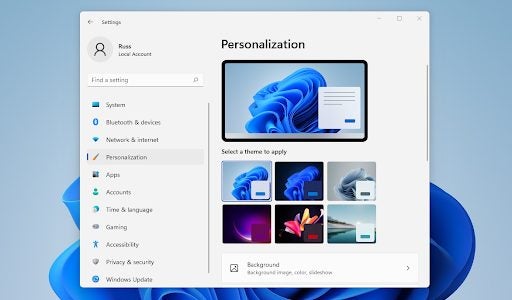
    Hit the Windows key + I to open the Windows 11 Settings app. Alternatively, you could click the Windows icon on your new, centrally aligned Task Bar and head to Settings

    Step 2

    Head to the Personalization tab within the Settings interface, and then click on Background.

    Step 3

    Next to the Personalize your Background banner, hit the drop-down menu, and select Picture

    Step 4

    Click on Browse Photos, and select the image you’d like to set as your desktop background. 

    Step 5

    Locate your image in the Recent Images banner and right-click on it. In the right-click context menu, hit Set for Monitor 1, or Set for Monitor 2. If you have three or more monitors connected to your PC, you’ll see them as options as well. 

    Step 6

    Simply Repeat steps 4 and 5 for any additional monitors you have connected, and you’re done. No mess, no fuss. Just an easy process within a visually appealing interface.

  3. Windows 11 Bonus Method – Fix the Bug

    How to Set Different Wallpapers on Dual-monitors

    Windows 11 has improved on many of the aspects of previous OSs that we’ve grown to love. Unfortunately, the OS has also introduced a few niggles that make certain objectives a little more time-consuming and difficult to achieve. 

    One such niggle is that Windows 11 will not permit you to set different wallpapers on a dual or multi-monitor setup if you have more than one virtual desktop. So, when you want to hit Set for Monitor 1, 2, or however many monitors you have connected to your primary device, you’ll instead see Set for Desktop 1, 2, or however many virtual desktops you’re using on your primary device. 

    There’s a quick workaround for this, though. 

    Simply hit the Windows key + Tab, or alternatively, click on the Task View button on your Task Bar.

    Next, delete all your virtual desktops.

    Lastly, follow steps 1-5 again to get your desired images to your desired monitors, and then head back to the Task View panel and restore your virtual desktops again. 

    If you want to bypass the niggle fix, we have one more bonus method for you to use on Windows 11, but it relies on a hidden interface that is no longer accessible by conventional means; you’ll have to use a command.

    Step 1

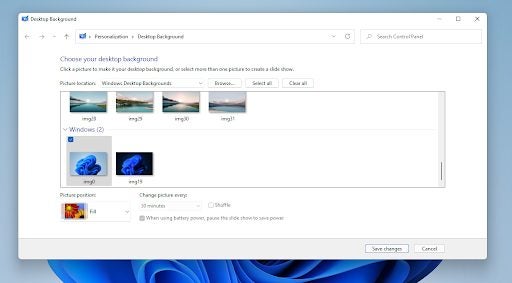
    Hit the Windows key + R and paste the following string of gibberish into the dialog box that opens:

    shell:::{ED834ED6-4B5A-4bfe-8F11-A626DCB6A921} -Microsoft.Personalization\pageWallpaper

    Step 2

    You’ll now see a Desktop Background window. Simply select your desired image from the images displayed. If your desired image doesn’t show up, hit Browse

    Step 3

    Once you have your desired image, right-click on it and select Set for Monitor 1, 2, or however many monitors you happen to have connected to your primary device. 

    Step 4

    Next, repeat steps 2 and 3 for each monitor, and you’ll have your desired images on your desired monitors with ease.

Simple task, simple solutions

Setting a background doesn’t usually take much thought, apart from actually choosing the perfect image. However, as we’ve seen, things get a little more complicated when you add in multiple monitors. Luckily, Windows has your back.

Whether you’ve made the switch to Windows 11 or still consider yourself a Windows 10 loyalist, you’re only ever a few simple steps away from having the perfect visual setup. If you’re having any issues with the operation system, you may want to check our guide on the best repair tools for Windows 10 & Windows 11.

Best free Windows 10/ Windows 11 repair tools DOWNLOAD

How to connect your phone to Windows 11 with Phone Link

Windows 11 is the latest PC operating system to take the world by storm. While we haven’t seen as many installs of Windows 11 as there are of Windows 10, it’s still early days for the breakout new OS. One thing that makes the OS that much more convenient than its predecessor is the new cross-platform focus that seems to be guiding the future of Windows 11. 

Windows 11 DOWNLOAD

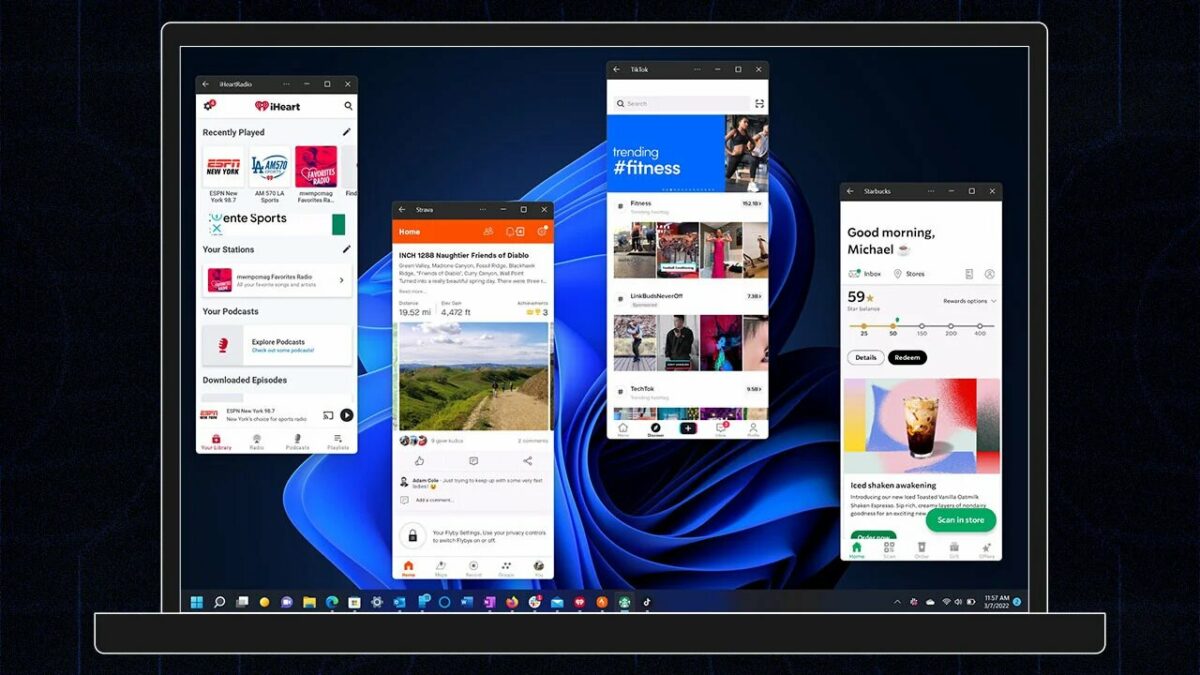
We’ve already seen how integrated the OS is with Microsoft’s Xbox consoles, where you can physically play your Xbox games within Windows 11. We’ve also seen teasers of future plans to launch an Android emulator within the OS to further link the way your Android phone and Windows PC interact with one another. While that is still planned for some time in the hopefully near future, Windows does have a feature that lets you essentially use your phone within the Windows 11 ecosystem. 

How to Connect Android Phones to Windows 11 with Phone Link

This is a remarkably easy process that you’ll complete in part on your Windows 11 PC and simultaneously on your Android device. Some devices, most notably Samsung, come with the new Phone Link app pre-installed. But not everyone has a Samsung, so we’ll use an OPPO A15 running Android 11 to give you the best how-to possible. It’s worth noting that the Phone Link app is the Windows 11 answer to Windows 10’s Your Phone app, and it runs on any Android version higher than 7.0.

  1. Open Phone Link

    How to connect your phone to Windows 11 with Phone Link

    On your Windows PC, hit the Start button on your Taskbar and search for Phone Link. Click Open, and sign in with your Microsoft account if you haven’t already signed in previously.

  2. Install Phone Link on Android

    How to connect your phone to Windows 11 with Phone Link

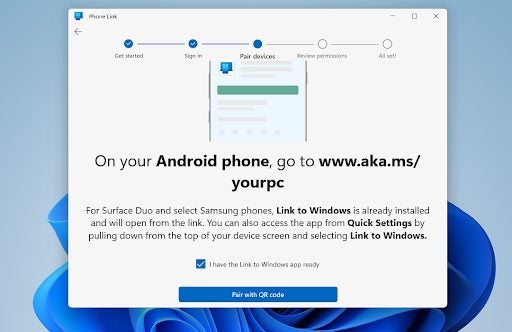
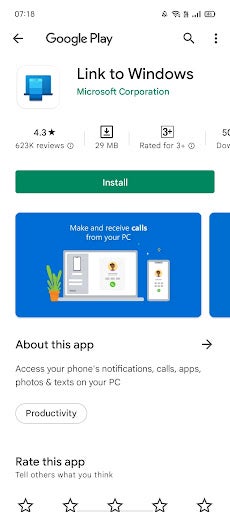
    Now, you’ll see a link within the Windows 11 Phone Link interface that you need to follow on your phone. Essentially, this takes you to the Phone Link app download page, but you can just as easily download Phone Link on Android’s Google Play Store. Make sure the developer is listed as Microsoft Corporation; that’s how you know it’s the real deal.

  3. Pair with QR code

    How to connect your phone to Windows 11 with Phone Link

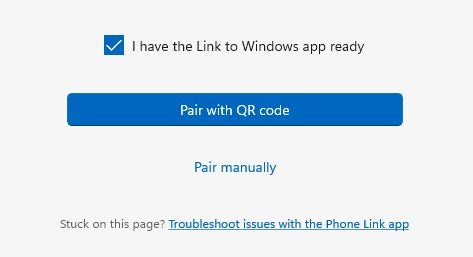
    Once you have the app installed on your Android device, you’ll see two options on your Windows 11 app interface; Pair with a QR code and Pair manually. Pairing with a QR code is the easiest, so we’ll do that. Hit Pair with QR code on your PC.

  4. Scan QR code

    How to connect your phone to Windows 11 with Phone Link

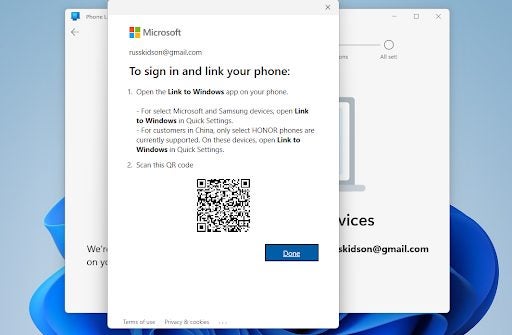
    On your Android, open Phone Link and hit Link your phone and PC. The app will ask whether the QR code is displaying on your PC, hit Continue, and then scan the QR code on your Windows 11 PC screen.

  5. Finish up on your phone

    How to connect your phone to Windows 11 with Phone Link

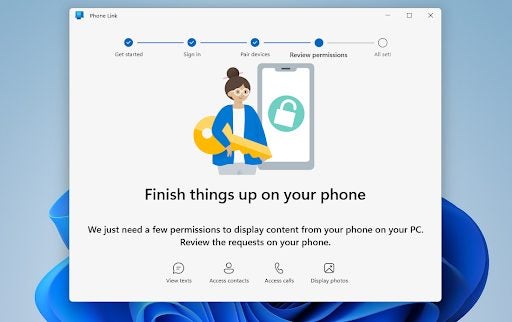
    If you glance over at your PC screen, you’ll be notified within the Phone Link interface to finish things up on your phone. Head back to your Android and hit Continue on the Next up, app permissions screen.

  6. App permissions

    How to connect your phone to Windows 11 with Phone Link

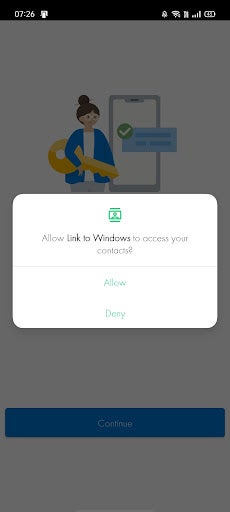
    You’ll now see system pop-ups asking you to grant various permissions on your phone’s side. You’ll need to give the app access to your contacts, phone call functionality, media, and SMS functionality. This is so that you can interact with these services on your PC as if they’re being used on your phone.

  7. Check your computer

    How to connect your phone to Windows 11 with Phone Link

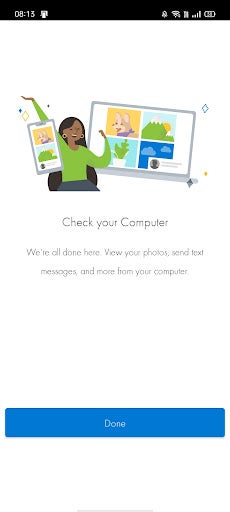
    Next, the app’s interface on your phone will tell you to check your computer. Hit Continue on your Windows 11 PC.

  8. Welcome to Phone Link

    How to connect your phone to Windows 11 with Phone Link

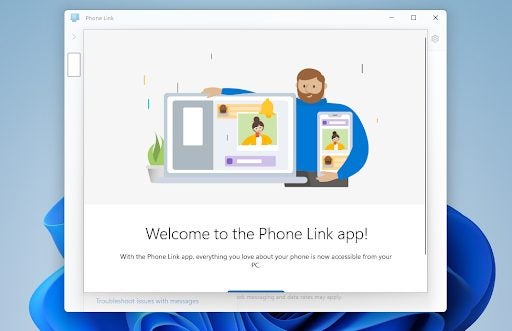
    On your Windows 11 PC, you’ll see a new window over the Phone Link interface reading Welcome to Phone Link. Hit Continue, allow the app to pin itself to the Taskbar, and enjoy access to your phone’s most crucial functionality without even glancing at it.

Easily connecting to your phone

Windows Phone was, in my opinion, an incredible innovation. The fact that Microsoft directed so much capital at the project and bought out Nokia to give the world an alternative to Android and iOS is commendable. I, along with other Windows Phone enthusiasts, found the devices to be a breath of fresh air. Mobile and PC OS had long been two very disconnected experiences, and I welcomed the chance to have some kind of shared language in terms of design between my PC and my mobile device. 

While Phone Link, or Windows 10’s Your Phone app, doesn’t bring back the wonder that was Windows Phone, it does blur the line between mobile device and PC. You now have the ability to interact with your phone’s most essential functions without potentially getting distracted by other apps. Another remarkable innovation blurs the line between two starkly different platforms is that Windows 11 now allows you to install Android apps via the Amazon Appstore!

Windows 11 update lets you install Android apps READ MORE

Adobe to integrate new content scheduler to Creative Cloud Express

Adobe introduced Creative Cloud Express, its graphic design application for Windows, Android, and iOS, in December 2021. The app offers seasoned creative professionals and beginners a way to generate social sharing content quickly via a drag-and-drop interface. As users became acclimated with the software, they noticed it lacked an integrated social media scheduling tool — a feature Adobe launched on May 11, 2022.

Creative Cloud Express TRY IT FOR FREE

To better align the software with direct competition like Canva, Adobe is introducing content planning scheduling to Creative Cloud Express subscribers. Adobe Express caters to social media content creators and advertising professionals, and this tool enables them to release their materials on a scheduled basis directly from the app. Without this integrated function, Creative Cloud Express users would have to pay for a standalone social media scheduling tool or move on to a competitor like Canva Pro.

Express’ content scheduler will simplify social media posting

The introduction of a content scheduler to Adobe Express follows the company’s recent initiative to draw upon and converge their powerful dedicated apps like Photoshop and Illustrator to form a comprehensive visual communications platform. The content scheduler will let Creative Cloud Express customers design, schedule in advance, and post their original media content to the most popular sharing platforms, including Facebook, Instagram, Twitter, and YouTube.

At the time of this writing, it’s unclear if the new content scheduler will be restricted to Instagram Business accounts only, which is how the feature is offered in Canva Pro. This new convenient feature does, however, bring the software’s media design and distribution tools under one subscription. The addition of content scheduling, a much-anticipated bonus for Creative Cloud Express subscribers, takes Adobe’s promise to deliver an accessible and well-streamlined workflow one step further.

By launching its new content scheduling and planning feature, Adobe Express lets subscribers time the release of their images without continually monitoring their devices or signing up for another software product. Creative Cloud Express has already proven to be an impressive source of inspiration for social content design. The newly integrated multi-platform sharing capabilities under a centralized hub should thrill current subscribers.

How to manage your finances with the Chase Mobile app

The Chase Mobile app allows you to manage all of your Chase bank accounts in one convenient location. This includes checking and savings accounts, credit cards, personal loans, and mortgages. You can check each of your balances by signing in on either an Android or Apple device. Having quick access to all your accounts makes managing your finances much simpler. By checking the status of your accounts regularly, you can stay on top of your wealth.

Here are some fundamental steps that every Chase Mobile app user should become familiar with.

Chase Mobile DOWNLOAD
  1. Use Quick Deposit to deposit checks on the go

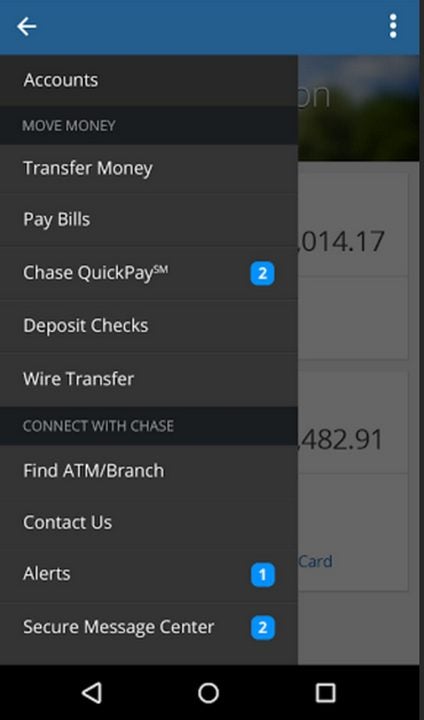
    Tap deposit checks on this menu.

    The Chase Mobile app can save you a trip to the bank by allowing you to deposit checks by taking a picture of them with your smartphone camera. Upon logging in, click on deposit checks from the main navigation menu. Select either the checking or savings account to initiate a deposit. Manually enter the dollar amount of your check. Be mindful of where the decimal point is placed and double-check the number before submitting. Next, you need to take pictures of both the front and back of your check.

    Click on front to take a picture of the front and the same for the back of your check. When taking each picture, be sure to do it in a well-lit place and make sure the image is not blurry. The automated recognition system must be able to read the entire check. Also, be sure the check is authorized before submitting the back picture. Once both pictures are submitted, you will receive a confirmation email letting you know the check is being processed. You will receive another email after the deposit is complete.

  2. Set up automatic credit card payments

    Set up automatic payments.

    Since paying your credit card on time is so important, it is recommended you set up automatic payments to ensure you never accidentally forget to log in. Click on any credit card account and select pay card to begin. Tap the set up button next to automatic payments. Then, choose the amount for each payment and determine which account you wish to pay with. Finally, select the day of the month you would like your payment to be processed. If you can schedule this several days in advance of your payment due date. Should any glitches or errors occur, you have some wiggle room to manually pay on time. When you receive a confirmation email each month, you can rest assured your payment went through.

  3. Enroll in Credit Journey

    Credit Journey Enrollment.

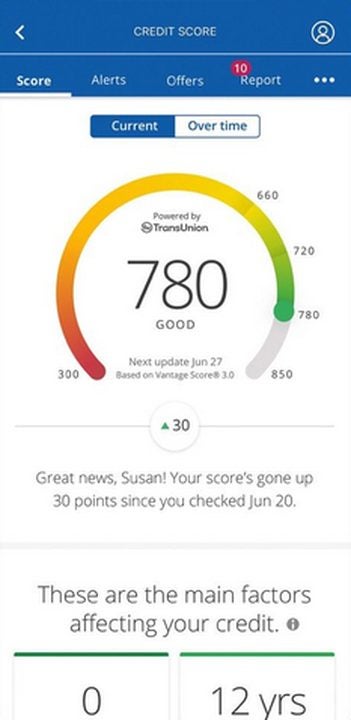
    After paying your credit card bill, the next best thing you can do is monitor your credit report. To do this, swipe up on the main navigation menu and tap on the credit journey icon. Scroll through the terms and conditions then click enroll on the bottom of the page. This brings up your main credit score. Click on see all factors to get a closer look at everything affecting your score. You can review the credit usage on all your accounts and see useful tips on how to improve your score.

    To view your Experian credit report, tap see all accounts and select access your report. Make sure everything about your credit history is correct on this page. If you need to report incorrect data, you can click on any past event that is in error. After reviewing your report, you can return to the credit score screen by tapping the X icon. From the main credit screen, swipe up to view your score simulator. Here you can see how various decisions like making large purchases with credit will affect your score. Alternatively, you can tap alerts to view the identity monitoring services. Select alerts inbox to check any messages from Chase regarding suspicious activity on any of your accounts.

Keep your finances in order by frequenting the app

When you can conveniently check all your accounts at once, there is no reason not to keep a close eye on your money. Most financial struggles can be alleviated by vigilantly monitoring your spending habits and planning accordingly. The Chase Mobile app gives you all the tools necessary to understand how purchases affect your credit and debit. You will naturally adhere to smarter financial practices if you consistently check your accounts each week. For more information, check out our article about the 3 great apps that will help you budget your finances.

Best free Windows 10/ Windows 11 repair tools

Whether you use your PC for work or play, there’s a high likelihood that you use either Windows 11 or 10. But what do you do if your PC fails at delivering the seamless experience you’re expecting? What do you do when it starts lagging, takes forever to load, and stops being an effective tool? PC repair tools come to mind, but like driver updaters and third-party antivirus, these usually come at a cost. 

Below, we’ll take you through the best free PC repair tools on the market for Windows 11 and Windows 10. You don’t need to break the bank in order to have a PC that runs like it just came out of the box. 

Windows 11 DOWNLOAD

What are PC repair tools?

PC repair tools are a class of software that identify and neutralize specific issues your PC may encounter. This, more often than not, results in better overall performance and user experience. Your PC is permanently performing operations in the background. It’s constantly occupying disk space, rewriting disk registry entries, and saving files. All this takes a toll on a PC eventually, causing it to malfunction. PC repair tools essentially flush your PC’s system and, in many cases, leave your PC performing like it’s brand new again. 

The best free PC repair tools for Windows 10 & 11

Below is a list of all the best free alternatives to holistic PC care and repair that we could find. We haven’t ranked them in any particular order, but we’ll give a basic overview of each, along with honest, objective thoughts. 

IOBit Driver Booster

Windows may be the preeminent operating system for over 72.9 percent of PCs (Statista), but the OS doesn’t always handle updates with the greatest care. Sometimes while your PC updates, the OS leaves out essential driver updates. Therefore, when your PC starts giving issues, sometimes the best first course of action is to check if your drivers are due for an update

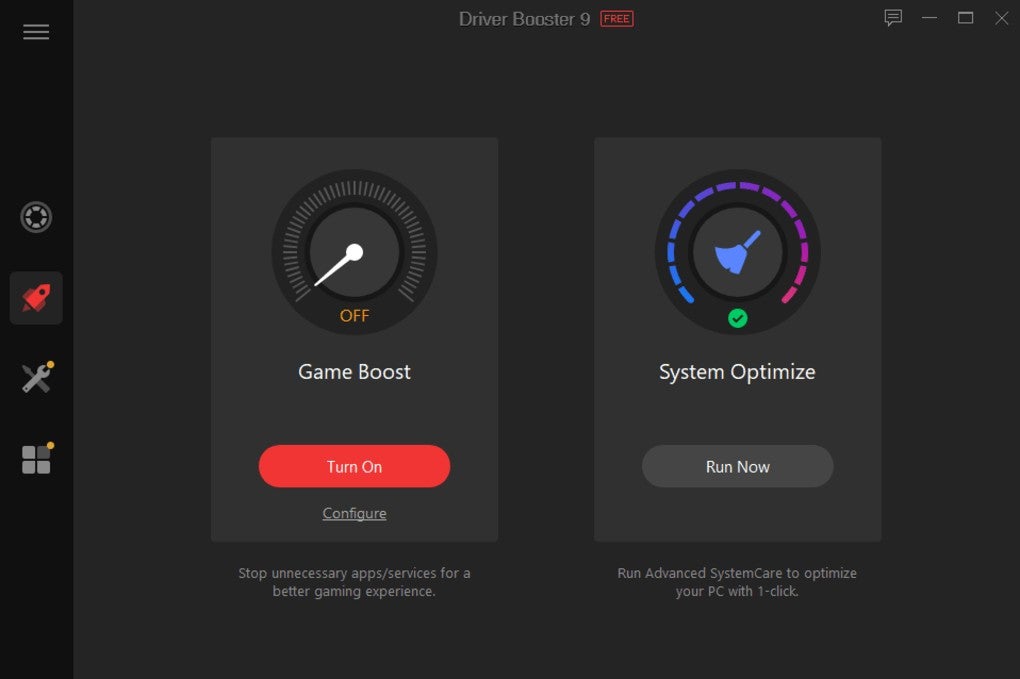
IOBit Driver Booster is really easy to use and claims to update and repair over 1,000,000 drivers. The utility also creates a system restore point before it initiates any updates, in addition to providing options for an automatic reboot and shutdown once the updates are complete. Finally, you can run updates before you head to bed without having to wait for them to finish and you can shut your system down. IOBit also has numerous other utilities you can explore and download within the Driver Booster interface. 

Best free Windows 10  Windows 11 repair tools
IOBit Driver Booster DOWNLOAD

FixWin

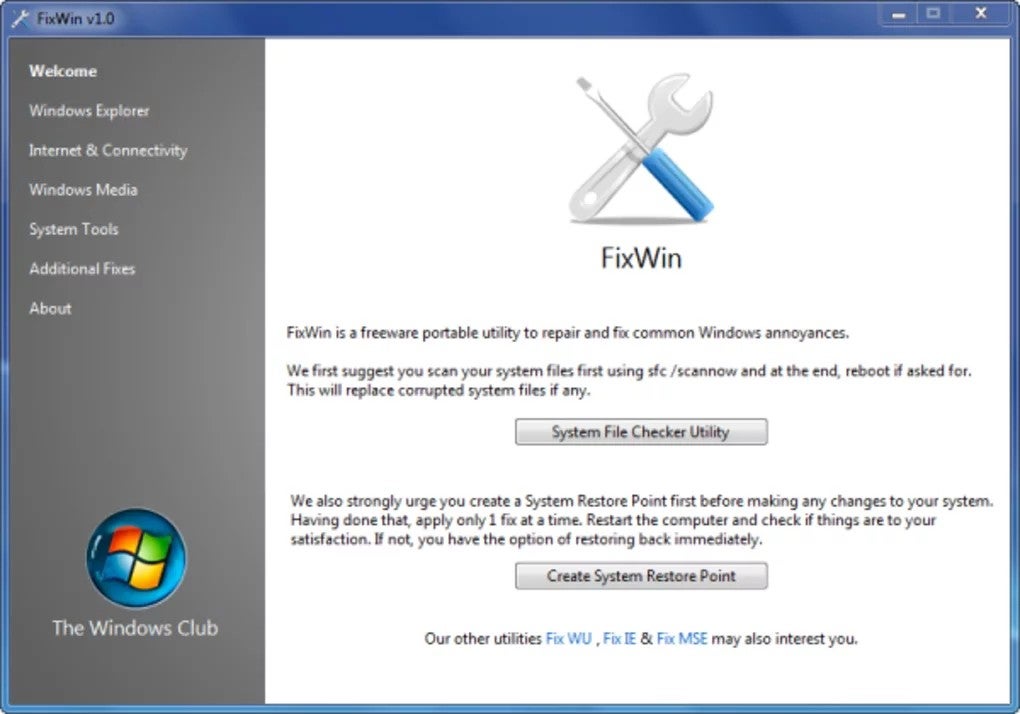
FixWin is primarily marketed at Windows 10 users, but the utility is so versatile you can use it to repair issues on Windows XP, 7, 10, and even Windows 11. The utility also claims to be able to fix virtually any issue you have with your Windows OS. 

The FixWin interface is cleverly divided into six organized sections, letting you target specific problems wherever you may encounter them. Each section subsequently contains at least 10 options for repairing your system. Some of the fixes will require your system to reboot, but luckily the utility informs you of this if you hit the Fix button. You also have access to an Additional Fixes and Troubleshooters section for even more PC repair options. 

Best free Windows 10  Windows 11 repair tools
FixWin DOWNLOAD

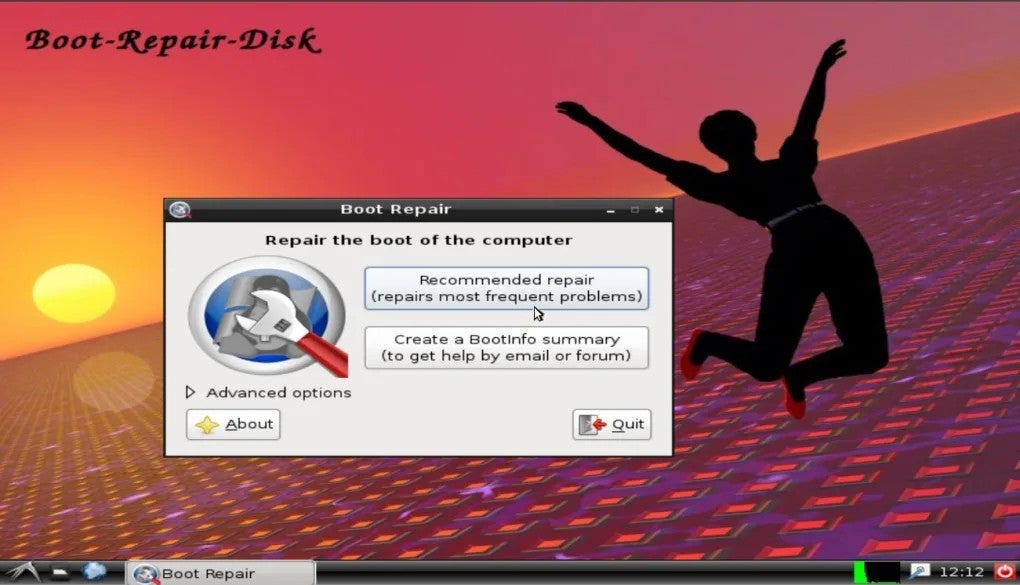
Boot-Repair-Disk

Sometimes, the problem with a PC goes far beyond anything that can be repaired from the home screen. In those extreme cases, it’s essential to have a tool like Boot-Repair-Disk on hand. This is a tool that fixes boot-related issues on Windows systems. It achieves this by using a bare-basics version of Linux. The utility doesn’t provide much else apart from boot-repair capabilities, and it isn’t open-source, so you can’t see exactly what it does and how it operates. The pros are that it’s incredibly easy to use and is compatible with a vast array of PC hardware. 

Best free Windows 10  Windows 11 repair tools
Boot-Repair-Disk DOWNLOAD

Tweaking.Com

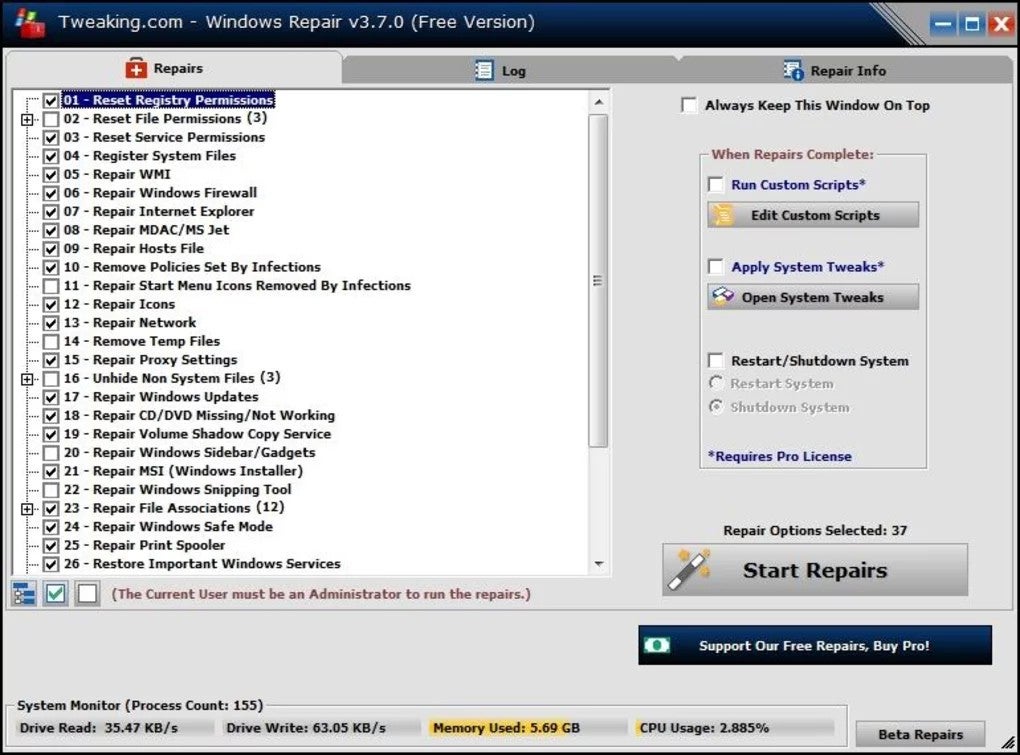
This is another free, holistic approach to Windows system repair, claiming to fix a vast number of Windows issues. Some of these are registry errors, Windows updates, file permissions, and issues with Internet Explorer

Tweaking.Com does place emphasis on systems affected by malware, though, so if that’s your problem, this is the solution. There isn’t really anything else on the market right now that deals with this specific issue. Tweaking.Com works toward fixing errors caused by malware by forcing changes to your PC’s settings. These settings are usually the first port of call for malware as they’re a hub for getting your PC to operate exactly how the threat actor behind the malicious software can use it to their benefit. 

Best free Windows 10  Windows 11 repair tools
Tweaking.Com Windows Repair DOWNLOAD

PC repair tool FAQs

Does Windows have a built-in repair tool?

Yes, Windows 10 and 11 have tools dedicated to PC repair. Sometimes, however, these aren’t adequate enough to fix the issues you may have with your PC. 

Why do I need a third-party tool if Windows provides one?

Windows repair tools are brilliant for common issues you may run into with your PC, but third-party tools usually target much wider problems. You also usually have access to more features and fixes if you opt to use a third-party repair tool. 

Are third-party tools safe?

We test and review all the apps we host comprehensively so that we can give you only the safest downloads. Sticking to those we mentioned is a good way to know you’re truly protected, and you should always research any tool you plan to introduce into your computing ecosystem.

Repair Windows quickly

PC repair is one of those topics we all eventually will have to deal with. Whether your system is bogged down by residual junk or whether you inadvertently infected your PC with malware, it’s always good to have a list of PC repair tools on hand. Since our computers perpetually process so much information, it’s remarkably easy for systems to become overwhelmed and start to malfunction.

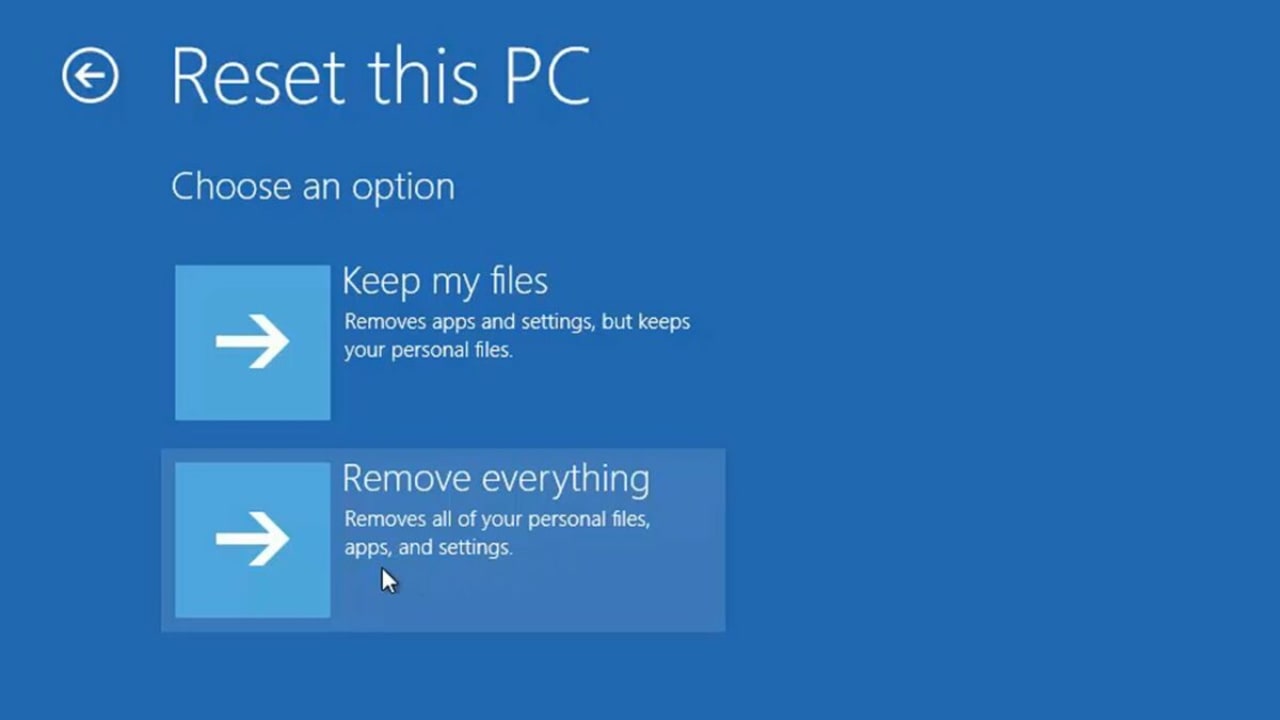
But, the light at the end of the tunnel is that, in most cases, there is a fix for what you’re experiencing. All you need to do is find a dedicated tool, and it doesn’t have to be overpriced premium content. Free tools are more than good enough. Alternatively, you can read our guide on how to Factory Reset Windows 10 & 11.

How to Reset Windows 10 and 11 using Factory Reset READ MORE
Wikipedia has stopped accepting cryptocurrency donations

After an intense voting session on the potential removal of cryptocurrency in donations to Wikimedia’s services, the nonprofit organization finally decided to discontinue the direct acceptance of crypto as a means of donating. It has since closed its Bitpay account and will be monitoring the situation for feedback.

Wikipedia DOWNLOAD

Wikimedia Foundation is the owner, operator, and host of Wikipedia, the popular and free open online encyclopedia maintained by volunteers worldwide. Since Wikipedia is largely funded through donations, Wikimedia has had to adjust its supported payment methods based on what its current donor communities prefer and have access to. This time, they’d rather shut down the cryptocurrency movement in their circle.

Wikimedia had first started directly accepting crypto way back in 2014 when its users had requested it. However, in the wake of the issues surrounding cryptocurrency—mainly concerning its negative impact on our environment—the organization’s numerous users and volunteers eventually banded together back in January 2022 to request its removal from Wikimedia’s accepted forms of donation.

After months of voting and debate, 71% of the user votes were in favor of Wikimedia stopping the direct acceptance of cryptocurrency—with 232 in favor of the ban while 94 were against. Wikimedia announced that it will be closing its Bitpay account so that it can no longer directly accept crypto donations. Additionally, the foundation mentioned that it will continue to be flexible and responsive to the needs of its volunteers and donors.

While users can no longer easily support Wikipedia with cryptocurrency, this doesn’t mean that the option is fully off the table. Wikimedia has simply cut off its direct route. You can still use crypto—although it will require some conversions to be accepted. If you’re interested in learning more about news on cryptocurrency, here’s a crypto hack scandal on Axie Infinity and Opera for Android now featuring an Ethereum Layer 2 Wallet.

Google Drive security features spread to other Workspace apps

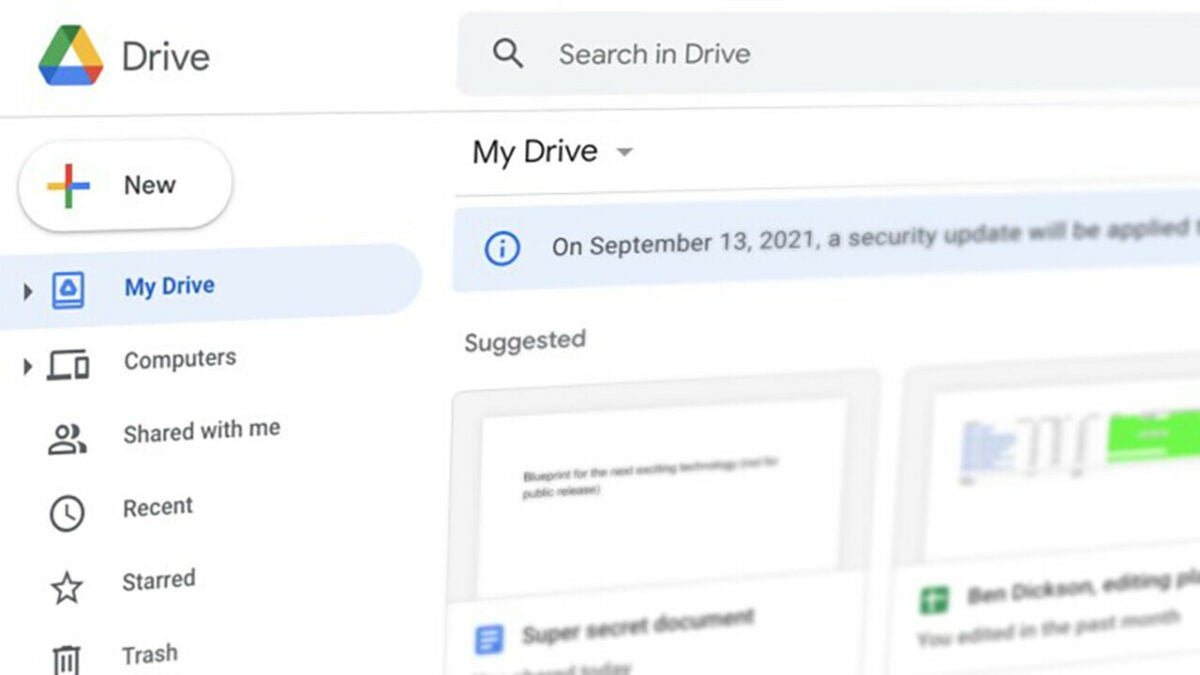
Workspace users have been working in fear that new malware would suddenly infect their files or hold their data hostage. One security feature that’s been working well for Google Drive is a warning label indicating that the contents of a file may be malicious. With it working so well, Google has decided to extend the tool to Google Sheets, Google Docs, and Google Slides.

Google Drive DOWNLOAD

In effect, you’ll see this message appear if there’s a reason for concern: “This file looks suspicious. It might be used to steal your personal information.” Google is clearly not satisfied with only handly security on browsers and wants to take it deeper to the file’s level. It makes sense, as that’s where the malicious content usually resides when it infects your PC.

With more companies moving to remote work locally and internationally, they’re moving towards saving their files online for easier access. It also means that hackers have more opportunities to steal sensitive data and then hold it for ransom for massive sums of money. Last year is a prime example, when hackers used a common feature in Google Docs to send malicious content, specifically phishing. 

It’s not the first time we’ve seen security measures like these arising. As a matter of fact, it seems Google Drive protocols are taking the lead from Microsoft’s playbook. The tech giant restricted macros in Excel while also issuing warnings for unsafe files. With many companies focusing on increased productivity this year, it’s good to know there’s one less thing to worry about when working with online documents.

Magniber Ransomware embedded in fake Windows 10 updates

Windows 10 is no stranger to viruses, malware, and ransomware. But the latest widespread ransomware attack is turning out to be something particularly dangerous. A new breed of ransomware, known as Magniber, is targeting Windows 10 users and hides as a software update. 

Windows 10 DOWNLOAD

The threat actors behind the Magniber ransomware use various names under which to distribute the malware, but the most commonly used titles seem to be Win10.0_System_Upgrade_Software.msi and Security_Upgrade_Software_Win10.0.msi. While these might be fairly easy for anyone with a working knowledge of computers to avoid, other sources point out that the threat actors are also using knowledge base articles to distribute the malware. 

According to submissions to VirusTotal, the Magniber ransomware campaign seems to have originated around the 8th of April 2022 and has gone global since then. We don’t have complete clarity on how exactly these fake Windows 10 updates are being promoted, but we do know that the downloads are primarily distributed from fake warez and crack websites. 

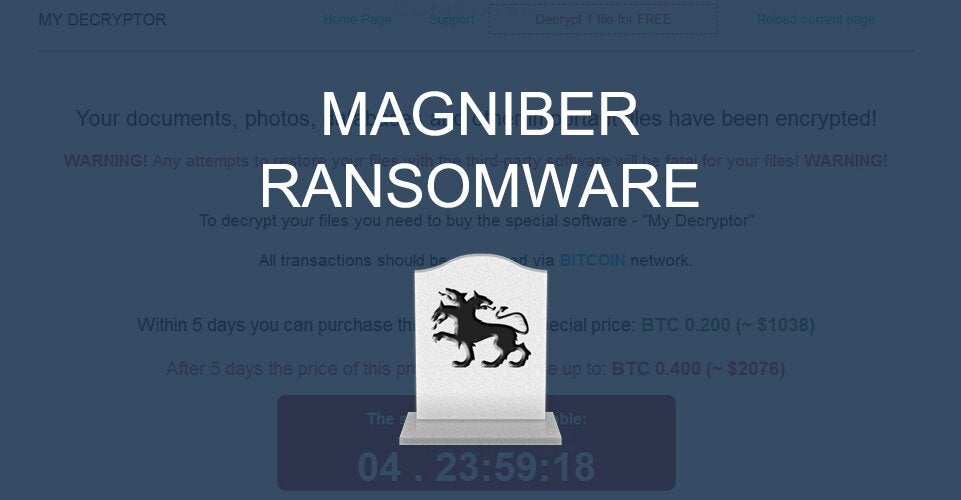
As soon as the ransomware is installed, it begins deleting shadow volume copies and will then encrypt your files. While it encrypts your files, it’ll also attach a random 8-character extension to them. One such example is .gtearevf. It also creates digital ransom notes, titled README.html, within each folder. The readme contains instructions on how to access the threat actor’s payment site using Tor in order to pay the ransom.

The payment site is titled ‘My Decryptor’ and allows users to decrypt one file for free. You can also contact ‘support’ and see the ransom amount in Bitcoin. As far as we have been able to dig, the general amount is usually around $2,500. The website also features a timer set for 5 days and a warning that if you don’t pay, some of your data will be published on the internet and sent to all your contacts. 

The tragic thing about this entire sordid enterprise is that it targets versions of Windows 10 used by general consumers and students, not enterprise versions for businesses. The ransom demand is exorbitant, to say the least, and unfortunately, there don’t seem to be any weaknesses or vulnerabilities to exploit in the ransomware.

In other Windows 10 security-related news, the BitRAT trojan malware is spreading across Windows 10 PCs using pirated versions of Windows 10. Also, here’s how to upgrade Windows to 11. The same interface is used for general Windows 10 updates. Do it by the book and avoid malware like Magniber.

Tomb Raider sold so Square Enix can invest in blockchain projects

Square Enix has announced that it’s made a deal with Embracer Group for the sale of several of its studios, including Crystal Dynamics. While the sale affects many titles, one of them is the Tomb Raider franchise. The game publisher indicated it made the move so that it can increase cash flow and put funds toward potential blockchain projects. 

Tomb Raider DOWNLOAD

You may remember Crystal Dynamics as the game studio that breathed new life into the Lara Croft series. It started with the simply-named Tomb Raider, but soon expanded to Rise of the TombRaider and ended with Shadow of the Tomb Raider. As fans of Lara, we had so much joy playing all of these on our PlayStations and PCs. The gameplay was incredible and only became more exciting with each sequel.

After the Tomb Raider movie appeared, inspired by the Crystal Dynamics games, we wondered what would be next for Lara. What we didn’t expect was Square Enix signing a $300 million deal for such a popular character. It means they can no longer create any more Lara games or other merchandise related to them.

Crystal Dynamics is only one of the studios that Square Enix is selling. The other two are Square Enix Montréal and Eidos-Montréal. While Tomb Raider is big on the list, other brands leaving the company include Thief, Legacy of Kain, Deus Ex, Guardians of the Galaxy, and The Avengers. 

The topic of blockchain in gaming is a sensitive one at the moment. Gamers haven’t completely accepted the idea as yet. While the Metaverse looks incredible and exciting, it will take some time before players are willing to switch to paying for microtransactions with cryptocurrency. Many of them don’t even know how to obtain Bitcoin or Ethereum as yet. The notion of NFTs in games is still new.

We noticed this weekend that Anthony Hopkins made a movie that you can now buy as an NFT. It means you’ll pay with crypto and effectively own the film on the blockchain. No one will be able to make a pirate copy, which is promising for future film production. 

Fortnite creator Epic Games is also raising funds for a stake in the Metaverse. We don’t know what this means for Tomb Raider yet, but we’re excited to find out.