Twitter threads have become a very popular way for people to spread across the network and find new followers. Their long-form nature allows users to create useful content that is much more likely to be shared and liked. Maybe it is this success of long-form content on the network that has spurred Twitter to offer a more fully-functioning long-form post editor. Step forward Twitter Notes.
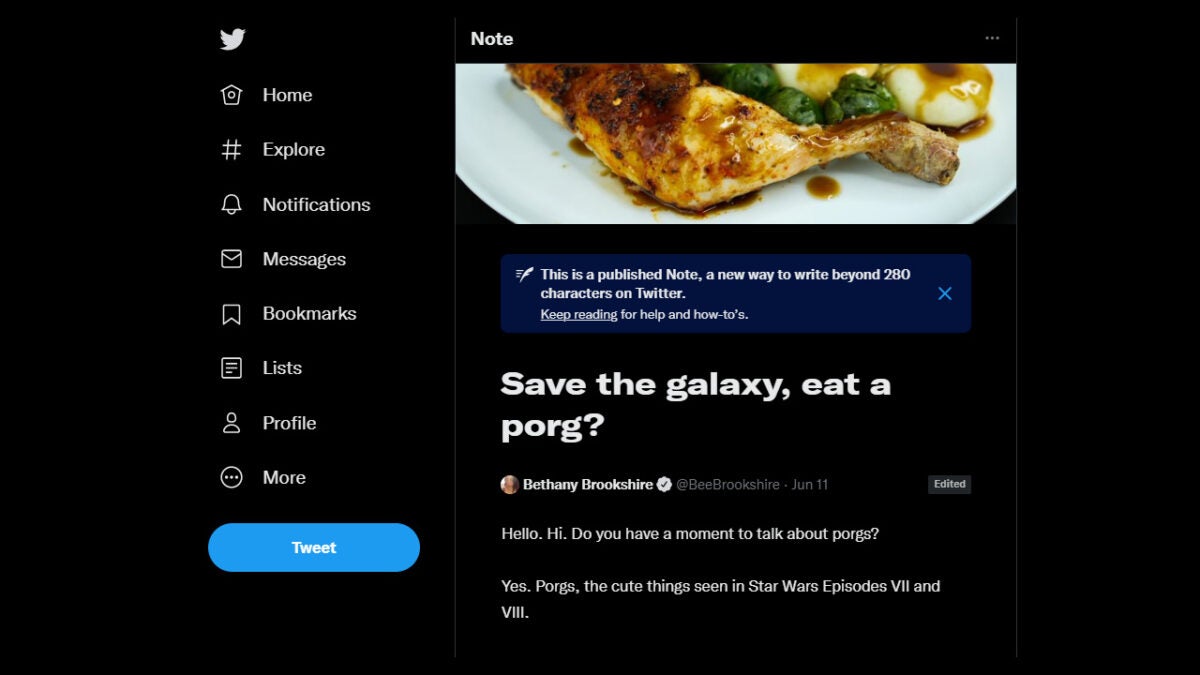
Twitter has announced via a series of Tweets that it is testing Notes, which it is describing as a “way to write longer on Twitter.” Let’s dive a little deeper into the announcement.
Notes looks to be a proper blog editor that allows users to post full blog posts to Twitter. These blog posts, or Notes if you will, can contain images and even embed other tweets. When you hit publish on a completed Note, Twitter will create what it calls a “Note card”, which it will then send out to the timelines of all your followers. These Note cards are basically just tweets that contain a review of the Note and links to it. The Note itself will live in the Write section, which will appear in the sidebar of your account.
The Write section is like the HQ for all of your Twitter long-form content. It is where you go to write your drafts and it is where they will stay once you have published them.
What’s really cool about Twitter Notes is that you can go back and edit them once you have published them. This might seem like a basic feature for a blog editor to have but it is actually pretty revolutionary for Twitter. An edit tweet button has long been Twitter’s most requested feature, but the company has always pushed back as it worries that people could change Tweets that have been cited as sources for news stories. This perhaps indicates that Twitter doesn’t see Notes as breaking news devices in the same way that it sees Tweets.
If you are a Windows 10 or a Windows 11 user, then Microsoft sits at the heart of everything you do on a computer. Yesterday we reported on how Microsoft is working to boost the Windows 11 search feature by pulling info from places like your calendar as well as online to offer you a richer search console. Today, we have news of Microsoft doing something similar to Microsoft Edge. Let’s take a look.
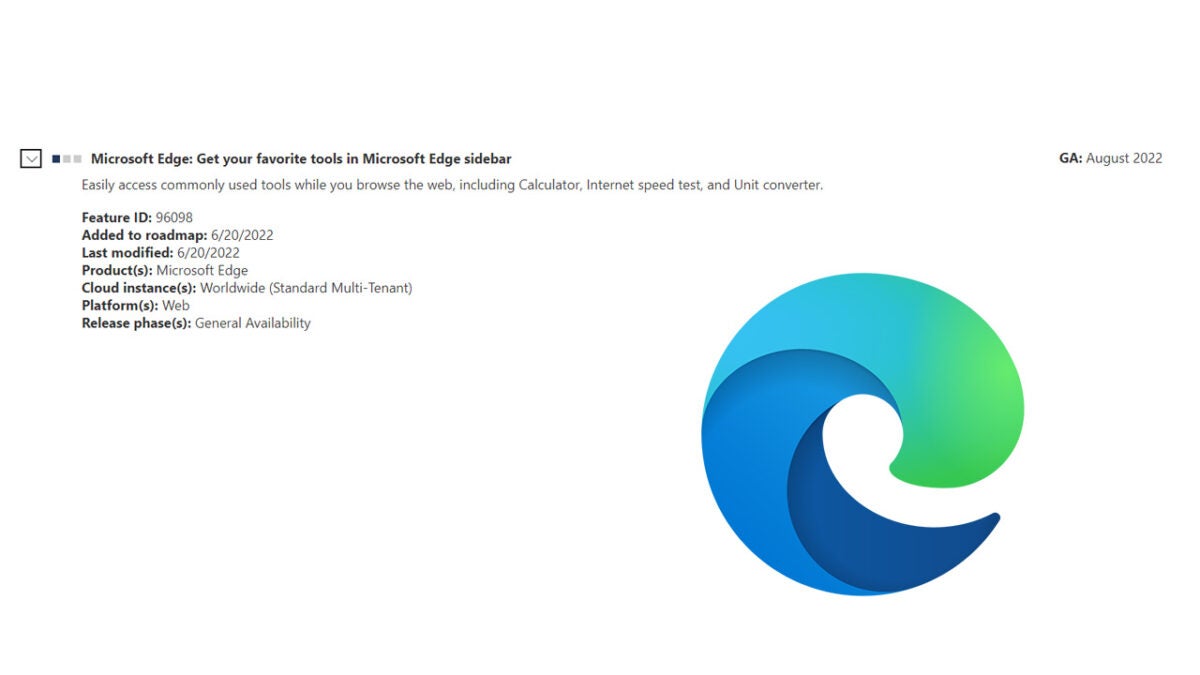
An interesting entry has appeared on the Microsoft 365 Roadmap, which the software giant uses to announce upcoming changes coming across various Microsoft programs. It doesn’t say much, but the title of the entry is Microsoft Edge: Get your favorite tools in Microsoft Edge sidebar.
It appears then that Microsoft is going to power up the Microsoft Edge sidebar by incorporating Calculator, Internet speed test, and Unit converter tools into the browser. Much like with search showing you items not normally associated with a search such as upcoming events, this is unifying features from disparate tools into a single workspace. These three tools are very useful web browsing tools as well, meaning when this feature rolls out, it will help you cut down on a lot of the switching you do between different apps.
Microsoft 365 Roadmap entries are pretty basic affairs as you can see in the screenshot above. There is plenty of information there, though. As well as the nature of the upcoming feature, it also tells us that it should be ready for General Availability around August 2022 and that it will roll out to users worldwide. This means that come to the end of the summer it will likely be available on your version of Microsoft Edge.
It is interesting to see Microsoft unifying app experiences like this and it makes a lot of sense. If you are behind many of the basic tools that people use every day, why would you not group them all together in a single place, particularly if that place is your flagship web browser that is competing with the global juggernaut that is Google Chrome.
If you are a Microsoft Edge user, make sure you stick with us to stay up to date with all of the latest Microsoft Edge News.
Team Fortress 2 released an update two days ago that has fans optimistic about the bot issues experienced in the game. While the fixes make it easier to kick bots, these minor fixes haven’t worked successfully in the past. But does Valve have something else up their sleeves alongside these minor fixes?
While most players know that the fixes released in this patch aren’t a fix-all to the bot problem plaguing the game, many are hopeful that it’s a step in the right direction and an indication of more solutions.
The update contained mostly fixes to bugs that aren’t caused by botting. One such fix is the issue with animations on enemies that only appear during Halloween events. Another year-long issue that’s been addressed is the bug that shows a placeholder name on kill cams and stat screens.
However, aside from these fixes of annoying bugs that have been around for years, Valve also changed the voting system. In the past, Team Fortress 2 only allowed one vote to kick a player at a time. This made kicking multiple bots from a game tedious and long-winded. Part of the issue was kicking one bot, only for it to be replaced by many more. The update now allows both teams to vote simultaneously, with a global vote being available on top of that.
Valve has also removed the option to change names during a matchmaking game. Bots heavily exploited this feature and would change their name to match another player. This way, if they’re voted to be kicked, it would be the real player getting the boot instead of the bot.
For the first time, Valve has announced that they are aware of the issues with bots on Team Fortress 2 and are working on the problem. At the moment, many fans are split on whether this is a real attempt to fix the issue or merely a bandaid? With many gaming companies coming down on those who misuse their software, such as the legal battle between Bungie and a cheat manufacturer, could Valve have something more up their sleeves?
Niantic, the developers of Pokemon GO, just announced that they’d be making some changes to raids to promote face-to-face playing. However, they also sought to assure fans of the game that they won’t be removing remote raids yet.
When the topic of re-introducing face-to-face raids first came up, many fans were concerned that it would mean that remote raids would be completely removed. Remote raids were initially introduced during Covid to give gamers a chance to play despite the lockdown. Since then, it has become a very popular feature of the game.
The in-person raid feature will be launching this weekend during the Community Day event. Pokemon Go game director Michael Steranka also told interviewers that in-person raids during Community Days would offer unique bonuses that won’t be available in remote raids. This is how they’ll promote face-to-face interactions between players.
Players can still enjoy remote raids for the regular tiers within the game; the one, three, and five-star raids. But Niantic isn’t shy about the fact that they are looking for more ways to get players moving and playing in-person again.
The developers are adamant that they plan to introduce new features and functionality to motivate players to get out, start moving and promote in-person play without retiring some of the remote features that players have come to love in the last two years. Some of the features being referred to are the ability to remotely battle in PvP GO Battle League and the game’s current location interaction radius.
Developers also said that at its base, Pokemon GO is still a game about exploring your world. This is a focus Niantic shares in most of their developments, such as their Lightship AR platform. While the pandemic forced the game to introduce features that allowed gamers to play from their couch, that’s not really where they want to be. This is why they introduce new features to get players back up and going. We look forward to seeing what other plans they have in store.
Niantic moves forward with the new exhilarating Lightship AR platformREAD MORE
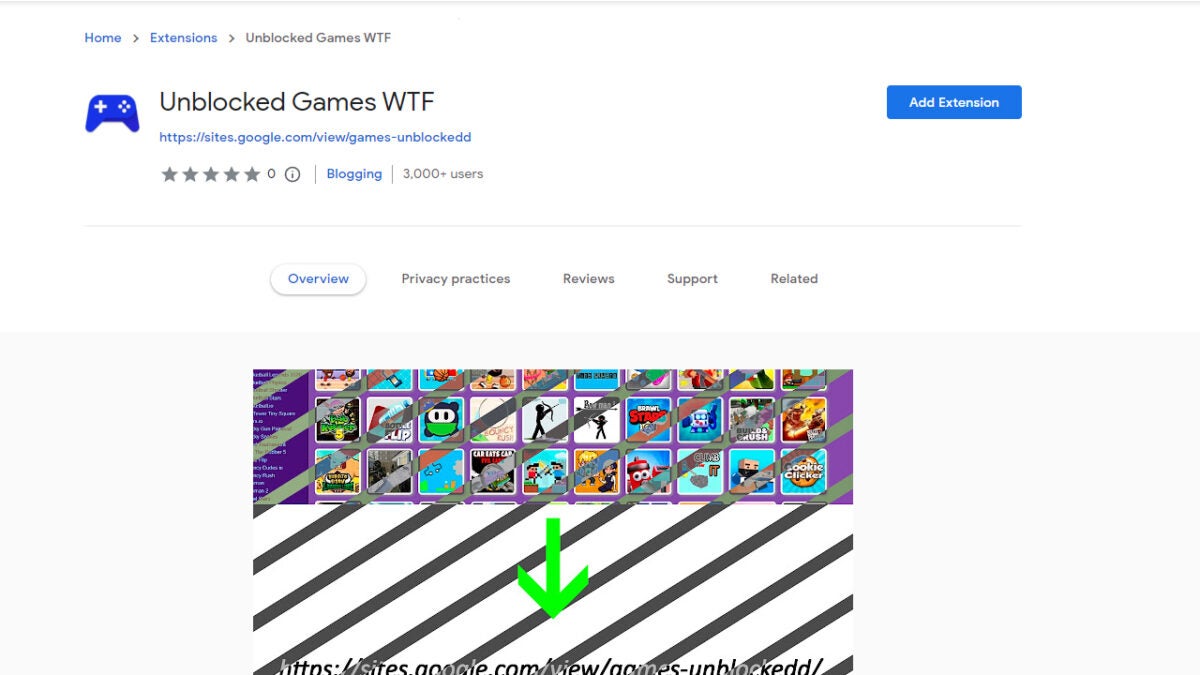
Many organizations block games as they can be distracting. However, there’s nothing wrong with enjoying a game during recess or your lunch break. So how can you unblock these games to enjoy them even at school or work? With Unblocked Games WTF, of course.
In this article, we’ll share how to use the Unblocked Games WTF Chrome extension to unblock games.
What are unblocked games?
Unblocked games are a special category of games that can be played at school or work. Traditionally these were flash games, but since flash is no longer supported in most browsers, the selection consists largely of .io and HTML games. Schools and businesses block games using firewalls and other tools.
This is so that employees and students can concentrate on the appropriate tasks rather than getting distracted by games. Unblocked games are hosted on Google sites, so schools and businesses can’t block them. This means you’ll be able to play these games at work and school despite restrictions.
Steps to using the Unblocked Games WTF Chrome extension
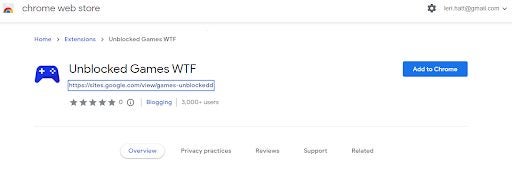
You can find the link in our article on the best games Chrome extensions to install the Unblocked Games WTF extension.
Add the extension to your toolbar
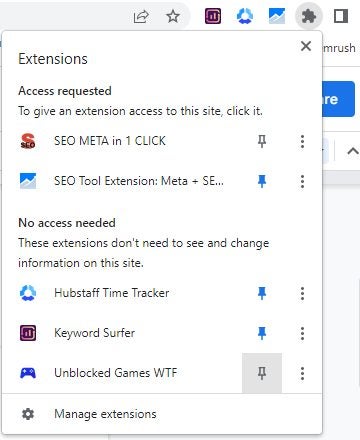
For easy access, it’s best to pin this extension directly to your toolbar. To do this, click on the puzzle icon in the upper right corner of your browser. This will show a list of all your installed extensions. Look for Unblocked Games WTF and click the pin icon next to it.
Click on the extension to see which games are currently unblocked
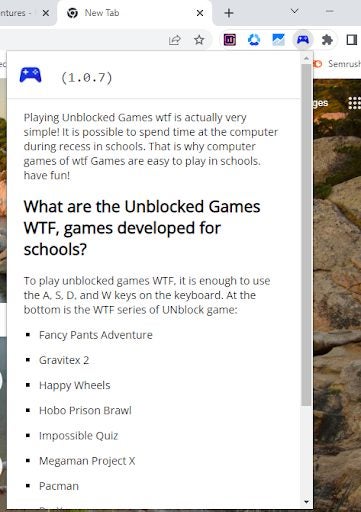
By clicking on the extension, you’ll be able to see a quick reference to games that are currently unblocked and that you can play at school or work despite any restrictions.
Open the Unblocked Games website
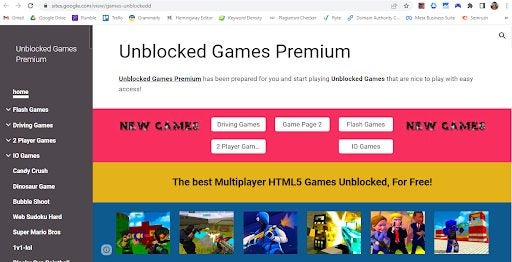
Navigate to the appropriate Google site. We recommend using Unblocked Games Premium along with this extension as they’re from the same developers. Here you’ll find a host of .io and HTML games that are unblocked.
Search for the game from your list and start playing
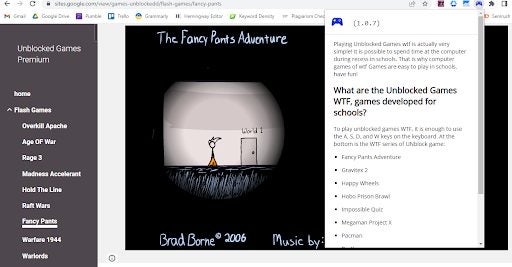
Use the search function on the website, which is located in the upper right of the screen, and search for any game from the list in your extension. Click on the game to start playing it at school or work without worrying about firewalls blocking the game.
From gaming to gardening to DIY and much more, the social news website and forum allow users to discuss, share and promote these different hobbies and interests. If you are active on Reddit, you might be dying for a tool that keeps all your Reddit features close to make commenting, voting, and interacting with the platform easier and more convenient. Fortunately, Reddit Enhancement Suite has several features you’ll enjoy.
In this article, we’ll be looking at how to use the Reddit Enhancement Suite Chrome extension to get all the Reddit features you could want right at your fingertips.
What does the Reddit Enhancement Suite Do?
The Reddit Enhancement Suite (RES) is a useful add-on for Chrome browsers that makes it easier to use various features on the platform. Easy access to these features can improve your overall experience on the social news-sharing platform. This suite includes several modules designed to improve Reddit users’ experiences. Some of the features include:
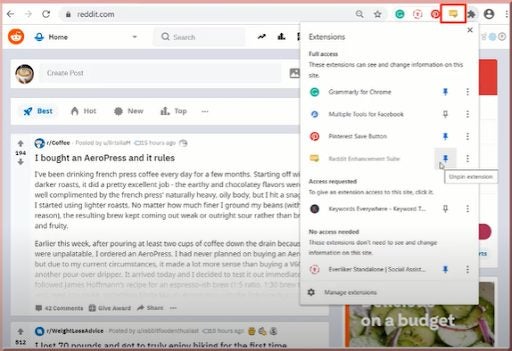
Once installed, pin the extension to your toolbar by clicking on the puzzle piece icon in the top right of your screen. A drop-down list will appear, showing all your current extensions. Next to Reddit Enhancement Suite, click on the pin icon to keep your extension shortcut visible on the toolbar.
Start using the tools
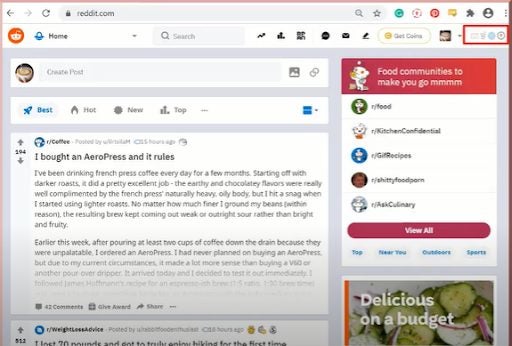
Now you can log in to Reddit, and you should immediately notice a few new icons in the top right of the website. The first icon (the envelope) controls all your message features. The second icon (the Reddit logo with a magnet) controls your accounts and lets you easily manage multiple accounts and switch between them. You can also use other features such as editing tools, live preview, reading comments and more.
FAQ
Here are a few other questions that other users have asked about the RES add-on.
Does Reddit Enhancement Suite work on mobile?
There isn’t a dedicated app that allows you to use the extension on Android or iOS devices. However, a workaround enables Android users to use the extension. You have to install Opera Mobile Labs on your device. Once installed, you’ll be able to use any Chrome extension on your mobile device, including RES.
How do I get old RES Reddit?
Unfortunately, the RES add-on is available only on the older Reddit version before the redesign. You can set your Reddit to use the old version by default by accessing your Reddit preferences and deselect “Use the redesign as my default experience”. Alternatively, you can use a browser extension to force Reddit to open in the older version.
Remembering passwords has become an ordeal as so many of us have an account for so many websites. From email to social media and marketplaces, there are numerous accounts you need to access using passwords. Fortunately, with password managers, it gets easier. The Norton Password Manager Chrome extension can help you manage your passwords on the Chrome browser.
It’s a cloud-based password manager that can also help sync your passwords on different devices. In addition to passwords, it can also save bank cards and addresses, so you can enter information and check out quickly. It can even help you generate passwords when creating new accounts.
Set up password manager vault
Once you’ve installed the Norton Password Manager extension on Chrome, you’ll need to sign in to your Norton account or create a new one to set up the password Vault.
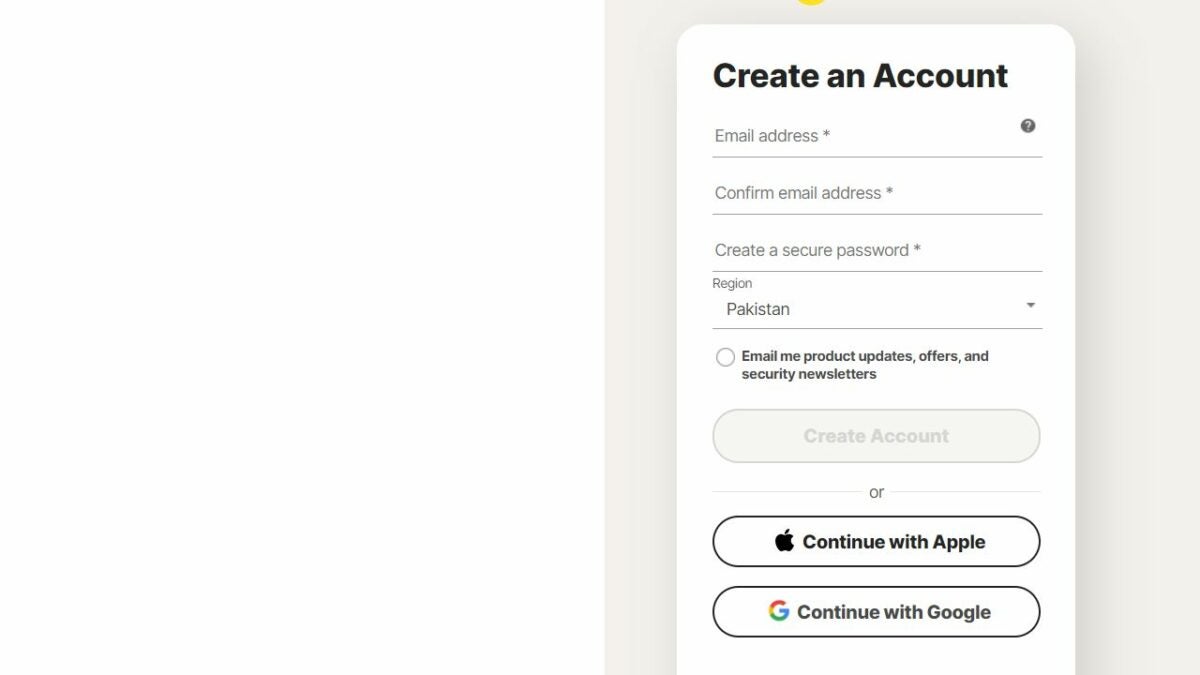
If you have an existing account with Norton, simply enter the email address and password to sign in. If you don’t have one, click on ‘Create an account.’
You can use a working email address to create an account. Enter your email address and create a password. Alternatively, you can create an account with a Google or Apple account. You will be required to confirm your account via a code.
To set up the Vault, you’ll be required to create another password, which should be strong. Keep in mind that you cannot recover this password, so you should create a backup.
Save login credentials to the vault
Once you’ve set up the Vault, you can either add login information for different websites manually or do it when you log into those websites. The latter is super easy and quick.
When you visit a website and log into your account, you’ll see a pop-up in the corner whether you would like to save the login info for that website to the Vault. Click ‘Save’ to save the password.
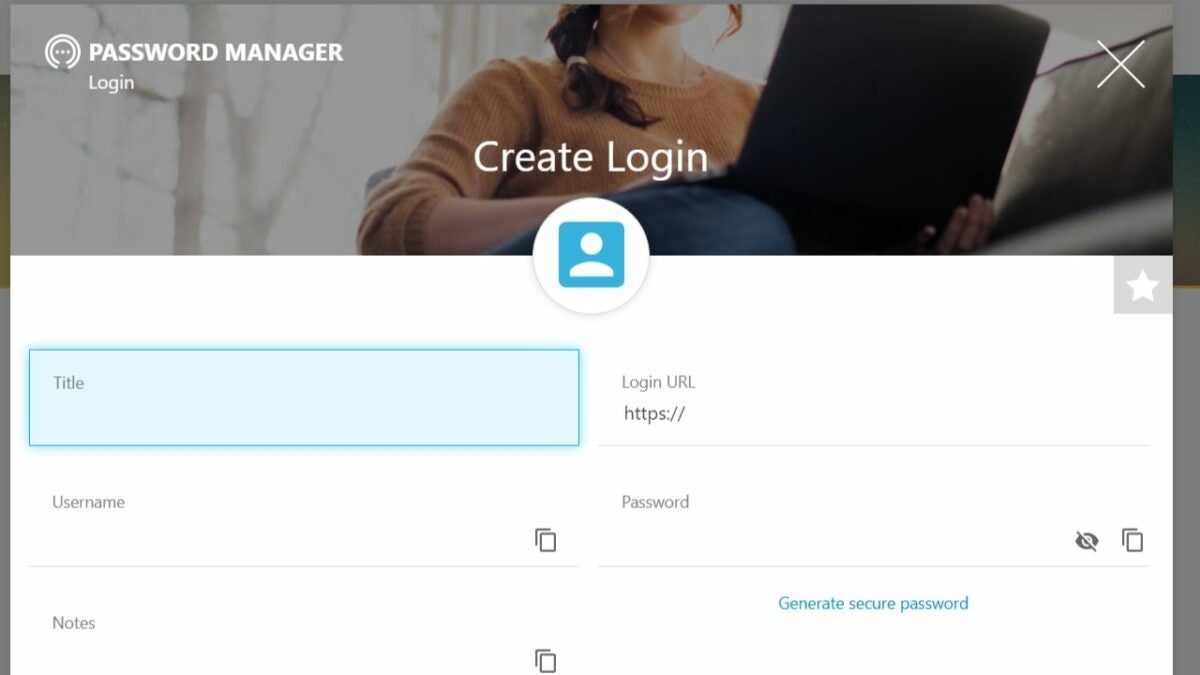
You can also do it manually:
– Go to the dashboard.
– Click on the ‘+’ on the top menu.
– Select ‘New Login.’
– A form will open where you can enter the Title, Login URL, Username, and Password.
– Click Save.
Export data from Norton password vault
You can easily export all the login, wallets, and addresses to another device or create a backup. Here are the steps:
– Click on the puzzle icon on top right and click on Norton Password Manager.
– Click on ‘Vault’ from the pop-up.
– Type in your Vault password to log in to dashboard.
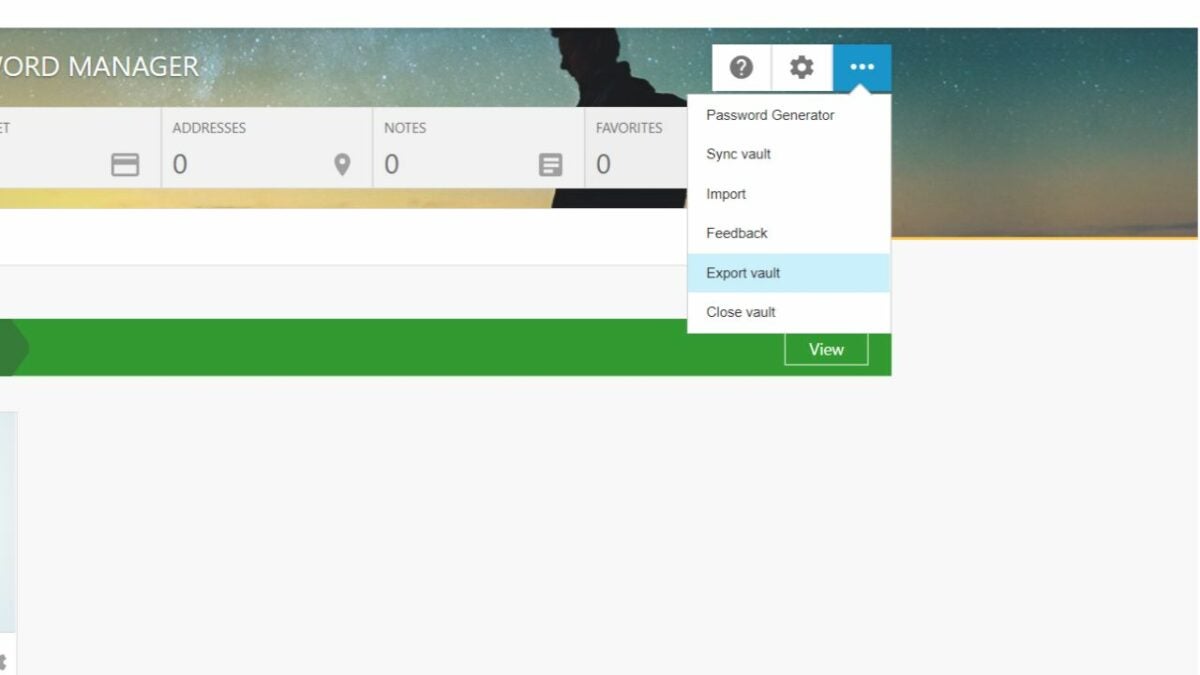
– Click the three horizontal dots icon from the menu.
– Select ‘Export vault.’
– You will be asked to enter Vault password again (Protect Vault Action.)
Once you enter the password, you’ll see a list of your logins, wallets, etc., that you can copy-paste to move to another device or save as a backup file.
If you want to take high-quality screenshots on YouTube, you’ve probably found that it’s much more difficult than just pressing the screenshot button on your device or PC. These screenshots often appear blurry and low-quality, even when pausing the video. So how can you take high-quality screenshots on YouTube? The answer is by using the Screenshot Capture extension for Chrome browsers.
In this article, we’ll be looking at how to use the Screenshot Capture Chrome extension to start taking high-quality screenshots on YouTube.
Taking high-quality screenshots on YouTube
Often you’ll need a high-quality screenshot, either because you’re making a meme, referencing a video clip, or following specific instructions. However, using the native screenshot tools on YouTube will leave you with dull, blurry images – especially once enlarged.
A specialized tool, such as the Screenshot Capture add-on for your Chrome extension, is useful to screenshot a clip on YouTube to maintain a higher quality, even when enlarging the image.
Steps to use the Screenshot Capture extension for Chrome
Download and install the extension
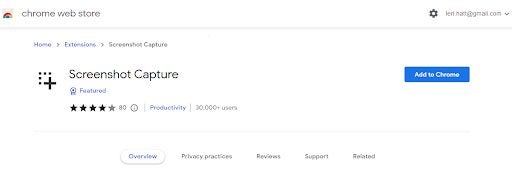
Download the Screenshot Capture extension. Once installed, you can pin it to your extension toolbar for easy access by clicking on the puzzle piece icon in the top right corner of your browser.
Define setting
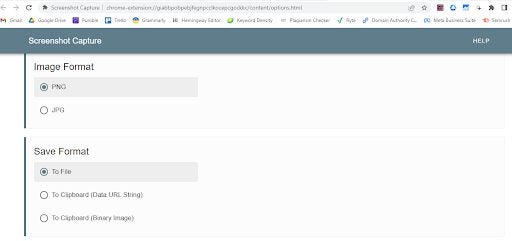
Click on the extension icon in your toolbar, and from the drop-down list, choose ‘Settings’. A new window will open, showing your current settings. Here you can change the format of your screenshot, how it’s saved, the destination of saved files, the shortcut key to use and much more. Change these settings to your preferences.
Click on the extension and draw a selection or use the shortcut key
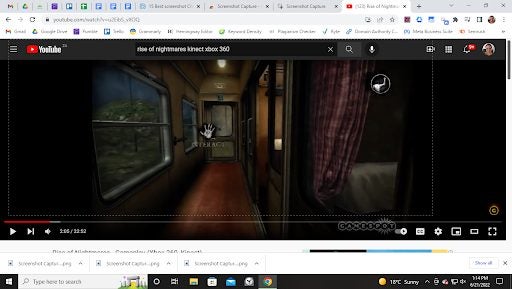
Open YouTube and navigate to the video from which you want to take a screenshot. When you’re ready to take a screenshot, you can click on the extension icon and then drag your screen selection to take a screenshot.
Alternatively, you can also use the shortcut key ‘Alt+S’ (which can be changed in settings). The screenshot will be saved to your device (default) or in your clipboard, depending on your chosen settings.
FAQs for Screenshot Capture
Let’s look at some of the frequently asked questions when using a screenshot tool on YouTube.
How to hide the YouTube bar when taking screenshots?
You can use the keyboard shortcut ‘Ctrl+M’ to remove the bottom bar of your current YouTube video. This shortcut will remove the bar even if the video isn’t paused.
Is it legal to use screenshots from YouTube?
To use screenshots from YouTube legally, you should get permission from the creator and make sure to give the appropriate credit when using the screenshot publicly. Also, it’s important to note that you can add another person’s video (if it’s public) to your channel as long as you give the appropriate credit and do not try to pass the video off as your own.
Taking screenshots on YouTube can be quite difficult and frustrating. You have to struggle to time the video just right, and you can also end up with a blurry or unclear image. So, how can you start taking high-quality screenshots on YouTube? The Screenshot YT extension for Chrome browsers is a simple solution to taking high-quality screenshots that can even be blown up without sacrificing quality.
In this article, we’ll be looking at how to use the Screenshot YT Chrome extension. There’s also an extra helpful tip at the end.
Why would you want to take screenshots of YouTube?
There are a few different reasons why people want to take screenshots while browsing YouTube. The most common is to save something so that you can reference it later. This can be recipes, instructions, and more. Content designers may also want to take screenshots to reference in their content – such as a screenshot of the gameplay of an upcoming game when referencing the game.
Some meme creators use high-quality screenshots from different platforms such as YouTube to create trending memes. Finally, some individuals follow tutorials and screenshot the instructions for easy reference or printout. This is often the case in very practical fields such as programming or digital animation, where you don’t have the luxury of switching back and forth between programs.
Steps to use the Screenshot YT Chrome extension
Download and install the extension
Download Screenshot Youtube extension. Once installed, the extension should appear in your extension toolbar in the upper right of your screen. If it’s not visible, click on the puzzle icon representing your extensions and pin Screenshot YT to the toolbar.
Open extension setting
Open the extension setting by clicking on the icon in your toolbar, and from the dropdown list, select ‘Settings’. Here you can enable the shortcut key, image format, how the image is saved and more. Choose your preferred settings.
Click on ‘Screenshot’ or use the shortcut key ‘P’
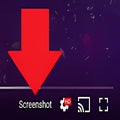
Open YouTube and navigate to the video you want to take a screenshot. Play the video to the exact spot you want to screenshot, click on the ‘Screenshot’ button at the bottom toolbar, or use the shortcut key ‘P’ if enabled in settings. A copy of your screenshot will be downloaded to your device in the file format specified and copied to your clipboard (unless you’ve changed the default settings in Step 2).
What should I do if I can’t see the screenshot button?
Sometimes the ‘Screenshot’ button doesn’t appear when you open YouTube. In this case, we recommend restarting YouTube. If that doesn’t work, it could be that your computer needs to be rebooted or your browser needs to be updated.
Gamers are all too familiar with the popular chatting app, Discord. You can use it on browsers or download the desktop app, giving you the freedom to speak to your friends or share your status. However, it doesn’t always have the best functionality on Chrome, which is where extensions come to save the day.
Here’s our list of the best Chrome extensions for Discord. Some of them will make the app more enjoyable to use, while others save you time when searching for specific chats. There are also some add-ons that simply change some of the visual features.
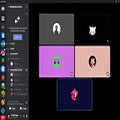
Is Discord blocked on your Chrome browser for some reason? Perhaps your school or work doesn’t allow you to chat on the app? The Discord Unblocked extension provides new access to servers in the messaging application, bypassing any restrictions or issues you might have.
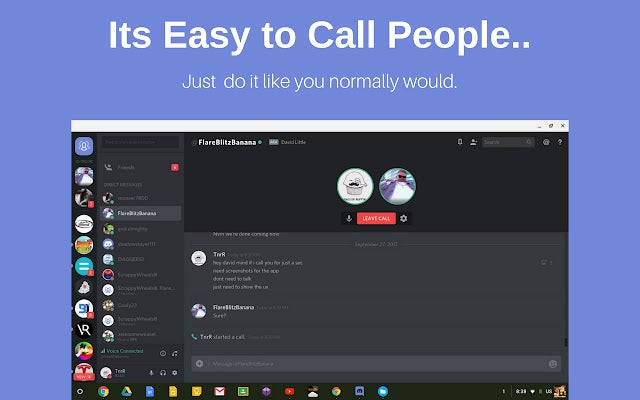
Since it’s linked to the official Discord app, you’ll have the same updates appear on the extension. You can still enter video or chat calls or edit your server. Also, you’ll save space on your PC and processing power on your CPU, as it’s a light version installed on Chrome.
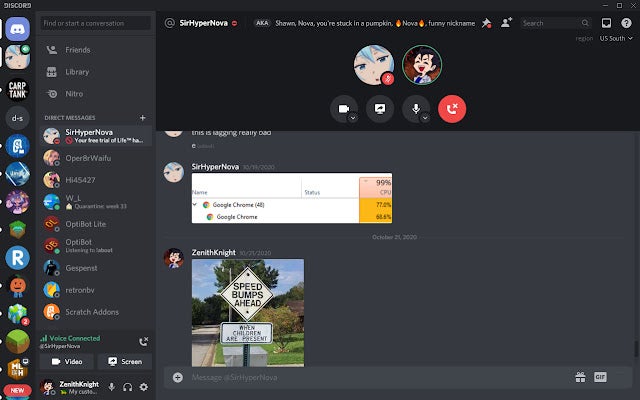
As many gamers may be aware, the desktop and browser versions of Discord aren’t exactly the same. In many ways, the former is better, as it has more functionality and is better organized in some ways. Discord Desktop extension for Chrome provides a solution by providing a similar experience for your browser.
You’ll have the same workspaces, and the voice and video chats work much better than before. It’s also easy to send server links from your Chrome browser, especially since you’re already browsing other sites. That means there’s no need to switch windows to the desktop app and back.
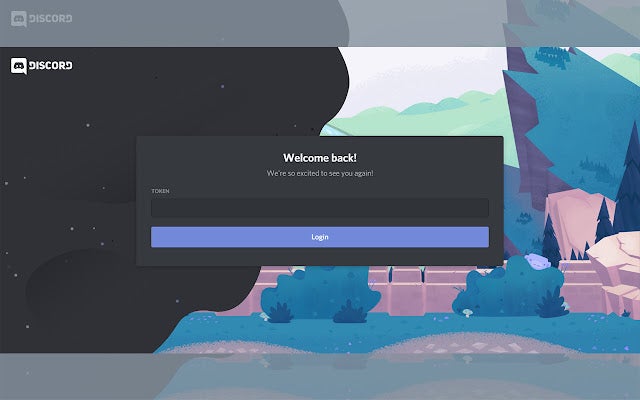
Bots on Discord help you automate tasks that take you too long to do yourself. They send members to the right channels or enable specific features for various tiers, as a few examples. Discord Bot Client lets you log into your Bot as if it’s a platform so that you can make a few changes from the inside.
You’ll see a login screen that will ask you for your token. Once inserted, you can view guild members, manage your guilds and channels, and make slight changes to any functions you created.
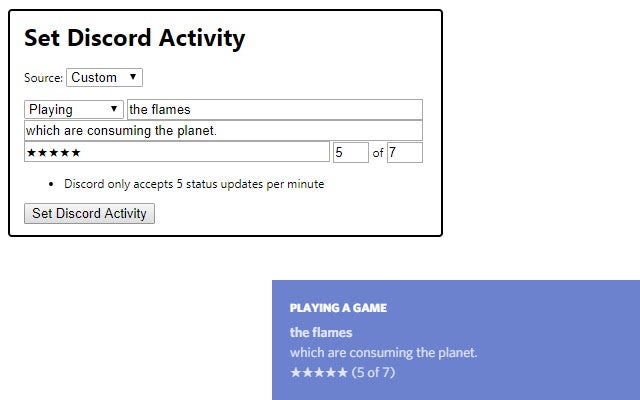
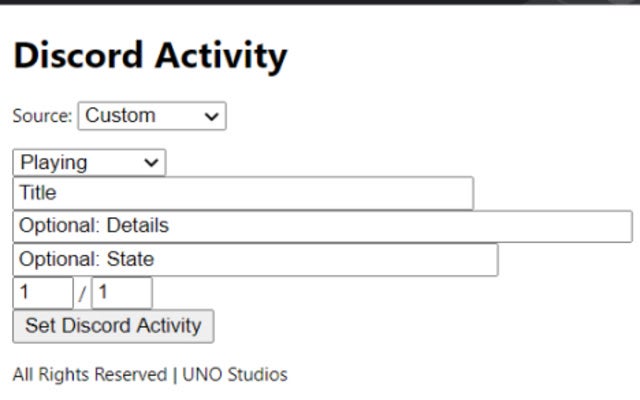
One of the Discord functions I love as a gamer is showing my friends what game I’m playing on Steam. However, there are many times it doesn’t work for other platforms, or you want to show what you’re listening to instead. Set Discord Activity is a handy tool for setting specific statuses, much like you’d do on Facebook.
There are four areas in the control bar. The first one lets you set what you’re doing, such as playing, listening, or watching. The next section lets you pick the title of the game, song, or movie. Finally, you can add a tagline and give the product a review score.
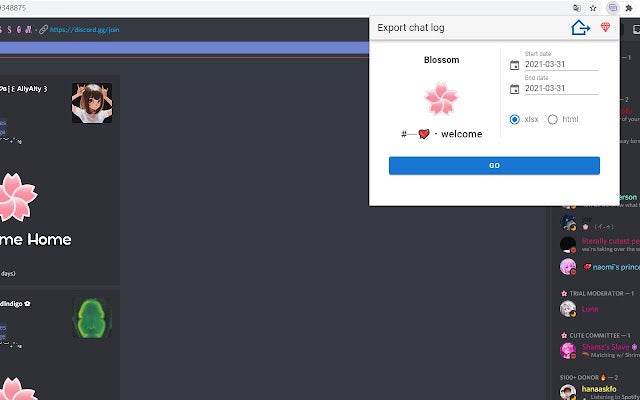
It can be a hassle and a waste of time to go through various channels, try and copy the text, and then paste them in a structured way. Discord Chat Saver – Export chat log to Xlsx makes the task easier, quickly exporting chats from channels or your direct messages to a spreadsheet. From there, you can organize the content the way you’d like.
The Chrome extension delivers the results in both Xlsx and HTML, whichever one you prefer. In the settings, you can select a specific range if you don’t want the entire discussion.
Discord Chat Saver - Export chat log to XlsxDOWNLOAD
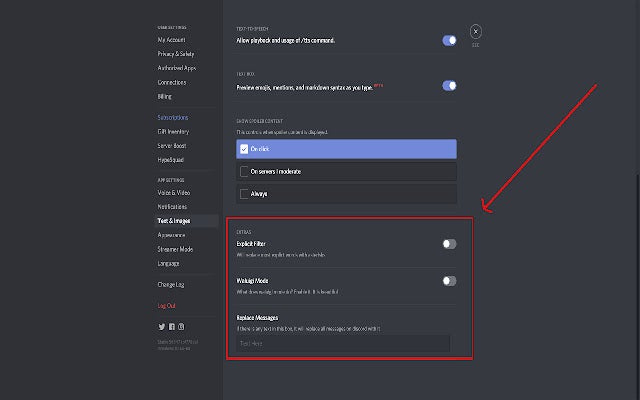
Here’s a Chrome extension created by a developer that needed a few more functions. Discord++ works on the Chrome browser version, adding a few tools that you may or may not find helpful. For instance, you can add filters that only you can enable or disable. However, only you will be able to view the filter.
There’s also a darker theme for Discord, but I’m sure the standard default dark theme works fine for most gamers. You can also play around with chat and bot settings. However, you won’t find too much functionality in those regards.
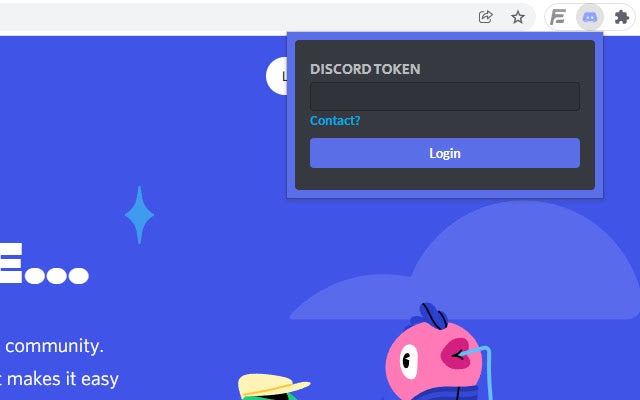
Instead of trying to remember your Discord username and password, you can use a Token you may have saved somewhere when you created or joined a server. Discord Token Login provides a quick interface to use that Token to access your account. The portal is secure and won’t steal your credentials, but you should still be careful not to share your Token details.
If someone else has your Token information, they can use a Chrome extension to access your account. Always keep your information safe so that you don’t lose your chats or channels.
Here’s another Chrome extension that strives to improve Discord’s basic features. What makes BetterDiscord X stand out from the rest is that you can work on CSS and make changes to the script. While it’s incredibly powerful, I recommend only developers who know how to script use this add-on.
There’s so much you can do with BetterDiscord X. Feel free to make changes to the themes, add backgrounds, develop a plug-in loader, and so much more. You can also contact the support team at any time if you’re struggling with the CSS editor.
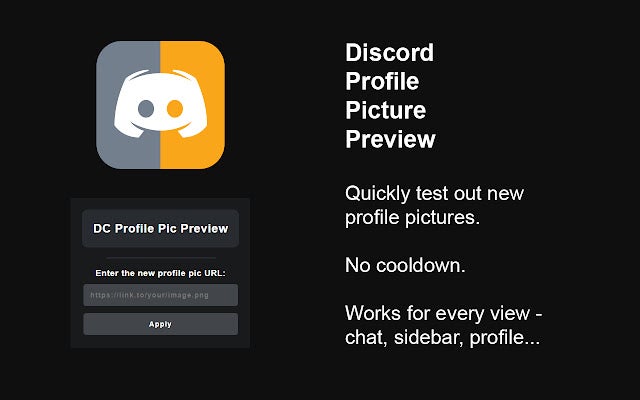
When you set a profile pic on Discord, it becomes active on all of the servers you’re on. Discord Profile Pic Preview extends the playing field by letting you experiment with profile images as much as you want with no limits. The Chrome extension lets you insert the picture’s link, which you may need to modify if it doesn’t work or exist online.
The benefit of the extension is that only you will see the new profile image. That means you can upload anything, and no one will see the change. However, it reverts back to your default image whenever you refresh the page. You’ll have to do the process again.
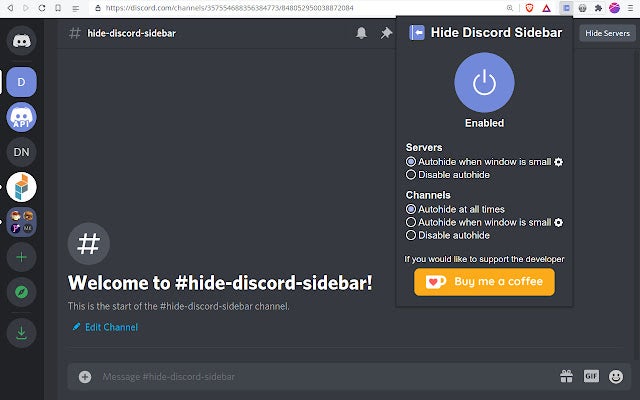
When you get tired of seeing all the Discord channels and servers on your Chrome window, you can use Hide Discord Sidebar to make them vanish. After installing and enabling the specific functions, you’ll notice how the chats or servers disappear into the left side of the window. You can reactivate them at any time when you’re ready to chat again.
This Chrome extension helps to keep you focused if you want the chat screen still open but you’re not going to use it for a short period while you work. You can set it to auto-hide all the time or only when the minimize the screen.
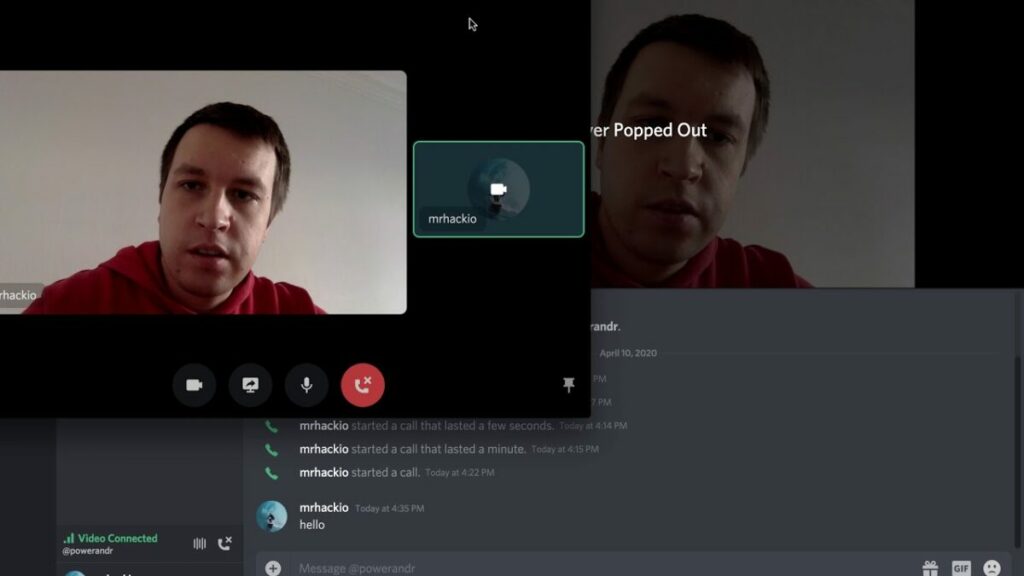
One of my other writing projects is working with a gaming team for an upcoming MMORPG, Antreya Chronicles Online. We have a Discord channel where we discuss tasks for the month, but it can be distracting when the other servers become busy. If you have the same issue as me, try Discord Pop-Out Channels for Chrome.
What it effectively does is pop the channel out into a new Chrome window. There are no sidebars, and you’ll only see the team you want to chat to. With this extension, you can focus all your attention on that server without any interruptions.
The Discord Status extension for Chrome is similar to Set Discord Activity. It provides a panel where you can set your status for specific activities if you’d like your friends to see what you’re up to. It’s also handy for work, especially if you want your boss to know you’re working on that project and not playing The Elder Scrolls Online.
There are various fields to complete. You can set the specific activity, what the title is for that activity, and add a few extra details. Discord Status even goes as far as letting you state how many activities you’re busy with, such as 2/4, for example.
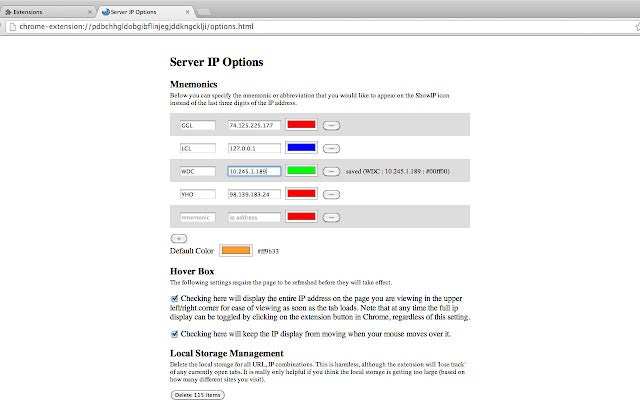
While the Server IP extension for Chrome doesn’t exclusively apply to Discord, you can use it for the messaging app. What it does is show what the correct I.P. address is for a specific server. It also works for Discord servers, even if you didn’t create them.
An extra feature is color-coding different I.P. addresses for various servers. You’d usually use a Chrome extension like this when you want to switch files between servers, and you need the I.P details.



.png)