Pokémon GO announces the next adventure week with secrets

A new adventure awaits trainers in Pokémon GO. A new adventure week is just around the corner, and Niantic has shared more about the event. Discover which rock and fossil Pokémon will be making their first debut, which encounters you can expect and other secrets surrounding this upcoming adventure week.

Pokemon Go DOWNLOAD

The upcoming adventure week will kick off on Tuesday, June 7th and will last until Sunday, June 12th. During this period, trainers are encouraged to take out thor rock and fossil type Pokémon and spend some time with them. This event will also introduce two new Pokémon that haven’t been seen in Pokémon GO yet, along with encounters with other rock and fossil types – including a few shiny ones.

The new Pokémon being debuted are Tyrunt and Amaura. Trainers will be able to encounter them during field research or by hatching them from eggs. During the event, we’ll also see more encounters with Rhyhorn, Omanyte, Kabuto, Larvitar, Aron, Lileep, Anorith, Cranidos and Shieldon. Lucky trainers might also encounter Graveler, Aerodactyl and Pupitar.

Raids will also be featuring rock and fossil types. Trainers can look forward to encountering Geodude, Alolan Geodude, Sudowoodo and Roggenrolla during one-star raids. Three-star raids will feature Rhydon, Shuckle, Tyranitar and Aggron. Five-star raids will feature Groudon, with the possibility of encountering a shiny one. Finally, the Mega Raids will feature Mega Aerodactyl, with the possibility of encountering a shiny one.

Hatching eggs will also have an increased chance of producing a rock or fossil type. Hatching 7km eggs has a higher chance of giving Shuckle, Slugma, Cranidos, Shieldon, Tirtouga and Archen. There’s also the possibility of hatching the newly debuted Tyrunt and Amaura.

Trainers will also be able to use an XP bonus during the event. By spinning a Pokestop for the first time, trainers will earn 5x the XP, and spinning previous Pokestops will earn the player 2x the XP. 

We’re glad to see that Pokémon GO isn’t being forgotten with all the current developments within Niantic, such as the Lightship AR platform. We look forward to encountering the new Pokemon during the adventure week.

Niantic moves forward with the new exhilarating Lightship AR platform READ MORE

The 10 most popular Photoshop filters

Adobe Photoshop is a robust photo editing tool equipped with countless features and effects. Used by photographers and graphic artists worldwide, you can start benefiting from the software with little to no design experience. But if you’re just learning how to use Photoshop, the breadth and depth of this heavyweight application can feel a bit overwhelming.

Adobe Photoshop DOWNLOAD NOW

As you get to know the Photoshop basics, you’ll soon be wondering how to achieve the same attention-grabbing images you find sprawling across your Instagram feed. The truth is you don’t have to spend hours editing your pictures to get that well-polished, high-end professional look. We’ve put together this list of 10 popular Photoshop filters and plugins to help you simplify some otherwise complex editing processes.

Dramatic Sepia (FilterGrade)

Dramatic Sepia is one of the most widely used image filters because it gives your digital images a timeless celluloid appeal. While the FilterGrade Dramatic Sepia add-on is not free (it starts at $5), the results are worth the small investment. This is a preferred filter among landscape and portrait photographers alike. It works exceptionally well for creating an organic and sunburnt look to send your pictures back in time.

The Dramatic Sepia filter adjusts the color settings of your regular photos to give them a timeless sepia effect

LithPrint (DeviantArt)

Lithographic printing is a traditional photo development technique that involves overexposing color negatives or black and white film stock onto a gelatin silver paper. Photographers using this technique partially develop their photos in a dilute lithograph developer to produce unique and often unpredictable results. LithPrint by DeviantArt makes it easy to achieve the original lithographic look in just a few clicks.

Replicate the look of a lithographically developed image with the LithPrint filter

Wanderlust (Filter Atelier)

Globetrotting lifestyle photographers adore this Wanderlust filter because it lends a classic 35mm-inspired look to their travel images. The filter works great for bringing out natural earth tones in photos, and they look incredibly fashionable in blog posts. This add-on includes three separate filters perfect for adding more depth and mood to your images.

The Wanderlust Collection is ideal for busy travel bloggers who need awesome looking soft images and efficient workflow

Faded Films (sparklestock)

This Photoshop filter is similar to Vintage Sepia because it gives your pictures a throwback, faded-film look. But instead of sepia tones, Faded Films produces a cornucopia of gorgeous faded colors in a single click. The set includes over 75 non-destructive filters that are easy to use and retain the optimal quality of your original image file.

The Faded Films filter is perfect for anyone looking for an early 90ds 35mm effect

Blue Evening Action (photographypla.net)

Photographers who demand a truly unique color aesthetic from their photos love the Blue Evening filter for Adobe PS. If you enjoy working with blue tones and hues, the free Blue Evening image filter lets you work them in without turning your entire picture blue. This tool isolates specific image tones to create an evening blue mise-en-scène.

Included free with the Touch of Drama Actions, the Blue Evening filter adds a touch of blue nightscape to your photos

HDR Tools (DeviantArt)

The HDR effect is a great way to add more contrast and dimension to your images. In particular, this HDR Tools filter from DeviantArt offers three easy-to-access intensity levels to help you create the famous HDR aesthetic. This image filter is free and works wonders for enhancing the contrast between highlights and shadows.

Add more contrast depth and color to your images with the HDR Tools action set for Photoshop

Bridal Photoshop Actions (creativetacos)

The wedding photographer community accounts for a large segment of Photoshop users, and the Bridal filter is hugely popular among them. The Bridal Photoshop Actions package includes a set of free Photoshop filters that can make any wedding event look majestic. While the filter performs remarkably well in any wedding scenario, it’s designed for bridal shoots, specifically. You can access a range of bridal-specific edits and choose from several different styles depending on the mood and tone of the event.

This impressive Bridal package is designed specifically for wedding and bridal shoots, but works great for any type of event photography

Monochromatic (Contrastly)

Black-and-white photo editing is deceptively more complicated than it first appears. The Monochromatic filter by Contrastly simplifies the finer points of black and white image editing by delivering a collection of preset filters to help you quickly achieve several distinct monochromatic looks. The package contains 18 filters, including a few additional stylized filters like sepia tones and cyanotypes.

Access 18 unique monochrome sepia and cyanotype presets with this monochromatic set for Photoshop

Comic Oil Paint (creativetacos)

Photoshop is a powerful tool that can transform your images into comic book-style animations, and the filters from Comic Oil Paint Photoshop Actions make this edit easy. After a few clicks, you can turn your photos into vintage movie posters or create an elaborate comic book featuring your friends and you.

The Comic Oil Paint action for Photoshop turns your standard photos into dynamic comic book style oil paintings

Vintage & Retro Color Effects (devotchkah)

You’re probably noting an observable trend here in that retro-looking images never go out of style. And any photo filter that can seamlessly send you pictures back in time provides a lot of value. Vintage & Retro Color Effects includes 21 non-destructive retrograde image effects, including color, vignette, old-style filters, and even a noise and dust graphic effect.

The Twenty One Vintage & Retro Color Effects includes 21 nondestructive color effects to help you achieve

The choices are limitless with Photoshop image filters

The above list is just 10 of the most popular image filters, and there are literally scores of similarly impressive products out there. Ready to get started with Photoshop? Download the Adobe Creative Cloud now and learn how to remove unwanted elements from your pictures.

A user guide to 5 Mac Numbers’ handiest functions

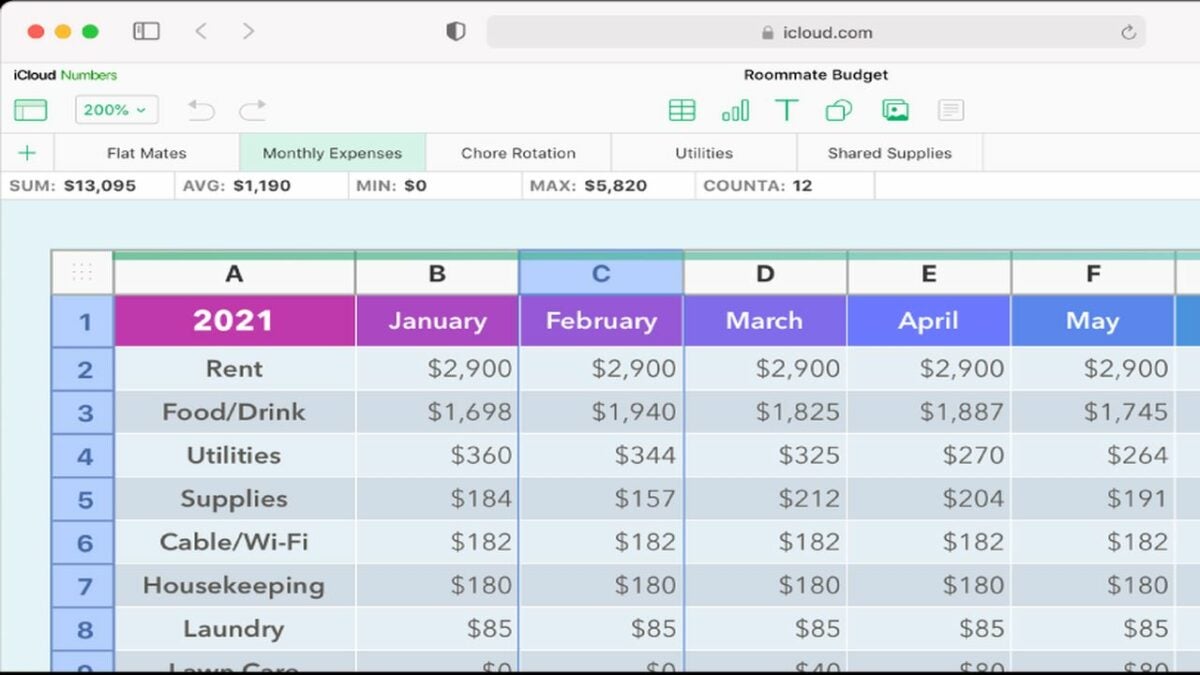
Numbers is a spreadsheet app developed by Apple. It lets you create customized spreadsheets using powerful built-in templates, formulas, and functions.

Numbers DOWNLOAD

In Numbers, functions are individual operations, like SUM to add a group of numbers or CURRENCYCONVERT to compare currency values using online data. Formulas combine functions into equations that can help you manipulate aspects of your data to extract useful information. Functions can be mathematical, statistical, logical, textual, financial, etc.

Here are five simple Mac Numbers functions that you can start using today.

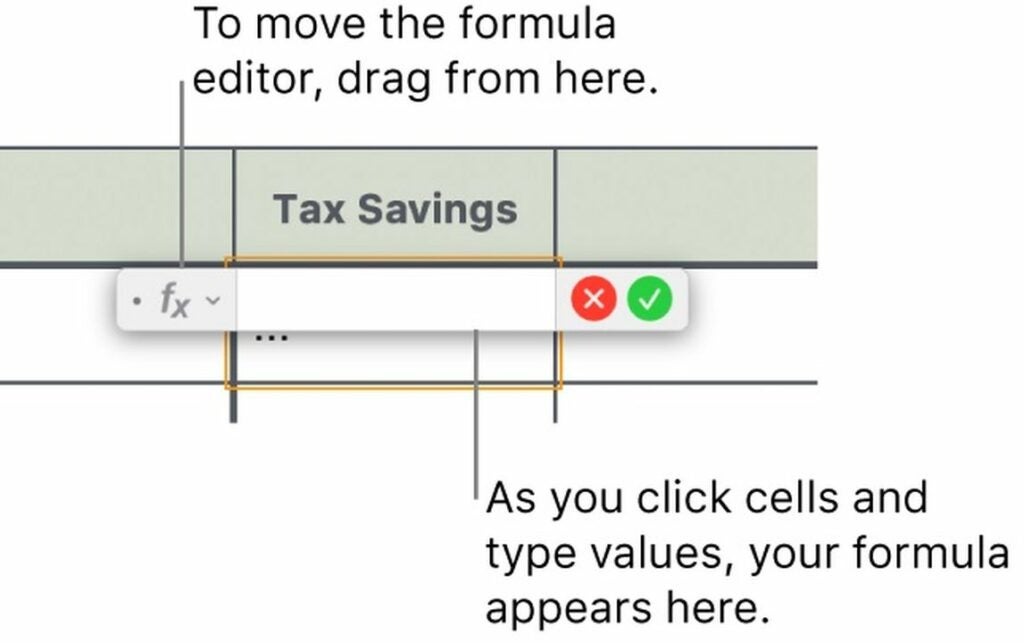
Editing formulas

Use AVERAGE to find the mean of a collection of numbers

AVERAGE is one of Numbers’ simplest and most practical functions. To find the average value in your collection, start by typing =AVERAGE into any cell. The equal sign tells Numbers that you’re using a function.

Next, select the cells where you want to find the average value. You can select a column, a row, or a whole block. That collection’s average number will now appear in the cell where you wrote the formula.

Use comparison operators to compare values

Comparison operators are single-character functions that let you check if the values in multiple collections are equal or not equal and determine which is greater than or less than the other. This can be practical when you want to compare income, expenses, sales, etc.

Numbers uses six comparison operators:
• Equal to: =
• Not equal to: <>
• Greater than: >
• Less than: <
• Greater than or equal to: >=
• Less than or equal to: <=

These functions will compare numbers arithmetically, times and dates chronologically, durations by length, and text strings lexicographically, where < means text that comes earlier in the string and > means text that comes later. When you compare Boolean values, TRUE will be greater than FALSE.

Use IF to perform a simple logical test of a value

The IF function tests a value and returns one answer if it meets the criteria you provide and another answer if not.

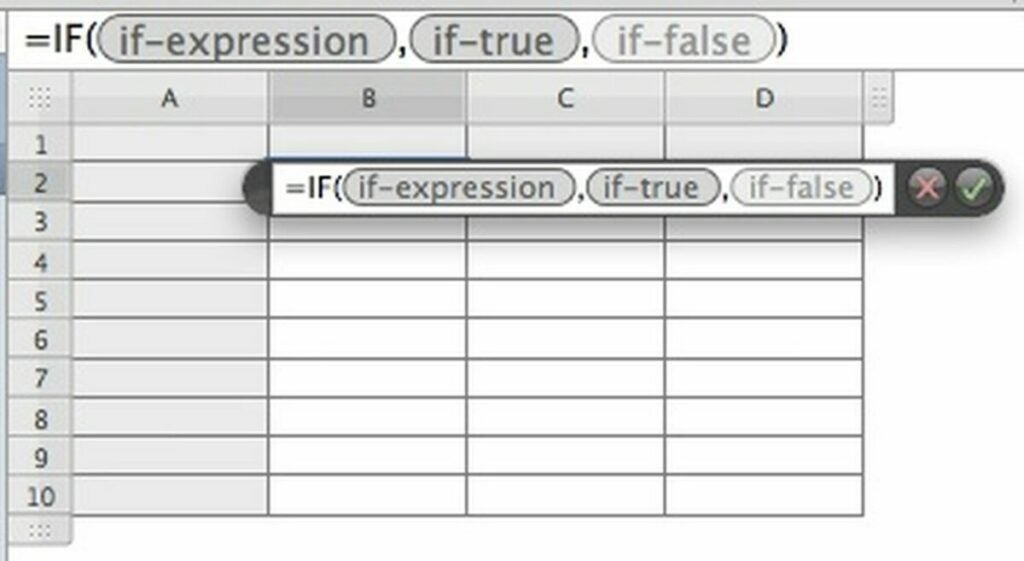
In Numbers, IF requires three arguments encased in parentheses, each separated by a comma. The first argument is the expression, and the second and third arguments specify what to do if that expression is true or false.

The expression argument can be any logical or mathematical classifier. You can use comparison operators here, like IF(A2>A3).

Next in line, the true argument is what you want the formula to return if the tested value meets your criteria. It can contain any text, number, or function that you specify.

Finally, the false argument is what the formula will answer if the expression turns out to be false. It can also be a text answer, a number, or another function. If you’d like your true or false arguments to display text, put what you’d like to say in quotes.

A complete IF formula might be something like: IF(A2>A3,“Yes”,”No”). This would print Yes in the cell if the value in A2 is greater than the value in A3 or No if not.

Using the If function

Use MAX and MIN to find the smallest and largest values

If you want to find the biggest or smallest value in a collection, you can use MAX and MIN.

Start by typing =MAX or =MIN into an empty cell. Next, select any row, column, or block of cells. MAX will display the biggest value in the collection, and MIN will display the smallest. You can also use this function together with others, such as IF(A2=MAX,”You win”,”You lose”).

Use CONCATENATE to combine data

CONCATENATE is a function you can use to combine data from two different sources into one cell. It works with both text and numbers.

This function can be helpful when you want to, for instance, output someone’s full name by combining data from two different cells containing their first and last names separately.

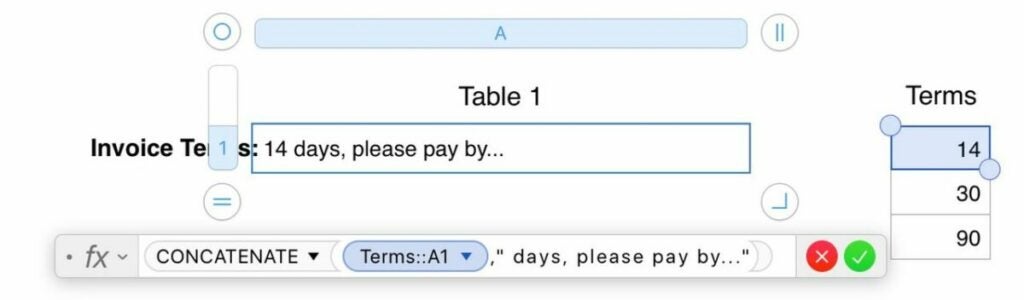
Type =CONCATENATE into any cell, and then click on the first cell you want to combine. Next, type a comma, and then click on the next cell in your combination. The formula will concatenate the data from the first and second cells and display them both together. You can concatenate any number of cells.

You can also add text in quotes to your combined values to make a coherent sentence out of raw data. For example, if you have a person’s first name in A2, their last name in A3, and their age in A4, the string CONCATENATE A2,” “,A3,“ is ”,A4,” years old.” will show something like: John Johnson is 52 years old. Note the spaces in quotes that we use to separate the values.

An example of the Concatenate function

Numbers’ functions are shortcuts to simplify your data processing

Although you could probably add, subtract, and multiply a few cells manually, once you accumulate enough data, even simple operations can quickly get complicated and repetitive. By using functions to create formulas, you can put away your calculator and let Numbers do the hard work for you.

If you’d like to see where Numbers ranks in our list of Mac spreadsheet apps or check out some alternative programs in Softonic’s top spreadsheet apps for Mac.

WhatsApp bringing skin tones to message reactions

Another day and another WhatsApp update for you here at Softonic. Continuing its work to improve on the new message reactions feature that is already proving popular with users, WhatsApp is working on an inclusive update that will bring it up to speed with regular emojis on the app.

WhatsApp Download Now

The latest beta version for Android, which dropped last week includes some interesting tweaks to the feature and the kind folks at WABetaInfo have been playing around with them. Let’s dive into them now:

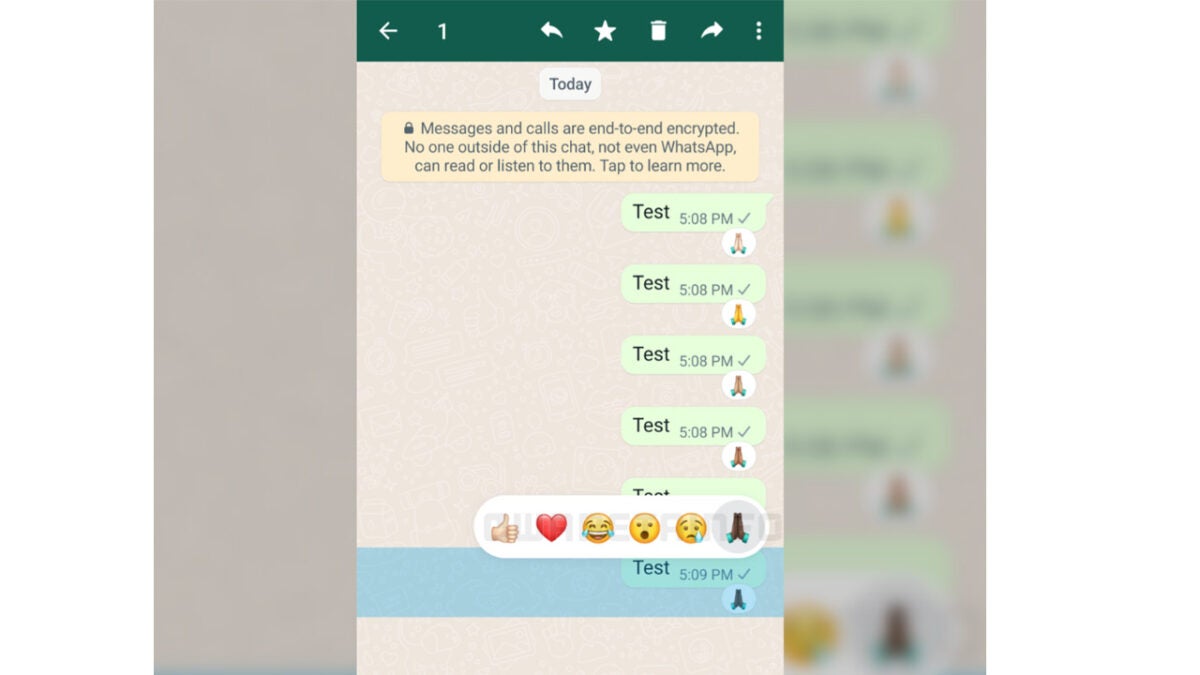
Skin tones for emojis have been around for a long time and marked a welcome and inclusive update to emojis, allowing users to feel more represented when expressing visual reactions. It now looks like WhatsApp is going to include skin tone options for message reactions too.

In the screenshot above you can see that the thumbs up and praying hands emojis both have different skin tones. You can also see that the thumbs up emoji has kept the same skin tone from a previously used emoji reaction meaning that as well as the skin tone options, the update is also bringing some of the functionality from regular emojis too. If you have recently selected a certain skin tone for one of the message reactions that will stay available to use without having to reselect the skin tone each time.

As this feature is still in beta testing we can’t say when it will roll out to all users. This does form part of a long line of tweaks and updates to the message reactions feature, however, including improving how you can react to albums and even which emojis you can use to react to WhatsApp messages. It would be likely that these features will all drop to the main app together.

If you are a big WhatsApp user, make sure you check out all the latest WhatsApp news so that you know all the new features that are on the way.

Microsoft is going to cut these features from Excel

Microsoft Excel is one of the most popular spreadsheet apps in the world, which makes it one of the most useful apps for both personal and professional use going. To keep Excel on top, Microsoft constantly works to update it with new features but, in the same vein, the tech giant will also strip away older features too if they are deemed to be no longer necessary. This is exactly the case here as we bring you news of three features Microsoft is stripping away from Excel.

Microsoft Excel Download Now

It is worth mentioning here that these changes only relate to Microsoft 365 users, which is the subscription model Microsoft offers access to its productivity suite. If you have purchased a license to a definitive version of Excel or Office, these changes won’t affect you.

The first feature Microsoft is cutting from Excel is Money. The Money feature allows users to securely sync all of their bank’s data with a spreadsheet, creating unique spreadsheets of users’ financial information automatically. Microsoft announced in an Office support post that the feature will stop live syncing data on June 30 2023. Frustratingly, Microsoft is ending the Money feature so it can focus more on its Tiller feature, which offers more features than Money alone, but comes with an additional premium subscription.

Another feature to go is the use of Wolfram Data Types, which were added due to a partnership with Wolfram a few years ago. Microsoft is going to focus on in-house data types from here on out. The final thing that Microsoft is cutting is access to partner offers. This means that if you sign up for any third-party offers, come June 30 next year you may no longer be able to access them.

It is important for Microsoft to keep the world’s flagship spreadsheet app up to date and this also means cutting away features that may no longer be popular and so go underused. It will be interesting to see whether many users will kick up a fuss over losing these features. For a full rundown of what Microsoft Excel is capable of check out our Microsoft Excel review.

TikTok update to offer users a much cleaner interface

Recently we’ve covered how two of the major social networks have made moves to incorporate elements of TikTok’s user interface into their own. Instagram announced it wanted to offer a more immersive experience while Twitter’s new Explore tab looks exactly like the TikTok feed. Well, it looks like TikTok has not been taking all that lying down as we are now getting details of a TikTok update that will make it even more immersive.

TikTok Download Now

TikTok users have been taking to Twitter to announce that they have been seeing a new “Clear mode” option on their TikTok apps. If you don’t have the option available on your phone, don’t worry as it looks like this feature is currently at the testing stage and so, accordingly, is only available to a small number of users at the moment.

As you might expect from something called Clear mode, selecting it will clear out all of the information that you don’t need to see when you are watching a TikTok. This means when Clear mode is activated you will no longer see usernames, captions, audio information, etc. Yep, Instagram will now have to go back to the drawing board as TikTok once again offers a more experience than the Meta photo app.

To activate Clear mode, users have to press and hold the screen to bring up the settings menu, which is where the option is found. Once active the screen will be clearer but, for now at least, the setting will only remain active for the current video. As soon as the user scrolls to the next video they will have to activate it again. This, however, sounds like something that will get ironed out during the testing phase.

There is no news yet on if or when this feature will roll out to all TikTok users, but the company did confirm to TechCrunch that it is working on the feature. With TikTok being the most downloaded app in the world so far this year, if this change does come into effect, it will make a difference to over 3.5 billion users around the world. That’s why we’ll keep you updated on all the latest TikTok news such as the addition of the new Friends tab to TikTok.

Top Tips for Diablo Immortal

Excitement is rising with the launch of Diablo Immortal around the corner. We can’t wait to enter the dark fantasy RPG realm of Sanctuary and take on the evil minions and demons of hell. To that end, we want to make sure you’re all prepared for what’s coming with our tips and tricks.

Diablo Immortal DOWNLOAD

With so many gamers having tested the beta versions, we’ve had a taste of what the fantasy game will be like. Whether you’re a beginner or a veteran in the franchise, here are our top tips for Diablo Immortal.

Essential guide and tips for Diablo Immortal

Choose the best settings

You’ll be able to play Diablo Immortal on mobile and PC when it launches on June 2, 2022. Do yourself a favor and check out the settings for both device types. For the mobile version, you’ll want to make sure you configure the user interface so the icons don’t clutter the screen.

We recommend using the default settings for most gaming elements. Check the auto-pickup selection and make sure it’s enabled. You don’t want to waste time deciding what to keep while in battle. If needed, you can always discard or salvage items in town later.

Diablo Immortal top tips

Selecting your class in Diablo Immortal

If you’ve played Diablo 3, you may recognize a return of some of the classes. Diablo Immortal will include Crusader, Barbarian, Demon Hunter, Necromancer, Wizard, and Monk. We were hoping to see the Druid class come back from Diablo 2, but it doesn’t appear to be on the list as yet.

Spend some time looking at the abilities and skills you’ll unlock. Each of them has different combat categories, such as ranged, close-combat, or magical. One tip for Diablo Immortal is to stick to the tank classes of Barbarian and Crusader first until you get the hang of the fantasy game. You can also try the ranged classes of Demon Hunter and Wizard if you don’t want to get too close to enemies.

Diablo Immortal top tips

Getting used to the game mechanics

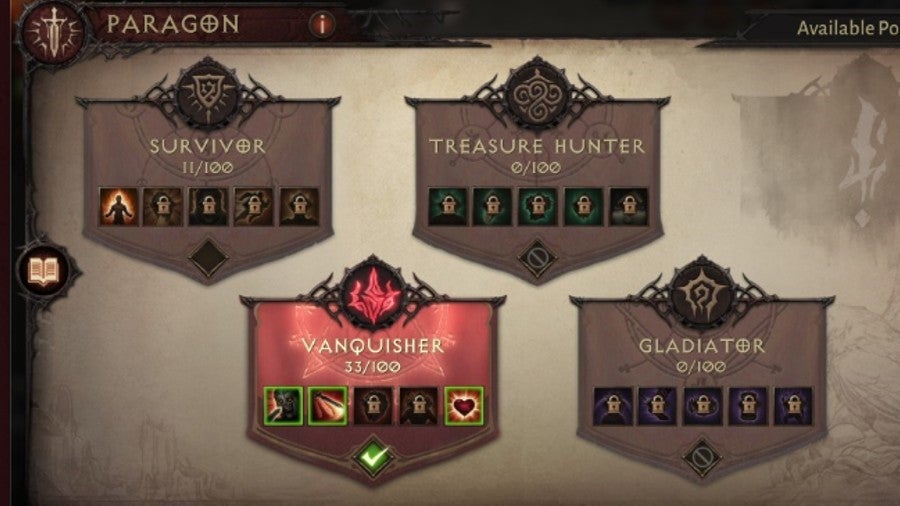
We could write an entire guide for the Diablo Immortal game mechanics alone. There are so many aspects you’ll need to learn, and we suggest doing it early. For instance, head into the dungeons to see how they work, and study how the Paragon System allocates points.

In the former Diablo games, we had gems we could socket into weapons and armor. We received Legendary Gems in D3, and now we’re going to get Runes for Diablo Immortal. The new Factions will consist of the strongest players battling in the Circle of Strive.

Diablo Immortal top tips

Upgrades for characters and gear

You’ll spend your days on Diablo Immortal taking on tasks and completing quests. While there will be plenty of loot and rewards, focus on upgrading your characters. Each skill has ranks, and you can increase their power every time you level them up. 

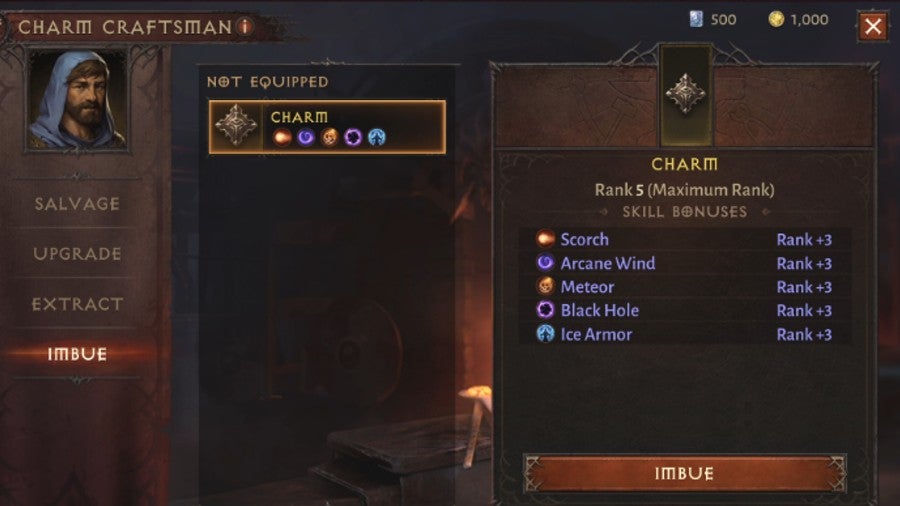
You can also level up your gear and gems to make them legendary. Charms are back in the series, while you’ll also find crests to help you conquer the demons. Be sure to collect as many set items as you can, as completing and wearing a unique set grants bonus ability points.

Diablo Immortal top tips

Inventory management

Game hoarders love to collect items for no reason and stash them away. Diablo Immortal will require you to carefully select what you want to keep and discard due to limited inventory space. Don’t simply throw unwanted weapons or armor away, as you can salvage them for useful resources. 

The other option is selling them for some coin so you can buy something more powerful later. When you head to the blacksmith, take a look at what you’ll receive when you salvage an item. If you have enough of those resources, consider selling the object instead.

Diablo Immortal top tips

Diablo Immortal combat and skill tree

Your character has different skill slots, depending on the class. We’ve mentioned before that you can rank up your abilities as you progress through the demon horde. One vital tip we have for Diablo Immortal is that you place the best skills in the various slots for a better chance of success.

We have no doubt you’ll soon find guides on the best builds for classes in Diablo Immortal shortly. While they’re helpful to max out the power of your character, be sure to play around with abilities that you feel you’re exceptionally skilled at using in battle. 

Diablo Immortal top tips

Know your town

Don’t be too eager to run straight into battle when you start playing Diablo Immortal. The main town or lobby area is called Westmarch, and there’s plenty to find and do when you’re not fighting the demons from hell. Take a look around at the vendors and buildings; or as Deckard Cain would say, stay awhile and listen.

Mainly, you’ll see the blacksmith and jeweler in Westmarch who will help you with your weapons, armor, and gems, besides other things. There’s also a bounty board with daily tasks you need to complete for rewards. 

Diablo Immortal top tips

Entering rifts in Diablo Immortal

Westmarch is also home to the Elder Rifts. These give you the chance to take on dungeons based on your rank. As you increase in power, so will the difficulty of your enemies. You’ll be sure to also find more valuable loot and rewards once you complete them.

There’s another arena called Challenge Rifts. It encompasses the same principle, but you’ll see a timer when you enter the dungeons. You’ll need to complete the objective in the set time to receive unique rewards. It’s similar to the Greater Rifts we faced in Diablo 3.

Diablo Immortal top tips

Finding Monster Essence

One aspect we love in the dark fantasy series is the Bestiary. You usually unlock passages and lore on the monsters when you fight and defeat them. In Diablo Immortal, you’ll need to collect Monster Essence if you want to learn more about these demonic beasts.

Once you have ten Monster Essence, you can exchange them for powerful buffs that increase specific character stats linked to them. If you don’t turn them in, you won’t be able to collect any more of them. We recommend you exchange them as soon as you can.

Diablo Immortal top tips

To Battle Pass, or not to Battle Pass

While we’ve happily never had to worry about a Battle Pass in Diablo games before, you’ll have it in Diablo Immortal. It’s an in-game tier system that gives you rewards as you level up. The free system provides items that you won’t need to pay for to receive them.

However, there’s a Premium tier in the Battle Pass with exclusive rewards. You will to need to subscribe with a monthly payment to participate in that mode, which unfortunately introduces a pay-to-win model we never wanted to see in the franchise. 

Diablo Immortal top tips

Stay awhile, and listen

There are plenty of other game elements you’ll need to learn when you play Diablo Immortal for the first time, but the tips above should help you along the way. Remember, choose a class that suits your game style and power the character and gear up as quickly as possible. If you’re as impatient as we are, here are some alternatives to Diablo Immortal to enjoy so long.

Top alternatives to Diablo Immortal until it is released READ MORE

Clash of Kings: The West to celebrate International Children’s Day

The popular war strategy RPG from Elex Wireless, Clash of Kings, has launched an event to celebrate International Children’s Day on June 1st. This event and the update that comes with it follow the recent release of Clash of Kings: The West, a spinoff of the original that features western civilizations and warring countries.

Clash of Kings: The West DOWNLOAD

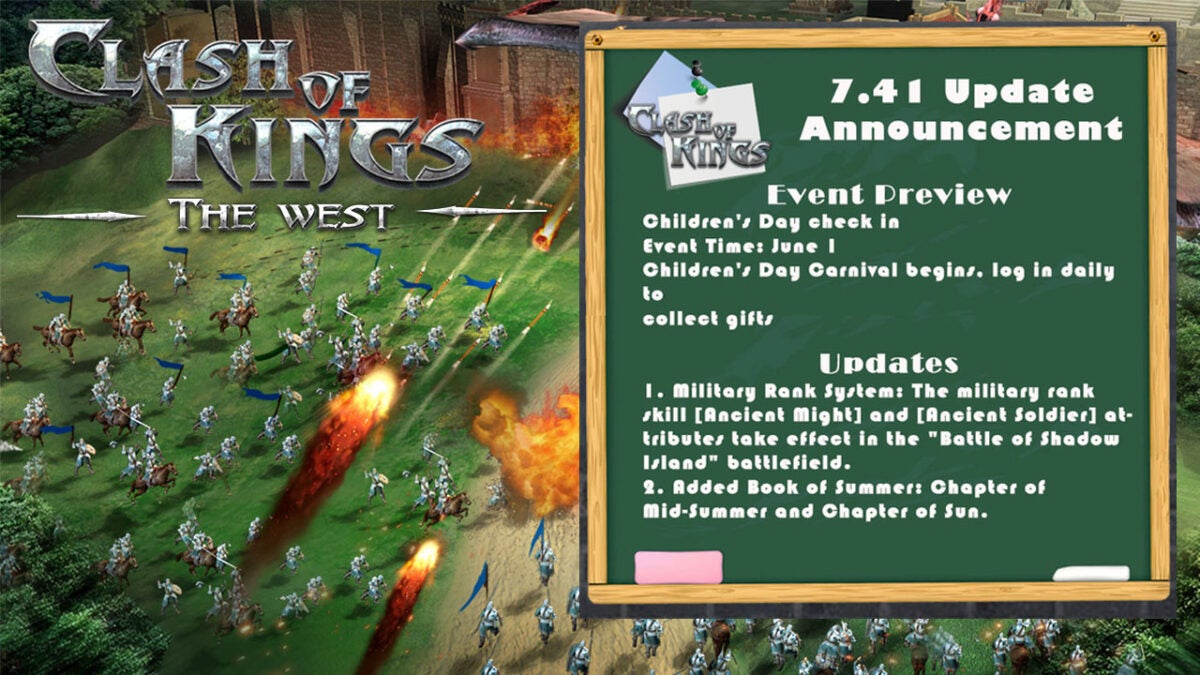
To celebrate International Children’s day, there will be a special Children’s day check-in from June 1st. There will be an in-game Children’s Carnival, and players are encouraged to log in every day for the remainder of the event to collect special gifts.

As with many of the events released on COK, this event also coincides with the release of a new update. Version 7.41 of Clash of Kings goes global alongside the event. Although the developers have not expanded on everything, the recent update includes, we were able to get a bit of information from their official Facebook page.

COK update 7.41 will show improvements to the Military Rank System. The military rank skills Ancient Might and Ancient Soldier attributes will now take effect in the ‘Battle of Shadow Island’ battlefield. This ranking system is a great way to earn buffs, special items, and unique skills just for battling. Every attack you make goes towards earning points in your military rank. It’s fantastic that these attributes are now available on the battlefield so that players can earn even more points. 

Update 7.41 also includes new chapters in the Book of Summer. The first new chapter is titled ‘Chapter of Midsummer,’ and the second new one is titled ‘Chapter of Sun.’ But other than the chapter titles, we don’t yet know what these new chapters entail.

The event and update launch on June 1st, so make sure to check in and earn your gifts and experience the new features. If you’re looking for a game that’s similar but with less of a storyline that’s ideal for casual playing, why not read our Clash Mini review?

Clash Mini Review DOWNLOAD

Sonic Frontiers first gameplay trailer looks very familiar

Sonic Team has just released the first teaser trailer for Sonic Frontiers, and dare we say it looks awfully familiar. By this, we don’t mean it looks like a generic Sonic early game trailer, we mean the trailer carries the same energy and has a similar feel to Breath of the Wild. 

Sonic Frontiers DOWNLOAD

It’s become alarmingly clear that there is a vocal faction within the gaming community that despises the stock ‘X meets Breath of the Wild’ statement that we members of the gaming press employ when a newly released game vaguely resembles The Legend of Zelda. However, the new trailer for Sonic Frontiers fits the description almost perfectly.

The trailer depicts Sonic running free between futuristic ruins across a picturesque borderless world drenched with light and strewn with flowers. In terms of realism, it looks like a far more limitless and visually overhauled Sonic experience could be awaiting us when Sonic Frontiers finally drops.

The concept of having Sonic as a truly open-world game feels a little controversial. Yes, games change as the demand increases for characters, environments and gameplay to adapt with the times. But Sonic has always had a very different feel to what the trailer portrays.

It’s also pertinent to mention that this isn’t the kind of purely cinematic trailer that we get every time there’s a Minecraft update; this is most likely actual honest-to-goodness gameplay. This new trailer is likely what the new game will look like. It seems to play more like your general run-of-the-mill RPG. 

Sonic Frontiers seems to represent a distinctly new direction for the Sonic franchise. This game drops Sonic into what looks to be a truly frontierless world. A world where the Blue Blur is no longer held back by previous titles’ more forced two, and three-dimensional perspectives. This time he seems to be able to run wild through an unequivocally open-world environment, picking up rings and doing battle with monstrous new beasts. 

We’ll see more of Sonic Frontiers at next week’s Summer Games Fest. Until then, we’re still waiting for the launch of Sonic Origins. In preparation for the June 23rd launch, SEGA pulled a peculiar stunt; they’ve removed most of the classic Sonic games from various online platforms.

SEGA removes classic games ahead of Sonic Origins launch READ MORE

The best keyboard shortcuts that enhance productivity in Microsoft Outlook

When you send an enormous number of emails each day, the amount of time you spend in Microsoft Outlook quickly adds up. Over the course of a year, hours of life can be wasted by inefficient communication processes. Conversely, you can earn additional hours of free time by mastering the plentiful keyboard shortcuts offered by Outlook. Efficient keyboard use is vital for all online workers to develop over time.

Microsoft Outlook DOWNLOAD

With the following shortcuts, you will be back up to speed in no time.

Basic navigation shortcuts

Quickly navigating through each section of Outlook should be your first priority. Each navigational shortcut incorporates the Ctrl key, so the collection is fairly easy to remember.

  • Mail View – Ctrl + 1
  • Calendar view – Ctrl + 1
  • Contacts view – Ctrl + 3
  • Task plane – Ctrl + 4
  • Notes viewer – Ctrl + 5
  • Folder view – Ctrl + 6
  • Shortcuts viewer – Ctrl + 7
  • Journal view – Ctrl + 8

You can also navigate to the previous section you were in by pressing Alt + B or Alt + the Left arrow key. To navigate forward one page, use Alt + the Right arrow key.

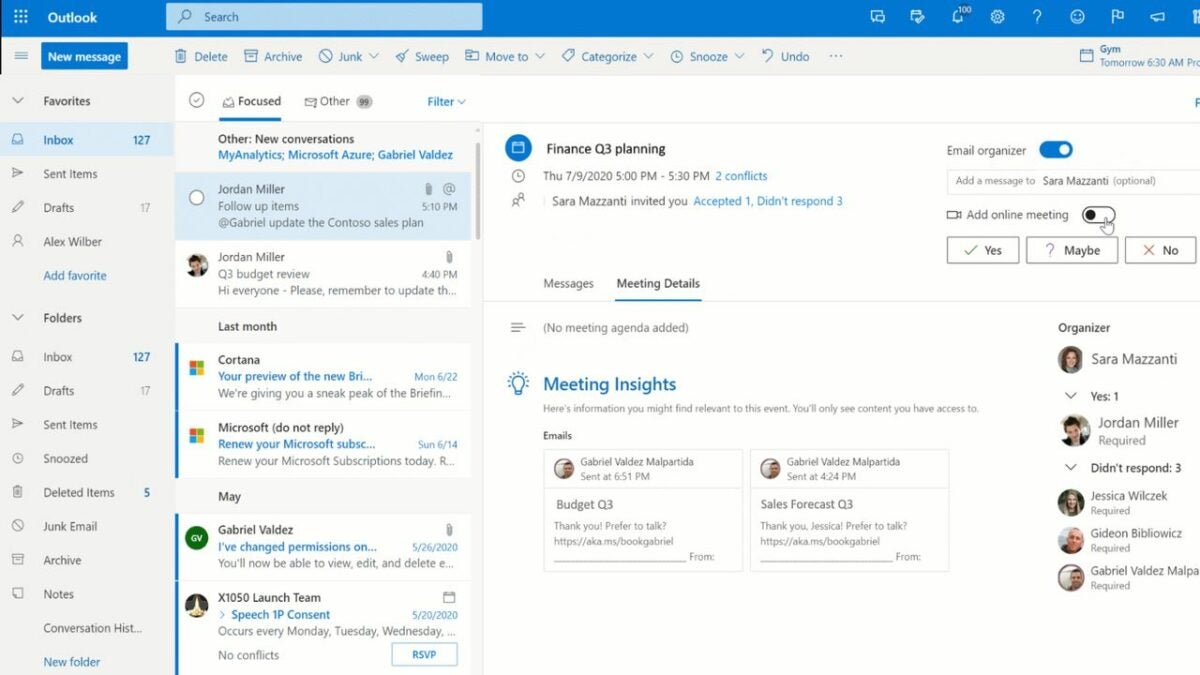
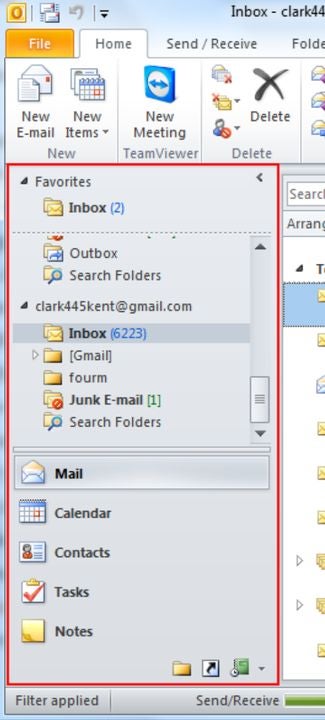
Access all the navigation tabs with ease

Returning to the home tab

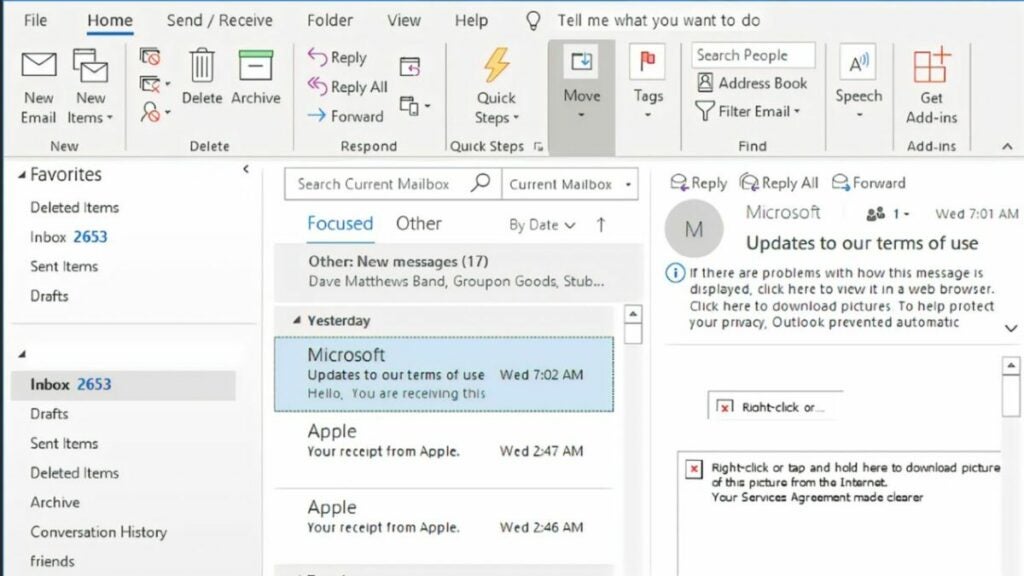
In addition to the pages listed above, you can also quickly return to your home tab with the shortcut Alt + H. Now you can swiftly navigate between all sections of Outlook.

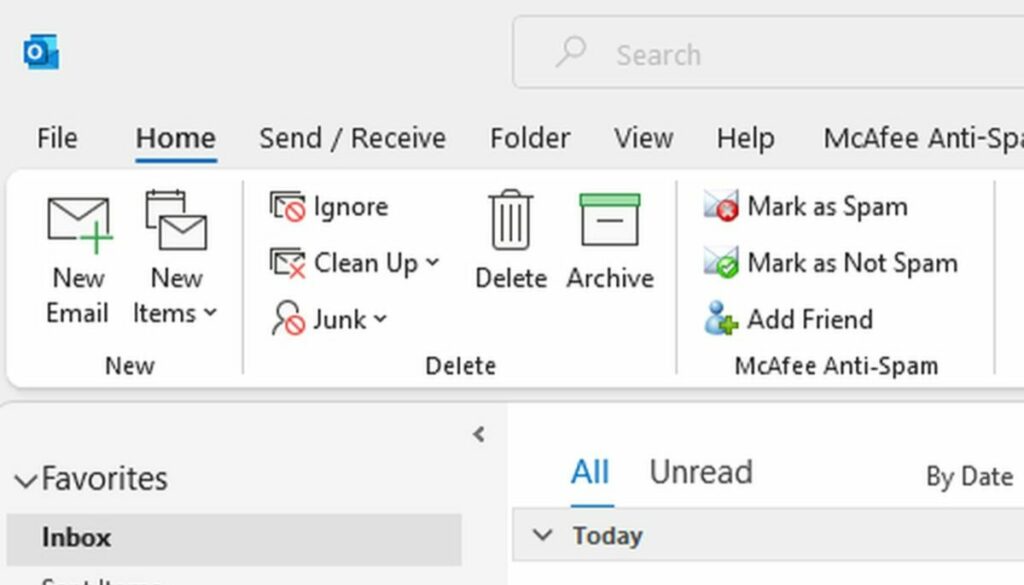
Home task bar in Microsoft Outlook.

Creating a new message

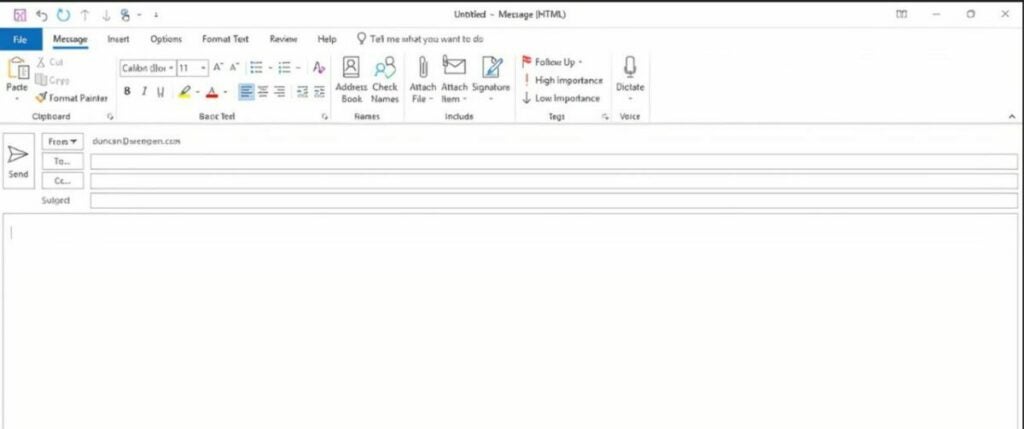
Writing numerous emails per day facilitates the need to simplify the process required to pen a new message. To pull up the draft window, use the shortcut Ctrl + Shift + M. Then, you can fill out the subject line, add recipients, and type an email as normal.

Creating new messages is simple

Sending a message

The fastest way to send a message is to use the keyboard shortcut Alt + S. Be sure that the correct email and recipients are on the screen first. This key binding sends only the message highlighted on the screen.

Adding attachments and inserting files

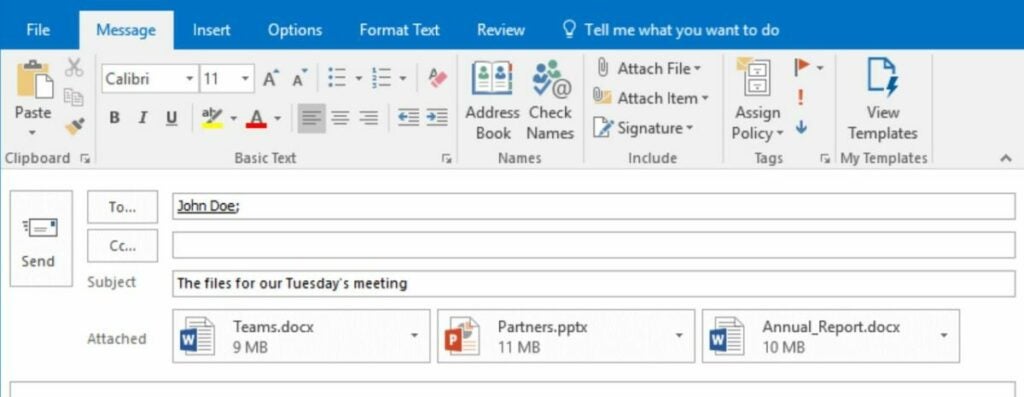
Before sending a message, you may wish to attach a file to it. To do this, use the shortcuts Ctrl + A, Ctrl + N, or Ctrl + F. Each combination shares the same functionality, so feel free to use whichever one is most natural.

Attach files like this

Replying to messages

Typing up a response email is just as easy as creating your own. It can be done by using the shortcuts Alt + H, Alt + R, or Alt + P. Again, you may use any shortcut you desire as they each produce the same result.

Deleting emails, files, and folders

Like in most programs. Outlook allows you to delete highlighted files simply by pressing the delete key. To highlight an email, file, or folder, click on it and a blue box should appear around the icon.

Forwarding messages

You can also forward emails to people on your contacts list with the shortcut Alt + F or Alt + W. Forwarding allows you to share messages without creating a brand-new email yourself.

Forwarding messages just got easier

Create an appointment

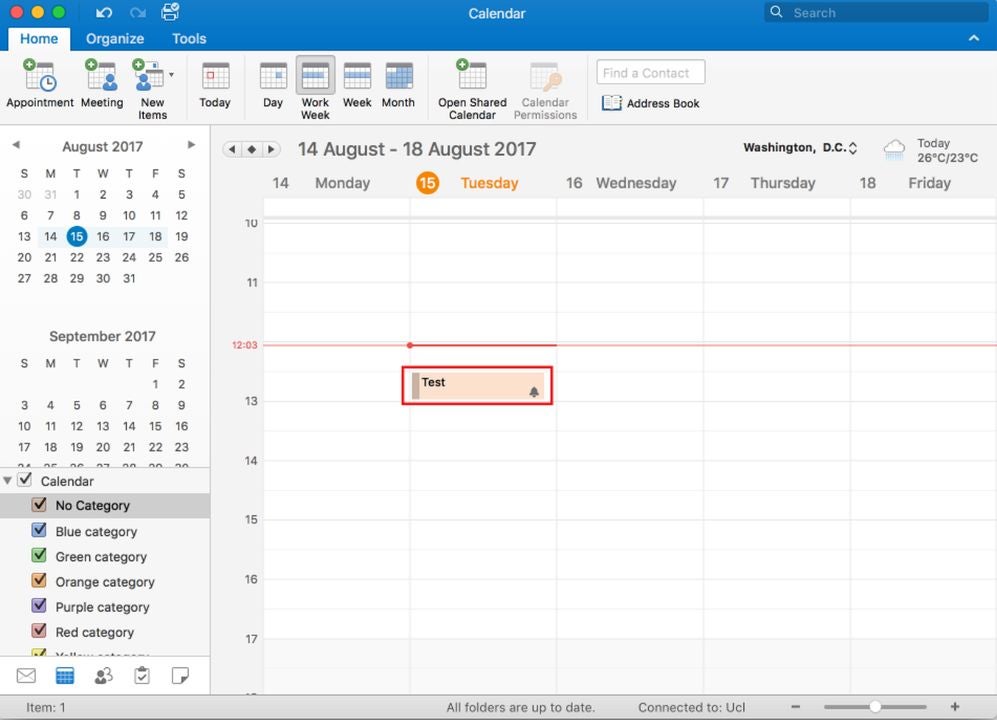
Creating appointments can be time-consuming when you start each one manually. To speed up the process, use the keyboard shortcut Ctrl + Shift + A.

Create and view appointments here

Checking for new messages

Although Outlook will automatically update your inbox when it is ready, sometimes, you are eagerly anticipating a response from someone. You can force Outlook to reload your inbox and check for new messages with Ctrl + M or the F9 key.

Check for new messages on your own time

Additional ways to increase computer productivity

Revamping your email setup is just the beginning. There are plentiful ways to optimize the time you spend on your computer. You can install better desktop applications, add web browser extensions, and take courses on the programs you use most often. As an example, check out this list of helpful extensions for Google Chrome. By adding some extensions to your browser, you gain tons of functionality without having to leave Chrome and open another tab.