The best 13 privacy extensions for Google Chrome

Google Chrome is a popular browser because of the functionality it provides. Unfortunately, the popular software is also a bigger target for hacking attempts and data theft. To avoid falling victim to fraudulent activity and get around various forms of online censorship, it’s wise to equip your Chrome browser with the proper security measures. The following privacy-related extensions will help you do just that.

Google Chrome Download

Privacy Badger

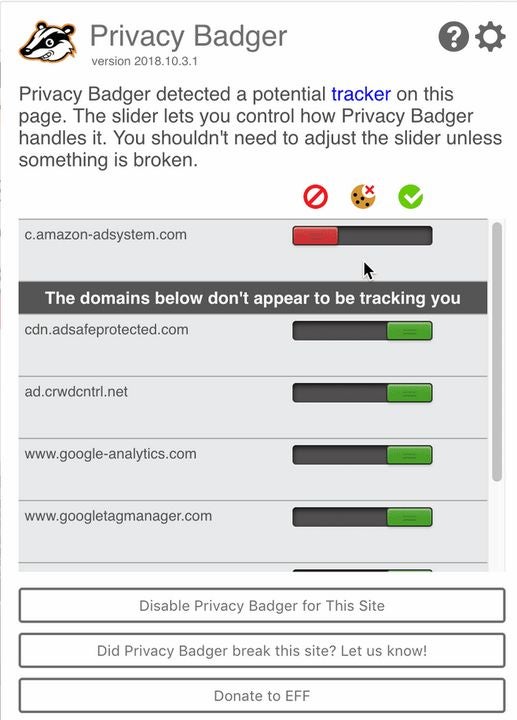
Privacy Badger is a unique extension that uses an algorithm to learn which files on your PC are tracking you. This is a fairly different approach compared to most apps that use pre-established lists to identify trackers. Privacy Badger’s effective algorithm will catch many problematic files that other services will miss. While browsing, you can enable healthy data trackers, such as those used during video playback, with a click. This allows you to still watch videos and interact with social media without trackers automatically being applied as you load a page.

Privacy Badger DOWNLOAD
Privacy Badger stops sneaky trackers

Unseen – Chat Privacy

If you use Facebook Messenger often, then you have probably been annoyed by the read receipts and other features that let other users know your every move. With Unseen, you can block the read receipts that normally show people when you have read their messages. You can also hide information about when you were last seen online and if you are actively typing a message. Keep in mind that this app only works with Facebook and its Messenger service.


Unseen - Chat Privacy DOWNLOAD
Block read receipts on Facebook automatically

Search Privately

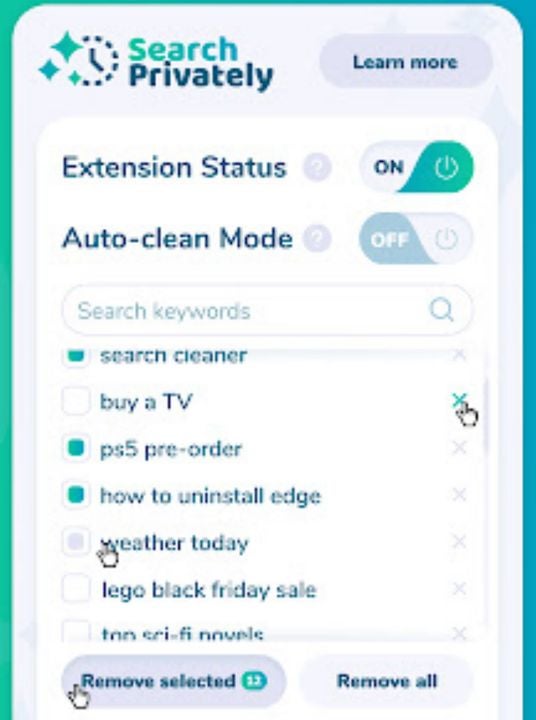
Search Privately is a nifty extension that will automatically delete your search and browsing history. You can choose to delete everything as your search, or simply filter out certain keywords that should be scrubbed. In addition to automatic cleaning, you can manually edit your browsing data after each session. Note that this extension can only remove history created after you first install the app on Google Chrome. Previous browsing sessions will not be affected.

Search Privately DOWNLOAD
Search Privately lets you do just that

Privacy Bee: Zero-Trust Secure Browsing

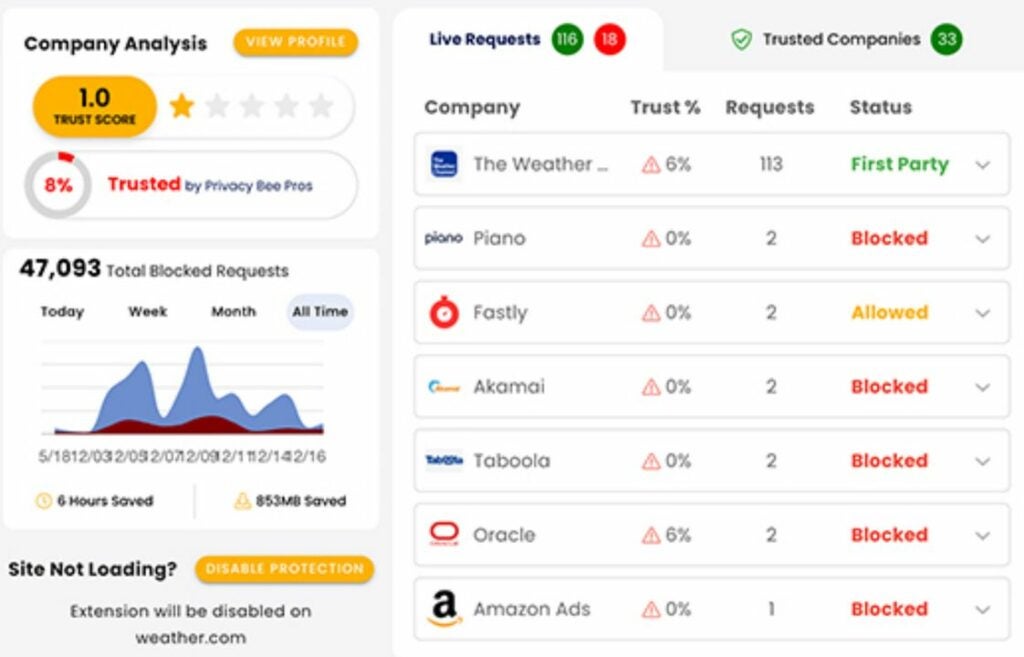
This extension allows you to build a privacy profile as you visit sites across the web. Click the Privacy Bee icon when browsing a site to set the parameters of your data relationship with it. Active relationships open easy data transfer with pages you trust and frequent. Neutral relationships provide basic data access to websites you use occasionally. No relationship blocks data transfer with websites you have no affiliation with.

Privacy Bee: Zero-Trust Secure Browsing DOWNLOAD
Privacy Bee tracks your trust of various websites

IDX Privacy

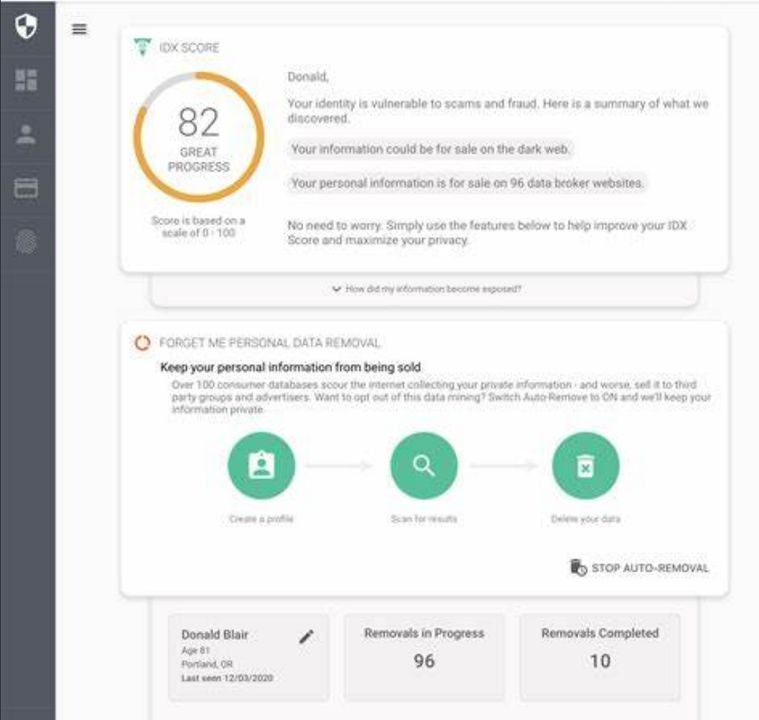
IDX Privacy is an astounding resource for obscuring and removing your digital fingerprint. Your digital fingerprint is a collection of identifiers used to track you online. By clearing the identifiers you leave behind while browsing, this extension prevents third parties from creating a digital fingerprint profile for your activities. IDX also comes with an ad blocker, which disables both active and static advertisements on the web pages you visit.

IDX Privacy DOWNLOAD
IDX ensures you can browse websites safely

Keyboard Privacy

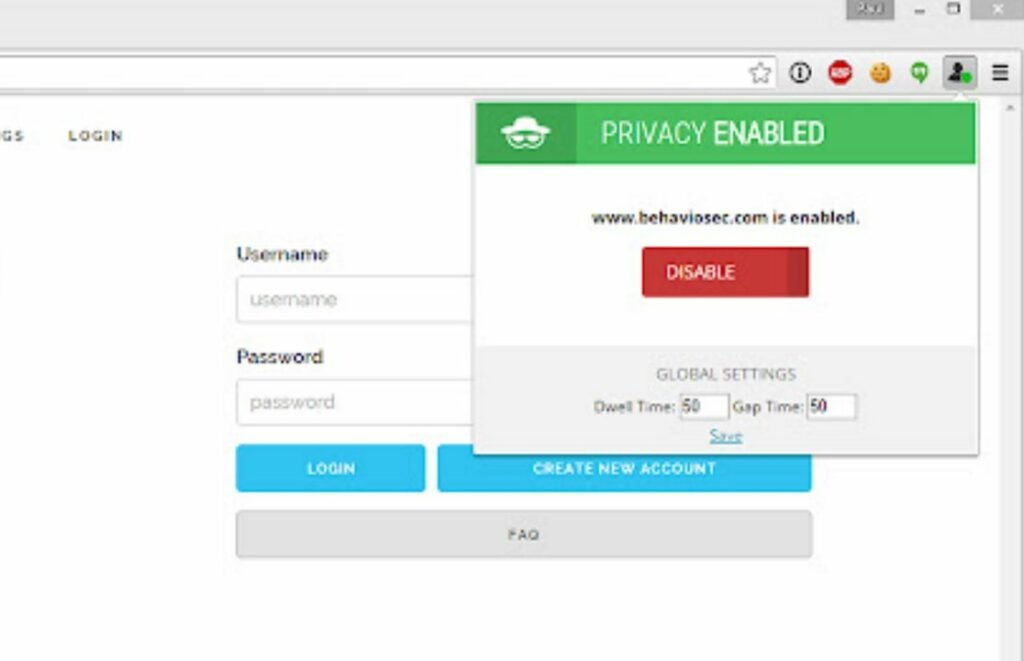
Your online behavior can be profiled just by analyzing which keystrokes you type. The DOM, or Document Object Model, makes your keyboard visible to data gathering services. However, Keyboard Privacy randomizes which of your keystrokes are visible in the DOM. The incomplete records then make it far more difficult for your behavior to be predicted by spying third parties.
Keyboard Privacy DOWNLOAD
Keyboard Privacy prevents text profiling

Privacy Manager

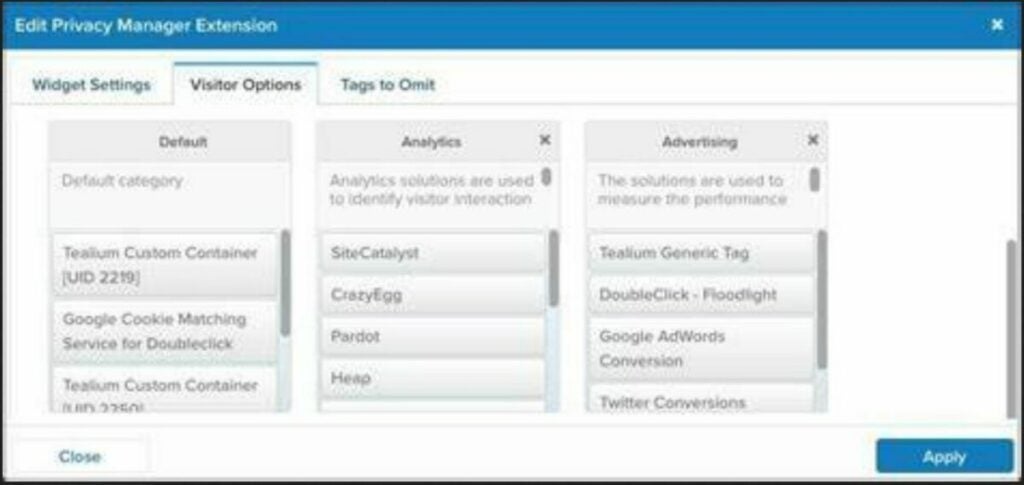
Privacy Manager is a collection of tools that help you delete cookies, clear browsing data, and swiftly switch to incognito mode. It also offers a variety of settings you won’t find anywhere else. You can disable automatic information form fill-outs and prevent websites from attempting to start a voice search. There’s even an option to audit the destination of hyperlinks by hovering the mouse cursor over them. Adding these tools to your belt will make managing online privacy a breeze.

Privacy Manager DOWNLOAD
Privacy Manager adds an abundance of options

UltraSurf Security, Privacy & Unblock VPN

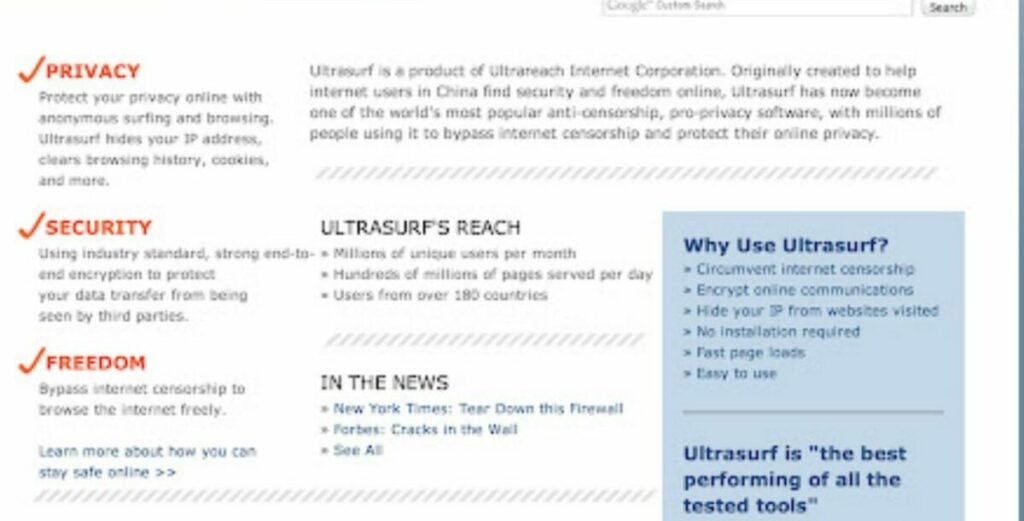
Ultrasurf was originally designed to allow users in China access to the blocked portions of the rest of the internet. Now, the extension can be used by anyone around the world to get past political censorship. The application encrypts your IP address, so websites can’t detect your location to issue censored content based on your region.

UltraSurf Security, Privacy & Unblock VPN DOWNLOAD
UltraSurf provides foreign censorship clearance

Private Message

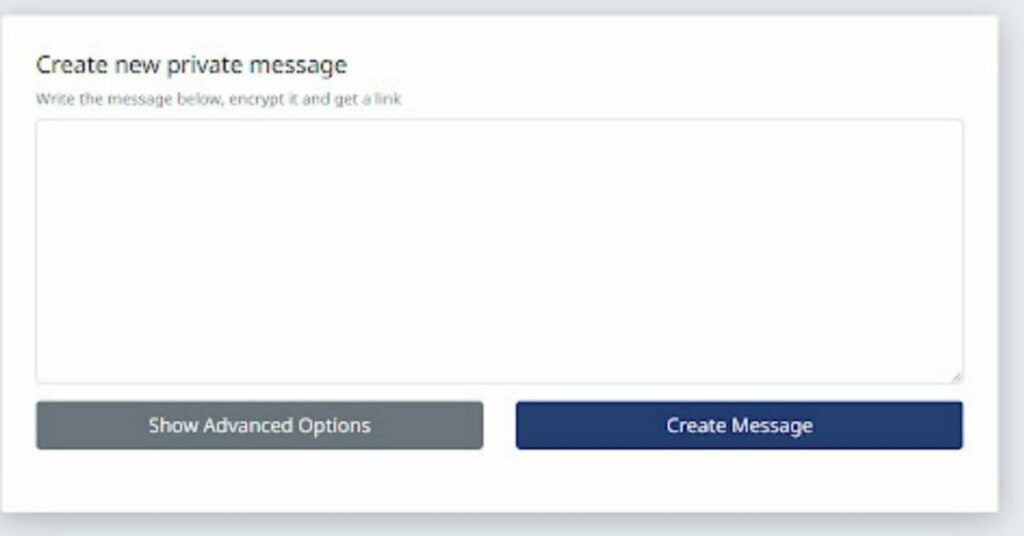
Private Message is an online privacy client that allows you to create messages on temporary web pages. You can then send a link that is programmed to self-destruct after the recipient clicks on it and opens the message. The temporary page quickly expires, so the original text is removed from the internet. Since there is no trail left behind, third parties and hackers have nothing to work with when tracking your online chats.

Private Message DOWNLOAD
Private message lets you send untraceable communications

Private Notes

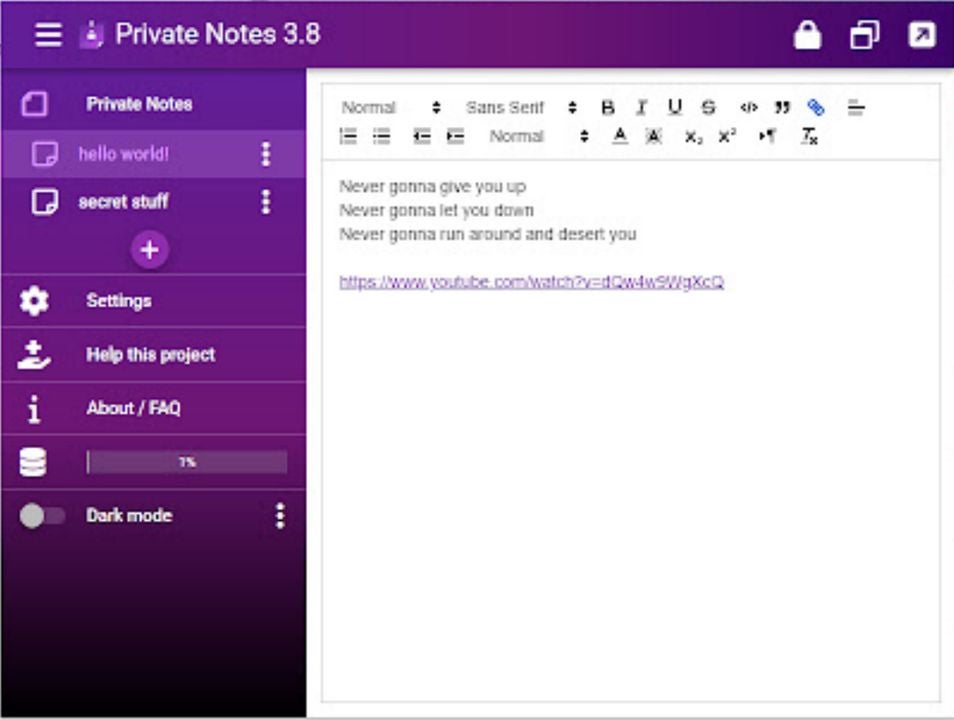
Storing sensitive information such as passwords on your computer is usually an easy way to have your data stolen. However, you can encrypt confidential information with the use of the Private Notes extension. The app creates notes that may be unlocked through proprietary encryption keys. As soon as you close Chrome, both the notes and encryption keys are deleted. All permissions are blocked for this extension, making it impossible for prying eyes to view your prior activities while using Private Notes.

Private Notes DOWNLOAD
Protect passwords and recovery codes with Private Notes

Private Bookmarks

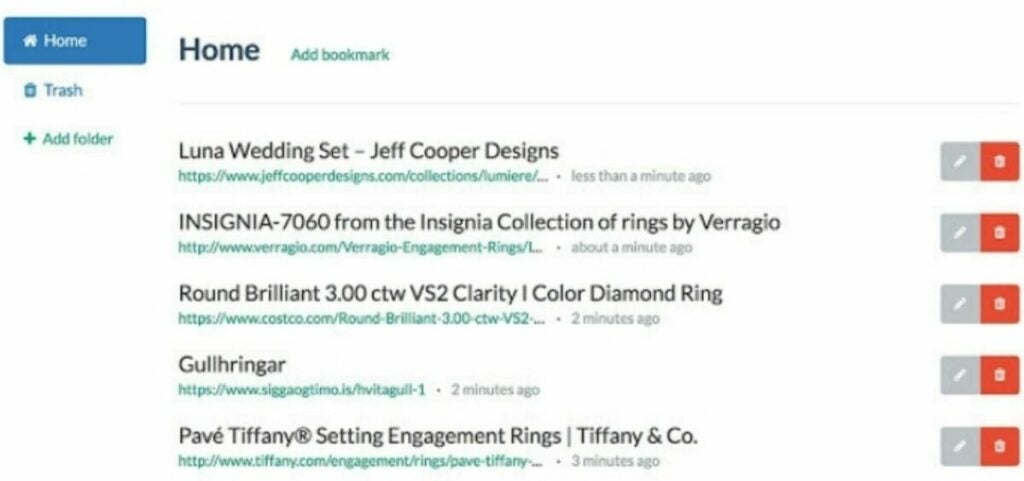
Bookmarked webpages present a security vulnerability that lets third-party trackers find your most used and favorite places online. With Private Bookmarks, you can hide which websites are saved in your favorites list. You compile a bookmarks list as normal, but this list is protected by a password. Without the password, your list of bookmarks becomes inaccessible even to experienced hackers.

Private Bookmarks DOWNLOAD
Make your bookmarks private with ease

Incognito Search Plus

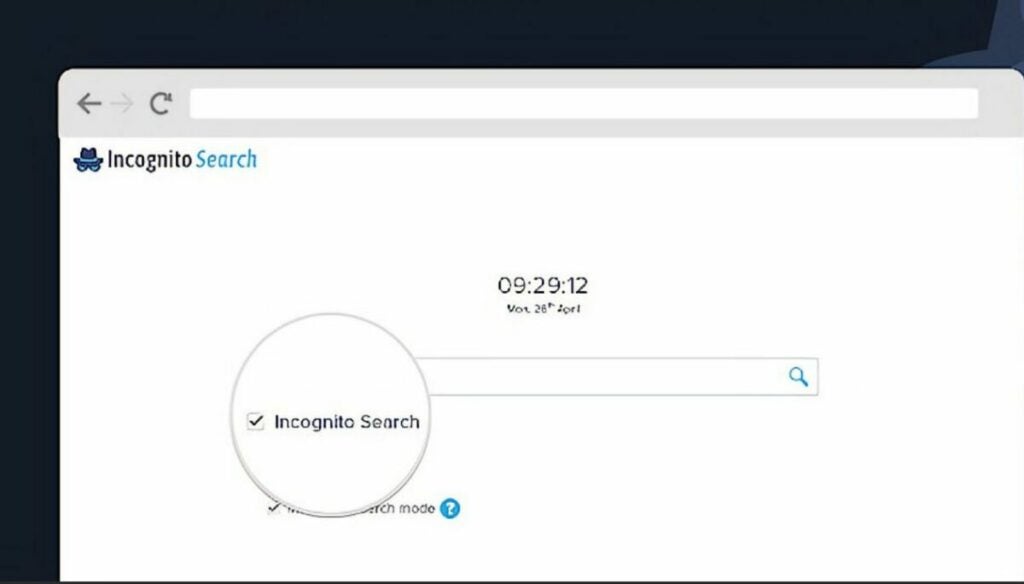
Google Chrome’s built-in incognito mode is great for privately searching the web. The main downside is that you must open a new session in incognito mode to enjoy these benefits. Incognito Search plus is an extension that allows you to toggle privacy functionality in regular browsing tabs. Right-clicking on text presents a new option in the context menu that allows you to search a term in incognito mode. Alternatively, you can simply type and hit the space bar before entering information into Chrome’s address bar at the top of the browser window. Either option opens a new tab with the private webpage you requested.

Incognito Search Plus DOWNLOAD
Searching incognito from any page is game changing

Private Internet Access

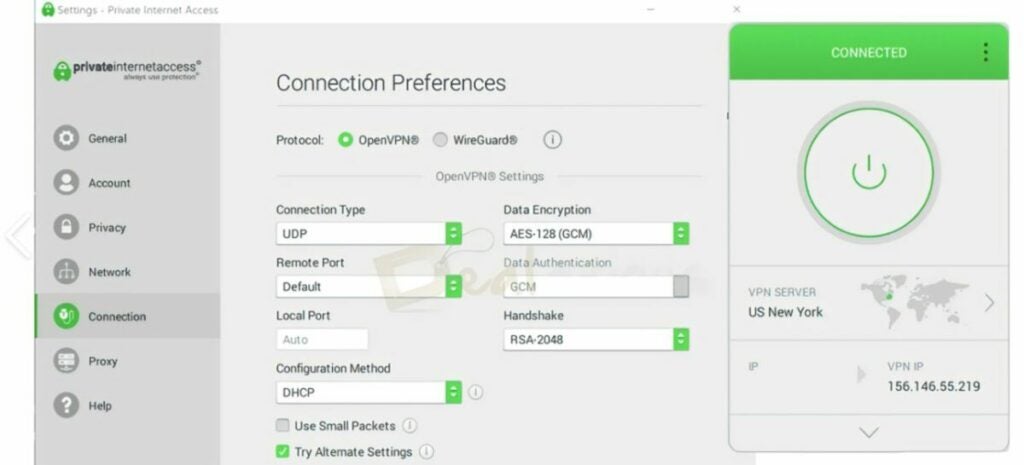
No list of privacy extensions would be complete without a VPN. Virtual Private Networks like Private Internet Access provide invisible, unfiltered use of the internet to users around the world. The web is highly restricted based on where you log in from. Large corporations and governments use your IP address to determine what information is visible. A VPN changes your IP address to the country of your choice. This allows you to find a server that will not censor the websites you wish to visit.

Private Internet Access DOWNLOAD
VPNs unlock full access to the web

More ways to stay safe online

There is always more you can do to secure your data while browsing. In addition to the above extensions, check out Google’s recently released Privacy Guide. The guide is filled with tips and tricks on implementing safe browsing habits each time you use Chrome. While tools are always there to help, true security stems from the user being knowledgeable and alert while interacting with the web.

The best keyboard shortcuts that enhance productivity in Microsoft Outlook

When you send an enormous number of emails each day, the amount of time you spend in Microsoft Outlook quickly adds up. Over the course of a year, hours of life can be wasted by inefficient communication processes. Conversely, you can earn additional hours of free time by mastering the plentiful keyboard shortcuts offered by Outlook. Efficient keyboard use is vital for all online workers to develop over time.

Microsoft Outlook DOWNLOAD

With the following shortcuts, you will be back up to speed in no time.

Basic navigation shortcuts

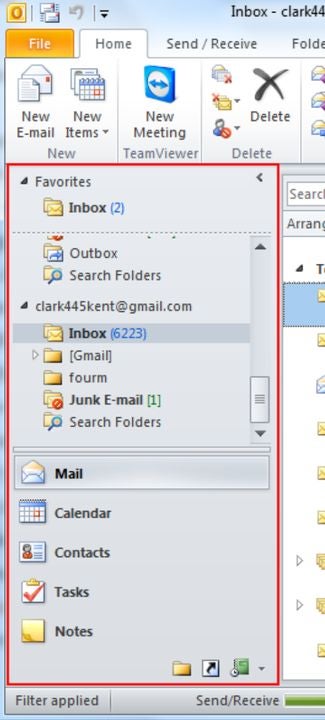
Quickly navigating through each section of Outlook should be your first priority. Each navigational shortcut incorporates the Ctrl key, so the collection is fairly easy to remember.

  • Mail View – Ctrl + 1
  • Calendar view – Ctrl + 1
  • Contacts view – Ctrl + 3
  • Task plane – Ctrl + 4
  • Notes viewer – Ctrl + 5
  • Folder view – Ctrl + 6
  • Shortcuts viewer – Ctrl + 7
  • Journal view – Ctrl + 8

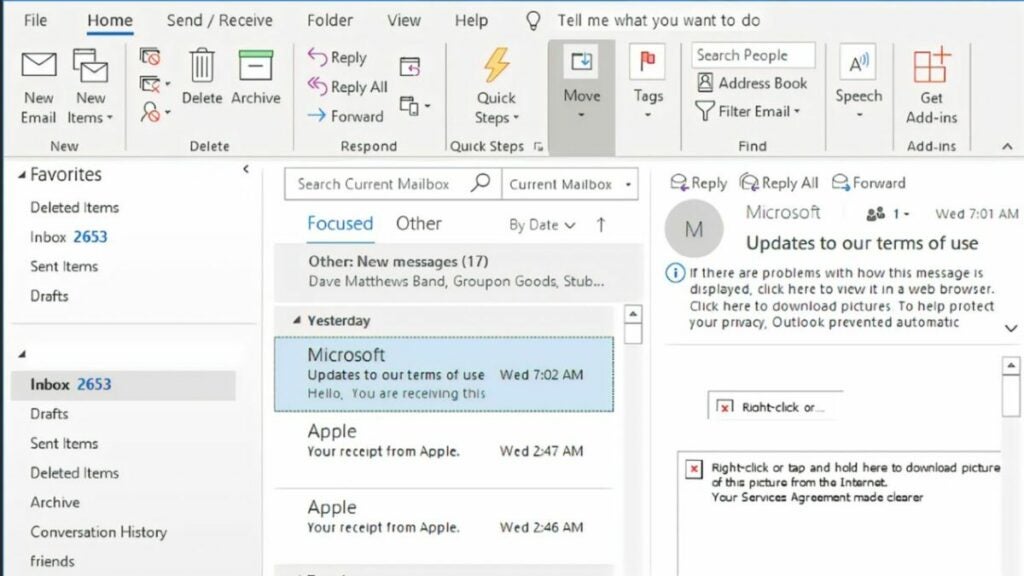
You can also navigate to the previous section you were in by pressing Alt + B or Alt + the Left arrow key. To navigate forward one page, use Alt + the Right arrow key.

Access all the navigation tabs with ease

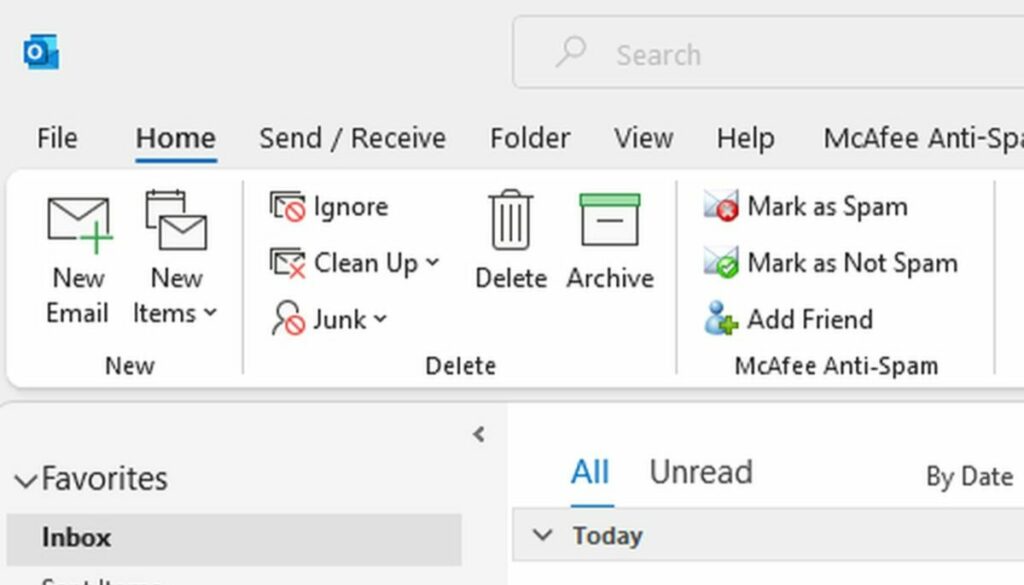
Returning to the home tab

In addition to the pages listed above, you can also quickly return to your home tab with the shortcut Alt + H. Now you can swiftly navigate between all sections of Outlook.

Home task bar in Microsoft Outlook.

Creating a new message

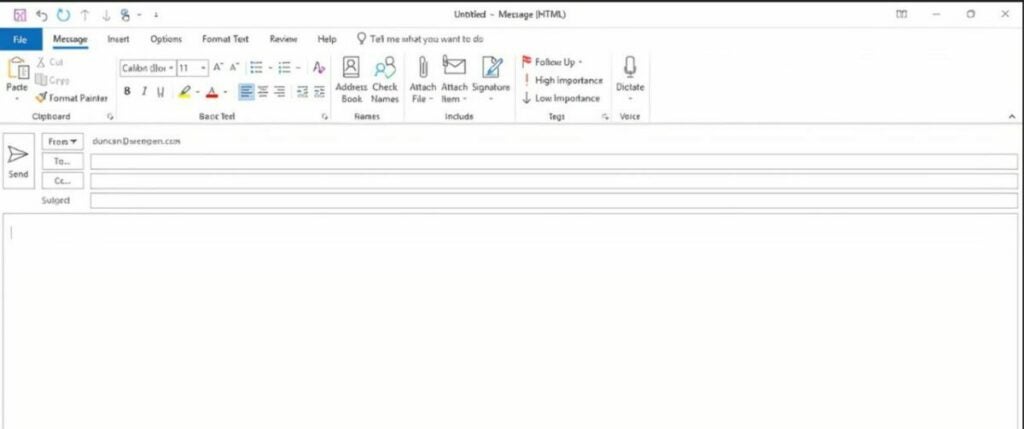
Writing numerous emails per day facilitates the need to simplify the process required to pen a new message. To pull up the draft window, use the shortcut Ctrl + Shift + M. Then, you can fill out the subject line, add recipients, and type an email as normal.

Creating new messages is simple

Sending a message

The fastest way to send a message is to use the keyboard shortcut Alt + S. Be sure that the correct email and recipients are on the screen first. This key binding sends only the message highlighted on the screen.

Adding attachments and inserting files

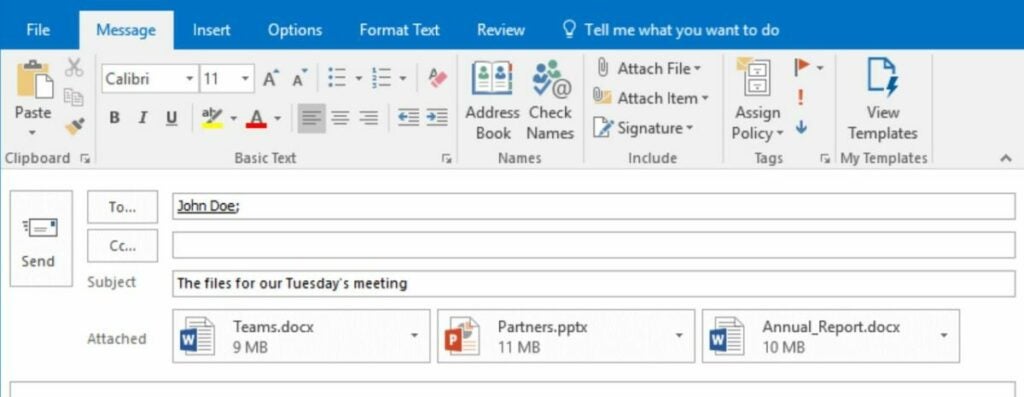
Before sending a message, you may wish to attach a file to it. To do this, use the shortcuts Ctrl + A, Ctrl + N, or Ctrl + F. Each combination shares the same functionality, so feel free to use whichever one is most natural.

Attach files like this

Replying to messages

Typing up a response email is just as easy as creating your own. It can be done by using the shortcuts Alt + H, Alt + R, or Alt + P. Again, you may use any shortcut you desire as they each produce the same result.

Deleting emails, files, and folders

Like in most programs. Outlook allows you to delete highlighted files simply by pressing the delete key. To highlight an email, file, or folder, click on it and a blue box should appear around the icon.

Forwarding messages

You can also forward emails to people on your contacts list with the shortcut Alt + F or Alt + W. Forwarding allows you to share messages without creating a brand-new email yourself.

Forwarding messages just got easier

Create an appointment

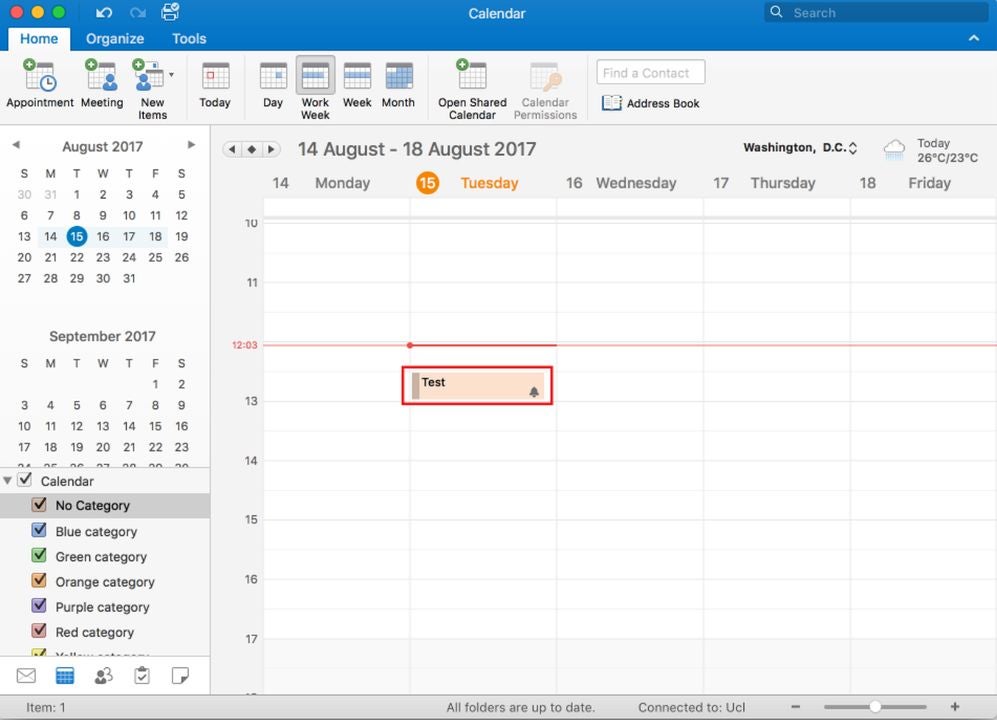
Creating appointments can be time-consuming when you start each one manually. To speed up the process, use the keyboard shortcut Ctrl + Shift + A.

Create and view appointments here

Checking for new messages

Although Outlook will automatically update your inbox when it is ready, sometimes, you are eagerly anticipating a response from someone. You can force Outlook to reload your inbox and check for new messages with Ctrl + M or the F9 key.

Check for new messages on your own time

Additional ways to increase computer productivity

Revamping your email setup is just the beginning. There are plentiful ways to optimize the time you spend on your computer. You can install better desktop applications, add web browser extensions, and take courses on the programs you use most often. As an example, check out this list of helpful extensions for Google Chrome. By adding some extensions to your browser, you gain tons of functionality without having to leave Chrome and open another tab.

Gacha Club Review: A creative outlet for gamers

Gacha Club is the sequel to 2020’s Gacha Life by Lunime Inc. While Gacha Club shares many similar elements to its predecessor, the focus on single-player content and RPG elements gives the title a distinct feel. Players will create their own characters and play mini-games with them. There is also a new battle feature that gives you more ways to interact with your roster of avatars.

You can play Gacha Club for free on either your PC or mobile device. Like with many modern titles, cross-progression is enabled so you can continue your adventure on either platform as the situations warrant.

Gacha Club Edition DOWNLOAD

Customization adds to gameplay loop

Gacha Club is all about creating your own experience. You create all of your characters and design many of the scenes they find themselves in. There are numerous customization options that help you make the game your own. In addition to the scenes you create, your characters can also be used to partake in various mini-games created by the developers.

The main addition to Gacha Club is the numerous RPG elements. The first thing you will notice is the story mode. While the narrative is not very deep, the mode is the perfect spot to level up your characters and obtain new items. The structured levels provide a reliable way to keep progressing your collection. You will engage in turn-based battles as the primary means of strengthening your characters.

The turn-based battles offer a fair degree of strategy thanks to the numerous options for character development at your disposal. It is similar to a card game in how you must balance the various resources in your inventory during each conflict. Half of your success is contingent upon the plan you devise before each battle even begins.

If you prefer to battle without the rest of the story mode weighing you down, there is a standalone battle mode in the options. You can play a quick bout during moments of downtime throughout the day. There is also a tower mode for longer play sessions. This endless mode tasks you with winning as many battles as possible before your team is wiped out. This serves as the ultimate test of your inventory and training.

Created scene to put your character in

Graphics, art style, and presentation

Gacha Club opts for the chibi anime style employed by the previous game in the series. The hand-drawn animation format allows the title to run on mobile devices and computers with minimal hardware specs. Having distinct lines around each character help make the art style memorable and impactful.

The true key to this impact is the creation and customization element. As long as you enjoy the base art style, you can find customization options that will suit your personal taste. A roster of your own unique characters enhances the presentation of story mode immensely. While the narrative is not fleshed out, there is reason to feel attached because it is your creations enduring the fray.

Character customization menu

Does Gacha Club offer a new narrative?

Gacha Club’s main mode does not offer much in the way of traditional storytelling. The base campaign is mostly there to give players inspiration. The community generates the real narrative backbone of the title itself. The ability to create custom characters, scenes, and dialogue facilitates the development of fan stories and projects.

Interestingly enough, the user-generated content is not viewable within the game launcher itself. Instead, fan productions are given life on video-sharing platforms such as YouTube. There are sizeable and dedicated communities uploading Gacha Club content on a consistent basis. You can choose to join the creation process yourself, or just view what others create on your favorite social media sites.

It is worth noting that some user-generated content is not suitable for minors. The base Gacha Club game is safe and reasonable for everyone to play. However, the developers cannot dictate the subject matter of content released outside the game they created. Parents should take this into account when allowing their children to browse the litany of Gacha Club video stories available online.

Cutscene presentation

The Gacha progression system

As the name implies, you will progress through the game via Gacha collection mechanics. Gacha-style games involve trading currency for randomized loot drops. The gacha idea was transferred from Japanese coin machines to the digital space as a means of keeping players hooked. By making each reward random, players are encouraged to keep hitting that lever until they receive the exact item they are looking for. In the case of collectors, the goal is to collect a full set of items.

Gacha Club employs this mechanic to determine which playable characters are unlocked for use and customization. Unlocking new characters is crucial to doing well in battles in addition to enhancing the customization options of your inventory. You can exchange both gems and bytes to roll for new Gacha rewards. Gems are completely free to farm through battles and mini-games. On the other hand, bytes must be purchased with real money.

The game provides reasonable value for free-to-play gamers. Gems are easy enough to obtain so you get a constant drip of character rewards. Getting a complete set or your desired collection of items is another story. Since you cannot buy specific items outright, there is no guarantee you can unlock everything you desire in a measurable timeframe. While there is no need to spend any real dollars, the temptation mounts the longer you play without getting the drops you want.

Demo of unlockable characters

Cheery music matches the gameplay

Gacha Club is filled with cheery sound effects and songs designed to enhance your mood. The upbeat pop music suits the visuals well and can hype you up if you enjoy that genre of tunes. The soundtrack does the job for numerous play sessions. Depending on how much you grind, you may eventually turn the music off to avoid repetition. This is not a knock on the songs themselves, as even the best music grows tiresome when played too often.

The user-generated emphasis extends to music and audio as well. A huge portion of the content on sites like YouTube is music videos. The community can add any sound effect or song to the video stories being made. Both Android and Windows platforms give players tons of flexibility in modding external audio into Gacha Club projects. This provides much-needed longevity for the overall audio presentation.

Music videos are plentiful

Game modes offer replay value

Gacha Club has a substantial volume of content to go through. The multiple game modes give you numerous reasons to keep coming back. Rotating between story mode, single battles, and the tower will keep you the most invested in the Gacha progression system. With that in mind, your total playtime is heavily based on a random number generator.

Some players will get everything they want in just a few weeks. If the randomized rewards are not in your favor, you could play for months without completing your intended objective. Subjectively, this could be perceived as positive or negative depending on what type of gamer you are. The title will resonate most with people who enjoy long grinds and RPG mechanics.

The final verdict

Overall, Gacha Club is well worth the download if you are the least bit interested. The free-to-play price point and low minimum hardware spec requirements make it easy for anyone to jump in and start collecting. The gem economy allows you to play for hours without spending any real cash. There is enough fun here to serve as a conducive distraction when you have a few minutes of downtime. If you like chibi anime and collecting items, then check out Gacha Club right away. Here’s an explainer on how to download Gacha Club.

Pros

  • Multiple game modes keep the action fresh
  • A massive roster of 100 characters and over 180 battle units to collect
  • Deep levels of customization are available on all items you earn

Cons

  • A lack of ways for players to connect in-game

The 7 best Safari extensions for upgrading your browsing experience

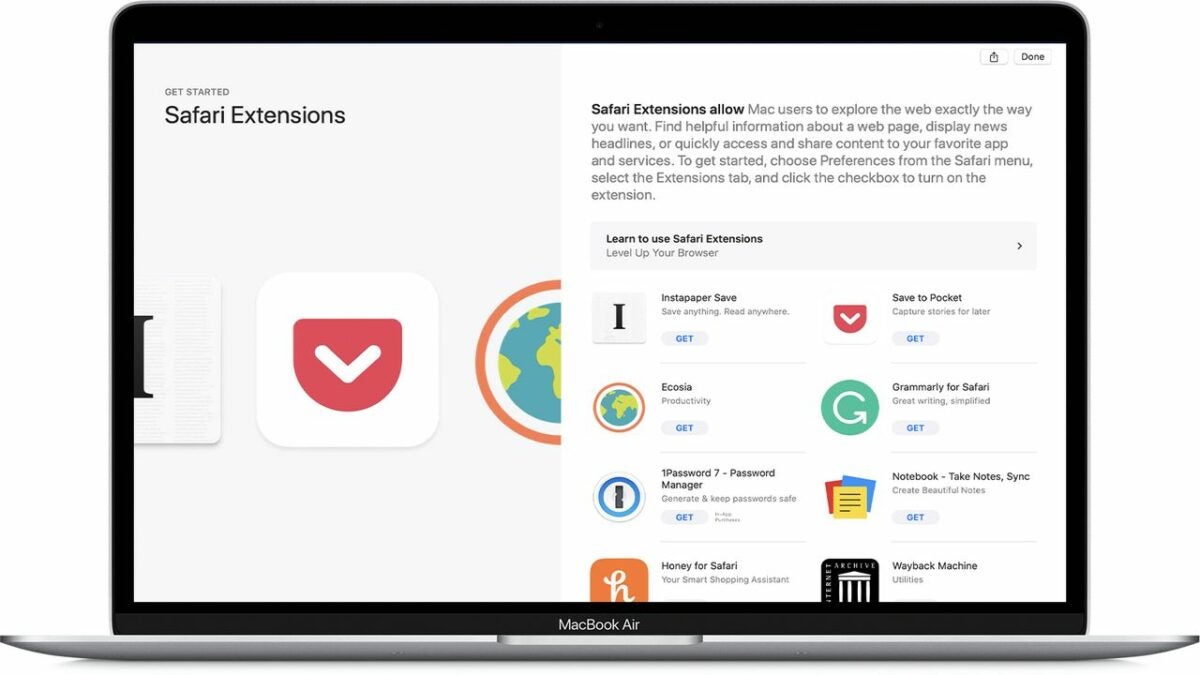
The default browsing experience on Mac is intuitive and serves its purpose for many users. However, Safari really shines when a few different add-ons are installed. You can disable ads, manage multiple passwords, instantly translate webpages to other languages, and so much more with just a few clicks.

Safari DOWNLOAD

To take your internet browser to the next level, be sure to download the following extensions on your Mac.

Ghostery

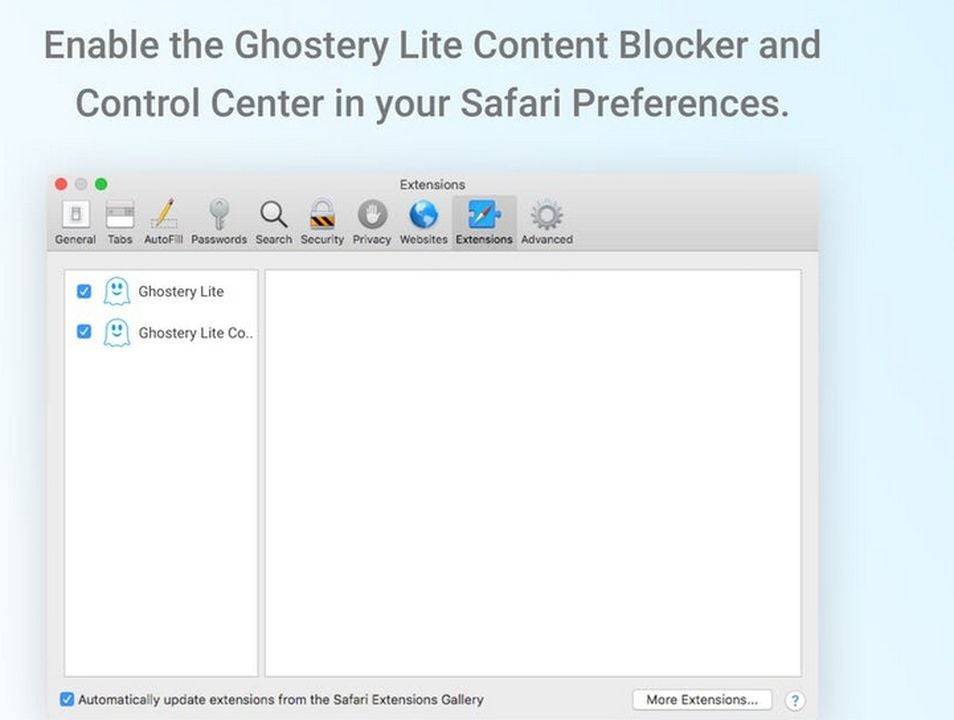
For a satisfying browsing experience, you must insulate yourself from overzealous and malicious ads. Ghostery lite is the perfect free solution to blocking unwanted ad banners and video clips. A great benefit of the extension is the ability to add custom settings and whitelist certain websites. Both features allow you to view ads on websites that deserve revenue and do not abuse the system.

Ghostery DOWNLOAD
Enabling ghostery is easy

1Password

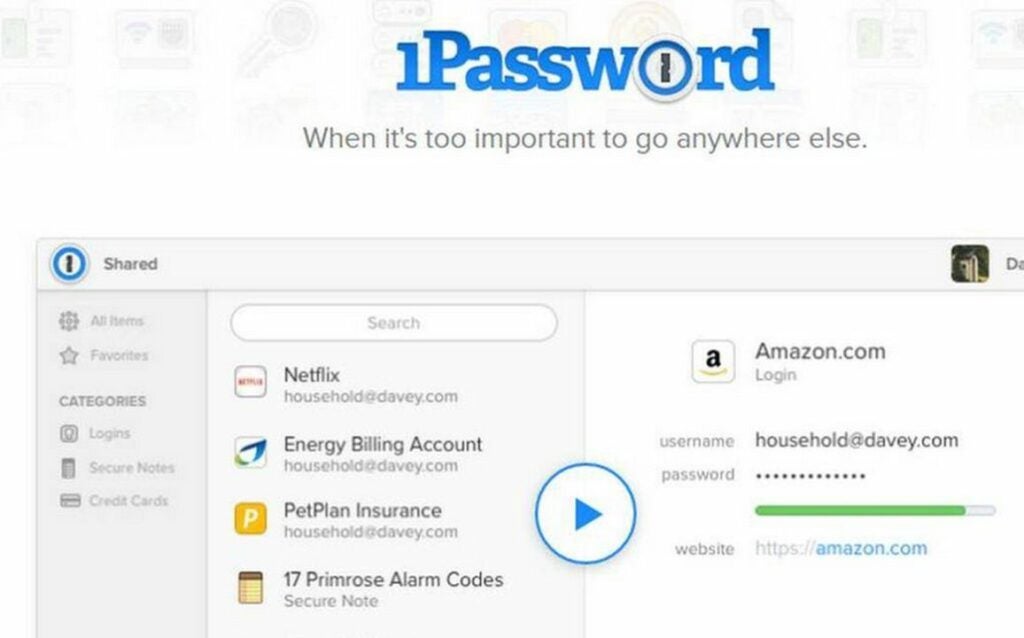
Another thing you should do early on is to organize your various passwords in one convenient location. The 1Password extension allows you to access the same functionality as the traditional app directly from your browser. View your password vault and quickly fill out forms with information stored in your account. The automated information is paired with the websites you use for seamless integration across the web. After a 30-day trial, you do need to subscribe to one of the payment plans. Considering how much time 1Password saves, the few bucks a month will be worth it for most heavy Mac users.

1Password DOWNLOAD
Keep passwords organized

Mate: Universal Tab Translator

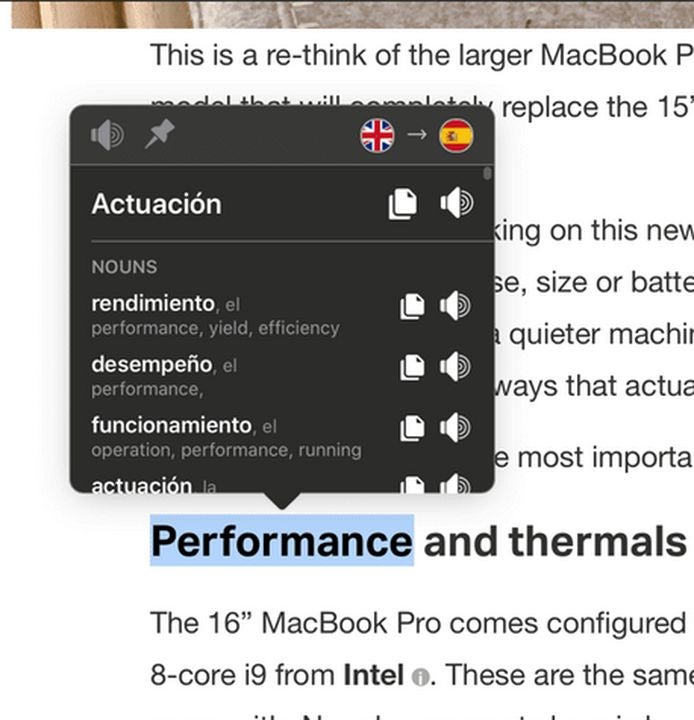
Every once in a while, you come across some interesting content in a language you do not understand. The Mate extension is the easiest way to translate entire web pages to your native tongue. All you need to do is double or right-click on any text you wish to translate. For longer passages, you can even translate your entire clipboard with the Alt+Shift+T keyboard shortcut. The add-on supports 103 different languages and will pronounce words to further enhance your learning.

Mate Translate – Translator DOWNLOAD
Mate translates with one click

Stop the Madness

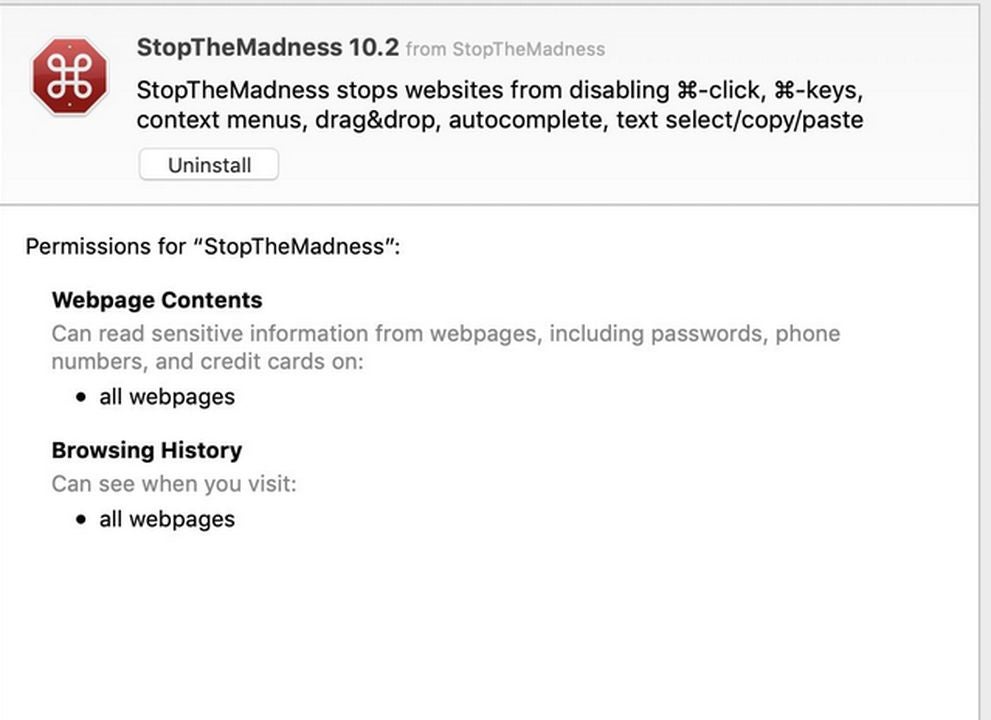
The Safari user interface has many unique quirks and features that do not play well with all websites. To restore full functionality on troublesome websites, try installing Stop the Madness. This extension re-enables classic features like opening links in new tabs and command-key shortcuts. The slick default scrolling speed is also restored on websites that attempt to throttle your performance. Interestingly enough, the app can also disable certain annoying user interface features on various websites. Most notably, warnings asking you to stay on the page can be removed entirely.

Stop the madness of stubborn websites

Honey

Honey is a popular browsing extension for shoppers who love to save money. Once installed, the app will automatically scan the internet for the best deals on items you are about to purchase. Add an item to your cart and Honey will begin to search for coupon codes. Apply the best one and you are all set to make the purchase. Honey ensures you save the most you can on any given day of the transaction.

Honey DOWNLOAD
Save money with honey

Ebates Rakuten Cash Back

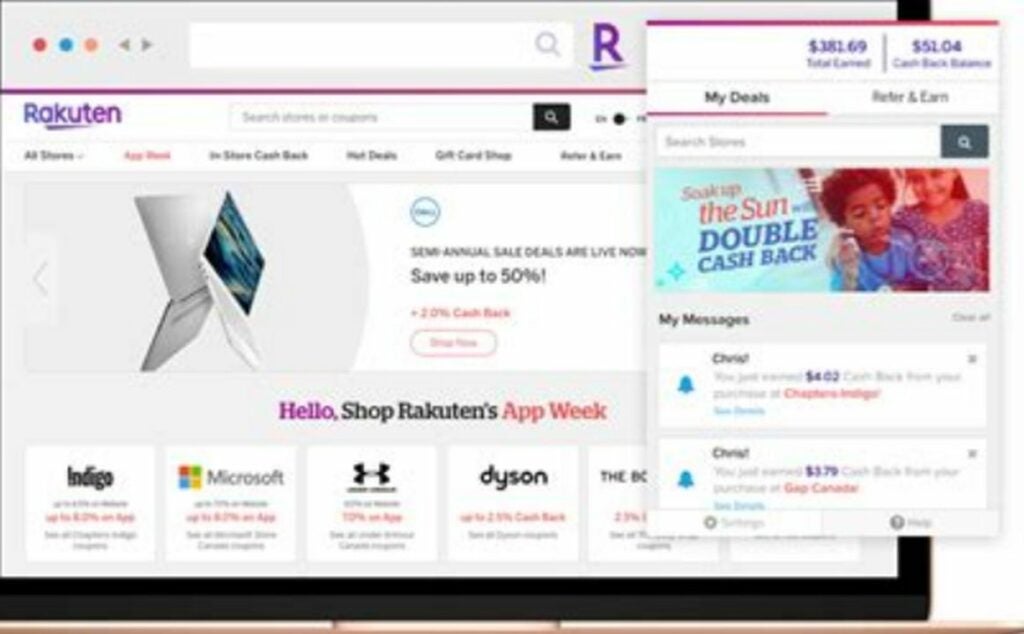
Rakuten has been giving generous rebates on thousands of products available online. This handy extension makes it easy to browse your favorite stores for cash-back offers. If your favorite retailer does not offer a product or rebate opportunity, Rakuten will automatically search for a deal on the same product from another shop. When multiple shops have offers on the same product, comparing them is incredibly simple.

Rakuten Global Market - Shop DOWNLOAD
Rakuten offers cash back

Turn Off the Lights

When watching videos, the rest of the webpage can be too bright or distracting. This extension fixes that issue by dimming the entire window except for the video player. The dimming is toggled by clicking the lightbulb icon on the Safari toolbar. The add-on supports all the most popular video platforms such as YouTube, Facebook, and Twitch.

Turn Off the Lights DOWNLOAD
Make videos easier to watch

A more productive Mac experience

Now that your Safari browser is turbocharged, you can be more productive and enjoy a better browsing experience. Mac’s default browser is designed to be fast, secure, and easy to sync across multiple Apple devices. However, it’s important to keep Safari updated if you want to get the most out of the features. Check out our guide to updating Safari in four easy steps.

The 12 best Chrome extensions to enhance web security

Hackers and cyber thieves are constantly finding new ways to access sensitive information. If you make purchases online or keep any personal information on your computer, then you know web security is important. One of the most effective ways to safeguard your computer is to utilize extensions that protect internet activity.

Google Chrome is an excellent browser for this as it contains 12 wonderful extensions that enhance web security. Here is a brief overview of the best add-ons for enhanced online protection.

Avast Online Security & Privacy

This browser-exclusive variant of the popular Avast security software is a perfect starter kit for data protection. The extension scans every link you come across online. By hovering the cursor over any link, you see a risk assessment of the site it leads to. If you click on a suspicious link that leads to known phishing sites, the connection will automatically be blocked before damage can be caused to your system. Tracking cookies and malicious ads are automatically taken care of by Avast. The result is a much safer web experience without any additional work on your end.

Avast Online Security & Privacy DOWNLOAD
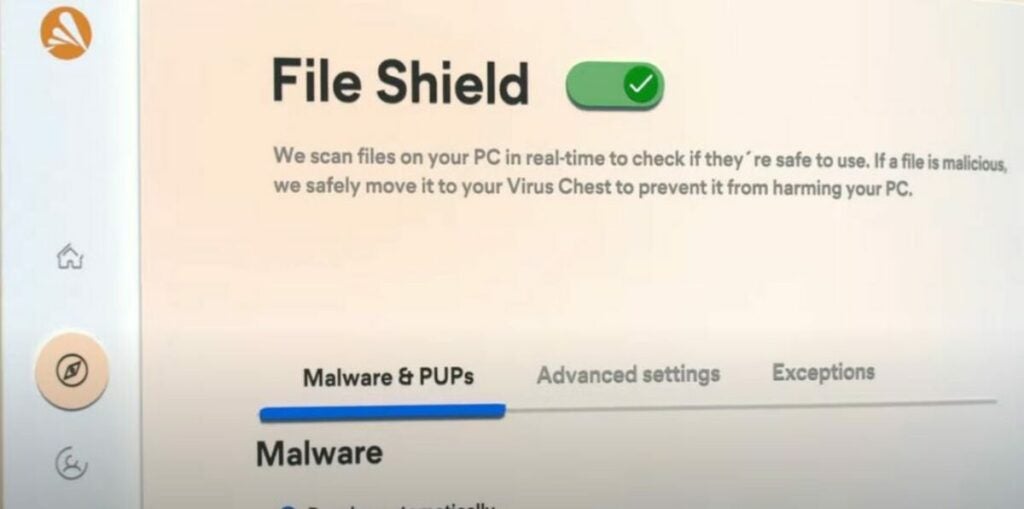
Avast file shield blocks malicious files

Emsisoft Browser Security

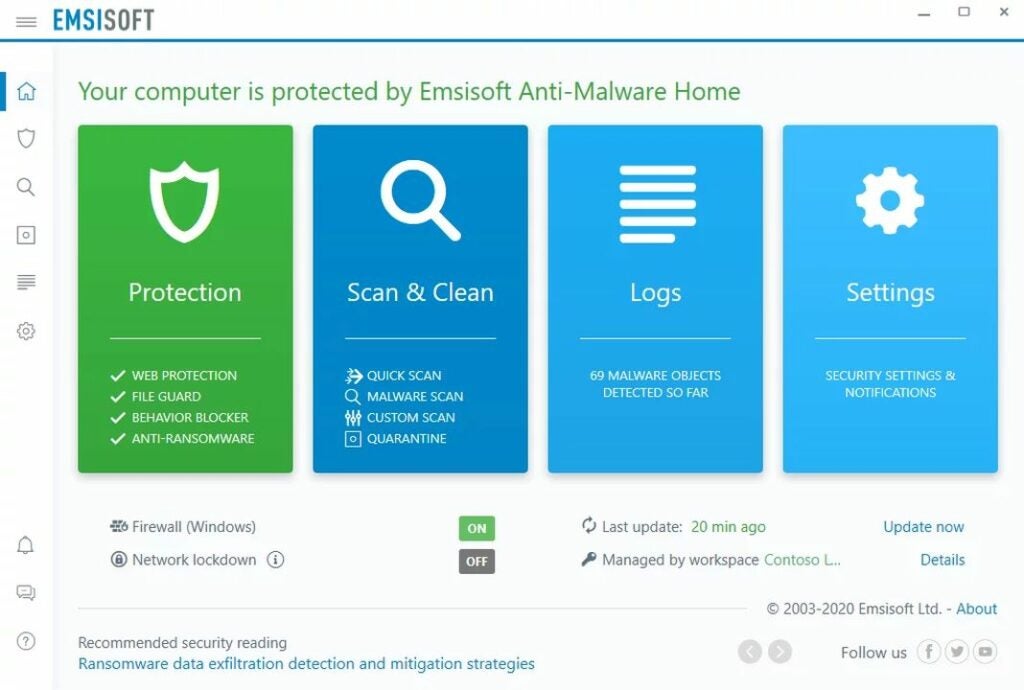
This security extension from Emsisoft is quite similar to Avast in sheer functionality. The add-on blocks malicious websites that attempt to infect your PC with malware. The main difference is the database that Emsisoft uses to detect security threats. Alternate extensions will notice unique threats that fly under the radar of competitors. It helps to have multiple security scanners installed before venturing into shady websites.

Emsisoft Browser Security DOWNLOAD
Scan and protect your computer with Emisoft Anti-Malware

AVG Online Security

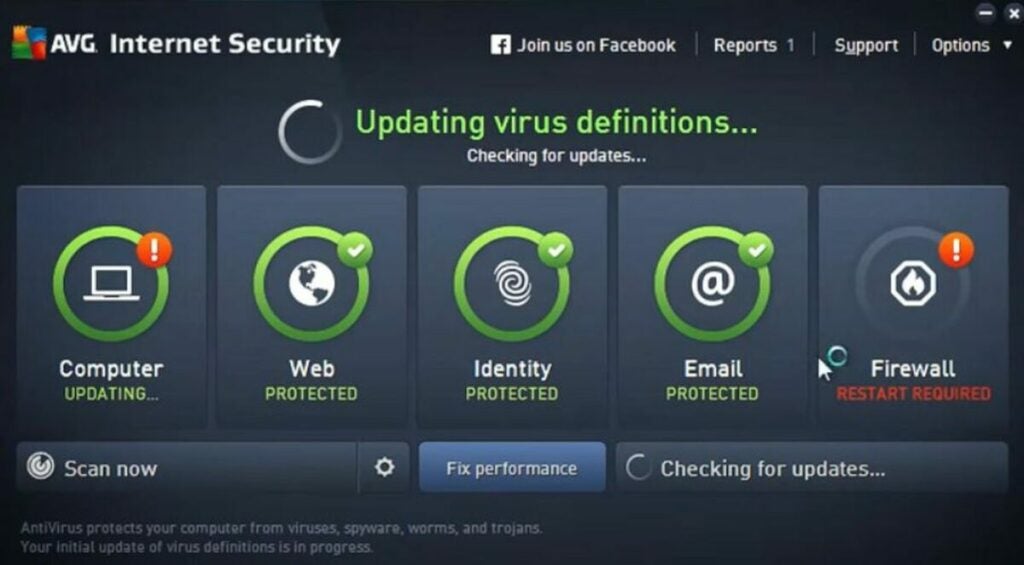
AVG is another juggernaut in the web security space. Their latest offering provides an innovative take on the website scanning concept championed by Avast. The reputation of websites is graded by a community of everyday users. This platform allows AVG to gather data on new websites very quickly.

You can easily rate any website’s reputation by clicking the thumbs up or down icon that appears when the extension is installed. As new websites emerge, a flood of users will begin rating the site and establish its AVG reputation score.

AVG Online Security DOWNLOAD
Update virus definitions with AVG

Security-Header-Extension

This specialized tool can be activated to detect any embedded security headers on the sites you visit. Security-Header-Extension is especially helpful if you’re doing any type of web development work. You can use the extension to quickly assess what the previous developer worked on. This helps paint a picture of what still needs to be done to enhance the security of a web page. Each content header can be easily modified to suit new purposes as needed.

Security-Header-Extension DOWNLOAD
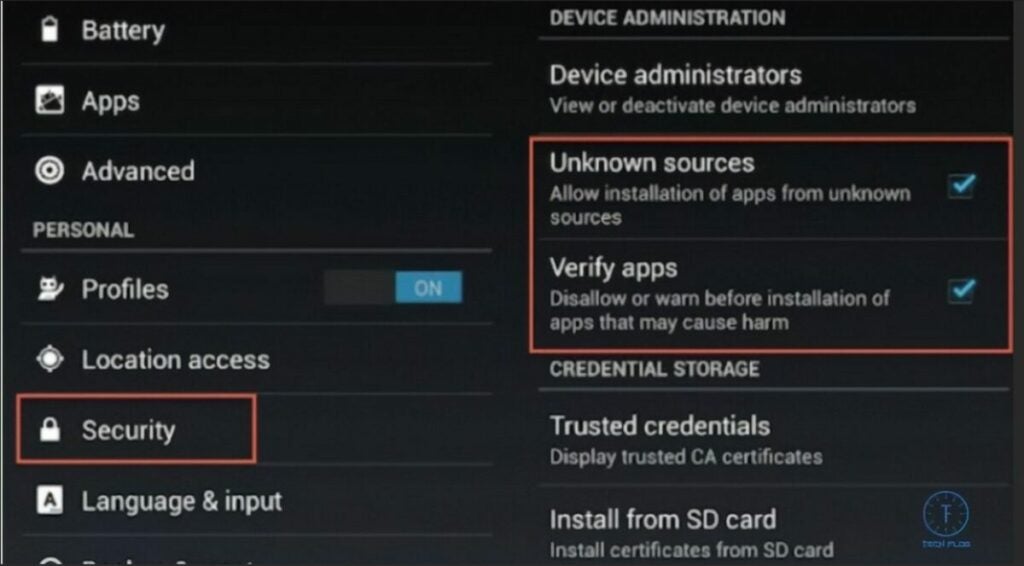
This screen lets you enable downloads from unknown sources on Android

Scam Alert Internet Security

As the name suggests, this extension determines how likely you are to be scammed by the website you are viewing. Web data such as the length the domain has been registered is used to determine the validity of an online business. The app even checks for malware or signs of money-laundering activity. Data from users around the globe is scanned to further improve the database. In addition, the latest cybersecurity news is compiled for convenient access and learning.

Scam Alert Internet security DOWNLOAD
Scam Alert Internet Security offers security tips and protects from fraud websites

Tamper Dev

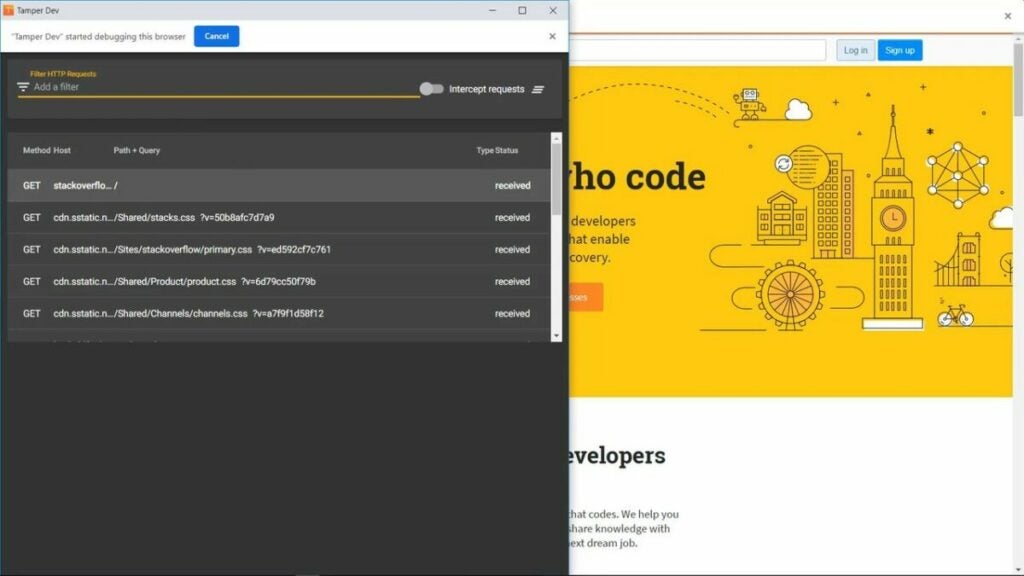
Tamper Dev allows you to intercept and modify HTTP and HTTPS requests as they occur in real-time. The extension runs without the need for a proxy. Developers can take advantage of this functionality to efficiently debug websites. Ethical hackers and pen testers may use Tamper Dev to test the cybersecurity measures already in place on a client’s server. Receiving and modifying web traffic requests is one of the most effective ways to detect holes in your security protocol.

Tamper Dev DOWNLOAD
Use filters to specify the requests to be intercepted

Security Headers Scanner

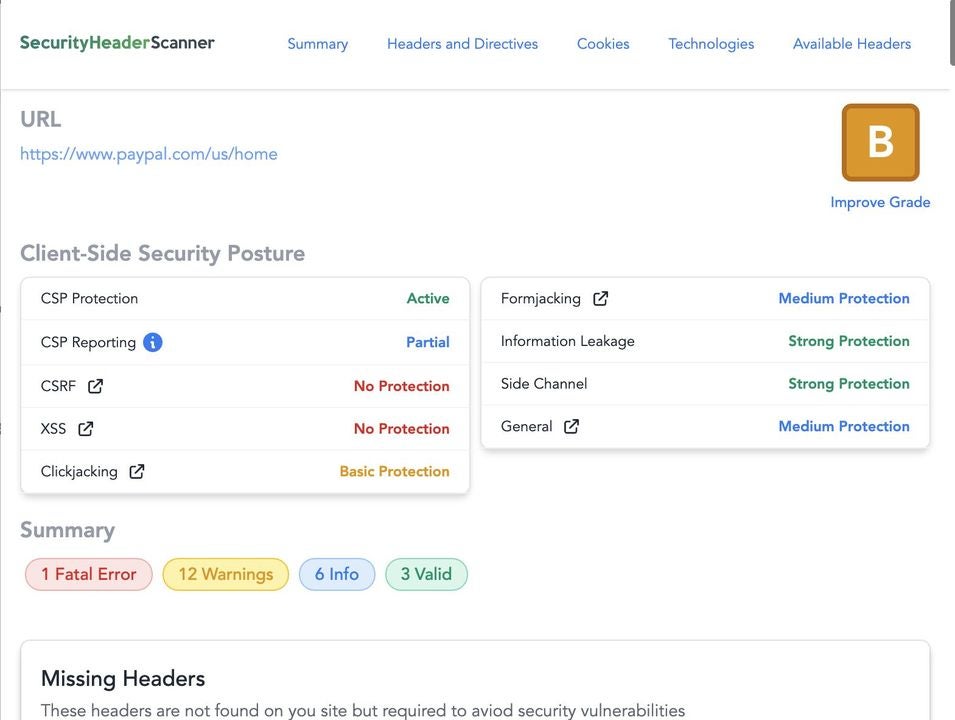
This extension owes a lot to the library of data compiled by SecurityHeaderScanner.com over the years. Using the same core service, the add-on looks for any security headers on a website. These headers provide formidable protection from client-side attacks such as Clickjacking, Form jacking, and XSS hacking. Each header is graded to determine how much protection it provides. In some instances, the extension will give advice on how the web page’s security could be enhanced.

Security Headers Scanner DOWNLOAD
Security Header grades websites and summarizes security warnings

J2TEAM Security

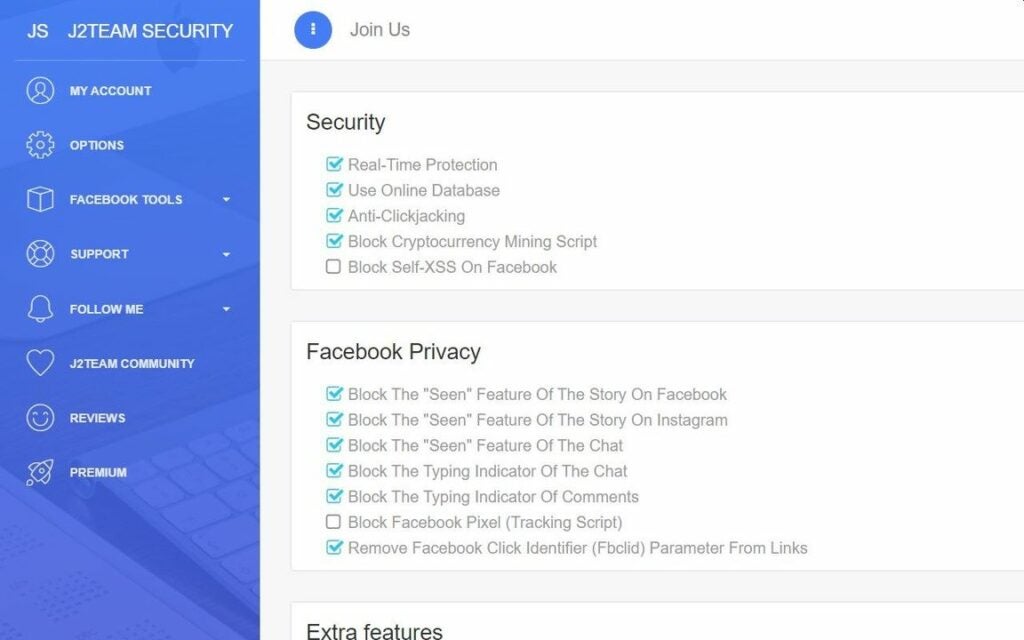
J2TEAM specializes in protecting your data while browsing Facebook. Since the popular social media site is inundated with scams, the extension works to block all fake login pages and phishing attempts from other users. Chat privacy is also fortified by blocking the read receipts automatically sent to other users when you open a message. The add-on also provides the option to guard your profile picture in the event another user attempts to steal it and impersonate you. Facebook users and creators can both take advantage of the suite of security features on offer.

J2TEAM Security DOWNLOAD
Use J2Team Security to modify Facebook security features

UltraSurf Security, Privacy & Unblock VPN

Ultrasurf is a potent extension for mitigating online censorship from various foreign governments. The VPN allows you to hide your real IP and fool websites into thinking you are visiting the web from another country. This is achieved by encrypting all of your web activity while the extension is active. As online censorship and tampering become more prevalent, both web developers and end-users need to protect their ability to obtain truthful information. To facilitate cross-country communication, Ultrasurf has support for 53 different languages.

UltraSurf Security, Privacy & Unblock VPN DOWNLOAD
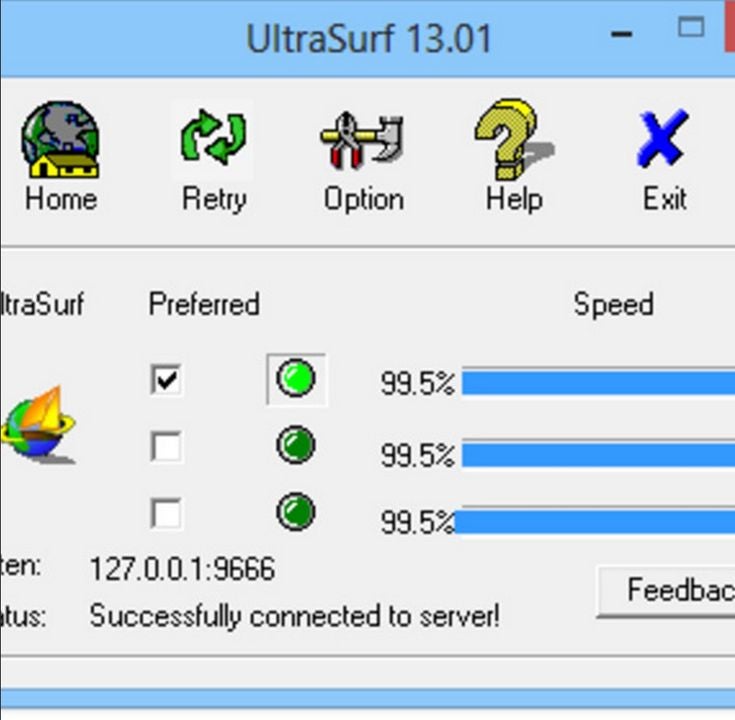
Connect to Ultrasurf's numerous VPN servers

CSP Content Security Policy Generator

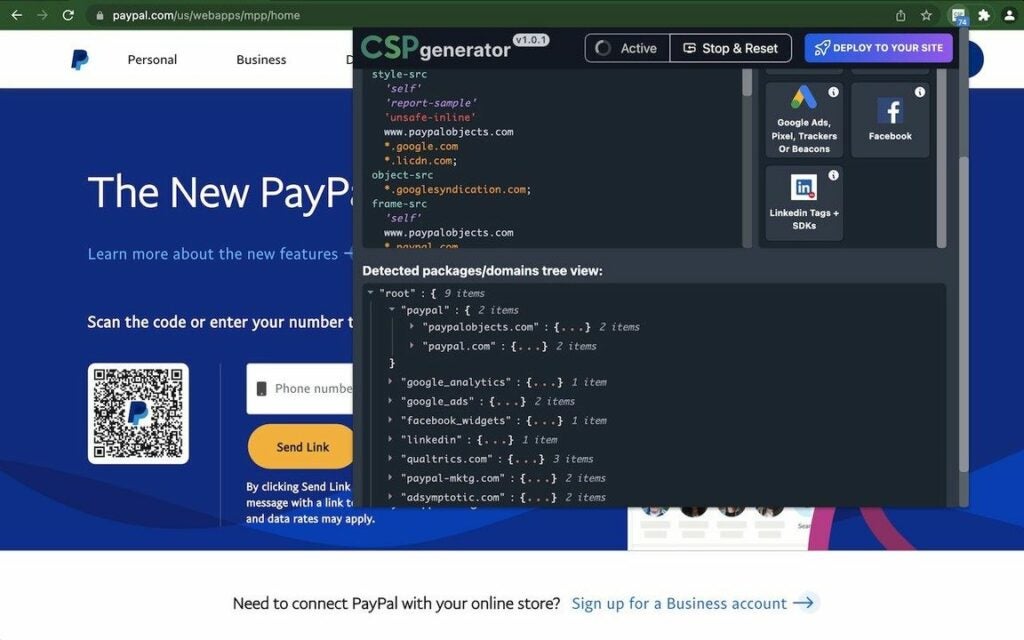
This add-on excels in rapidly generating a content security policy for the sites you manage. A strong CSP is the best solution to preventing client-side hacking attempts such as Data Exfiltration and form jacking. The extension builds upon the years of research used by rapidsec.com in generating content policies. Security experts and IT professionals can easily reference this app when developing a plan for websites of any age.

CSP Content Security Policy Generator DOWNLOAD
Easily generate a Content Security Policy for a public or internal site

JustBlock Security

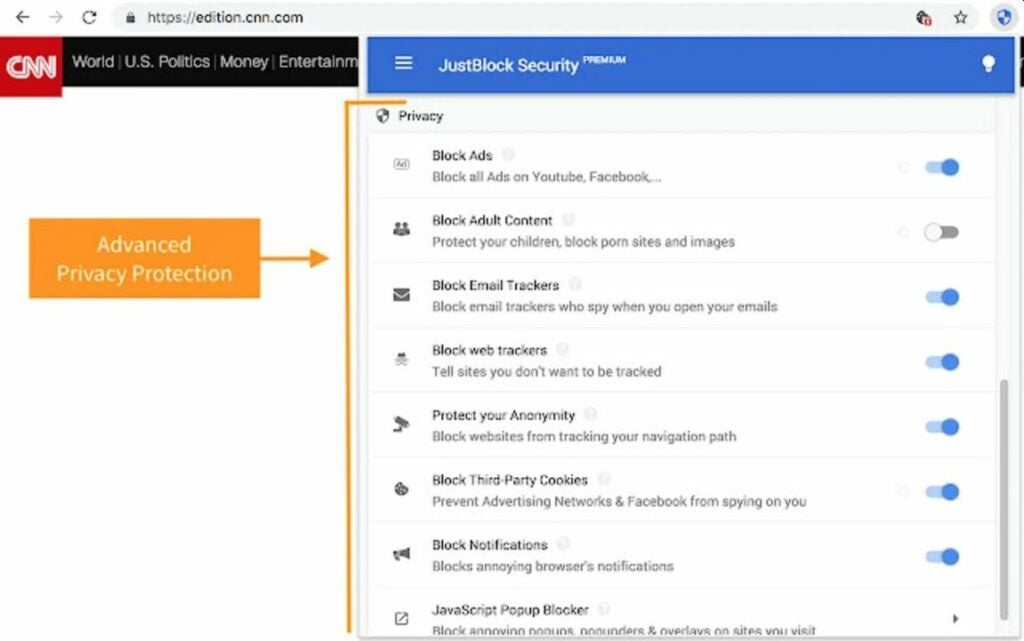
JustBlock is a valuable all-in-one solution for security across the internet. The extension scans for malware, blocks suspicious downloads, and reduces the number of ads you see. It can detect and remove the invisible trackers attached to many emails sent by large corporations and other businesses. By removing these trackers and cookies, you are less likely to spot targeted advertisements in other parts of the web. The latest update also detects any cryptocurrency miners that are secretly installed on your system by websites looking to cash in on your computing power. Overall, JustBlock will keep you safe and bolster the overall speed of your browser.

JustBlock Security DOWNLOAD
JustBlock has an extensive whitelist and pop-up blocker

Always Disable Content-Security-Policy

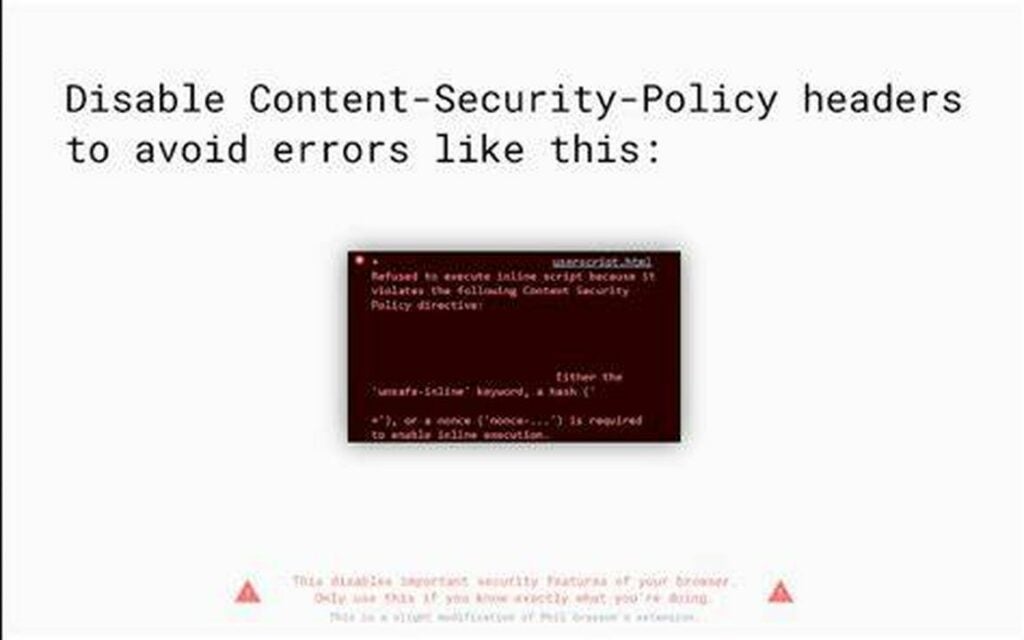
We recommend using this extension for last resort cases in which a new third-party tag must be evaluated for security purposes. Always Disable Content-Security-Policy will disable all content security policies on any webpage you visit. Considering how many protection measures go down when a CSP is disabled, the extension should be turned off in most instances. However, disabling the CSP is a crucial debugging tactic for any web developer to master.

The extension icon illuminates when content security policies are disabled. Clicking the icon will toggle the CSP on or off.

Always Disable Content-Security-Policy DOWNLOAD
Disabling content headers is a powerful debugging strategy

Protecting data is a top priority for web developers

The above extensions all make excellent additions to any cybersecurity tool belt. Even if you’re just a casual web user, using a safety-enhanced browser is smart. Thankfully, Google has always prioritized security in its applications, including its popular Drive and other Workspace apps.

The best Google Chrome extensions for productivity and fun

The default Google Chrome browser is an excellent choice for most internet users. However, the numerous extensions available can dramatically enhance your online experience.

To help you sift through the sea of options, here are the top 15 best Chrome apps to download right now.

Snake Game

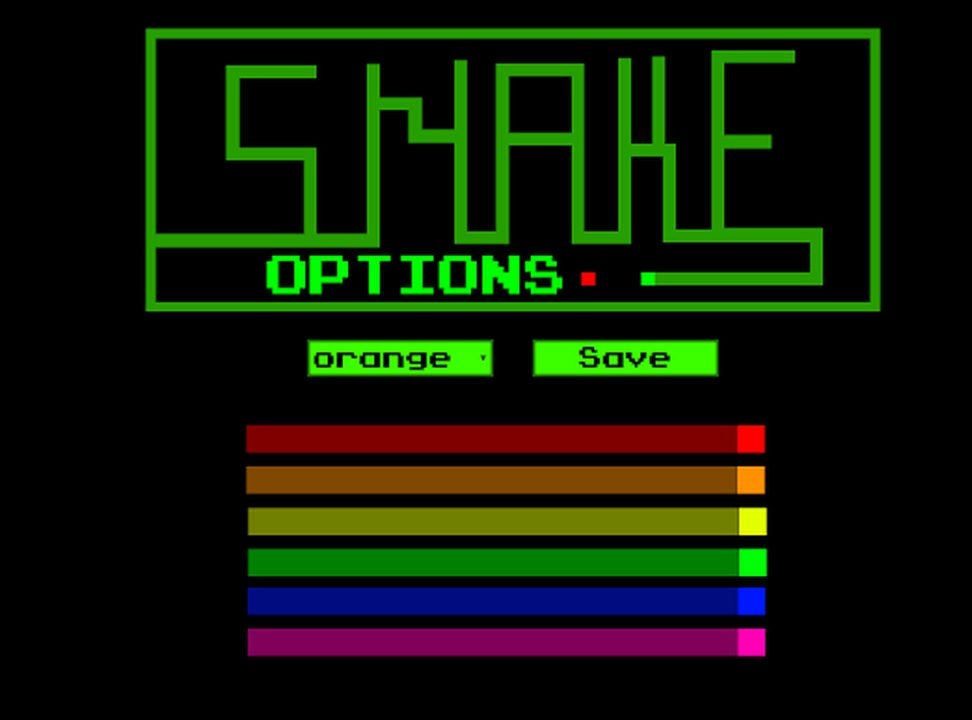
The classic arcade game returns to minimize the downtime you experience when browsing the web. One of the most annoying things about searching online is the extremely long load times on certain websites. The best time to play Snake is when you are waiting for another site to appear on-screen. The Snake Game extension uses minimal resources to prevent the website from taking even longer to load.

Snake Game DOWNLOAD
Snake game title screen

Coin Wallet

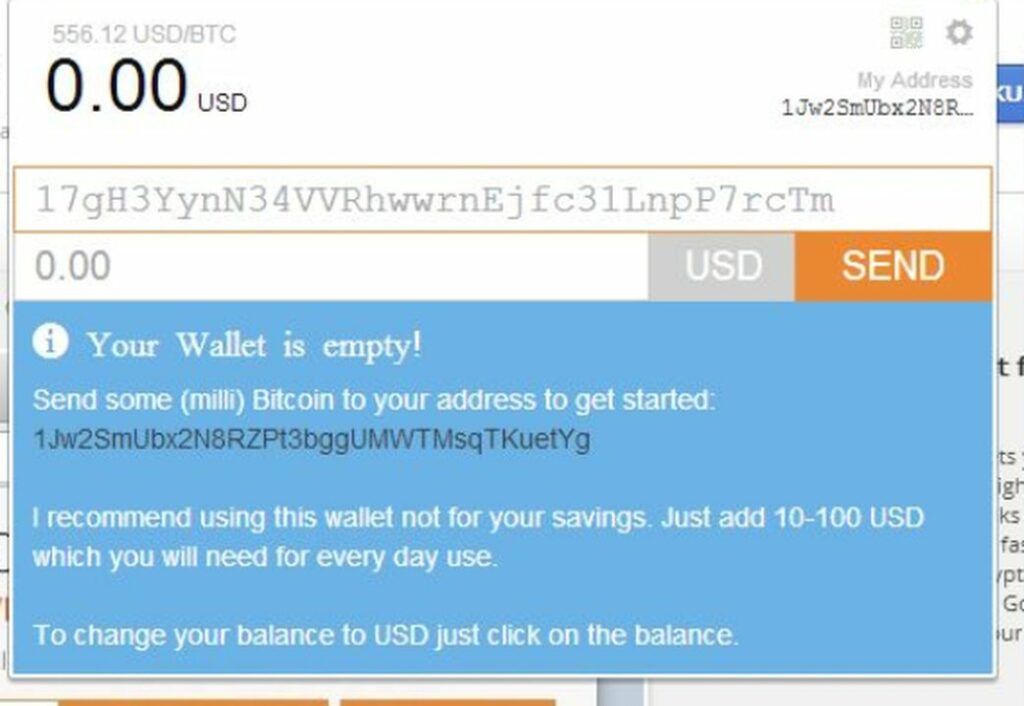
Coin Wallet acts as a cryptocurrency wallet, AI assistant, and digital money exchange. Having access to each service from the comfort of your browser is a terrific way to reduce the risk of your information being compromised. With the help of atomic swap technology, users can rapidly send money to each other without resorting to intermediaries. Coin Wallet is compatible with multiple blockchains, including Bitcoin, Ethereum, and numerous other ERC20 tokens.

Coin Wallet DOWNLOAD
Coin wallet app interface

Angel Number 777 – Spiritual Meanings

If you have been seeing repeating number sequences often or just wish to learn more about this increasingly common phenomenon, check out the Angel Number 777 – Spiritual Meanings extension. It contains a wealth of knowledge regarding angel numbers and their metaphysical significance. The app focuses heavily on the titular 777 by giving multiple explanations of why you see this sequence at various points in your life. This makes it perfect for periods when you see 777 wherever you go.

Angel Number 777 – Spiritual Meanings DOWNLOAD
Angel number 777 example.

AdBlock – The best ad blocker

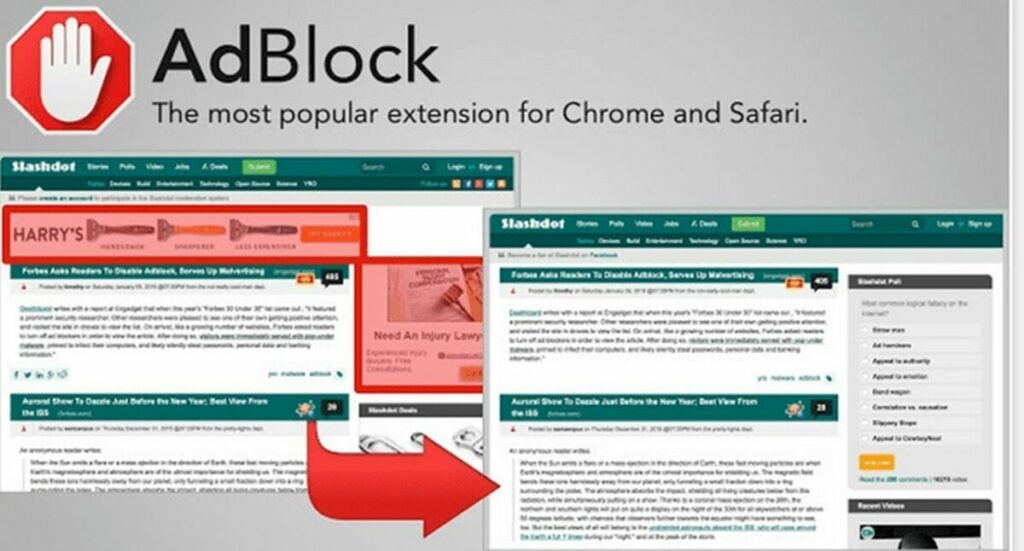
As the name implies, AdBlock was designed to keep those annoying popups at bay. Being the most popular ad blocker on the web, this extension is capable of blocking all ads you will see online. There are a few websites that specifically detect AdBlock extensions, but you can always find alternative sites with fewer restrictions. A skillful use of AdBlock is on video sites like YouTube that consistently attempt to play more commercials the longer you view the service.

AdBlock DOWNLOAD
Chrome AdBlocker is incredibly useful.

Camera

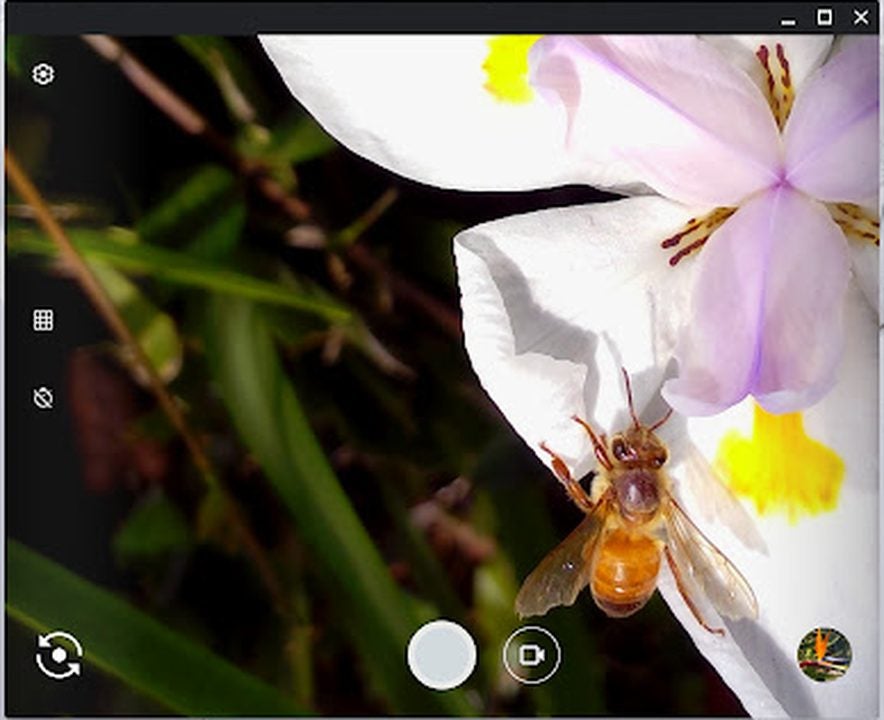
This utility allows you to use your built-in webcam or a USB camera to take pictures and screenshots. Most image-capturing devices will be compatible as long as you have the appropriate drivers installed for the hardware in question. You can even record video clips as well. Whenever you need quick and easy access to your webcam, the Camera extension for Chrome has you covered.

Camera DOWNLOAD
Use camera app to take pictures and record video.

Settings

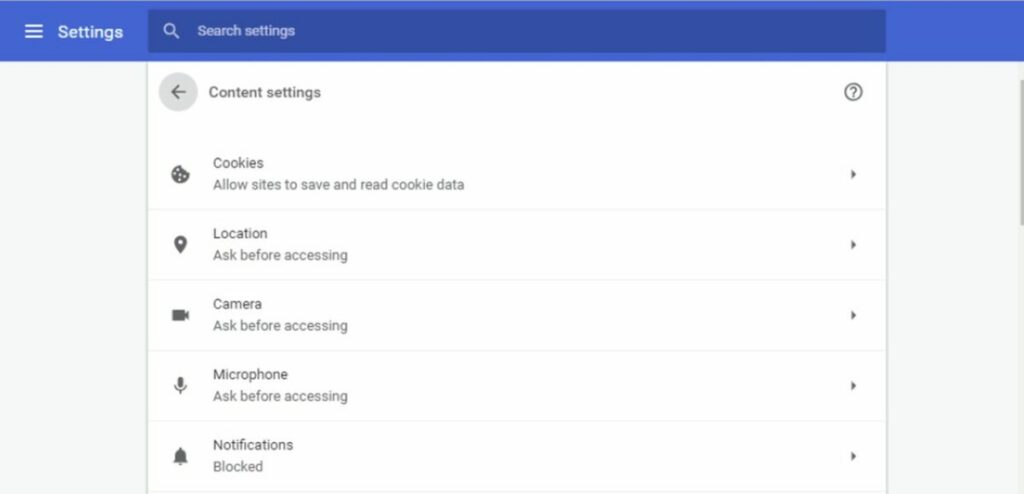
This shortcut extension allows you to access the Google Chrome settings tab with just a single click. Shortcuts like this are extremely valuable when you find yourself frequently adjusting settings while browsing online. The standard process for accessing your settings requires multiple steps. Each one gives your browser another chance to freeze up or glitch out on you. To save both time and headaches, install the settings shortcut for Google Chrome as soon as you start using a device.

Settings DOWNLOAD
Access the settings in one click.

Free VPN for Chrome – VPN Proxy VeePN

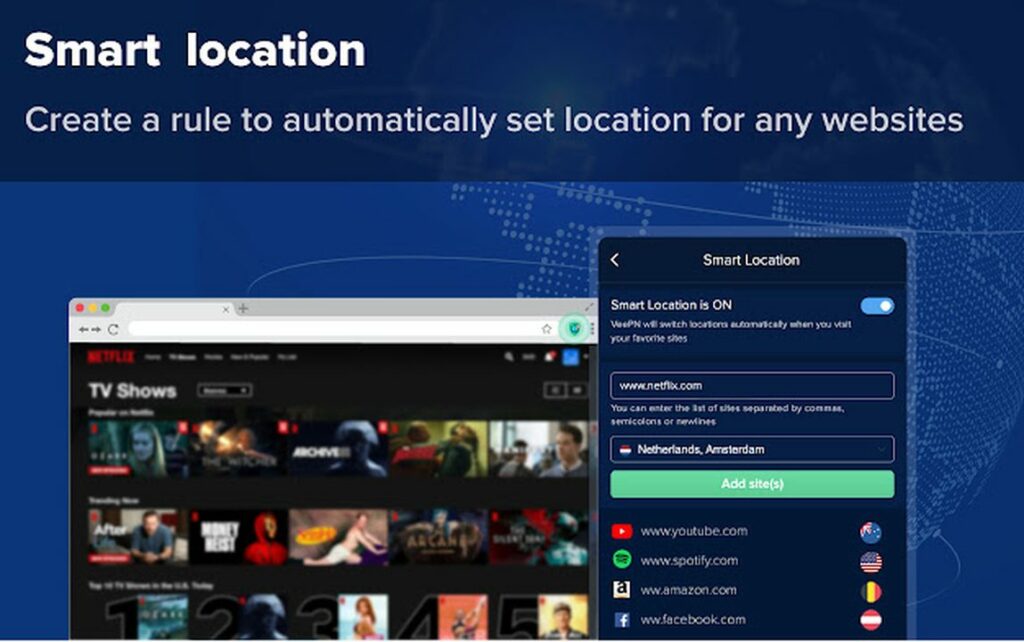
Virtual private networks have become increasingly popular in the age of online privacy disputes. Whether you wish to remain anonymous when browsing the web or you desire to get around arbitrary restrictions imposed by your ISP, VPN Proxy VeePN is a wonderful solution. This free VPN allows you to change your IP to any location in the world. The result is unfiltered access to news, media, streaming, shopping, and more that would otherwise be blocked in your region.

Free VPN for Chrome - VPN Proxy VeePN DOWNLOAD
Free VPN Protection allows you to change your IP location.

Google Translate

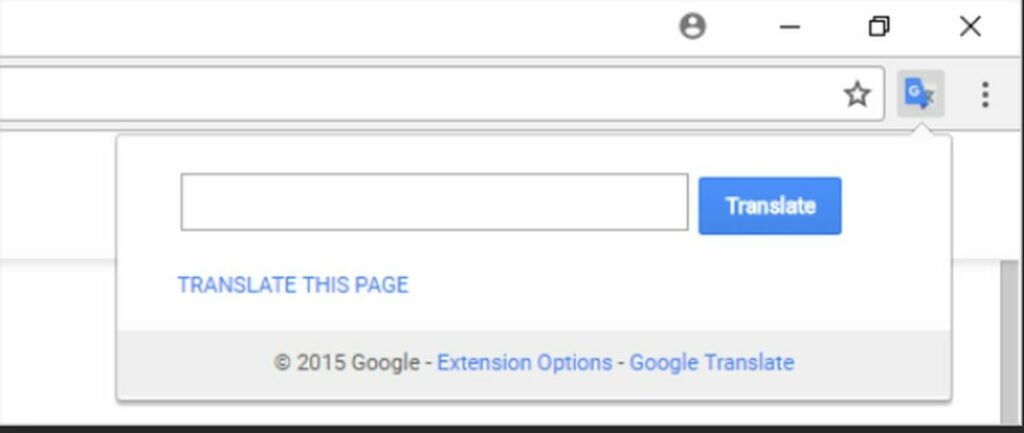
Google’s translation algorithm is so useful that an extension was created to make the process more convenient. Now, you can access translation on any webpage by downloading this versatile add-on. Simply highlight or right-click on any text you wish to translate. Select the desired language, and watch the magic happen. You may also hear a pronunciation of the text by clicking on the mic icon to the right of a word or phrase.

Google Translate DOWNLOAD
Use Google Translate to translate pages into any language.

Grammarly

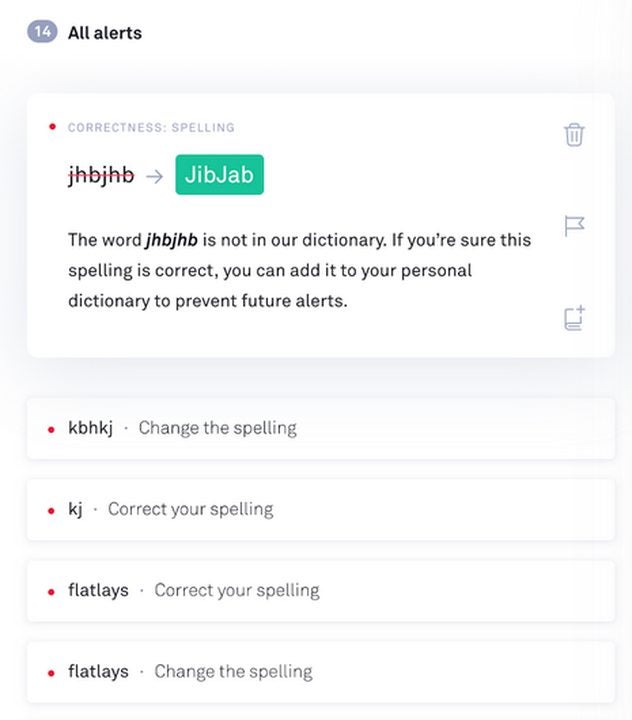
Grammarly is a popular extension for plentiful reasons. It automatically scans any text you type for spelling and grammatical errors. It is excellent insurance for anyone who forgets to run a spell check before sending emails or word documents. The base service is completely free though you may opt into a premium subscription for more advanced coverage of your writing. With that said, the free version provides more than enough proofreading for the average user. The paid subscription is more in line with professional work.

Grammarly DOWNLOAD
Grammarly fixes grammar and spelling mistakes.

Honey: Automatic Coupons & Cash Back

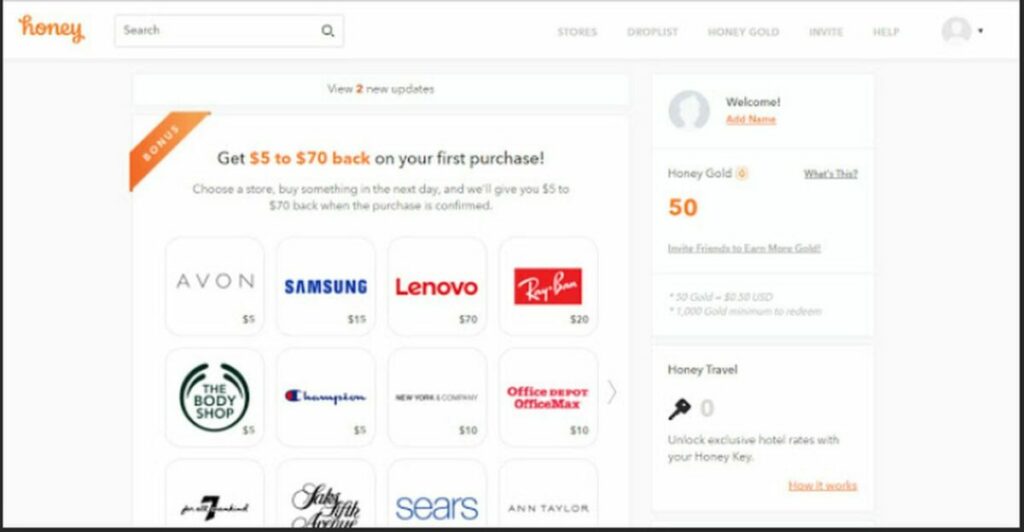
Honey can save you a great deal of cash when shopping online. Whenever you browse a site with shopping opportunities, the Honey extension scans the web for coupons and promo codes. It currently works with most major brands and stores. The process itself is incredibly simple and does not require an additional tab or interface. When browsing a site like Amazon, look for the “find savings” button that appears when Honey detects a compatible webpage.

Honey DOWNLOAD
Honey can save you money with coupons from your favorite retailers.

Slope Unblocked Game

Slope Unblocked is a fun and engaging arcade-style game in which you must roll a ball down various slopes. The goal is to avoid having your ball fall off the edge of the sloped-level floors. Each subsequent level adds to the challenge and excitement. What makes the game really shine is how most hardware can run it with ease. The extension opens without the need for the internet after installation. This allows you to play anywhere in the world as long as your device has power.

Slope Unblocked Game DOWNLOAD
Play Slope anywhere.

Netflix Party, Teleparty

Teleparty is an online platform that allows you to synchronize TV and movie streams with your friends. While the app used to only support Netflix, you can now synchronize streams on Hulu, Disney Plus, and HBO as well. There are even plans to add additional streaming services in future updates. Grab some friends and some popcorn to enjoy your favorite shows together.

Teleparty DOWNLOAD
Use Teleparty to watch your favorite streaming shows together.

LastPass: Free Password Manager

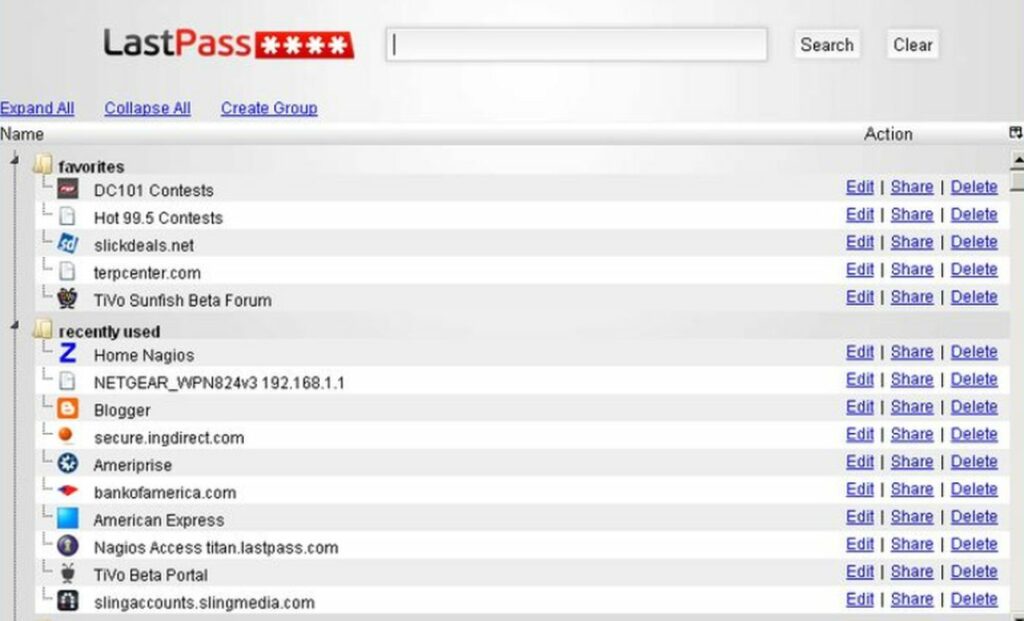
LastPass is a convenient tool for safely stringing your digital information. You can safely store passwords, addresses, and personal notes in your digital vault space. This cloud-based security directory can then be accessed from any other device. The intense levels of encryption surrounding each vault ensure your data is safe from outside eyes. When logged in, you can also quickly fill out online forms with the information you have stored.

LastPass DOWNLOAD
LastPass manages your passwords and digital information.

My Downloads

My Downloads is another useful shortcut extension. This one allows you to access all your Google Chrome downloads with just a single click. You will find this app most useful when your download list is already closed. Rather than navigate the slow Chrome interface, you can skip right to your files.

My Downloads DOWNLOAD
My Downloads folder icon

Custom Cursor for Chrome™

Last but not least is the custom cursor utility for Google Chrome. It allows you to alter the appearance and size of your mouse cursor. Choose from multiple base designs or upload your own from across the web. Customizing your cursor can improve visibility and offers the chance to add some personal flair to your browsing experience.
Custom Cursor DOWNLOAD
Custom cursors add flair.

Getting the most out of Google Chrome

As you can see, there is so much you can add beyond the basic configuration of Google Chrome. The above list of extensions is just the beginning. Check out this full list of Google Chrome extensions you can download and add to your browser.

How to remove the background from pictures in Adobe Creative Cloud Express

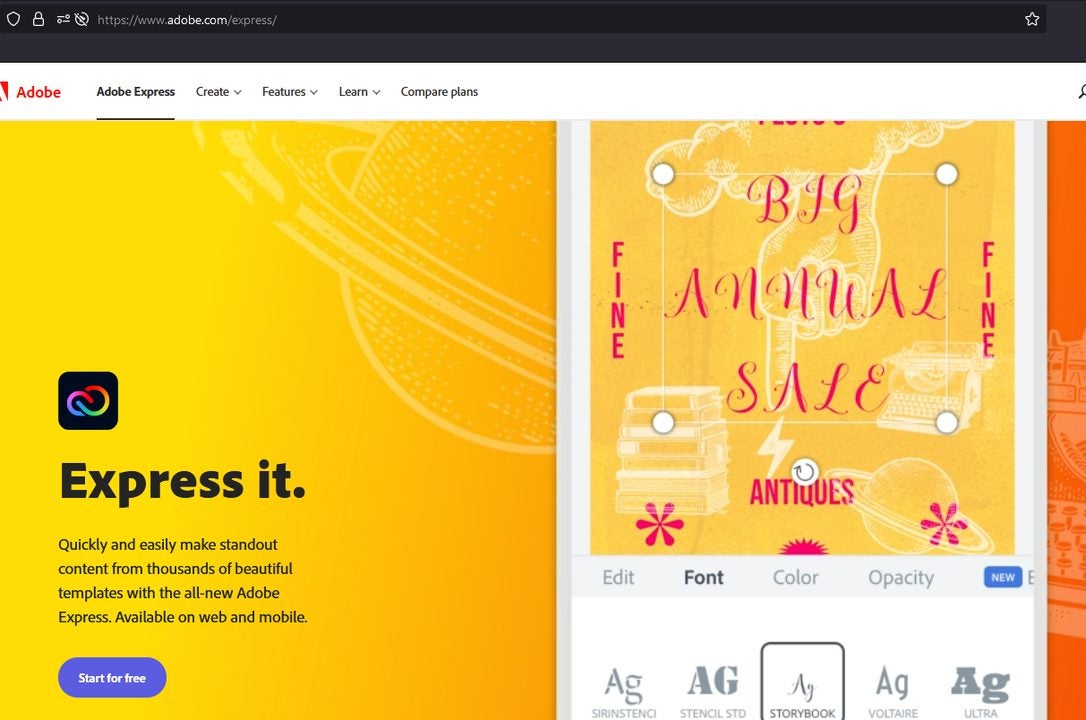
Creative Cloud Express is a powerful online tool for customizing image files and creating media templates. It is similar to Photoshop, but there is no download or installation required. Instead, you can use an Adobe account to upload the images you wish to work on.

One of the handiest features of Creative Cloud Express is the option to remove the background from your images. Transparent background images can make your creative projects really stand out. The best part is you will not need any specific skills to get the job done. All you need is a few minutes to follow the six simple steps described below.

Creative Cloud Express Free Trial DOWNLOAD
  1. Log in to Adobe Creative Cloud

    Log in on this screen

    The first step is to log in with your account at Adobe.com. You may also create a free account if you are new to the service.

  2. Enable the remove backgrounds editor

    Remove the background from an image

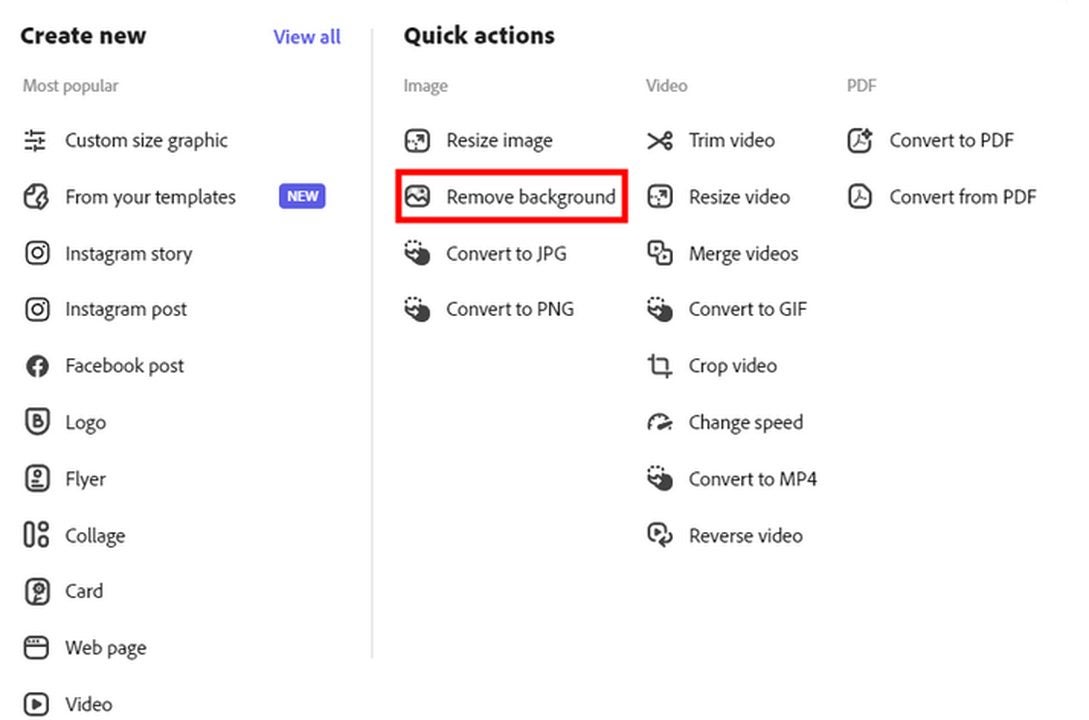
    The remove background feature is available entirely online. This means you are not required to download the optional background removal software. Only do this if you anticipate removing backgrounds away from your internet connection. You will need to access the quick actions menu to find the appropriate editing tool. To do this, click the + icon on the main page after logging in. On the list of options to your right, select remove background.

  3. Uploading your image

    Drag your image into this window

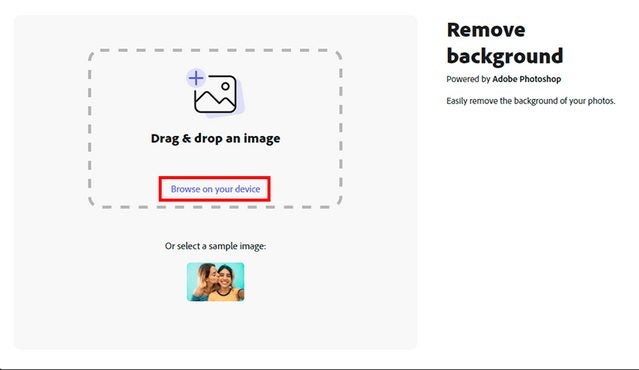
    Once the image preview window appears on your screen, click the browse on your device link to open the file browser. In the browser, select which photo you want to remove the background from. Alternatively, you may also drag and drop your image into the window if you already have a file browser or flash drive open.

  4. Allow the auto-processor to work

    One of the most convenient aspects of the background removal process is that it is completely automated by Creative Cloud Express. Just sit back and let the magic happen. You will have the option to customize the look of your image in a moment.

  5. Save or share the altered image

    Click download once image is complete.

    Once the automated background removal process is complete, you have the option of saving the image and then sending it to an external source. You can save the image directly to the current device as a PNG file by clicking the large download button. The new image will appear in your downloads folder in the file browser. If you wish to customize your image first, move on to the next step, and finish it up before clicking the download button.

  6. Add custom flair and refine your image

    Example templates look like this

    When previewing your altered image, click the customize button to gain access to a series of new options. If you already downloaded your image by mistake, you could access the same features by selecting start creating from the main menu.

    With your image selected on the create/customize screen, you have numerous options at your disposal. You can create text and choose from numerous fonts or colors. You can convert the image into social media posts, thumbnails, wallpapers, and many other media design formats. Choose from Adobe’s range of templates or pick individual design elements to get started. Should you download other images from around the web, you can incorporate them into your designs as well.

Take your images to the next level

The longer you use Creative Cloud Express, the more familiar you will become with the wide range of services on offer. It truly is a one-stop shop for all your creative design ideas. As you become increasingly serious about your creative output, you may wish to check out our Creative Cloud Express expert review. We will explain everything, including the other options on the market. It is always wise to learn more about the range of options available to creatives across the web.

How to manage your finances with the Chase Mobile app

The Chase Mobile app allows you to manage all of your Chase bank accounts in one convenient location. This includes checking and savings accounts, credit cards, personal loans, and mortgages. You can check each of your balances by signing in on either an Android or Apple device. Having quick access to all your accounts makes managing your finances much simpler. By checking the status of your accounts regularly, you can stay on top of your wealth.

Here are some fundamental steps that every Chase Mobile app user should become familiar with.

Chase Mobile DOWNLOAD
  1. Use Quick Deposit to deposit checks on the go

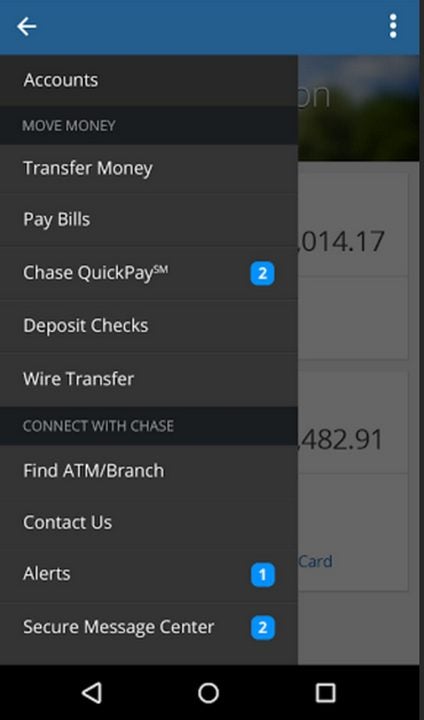
    Tap deposit checks on this menu.

    The Chase Mobile app can save you a trip to the bank by allowing you to deposit checks by taking a picture of them with your smartphone camera. Upon logging in, click on deposit checks from the main navigation menu. Select either the checking or savings account to initiate a deposit. Manually enter the dollar amount of your check. Be mindful of where the decimal point is placed and double-check the number before submitting. Next, you need to take pictures of both the front and back of your check.

    Click on front to take a picture of the front and the same for the back of your check. When taking each picture, be sure to do it in a well-lit place and make sure the image is not blurry. The automated recognition system must be able to read the entire check. Also, be sure the check is authorized before submitting the back picture. Once both pictures are submitted, you will receive a confirmation email letting you know the check is being processed. You will receive another email after the deposit is complete.

  2. Set up automatic credit card payments

    Set up automatic payments.

    Since paying your credit card on time is so important, it is recommended you set up automatic payments to ensure you never accidentally forget to log in. Click on any credit card account and select pay card to begin. Tap the set up button next to automatic payments. Then, choose the amount for each payment and determine which account you wish to pay with. Finally, select the day of the month you would like your payment to be processed. If you can schedule this several days in advance of your payment due date. Should any glitches or errors occur, you have some wiggle room to manually pay on time. When you receive a confirmation email each month, you can rest assured your payment went through.

  3. Enroll in Credit Journey

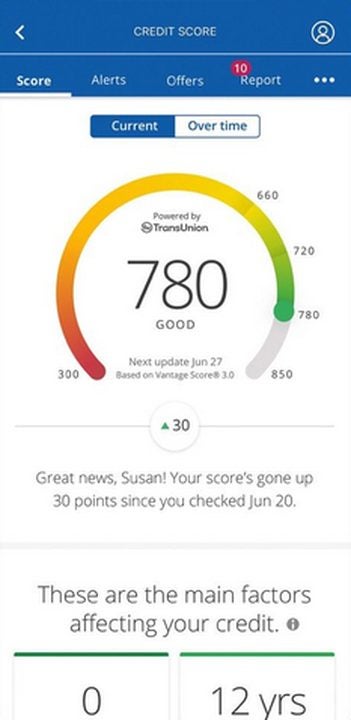
    Credit Journey Enrollment.

    After paying your credit card bill, the next best thing you can do is monitor your credit report. To do this, swipe up on the main navigation menu and tap on the credit journey icon. Scroll through the terms and conditions then click enroll on the bottom of the page. This brings up your main credit score. Click on see all factors to get a closer look at everything affecting your score. You can review the credit usage on all your accounts and see useful tips on how to improve your score.

    To view your Experian credit report, tap see all accounts and select access your report. Make sure everything about your credit history is correct on this page. If you need to report incorrect data, you can click on any past event that is in error. After reviewing your report, you can return to the credit score screen by tapping the X icon. From the main credit screen, swipe up to view your score simulator. Here you can see how various decisions like making large purchases with credit will affect your score. Alternatively, you can tap alerts to view the identity monitoring services. Select alerts inbox to check any messages from Chase regarding suspicious activity on any of your accounts.

Keep your finances in order by frequenting the app

When you can conveniently check all your accounts at once, there is no reason not to keep a close eye on your money. Most financial struggles can be alleviated by vigilantly monitoring your spending habits and planning accordingly. The Chase Mobile app gives you all the tools necessary to understand how purchases affect your credit and debit. You will naturally adhere to smarter financial practices if you consistently check your accounts each week. For more information, check out our article about the 3 great apps that will help you budget your finances.

How to manage your finances with the Square Cash App

The Square Cash App is an excellent resource for improving your financial stability and conveniently transferring funds from anywhere in the world. With a bit of setup, both businesses and individuals can take ownership over their cash flow.

With this handy guide, you will learn the best tips and tricks for setting up your account.

What is the Square Cash App?

Square Inc. originally started as a mobile POS and eCommerce transaction processor. In 2015, Square introduced the Cash App to allow anyone to quickly transfer money with ease using an Android or Apple device. The service quickly exploded in popularity, and now, Square has become a household name among smartphone users.

The Cash App is incredibly simple to use. After creating a username, known as a $cashtag, you can transfer or receive money from any other $cashtag. Adding money is as simple as linking a debit card with the appropriate balance. This will be explained in further detail down below.

  1. Enable instant transfers on your account

    Link your debit card to start with Square Cash.

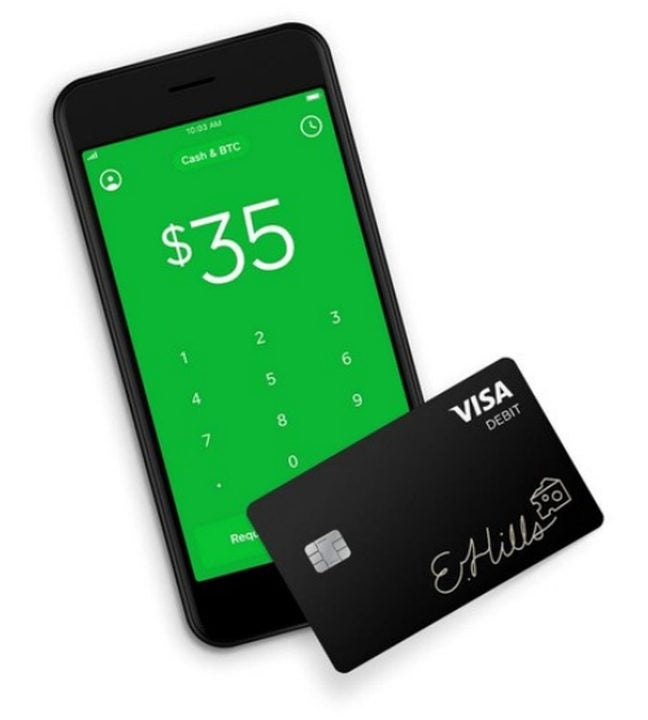
    The first thing any Square Cash user should do is link a debit card. To do this on the app, click the button with three lines next to the word more. This menu allows you to browse the settings. From here, click on account and then on transfers. On the transfers screen, type in the information of the debit card you are using to fund the account.

    Now, you can instantly transfer up to $10,000 worth of funds using the debit card you provided. While instant transfers incur a larger fee, having the option can save you many headaches overall.

  2. Send instant transfers via your smartphone or PC

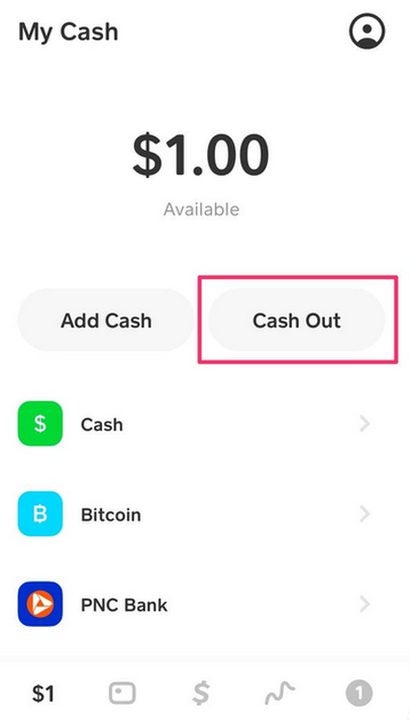
    Hit cash out to instantly transfer your funds in Cash App..

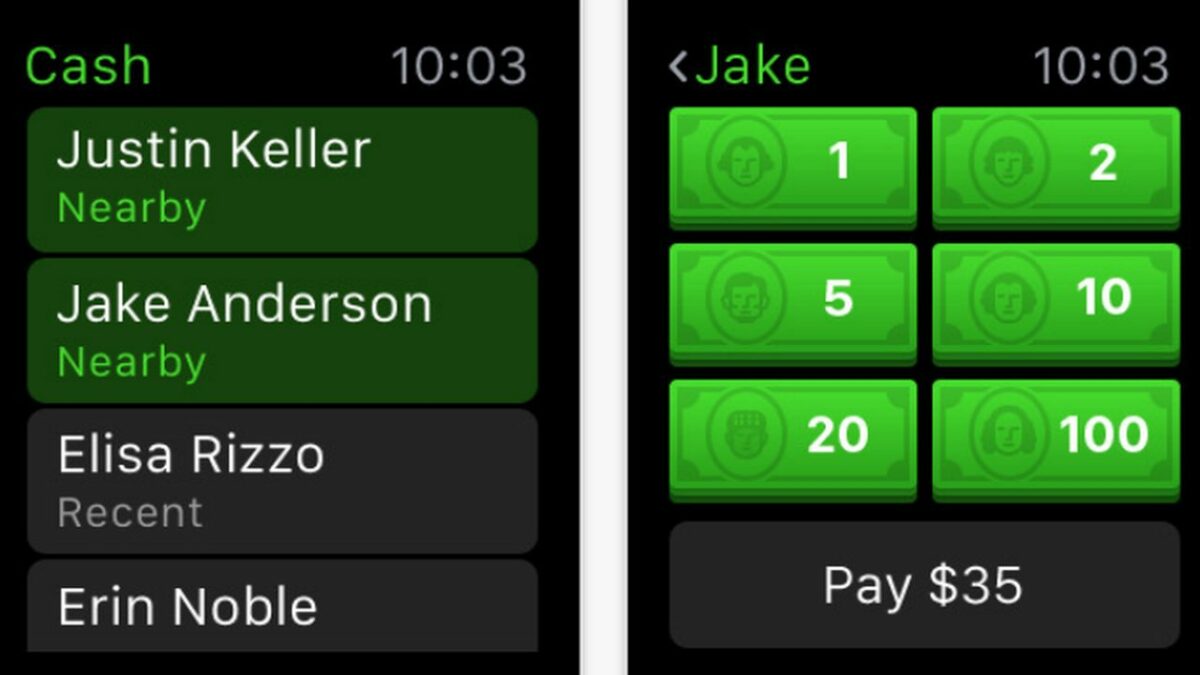
    Now that your account is set up, it is time to send some money. Click the transfers tab to be taken to the relevant page on the app. You will see an instant transfer option. Pressing this allows you to enter the $cashtag of your recipient and immediately send money. You will also receive a confirmation email as the transaction is processed.

    You can also instantly transfer your funds via the balance tab. Upon opening the balance tab in the settings menu, select instant transfers to be taken directly to the same screen.

  3. Using Cash App to invest

    Cash App has several features to aid in investing.

    Cash App Invest can be used to purchase fractional shares of stock in various companies on the New York Stock Exchange. Investing funds is one of the best ways to take your finances to the next level. Since you already have the Cash App installed, this is a fantastic way to get your feet wet in the vast world of investing without opening a separate brokerage account.

    To get started, you need to purchase at least one dollar of company stock. There are a few legal requirements before you get started. In order to invest, you need to provide the following pieces of information to Square:

    Full Name

    – Date of Birth

    – Residential Address

    – Social Security Number

    – Employment Status and Employer Name

    With the legal requirements out of the way, you simply need to select a stock and make the purchase. Choosing the right stock is another story. Be sure to fully understand the risks of investing before you embark on any significant trades.

  4. Navigating the Cash App fees

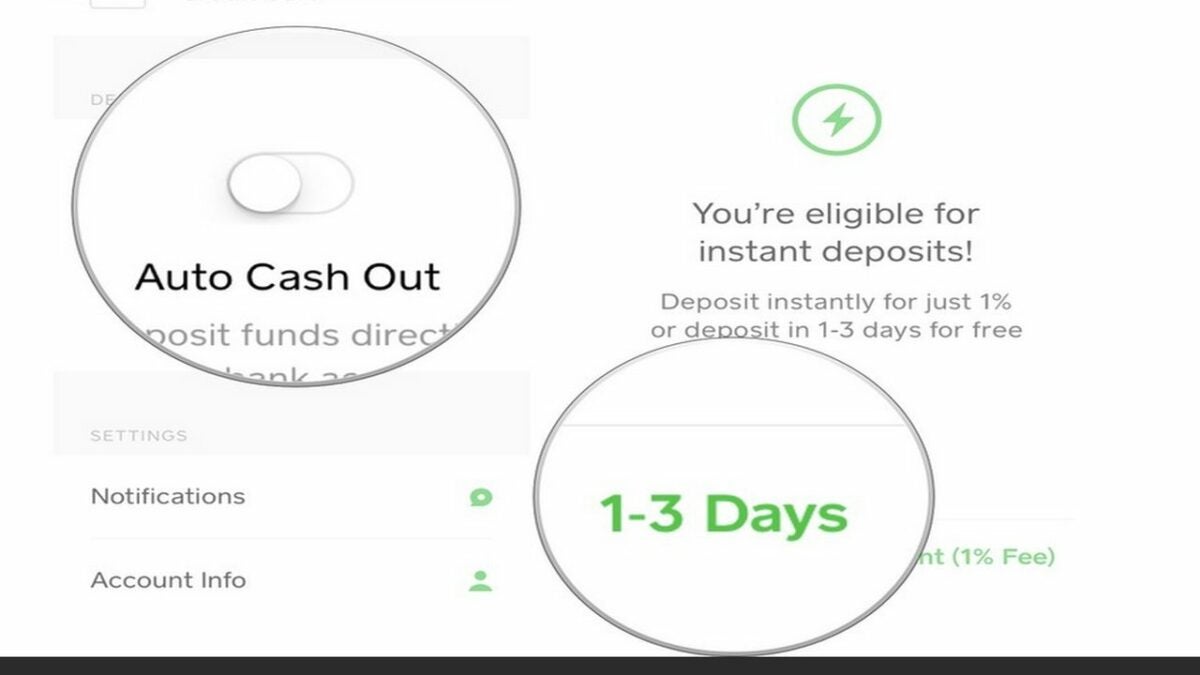
    Avoid fees in Cash App by waiting a few business days.

    If you plan to send a lot of money via the cash app, you will want to manage how much money you are paying in transfer fees. While the 1% fee on instant transfers does not sound like much, you can quickly throw away large sums of cash with multiple transactions in a week.

    Luckily, the Cash App allows you to transfer money for free. The catch is you must wait three business days for the money to settle. When possible, it is always better to plan ahead and avoid the instant transfer penalty.

The road to better finances

With Cash App, you can conveniently transfer and invest funds from your smartphone, which can help you get closer to financial freedom. Using the above tips, you can review your investment opportunities and manage your cash flow with the Square Cash App. To learn more, check out our article on how Cash App compares to PayPal.

How to edit your hosts file in Windows 10 and 11

There are plenty of good reasons to restrict your PC from accessing dubious websites. From unwanted spyware to malicious viruses, some web domains are not worth the risk. As soon as your hosts file connects to a troublesome site, your computer is fully open to attack. The good news is that both Windows 10 and Windows 11 offer the ability to edit your hosts file to block annoying or dangerous websites from accessing your PC.

What is the purpose of a hosts file?

The hosts file is the location your PC checks when first connecting to a website. If you have a custom IP address stored in your hosts file, the PC will connect to the specified IP address instead of the typical DNS server readout broadcast by the website. By assigning a false IP address such as 0.0.0.0 to a website in your hosts file, you can prevent your PC from ever accessing the website’s true IP address.

  1. How to edit the Windows 10 and 11 hosts file

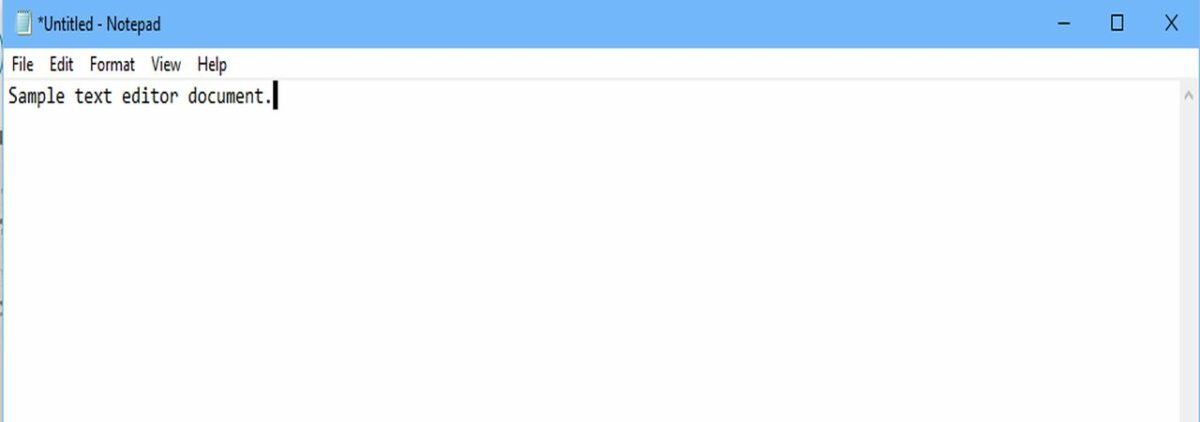
    Be sure to use a text editor such as Notepad when editing the hosts file.

    To edit your hosts file, you will need to use text editing software like Notepad. Please note that text editors are different from word processors such as Microsoft Word or Google Documents. You need a text editor to take specific advantage of coding functionality. For the sake of simplicity, use Notepad since it is already installed on Windows by default.

  2. Run your text editor as an administrator

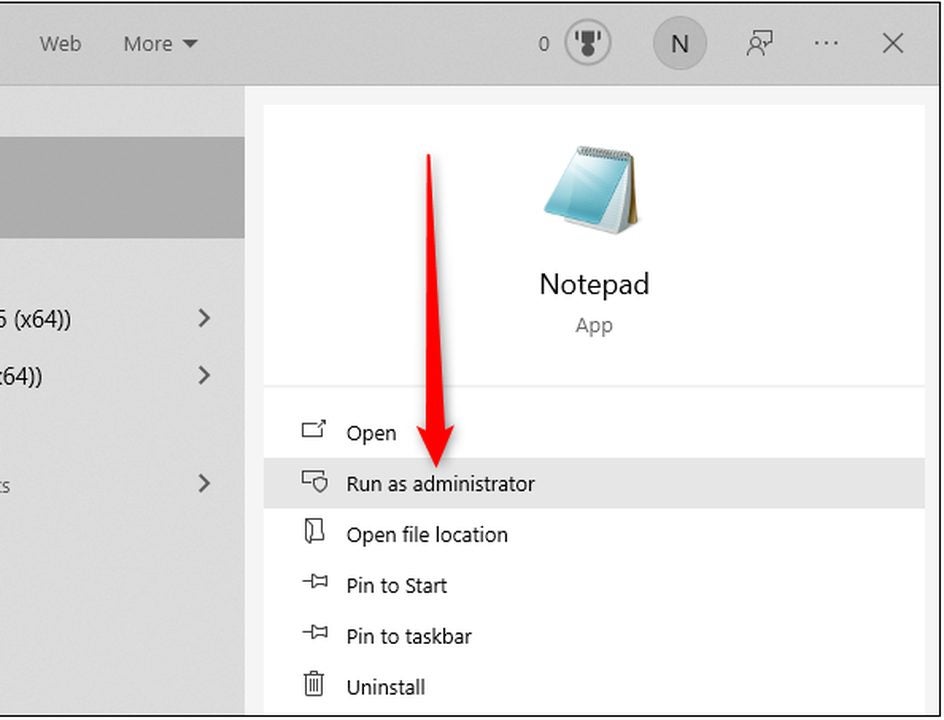
    Click run as administrator in Windows 11.

    On Windows 10, simply right-click on Notepad and select run as administrator to open a new instance of the program. The process is a bit more involved in Windows 11.

    Type Notepad into the search bar at the bottom of the screen. When Notepad appears in the preview window, click on the downward-facing arrow below the icon. From the new menu that appears, select run as administrator.

  3. Find your hosts file

    You will find your hosts file in the drivers folder of the system32 directory.

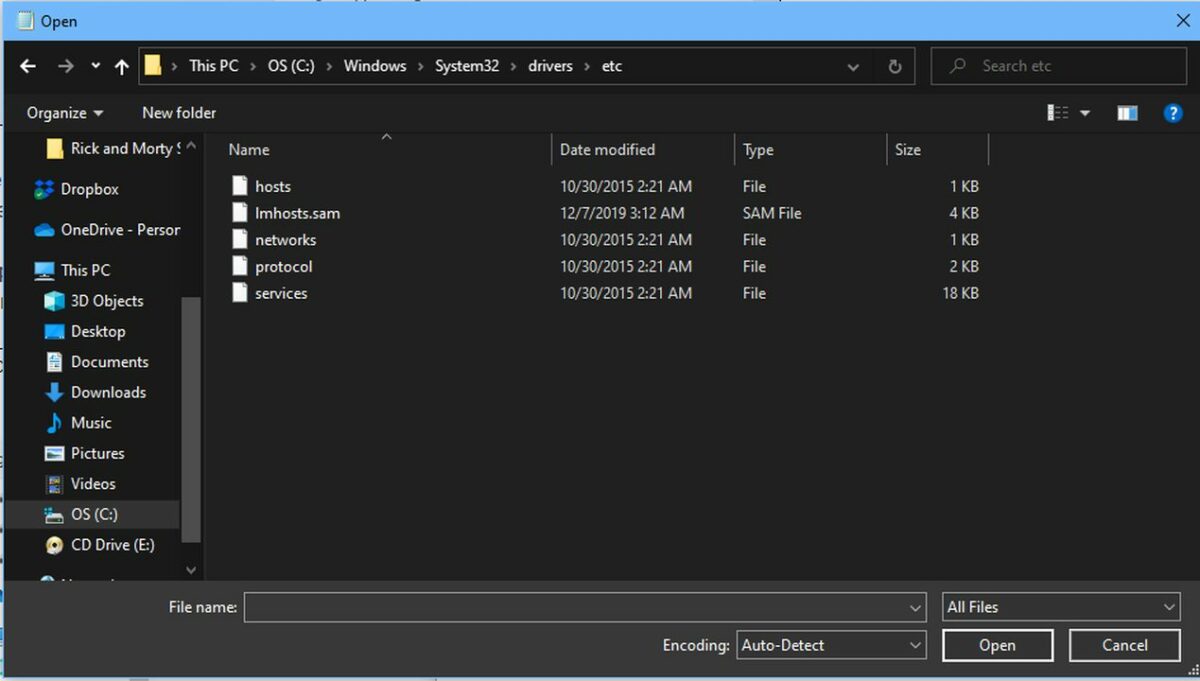
    The hosts file is located at C:\Windows\System32\drivers\etc. You must also set Notepad to search for all files from the drop-down menu next to the search bar. Once all files are visible, you will see the hosts file in the specified directory as pictured.

  4. Add lines to block websites

    Once you have your hosts file open in a text editor, you can type lines of code to block websites. Each line is broken into three sections.

    1. The IP Address: This tells the PC where to go.

    2. Web address: This is the typed name of the website you are blocking.

    3. The Comment: This explains what the line does. It requires a hashtag behind it.

    Using the picture above as reference, type a line of code for all the websites you wish to block. You can even copy this example line of code to block Facebook:

    0.0.0.0.facebook.com#This blocks Facebook.com

  5. Save and confirm your changes

    Be sure to click File, then Save before closing your hosts file. This finalizes all the changes you made today. If you get a pop-up when trying to save, you need to run your text editor in administrator mode as shown in step 2.

Browse the web without intrusions

As big tech companies continue to push the envelope of how much data they wish to collect, blocking websites that you don’t use is a huge boon to your privacy. If you haven’t used a social media platform in months, consider blocking it to reduce how often your PC is tracked. Blocking access to inappropriate websites is also a terrific way to enact parental controls that your kids will likely have no clue how to disable. Regardless of why you choose to block harmful websites, having more control over how your PC connects to the web is always a good thing.

Interested in how other users are adapting to Windows’ newest operating system? Check out our article on the reception of Windows 11.