7 Ways to Protect Your Privacy on Social Media

Let’s be honest, there are just two reasons for being on social media: To see what your friends are doing, what they bought, whom they’re dating and where they’re vacationing….

…and to show the world that you’re awesome(er) than they are.
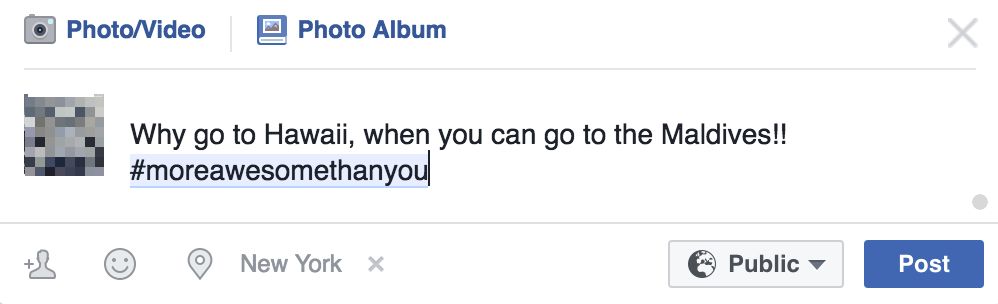
More Awesome

And then there’s the boring stuff like keeping up with news and sharing our opinions, getting fashion ideas and artistic inspirations, or to share your vacation photos with your family.

Whatever you use social media for, you need to be aware of the risks and dangers that lurk under the surface.

1. The not-so-fine fine print

Yes, we’re referring to that thing you just clicked “I Accept” without reading. Facebook’s fine print has a line that says “We reserve the right to send your private pictures to your mom if it shows illegal activities”. Really??! No. We made that up. But the fact that it could be true should be enough to scare you.

Most of us don’t have the time to the fine print of every website we register on. Our trick is to pay attention to what the tech media (like us!) is reporting about, and trust them to raise the alarm when companies go over the line. Like the media storm when Whatsapp changed their privacy policy to allow your data to be shared with Facebook, or the Snapchat saga about whether they own the rights to your photos.

It’s not a surefire way, but let’s be real, are you going reading those 10,000 words in size 5 font?

2. Recommended not recommended

‘Recommended’ or ‘default’ settings doesn’t mean it’s the safest. Remember that social media websites want to get as many people seeing, liking and sharing your content as possible. Facebook gives you 3 levels of visibility: public, friends and only you, as does Linkedin and other sites.

Which should you choose? Do the grandma test. Would make grandma laugh – Public. Grandma will disapprove – Friends. NSFG (Not Safe for Grandma) – Only you.

19qz4f

3. Location

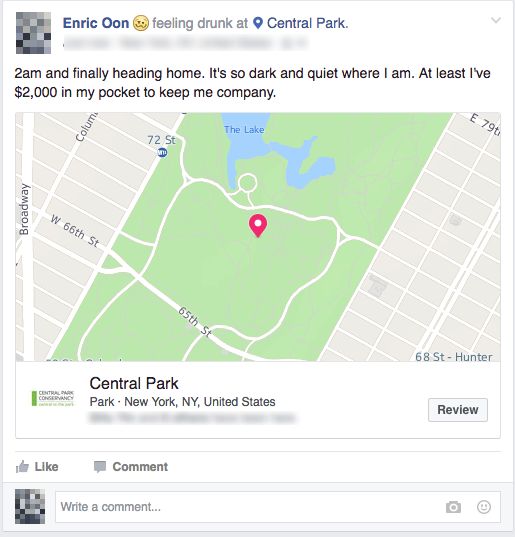
Missed the last train to get back to your hostel at 2am on your solo trip around Europe? Thanks to your public post on facebook, your family, friends, and even that kidnapper from Taken knows exactly where you are, and what has happened. Still sounds like a great idea?
Social Media

But it’s not always you that’s revealing your location information. Many sites now automatically attach your location to the pictures you upload, or the posts you make.

4. Personal Information

“Husband just bought us a cruise package! We’ll be away the whole of next week!”

That’ll probably get you a few likes (and plenty of envious hate) from your colleagues and friends, and it’ll also tell the guy in the neighborhood, who’s been eyeing your expensive watch collection, that it’s time to strike.

Keep your personal information, schedules, and travel plans to yourself, or among a trusted group of people. You never know who’s watching.

5. Contests

Free iPhone if you share this post, fill out a form and receive a new Playstation, win a trip to Las Vegas if you visit this site…. We could go on and on. Are you really buying this?

Granted, some contests could be legitimate marketing, but that doesn’t mean you should let your guard down. While most companies (like us!) respect and protect the private information you give us, criminals won’t and you could quickly find yourself on the receiving end of spam, hacks and other harmful intrusions.

Our tip? Make sure that the contest actually exists (a quick Google search), and make sure that the post is actually coming from the official account of a reputable company and not from Show-Me-Your-Money Inc. or Everybodywins LLC.

6. Romance scams

Extremely dashing guy from South Africa randomly messages you and introduces himself? Or a very friendly girl from Paris sends you a picture and says hi? Time to wake up. Life isn’t a Hollywood film.

And don’t try to convince yourself that this is different, scammers sometimes build their relationship and trust with their victims over many years, patiently waiting for that big payday when their “grandfather contracts a fatal disease and needs a $500,000 cure that has to be flown in from Argentina”.

7. Ads tracking

Not technically an invasion of your privacy… well, not a malicious one anyway. Although it can be unsettling, and bad for your wallet, to have ads pop up all over the place, reminding you about that brand new smartphone you were looking at on Amazon. On Facebook, go to the Ads section under Privacy settings to disable “Ads based on my use of websites and apps”

Do you have your own tips? Share your experience in the comments below!
 

Related Articles

All the Best Relationship Blog Websites

7 Tips to Enhance Your Linkedin Profile to Land Your Dream Job

LinkedIn is the premier social network to find job offers, network with industry peers, get recommendations from your colleagues, and join professional groups. How your Linkedin profile looks and reads says a lot about the kind of person you are, and whether you might be a good fit for a job.

Here are a few tips to make your Linkedin profile stand out from the crowd.

1. Your photo says a thousand words

Profile pictures on LinkedIn are displayed in a relatively small size (200 x 200 pixels), so close-ups are highly recommended. This means that photos of you running a marathon, climbing a mountain or traveling to an exotic country will not work.

And also, most people seem to have the same boring picture of themselves in a suit. As long as you don’t go to the extremes, some originality and creativity won’t hurt.

Profile picture

2. Summarize your summary

The summary is where people turn to for a quick peek at who you are without having to look through your entire profile. This is a good place to show your personality and intangible qualities, since it isn’t structured into employment, education and projects categories like the rest of your profile. Use your summary to sell yourself!

Don’t make it too lengthy, and get rid of the cliches: “expert at teamwork”, “ability to adapt”, “hard worker” and the others. HR folks are tired of reading the same phrases over and over again, and you’ll look run of the mill instead of standing out.

3. Add (multimedia) samples of your work

One commonly overlooked feature is the ability to add links and upload samples of your work. Just click on the square with a plus sign in each section, and then Add link or Load file.

These work samples will help you make your profile look more visually attractive, and will break the monotony of text, after text, after more text that everyone else’s Linkedin profile has.

4.Skills are big deals

Skills recommendations show that you have a skill that others value. It is one thing to claim that you’re an expert and another to have 30 people endorsing that skill of yours.

But here’s our tip: Spend some time to list all your skills at one go. Otherwise, it’ll be difficult (and awkward) to go back to people who’ve already endorsed you for something, to endorse you for the new skill you later thought of adding to your profile.

Bonus tip: A good tactic to get endorsed is to endorse the skills of your connections and wait for them to return the favor. Don’t be too pushy about it, do not insist/ blackmail/ threaten to strangle their cat under any circumstance.

5. Will you recommend me?

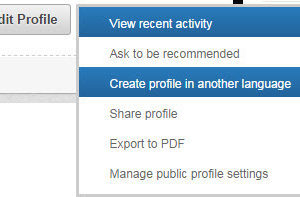
The recommendations section is the most important part of your profile to a recruiter. But personally approaching someone for a recommendation can be an awkward affair. Unknown to most, there’s a hidden feature where you can send a (generic, computer-generated-looking) request for one. Go to “Edit Profile”, hover over the arrow beside the blue button that says “View profile as”, and select “Ask to be recommended”.

6. Speak the recruiter’s language

If you work in a multi-language environment or industry, then a LinkedIn profile in more than one language will definitely set you apart. You can create a copy of your profile in more than one language from the Edit Profile button> Create Profile in another language.

En-otro-idioma-300x197

7. Show you care

Be active on Linkedin. Share interesting (and relevant) news articles, infographics or achievements. Like and comment on posts by others on your feed, and don’t hesitate to drop a compliment or two.

And now, all you need to do is wait for that dream job to come calling. Good Luck!

Do you have other Linkedin tips? Tell us in the comments below.

Has Your Computer Been Hacked? Here Are 7 Tell-Tale Signs

Stop pretending. You don’t (really) know what “getting hacked” means. All you have in your head right now is a swirling mix of Harry Potter meets Star Trek with a dash of Deep Impact, a magical world with many buttons and where everything goes wrong – Fast.

But it is important to understand hacking, because week after week, the biggest companies, many of which you use and have accounts with, get hacked.

So what does “being hacked” actually mean, and how do you tell if your computer has been hacked?

Getting hacked means that someone has gained access to your computer or accounts, and that your personal and financial information might now be in the hands of someone other than you. While most modern computers have a certain level of protection, it’s us, the flawed humans, who cannot resist the temptation to open a mysterious file, visit a dubious website, or click on a link to claim a $5 million prize.

How do you tell?

So how do you know if you’ve been hacked or invaded? There are 3 levels of panic you should be aware of:

Level 1 – Just an itch.

The generally harmless, but not any less frustrating kind that requires a simple fix.

You constantly get redirected other websites when all you’re trying to do is check your email, or windows might pop up promoting everything from pornography to weight-loss pills to Harvard degrees.

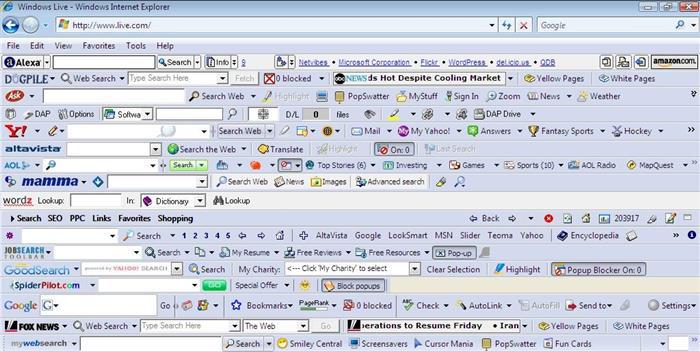
Or, you might notice browser toolbars that mysteriously appear, or your default browser search engine and homepage might have been changed.

toolbars

These are generally harmless (albeit annoying) infections and can be cleaned up with a Malware-buster like Malwarebytes or SpyBot. Also, a decent anti-virus software like Norton (click for 30% discount) or Sophos, is highly recommended for general computer well-being.

Level 2 – I need an Aspirin

These are invasions that can be stopped by disconnecting from the internet and shutting down your computer, although it’s probably a good idea to take it to the repair shop soon.

Your computer starts throwing tantrums and programs may stop working. Your passwords may change, and you might see files you’ve never seen before.

Some hacks are very obvious, like your cursor moving around on its own and clicking on files. If that happens, disconnect from the internet and shut down your computer immediately. Until you get it resolved, do not use the computer to check your email, bank accounts or use other online services.

However, some attacks may not be all that obvious. They could sit silently in the background and collect your passwords and personal data without your knowledge. Watch for the little things, like a mysterious new app or an unexplained system slowdown.

Level 3 – The world is on fire. Run!

Now we’ve come to the nasty stuff that will not stop even if you shut down your computer.

If you haven’t protected yourself with a decent anti-virus program and practiced sensible computing habits, then you could fall prey to Ransomware – The biggest hell-storm that’s taking the world by…. well, storm.

It sounds horrifying, and it is. Ransomware silently sneaks into your computer, slowly and stealthily locks up your files, and when it’s ready, flips the switch and plunges you into digital darkness, unless you meet their demands for outrageous sums of money.

What can you do? Unfortunately, nothing.  You’ll have to decide if your information is worth what they’re asking, or quickly scramble to the bank, office, and police station and recreate a whole new digital life.

Also, checking your credit card statements could also reveal that you’ve been hacked. How many apps and websites have you trusted your credit card info with? Uber, PayPal, App Store, Amazon, Spotify? That’s an awful lot of doors to lock out a possible invasion. Make sure you use passwords that are tough to crack, regularly check your credit card bills, and keep an eye out for reports on companies that’s been hacked.

What other tips do you have to spot a hack or infection? Share it in the comments below!

Google & Apple big launches preview – Our final thoughts

It is finally September, which means Google and Apple are getting ready to launch their newest, shiniest products to drain our pockets, dump our 1-year-old phones, and provoke arguments with our partners. But that is ok because Mr. Smith from the bank will soon be calling about your maxed-out credit cards and he’ll be probably up for a chat.

Let’s round up what you can expect this week, starting with Apple.

iPhone 7

Apple raised a storm when rumors first suggested that they were doing away with the headphone jack on their latest iPhone. If it’s true, then as Steve Jobs and Tim Cook would say, “this changes everything”. And in some ways it would. Apart from that, expect the obligatory 50% faster this, 30% better that, just enough to make you feel that the iPhone 6S is as cutting edge as Sony Walkmans.

iOS 10

iOS

It’s going to better than iOS 9, obviously. I mean, there’s no doubt that there’ll be many new features, but we’re expecting a nip and tuck more than a lose-50-pounds, dyed-your-hair-blue, get-a-nose-ring kind of massive overhaul. You should look forward to the new notifications screen, and the ability to delete stock apps (like that useless Tips app). For more, see here.

And on the other side of the ring, and some would say the tastier option to fruit, Google.

Android Nougat

Nougat

Nougat, however you pronounce it – Nugget, Noogah, Newget, Nuggit, is Google’s greatest and gooeiest version of Android. Under the wrapper, expect to find a brand new app drawer, split-screens, battery-saving doze mode, and many more new features. The update is currently being rolled out to Nexus devices, and for the rest of us, it’ll depend on your smartphone manufacturer and mobile service provider. For more, visit here.

Nexus Phones

And if you crave to sample the sweetest Google treats before everyone else, then getting a Nexus device is like a lifetime VIP ticket to the Super Bowl. Just around the corner are the latest generation of Nexus devices and although nothing has been officially revealed yet, plenty of rumors are making their rounds. Such as it being HTC-made, latest Snapdragon processors, 4GB RAM, possible a QHD screen, but most excitingly, a pressure sensitive feature like Apple’s 3D touch. If you’re planning on getting a new Android phone, it’d be wise to starve off the craving at least for a few more weeks.

What are your thoughts and predictions? Share them in the comments below.

Whatsapp Sneaky With Their Latest Update

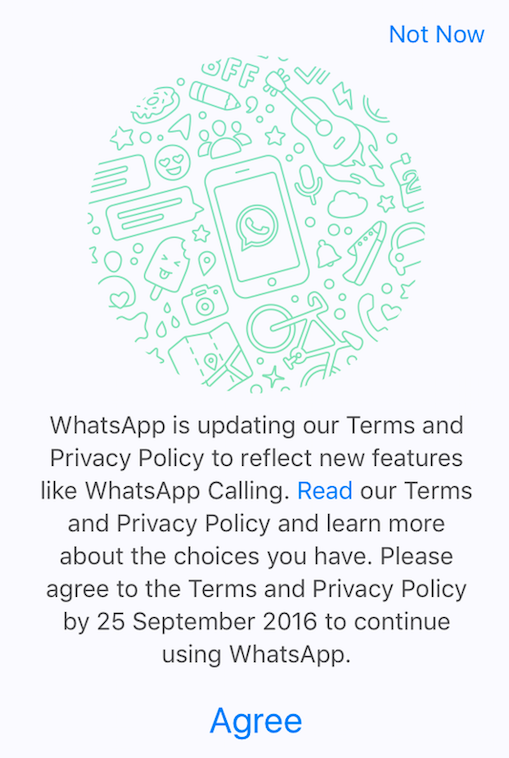
For those of you on Whatsapp, you’d have seen this alert sometime last week. You probably just clicked on “Agree” and gotten on with your life, didn’t you?


Whatsapp

Usually, that’ll be no big deal. But not this time.

Because the fine print says that the app will now pull personal information, including names and phone numbers, from WhatsApp to the “Facebook group of companies”, which includes the likes of Instagram and Oculus. Among other things, this means that many more companies now have your user profile and contact information, and they (and their partners and advertisers) can now send you messages and ads via WhastApp.

You can revoke this permission

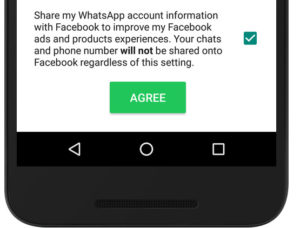
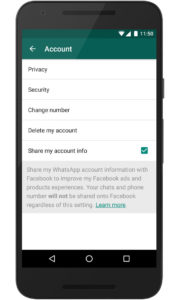
When you see the pop-up, you can scroll to the bottom and check the box to NOT share your account information.

Whatsapp1

But if you’ve already jumped the gun, it’s not too late. You now have 30 days to go to SettingsAccount – and uncheck Share my account info.

Whatapp2

To be fair, Whatsapp is (and will remain) a free and ad-free service. Which means that they’ve got to make a buck somehow to keep it running. Is sharing our info a small price to pay for a, frankly quite excellent, free lunch?

What do you think? Tell us in the comments below.

Opera VPN for Android is Finally Here

VPNs are the hottest apps right now and no one is surprised. We are constantly reminded that many apps on our phones are tracking our location, collecting our information and accessing our data. Having a security tool to conceal your identity and location can be very reassuring.

Why Care About VPNs?

Apart from being an obvious security risk, it is disturbingly creepy to receive notifications that says things like “If you leave your office now, you’ll arrive home in 14 minutes” or “Would you like to share these pictures you took of David and Elle at Central Park on your wall?”

Opera VPN Apps

So when Opera, the makers of the popular Opera browser, released the iOS version of their Free VPN app earlier this year, it became an instant success with iPhone and iPad users. And this week, Opera finally dropped the Android version of Opera VPN.

Get Opera VPN for Android and iOS here.

How’s it better?

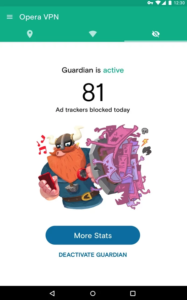
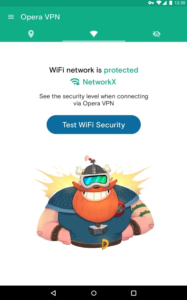
Unlike other VPN apps, Opera VPN is completely free, comes without data limits, doesn’t require a subscription or login, and offers advanced Wi-Fi protection features. As if that wasn’t enough, they also included bonus features like an ad blocker and tracker stopper.

Opera 1Opera 2Opera 3

Setting up the app is painless, and running it is simple enough for most people. You get the choice of surfing from the U.S., Canada, Germany, Singapore and The Netherlands.


Should you get it?

So do we like them? Yes, pretty much. Should you get them? Probably.

Get Opera VPN for Android and iOS here.


Processing and enhancing your photos – how to do it like the pros

Why do my pictures look like crap?

We all ask ourselves that question. Then we empty our bank account and buy the newest many-megapixel-magic-voodoo camera, and we descend into regret 3 days later because our photos still look like crap.

That’s because the camera is not the problem, you just need to enhance the photos.

Enhancing your photos isn’t as difficult as it sounds. Today, we outline the four simple steps to help you enhance your photos like a pro, so that you can make your friends green with envy as quickly as possible.

Selfie?

Backup

Before you embarking on anything, back everything up! This means that you should make a duplicate of all the photos you have taken – good, bad, and ugly

Who uses disks?

Sort

Now it’s time to organize all your photos. There are many ways to do this, but the simplest way is to create three folders: Delete, Keep, and Enhance, and start dropping your photos into each as you go.

Enhance

Now for the really fun part where all the magic starts to happen. There are many tools you can use to help you enhance your photos, ranging from the professional (and very complex) programs such as Adobe’s Photoshop and Lightroom, to the more user-friendly ones such as HDR Projects 4.

Simply put, HDR (high-dynamic-range) imaging technology gives your photos the pro-touch in a few simple clicks. The main problem with most photos is uneven lighting, where one part of the picture is darker (your friends sitting under an umbrella), and the other parts are much too bright (the rest of the beach). HDR corrects that by adjusting the lighting, so that you can perfectly capture that soft, indoor shadow, or bring out every color in a sunset. 

button

While tweaking your photos one by one, always keep in mind that each photo has to fit within the entire collection. For instance, a photo that has enhanced color saturation next to a photo that is black and white could make your collection disjointed. Try to keep the style of every photo in your album as consistent as you can.


For that extra special touch, read our article on ‘4 usually overlooked ways to enhance your photographs’.

You weren't there man...

Keep & Share

Now you’re almost at the end of your photo processing journey. The last things to do is to share them with your friends using Facebook or WeTransfer, and store them safely for the years to come with Google Photos or Dropbox.

Kids with photos

Enjoy your photos

Your photos are your memories frozen in time, so process and enhance them with care! Don’t be too anxious to get it finished. Take your time and relive the moments.


New Google Apps to Take On Skype, Facetime and Whatsapp

Google’s solution for free mobile calls and messaging was introduced to us earlier this week and is positioned to take on the likes of Apple’s Facetime, Microsoft’s Skype and Whatsapp.

Google Duo

The first of the two apps is Google Duo, a video-calling application that, unlike Facetime, is available on both Android and iOS. This means that you’ll now be able to make free calls to all your friends and family, regardless if they’re using an Android or iOS device.

The one feature that Google hopes will get you very excited about is Knock Knock. Not found on rival apps, Knock Knock lets you preview who’s on the other end of the call, and lets you decide if it’s worth getting out of that meeting to pick up.


Google Allo

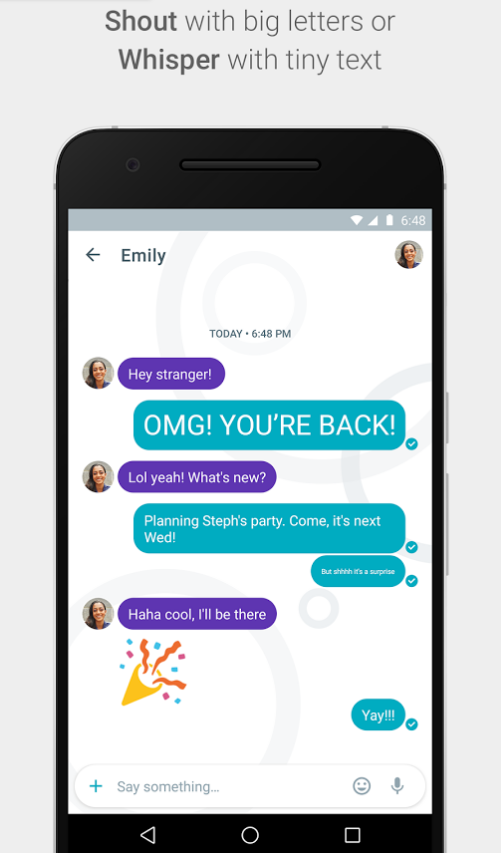
The second app is called Google Allo – a smarter, more feature-packed version of Whatsapp. With Allo, you get to make Google searches directly within the messaging app, get predictive reply suggestions, write in bigger or smaller font to simulate shouting or whispering to the other person, and many other features.

Allo Shout

Allo assistant


So when can you get your hands on these apps?


If you’re in the US, you’re in luck! Google Duo is already available on Google Play and the App Store, and for the rest of you, Google says that they will be available worldwide “in the next few days”.


There is no word yet on Google Allo’s launch date.


However, you can now pre-register for both Google Duo and Allo on Google Play, so that you get (presumably) a notification when these apps are available in your region. iOS users, you’ll just have to watch this space.


Let us know what you think about these two apps in the comments below!

4 web apps guaranteed to make you a better manager

Managing people isn’t easy. Keeping a team happy and productive can sometimes be overwhelming, but here are 4 of our favorite web apps that will help you make your life as a manager much easier!

This article was brought to you by Crozdesk.com– Discover the best online software products to boost your business.

1. Clarizen: Project Management Made Easy

First up is Clarizen, a collaborative project management tool that helps teams effectively manage complex projects. The key to Clarizen’s popularity is their range of time-saving project templates, pre-populated with the typical tasks that accompanies each project.

Clarizen also features an innovative 3-D discussion feature, allowing idea sharing directly on projects and actionable tasks. Goodbye emails!

Read more about Clarizen.

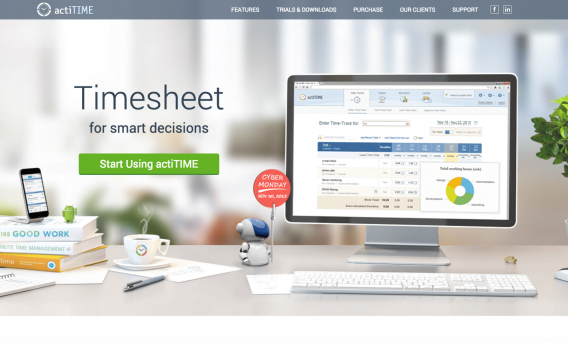
2. actiTIME: Web-Based Timesheet Software

Next on our list is web-based timesheet app actiTIME – the app that lets your team members enter, monitor and report on time expenditure.

actiTIME’s user interface is simple and intuitive to use, making it extremely easy for your team to adopt and use.

Among the most favored features of actiTIME is the reminder option that ensures timesheet compliance, as well as the reporting feature that displays the collected data in a useful and productive way.

Explore actiTIME.

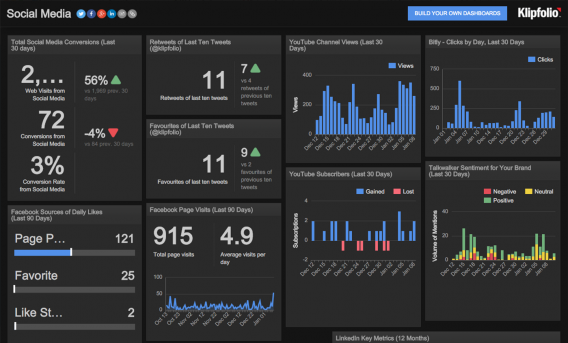
3. Klipfolio: High-Powered Data Visualization

Turning data into actionable insights is a challenge faced by all businesses – that is until Klipfolio came along.

In less than 3 minutes, you will be able to build a dashboard that connects to hundreds of data sources, and combines metrics to provide you with real-time visibility into the insights that matter most.

All you need to know about Klipfolio.

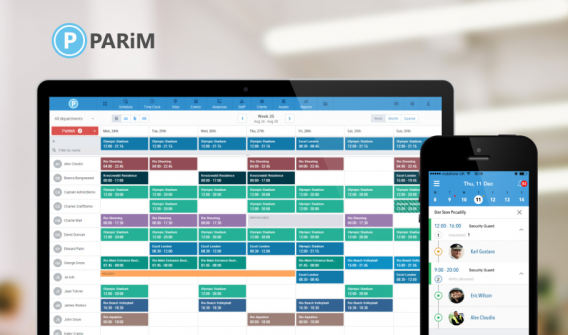
4. PARiM: High-Performance Workforce Management

Last but not least, PARiM’s is the perfect staff management tool to view, assign and share team schedules. Sporting a visually attractive user interface, drag and drop functionality, and the option to share changes through email or text messages, PARiM is well suited for effective teams of all sizes.

If that isn’t enough, PARiM’s GPS-based time-clock feature allows staff at different locations to clock in and out on a mobile device!

Discover PARiM.

Clarizen, actiTIME, Klipfolio and PARiM: Solutions for your Business

In addition to high-performing functionality, these apps have been selected because of their high-quality UX  with visually attractive layouts and intuitive design. You can be certain these apps will save your team lots of time, releasing them from boring tasks and allowing them to focus on more profitable work.

If you’re interested in more apps for business management, why not visit Crozdesk’s Business Management category?

Crozdesk.com helps users discover online software through its easy-to-use comparison interface. Detailed profiles, side-by-side comparisons, data analyses and automatic ranking algorithms allowing you to quickly find the best applications for any business function.

How does the Internet know where we are

It’s subtle, but most of you would have noticed that many websites we visit seem to know exactly where we are, and which language and version of content to deliver to you. Type google.com while in New York and you’ll get routed to google.com. But if you were in Toronto, Mexico City or Paris, google.ca, google.com.mx and google.fr appear respectively. How does this happen?

Your IP Address

You, and every computer in the world, are given a numerical IP address, very much like a street address to identify where you are accessing the Internet from. To find out your IP address, click here. This is probably the first thing a website uses to determine your location and decide which version of their content they should deliver to you.

Your Internet Service Provider

And the second culprit is your Internet Service Provider (ISP). Whenever you ask for a website, your ISP sends a request to a server, and the server recognizes where the ISP is from (e.g. Comcast from the U.S., or Sky from the UK). It then sends back the version of the website that has been created for that region.

It’s your GPS

You might not realize that it might be your device that’s broadcasting your location. If you are accessing the internet on your smartphone or tablet, the GPS or Location Services (as Apple calls it) could be set up to inform the web browser where you are at that moment.

Cache and Cookies

Cache and cookies are the little bits of information that stays on your computer every time you visit a website. For instance, if you last visited Google got directed to ‘Google.co.uk’, your web browser will remember that, and the next time you ask for Google, the UK version of Google will automatically appear.

While some people may feel that detecting their location might be an invasion into their privacy, it must be acknowledged that there are some perks to having location specific and relevant content delivered automatically to you. What do you think?