Is your web cam being hacked? Here’s how you can check

Hackers can gain access to your webcam through malware from spammy links, pop-ups, and pirated content. Or, maybe they find an “in” through one of those “tech support” scams. 

It sounds alarmist, right?

Not so fast. Webcam infections are the real deal, not just some conspiracy theory nonsense.

Unfortunately, it’s relatively easy for outsiders to access your computer and gather materials for blackmail or fraud.

In any case, it doesn’t hurt to give your webcam a little checkup every now and again.

Here are a few (easy) ways to make sure no one is watching you through your devices.

 Check the indicator light

The easiest way to check for spies is checking if that little blue or green light next to the lens is on.

You know, this thing:
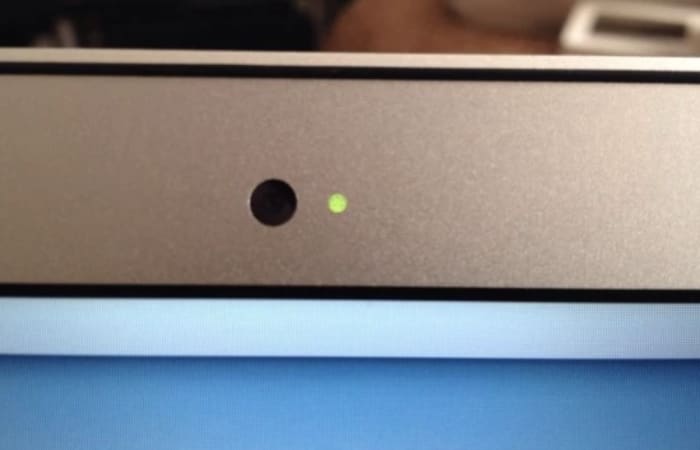
is your webcam indicator on?

This is the most obvious giveaway that the camera is recording.

Since hacking victims might notice this right away, savvy hackers often disable the webcam light.

See if your webcam is running

The next thing you’ll want to do is go to your Task Master tab and click “Processes.” From there, you’ll look through the list, scanning for anything that uses the webcam utility.

Keep in mind that a running webcam utility doesn’t necessarily mean that you’ve been hacked. Restart your computer to see if your camera turns on automatically. If it does—consider changing the settings.

Look at the applications that use the webcam

Try running the webcam. If you get a message that says the device is already in use—it either means you’ve been hacked or there’s a program currently using the camera. From there, open Process Explorer (PC) and look through the programs that are using the cam.

Mac’s Mojave now lets you look at the apps connected to the camera and microphone. You’ll find these settings by navigating here:

System Preferences —> Security & Privacy. Select Camera and Microphone and check or uncheck the boxes that indicate permission.

Scan for unknown applications—After you’ve looked at the apps you know about, think Skype, Zoom, Google, you’ll want to check for any apps that you don’t know about. Are there any unfamiliar items that show up in your preferences list?

If you see a message that says your camera is in use and you’ve turned off the usual suspects, chances are, there’s an application controlling your cam. This could be a sign that you’ve downloaded a piece of malware that has taken control of your webcam.

Check the storage files—Another sign that someone has hijacked your camera is the presence of audio or video files you’ve never seen before.

Do a malware scan

Finally, you’ll want to run a malware scan. If the program finds any infections, write down the names to find out if any of them are linked to webcam hijacking.

And, some tips for staying safe

Install antivirus software

Prevention is the best medicine. Antivirus software is the flu shot of the tech world,  allowing you to inoculate yourself against webcam attacks.

Be careful that you choose a reputable program with advanced features—protection against viruses, malware, and spyware. While there are some good free options, you’ll want to make sure you read the reviews before downloading.

Get a VPN already

VPNs have become an essential tool for protecting your computer from hackers, as well as hide from your ISP.

VPNs also provide an added level of protection when you’re using public networks.

Cybercriminals often target users hanging around public hotspots like the airport, Starbucks, or the public library. You might not think about it, but those public networks with multiple guest accounts might be the mark of a fake WAP attack.

Basically, a hacker sets up a wireless router that looks like it comes from the local cafe—then uses that connection to steal sensitive data or get you to download malware—which, of course, could open your webcam to attack.

Monitor your cam activity

Look—if you’re not a big Skype user and avoid FaceTime calls like the plague—you might think that disabling your webcam is the way to go.

Instead, consider enlisting the help of a third-party monitoring app like OverSight to send you a notification when your webcam becomes active.

You’ll get the notifications any time someone uses the camera—so this means you’ll see the little push notifications when you log into Skype for a call, as well as the next time there’s a hacker peeping into your device.

Oversight Download Free
7

Wrapping up

The idea of someone secretly watching you through your computer sounds like the makings of a Mr. Robot episode or a misguided warning from your tech-averse mom.

Unfortunately, webcam hacking is real, and it’s a treat for anyone with a smartphone or laptop.

Staying safe means performing regular camera checks, installing a few good security tools, and of course, not clicking links in suspicious emails.

How to view private Instagram accounts

They were a place to share photos, videos, and updates with your family and friends. These days, there are more reasons to place that barrier between your profile and the general online public.

And, private accounts keep bots, strangers, and lurkers off of your profile, making for better user experience.

Others go private in an attempt to game the algorithm. Last summer, The Atlantic ran an article that reported an uptick in the number of meme accounts going private. The practice is an easy way to increase follower counts, as digital lurkers need to take the leap and follow if they want to view the content.

So, whether you’re a private account owner yourself or you’d like to look at a feed here and there without alerting the account holder, you might want to know how to view private Instagram accounts.

Instagram Download Now ►
7

Just send the request

The most legitimate way to view a private profile is to send the account owner a request. Which, of course, you’re thinking, “well, duh.”

But, so long as the account owner isn’t some ex you’ve been stalking, most people will accept your message, even if they don’t know you. If you’d really like to get in touch, try dropping a short message in the DM section.

If you’d like to get around this, there are a couple of options, but they’re either a little shady or not especially effective.

Investigate with their username

private instagram account

Searching by username doesn’t always work perfectly, but you may be able to find the information you’re looking for.

Sign into Instagram and type in the username of the person you want to look up.

Then paste the name into Google’s search bar. Now, this won’t automatically unlock any private accounts, but there’s always the chance that this user left a few digital breadcrumbs behind before switching their account to private mode.

There’s also the chance that this person has a public Facebook page or a LinkedIn profile (obviously do your research in incognito mode) you could check out instead.

Honestly, this method might not yield a wealth of information, but it beats asking for access when it could create an awkward situation.

Use an Instagram viewer site

There are countless sites out there that promise access to private accounts. Most are paid services, though, and they seem a little sketch. With names like Instaspy or Private Instaviewer, the idea is to provide access to accounts without having to follow a user — I.e., users won’t know that you’re stalking them.

Private Instaviewer presents itself in a way that makes it seem like a free service. Use the search bar, get a profile in return. That’s not exactly the case, though.

Private Instaviewer

Instead of being greeted with the usual RECAPTCHA box, you’re required to fill out some questions about your favorite candy. And then—you’ll have to fill out your name, address, and payment information.

Look, inputting your payment info is perfectly normal when you’re purchasing from a reputable website, but when software that exists for the sheer purpose of breaking into others’ accounts, they likely won’t care about protecting your info, either.

Ultimately, your best bet is to do a little sleuthing for free, or you know, bite the bullet and send a request.

Look, you really need to get a password manager

Honestly, password managers aren’t the most exciting topic.

Between the thumbprints and the face-scanners—passwords are becoming obsolete, anyway, right? 

Not exactly. 

Yes, passwords are a big pain, but it seems they’re hanging around for the foreseeable future.

Between the bank accounts and streaming services, web apps you’re forced to use at work, emails, socials, and more—coming up with an endless supply of unique, unhackable passwords is near impossible.

Our brain is fairly good at remembering passwords, but we suck at creating log-ins that properly protect our information.

What does a password manager do?

As per Techopedia, a password manager is a software application that stores and manages your passwords for all of your online accounts.

They automatically generate hard to guess passwords you’d never remember on your own, and they’re stored in an encrypted format, that you can access with one master password.

A password manager is an app designed to keep your identity safe and save you the time and headache associated with the countless accounts few all have now.

Why you need to use one

The reason is pretty straightforward. You need strong, unique, unguessable passwords—with special characters, mixed case letters, and numbers.

Any password you can remember—is likely easy to hack. Add in the fact that, handling passwords manually means–you’re likely using the same password over and over or you’re dealing with frequent resets.

One of the biggest reasons to get one of these apps—many of which are free, BTW—is something called credential stuffing.

What this means is, if a hacker gets ahold of your information during a data breach, they’ll use that same password to log into multiple sites.

That’s why beyond some demographic details or privacy concerns, data breaches in places like Target or Facebook can put your identity and credit at risk.

Or, there’s the issue of phishing—you click on some malicious link posing as your bank or something and inadvertently install malware on your computer that collects keystrokes.

And, finally, a password manager means you don’t have to type in passwords. So, if you’re working in a public space like a coffee shop, no one can see over your shoulders.

While you might think, “hey, I’m pretty safe online, and I definitely know a phishing attack when I see one”—don’t be so sure. Better secure than sorry, right?

Which password managers work best?

There are a lot of options out there these days. 1Password, Dashlane, and LastPass are the first ones that come to mind.

LastPass is free, so long as you don’t want to shell out for the premium features (but, even so, we’re talking $36 per year). The app has dealt with security issues in the past, but they have done a good job addressing vulnerabilities and keeping the cloud-based system updated.

LastPass and Dashlane both update passwords automatically, though some users have reported that the feature doesn’t work as well as advertised.

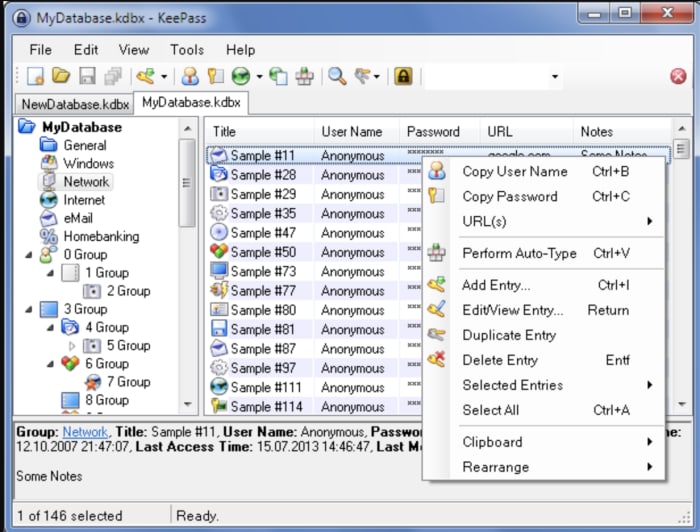
Another option, KeePass doesn’t use the cloud. Instead, the open source program can be downloaded to your computer— no need to worry about data breaches.

KeePass is OSI certified, and you can look at the source yourself to see whether the encryption algorithms are working correctly. As you can see, below, KeePass keeps things old school–no frills, just good old-fashioned protection.

KeePass portable password manager

Can you use them on your phone, too?

Yes—Dashlane, for example, is a cross-platform application—so one account works across all of your devices. It also allows you to set up autofill—so you can skip filling out online forms and check out fast. It also comes with a VPN, scans for dark web activity, and lets you securely store documents and notes containing sensitive information.

Dashlane Download Free
7

1Password records user names and passwords across mobile apps, websites, and online accounts across all devices—promoting single click or touch access.

1Password Download Free
6

LastPass, too, works across all devices—and comes with similar features—like simplified online shopping, digital record-keeping, and file sharing.

LastPass Download Free
9

But, can password managers be hacked?

Unfortunately, yes.

OneLogin was hacked in June 2017. LastPass has dealt with a handful of hacks over the past few years, too. But, it’s important to remember that any piece of software or website can potentially be hacked. If this is your biggest concern, KeePass may be your best bet, as it puts the control in your hands—not the cloud.

Still, LastPass, Dashlane, and 1Password are all solid options that employ several layers of security you won’t find on say, all the places you shop online.

The risks outweigh the benefits—reducing the risk of credential stuffing and keylogging attacks. And, you’ll free your brain from trying to come up with another Apple password you haven’t used yet but can easily remember.

In the end, you will need to remember your master password, no matter which one of these apps you choose. And, because this one password rules them all—you better pick a good one—be it a passphrase or some sort of code you can remember—or keep stored on a piece of paper.

Is it illegal to buy and sell Instagram accounts?

We all know the deal about /buying/ Instagram followers. It’s frowned upon, of course, and maybe even a little dangerous. You might get banned from the platform and it could have a negative impact on your reputation.

But there’s a whole other Instagram underbelly—the seedy world of flipping generic Instagram accounts.

The legality of these black market Instagram exchanges is murky at best. Here’s a little more about buying profiles and how it’s not exactly the same as buying followers.

Instagram Download Now ►
7

Buying Instagram followers vs. buying accounts

Brands that buy accounts are trying to jump-start their journey to success. It’s hard to get a social account off the ground and when people see that an account has followers, they’ll be more inclined to follow, too.

Buying accounts pre-loaded with niche-specific followers is a little sketch, but it doesn’t seem to cause harm on par with the practice of buying followers.

As a point of reference, we’ll point toward this New York Times article that looked closely at a company called Devumi.  Once a go-to source for athletes and celebrities to grow a social following overnight, Devumi advertised their service as “social media amplification.” In this case, customers believed they were paying for an advertising service that helped them get real fans — though it turned out, they were paying for bots that just looked like real people.

The fake follower racket is well-documented and Instagram takes a hard stance against the practice. But, buying accounts is a bit different. The idea is that you’ll get an account preloaded with followers within your target market and take over “legitimately” from there. Supposedly, the followers of these accounts are real. It seems like most are people who followed some random accounts that align with their interests be it yoga or cars.

When you buy an account, what you get is a generic account with people that represent your target demographic. From there, you can customize your new account and keep growing your following.

Instagram says you are not allowed to buy, transfer, or sell any aspect of your Instagram account. This means that there’s a chance Instagram could shut your account down at any time for violating its terms of service agreement.

How do you buy an Instagram account?

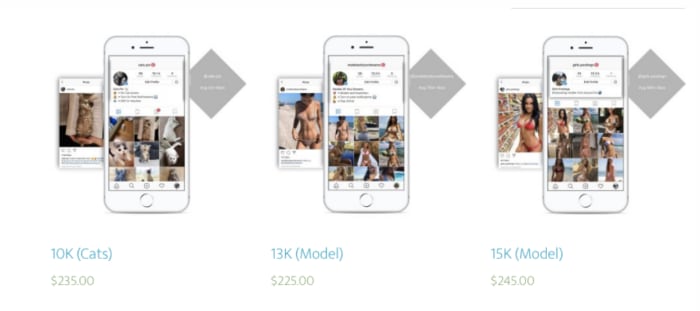
So, if you Google buy or sell Instagram accounts, you’ll see that there are a handful of companies that let people purchase Instagram accounts—fully stocked with followers–as if they were a pair of shoes.

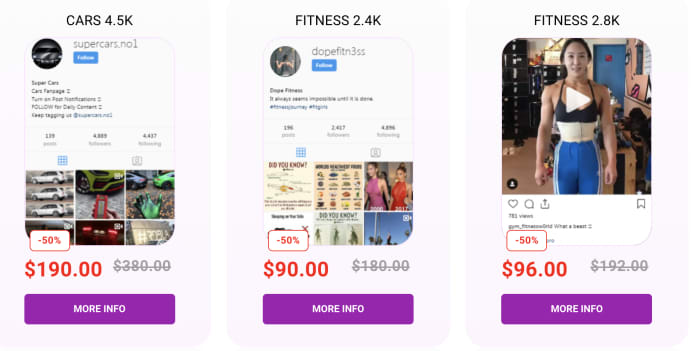
SocialTradia is one such example. It’s actually pretty weird to look at the website. For example, the home page looks like an e-commerce shop—where you can buy accounts related to your niche. From there, we presume, you’ll slap your own branding on the accounts and start influencing away.

SocialTradia allows you to search for accounts by category: think yoga, fashion, or fitness. The accounts cover really broad topics, most with a collection of stock photos that haven’t been edited. They do provide a money-back guarantee, but it’s only good for 24 hours after making the purchase.

buy an instagram account

Or, there’s ViralInstas, another platform that offers accounts in the modeling, fashion, or animal niches. Follower counts won’t top 15k, which could be a sign that the platform does a decent job keeping fake followers off of the profiles. The accounts come with passwords, a hashtag research tool, and a list of hundreds of hashtags proven successful with the audience.

Or TooFame, another site that promises to provide users with a selection of high-quality accounts with real followers. Here, most accounts hover between 2k and 5k followers and are labeled by niche—fitness, sport, car, weed, are all options on here—and many accounts are marked down.

fitness niche profile for sale

Is it legal to buy an Instagram profile?

It’s not exactly illegal to buy Instagram accounts—and it’s certainly less of a problem that bot accounts and fake profiles. Instagram might ban your account—so the main concern is, you’ll be out a few hundred bucks, and you might waste some time growing a following — only to have it taken away.

The sites that sell Instagram accounts sometimes offer a layer of fraud protection like SocialTradia’s guarantee. Others aren’t such a smart idea.

5 tools for creating professional looking graphics–no design skills required

If you’ve spent any time in the digital marketing or design space, you know that people can’t get enough of infographics, charts, and things visual.

We can’t help it. 50% of the brain is involved with visual processing, and it only takes 1/10th of a second to understand a visual concept—much more natural than reading a big wall of text.

The problem is, whether you’ve got a blog that needs some extra pizzazz or you want to boost your social media feed—design can be intimidating when you’re not a trained professional.

Luckily, there are plenty of resources for creating graphics yourself—no need to invest in a designer or struggle with Photoshop tutorials.

1. Canva

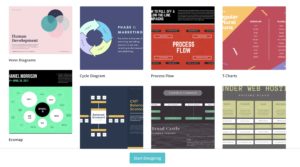
canva themes

Canva is a web app that centers on this idea that design should be something that anyone can do. When you enter the site, you’ll be greeted with a prompt that asks what you would like to design.

The app presents an attractive interface and a whole lot of presets. Preset templates are organized by type of content—so you can choose to design marketing materials, social media graphics, or visual assets to make your latest e-book pop.

Once you’ve selected a template, you can add various elements like text, graphics, borders, or your own images. There’s not a ton of customization built in, but the goal here is to create something that looks nice, without requiring any additional training.

2. Desygner

desygner app

Desygner’s primary selling point is that creating graphics on the go can be effortless. The set up allows for easy editing on iOS, Android, and the web, and the process is intuitive.

According to Desygner’s official site, the tool is made for people who aren’t trained designers but want access to professional level graphics for their business or social media channels.

The tool makes it easy by providing several templates you can make your own by using the built-in drag-and-drop editor.

3. Snappa

snappa templates

Low on time, but need to upload something slick in short order? Then Snappa is a sure bet for success.

The app—accessible on mobile and web alike—starts by asking you to choose from a selection of dimensions—so you’ll pick the right format for the channel you’re working with—Facebook, Twitter, etc. From there, you can start designing by picking a template, adding royalty-free stock photos, and adding text graphics, and more.

Create graphics, logos, and anything else that adds a layer of professionalism to your feed. What we liked most about Snappa is, you’ll receive step-by-step instructions that take you through the process within a few minutes.

4. Gravit Designer

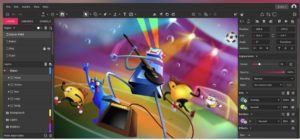
gravit designer home

If you’re a little afraid of the more advanced software programs like Photoshop or Sketch, but want something a little more fleshed out than Snappa or Canva, Gravit Designer provides a happy medium.

You’ll spend less time creating from scratch than you would with Photoshop, but it’s not all pre-designed templates like some of the other tools out there. There are some templates included—pre-sized according to each channel’s optimal dimensions, and you’ll get some pre-loaded shapes and icons built in as well.

What’s more, Gravit Designer comes with access to the Gravit Cloud, which makes it easy to store and share your creations with clients, collaborators, and colleagues.

5. Skitch

Skitch is an app created by the same folks who gave us Evernote. It’s a photo editing tool with several extras built in like filters, overlays, and the ability to add helpful arrows to your images.

We should mention that Skitch is a little different than the other apps we’ve mentioned here. Its main functionality lies in its ability to visually communicate an idea with standout markups. While you can’t design your website’s logo or create a Facebook ad—this tool is essential for bloggers who rely on screenshots to enhance their content.

Best side hustle apps for earning some extra cash

What side hustles are out there other than Uber and Lyft?

Movers

People have long embraced the side hustle as a way to earn some extra cash in between jobs or shifts. In the past, that might have been babysitting or dog walking.

These days, there’s an app for that. And by that, we mean everything. There are a lot more options out there than just Uber. It doesn’t matter if your skills lean toward web design or manual labor, someone will pay you.

If you’re looking to earn a little bit of cash to heal your wallet post-holiday season, here is a roundup of a few apps that can help you do just that:

Best side hustle apps for earning some extra cash

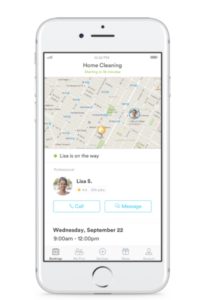
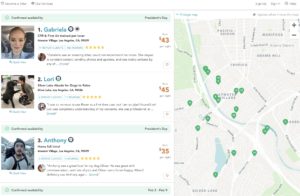
Handy

handy service app

At a glance, Handy appears to be one of the more lucrative gig economy apps.

This app provides a solid side gig for professional cleaners and handymen/women. The app claims that you can earn between $22 and $45 per hour, depending on the job. You also get to decide when you’re available.

We should mention that not everyone can sign up. You must have paid experience in cleaning or performing handyman tasks. Still, if you’ve done this type of work in the past and want to earn some cash on the weekend, this could be a good way.

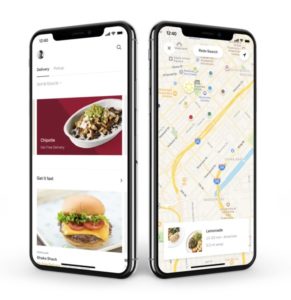
Postmates

Postmates app interface

Postmates drivers deliver food and other supplies to nearby customers. They can earn up to $25 an hour at their convenience. The only requirement is that you make at least one delivery per every 90 days and that you use your own vehicle.

That said, it’s not necessarily a steady income. You might be able to hit that $25/hr threshold. However, the average reported salary is $10/hr, per Glassdoor. Additionally, all of that driving around will cause wear and tear on your car.

We don’t recommend driving for Postmates full-time, but this gig’s flexibility makes it a good choice for people who want to earn some money during their downtime.

Postmates Download Free ►
8

Instacart

Instacart shopping

Instacart is ideal for those who love shopping for groceries. Sign up through the app to become a driver, shopper, or both. This app sends out assignments and will send you notifications about where you’ll be shopping that day.

Shoppers earn between $10 and $20 per hour and must have their own car. You’ll pay for the groceries through a prepaid Instacart card, then drive them to someone’s house.

Be prepared for a few challenges. In some cases, shoppers must carry heavy bags from down the street if there’s nowhere to park. Other times, you might get sent all over the place — spending more time driving than shopping. This side hustle might work for you, but be prepared to possibly walk bags upon bags of groceries up a flight of stairs.

Instacart Grocery Delivery Download Free ►
8

Amazon Flex

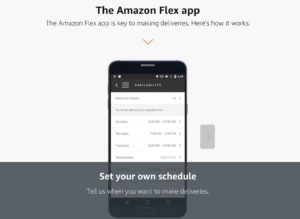
Amazon flex delivery app

Amazon Flex allows you to block off time in your schedule to deliver Amazon packages to customers. You can reportedly earn between $18 and $25 per hour.

As far as earnings go, Amazon’s civilian package delivery service presents some decent side cash. However, it’s not always easy. This Atlantic writer detailed their experience delivering packages in San Francisco and noted that it was a struggle to make deliveries on time and avoid getting a ticket.

City dwellers could find Amazon Flex a bit more trouble than its worth, but those in smaller cities with ample parking might have an easier time. Keep in mind, like other gig economy driving services, you’ll want to weigh auto expenses against earnings to see if the work is worth it.

Get Amazon Flex Download now ►
7

Dolly

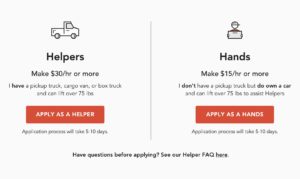
dolly moving services gigs

Dolly is an app that allows those with some muscle to earn up to $15 an hour as a mover. Those with a truck or van of their own can make up to $30 an hour.

Dolly allows you to turn on notifications and accept the gigs that work with your schedule. The few “helper” reviews we’ve found online have mostly good things to say about the gig. A couple of people mentioned that there’s a lot of work available in cities where people frequently move around.

Rover.com

rover dog walking app

Rover is a dog walking service that provides dog owners with on-demand walking, boarding, and daycare. While you’ll need to pass a background check to sign up, Rover could be a good choice for those who already work from home. Supplement your income by hanging out with a rotating cast of furry friends. It doesn’t get better than that, right?

That said, it seems that you need to be prepared to send pet owners updates throughout the day. Also, be prepared for a steady amount of dog doo.

Still, the site guarantees that up to $1,000 worth of work is protected each month, and you’ll have access to 24/7 support.

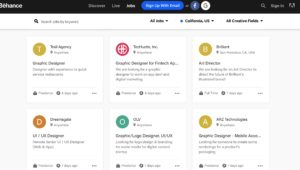
Behance

Behance design gigs

Behance is a gig website for freelance designers, photographers, and other visual arts pros. The site allows you to show off past work to prospective clients, lock down gigs, and find some inspiration.

While it can be difficult to get views on your work, it will be subject to professional review. At the very least, you’ll get feedback for your work.

Starting a side business on your own is one of those ideas better in theory than practice. Apps provide a convenient way to sidestep the funding and marketing part of the equation and let you get right down to business.

Wrapping Up

That said, we don’t entirely recommend using these apps if you’re looking for something more substantial. Instacart recently changed their policy, and it has impacted shopper take-home pay significantly.

If you’re looking into gig work as a freelancer — you may be better off looking for direct clients or applying for remote contract work.

In any case, if you’ve got some skills, dust em off once in a while, and maybe you can pocket some cash.

Guide to Mixer.com

Mixer is Microsoft’s video game streaming app, designed in response to Twitch.

It’s an interactive platform that allows users to watch the latest games in action, share streaming experiences, and monetize their content.

While the streaming service has been around for a while, it recently made headlines after famous streamer, Ninja moved from Twitch to Mixer in August.

Additionally, Microsoft has been steadily releasing updates to the platform from more monetization opportunities to anti-trolling.

Overview

Mixer sets itself apart from Twitch and the now-defunct YouTube Gaming with a few interactive components that can impact different gameplay elements.

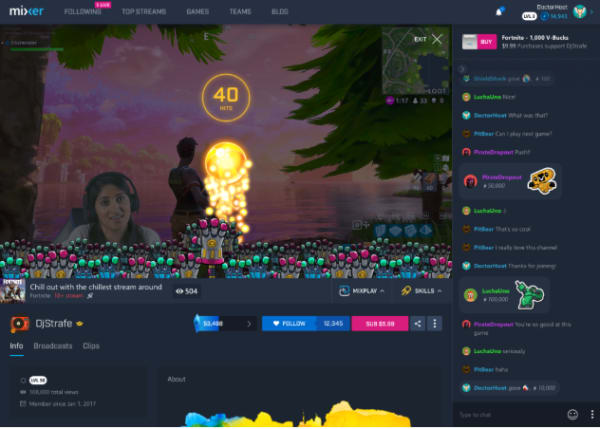
For example, streamers can opt to include their followers in the experience, allowing them to give streamers more ammo or health–or even take useful tools away for a more challenging experience.

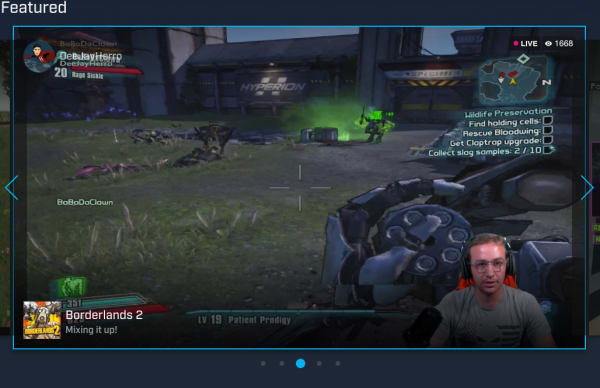
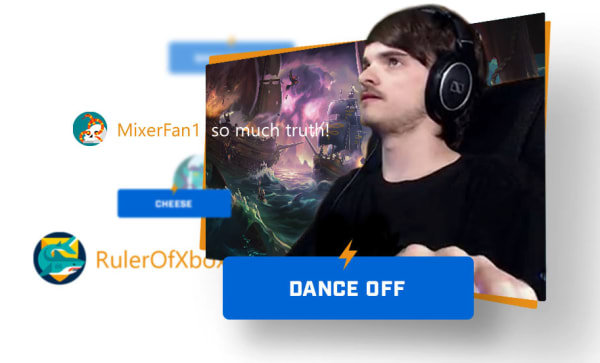
As you can see here, the platform’s interactive features show up in the form of overlays, and there’s the option to include stickers in the chat.

mixer interactive play

There’s also a co-streaming option, which allows up to four users to play the game together and broadcast a split-screen stream.

That said, for those who want the traditional experience, they can opt out by using uninterrupted Let’s Plays.

Skills

Skills are a new addition to the Mixer universe, and the same is a little misleading. Skills let users show support to their favorite streamers through GIFs, animated stickers, and special effects. Any time someone uses a Skill on a streamer’s channel, the streamer gets a small financial benefit.

Sparks

Sparks, another new financial incentive, gives viewers the ability to support streamers without paying for a subscription. Viewers earn sparks by watching streams and can spend them on Skills.

Embers

Another form of monetization, known as Embers isn’t yet available. But the idea is, they’ll work as a virtual currency that viewers can buy and spend on high-value skills.

Embers are similar to Sparks, but offer the streamer direct funding and bigger celebrations.

How to watch Mixer streams

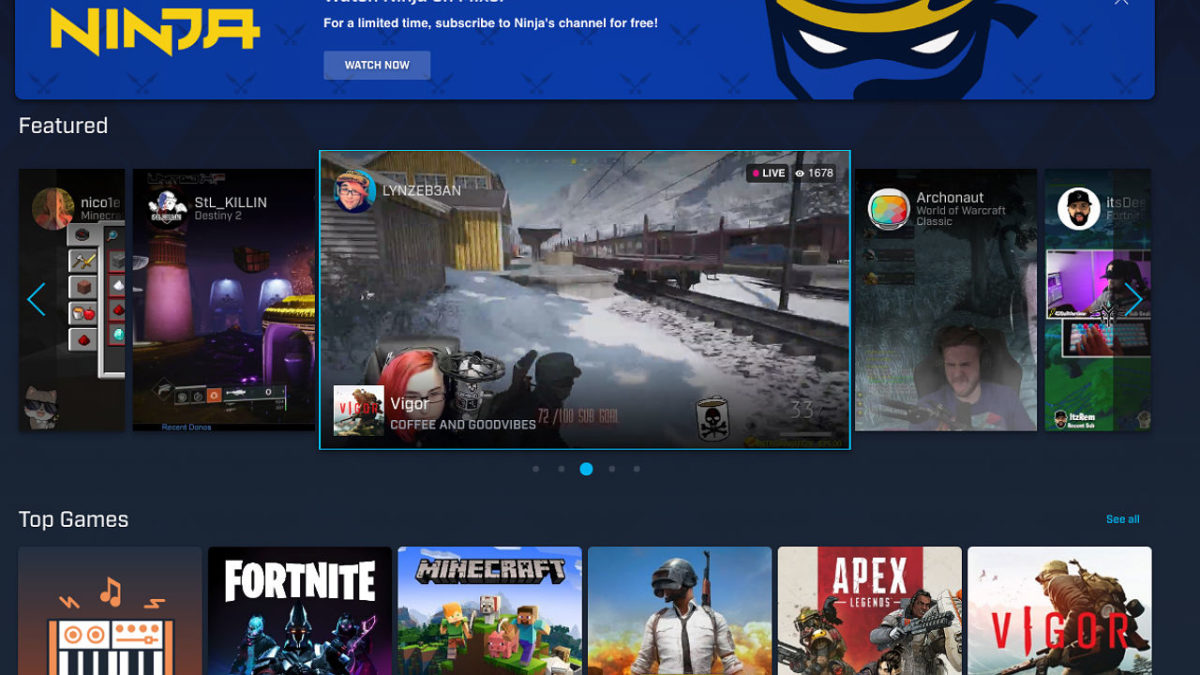
mixer streaming

Like other streaming services, all you need is an internet connection and a device to watch Mixer streams. Anyone can watch streams through their browser via Mixer.com.

There is a PC Mixer app, but it’s meant for hosting streams, not just watching. You will need to download a viewing app for Android and iOS if you’d prefer to watch on your phone.

Xbox One users can download the Mixer app to both watch and stream.

In any case, once you’ve got your app of choice set up, watching Mixer streams is as easy as tuning into Netflix or Hulu. The homescreen features some popular streams if you’re not sure where to start, or you can sort by game.

How to broadcast on Mixer?

One of the key benefits you’ll find with Mixer is, it’s relatively easy to start streaming on the platform. The first thing you need to do is make sure your Mixer account is linked to your Microsoft Account.

If you signed up back when Mixer went by the name, Beam, you’ll need to link your accounts.

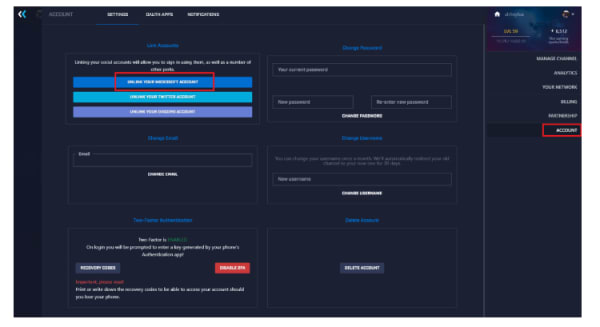
link your beam account to mixer

  • Head over to the Mixer site and log in.
  • Click on your avatar—found in the top right corner and select “account.”
  • Then select Link your Microsoft Account.

If using Xbox One, you won’t log in to broadcast—so you’ll need to sync your accounts on the computer.

Once you’ve done that, press the Xbox button on your controller to pull up the guide.

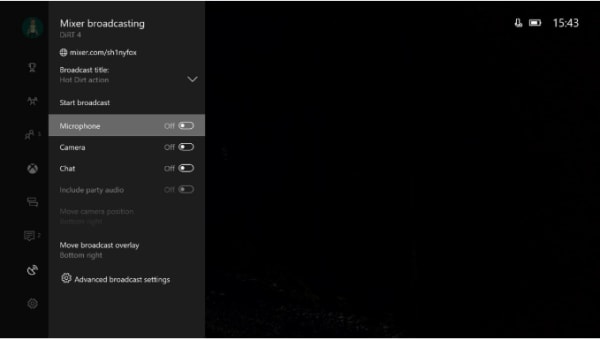
mixer how to stream

Scroll down to find the broadcast icon and select “broadcast your game.”

Enter a title for your stream and turn on the camera, chat, and microphone. You don’t need to enable chat or the microphone, though keep in mind that many users tune in for that interactive component.

MixPlays

mixplay interactive

Mixer offers a feature called MixPlay, which brings viewers and streamers together to play, chat, or even share control.

How to get people to follow you on Mixer

Ultimately, attracting followers on the platform is similar to growing a Youtube channel or getting more followers on Instagram.

A few tips:

  • Offer incentives to your audience–think merch or exclusive content in exchange for reviews, shares, or subscriptions.
  • Stream consistently–Don’t leave fans hanging, make sure you post content regularly so you stay top of mind.
  • Promote your channel on other social media platforms–Growing a following is a cross-channel effort, post links to your streams on social platforms and consider running paid ads to bring in more followers.
  • Team up with other gamers–This allows you to tap into other streamers’ audiences and brings another element into your own streams, as viewers get to see you interact with other gamers.

Can you make money?

Once you become a partner, you’ll have the ability to start making some cash from your streams.

According to Microsoft, you’ll need at least 2000 followers, stream for at least 25 hours a month, and have had an account for at least two months.

Partners gain access to ad revenue, subscription money, and get to test new features before the general public.

That said, streamers aren’t limited to this one method of monetization.

You can collect donations and tips from your audience by setting up links—similar to how podcasters use tools like Patreon to fund their shows.

A few options:

  • PayPal: Add a link to your bio so viewers can support your streams.
  • StreamJar: Allows you to accept tips and donations in exchange for incentives.
  • StreamLabs: A free, open-source service for Windows users, StreamLabs allows you to collect PayPal donations and add overlays to your stream. This tool also comes with access to chat, allowing you to keep in touch with viewers while you broadcast.

As mentioned above, you can also monetize using the Sparks and Skills system (and soon, Embers). This digital point system, which was introduced earlier this year allows streamers to reach milestones that translate into cash payouts.

While we’re not sure how the payout translates into any meaningful cash, it’s worth noting that you don’t need to be a partner or even a popular streamer to use the system.

And then of course, there’s the monetization holy grail, sponsorship. If you’re lucky enough to catch the eye of a sponsor, this is your best bet for earning money. Though that might mean including specific products or mentioning a sponsor during streams.

Ultimately, you’ll need to invest the time and energy into building a brand around your streaming channel before you’ll see any major payoffs.

How does Mixer compare to Twitch?

Well, for starters, Mixer is available on the Xbox One and Windows 10 PCs only. Twitch streams can be watched just about anywhere—PC or Mac, Roku, Playstation, Xbox, and more.

Mixer has some advantages—but when you compare the platform to Twitch or even YouTube streaming, it’s clear that this channel is designed almost exclusively for the Microsoft set, not the gaming community as a whole.

What’s next for Mixer?

Mixer’s latest round of updates make this platform one to watch. With Ninja’s move to Mixer and new streamers joining every day, the platform’s profile is on the rise.

We’re not entirely sure how the new monetization features will play out, but it’s certainly worth checking out if you’re an Xbox or PC gamer.

What to know about Flipgrid

FlipGrid is an education app that allows teachers to bring tech into the classroom. Teachers can upload discussion questions to the platform and students can answer using a video response.

The platform can be used in classrooms from kindergarten through college and is quickly gaining in popularity with educators from all over the world.

Microsoft acquired the app about a year ago and has since made the platform free for educators, and has been rolling out new features like embedded videos, AR stickers, and integrations with tools like OneNote and Google Docs.

What exactly does Flipgrid do?

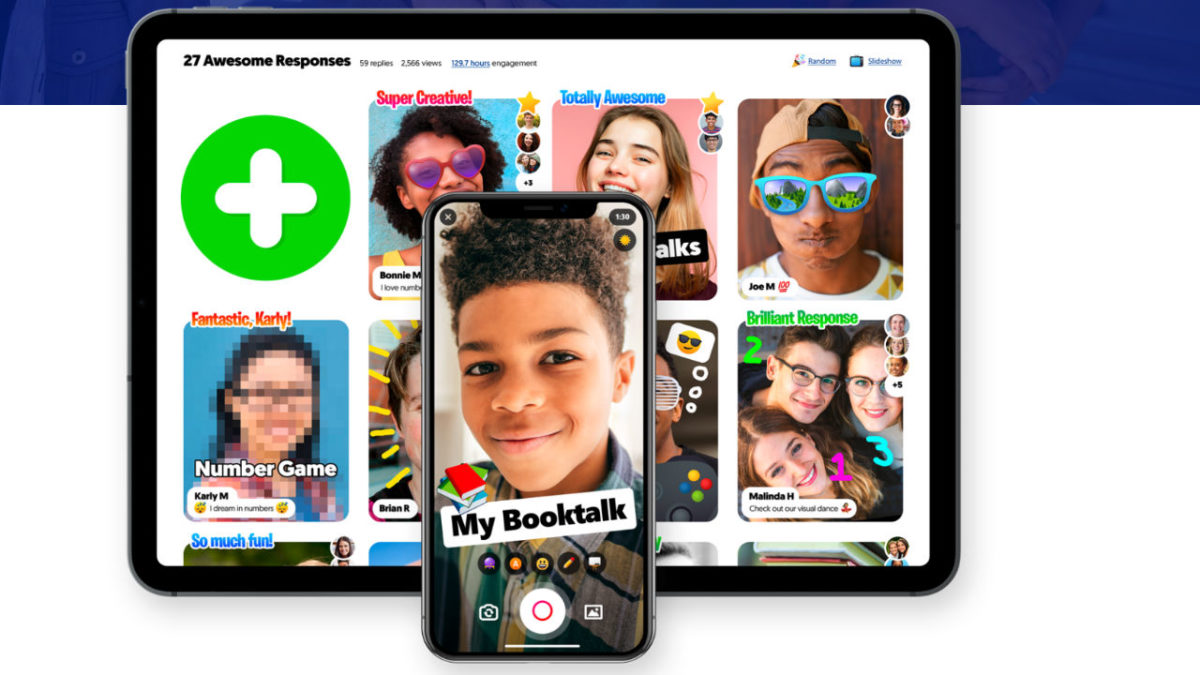
flipgrid view

Flipgrid allows teachers to create what’s called grids to host video discussions. Each grid works like a message board where teachers can post questions—known as topics in the Flipgrid world.  Students respond to topics, which appear in a tiled display that, as you might imagine, appears in grid form.

Grids can be shared with an entire class, with smaller groups, or any configuration of users participating in a discussion. Each grid can hold unlimited topics and responses—which can be text-based or contain videos, GIFs, emojis, or an attached document.

On the student side, users can download an app or access the platform via desktop. Responses can range from 15 seconds to five minutes—though teachers can set time limits based on the assignment.

What’s more, teachers have the option to open up the discussion by allowing students to record replies to their classmates’ video responses. There are a variety of moderation features teachers can turn on or off per topic, depending on the lesson.

Student tools

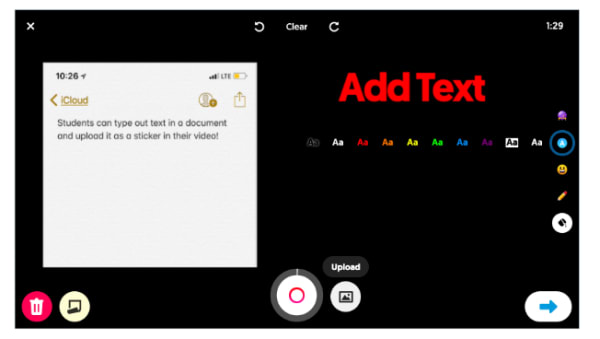
flipgrid student view

Students can benefit by learning to articulate their ideas — speaking from the comfort of home rather than being put on the spot in class. They’ll also have the opportunity to see what their peers have to say—which encourages students to consider multiple viewpoints.

Students have access to this “sticky note” feature, which can be found on the recording screen. What it does is, it allows them to type out an outline or bullet points to include in the video, serving as a guide for the recording.

Pause, trim, and re-record buttons allow students to fine-tune their responses. Though, it’s worth pointing out, teachers need to be upfront about expectations, so students don’t waste time editing and re-recording in the pursuit of perfection.

Collaboration tools for teachers

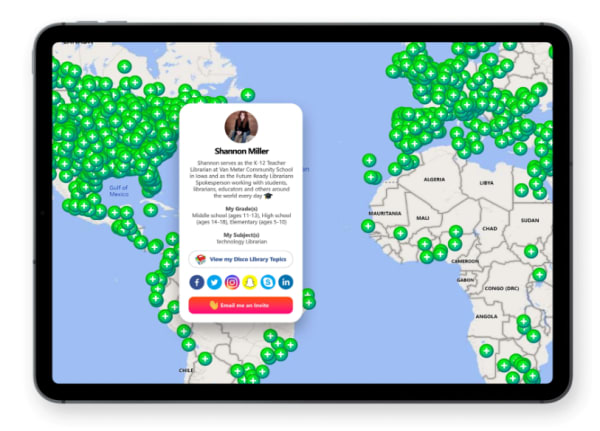
The CoPilot allows teachers to collaborate on grids and share moderator duties. There’s also the Disco Library, designed for sharing grid templates and GridPals, a social network that allows teachers to connect with other educators from across the globe.

gridpals map

Flipgrid AR

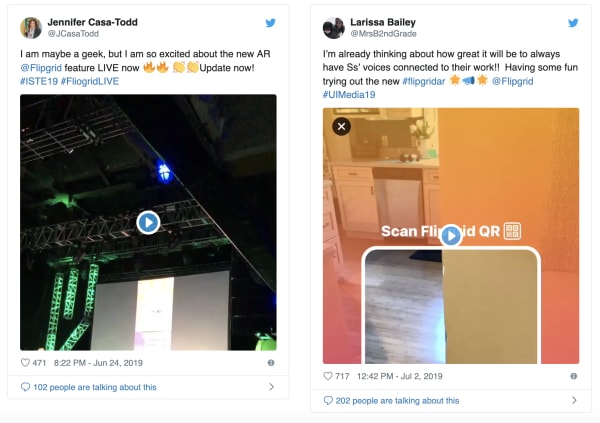
Fligrid recently added a new augmented reality feature, FlipgridAR, lets users print real-world QR code stickers that bring in-app creations into the real world.

flipgrid ar twitter shots

More content offerings

It’s not just individual teachers that can post resources to the app, either. Flipgrid now offers access to content from Code.org, Hacking STEM, NASA, Microsoft EDU, Find Your Grind, and Wonderopolis, and more.

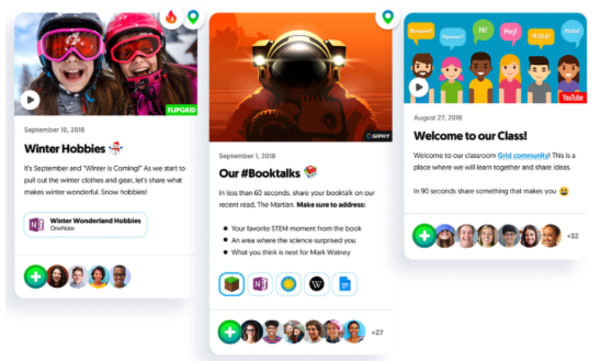
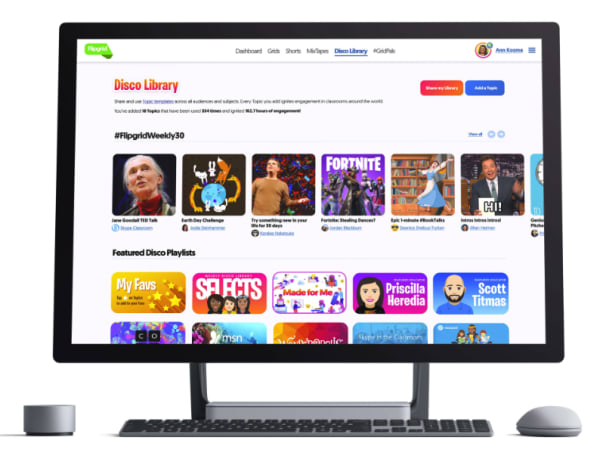
Within the Flipgrid Educator Admin panel, there’s launch-ready discussion prompts in the community-generated Disco Library.

flipgrid resources


Here, teachers can access discussion prompts and content from the community—downloading templates and other resources to bring into their own strategy.

Loop the family into the discussion

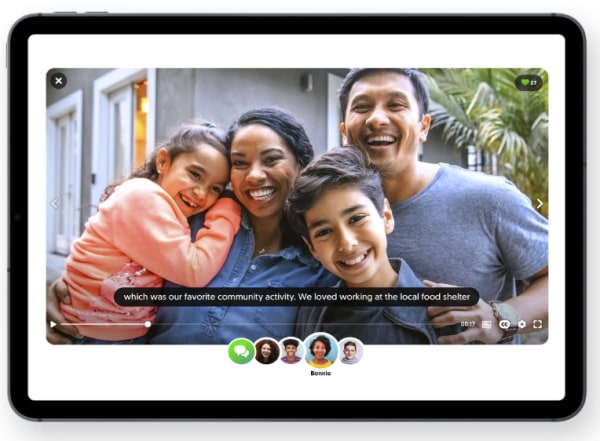
flipgrid guest mode

Beyond students and teachers using the platform, Flipgrid also brings family into the fold, allowing teachers to curate MixTape collections of videos so parents can see what their students are up to at school.

What’s more, there’s also the option to include Guest Mode Topics, where families can record responses from home.

Is Flipgrid an effective learning tool?

Flipgrid is an example of how educators can bring technology into the classroom in a way that helps students learn to use modern tools and get comfortable with being on camera.

The important thing to note here is, teachers need to be clear about how the platform works. Some students might assume that what’s meant to be an informal video response should be a full-blown presentation.

There’s also the issue that some kids might feel uncomfortable recording a response that their peers can review later on. As such, educators need to create a culture that emphasizes respect.

So far, Flipgrid has done a great job creating the kind of digital learning experience that takes the best parts of social media—collaboration and discussion—without resorting to the sorts of societal low points you’ll find on platforms like Facebook and Twitter.

What’s also great about this tool is, it allows educators to bring in community resources, but the teacher still leads the discussion. If you compare this experience to the disconnected MOOC environment, Flipgrid still offers that small classroom community, while pulling resources from relevant institutions that may offer more expertise.

Video chat with Marco Polo App

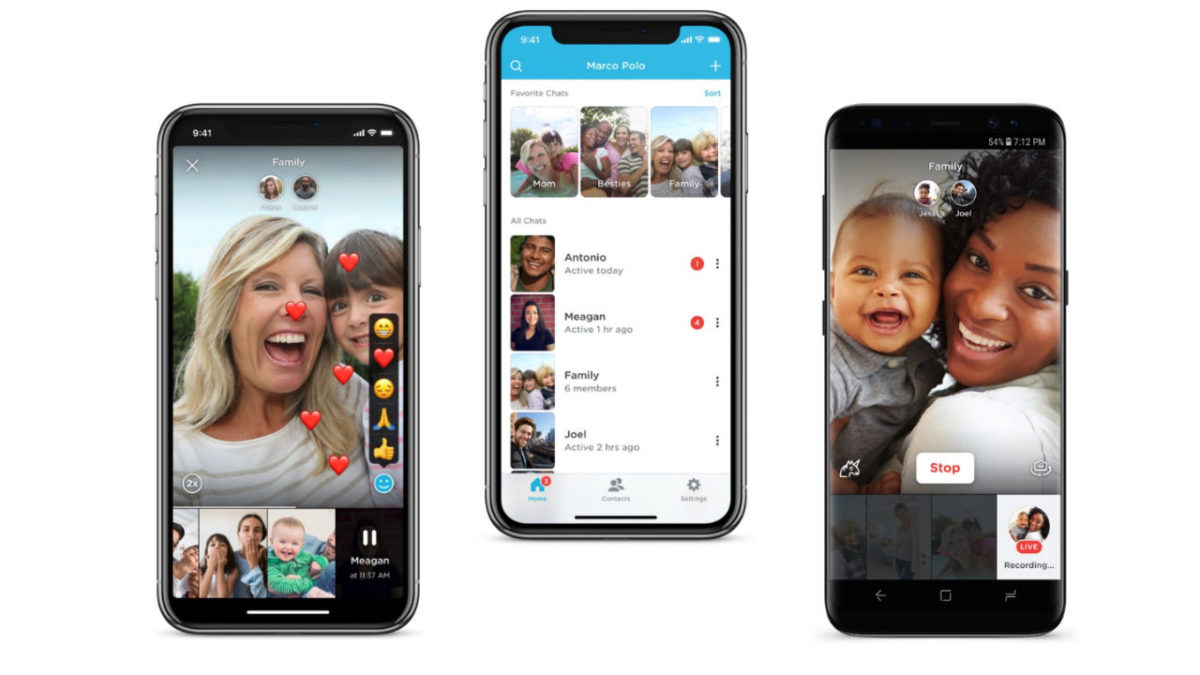
Marco Polo is a video messaging app that works with Android and iPhone.

We’ve seen a lot of mentions of the app calling it a digital “walkie-talkie,” others have dubbed it “Snapchat for old people.”

Essentially, Marco Polo is a call-and-response app that allows you to record a video then send it to a friend. When someone receives a message, they can watch it on the spot or save it for later.

All video messages are pre-recorded, so it’s not a live video chat like Facetime or Skype. Messages won’t disappear or expire, as is the case with popular alternatives like Instagram Stories and Snapchat.

The website states that you can react in real-time, but that comment is a bit misleading, and the experience is more akin to texting back and forth versus video chatting live.

How Marco Polo works

Marco Polo allows you to import your contacts using their phone numbers, and once set up, you can add them to a “Polo” or chat.

When you first download the app, you’ll have the option to either import all of your contacts at one or add friends manually.

You can only add people you already have in your phone’s contact list, and no one has access to your account unless they know your phone number, making it easy to stay safe online.

Though the app asks users for permission first, gains access to your entire contact base, which may make some people uncomfortable. And, as you’ll see in this Reddit thread, some users have accidentally spammed everyone in their contacts.

And much like LinkedIn, you’ll also have the option to automatically invite everyone in your address book to join the app by sending them a text message link.

how to add contacts in Marco Polo app

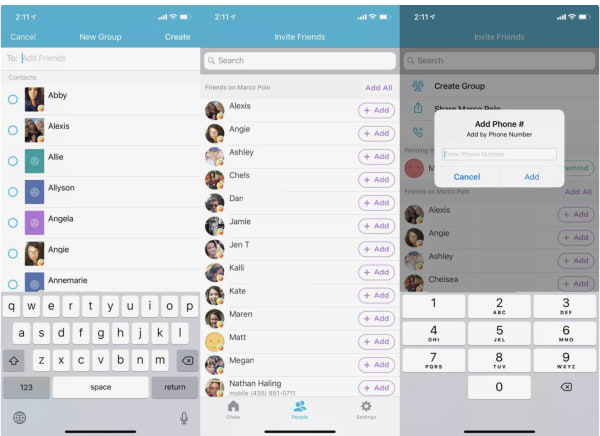
Here’s a quick look at how to add contacts:

  1. Tap on the People tab found at the bottom of the screen.
  2. Check “Friends on Marco Polo” list to see if anyone you know already has a Marco Polo account.
  3. Then, hit Add+ to start a Marco Polo with one contact or you can select Create Group from the top of your screen to start a group chat.
  4. If you’d like to connect with a friend that isn’t showing up on your Friends list, you can send them a message using their phone number. Your friend will get an invitation to join Marco Polo.

How to send a video message

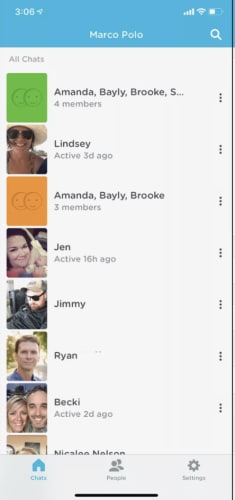
To send a Marco Polo video, you can start from either the Chats or People tabs inside the app.

The Chats menu displays your most recent posts, making it your best bet for responding to message threads. The People menu is best-suited for starting a new conversation.

marco polo chat screen

  1. Head over to your Chats menu, found at the bottom of the screen.
  2. Click on a group or individual contact to record your message.
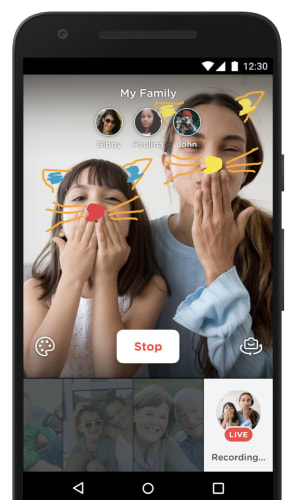
  3. This will open up the camera and you can start recording.
  4. You’ll also see a few options for adding effects to your video.
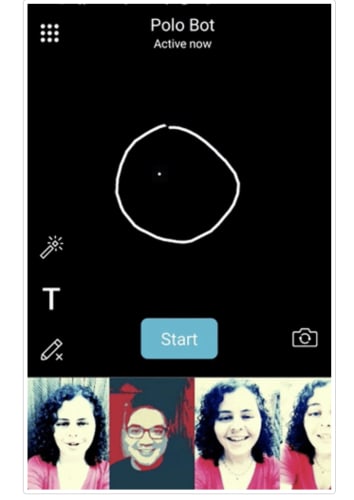
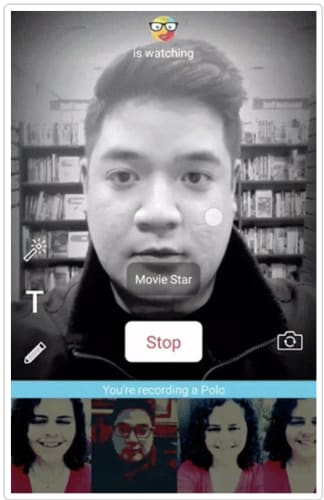
  5. Tap Start to begin recording your message.

marco polo live

If you’d like to make things a bit more interesting, you can add the following elements to your video, as well.

    • T: Allows you to add text on top of your message.
    • Landscape Icon: Here, you can insert a photo and record audio to go with it.
    • Unicorn: This icon allows you to distort your voice.
    • Camera Flip: The default view in the app is selfie mode, camera flip allows you to get behind the camera and record your surroundings.

Add a doodle to your message

Marco Polo add doodle

To draw on top of your message, simply follow these steps:

  1. Open a conversation
  2. Tap on the Pencil icon, which can be found next to the Start button.
  3. Draw on top of your message with your finger.

Filters

If you’d like to add a filter to a video message, all you need to do is swipe left or right on the screen to make the change.

marco polo filters

Is Marco Polo worth checking out?

For the most part, people seem to like Marco Polo. Admittedly, the selling points like—it enables real conversations or it helps people not feel lonely–aren’t exactly measurable, but it’s kind of a neat way to connect with loved ones, getting more personal than a text.

We liked that user identities are based on phone numbers, so there’s no need to sign in with a Google account, or sync up to Facebook or Instagram.

The family-friendly branding—with imagery including military service people, grandparents, and groups of friends—position the app a wholesome, private way to keep in touch.

Marco Polo Download Free
8

4 easy ways to level up your phone photography skills

Do you suck at Instagram? Are your Facebook albums a bit of a bummer? Some of us just don’t have a knack for taking the pictures that get likes and impress your followers.

Look, anyone can pick up a smartphone and snap a few selfies and sunsets. But, without a few basics under your belt, your website, feeds, and personal albums won’t live up to their potential.

It takes more than filters to create a great image—you need to get the hang of things like focus, exposure, editing, and composition.

If you want to step up your Insta-game, it’s time to master a few key principles the pros already know. Here’s a look at some ways to get more out of your camera phone.

1. Getting set up

Before we dive into actually taking photos, you’ll want to make sure you’re setting yourself up for success. A few things to check out before you dive in:

  • Clean your phone’s lens—use a lens cloth and some cleaner to gently wipe dust, dirt, and finger print smudges from your phone’s lens. Chances are it’s pretty dirty.
  • Set phone to the highest resolution—If you take a shot you love, you want it looking its best.
  • Set white balance—Many phones come with the option to adjust white balance. The reason you’ll want to do this is, while the human eye adjusts for lighting—allowing white to appear white in most settings, cameras do not.
  • Turn off any effects—You can add these in later if you want. When you’re taking the photo, you want to start with a clean slate.

2. Compositional tips

Use the grid

One of the easiest ways to level up your photo skills is to take advantage of grid lines. Your smartphone has a setting that allows you to turn this feature on:

The benefit of the grid is, it allows you to intuitively follow the rule of thirds.

The rule is a compositional technique that involves dividing an image into thirds and positioning your subject within one of those areas.

grid

Use leading lines

Adding lines to your composition is a great way to lead the eye through the image, creating visual interest. Easy choices include things like train tracks, rivers, and roads.

As you can see, the photo below directs you to the people in the background. Because the lines converge, there’s a bit more interest than if the composition were to just have one line leading to the people.

leading lines example

Frame your subject

Framing means you’re arranging your photo in a way that allows you to outline your subject with something in the environment. The frame helps to highlight your subject and draws the viewer into the image.

frame your subject

Take advantage of negative space

Negative spacer is a term that refers to the areas around the subject of an image. The empty space, like in the photo below, makes your subject stand out. Things like a wide, open sky, a large body of water, and so on, can elicit a powerful reaction for viewers.

3. Lighting stuff

Lighting is the main thing to consider when you’re snapping shots for the gram or otherwise. While you can crop your way into a better composition, add filters, and special effects, you can’t edit away a poorly lit photo.

You’ll want to avoid low lighting and areas with super bright reflections. If you’re shooting on a phone, you don’t have the advantage of high ISO speeds, which allow cameras to take indoor photos without a flash.

Instead, take advantage of natural light. Smartphone photos that use flash don’t always look so hot. Instead, they may negatively alter colors or wash out your subject. In the daytime—indoor photos work best near a window, without any additional sources of artificial light, which can make your photos look yellow.

When shooting outdoors, the golden hour is your BFF.

The golden hour, or the period just before sunset or right after sunrise, is responsible for those dreamy, sun-kissed shots. During this time, the sun is closest to the horizon, and light must travel through more atmosphere—which softens the light. Thus creating a more flattering effect.

4. Editing your pics

Okay, beyond things like nailing the lighting and composition from your phone, there’s a trick to turning your social feeds into an influencer level curation.

Filters

Filters are kind of divisive in the realm of digital photography. Used correctly, they enhance an image and add some cool effects. If you’re using your iPhone or Instagram’s built-in filters, you’re using the same preset options that millions of other people are using.

Lightroom

Lightroom rules because while it’s a professional-grade tool, it’s also super easy to understand. The app comes with a wide range of features from lighting adjustments to gradients, allowing you to tweak your photos into something truly amazing.

You can even create your own filters and apply them to your next round of pics for a more customized appearance.

VSCO

VSCO is an easy-to-use app that many Instagrammers swear by. The app comes equipped with a selection of pre-set filters. You can use the built-in options, of course, but our recommendation is finding one you like and making custom tweaks. You can save your favorite filters, too. This way, you can use your favorite settings over and over again—saving time and allowing you to create a cohesive look on social media.

What’s more, the VSCO community is a great source of inspiration for those just starting out.

6

Snapseed

Snapseed is another option that makes it easy to take your photos and turn them into something more aesthetically pleasing. What we like about this app is, the developers have made it super easy to edit photos within a matter of clicks.

This option is simple, best for those who don’t want to take the time to learn Lightroom and it’s many nuances.

9