
Hands on with FIFA 14

FIFA14_PS3_GE_PrecisionMovement2_WM

We’ve previewed FIFA 14 already, but EA Sports has recently granted us hands-on time with a demo build of the upcoming soccer game. We played with the Xbox 360 and PS3 preview builds, but FIFA 14 will also release on future consoles Xbox One, PS4, and for Microsoft Windows.

We’re impressed so far: FIFA 14 continues to improve steadily, although there aren’t many radical changes from last year. There’s no harm in playing it safe though, as FIFA is already a strong sports simulation series and more than enough to rival competitor Pro Evolution Soccer from Konami. That’s not to say that it’s completely the same, though, so sit back as we reveal the main changes to gameplay and other aspects.

More real locations

We were surprised to see the amount of stadiums included in FIFA 14, the main one being Camp Nou, the soccer stadium in Softonic’s home base of Barcelona. EA had previously lost the license and had to exclude Camp Nou from FIFA 13, making it a nice return. Camp Nou of course means that FC Barcelona is a playable club. Other playable clubs in the demo included Atlético Madrid, Dortmund, Liverpool, and more. The roster was made up from the 2012-2013 season, so it unfortunately lacks some newly-drafted players.

FIFA14_X360_SP_PureShot_WM

The demo’s graphics are nearly identical to FIFA 13, although we suspect that this is only for the current generation of systems. EA will certainly need to improve the visuals for the Xbox One and PS4. While we didn’t see a graphical improvement, FIFA is evolving in other ways, one example being significantly improved animation.

Realistic movements

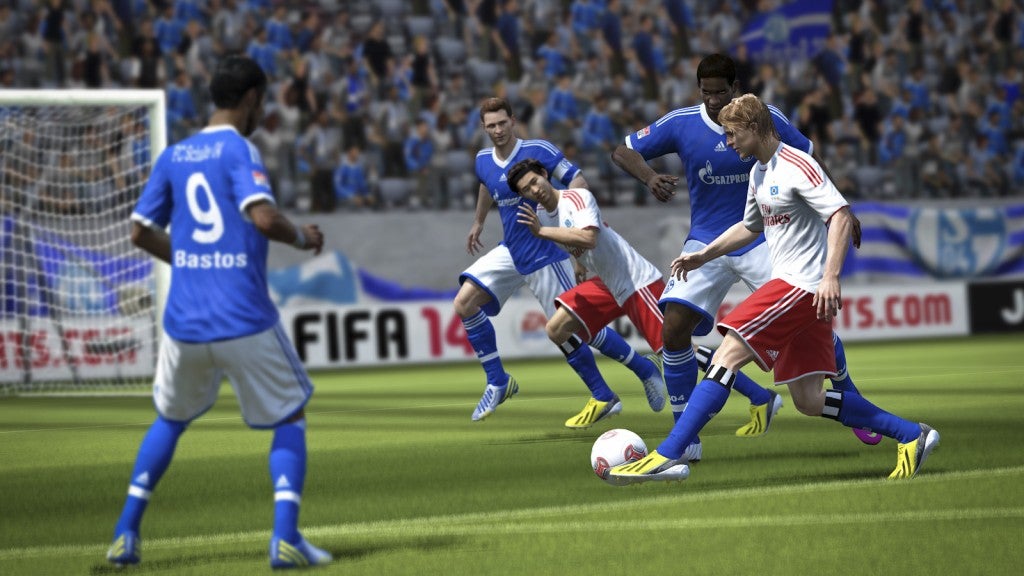
EA has greatly improved the flow of the game with the implementation of a realistic animation system dubbed “Precision Movements”. This system revamps FIFA animation, creating a more fluid and natural replication of the real sport. Precision Movements controls the step-by-step flow of each player on the field, creating more natural turns and collisions. It also gives the ball improved physics, requiring greater finesse to swerve shots, strike with power, or drill the ball accurately.
FIFA14_PS3_GE_PrecisionMovement1_WM

In practice, it might be hard for novice players to tell the difference with Precision Movements. However, like a fighting game, the changes in animation and, more importantly, frame count have an effect on gameplay. For example, your opponent turns sharply, causing them to brake slightly. In these few tenths of a second, it becomes easier for you to steal the ball and turn the match in your favor. Dedicated FIFA fans will be able to create new fast pace strategies not seen in previous installments.

On the defensive

FIFA14_X360_UK_PrecisionMovement_WM

EA is fully aware that there are handicaps created by Precision Movements, so it’s added a defensive mechanic called “Protect the Ball”. Using the controller’s left trigger button, the player with the ball will be able to use their own special movements to help block the other team’s attacks and quickly get the ball back into their possession. This will allow you more time to plan your actions, while also encouraging less reckless gameplay.

Contact and collision

FIFA14_X360_NA_Physical_Play_WM

Previous versions of FIFA have been criticized for the amount of collisions, creating absurd situations like forwards and defenders smacking into each other and collapsing to the ground. While this system still exists, the animations and presentation is more realistic-looking. Impacts are more natural, to the point where you can sometimes feel the physical crunch of bodies crashing into each other. There are still a few moments when collisions are downright hilarious, but they are few and far between.

Take your aim

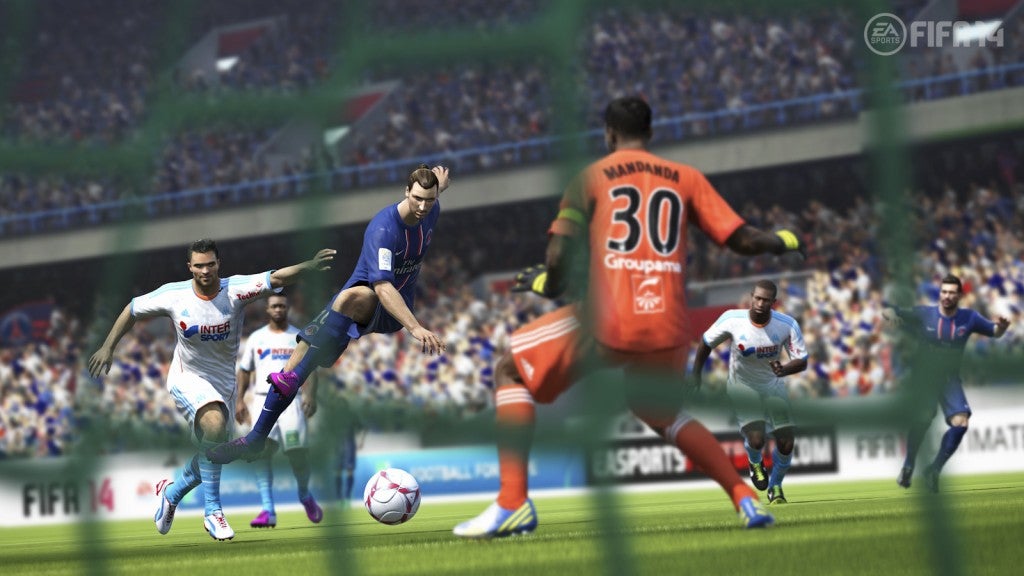
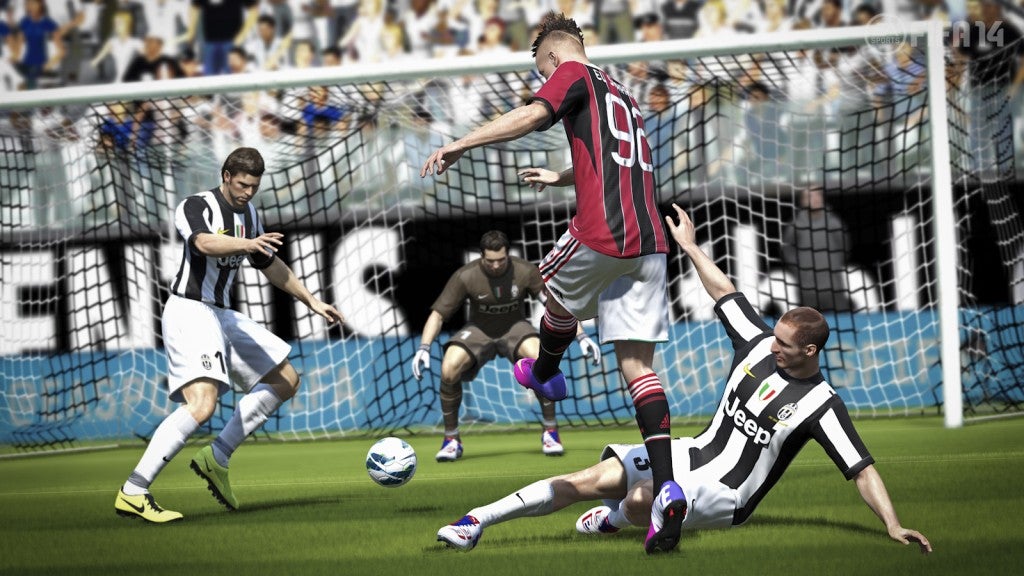
FIFA 14 has an updated system, “Pure Shot”, that changes the stride and angle of a shot. Players will now have to think about how they approach the goal, although they can also shoot while rushed or off balance. This typically makes it much harder to score, and even with little pressure from defense, an imperfect shot could completely miss the target.
FIFA14_X360_FR_PureShot2_WM

Not only is it harder for the offensive to make easy shots, but player-controlled goalies are now more powerful. We were able to block many shots with ease and could move quicker than in FIFA 13. Some of our dives felt like they were almost magnetic, allowing us to stop shots that should have been out of our reach.

An intense challenge
FIFA14_PS3_IT_Pure_Shot_WM

The high degree of realism might appear slow to some people, with a bigger focus on defense and midfield action, but fewer total goals. However, FIFA 14 is very exciting to play, with a real intensity as you battle for control of the field. During our time with the game, we saw risky shots and spectacular plays, with fierce battles for control of the ball.

Don’t worry, the spirit of soccer is still there, only now you need to work for it. While we only played exhibition matches in the demo, hopefully EA will give us time with the Career mode and online features soon. Until then, we’re looking forward to future FIFA 14 details.
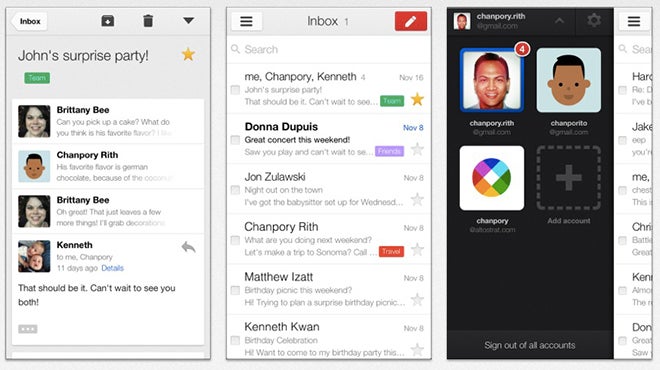
Hands on with the new Gmail updates for Android and iOS

gmail-update-130327

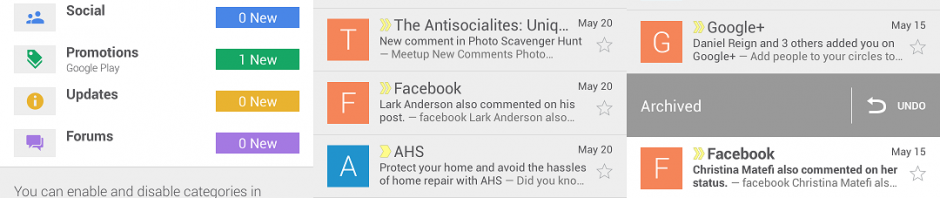
Alongside the new Gmail tabbed inboxes on the web, Google is rolling out updated versions of Gmail on both Android and iOS. All of these new upgrades give different versions of Gmail a unified look and feel, with updated inbox categories, visual styles, and gestures. We’ve tested out the Android and iOS upgrades and will share some of our impressions.

Gmail for Android

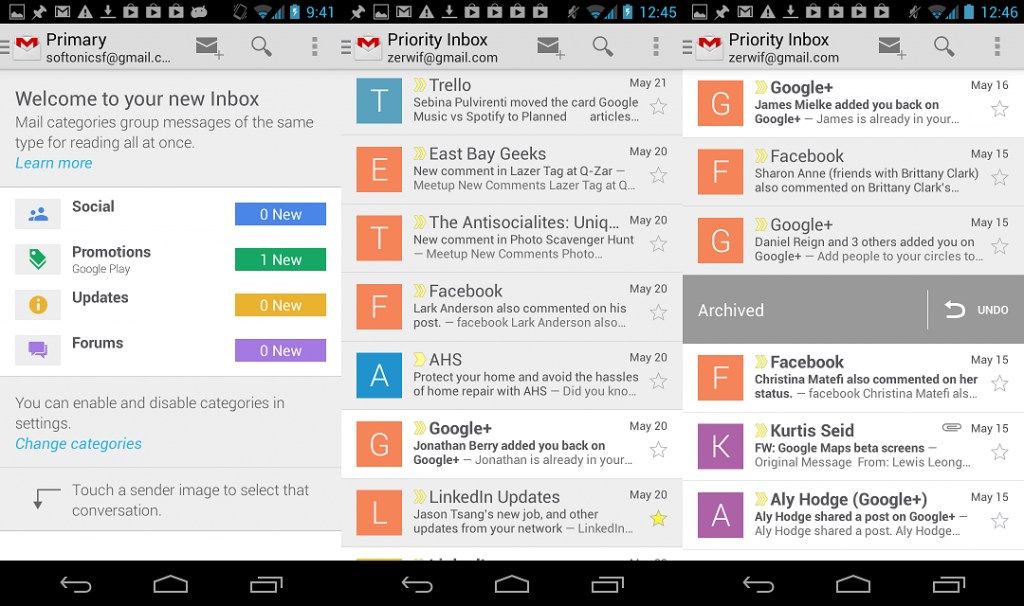
Over the next week, Gmail for Android 4.5 is being rolled out to supported devices, those with Ice Cream Sandwich (4.0) or later. Older Android operating systems will instead be at 2.3.6, which doesn’t have the neat new features of this update. The revamped Gmail app includes a new interface with inbox categories and the ability to refresh with a pull-down.

android gmail

The redesign coincides with the tab update on PCs. In fact the category tab will only appear on Android if you’ve already turned on the setting on the web app. Doing this will activate the feature on all of your devices, though you may need to re-launch the app to see the changes. The default inboxes include Primary, Social, Promotions, Updates, and Forums. These can of course be configured in the options menu by clicking the gear icon. This is good as the default inboxes are so new and a touch of personalization will make it easier for users to adapt.

Android gmail 2

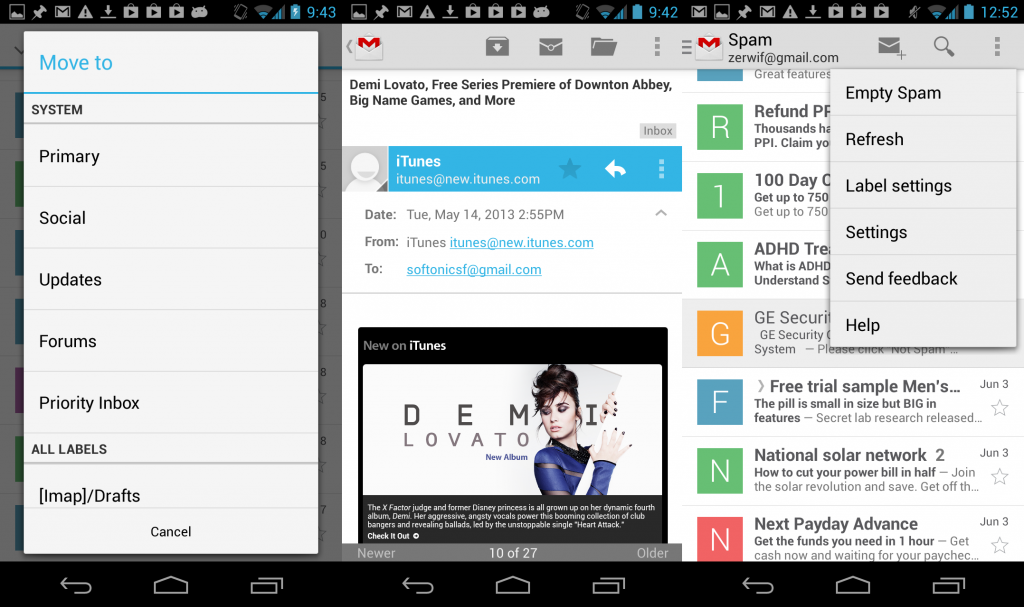
The design is visually vibrant, with emails grouped into conversations marked with user avatars (or large colored letters for those who don’t use an icon in Gmail). Long-pressing a conversation will bring up options to delete, mark as read, or move the message to other labels. These options appear at the top of the interface, instead of the bottom, which is a little jarring. You can also slide conversations left or right to quickly archive or delete them. As suspected, a simple tap will let you read the entire conversation.

There are more gestures in nearly every menu and view. Sliding right in a conversation will let you see older emails in that inbox or label, while sliding left will let you return to newer ones. Pulling down will refresh your inbox and sync email, while pulling from the far left will bring up a menu to change views, categories, or switch accounts. All of these are fluid and easy to use, making the new gestures very convenient.

Gmail on iOS

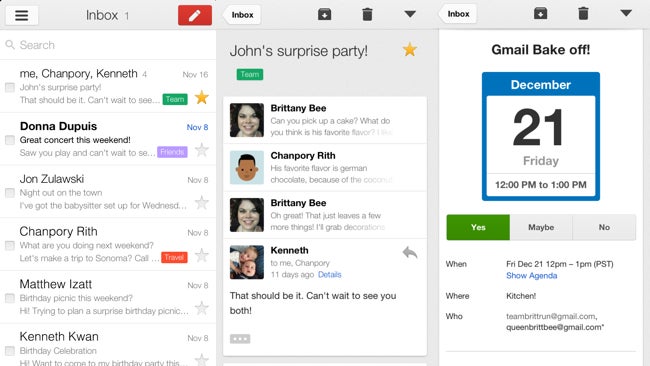
Gmail for iOS 2.3.14159 has a few of the same features as the Android update – the main one being the new categorized inboxes. A nice touch is that you can fully enable it right on your iOS devices, although it will automatically be updated if already activated on PC. Most of what was mentioned in the Android section applies to the iOS version, so it’s better to focus on what’s different.

gmail-iphone-app-2

The design is a little different, with user icons appearing within a conversation instead of on the message list. Also, notifications are briefly summarized in the inbox, rather than the multiple notifications that appear in the Android stream. You can also set notifications for only the Primary inbox, and won’t be spammed with what is filtered into the other tabs. This lighter notification option will only appear when you opt into the new tabbed inbox feature and will no longer work if you opt out. The final change is that Gmail now directly opens Chrome, Maps, and YouTube apps instead of a web browser, which is a great way to unify Google services.

Final thoughts

These updates to Gmail on mobile devices shows that Google wants a cohesive experience no matter where you check your mail. While it would have been nice if older operating systems received a few of these new features, it’s understandable that Google is focusing on the future. We found the redesign responsive, visually appealing, and mostly easy to use; it’s still a tad annoying that they moved several of the icons from the bottom to the top of the app though. We’re still not completely sold on inbox categories, as it still needs options to allow users increased customization and the ability to add more tabs. Thankfully, you can disable tabs and still enjoy most of the fantastic upgrades.

E3 2013: our most anticipated games

e3primer6E3 2013 will take place from June 11th to 13th at the Los Angeles Convention center. We are sending a team to try out the games there. However, with so many games to try and only a few days, what’s worth seeing?



Here are the games that interest us most. Nearly all of them are confirmed to be at this year’s E3, and we’ll specify the ones that aren’t.

Destiny: Bungie’s living universe

We don’t know Microsoft’s plans for a Halo game on Xbox One yet, but there is another game that could remind players of Master Chief. We of course mean Destiny, Bungie’s first-person action game which will come to Xbox One, Xbox 360, PS3, and PS4.

4281Destiny_Law_of_the_Jungle_FireTeam_on_Mars-600x337

Destiny takes place in an always-online universe, but isn’t a typical MMO. Bungie and Activision described the game as a ‘shared-world shooter’. Does that mean it’s more of a ‘Halo Online’? Looking at the screenshots it’s easy to see similarities between the Destiny heroes and Master Chief.

Are you excited about the shift to a persistent world, or do you wish Destiny was a more conventional shooter?

Skyrim’s successor goes online

There has been some worry about The Elder Scrolls Online, the first MMO in Bethesda’s long running single-player series. We too are skeptical, but it’s not fair to criticize it before getting a hands on.

Many people have stated that TES Online looks and feels generic, with a lack of innovation. Is it always about the gameplay of a MMO? There are times when the setting is more important, and many fans will likely want to explore the rich world of Tamriel with other people.

the-elder-scrolls-online-4-600x3371

We look forward to what new information Bethesda releases, and it could be enough to wash out the bad taste others have experienced.

Open world action

WatchDogs1-198x256Unfortunately Rockstar will be absent from E3, so we won’t be seeing new Grand Theft Auto V information. However, that leaves room for two other games that are competing with GTA V’s open world adventures: Watch Dogs and Saints Row 4.

Watch Dogs has quite an upper hand thanks to the expertise of Ubisoft. The gameplay looks complex and the next-gen graphics are impressive to us.

Saints Row 4 is less about amazing innovation, and more crazed spectacles. The Volition franchise is known for mashing together everything under the sun. You can look forward to aliens, super powered politicians and more. The cartoonish mayhem is what makes Saints Row 4 entertaining compared to the ‘serious’ open world games.

Games of war

Two major war game squeals are on their way: Company of Heroes 2 and Total War: Rome 2. The great thing about these strategy games is the ability to take the part of a brave leader of armies and fight historical battles.

total-war-rome-2-teutoburg-600x337

Those looking for more action packed shooters will also find them in the heart of war with titles such as Battlefield 4 and Call of Duty: Ghosts. While these franchises also have attention to detail regarding real military gear and environments, the stories are quite fictional.

Twin Snakes

Speaking of fictitious war settings, Konami and Hideo Kojima will be showing off two games in the Metal Gear franchise: Metal Gear Solid 5: The Phantom Pain and Metal Gear Solid: Ground Zeroes. Both games will focus on Big Boss rather than Solid Snake. Given Big Boss’ age during The Phantom Pain, voice actor David Hayter will not be reprising the role. The most confusing part is how these two games will be packaged and sold – creator Hideo Kojima stated at GDC 2013 that they are one in the same game with a single narrative, Ground Zeroes being a prologue into The Phantom Pain. Afterwards, Konami’s Director of Public Relations Jay Boor told Siliconera that the two are actually separate games and could possibly be on different consoles. The official Metal Gear Solid Facebook page also repeatedly states that the games will be separate. Perhaps Kojima would prefer them to be a single game, but publisher Konami has other plans?

snake-600x337

We’re mainly excited about Ground Zeroes, which is an open world game that has the ability to access the games “mother base” from their smartphones. Players can also play the story non-linearly by selecting missions in in order they like.

Are you ready for this new direction, or were you expecting a more typical Metal Gear game?

Play ball

The Xbox One has a clear focus on sports games, with a clear dedication to EA Sports. Powerhouse franchises Madden, FIFA, or UFC are likely to receive the same yearly installments on the new consoles. What we really caught us is the return of NBA Live, which has been announced for the Xbox One and PS4. There is some skepticism though, as NBA Live hasn’t had a console version since NBA Live 10 in 2009. This should also give 2K good competition, giving them a good reason to improve NBA 2k14.

nba_live-600x339

PS3 still has life

beyond-253x256Microsoft seems to be placing their exclusives on Xbox One, with less emphasis on the Xbox 360. On the other hand Sony is still supporting three strong of PS3 exclusives, even with the PS4 on the horizon.
The Last of Us will be the first of these to come exclusively to PS3. We’re also very excited for the other two, Gran Turismo 6 and Beyond Two Souls. The former’s promise of more cars and greater customization is wonderful, while the latter will hopefully have a story as gripping and intriguing as Heavy Rain.

Even more possibilities

These are just a few of the games that will be at E3 2013, but the real draw of the conference is the exciting announcements. Will there be PS4 exclusives at E3? What Mario games will be on the Wii U? Will there be even more details about Xbox One exclusives Quantum Break and Forza 5?

There are many more games in the pipeline, and while we’ve highlighted our picks to monitor we leave the most important question: What games you looking forward to at E3 2013?

How to disable Smart ads in Gmail and Yahoo! Mail

Yahoo-Mail-600x347

Yahoo! Mail has discontinued Mail Classic, forcing users to switch to the newer version of the service. Among the updated terms of service is a clause allowing email scanning, which Yahoo! uses to provide Smart ads tailored to your emails. Gmail also has email scanning, which is also used for better personal ads but also ties into other services such as Google Now.

The term “email scanning” can be a little misleading, as users might assume that their emails are being read by human eyes, or that personal information is being sent to advertisers. In actuality email scanning is only searching for keywords. While you cannot opt out of email scanning, you can disable the end result of personalized Smart ads.

Disable Yahoo! Mail Smart Ads

Yahoo Privacy

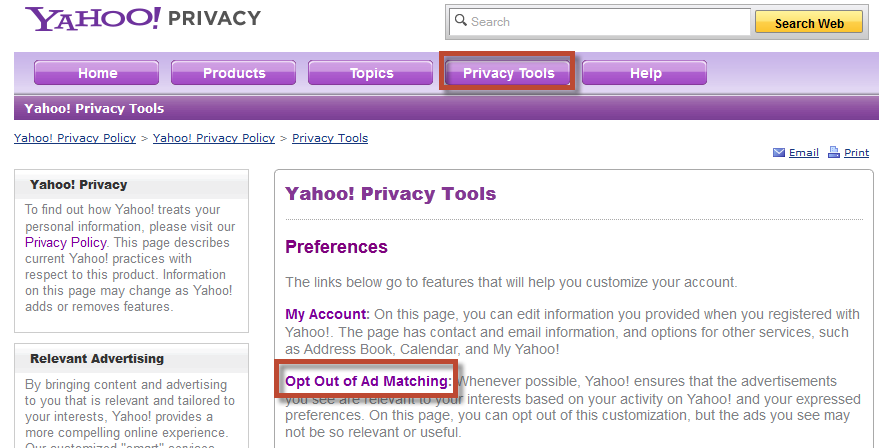
You can disable Ad Matching within the Yahoo! Privacy Policy page. Select “Privacy Tools” from the purple bar near the top to enter the tools section. Now select the second option “Opt Out of Ad Matching”.

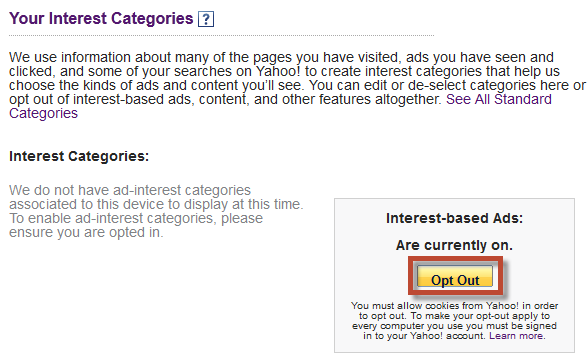
If Yahoo! has scanned your email there may be individual interest categories which you can disable one at a time. Otherwise the category list will be empty. On the right select the yellow “Op Out” button to fully stop Ad Matching on your device.

Disable Google tailored Ads

Google ad settings

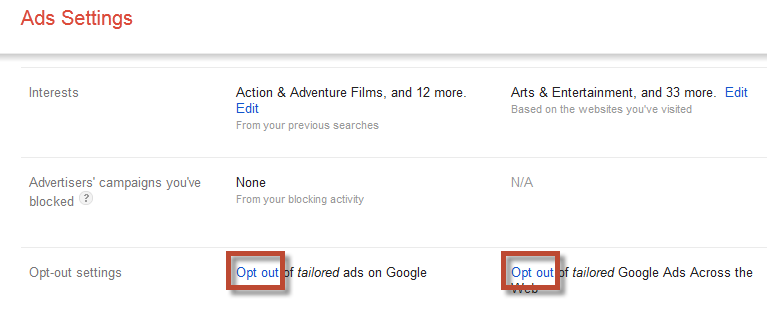
Google ads can be disabled within the Ads Settings. Scroll down to the bottom to find the “Op out settings”. You can select to opt out of Google services such as Gmail, Search, and YouTube. You can also disable tailored ads with any site that has partnered with Google.

confirm opt out

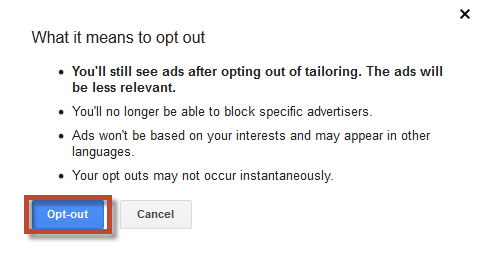
A second window will appear explaining what opting out does. You will still see ads, they just won’t be personally tailored to you. Select the blue “Op-out” button to confirm.

Check over terms of service

tossos

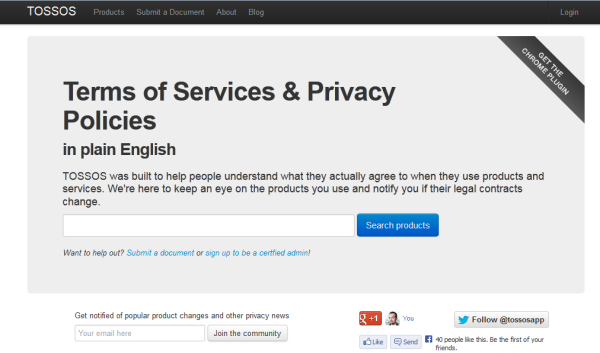
While email scanning is relatively harmless, for increased security you should still be aware of changes to your email’s terms of service. Companies can update these at any time, and it’s very common for users to just skim over the changes. If you want an easier time understanding changes in services and privacy try TOSSOS, which turns those complex terms and services into plain English.

If you really don’t care for the idea of email scanning you can also switch over to Outlook.com, which doesn’t use personalized ads.

You can also try the download version of Yahoo Mail for Windows 10.

How to use Hotspot Shield for Windows

Hotspot Shield is an amazing app to protect data, access websites banned in your country, and explore the web anonymously. It’s free on Windows and Mac, allowing a secure and encrypted connection that blocks out hackers and others watching your online activity. We’ll explain how to configure Hotspot Shield on Windows, enabling a fast and hidden connection.

Installing Hotspot Shield

Download Hotspot Shield and start the installation by double-clicking the executable file. The language will default to English, but you can change it if desired.

bing ad

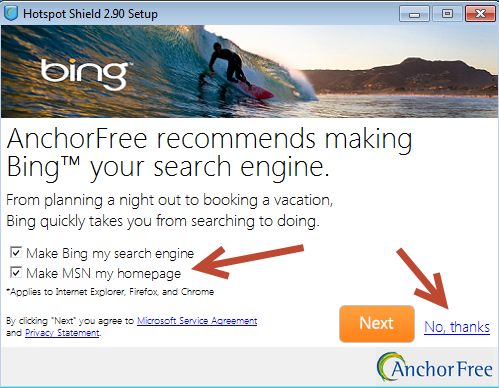
There will be prompts to change your homepage or make other changes to your web browser. If you do not want these uncheck the boxes and hit “No, thanks”.

installing uncheck

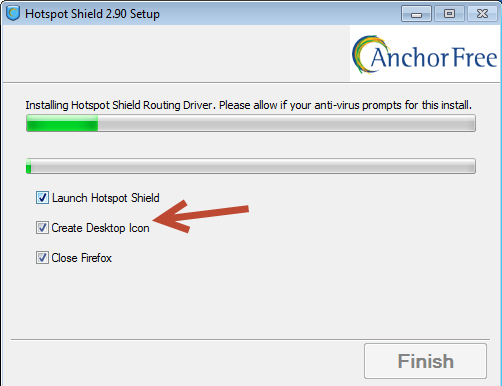
Installation depends on your computer, but will likely take a few minutes. We recommend unchecking all of the boxes before the installation completes, namely if you are using FireFox at the time. This way you can control what is closed.

disconnected

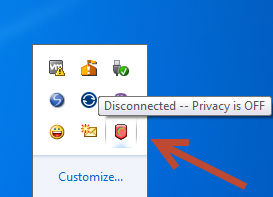
After installation, run Hotspot Shield from the Start menu. You will see the shield icon with a red crescent, near the system time and other icons. If you have your icons hidden, you may need to click on the arrow to expand the menu. Proceed by clicking the Hotspot Shield icon.

Set options

unprotected_gear

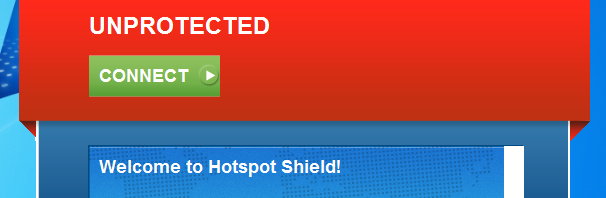
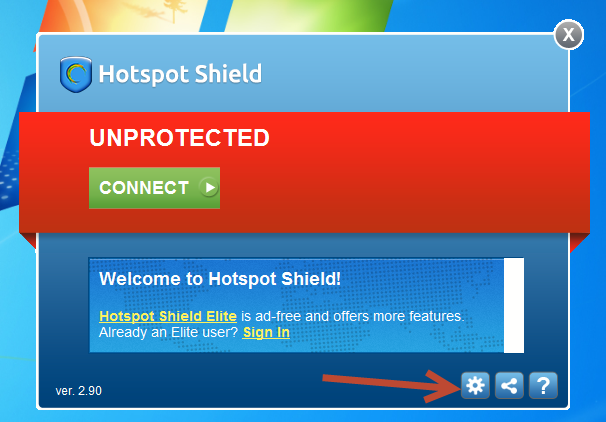
By default Hotspot Shield will be off. Clicking “Connect” will start an encrypted connection, but we’ll hold off on that for now. Note that the free version of Hotspot Shield has ads and lacks all of the features. You can upgrade to the Elite version to have even more control, but the free version is still very powerful.

always on

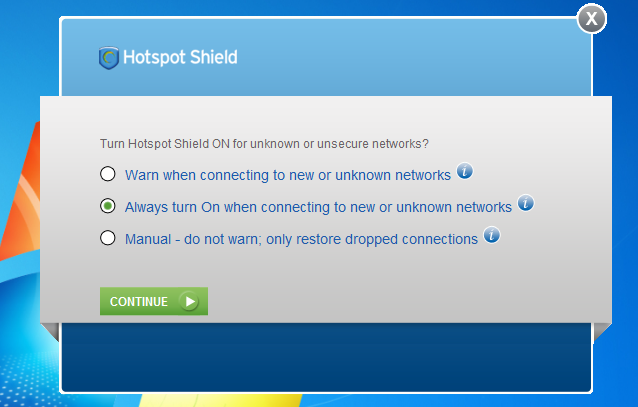
For now it’s a good idea to adjust Hotspot Shield’s settings to your liking. Press the gear icon and you will enter the “Network Detection” tab within the options. The middle option “Always On” is the most secure and reliable option, which gets our recommendation.

general options

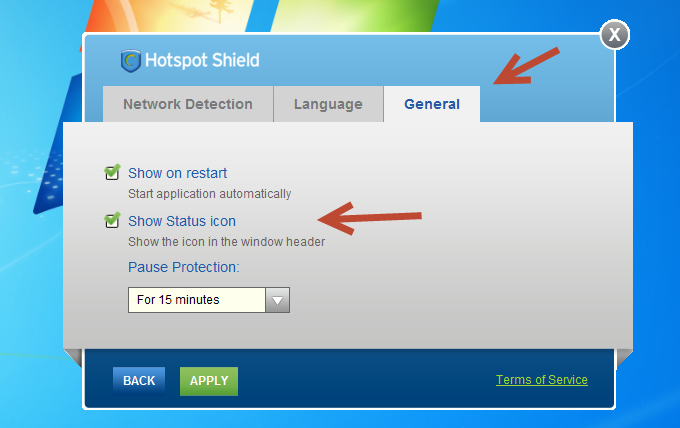
Switch over to the “General” tab and you can adjust if Hotspot Shield shows on restart, includes a status icon, and the length of pauses in protection. We recommend leaving the default settings. If you do make any changes hit “Apply” to return to the front of the app.

Enable protection

Now that all of your options are set, it’s time to start protection. Press the green button marked “Connect” to set a VPN connection.

securing connection

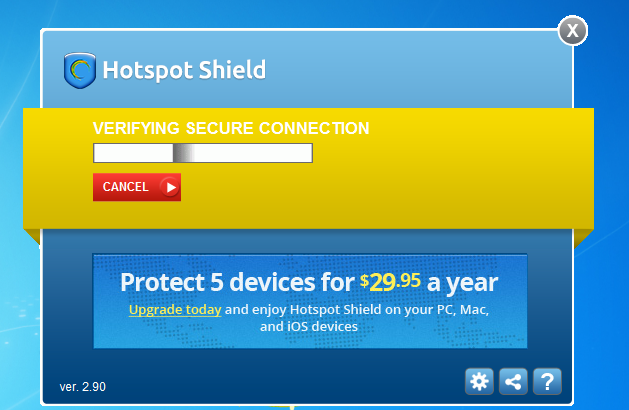
The connection will likely take a few minutes. The center of the app will change from green to yellow as this process takes place. If you ever wish to cancel the connection you can hit the red “Cancel” button.

Select country VPN

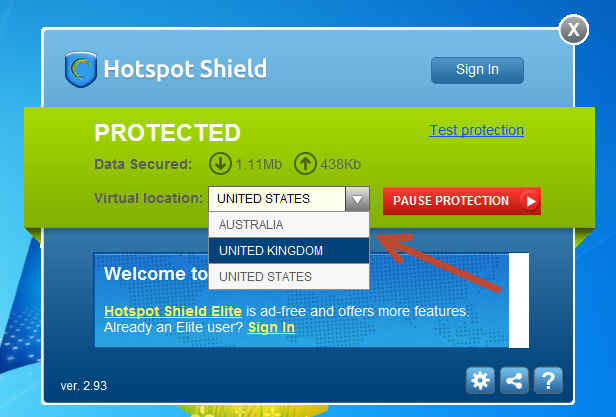
You’re nearly done, but for added security you can change your IP address and country, setting you in either the United States, United Kingdom, or Australia.

select country

Hit the drop down menu and select the country that you want your connect to identify as. This can allow you to access websites that your home country has banned. Let the process complete and you will have a new location and IP address.

uk location

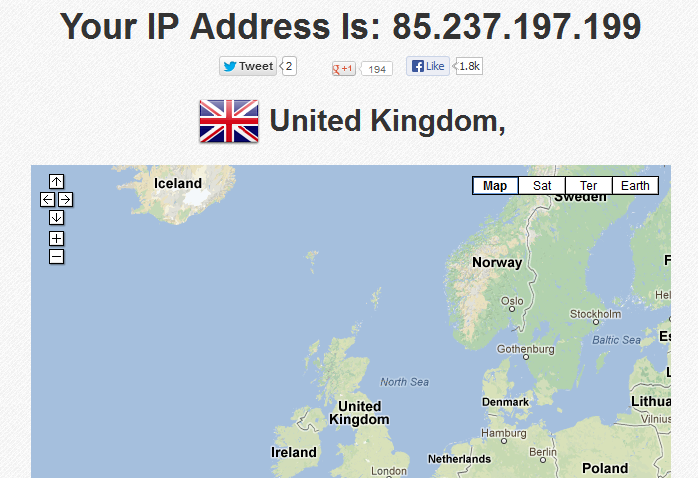
If you want to check if this change worked, head over to findipinfo. In our case, we are now recognized as being located in the United Kingdom. While it won’t allow us access everywhere, we can now check out sites and content that might not be available in the United States, such as foreign sporting events.

Huge changes in Windows 8.1

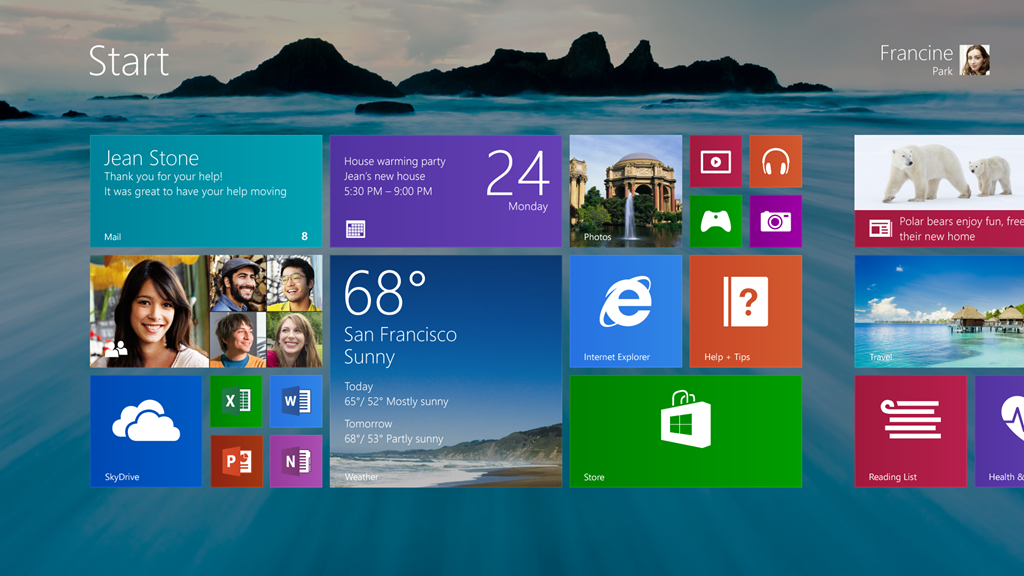
Windows 8.1 Start Screen

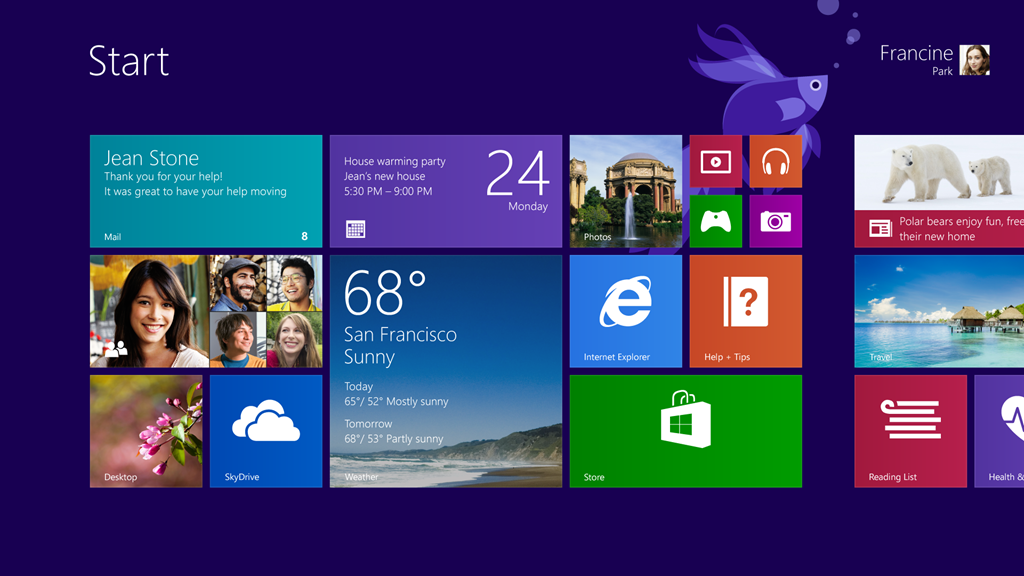
There’s a big update in store for Windows 8. Information about the new operating system has been scarce over the last few months, with rumors about the return of the Start Button and booting straight to the desktop. Today Microsoft released in-depth details about changes in Windows 8.1 and the list is extensive: more customization, improved search, emphasis on SkyDrive, changes to the Windows Store, and more.

Many changes are in response to complaints and suggestions from users. Microsoft hopes that these features and functions will improve the touch interface and encourage use of mobile devices without alienating desktop PC users. Owners of Windows 8 will be able to preview Windows 8.1 for free starting June 26th.

Lock Screen

Windows 8.1 includes an improved Lock Screen, with an emphasis on pictures and other functionality. First off you can accept Skype calls from the Lock Screen. It’s also possible to access the camera. This doesn’t allow access to the photo library, however, so there’s no way to browse photos from the Lock Screen.

The Lock Screen can also display a slideshow of photos. These can include local files, but also those stored on SkyDrive. There’s also an option for seasonal slideshows based on date.

Start Screen and User Interface

The Start Button has returned to the desktop, but it functions as a link to the Start Screen. The transition from the desktop to the Start Screen is less jarring in Windows 8.1. When you hit the Start Button, Live Tiles will appear to cover the desktop.

Start with new background

The Start Screen itself includes two new tile sizes. The first is an extra large tile that is the size of four normal tiles. This is excellent for important apps that provide lots of information, like email. The second tile size is extra small, which is one fourth the size of normal tiles. This is good for stacking apps together, like games or media players. It’s also harder to accidentally move Live Tiles, as you will need to right click with a mouse or press and hold via touchscreen to move them.

App Organization

In Windows 8.1, apps will be sorted by category, date installed, most used, and of course alphabetically. You can still right click and hold an app to pin it to the Start Screen. You can also do this with several apps at once.

More Snaps

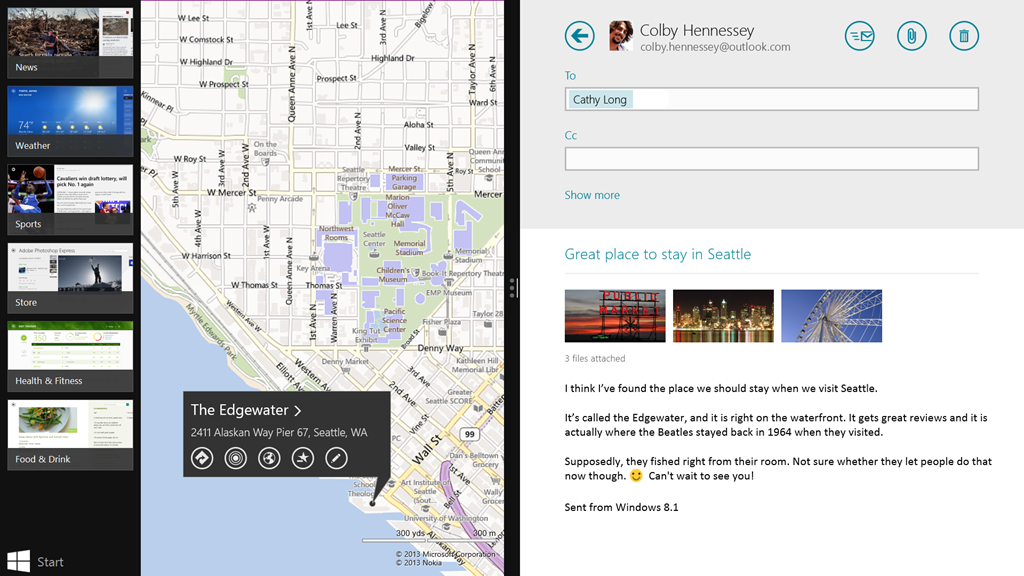
Snap view

Windows 8.1 has expanded Snap Views to allow two (or more on larger monitors) apps to be side by side. The default setting is an equal 50/50 view, which is great for viewing two websites or using two Microsoft Office apps at once. In some cases, like with photos, Snap View will instead give a 60/40 view with more space for the photo. While Microsoft has packed Windows 8.1 with intelligent ratios, users can always manually adjust them. Snap Views will hopefully make multitasking even easier.

Powerful Search

Key here is that you don’t have to select a category: all of the files, apps, settings, and web suggestions will be laid out together. More importantly, you can play media files such as music directly from search. Type in artists such as “The Police” or “Commodores” and search will link to songs in your library or connect to Xbox Music.

marilyn search hero

The biggest change is the addition of Search Hero, which provides a wealth of detailed information and data across the web and locally on your computer. For example looking for a popular celebrity such as Marilyn Monroe will open results filled with related stories, photos, and videos. Wired reports that results could also contain links to the Wikipedia app and Bing News. The downside is that not all searches will yield a Search Hero, only ones deemed popular enough by Microsoft.

SkyDrive

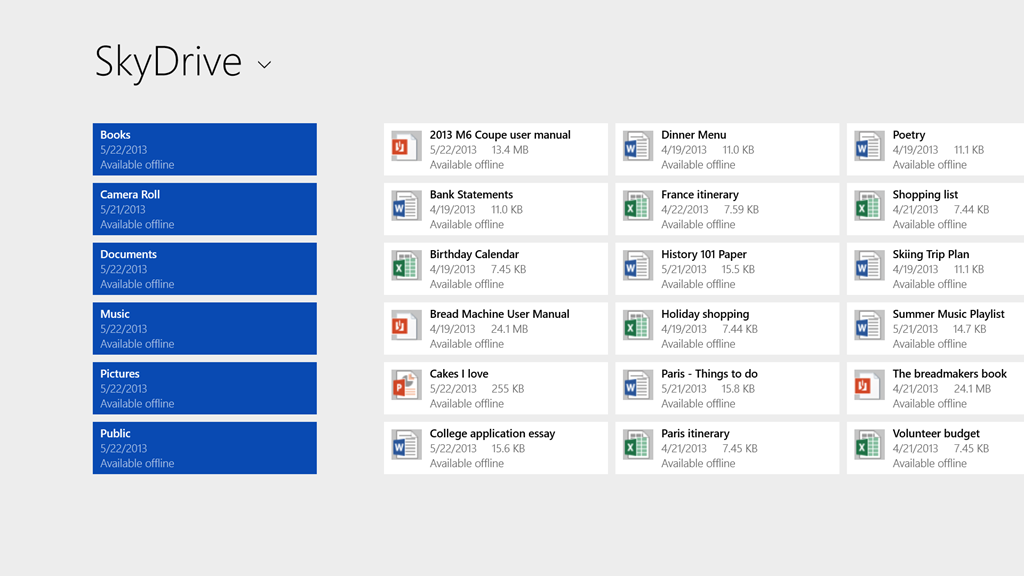
SkyDrive changes

The SkyDrive app isn’t new to Windows 8.1, but its update integrates closely with the OS. Engadget reports that SkyDrive isn’t just a portal to SkyDrive.com, it now syncs automatically in the background. When you open the app there will be a list of “stubs” which provide details such as file name, type, size, and date modified. These are only previews, when you click on a stub the full document will be downloaded. By default SkyDrive syncs all files, but the options allow you to restrict files types, such as Word docs or AVI videos.

Windows Store and bundled apps

The Windows Store is being upgraded with Windows 8.1, including bigger tiles and more detailed app listings. It will be easier to view app ratings, find top apps, free content, or view all categories with simple swipes or clicks. The Windows Store has improved recommendations, showing related apps on an download page.

Built-in apps are also being updated, namely the Photos app, which has new editing features to allow quick edits. On the fly options such as “Basic Fixes” and “Color Enhance” can quickly fix or edit photos.

The Music app is also being overhauled, but Microsoft is only teasing right now and will share details in the near future. What we know so far is that Music will focus more on your current collection, rather than finding new tracks. Windows 8.1 is also bringing in new apps like a Modern UI Calculator with unit conversion and Alarms that have stopwatches and timers.

Two new apps, Bing Food & Drink and Bing Health & Fitness, are designed with tablet use in mind. Engadget states that Food & Drink allows you to browse through recipes by swiping your hands in front of a webcam. You can also look up how to plan meals or create a shopping list. Health & Fitness can be used to track nutrition habits and plan exercise routines. You can also select from an onscreen diagram to indicate symptoms you may have. While Microsoft says the app’s sources are reliable, you should be cautious about being diagnosed by a program.

Another nice addition is Internet Explorer 11. It might look nearly the same as IE10, but now tabs are at the bottom of the page, near the address bar. You can also adjust the appearance so that the address bar is always visible and can open as many tabs as you like. Microsoft also claims that IE11 load pages faster, has touchscreen enhancements, and can sync tabs with other Windows 8.1 devices. While these features might seem interesting, it might not be enough to sway the minds of Chrome and Firefox users.

New settings

The Settings menu is pretty barren in the current version of Windows 8. The upgrade in Windows 8.1 adds in several options previously found within Control Panel. You can adjust display resolution, power options, check your computer make and model, and run Windows Update. There are also options to manage your SkyDrive, change product keys, or join network domains. This means a removal of the cluttered “Miscellaneous” tab, as every category has a proper section.

A step in the right direction

It’s great that Microsoft has listened to user feedback and is bringing features that people requested. Some of them aren’t what users might have expected, like the Start Button, but it’s still a small victory. It’s also nice that even though Windows 8.1 and Microsoft are focusing on touchscreens, the mouse and keyboard interface isn’t being neglected. Overall, these changes look to have enough bite to attract those who weren’t sure about upgrading to Windows 8.

While this announcement has a good amount of information, we’re eagerly awaiting some hands-on time with Windows 8.1. Microsoft hasn’t given a full retail release for Windows 8.1, but we’re anxious for the June 26th preview build. Until then we’ll be keeping a close eye on what is announced.

Comparing Messenger apps for Windows

Comparing messenger apps

The selection of available chat apps keeps changing: Microsoft has killed Messenger in favor of Skype, Google Hangouts has merged several services into one, and Viber is now on Windows and Mac. With new apps competing alongside old favorites, which one should you be using?

While it’s common to emphasize messaging on phones, we’re instead focusing on messenger apps for Windows. Some of them even allow you to take the conversation from your computer to your mobile device.

We’ll be taking a head-to-head look at the following apps:

We’ll compare number of users, ease of registration, interface and speed, visual appearance, and bonus features. We’ll rate the best app for each category, and tally the final results for best overall messaging app.

Number of users

A messaging app is useless if none else uses it. The more users on the same service, the more likely your friends will be there. You also won’t need to register for a different competing app (we’ll discuss this in a later section).

Winner-Facebook

Facebook is the clear winner here, with more than a billion users. Skype comes in second with 600 million users, while Hangouts is third with 400 million users. Rounding out the rest is Yahoo! Messenger who has an estimated 300 million users, Viber with 200 million users, and finally LINE at 150 million.

Registration process

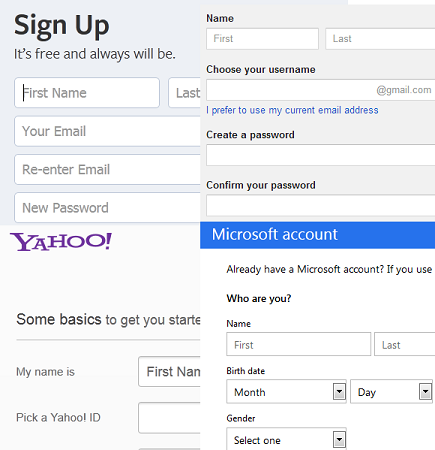
Before you can use any of these messaging apps, you will need to register an account. Facebook, Skype, Yahoo! , and Hangouts are all part of larger network, which means you could possibly already have an account. The registration process in all of these networks is rather similar – short, but not very exciting.

registering

Registration for LINE and Viber is much faster, but you can’t actually do it from Windows. Instead, you need to first sign-up with the mobile version, even if you don’t plan on using those apps.

In the end we are giving best user registration to Hangouts, as creating a Google account is easy, requires very little personal info, and connects to a wide range of services. With the prevalence of Gmail and other services, It’s already likely that you have a Google account.

Ease of use and speed

A good instant messaging program needs to be fluid and easy to use, the people you chat with don’t want to sit around for replies as you fumble with poor interface or slow menus.

yahoo messenger

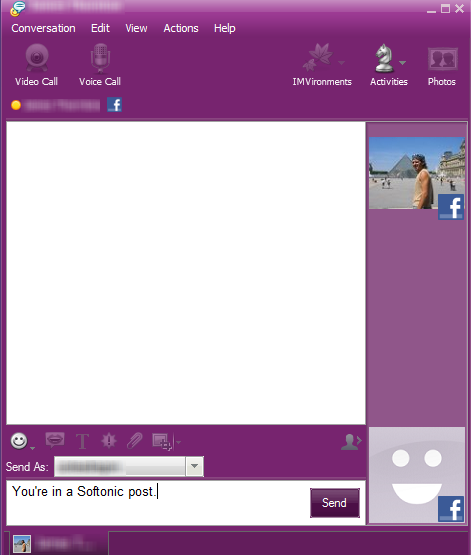
Yahoo! Messenger looks very similar to the older, classic Windows Messenger. Some might find this outdated, while others will see it as nostalgic. The app itself is fast, but the user interface is cluttered with too many distracting buttons all over the place.

skype

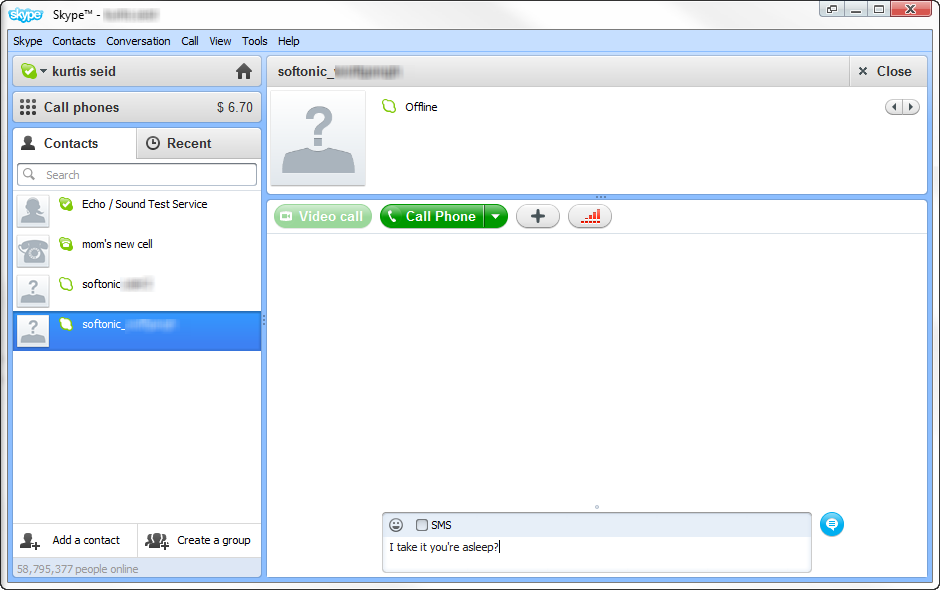
Skype isn’t very fluid, is slow, and filled with too many notifications. It can be a hassle to open and manage conversations, making it a pain and annoyance to use.

The other apps are much light and even simpler to understand. Facebook Messenger, for example, has only one simple feature: it sends instant messages and nothing else.

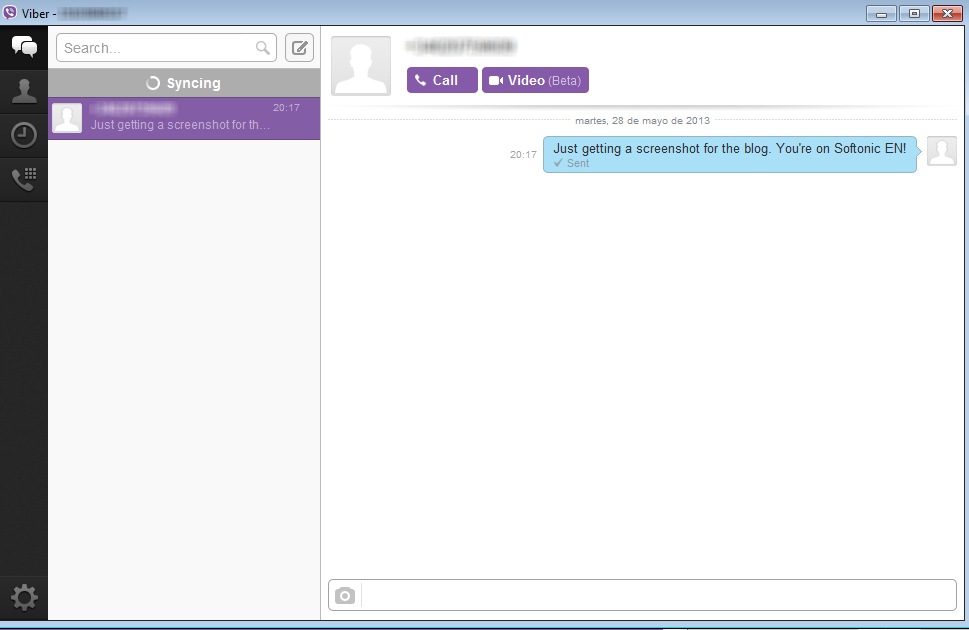
Viber

Both Viber and LINE also operate well on Windows. Viber is very fast and agile, while LINE is simple enough that most will find it intuitive.

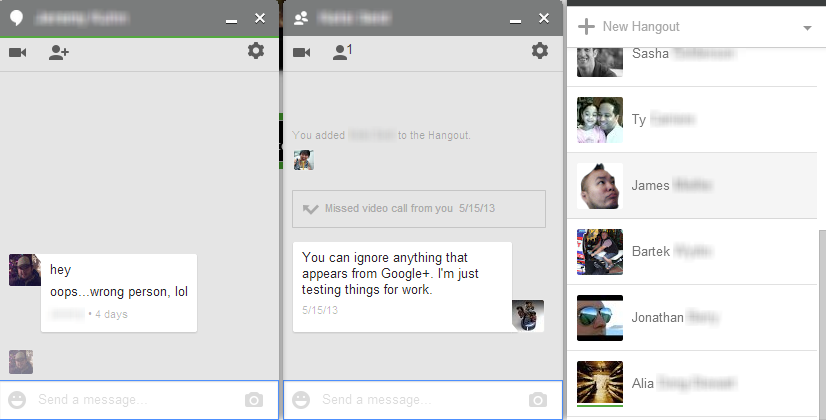
hangouts

Finally, Hangouts is also very straight forward, although it would be nice if it showed clear user status. It’s quick and responsive, but we’d like it if it was even easier to tell who was idle or offline; the indicators are too subtle right now. This app is better for people familiar with messaging, and less suitable for beginners.

Winner-Facebook

Our pick for speed and ease of use is Facebook Messenger. It is really fast, to the point where it seems nearly impossible (at least hopefully unlikely) to get confused by the nonexistent options.

Appearance

Ah yes, the purely aesthetic part of an app. While the last section was about the feel of the program, this is more the look of the design, and in many cases the quality of emoticons, emoji, and stickers.

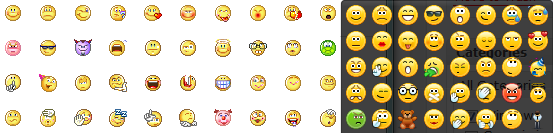
Both Yahoo Messenger and Skype strike out in this category. The interfaces are outdated, feeling like a relic from the dial-up modem era. Yahoo! Messenger may have some emoticons, but not nearly the assortment as their competitors; they are also way too small, and might require zooming in to tell them apart.

emoticons-Skype-and-Yahoo

Facebook Messenger also isn’t very stimulating, having nearly the same appearance as the other Facebook sidebars. It’s also unfortunate that the neat stickers from mobile versions of Facebook Messenger are not in the Windows version. Instead, you’ll have to rely on old and small emoticons.

Emoticons-Hangouts

Hangouts has s great and large selection of new emoticons. They are expressive and a decent size, which is a great improvement from Gmail’s old emoticons. The interface however is rather plain with its simple grey and white. Hopefully there will be a customization option to add in a little color.

StickersLINE is very pleasing to look at, with clear distinctions between messages sent and received. The main draw of the app is its impressive amount of stickers.

Viber for Windows has a similar interface to LINE, but only a single window is used for contacts and conversations. Unlike the mobile version, Viber for Windows lacks emoticons or stickers, which for the moment makes it a rather boring messenger.

winner-LINE

Our winner for appearance is LINE. Its interface is clear, pleasant, and has a huge number of emoticons and stickers. The stickers are continually updated, helping to insure that you’ll never get bored. One drawback, though is that you have to log into the mobile app to manage your collection of stickers.

Additional features

Most messaging apps allow much more than just text chatting, such as sending files or video calls.

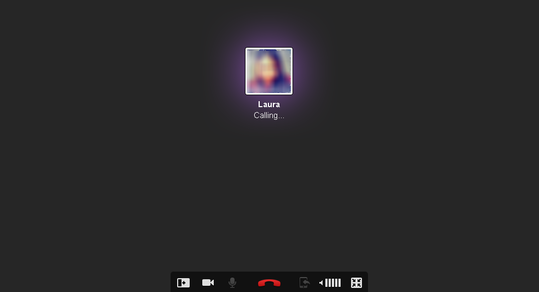
Video calls are a strong point for Skype (which has had the feature from the start), but this feature has been included in Yahoo! Messenger and Hangouts. Viber also have a video call feature, but it is in beta and can only be used between desktop users, not desktop to mobile.

Vibercalling

All of the apps that have video calls also support voice calls. Viber and LINE get extra points for being able to seamlessly call mobile users. Facebook Messenger lacks a call feature, even though there is one within the iPhone version.

Facebook Messenger also lacks the ability to send files, which all of the other apps can do. However, Viber and Hangouts is currently limited to only sending pictures.

Further options and screen sharing is available to Skype, Yahoo! Messenger, and Hangouts.

Overall, we decided to give the highest score for additional features to Yahoo! Messenger. It has voice calls, video calls, shared games, and can send files. Many of these features have been rolled out over many years, giving Yahoo! a great advantage.

Best of show

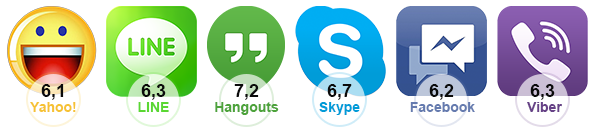
For our final verdict we rated each app on a scale from 1 to 10 in all previous sections, then assigned different weights to each. For example, number of users only factored in 10%, while speed and ease of use was worth 30%.

app scoring

The final total was as follows:

final score

Surprisingly, the newcomer Hangouts was the highest with a 7.2. The app is very easy to use, simple, and has a lot of cool features, such as video Hangouts. Although it only won one other category, it is the most balanced package.

This isn’t to say that Hangouts is the flat out best messaging app, it still has a lot of room for many great future improvements. Its success depends on how all of these apps evolve with time. Viber and LINE for instance are being updated rapidly with new developments and features. We hope that all of these apps continue to build more options and have closer integration with Windows.

What do you think is the best messaging app for Windows?

Google Play Music All Access vs Spotify Premium vs Rdio Unlimited

google music

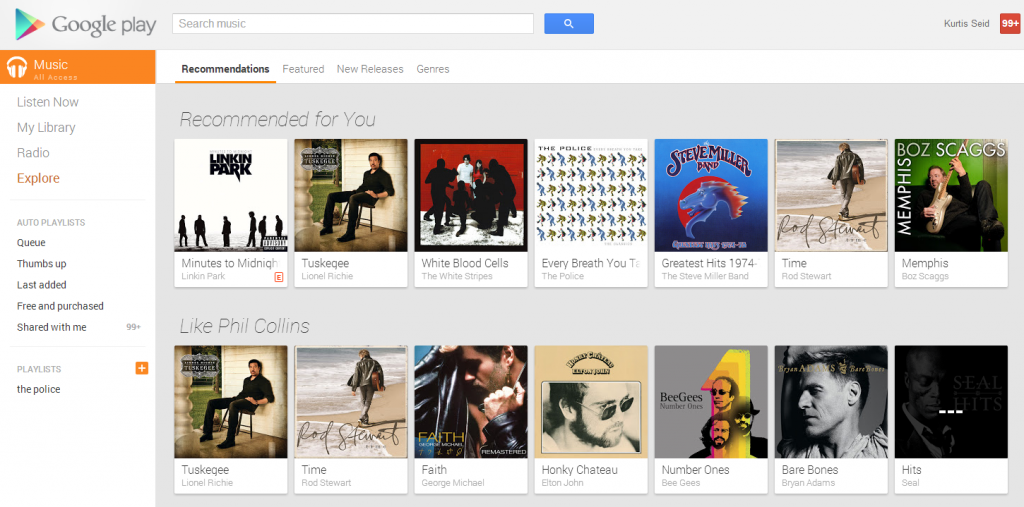
With the release of Google Play Music All Access the music subscription market has become even more crowded. Google might be a big name, but other services such as Spotify and Rdio are already popular. Does Google Play Music All Access (GPMAA) have what it takes to compete with these other choices? They each offer different prices, amount of songs, offline modes, and more. We’ll compare GPMAA, Spotify Premium, and Rdio subscriptions to see who’s best at what.

Price and what it gets you

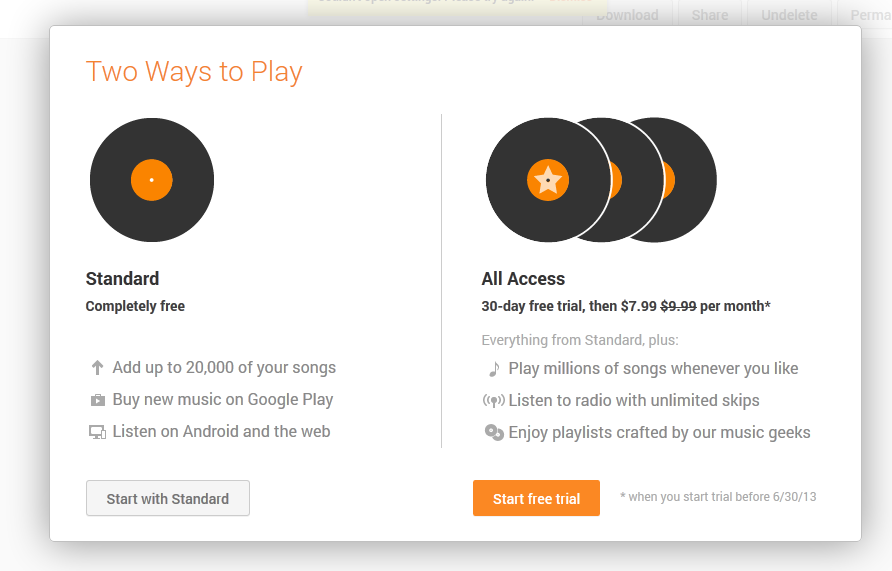
Obviously a subscription is going to cost you some amount of money. Rdio and Spotify have several tiers of subscription, while GPMAA only has one at the moment. GPMAA costs $9.99/month, but those in the United States (The only location it is currently available) that sign up by June 30 will have a special discount at $7.99/month. It’s worth noting that Google Play Music allows 20,000 song uploads even with the standard free version.

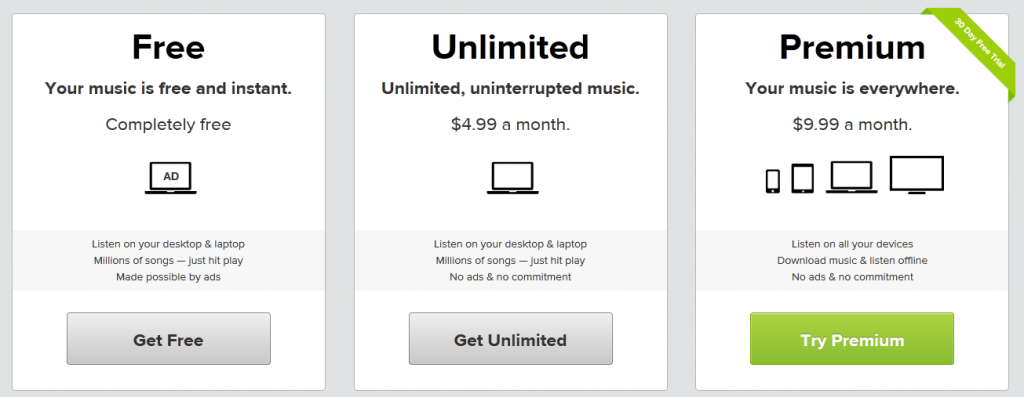
Even when free, Spotify offers unlimited songs on your computer but with periodic ads. For $4.99/month users can remove ads, and for $9.99/month they can go to Premium which includes unlimited mobile streaming and the ability to download music for offline listening. Spotify also has a 30 day trial for the $9.99/month Premium service.

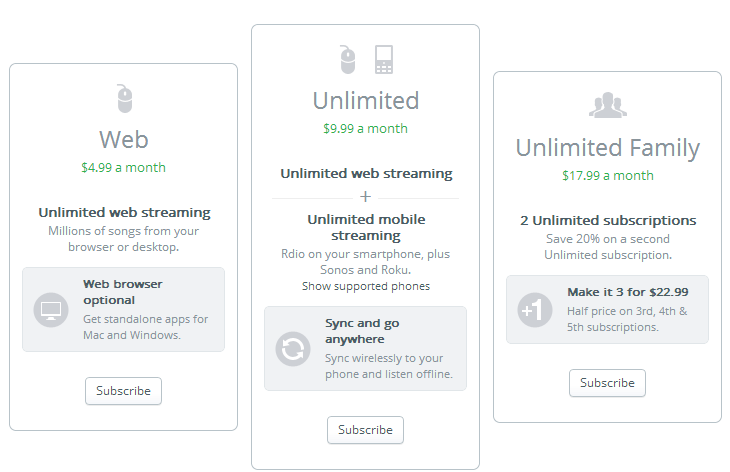
Rdio has three subscription types. Web at $4.99/month allows unlimited streaming on your computer through the web or desktop apps. Unlimited at $9.99/month grants unlimited streaming on both web and mobile (this also opens up syncing to mobile for offline listening, covered later). Last, Unlimited Family grants the previous features to two users for $17.99/month, or three users at $22.99/month.

The prices are all pretty similar to each other, so it’s really a matter of what you receive for the cost. Unlimited streaming and syncing for offline on mobile makes Rdio stand out. If you happen to have two friends, the Rdio Unlimited Family subscription has quite a financial benefit. On the other hand you could also adopt GPMAA now to get a great discount.

Library size and sound quality

Both Spotify  and Rdio libraries contain more than 20 million songs, while GPMAA lags slightly behind with 18 million. That’s still an impressive amount of songs, and GPMAA includes major artists not on Spotify, such as Pink Floyd. GPMAA and Spotify also allow you to listen to your own personal library of songs, a feature Rdio lacks.

google music cloud

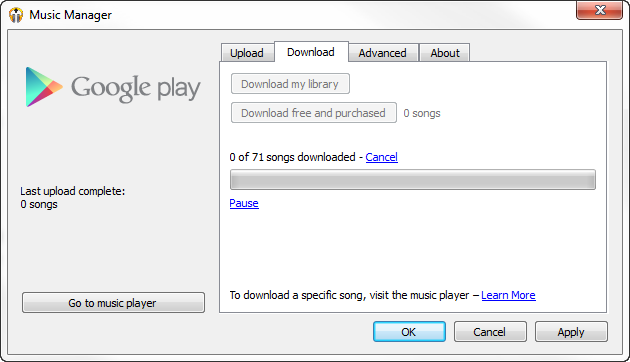
Spotify Premium does this by syncing songs on your local hard drive for playback. GPMAA on the other hand actually uploads music files to cloud storage, allowing download of those songs on other computers you log into (a maximum of ten). You can store up to 20,000 songs, each song being a maximum of 300 megabytes. This is a huge advantage for anyone who uses multiple computers and will want to transfer their collection elsewhere. Keep in mind files you download from the cloud are high quality MP3s, easily accessible on computers but slightly more hidden on mobile devices.

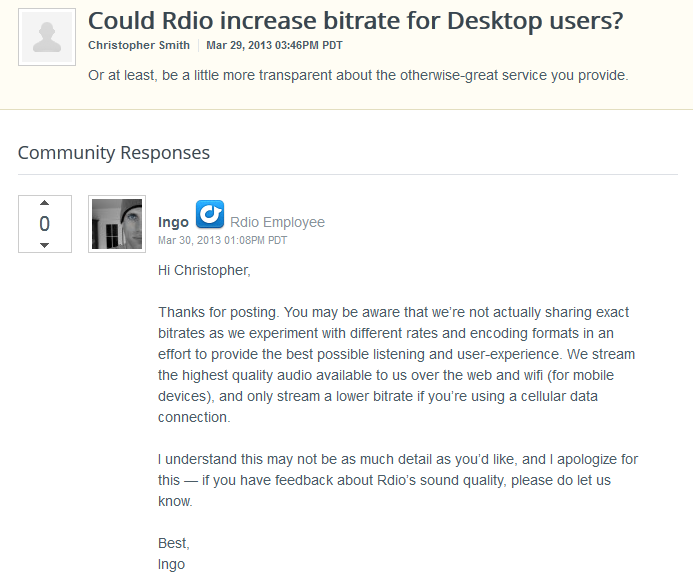
rdio bitrate

Both Spotify Premium and GPMAA cap sound quality at 320 kbps (Free Spotify accounts cap at 160 kbps), while Rdio hasn’t released exact bitrates as they experiment with encoding. All of these services can lower the bitrate if you are a slow connection or using wifi. In Spotify you can also manually lower the stream quality. At the moment Rdio’s secrecy makes it likely that their bitrate is lower than their competitors, putting it at a grave disadvantage.

Supported Apps

A big draw to streaming music is being able to listen to it anywhere you go. Each of the three services offers different supported apps.

spotify app

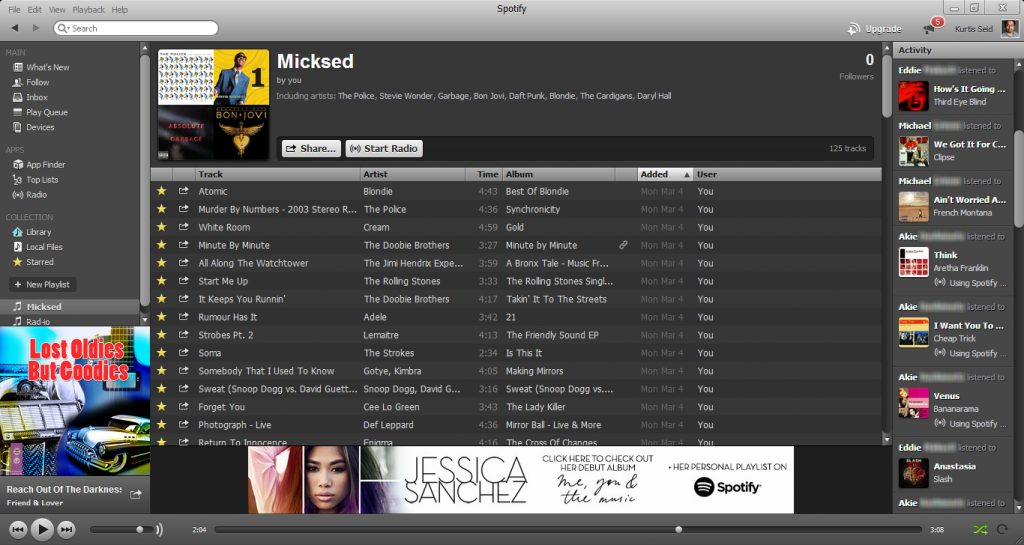
Spotify Premium finds its home primarily on the desktop app for Windows and Mac. There is also a web app, but it is currently in Beta and has minor issues (such as not being able to play your entire library or quickly sort playlists). Spotify Premium has mobile apps for iOS, Android, and Windows Phone. There is no official BlackBerry support at the moment.

rdio web app

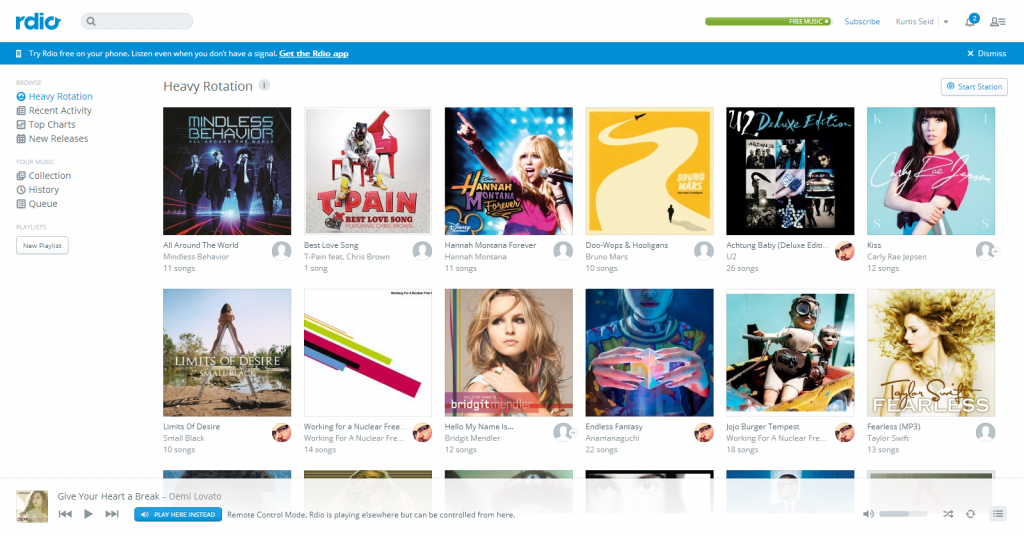
Rdio Unlimited is accessed primarily as a web app, but there are desktop apps available for Mac and Windows. The service also has mobile apps on iOS, Android, and, Windows Phone. It also has a BlackBerry app, but not all devices work.

google music player

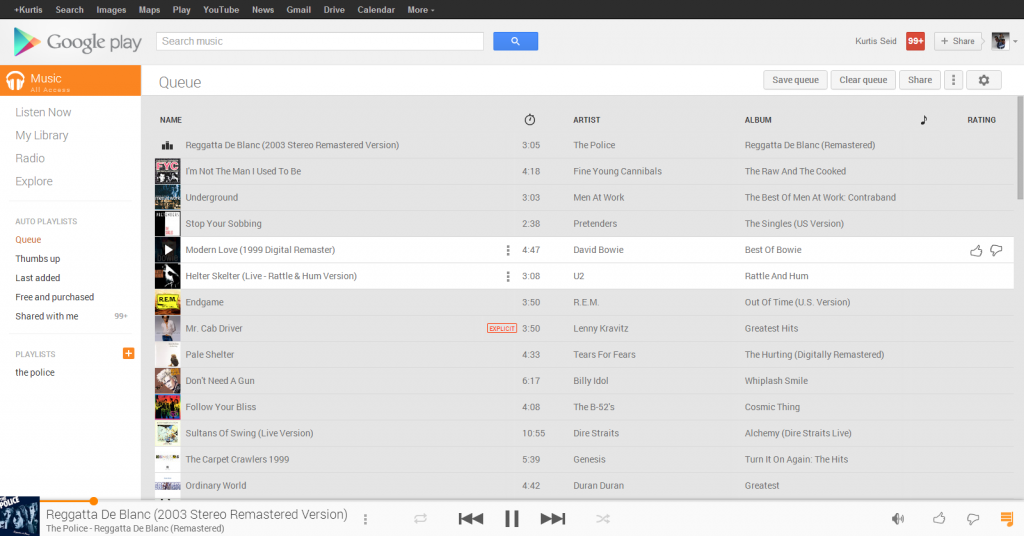
Finally, GPMAA is only currently available on the web and as an Android app. iOS support will arrive later, but for now there are already developers submitting independent apps to the iTunes App Store.

The app selection is slightly in favor of Spotify where it has a strong desktop client, can be accessed from the web,  and has apps  on multiple mobile devices. It only lacks BlackBerry support, which Rdio may cover.

Offline accessibility

You’re not always going to have a stable internet connection when you want to listen to your music. Each service has their own approach to offline music.

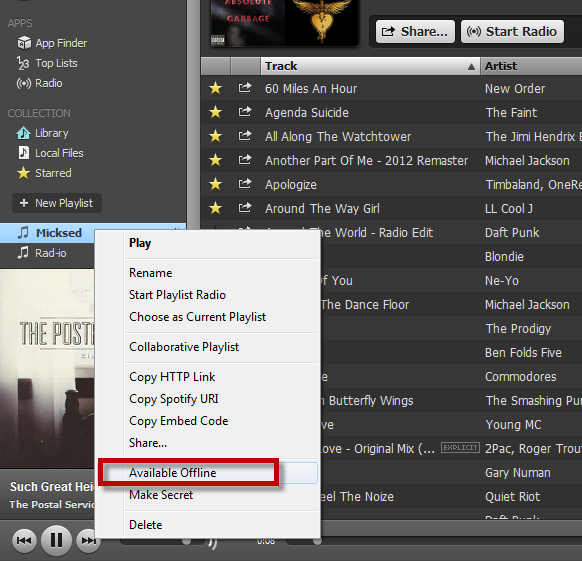
take spotify offline

Spotify Premium is fully ready to go offline on computers, iOS, and Android. Up to 3,333 songs can be taken into offline mode on up to three devices. The offline songs last for 30 days, after which they must be reconnect to verify their authenticity.

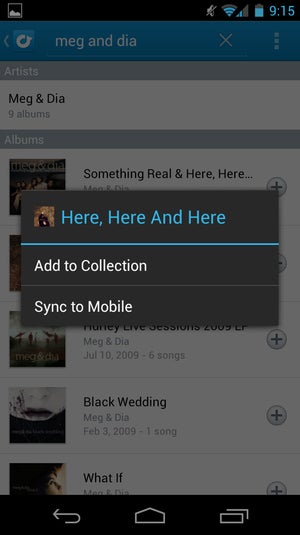
rdio screen

Rdio Unlimited can sync songs to mobile devices. The limit simply depends on your device’s amount of storage space and there doesn’t need to be a re-sync as with Spotify. However, Rdio cannot be taken offline to your computer, even if you have one of the desktop apps installed.

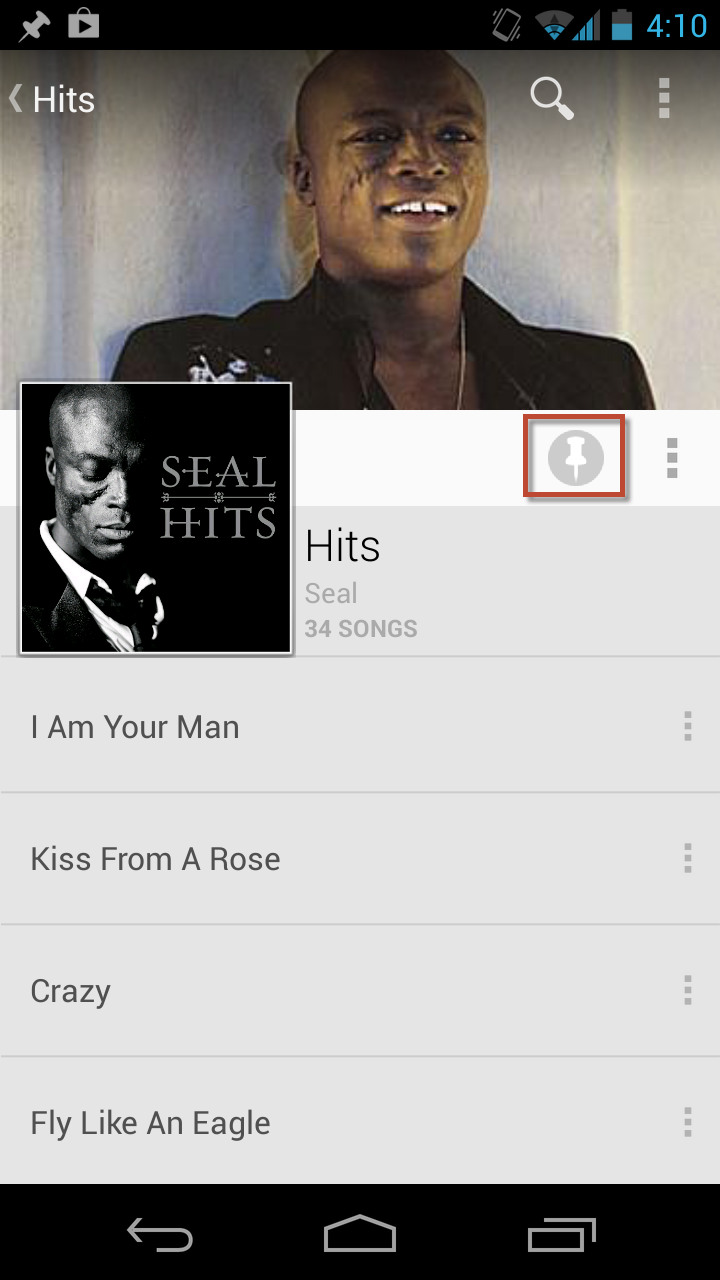
google music android

GPMAA can pin albums and playlists to the Android app, allowing offline listening on the go. There is currently no offline listening for the web version of GPMAA, but considering the ability to download from the cloud, the feature could arrive in the future.

At the moment Spotify’s ability to take so many songs offline at a time makes it top of the heap. However, it would be even better if there wasn’t the 30 day restriction before having to reconnect.

Social connection

One of the key features of Spotify is its ability to connect users and share music with each other. Rdio also has a set of social features, while GPMAA is nearly stand alone  – there is no way to follow playlists or spy on other users (Though you can share songs to Google+).

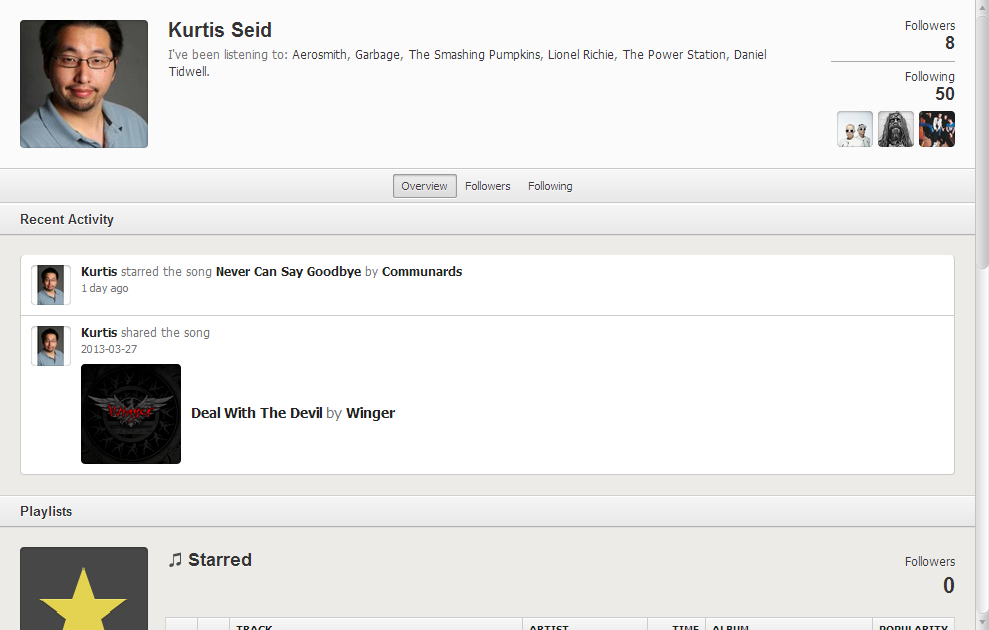
spotify social

Spotify claims that they have 24 million active users, 6 million which subscribe to Spotify Premium. The high amount of users is important as you can follow others, check out what they are listening to, and follow user playlists. You can also share songs to Twitter, Facebook, Tumblr, or directly to other Spotify users. Since Spotify used to have heavy Facebook integration, it’s likely to find a few friends that have Spotify accounts.

rdio reviews

Rdio hasn’t released their exact amount of users (they were hush about their bitrate after all), but they still have a wealth of social features such as viewing friends, check what they are listening to, and the ability to browse their collection. A nice touch is that users can write reviews for whole albums or individual songs, which Spotify could certainly adapt. As with Spotify you can share songs to Twitter, Facebook, or other Rdio users (You can’t share to Tumblr, though).

So which one is right for me?

So we’ve laid out aspects of these three services, but now it becomes a question of which one you should subscribe to. The three of them are very different programs, so it comes down to personal taste. We’ll summarize both the reasons you should pick each of them, and the drawbacks.
  • Spotify Premium – Spotify has great streaming sound quality, ability to sync 3,333 songs offline, and a strong social connection. It’s at its best in its desktop app on Windows and PC, but has apps for many other devices. The price isn’t anything special and does nothing to really sell the Premium service. A downside is that you have to sync offline music every 30 days and there is no official BlackBerry app. Spotify should be your pick if you want to be able to listen to your stations offline.
  • Google Play Music All Access – GPMAA has a huge advantage of being able to upload 20,000 of your own songs to cloud storage and download it to other computers. Keep in mind that this great feature is also part of the core free version. The music quality is very high and if you sign up early the discount will be worth it. GPMAA doesn’t have it’s own social features and doesn’t have as many apps, but this is likely because it’s so new. GPMAA should be your pick if you have a large library of songs and want to store them across the cloud, and music discovery is secondary.
  • Rdio Unlimited – Rdio’s wins in price if you enter an Unlimited Family plan with a few friends. Its ability to review songs makes Rdio’s social features slightly edge out Spotify. Rdio does lose out on not having a specified bitrate and an inability to sync offline to computers. Rdio should be your pick if you want your music to have a great social experience.

Do you prefer high quality sound files, online storage, offline capabilities, multiple app support, or social interaction? We’ve given you the reasons you should and shouldn’t use each music service, now it’s your choice to decide which is best for you.

Create keyboard shortcuts to open Windows apps

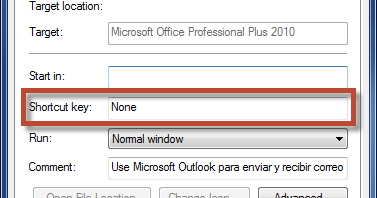
Keyboard shortcuts are a great way to speed up common Windows tasks. Although it can be a bit difficult to remember every shortcut at first, it will become easier with time. Windows 8 has its own list of unique shortcuts, and you can always use an app that lets you create and edit keyboard shortcuts. Although it’s a little hidden in Windows (XP, Vista, 7, 8),  you can also create your own keyboard shortcuts to open apps.

Continue reading “Create keyboard shortcuts to open Windows apps”

How to revoke Twitter apps

twitter-account-security

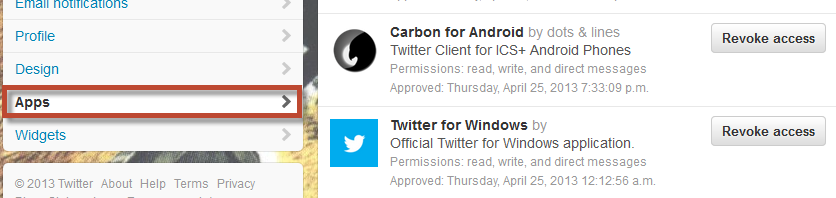
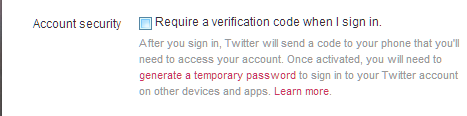
Twitter login verification rolled out recently, granting extra security to those who have received the update. While it makes it harder for hackers to log in to your account, enabling login verification does not automatically sign you out of apps. In order to increase security you should see what apps are connected to your Twitter account and revoke access to the ones you don’t use. Not sure how to do this? Don’t worry, we’ll guide you through the process.
Continue reading “How to revoke Twitter apps”