{
"de-DE": "",
"en-US": "Troy Zaher is a professional writer and journalist for Softonic, specializing in gaming and social media news. He is a 2018 graduate of Fitchburg State University with a bachelors of English.",
"es-ES": "",
"fr-FR": "",
"it-IT": "",
"ja-JP": "",
"nl-NL": "",
"pl-PL": "",
"pt-BR": "",
"social": {
"email": "",
"facebook": "",
"twitter": "https://twitter.com/bugboytroy",
"linkedin": "",
"web": ""
}
}
Heading to the woods? Add these apps that could literally save your life.
Whether you find yourself lost in the jungle or you’re planning a camping trip and something goes wrong, it’s important to be prepared for any situation. No matter where you find yourself, you’re likely to have your phone on you, and this handy little device might just be the key to your survival. The apps below can help you with every step of getting your survival path on track, from finding water to learning first aid, and they are invaluable during a time of crisis.
10 best apps to survive in the wild
10. Disaster Alert
As the name implies, this app is made to warn you of incoming disasters. You should always have some kind of alert like this, especially if you live somewhere with frequent natural disasters like earthquakes and tornadoes. It is also able to tell you about nearby disasters which can help you avoid going in the direction of one, and lets you check on family who may be near a disaster area.
Similar to Disaster Alert, although less extreme, Weather Bug will help you keep track of upcoming weather in your relative location. It is the easiest weather app to manage, and this makes it ideal for checking whether it’s going to rain or not (which can be a good or bad thing depending on your situation). The app is more specific than the generic weather apps that your phone usually comes with.
This really isn’t intended to be a survival app, however, being able to keep track of your food when you have a limited amount can help you ration portions to a reasonable size. Prep & Pantry lets you manage what you have, and where you have it. Making it particularly useful for if you have an RV or cottage in the woods.
This radio will help you pick up on any emergency signals, making it useful for knowing what kind of situation you might be in. You can also use it to avoid any problems that may be happening in your area that you wouldn’t have known about without it. Thankfully, you don’t have to have the app running constantly to get information from it.
Unless you were a Boy Scout, you most likely don’t know how to tie a variety of knots that can be imperative to surviving in harsh environments. Whether you’re putting up a tarp, pitching a tent, or setting up traps, there are countless ways to tie a rope effectively. This app brings you through each one, and even lets you pull on the 3D rope to get a visual of how it works.
You may find yourself without many valuable survival tools, such as rulers and flashlights that can make things much easier to manage on your own. This app turns your phone into a virtual Swiss Army knife. These tools on the app are perfect replacements for the real tools, meaning you never have to worry about losing the tools or not having them on you when you need them.
Your phone may come prebuilt with a compass app, but none are more sophisticated than Spyglass. This app doubles as a compass and GPS, making it invaluable to finding your way anywhere. While some may not realize the importance of a compass when lost, it is the best way to keep you from walking in circles.
The Offline Survival Manual is able to teach you anything you need to know about surviving in the woods, or anywhere, for that matter. It has an encyclopedic database of knowledge on survival guides, and it is one of the few knowledge-based survival apps that can work entirely offline. This makes it an ideal app in a crisis where there are no cellphone towers.
The Red Cross has a few apps that you may find useful, but their First Aid is by far the most vital to survival. Unless you have a medical background, it will be difficult to know what to do in a medical emergency. The Red Cross’ other apps tend to give advice on what to do in other types of emergency situations, but the medicinal knowledge from the First Aid app is irreplaceable.
You may already know the simple rule, “If birds can eat it, so can you,” but there won’t always be birds to check your food for you. This app will help you identify wildlife and find out what’s edible and what’s not. It is the most essential survival tool for finding food in the wilderness.
In addition to these apps, you should probably have some sort of social media. While typically not associated with survival, social media apps can be a lifesaver in emergency situations where you don’t know who to call. Facebook and WhatsApp, in particular, have been known to save lives. Even if you decide to take a break from social media, it’s a good idea to keep these apps handy, just in case.
There also used to be an app called Bug Out Bag Checklist to help with putting together a bug-out bag, in preparation for a disaster. Unfortunately, the app has been taken down, but Uncharted Supply Co has created a useful list for putting your bag together.
Ready for some new ink? Here’s how to get the best body art.
With tattoos becoming more accepted in the workplace, it’s no wonder we’re seeing a surge of tattoos among American. That said, finding the right tattoo parlor can be time consuming. On top of that, coming up with a tattoo design can be difficult if you’re not an artist yourself.
Thankfully, there are many apps out there that can not only find you the perfect tattoo parlor, but can even help match you up with an artist that will create the best design for you. Here are some of the best apps for helping you get a new tattoo. Some will help you with tattoo ideas, while others are perfect for finding the right tattoo parlor for you.
If you are looking for a lettering tattoo instead of a more visual one, then this app will be great for you. It can help you find the perfect font for whatever lettering you want. It lets you type out whatever you want, and try it in a variety of typical tattoo fonts. It’ll even let you view it in various sizes, which is helpful since not all tattoo styles are wearable at smaller sizes.
While not a tattoo-exclusive app, this is one of the few forms of social media that provides a great source of inspiration and organizing visual ideas. This makes it a great resource for finding the right tattoo design for you. Not only that, but you can look at other people’s tattoo-dedicated Pinterests in order to get get some inspiration for your own.
As an alternative social media to Pinterest, Instagram can be a great source of tattoo inspiration, with many people showing off their tattoos and designs under #tattoo. There are also many Instagram accounts dedicated to tattoo ideas that can open up new possibilities that you weren’t expecting. Plus, it’s a great place to show off your new tattoo once you’ve gotten it.
A great choice for an app if you wish to create your own tattoo, and you’re not artistic enough to fully design it yourself. This app can make the process much smoother and easier for you, as it lets you take from basic designs and concepts and build upon them with your own work. The best use for this app is if you already have a basic image for your tattoo design, but want to build upon it in some way.
Similar to Pinterest, TattooNOW provides a variety of tattoo ideas in an easy and convenient way. You can see hundreds of artists and designs, specifically geared towards your own ideas. Unlike Pinterest, this comes from actual tattoo artists, so you know you’ll be getting something that fits the aesthetic of having a tattoo. It also means that many other people have actually used these images for their tattoos as well, so the artist will have a good idea of where it could go on your body.
If you’re looking for a tattoo parlor or artist, then this app will make it easy and convenient for you to find someone close to your area. You can even follow artists on this app to stay up to date on their new designs. While normally you would use Google or another search engine to find tattoo parlors in your area, this app limits the search results to create a much easier experience in finding the perfect location. You can find out everything you need to know about a parlor or artist in an easy and convenient app.
Maybe you already have a design in mind, but you don’t know how it will look on you. This app lets you edit tattoos into photos to see what it would look like. It’s perfect for helping you decide on where to get a tattoo, and to make sure that it looks good when you do get it!
While these are some of the best apps for finding a tattoo parlor, not all of them will help you make that final decision on what to get tattooed. Our Softonic Solutions community has that covered for you, with their own list of great tattooing resources.
Take a look at the greatest games fans have brought to life.
The best Kickstarter games are the ones that you never even knew were crowdfunded, simply because of how popular and successful they are on their own. And while some of these games haven’t made their way into pop culture, they each have an extremely loyal fanbase who not only backed those Kickstarters, but continue to play their games regularly. Here are some of the greatest Kickstarter games to date:
Top 8 Kickstarter-funded games
8. Superhot
This game is one of the first games people think of when they hear the term “Virtual Reality.” That’s because many VR lounges let you try this game as their sample. It is one of the most immersive VR games ever created, and it’s hard to believe it came from an independent Kickstarter. The game only moves forward when you physically do, allowing you to plan your moves ahead in real time.
One of many successful Kickstarter board games, Splendor sets itself apart by being one of the few strategic 2-4 player board games (while many are limited to two or three). The rules adapt themselves based on the number of players. The goal of the game is to buy developments with gems you receive each turn. Each development lets you build stronger ones until you’ve received 15 points. This game is fast and full of different tactics and strategies to employ. Board game fanatics will love to add this game to their collection.
This game has also been adapted to a digital version, so mobile gamers have an opportunity to play it as well!
A card game that rivals Cards Against Humanity in humor and replayability. The idea of this game is to avoid drawing an exploding kitten card. All other cards are dedicated to helping you avoid this, either by allowing you to skip a draw turn or pass the draw to someone else. The game can be played quickly and repeatedly as an amusing party game. It is also famous for being one of the most-backed crowdfunding games of all time.
Just like Splendor, Exploding Kittens has also been adapted into a mobile game. This can be a great alternative to the game, since it prevents you from losing or damaging any cards.
Essentially an MMORPG version of Hearthstone, Hex is perfect for fans of competitive card games. This game allows you to develop your player and deck like a standard RPG, while exploring the gameplay and strategy of a trading card game. While it may not be the most popular Kickstarter success, it is still one of the most interesting and unique games you could ever possibly find.
Everyone has heard of Undertale, but few realize that it originated as a Kickstarter game. This game follows a deep and dark story of a young child traveling through an underworld of monsters and mayhem. Many of the backers were able to name their own unique monsters in the game, as a tribute to their support, such as the Glyde monster. Remarkably, this game was made almost entirely by one person, making it one of the few games to become this successful without a large team working on it.
Baldur’s Gate fans have probably heard of this franchise, as it is often considered a spiritual successor to the series. While the characters and story are memorable, the gameplay is what truly captures most players. It allows you to play Dungeons & Dragons with a pre-built story, and in-depth mechanics. It’ll take a while before you fully understand how to control the characters, but the customization of classes and skills can help with this when you’re first getting started. As Dungeons & Dragons is the model for this game, the sidequests and content are practically endless. This means you have plenty of time to get accustomed to the unique gameplay.
Along with Undertale, Shovel Knight is widely considered one of the best indie games of all time. The franchise has become one of the most recognizable in gamer communities, and even within pop culture in general. That said, if you haven’t played this game, you’re missing out on one of the best platformers out there. The gameplay is similar to Mega Man, but with a unique treasure reward system. The art is also iconic, and you can find Shovel Knight merchandise in a wide variety of stores.
One of the most unique games to come out of Kickstarter, Darkest Dungeon is an experience like you’ve never had before. The game forces you to maintain both the physical strength of a dungeon exploring party, as well as the psychological strength of your team. As the party travels deeper into the dungeon, they will become too afraid to function properly and develop quirks that affect their abilities and parameters. Any fan of roguelikes will enjoy this gothic interpretation of the genre.
Need to raise money? Here’s your best bet for each case.
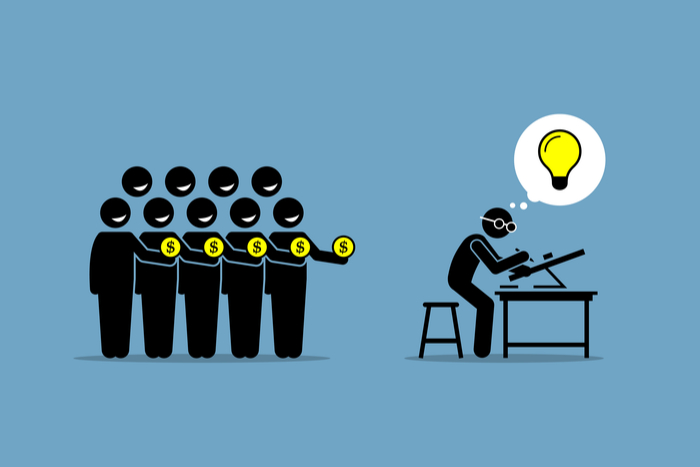
Whether you’re trying to start your own business, or you’re trying to pay off a major medical expense, crowdfunding can be an incredible source of income when you’re in desperate need of a large sum. Many people crowdfund instead of getting a loan, since you don’t have to pay the money back. You do still need to hold up your end of the bargain, and that’s the main catch of most crowdfunding sites. Here are the differences between some of the most popular crowdfunding sites out there, to help you decide which one is right for you.
When you think about search engines, you think about Google. And when you think about crowdfunding, Kickstarter probably comes to mind first. As the most recognizable name in the industry, Kickstarter is also the strictest in terms of what they will allow you to crowdfund for. Their rules clearly define that you must be creating a shareable product, and have a prototype to display before creating a Kickstarter page. They also have a list of items that you aren’t allowed to create Kickstarters for, so be sure to check this out before trying to make a Kickstarter page.
While their rules are somewhat strict, the site offers excellent advice and guidelines on how to make your project successful. You’ll definitely want to check out their advice on backer rewards, since you’ll need some to get your Kickstarter up and running. Their YouTube channel is also a great source of insight when trying to decide important information to put on your crowdfunding project.
Kickstarter takes 5% from successful projects, and unsuccessful projects are forced to return the money they raised to the backers. You also must be a permanent U.S. resident to make a Kickstarter, unlike most other crowdfunding sites.
Indiegogo is very similar to Kickstarter, except it allows for more customization and flexibility. Like Kickstarter, Indiegogo has a focus on creative projects, typically independent small businesses. They even allow you to sell some of your products on their site directly if your campaign is successful. Unlike Kickstarter, you are able to apply to get your funding even if you’re unsuccessful in achieving your goal. However, the drawback here is that Indiegogo will take 9% of the proceeds of unuccessful efforts, instead of their typical 4% for successful campaigns.
Additionally, most of the things that are mandatory for Kickstarter, are optional for Indiegogo. This includes perks and product prototypes. This means that if you don’t feel you can accommodate perks, or are in the beginning stages of your business/product, you can still get support.
Gofundme is unique among the three major sites, as it focuses more on personal causes and donations, rather than the professional and creative causes that Kickstarter and Indiegogo are for. This means that Gofundme is automatically going to be one of your best choices for anything personal, such as major unexpected medical expenses, or even simply a celebration for a loved one that your friends and family can donate to.
Unlike Kickstarter, Gofundme takes 5% out of each donation. This means that every donation has a chunk taken out, rather than taken out of the actual total. While this allows you to keep track of how much you’ve raised more efficiently, it can be a bit disheartening to see these donations lose that amount right away. You also can have money transferred from PayPal or WePay, which will each take their own small cut of the profit as well.
Since Gofundme is more about charity-raising, they also allow their creators to keep all the proceeds regardless of whether the total is matched or not by the deadline. This is really important, since many Gofundmes are created out of need rather than want.
Smaller sites
While these may be the most popular crowdfunding sources, there are some less popular sites that may be just as useful. However, there are a few extra drawbacks to using the less popular sites. For starters, they are less trusted than the popular ones. If you’re asking someone to donate to a “Gofundme” or a “Kickstarter,” even if they don’t want to donate, they at least feel comfortable with the name. The site is familiar to them, so they trust it. While sites like Quirky and Mightycause may be trustworthy, not everyone is going to know that right away.
Additionally, these sites are typically more niche than the ones above. This means, while one may be perfect for starting your new candle business, not all of them will be able to help with that specific endeavor. This is a big contrast to the other sites, which all allow a high level of flexibility in what you can do with them.
There are two major reasons to use smaller sites, however. If you have a niche idea that you’re looking for members of that niche community to support, then using a site dedicated to that community is probably going to get you farther than using the major crowdfunders. For example, if your project relates to sports, something that may be unlikely to gain traction among friends and family who aren’t interested in that subject, then you may want to use Sportfunder.
The other reason to use a smaller site is if you’re looking for angel investors. These are early investors willing to give large sums in exchange for company equity. The popular television show “Shark Tank” is an example of these. For these types of investors, you may want to look into crowdfunding sites that are dedicated to them, such as AngelList. Unlike Gofundme, Indiegogo, and Kickstarter, which primarily allow you to advertise through social media, angel investment sites will have investors looking you up as well. You will probably want to look into these types of investment if you’re trying to start a company and lack wealthy friends or family.
Conclusion
The best way to decide which crowdfunding site you want to go with is by focusing on their main benefit: Gofundme is ideal for personal investments; Kickstarter is great if you need help with your crowdfunding ideas, and fit their guidelines, Indiegogo works for people who want flexibility in creating their crowdfunding experience, and smaller crowdfunders are the way to go if you have a niche product, or are looking for angel investors. Be sure to choose carefully, and good luck with your crowdfunding experience!
Discover how to improve your PC’s performance with Task Manager.
For Windows users, Task Manager is a quick and reliable savior to a number of emergencies. With just a CTRL-ALT-DEL, you can shut down any program that is behaving haphazardly.
While many Windows users know about Task Manager’s ability to close programs, there’s actually a lot more untapped functionality to it. Here is an easy guide to follow, detailing what each Task Manager tab does, and how to use them.
What is Task Manager?
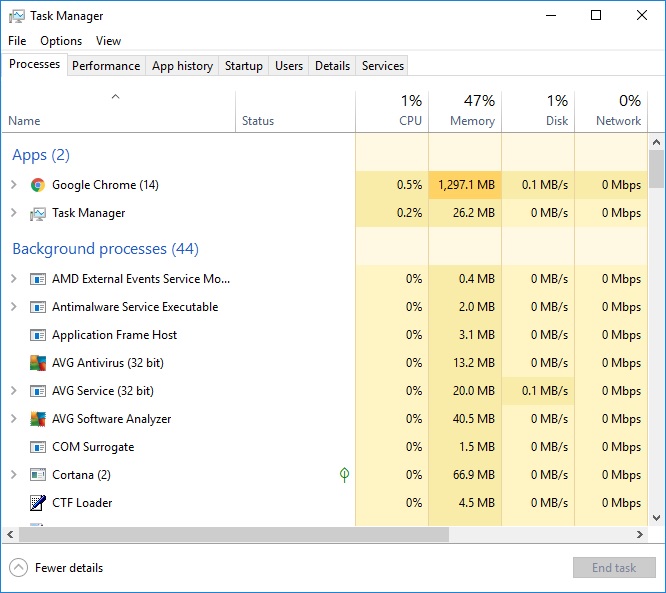
Task Manager is a component of Windows that allows you to see what’s going on with the apps running on your computer. It shows you which apps you’re using and those running in the background that you didn’t open and might not know about. It can give you valuable information about how much memory a program uses and allows you to stop a program.
All versions of Microsoft Windows from Windows NT 4.0 and Windows 2000 onwards have a Task Manager. It allows you to view the processes going on in your computer and gives you information about the computer’s performance and your system resources.
How to use Windows Task Manager
There are many sections on the Task Manager window that you can access to see what’s happening in the background. Let’s take a look at them.
Processes
This is the primary tab that people are comfortable with, and in all honesty, the tab that is the most useful. Of course, the best use of this tab is being able to close a malfunctioning program immediately by pressing “end task” after right-clicking the program. However, there are a few other things you can do from this tab as well. The other options are:
Expand: You’ll notice some programs have a number next to them. This is actually because the Processes tab shows you a condensed version of an application. All the programs that the application is using are condensed into one spot, to make it easier for you to access. By pressing “expand,” you can look at each program individually.
Resource values: By default, the Processes tab will list the Memory, Disk, and Network uses of each program by their value. You can switch this to a percentage of total usage to get a better understanding of how much is actually being used by a program.
Create dump file: A dump file lets you take a virtual screenshot of a program in order to see how it was functioning at that time for later use. Usually, this is useful for specific professions, such as quality assurance agents.
Go to details: This brings you to the same program in the Details page, where you can do more actions.
Open file location: This will open the document folder that the file belongs in, allowing you to move where the file is, or perhaps even delete it.
Search online: Of course, this lets you look up the program online. This is particularly useful for finding out information on an obscurely titled program.
Properties: The second most useful option after “end task,” it allows you to look at the fine details of a program.
Under the Processes tab, you can also sort the programs by CPU, Memory, Disk, or Network usage, in order to determine what programs are using up the most of these.
Performance
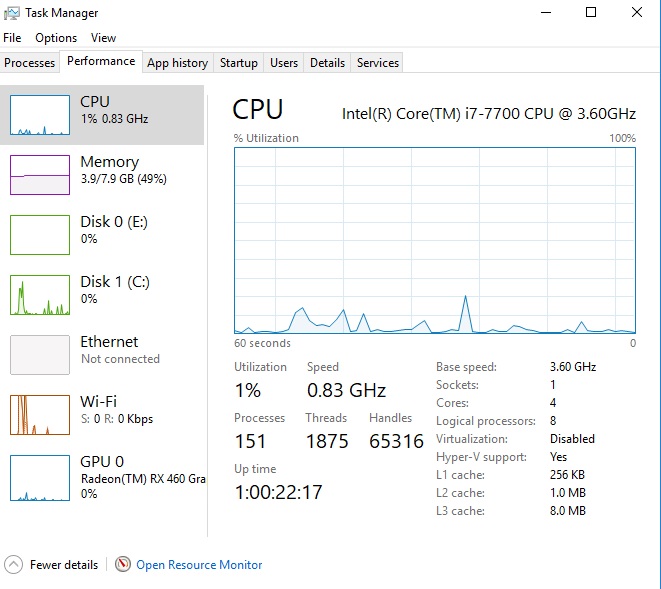
This tab may be intimidating for some, and may not have particularly useful information if you’re not tech-savvy. That being said, this tab gives a detailed account of CPU, Memory, Disk, Ethernet, Wi-Fi, and GPU usage on your computer.
As the name implies, this is primarily used for checking on computer performance, such as seeing why your download speed might be slow (if your CPU performance is high, then it may be the computer, while if it’s not, it may be your Wi-Fi connection).
App history
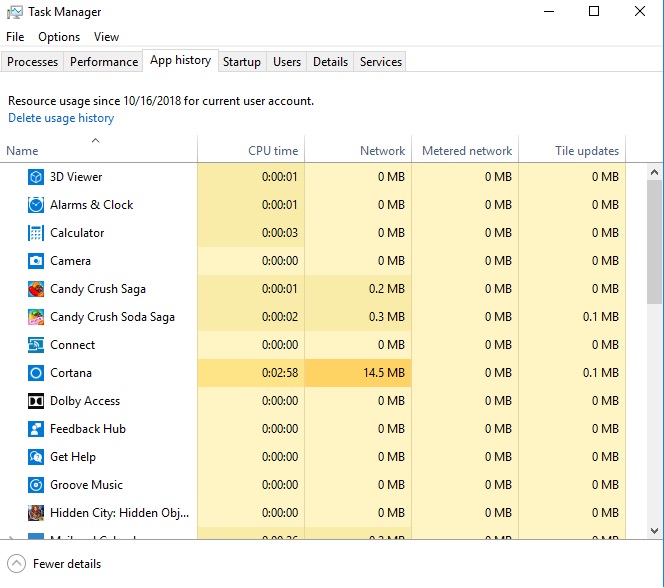
This tab opens up your program usage history, allowing you to see what apps were last opened, and for how long, based on their CPU usage. You can also reopen these apps from this tab.
The two primary uses of this tab are to monitor app usage (perhaps to see how long your child might’ve been playing a game on your PC), and to check if there have been programs running in the background recently.
Startup
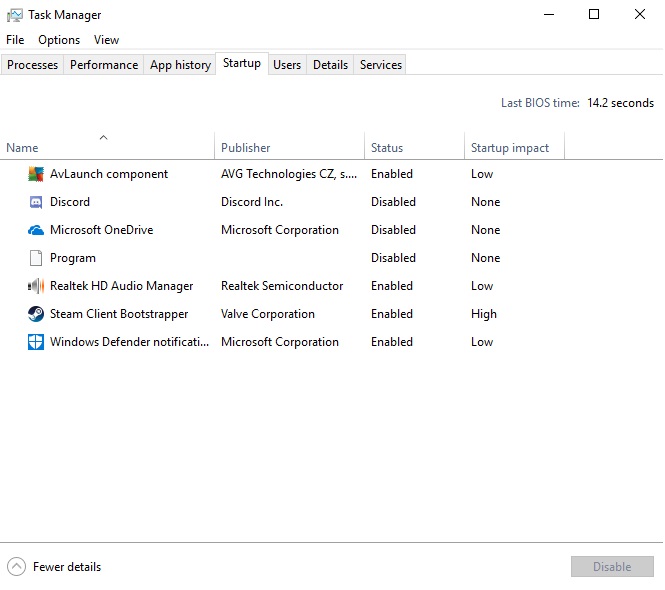
This tab shows you what programs you can choose to open when your computer is starting up. These programs can either be “enabled” to open on startup or “disabled” so they don’t do that. In general, the fewer “enabled” programs, the faster your computer will run when booting up.
That said, if there are programs you want to make sure are updated frequently, such as Steam, then you may want to enable these programs so they are always up to date (if your computer can handle them all upon booting up).
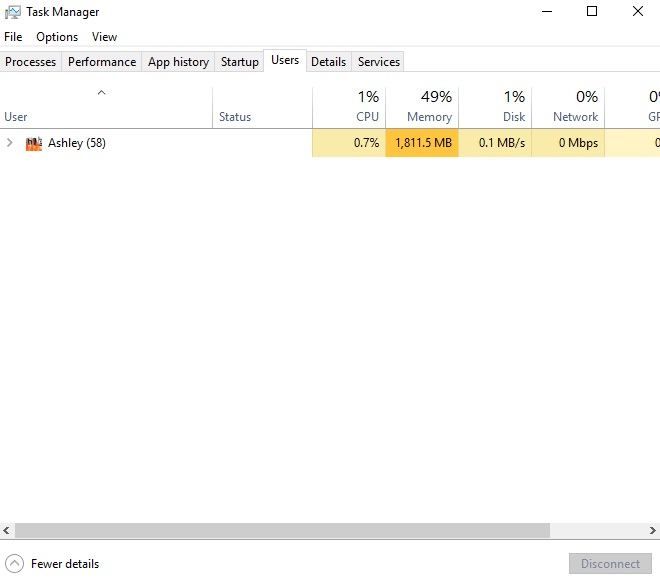
If you have only one Windows account connected to your computer, then there isn’t much use for this tab. However, with multiple user accounts, this tab will show you how much of your system is being used by each user. If a person doesn’t sign out of their account, then all the programs they had running will still be running in the background. You’ll be able to see those programs on this tab, and potentially see why your computer may be acting slow.
Also on this tab, you can do any of the actions you can do on the processes tab to the programs open under each user (except expand).
Details
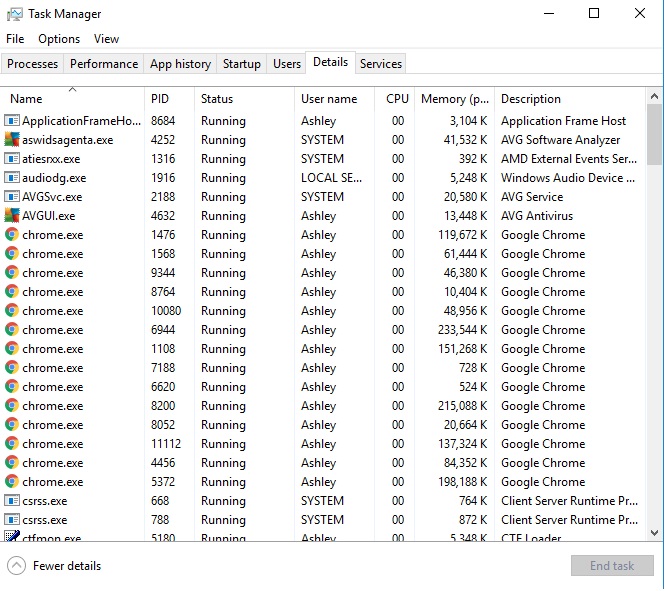
This tab is basically the extended version of the Processes tab. While Processes tries to condense apps into one program type (not always succeeding, but usually able to do so fairly well), the Details page will let you view each program an app is using.
This means if you have multiple tabs open on Chrome, Processes will most likely only show one program open, while Details will have a different program listed for each tab. Not only does it have pre-expanded sections, but it also holds a few more actions than the Processes tab. Notably, the Details page lets you “Set priority” and “Set affinity” to different programs. “Set priority” lets you determine where the program’s priority level fits in versus other programs.
This means that if you want a specific program, such as Chrome, to perform better, you can make sure it has high priority, so your computer works on Chrome’s updates before other programs. Be careful about doing this with too many programs on a low-functioning computer, as prioritizing a program like Chrome over the innate Windows programs can cause general performance issues.
As far as setting the affinity of a program goes; your computer has different cores that make up the CPU. By setting a program to a specific core, you can essentially set that program and core aside to prevent it from making the rest of your computer slow down.
A program update or download are good examples of what can benefit from being set to a specific affinity. Be careful with this also, however, as while it will increase your computer’s overall performance, it can decrease the performance of the specific program you set if it’s meant to run on multiple cores.
Services
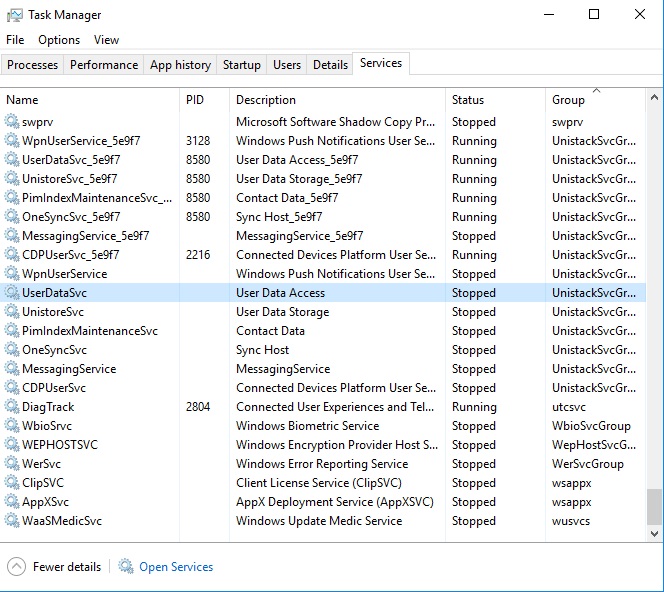
The programs under this tab are primarily services that Windows has run in the background of your computer. This tab allows you to stop or start these services at will. It would benefit you to really look into each service before starting or stopping it to make sure it’s not integral to your computer’s current functions.
While most people only ever end up using the basic Task Manager that comes with a Windows device, there are actually more sophisticated programs that can expand on some of the uses that the basic Task Manager program has. If you don’t feel like Task Manager can service the specific need you have, then you may want to download Task Manager DeLuxe as a replacement.
FAQ about Task Manager
Before you leave, we’d like to show you some common questions people ask about Task Manager. If there’s anything else you’d like to know, please feel free to ask.
How to change priority in Task Manager
Some processes on your computer might need more power than others. In Task Manager, you can set priority and allocate more CPU power to processes of your choice. There are different ways to do this in windows 10:
1. From the Details tab
Start Task Manager by pressing Ctrl + Shift + Esc. In the Details tab, right-click the process you want to prioritize. Select Set priority and the value you require.
2. Using the Command Prompt
To enter the Command Prompt, press the Windows Key + S and choose Run as administrator. Assuming you want to prioritize Mozilla Firefox, for example. Run this command when the Command Prompt starts: wmic process where name= “firefox.exe” CALL setpriority “Above normal”. This will only work if the process is already running.
3. Using PowerShell
To enter Windows PowerShell (Admin), press the Windows Key + X and select it from the list. When it starts, run this command: Get-WmiObject Win32_process -filter ‘name = “firefox.exe”‘ | foreach-object { $_.SetPriority(32768) }
4.You can also start any application with a set priority; in this case, Firefox.
Start the Command Prompt. Then run this command: start “” /AboveNormal “C:\Program Files\Mozilla Firefox\firefox.exe”. Doing this will start Firefox with Above Normal priority. Of course, this applies to any other application.
How to end all tasks in Task Manager
Your system can become clogged and slow if many open windows are running on your computer. There are different methods to end multiple tasks in Windows 10:
1.Using the Command Prompt
To end processes that are not responding, type cmd In Search and open the Command Prompt. Use the command: taskkill /f /fi “status eq not responding” and press Enter.
2. Using the Task Manager
Newer Windows 10 versions have processes bundled in a cluster. End all the processes by right-clicking on the cluster and choosing End Task.
3. Using CloseAll
CloseAll is third-party freeware that automatically closes all running processes. Open it and press OK. KillThemAll does the same thing but gives you a chance to save data.
4. Using PowerShell
Opening PowerShell as an Administrator. Type ‘Get-Process’to see a list of processes that are running. Kill a process by name by typing: Stop-Process -Name “ProcessName” -Force. Use its PID to kill a process by typing: Stop-Process -ID PID -Force.
How to run Task Manager as Admin
There are different ways to run Task Manager as Admin in Windows 10.
1. From the Start Menu
To open the search box, press the Win + S keys. Type Task Manager. Right-click the Task Manager app and choose Run as administrator. You’ll be prompted to type your passwordfor administrator. Click Yes to confirm.
2. Via the Elevated Command Prompt
Type cmd in the search bar. Right-click Command Prompt and choose Run as administrator from the menu. Type taskmgr in the elevated command prompt. Hit Enter. This will open Task Manager as admin.
3. Create a desktop shortcut for Task Manager
On your desktop, right-click a blank area and choose New > Shortcut from the menu. Type in the path shown in the screenshot In the Type the location of the item field. Click Next. Name the shortcut and click on Finish.
What is Start in Task Manager?
Start.exe is software by Sandboxie by Invincea. It’s not a Windows core file and is not essential for running Windows. It’s reported to cause frequent problems. It’s located in “C:\Program Files” (mostly C:\Program Files\Sandboxie\). It has a digital signature, and the program is not visible. Start.exe can record inputs from your keyboard and mouse as well as monitor applications.
Its technical security rating is therefore 34% dangerous. There is malware that also uses the file name Start.exe. Check the Start.exe process on your computer and remove it if it’s a threat.
What is uptime in Task Manager?
Uptime is how long your computer has been running since the last time it was started or restarted. If you want to see it, right-click on an empty part of the taskbar and choose Task Manager from the menu. Choose the Performance tab. Pick CPU on the left.
What is the software reporter tool in Task Manager?
The Software_Reporter_Tool.exe executable file is automatically loaded onto your PC when you install the Google Chrome web browser. Google Chrome scans your computer for harmful software with the Software Reporter Tool. If it finds a dangerous app, Chrome will prompt you to run the Chrome Cleanup Tool to remove it. Some people object to it because it uses a lot of RAM and CPU. This can slow down your computer.
What to do when Task Manager is not responding
You can disable Task manager manually, but a virus usually disables it.
If you can’t access the Task Manager by pressing Ctrl+Shift+Esc, you might find the Task Manager button has been greyed out. When you press the Windows key + R, and you type taskmgr, you’ll see this error message:
It means Task Manager has been disabled by an administrator, spyware, or a virus. There are different ways to fix the problem.
1. Using Group Policy
To start the Local Group Policy Editor, press Win+R. This will open the Run box. Type gpedit.msc. Navigate to: User Configuration -> Administrative Templates -> System -> Ctrl+Alt+Delete Options. You’ll see “Remove Task Manager” on the right. To enable it, set the policy to Not Configured or Disabled. Click Apply and then OK. Reboot your computer, and you should be able to use Task Manager again.
2. Using Registry Editor
To start the Registry Editor. Press Win+R to open the Run box. Type regedit.
Navigate to: HKEY_CURRENT_USER\Software\Microsoft\Windows\CurrentVersion\Policies\System. On the right, you’ll see DisableTaskMgr. To enable Task Manager, double-click and change the value to 0. To disable it again, change the value back to 1. Reboot your computer.
3. Using Command Prompt
Press Win+X shortcut keys and choose “Command Prompt (Admin)” from the Power User Menu. At the Command Prompt, type: REG add HKCU\Software\Microsoft\Windows\CurrentVersion\Policies\System /v DisableTaskMgr /t REG_DWORD /d 0 /f and press enter.
Get your tasks in order
Now that you know what Task Manager is and how it works, you can start organizing processes and apps. You’ll notice how your PC runs better when you pay attention to what’s happening in the background.
Parental controls are important to set up when you want to give your child access to a mobile device. Not only can it prevent your child from doing something harmful or inappropriate, but it can also keep them from doing basic mistakes like deleting important apps. These parental controls can also free you up because you won’t have to worry about what they can access and when. Here’s an easy way to set these controls for Androids and iPhones.
How to set up parental controls on iOS and Android
Android instructions
Restricting a child’s Google Play access can be easy on Android devices. There are two ways to access parental controls on Google Play devices, depending on how you have set up your child’s device. The first way is if your child’s Google Play account is already linked to yours under Family Link. This makes things easy, as all you need to do is access your Family Link app on your device, click on your child’s Google Play account, then “Manage Settings” and “Controls on Google Play.” This will give you access to your child’s settings so you can restrict their account however you want. You actually don’t even need to do this on app, since you can access Family Link on a browser.
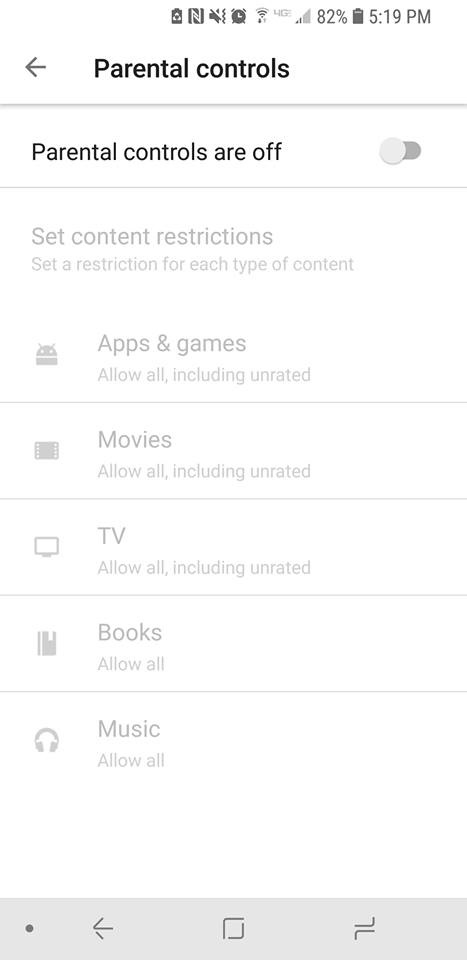
If you don’t have your child’s account linked to yours through Family Link, then you’ll have to go on their device itself, rather than being able to set it up on your phone or a browser. Once you’re on their device, you can go to “Settings” under the Google Play app and press “Parental Controls.” Once you switch them to on you’ll be prompted to create a PIN. This PIN will be how you access and manage the controls, so pick something that isn’t easy for your child to guess. Once it’s created, you can pick and choose the settings you’d like to set for the device.
If you wish to restrict access to features outside of Google Play on an Android, then you will find each Android has different ways to go about this, depending on which model you are using. As such, it may be easier to use a third-party app for setting up your parental controls. There are many apps out there to use, but we recommend Mobile Fence. This app provides makes management of your child’s phone incredibly easy.
Apple has recently updated their terminology and process for setting up parental controls, so there are also two ways in which you may have to go about setting these parental controls.
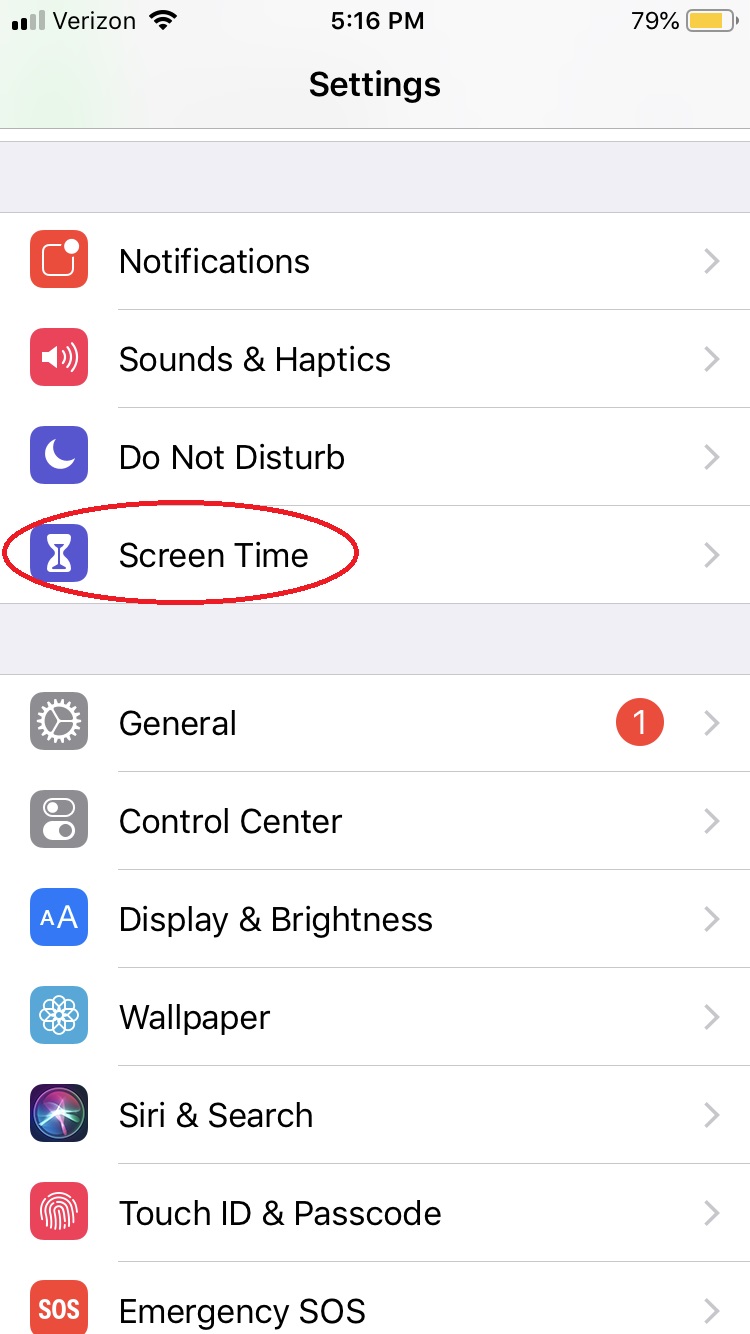
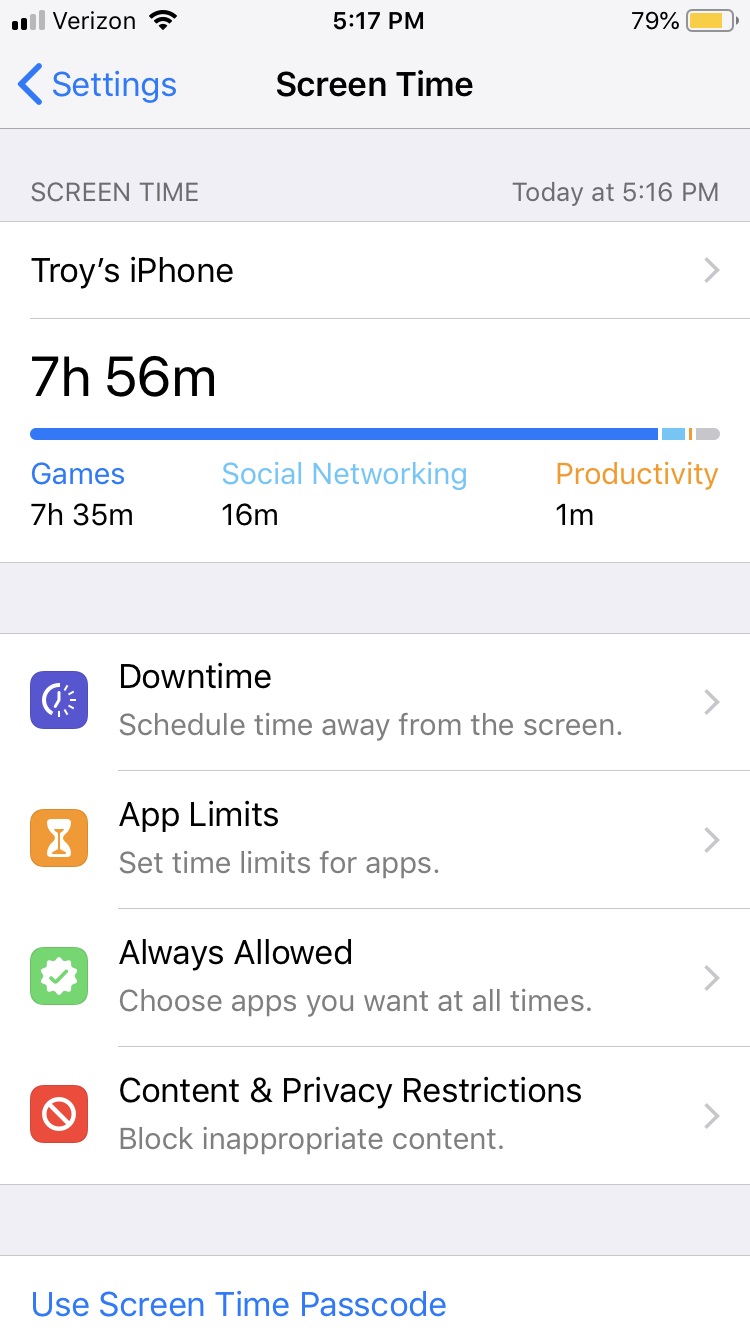
For iOS 12 and newer, under Settings there is a button titled “Screen Time.”
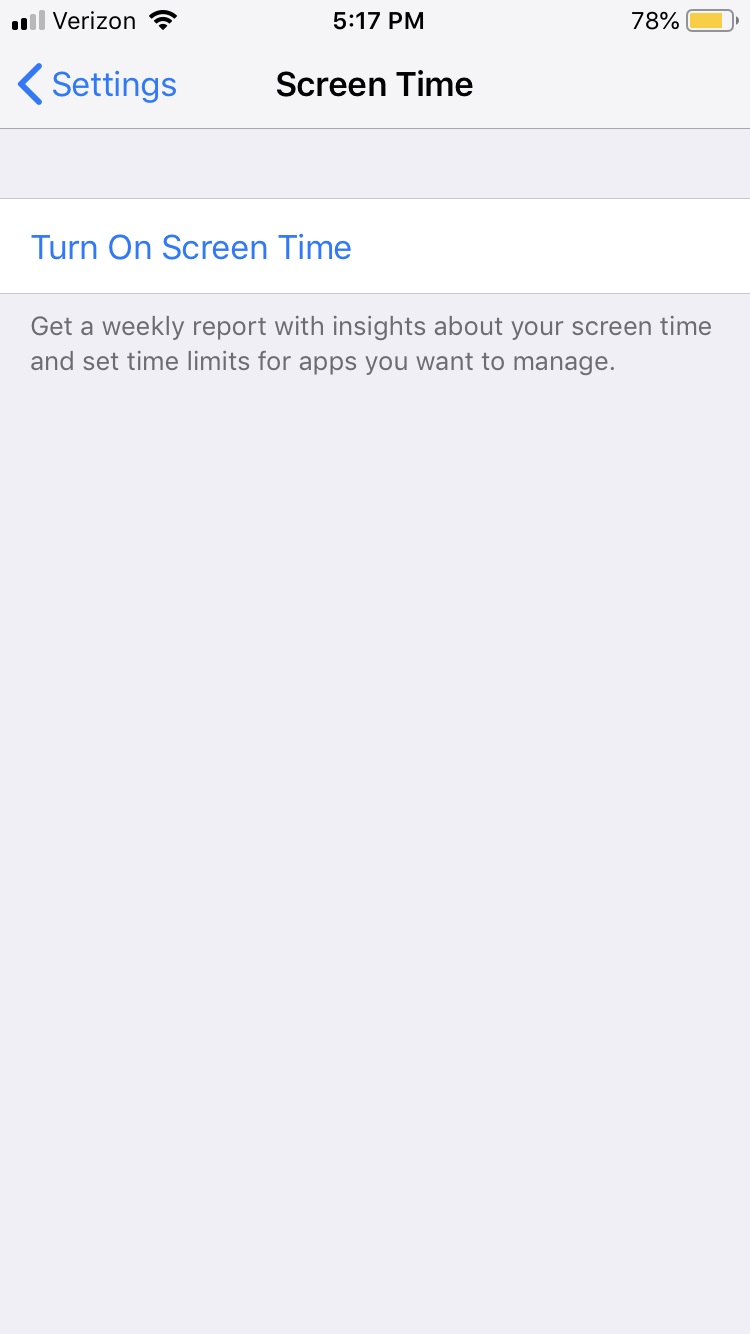
This is essentially the parental controls for Apple devices now. You’ll want to turn on Screen Time to monitor all activity on the phone and create any restrictions you want.
Notable things you’ll want to check out in the Screen Time menu are: “Downtime,” which lets you turn off the phone at specific times; “Content & Privacy restrictions,” which let you block any specific activity or app from your child’s access; and “Set Up Screen Time for Family,” which will let you access your child’s Screen Time from your personal iOS device.
Any iOS before 12 will have parental controls in the settings tab under “General” > “Restrictions.” Enabling restrictions will prompt you to create a passcode that you can use to disable those restrictions if you ever feel the time is right.
With these simple steps, you’ll protect your children and provide yourself a little peace of mind, knowing your little ones aren’t accessing the dark web and setting up an illegal Bitcoin gambling ring or whatever.
From the 1980s to the 2000s, we’ve seen numerous chick flicks become generational touchstones for pop culture. Take “Clueless” and “Heathers” for example. While most rom-coms aren’t viewed as chick flicks anymore in the year 2019, most female-centric romance movies were considered part of this genre. Most of these movies were box office hits that maintain their popularity today. Many reached such pop culture significance that they were even featured in a record-breaking music video by Ariana Grande. Here are the greatest chick flicks from the last decade.
Best chick flicks from the 2000s
10. The Princess Diaries
One of many popular and unique chick flicks starring Anne Hathaway, this series follows high school girl who discovers she is the unlikely princess of a far-off country. While that may sound like the recipe for a wish-fulfillment movie, it focuses more on adapting to a new culture than typical princess movies. This makes it a perfect coming-of-age movie for anyone who enjoys young adult entertainment.
Adam Sandler and Drew Barrymore are well known for their on-camera chemistry, and this movie is one of the earliest examples of that. Barrymore plays a woman who can’t remember anything since a horrible accident. This means Sandler must try to win her heart over and over. Since she never remembers him the next morning, every date they have is literally the first one in her mind.
This movie was specifically made for those who feel like they are “always the bridesmaid, never the bride.” The film follows a professional bridesmaid who has been in 27 weddings but has never had her own. She’s essentially the ultimate third wheel, unlucky in love.
7. Love Actually
A modern classic, “Love Actually” started the trend of intertwining holidays with romantic comedies, such as “Valentine’s Day” and “New Year’s Eve.” It is the perfect movie for a date night, filled with romance and humor. The interlocked stories keep you on your toes, which can make the viewing experience really exciting for new viewers, as it switches between each plotline.
6. The Devil Wears Prada
An often-referenced movie with a big cultural impact, this movie is famous for the on-screen relationship of Meryl Streep and Anne Hathaway. Streep plays a ruthless and cutthroat fashion designer, while Hathaway is her clumsy new assistant. The movie is reminiscent of another popular Streep film, “Death Becomes Her,” as both feature dark humor and powerful characters.
This movie faded into obscurity after its release, but that doesn’t mean it wasn’t incredible. While it may not qualify as a chick flick according to some definitions, it certainly fits with the rest of the genre. A teenage female cheerleader and an adult male criminal switch bodies, which creates a crazy situation for all involved.
(Editor’s note: Softonic cannot condone praise of any Rob Schneider movie, but our writer is entitled to his opinion. The great Roger Ebert wrote in his review that he didn’t walk out of the film “through superhuman effort of the will.”)
4. He’s Just Not That Into You
This is a surprisingly delightful movie based off a self-help book. Given the backstory of this movie, “Sex and the City” fans will surely enjoy it. That’s because not only is the title in reference to a “Sex and the City” quote, but the writers of that show were the ones who wrote the original book. Like “Love Actually,” this movie follows a few different stories, all somewhat interconnected. The main focus is spotting ways that men show their disinterest, such as standing up their dates or not making the effort to go to the next level. It’s also about learning to overcome this and to move past those types of relationships. (Girl power, y’all.)
3. 13 Going on 30
A classic coming-of-age story that takes a turn when a 13-year-old girl turns wakes up as a 30-year-old woman with no memory of how she got there. This movie is adorable, as it takes a young teen romance and puts it into the lives of adults. It ends up creating a movie that can be appreciated by all ages.
2. Mean Girls
Of all the movies on this list, Mean Girls is probably the most “generation-defining.” Many of the lines in this movie have become pop culture legend, such as, “She doesn’t even go here,” and “There’s a 30 percent chance that it’s already raining.” This movie is more than a standard rom-com, as it focuses on the drama between teenage girls and the fight for popularity. “Mean Girls” follows the story of a high schooler who just moved to America from South Africa, and finds herself in the middle of war between the popular girls and the outcasts. Which side will she choose?
“Legally Blonde” has all the perfect components to make an amazing chick flick: romance, female empowerment, and a clever inside joke that will last for decades (“Bend and Snap”). After her college boyfriend dumps her for someone more “booksmart,” Reese Witherspoon follows him to Harvard to win him back. And wouldn’t you know it? She learns lessons about herself along the way. “Legally Blonde” even became a solid Broadway musical.
These are just a handful of some of the best chick flicks in recent history. If you felt like any movies were missed on this list, you should check out our Softonic Solutions page and add your own suggestions to our list of the best chick flicks of all time.
Ready to play Magic: The Gathering? Here’s what you need to know.
Magic: The Gathering is a deceptively complex card game, with an unlimited number of strategies and possibilities. That being said, there are a few playstyle archetypes that most decks tend to fall into. If you’re new to Magic, it’s important to familiarize yourself with these playstyles, as you should be building your deck around one (or creating a hybrid of two). Here are the most common archetypes.
Magic: The Gathering playstyles
Aggro
As the name implies, Aggro decks are all about aggressive play. The main goal of an Aggro deck is to destroy your opponent as soon as possible. These decks are often filled with low mana creatures and instant spells made to wipe out your opponent’s field before they can play anything substantial. A good Aggro deck can even win within the first few turns if they draw the right hand.
The downside to this playstyle, of course, is that if the game goes on too long, it’s hard to keep up the aggression. Eventually, your opponent will be able to put large creatures on the field and take you out, so you have to stop them from ever getting to that point.
Control
Control is the exact opposite of Aggro. Control players will slowly put together their field in order to take full control of the game. Their goal is to outlive their opponent so they can play field and deck manipulation cards. Control decks are often filled with counterspells and board removal in order to survive through their opponent’s main strategies.
Mid-range
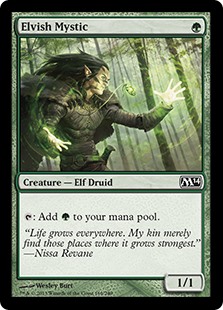
This playstyle is somewhat between Aggro and Control. Aggro players try to destroy their opponent as fast as possible, while Control players extend the game until they have full control of the board. Mid-range players peak between these two, a few turns into the game. They spend the beginning of the game ramping up mana, so that they can cast high-level spells much earlier then they are intended to be cast. Mid-range decks often include low-cost creatures that can be tapped for additional mana, as well as high-cost cards that can turn the tide of battle if they are cast early.
Combo
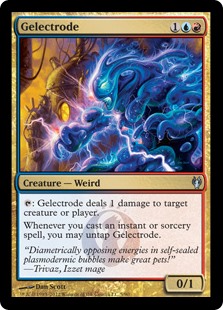
Combo decks are the easiest to understand, hardest to pull off, and the most satisfying to use. Every color has access to combos, and a Combo deck builds around these in order to destroy your opponent. A good example of a Combo deck is the card “Gelectrode“. This card essentially lets you deal one damage every time you use an instant or sorcery spell. A combo deck built around this card would most likely have many instants and socery spells, as well as other creatures that build off those card types. Combo decks are usually reliant on their combo to be effective, so if someone disrupts you it can ruin your whole plan. That being said, once you get your combo going, victory is practically yours.
Once you understand the playstyle that you prefer, it’s important to decide what color(s) you want to play. Each color in Magic also tends to lend itself to a particular playstyle. Here’s a brief overview of how each color tends to work.
Red
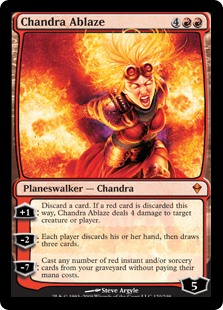
Red is all about fire, destruction, and power. Out of all the playstyles you’ll find in Magic, there is no other color/playstyle combination as popular as Aggro Red decks. This color was built to be played fast and aggressively, with tons of cheap weak creatures to swarm the board, as well as burn spells meant to do high amounts of direct damage to creatures and players in an instant. Red is all about fast destruction, and preventing your opponent from even starting their deck properly. There is a very popular deck that takes advantage of this color’s aggressive nature called Red Deck Wins, which has been adapted over the years with each new expansion.
Blue
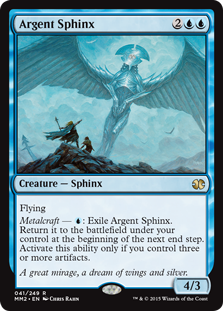
Symbolically represented by water, technology, and knowledge, Blue is the most technical of all the colors. It is most well known for its counterspell and card draw abilities. As Blue has the ability to manipulate the field, decks, and hands in a way that other colors can’t, it is commonly associated with Control and Combo playstyles. Blue is somewhat of a complicated color, as you need to plan five turns ahead in order to be effective with it. It is often considered the contrast of Red, since it requires such thorough planning, and focuses on having a much longer game. Blue also has the most artifact synergy of any color, and is perfect for utilizing those neutral cards.
Green
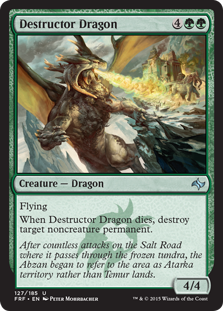
With forest lands, Green is the color of nature and life. This can be easily seen with the amount of creatures that Green has access to. While colors like Red and Blue focus on their spells to accomplish their goals, Green is all about creatures. Green tends to lean towards a Mid-range playstyle, since they have many low mana creature cards, as well as cards that give them additional mana early in the game. This color is highly recommended to new players, as it is easy to find strong Green cards and put together an effective deck with them. Green also combos well with every color, as it can be used to provide the additional mana needed for other colors to adapt to a Mid-range playstyle.
White
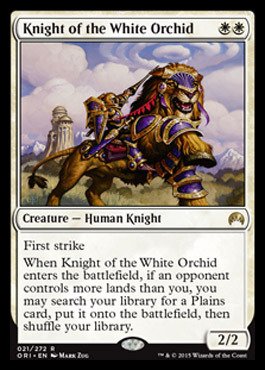
White is the color of healing, law, order, and angels. White often adapts to fit a few playstyles depending on what color it is paired with. That said, it is often associated with Control decks, as it has many tools to extend the game. Primarily, these tools come in the form of life gain, card removal, and “flying” creatures that can prevent your opponent from blocking your damage. White often has creatures who can empower each other, as one of its main principals is also teamwork and comradery. As such, you’ll often find low power creatures gaining strength rapidly as the game progresses.
Black
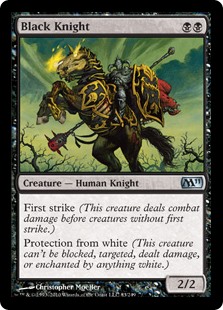
The color of darkness, undead, vampires, demons, and anything else creepy you can think of. Black tends to focus on sacrifice and lifesteal mechanics, which fit its dark theme perfectly. Like White, it can be adapted to a variety of playstyles, especially when combined with other colors. Similarly, on its ownb it tends to lean towards a Control playstyle. As Black often forces opponents to discard frequently, it is a good choice to use this color when playing against multiple opponents. You can disrupt the battlefield by manipulating your opponent’s cards and life points with a few minimal sacrifices. Since Black and Blue both focus on manipulating cards, they work very well together when building a Control deck. These decks tend to be on the expensive side, and can be difficult to put together, but have incredibly powerful results when used properly.
Of course, you can combine any color or playstyle to create decks with a bigger variety. You made want to create a Red/Blue deck to combine the aggressive power of Red with the thoughtfulness and planning of Blue. This combination will often lead to an Aggro/Control deck that can really through your opponent off guard, as you use your fast destruction spells to build up your board for later. And this is just one of many different combinations in Magic: The Gathering that can diversify your gameplay. Not to mention the possibilities when you include artifact cards, which have no color and can be found in any deck. Despite the many options you have, we suggest starting with something basic and working your way up to these more complex strategies.
Before you head off on your next vacation, add these apps to your phone.
The hardest part of traveling is staying organized. No one wants to worry when they are on vacation, especially if it’s far away. That said, there are some things that we just need to prepare for, such as organizing our passport information, and having some form of translator. Thankfully, there are plenty of great apps to help us with these and make the experience much easier. Here are the best apps for traveling out of the country.
Best apps for traveling abroad
5. Passport Photo Maker
Before you leave the country, you have to have a passport. There are specific requirements for what your photo can look like, and if you don’t want to get your photo taken at the DMV or post office, then this app is your best choice. It helps you take ID-regulated photos, so that you don’t have to worry about meeting the requirements when you send in your application for your passport (or any other ID for that matter).
It can get expensive to make calls and texts abroad if you don’t have those prepared in your plan. Thankfully, Viber allows you to do these using your Wi-Fi connection instead, so you can safely save use your phone without worrying about racking up your bill.
If you don’t speak the language of the country you’re visiting, then you’ll need some type of translation app. TripLingo focuses on translating what you say into colloquial phrases that fit the region you’re visiting. For example, if you go to France, it’ll use phrases in French that may be different than if you visited a different French-speaking country like Senegal.
The Mobile Passport app exists to make your life easier when going through customs at airports. It is essentially what it says it is, allowing you to create a passport profile on your phone, making the entire airport experience much faster and easier. In fact, airports that accept Mobile Passport have specific lines and registrations, making the process much faster since you won’t be with everyone else.
Mobile Passport - Officially Authorized by CBPDownload Free
1. iTranslate
This app is similar to TripLingo, but instead of focusing on translating colloquialisms, it focuses on versatility. The amount of languages you can translate to and from is incredible, and it even has smartwatch compatibility, so you don’t always have to have your phone out with you.
While these are all great apps for traveling abroad, you may want to check out this article on the best travel apps, that is more centered around traveling within your own country instead.
Want to know what’s going on with your favorite celebs? Here’s how to get the inside scoop.
It’s easy to get wrapped up in the world of celebrities. There is constant news of romance, breakups, fights, and other interests that keep the gossip interesting and fresh. While there are many ways to keep up with celebrities’ official profiles, sometimes you want a little more dirt. Here are some of the best apps to keep you up to date on your favorite celebs.
Best celebrity gossip mobile apps
10. MTV News
MTV has changed a lot over the years, but for a long time now it has been a consistent and reliable source of celebrity news. While it primarily focuses on teen idols (such as Taylor Swift and One Direction), it also reports on a much larger variety when important news happens.
A post shared by Ed Sheeran (@teddysphotos) on Jan 20, 2018 at 5:49am PST
Social media is where most celebrities go to make important life announcements. All the other sites are just compiling posts made by celebrities, but going to Instagram is going to the source itself. You’ll have to follow a few celebs to get most of the gossip, but most of them love to put their lives on display here (especially with engagement announcements).
Perhaps the better social media option when deciding to follow celebrities, at least for some. Twitter is just as much the source of celebrity news as Instagram, though usually Twitter tends to be more drama-filled. Even the small updates can lead to intense Twitter feuds, and the network is always keeping you up to date on what’s trending in the news.
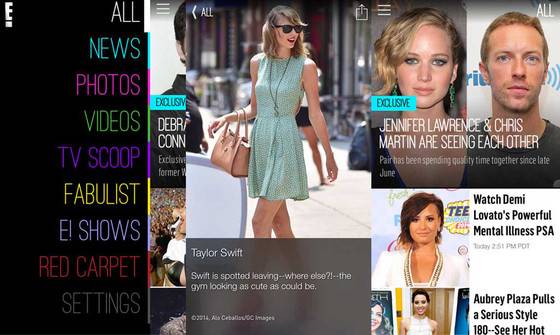
E! is a channel that has a lot of celebrity gossip within the entertainment industry. It mainly focuses on movie stars, singers, and socialites, it is also known to show a variety of trending news. The app lets you see more details of their shows, including the ever-popular “Keeping Up with the Kardashians.”
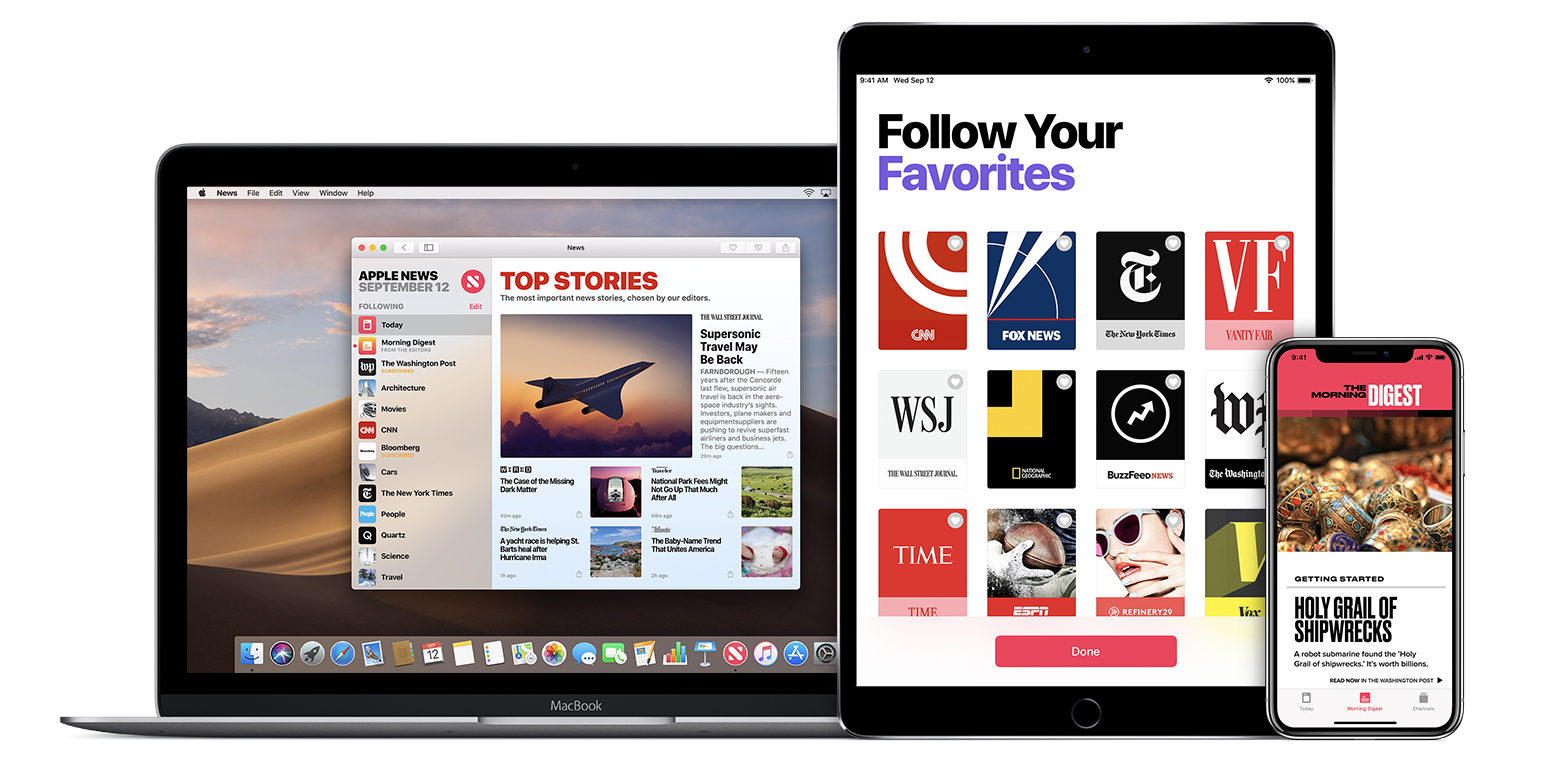
Fortunately for iPhone users, this app comes prebuilt into your mobile devices, so you already have it at the tips of your fingers. It is one of the most customizable news apps out there. You’re able to follow any news you want from virtually any reliable source you can think of. This isn’t limited to just celebrity news, as you can use this app to stay up to date on politics, sports, and any other fields of interest you might have.
One of the most credible news sources on all subjects, Time has been a reliable source of celebrity news for a long time. Probably the most well known of these are “it” lists of “100 best” movies, music, etc. The app lets you view all of these for free, and stay up to date on any new Time information.
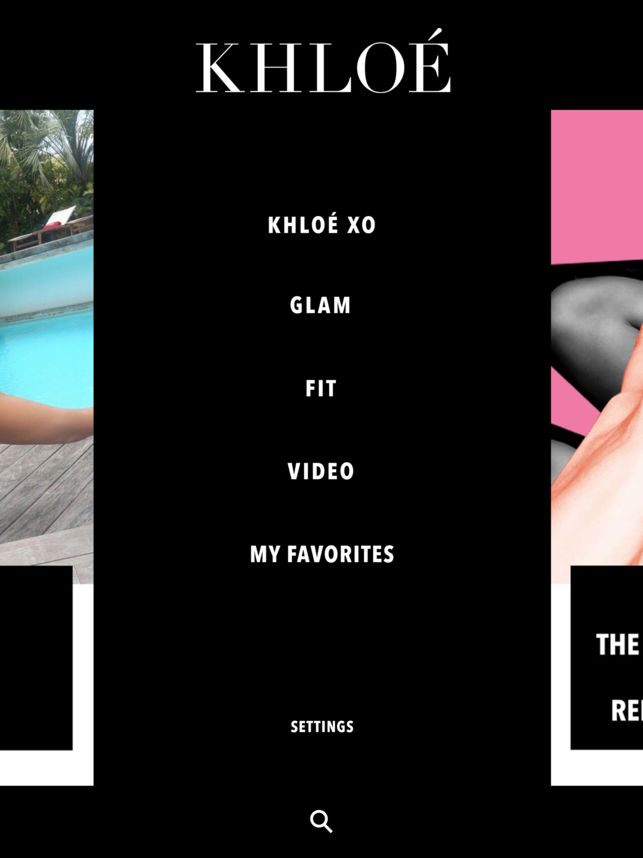
Nothing says celebrity gossip like the Kardashians, and Khloé’s official app keeps true to this. If you plan on “Keeping Up with the Kardashians,” then this is a great app to have on hand. It lets you see how Khloé lives, and can even bring you closer to looking like her someday (if that’s your thing).
Another popular source for celebrity news, TMZ has its own app with some of the biggest stories out there. Aside from Twitter and Instagram, TMZ is usually one of the primary sources of celebrity gossip, and their app has everything you would hope for it to have. It’s sponsored by ads, making it one of the few reliable news sources to be completely free.
The original celebrity gossip man himself has created a free app that works just like his site does. While somewhat of a controversial figure, Perez is always ready to give the most intimate details on celebrities, and his app is the same way. Longtime fans of his work will be sure to enjoy the familiar format.
People is well known for being one of the most reliable sources of celebrity news. In fact, it’s difficult to compare it to the gossip that most sites share, as they mostly only write on factual events, instead of speculation. That being said, they are one of the few news sources you still have to pay for, though their credibility can forgive this factor.
There’s actually more celebrity news apps then you may think, as our Softonic Solutions community has listed even more great apps to try. You can even suggest your own if you think a great one is missing from the list!