How to split up a large file with WinRAR

There are so many reasons that WinRAR is regarded as one of the best file compression tools to have at your disposal. One of those reasons is that you can use one to split up large files into several smaller ones. This is particularly useful if you intend to distribute files and want to make them easier for a recipient to download.

WinRAR DOWNLOAD

It’s so easy to use WinRAR to split up big files that it only takes three simple steps. So sit back and relax as we compress the three easy steps of decompressing large files.

Splitting up large files with WinRAR

Before you can make use of the exceptional compression and decompression power, you need to download WinRAR. As with all software that we review, we have a handy link that will take you directly to the download page. Once you’re on the download page, all you need to do is choose a version of WinRAR compatible with your operating system and click download.

The installation process is criminally easy and only requires you to accept an end-user license agreement and select an installation location on your device’s hard drive. WinRAR is a premium software, but you do have a limited time-free testing period within which you can use the software and decide if you want to buy it outright. With that little bit of administration handled, let’s get into the three simple steps of using WinRAR to decompress large files.

  1. Location, location, location

    How to split up a large file with WinRAR

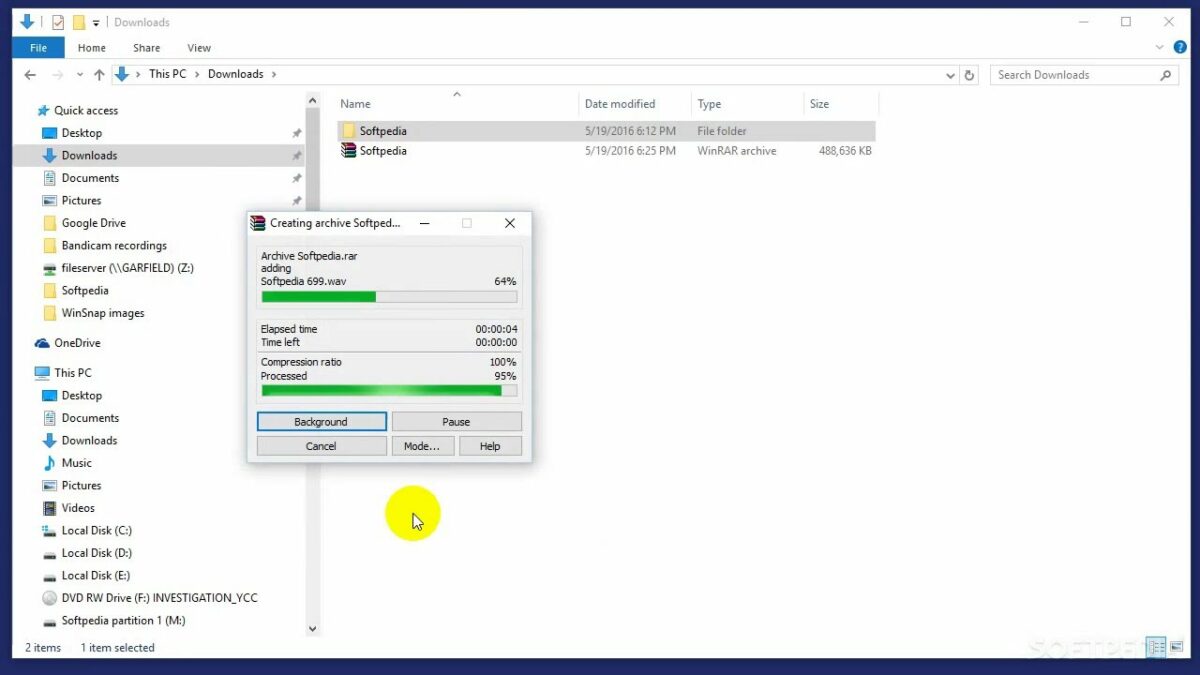
    The first step to splitting up large files with WinRAR once you’ve downloaded the utility is to locate the file you’d like to split. Once you’ve located your file, right-click on it and select Open With, and then choose WinRAR from the list of associated apps. In WinRAR, head up to the toolbar and hit Add to add the file to a new archive. You could also select Add to Archive from the right-click context menu as a shortcut.

  2. Compress

    How to split up a large file with WinRAR

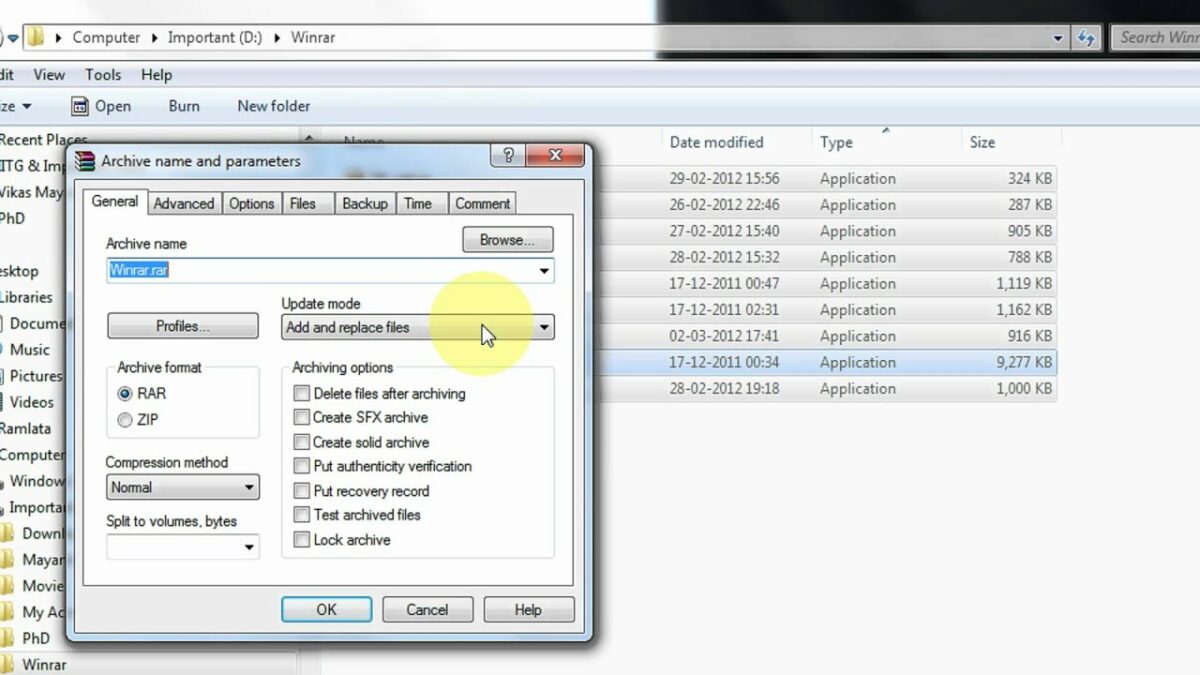
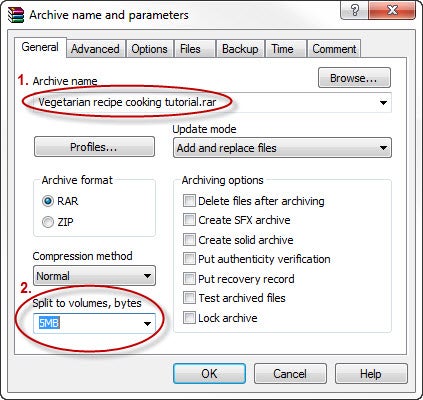
    You should now see an archive name and parameters interface. This is where you’ll be able to choose how small to make each file and define any other parameters you’d like to apply to the archive.

    First, rename your archive. If you don’t want to choose another name, you’ll see WinRAR has already suggested a name for the new archive.

    Next, head to Archive format and choose whether you’d like the new archive to be saved as a .rar, .rar4, or .zip

    Lastly, you’ll need to head to Split to volumes, size, and then define how large to make each individual smaller file. You can also select a volume from the drop-down list. Once you’ve set the necessary parameters, click OK, and your folder will be split up and filed in the newly-defined archive.

  3. Extract

    How to split up a large file with WinRAR

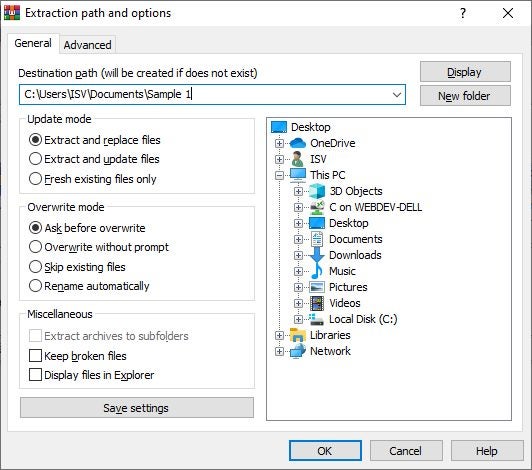
    This last step will take place on your target device. All you need to do is extract the compressed file as you usually would, and you’ll see that the original file has been split into smaller files for easier transmission. 

    Pro tip: If you intend for the new archive to be functional on computers that don’t have WinRAR installed, save your archive as .zip. While .rar can only be opened and extracted by WinRAR, .zip can be extracted by any archive tool, such as 7zip, a free alternative to WinRAR.

Get the most out of file compression

Even though WinRAR is a premium software and you need to pay for access to advanced features like splitting files by volume, this is still one of the best file compression utilities in use. In fact, WinRAR has been one of the most popular utilities for file compression and decompression since before the glory days of Windows XP. Sadly though, WinRAR no longer carries support for devices running on the now outdated Windows XP OS.

On the brighter side, though, WinRAR has recently undergone a rather extensive update that has resulted in the utility performing better than before on Windows 11. This update is also one of many that the utility has undergone since 2019, when a 20-year-old WinRAR vulnerability was identified that could give third-party threat actors complete control over a victim’s computer.

To get the most out of this file compression program, check some of our other guides:

15 Best VPNs for Chrome

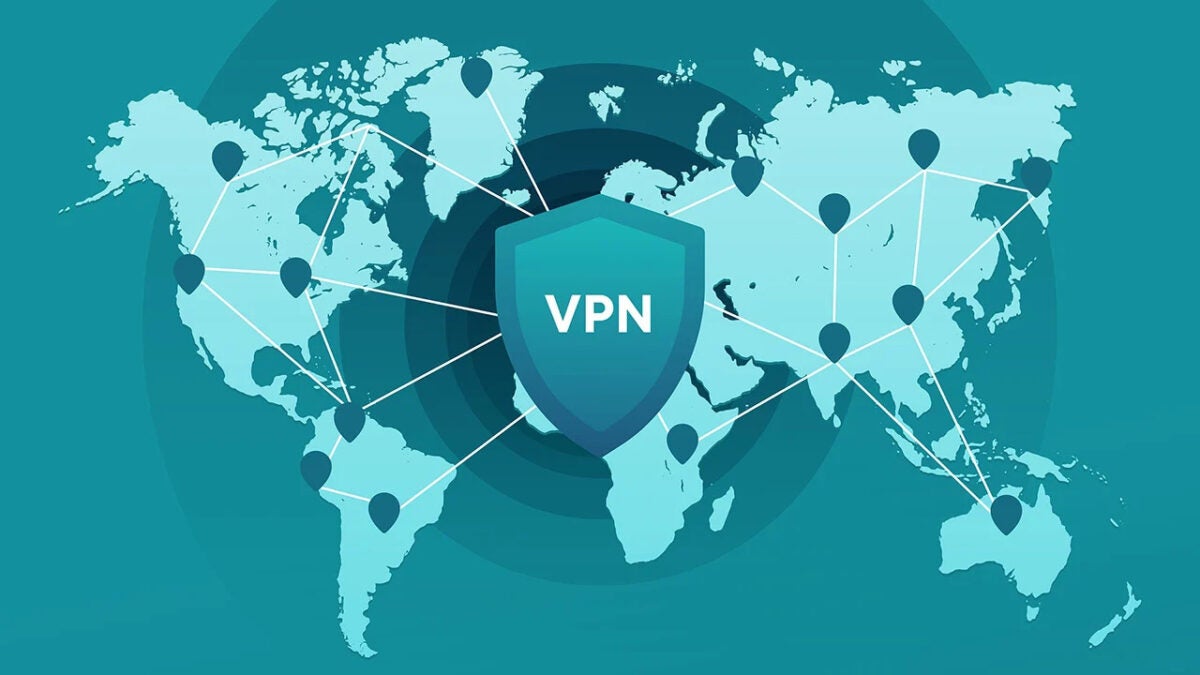
A virtual private network is excellent for when you want to browse the internet anonymously without anyone tracking your behavior. Browsers like Chrome have extensions that integrate VPN services directly so that you can use them without too much hassle. While most of these are free, you’ll have limited functionality until you activate a paid premium edition.

In this guide, we’ll look at the 15 best VPNs for Chrome that offer the best tools and features.

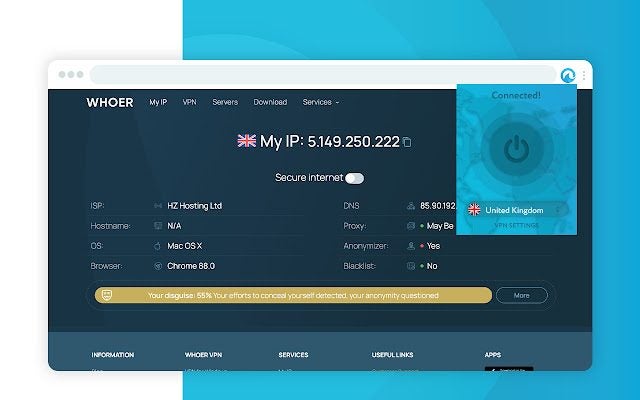
Free VPN for Chrome – VPN Proxy VeePN

VeePN is the provider of this VPN extension for Chrome. You can unblock access to restricted sites in your location with more than 2,500 servers in over 60 countries. It also stops adverts from appearing on the viewing content, but it doesn’t log any of your activity.

One of the top benefits is that the free VPN doesn’t limit how much you can browse the internet in terms of bandwidth and traffic. It’s also easy to set up with only a few clicks. The smart VPN protocols ensure that no one can hack Chrome while you’re using it. 

Free VPN for Chrome - VPN Proxy VeePN DOWNLOAD
15 Best VPNs for Chrome

SetupVPN – Lifetime Free VPN

The key focus of the SetupVPN Chrome extension is bypassing controls put in place by public authorities, such as the government, schools, or the corporate environment. With the VPN enabled, you can quickly browse apps and social media platforms that these entities block. Of course, it may disturb your productivity and focus, which is why they’re put in place in the first place. 

Fortunately, you don’t need much technical knowledge to install and use SetupVPN as one of the best VPNs for Chrome. However, it does need some permissions to run properly on your device. You’ll receive notifications if the VPN loses a connection.

SetupVPN DOWNLOAD

ZenMate Free VPN–Best VPN for Chrome

If you want more than access to several countries, ZenMate Free VPN also protects your data from hackers and malware. There are more than 2,000 servers in about 74 locations, so you’ll be spoilt for choice when you want to see content blocked in your region. It also connects to popular streaming services. Some examples are Hulu, Netflix, Amazon Prime, and Disney Plus.

Of course, some of these services are clever enough to verify your residential address first. In these situations, VPN services don’t really help at all. Still, you can enjoy anonymous internet browsing with encrypted connections.

ZenMate Free VPN DOWNLOAD
15 Best VPNs for Chrome

Browsec VPN – Free VPN for Chrome

When it comes to cross-platform performance, few have the speed and abilities of Browsec VPN. When used as a Chrome extension for Windows, it changes your I.P. address and adds encryption so that no one can track your online activities. You can even use it when traveling abroad when you want to access content in your home country.

Unfortunately, the free version does have some limitations. For example, there are limited download and streaming speeds. You’ll need to purchase the premium edition and connect it to your Chrome browser for its full potential.

Browsec VPN DOWNLOAD
15 Best VPNs for Chrome

Urban Free VPN proxy Unblocker – Best VPN

Do you prefer toggling choices when it comes to VPNs for Chrome? Urban Free VPN has small switches on the control panel that lets you enable or disable adblocking and secure browsing. While it may seem odd, these choices are necessary if you’re visiting a site stopped by the VPN service.

Connecting to public Wi-Fi connections can be risky. Hackers use these online terminals to quickly hack into your device and steal your info. Urban Free VPN has protocols in place to secure these connections, which means you can safely stream content anywhere.

Urban Free VPN proxy Unblocker DOWNLOAD
15 Best VPNs for Chrome

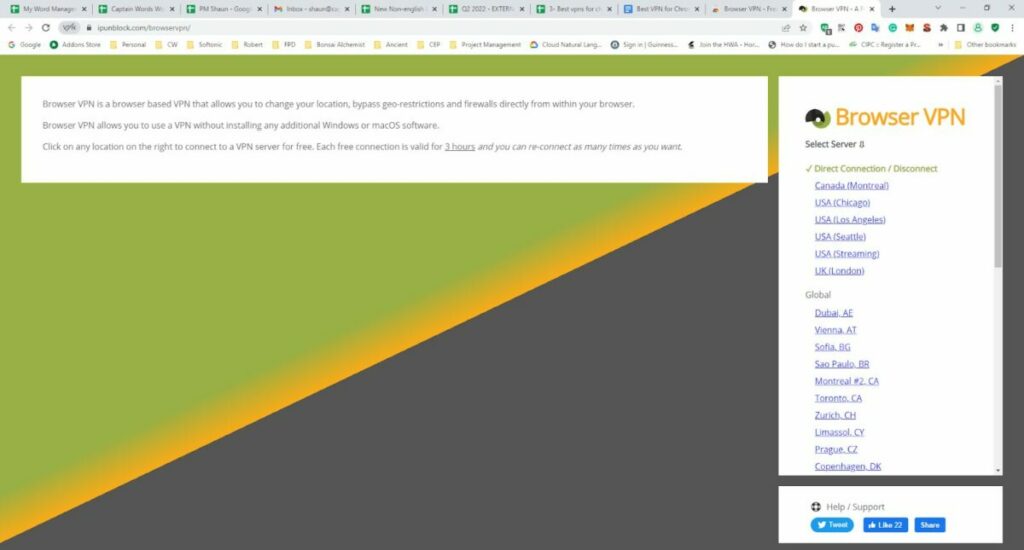
Browser VPN – Free Chrome VPN

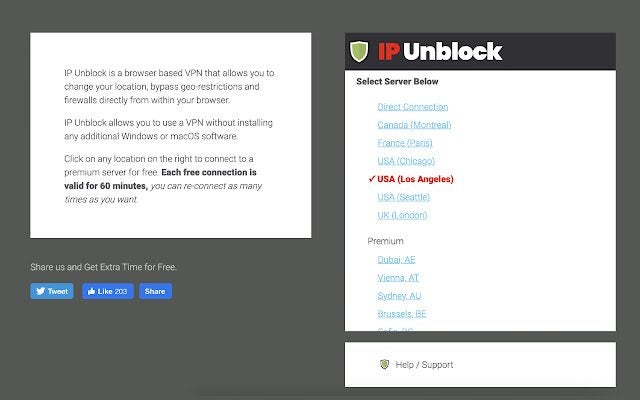
One of the most minimalistic designs for a Chrome VPN extension is Browser VPN. Developed by IPUnblock, it lists several countries around the world. It might not have as many as popular VPN providers, but you’ll still be able to download, stream, and game online.

Once you have a connection, you can browse for three hours before Browser VPN disconnects. The protocols ensure that you don’t leave it idling when not in use, switching servers for further protection. You can reconnect as many times as you want.

Browser VPN DOWNLOAD
15 Best VPNs for Chrome

VPN Proxy Master – free unblock VPN & security

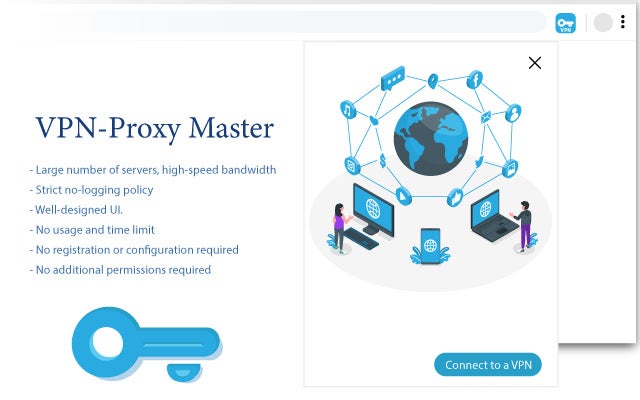
Here’s another VPN for Chrome that integrates with several online streaming services. You can watch country-specific content on BBC, Disney+, Netflix, and more. If you’re using VPN services on your mobile phone, you may recognize this service that’s popular on Android operating systems.

VPN Proxy Master delivers impressive performance on Windows when using the Chrome extension. It uses military-grade security, and it doesn’t log any of your activities. You can even override site firewalls if you desperately need to access the content.

VPN Proxy Master DOWNLOAD
15 Best VPNs for Chrome

Free VPN for Chrome – Free VPN

You won’t find many Chrome VPNs that let you use their services without first registering an account. Free VPN for Chrome is one of these, with a small window that lets you quickly connect to a secure server. While the product website doesn’t offer much info, you’ll still be able to stream overseas movies and shows.

While you can mask your online activities, hackers will also not be able to steal your identity or passwords. It’s a better option than going incognito on Chrome, which simply clears your cookies after each use.

Free VPN for Chrome DOWNLOAD
15 Best VPNs for Chrome

Hoxx VPN Proxy

While some VPN configurations are challenging, you won’t find any issues with Hoxx VPN Proxy. It chiefly focuses on bypassing government restrictions in countries so that you can access any content you’d like. It’s also an ideal solution for protecting your data on public Wi-Fi connections.

You’ll need to create a Hoxx account if you want to connect on Chrome, though. It’s still free, as is the service it provides on the browser.  However, you’ll need to pay for the premium package if you want more advanced security features.

Hoxx VPN Proxy DOWNLOAD

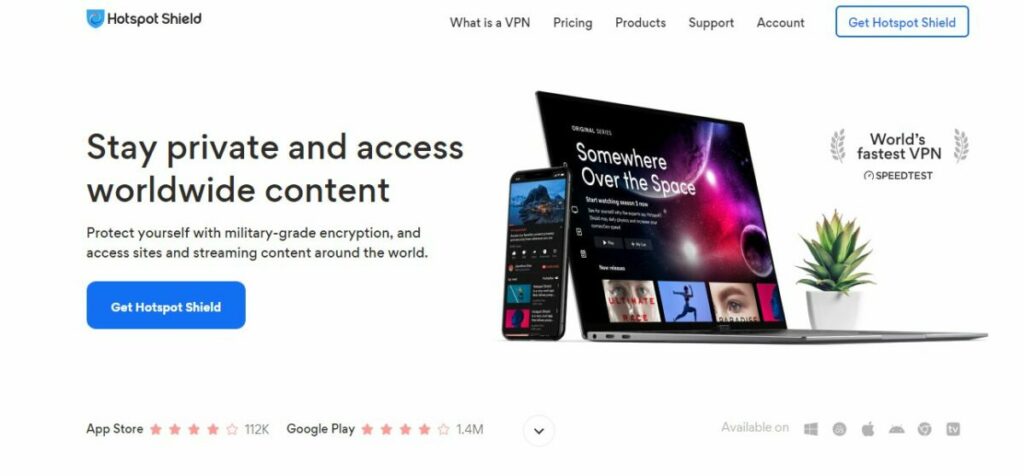
Hotspot Shield Free VPN Proxy – Unlimited VPN

Pango is the developer that brings Hotspot Shield to Chrome. As part of the premium services, it stops adverts from appearing on the browser and prevents hackers from accessing your details. While accessing overseas content, it hides your I.P. address to keep your browsing anonymous.

You’ll only have access to these premium VPN features during the 7-day trial. If you want to continue using them, you’ll have to pay for a monthly subscription. The other option is sticking to limited services in the free version.

Hotspot Shield VPN Free Proxy DOWNLOAD
15 Best VPNs for Chrome

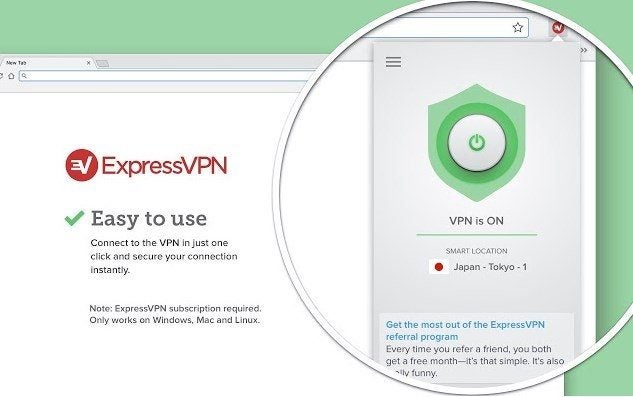
ExpressVPN: VPN proxy for a better internet

We’d be surprised if you haven’t heard of ExpressVPN or seen one of its adverts while searching for the best VPNs for Chrome, desktop, or mobile. It’s one of the top names in the industry. Of course, with such quality services comes the demand for a paid subscription. You won’t be able to use the extension for free.

ExpressVPN has more than 3,000 servers in more than 94 countries. Paying members have access to online movies and shows, downloads, torrents, gaming, and so much more. It also provides support in 17 languages.

ExpressVPN for Chrome DOWNLOAD
15 Best VPNs for Chrome

Surf VPN – Free & Secure proxy

Another popular name in the Chrome VPN industry, Surf VPN is free to use on the browser with no strings attached. You won’t need to worry about switching locations now and again. It also doesn’t limit streaming and download speeds, as some of the providers do with free accounts.

The interface is easy to use, and you simply select a location and connect. It selects a smart location for the country that provides faster server speeds so you won’t have to worry about performance issues.

Surf VPN DOWNLOAD
15 Best VPNs for Chrome

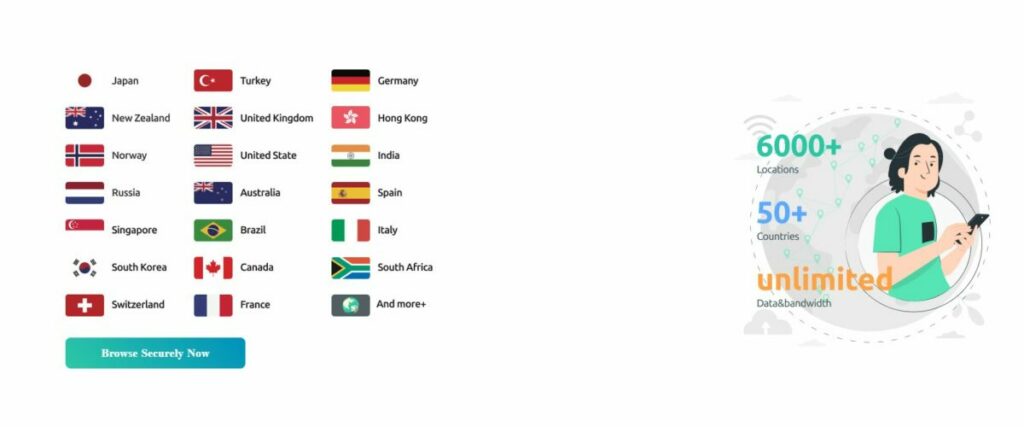
IP Unblock – Free VPN to unblock websites

You’ll recognize this name from the other VPN service it provides, Browser VPN. However, the main difference with IP Unblock is that it unlocks specific social media platforms and websites usually restricted by companies at work. Some examples are Facebook, Roblox, and Reddit.

Of course, you run the risk of getting into trouble if your company or other authority catches you accessing restricted sites by overriding the I.P. protocols. If this doesn’t bother you, you can use IP Unblock on Chrome for free without ever providing card or bank details.

IP Unblock DOWNLOAD
15 Best VPNs for Chrome

VPN Plus – Best VPN for Chrome

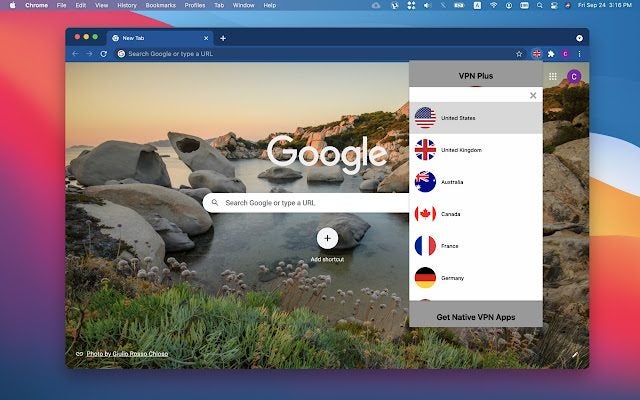
The final VPN for Chrome on our list is VPN Plus. The extension has an elegant, simple design that lets you quickly select a country and connect. You won’t need to register an account, and it will ensure that your browsing activity remains hidden from prying eyes. 

When you search for a connection, VPN plus will first check which of its servers provides the fastest speeds. You’ll be able to stream online content and also play games with others in that country. It’s the best way to enhance the multiplayer action when you want to enter competitions in specific locations.

VPN Plus DOWNLOAD
15 Best VPNs for Chrome

VPN Master

There are two top functions included with VPN Master. On the one hand, you can bypass regional restrictions for online content. The second part of the Chrome VPN focuses on blocking ads that might appear while streaming or visiting sites.

With over 100 servers in several countries, VPN Master has top security encryption that will protect your device and data while using public Wi-Fi hotspots. It effectively changes your I.P. address so no one can access your private information.

VPN Master DOWNLOAD
best VPN for chrome

Securely access content worldwide

It’s imperative that you remain secure online in any way possible to prevent hackers from stealing your information and browsing activity. VPNs are only one way that you can do so, but you need to ensure that it gives you complete protection from the dangers you’ll find on the internet.

Of course, you’ll also have access to entertainment from other countries where they’ll usually restrict you. Always make sure that you research the VPN provider and feedback from users so that you feel assured about using the extensions.

6 easy and free ways to be safe online READ MORE

How to Transfer Files From Android to iPhone Using SHAREit in 5 Fast Steps

The technological age has given so much in the way of connecting with people and sharing data. Yet, even when we share music, photos, and files, it can still be a pain to transfer files between various operating systems due to differences in privacy policies, security settings, or user interface. Lenovo aimed to resolve that concern with its SHAREit app.

SHAREit DOWNLOAD

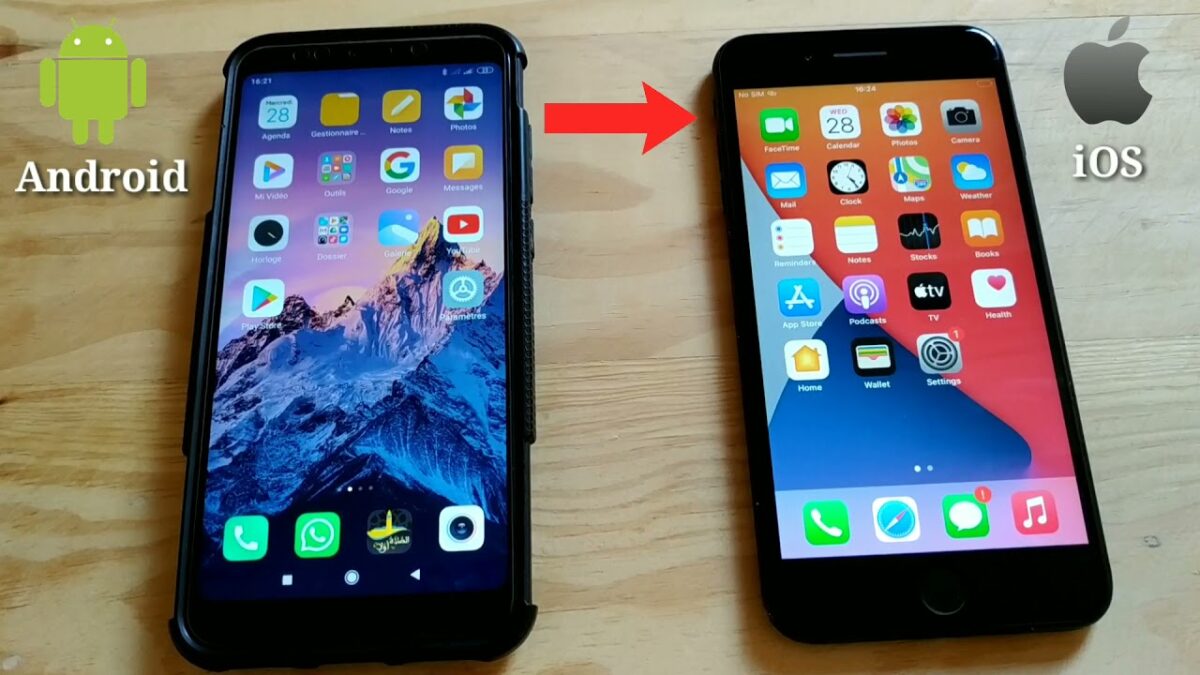
Released for Windows, Mac, Android, and IOS,  SHAREit app offers easy and secure data transfer. But, can you transfer data between, say, an Android device and an iPhone? We’ll provide the answer to that question in this guide.

Bringing Devices Together

Android and iPhone have long been at odds with each other. If you’ve ever tried sharing photos, music, or other files between these two operating systems, you’ll understand just how frustrating this process can be. Their inability to strongly connect with one another reiterates the point.

Apple is known for its Fort Knox-like security, which makes it rather difficult to receive files from a non-Apple device or install software from anywhere other than the App Store. 

On the flip side, Android boasts a highly customizable platform. It’s much easier to install outside software or to load files from other sources. While both approaches have their merits and frustrations, all we want is to send photos or music to our friends regardless of the phone they have, and now you can. 

Why is it difficult to share files between different OS?

Aside from the petty competition between these two leading tech giants, Google and Apple, there are also other incompatibilities that make it difficult to share files between these two systems. One of the reasons comes down to privacy. Apple takes a very serious stance on user privacy and, as such, has stringent security measures in place to avoid any breaches. While this is a good thing for many users, it does make sharing files a real headache – even between different Apple devices.

Another contributing factor is how the files are structured. Android has a file system that resembles that of a desktop Windows or Mac. This makes sharing files from Android to these types of devices much more manageable. However, iOS doesn’t have the same file system.

While some of the reasons for this are that it makes it impossible for the user to ‘do the wrong thing,’ some believe that the developers just don’t want to go down this route. Instead, users need to use third-party apps, like SHAREit, to be able to share files between different OS easily.

Apple is also notorious for using its own file format, which isn’t accepted by other OS. For example, since Apple released iOS 11, it started using the HEIC image format on all images. Android devices or Windows computers don’t widely support this format.

This means that iOS users would first need to convert the file format to a more widely accepted format such as JPEG, PNG, or similar before sharing with devices with another OS.

How to Transfer Files From Android to iPhone Using SHAREit

  1. Start SHAREit

    Transfer Files From Android to iPhone Using SHAREit

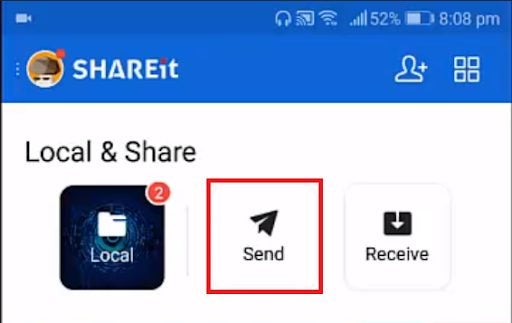
    First, you’ll need to install SHAREit and start it up. Then, tap on the Send button and allow it to turn your Location settings on when prompted. It’s important to note that the SHAREit app must be installed on both devices to effectively share files

  2. Select Files

    Transfer Files From Android to iPhone Using SHAREit

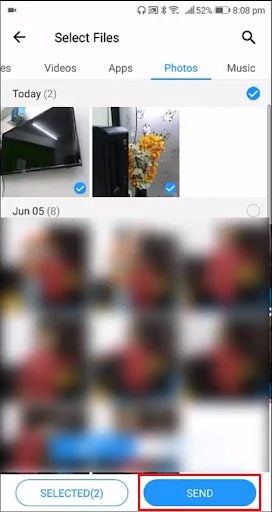
    Select the files that you want to transfer and tap on Send.

  3. Connect to IOS/WP

    Transfer Files From Android to iPhone Using SHAREit

    You’ll be given a blue screen; tap on the Connect to IOS/WP button at the bottom of the screen. You are able to select multiple files, audio clips, or videos to send simultaneously. Once you’ve selected your files, click on ‘Next’ to proceed.

  4. Open Hotspot details

    Transfer Files From Android to iPhone Using SHAREit

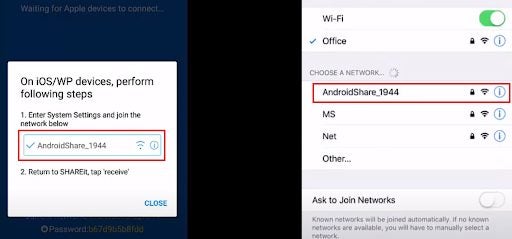
    You’ll be given a screen that shows a mobile hotspot name and password. Keep this open while navigating to your Wifi Settings on the iPhone and connecting to the hotspot.

  5. Send files

    Transfer Files From Android to iPhone Using SHAREit

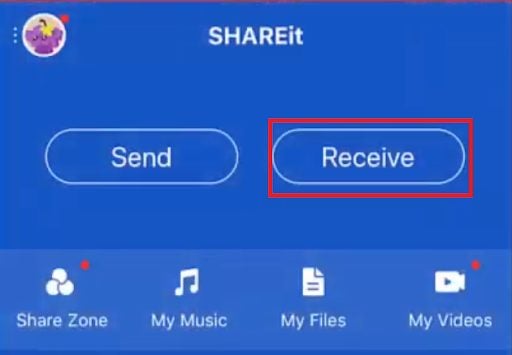
    Now, open the SHAREit app on your iPhone and press Receive. You should receive the files from the Android phone.

How to sell cars in Grand Theft Auto 5 Online

The exciting world of the Grand Theft Auto games gets a fresh spin with Grand Theft Auto V Online. In this program from Rockstar Games, players follow the storylines of three criminal characters: Michael, Trevor, and Franklin through the familiar San Andreas map. You will have to make in-game money to buy weapons and rise in the ranks of top criminal empires. In your missions, you risk getting caught by the police or killed by other criminals; however, with enough cash, you can afford yachts and luxury penthouses.

Grand Theft Auto V DOWNLOAD

The easiest way to make money in GTA V is to steal cars and sell them to a mechanic at a lesser value. All you need is to use the GPS system to find the shop and trade in your cars. Selling your stolen cars is more beneficial than keeping them when you’re playing the game for money-making techniques. We’ll go through the three steps to sell cars in GTA V Online.

  1. Look for a paint shop with spray paint icons on the map

    Avoid getting caught by the police

    Start by traveling around the city to find an easy car to steal. If you’re familiar with the game, you can grab a car at a red light or stop sign or break into it when it’s parked. Keep an eye out for police officers and speed away if you do get caught before they pull you over and end the game. A practical tip is to choose cheaper cars over sports cars as you won’t get too much money from the mechanics and can steal more cars to sell once you get the hang of the controls.

    Next, you’ll need to look for spray paint icons on your mini-map to find a mechanic. Click the icon to set the GPS and drive to the mechanic. Depending on your location, this shop is either Los Santos Customs or another shop in the Harmony area. Follow the road and try to avoid suspicion. If you have one warning star count, you can try to ditch the car and attempt another heist when your rating is cleared.

  2. Drive to the mechanic’s shop to be let in

    Choose to upgrade or sell your car at the mechanic's shop

    Once you arrive at the paint shop, the mechanic will let you in as long as you don’t have any warning stars from being followed by the police. There will be a prompt to fix the car or sell it upon pulling in. If you choose to fix the car, you can also upgrade it with options such as explosives and new paint.

    Unless you want more modified cars for your luxury lifestyle, you will want to sell it instead. Use the directional arrows to select the sell button where the mechanic will offer you a discounted price. Cheaper cars are usually $1,000 to $2,000 while sports cars can be around $9,000.

  3. Confirm the sale and collect your money

    Sports cars will net the most profit

    The prompt for car sales in GTA V Online is the standard “are you sure?” message. Confirm the sale price to have your earnings automatically added to your funds. You will want to bank your money in case it’s lost or stolen. Use your cellphone to find the Internet icon and click on “Money and Services.” Through there, you can find the Maze Bank app to deposit the cash from selling your car.

Make your way to the top-selling cars in GTA V Online

Stealing and selling cars in Grand Theft Auto V Online is a quick way to make cash and live a life of luxury. By not getting caught by the cops and making your way to the paint shop, you can switch out your stolen cars for money to rise up in San Andreas. It’s necessary to turn in your cars and invest your money to get further in the game.

It’s important to know that you can only sell cars in the online version of Grand Theft Auto 5 and not in the casual single-player edition. If you found this article helpful, feel free to like and share! For more GTA action, download Vice City. We hope you’ll use the comment section to share your own tips and tricks to sell cars in GTA 5.

The best gear to own on Roblox

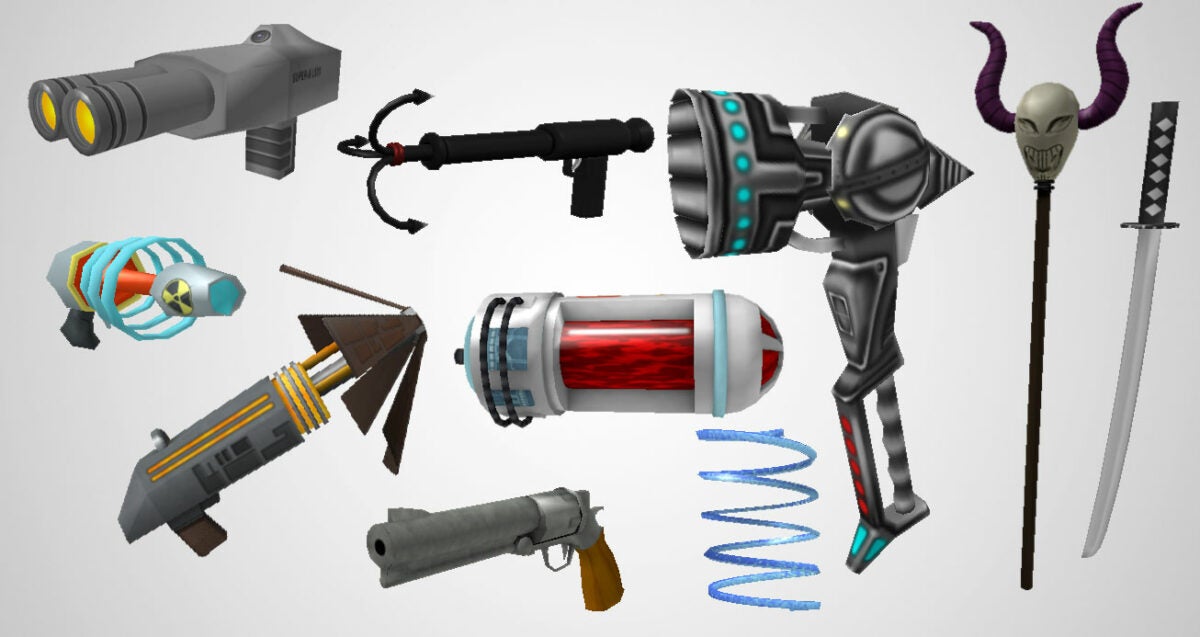
Roblox has swept through multiple gaming genres with a vengeance, amassing a loyal and dedicated player base as its developed. One of the reasons that Roblox is so loved by those who dabble in it is the sheer breadth of gaming genres you can experience within the game. In a matter of minutes, you can go from a decent enough first-person shooter to building a house in the premium city simulation that is Bloxburg.

Roblox DOWNLOAD

Yes, yes, Roblox absolutely is the modern escapist’s dream experience, when it’s not experiencing an outage that is. In the spirit of versatility in gaming and the escapist dream, the article that follows will encompass every single one of our absolute favorite bits of gear in Roblox, since the game’s initial release. I can already feel the nostalgia intensifying. 

Top gaming items in Roblox

Bloxy Cola

This might look like nothing more than a simple soda can, but if you’ve been around since the beginning of Roblox, the scan will be worth far more than the 50 Robux it costs. For many players, this humble can of cola is a reminder of how the game started and stands in stark disparity with how far Roblox has progressed in the last few years

That said, this humble can of cola isn’t likely to give you anything more than a hefty hit of nostalgia. Even though the Avatar Shop describes Bloxy Cola as having power-up attributes, it doesn’t specify how it affects each player and could even have different effects depending on the game the player is playing. Therefore, Bloxy Cola has been relegated to more of a role-playing item than anything actually functional. Roblox players can however take sips from the Cola and can thus simulate quenching their thirst. 

best gear to own in Roblox

Silver Ninja Star of the Brilliant Light

Do you want to look like a mighty Ninja Warrior in Roblox? Do you want to be able to hit a target at further proximity? If your answer to these questions is yes then the Silver Ninja Star of the Brilliant Light is the weapon for you. This incredible weapon will cost you 15 Robux in the Shop and will intensify your character’s cool factor infinitely. 

Your Roblox character will wield this weapon in their hand, exactly how a ninja would hold a throwing star. The weapon can then be flung from your character’s hand toward an intended target. You can throw this weapon continuously at impressive distances and it will deal major damage to its target. As a fun visual effect for any aspiring ninjas, this weapon will stick to its target as well. 

best gear to own in Roblox

Bombo’s Survival Knife

Even though 100 Robux seems an excessive price for a survival knife, my case of Bombo’s survival knife it’s well worth it. As you can probably tell by the name this weapon is inspired by an iconic knife in Roblox from the Rambo franchise

To the untrained eye, Bumbo’s survival knife looks a lot like other knives in the Roblox item shop. Don’t let appearances fool you though as this knife is in actual fact far superior to most others in the game. This survival knife deals almost double the damage of regular knives and swords with each hit dealing 20 to 24 damage points. Even though this weapon is shorter than a conventional sword, its shorter range cannot take away from its sheer power. 

best gear to own in Roblox

Healing Potion

The healing potion is another consumable piece of gear, but one that actually grants measurable effects, unlike Bloxy Cola. The healing potion in Roblox also only costs $35 which is less than Bloxy Cola as well. 

As suggested by the name, this healing potion restores each Roblox player who drinks it to full health and fighting strength. Even though it has an incredibly potent effect, you should keep in mind that this item can only be used once in each spawn. Therefore, it’s imperative the players use this resource wisely. This is an incredibly valuable item to have during a battle and if used correctly will give you a distinct advantage over your adversaries. 

best gear to own in Roblox

Red Rolling Hoverboard

If you like zooming around on a hoverboard in real life, why not give your Roblox character that same ability? With the red rolling hoverboard now you can. This is one of the more expensive items on our list and will cost you 150 Robux. However, if you want to be able to get from place to place really quickly this is a small price to pay. 

Because of its price, this item could be considered a luxurious accessory. Therefore, in addition to transporting you around at high speeds, the Red rolling hoverboard will increase your cool factor and is an incredibly stylish way to travel. Up your cool factor even more by getting Roblox Premium. Here’s how!

best gear to own in Roblox

Gravity Coil

The gravity coil is another of the more expensive Roblox accessory items on our list. This accessory will cost you 250 Robux, but this is a small price to pay for the anti-gravity features that it grants. If you like the idea of being able to jump higher and further this is the accessory for you. 

When equipped, the gravity coil will wrap around your character’s arm and will increase the height at which your character can jump. If you should fall from a high place, this accessory also enables your player to fall slowly and gently back to the ground. This is therefore the perfect accessory for Roblox platformer games and generally feeling as light as a feather. 

While we’re on the topic of jumping, be sure to read more about how to make a jump counter in Roblox.

best gear to own in Roblox

Rainbow Magic Carpet

As it turns out, you’re more than capable of living out your Aladdin fantasies in Roblox. All you need is 700 Robux, and this phantasmagorical rainbow Magic carpet can be yours. This accessory is slightly more expensive than the Red rolling hoverboard, but it’s still worth it if you prefer speeding through the sky. 

Even better than pure functionality, this accessory lets you fly around leaving a trail of rainbow sparkle dust behind you. I ask you with tears in my eyes, what could be more beautiful than a flying carpet that leaves behind a trail of literal rainbows? This is the perfect accessory to use in the newly-released Spotify Island

Knights of Redcliff: Sword and Shield

This sword and shield combo is truly the best of both worlds for Roblox; damage and defense. The Knights of Red Cliff sword and shield is part of the Builder’s Club exclusive Gear catalog, and will instantly increase your maximum health to 175%. In addition to that intense layer of extra protection, the sword is capable of dealing 18% slash damage to your opponents. 

Moreover, if you double click with the shield enabled in Roblox, you can perform shield blasts. Even though this all sounds like an incredible asset during a fight, you should keep in mind that you move slower with your shield equipped. This can actually be a massive detriment during a sword fight.

best gear to own in Roblox

 Noir Periastron Psi

This incredible weapon formed part of our initial list of the best gear in Roblox published in 2018. Years have passed and still, this is one of our all-time favorite weapons in the game. We stand by our initial opinion that this is the best weapon money can buy. However, it shouldn’t be an impulsive purchase as it will set you back a couple of thousand Robux. 

That’s ok, though, as you can try to get a refund in Roblox if you’re unhappy or dissatisfied.

Noir is a perfectly apt name as this unique sword will darken the entire map when you press Q. The map will also take on an eerie hue and if that wasn’t sufficient, this sword will boost your speed by 40%. It also has the ability to make you invisible to other players which is handy when you’re trying to sneak up to your adversaries for the perfect close-quarters kill. Add in a one-hit kill ability and this sword truly feels overpowered. We love it!

best gear to own in Roblox

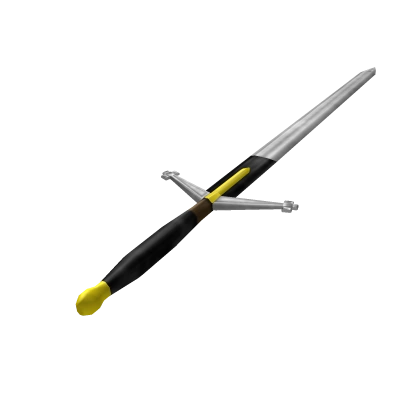
Claymore

Because it is based on the famous Scottish swords wielded in historical battles, the claymore is the best sword for the true Robloxian warrior. You can pick the sword up for 35 Robux, which we feel is a fair price for a weapon of this efficiency, grandeur, and size. 

Even though the claymore looks like the other classic swords of Roblox with its yellow and black hilt and silver blade, it is far larger than a conventional sword. This means that by equipping a claymore you have a much further reach and a wider attack range when facing off with your enemies. You can also leverage higher attack damage with a lunge attack which will potentially deal up to 12 damage points, which is still less than some players have dealt over voice chat in Roblox

best gear to own in Roblox

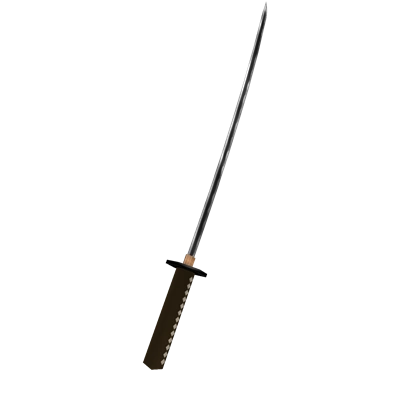
Ronin Katana

If you aspire to be the perfect Robloxian ninja or samurai, you absolutely need the Ronin katana. This weapon’s long skinny blade makes it the perfect contender for slashing and stabbing your way through whatever game you’re playing. You can pick this one up for 45 Robux, making it only slightly more expensive than the claymore. 

Even though it doesn’t have the same damage-dealing power as the claymore, the Ronin katana still feels like the superior weapon. This is probably however only due to its character animations and incredibly unique look. This weapon does however come with a special attack; if you double click you can perform a lunging attack which deals up to 12 damage. If you plan on playing any ninja games, this would be the most suitable weapon. 

best gear to own in Roblox

Fuse Bomb

Head over to the shop with 30 Robux and you can pick up this incredibly destructive accessory. Used with caution though, while there’s a bomb is it meant to damage the environment and characters around you, many players have felt its wrath themselves. 

The fuse bomb is best used when tossed at enemies or used to neutralize blockages. Once you’ve deployed the fuse bomb, it’ll emit red sparkles and a sound that counts down the seconds until the explosion. This can however be a little bit of an impractical weapon due to the occasional delay in the explosion. I still do a little happy dance every time I deploy it correctly. Because of its sheer destructive force, however, we still rank this as one of our favorite weapons in Roblox. 

best gear to own in Roblox

Egg Phone

We’re not going to mince words here; the primary reason that the egg phone made it onto this list is that it’s absolutely free to anyone who plays Roblox. This item was first released for the Robloxian egg hunt which took place in 2020. It helped players navigate the world around them and find hidden eggs within the various Roblox egg hunt games. 

Even though it doesn’t really serve much of a purpose now that the egg hunt has concluded, we’d still hold on to the egg phone. For the moment, all you can do with the egg phone is simulate a phone during role-playing games. However, given that this is a free item, We would suggest getting your hands on it now just in case ROBLOX decides to use it again in a future competition. 

best gear to own in Roblox

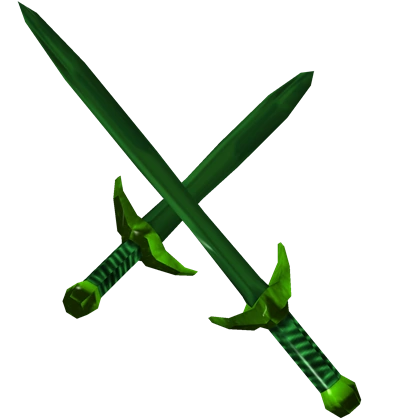
Dual Venomashanks

This is another one of our legacy favorites. The venom shanks on long-range swords which do far more than the unconventional Robloxian sword is capable of. Instead of nearly giving you the ability to slash or stab your adversaries, the venom shanks will poison them. Furthermore, these deadly blades will keep on inflicting damage every second until your victim has died or is healed. 

These blades also have a secondary attack, in which you can press the Q key to deposit a deadly puddle of acid on the floor. This will inflict damage upon any player who strolls through it.
best gear to own in Roblox

What is LDPlayer and how to use it?

We’ve seen many Android emulators appear over the last few years, and rumor has it that Windows 11 will have such a platform built-in. However, it may not cover all mobile games, so you may want to look into LDPlayer as an alternative.

There are plenty of features and tools you can use for optimal android gaming on your PC. So, whether you’re using Windows or Mac, here’s what LDPlayer is all about and how to use it.

What is LDPlayer?

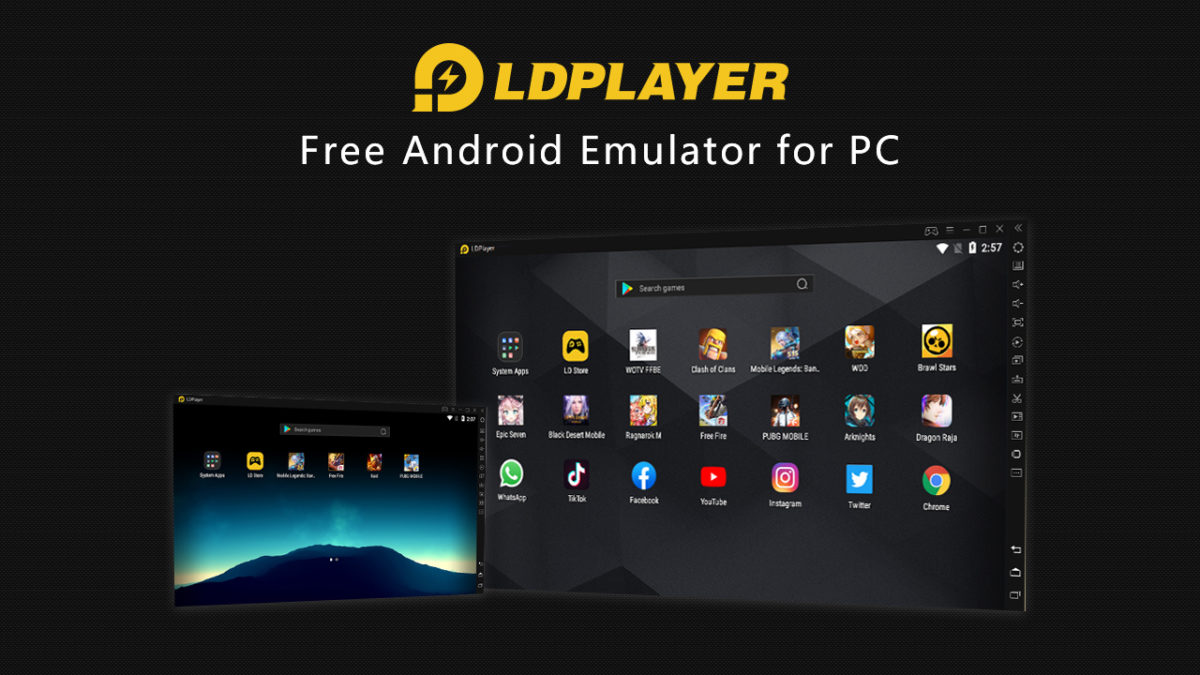
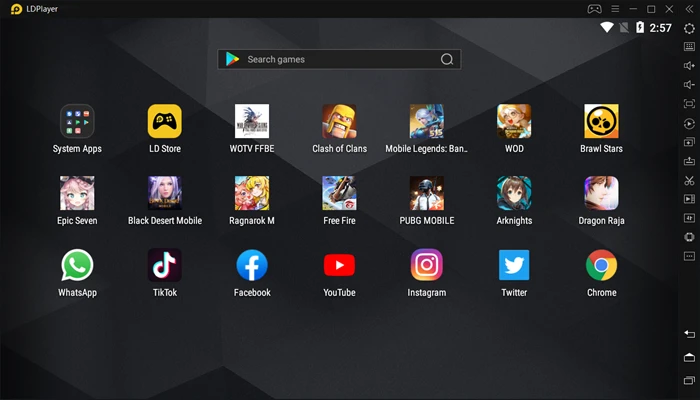
LDPlayer is a free, lightweight Android emulator you can use on Mac and Windows devices. You can enjoy titles like Among Us and Clash of Clans, with the ability to watch the action unfold on your PC monitor. 

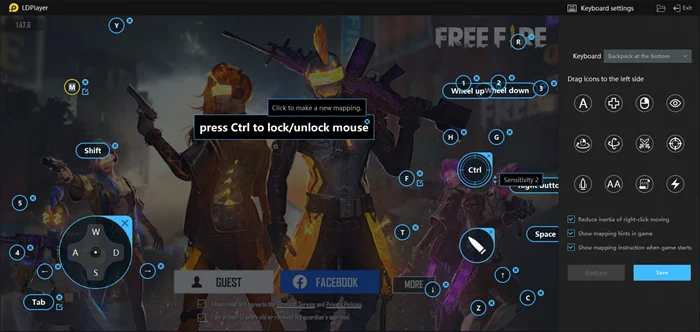
There are specific action buttons you can click on since you won’t have touchscreen capabilities. You can also assign the keys to controllers in some instances, such as Call of Duty: Mobile and PUBG Mobile.

What is the latest version of LDPlayer?

LDPlayer 4 is the latest version, which has all of the new features for you to enjoy. It allows for 64-bit compatibility, while can also play games faster. If you have a low-end computer, it’s best to stick to LDPlayer 3, as it holds games for Android 5.1 or lower. Anything that requires top-notch system performance will be available on the latest version.

How to use LDPlayer emulator?

Now you know that LDPlayer is and you’re ready to use it. Here are some of the top features to look out for. We’ll also address some concerns gamers have while showing you how to map your keys.
Powerful Android access on your PC

LDPlayer lets you play these games on your PC by basically recreating the Android OS and letting it ride on top of Windows. It’s lightweight, which means it doesn’t hog system resources or take a long time to install. Once you have it on your machine, you can download games either from the Google Play store or from LDPlayer’s own app store. Right now, LDPlayer can simulate either Android 5.1 (Lollipop) or Android 7.1 (Nougat), but the company says it is constantly developing its software to work with more recent versions of the OS.

LDPlayer

Is LDPlayer safe?

Using LDPlayer on your PC is completely safe, so you don’t have to worry about any malicious damage. However, you may need to log into your Google Play account when downloading apps or earning achievements. It’s best you have an antivirus program in place to ensure no one can hack your information.

More than just an emulator

While you might think that free software that allows you to play millions of Android games on your PC might be a good enough reason to download LDPlayer, there are actually even more benefits to the program. 

Key mapping

For starters, there is a key-mapping feature, that lets you assign different key combinations to the activities you want to carry out in your game (running, shooting, etc). You can even enlist your mouse for gameplay. 

LDPlayer

Multi gameplay

There is also the ability to open several games at once and see them all on your monitor. This could let you open a slower-paced game that requires time between actions (like something from The Room franchise) along with games that are more action-oriented. 

LDPlayer

Macros and scripts

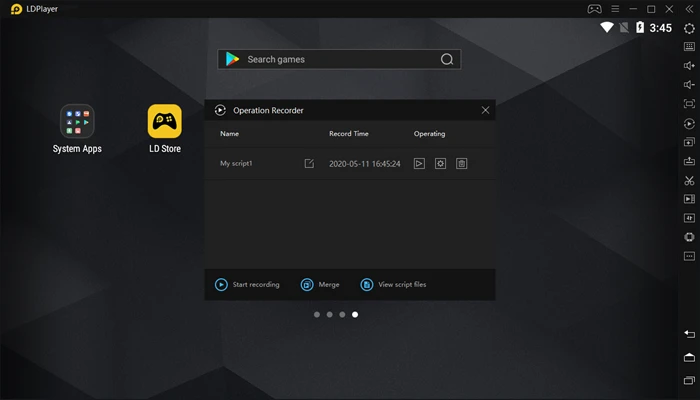
LDPlayer also allows you to set up macros and scripts that can run games for you. So if you’re participating in a world-building game, for example, you can have the program automatically take certain actions, like planting a field or building a tower, when you get enough coin.

LDPlayer

Faster rerolls and performance

Additionally, LDPlayer can help you speed up your rerolls (starting over) in Gacha games so that you can try to get going with the best characters and equipment possible. And, finally, because your computer is probably more powerful than any mobile device you own, LDPlayer is able to speed up your game playing, sometimes by as much as 6X normal play.

So not only does LDPlayer give you access to Android gaming on your PC, but it makes the entire mobile gaming experience more fun while increasing your chances of success. Oh, and we did mention that it’s completely free, right? 

LDPlayer Requirements

To run LDPlayer for lighter games and apps, the minimum system requirements are as follows:

  •  Intel or AMD CPU Processor x86 / x86_64
  •  Windows XP XP3 / Win7 / Win8 / Win8.1 / Win10
  •  Windows DirectX 11 / Graphic driver with OpenGL 2.0
  •  Minimum 4GB of system memory (RAM)
  •  Minimum 36GB of free hard disk space
  •  Hardware Virtualization Technology (Intel VT-x/AMD-V) enabled in BIOS

However, to run more robust games on LDPlayer, you’ll want to be sure your system is operating with specs at least as good as these: 

  •  CPU: Intel i5 7500
  •  RAM: 8GB
  •  Disk Space: 100GB
  •  Graphics Card: NVIDIA GeForce GTX 750 Ti

How to Compress a PDF File Using Adobe Acrobat in 5 Easy Steps

While PDFs are naturally smaller than their .docx counterparts, they can sometimes become a bit too large to send in an email or store on your PC.

Luckily, Adobe Acrobat offers an easy way to compress your PDFs further and allow you to get them down to a manageable size, and we’ll show you how in this guide.

How to Compress a PDF File Using Adobe Acrobat

You will need either the Acrobat or Pro versions of Adobe. Now, let’s get started!

  1. Open Tools

    How to Compress a PDF File Using Adobe Acrobat in 5 Easy Steps

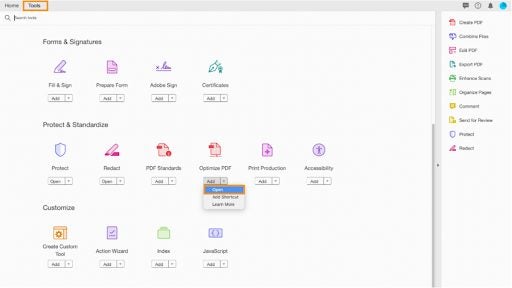
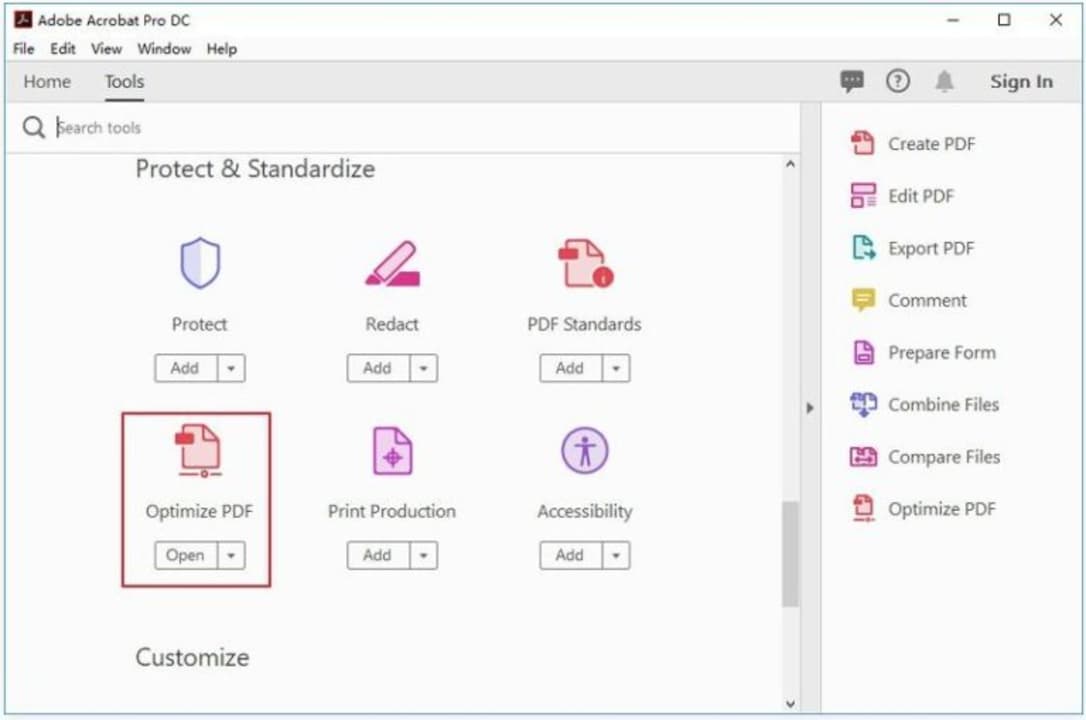
    Open up your Adobe Acrobat and select Tools from the menu at the top of the screen. Then select the dropdown arrow under Optimize PDF and choose Open.

  2. Access file

    How to Compress a PDF File Using Adobe Acrobat in 5 Easy Steps

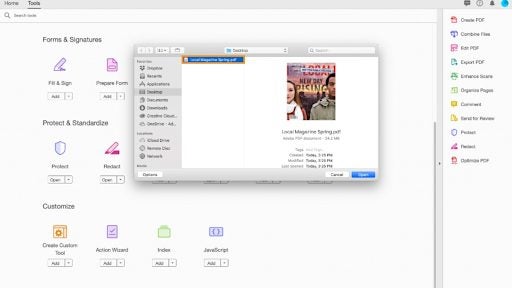
    In the box that pops up, select the PDF that you want to compress and click Open.

  3. Reduce size

    How to Compress a PDF File Using Adobe Acrobat in 5 Easy Steps

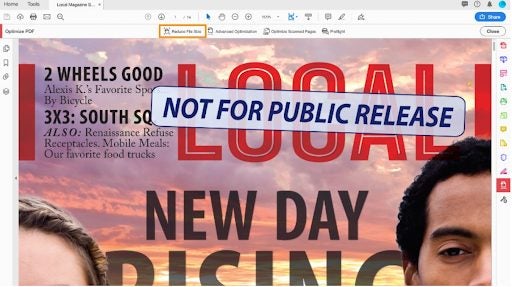
    This will open up the PDF with a few new options. Select Reduce File Size from the menu at the top of the screen.

  4. Set the compatibility settings

    How to Compress a PDF File Using Adobe Acrobat in 5 Easy Steps

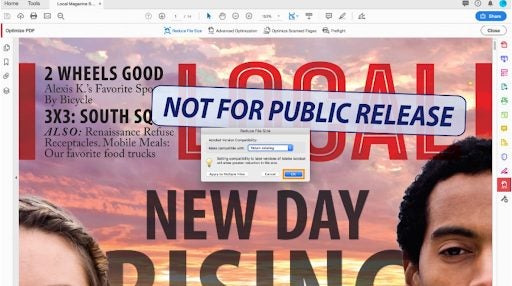
    Set your compatibility settings in the popup window; we recommend that you leave it on Retain Existing, though.

  5. Save your file

    How to Compress a PDF File Using Adobe Acrobat in 5 Easy Steps

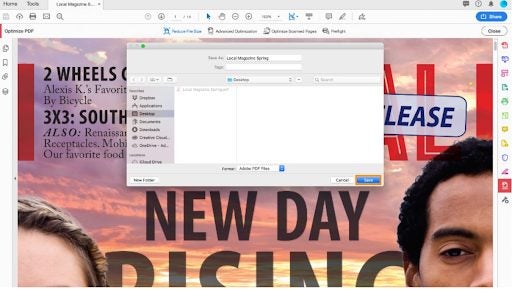
    Lastly, save your newly optimized file with a new name to avoid overwriting the older version, or simply overwrite the older version with the new one; the choice is yours!

Honey, I Shrunk the PDFs!

Adobe offers one of the most uncomplicated and most straightforward methods for file compression when it comes to PDFs, and they even provide an online tool for those of us who work with the free version. It’s no wonder that Adobe has managed to retain the crown for PDF file readers for so long when they offer so many ways to work comfortably and efficiently with a notoriously tricky format.

Fall Guys: Ultimate Knockout’s top tips and tricks to win

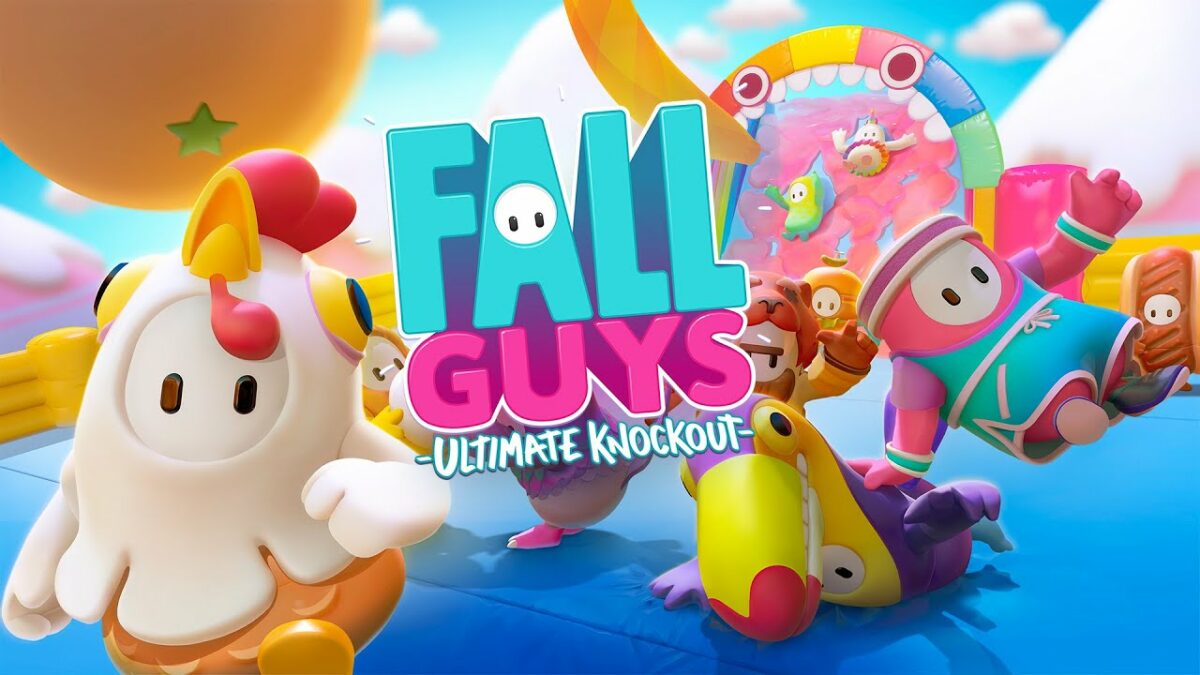
If you enjoy colorful and wacky bean-like characters jumping, falling, and acting crazily, then Fall Guys Ultimate Knockout might be just the battle royale game for you. This fast-paced battle royale sees 60 players face off in funny and challenging mini-games until only one survives to be crowned the winner.
Fall Guys: Ultimate Knockout DOWNLOAD

In this guide, we’ll be sharing a few of the top tips to win in Fall Guys: Ultimate Knockout, so keep reading to discover how you can improve your game and increase your chances of being crowned the winner.

6 top tips and tricks to win in Fall Guys

It’s important to remember that, like many online battle royale games, there is no way to guarantee a win in Fall Guys. Since you’re competing against 59 other players, all at different skill and experience levels, anything can happen.

The game relies heavily on chance, so no matter how good you are, one wrong jump or fall can cost you the game. However, being prepared and taking a few of these tips with you into your next session will increase your chances of walking away with the win.

Use jumps strategically

While we often see most of the beans running towards their goal, it can be tempting to follow suit. However, jumping can also be an effective strategy when timed carefully and used strategically. A well-timed jump can help you get away from annoying players around you or across the finish line a few milliseconds sooner than just running. 

There are also particular objects that can give you a mobility boost when jumped on. Look out for obstacles with pink confetti as they can bounce your bean high into the ear, giving you a birds-eye view of the players below.

Fall Guys Ultimate Knockout’s top tips and tricks to win

Time your dives carefully

The game’s wonky physics is one of the things that makes this game so hilarious to play. While running, you can build momentum quickly, but this can make it more challenging to navigate through the obstacles. As such, using a dive to break the momentum slightly can be very useful.

Diving can also be used to avoid certain obstacles, such as swinging axes or fan blades. When timed right, players can even use a dive to pass other players – such as sliding down slime-covered hills using a dive. Diving strategically against certain obstacles can also send your bean flying. However, it’s important to time these carefully because if you don’t, you might be sent flying off into the abyss.

Fall Guys Ultimate Knockout’s top tips and tricks to win

Remember to grab in Fall Guys

Grabbing is an essential skill in Fall Guys, but one that’s not used very often. However, players that use grabbing effectively are usually seen at the front of the pack. The skill is essential when trying to scale walls or climb onto ramps – which is essential in completing some of the mini-games.

Grabbing is also quite versatile and can be used defensively or offensively. Grabbing can help save your bean from falling off the map. It can also be used effectively to grab onto ledges so that your bean can run on a path that isn’t crowded, giving you a chance to build momentum and pass the crowd.

Grabbing is also essential in some mini-games where you need to collect and protect eggs or balls. Some players can also use the grab feature to push others into obstacles or off the map when timed correctly.

Fall Guys Ultimate Knockout’s top tips and tricks to win

Follow the Fall Guys crowd

It can be quite overwhelming to play Fall Guys for the first time. There are so many beans and bright colors and costumes that it becomes difficult to keep track of the mini-game. As such, it’s a good idea to follow the crowd when unfamiliar with a particular map. 

There are also times when you might find yourself in the middle of a bean mob. When this happens, it’s best to just go with the flow of the crowd until an opening presents itself. Slowing down or trying to move against the crowd at the wrong time can easily lead to your bean getting trampled or even pushed off the map.

Fall Guys Ultimate Knockout’s top tips and tricks to win

Get to know the different maps

Fall Guys has more than 22 different maps, all with their own objectives and obstacles. It’s a good idea to become familiar with the various maps so that you have an advantage when faced with a particular map. For example, in Dizzy Heights, players must navigate a map filled with different obstacles by following the arrows.

In this particular map, players may be tempted to run the short route. However, the longer one is actually faster as the arrows follow the turntables, making them much easier to get through. You can get to know the maps by playing frequently, observing others even after you’ve been eliminated, or reading more guides.

Fall Guys Ultimate Knockout’s top tips and tricks to win

Take time to slow down

Many of the maps in Fall Guys are, in essence, a race. With only a few players going through at the end of the round, you might be tempted to run full out and face the challenges as they come up. However, sometimes taking a moment to slow down can allow you to see more of the map and find better opportunities to beat the crowd.

By slowing down, you can see where a mob is congesting a path so that you can avoid it. You can also get a chance to note the timing of certain obstacles and their effects so that you can pass them, avoid them or use them to propel you ahead of the crowd. 

Fall Guys Ultimate Knockout’s top tips and tricks to win

7 tricks to use Microsoft Office free, without paying a cent

Ever wondered how to use Microsoft Office for free? Get instant access to several Microsoft Office versions without paying a cent. Learn how to do it here!

Microsoft office apps

Office for free? You want it, right? Microsoft Office remains the top dog of office apps. As good as the apps are, however, we understand that not everybody can afford to pay for them. We’ve covered here the best free Office alternatives, like Google Docs and LibreOffice, but we also know that some of you might want the real version of Office. Don’t worry though, Softonic has your back: put that credit card away (except for number 5) because here are 7 ways to get free access to the Microsoft Office suite on Windows and Mac.

6

7 tricks to get access to free Microsoft Office

1. Use Microsoft Office Online

Little by little, Microsoft has been growing the number of Office apps that you can use for free online. You’ve got Microsoft Word, Excel, PowerPoint, OneNote, Sway, Email, Contacts, Calendar, OneDrive and Docs.com all without the need to install Office on your hard drive. If you have a Microsoft account and a reliable internet connection, you can use these free office programs on a Windows PC, Apple Mac, or Linux using web browsers like Google Chrome and Microsoft Edge. Microsoft Office Online programs even offer some cool and unique features like real-time Skype chats while collaborating on documents with friends or colleagues.

Try out Microsoft Office online here, choose the app you want to use, and log into your Microsoft account. You’ll also find Office Online in the Products menu over at office.com.

You won’t get all the Office 365 features with Microsoft Office Online, but you will at least be able to edit documents

Office Online Download now
7

2. Use mobile apps

The Mobile office apps work just like the online versions we’ve already mentioned. The difference is that they’ve been optimized for mobile devices.

Here we’ve listed the available Microsoft Office mobile apps, which are available for free on Android:

Word

Microsoft Word for Android Download Now
8

Excel

Microsoft Excel for Android Download now
8

PowerPoint

Microsoft PowerPoint for Android Download now
8

OneDrive Cloud Storage

OneDrive for Android Download now
8

Outlook

Microsoft Outlook for Android Download now
7

OneNote

OneNote for Android Download now
7

SharePoint

For iPhone and iPad, it’s more difficult to list the mobile Office applications as there are different versions for both Apple devices. You can find the list of all Office apps for Apple devices, including those for the new iPad Pro, on Microsoft’s iTunes listing.

Again though, don’t expect the full Office 365 experience, but this free version of Office will allow you to do basic editing.

If you want to get Office 365, you’ll have to try one of the following methods.

3. Get Office from your school

If you’re a student or teacher, you may be entitled to an Office 365 education subscription. Enter your school email address hereYou’ll get Office software including Word, Excel, PowerPoint, Microsoft Teams, and OneDrive storage among other tools, totally free. If your school isn’t registered, let them know what they’re entitled to ASAP!

4. Persuade your boss

Huh? What kind of company doesn’t have Microsoft Office 365? If yours doesn’t, it could be time for you to step up. You’ll have to sell it though, and go through the numerous Office 365 options available and the benefits they’ll bring to the business. The important thing is that your company will foot the bill!

Microsoft Office for companies

5. Sign up for a free month trial of Office 365

Try out the Office 365 Home version. You’ll have a 1 month trial to experiment with the Office 365 personal package that includes Word, Excel, PowerPoint, Outlook… Also, the trial gives you access to 1TB of cloud storage on OneDrive.

Office 365 trial

Keep in mind, however, that to download the trial, you’ll have to enter a current debit or credit card number. When your one-month trial ends, you’ll automatically be charged for an Office 365 subscription so make sure you don’t forget to deactivate your account before the trial ends.

6. Sign up for a free trial of Office 365 ProPlus

Have you already finished your one-month free Office 365 personal trial? What about 30 MORE days? Well, here you go. Sign up here for Office 365 ProPlus. You’ll have to sign up for the Evaluation Center, but in our final trick, we’ll go into this in a little more detail.

Office 365 ProPlus

7. Try your luck with the TechNet Evaluation Center

Microsoft likes having users try out their products’ new features before officially launching them and this includes everything from DocX Word documents to Microsoft’s latest and greatest software innovations. This allows the software giant to resolve any software issues and problems, before they’re rolled out to all users.

Microsoft Office online - TechNet Evaluation Center

This is where Microsoft’s TechNet Evaluation Center comes into play. If you sign up, you can get free access to the products Microsoft needs testing. This usually means you’ll get to try them for 30-60 days. Sometimes, you might even cross paths with Office, like with the trial for the ProPlus version we just told you about.

Remember though, that the versions you’ll find in the Evaluation Center are still rough around the edges. You should expect all sorts of surprises!

What if you’ve used up all these options?

What happens if you’ve already used up all your free trials? Then you’ve got no choice but to buy Office (unless you’re satisfied with the online and mobile versions). Our personal recommendation is Office 365 Personal, which costs $69.99 a year or $6.99 a month.

If you don’t want to invest in the office package, don’t worry because there are other options out there! Try out these free alternatives to Microsoft Office and you won’t be disappointed.

How to crop an image in Photoshop and other quick tips

You’ve taken a failure of a photo and don’t want to send it to the Recycle bin. Relax: you’re not alone. It’s happened to us all that a snapshot we really wanted doesn’t turn out well. Can you get it back? The answer is no, but it can be fixed or modified. There is a lot you can do in Photoshop to improve images and we’ve put together some basic Photoshop tutorials to help you do so. In other words, in this post, we’ll show you how to “make up” a bad photo. Of course, don’t forget the basic principle of design: if there’s nothing to work with, there’s nothing to work with. Leave magic to magicians.

Image editing with Adobe Photoshop opens a world of possibilities as you can resize images, straighten, change the aspect ratio, crop images, and more. Let’s not waste any more time, and get straight into basic tips for editing images on Photoshop.

Adobe Photoshop CC Download Now ►
7

How to crop your photo

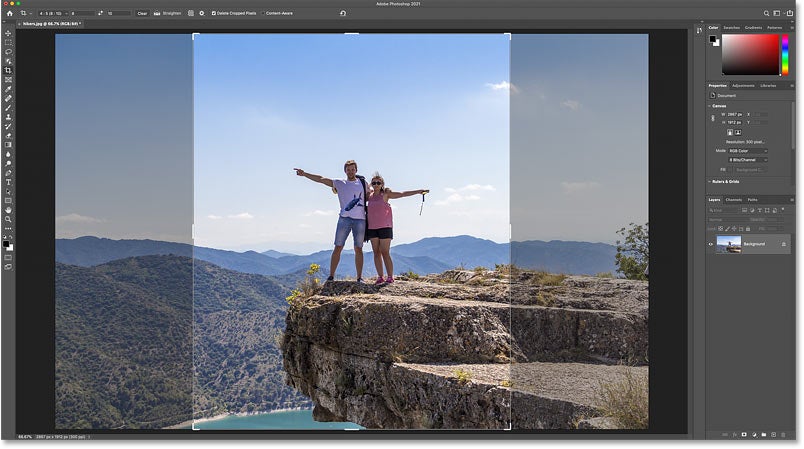
The first trick is how to use the Photoshop crop tool. Maybe your snapshot isn’t good because it has secondary elements in the scene. For example, you’ve taken a landscape shot, and in the lower corner, you’ve caught a person. You can always “crop” the figure and fix it.

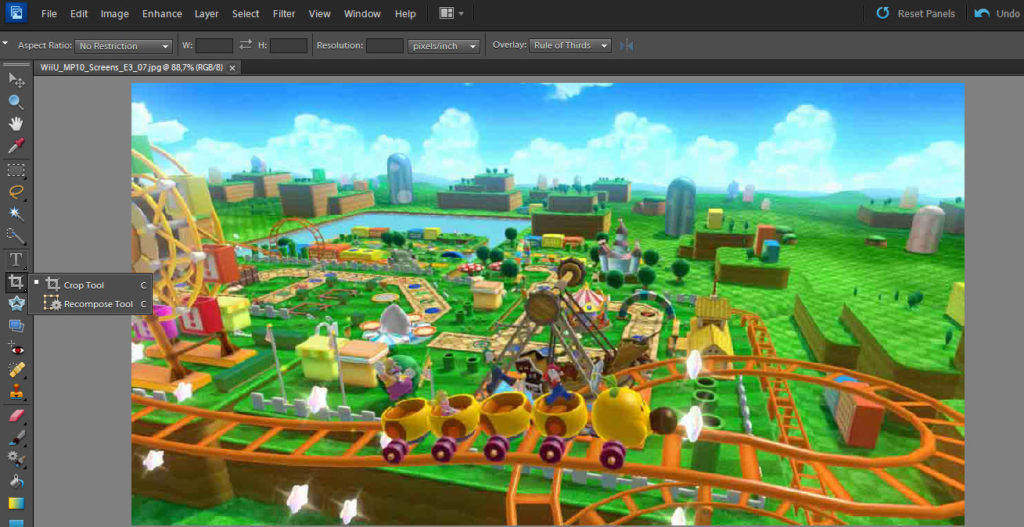
To do this, click on the icon below the Magic Wand, right-click on it and select Crop Tool. The rest depends on you and your creativity, of course. You can select a crop area and delete cropped pixels falls outside the crop boundaries. You’ll keep everything inside the crop box and the cropped area outside it will be deleted.

To do this you simply double-click your mouse button or press enter. Doing so will leave you with just the cropped image although you can easily get the original image back by undoing your action.

Adjust lighting (or modify the histogram)

This is a classic: adjust the photo’s lighting. Or technically speaking, open the histogram. To do this, you only need to press Control + L. What if you don’t have much confidence with keyboard commands? Then go to  Enhance -> Adjust Lighting -> Levels.

We’ll point out that dealing with histograms isn’t easy since you can destroy different intensity levels with a few simple clicks. Our advice, if this happens to you, is to click on Automatic Levels and  Photoshop will take care of the rest. Also, you can do tests and see how they turn out. As long as you don’t click OK, everything is permitted (as they famously say in Assassin’s Creed).

Use available filters 

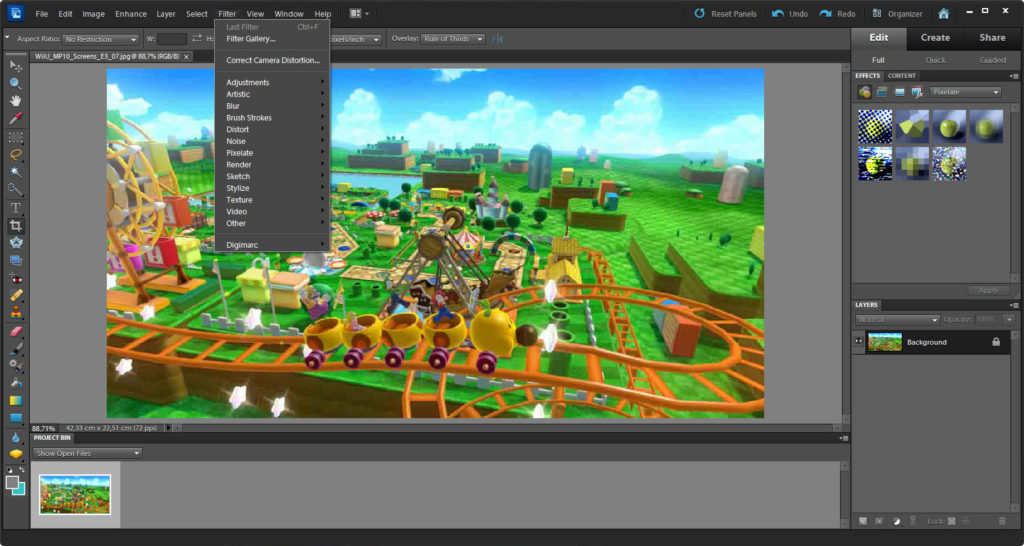
Filters. Who doesn’t know about filters these days? Tools like Instagram and Facebook have popularized filters for photos. They take default settings and apply them to the snapshot in question. We’re not in love with them (nobody is in the audiovisual world), but it’s a good option for saving some photos.

In Photoshop, it appears in the upper section as Filters. There are so many, they could fill an article alone. Try them out!

Adjust color levels

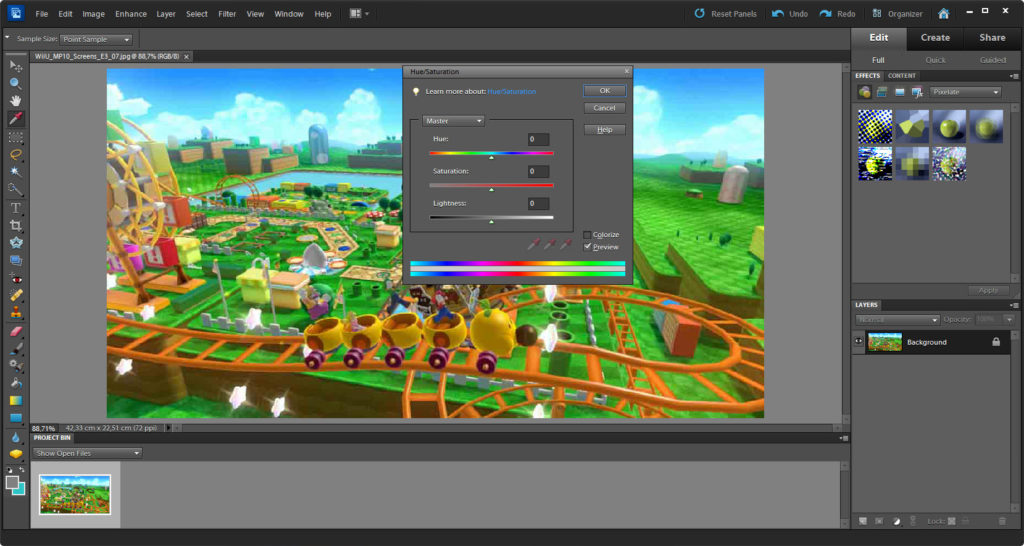
We’ll wrap up our special tricks to fix an image using Photoshop with Adjust color settings. To find it go to Enhance -> Adjust Color.

Problems with adjusting color? Well, like the histogram, if you don’t know how to control different photo settings, you’ll likely end up overloading the photo. It’s that simple. You can do color tests by sliding the three available bars since before you click OK, the work won’t be saved (so you can preview how the image