How to sync your Android apps with a PC

You’ve bought a brand new Android phone and you’ve begun taking pictures, making videos, sending messages, and more. When your phone runs out of memory, what do you do?

The best way to free up space on your device is to back up your data. To do this, you need to have installed an application that syncs between your phone and a PC. For Android phones, this is no simple matter due to the variety of models and phone manufacturers.

Below is a list of popular applications for syncing between a PC and an Android phone:

Which flavor of Android?

Not all Android phones run the same operating system version. In addition, each phone manufacturer has its own application that allows the “phone to talk to the PC”. As a result, it’s really important to know what brand your device is.

If your phone is a less well-known brand, such as an LG, locate your installation CD or browse the manufacturer’s web site for the sync application – assuming the manufacturer has a web site, that is!

Samsung Kies

Samsung Kies is the official Samsung synchronization application. It works with all Samsung Galaxy S, Galaxy S2, S3, S4, Galaxy Ace and Galaxy Mini phones.

You download and install the Samsung Kies app on your PC and connect your phone using a USB cable. The application lets you transfer music, photos, videos and other files from your mobile phone.

You can also back up copies of your most important data such as your calendar, SMS messages, notes, and more.

In addition, some phones let you update your Android version using Samsung Kies.

Kies Air

Kies Air is an app for your Android phone or tablet. Basically, Kies Air copies files between any Samsung devices you own.

To synchronize data with your PC, just use a Wi-Fi connection, launch the Kies Air app and copy the code generated by the app into your PC browser.

From there, from there you can very easily copy images, videos, music and more.

LG PC Suite

LG PC Suite is the official LG application for managing and synchronizing the contents of your mobile device. The program is very straightforward and lets you easily copy everything you want from your LG device to the PC.

The cool thing about LG PC Suite is that the first time you run the program and connect your phone, a step-by-step wizard teaches you how to carry out the most important tasks.

All your content appears in an organized way that makes sense and is easy to manage.

HTC Sync

Although HTC phones are not as popular as some, HTC Sync works with HTC Sensation, Evo, Wildfire, Desire, Desire S, Z and other models of HTC phones.

The HTC Sync interface is very intuitive and makes it easy to synchronize data between your phone and your PC.

All content to be synchronized is divided into categories: contacts, notes, calendar, photos and music. Select one or more categories and the items are copied. It’s that simple!

Which application do you use to sync your Android data with your PC?

Original article written by Felipe Pessoa on Softonic BR.

How to use Video on Instagram

Facebook and Instagram released Video on Instagram today. While Twitter’s Vine supports 6 seconds of video recording, Video on Instagram allows up to 15 seconds. While 9 more seconds doesn’t seem like a big difference, creative users will appreciate the extra time.

Instead of releasing a standalone video app, this update expands the usability of the Instagram app. Both iOS and Android are receiving the update at the same time today, but iOS is getting one exclusive feature: Cinema stabilization, which will stabilize video shaking. It’s easy to tell that Cinema stabilization was implemented on iOS because of standardized devices.

The same steps as taking an Instagram photo

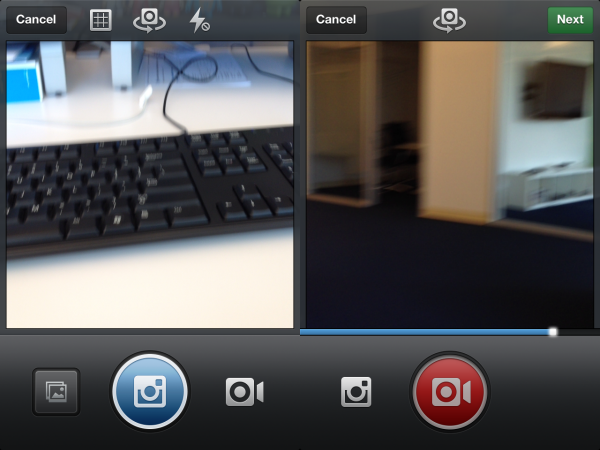
Taking video with Instagram is basically the same as taking a photo. After you launch the app and your feed has refreshed, you will see the Instagram photo icon. There is the new, red video camera icon next to the main photo button.

After tapping the camera button, Instagram will enable video recording. The Instagram icon to the left of the record button will take you back to the photo menu. When you’re ready to take video, hold down the red camera button to record.

Add a filter and cover

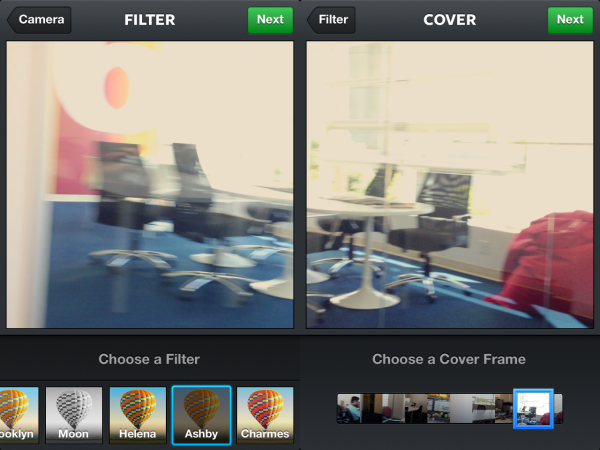
Instagram gives users 13 new filters to apply to their videos. Unlike the photo filters, the video filters are a little harder to differentiate from each other, but this will probably depend a lot on the recorded video.

Once you apply the filter, you choose your Cover Frame. This is the image that will be shown in your Instagram feed. The slider will scroll though the entire video so you can pick your favorite image.

Share online

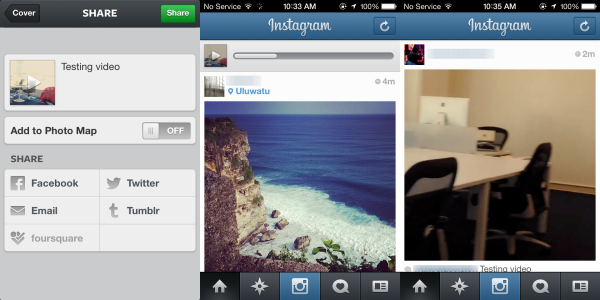
With your video recorded, filter applied, and cover frame selected, sharing the video is the same as sharing a photo. Enter your text and choose the different social networks to share to. Once you press “Share,” the video will upload. The time for the upload to complete will depend on your connection. After it’s uploaded into your feed, all you have to do is tap on the cover frame for the video to play.

Facebook versus Twitter

Right now it doesn’t look like you can tag people in video like you can with photos, but this may be a possible update in the future.

Video on Instagram is the logical next step for the app. Users on Vine have been able to create some impressive short videos. Instagram’s 15 seconds will allow users more time to create interesting video.

This update puts both social networks head to head again, but Facebook was smarter by releasing identical updates for both Android and iOS simultaneously, instead of Vine releasing a very basic version for Android compared to iOS.

How to: Force Android to automatically install apps to SD card

Wondering why your HTC Android phone keeps running out of memory? One of the answers could be that it’s crammed full of apps. By default the Android Market stores all of your apps on your device’s internal memory, rather than your larger SD card.

Don’t worry though because with a bit of patience and the help of the Android SDK it can be done. Start by downloading the following tools:

What you need to perform the ‘hack’

Now, on your phone, go to Settings > Applications > Development and activate USB Debugging.

1. Install the SDK and Platform-tools

To start, install the Java JDK, then the Android SDK. After having installed the SDKs, open the Android SDK Manager and check the Android SDK Platform-tools package. Then hit the Install button.

This package of tools contains the Android Debug Bridge (ADB), a utility that allows you to communicate with an Android device via command line. This is what you need to be able to tell Android to automatically install apps to a memory card.

2. Connect your phone to your computer

Now connect your Android phone to your PC using the USB cable in HTC Sync mode. If the HTC Sync program opens automatically in Windows, shut it down from the Task Bar (Right-click on the icon and click ‘Close’).

Bear in mind that not all USB cables are valid with all devices. In some cases, they won’t connect your phone to your device. Have more than one to hand just in case.

3. Open a command console and carry out checks

Go to Start > Run in Windows, or hit Windows+R and type cmd. In the command console that appears, switch to the directory ‘Program files (x86)’ or ‘Program Files’ and enter the path: Android/Android-SDK/Platform-tools. Once you’re here:

  • Type adb devices to see if your device is connected and recognized
  • You should see your device with its serial number listed
  • If it doesn’t show up or appears as offline, try with a different USB cable
  • Type netstat and check if port 5037 is in use
  • It’s this port that uses the ADB. If it’s in use, kill the process which is using it

Before continuing, it’s recommended that you deactivate any firewalls or antivirus on your system, because this can interfere with the ADB connection process.

4. Run the command to force apps to install on SD card

Android has a parameter that describes how to install applications on the mobile by default. This parameter is called setInstallLocation, and accepts three values:

  • 0 [auto]: Lets the phone decide the best location for an app
  • 1 [internal]: Installs everything on the internal memory
  • 2 [external]: Installs everything on the memory card

As you might have guessed, you now need to change the value from 0 to 2 in setInstallLocation. To do this, run the following command:

  • adb shell pm setInstallLocation 2

If no error message appears, disconnect the phone, turn it off and reboot it. From now, all applications will install automatically on the SD card. If you want to revert back to the previous way, repeat the process, changing the 2 for a 0.

A word of warning

Certain applications, such as widgets, don’t run well from the memory card. If you experience problems you should move these apps from the SD card to the phone.

Have you been having problems with space on your Android device? What method do you use to free up space?

[Via Softonic Spain]

Adobe Reader X now available to download

Image via: Pexels

If you work with PDF documents on a regular basis, then be sure to check out the new Adobe Reader X, which is now available for download. The tenth version of the ubiquitous PDF reader comes with a host of new features to make working with electronic documents more comfortable.

New features of Adobe Reader X include sticky notes and a highlighter tool for sharing ideas and comments about documents. Adobe has also ramped up the amount of content viewable in PDF format, to include drawings, email messages, spreadsheets, video, and more. Document security has been tightened, thanks to a new Protected Mode for safer viewing of PDFs.

Adobe Reader X is available to download for free now, for Windows, Mac, Linux and Android operating systems. Watch this space for a full review of the program.