LEGO Jurassic World: unlock secret characters (and dinosaurs)

LEGO Jurassic World is the first time that we’ve got to enjoy playing with our favorite characters from the four “Jurassic” movies. As you play through the game you can unlock the 100+ characters, but what if I tell you that you can play with some of these characters more easily?

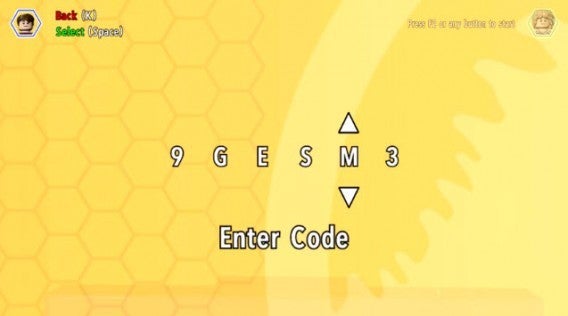
As with the previous games in the series, LEGO Jurassic World gives you the option to enter codes to unlock extras without having to wait. All you have to do is follow the below instructions and you will have access to extra characters, dinosaurs, and other bonuses.

Entering the code

– The codes are entered by pausing the game and accessing the Extras / Enter code menu. You can also enter them from the cheat console located in the Jurassic World Innovation Center.

– Note that you will have to enter the codes each time you start a game of LEGO Jurassic World until you unlock them officially.

Enter the code!

Minifigure unlock codes

ACU Trooper (Female) — AU25GR

ACU Trooper (Male) — 28SPSR

Carlos — VK3TP3

Carter — 9GESXP

Cooper — 5BETZ5

Dennis Nedry (Costa Rica) in Hawaiian shirt — RAVKRT

Dieter Stark — EKCKLC

Dino Handler Vic or Bob — YQ6S7Z

Ellie Degler — AV9DTJ

Gyrosphere Operator Josh — 9NGZZQ

Henry Wu (Jurassic World) — A3HC7E

InGen Guard Jerry — QKBCWT

InGen Hunter — 38YWVR

InGen Hunter 1 — 8XL359

InGen Mechanic AKA InGen Hunter 3 — RMVVB8

InGen Mercenary AKA InGen Contractor — VZRSD3

InGen Scout AKA InGen Hunter 1 — 8XL359

Jimmy Fallon (from The Tonight Show) — 6MKHSG

John Hammond (Lost World) — PR2R6Y

Juanito Rostagno — XTH9A3

Jurassic Park Driver — 3FE78R

Jurassic Park Warden (Female) — 8WY3FV

Jurassic Park Warden (Male) — XJS7UY

Jurassic World Paddock Worker — BX9Z6R

Jurassic World Ranger — GW9TGH

Jurassic World Worker (Female) — L5AU6Y

Nash (Runway) — BRLNWC

Raptor Handler Jenny — SXZ7CC

S.S. Venture Crewman — 62539J

Scientist (Female) — XVXGXF

Scientist (Male) — SKKLWC

Udesky (Alt) — PFEBS6

Young Raptor Handler (Jurassic World) — 7VNLJT

Dino-roars

Dinosaur unlock codes

Ankylosaurus — PAAADT

Compsognathus — KAAAWV

Dilophosaurus — HAAAVW

Indominus Rex — GAAAAC

Pachycephalosaurus — IAAADT

Spinosaurus — MAAARF

Stegosaurus — FAAAVT

Triceratops — AAAADC

Tyrannosaurus Rex — CAAADT

Velociraptor — DDDFAC

Vehicle unlock codes

Jurassic Park Responder Vehicle — 3FE78R

Red Brick codes

Minikit Detector — JYJAFX

Studs Score Multiplier x2 — 5MZ73E

Play and discover even more secrets

Additional characters and improvements are just the start in LEGO Jurassic World. Remember this is a LEGO game, so it is stuffed full of special blocks and secret areas that will demand multiple attempts to reach.

Related Stories

LEGO Jurassic World review

App of the Week: LEGO Jurassic World

LEGO Worlds Preview

Follow me on Twitter: @mariabaeta

How to activate and deactivate roaming on your phone

Among all the things you have to keep in mind when traveling, taking your smartphone with you is usually near the top of the list. You always want to stay connected, not to mention the powerful cameras on smartphones that are now substituting for the real thing, and of course, not getting lost with the help of Google maps and guidebooks. But there’s one thing you’ll want to be wary of: roaming charges.

What is roaming?

Although the concept of roaming is more extensive and covers all types of wireless technology including Wi-Fi networks, in this case, roaming refers to the usage of another network’s coverage areas.

World map

With roaming you can communicate from any country (Image: Wikipedia)

Basically, if you have a cellular contract with a company in your country and you want to go abroad, in order to make a phone call, send messages, or use the Internet with your 2G, 3G, or 4G connection, your phone has to use connections available from local providers.

The technology is useful because it allows you to use your phone and your SIM card in other countries very easily but it’s a double-edged sword; it may turn out that your phone company’s roaming rates are high, resulting in an huge phone bill.

How do you enable and disable roaming?

There are two ways to enable and disable roaming on your mobile device. One way is to talk to your network provider, and the other is to configure it manually in your phone.

If you’d prefer not to do it manually, have a look at your network provider’s official website or call its customer service number. Sometimes the service is enabled by default, otherwise, you’ll have to ask them to turn it on. The same also applies in the opposite case, if you want to disable it.

Below, I’ll show you how to disable roaming on your Android, iPhone, Windows Phone, and Blackberry.

Android

To check whether you have roaming enabled or disabled on your Android phone, go to Settings > Wireless & networks > More > Mobile networks and look to see if the data roaming option is checked or not.

Make sure you un-check it if you don’t want to use roaming. To be sure, you should also un-check the Enable Data option.

Enable data

Another interesting option is to limit the consumption of mobile data to avoid getting a shock when the bill comes. Go to Settings > Wireless & networks > Data usage and enable the Set mobile data limit option. You can then set the limit in the chart displayed below.

Limit data

If you’re with a network provider that offers affordable roaming rates, you need to go to the same section, Settings > Wireless & networks > More > Mobile networks, and then Network operators. After scanning for networks, it will show the available network providers.

iOS

To disable roaming on your iOS device, whether it’s an iPhone or an iPad with a 3G connection, you need to go to Settings > Cellular and disable the Cellular Data and Data Roaming options.

iOS data settings

When using roaming, you can restrict which apps use mobile data to save on your bill. From the same section, Settings > Cellular, scroll down until you get to the Use cellular data for section.

Here, you’ll see a list of apps that use the Internet. Un-check those that you won’t need on your trip (especially games). The apps will still work, but won’t send or receive data.

iOS apps using data

Another possibility is that you already know which network provider offers the cheapest roaming service. In that case, go to Settings > Carrier and you’ll be able to select a specific network provider. Simply disable the Automatic option and wait to see the list of available operators in that area (it can take up to two minutes to display the full list).

Windows Phone

Using a Windows Phone, you can also enable and disable roaming.

To do this, go to the the application list and then go to Settings > Mobile Network and SIM > Data roaming options.

BlackBerry

From the Home screen, go to Settings > Network Connections > Mobile Network.

If the Mobile network selector is O, change it to I, and in the drop down menu that appears, change the Data roaming services option to O (off) or I (on).

Roaming is easy to control

As you may have seen, enabling or disabling roaming on your smartphone is relatively easy, although it’s not as apparent in the phone settings as you may have expected.

The quickest way is to directly configure the device (via calling customer service or using manuals on the official website), provided that your network provider gives you the option.

In any case, if you don’t need this service, disable it. If you do need it, try to bring down the cost by using only the apps you really need for your trip.

Related Articles

How to use Google Maps offline on Android

Google is tracking your every move but you might want it to

Why Lyft isn’t a glorified taxi service

Follow me on Twitter: @gilead1984

iPhone: how to send an MP3 via WhatsApp

Want to send a music file with WhatsApp for iPhone? For Android users it’s easy to send a song via WhatsApp, because it’s the operating system itself that offers the option. For iPhone users, it’s another matter.

WhatsApp for iOS allows you to send pictures, videos, contacts and geographic location…but not music. Fortunately,  sending an MP3 via WhatsApp for iPhone is still possible. All you need is the help of a free app that offers an Open With option. There are a few of these, but iZip seems to be the most suitable for our purpose.

Here, I’ll take you through how to send an audio file with WhatsApp for iPhone.

How to send audio files using iZip

1. Install iZip on your iPhone. Open the program.

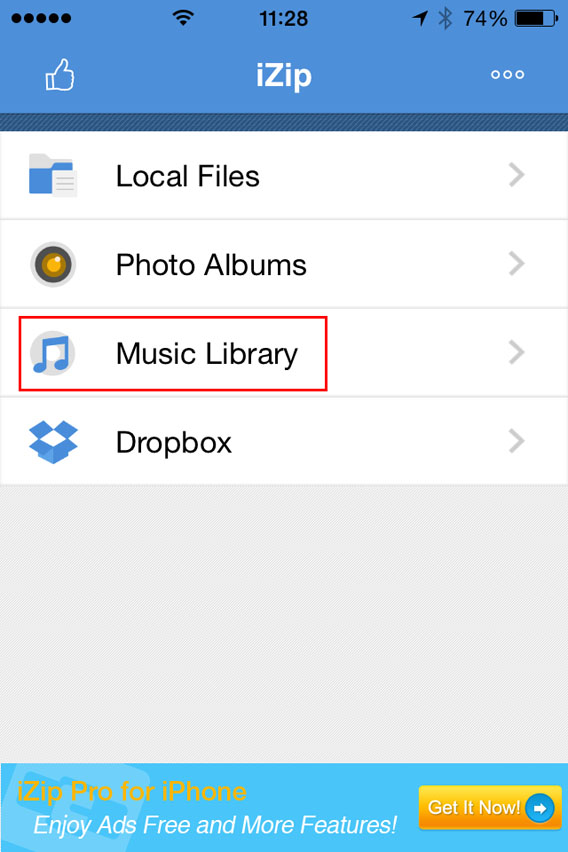
2. Select Music Library.

Select Music Library from the menu

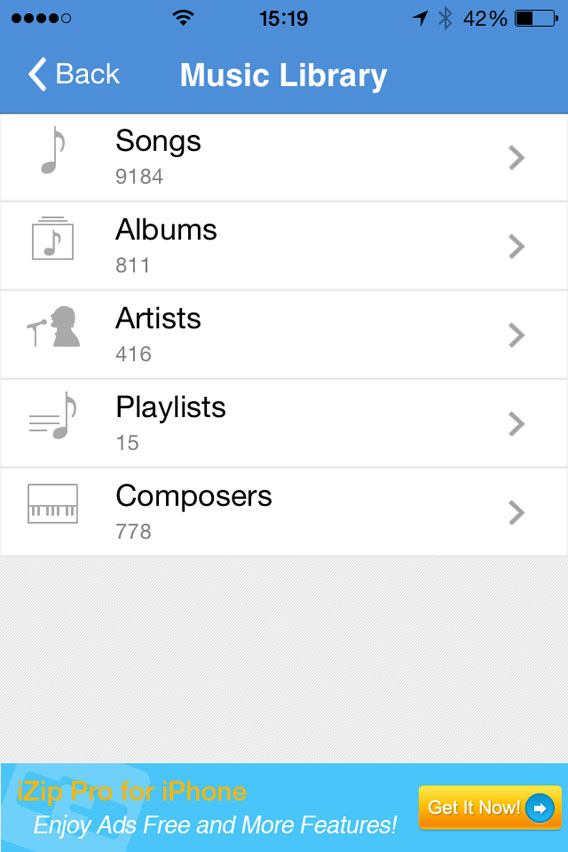
3. Open a folder (e.g. Albums).

Select a folder in the Music Library

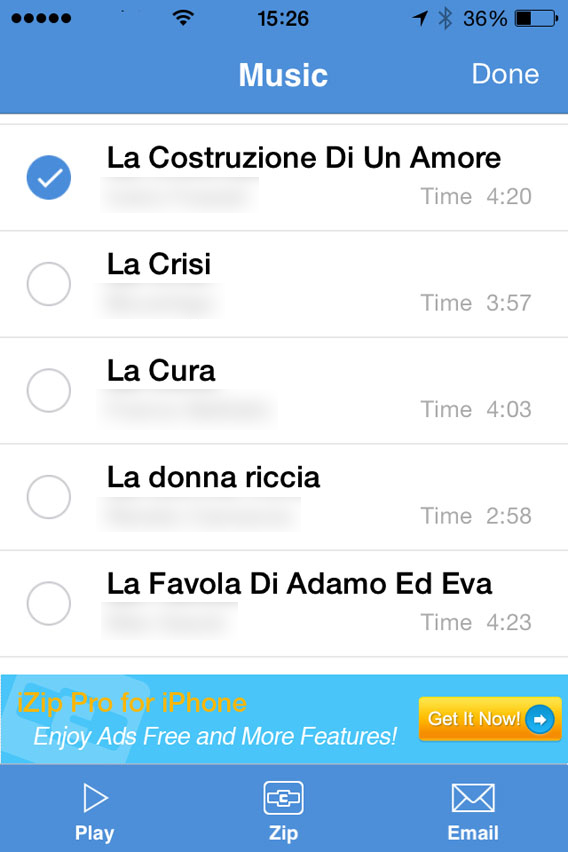
4. Tap Select in the top right of the screen and choose the song you want to send with WhatsApp. At this point, Select will be replaced by Done.

Select the song you want to zip

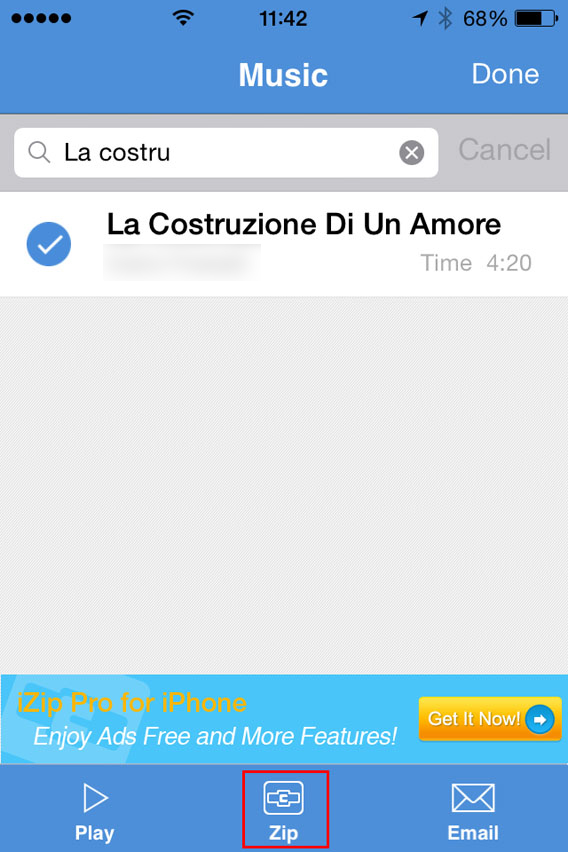
5. Tap the Zip button at the bottom center of the interface. The app will compress the file.

Select the song and then zip

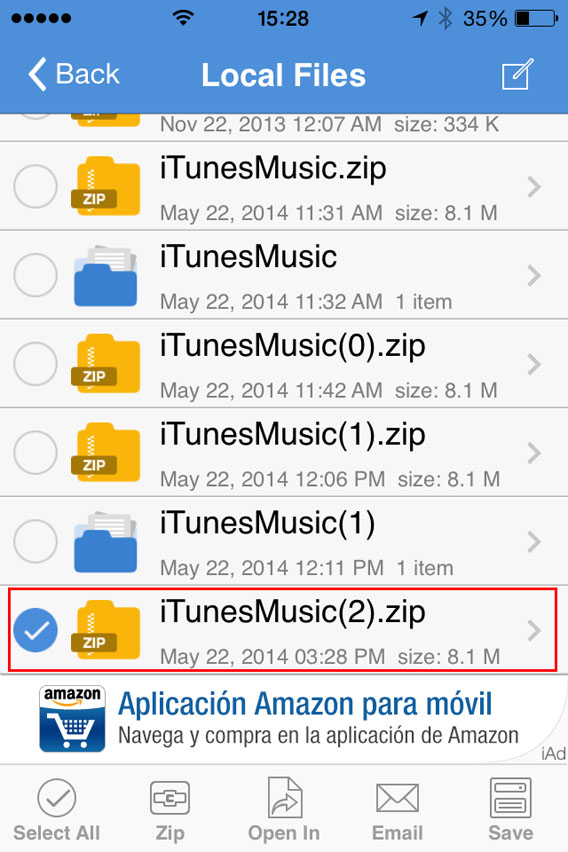
6. This will open the folder Local Files. From there, you can select the ZIP file you just created.

Select the ZIP file you just created

7. You’ll be asked Would you like to extract all files? Tap OK .

Do you want to unzip the file

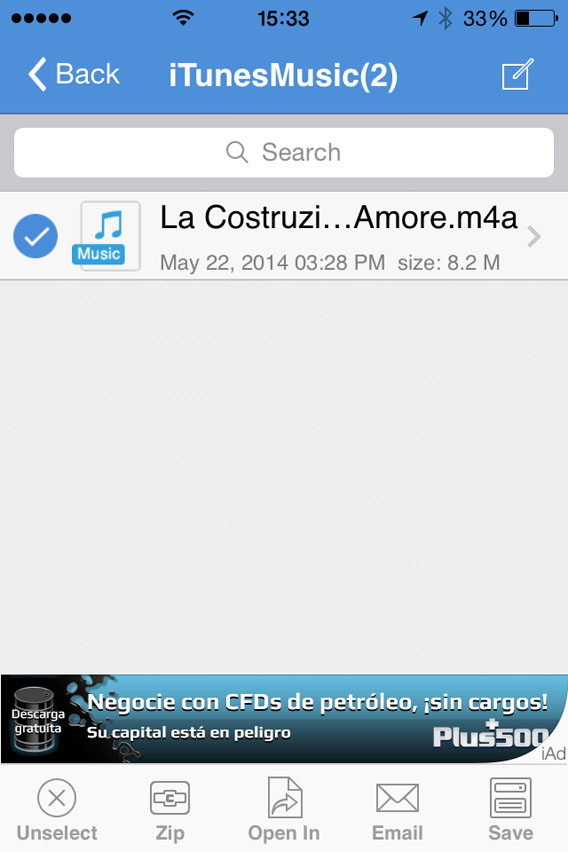
8. This automatically creates and opens a folder in Local Files with the decompressed song. Then select the file .

Select the file to be opened with

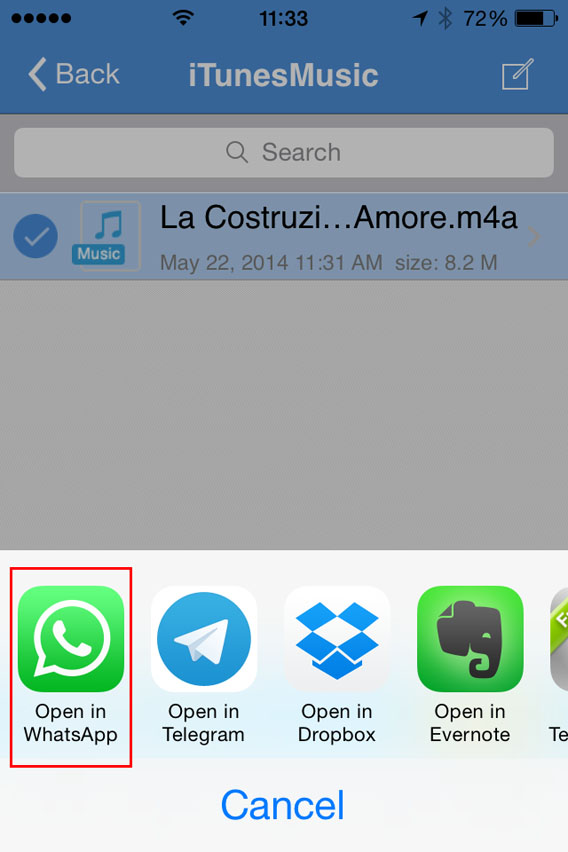
9. Now, tap Open In (at the bottom center of the screen) and, from the choices that appear, select Open in WhatsApp.

Select Open in WhatsApp

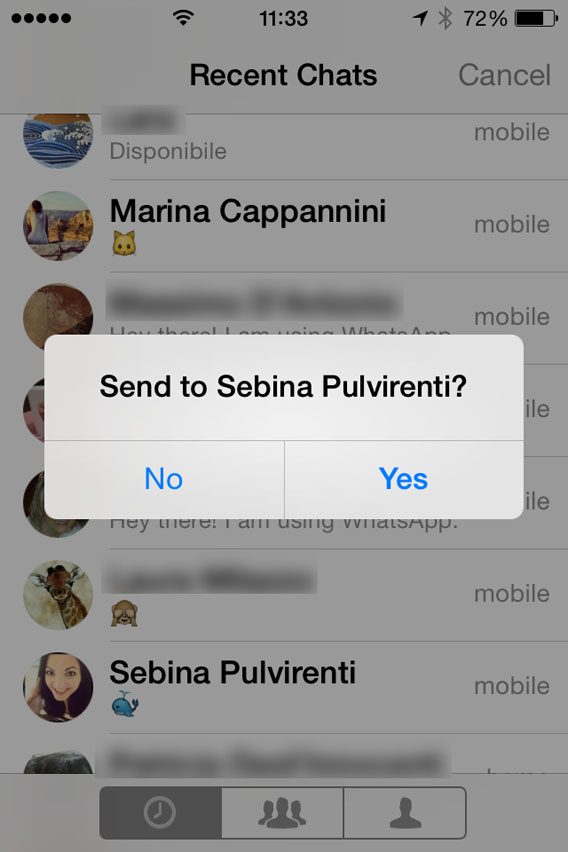
10. It will open WhatsApp automatically. Select the user you want to send the MP3 to, and when it asks you to Send to [contact name], click on Yes.

Confirmation sending files to contact

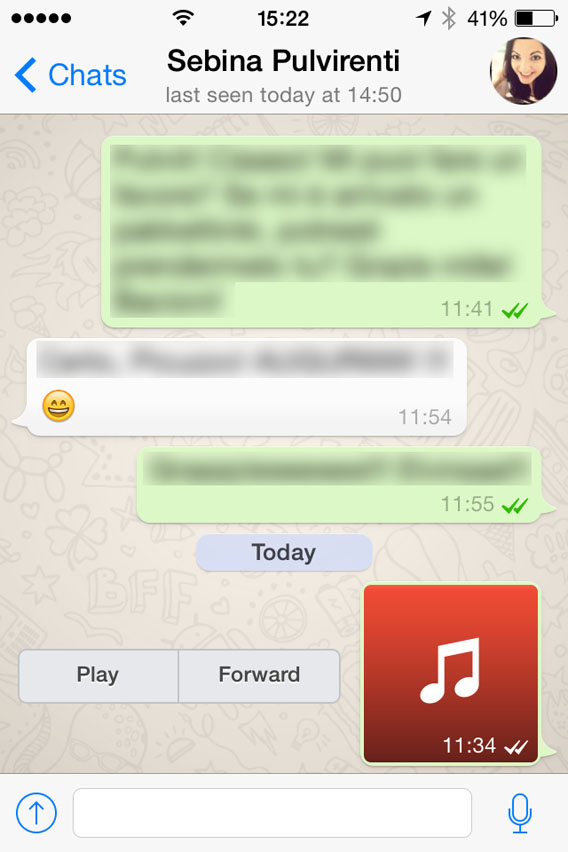
At this point, the file will load and send. When the recipient receives it, you can listen to it by tapping the Play icon next to the music file.

Listen to the file received

Beware of copyright

This method lets iPhone users exchange music via WhatsApp, even if the procedure is a bit more complicated than for Android users.Remember, however, that sharing music files protected by copyright laws is illegal, so only send audio or music that can be freely shared.

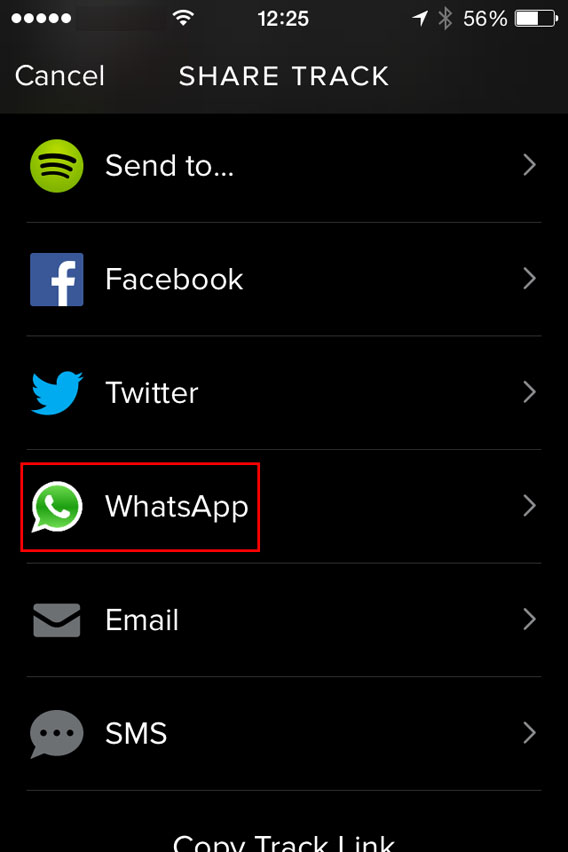
One last tip: if you want to share a new song with a friend, instead of sending the file, you can share it with them via Spotify. To do so, just find the song you like, tap the menu with the three dots next to it, and select WhatsApp.

Spotify - Share with Whatsapp

Then, select the contact, confirm you want to send it, and you’re done. Simple, fast, safe and totally legal.

If you’re looking for other tricks for using WhatsApp, look for them in the index of our comprehensive guide to WhatsApp.

Snapchat: everything you ever wanted to know

In this FAQ we focus on Snapchat: with these 13 questions and answers you’ll learn everything you’ve ever wanted to know about the app and its use.

Snapchat has become an essential app for those who wish to send messages that self-destruct. However, there are many questions that need a answers.

Confidential information and user account

How do you open an account with Snapchat?

It’s free and simple. Remember that the official Snapchat app is only available for Android and iPhone, but 6snap, the unofficial app for Windows Phone works just the same.

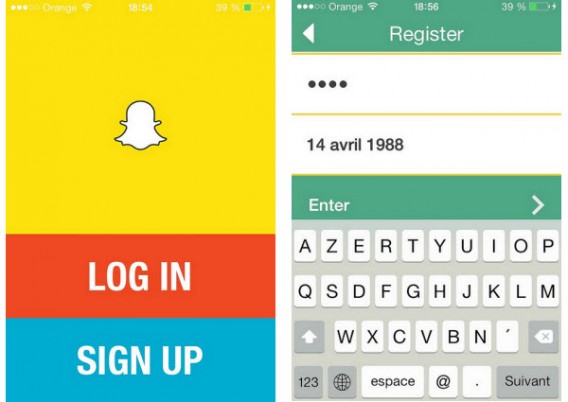
Once you’ve downloaded the app, select Sign up and fill in the fields with your email address, password, and date of birth.

Snapchat sign up

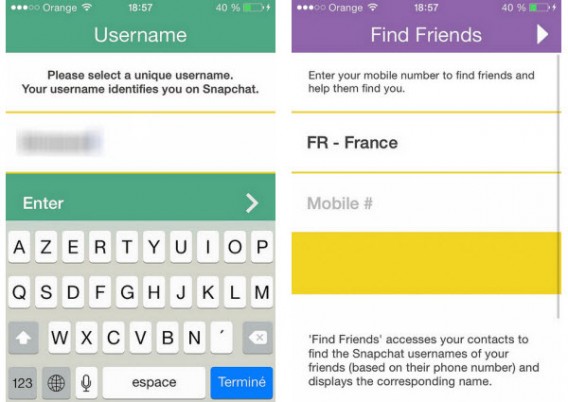
Once you pass verification, you have to choose your username. You can link your phone number to the app to help you find your friends (although this is not a prerequisite).

Snapchat username and friend search

Can I change my account and my personal information?

Once the account is created, you can modify certain personal information from settings.

Snapchat settings

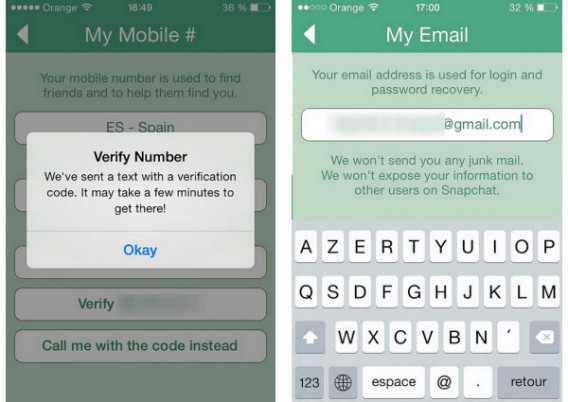
On this menu you’ll be able to change the phone number associated with your account (Snapchat will then send you a code via SMS for security reasons) and the email address where you receive all the important notifications from Snapchat.

Snapchat verification

However, you won’t be able to change your username. If you want to use another nickname, we recommend you close the account and open a new one.

How do I add friends to my contact list?

The easiest way to add people to your contact list is to link your phone number to your account. Then simply go to the contacts menu in the Add Friends option.

Snapchat add friends

The app gives you two options to add friends. On the first, it gives you a list of the people in your address book who are using Snapchat. The search tab, symbolized by the magnifying glass, lets you search by username.

Snapchat add friends

In summary, if you want to add someone on Snapchat, you must know either their phone number or exact username.

How do you know if someone has blocked you or deleted you?

Snapchat doesn’t send notifications when one of your friends blocks you or deletes you from their contacts.

When someone blocks you, they will disappear from your contacts list. You won’t even be able to find them through Snapchat’s search engine.

If, on the other hand, someone deletes you from their contact list, they will still appear on your list of friends, but if you send them a picture, they won’t receive it.

Getting started with the app

How do you access Snapchat’s menus?

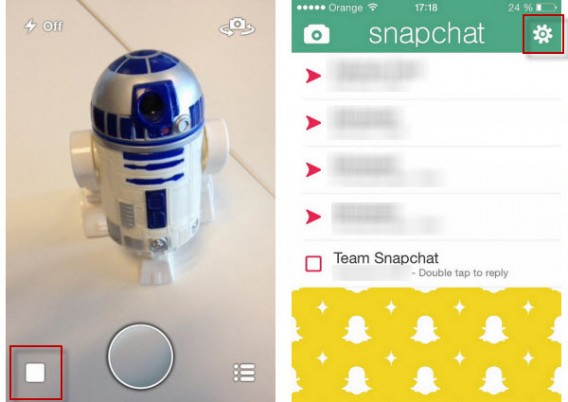
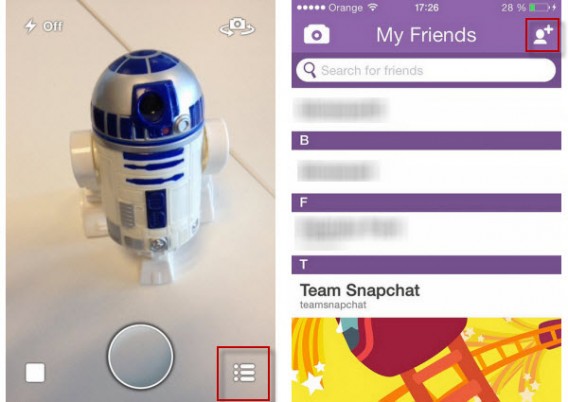
Snapchat has three main screens. Every time you open the app you start at the camera. To access the main menu, you must select the square button on the bottom left or drag the screen from left to right. To see your friends, select the icon in the bottom right corner or drag the screen from right to left.

Snapchat main interface

Can you send videos via Snapchat? How do you go from Photo mode to Video mode?

To record a video for your contacts, you simply have to leave your finger on the trigger. The maximum length of a video is 10 seconds and the sharing process is the same.

How do I choose how long the picture will be seen?

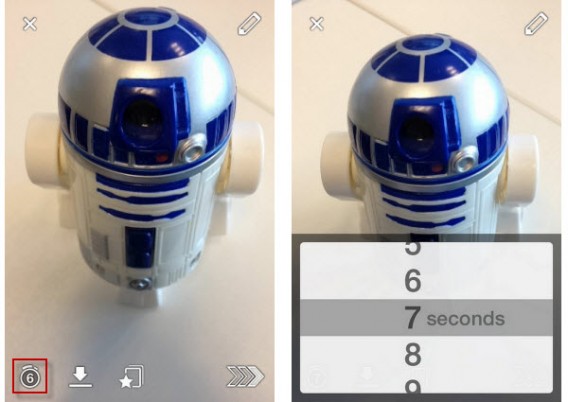
To change the allotted time you must first take the photo or video you want to share, then click on the stopwatch icon. A drop-down menu will let you set the timer from 1 to 10 seconds.

Snapchat change time limit

Can you import photos stored on your smartphone?

The answer is no. You can’t send any of the photos stored on your iPhone or Android. There are some applications like SnapRoll for iOS, but for security reasons we don’t recommend using them.

Can you comment on photos?

No, you can’t send comments on the photos or videos you receive. When taking your snaps, you can add text to the picture or video in two ways. With the pencil on the top right of the screen you can write or draw freehand. You can also add text by tapping on the screen.

If you want to comment on friends’ pictures, you can reply by sending them another photo or video. To make it easier, your friend’s username will already be selected when taking the picture. Don’t forget that Snapchat doesn’t have a standard chat system.

What is the 403 error message?

Many users complain about getting a 403 error message when sending a message to their friends. Don’t worry, it’s not your smartphone, it’s a technical problem with the app itself. You can try to uninstall and install the app again to get rid of this message. If this doesn’t work, wait until service is restored.

Advanced Features

Can you save any of the pictures, and what does the Screenshot message mean?

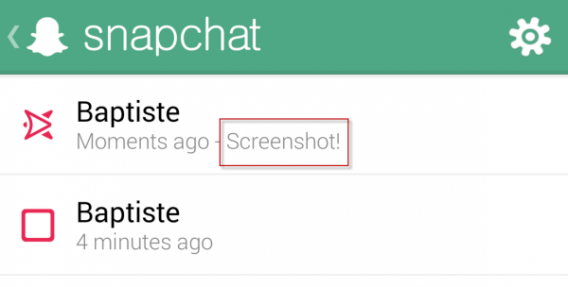
The answer is yes. Although Snapchat messages self-destruct, it’s possible to take a screenshot of the picture or video you were sent using the smartphone’s physical buttons. So, be careful with what you send and who you sent it to.

If your friend takes a screenshot of what you’ve sent, you’ll get a notification – sometimes. This depends on the smartphone you are using. Screenshots taken with an iPhone are systematically detected, while those made with a Google Nexus 5 weren’t detected during our tests.

Snapchat screenshots

How do you add filters to photos?

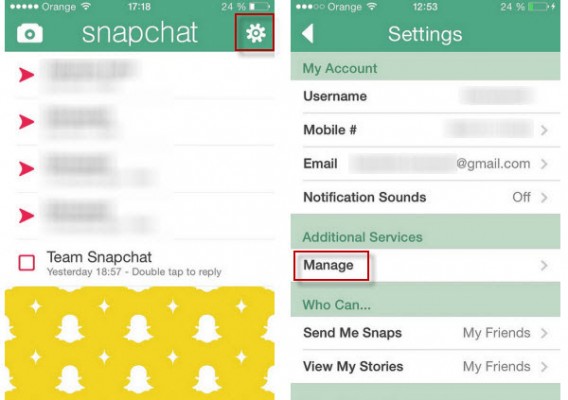
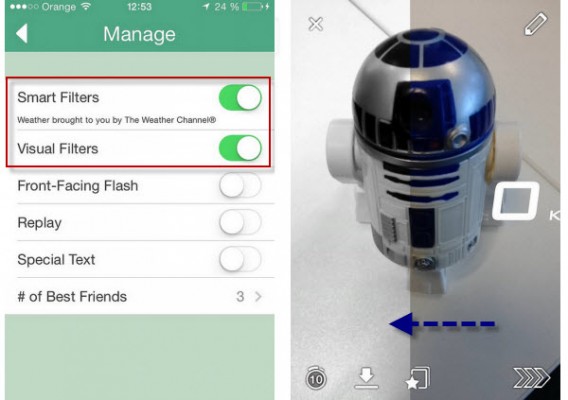
To add filters to your photos like with Instagram, you must enable the corresponding feature in the Settings menu: just click Manage under Additional Services.

Snapchat additional features

Snapchat filters

You can then activate visual filters to add effects to the pictures. Smart filters, on the other hand, will let you add a watermark with additional information (phone speed at time of photo, time, weather, etc.).

What are Snapchat Stories and how do you make a photo public?

Snapchat launched Snapchat Stories with their October 2013 update. Snapchat Stories can be compared to the “walls” found on other social networks. The snaps and videos you add to your Story are not public; they are only visible to your friends for 24 hours.

If a friend shares a photo only on Stories, you’ll have to access their profile to see the picture.

Snapchat Stories

Wrapping up

When using Snapchat, more than with any other app, it’s very important to understand how it works, or you can end up sharing content with the wrong person. So be careful with the publications that appear in your Snapchat history, or you could find yourself in a very compromising situation!

Follow me on Twitter @bbrassart

RELATED ARTICLES

20 best free games for Windows 8

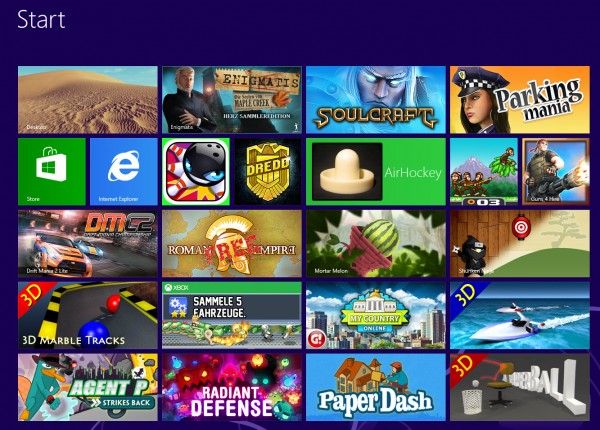
At first, there were only a few games for Windows 8, but half a year later, things are very different. Whether you’re looking for shooter, platformer, or realtime strategy game, there are lots on offer and among the (unfortunately) large number of bad games, you can find some real gems. Below is a list of games for Windows 8 that are just waiting to be played.

Windows 8 Games

Jetpack Joyride

In Jetpack Joyride, you use your jetpack to run and fly nonstop through a never ending landscape. Just like other endless runner games, the only difference is in the obstacles and gold coins you find along the way. Great graphics and a catchy soundtrack make for a light-hearted game that’s not too difficult.

Jetpack Joyride on Windows 8

Judge Dredd vs. Zombies

In Judge Dredd vs. Zombies, you have to defend Mega-City One from a zombie attack. Using different weapons, you clean out zombies from different areas over the various levels of the game.

Judge Dredd vs Zombies on Windows 8

Roman Empire

In Roman Empire, you take on the role of power-hungry Caesar. Your goal? To conquer Europe. You’ll have to vanquish neighboring villages, create alliances and make spur of the moment decisions.

Roman Empire on Windows 8

Monkey Flight

Fans of Angry Birds will enjoy Monkey Flight. Helped by special objects, the aim is to launch the monkeys so that they pick up the floating fruit.

Monkey Flight on Windows 8

Mortar Melon

In Mortar Melon, the aim is to throw watermelons from the left edge of the screen into a randomly positioned basket. This becomes more difficult when obstacles like rotating blades are added to the mix and the difficulty increases with each level.

Mortar Melon in Windows 8

My Country

In this copy of SimCity, your mission is to build a bustling metropolis. You’ll have to build and place various buildings, roads, and other utilities to create the necessary infrastructure. If the people are happy, revenues will increase and your building plans will be safe, but if you don’t manage to organize the construction well, you’ll find that building flies out of control.

My Country on Windows 8

3D Boat Race

3D Boat Race lets you compete on the water in high speed boats. Arch-shaped goals show you the route to the finish.

3D Boat Race on Windows 8

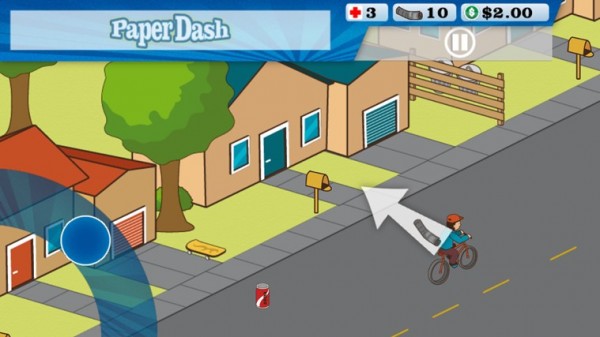
Paper Dash

This game is a remake of the classic, Paperboy. The main character is a paperboy and you need to steer him around the obstacles that he’ll find on his route.

Paperdash on Windows 8

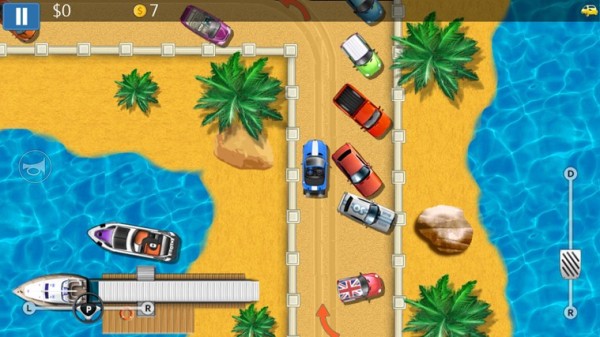
Parking Mania

The noble art of parking is recreated in Parking Mania. The aim is to park your car in a particular space. Just as in real life, however, this isn’t always easy – there’s little room to maneuver and the best spots are already occupied by other cars. Along the way, you pick up coins and other bonuses.

Parking Mania on Windows 8

Radiant Defense

This is a colorful tower defense game. In your role as commander of a space station, you have to defend it against external attacks. Slow down your opponents by positioning defensive towers and walls.

Radiant Defense on Windows 8

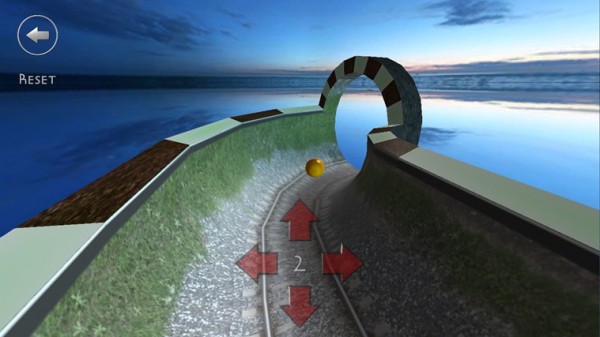
3D Marble Tracks

3D Marble Tracks is an interesting mix of mini golf, bobsled racing, and billiards. You’re going to need a lot of patience and a steady hand to get to the end!

3D Marble Tracks on Windows 8

Shuriken Ninja

In this puzzle, you play the part of a ninja. Use your shuriken stars and throw them to create chain reactions so that they hit several targets at once.

Shuriken Ninja on Windows 8

SoulCraft

This time we have an action-packed role-playing game full of sinister characters. In Soulcraft, you fight your way through a colorful fantasy world as an angel, demon, or human being, building up your character by gaining experience in combat, weapons, and objects.

SoulCraft on Windows 8

Trick Shot Bowling

Trick Shot Bowling is a classic bowling game where you can choose to play against the computer or real opponents. Decide for yourself where to aim and how hard to bowl the ball so that you can create a particular effect.

Trick Shot Bowling on Windows 8

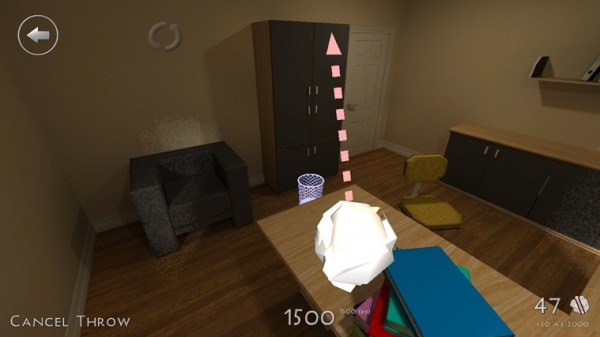
3D Paperball

Throwing a screwed up ball of paper helps to release tension. In 3D Paperball, these paper balls are virtual ones and you can show off your basketball skills by hitting the trash can in various different scenarios.

3D Paperball on Windows 8

Agent P Strikes Back

This fun adventure stars Perry the Platypus, a character from the animated series Phineas and Ferb. The idea of the game is simply to jump between platforms and defend yourself against a series of animals that Dr. Heinz Doofenshmirtz has released to wreak havoc.

Agent P Strikes Back on Windows 8

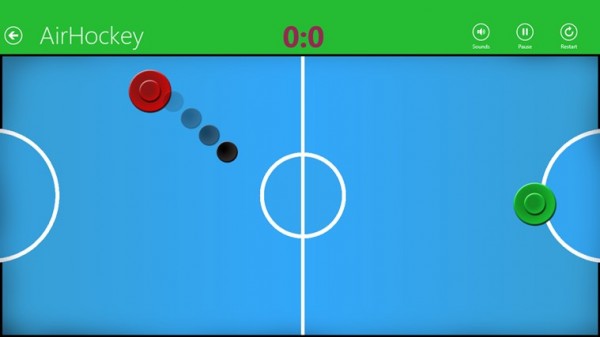
AirHockey

A good game for two people, AirHockey is classic game room entertainment. In Windows 8, the floating discs you play with become touch-sensitive controls.

Airhockey on Windows 8

Drift Mania Championship 2

Drift Mania Championship 2 is a fun racing game with good graphics and a catchy soundtrack that makes full use of the motion sensors built into your tablet.

Drift Mania Championship 2 on Windows 8

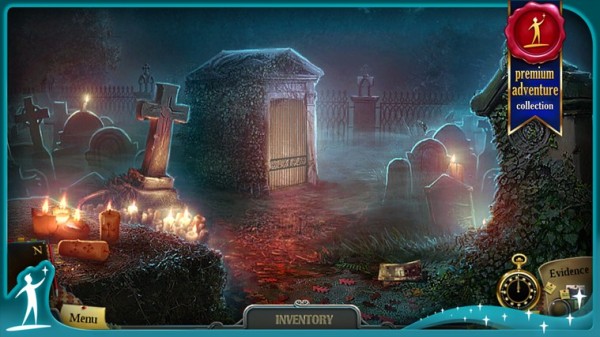
Enigmatis: The Ghosts of Maple Creek

The idea behind this game is a mystery and your job is to find the hidden objects and clues in the scene. The graphics are very good and full of details. The soundtrack also helps create an eerie and unsettling atmosphere.

Enigmatis: The Ghosts of Maple Creek on Windows 8

Guns 4 Hire

In this fast-paced action shooting game, characters are armed to the teeth. The control system is similar to that of Command & Conquer.

Guns for Hire on Windows 8

What do you think are the best games for Windows 8?

Original article by José María López on Softonic ES.

Basic tips for Android

Get the most out of your Android device by learning how to take care of basics. In this series, Basic Tips for Android, we’ll ensure that you know how to do the most useful, fundamental tasks quickly and easily. Want to make sure you have the best Android browser on the market? Want to transfer files to your Android even when you don’t have a cable? Want to save space by forcing your device to save apps to the SD card?

We’ve got mountains of super useful tips that will help everyone, from Android noobs to old hands who want to make sure they’re getting 110% from their phone. We’ve got tutorials, tips, comparisons, in-depth and opinion pieces. We really hope you find them useful!

Getting started with Android

7 essential tips to set up your new Android device

The top 5 file managers for Android

Control your Android device wirelessly

Everything you need to know about Google Play

Installing apps on your Android device

How to: Force Android to automatically install apps to SD card

10 essential games for your Android device

Film-based games for Android

Free djing apps for Android

5 essential apps for your new Android phone

Top 25 apps for your Android tablet

How to: install Android APKs with Google Drive

Getting the most from your Android

The best alternative keyboards for Android

Android: Everything you need to know – utilities

Getting the most from Facebook, Whatspp and Instagram for Android

Android: Everything you need to know – social media

Back up your Android data using G Cloud

How do you backup your text messages, contacts, apps, settings, photos, and everything else on your Android device? We’ll explain how you can backup and restore all of your data easily using G Cloud.

Configuring backup and reset options on Android

Android allows you to automatically back up some settings and data associated with a Google Account such as Wi-Fi passwords, browser bookmarks, applications installed from Google Play, terms added to your personal dictionary, as well as most device settings and applications using the backup service.
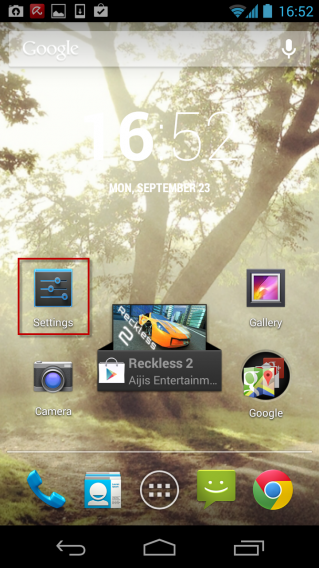
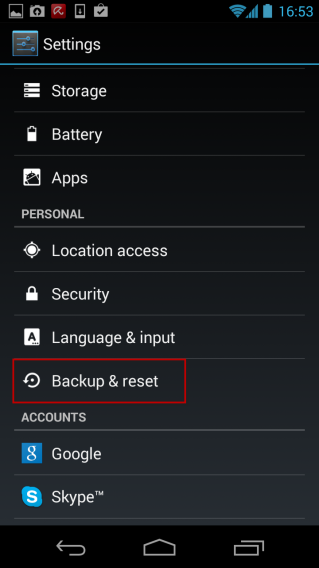
1. To ensure that the backup options for your device is properly configured, go to Settings on your phone or tablet.

2. In the Personal section, press Backup & reset.

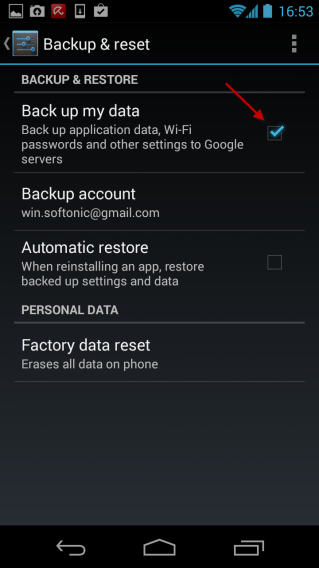
3. Check the box next to Back up my data.

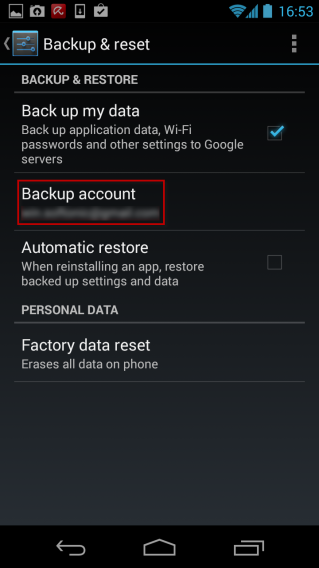
4. Configure the Google account that will be used for backup by clicking Backup account.

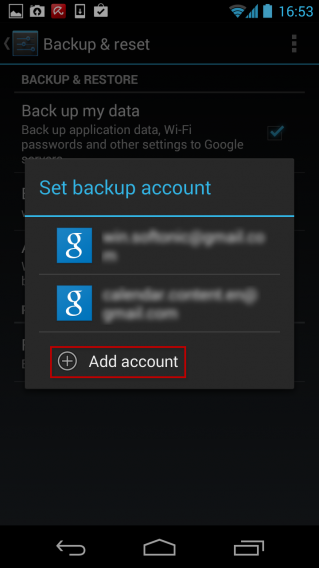
5. Select the Google account of your choice by clicking on it or add a new one by clicking on Add account.

6. Voila! You can now restore the data associated with your Google Account when you first connect to a new Android device.

Backup SMS, contacts, photos and more

There are many backup solutions on Android, but the G Cloud application caught our eye because of its flexibility and ease of use. G Cloud Backup lets you securely save your data online for free: contacts, call log, SMS, photos, videos, music, documents, settings, browsing history and many more. You have 1 GB of free storage to backup the entire contents of your Android smartphone or tablet!

7. Download the G Cloud app. Once the application is downloaded and installed on your Android device, launch it to start the configuration process.

8. Click New User to create a new account on G Cloud Backup. Enter a valid e-mail address, choose a password and then click Sign up. Next, confirm that you have correctly spelled your email address and click Proceed.



9. Select the categories to be backed up by checking the appropriate boxes. Then click the Done button. G Cloud Backup ensures that your data is copied to your secure account. Wait until the backup has finished.

10. By default, G Cloud Backup will schedule daily backups of your data. If you want to disable them, go to the application options by clicking the button at the top right. Click Back up Schedule, then uncheck the box next to Enable Auto Backup.

11. To restore your data to a new device or after formatting, install G Cloud Backup on the new Android device and launch the application. Click the Existing user/Restore button, enter your username (email address and password) and then click the RESTORE tab.

12. Check the boxes next to the data you want to copy to your device and click the Restore button to begin the restore. Wait until the restore has finished and then click OK. And that’s is, all of your data has been restored!

If you have a question about Android, check out our landing page for everything you need to know about Android!

Related items

How to back up Android data using Helium

How to sync your Android apps with a PC

How to use BitTorrent Sync for your Android

Original article written by Samuel Marc for Softonic FR.

Google Play basics Part 5: Send apps to your Android device from a PC

The Google Play Store allows you to send an app or game directly from your computer to your Android device. This can be really useful, especially if you find an interesting app when you’re browsing on your computer. Forget about reaching for your phone, opening the Google Play Store and searching for the app.

In this final installment in our Google Play Basics series, we’ll teach you how to send those apps directly from your computer to your Android device.

1. Download from Softonic

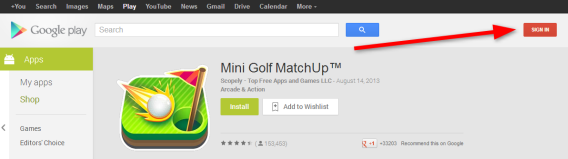
Click the ‘Download’ button under the name of the selected game or app in Softonic. We use Mini Golf MatchUp in the example below. This step takes you to the Google Play store. If you’re already at the Play Store, you can skip this step.

2. Log into Google Play

Sign in to your Google Account on the Play Store. Click the Sign In button in the upper right hand corner of the screen.

Note: In order to send apps to your phone or tablet, you need to log in to Google Play on your device too. If you haven’t done that yet, do it now so that you won’t have to repeat this step every time.

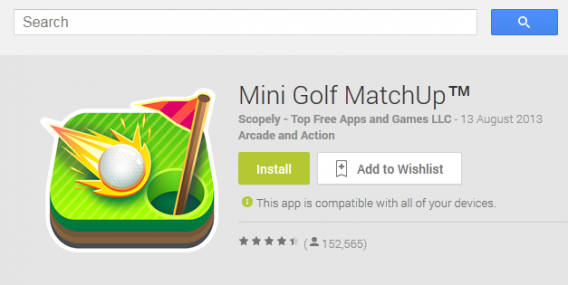
3. Click Install

On the app page, right next to the icon, click the green ‘Install’ button.

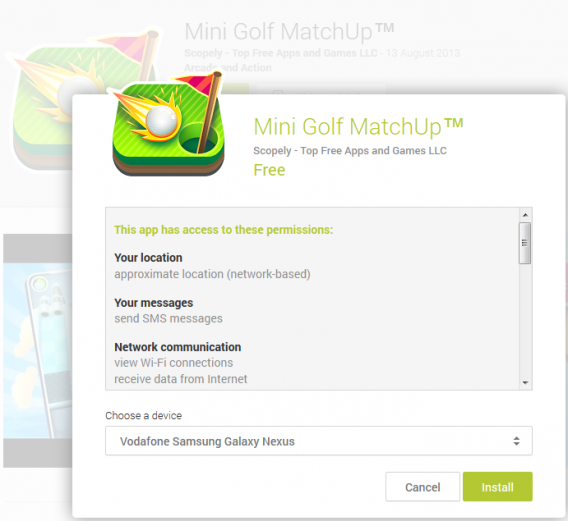
4. Select the device on which you want to install the app

If you have more than one Android device, like a smartphone and a tablet, choose the one that you want to install the app on. Select it from the list at the bottom of the window that pops up, and then click ‘Install’.

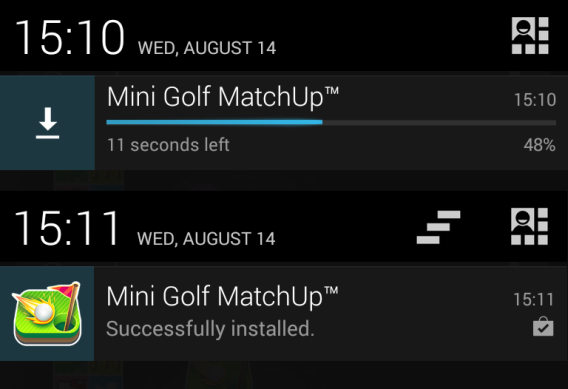
5. Wait until the app downloads and installs

Double check that the Wi-Fi on your phone or tablet is turned on and is connected to a Wi-Fi network. Otherwise, the app won’t install on your device.

And that’s it! Check your Android phone or tablet and see if the application has been retrieved and installed.

How many apps have you installed this way?

Read the other articles in our Google Play guide:

Original article written by Radek Grabarek, published on Softonic PL.

The top 5 file managers for Android

Android phones are flexible when it comes to managing files, but as many Android users already know, the file manager that comes with Android devices doesn’t always work perfectly (and older models won’t even have one!).

Thankfully, there are plenty of options out there to compensate for the shortcomings of Android’s built-in file manager. The question: which ones are the best? To help you figure out, we’ve selected five of our favorite applications to manage files on your Android device. It’s part of our excellent series, Basic Tips for Android!

Now, all you need to do is choose the one which is best for you!

File Expert

If you need a file manager with advanced options, this is the program for you. The main advantage of File Expert is its connectivity: you can access the files from a PC or a WiFi connection. It also lets you upload files via FTP.

EStrongs File Explorer

Although visually a bit sloppy, the EStrongs File Explorer has everything a good file manager should have. Moreover, it allows you to synchronize accounts with popular web storage services like Dropbox, Google Drive, or SkyDrive.

OI File Manager

OI File Manager does virtually everything that Windows Explorer does on your PC. It can copy, rename, move, delete and even send files via your favorite email service. With clear icons and good usability, it’s a great option for your Android.

Astro File Manager

Astro File Manager is one of the veteran file managers available on the market. If you are after a stable application, even on older phones, this is a great option. Its main strength is its backup function.

AndroZip File Manager

This is one of the most basic (and popular!) managers on our list. The AndroZip File Manager has the reputation of being a great manager for fully compressed files. If you usually work with archives like ZIP, RAR, GZIP, TAR, BZIP2 or others, then this is the app for you.

Do you use any file manager apps for Android? Tell us in the comments below!

Check out more great tips for getting the most from your Android device here.

Original article written by Felipe Pessoa, published on Softonic BR.

Use Android Device Manager to locate your device

Until recently, there was no official way to locate a lost or stolen Android phone. Fortunately, Google launched Android Device Manager. In the article below, I’ll explain how quick and easy it is to configure and use Android Device Manager to locate your Android device.

What is Device Manager?

Android Device Manager is a service through which you can locate your lost or stolen Android phone or tablet using maps. Once located, you can send a request for the device to either make a sound, or remotely wipe all data from the device.

What are the requirements?

Android Device Manager works on any device with Android 2.2 or higher; there’s no need to install any app or update the operating system.

If your device is connected to your Google account or you use Google Play, you’ll automatically be able to use this function.

Using Device Manager

Follow these 5 easy steps to find your Android device.

1. Log in to your Google Account

You can log into your Google Account at android.com/DeviceManager, where your linked devices will automatically be recognized.

2. Choose the device you wish to locate

If you have more than one Android device, choose which one you wish to locate by clicking on the arrow to the right of the device name.

3. Wait while your device is located

Depending on the situation, Google may take more or less time to locate your device, especially if you are in transit or in an area where cell phone service is unstable.

Once found, your device’s location is indicated with a blue dot on the map, as well as an estimate of the location’s accuracy. To update the map, click the arrow icon.

4. Send a tone or delete the device’s data

If the device is near your current location or is somewhere secure, Android Device Manager can send a sound notification to your phone or tablet to play at full volume for five minutes, even if the device is on silent or vibrate.

Alternatively, if you’ve enabled the remote wipe options in Google, you can remotely delete all the data stored on the device, including photos, contacts, emails and apps, with a simple click of the ‘Erase Device’ button.

5. Contact the authorities

If you think your Android device has fallen into the wrong hands, contact the appropriate authorities and file a report.

When doesn’t it work?

A Wi-fi connection is necessary to locate the device on the map. If there’s no internet connection, the device can’t communicate with Google and Android Device Manager won’t be able to locate it. If you have GPS enabled, the accuracy of its location will be even greater.

Device Manager also won’t work if:

  • The tablet or phone is turned off or out of the coverage area
  • The device has been reset to its factory settings


To ensure that your device can be located, you should activate two options in your Google Settings. Go to Security > Device Manager and enable both available options.

You can also go to Google Settings > Location and enable ‘Access the location’.

If you want alternatives, try…

Are you going to use Android Device Manager?

Original article written by Fabrizio Ferri-Benedetti for Softonic ES.