We can delete text backwards, but also forwards. A resource that seems irrelevant, but that makes a big difference in our productivity.
When it comes to typing text on a device, especially if it is long, it is normal that we need to delete, edit, reorder and make changes to get the final product we want. We often know what a green or orange dot on the Mac menu bar means and also which key to tap to delete a word, but what if we want to delete forward?
Don’t know how to open a RAR file on Mac? Learn how to unzip this file format with our selection of free programs to open RAR on Mac.
You just downloaded a file in RAR format and when you try to open it, your Mac gives you an error message. Sound familiar? This is one of the most common problems faced by all Apple device users. Although macOS has a powerful native file compressor and decompressor, it only supports the ZIP format. Does this mean that we can’t open RAR files on Mac? Of course not. We’ll simply need to download a third-party program and we’re here to help you find it.
If you have taken a look at the App Store, you will have noticed that there is an endless selection of programs to decompress files in RAR format. However, many of them are either paid or simply don’t work as well as they should. That’s why in today’s article we are going to offer you a selection of the best free programs to unzip RAR files on Mac. We hope they will help you!
1. The Unarchiver
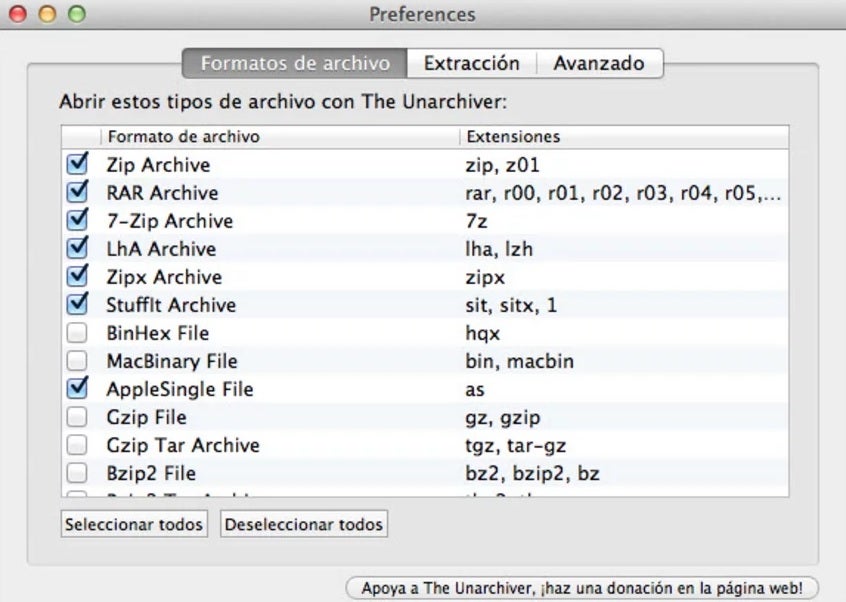
The Unarchiver is, for many, the best free program to decompress RAR on Mac. It is able to open all types of files from any macOS device without having to open the app. One of its strengths is that, in addition to being able to open RAR files, it is also compatible with Zip, 7-Zip, Tar, Gzip and many other formats.
Another interesting point of The Unarchiver is that it is even capable of decompressing files with characters in other languages. That is why with this app on your computer, you will hardly need any other program to open and extract compressed files.
To open a RAR file with The Unarchiver you simply double-click on the compressed file or drag it from your Mac to the application icon. Alternatively you can also right click on the RAR file and you will see that this will open a drop down menu where you can select “Open with…” and among these options will be “The Unarchiver”.
Once this is done, simply select the destination folder where you want to decompress the RAR format or create a new one from the same program. Click on the “Extract” button and wait for The Unarchiver to do the rest. It’s that simple!
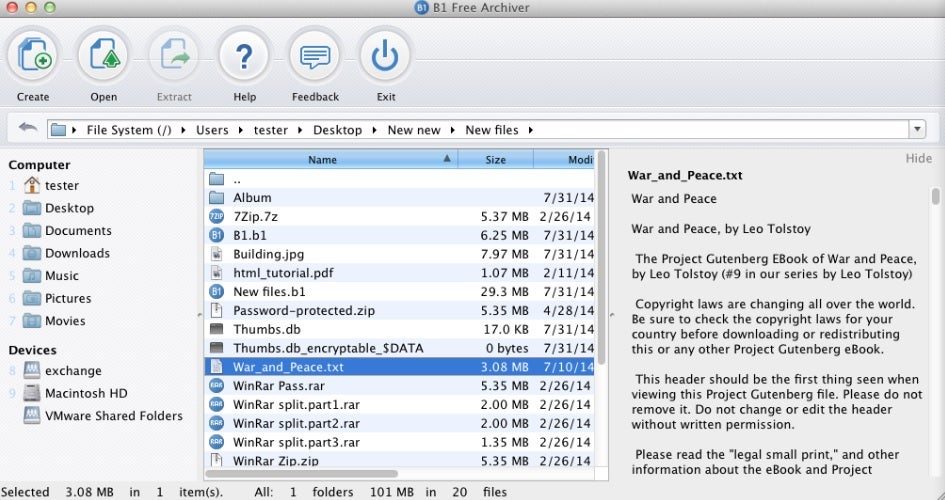
Secondly, we would like to recommend B1 Free Archiver, another exceptional application ideal for managing files on your Mac. From it you can compress and decompress files in the main formats on the market. This file manager supports any file format B1, ZIP, JAR, XPI, RAR, 7Z, ARJ, BZ2, CAB, DEB, GZIP, TGZ, ISO, LZH, LHA, LZMA, RPM, TAR, XAR, Z, DMG and many others. That’s why it’s a perfect solution to open any type of file from your macOS computer.
One of the strengths of B1 Free Archiver is its simplicity of use. Say goodbye to spending long hours reading tutorials. Simply install the application and you can start using it instantly thanks to its intuitive interface. Besides that, B1 Free Archiver is a cross-platform program, so you’ll be able to use its app not only on your Mac, but also on any computer running Windows, Linux and even Android devices.
It is important to note that B1 Free Archiver not only works with individual files, but it is also capable of compressing and decompressing files divided into different parts as well as those that have been protected by a password. It is, therefore, an excellent free option to open RAR archives from any computer running macOS.
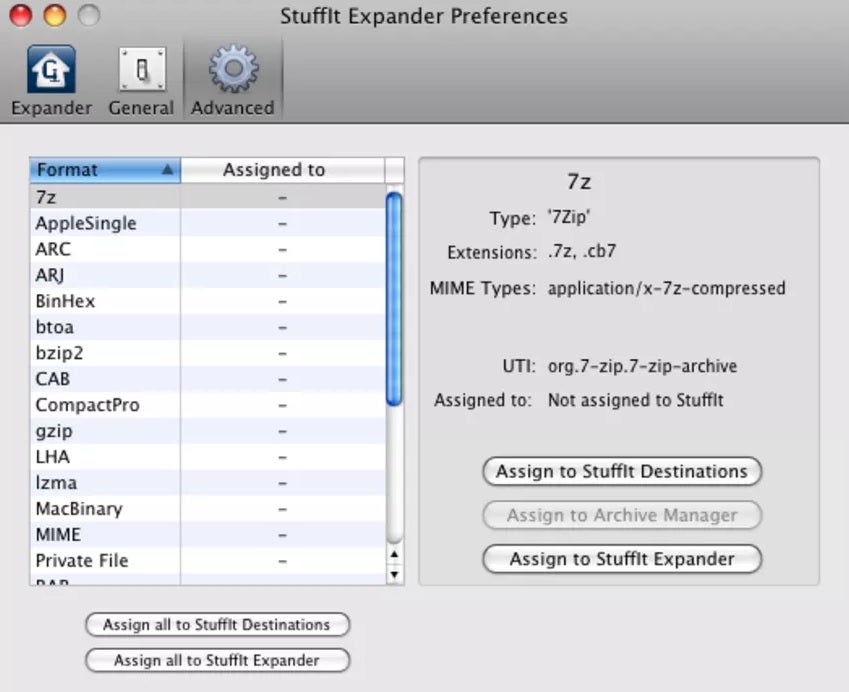
Stuffit Expander is one of the most veteran applications for Mac when it comes to decompressing files and for many, the best option you can find for Apple devices. It has a very simple and at the same time very nice interface, since it fits perfectly to the Mac environment. To open a file you just have to drag and drop it into the program window and let Stuffit Expander take care of the rest.
In terms of compatibility, Stuffit Expander supports more than 30 different formats, including RAR, ZIP, TAR, BTOA, ARJ, LHA, LZMA, 7-ZIP, MacBinary, GZEP, CAB and many more. However, as a weak point, this application only allows you to decompress files, so you won’t be able to compress and create new files from it. Even so, it is a perfect and completely free option to open RAR files from any macOS device.
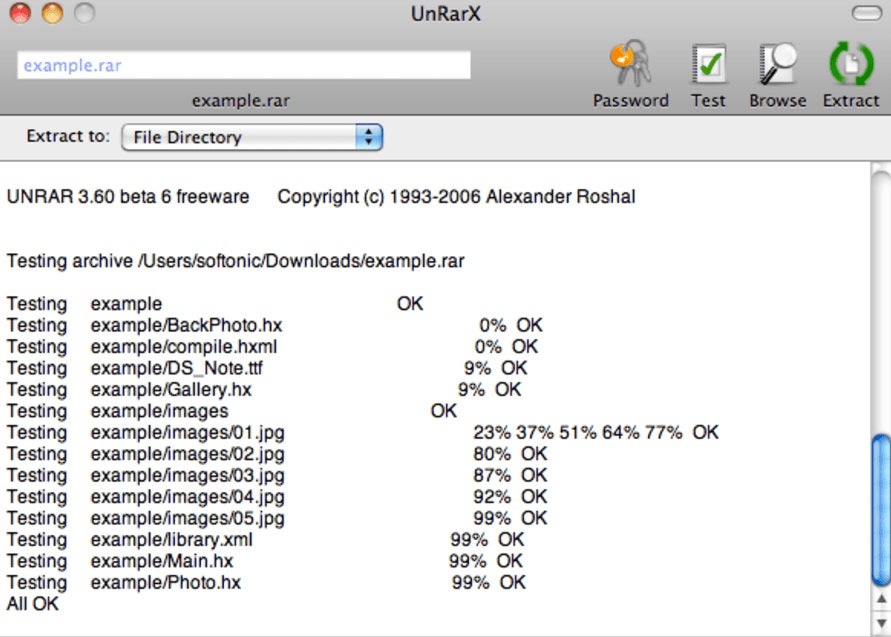
UnRar X is an application designed not only to decompress RAR archives but also to repair corrupted or missing files. This makes it a really interesting tool if, for example, you need to extract a file from a RAR archive that you don’t have any part of.
A great attraction of UnRar X is its simplicity. You just have to open UnRar X and drop the compressed file on its interface. After that, the program will decompress its contents to the destination of your choice. Once the process is finished, UnRar X will show you a history of the actions performed by the app so that you have a clear view of all the steps followed by the program.
It is important to note that UnRar X is a free program designed only to decompress files. Therefore, if you are thinking about creating your own RAR archive, you’d better opt for other alternatives such as The Unarchiver. Even so, it is an excellent program, ideal for all those who are looking for an archive manager capable of repairing damaged or corrupted files.
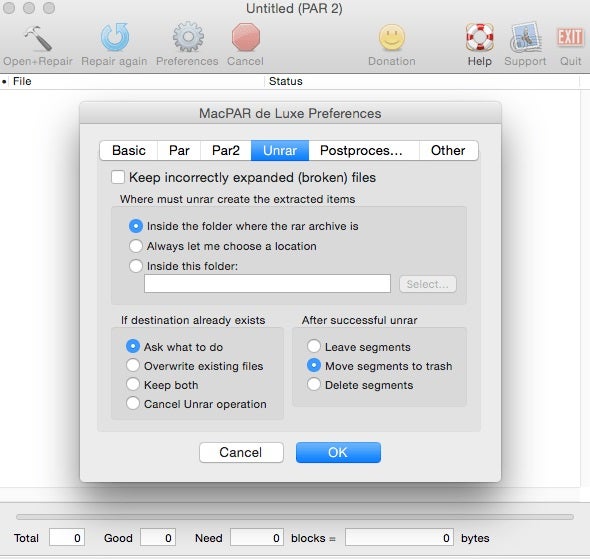
Looking for an alternative to unRarX to repair damaged files and decompress RAR archives on Mac? Introducing MacPAR deLuxe, a free application that is fast, efficient and allows you to decompress and recover compressed files in the blink of an eye.
MacPAR deLuxe is a program designed for all Mac users who download files compressed in different parts. By simply clicking on a .PAR file, you can quickly and effectively check, recover (if necessary) and decompress any file. Moreover, being a shareware program, it is totally free and very easy to use!
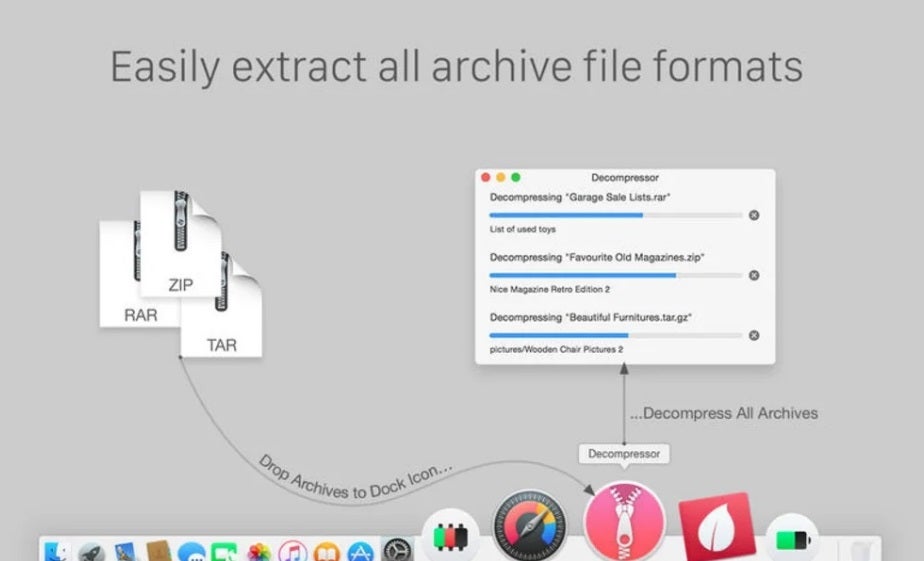
Decompressor is a utility that, even though it is not as veteran as some of the previous options, has nothing to envy them. It stands out for its speed, simplicity and, of course, for being completely free.
In addition to compressing and decompressing the main file types (ZIP, RAR, 7-ZIP, TAR, etc.), Decompressor has the attraction of being able to work with batches of files. This is really useful if you are trying to decompress many files at once and don’t want to waste time opening them one by one.
As for its interface, it is completely customizable and also receives constant improvements from its developers, so it is constantly receiving new features. That is why it is a perfect option if you want a program that is always up to date and 100% compatible with your operating system, regardless of how much it is updated.
We hope that our selection of free programs to unzip a RAR archive on Mac has helped you. And remember, if you liked what you read, do not forget to share it with your friends on social networks.
Thanks to the identity certificate from the tax agency we will be able to do online procedures in the easiest way on our iPhone, iPad or Mac.
A digital certificate of identity allows us to carry out procedures with the public administration online. A resource that we can use to check the work life, to file the tax return or even to carry our driver’s license on the iPhone thanks to the app miDGT. Installing this digital certificate of the Tax Agency on an iPhone, iPad or Mac with Safari is very simple. Let’s see it.
What does an orange or green dot mean in the menu bar of our Mac? Something very important for our privacy.
Using the Mac, we may have noticed a small green or orange dot in the menu bar. These dots, located next to the Control Center, have a very important meaning in terms of protecting our privacy. A way that the system uses to, elegantly and without attracting too much attention, inform us of access by any application to key information on our Mac.
A new design is coming for the TV app on our Mac. A side navigation bar that will make it much easier to find what we want to watch.
The TV application on our Mac is the way to access all the content of Apple TV+, the streaming platform of the apple company, as well as the one that gives us access to buy or rent movies and TV shows. All in all, there is a lot of catalog to which we have access, which is why refining the navigation is really important.
Thanks to a simple keyboard shortcut we can do a good cleaning of the storage of our Mac in a matter of minutes. Simple and effective.
Storage space on our devices is an increasingly precious resource. It is common to find that our Mac hard drive or SSD drive fills up faster than expected and we need to free up space.
These five sites have all the best space wallpapers you can download for free. Check them out now.
This week at Softonic HQ we’re concentrating on bringing you fantastic wallpapers for your Windows PC or Apple Mac, and also all the best places to find them. If you’re looking for cool desktop backgrounds including scenes and images from your favorite video games, the biggest sporting events around the world, the latest movies, and hip minimalist pictures we have you covered. Today though, we’re covering wallpapers and backgrounds from space. We don’t mean they’ve come from space; we mean desktop wallpapers of all things space related. We’ve got to say, some of these are incredible!
With these Space wallpapers we’re going to do things a little differently. Rather than highlighting particular images we like such as famous nebulas, supernovas, black holes, spiral galaxies, and planets like Saturn and Jupiter; we’re going to concentrate on where to find them all. Let’s go.
As you’ve probably guessed from the name of this website, it doesn’t specialize in space-related matters. Clearly, what Wallpaper Access specializes in are wallpapers and backgrounds. That doesn’t mean though, that the space images you find here won’t be special. On the contrary, Wallpaper Access is a great place to go find a huge collection of ultra-high-resolution space images that you can use as the background on your PC or Mac. In particular, the 4K Space Wallpapers collection is fantastic, with 69 breathtaking scenes both of outer space and views from outer space looking back to earth.
The Hubble Telescope is one of the most iconic human machines ever built. Thanks to its earth orbiting platform, the Hubble has been able to capture some of the most incredible scenes of space the human race has ever laid eyes on. If you have a particular image of outer space stuck in your mind, chances are it was taken by the Hubble. By going to straight to the source of those space images here, you’ll be able to get your hands on space images with ridiculously epic titles like A rose made of galaxies, The pillars of creation, and Galactic wreckage. What’s also great about the Hubble website is that it gives you free access to the full size original image meaning you won’t have to compromise on quality, if you don’t want to, and you’ll also get interesting explanations about all the images written by teams that captured them. If you’re looking for HD space wallpapers of the Milky Way, Orion’s Belt, our Solar System and beyond; this is the place to start your search.
AI robot revolts on the International Space Station
Unsplash might just be the coolest stock photography library on the internet. It has thousands, if not millions of fantastic images, which have all been uploaded by the artist or photographer behind them. What’s even better about Unsplash is that all the images are available for free. As you’d expect from such a site, Unsplash has a fantastic section on space images that has many great space scenes and vistas that would be perfect as your wallpaper.
Space.com describes itself as, “the premier source of space exploration, innovation, and astronomy news, chronicling (and celebrating) humanity’s ongoing expansion across the final frontier.” Sounds cool, doesn’t it! As you’d rightly imagine, all that makes space.com the perfect place to find some truly awe-inspiring space-related backgrounds. Also, just like with at the Hubble website you’ll not just get the images to use as your background, you’ll also learn about what is going in the images and how they were taken. If you’re looking for something a little deeper than merely an image that looks cool, this is the place to go.
Our final source of amazing space-related wallpapers is NASA. As you’d expect from the most famous space agency on the planet, NASA has a huge library of space images. These include photos captured by telescopes on earth and in orbit, photos of cool equipment such as radio telescopes, mission mockup images like those of the famous Curiosity Rover, historic mission photos, and much much more. If you want backgrounds with space shuttles and International Space Station missions, this is the site you’re looking for.
NASA’s heartbreaking final words to the Mars rover Opportunity
Out of all the sites we’ve brought you today, the NASA website is our favorite because on top of offering you some fantastic images that will make great backgrounds, being a fantastic place to learn about space, and doing all of that for free; many of the images on the NASA site will make you feel emotional as you’ll recognize them. You might know who the person is in the image, what the shot is of, or even just feel an emotional attachment for the robot you’re looking at. NASA is a huge part of our global culture these days and that really gives the desktop wallpapers you’ll find here a lot more weight.
Wrapping up
We’ve shown you five great places to source all the best space wallpapers available on the web. If you’re a big space fan, you’ll definitely find the wallpaper you’re looking for on one of the five sites above. In fact, you’ll find a lot more than just backgrounds on three of the sites meaning it all depends just how deep you want to go. You might log on to the Hubble or NASA websites simply looking for a new background for your PC and emerge hours later having ended up researching anything from the composition of moon rocks to the age of the oldest and youngest galaxies. That’s just it with space though, the possibilities are endless.
Ever wondered how to use Microsoft Office for free? Get instant access to several Microsoft Office versions without paying a cent. Learn how to do it here!
Office for free? You want it, right? Microsoft Office remains the top dog of office apps. As good as the apps are, however, we understand that not everybody can afford to pay for them. We’ve covered here the best free Office alternatives, like Google Docs and LibreOffice, but we also know that some of you might want the real version of Office. Don’t worry though, Softonic has your back: put that credit card away (except for number 5) because here are 7 ways to get free access to the Microsoft Office suite on Windows and Mac.
Little by little, Microsoft has been growing the number of Office apps that you can use for freeonline. You’ve got Microsoft Word, Excel, PowerPoint, OneNote, Sway, Email, Contacts, Calendar, OneDrive and Docs.com all without the need to install Office on your hard drive. If you have a Microsoft account and a reliable internet connection, you can use these free office programs on a Windows PC, Apple Mac, or Linux using web browsers like Google Chrome and Microsoft Edge. Microsoft Office Online programs even offer some cool and unique features like real-time Skype chats while collaborating on documents with friends or colleagues.
Try out Microsoft Office online here, choose the app you want to use, and log into your Microsoft account. You’ll also find Office Online in the Products menu over at office.com.
You won’t get all the Office 365 features with Microsoft Office Online, but you will at least be able to edit documents.
For iPhone and iPad, it’s more difficult to list the mobile Office applications as there are different versions for both Apple devices. You can find the list of all Office apps for Apple devices, including those for the new iPad Pro, on Microsoft’s iTunes listing.
Again though, don’t expect the full Office 365 experience, but this free version of Office will allow you to do basic editing.
If you want to get Office 365, you’ll have to try one of the following methods.
3. Get Office from your school
If you’re a student or teacher, you may be entitled to an Office 365 education subscription. Enter your school email address here. You’ll get Office software including Word, Excel, PowerPoint, Microsoft Teams, and OneDrive storage among other tools, totally free. If your school isn’t registered, let them know what they’re entitled to ASAP!
4. Persuade your boss
Huh? What kind of company doesn’t have Microsoft Office 365? If yours doesn’t, it could be time for you to step up. You’ll have to sell it though, and go through the numerous Office 365 options available and the benefits they’ll bring to the business. The important thing is that your company will foot the bill!
5. Sign up for a free month trial of Office 365
Try out the Office 365 Home version. You’ll have a 1 month trial to experiment with the Office 365 personal package that includes Word, Excel, PowerPoint, Outlook… Also, the trial gives you access to 1TB of cloud storage on OneDrive.
Keep in mind, however, that to download the trial, you’ll have to enter a current debit or credit card number. When your one-month trial ends, you’ll automatically be charged for an Office 365 subscription so make sure you don’t forget to deactivate your account before the trial ends.
6. Sign up for a free trial of Office 365 ProPlus
Have you already finished your one-month free Office 365 personal trial? What about 30 MORE days? Well, here you go.Sign up here for Office 365 ProPlus. You’ll have to sign up for the Evaluation Center, but in our final trick, we’ll go into this in a little more detail.
7. Try your luck with the TechNet Evaluation Center
Microsoft likes having users try out their products’ new features before officially launching them and this includes everything from DocX Word documents to Microsoft’s latest and greatest software innovations. This allows the software giant to resolve any software issues and problems, before they’re rolled out to all users.
This is where Microsoft’s TechNet Evaluation Centercomes into play. If you sign up, you can get free access to the products Microsoft needs testing. This usually means you’ll get to try them for 30-60 days. Sometimes, you might even cross paths with Office, like with the trial for the ProPlus version we just told you about.
Remember though, that the versions you’ll find in the Evaluation Center are still rough around the edges. You should expect all sorts of surprises!
What if you’ve used up all these options?
What happens if you’ve already used up all your free trials? Then you’ve got no choice but to buy Office (unless you’re satisfied with the online and mobile versions). Our personal recommendation is Office 365 Personal, which costs $69.99 a year or $6.99 a month.
If you don’t want to invest in the office package, don’t worry because there are other options out there! Try out these free alternatives to Microsoft Office and you won’t be disappointed.
Apple devices are less exposed to threats, which is one reason why their apps tend to behave well most of the time. Nevertheless, iOS apps occasionally become unresponsive, leaving users unable to access functions or regular quit options. In times like these, the best option is to use Force Quit.
Years ago, the only way to deal with a non-responsive app was to initiate a hard shutdown, potentially compromising the system. This was especially true of older computers. Force quitting, however, provides a convenient workaround on all Apple devices. The function is effectively a shortcut that helps you combat buggy apps without putting your valuable hardware at risk.
How to Force Quit on your Mac laptop
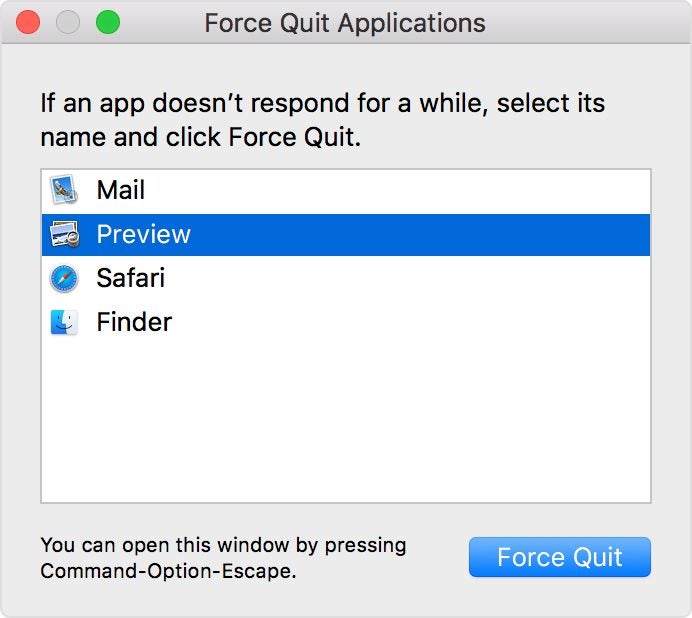
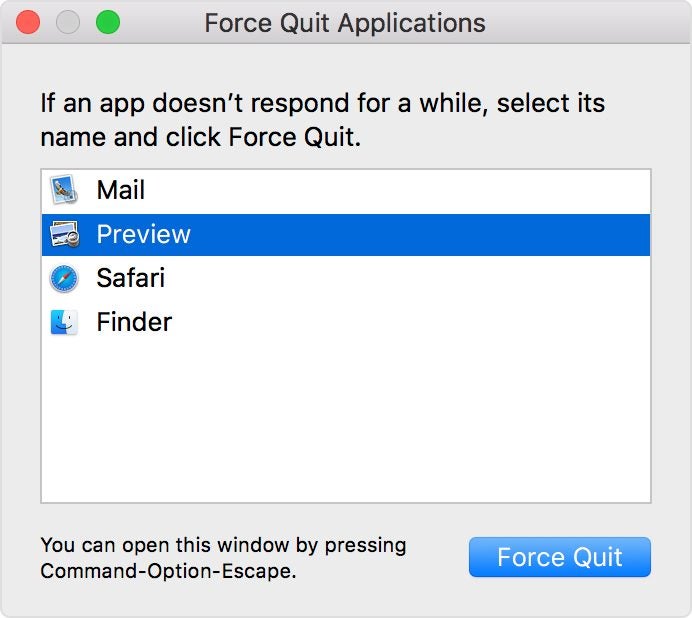
If your mouse cursor has turned into an everlasting spinning wheel of death, you’re likely dealing with a crashed application on your laptop. The best solution is to initiate a Mac Force Quit through one of these methods:
Press the Option, Command, and Esc (Escape) keys at the same time.
In the upper-left corner of your screen, click the Apple icon and then select Force Quit.
Hold down Option and right-click the icon of the unresponsive app in your Dock. You’ll then see a Force Quit action in the pop-up menu.
Methods one and two will reveal the Force Quit applications window. You’ll then select the unresponsive app and select Force Quit.
How to Force Quit frozen apps on iPhones
You’ll start the process of force-quitting a stuck app via the App Switcheron your iPhone. Accessing this feature varies depending on which iPhone you have and the version of iOS it uses.
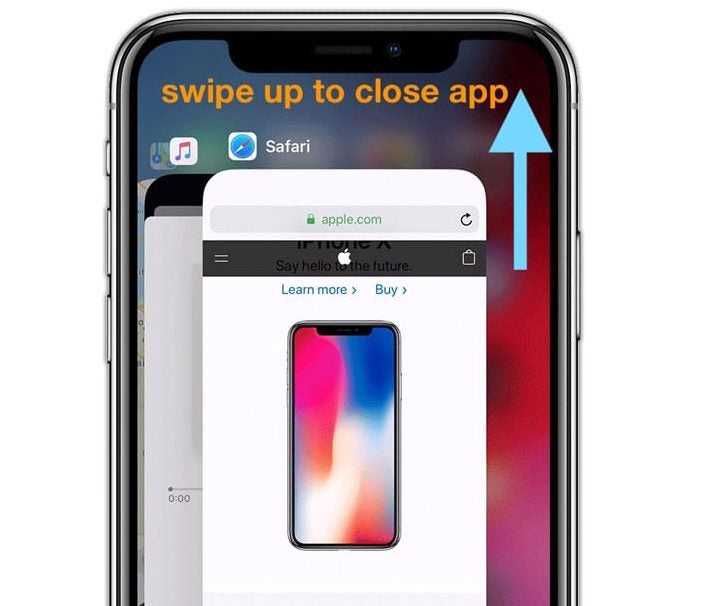
For iPhone models X and above, you will observe a notch selector at the top of the screen. These mobile devices lack the traditional home buttons found in earlier models. Here are 3 steps to Force Quit on an iPhone X and above models:
As you are in the unresponsive app, swipe up from the home bar at the bottom of the iPhone screen.
Hold your finger over the display until you see the preview of the app, moving it to the middle of the screen. Then lift your finger to open the App Switcher.
Scrolling horizontally in the App Switcher, you can find all the apps you’ve previously accessed. Swipe on the stuck app’s preview to quit the application. The app will disappear, effectively halting the program.
How to Force Quit frozen apps on iPads
The approach to force quitting an iPad is similar to the process on iPhone. However, the interfaces differ slightly.
Here is the process for iPad Pros running iOS 12, iPadOS13 or higher:
Swipe up from the bottom section of the screen toward the middle and hold for a brief second.
Upon letting go of the screen, you will encounter the App Switcher.
Select the app you want to Force Quit from the App Switcher grid to dismiss it, and complete the process.
How does Force Quit work?
When an app closes on an iPhone or iPad, it continues to run in the background. Many users are unaware that they are essentially pausing the app so that it demands less CPU. This ensures the optimal function of the device.
Poor performing applications freeze and become stuck before rendering themselves unusable. In this case, the Force Quit command is the only option aside from initiating a hard shutdown procedure.
Is force quitting safe for my device?
Force quitting a stuck application is the safest way to resolve an unresponsive application and prevent the issue from happening again. Frozen applications in Apple devices are predominantly attributable to insufficient RAM.
Devices short on memory (RAM) can support a limited number of applications, including those that remain open in various tabs or windows. The system will become unresponsive anytime its available memory resources are close to maximum capacity.
RAM is like your workbench in the sense that it outlines how much space that is available for work. If you have too many projects crowding up your bench, you won’t be able to work on anything at all.
Once you’ve Force Quit the app, you can access it again from the home screen or your applications folder. If it’s a trusted app, it should reload and work like new.
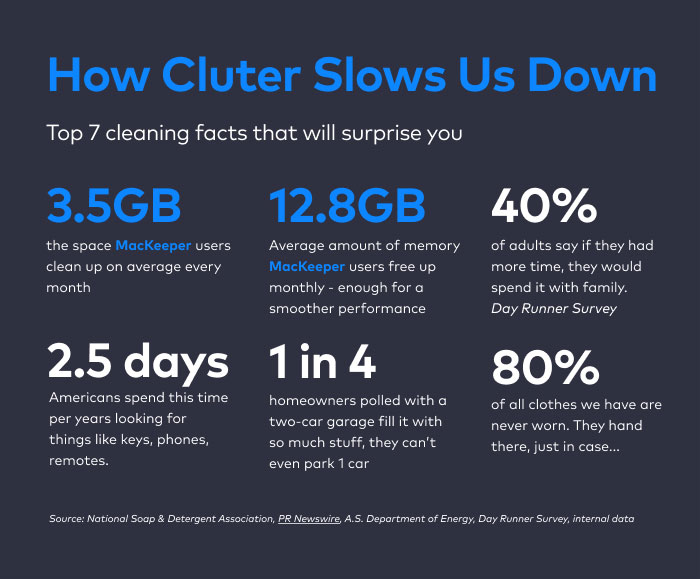
The intuitive simplicity of Mac computers is often a key factor for Windows switchers. And it’s mostly the more experienced Mac owners who know the truth: Macs simply slow down over time. Just like every other machine – without proper maintenance, they gradually lose the gloss and speed of the day you bought it.
Symptoms often include browser slowdown (when opening 10+ Safari tabs feels like wading through a swamp), overheating (your Mac charging area turns into a hot plate), or even acting up like a teenager (apps won’t open without showing you a spinning beach ball).
Hard drive cleanup is one of the easiest ways to fix a sluggish Mac. Have you checked recently how many files are stored on your Mac? And do you really need all of them, in the current era of cloud storage? Does it make sense to keep thousands of vacation pics “just in case” – ones you haven’t even looked at in the last 5 years?
If the answer is no to any of these questions, you’re not alone. To fix this (in the simplest way), you can download MacKeeper now – it does the cleanup routine for you, while optimizing your Mac performance speed at the same time. But let’s review those cleanup tips now.
Full speed and PC protected: MacKeeper does it all for you
If you’ve been using a Mac for at least 6 months, you’ll find there will be lots of useless stuff to clean up. It’s usually lurking in the Trash and Downloads folders, along with apps you never use; they can waste up to 10GBs of disk space, or even more.
To explore where the rest of your junk files might be hiding, try this trick. Go to Finder > Go and hold down the Option/Alt key to see the hidden Library folder. Here you’ll see folders named Caches, Logs, and Mail – the latter being probably the biggest space-gobbler of all, eating up 2-3GBs by storing unnecessary mail attachments.
Removing duplicates is a smart move too. Annoyingly, there’s no system folder that contains all duplicates. To spot similar photos on your Mac, you’ll need to check all your photos manually. The easiest way to do this would be to use special duplicate removal software. You can download MacKeeper for free if you want to smash any duplicates in just a few clicks.
The entire cleanup process can take hours and can get quite exhausting and tedious at times.
Automatic Cleanup: MacKeeper Is The Ultimate Timesaver
If you think you’ve got more fun things to do than spending cosy evenings checking system folders, you’re right. Software does it better. One of the trusted and proven apps to do the cleaning job is MacKeeper. It comes with probably the widest functionality we’ve seen, and here’s your free download link.
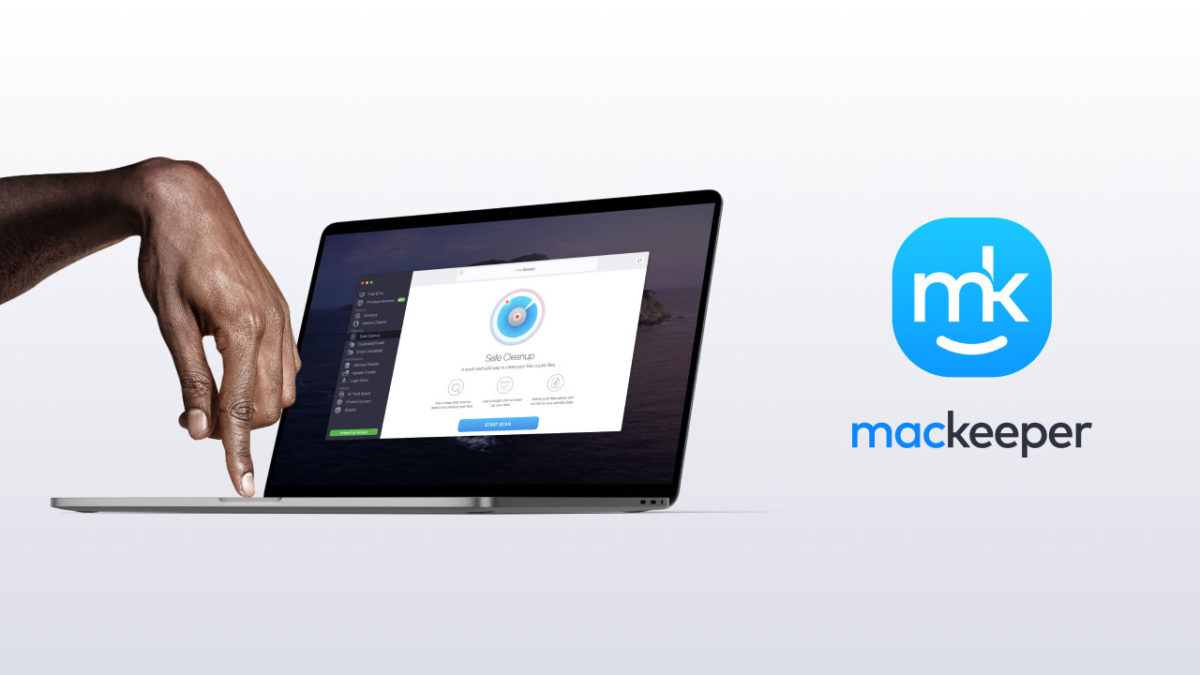
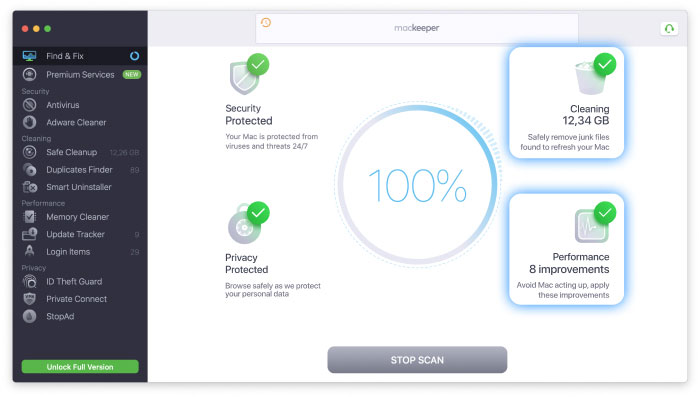
We found MacKeeper pretty intuitive and easy to use. It combines 12 Mac tools in one, but there is no need for you to go painstakingly through each one. Their Find & Fix is a single dashboard that does all that cleanup for you in just one click, removing junk files, duplicates in your Downloads folder, and any app leftovers swiftly and easily. What’s more, it will also clean up any adware threats, and optimize your Mac’s performance as an added bonus.
So, what does MacKeeper actually clean up? Check out their Safe Cleanup tool to purge system junk, including caches, logs, useless Mail attachments, and Trash (everything you’d spend precious time rummaging through system folders to find). Next, get rid of numerous photo duplicates with Duplicates Finder. And Smart Uninstaller will free up the most disk space – using one-click app removal, you can also uninstall pesky app leftovers and preference panes. But don’t stop there: Smart Uninstaller can also remove useless widgets, plugins, and browser extensions.
Full speed and PC protected: MacKeeper does it all for you
Slow Mac? When yours feels a little bogged down, try running MacKeeper’s Memory Cleaner to stop memory-hogging processes. Their Update Tracker will make sure your apps always stay up to date – you can install all the latest versions in a click, be it 2, 18, or even 40 available updates. Finally, if your Mac startup still takes ages, consider running Login Items to manage what should be loading when your Mac starts, and what shouldn’t.
And on top of all this, it’s a robust security app too. There’s built-in antivirus and adware protection that works in real time, keeping your Mac safe, whatever you download. But the thing that singles it out? MacKeeper protects your privacy like no other cleaning app. It monitors your email for data breaches to find password leaks, blocks ads and trackers, and even includes a VPN to secure your connection.
The Bottom Line
Download MacKeeper to make storage cleanup simple and safe. Make sure your disk space doesn’t fill up with unnecessary stuff – all without compromising your security or privacy and without putting a single personal file at risk.