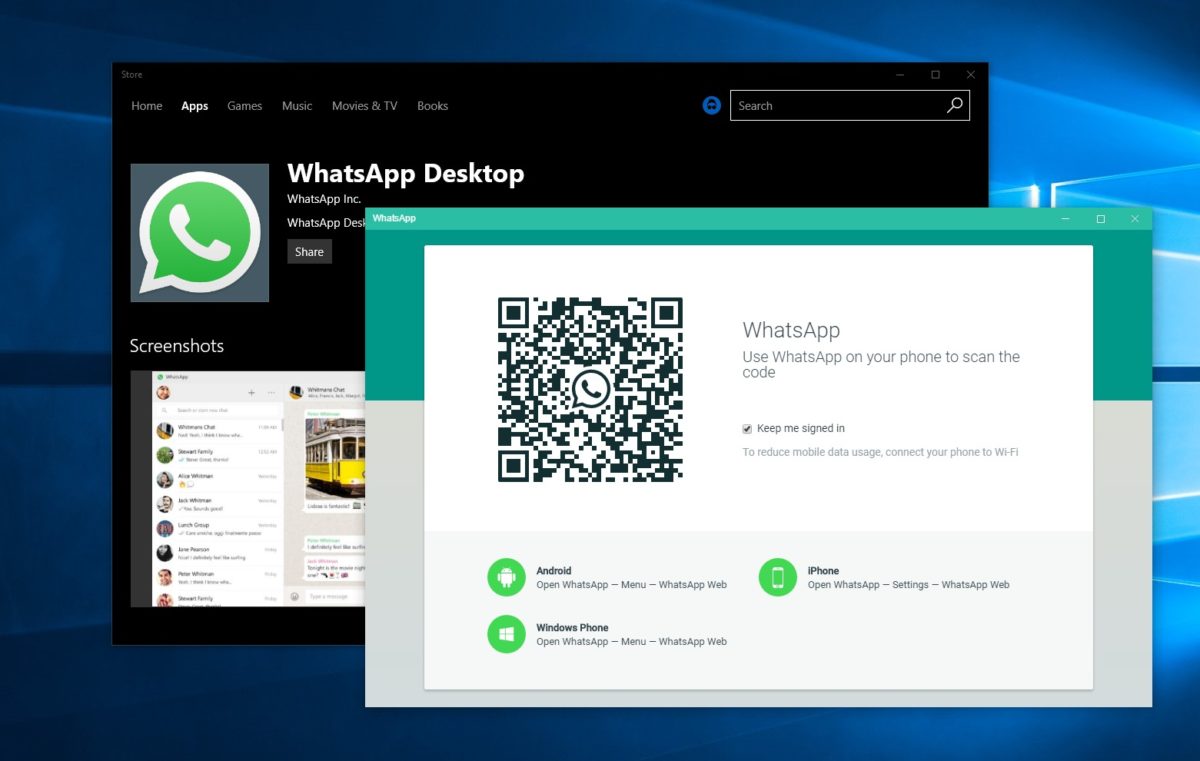
How to use WhatsApp on Windows


WhatsApp offers a great way to chat with friends for free from your phone. But did you know you can also use WhatsApp on a Windows PC?

Using the BlueStacks App Player for Windows, it’s possible to install WhatsApp on your computer. This gives you the ability to send and receive WhatsApp messages without having to pull your phone out of your pocket.UPDATE: WhatsApp has come out with an easy way to chat from your computer. It’s called WhatsApp Web and you’ll need Chrome, Firefox, or Opera and the latest version of WhatsApp for Android, BlackBerry, and Windows Phone. Learn more about WhatsApp Web and how to use it here. If you prefer to download WhatsApp on your computer, have a look at WhatsApp for PC instead!

[materials]–>

How to install WhatsApp on a PC

To get WhatsApp on your computer you first need to download and install BlueStacks App Player. This is a free program that emulates Android applications on your PC. You can use it to run many Android apps and games through a windowed interface on your computer. Don’t worry, it’s very easy to use, as you’ll see.

The next thing you’ll need is a mobile phone number. This is used to verify your account and the app looks at your mobile phone contacts to find out which are using WhatsApp. If you already have WhatsApp installed on your phone it won’t work, since you can only run one instance of the app per phone number.

<!–[/materials]

–>

[body]–>

Setting up BlueStacks

Once you’ve installed BlueStacks App Player you’re ready to get WhatsApp onto your Windows PC. Here’s how it’s done:

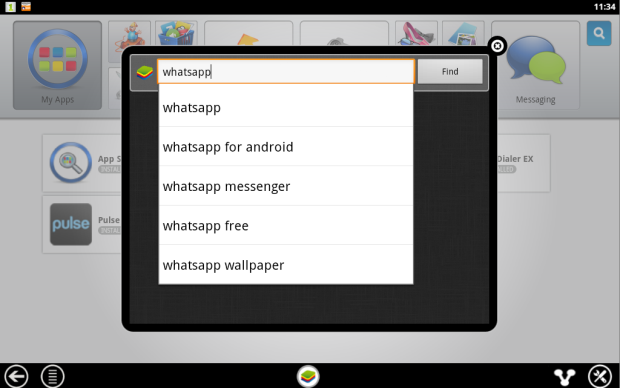
1. Click on the App Search icon in BlueStacks and perform a search for “WhatsApp”. Click Find.
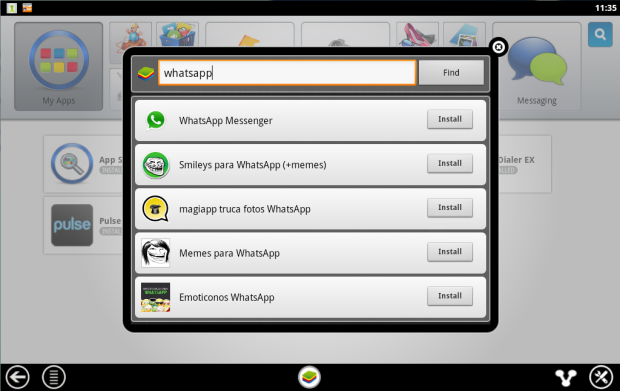
2. In the results list you should see WhatsApp Messenger as the top result. Click Install.
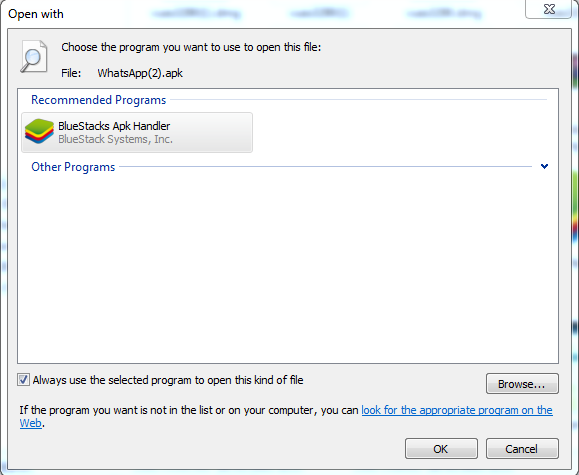
3. If you can’t find WhatsApp Messenger in the BlueStacks search, or if it won’t install, go download the WhatsApp APK file from the official site. Right click on the icon once downloaded, select ‘Open with…’ then choose BlueStacks Apk Handler. Click OK and WhatsApp will be installed in BlueStacks.
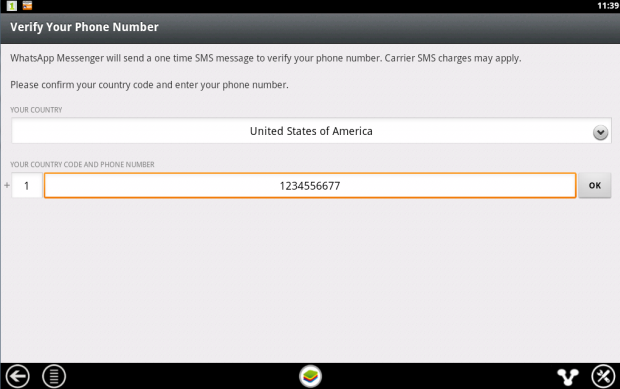
4. Once installed, clicked the WhatsApp icon in BlueStacks to launch it. When you run it for the first time you’ll be asked to verify your phone number. Select your country followed by the phone number you want to use for WhatsApp.
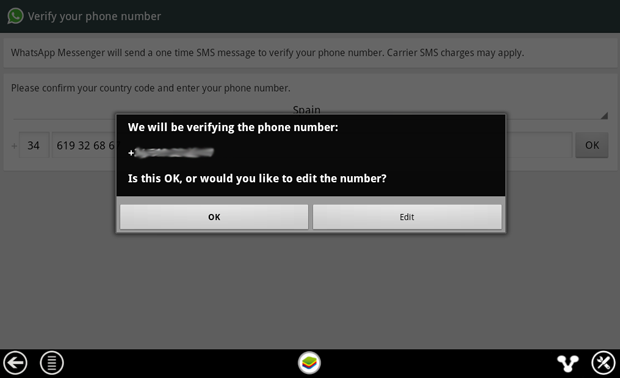
5. When confirmation of your number comes up, make sure the number is right then click on OK to proceed.
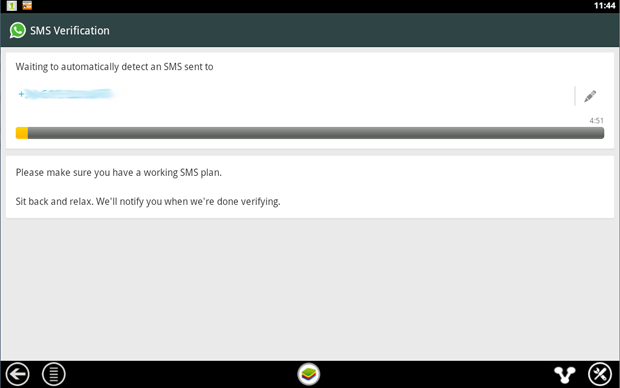
6. WhatsApp will now attempt to send you an SMS verification message. This will fail but you need to wait until it’s finished anyway.
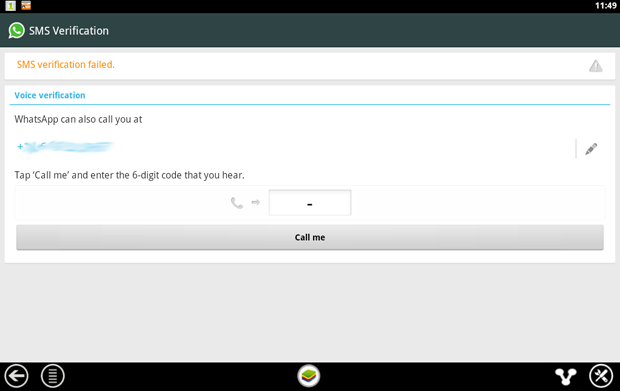
7. When the SMS verification fails, you’ll be given the option to be contacted by phone with the verification code. When you click the Call me button your phone will ring after a few seconds and a recorded message will read you the code. Type this code into the space provided.
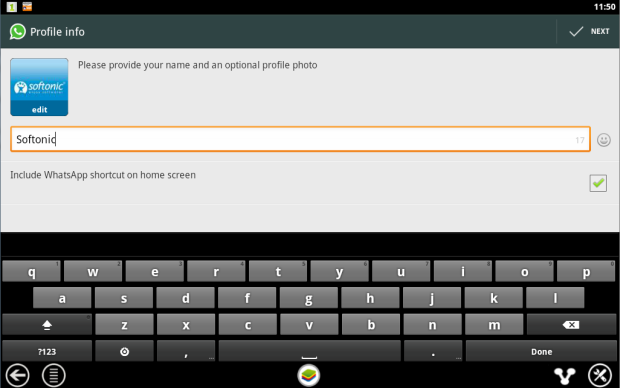
8. When you’ve correctly entered the code you’ll be prompted to set up your profile information. Enter a name and add a profile picture if you like.
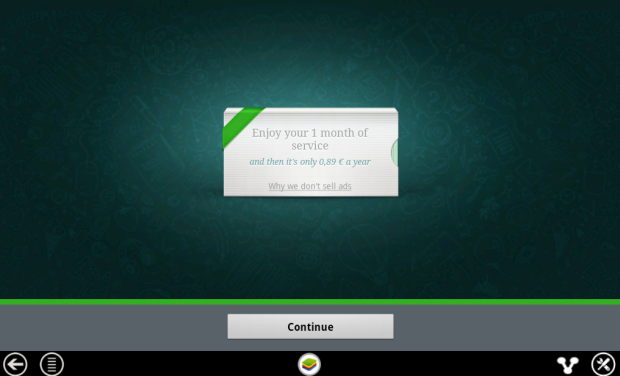
9. You’ll be reminded that WhatsApp is free to try for a month, after which time you need to pay on an annual basis.
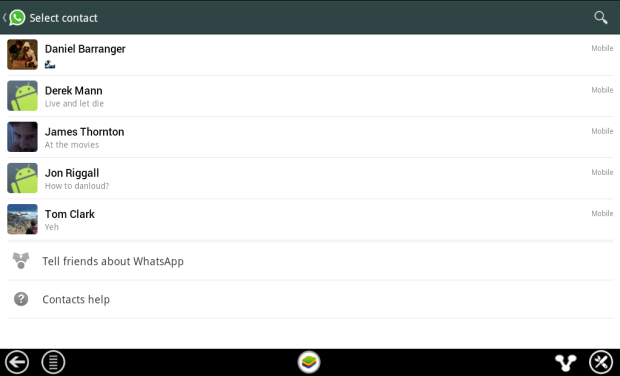
10. After clicking Continue your WhatsApp contacts list will be loaded. This is based on your phone contacts (on the number you used) who have WhatsApp installed. Click on a contact to start chatting to them.
11. Now you can chat away to your contact on WhatsApp, in just the same way as you would on a mobile device. You can switch between the keyboard and emoticons using the icon next to the message input box.
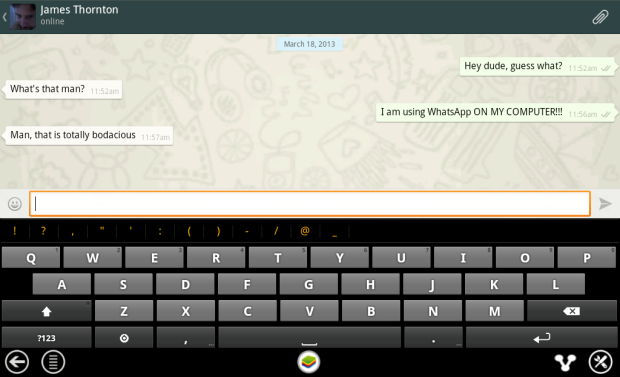
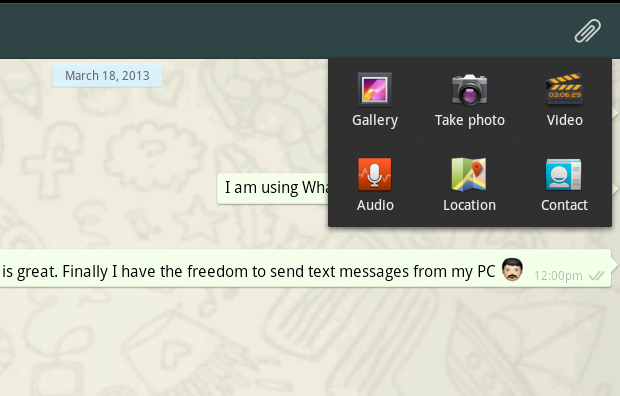
12. It’s possible to use some of the file sharing features of WhatsApp on your PC. In our tests we were able to send photos, video and audio. To send files using WhatsApp click on the paper clip icon in the top-right corner.

<!–[/body]

–>
Conclusion

There you have it! That’s how you can run WhatsApp on your PC. While it might be a work-around, it performs well and will tide most users over until WhatsApp decides to release a desktop client.
iPhone: how to send an MP3 via WhatsApp

Want to send a music file with WhatsApp for iPhone? For Android users it’s easy to send a song via WhatsApp, because it’s the operating system itself that offers the option. For iPhone users, it’s another matter.

WhatsApp for iOS allows you to send pictures, videos, contacts and geographic location…but not music. Fortunately,  sending an MP3 via WhatsApp for iPhone is still possible. All you need is the help of a free app that offers an Open With option. There are a few of these, but iZip seems to be the most suitable for our purpose.

Here, I’ll take you through how to send an audio file with WhatsApp for iPhone.

How to send audio files using iZip

1. Install iZip on your iPhone. Open the program.

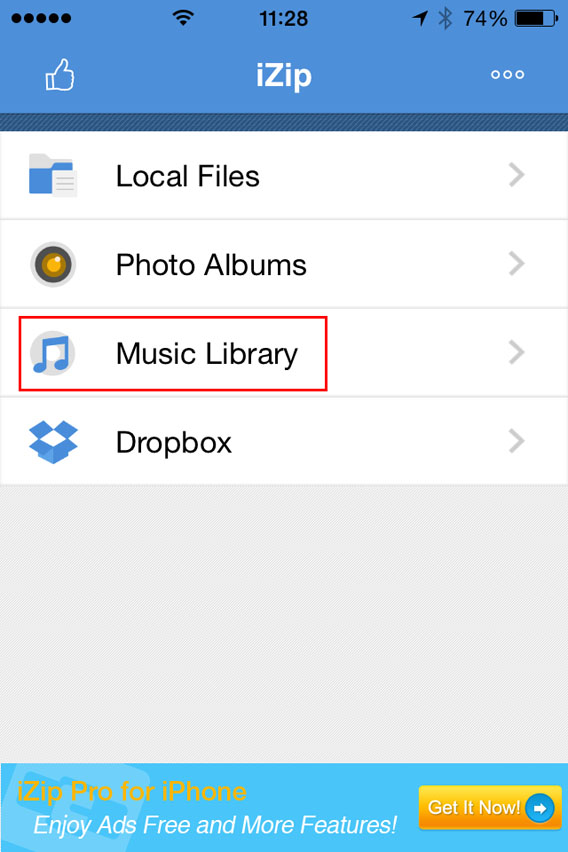
2. Select Music Library.

Select Music Library from the menu

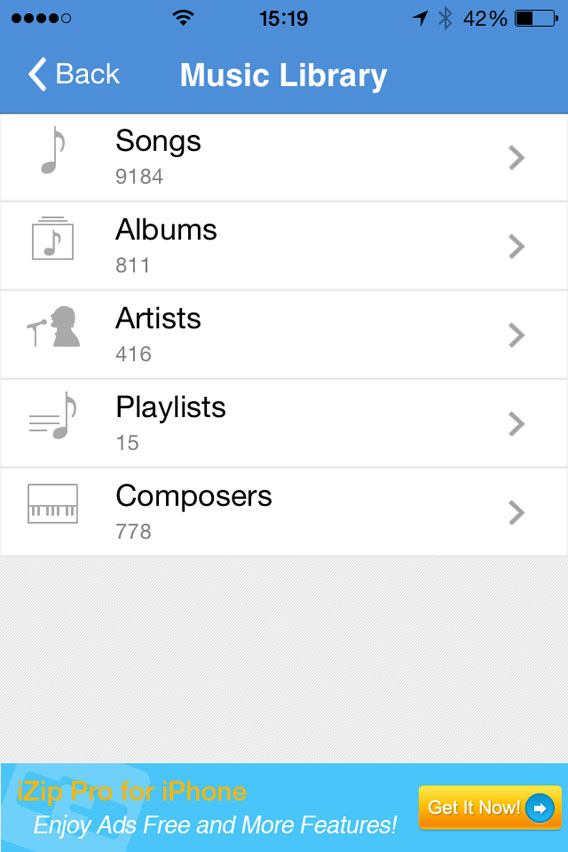
3. Open a folder (e.g. Albums).

Select a folder in the Music Library

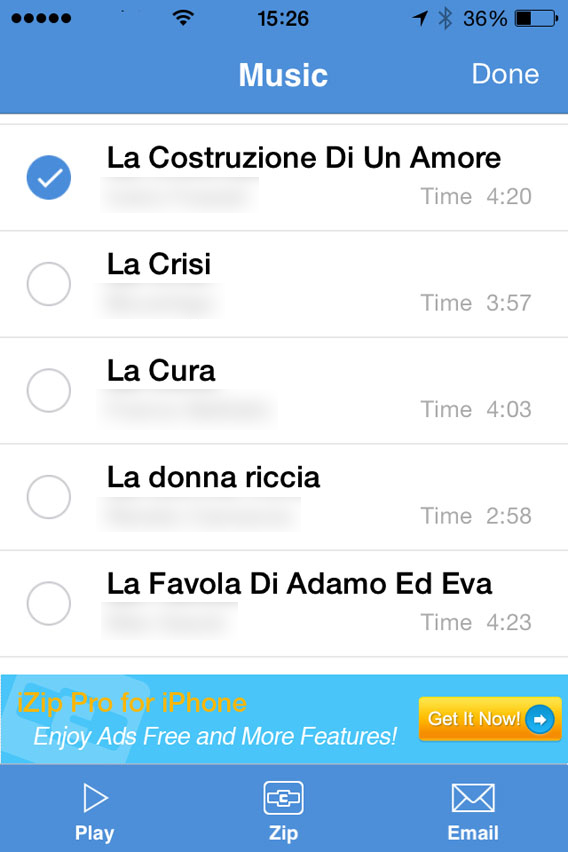
4. Tap Select in the top right of the screen and choose the song you want to send with WhatsApp. At this point, Select will be replaced by Done.

Select the song you want to zip

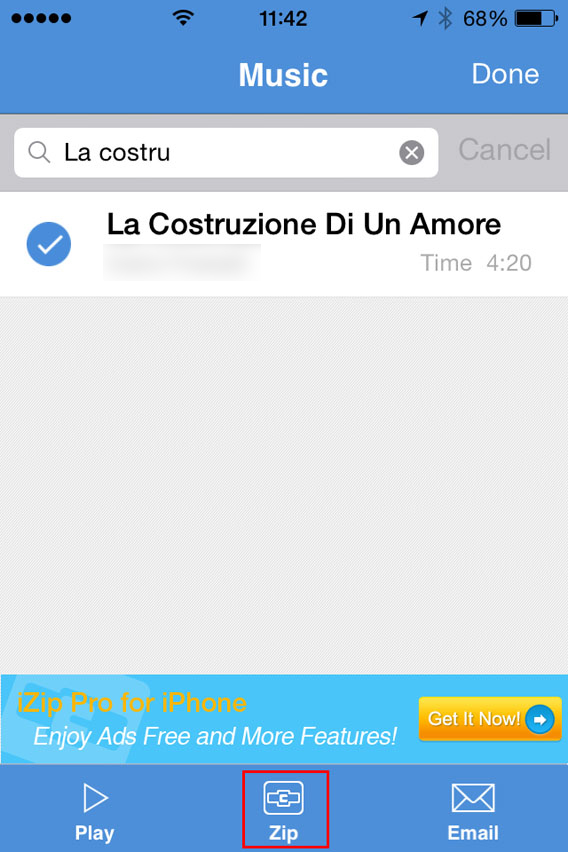
5. Tap the Zip button at the bottom center of the interface. The app will compress the file.

Select the song and then zip

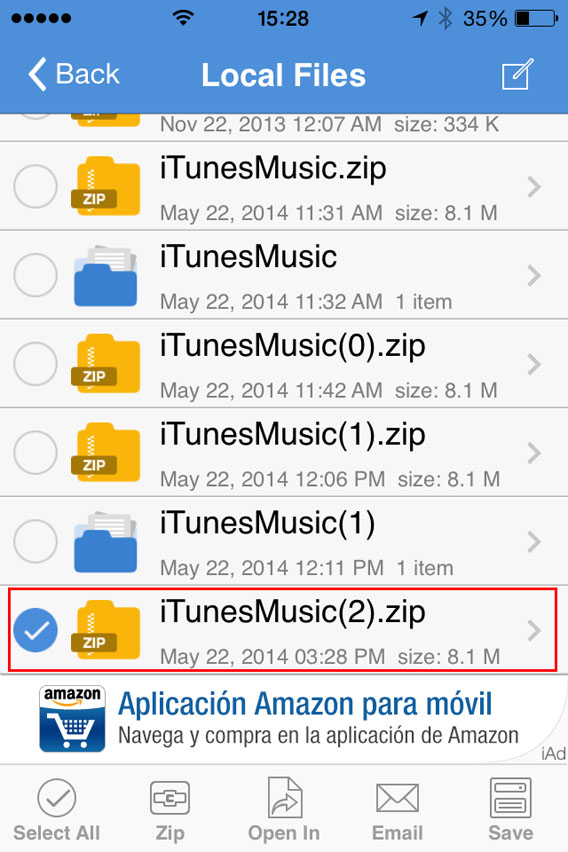
6. This will open the folder Local Files. From there, you can select the ZIP file you just created.

Select the ZIP file you just created

7. You’ll be asked Would you like to extract all files? Tap OK .

Do you want to unzip the file

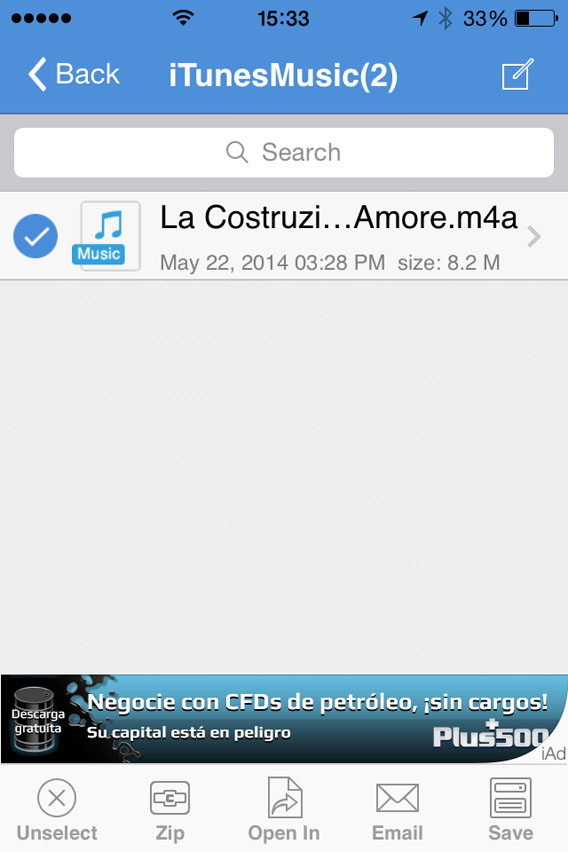
8. This automatically creates and opens a folder in Local Files with the decompressed song. Then select the file .

Select the file to be opened with

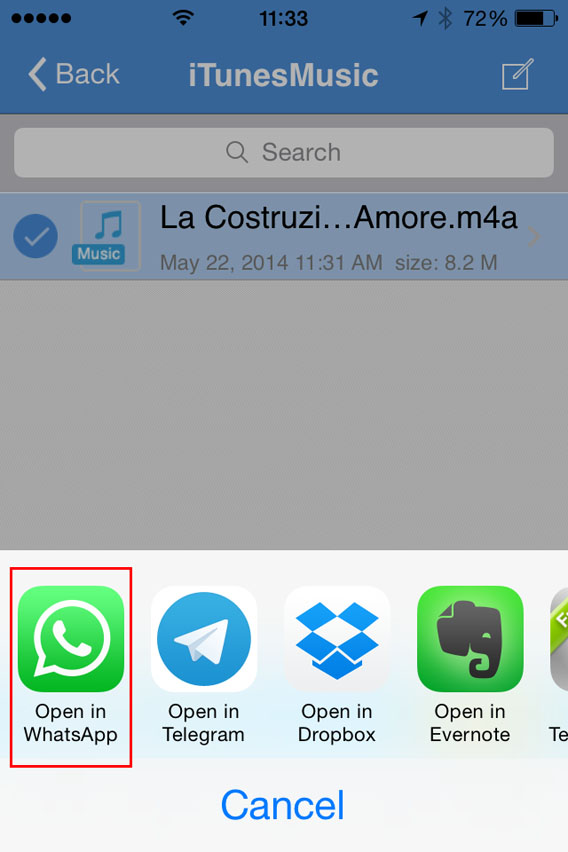
9. Now, tap Open In (at the bottom center of the screen) and, from the choices that appear, select Open in WhatsApp.

Select Open in WhatsApp

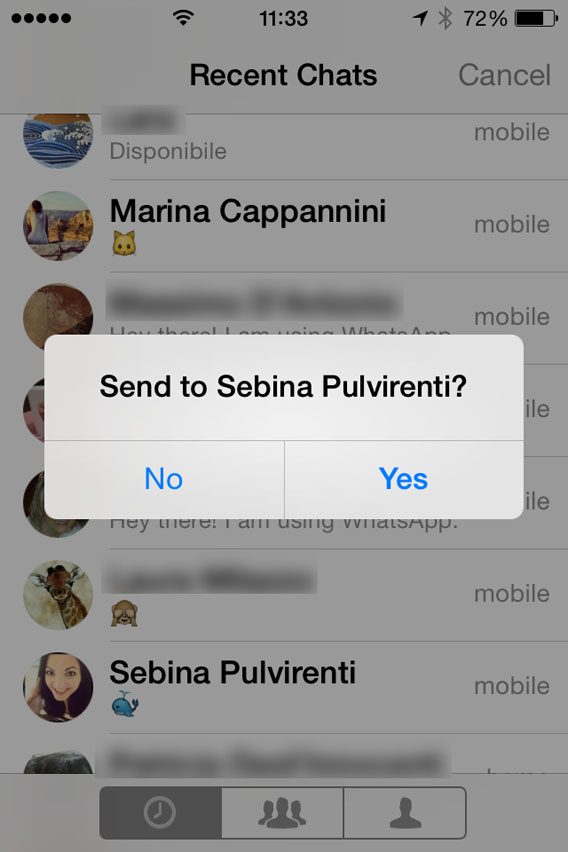
10. It will open WhatsApp automatically. Select the user you want to send the MP3 to, and when it asks you to Send to [contact name], click on Yes.

Confirmation sending files to contact

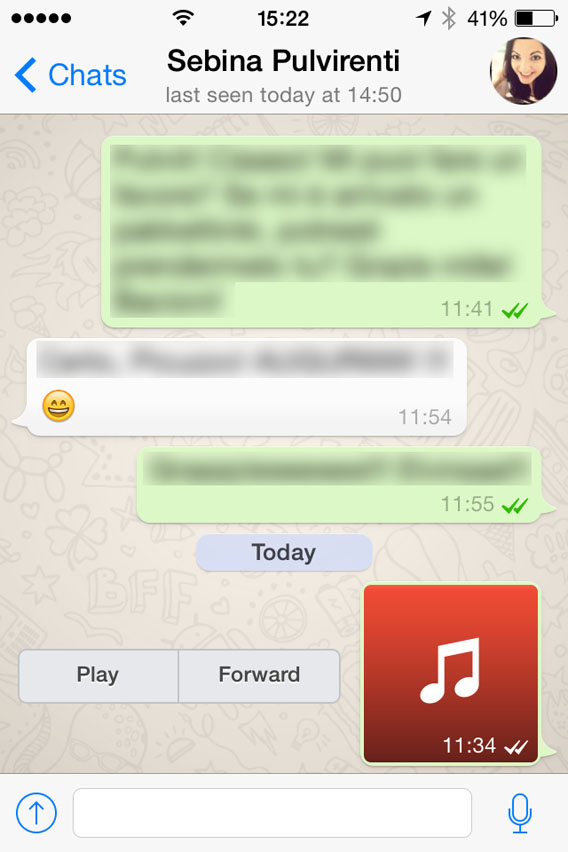
At this point, the file will load and send. When the recipient receives it, you can listen to it by tapping the Play icon next to the music file.

Listen to the file received

Beware of copyright

This method lets iPhone users exchange music via WhatsApp, even if the procedure is a bit more complicated than for Android users.Remember, however, that sharing music files protected by copyright laws is illegal, so only send audio or music that can be freely shared.

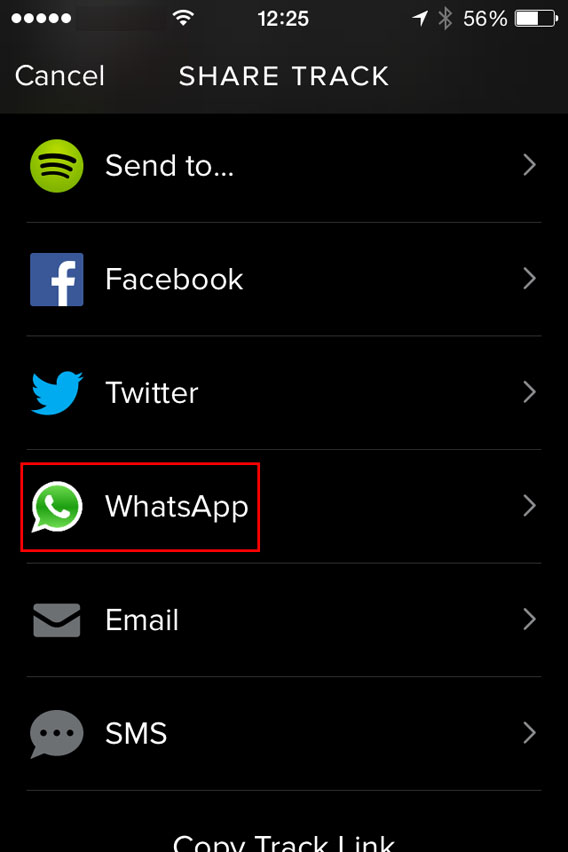
One last tip: if you want to share a new song with a friend, instead of sending the file, you can share it with them via Spotify. To do so, just find the song you like, tap the menu with the three dots next to it, and select WhatsApp.

Spotify - Share with Whatsapp

Then, select the contact, confirm you want to send it, and you’re done. Simple, fast, safe and totally legal.

If you’re looking for other tricks for using WhatsApp, look for them in the index of our comprehensive guide to WhatsApp.

Snapchat: everything you ever wanted to know

In this FAQ we focus on Snapchat: with these 13 questions and answers you’ll learn everything you’ve ever wanted to know about the app and its use.

Snapchat has become an essential app for those who wish to send messages that self-destruct. However, there are many questions that need a answers.

Confidential information and user account

How do you open an account with Snapchat?

It’s free and simple. Remember that the official Snapchat app is only available for Android and iPhone, but 6snap, the unofficial app for Windows Phone works just the same.

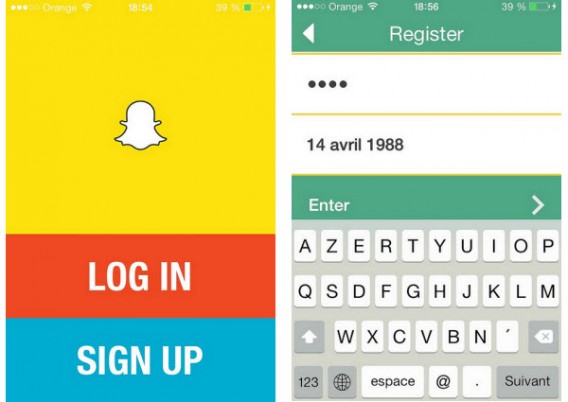
Once you’ve downloaded the app, select Sign up and fill in the fields with your email address, password, and date of birth.

Snapchat sign up

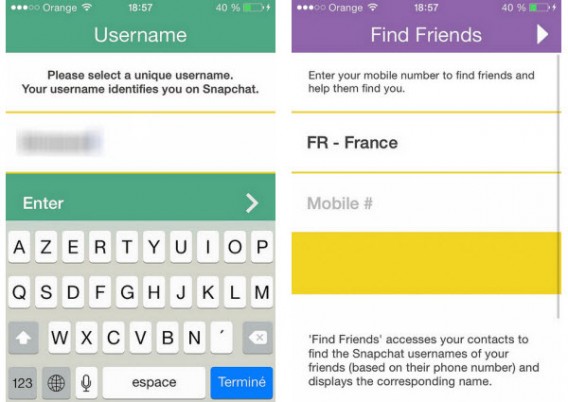
Once you pass verification, you have to choose your username. You can link your phone number to the app to help you find your friends (although this is not a prerequisite).

Snapchat username and friend search

Can I change my account and my personal information?

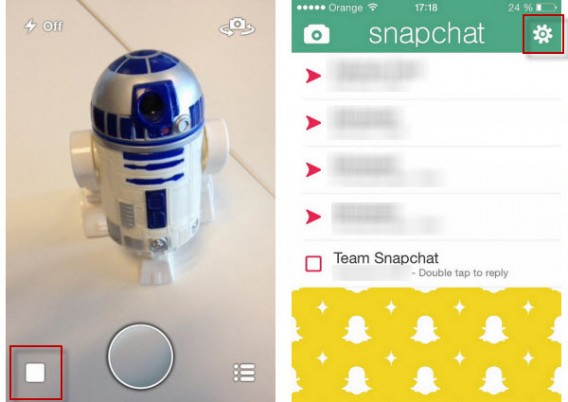
Once the account is created, you can modify certain personal information from settings.

Snapchat settings

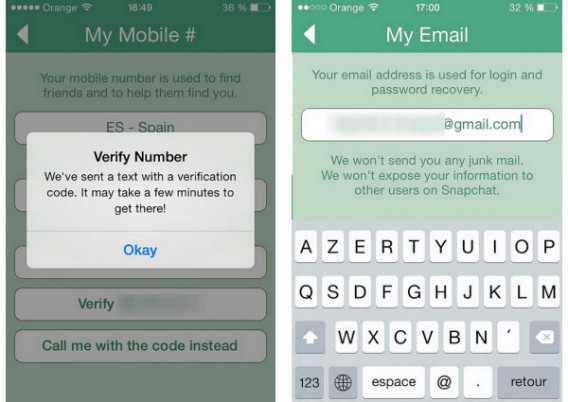
On this menu you’ll be able to change the phone number associated with your account (Snapchat will then send you a code via SMS for security reasons) and the email address where you receive all the important notifications from Snapchat.

Snapchat verification

However, you won’t be able to change your username. If you want to use another nickname, we recommend you close the account and open a new one.

How do I add friends to my contact list?

The easiest way to add people to your contact list is to link your phone number to your account. Then simply go to the contacts menu in the Add Friends option.

Snapchat add friends

The app gives you two options to add friends. On the first, it gives you a list of the people in your address book who are using Snapchat. The search tab, symbolized by the magnifying glass, lets you search by username.

Snapchat add friends

In summary, if you want to add someone on Snapchat, you must know either their phone number or exact username.

How do you know if someone has blocked you or deleted you?

Snapchat doesn’t send notifications when one of your friends blocks you or deletes you from their contacts.

When someone blocks you, they will disappear from your contacts list. You won’t even be able to find them through Snapchat’s search engine.

If, on the other hand, someone deletes you from their contact list, they will still appear on your list of friends, but if you send them a picture, they won’t receive it.

Getting started with the app

How do you access Snapchat’s menus?

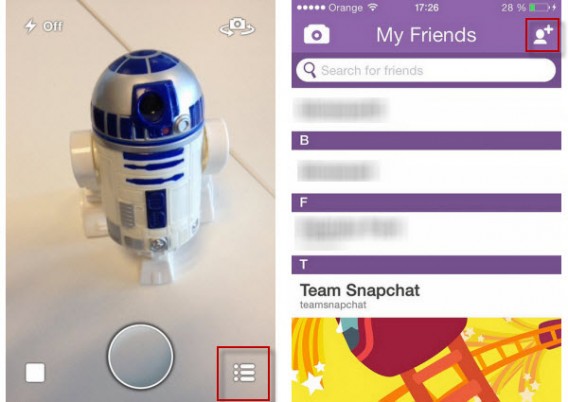
Snapchat has three main screens. Every time you open the app you start at the camera. To access the main menu, you must select the square button on the bottom left or drag the screen from left to right. To see your friends, select the icon in the bottom right corner or drag the screen from right to left.

Snapchat main interface

Can you send videos via Snapchat? How do you go from Photo mode to Video mode?

To record a video for your contacts, you simply have to leave your finger on the trigger. The maximum length of a video is 10 seconds and the sharing process is the same.

How do I choose how long the picture will be seen?

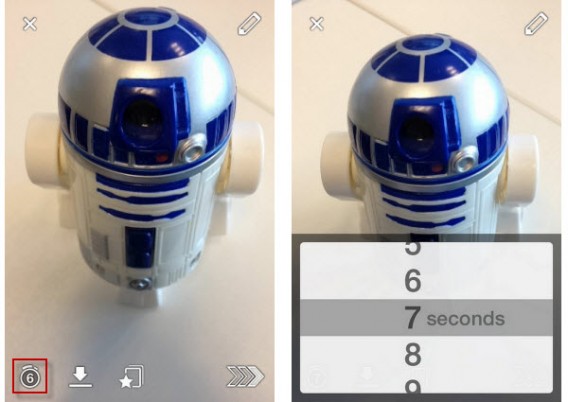
To change the allotted time you must first take the photo or video you want to share, then click on the stopwatch icon. A drop-down menu will let you set the timer from 1 to 10 seconds.

Snapchat change time limit

Can you import photos stored on your smartphone?

The answer is no. You can’t send any of the photos stored on your iPhone or Android. There are some applications like SnapRoll for iOS, but for security reasons we don’t recommend using them.

Can you comment on photos?

No, you can’t send comments on the photos or videos you receive. When taking your snaps, you can add text to the picture or video in two ways. With the pencil on the top right of the screen you can write or draw freehand. You can also add text by tapping on the screen.

If you want to comment on friends’ pictures, you can reply by sending them another photo or video. To make it easier, your friend’s username will already be selected when taking the picture. Don’t forget that Snapchat doesn’t have a standard chat system.

What is the 403 error message?

Many users complain about getting a 403 error message when sending a message to their friends. Don’t worry, it’s not your smartphone, it’s a technical problem with the app itself. You can try to uninstall and install the app again to get rid of this message. If this doesn’t work, wait until service is restored.

Advanced Features

Can you save any of the pictures, and what does the Screenshot message mean?

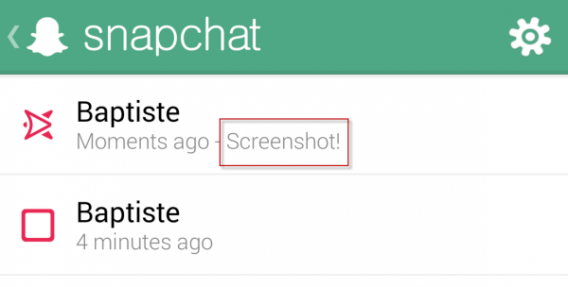
The answer is yes. Although Snapchat messages self-destruct, it’s possible to take a screenshot of the picture or video you were sent using the smartphone’s physical buttons. So, be careful with what you send and who you sent it to.

If your friend takes a screenshot of what you’ve sent, you’ll get a notification – sometimes. This depends on the smartphone you are using. Screenshots taken with an iPhone are systematically detected, while those made with a Google Nexus 5 weren’t detected during our tests.

Snapchat screenshots

How do you add filters to photos?

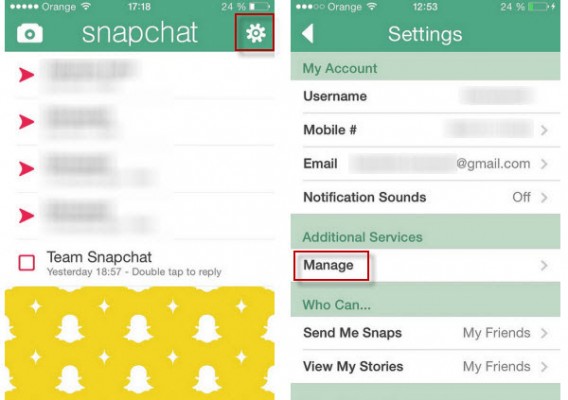
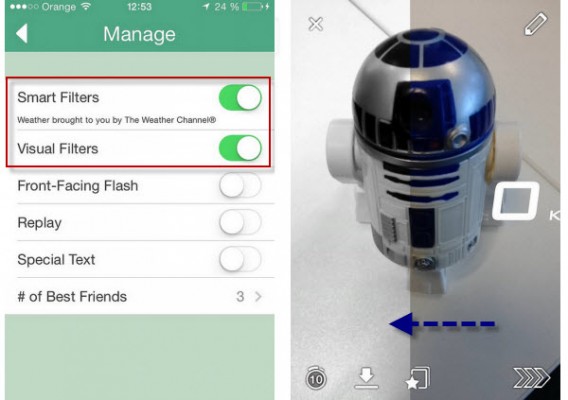
To add filters to your photos like with Instagram, you must enable the corresponding feature in the Settings menu: just click Manage under Additional Services.

Snapchat additional features

Snapchat filters

You can then activate visual filters to add effects to the pictures. Smart filters, on the other hand, will let you add a watermark with additional information (phone speed at time of photo, time, weather, etc.).

What are Snapchat Stories and how do you make a photo public?

Snapchat launched Snapchat Stories with their October 2013 update. Snapchat Stories can be compared to the “walls” found on other social networks. The snaps and videos you add to your Story are not public; they are only visible to your friends for 24 hours.

If a friend shares a photo only on Stories, you’ll have to access their profile to see the picture.

Snapchat Stories

Wrapping up

When using Snapchat, more than with any other app, it’s very important to understand how it works, or you can end up sharing content with the wrong person. So be careful with the publications that appear in your Snapchat history, or you could find yourself in a very compromising situation!

Follow me on Twitter @bbrassart

RELATED ARTICLES

How to use Video on Instagram

Facebook and Instagram released Video on Instagram today. While Twitter’s Vine supports 6 seconds of video recording, Video on Instagram allows up to 15 seconds. While 9 more seconds doesn’t seem like a big difference, creative users will appreciate the extra time.

Instead of releasing a standalone video app, this update expands the usability of the Instagram app. Both iOS and Android are receiving the update at the same time today, but iOS is getting one exclusive feature: Cinema stabilization, which will stabilize video shaking. It’s easy to tell that Cinema stabilization was implemented on iOS because of standardized devices.

The same steps as taking an Instagram photo

Taking video with Instagram is basically the same as taking a photo. After you launch the app and your feed has refreshed, you will see the Instagram photo icon. There is the new, red video camera icon next to the main photo button.

After tapping the camera button, Instagram will enable video recording. The Instagram icon to the left of the record button will take you back to the photo menu. When you’re ready to take video, hold down the red camera button to record.

Add a filter and cover

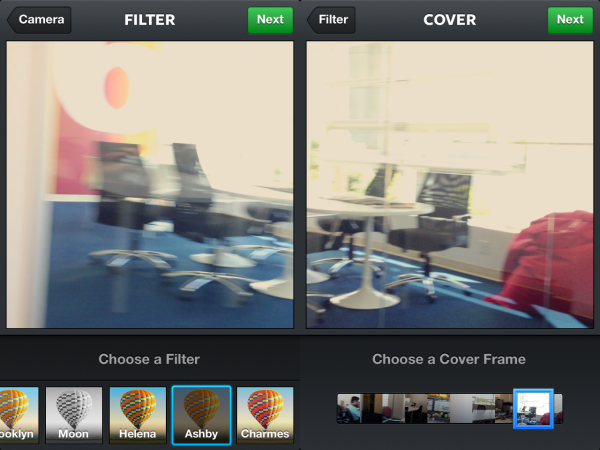
Instagram gives users 13 new filters to apply to their videos. Unlike the photo filters, the video filters are a little harder to differentiate from each other, but this will probably depend a lot on the recorded video.

Once you apply the filter, you choose your Cover Frame. This is the image that will be shown in your Instagram feed. The slider will scroll though the entire video so you can pick your favorite image.

Share online

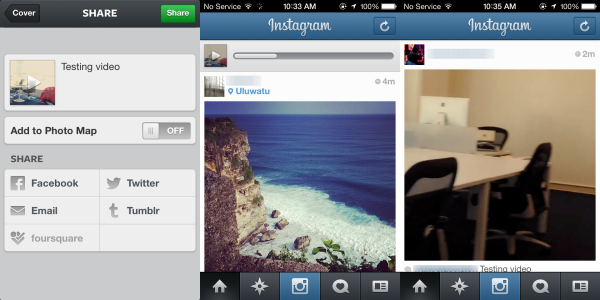
With your video recorded, filter applied, and cover frame selected, sharing the video is the same as sharing a photo. Enter your text and choose the different social networks to share to. Once you press “Share,” the video will upload. The time for the upload to complete will depend on your connection. After it’s uploaded into your feed, all you have to do is tap on the cover frame for the video to play.

Facebook versus Twitter

Right now it doesn’t look like you can tag people in video like you can with photos, but this may be a possible update in the future.

Video on Instagram is the logical next step for the app. Users on Vine have been able to create some impressive short videos. Instagram’s 15 seconds will allow users more time to create interesting video.

This update puts both social networks head to head again, but Facebook was smarter by releasing identical updates for both Android and iOS simultaneously, instead of Vine releasing a very basic version for Android compared to iOS.