Google Search app for Windows Phone updated, still missing Google Now

Google and Microsoft may have a rocky relationship with their competing mobile platforms but that hasn’t stopped Google from updating Google Search for Windows Phone with more features. Windows Phone users finally get voice search and autocomplete but there’s something missing: Google Now.

Google Now, Google’s personal assistant, is baked into Android‘s search function while iOS users have access to Now in the Google Search app for iOS. Unfortunately, the new Google Search app for Windows Phone doesn’t include Google Now, one of Google’s most compelling products.

However, Google Search for Windows Phone finally brings supports Voice Search and local search results. Google Instant is also baked into the app so your searches get autocompleted.

Hopefully Google will bring Google Now to Google Search for Windows Phone in the future.

Download Google Search for Windows Phone

Source: Windows Phone Store

RELATED STORIES

Yahoo! Mail for iOS updated with swipe gestures

Yahoo! Mail for iOS received a minor, but a useful update today. The app now supports swipe gestures, allowing users to swipe left or right to view the previous or next email. These gestures are extremely useful especially on the iPad where you can read your message in full screen.

Yahoo Mail for iPad

In addition to the new gestures, the update to Yahoo! Mail for iOS brings bug fixes and stability improvements.

Yahoo! has some catching up to do in terms of features since many mobile emails apps already support swipe gestures like Apple’s own Mail app and the Google-owned Sparrow app.

Download Yahoo! Mail for iOS

Download Yahoo! Mail for Windows

RELATED STORIES

YouTube is down across the web (update: it’s back!)

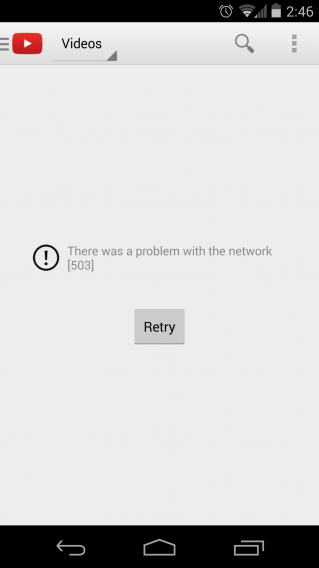
It’s not just you; YouTube is down across the web. As of 2:44PM PST, the world’s most popular video streaming site is displaying a “500 Internal Server Error” on its main sites and videos embedded into other sites.

YouTube error Android

We have verified on different devices on different networks that YouTube is indeed down across the board. iOS devices show an authentication error when trying to access the YouTube App and Android devices show the same “500” error that’s displayed on the web.

We have reached out to Google and YouTube for comment and will update this post as soon as we hear more.

UPDATE 2:52PM PST: And YouTube is back! That was quick. It is still unclear as to what caused the outage but we will update this post as soon as we find out.

Use The Unarchiver on Mac to extract archived files

While WinRar and WinZip are dominant apps for Windows, WinRar’s support for Mac comes in the form of a command line only interface and WinZip wants you to purchase the app after the trial is over. Windows definitely has more free options like 7-Zip which can extract a variety of different formats. Mac users have been a lot more limited with OS X natively only supporting zip format.

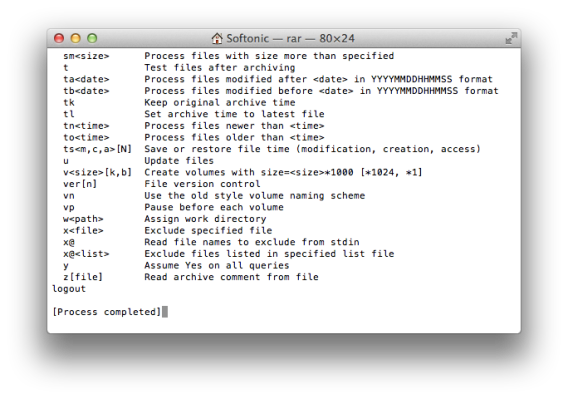
Winrar isn’t the best solution either because it only supports a command line interface. This means you’ll be stuck using lines of text commands to complete the task you want. It’s confusing for someone who has never really used Terminal.

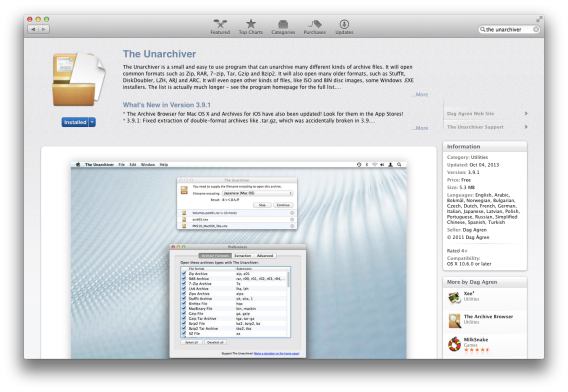
A great alternative is called The Unarchiver. This free app supports OS 10.6.0 and higher and supports zip, rar, 7-Zip, Gzip, and Bzip2 formats. It dives even deeper with support for older archive formats. The main formats you’ll probably deal with are zip and rar and The Unarchiver handles these with no problems.

Using The Unarchiver

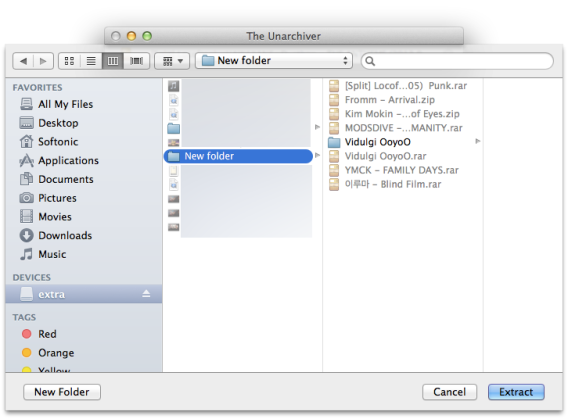
The Unarchiver is a very simple app to use. If you have different archived files on your computer and need to extract them, simply click on them. This will load either a one-click function where it will decompress the file in the same parent folder as the original. Or you can set The Unarchiver to ask each time it runs. If you choose for the program to ask each time it runs, it will open Finder and you can choose where to extract the file.

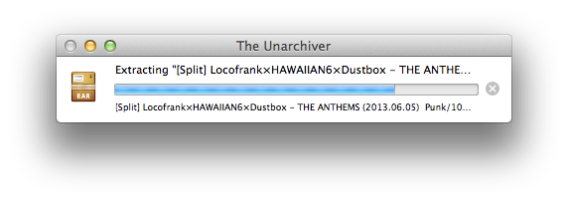
After you select the archive file you want to extract, The Unarchiver will extract the files into the location you chose.

Keep in mind that The Unarchiver is only an app that extract files. It won’t create archive files. You can create zip files through OS X’s Compress option though. If you deal with a lot of archived files, The Unarchiver is a great free option. There are other paid apps, but if all you’re looking for is a quick and painless way to extract files then this is the app to use.

[Original article published June 2010]
Add me on Google+

Ridiculous Fishing for Android coming soon

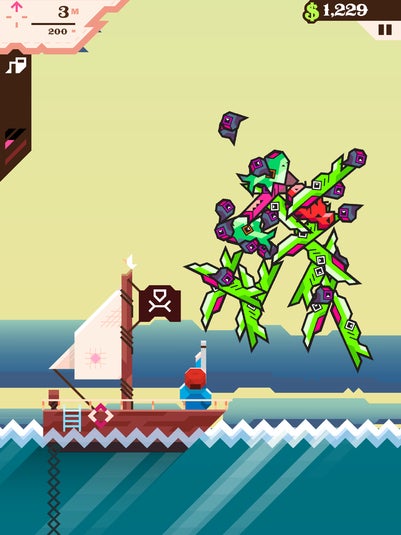
The hilarious arcade fishing game, Ridiculous Fishing, will be coming soon to Android, according to developer Vlambeer. The game first debuted on iOS eight months ago and scored a 9/10 with our editor Chris Park. The premise of the game is to sink your hook as far as it can go before snagging on a creature, causing you to begin reeling fish in. The gameplay may be simple but its unique art style and weapons keep the game fresh.

Ridiculous Fishing for iPad

Vlambeer wrote in a blog post that Ridiculous Fishing for Android will be coming “sooner than you think.” The company has been working since March on creating an Android version of the game but a “breakthrough” only came when they met up with Apportable, a company that has a framework that will make porting the game to Android easy.

There’s no word on pricing or an exact release date, though we expect the game to be priced similarly to the $2.99 iOS version.

Download Ridiculous Fishing for iOS

Source: Vlambeer

RELATED STORIES

How to: install Android APKs with Google Drive

According to netmarketshare, Windows XP still holds a decent market share on desktops. That’s still a significant number considering the different versions of Windows there are in the wild. But if you’re still running this old operating system and own an Android device, you may find trouble trying to install Android application packages (APKs) outside of the Google Play Store.

Back when I was running Android 2.3 Gingerbread, there were a lot of apps that I sideloaded to my device. Now with Windows 7 and Windows 8.1, most Android devices can connect to your computer using USB without any additional software.

In Windows XP, devices are not easily connected. Testing with a Samsung Galaxy Nexus, Samsung Galaxy SIII, Nexus 5, and Nexus 7 2013, I found that each device couldn’t auto-install the proper drivers and be recognized through Windows Explorer.
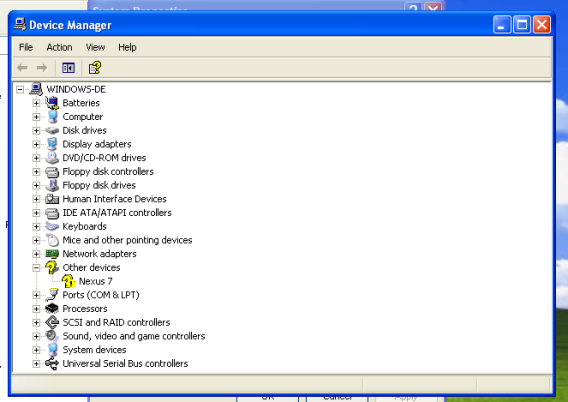
My thought was that if I downloaded the general Android drivers, these devices would connect through USB without having to use any additional software. The result was that every device would not install the proper drivers for each device, making them inaccessible in Windows XP so I couldn’t drag-and-drop files into the internal memory.

There is a complicated method for pushing APKs but you need to install the Android SDK and Java JDK (Java Development Kit) to use the ddms batch file to access the file explorer to push apk files.

An easier method would be using cloud storage. With Google Drive, you can upload APKs and install them from the app on an Android device. It’s now much easier to install APK files using any operating system.

Enable installation of unknown sources

Before you can install an app outside of Google Play, you need to enable the ability to install APKs from Unknown sources. This option is under Security in Settings.
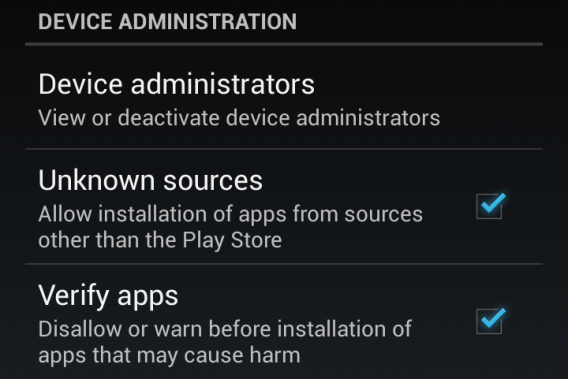
Be aware that installing apps outside of Google Play will be at your own risk. Sometimes these apps don’t have full support on your version of Android and there are security risks when installing apps from third party sources.

Upload and install through Google Drive

Since Google Drive can store any digital file you want, you can store different APK files in its own folder for access whenever you want. Open your web browser and sign into Google Drive. Creating a folder will help you keep track of your different APKs.
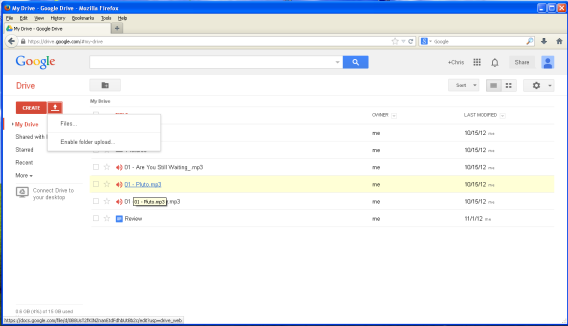
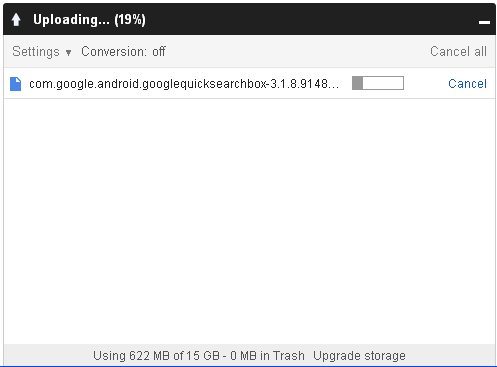
After creating the file, upload the APK. Google Drive will show a percentage status of the upload. If you’re uploading multiple apks, then be patient and wait for the entire upload to complete.
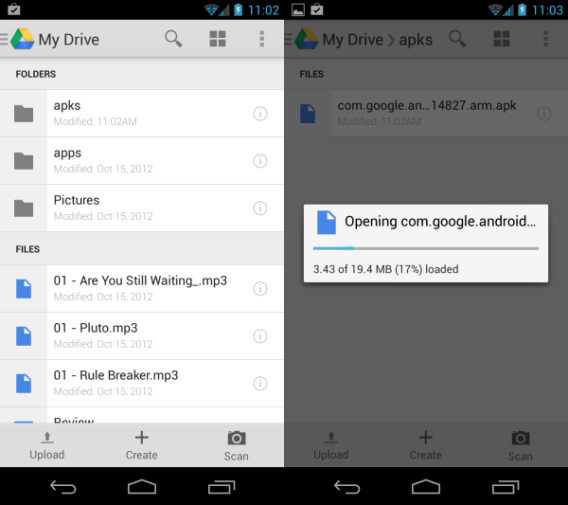
Now that the upload is complete, open Google Drive on Android and locate the same folder in the app. Open the app and tap on the file care in Google Drive. This will prompt Google Drive to open the APK.
Once the APK is finished loading, Android will ask if you want to install the app. The example used is the Google Search APK. As long as you have enabled installations from unknown sources, the APK should install.
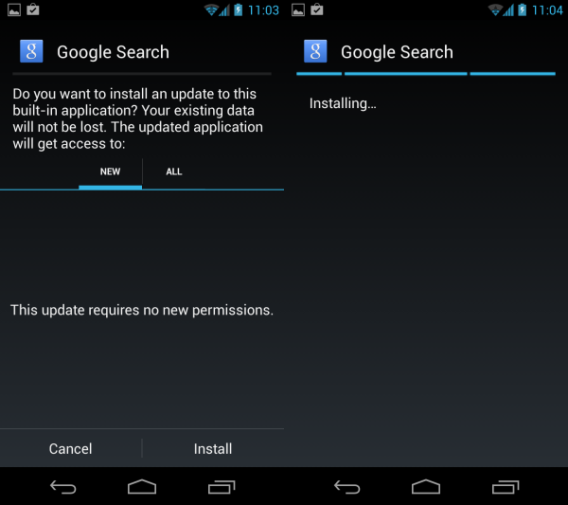
Depending on the size of the app, installation time will vary. But once it has completed, you should have that app installed.

Install through Windows XP

Back when I originally wrote how to install APKs through Windows XP, the solution was to use the Android SDK. This method still exists, but I thought two years later it might be possible for Windows XP to recognize Android devices if updated drivers were installed. Unfortunately, I found that there are still problems with Windows XP recognizing devices through the MTP (Media device) connection. Funny enough, I have installed CyanogenMod 10 on one of my personal devices and this was recognized by Windows XP as a removable drive.

But if you don’t have Google Drive, then here’s the original way to install APKs using the Android SDK.

The tools you’re going to need:

The Android SDK requires the Java JDK so it’s best to install them both at the same time. Astro File Manager can be installed via Google Play. After installing the prerequisite programs, you are ready to begin.

Android SDK

For non-developers, the Android SDK can be a confusing program. The good thing is that you don’t need to worry about most of the included features.
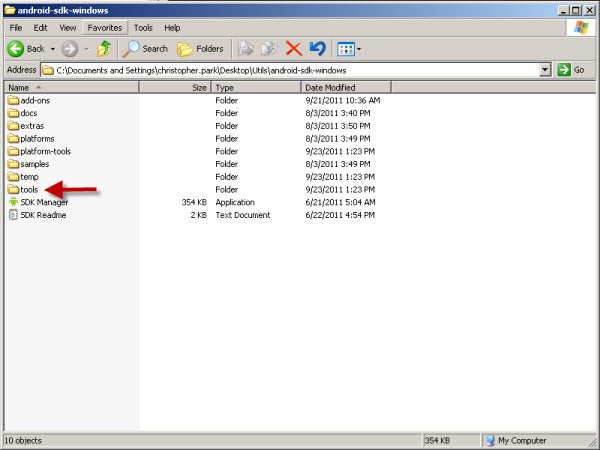
Start the Android SDK and let it run any updates. This will ensure the SDK has the most recent files. After it finishes running, locate the folder where the Android SDK is stored. This may be in your download folder where you installed the SDK package. Locate the “tools” folder which will contain the file you need to run.
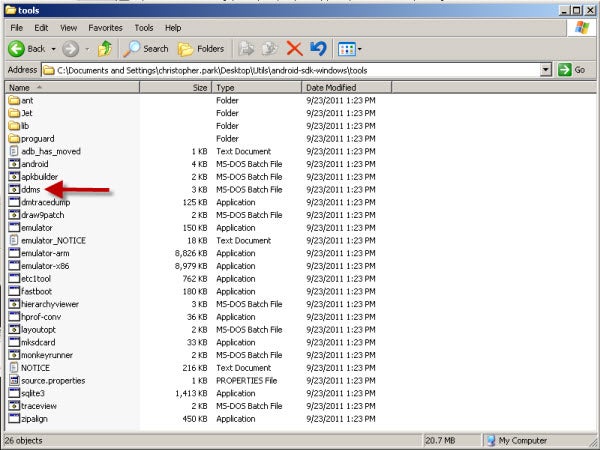
Inside the tools folder, locate the “ddms” MS-DOS Batch File and start it. It is the app that’s used to access the storage of the device. This is the tool that you will use to push APKs to the device. You can push other types of files as well if you want.
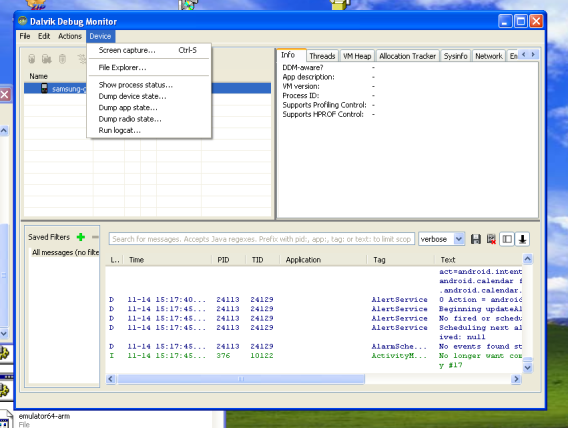
When you start ddms, it will load the Dalvik Debug Monitor. You will know if your device is recognized when it shows up in the name box. It will also show any processes that are happening in the phone. You don’t need to worry about any information that’s scrolling. Go to “Device” and find “File Explorer” and open it.
Opening the File Explorer will display the device’s storage. This is the base level of storage and it’s best not to mess with any of these folders. If you want to load the APK to the device, click on the icon with the phone and the forward arrow. This is the command to manually copy files to storage. If you need to create a new folder, press the “+” icon and that will allow you to create a new folder.
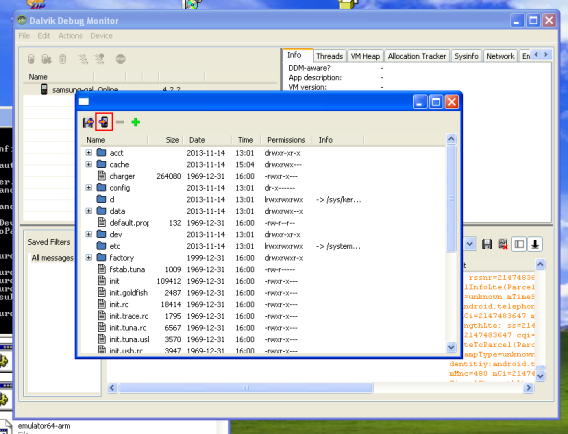
Select a folder that you want to copy the apk in. The location isn’t too important, you need to be able to locate the file when installed through the device though.
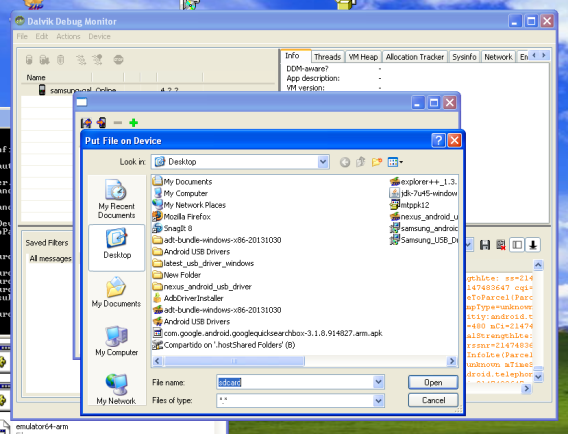
After you copied the file to the device, you can close Dalvik Debug Monitor and the Android SDK.
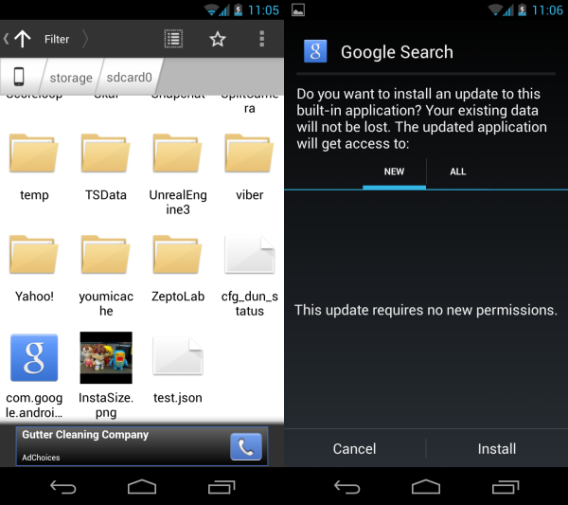
On the Android device, open Astro File Manager and locate the APK. Tap on it and Astro File Manager will ask if you want to install the APK. Agree to install and the installation will start. This process should work on the majority of apps. The main problem that could happen is that the app you’re trying to install isn’t supported by your device.

Generally, using this method isn’t the fastest way to install APKs on a device now that you can use Google Drive or other file management apps that can use cloud storage. But if you don’t want to store APKs in the cloud, then manually copying them through the debug monitor is the way to go.

Cloud storage is the best solution

With Google using Google Play Services to unify the different versions of Android combined with Android 4.4 KitKat‘s support of older devices, more apps should support older versions of Android. Installing APKs outside of Google Play used to be a quick method to get apps you wanted quicker, but now there are more concerns with security and apps found outside of Google Play may contain malicious code.

If you have older versions of apps in their APKs form and want to install an old version of an app, then this is a great method. But outside of Windows XP, the other Windows operating systems should automatically recognize and mount Android devices  as a drive.

Check out more tips for getting the best from your Android phone here.

[Original article from October 2011]

Add me on Google+
GTA V: How to change character

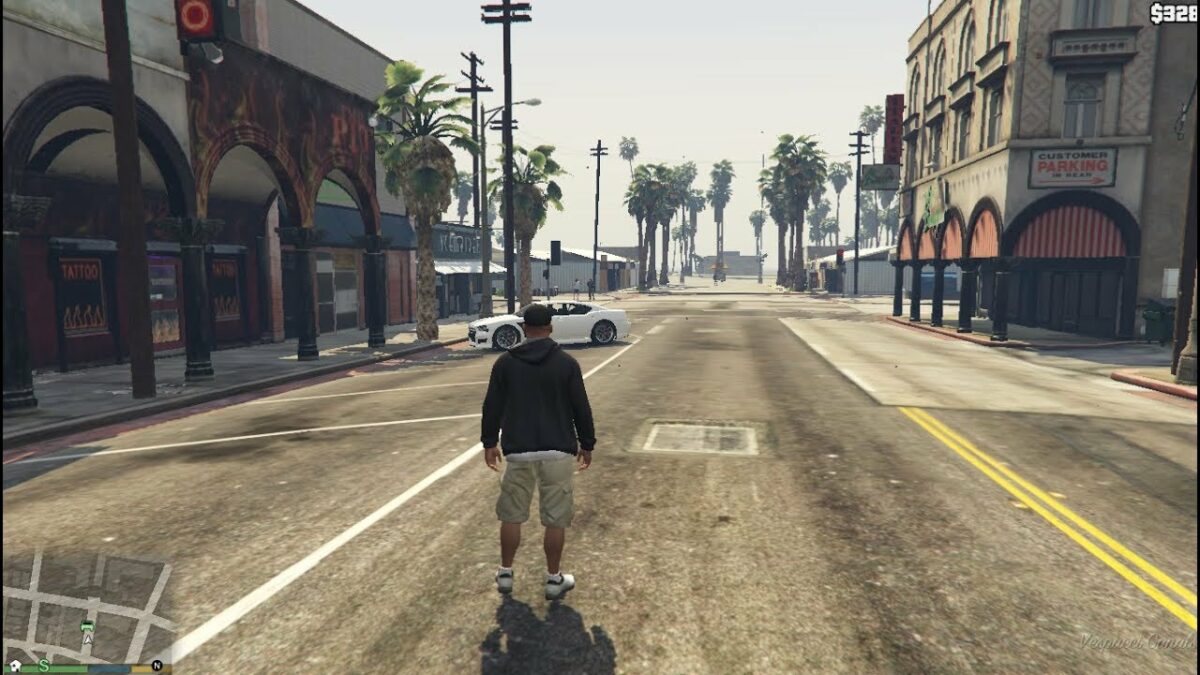
GTA V lets you play three different characters; Franklyn, Trevor, and Michael each have special abilities and you’ll need to switch between one and the other on a regular basis to carry out certain tasks. Let’s see how to master changing characters in GTA V.

How to change characters

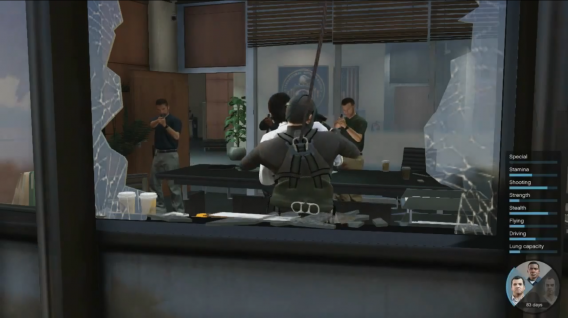
Press and hold the Down arrow key and then use the right (R) stick to select Michael (left), Franklin (Up) or Trevor (Right). The lower area will be reserved for your GTA Online avatar. Note that you can also play Chop, Franklin’s dog, by selecting the left sector!

GTA V A high-voltage mission…

The color codes

During GTA V missions, you’ll have to switch between one character and the another very quickly. Fortunately, a system of flashes of color will give you critical information about the status of each character. When a character must be selected, the picture flashes white. A red flashing light indicates that the character has been injured and needs you to help him. Finally, a translucent portrait indicates that the character isn’t available.

MORE GTA V…

WhatsApp for iOS 7 to be released this week

It looks like the WhatsApp update for iOS 7 will finally be released this week. Late September, we showed you rumored images from the newly-updated interface leaked by a beta tester in Germany, Ilhan Pektas.

According to Pektas, WhatsApp 2.11.5.2187 is in Golden Master, meaning beta testing is over and it’s most likely awaiting approval from Apple. Pektas claims the update will include the following new features:

  • Completely new design, in line with the flat design of iOS 7
  • Enhanced security options
  • New logo
  • Swipe gestures
  • Larger thumbnails for sent images
  • New photo editing options

By the sounds of it, the latest update will be an entirely new WhatsApp.

With last week’s update of Facebook Messenger for iOS and Android, it looks like the messenger wars are starting to heat up!

Download WhatsApp for iPhone.

Candy Crush Saga downloaded over half a billion times

Candy Crush Saga, the addictive puzzle game, has reached over 500 million downloads on Facebook, Android, and iOS in just one year. To celebrate, developer King will be “launching a range of new updates and in-game anniversary treats” in the coming weeks.

The game is so pervasive on Facebook that the company says one out of every 23 Facebook users is a fan of the Candy Crush Saga game. King reveals more information about the game, including the fact that 150 billion games have been played to date and that the most popular time to play Candy Crush is between the hours of 6-9PM.

Candy Crush Saga is available on Android, iOS, and Facebook.

Source: King (PR Newswire)

RELATED STORIES

Google Play Music lands on iOS with free month of All Access

After debuting at Google I/O 2013 six months ago, Google Play Music finally comes to iOS. Those new to Google Play Music can get a free month of All Access by signing up on the Google Play website. After the first month, All Access will cost $9.99 per month.

The app looks and feels like its Android counterpart but with a few missing features. The most notable omission is the Google Music store where you can purchase individual tracks or entire albums. On Android, Google Play Music has a section that takes you to Google’s music store so you can buy tracks. That’s missing from the iOS version since Google did not want to negotiate with Apple’s revenue sharing requirements. You can’t even sign up for Google Play Music All Access inside the app, forcing users to sign up on the web instead.

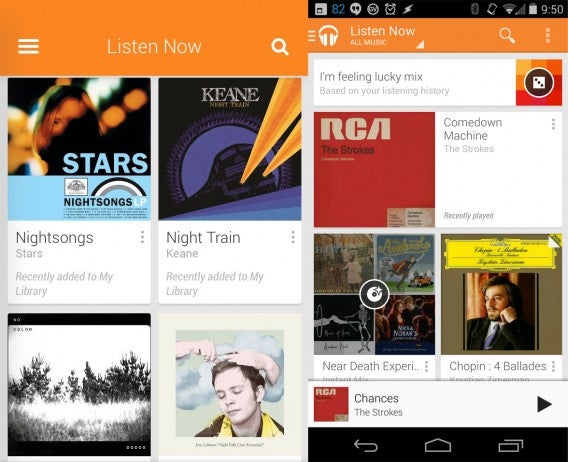
Also missing is the “I’m Feeling Lucky” button, which generates a music mix based off of your musical tastes. However, Google Play Music for iOS does support creating radio stations based on artists or genres. Users can customize these radio mixes by adding or deleting tracks from the queue.

GPM I'm Feeling Lucky comparison

iOS version (left) is missing the “I’m Feeling Lucky” feature from the Android (right) version

While competitors like Pandora and Spotify offer similar radio features, Google hopes its algorithm and editor curated recommendations will draw users. Google’s music library has over 20 million songs streaming at a maximum of 320kbps, which is competitive with Spotify’s library.

Google Play Music for iOS only works on the iPhone and iPod Touch for now but an iPad optimized version is in the works.

Download Google Play Music: iOS | Android

Via: The Verge

RELATED STORIES