How to get the most out of Cortana, the Windows 10 virtual assistant

Windows 10’s new assistant, Cortana has arrived and we are here to see exactly what she is capable of doing. To do this, we have split her functions in to four sections; reminders, navigation, device functions, and information. To check each of these we have asked Cortana a range of questions, from the sensible to the peculiar, just to find out what she will make of them – and my British accent.

Note: Cortana has been through multiple updates since she launched back in 2015. To find out more about what she can do now – and Microsoft’s Roadmap for Windows – check out this article.

First up we are going to look at reminders

This seemed to go quite well and, bar mishearing a few details, Cortana was able to set reminders based on time (set an alarm for 7am), location (remind me to buy milk when I get to the supermarket), and individual (remind me to tell Toni he has to finish these videos by the end of the day).

Next, let’s have a look at device functions

Testing on a Surface device (with a temperamental mic) things were a little more limited here. Cortana couldn’t make calls or send a message thanks to hardware limitations, but she was able to open recognized installed apps and find specific documents – even if my accent meant it was a bit of a struggle.

Getting about

As Cortana’s main functions is to help make your life easier, she is also on hand to help you plan travel. Need to find the best route home, avoid traffic, or find a good place to eat? Cortana will help – even if only by opening a relevant Bing search page.

Keeping up to date

What kind of personal assistant would Cortana be, digital or otherwise, if she didn’t keep you up on all the current information? Whether you need to know who won last night’s game, the latest news headlines, convert euros to yen, or just find out the meaning of a word, Cortana can help.

If all that functionality sounds stuffy…

Don’t worry if you are looking for something a little more fun from Cortana, because Microsoft have gone all out to give her a little more personality than other e-helpers. With a little attitude, and the odd preplanned response, finding out what annoys Cortana proves oddly satisfying.

Related Stories

App of the Week: Vivaldi, the new browser for the creator of Opera

This week’s App of the Week is the preview version of Vivaldi, a new browser designed by the former CEO and co-founder of Opera. With the goal of becoming community driven, Vivaldi aims to respond to user’s comments and feedback by rolling these ideas into future updates.

Everything about Vivaldi is aimed at making your internet experience easier and more intuitive. This includes taking the best from other browser, including Opera’s Speed Dial function that lets you quickly access regularly used sites, and Firefox’s customization options. There are also fully customizable keyboard and mouse gesture shortcuts for those who like efficiency in the browsing. And for multitaskers there is a simple sidebar to take you to all of your most regularly visited sites, color-coded tab management, and page tiling.

Still not enough? Well, while it isn’t in the preview build, the final version of Vivaldi also promises full email integration. Which makes sense to me, as I always check my mails in my browser.

With the ability to sync settings across Mac, Linux, and Windows devices running Vivaldi is a browser for all four seasons.

Related Stories

Vivaldi review

App of the Week: Rocket League

Softonic News Roundup: Mozilla blocks Flash, Angry Birds 2, and more Windows 10

Follow me on Twitter: @DoFuss

Softonic News Roundup: Mozilla blocks Flash, Angry Birds 2, and more Windows 10

The Softonic News Roundup is back once again to catch you up with last week’s tech news.

We start this week with Mozilla’s banishment of Adobe Flash from its Firefox browser. The reason for this is decision is that, despite Flash’s popularity, the program has been connected to many security issues. Mozilla is just the latest company make its opinion of the player known, joining Facebook and Google. Source: The Verge

Last week also saw the announcement of Angry Birds 2, yes 2. Believe it or not, Seasons, Rio, Space, Star Wars, Go, Transformers, Epic, Stella, et al. have not contributed to the franchises number progression. Little is known about the upcoming game, but we shouldn’t have to wait long to find out. Source: Rovio

In Windows 10 news, Microsoft is getting ready for the operating system’s launch in a little over a week. As part of this it has begun to release a series of videos on their blog to show off its benefits. Source: Neowin

Other Windows 10 news has revealed that if you purchase the new OS in a store you will get it on a USB stick. Source: Softpedia

And, finally, more updates on Windows 10’s integration with Xbox One, with conformation that console owners will be able to stream action directly to any Windows 10 devices – a feature now available to all beta testers. Source: The Verge

We will be back next week with more tech news, be sure to subscribe so you don’t miss it.

Related Stories

Softonic News Roundup: Windows 10 to get Firefox and Minecraft, and Nintendo’s CEO Satoru Iwata dies

App of the Week: Rocket League

Five Apps to Try This Weekend: featuring Polarr, Agar.io, and Rocket League

Follow me on Twitter: @DoFuss

What’s new in Office 2016 for Windows

Less than two weeks after Microsoft overhauled its Office suite for Mac, it’s now surfaced the Windows version. While the jump between Office 2016 for Windows and its predecessor Office 2013 isn’t so great as with the Mac platform, there are still some cosmetic changes and under-the-hood improvements that the company hopes will help in its fight with Google Docs and other free productivity suites.

Achieving “inbox zero”

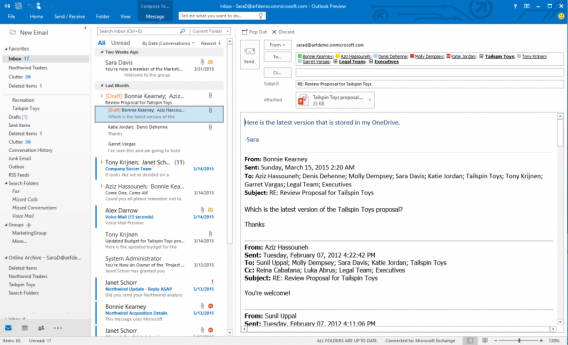
Streamlining your inbox is something even the most efficient and productive of us struggle with. Microsoft is aiming to make Outlook the program of choice for you to get as close as you can to “inbox zero” by introducing functionality called Clutter. This new feature scans your inbox and moves what it deems to be the less important emails to a new folder (called Clutter). As it’s an intelligent service, it learns from the actions you take when organizing emails. Additionally, you can also attached documents from OneDrive directly in Outlook, as long as you have Microsoft’s cloud service connected.

Real-time document editing

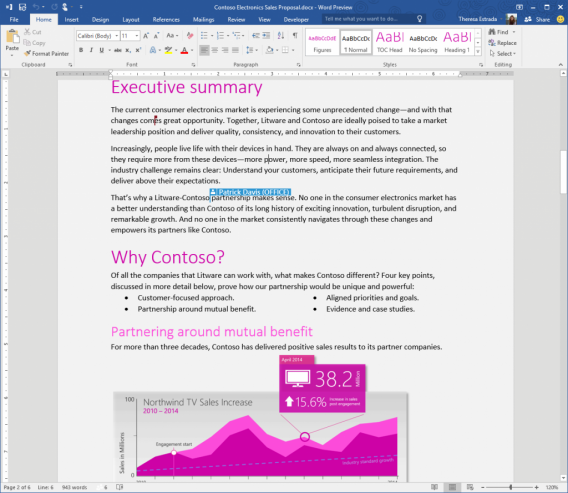
Collaboration is key and being able to see what your friends or colleagues are working on while you are editing a document is important. While this is a feature already offered in Google Docs, Microsoft is bringing real-time document editing to Office 2016 for Windows, meaning you will see names pop up in little boxes when your friends are editing a particular area.

Colorful user interface

Office 2016 for Windows new colorful interface

Microsoft makes the most of the very recognizable Office colors by further integrating them into the ribbon interface. While this may seem like a minor change, it’s all part of the company’s aim to deliver a better experience for users by staying fresh and modern (and not being too boring). You can also download additional themes if you want to change things around even more.

Show not tell

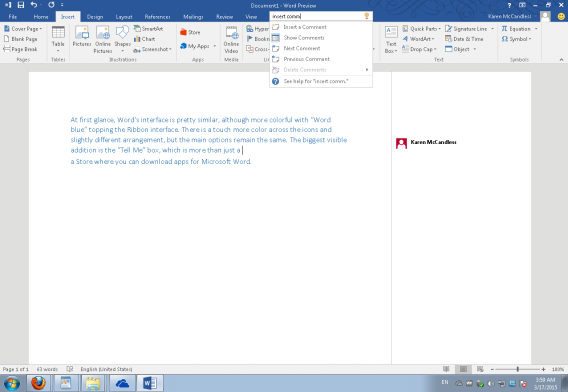
Tell Me Feature is new for Office 2016 for Windows

While Microsoft’s major new feature introduced in Office 2016 is called “Tell Me”, it might be better named “Show Me”. Unlike the much-loved Clippy from old versions of Office, “Tell Me” doesn’t just show you instructions about how to do something, it actually does it for you. For example, type in “insert comment” and it will automatically insert a comment for you. It’s pretty useful for those commands that you use on a fairly regular basis but can never remember how to do.

Lync becomes Skype for Business

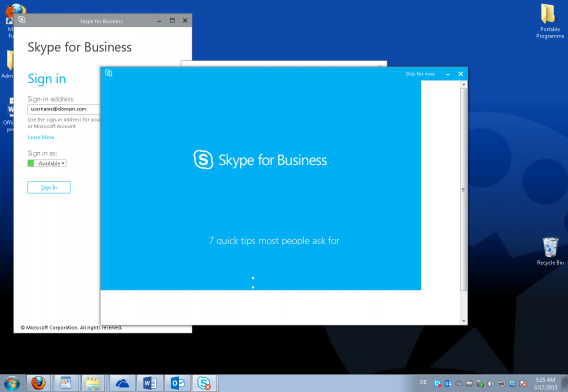
Lync becomes Skype for Business

Microsoft first announced its intention to transform Lync into Skype for Business last year and this has now come to fruition in the Office 2016 for Windows preview. The company’s aim is to bring the best from its consumer and business-facing products together in a familiar user interface.

Crunch the data in Excel

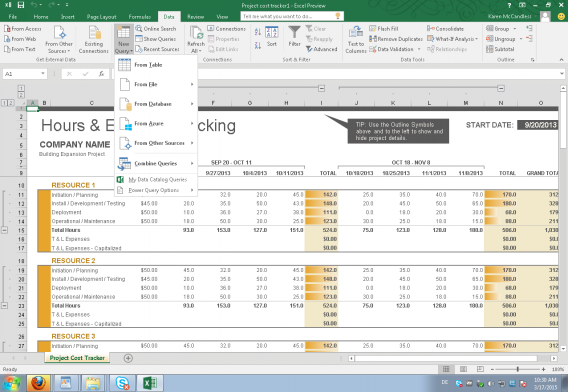
Power Query is now integrated in Excel

For power users who carry out complex calculations in Excel, the good news is that Microsoft has integrated various add-ons right into the program’s user interface to improve its business intelligence functionality. This will give you the ability to work with even more data sources, and analyze this data faster. There are also a variety of new graphs and charts to choose from.

Visio and Project enhancements

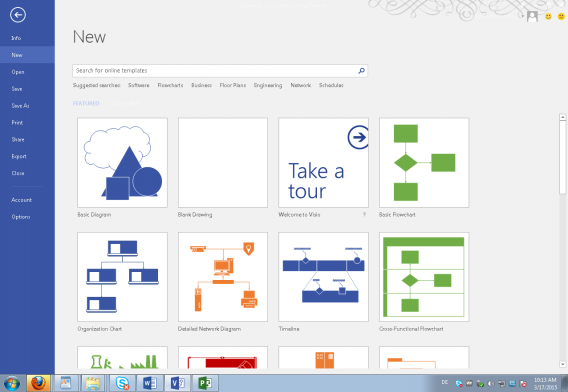
Vision templates provided in Getting Started experience

While they may not generate the headlines of Word and Excel, Visio and Project are still two very useful tools. They both get some love in the latest version of Office for Windows too, with a new timeline view in Microsoft Project, as well as a new tutorial called “Getting Started” in Visio to help users get up and running more quickly.

You can download Office 2016 for Windows preview now if you have access to an Office 365 account.

Related Articles

App of the Week: Office 2016 for Mac

Best free office suite

Office 2016 for Mac feels like the Windows version and that’s a good thing

Follow me on Twitter: @karenmccandless

Five Apps to Try This Weekend: featuring Polarr, Agar.io, and Rocket League

We have spent all week looking for the best five apps to keep you entertained this weekend, and we think we have done a pretty good job. That said, if you think we missed something, be sure to let us know in the comments.

First this week we have the incredibly useful Hexlock (And). This app lets you lock other individual apps with their own password, letting you leave your phone unlocked while still keeping sensitive information secure.

App number two is Magic Duels (iOS), the latest digital installment of the Magic the Gathering (MTG) collectible card game. This is the best interpretation of the fantasy card game yet, with slick controls, the most recent release of cards, and the ability to unlock everything for free.

Third we have Polarr (iOS). This photo app offers professional editing options, letting you adjust the exposure, contrast, distortion, and a stack of other settings. It even lets you save your tweaks to apply them like as a preset filter later.

Agar.io (And|iOS) is our fourth app this week. This simple game has you control a ball as it moves around a stark arena trying to absorb smaller balls to get bigger while avoiding larger orbs that want to consume you. Oddly relaxing and involving, this one is getting a lot of people hooked.

Finally we have Rocket League (Win), a soccer game with a twist: you are in a car. The fast paced action of this game is frantic, but incredibly fun and addictive. Online matches allow up to four cars aside, making this is the perfect game to play with friends.

That’s it for this week, I will be back next Friday with another five great apps to try. Remember to subscribe so you never miss an episode, and I will see you next time.

Related Stories

Softonic News Roundup: Windows 10 to get Firefox and Minecraft, and Nintendo’s CEO Satoru Iwata dies

App of the Week: Rocket League

Five Apps to Try This Weekend: featuring Vainglory, Adobe Sketch, and Fallout Shelter

Follow me on Twitter: @DoFuss

How to download and install Google Chrome (64-bit)

Google Chrome is one of the most popular browsers, and it’s available for 64-bit Windows based operating systems. If you don’t know if you system is 32 or 64 bit you can discover it here.

In this video tutorial we will show you how to download and install Google Chrome (64 bit)

How to download and install Google Chrome 64 bit por softonic-en

1. To download Google Chrome visit Softonic and type Google Chrome 64 bit into the search box.

2. When the search results are shown, click on Google Chrome (64-bit) to see the program’s review. In the review you’ll find basic information about the program as well as detailed analysis, providing useful insights and tips.

3. Once you’re on the program page click on Free Download to access the Google Chrome website, where you will be able to download the program.

4. Click on Download Chrome to start the download. Take a look at the terms of service, mark or unmark the check boxes as you wish and click on Accept and Install to carry on with the download.

5. After this you will see the download window. Save the file on your computer, and once the download is completed double-click on the file to start the installation.

The installation process will begin automatically.

When the installation is finished, Google Chrome will open and you will be able to use it.

Did you like this article? Share your thoughts on the comment section below.

App of the Week: Rocket League

Our App of the Week this week is a game that mixes three of our favorite things – cars, soccer, and explosions. Giving you the keys to a responsive, acrobatic racing machine, Rocket League is high-octane motor-sport action at its best.

This simple and elegant concept has you racing around arenas, desperately trying to wrangle an over-sized ball in to the goal. This all feels perfect thanks to Rocket League’s fantastic physics. As your car careens around the arena, the game perfectly simulates every spin, jump, and collision – making controlling the action feel more intuitive than driving a jumping car ever should.

The team based soccer action is perfect for playing with friends. You have the options to play locally with your companions via split-screen, or online in teams of up to four cars. And with eight cars on the pitch it doesn’t take long for matches to degenerate into glorious chaos.

To really seal the deal, Rocket League also lets you completely customize every aspect of your car. Paint work, decals, body, even the color of the flames that burst from your exhaust when you use the boost, everything can be altered to your liking before taking it online.

Put simply, Rocket League is going to make you laugh and smile.

Related Stories

Rocket League review

App of the Week: Fallout Shelter

App of the Week: Batman Arkham Knight

Follow me on Twitter: @DoFuss

How to run old software on Windows 10

Every time there’s a new version of Windows, people wonder if their current software will continue to work. The answer is a little complex, but I’ll try make it as simple as possible, and give you advice on how you can make old programs work in Windows 10.

1: Will my Windows 7/8 apps work in Windows 10?

Good news. Yes. If you have software that works in Windows 7 or 8, it will most likely work in Windows 10. It’s not for nothing that Microsoft is offering free upgrades to Windows 10 for Windows 7 and 8 users – this will keep your OS up to date, and not cause you any problems.

2: Will my Vista/XP or earlier programs work in Windows 10?

In this case, things get tricky. The best advice we have for everyone is to keep your software up to date, and use the most recent versions. The main reason for this is security – past a certain age companies stop supporting old software, which means no security patches or updates. You aged apps could be security holes that let in hackers.

But if you do want to continue to use old programs that aren’t theoretically compatible with Windows 10, there’s a possible solution. Compatibility mode.

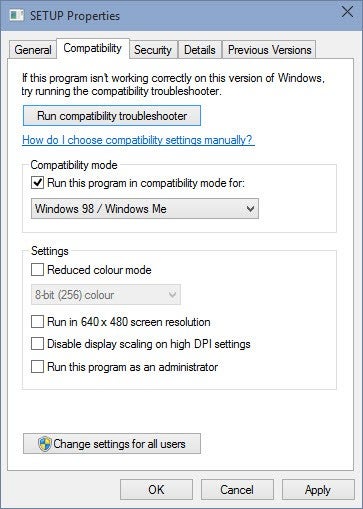
Compatibility mode should allow you to run old software as if you were using any Windows version back to Windows 95! But don’t break out the champagne just yet, as it still might not work. Here’s how to try:

– Right click on the program file you want to open, and then click Properties.

– In the Properties window that opens, click the Compatibility tab:

Here you can choose a Windows version from the drop down menu – choose the last version of Windows your app worked in.

– Click Apply, then OK.

– Now, you can try to run the program by double clicking the icon as usual.

– If the app doesn’t work, you can now try the compatibility troubleshooter, which will try to detect the necessary settings to run your app.

If your desired program still doesn’t run, then you do still have some options. Firstly you could just use it on an old PC with a previous version of Windows installed. Alternatively, you can add a second hard-drive (or partition your existing one) and install an older version of Windows on that to enable you to dual-boot your system. Or, finally, you can install a virtual machine (like VMware) which will allow you to run an old version of Windows within Windows 10.

Find out more about Windows 10 with our guide to everything you need to know.

Softonic News Roundup: Windows 10 to get Firefox and Minecraft, and Nintendo’s CEO Satoru Iwata dies

After a brief hiatus, the Softonic News Roundup is back to get you caught up with all the tech news that you may have missed over the weekend.

We begin this week with news that Facebook is planning giving you more freedom to customize your feed – meaning you can banish all those food photos. Though this is initially only to be only available on the mobile app, we hope that it will come to desktop soon. Source: TechCrunch

Second we have Apple’s iOS 9 public beta. This will let iPhone and iPad users don’t mind suffering the problems that come inherent to an unfinished software, a chance to try out Apples new mobile OS. If you fancy giving it a shot just head here – just backup your phone or tablet first. Source: CNET

With Windows 10 out at the end of the month we are expecting solid stream of news about it, and this week bears that out. First, it seems that Mozilla are to have a Windows 10 version of its incredibly popular browser, Firefox, ready to go. Source: VentureBeat

We also learned this week that there will be a beta version of Minecraft: Windows 10 Edition that will be launched on the Windows 10 store on July 29th alongside the new OS – a powerful brand of the store. Not to worry if you own the Java version of the game already though as, not only will that still work, but you will also receive a copy of the beta for free. Source: Mojang

And finally this week, incredibly sad news as we pay our respects to Satoru Iwata. The respected President and CEO of Nintendo has passed away at just 55 years old. Having helmed the company for many years, he was a true visionary who shaped the landscape of all gaming, he will be sorely missed. Source: Nintendo Japan

We will be back next week with more tech news, be sure to subscribe so that you don’t miss out.

Related Stories

Five Apps to Try This Weekend: essential holiday apps

Five Apps to Try This Weekend: featuring Vainglory, Adobe Sketch, and Fallout Shelter

App of the Week: Fallout Shelter

Follow me on Twitter: @DoFuss

10 tips for customizing Windows 10

While the upgrade to Windows 10 should be smooth sailing, as with any new operating system you will have to tweak it to get it working just the way you like it

Windows 10 doesn’t allow for any radical customization yet, though that may change with future updates. Let’s see what you can do right away.

1. Disable or minimize ‘UAC’

UAC stands for User Account Control, and is one of Windows’ security systems. When you install a program that is trying to make system changes, it’s UAC pops up asking you if you’re sure.
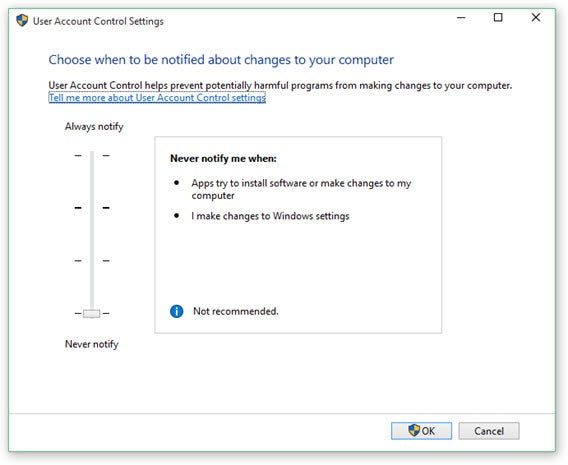
User Account Control is not a bad thing, and you should keep it enabled. However, if you like to make changes to Windows 10 regularly, you probably don’t need bugging about it every time.

You can change how much UAC will ask for verification, luckily. Open the Control Panel, then User Accounts, and User Accounts Control Settings. Here you’ll find four levels of UAC:

Always notify.

This means you’ll be notified every time a program wants to make changes to your computer or you change Windows settings that require Administrator rights. When these notifications appear, your desktop will be dimmed and you’ll have to deal with it before continuing with other tasks. It’s the most secure, but also most intrusive setting

Notify me only when programs try to make changes to my computer

This will still notify you when programs want to make changes to your computer, but not if you personally make changes to Windows settings that require Administrator rights.

Notify me only when programs try to make changes to my computer (do not dim my desktop)

The same as 2, but your desktop will not be dimmed. This means you can continue working with other apps when UAC asks for your attention.

Never notify

This means you’ll never get UAC notifications. When you are logged in with an account that has Administrator rights, programs will be able to make changes to your computer without your knowledge. Therefore, you have to be careful what programs you run and install, as they will have the same rights and access as an Admin account.

2.Activate Cortana with a button

The default setting in Windows 10 for Cortana includes her search bar on the Taskbar, which takes up quite a bit of space.
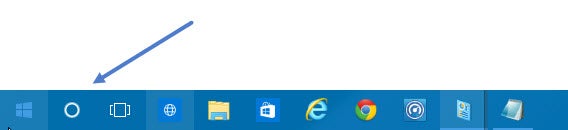
You can remove this by right clicking the Taskbar, and going to Search – Hidden. But you can keep Cortana on the Taskbar by right clicking, and choosing Find – Show Search Icon. This will leave a neat circular search button on the Taskbar, from where you can activate Cortana.

You can also set Cortana to wake with a voice command, ‘Hey Cortana’. This can be enabled in Cortana’s settings.

3. Use Classic Shell

We’ve heard it a lot – the Start Menu is back in Windows 10. But it’s still not the one we pine for from Windows 7 and earlier. Classic Shell is an old program that for years has supplied excellent, high quality alternative Start Menus.
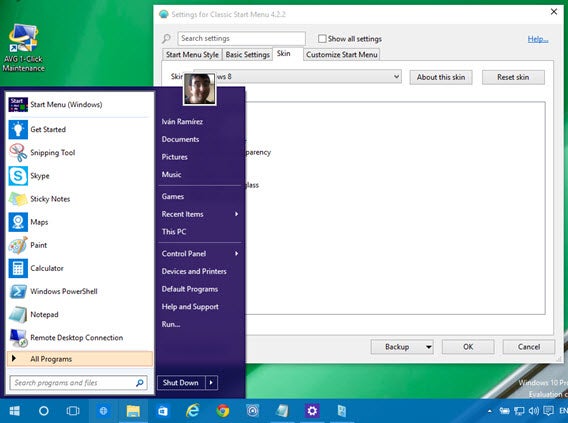
This Start Menu is very personalizable – you can make it look like Windows 8, 7, or even XP. The Classic Shell Start Menu is full of options. You can choose different skins, buttons, and menus… a wonder for customization fans.

4. Use the Start Menu without Tiles

If you prefer not to install an extra program like Classic Shell, but you have little interest in the new style Modern UI apps, you can rid your Start Menu of these turbulent tiles.
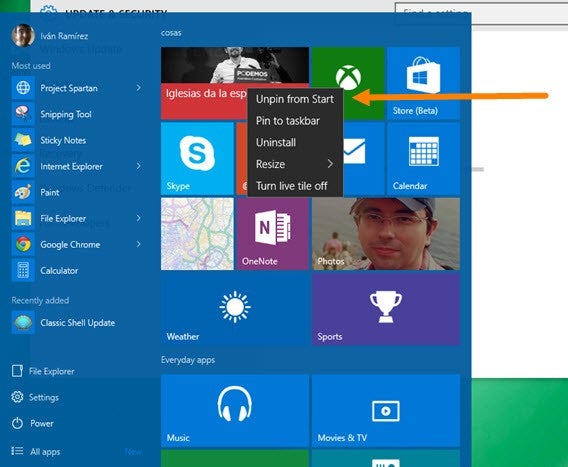
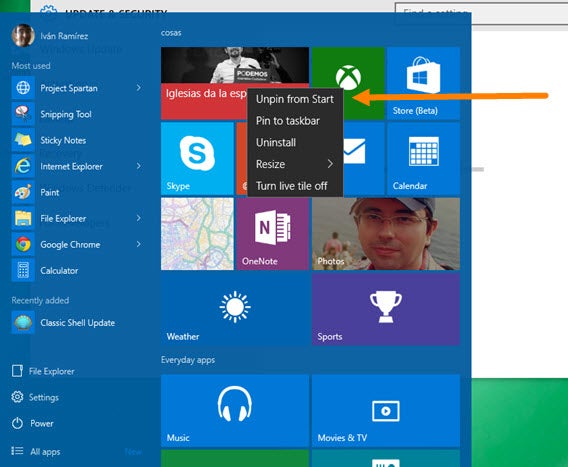
Unfortunately, you cannot do this all at once. To remove tiles from the Start Menu, right click on each one and choose ‘disable live tile’. It takes a while, but once you’re finished you can resize the Start Menu to hide the empty space.

5. Change which sections appear in the Start Menu

While the Windows 10 Start Menu has relatively few options, it does at least let you choose what appears in it. Find this in Options – Personalize – Home.
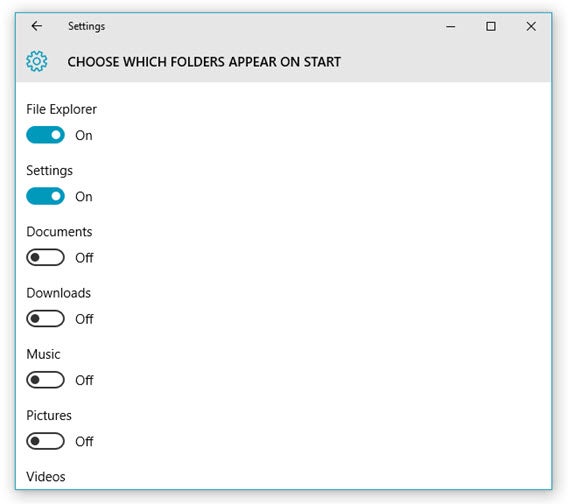
In the main window you can choose between your most used apps, newly installed apps, and recent documents. You can also click Choose Which Folders Appear on Start, which gives you a load more options for what you can see on the Start Menu.

6. Sign in Automatically

The login screen for Windows 10 may be very attractive, but if you’re the only person who uses a PC, it’s a little unnecessary.
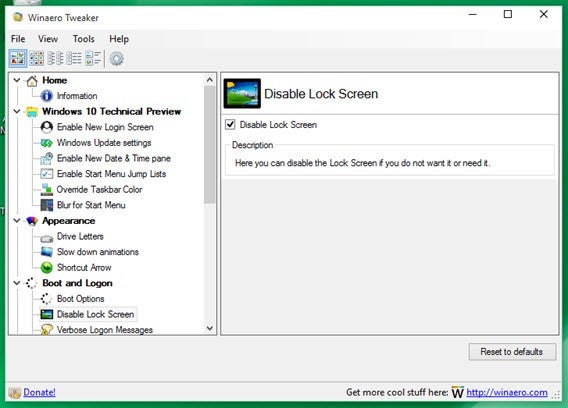
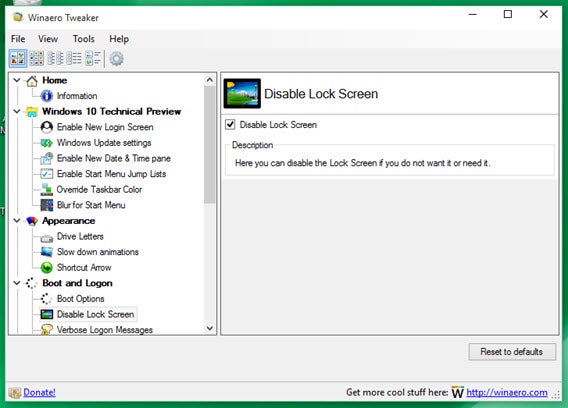
You can disable it with a little app called Winaero Tweaker, which gives you some additional startup options. Install the app, and go to Boot and Login – Disable Lock Screen. You can also do this with AVG TuneUp. With this app, look in Optimization – Modify Windows Settings – Security – Administration – Login. You’ll need to enter your password to deactivate the login screen.

7. Use an image as your password

If you want to keep your PC secure, and maintain the login screen, there are still more ways you can alter it. Open Settings – Accounts – Login Options.
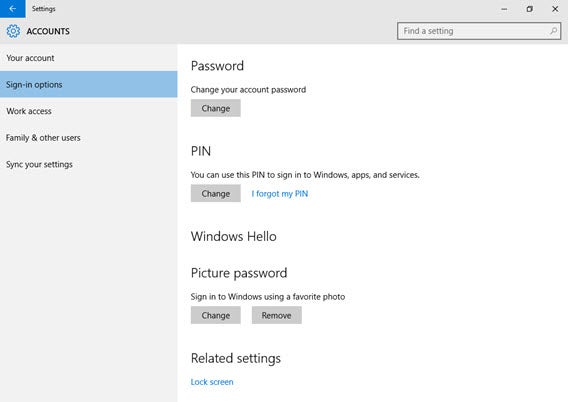
Here, you can choose different types of password. You can use a four (or more) digit numerical PIN, for example. More entertainingly, you can use an image. To do this, you’ll have to upload an image, and the ‘password’ will consist of clicks and swipes over it.

You could use your own face, for example, and set the password as clicks on your eyes and nose.

8. Customize File Explorer

Every time you open a new folder in Windows Explorer, it will open Quick Access by default. This is the equivalent of Favorites in Windows 7. It’s not a bad option, but if you don’t use Quick Access and prefer instead to use the old ‘This PC’, you can.
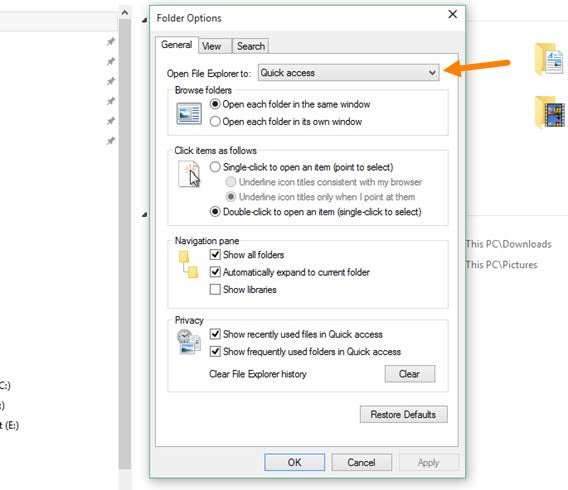
Open an Explorer window, and choose Options from the Tools tab. In Folder options you can then set File Explorer to open in Quick Access or This PC mode.

9. Make changes to the Command Prompt

The what? Command Prompt is really only for the fabled advanced users, and moreover, the ones who wish to type their commands in MS-DOS. Windows 10 adds some more options for Command Prompt, including changing the opacity of its window.
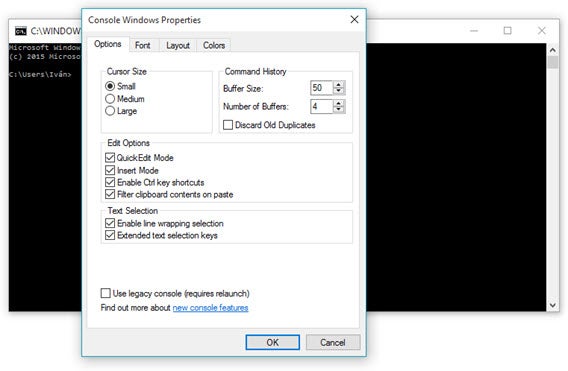
To change this, right click on Command Prompt’s top bar and open Properties – Experimental. Here you’ll see a bar to change the opacity.

The Command Prompt now supports common shortcuts like Ctrl + C and so on, just like every other application, which makes it much easier to use.

10. Change the language

If for some reason Windows 10 is not in the language you want, just like in older versions you can change the system language, and it’s easy to do.

All you have to do is open Settings, then Time & Language. Choose the one you want, or if it’s not there, click Add a Language. Once added, clicking any language in your list lets you set it as default.

Remember, you can find all of our Windows 10 coverage here.