We recently brought you news of an update WhatsApp is working on, which gives you more control over what people can and can’t see when you send images over WhatsApp. When the feature lands you will be able to blur out parts of the image you don’t want anybody to see. Today we have news of another privacy-focused feature coming to WhatsApp, but this time it is something a little more traditional. Let’s take a deeper look.
One of the most requested features that people have been asking WhatsApp to implement for quite some time now is the ability to hide your online status from other users. It now looks like the feature is finally well on the way as it has been spotted in a recent beta version of WhatsApp for iOS.
If you have ever received a message from somebody but wanted to wait until later in the day, week, month, or even year to get back to them, if you even ever want to get back to them at all, then this is the update you have been waiting for.
It looks like the feature will be split into two, giving you control of who can see the last time you were seen online and who can see if you are online. For when you were Last Seen, you can select Everyone, My Contacts, My Contacts Except (specific contacts who you don’t want to know when you were last online), and Nobody. For when you are Online you can select Everyone or Same as Last Seen.
In this way, WhatsApp is finally giving you greater privacy control meaning you can happily go about your business on WhatsApp without certain people knowing you are online and possibly thinking you are ignoring them. Yep, this means you don’t have to feel guilty anymore because you can just pretend that you never got their message in the first place.
There is still no news on a timeline for the release of this feature as it is still in development. This means that for now, you will only be able who control who can see when you were Last Seen online. It is on the way though, so hold in there. In the meantime, why not check out some of the new WhatsApp voice features that are on the way.
The use of music in videos is one of the most effective approaches for linking different clips recorded across multiple locations and times to produce a logical and cohesive outcome. Music gives otherwise dull footage a sense of mood and atmosphere that no other editing effect can achieve on its own.
Whether you are making a music video, personal vlog, or corporate industrial video, these tips will simplify your musical synch edits in Adobe Premiere Pro.
Import your video and audio
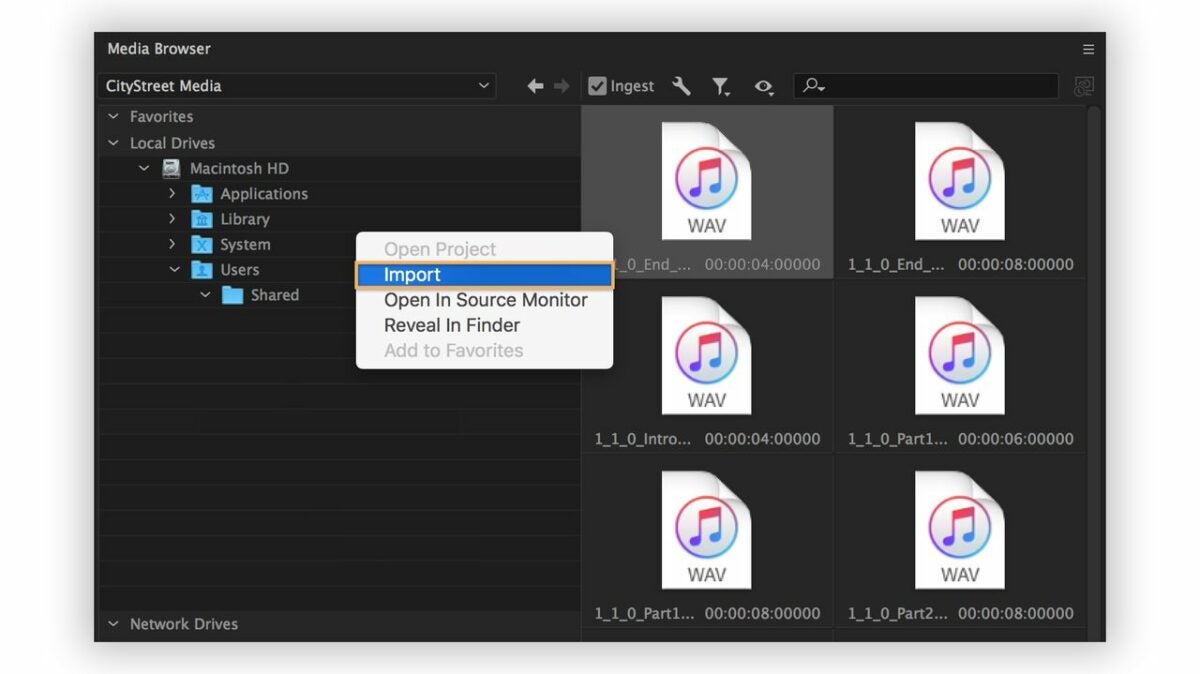
Begin by importing the previously recorded video onto your device and creating a new project in Adobe Premiere Pro. Locate your preferred audio file and listen to the track a few times. To start a new project, find the desired footage and sound in the Media Bin and select the File menu.
Your video will typically include scratch audio. The soundtrack is a separate audio file, ultimately replacing the original audio, assuming you choose not to mix it into the clip. Since you are assembling the entire clip around the music, select your track carefully. Ensure that the audio file has distinct beats for synchronizing your cuts. To add the audio file to your sequence, import or drag and drop it from the Media Bin to replace the scratch audio.
Add markers
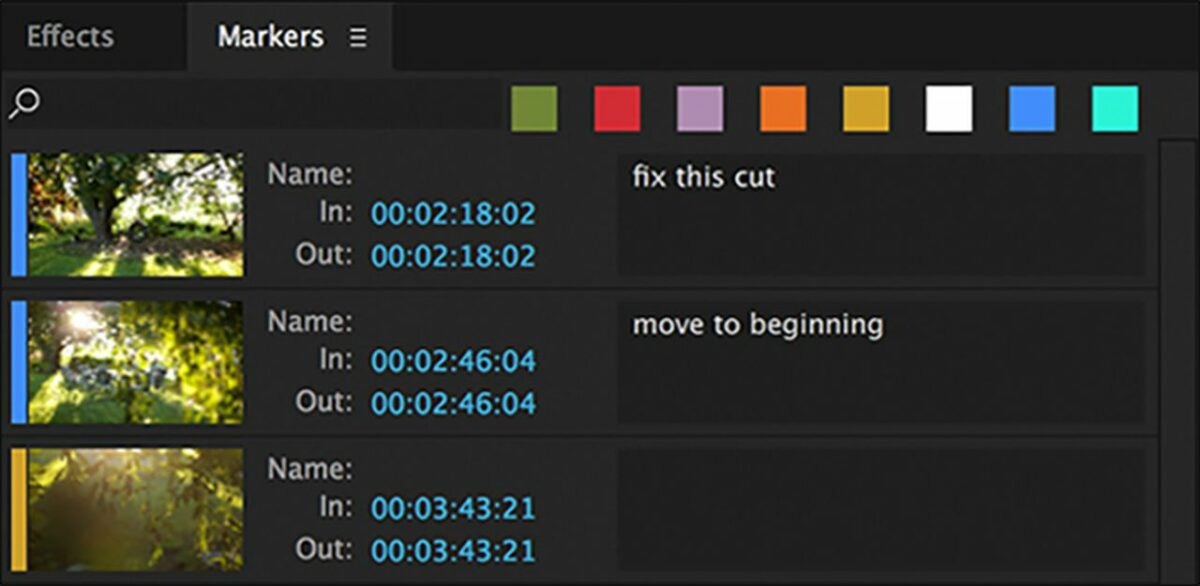
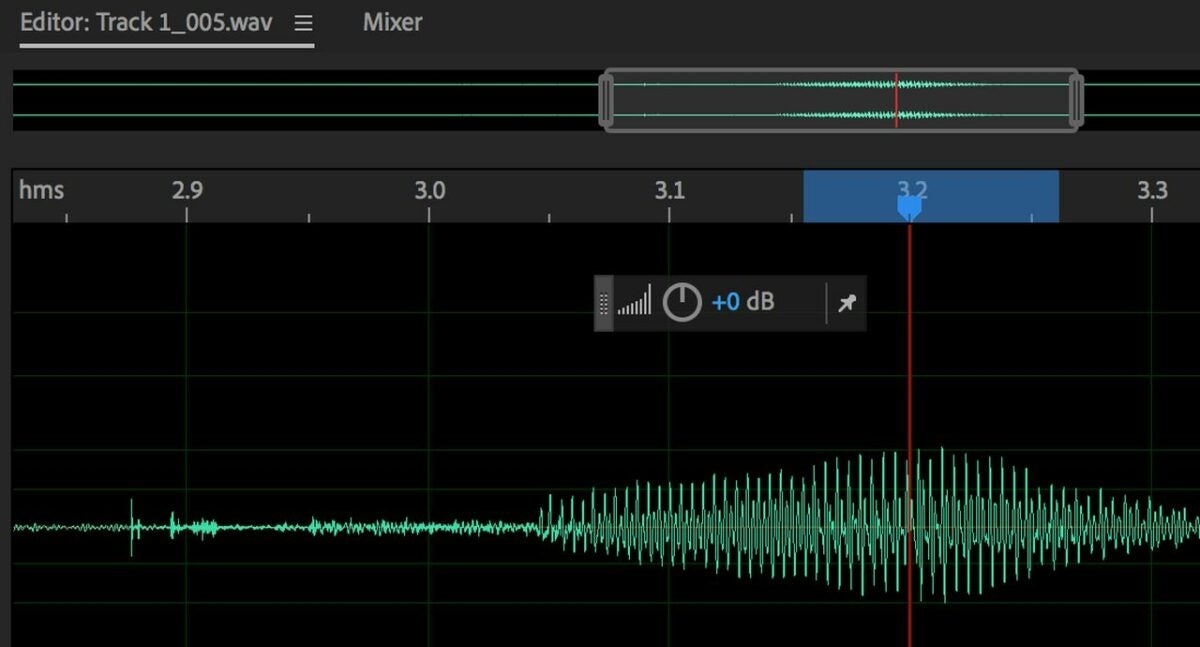
Once you’ve gathered your media and created a new project in Adobe Premiere Pro, you’re ready to start adding markers to the sequence. Locate the Wrench icon above your timeline and click on it to display the dropdown menu. Select the Show Audio Waveform. The waveform graphic shows you where the beats are in your selected audio file.
Now add markers to the sequence using the M on your keyboard as a shortcut. Using the waveform, locate the beats within the song to make your cuts on and apply markers to them throughout. This process involves an element of precision. Those who are less than musically inclined can rely on the waveform.
Insert your in and out points
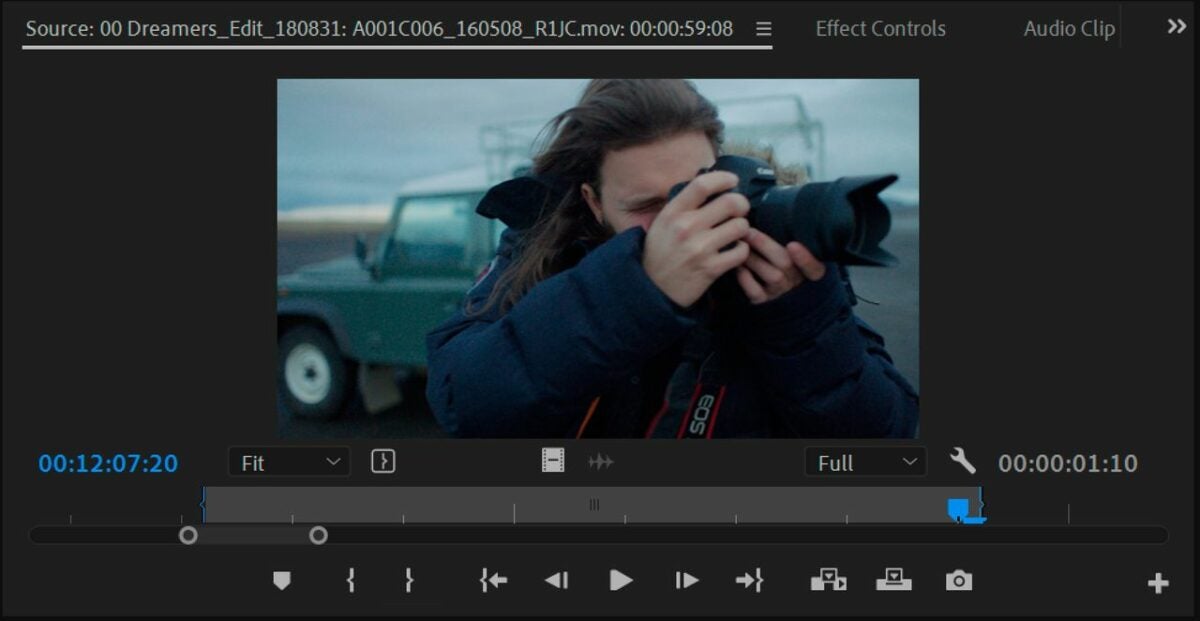
From the Media Bin, start adding the In and Out points. You can either click on their respective icons or use the I and O keys as shortcuts. Set the In and Out points to each clip you want synchronized to the beat. This informs the editing software of where you want your cuts.
After identifying all the clips to be used in the sequence and setting your In and Out points in the Media Bin, proceed to select the video segments in the desired order of appearance. Choosing them in order prearranges your rough cut on the editing timeline.
Automate to sequence
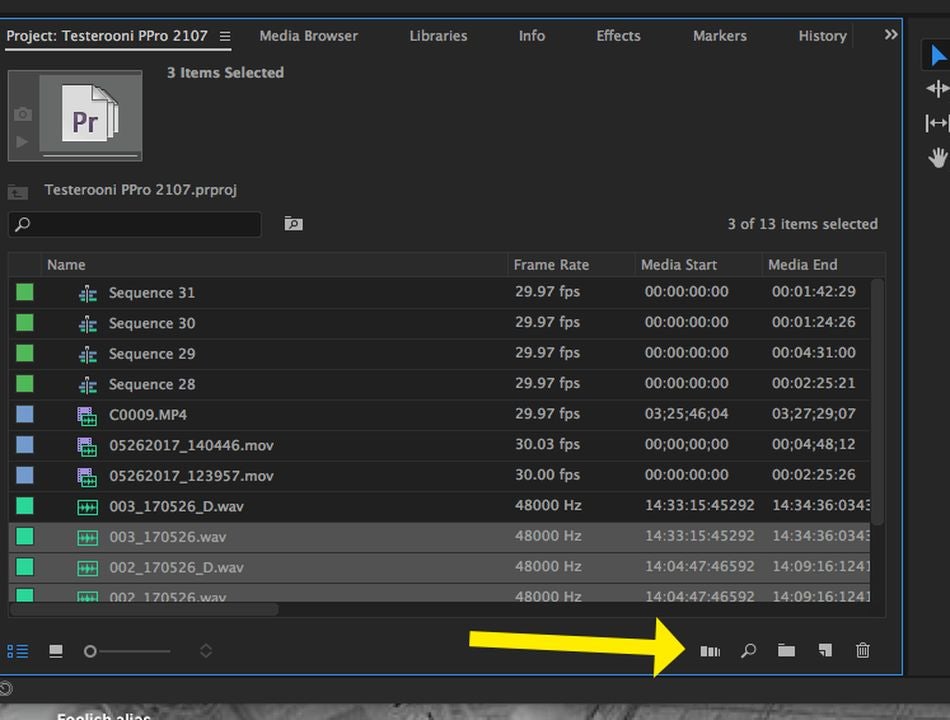
Now that you have your markers in and and your In and Out points set, select Automate to sequence from the clip menu. Veteran Premiere Pro editors may be unfamiliar with this step, but Automate to sequence is the most efficient way of adding your clips to the timeline and editing them to a musical beat. The function lets you quickly create time-lapses, eliminate audio pops, and edit jump cuts without additional time-consuming steps.
Choosing the Automate to sequence option produces a new window on your screen. At this point, navigate to the Ordering menu and choose the Selection order. Once you’ve enable the function, find the Placement menu click on the At Unnumbered Markers. Now, change the method to Overwrite Edit.
Match your footage
Confirm that the Use In/Out Range setting is enabled. If you haven’t deleted your scratch-recorded sound, click on the Ignore Audio option to eliminate it. Select OK to enable the changes. This prompts Adobe Premiere Pro to automatically synchronize your video with the markers you previously applied to the sequence.
While the Automate to sequence feature lends itself to a more efficient editing workflow, it is worth reiterating that your clips must be in the correct order inside your Media Bin for the feature to work. Be sure to arrange the segments sequentially and set your In and Out points before selecting the Automate to sequence button. Lastly, never place your markers directly on the beat. Instead, aim for setting them a frame or two head of it for optimal results.
Syncing footage with Adobe Premiere Pro made simple
Adobe makes editing video to music easy, but it doesn’t necessarily offer a one-click solution for making complex synch edits that once took hours to finish. Instead, the Automate to sequence option gives a reliable departure point for creating a fine cut. You’ll almost assuredly make minor adjustments to your project before it’s complete. For more on making high-quality Instagram reels in Adobe Premiere Pro, check out this recent tutorial.
Twitter hands out the coveted blue tick verification badges to users of note who have verifiable identities such as journalists, celebrities, sports stars, politicians, and more. The idea behind this is that it stops scammers from pretending to be notable personalities and scamming innocent Twitter users. Unfortunately, however, it looks like some verified accounts on Twitter are being used by scammers for that exact purpose. Let’s check it out.
Reporters on BleepingComputer were recently targeted by a phishing scam that aims to steal your Twitter credentials and take control of your account. The scam comes from an account with a verified blue tick, but it also opens up the possibility of more verified users losing control of their accounts to scammers.
The way the scam works is by sending out a message saying that the victim’s account has been flagged as inauthentic and unsafe and so will be deactivated. It offers a TinyURL link that will take the victim to the verification page where they can authenticate their identities. To do this, however, they will have to input their Twitter login credentials, which will then be stolen by the scammers.
The reason this type of phishing scam could do well is because people who have been verified, greatly value that status and so may act before thinking when they receive a message like this. Before they know what has happened, they have handed over the keys to a verified Twitter account to a malicious actor.
As always with these types of scams, there are little giveaways that should set alarm bells ringing. A TinyURL should immediately set you to high alert. For more tips on spotting phishing scams, check out our infographic on spotting scam emails.
Unfortunately, however, some people will fall to these types of scams, and you have to be even more vigilant when you are online. You should always pause to think whenever you receive a message out of the blue and that now includes Twitter messages from direct accounts. Also, make sure you never input your security credentials anywhere other than the official site they are for.
Microsoft has been putting a lot of effort into boosting the gaming capabilities of Windows 10 and Windows 11. It has been doing a good job too, as we have seen a plethora of new updates and features added over the years. Recently, we have seen these updates focusing on Windows 11 but unfortunately, it looks like Microsoft is going to have to do more as the number of gamers switching to Windows 11 isn’t increasing very quickly. Let’s take a look at the figures.
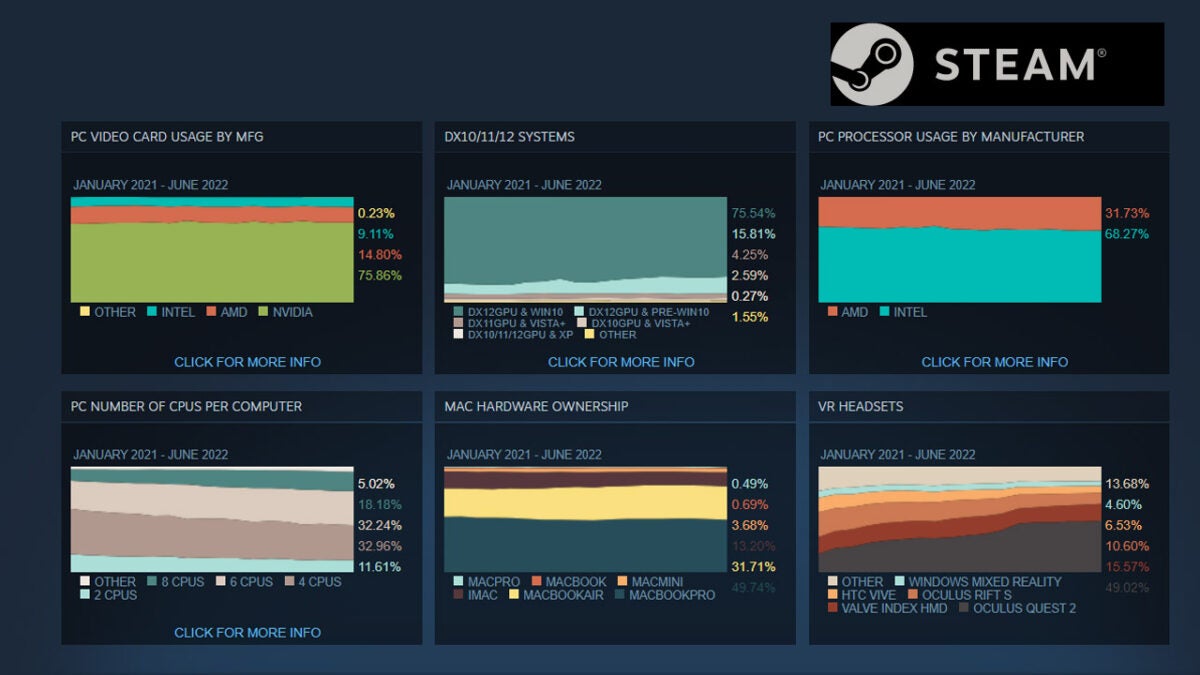
Every month, Steam releases a hardware survey that gives insight into which devices users are playing Steam games on. It breaks down all sorts of variables including graphics card manufacturer, PC processor manufacturer, and even the number of cores the main processor chip has. One of the variables tracked is the operating system.
Here we can see that Microsoft’s efforts to make Windows better for gaming over recent years have been successful as Windows 10 is dominating the operating system list with over 71% of gamers on Steam using Windows 10 when they are gaming. The sad news, however, is that Windows 11 is still a long way behind Windows 10, with just 21% of gamers on Steam using Windows 11.
Also, it is worth noting that the number of Windows 11 is only creeping up slowly as this month there were only an extra 1.64 % of gamers over last month’s total. At this rate, it will take many many months for Windows 11 to overtake Windows 10 as the most used operating system for gamers.
The good news, however, is that, as we have already mentioned, Microsoft already has some gamer-focused features on the way for Windows 11 users. These include features like the improved Windows 11 game bar, fixes for audio bugs, and other improvements like auto HDR.
As well as gaming, however, these figures just might simply reflect the general slowdown in the adoption of Windows 11. With fewer people upgrading to Windows 11, fewer people are going to be using it for gaming. Things might start to change again soon though when Windows rolls out the first major Windows 11 update.
We all do it. We all send messages a little too quickly and then quickly scramble around trying to delete them. WhatsApp didn’t use to let us do it all, but then for a short period of time, it gave us a short amount of time to take back what we had written in error. WhatsApp then bumped up that time to over 1 hour, but we are bringing you news today that WhatsApp is giving you more time to rethink your sent messages.
According to an analysis of WhatsApp for Android beta version 2.22.15.8, it looks like you will soon be able to rethink old messages you sent days ago and delete them if you see fit.
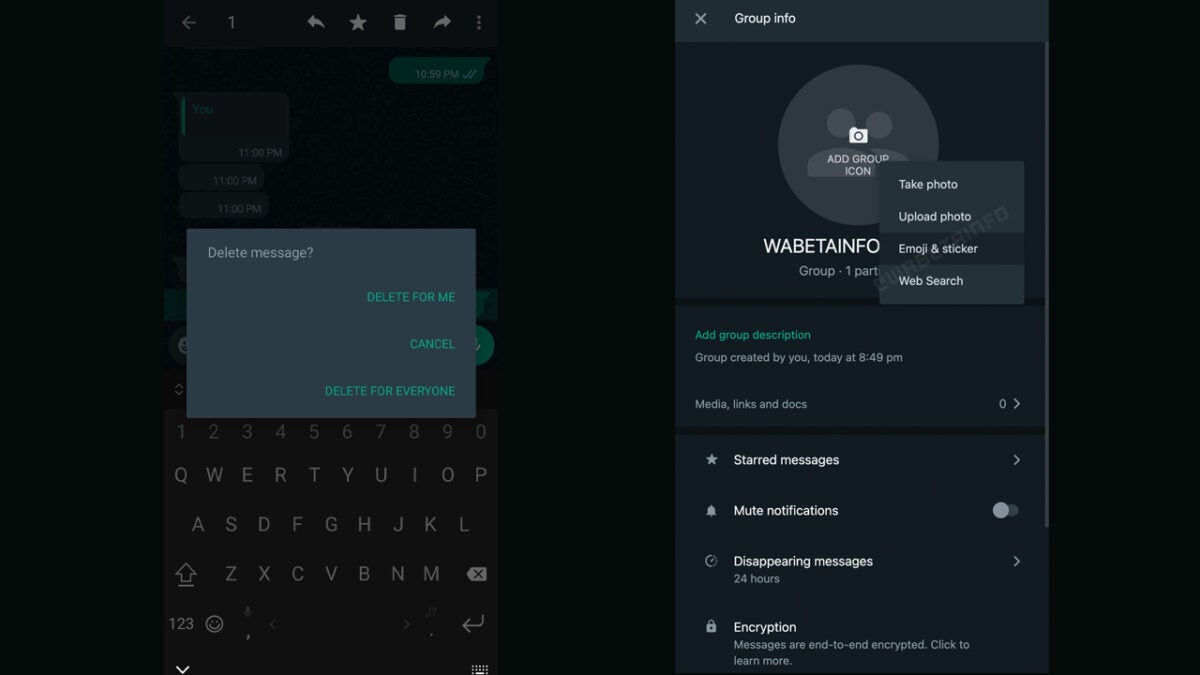
WhatsApp has begun rolling out an extended delete for everyone option for Android beta users of the app. The new time limit allows them to delete messages up 2 days and 12 hours after they’ve been sent. That means the period has been upgraded from just over 1 hour to a whopping 60 hours.
It looks like WhatsApp is rolling out this new time limit to beta users in groups. This means that it will still likely be a while before regular users of the app will get their hands on it. In fact, just because a feature is in beta testing doesn’t mean it will definitely receive a general roll-out, but there is a good chance we will all get the two and a half-day window to delete our messages at some point in the future.
Another interesting new WhatsApp feature that has been spotted going into testing is a group icon editor. This feature will let all participants in a group use a special in-app tool to create a new icon for the group that includes selecting a background color, different emojis, and stickers. There isn’t much more3 than that known at the minute so this is one of those features that you will just have to keep checking back in with us to track its progress through development.
Interestingly, this new time limit for deleting WhatsApp messages isn’t the only deleting messages update from WhatsApp in recent weeks. Not too long ago, WhatsApp started testing a feature that would give group admins the ability to delete other people’s messages.
We haven’t even properly sunk our teeth into the wonders of Moonwood Mill and the newly released Werewolves pack for The Sims 4 and already EA is dropping another game-changer. Prepare to live out likely the worst years of your life, but on your own terms in The Sims!
The trailer for the Sims 4: High School Years went live over on EA’s official social media channels recently, and it came as a massive shock to any and all who play this life simulation gem. In the trailer, we see a classic expression of the North American high school experience, complete with cheerleaders, promposals, and various cliques.
While EA and Maxis have already laid the groundwork for a lot of this content with packs like Get Together – which introduced clubs and, well, getting together – and My Wedding Stories, there’s a lot in the trailer that a lot of us didn’t quite expect.
For starters, it seems that your teenage Sims can now sneak out of windows that previously didn’t open, provided you place a trellis next to the window for them to descend from. We also saw what looks to be an actual interactive in-game social media function.
The biggest surprise of all, however, was a high school building that you can finally actually interact with and enter. Gone are the days of teen sims getting into a random bus and heading off of the Sims 4 set to go and learn all they’ll need for The Sims 4: University.
I am a long-time critic of EA and specifically The Sims 4. This game seems to have been rushed into production and the early years were the epitome of work-in-progress. If you don’t remember, the first version of the The Sims 4 base game didn’t even have pools. Over the years, EA have released many a game pack, expansion pack, stuff pack, and of course the highly polarizing kits, but the game has still lacked any significant gameplay mechanics for teens.
The imminent release of High School Years will change this as your teenage Sims now get to have lives of their own. Whether you want to live your dream as the star quarterback of Copperdale High, or simply spend your Sims teenage years discovering their unique identity, it’s incredible to finally have those options.
While there is much excitement within the Sims community about the new High School Years expansion pack, there’s still a dark foreboding cloud over EA. The Sims 4: Dine Out is still a broken pack, we still experience way too many routing issues with My Wedding Stories, and many Simmers still can’t see their Werewolves once they transform. The biggest concern surrounding High School Years then, is will the pack actually work? Or is it yet another unfinished money grab by the Electronic Arts corporate machine?
We’ll have to wait till July 28 to find out. In the meantime, why not refresh your memory on the release of the Sims 4: Werewolves?
The development company Bungie is best known for the online shooting game and live service Destiny 2. There are reports that they are working on a new FPS for mobile, possibly based within the same universe as Destiny 2. Among other reports are that the gaming studio has partnered with a Chinese mobile gaming giant, NetEase.
This is according to The Game Post; they became suspicious after seeing a LinkedIn post from an artist employed by NetEase and currently working with Bungie on the new mobile game. TGP also spoke to a source who knows NetEase’s upcoming plans, who confirmed that the mobile gaming company is working with Bungie on a new Destiny game for mobile. The source also confirmed that they’re already two years into the project.
NetEase is already well known and respected in China for its mobile games, so perhaps Bungie thought that a partnership with their vast experience in mobile game development would be very beneficial to ensure a quality mobile release for the Destiny franchise. NetEase might also benefit from working on a Western mobile title in an already popular series.
These aren’t only rumors based on one employee’s statement. It’s not exactly new news that Bungie wants to expand into mobile gaming. The Washington-based gaming company posted a job listing for just such a project. So far, it appears that this new mobile game will be an FPS based in the Destiny 2 universe and not a mobile adaptation of the title.
So far, Bungie hasn’t released any official information on the mobile game yet. However, following their recent legal battle with a Destiny 2 cheat distributor, we hope to receive some news on the potential mobile Destiny game soon.
The built-in screen capturer for Windows, for example Windows 11’s Snipping Tool — provides a good but basic experience. These tools support popular capturing options, such as capturing a program window or the desktop, but they lack advanced features.
Consequently, Windows users are looking for better tools. Third-party applications include image editors, more screen capturing options, better sharing options, or better post processing of images.
One of the best screenshot tools for Windows, the free open source application ShareX, is now available in a new version that improves it even further.
ShareX open source screen capturing for Windows
ShareX, for those who did not come across the name before, is one of the most popular choices when it comes to extending Windows’ screenshot functionality.
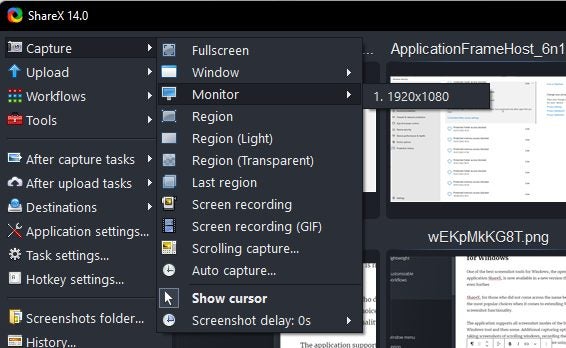
The application supports all screenshot modes of the built-in Windows tool and then some. Additional capturing options include taking screenshots of scrolling windows, recording the screen, auto-capture, multi-monitor support, and text capture using OCR.
Take the regional screen capturing feature, as an example. Instead of providing just an option to capture a region, ShareX supports light and transparent regional captures.
Auto capture is another handy feature. It allows you to repeat screen captures in specified intervals. Use it to capture a window or region repeatedly, without having to repeat the process actively each time.
Automation and shortcuts are one of the application’s strong features. Use the Windows menu to capture any open program window, without activating it first. The same is true for capturing content on different monitors; every option is just a click or two away in the program.
It goes without saying that ShareX supports keyboard shortcuts for all major operations.
Scrolling capture takes screenshots of entire webpages and application windows with scrollbars. The feature is a bit more complicated, as it is necessary to give ShareX cues regarding the scrolling.
OCR capturing, the OCR stands for Optical Character Recognition, captures any text on the screen, so that it can be copied or edited. ShareX 14.0 made the program’s OCR feature better, as it is now possible to use it without active Internet connection on Windows 10 and 11 devices.
The screen recording functionality requires the free application ffmpeg, which ShareX downloads on user request. Once that is out of the way, screen recording supports mp4 and gif captures.
ShareX post processing
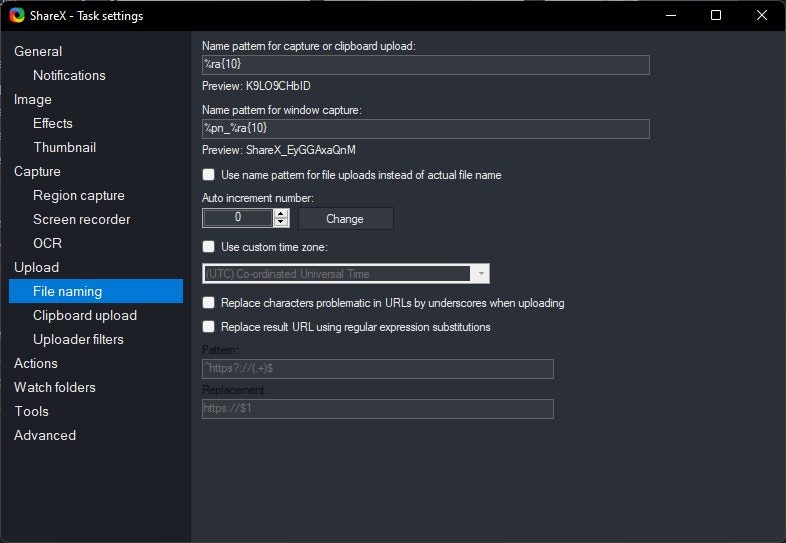
ShareX saves screenshots and captures to the local system by default. Options to upload screenshots directly after capturing to image or file hosting sites are supported. The same is true for text captures, which may be uploaded to text hosting sites.
Images may be uploaded to services such as Google Photos, Twitter, Photobucket, Flickr, or Imgur directly. Text uploading supports Pastebin, GitHub Gist and others, and file uploaders support Dropbox, Google Drive, OneDrive, and dozens more.
Post processing options do not end here though. ShareX supports a whole bunch of after capture and after upload tasks that automate certain processes.
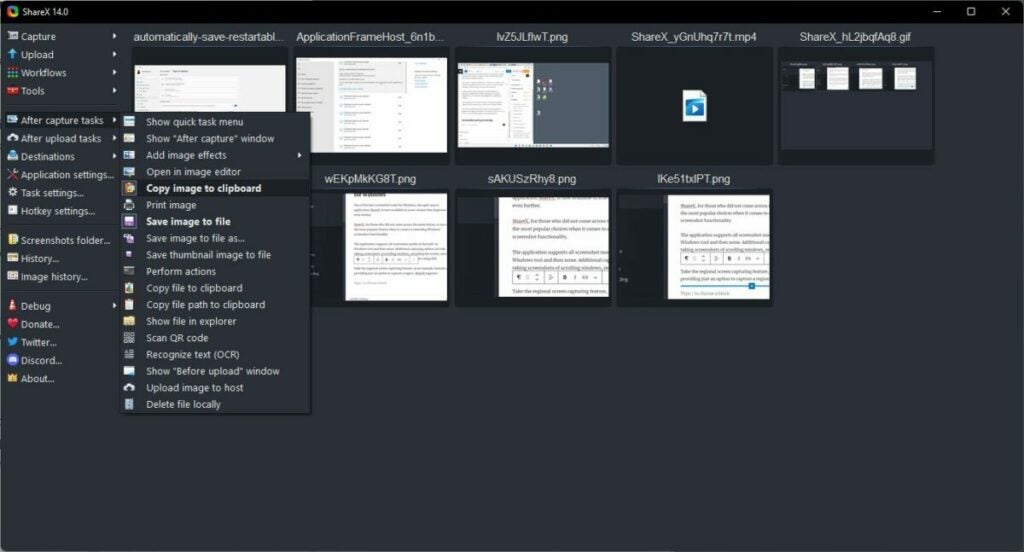
After capture defines automatic actions that the program executes whenever you take a new screenshot or record the screen. Options range from opening the image in an image editor, over copying it to the Clipboard or saving a thumbnail file of the image.
After upload, similarly, defines tasks that ShareX executes after file uploads. It may open the URL for you in the default browser, copy the address of the uploaded file or image to the Clipboard, or create a short version of the URL for easier sharing.
Other features
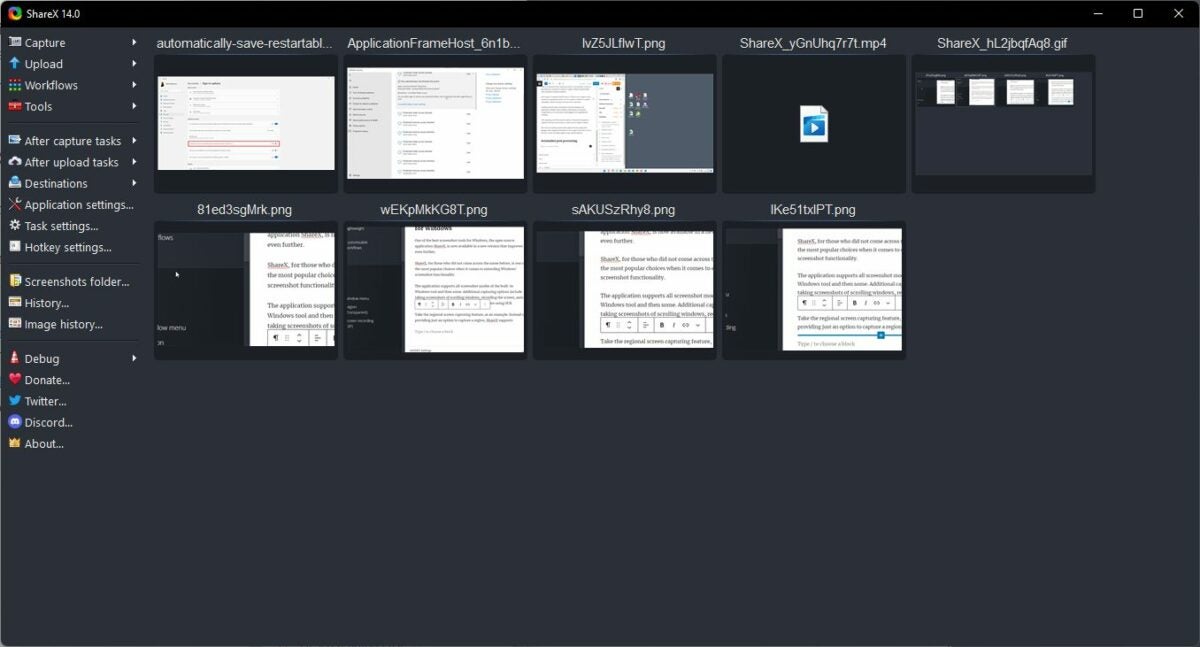
ShareX displays thumbnails of previously captured images and videos in the interface on start. It is a useful feature to open or interact with previous captures, without having to open the directories of the files.
Image history and history provide even better access to past captures. The application lists captures in chronological order and includes a search filter to find content quickly.
The Tools section includes more than a dozen tools, including a color picker, image splitter and combiner, image effects, or a video converter.
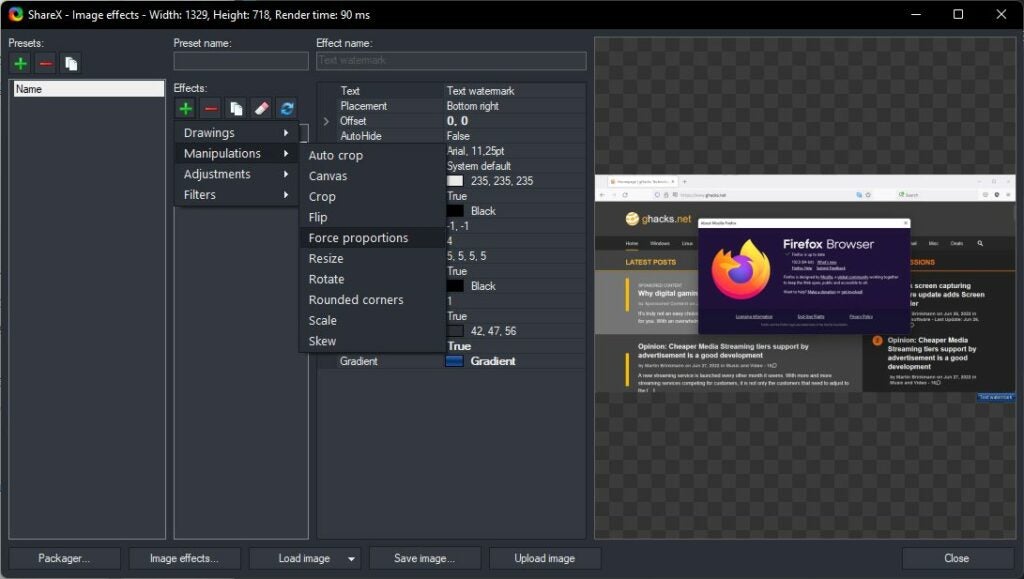
These tools are powerful. Take the image effects tool as an example. It supports dozens of options, such as adding watermarks to images, adding borders or backgrounds, applying a sharpening filter, or resizing the image.
Individual filters or groups of filters may be saved as presets, which may then be executed whenever they are needed with just a few clicks.
ShareX 14.0
ShareX 14.0 is the latest version at the time of writing. It introduces several useful new features and improvements to the screenshot tool, including:
Offline OCR capturing support on Windows 10 or newer.
Option to capture screens with bigger cursor sizes.
Zoom support in the built-in image editor.
Hotkey support for the image viewer.
Lots of history window improvements, including find as you type functionality.
Custom image uploader improvements
You may check out the full release notes on the official website.
Verdict
ShareX is a powerful screenshot and screen recording tool for Microsoft Windows devices. It supports more screen capturing options than the default Windows tools, but does not sacrifice speed or usability for the extended functionality.
Automation is another key feature of ShareX. It is easy to create workflows that save you a dozen or more clicks using the built-in automation options.
All in all, it is as good as it gets when it comes to screen capturing tools for Windows.
Extensions are an incredible part of the modern Google Chrome ecosystem. There’s an extension for nearly every web-based purpose, and almost anything you do on the internet can be made easier with an extension. We’ve covered numerous types of extensions in the past, from extensions that turn Google into a Dark Mode dream to extensions that save you money.
Today, however, we’re giving you the best Chrome extensions that can save you time and effort. The extensions below primarily center around keeping you more productive, but there are one or two that achieve the opposite objective – just to strike a little bit of a balance between work and goofing off.
The 11 best productivity and accessibility-focused extensions for Chrome
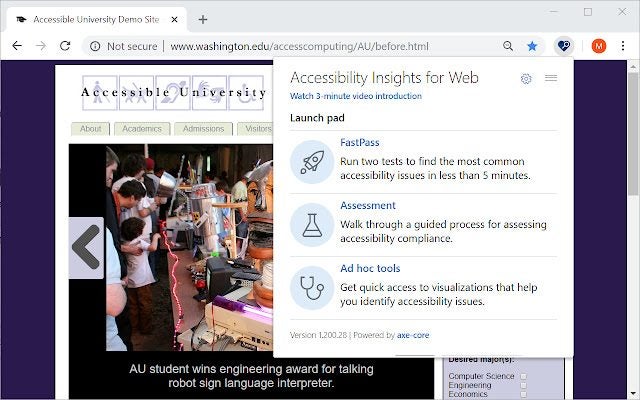
We start off with an extension dedicated to helping developers find and fix accessibility issues faster. Accessibility Insights for Web is an extension created by Accessibility Insights that gives developers more control over the websites they’re working on. This utility uses the latest accessibility tools to quickly identify issues with websites and then implement fixes in a more timely manner than would usually be possible.
Once you’ve got the extension installed, all you need to do to get it to work is hit Ctrl+Shift+K. Even though this tool is aimed at developers, anyone with a decent knowledge of website creation should be able to use it without much trouble.
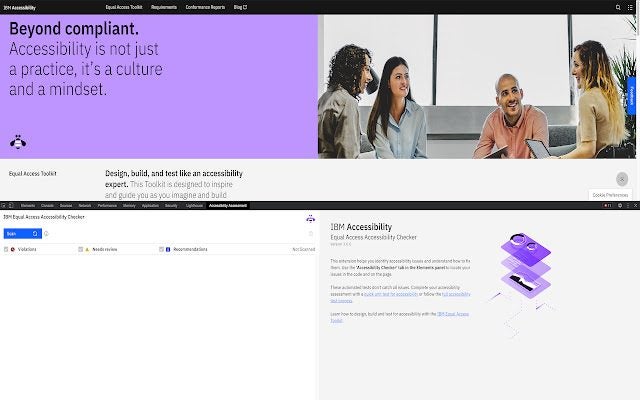
This is the perfect extension for developers and auditors who need to check website accessibility issues. IBM Equal Access Accessibility Checker runs on IBM’s accessibility rule engine and can detect issues pertaining to accessibility within browser web pages and internet-based applications.
This tool, created by IBM Accessibility integrates with existing tools essential for browser development to give you a holistic approach to identifying website issues and incompatibilities and implementing various fixes to repair them.
This is one of the most wholesome extensions I’ve ever come across. Created out of a pure desire to help those with physical disabilities, this extension seeks to provide individuals with all the tools they’d need to browse the web to their heart’s content – no matter their disability. Enable Accessibility Toolbar is an extension for Google Chrome that features a host of advanced and enhanced web browsing capabilities to make browsing the internet as easy and stress-free as possible.
This plugin is perfect for streamlining your browsing experience and lets you set certain site settings that match your individual browsing needs. This utility is free to download and use and has already helped 1.6 million individuals browse the web according to their needs.
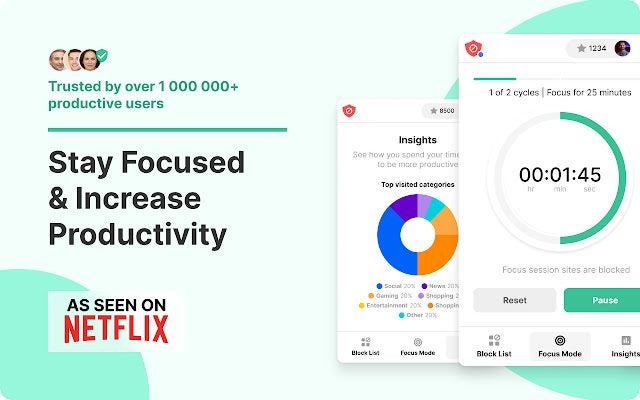
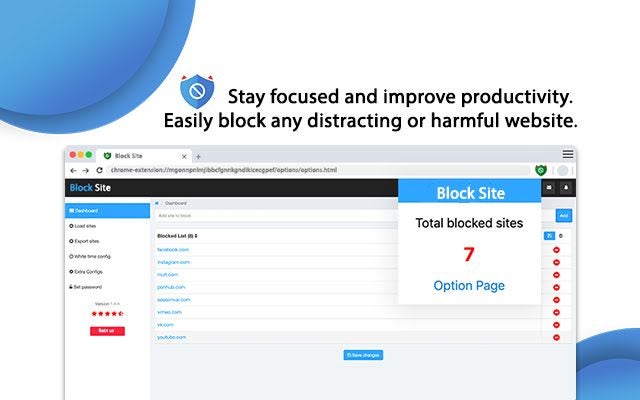
We live in the prime age for distraction from what we need to get done. If you need help staying away from certain websites and internet content, look no further than BlockSite. With this extension for Google Chrome, you can block websites that serve as a permanent distraction for you and stay focused on the task at hand.
BlockSite has a built-in feature that lets you block all known adult content with one click. You can also use this tool to set schedules for yourself to better keep yourself more productive. You can also activate focus mode which lets you choose a window within which to block content from distracting sites so that you can stay focused.
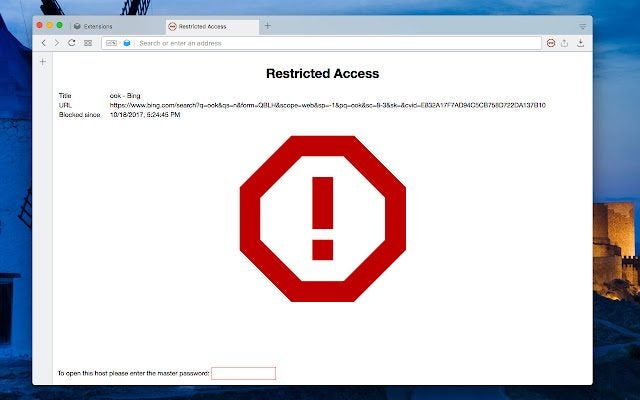
Website blockers are all the rage right now. With this Block Site alternative from rynu.smith, block unwanted and distracting domains and prevent access to certain websites to boost your productivity. You can also choose to redirect blocked websites to other domains. What sets this extension apart is that it also has built-in security features that can prevent ads and protect you against data leakage to blocked websites.
As a fun quirk, you can set a custom message to display when you try to access blocked domains. The blocking feature employed by Block Site functions on a time and date-dependent basis, which means you choose when to allow access to content.
You’ve heard the story before, unfortunately, you’re going to hear it again. Site Blocker is yet another website blocking extension for Google Chrome and other Chromium-based browsers. Block access to unwanted or restricted content with this easy-to-use tool. Simply download Site Blocker from our website and set up your focused internet ecosystem in a matter of minutes.
With this tool, you’ll be able to choose when to allow access to whichever websites you’ve blocked. Even though this extension has a productivity angle embedded into the reason for its creation, it also functions as a security utility, blocking harmful websites from gaining access to your data.
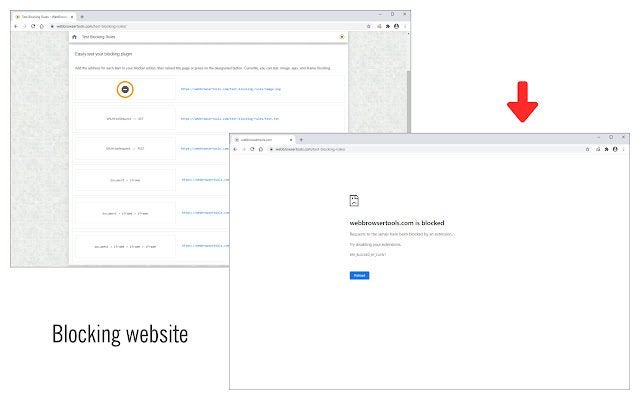
This is the last website blocking utility on this list. I promise. As if you weren’t already spoiled for choice when it comes to ways to block access to websites that may distract you from what’s important, here’s another alternative; Blocking Website. This extension does exactly what the name implies; it acts as a block between you and administrator-selected websites. This way, you can keep yourself and your subordinates focused on the bottom line.
Take control of your productivity with this nifty tool and unlock your true potential. You’d be surprised how much you can get done in a day when you aren’t surfing social media or watching videos on YouTube every couple of minutes.
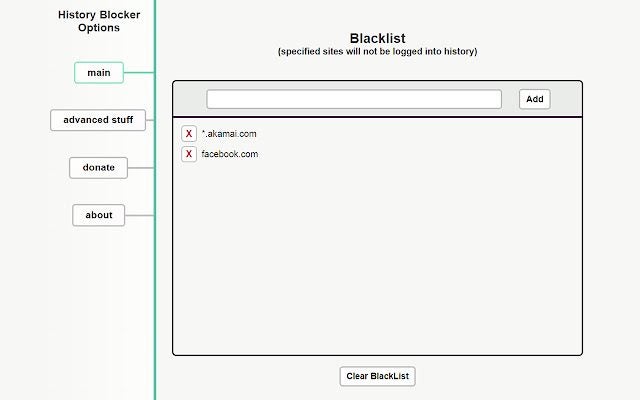
This is a rather nifty tool if you’d prefer certain websites and search items not make it into your history. Yes, you can always clear your history after a search, but with an extension like History Blocker by Site, you don’t have to clear your history again ever again.
This utility blacklists chosen website URLs and prevents them from ever entering your search history. It’ll be as if you never initiated those searches in the first place. I can’t think of any ethical reasons why this extension would exist, but If you need it, you can download it directly from our website.
The Productivity Owl is a virtual creature that you’re either going to love or absolutely despise. This Google Chrome extension by Productive Mark LLC is designed to boost your productivity by limiting your reading time. Essentially, the extension gives you a short window of time within which to keep websites open, and then automatically closes them for you.
You can organize various websites into three categories; blocked, allowed, and countdown. Blocked websites are inaccessible – this is a good option for websites that you tend to get distracted by. Allowed websites feature unlimited access, and countdown websites offer you a timed window within which you can access them.
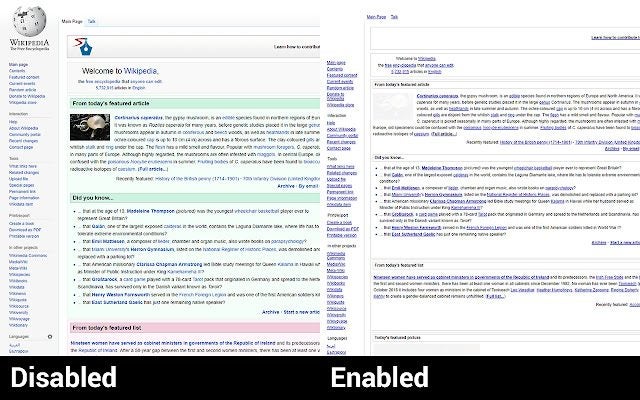
Decreased Productivity is a rather strange entry, but one that has its uses. This extension changes the way web pages look so that you can browse in peace. Essentially, this is a tool for accessing content restricted by your organization without anyone being able to tell what you’re doing. You have full control over how the webpages display and you can go as far as to have them display in the classic black background and green text configuration popular in early 90s pop culture.
No more looking over your shoulder when looking at images or browsing social media while you should be working. Decreased Productivity obscures any website so that no one can see, without a closer look at the text, what you’re up to.
Productivity Tab is an extension for Google Chrome that turns your New Tab into a personal productivity dashboard. Customize your productivity tab with a choice of over 50 widgets and incredible background images. Use this tool to stay on top of the latest developments on Twitter, Facebook, news outlets, or any other web widget of your choice, or turn your new tab into a productivity hub with powerful tools and analytics.
This tool is available for all devices running Google Chrome as well as other Chromium-based browsers like Microsoft Edge and Brave. Whether you need a comprehensive overview of all the latest developments, or an enhanced toolbar and control panel for your browsing, this is an incredible extension to have on hand.
ProductivityTab - Custom New Tab DashboardDOWNLOAD
Security is an important issue these days whenever you are online. Recently, we have covered a wide range of scam attacks and malware vulnerabilities and they just keep on coming. The key to staying safe online, however, lies with you. You need to be vigilant, and you need to be careful online. Strong passwords form a huge part of your cyber-defenses and to be extra careful you should change and update them regularly. If you are a Google Chrome user there is good news as Google is out to help you and has updated the Google Password Manager.
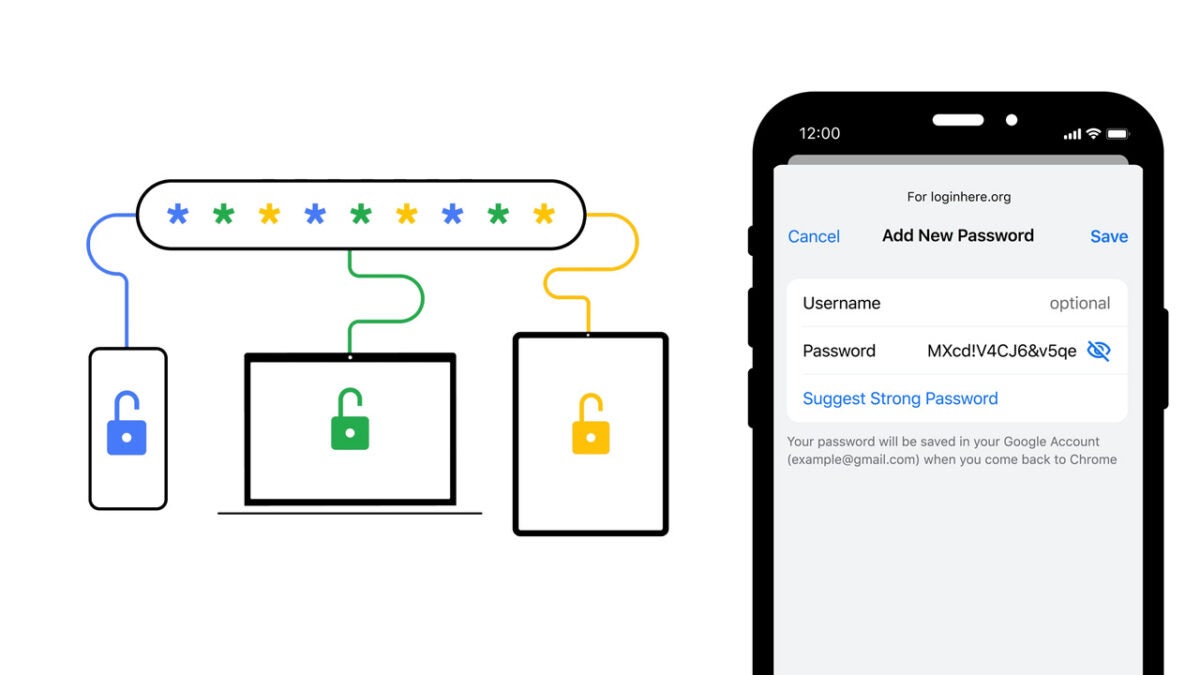
Google has released a blog post announcing updates to the Google Password Manager. Beyond helping you create, remember, and autofill passwords on Google Chrome, the tool now works across all Android apps and, like we reported earlier this week, iOS apps too.
As well as this, Google has announced that another key upgrade is what it s calling a unified management experience to remove confusion and make the Password Manager’s interface look the same across all apps. As well as looking the same, Google is also trying to remove confusion by grouping up all the multiple passwords you might have saved for the same website or app.
Another helpful move from Google is to give Google Password Manager its own icon on Android phones, which means Android users will be able to use as if it was a standalone app. For iOS users, Google is opening up its Password Manager to act as an app by allowing iPhone users to set Chrome as their autofill provider. This means you can use Google Password Manager to autofill all your passwords across all your iOS apps.
Another nice feature Google is extending to users on other devices is the Password Checkup feature. Password Checkup scans all your passwords against databases of known hacks and password leaks every time you use them to log in to a site or app. This means if the password has been compromised, Google Password Manager will prompt you to change it.
Some interesting security-boosting features coming to Chrome users across all platforms. For more Chrome security content, check out this guide to one of our favorite Chrome security extensions.