According to the latest Bloomberg reports, Krafton has reached an agreement with the founders of Unknown Worlds Entertainment to end their legal dispute over Subnautica and its sequel. This will be settled by Krafton paying the studio $250 million for the title’s huge success, which is one of the best-selling games of 2026.
All of this began when Krafton acquired Unknown Worlds Entertainment. After that, Krafton promised a $250 million bonus if they managed to meet certain goals with Subnautica 2. When they saw they were going to meet those goals, Krafton’s CEO not only fired the studio’s founders, but did so while being advised by ChatGPT. This led to a series of court cases where, once that came to light, it caused those who were fired to be reinstated in their positions and the rights to Subnautica 2 to return to Unknown Worlds Entertainment.
Released on March 14, Subnautica 2 sold one million copies in its first hour, two million copies in its first twelve hours, and four million copies in its first week. It became an absolutely spectacular success that has exceeded Krafton’s objectives by a wide margin.
Now having to pay the $250 million bonus to Unknown Worlds Entertainment, everyone who worked on Subnautica 2 will receive the money they were promised after Krafton has stopped trying to avoid paying what it promised. A small victory that, even if it’s going to cost them dearly, shows the importance of perseverance. And of not promising what you don’t intend to fulfill.
GitHub has a short-lived promo called Repo CDs running from July 2 through July 6, 2026. During that window, the company says it’ll burn eligible public GitHub repositories onto CD-ROMs and mail them out to the first 1,000 accepted submissions. Private repositories aren’t included, which makes this feel less like personal backup and more like a symbolic gesture toward preserving open-source work.
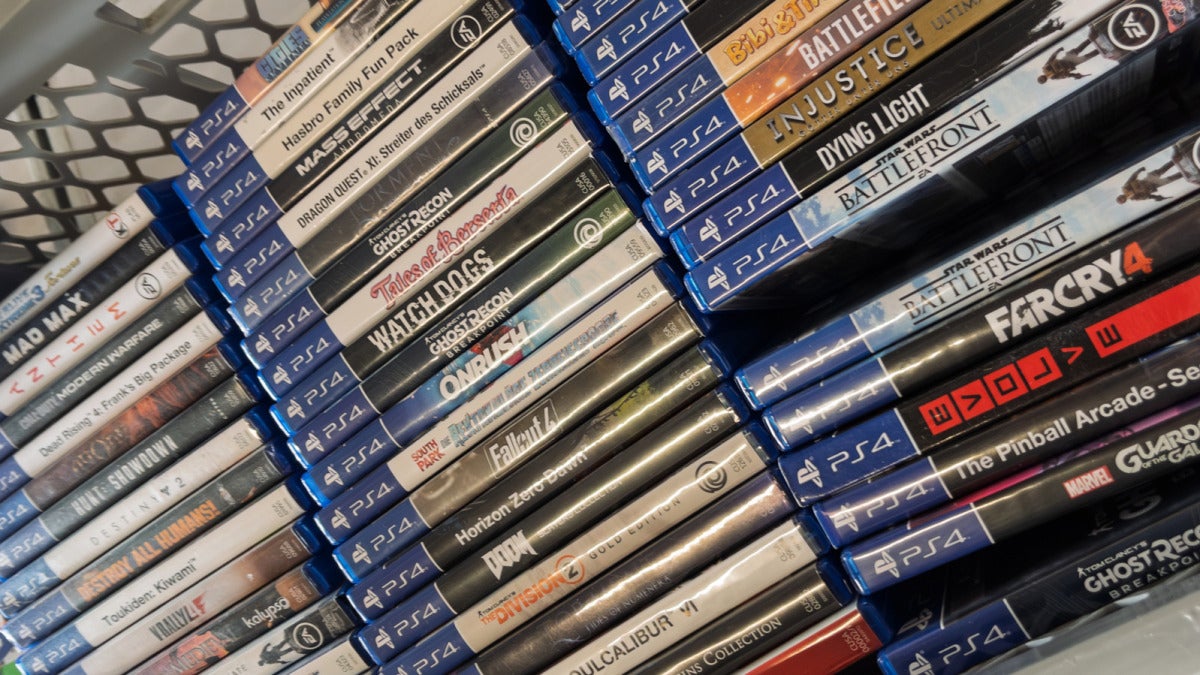
GitHub is pitching Repo CDs as a nostalgic little jab at Sony’s plan to stop making physical PlayStation games in January 2028. That angle makes sense when you look at where the market already is: 83% of console game sales in 2023 were digital, and in one peak quarter of fiscal 2025, PlayStation downloads reached 85%, according to Sony.
If ownership matters to you, there’s a real appeal here as a keepsake. Still, CD-ROMs can last anywhere from about 10 years to well past 100 and still end up failing because of heat, humidity, oxidation, or plain old disc rot. Put next to GitHub’s 1,000-year Arctic Code Vault, this reads much more like a cultural statement than a serious storage plan.
So yes, some people are going to love Repo CDs as a smart callback to the boxed-software era, and other people are going to write it off as shallow PR or straight-up e-waste. Either way, if you want a physical copy of your public project, you can apply through GitHub during the July 2 to 6 window.
Sony says it’s putting about €30 million into repurposing its Sony DADC plant in Thalgau, Austria. The factory is moving away from pressing PlayStation discs and toward making optical microlenses, with mass production of those lenses scheduled to begin in 2027.
At the moment, the Thalgau site produces around 600,000 discs a day, and roughly half of them are for PlayStation. But Sony reportedly expects disc orders to drop to about 10% of today’s volume by 2028. So the new plan is microlenses, with full-scale production set for 2027 and aimed at automotive ADAS, projected turn signals, and AR and VR hardware.
The move also lines up with Sony’s broader PlayStation shift away from physical games as buying habits keep moving toward digital. Nearly 80% of game sales were digital in 2025, compared with about 13% in 2013. And once you cut manufacturing, packaging, shipping, and retail costs, the margins get better too.
For anyone who still buys physical PlayStation games, the signal here is pretty obvious. Sony says its roughly 300 workers in Thalgau are expected to be retrained rather than laid off. Still, the usual trade-offs of an all-digital future don’t go away: weaker preservation, fewer ownership options, and no resale market for new physical releases.
You won’t be downloading anything from this Sony announcement. Still, it’s a pretty clear sign that Sony sees a much smaller future for discs.
FIFA and Lenovo say they’ve put their shared World Cup analytics platform in the hands of all 48 teams at the 2026 FIFA World Cup. That means access to 2,000 performance and tactical metrics and, if you want to draw a line between the two, maybe part of the reason Cape Verde managed to hold Spain, Paraguay sent Germany home, and a few of the usual heavyweights suddenly look shakier than the expanded 48-team format alone would suggest.
For smaller federations, the FIFA-Lenovo platform now puts top-tier tools on the table that used to belong mostly to wealthier programs: real-time analysis, opponent breakdowns, tactical simulations, and player reports that show how attacks take shape, where space starts to appear, and which defensive rotations or pressing triggers might actually work. Cape Verde and Paraguay, by reports, both leaned on plans built for specific opponents instead of just dropping deep and trying to survive.
If you pay attention to how underdogs get ready for matches, this is the part to watch. The gap now looks less like a question of who has the data and more like who can read it, sort it, and act on it fastest, because software doesn’t win games by itself, and the richer teams still have an edge when it comes to analysts and coaching staffs.
FIFA and Lenovo say the platform is being used across the World Cup more broadly, too. Alongside team analysis, they say it powers 3D avatars for all 1,248 players, semi-automated offside calls, clearer VAR, security and crowd systems in 16 host cities, steadier referee-camera footage, and abuse filters, even while questions remain about tactic copycats, privacy, bias, and how little reporting there’s been on the system’s actual impact.
Ramp and labor-market analytics firm Revelio Labs have published their June 2026 study on generative AI adoption, and the headline finding is pretty straightforward: U.S. companies that spend the most on generative software aren’t necessarily shrinking their workforce. Looking at 21,559 firms, Ramp and Revelio found that high-intensity adopters grew headcount by 10.2% in the two years after adoption. In the first three months, those companies spent about $33 per employee per month, compared with $3 for low-intensity adopters. And only the heavy spenders posted gains that were statistically significant.
The hiring wasn’t limited to engineering, either. It showed up across sales, marketing, administration, finance, and customer service, while entry-level jobs rose by about 12%, according to the Ramp and Revelio Labs study. That points to something more gradual than the usual instant-replacement narrative: when companies get past the trial phase, fold these tools into daily work, and rebuild workflows around them, the impact seems to build over months and years rather than immediately wiping out writing, summarizing, coding, and routine office tasks.
Still, if you follow this debate, the Ramp and Revelio Labs report is worth your time.
Just read it alongside the other labor-market reports from 2026, which paint a messier picture: job losses in finance and information averaging 28,000 a month, nearly 102,000 automation-linked cuts concentrated mostly in tech, experts split on whether AI is automating tasks or replacing people outright, and forecasts that are all over the map, from the World Economic Forum’s projected net gain of 58 million jobs to Goldman Sachs’ estimate that 300 million jobs are exposed, with McKinsey & Company putting the number somewhere between 20 million and 50 million by 2030.
You can read the Ramp and Revelio Labs study online.
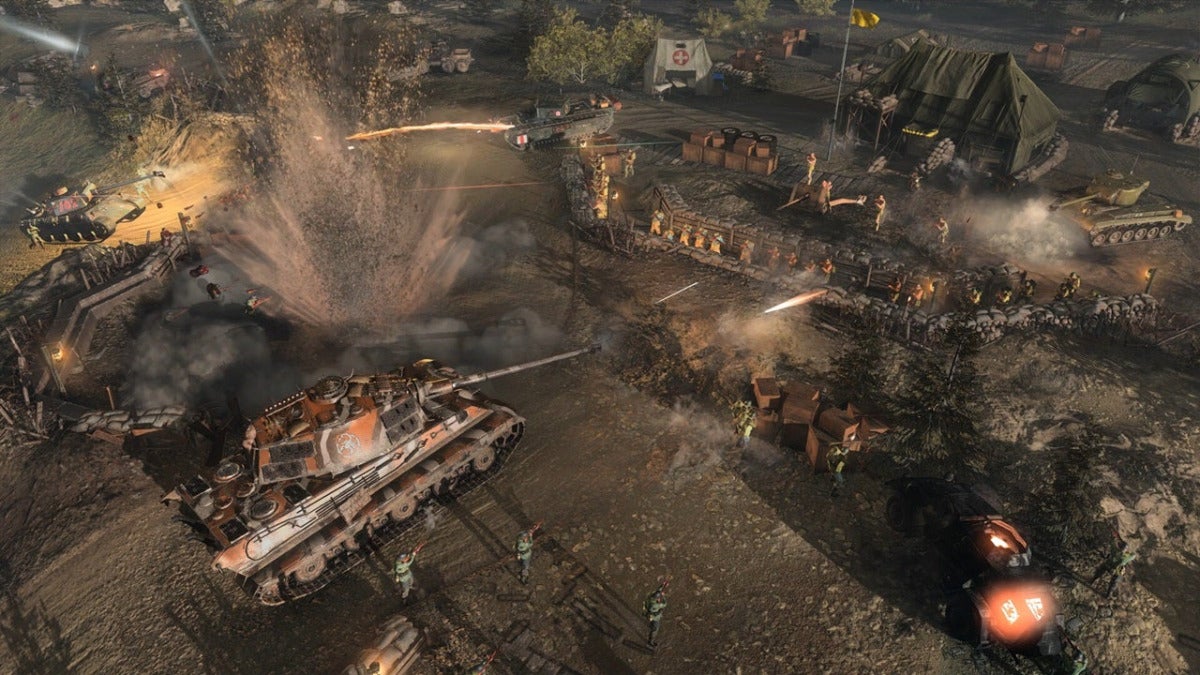
Relic Entertainment has announced that its iconic Company of Heroes franchise will be getting a new installment. Set in the Second World War and called Company of Heroes 3: Final Stand, it will be a standalone title from Company of Heroes 3, venturing into the territory of one of the most popular genres right now: the roguelite.
Playable solo or in two-player co-op, the aim will be to survive increasingly difficult waves of enemies. With up to twelve waves, between them we’ll be able to choose units and abilities that will stay with us until the end of the run. With progression systems between runs, such as perks and unique abilities for each faction —the factions this time being the United States, Wehrmacht, Great Britain, and Afrikakorps—, the game will come packed with content.
Relic Entertainment’s recent history has been one of successes. Having gone independent from Sega in March 2024, they released their successful Company of Heroes 3 on February 23, 2023, and self-published their first turn-based strategy game on October 29, 2025: the interesting Earth vs. Mars.
Set for release next July 29, Company of Heroes 3: Final Stand will look to liven up the summer for strategy fans by giving the genre a slightly more contemporary twist. Whether it’ll work or not remains to be seen, since the last time Relic tried to do something similar it was an absolute failure, as the case of Dawn of War 3 showed, but given the success of roguelites in recent times, it’s not out of the question that this Final Stand could be an unexpected hit with critics and audiences.
We have all been there: A contract with a typo, a proposal with the wrong price, maybe even a logo that needs to be changed quickly before it goes out to a client. Or maybe you are dealing with a form that you thought was finished, right up until someone points out that it can not be filled out digitally.
What makes PDFs strong is they look the same on various devices. PDF is codified as ISO 32000 and is made for ensuring a page looks like it is supposed to. The tradeoff is that this same rigidity makes editing PDF more dangerous than editing a normal document file.
You just need to change a PDF, not “reboil” a file to be able to remould it.
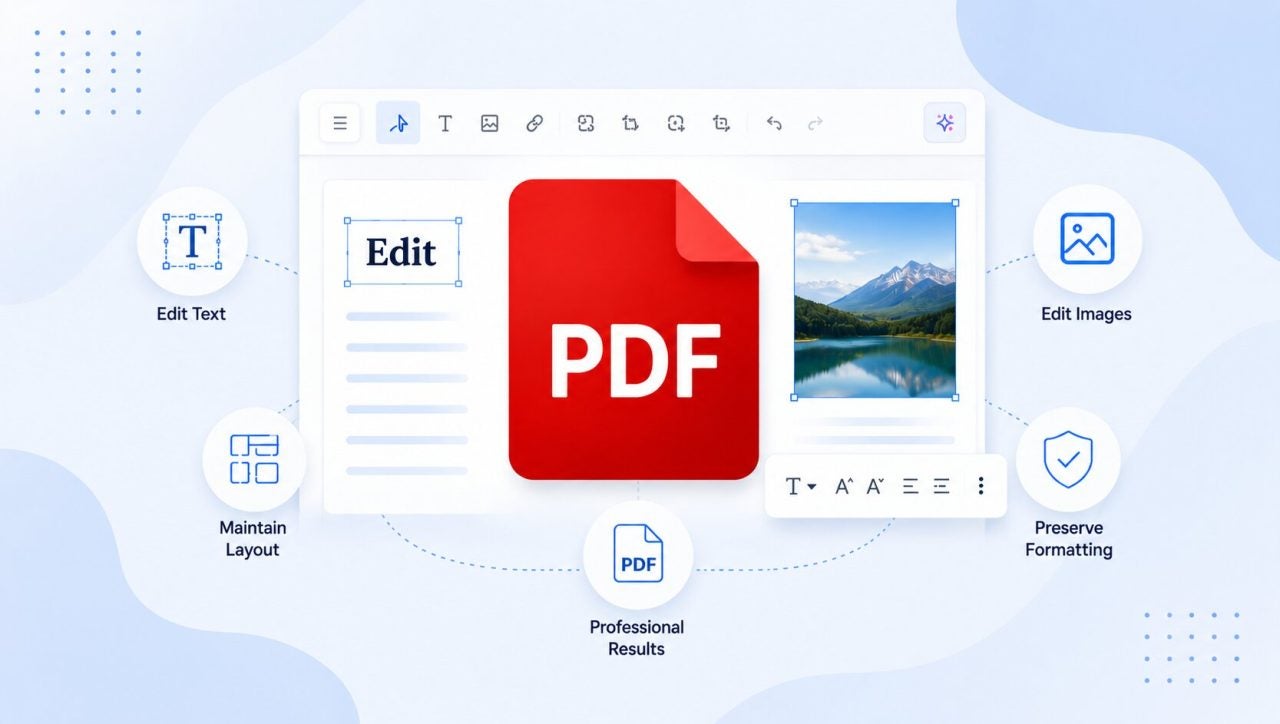
The better way to edit a PDF safely is to first figure out which kind of document you have, then make the right kind of change based on a tool that will offer you direct PDF editing. Adobe Acrobat Studio works here and allows for editing text and images, as well as bringing together Acrobat Pro, AI Assistant, PDF Spaces, and Adobe Express Premium to do wider PDF work.
PDFs are not word-processing documents. They can describe the way a page should look, rather than behaving as a live document in which just by adding new text you would make all the other text move neatly down the page. A fixed layout is why PDFs are fantastic when you want to be sure the person you’re sharing it with will see exactly what you want, but pretty inconvenient if you want to change them.
A layout breaking usually stems from the same root issues. Replacing a sentence? It goes over the original text box. Font not found? The app might swap in a different one. Those stack up into spacing issues and line jumps. Moving an image? That won’t reflow text and adjust the layout around when moved.
Last but not least are scanned PDFs. The page looks like text to you, but the file is actually treating each page as an image because it’s not actually text. OCR is needed to turn those images of words into actual “typed” text.
With Adobe Acrobat Studio, it can help you to add, delete, replace and format content in a PDF. Sometimes, convoluted layouts might need a design revisit, but in most cases you can handle changes in seconds or minutes, not hours.
How to Edit Text in a PDF Without Retyping the Whole Thing
Sensible PDF editing begins with you, not the software. Before starting, we recommend you to check on whether or not directly editing is a good idea. Also, remember that having a source file is always best.
Open the PDF in Acrobat Studio and then ask yourself the follow:
Can I select any text? If you use the select tool and you drag on text, does it highlight and split into boxes, or does it grab entire blocks or images instead?
Is this document scanned? Does the page appear to be an image or photo of text instead of actual text?
Does this file have a password or is it restricted?
Is the edit I want to make small like a typo or am I trying to change the layout of the text?
Selectable text is good news. That means you can freely edit the text, while scanned pages will require OCR (Optical Character Recognition) as an extra step to do so. OCR is possible and will render text searchable or editable but it should really be proofread.
When your PDF in question is locked or signed, you can be prevented from editing it. There’s no way around that except for asking for one without a password, an unsigned copy, or the original source file that exported the PDF.
The last question is the most important. Are you trying to fix a typo, a bit of a text here and there, or change the text layout?
You can absolutely add, replace, delete, and correct text. You can also change fonts, typeface, and text size. That gives you more control than a number of PDF tools, because you are editing the PDF content itself rather than adding comments on top.
However, go in with healthy expectations. PDF text often can only reflow inside its original text block boundary. It won’t, for example, automatically push content down a page like in a Word doc. So, after every edit, zoom out a bit and inspect the whole page, not just the sentence you modified.
This type of editing works well for dates, names, prices, short legal corrections, administrative details, brochure copy updates, and job titles. And the best part is that it can take literal seconds when a job is small and precise.
How to Replace and Edit Images, Logos, and Visual Elements in a PDF
Let’s say your company logo changed or a product image was updated, those are great examples where you can easily swap in a new one. You could also move a chart that’s too close to nearby text or resize a photo.
Those are the practical examples, but the image tools that Acrobat provides allow you to insert, replace, move, rotate, resize, crop and delete image content.
Your process should be the same each time. You select an image, use one of the tools, and check the surrounding layout.
As Adobe Express is integrated inside Acrobat and Firefly along with it. That means there are options to tidy up an image and adjust it via text prompts. You may want to remove a busy background, for example, or change the lighting. Once you’re happy with the results, save or export the updated PDF.
If you’re replacing an image then use a similar size replacement image when you can. Keeping the same aspect ratio is important so the new image does not look stretched or squeezed. Also, if a PDF becomes heavy after the image swap, perhaps consider a lighter image or compress it before sending.
The capabilities within Acrobat for tweaking images are powerful, however if you are looking for a full suite of image retouching tools then use the original design file or a dedicated image editor like Adobe Photoshop first. Once you’re done, simply replace the finished image back into the PDF.
Usually a scanned PDF looks like a normal document, but acts more like a photo. You see the words but the computer is not really treating them as text. That is why, when you try to click on a sentence, it sometimes selects the whole image rather than text.
OCR fixes that by “reading” the scan and transforming it to text and not just lines. You can run OCR on a PDF in Acrobat and convert it to a format that can be edited like a Doc file.
If you’re the unfortunate recipient of an old contract, archived invoice, government form, or red tape from HR, you will want to avoid retyping. And that’s the sensible thing to do. Who wants to manually retype a ten page document because a scanner was used?
For better results, make sure the scan is as clean as possible or ask for a cleaner scan if it isn’t. If text is blurry, pages are skewed, contrast is poor, or writing is irregular, the OCR may not succeed.
Once you’ve done the OCR, save the text copy so that you can compare side by side with the scanned PDF. Doing so will flush out any errors, especially for important details like names, numbers, addresses, totals, dates and legal clauses. If you notice any errors, you’ve got the text editing tools on hand we mentioned earlier to address them.
Make Static PDFs Easier to Fill and Sign
Sometimes editing a PDF is about making it more usable, not changing the actual content:
An application form with no fillable fields
A client agreement missing signature lines
A vendor form that needs to be dated, signed, and initialized.
They’re all files you might receive and that, if you don’t treat them first, you’ll be forced to print or sign manually.
In these cases you can make a PDF into a fillable form by adding fields and signatures, and prepare it to be e-signed.
That’s possible in Acrobat, but check your set up. Examine the field names you’ve given, the size of the fields, order and spacing before sending.
Acrobat can also send documents for e-signature from both desktop and web. That minimizes lost signatures, approval delays, and those times where three people print the same document for no reason.
How to Edit a PDF on Mac Without Relying on Preview
If you are wondering how to edit a PDF on a Mac, you will probably first open the file in Preview. Logically, it makes sense as it is quick, simple, and built into the OS. But keep in mind it is not a true PDF text editor.
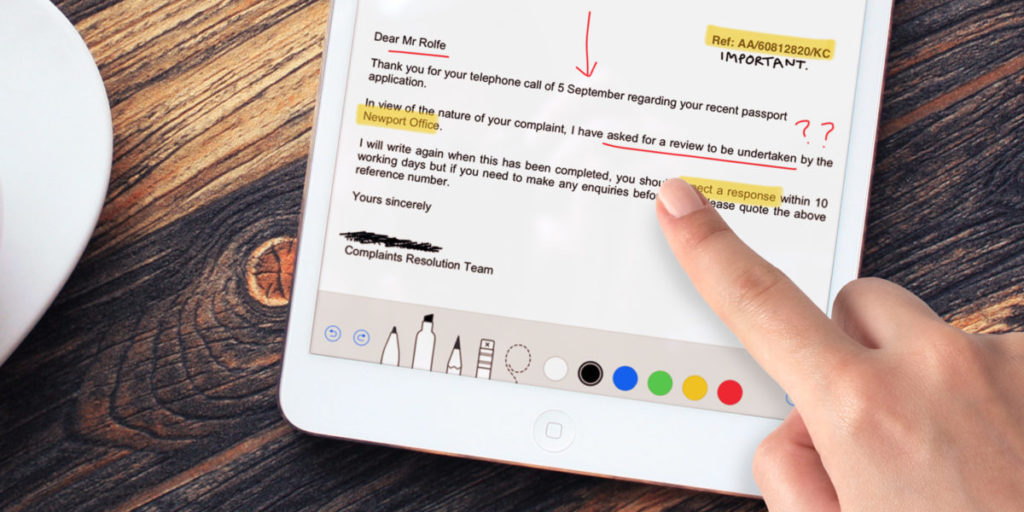
Apple states that Preview allows annotating PDFs, filling out forms, and adding signatures, but you cannot modify the preexisting written content of a PDF within it. Open it when you want to highlight things, add notes, do a simple form, sign a document, or reshuffle pages.
Use Acrobat Studio when you need to change the document itself. This includes editing existing text, replacing images, running OCR on scanned files, preparing fillable forms, sending documents for e-signature, and working across desktop, browser, and mobile where available.
If you want to know when to use Preview or Acrobat Studio, just follow this simple rule: use Preview when you need to mark up. Use Acrobat Studio when you need to edit. Preview opens PDFs beautifully, but opening a file is not the same as being able to change its bones.
Use AI for Quicker PDF Edits and Document Cleanup
AI can make a difference in working with PDFs when you need to find, organize, repeat, or summarize supported data and actions. It is not instant-fix magic but it is definitely helpful when it saves you a few clicks.
Adobe says Acrobat AI Assistant can perform PDF tasks from natural-language prompts. It can figure out what you are wanting to do, select the right supported tool, and carry out actions without you digging around in the menus.
Some possible prompts you can try could be:
“Find every mention of the old product name.”
“Move the pricing page before the terms.”
“Remove blank pages.”
“Compress this file before I send it.”
“Add a watermark to pricing pages.”
As a whole, Adobe offers your own personal AI Assistant that will aid you editing your PDFs in just a few seconds.
Know When Not to Edit the PDF Directly
Sometimes, the safest PDF edit is not to edit the PDF at all. This is especially true when you’re making major changes, preserving complex layouts, or working with legal documents that require exact formatting.
This rule is important if the PDF was created in professional design software, where every line break matters or where compliance or accessibility tags matter. The same applies if the document has been digitally signed, locked, or requires editing permissions.
Why does this matter? Forcing edits in these PDF files will probably trigger control issues, formatting errors and ultimately, unnecessary complications.
Keep in mind no single PDF editing problem has the same solution. The best approach depends on the document and the changes you need to make, so use common sense before you start editing.
If PDF edits are a part of your usual work, thenAdobe Acrobat Studio will provide a much larger arsenal than a basic viewer or a simple markup tool. It is developed for editing text, replacing images, OCR on scanned PDFs, building fillable forms, sending documents for e-signature, and using AI Assistant to edit and organize supported actions.
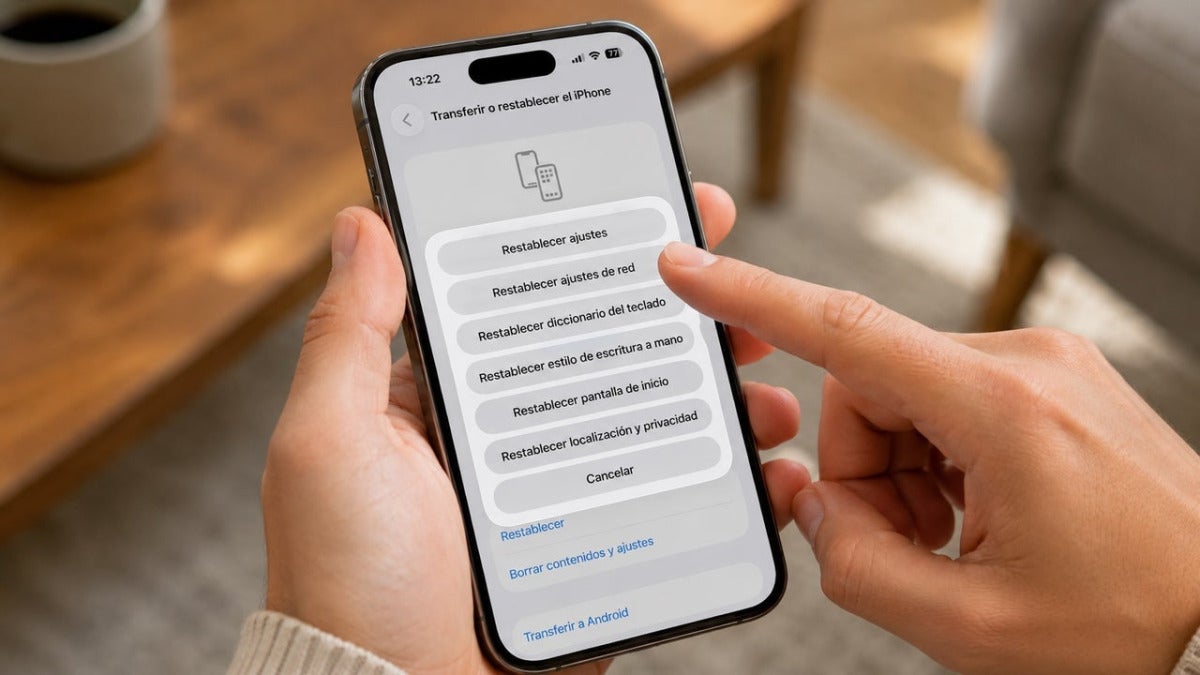
Apple includes Reset Network Settings on iPhone and iPad as a last-ditch fix when Wi‑Fi, mobile data, or Bluetooth starts acting up. Apple says it puts your network settings back to their factory defaults without touching your photos, apps, messages, documents, accounts, or other personal stuff.
What it does wipe is more specific: saved Wi‑Fi networks and passwords, Bluetooth pairings, manual VPN and APN settings, and some carrier settings. Apple also says it can reset trusted certificates, turn off data roaming, and change your custom device name back to a generic one.
If you’re dealing with random connection problems, this reset can be worth a shot, but not as the first move. Try Airplane Mode first, then restart the device, reconnect to Wi‑Fi, and check your router or carrier before you go here.
On iPhone and iPad models with cellular, Reset Network Settings can also clear up eSIM, carrier configuration, or mobile data problems. On a Wi‑Fi-only iPad, it’s mostly about Wi‑Fi, Bluetooth, and the related settings tied to them.
You’ll find it under Settings > General > Transfer or Reset [device] > Reset > Reset Network Settings. Make sure you don’t tap Erase All Content and Settings. The reset usually finishes in under a minute, drops your current network connection, may switch Wi‑Fi off and back on, and means you’ll want your Wi‑Fi passwords and any manual VPN details handy.
For some people, iCloud Keychain brings back part of that login info. Others have to type it all in again.
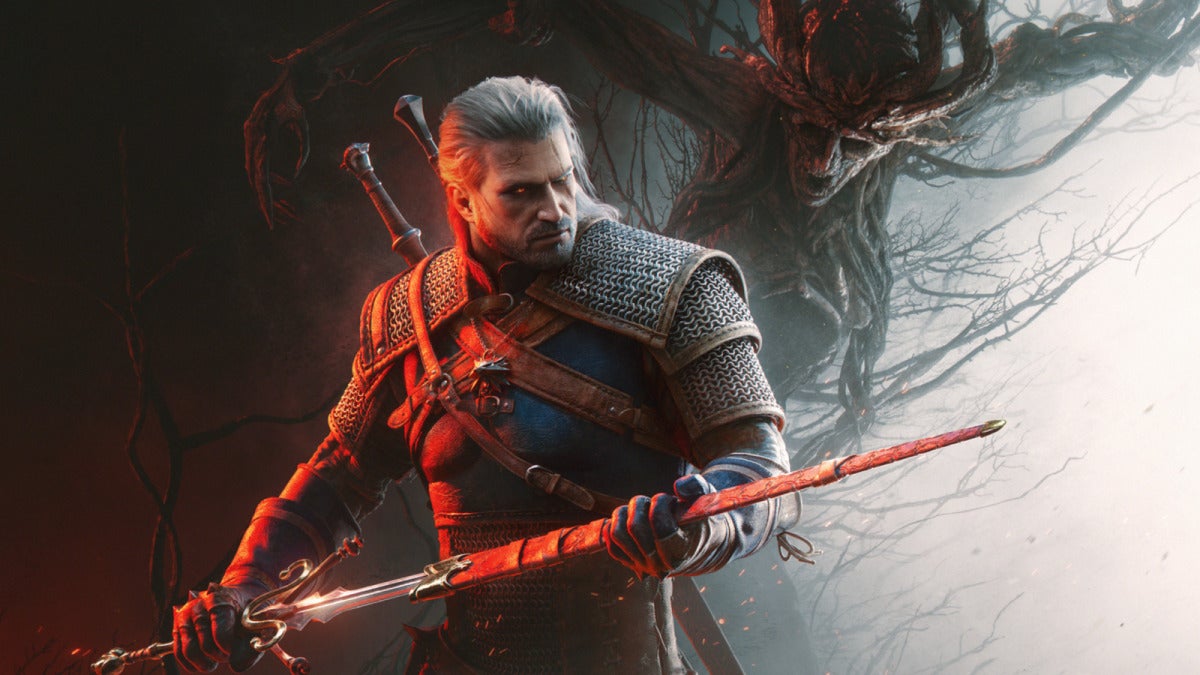
More than 11 years after CD Projekt Red first released The Witcher 3: Wild Hunt in May 2015, the RPG has drifted back into the spotlight. Fans are still quoting Geralt of Rivia, whether it’s “Lambert, Lambert, what a prick” or “Evil is evil. Lesser, greater, middling, makes no difference…,” and using those lines as evidence that the writing hasn’t lost its edge.
That mix of dry comedy and heavy moral grayness is a big part of why CD Projekt Red’s RPG still gets praised for its believable dialogue, mature themes, worldbuilding, quest design, and characters who feel like actual people. You can point to the boat-scene limerick, the Bloody Baron, or just the way The Witcher 3: Wild Hunt lets a joke land before it drops you back into something darker.
People are still arguing over which line says the most about The Witcher 3: Wild Hunt’s legacy, and the game’s commercial staying power tells the same story. By May 2026, The Witcher 3: Wild Hunt had sold more than 65 million copies. CD Projekt Red and Fool’s Theory are also co-developing the 2027 expansion The Witcher 3: Songs of the Past, and The Witcher 4 is expected to put players in control of Ciri as the start of a new trilogy, though that isn’t expected before 2027.
If you’ve been waiting for a reason to replay The Witcher 3: Wild Hunt, this is still an easy one to pick up. Very few games can make people remember both a joke about Lambert and a meditation on evil more than a decade after release.
You can download The Witcher 3: Wild Hunt now on major platforms while you wait for the next Witcher games.
Amazon has refreshed Prime Gaming for July 2026 with 12 free PC games for Prime members to claim and keep, along with a new batch of titles on Amazon Luna.
The PC games stay in your library even if you cancel Prime later. You can redeem them through GOG, the Epic Games Store, and the Amazon Games App. The lineup includes Symphony of War: The Nephilim Saga, In Sound Mind, CyClones, LoneStar, Still There, Escape Academy, Regular Factory: Escape Room, and Mystic Academy: Escape Room.
Over on Amazon Luna, Prime members get GameNight picks like Courtroom Chaos: Starring Arnold Schwarzenegger, Centipede Swarm, The Jackbox Party Pack 8, and Angry Birds Mystery Island content. The streaming lineup also adds Dispatch, Sonic Mania Plus, LEGO Indiana Jones: The Original Adventures, YouTuber’s Life, and Arcade Paradise. You can play them on smart TVs and phones, and local multiplayer is easy to set up.
If you want games you actually own and games you can jump into right away, this month’s update is a good one to grab. It also gives you a clearer sense of where Amazon is headed with Luna after dropping individual game sales, third-party channels, and Bring Your Own Library on June 10, 2026, while still keeping Prime Gaming positioned as a curated, family-friendly extra for Prime’s huge member base.
You can claim the PC games through Prime Gaming and stream Luna through Prime.