What is God Mode in Windows and how do you activate it?

Find out what God Mode is and how it can make Windows even better.

If you spend as much time clacking away at a keyboard as we do, then you’ll be glad to learn any tricks of the trade to speed up your work. A fast operating system is one thing, and there are several ways you can speed up your actual computer, but speed is also user-dependent, and there’s nothing quite like wielding the might of Windows God Mode.
Windows 10 Download Windows 10
8
The latest and greatest version of Microsoft's operating system.

What is Windows God Mode?

“God Mode” is one of the lesser-known quirks of the Windows OS, and no, it doesn’t give your operating system super powers or unlock any hidden features. Rather it’s a way to super easily lump a ton of commonly-used processes into one convenient window.

The window will let you quickly access all manner of backup and restore options, administrative privileges, and other handy management settings. With God Mode, you won’t have to search beneath a dozen default folders and windows settings just to find a simple function like “connect to a network” or “uninstall a program.”

Here’s how to set it up in 3 extremely easy steps:

Enabling god mode in Windows

1. Create a new folder

For a function called “God Mode” it sure has humble beginnings. To start, create a new folder. Right-click on your desktop and select ‘folder‘ under ‘new‘ and an unnamed folder will pop right into view.
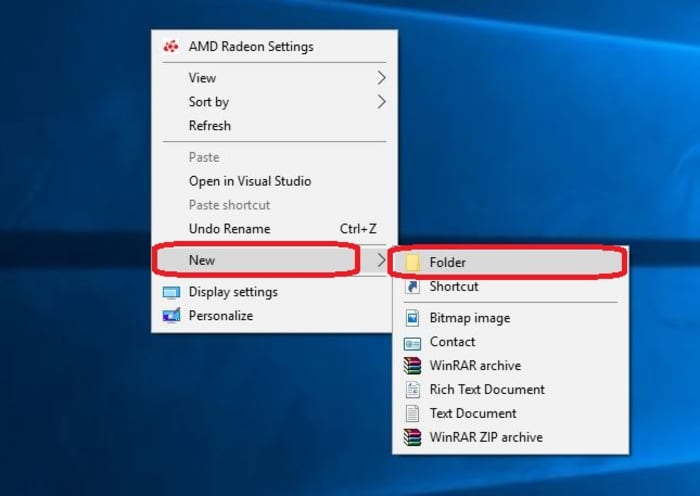
Create new folder Windows 10

2. Name the folder

The key to creating God Mode is simply in the naming of the folder. Copy and paste the following right into the folder name:

GodMode.{ED7BA470-8E54-465E-825C-99712043E01C}

Once you’ve renamed the folder you should notice that the folder icon will change to a control panel icon immediately. You can place this new windows master control panel shortcut wherever you like.
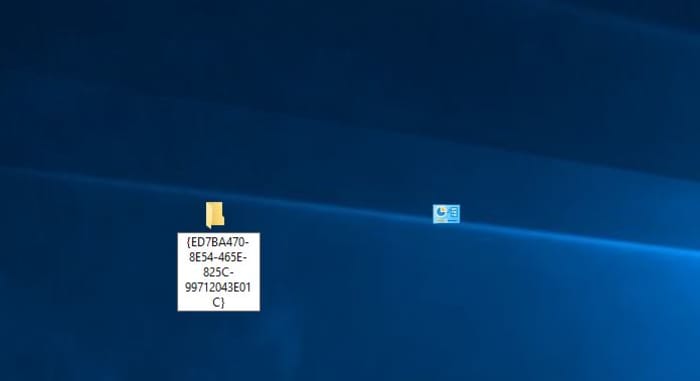
Windows 10 God Mode icon change
Rename your folder and the icon will immediately change

3. Open the folder

Double-click the god mode folder and it’ll open a window with a ton of utility tools. The categories are all listed in alphabetical order, so it should be easy to find whatever you’re looking for.
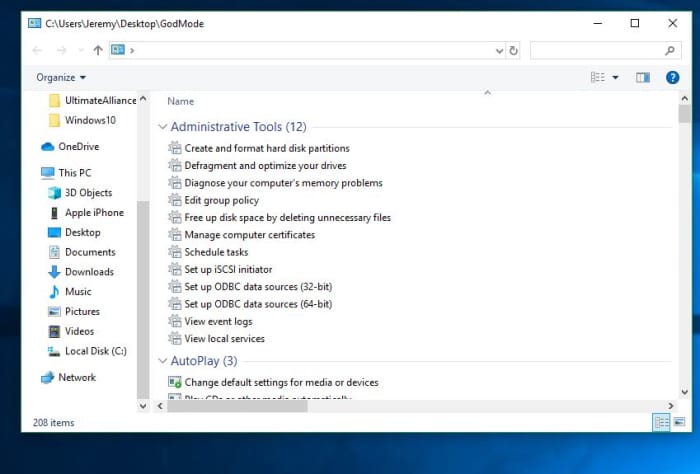
Windows 10 God Mode window
A new omniscient view

Congrats! You now have a special folder that serves as an incredibly useful shortcut for accessing all manner of tools and programs within your version of Windows. You can also drag-and-drop any of the shortcuts from the list right onto your desktop. This lets you access your most-used programs on the fly. Enjoy your new streamlined Windows 10 experience!

Let us know in the comments below whether you’ve found God Mode as useful of a feature as we have, and stick with Softonic for the latest in Windows tips and tricks!
Meet Brave, the faster browser

Download and install Brave and enjoy private, secure and fast browsing

Brave Browser

If you’re reading this article on a browser that isn’t Brave, we’ll tell you right now – Brave probably would have loaded this page faster. Don’t take our word for it. Try it for free:

Browse the web up to 3x faster DOWNLOAD NOW ►
9
Enjoy private, secure and fast browsing with Brave.

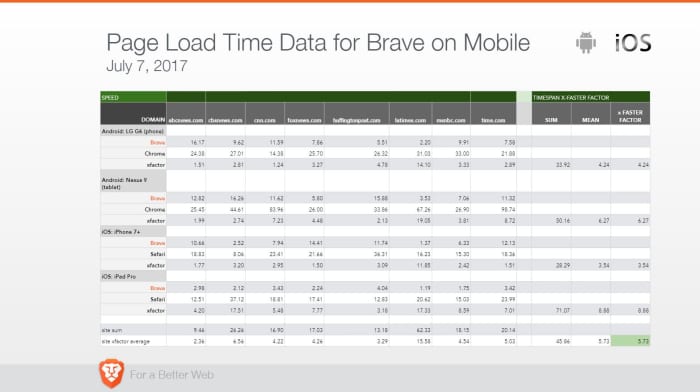
How fast is fast? On a laptop or desktop you’ll see load times anywhere from 50% to 100% faster. It’s even more noticeable on mobile devices, and you could be seeing pages load up to eight times faster than on your smartphone’s default browser (like Safari or Chrome). Check the stats yourself:

Brave mobile page load time data

Speed is about more than page load times

Brave loads pages faster than other browsers, but that’s not all that matters. Browsing eats up time in other, subtler ways: Pop-ups, advertisement videos, banners you have to scroll past – it all bogs down your experience. Brave’s default setting is to shield you from all manner of ads, trackers, banners, cookies, and pop-ups. That means all it has to load is the actual web content, not ads. It doesn’t require you to add additional plug-ins either, so the experience doesn’t get bloated. See it in action:

No bloatware and slimmer pages also means your device’s battery life will last longer than if you used Chrome on mobile. More battery life means fewer trips to recharge you phone, so you’ll be saving time on that front too.

Save time, save money

We probably don’t even need to mention it, but time is money. Since you’re paying for bandwidth you’re also paying for all the ads and slow page load times. When your browser isn’t eating up your bandwidth just to load obtrusive ads, you’re saving money as well.

Try Brave today

When you open a browser you’ve got a goal in mind. Everything that gets in the way of you and the content you’re seeking is unnecessary traffic. Download Brave and you’ll immediately understand why it’s gotten over 28 million downloads on Android alone. Download it here 100% free, and see what the hype is about.

Browse the web up to 3x faster DOWNLOAD NOW ►
9
Browse faster. Choose Brave.

Softonic is proud to partner with Brave. When you download from us, we may earn a commission.

Best macOS desktop apps in 2019

These apps will supercharge your Mac!

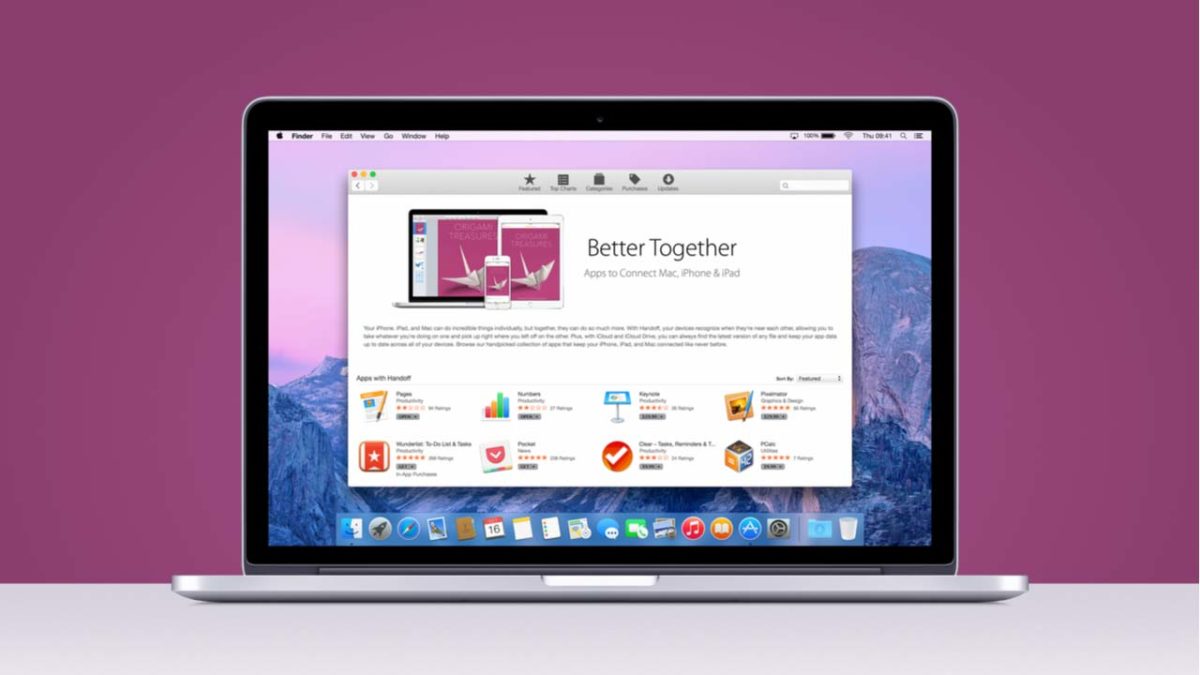
Mac with apps

If you’re going to spend over $1,000 for a computer, you might as well load it up.

Newer MacBooks come equipped with an out-of-the-box app stack that should have you covered. 

Sure, TextEdit won’t meet your word-processing needs, but Apple News, Notes, Tasks, and more all come preloaded in your dashboard. However, it’s easy to forget that there’s a lot you can do to sweeten your setup. 

The macOS library hosts a whole lot of gems, from the tools that help you focus to those that lend a helping hand in the kitchen.

MacOS Apps to supercharge your desktop

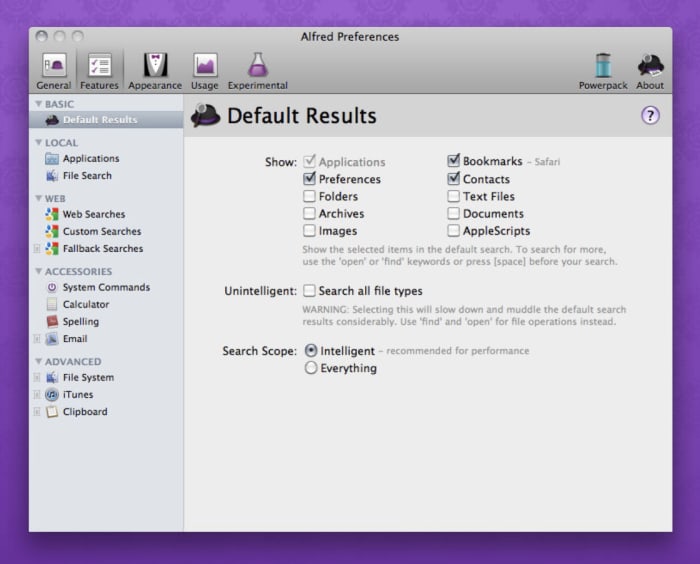
Alfred

alfred app mac os desktop

Alfred is a shortcuts app that lets you use quick keyboard commands to launch your apps, locate files, or surf the web. Use the desktop app to create your own extensions or use creations shared by the community of Alfred users.

We’ll offer a word of warning — Alfred is not an easy tool for beginners. It also isn’t for everyone. For those who thrive on shaving seconds off of tedious busywork, the upfront investment will pay off in spades. You can build workflows that automate manual tasks, control your music, link up with 1Password, and search for emails through the tool.

Alfred Download Free
8

MacPaw

If you really want to make your computer run faster, we would recommend MacPaw. Don’t be fooled by the name, MacPaw products are available for both Mac and PC. 

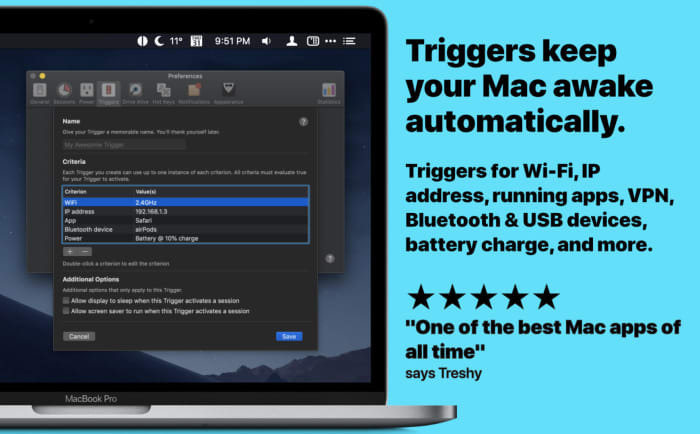
Amphetamine

amphetamine mac app

If you’re sick of adjusting the Energy Saver to keep your Mac from sleeping, Amphetamine steps in to keep your laptop awake. Install the app— and access by right-clicking the menu bar icon to turn it on. Once activated, Amphetamine keeps your Mac awake until you turn it off. 

That’s not all, though. Amphetamine settings can be updated so that it keeps your Mac awake during specific tasks or when it’s connected to a certain Wi-Fi network.

Amphetamine Download Free ►
7

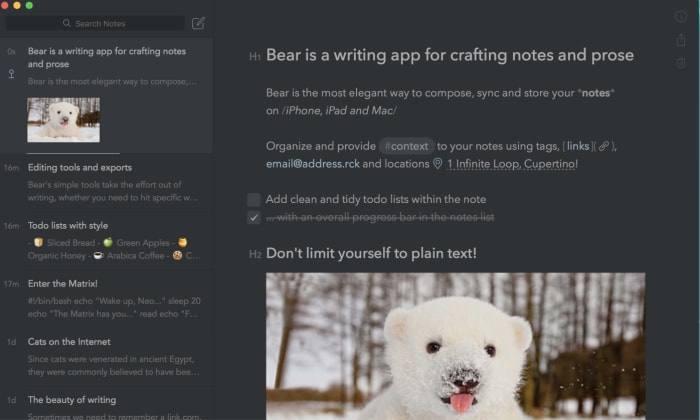
Bear Notes

bear notes app

Bear Notes isn’t just another Notes app. We know, the App Store is loaded with all kinds of tools that promise to help you keep track of everything. But, if you’re naturally disorganized, even the best-designed apps can devolve into another digital trash heap. 

Bear Notes is something of an upgrade from the Notes app that comes standard with your Mac. It adds word count, read-time, paragraph count and other stats. You’ll have the option to export your notes in seven different ways including Markdown. It’s ready for WordPress, Medium, or wherever your content’s final destination happens to be.

Bear Notes Download Free ►
8

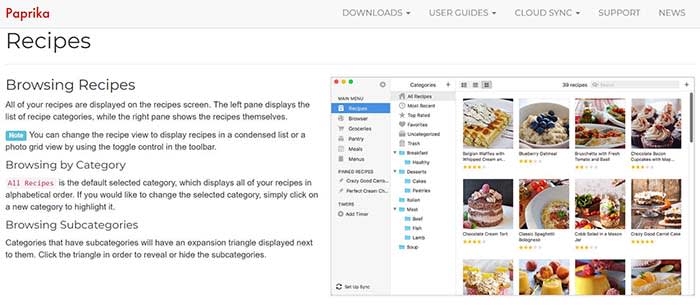
Paprika 3

Paprika app

If you’re into cooking but prefer digital recipes to cookbooks, Paprika 3 is the app for you.

It costs $30 in the App Store, which seems like a lot for a tool that doesn’t promise to make you more productive or professionally edit your media. However, Paprika actually proves its worth pretty quickly.

You can download any recipe you find online and the app formats it in a way that is easy to read and easy to find. You can also create meal plans that sync up to the recipes you collect and keep track of your ingredients.

Paprika 3 Download Free ►
9

Slack

slack desktop app mac

The reason we include Slack isn’t because we love the tool so much. Rather, the app is something of a revelation for those who have been using the iOS version or chatting within the web browser. 

If you love Slack or have to use it for work, download the app. It’s free and easier to keep up with alerts from your desktop rather than trying to find the correct flashing tab in a sea of chatbots.

Franz

Franz All-in-One Messaging

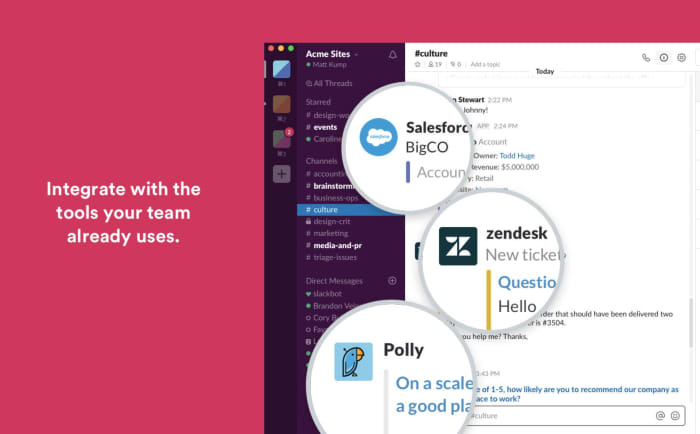
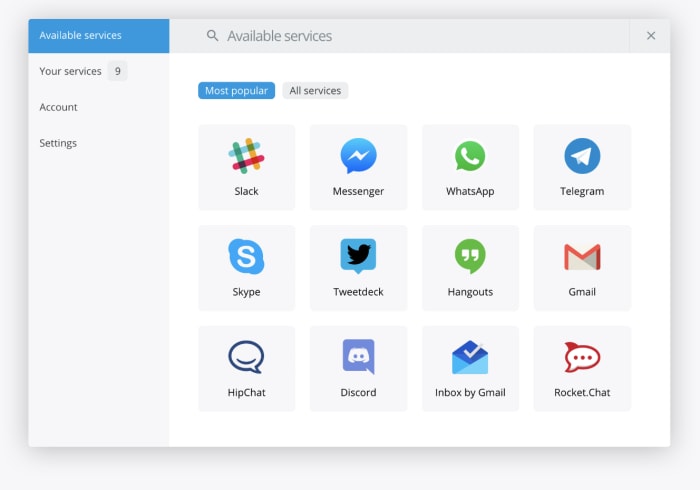
Speaking of chat apps, Franz is a tool that promises to make life a little easier if you’re a social butterfly spread across several applications. The platform brings your accounts together — Slack, WhatsApp, Facebook Messenger, and more. It brings everything together so you can respond from one place.

There’s no limit on how many accounts you can add. So, it doesn’t matter if you’re juggling multiple Facebooks or WhatsApps. 

Make it yours

Apple’s mission statement says that the Mac is the greatest personal computer in the world. Whether or not you believe Apple is up to you. However, if you’re going to spend $1,300 on a new computer that proclaims itself to be the best, you better customize it to have exactly what you want.

Try a VPN!

If you’re looking for a decent VPN service to try out on your computer, we would recommend Express VPN. By clicking this link, you can get 15 months of Express VPN for the price of 12!

How to install Steam

Wanna learn how to download and install Steam? We got the answer for you!

Steam

If you play video games on your PC or laptop, Steam is probably your best friend.

Steam hosts a pantheon of amazing games available for purchase and it conveniently stores them in the app’s library. Along with incredible franchises like Grand Theft Auto, Steam also has many incredible original titles such as the Team Fortress games and Counterstrike. You can play and chat with friends while playing some of the best games ever made! The millions of users who use Steam every day can’t be wrong!

If this sounds like a blast to you, you’re probably wondering, “Where do I download it,” and “How do I install it?” Luckily, we have the answers!

How to download Steam

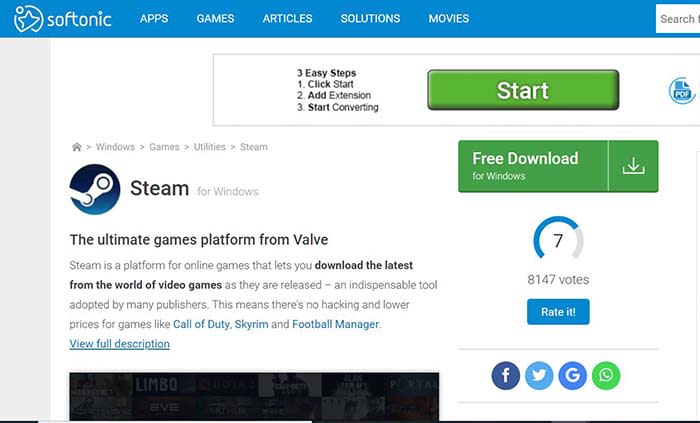
Download Steam on Softonic

Download steam

Conveniently for you, we have the Steam app available for download in our catalog. Click the link below!

After you’ve clicked the link, click on the green “Free Download” button to begin your download.  From there, you will be forwarded to a new page, where there will be another click to download icon. After clicking that, your download will start.

This initial download should take only a few seconds. Once it is done, click the file in your downloads folder to start the installation process.

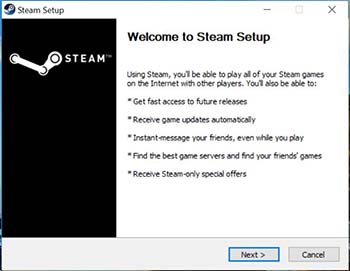
Allow permission to begin installation setup

Steam setup

Once you click on the downloaded file, Steam will request permission to install onto your device. Once you give it the okay, the installation process will begin. It will ask you for your preferred language, and then the installation will begin.

Make sure you have enough space.

Steam is about 450 MB, but games can be a few GB each. If your computer doesn’t have the necessary space for new games, then you need to make room before you start downloading.

Self-updating

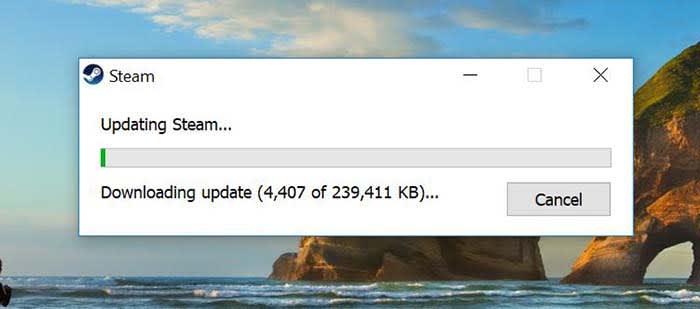
Steam update

After you’re finished downloading, Steam will automatically update itself to fit the current version. This will happen every time you open Steam. This process typically doesn’t take as long as the initial download process, but it can still take a few minutes.

Create a new account or log into your old one

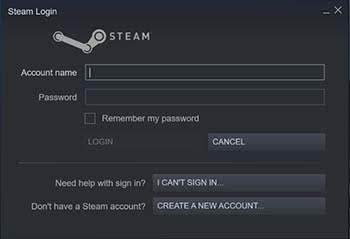
Steam loginIf you have Steam already installed on another device, you can sign into your account on this one after downloading. You can also create a new account through a quick and easy process. All you need in order to create an account is your email address. Also, you can choose when Steam sends you emails. You probably don’t need to hear about EVERY Steam sale, but you do need to know about password info and privacy matters.
Once you are logged in, you’re ready to start buying and playing games!

Wrapping up

Have fun playing on Steam! Let us know what the first game you bought was in the comments below!

Free desktop and mobile wallpapers: Enjoy this treat from NASA

NASA is giving away some of the most stunning photos of earth ever taken

NASA Earth

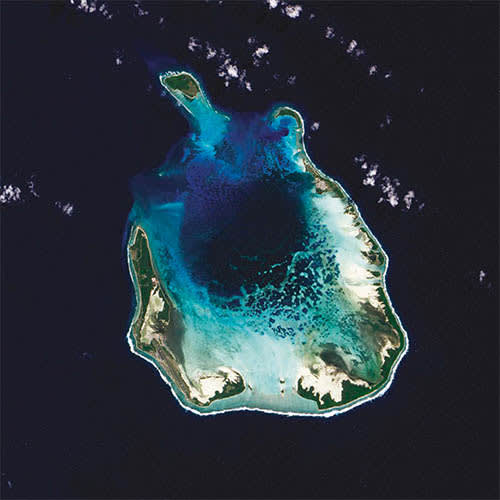
The earth is such a beautiful and unique place. It can be easy to forget just how special it is. Earth’s natural beauty needs to be seen to be truly understood. But if your situation prevents you from seeing as much as you’d like in person, NASA has something special for you.

To celebrate Earth’s majesty, NASA has released a hardcover book filled with 69 of the best images of earth NASA has ever taken. There aren’t many people who will have seen the world like this. The book retails for $53 and will cost even more if you’re outside the U.S., but the good news is that NASA is giving away an electronic version of the book for free. These images will make some of the best desktop backgrounds we’ve ever seen.

NASA is giving away some of the most stunning photos of earth ever taken

NASA’s new photobook is called “Earth” and takes all the best satellite images the space agency has taken of earth through the years and packages them up for you. There are two ways to get your hands on the incredible images for free. You can either download the ebook as a pdf, epub, or mobi file here; or you can check out NASA’s interactive online version here.

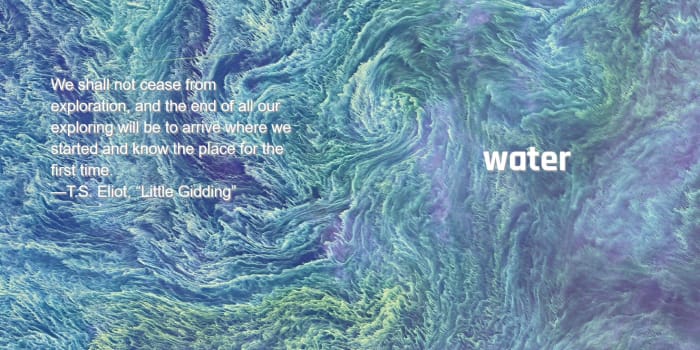
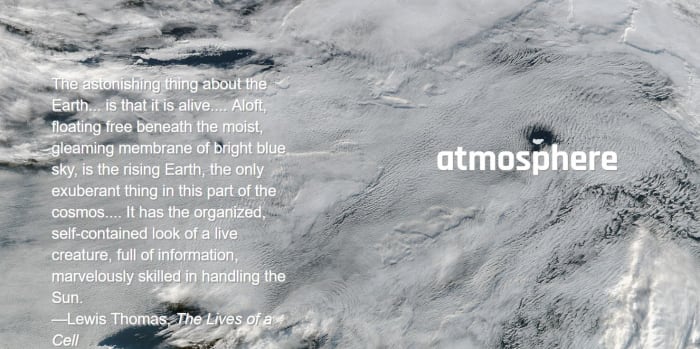
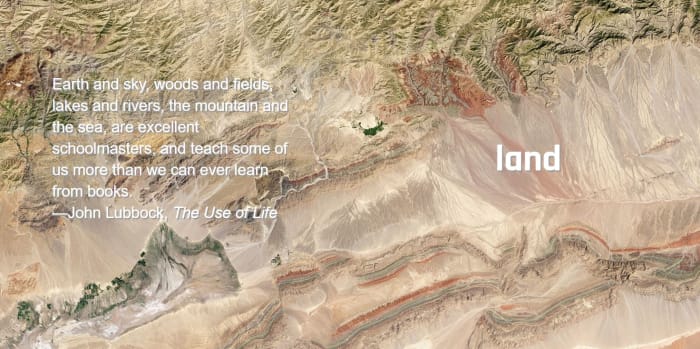
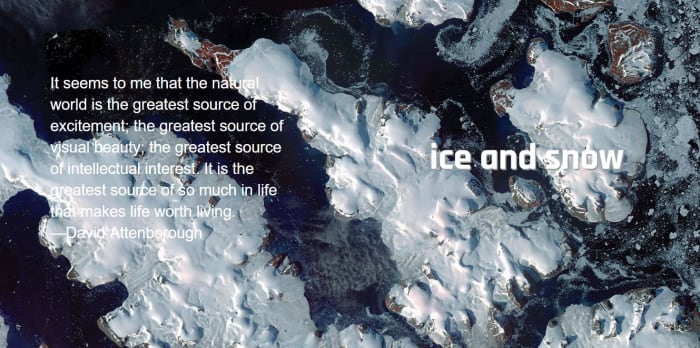
The online version of NASA’s book is split into four categories. These categories are atmosphere, water, land, and ice and snow. Each will show you stunning images that tell earth’s 4.5 billion-year-old story and give you an insight into how NASA uses these types of images to learn how the earth has developed over that time.

NASA satellite imagery

All the images come with a short description explaining what they’re showing and also include a link to the full story of the image, which will give a much more in-depth explanation of what is going on and how NASA captured the image. If you’re looking for new desktop or mobile wallpapers, this is also where you’ll find links to the full high-resolution versions of the images. These large files will give you the opportunity to zoom in and look at the earth in much greater detail.

Photos of earth nasa satelites

Michael Carlowicz who works at NASA’s Earth Observatory had this to say in the book’s foreword, “NASA has a unique vantage point for observing the beauty and wonder of Earth and for making sense of it. Looking back from space, astronaut Edgar Mitchell once called Earth ‘a sparkling blue and white jewel,’ and it does dazzle the eye. The planet’s palette of colors and textures and shapes — far more than just blues and whites — are spread across the pages of this book.”

NASA satellite photos of earth's atmosphere

The book is designed to show just how beautiful the earth is as it is… “no matter what the human mind can imagine, no matter what the artist can conceive, there are few things more fantastic and inspiring than the world as it already is.” Check out the free ebook now and you’ll see that it does just that.

Land from space nasa photos

If you like these types of images, you should check out this extension for Google Chrome. It will show you a new satellite image from around the world every time you open a new tab.

50 sensational wallpapers to download right now

Need some new wallpaper? Consider these great options.

Are you tired of the look of your desktop, or are you thinking of changing the background on your smartphone?

We know it can be tough to choose a good image for your device, so we searched the internet and find a great collection of free wallpapers to help you customize your device.

Note: The first 10 wallpapers listed have a larger size, ideal for PC, while the rest are somewhat smaller, so they will not be suitable for your desktop wallpaper and perfect for your smartphone.

Desktop backgrounds for your PC

To download these wallpapers for your PC, follow these instructions:

➡️ Click on the image you want to use as your desktop background

➡️ A new window with the full size image will open

➡️ Save the image and select it as your desktop wallpaper

desktop wallpaper for PC

snowy landscape desktop background wallpaper traffic and bridge background image of abandoned aircraft desktop desktop background lights robots desktop background image christmas desktop background snowy landscape wallpaper image street entangled desktop background beach image wallpaper

Cool wallpapers for your smartphone

Backgrounds are not exclusive to PCs. You can also update the background for your phone! Here are a few great options.

london skyline desktop background image fantastic city wallpaper wallpaper francisco bridge desktop collage image fifteen game of thrones wallpaper manga wallpaper space image wallpaper futuristic wallpaper image twenty black and white wallpaper futuristic city wallpaper Earth image from space wallpaper Drawn robot wallpaper medieval image wallpaper for smartphone aircraft wallpaper Drawing superheroes wallpaper moon wallpaper from space artistic image for desktop wallpaper jedi wallpaper

star wars desktop background fantastic images wallpaper paint spilled pot wallpaper magical moon wallpaper desktop image sunset wallpaper coastal village desktop image desert wallpaper mountains and sunrise wallpaper vector image wallpaper drawing orange yellow and blue wallpaper trees and fog as wallpaper image desktop image castle in the mountains night landscape cool wallpaper sunrise on the sea wallpaper rocket image taking off wallpaper ghost town wallpaper robot and boy wallpaper image night landscape wallpaper mountain landscape desktop image mountain and stars wallpaper

Look at you with your fancy new wallpaper! We recommend that you bookmark this article so when you get tired of your wallpaper, you can replace it with another one.