How to clean your browser history in every Android browser

This is how to delete your browser history on all the major web browsers for Android.

How to clear your mobile android browser history

There are many reasons you might want to delete your web browsing history. You might have been buying gifts online or you could need to delete your cache to get rid of some erroneous code that has been causing your browser problems. At Softonic we’re not bothered about the why, we only care about the how.

There’s a good chance you know how to remove your web browser history from your laptop or desktop PC, but on your Android mobile it is a little bit trickier. Mobile browsers are more compact and accordingly, more complicated to navigate. Don’t worry though, because today we’re going to give you step by step instructions on how to delete your web search history on all the major Android web browsers.

How to clear Android browser history

How to clear your Android browser history on Google Chrome browser

Clear browser history on Chrome for Android

#1 Open Chrome on your Android device and hit the ellipsis (three vertical dots) menu in the top-right corner, then scroll down, and go to Settings.

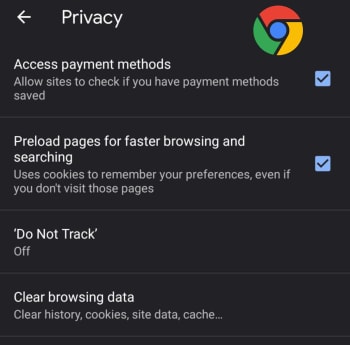
#2 Scroll down to the Advanced section of the menu and hit Privacy.

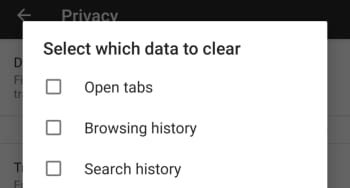
#3 Hit Clear Browsing data and then select the time range you that you want to remove all data from and select the exact type of data you want to remove.

#4 Tap Clear Data to confirm the actions.

7
Chrome is a young, fast browser that can browse any web page. It supports all major technologies and standards such as HTML5 and Flash.

How to clear your Android browser history on Mozilla Firefox

Clear browser history on Firefox for Android

#1 Open Firefox on your Android device and hit the ellipsis menu in the top-right of the screen.

#2 Select History and then hit CLEAR BROWSING HISTORY at the bottom of the screen.

#3 Confirm the action by pressing OK.

Bonus – You can set Mozilla Firefox to automatically delete selected data including bookmarks, browsing or search history, and saved passwords every time you stop using Firefox and shut the app. To do so follow these instructions:

Delete data when close on Firefox

A – Open Firefox on your Android device and hit the ellipsis menu in the top-right of the screen.

B – Hit the Settings option and then select Privacy.

C – Select the check mark next to the Clear private data option and then select the data you want Firefox to delete every time you close the app.

D – Confirm the action by selecting Set.

How to clear history on Opera for Android

Delete browser history on Opera for Android

#1 Open the Opera browser on your Android smartphone and hit the Opera button in the bottom-right corner of the screen.

#2 Hit Settings and then scroll all the way down to the Privacy section of the menu.

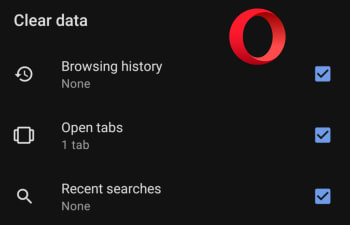
#3 At the bottom of this section you’ll see the Clear browsing data option… Tap this and then select all the data you want to delete.

#4 Confirm the action by hitting the CLEAR DATA button.

How to delete browsing history on Microsoft Edge for Android

Delete browser history on Edge for Android

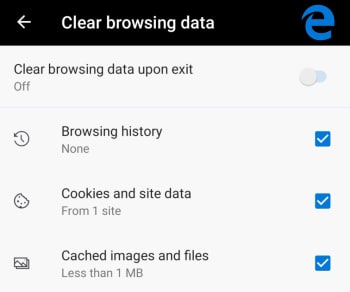
#1 Open the Edge browser on your Android phone or tablet and hit the ellipsis menu button in the bottom-right corner of the screen.

#2 Scroll down to the Advanced section of the menu and tap Privacy, which is the first option in the section.

#3 The very last option in the Privacy menu is Clear browsing data. Hit this and then select the data you want to delete.

#4 Tap Clear and then confirm the action by hitting CLEAR.

Bonus – Like with Firefox you can tell Edge to automatically delete all your browsing data every time you close the app. At the top of the Clear browsing data screen, there is a toggle switch for doing this. Simply select all the data you want deleting as normal and then toggle this switch to the on position and Edge will do the rest every time you exit the app.

How to clear your Android browser data on Brave

Clear browser hist5ory on Brave

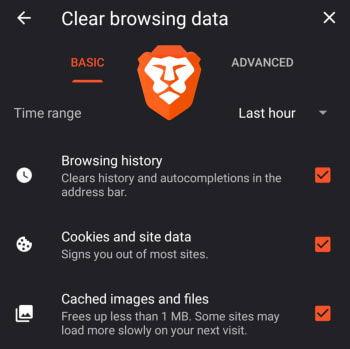
#1 Open the Brave browser on your Android smartphone and tap the ellipsis menu icon in the bottom-right of the screen.

#2 Select Settings and then scroll down to the Advanced section of the Settings menu and select Privacy.

#3 Scroll down to the second to last option, which is Clear browsing data. Select this and then choose the data you want Brave to delete.

#4 Confirm the action by tapping Clear data in the bottom-right corner of the screen.

Enjoy private, secure and fast browsing with Brave.

How to clear your Android browser history on UC Browser

Clear browser history on UC Browser

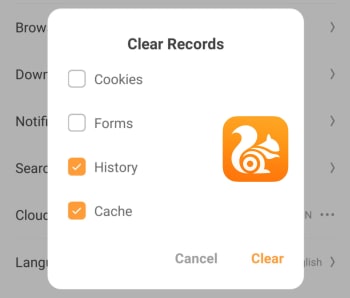
#1 Open the UC Browser on your Android phone and tap the Menu icon, which is the middle option on the bar running across the bottom of the screen.

#2 Then hit the Settings icon, which looks a little like a bolt and is found on the bottom-left of the menu screen.

#3 Tap the Clear Records button and then select the type of Data you want UC Browser to delete.

#4 Confirm the action by hitting the Clear button.

UC Browser Download now
8

How to turn on tracking prevention on Microsoft Edge

This is how to block trackers on Microsoft Edge

There ain’t no such thing as a free lunch, or at least so they say.

When we’re browsing free websites on free web browsers it is easy to think that the old adage doesn’t apply to you, when deep down you know that it most certainly does. The common form of payment we make is by seeing advertisements placed on the websites we visit. These subliminal payments are much more valuable to the “free” sites we browse, if they are more relevant to us. The companies make these ads more relevant to us by tracking our web behavior to learn more about who we really are.

Data is the new oil, is another one they say.

Not only is the lunch not free, you’re paying for it with something that is extremely valuable.  This new truth has led to a growing number of people wanting to block trackers when they’re surfing the internet. Recent revelations about Google Chrome showed a shockingly high number of trackers active on the browser.

6
The idea of Microsoft Edge is to be as fast, clean, and lightweight as possible to cope with the demands of different devices, whether it be a PC, tablet or phone.

Trackers are active on all browsers too, and now Microsoft has decided it wants to give Edge users a chance to disable trackers, so they browse the web without paying the heavy fee.

The Edge tracker prevention feature is still in testing, but let’s have a look at how you can activate it.

This is how to block trackers on Microsoft Edge

  1. For now, tracking prevention is only available on preview builds of Microsoft Edge. To use tracking prevention, you’ll need to download and install the Microsoft Edge Insider build version 77.0.203.0 or later.
  2. Open the Microsoft Edge Insider Build.
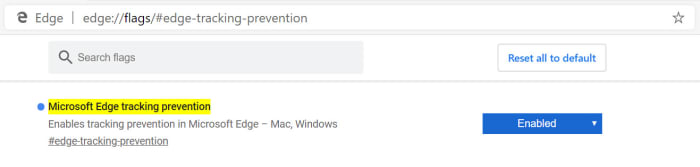
  3. Copy edge://flags#edge-tracking-prevention, paste it into the Microsoft Edge address bar, and hit enter.Microsoft Edge tracker prevention
  4. In the dropdown menu select Enabled and then click Relaunch Now.

Once you’ve followed the above instructions, you’ll tracking prevention enable on a special preview version of Microsoft Edge.

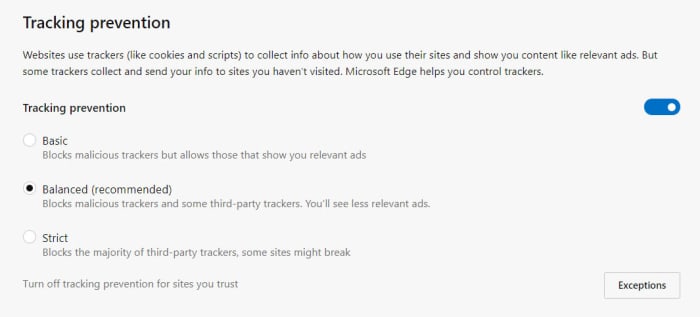
You can then adjust your privacy settings by copying edge://settings/privacy and pasting it into the Edge address bar.

turn off trackingon Microsoft Edge

These preview versions are the first to receive new features as this is where Microsoft test new features before releasing them to the general population. This means that the browser might not be as stable as your regular version of Microsoft Edge.

These Insider builds are not just a good way for developers to test new features. They also offer a great way for you to test out experimental new features without having to mess around with the settings for your main browser.

Whether you want to allow websites to track your online behavior is up to you. Microsoft is testing out this new feature and is committed to bringing it to the full version of Microsoft Edge. If you’re unsure about whether you’d like to use it or not, why not take this opportunity to test out the new feature before it lands on the main app.

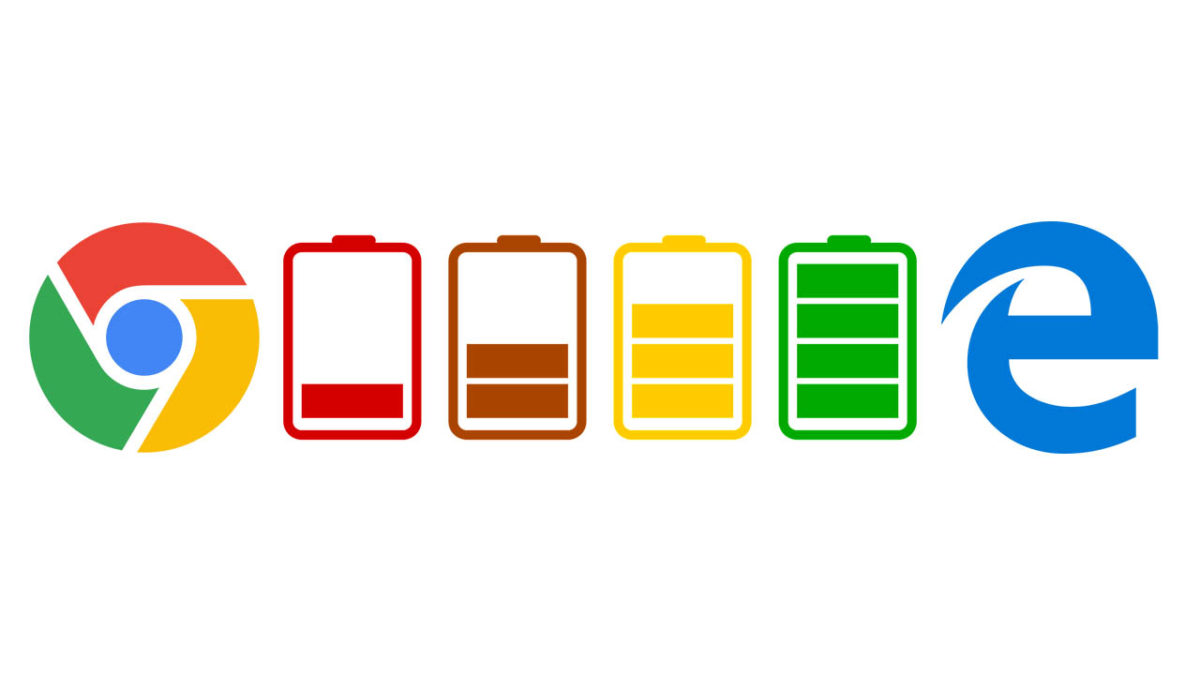
Google turns to Microsoft to help solve Chrome’s battery drain problem

Microsoft engineers flagged a fix for Chrome’s battery drain problem and it took Google less than a week to implement it

Chrome is the most popular web browser in the world by an absolute mile, but it isn’t without its problems. Open up more than a few Chrome tabs and you’ll soon find your PC slowing down to a crawl as Chrome hogs up all of your device’s RAM. Another big problem, Chrome users face is battery drain. When you’re using Google Chrome, your device is burning through battery life much faster than it usually would.

Chrome’s popularity, however, might have inadvertently served up a solution to this battery draining problem. Microsoft recently turned its Edge browser into a Chromium powered browser meaning all Edge developers and engineers are now working on the same open-source code that Google used to build Google Chrome. While doing so it looks like they might have discovered a fix to Chrome’s battery power woes.

Microsoft engineers flagged a fix for Chrome’s battery drain problem and it took Google less than a week to implement it

Chrome battery bad Edge battery goof

Those of you with good memories will remember the time we reported on the Microsoft Edge engineer who had to boot up Google Chrome in the middle of a presentation. The engineer was able to display the page he was looking for and continued on with his presentation but, nonetheless, the episode proved rather embarrassing for Microsoft to say the least. It now looks like Microsoft has finally had a chance to turn the tables as just a few months after they’ve moved Edge over to the Chromium ecosystem, the Microsoft team is having an effect on the Google Chrome browser itself.

The Microsoft engineers identified the problem behind the battery drain as being the excessive caching of data that Chromium browsers exhibit when handling media. According to a Chromium commit on the issue, “Keeping the disk active during this process increases power consumption in general and can also prevent certain lower-power modes from being engaged in the operating system. Since media consumption is a high-usage scenario, this extra power usage has a negative impact on battery life.” Caching data means the disk is active and is therefore a power-hungry thing to do. Any activity that does it is going to negatively affect your battery life.

The fix that Microsoft suggested involves the prevention of some data caching, which can effect the speed you can access certain types of media, but also detects when a power source is connected so that caching can continue as normal when battery usage isn’t an issue.

chrome experimental web browser canary
Google quickly added the Microsoft fix to its Chrome developer build

From when the Microsoft engineers first created the “caching” flag that enables the fix it took Chrome engineers less than a week to implement it themselves into the Google Chrome Canary build. This means there is a good chance it’ll soon make it into the regular version of Google Chrome, and we’ll all be able to save a bit of battery power the next time we boot up the Google web browser. Thanks Microsoft, we promise to try Edge again soon.

Microsoft Edge gets a privacy boost

The next Microsoft Edge update will include tracking prevention

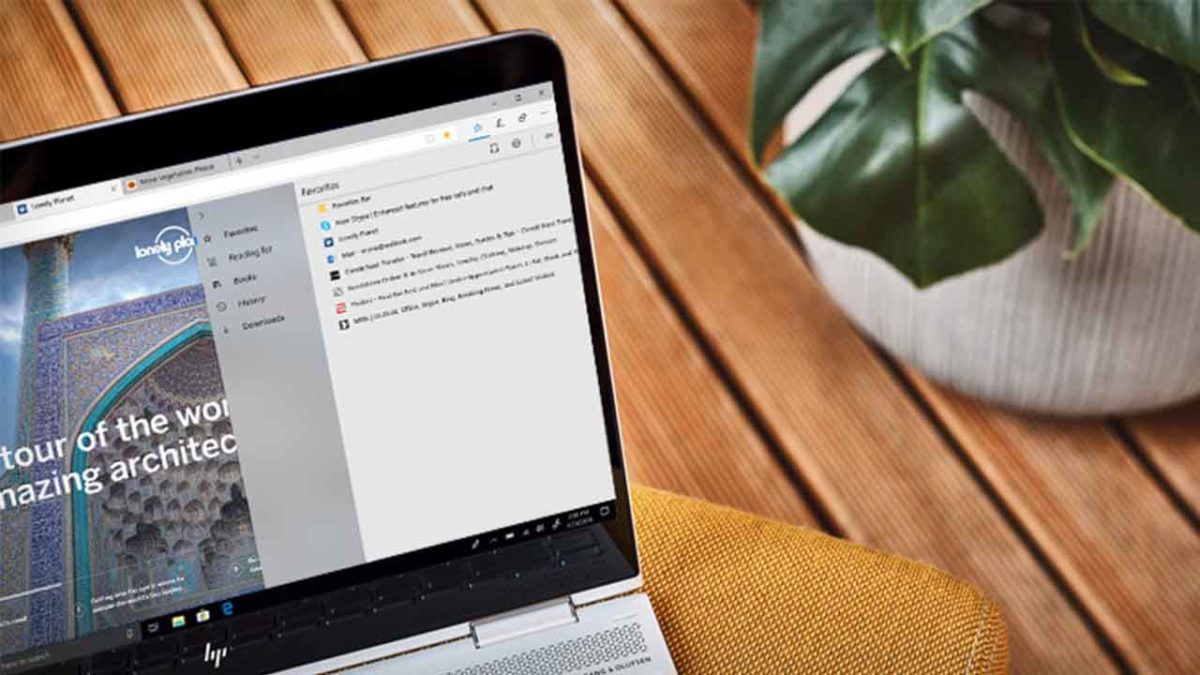
Edge browser on a HP laptop

Microsoft knows only too well about Google Chrome’s dominance in the web browser world. Just look at what happened to Microsoft’s more than competent web browser, Edge, that came packed with Windows 10. Despite being a capable browser, complete with unique features and handy loading speeds it barely made a dent into Chrome’s market share.

We recently commented on how Chrome coming pre-loaded on Android devices helped it notch up 5 billion downloads and assert market dominance. If only the same could be said for Microsoft Edge on Windows 10 devices. It got so bad that scammers were hijacking Bing search results for Google Chrome as the only time people were using Edge was to download the Google browser. This then led to Microsoft pulling the plug on a fully autonomous Edge browser and instead carrying  it over to the open source Chromium software that sits at the heart of Google Chrome. That’s right, Microsoft Edge is now built out of the same code that built Google Chrome.

Whereas this could sound like defeat for Microsoft it has made Edge a more competitive browser thanks to its compatibility with Chrome add-ons. Another factor is the familiarity to the Chrome experience. We often turn to other browsers but then find ourselves going back to Chrome in search of that warm feeling we get from something we’re extremely comfortable working with. In many ways this new similarity to Chrome allows more new Edge users to experience the different features that might give Microsoft’s web browser, well, an edge over Chrome.

The next Microsoft Edge update will include tracking prevention

Chrome has given its rivals a little room to maneuver against it recently. The move to ban ad blockers has caused a lot of unrest among the Chrome user base and a clear path for its competitors to offer something different to Google’s offering. The other big thing recently, however, is privacy with it coming to light that there are thousands of cookies active on Chrome, tracking every click you make and site you visit. You can disable tracking on Chrome, but trust has certainly been affected.

Most of the tracking is done for advertising purposes. It is why you always see ads that are based on sites you’ve visited recently. Some people think this is useful and that is how the tech giants try to sell it to us. They tell us to allow them to track our web behavior so that we’ll only see ads that are relevant to us rather just the random ads we’d see, if we stop them from tracking us.

Man spying on the world
Most websites will track your online behavior

There are many reasons people could be against having their web activity tracked, not least because big companies are hacked, and data is leaked all the time. It is these privacy focused users that Microsoft is targeting with the latest Edge update. Edge is getting new privacy protecting tools that will turn off trackers and, “When tracking resources don’t add meaningful functionality to the page, we may even block them entirely.” This could mean that certain tracking elements could be blocked by default as Mozilla is doing with its latest Firefox Preview browser.

Increased privacy could become a key battleground in the battle of the modern web browsers. Chrome has done a lot to annoy its user base recently so through offering something unique even while feeling similar to the Google browser, Microsoft might finally see Edge get the user numbers it always dreamt of. It might be time for Edge to do more than download Chrome.

How Brave eliminates common browser problems

Brave brings you fast, private browsing without many of the drawbacks of other browsers.

Brave

The internet has evolved into an essential component of our daily lives, and its use in American homes has increased by 400% in the past 20 years. According to the USC Annenberg Center for the Digital Future the number of hours we spend on the internet every week has risen from 9.4 (the statistic back in 2000) to 23.6. Overall internet penetration has increased from 67% to 92%. That’s all time that you’re spending on a specific internet browser, whether it’s Firefox, Chrome, Safari, Opera, or what have you. No matter your choice, it’s helpful to know the good, the bad, and the ugly of every choice out there. Not all browsers are created equally, so we’ve compiled a list of each one’s strengths and weaknesses:

Is it time for you to make a switch? Check out the stats below and decide for yourself!

1. Google Chrome
Google ChromePros:

With the monolithic Google behind its creation, it’s no surprise that Chrome is fast, efficient, and user-friendly. It’s got pretty much anything you’d need to make the most of the web, like quick answers in your address bar, one-click translations, and a wide variety of extensions and customization options.

Chrome will also automatically protect you from security issues like scamming and phishing, making it pretty safe to browse with, too. Just as Google is the most popular search engine, Google’s Chrome is currently the most popular browser. Chrome’s popularity has led to a surplus of extensions and websites catered to the browser, making it a highly customizable experience to boot.

Google Chrome Download now ►
7

Cons:

As powerful and popular as Chrome is, the browser is not without fault. In order for it to achieve its impressive speeds, Chrome needs to take extra resources from your PC:

Chrome splits every tab, plugin, and extension into its own process – that’s how it manages crashes so competently. The downside is that means it’s far more taxing on RAM since it’s duplicating tasks for each tab. Chrome is one of the ‘heaviest’ browsers and can get swarmed by bloatware, making it less than ideal for machines with limited RAM. There’s also the mounting suspicion of tying your data to Google, and if privacy is your concern you should likely look elsewhere.

2. Mozilla Firefox

FirefoxPros:

One of the earliest browsers out of the gate, Firefox brings to mind two things: Privacy and speed. While other browsers that capitalize on privacy do so at the cost of loading speed and/or heavier use on system resources, Firefox manages to succeed on both fronts, achieving a browsing experience that gives Chrome a run for its money.

Mozilla is a non-profit organization, meaning it’s got far less interest in mining and selling your data than, say, Google Chrome. Firefox also updates on the regular to bolster user privacy and ad-blocking. Its combined speed and safety put it at the top of TechRadar’s web browser ranking as recently as September 2018, claiming that Firefox has “retaken its crown” in recent months, and is now deserving of another look from avid Chrome users.

Mozilla Firefox Download Now ►
7

Cons:

Firefox is fast, but it’s not always faster than Chrome. This is mostly apparent on pages with tons of images or videos, at which point you’ll probably want to simply install an add-on or extension to either speed it up or block them. This brings us to Firefox’s second weakness: If you start installing extra plug-ins to customize your experience to the same extent as Chrome, Firefox will start to lag noticeably behind the competition.

Lastly, Firefox doesn’t have built-in support for Flash. Flash is notoriously dangerous, so this isn’t so much of an issue in 2018 when the internet is largely abandoning the platform. Even so, just like Apple got a negative response for removing the aux jack, we feel it’s necessary to mention any upgrades that leave old tech in the dust.

3. Microsoft Edge
Microsoft EdgePros:

Microsoft Edge the default browser for Windows 10. As such, it does a decent job of keeping in line with the speed, intuitive UI, and ‘clean’ aesthetic of many facets of Windows 10. Edge holds its own by modern web standards, and additionally offers a few capabilities you won’t get in other browsers: Webpage markup, integrated Cortana features, and a clean-cut reading mode.

Recent updates have also included a Tab Preview, Set Aside, ebook reading, and a handful of nifty extensions. Edge also no longer uses the infamous ActiveX, browser helper objects, or VBScript support that made Explorer slow as dirt. Edge is easily a significant improvement over Internet Explorer in terms of speed, accessibility, and compatibility. It also weighs substantially less than Chrome, meaning you’ll have a less bloated browser experience, albeit a more bare-bones one.

Cons:

Edge has struggled to achieve market share, mindshare, and positive reviews. The first three months of 2018, Microsoft Edge pulled a less-than-impressive 8% of the 1.2 billion visits to government websites from consumer and business PCs and Macs. This figure isn’t wholly reliable for another reason that Edge gets a lot of flak: The browser is not even available on any Windows OS older than 10, or if you’re using a Mac.

The real head-scratcher is why Microsoft feels the need to support multiple browsers for different Windows Operating Systems when they could just work to make Edge backward compatible. Doing so would certainly help give it some much-needed traction. For more reasons why you might find Edge disappointing, check out this article.

4. Opera

Opera browserPros:

Opera is as underrated as it is high-quality, and it’s certainly both of those things. Opera is a Chromium-based software, which means it’ll feel similar to Google Chrome when it comes to facets like rendering, and was the flagship for popular modern browser features such as private browsing and pop-up blocking. Opera also offers a free VPN that will replace your IP address with a new one, making it more difficult for ads to track your location and harass you.

Opera pushes a focus on privacy and like Edge offers a simple, intuitive layout, and has built-in messenger services like WhatsApp, Telegram, and Messenger, making it altogether a quick, smart, intuitive browser that go toe-to-toe with the competition.

Cons:

Opera doesn’t offer as many plug-ins as other browsers and it’s also lacking in parental controls (if such a thing matters to you). Occasionally the browser will also have issues playing videos or have trouble keeping pace with other browsers like Firefox.  Moreover, there’s no shining reason why a person would switch to Opera. It performs everything a browser should, but doesn’t really excel in anything either. For speed, people go to Chrome. For customization,they go to Firefox. With Opera, there’s little pull to use it when compared to the competition; most people have a strong reason for using one browser or another and being caught in the middle isn’t helping its case.

5. Safari
SafariPros:

Safari’s got the home field advantage with the Apple crowd. It’s the default browser for all the company’s products, mobile or otherwise, and Safari has become intertwined with the Apple experience. Apple does a solid job with security, and Safari is no exception. Browsing with Safari is a ‘better safe than sorry’ experience and can be further optimized quite easily to bump your protection even higher. Safari uses default pop-up blocking, which is always a huge plus.

If you’re an Apple user, Safari is still an excellent browser, even 15 years after its release. It’s already preloaded on all Apple products, so it’s at your disposal immediately and seamlessly works in tandem with all software produced by the company.

6

Cons:

If you’re not an Apple user, then Safari is useless to you. Microsoft products want as little to do with the competition as possible, so if you’re in with Microsoft you may never even use Safari. Besides the enhanced security options, there also isn’t a ton you can do to customize Safari, meaning that you’ll get a good, safe experience but not necessarily and adjustable one.

Why we like Brave
BraveIf you haven’t heard of Brave before, it’s likely because its first stable release just landed for iOS back in early August. The platform is now available on iOS, Android, macOS, Windows, and Linux. Who created it? Brian Bondy and Brendan Eich, who you’ll remember as the inventor of JavaScript and the co-founder of Mozilla (makers of Firefox).

Much like Firefox prioritizes user privacy, Brave automatically blocks any third party trackers, shutting down anything that might worsen your browsing experience such as third party cookies, pop-ups, and ads. None of that even makes it past the first line of defense. From that point forward, the rest is up to the user.

Brave is fast (up to eight times faster than the mobile competition), offers extensions that you’re familiar with, shields you from third party trackers, and because Brave blocks excessive third party requests, you’re actually saving money on your data plan. But then we get to the age-old dilemma of publishers and advertisers not generating revenue due to blocked ads.

Brave has an answer for that too:

How Brave solves the ad problem

Basic Attention TokenWith Brave, users can always select an ad-free browsing experience. However, Brave introduces a new private advertising platform that users can opt-in to and receive rewards for their attention. Users who elect to view ads earn Brave’s Basic Attention Tokens (BATs) which can then be used to support publishers and content creators, distributing your monetized attention how you see fit. You’ll then benefit from better ad-matching, and your data remains private.

Thirty percent of the ‘revenue’ gained from watching the ads goes to Brave, while the other 70% goes directly to the user. Should you choose to browse with Brave Rewards, your data stays private and you’ll still benefit from more accurate ad-matching and reception of Basic Attention Tokens. If this sounds like a feature you’d be interested in, you’ll be happy to know over 33,000 content creators and publishers are already registered receive tips and contributions from their users.

Softonic is proud to partner with Brave. When you download from us, we may earn a commission.
Microsoft releases its new Chromium based Edge browser on Windows 10

The Microsoft Edge Insider Channels are now available for 64-bit Windows 10 users in English.

We’ve been following the development of Microsoft’s new Chromium-based Edge browser ever since we first learned it was on the way. We know you’ll be able to use all your favorite Chrome plugins on the new browser as well as all your Edge plugins, too. We’ve even seen screenshots so we already know what it looks like. Today, we’re here to tell you that the journey is nearly complete as Microsoft is releasing the first preview builds of its brand new browser.

The Microsoft Edge Insider Channels are now available for 64-bit Windows 10 users in English

New chromium edge developer channels
Image via: Microsoft

In December, Microsoft announced it was working on a new Chromium-based version of Microsoft Edge. The software giant pledges to have the first builds of the browser available in “early 2019” and now seems to be coming good on that promise.

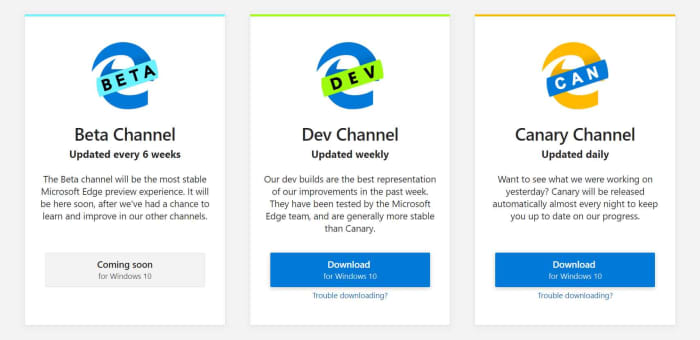
Microsoft has now confirmed that Windows 10 users on 64-bit machines can download an English language version of the Microsoft Edge Insider Dev Channel and Canary Channel. If you follow our Google Chrome update articles, you’ll notice that Microsoft is calling the most experimental version of the new Edge browser Canary, just like Google does with Chrome.

The Canary Channel will show all the latest features that the Edge team have been working on. It will be updated on a daily basis, but may well end up containing buggy code that could cause issues on your machine. The Dev Channel will be updated every week and so will keep users up to date on what new features will coming to the Edge browser, while being a little more stable than the Canary Channel.

The different Microsoft Edge builds

You’ll notice from the image above that both of these channels come before the Beta Channel in the development process. The beta version of apps is the final testing phase in the development process, when users get to test out new features. The Beta Channel will be updated every six weeks. These new builds are more of a way of mapping out what the new Edge browser will be like. They’re not browsers you should be downloading so you can start surfing the web.

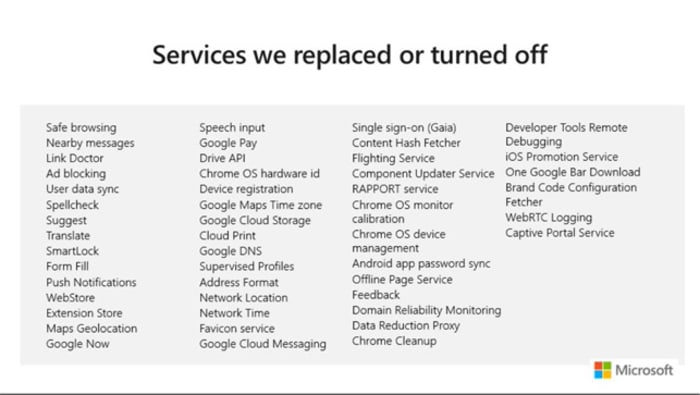
To be fair to Microsoft, it is clear that although it is building a browser using Chromium, it is determined to build something that can stand on its own two feet in the battle against Google Chrome. In an online PowerPoint presentation, a Microsoft Edge engineer included a slide that showed just how many Chrome features Microsoft has removed or replaced to make the new Edge what it is today.

Chromium Edge won't just be a Chrome clone

This is all the stuff that independent developers won’t have the resources to build themselves. Microsoft does have the resources and wants it known that it has rebuilt the new Edge itself. The move to Chromium is more about better web compatibility for users, less fragmentation for developers, and an improved update cycle.

Different Edge builds for different Edge platforms
The Chromium Edge browser will also be available for Mac users

If you’re a developer, you can now get your hands on the early access version of the new Edge browser by checking out the Microsoft Edge Insider program. For the rest of us, there is still no news from Microsoft about when we’ll see a general roll-out of the new browser.

From the timetable Microsoft has laid out, we could expect to see a beta version in five-to-six weeks and then it is anyone’s guess how long it’ll take for a full version to come out after that. All the news about the development process has been positive so far though, and it really looks as though Chrome could soon have some serious competition at last.

Microsoft has a brand-new security extension to keep you safe on Chrome and Firefox

Microsoft brings Windows Defender Application Guard to Chrome and Firefox.

Microsoft is releasing a new extension for Chrome and Firefox that will help protect enterprise systems. The feature will work for businesses and takes what was once an Edge exclusive feature and puts it in the hands of businesses that use the Chrome and Firefox web browsers. There is a cool catch, however, that helps keep Microsoft’s Edge browser relevant, but we’ll get to that a little later on.

Microsoft brings Windows Defender Application Guard to Chrome and Firefox

Edge exclusive feature on Chrome and Firefox

According to the Windows blog post on the latest Windows 10 Insider preview, the new extension works by opening any web pages that aren’t on the network administrator’s trusted sites list in a virtual container.

7
Chrome is a young, fast browser that can browse any web page. It supports all major technologies and standards such as HTML5 and Flash.

The blog post says, “When users navigate to a site, the extension checks the URL against a list of trusted sites defined by enterprise administrators. If the site is determined to be untrusted, the user is redirected to an isolated Microsoft Edge session. In the isolated Microsoft Edge session, the user can freely navigate to any site that has not been explicitly defined as trusted by their organization without any risk to the rest of (the) system.” This means that the new extension won’t work without Microsoft Edge as it is in Edge where Microsoft keeps the virtual container. Theoretically, however, any link clicked in the isolated Edge session that is on the administrator’s safe list will then open again in the original browser.

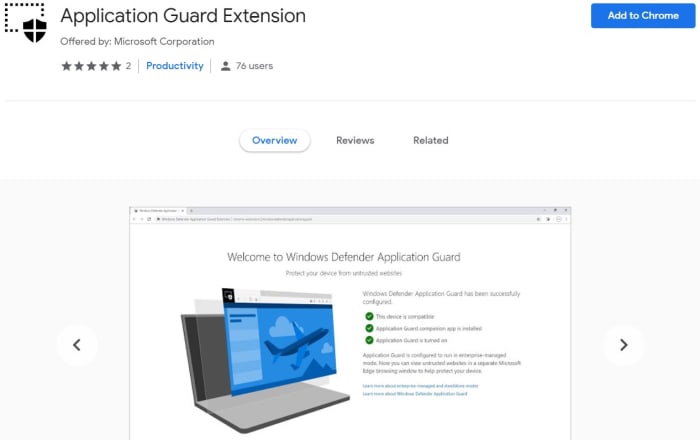
Application Guard Extension Google Chrome

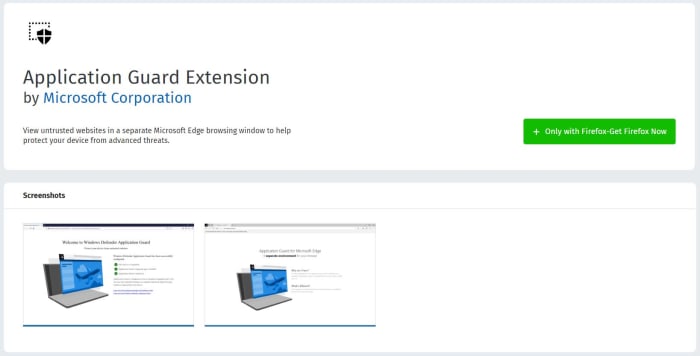
To run on a PC the machine, you will first need the Windows Defender companion application and the browser extension installed on either Chrome or Firefox. For now, however, the feature is only in preview mode, so it is only available to members of Microsoft’s Insider program. We can expect a wider release soon, though.

Application Guard extension Firefox

This isn’t the first time Microsoft has extended Edge’s security prowess to other browsers. Back in April of last year, Microsoft released another Chrome extension that helped defend against phishing attacks. The extension offers a dynamic list of reported malicious sites and now helps keep Chrome users safe against phishing attacks as well as if they were using Microsoft Edge.

7
Mozilla Firefox Quantum is a free, open-source web browser that offers numerous features and customization options. Its performance is excellent, and it's designed to protect your privacy.

Microsoft has had somewhat of a torrid time with Microsoft Edge. Even with the browser proving itself a more than capable competitor to Google Chrome, it has still failed to break Google Chrome’s stranglehold on the web browser market. Edge itself is soon to become a Chrome-based browser that will enjoy total compatibility with Chrome extensions. Maybe this lies behind Microsoft’s decision to share more and more of the Edge browser toolkit with the other web browsers via extensions.

This is what the new Chrome-based Microsoft Edge browser will look like

The first screenshots of the new Chrome-based Microsoft Edge browser are here.

Microsoft hasn’t had much luck at all with Internet browsers over the last few years. Internet Explorer has been little more than a laughing stock and Microsoft’s latest offering, Edge, never had the firepower to break through Google Chrome’s stranglehold on the market.

We were reporting that Microsoft was already thinking about killing Edge before Christmas, and it wasn’t long into the new year that this was confirmed with the news that Edge is migrating over to Chromium. Rather than continuing as a completely independent web browser, Edge is to be rebuilt around the open-source code that sits at the heart of Google Chrome. We now have some screenshots showing what the new Edge browser will look like when it lands.

If two web browsers had a baby…

The guys at Neowin have been able to get their hands on screenshots of what the new browser will look like. Unsurprisingly, the browser looks a lot like Microsoft Edge but there are unmistakable elements from Google Chrome on show, too.

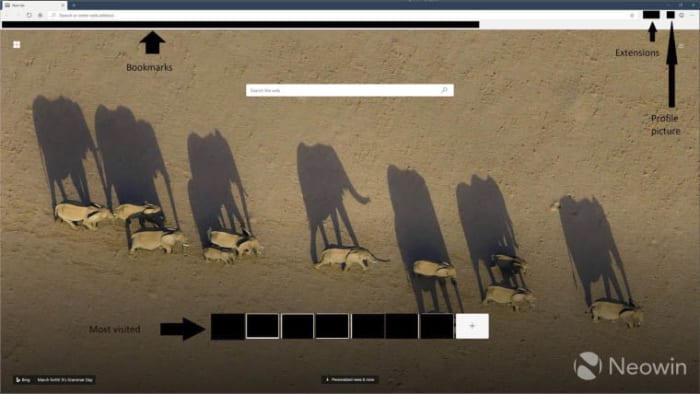
New screenshot of Microsoft Edge homepage

The first thing that catches the eye is the inclusion of the extensions button and a small profile picture in the top-right of the page. This set-up is as yet unseen on a Microsoft browser, but will be very familiar to Google Chrome users. Another feature familiar to Chrome users will be the bookmarks bar across the top.

What Edge looks like compared to Chrome
A comparison of the two browsers as they look now

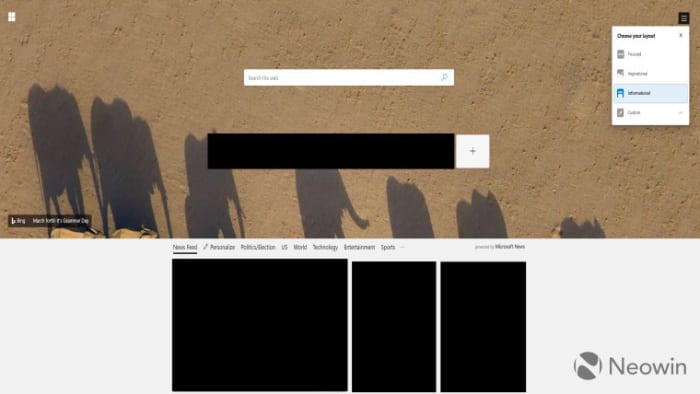
On the flip, an Edge feature that is nowhere to be seen is the ability set aside currently open tabs. Edge features that are still there, however, include Bing as the integrated search engine and the ability to set New Tab backgrounds to Bing’s image of the day. Another Edge feature still in play is the personalized news feed, powered by Microsoft News, that is accessed by scrolling down on the homepage. There is also an option to personalize the appearance of this feed to one of four options.

news feed options on new Edge browser

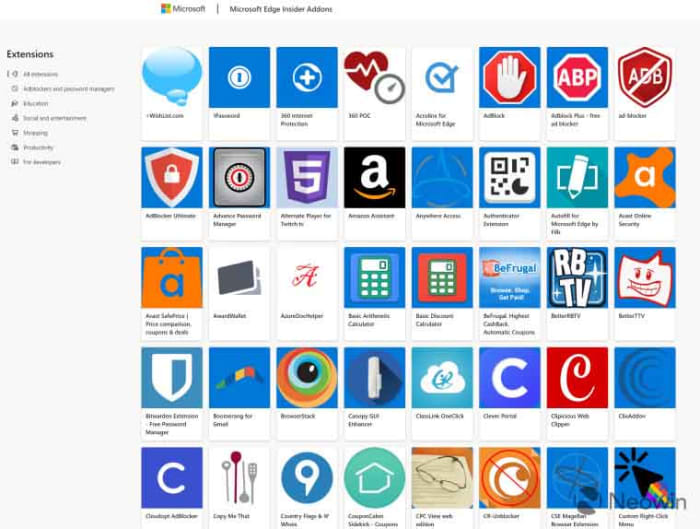
Another interesting development we can take from these screenshots is the continuation of the Microsoft store for Edge extensions. Microsoft will continue to maintain its own extension store with Edge extensions being recompiled to work on the new Chromium-based browser. Users can search the extensions from within the Edge browser and then download them via the Microsoft store.

As the browser is based on the open-source code that built Google Chrome, however, all Google Chrome extensions will also work on the browser. This means that users of the new Edge browser will have two separate stores offering extensions for the browser.

The Microsoft extension store for the new Edge browser

The final change Edge users will have to deal with is to the Settings menu. Rather than Settings coming from a slide-out menu, they will now have their own tab, you guessed it, just like they do on Google Chrome.

All these changes add up to a browser that offers more choice to Google Chrome users without presenting anything new or difficult to get used to. As to whether this latest move from Microsoft will see Edge gain a greater market share, we’ll have to wait and see.

All images via Neowin

Microsoft Edge will soon support all your Chrome plug-ins

Microsoft is moving to Chromium for future development of the Edge browser.

microsoft edge

Microsoft Edge has had a short but strange life. It was billed as the Microsoft web browser that would finally kill all of Microsoft’s Internet Explorer demons. In many respects, it was successful. It is known as being a reliable web browser with a number of interesting and unique features. Despite its features, it hasn’t been able to break Google Chrome’s dominance of the market. With Edge only able to command a tiny percentage of market share, Microsoft has decided to take a bold step with its web browser.

6
The idea of Microsoft Edge is to be as fast, clean, and lightweight as possible to cope with the demands of different devices, whether it be a PC, tablet or phone.

Microsoft is moving to Chromium for future development of the Edge browser

Chromium is the open source project that lies at the heart of the Google Chrome browser. Like with Android, Google has made the core code of the Chrome browser open source, so independent developers can create their own web browsers and introduce their own features. Essentially, Microsoft is giving up in its efforts to develop its own, fully independent, web browser and Edge will become just another flavor of Chrome.

It isn’t all doom and gloom, however. There have been some very capable browsers built using the Chromium open source code. Some could even be said to be better than Google Chrome itself. This could be what Microsoft is aiming for as it moves its flagship web browser into the coding ecosystem of one of its biggest rivals.

In the blog post announcing the move, Microsoft cited a move away from fragmentation as being a driver of the decision. The software giant believes it is making things easier for both users and developers. Web developers won’t have to worry about code for another type of web browser and users will be able to enjoy greater cohesion between different web browsers. As Edge will become another Chromium browser, Google Chrome plug-ins will soon work on the Microsoft browser. Another key improvement, in Microsoft’s eyes, is that the move will make it much easier for Edge to make the move to macOS.


There is still a long road ahead for this Microsoft migration, but at least now we have the roadmap. Microsoft Edge users won’t have to do anything for a while yet, as developers won’t have access to a preview build of the new Chromium fueled Edge browser until early 2019.

Rumors of this move have been circling for a while now, and they led many to ponder whether the end was near for Microsoft Edge. This news tells us that there is still life in Microsoft’s flagship browser yet, it is just about to take on a whole new look and feel. As to whether Microsoft’s decision to give up its attempts to compete with Google independently is a good move for the web browser industry in general, however, remains to be seen.