Leo, Brave’s AI, imitates Copilot and adds meeting summaries

Brave Leo, the Artificial Intelligence belonging to the company of the same name, will feature significant functionalities aligning it with other popular AIs like Microsoft Copilot. The reason? Leo will also be capable of joining video conferences, listening to the discussions therein, explaining them to users, and even generating summaries of the points addressed during the call.

Brave has taken important steps in Artificial Intelligence lately, and as a result, it has launched a new package of services for users, where, also counting on its AI, Leo, anyone can enjoy its functionalities and take advantage of everything it offers.

Brave Download

Conference Summaries

According to Neowin, Leo, Brave’s AI, will also be able to summarize video conferences or calls that it attends, just like its competitors. Its ability to summarize written content was already known, but now it will also be able to do the same by listening to speakers in a meeting.

As mentioned, this is not something completely new, as Microsoft was the first company to think about this feature to be implemented in Microsoft Teams. In recent months, Microsoft 365 users who also have the Copilot package have, among other things, the possibility for this AI to monitor the content mentioned in a meeting.

Brave and its AI

Brave is another brand that has decided to venture into Artificial Intelligence, a commercial field that is proving very appealing to large companies. In fact, in the present times, with regulations that are still loose and superficial, companies have quickly moved forward to become the fastest in occupying a space that could be commercially crucial in the short, medium, and long term.

Many companies have developed AI for commercial purposes. The most well-known among them is ChatGPT, powered by GPT-4 currently, owned by OpenAI and partially by Microsoft. Copilot, on the other hand, is also integrating into Windows systems to offer more services and functions. Other brands, like Google, are also striving to showcase powerful Artificial Intelligence, such as Gemini. Additionally, there are projects from smaller companies with fascinating proposals, like restoring speech to users who can no longer speak.

Brave Download

Features and Tools that Make the Perfect Browser

In recent years, the internet has become an essential tool in our daily lives. We use it to search for information, make purchases, work remotely, and stay in constant contact with our family and friends. Just about anyone would have a hard time getting through a full day without connecting to the internet, but few of us are aware of the importance of a fundamental tool we need to do so: our browser. Without it, we wouldn’t be able to access the web or spend long hours surfing its endless sea of information.

Mujer utilizando un navegador

Browsers are the gateway to the internet, and although we all have our favorites (Chrome, Firefox, Edge, etc.), sometimes we wish they had extra features. Just like you need a comfortable pair of shoes to enjoy a long walk, having a good browser is essential to enjoy everything the internet has to offer. So, what features should the ideal browser have?

In today’s article, we’re going to use our imaginations and write a wish list of all the features and characteristics we would like to see in the “perfect browser.” So, without further ado…

It should be fast when searching for and loading websites

Persona usando un portátil

One of the main features a good browser needs is the ability to quickly take you to the websites you want to visit. This is important not only when using the internet during your precious free time, but also when you’re trying to perform your best at work.

Right now there are some really fast browsers, such as Chrome and Firefox. While Chrome itself is already quite speedy, it lets you add extensions that will make all your searches exponentially faster. If you’re interested, click here for a roundup of the best extensions to speed up your browser. Firefox is not far behind Chrome in this respect. This browser has always stood out for its speed, and it even includes a native feature that makes it quicker. Want to know how to enable it? Click here to find out.

In short, the perfect browser should be fast and take you to the pages you want to visit without delay. Because, as the saying goes, “time is money”!

It shouldn’t slow down your computer

One of the biggest problems with browsers is that they often end up using a lot of system resources. This leads to your computer slowing down significantly, which can be frustrating for the user. A good browser should not only display search results quickly, but also ensure the PC or mobile devices it’s running on are not affected by its use.

In terms of performance, the browsers that we like the most are the Chromium-based ones. Among them we obviously find Google Chrome and the most recent Brave. Both run seamlessly and barely use any resources from your operating system.

If your browser has been slow lately or seems to be consuming a lot of system resources, there is probably a problem. To solve it, we recommend clearing your history and cache and following some of the tips in the article below.

It should be very secure

Malware

The internet is a wonderful place for finding information, shopping, and connecting with your friends. However, the sheer amount of personal data you share online is greater than you could ever imagine. The perfect browser needs to be extremely secure to keep the information you share online out of the hands of hackers and cybercriminals.

With the massive use of the internet, countless threats have arisen, so it’s important to tread carefully. There are types of malicious content that, after contacting your browser, can detect anything you write (including your banking details). Others are even capable of hijacking your browser and redirecting your searches to pages with highly dangerous content for your computer. Your browser must be able to both detect and block these threats.

A browser that excels in this regard is undoubtedly Mozilla Firefox. Over the last few years, Firefox has emerged as one of the safest options on the market, making it possible to navigate the web with total peace of mind.

It should block annoying ads

There are few things more annoying during an internet session than constantly seeing pop-ups and banners on your screen. Although there are extensions that block these irritating ads, wouldn’t it be wonderful if your browser had an integrated ad blocker in its code?

Currently a good option to get rid of ads is Brave, a browser that includes a completely free ad blocker as standard. That way navigating the internet is a far more pleasant experience.

It should have a safe extension store

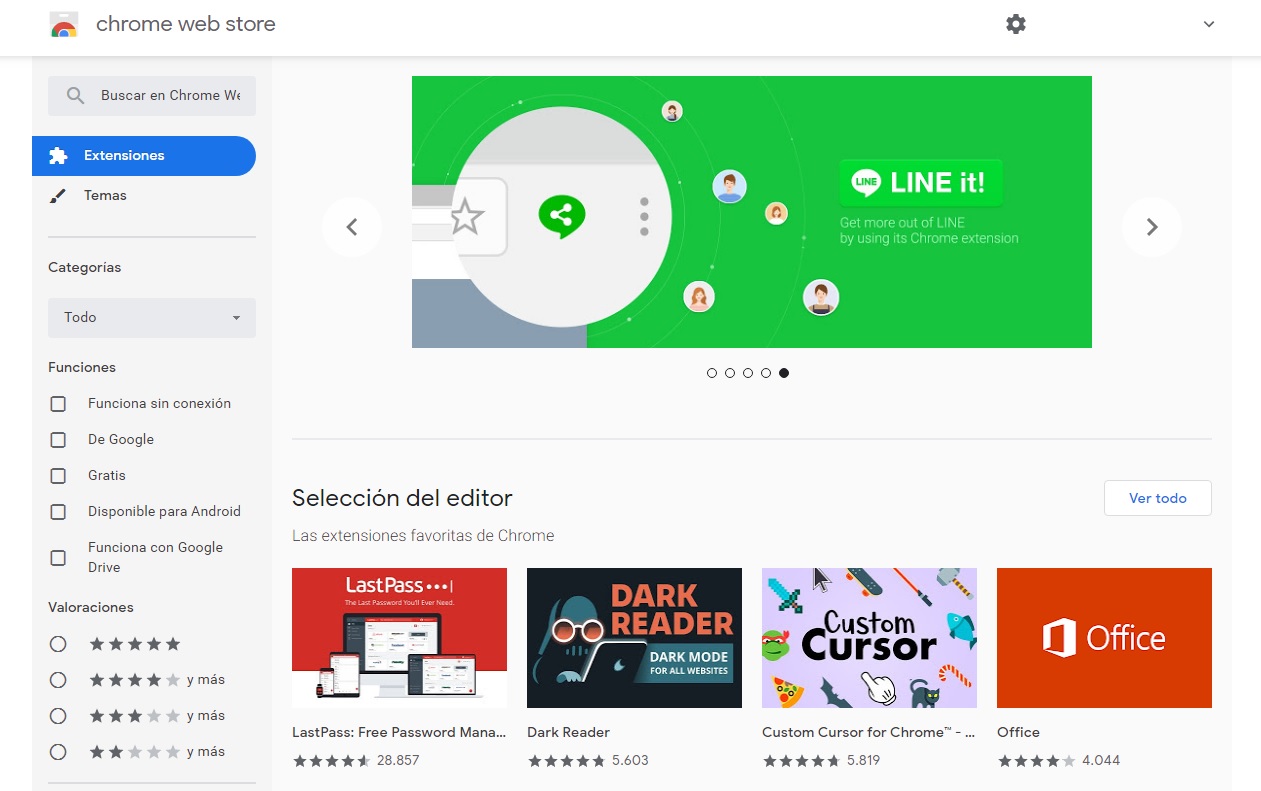
One of the best things about today’s browsers is the fact that they use extensions to add new features to your internet sessions. Browsers such as Google Chrome or Firefox are favorites not only because they’re ultra fast and secure, but also because they let users customize their features in just a few clicks. And this is all possible thanks to extension stores.

For this reason, the perfect browser must guarantee that all the extensions in its store are 100% secure. As useful as they might be, these new downloadable features can be dangerous. Bear in mind that unless they have been previously verified, extensions can put your data and computer at risk. The perfect browser therefore must have an extension store whose extensions have all been vetted by a team of experts.

If you want to find out how to identify a safe extension, we recommend reading the article below.

It should let you take screenshots

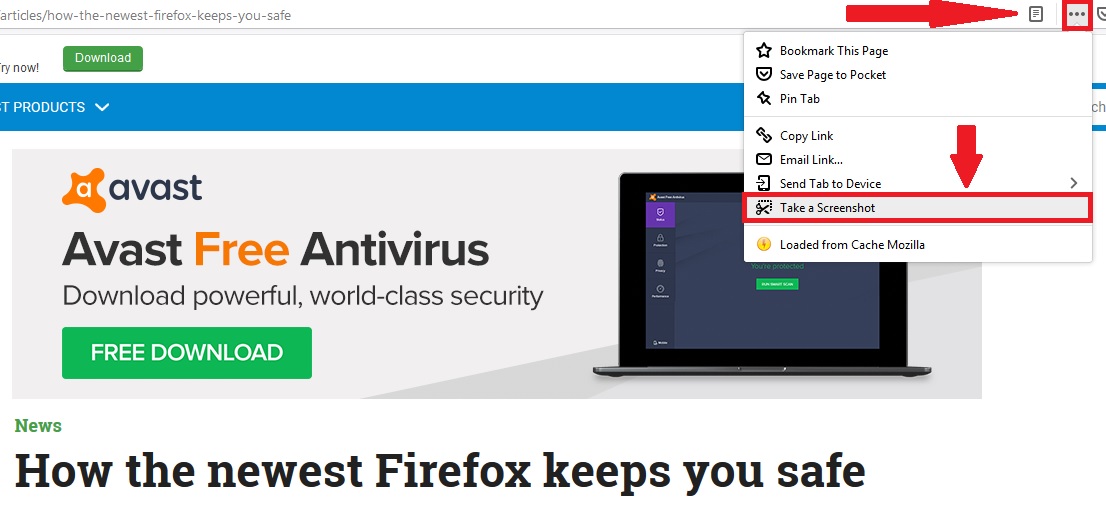
One of the most convenient features when working online is the ability to take screenshots. Although this can be done easily using the “Print Screen” key or the Windows 10 screenshot keyboard shortcut, our perfect browser would have its own embedded screenshot button.

Currently browsers like Mozilla Firefox include this option natively, without the need to install any extension. To find out how to enable it, just look at this.

It should be capable of syncing data across your devices

A truly interesting feature of the latest browsers, such as Firefox, Edge and Chrome, is their ability to sync data. In the case of Chrome, this is especially useful for Android users, as it allows immediate access to all Google services (Gmail, Drive, etc.) and syncs your data and bookmarks from your phone or tablet. In the case of Firefox, syncing lets you export and import all your bookmarks quickly and easily between different devices. Edge, on the other hand, can integrate seamlessly with Windows 10, import and export your bookmarks as well as sync with your Microsoft account. Our perfect browser should be able to do the same thing with any account.

It should have a good password manager with a master password 

Contraseña maestra

Over the years, there has been a dramatic increase in the number of subscription-based online services. All of them require a username and password, so ultimately you have to remember hundreds of passwords if you want to continue using them.

A good browser needs an efficient, natively integrated password manager that can remember your login details and enter them automatically whenever you want to access one of these services. However, it’s also important for your browser to have a master password system. This means you’ll need to enter a master password before your browser can autocomplete the login details for any online service you want to access. That way you’ll be sure that even if someone else gets ahold of your computer, they can’t access your passwords.

Among the main browsers on the market, we recommend Mozilla Firefox, which has a good password manager and gives you the option of setting a master password.

The perfect browser doesn’t exist, but here are the best ones

Although there is no perfect browser just yet, there are options that come very close. Among them are Microsoft Edge, Mozilla Firefox, Brave, Opera, and of course, the all-important Google Chrome. All of them have interesting features and are truly secure, so your data will be protected at all times. You can download the latest versions of them below.

  • Google Chrome

Google Chrome DOWNLOAD
8

Mozilla Firefox

Mozilla Firefox DOWNLOAD
8

Microsoft Edge

Microsoft Edge DOWNLOAD
7

Brave

Brave DOWNLOAD
8

Opera

Opera DOWNLOAD
8

We hope you liked our article about the perfect browser. Which features would you like to see on your browser? Tell us about them in the comments section!

How to clean your browser history in every Android browser

This is how to delete your browser history on all the major web browsers for Android.

How to clear your mobile android browser history

There are many reasons you might want to delete your web browsing history. You might have been buying gifts online or you could need to delete your cache to get rid of some erroneous code that has been causing your browser problems. At Softonic we’re not bothered about the why, we only care about the how.

There’s a good chance you know how to remove your web browser history from your laptop or desktop PC, but on your Android mobile it is a little bit trickier. Mobile browsers are more compact and accordingly, more complicated to navigate. Don’t worry though, because today we’re going to give you step by step instructions on how to delete your web search history on all the major Android web browsers.

How to clear Android browser history

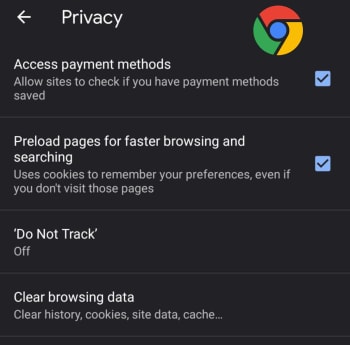
How to clear your Android browser history on Google Chrome browser

Clear browser history on Chrome for Android

#1 Open Chrome on your Android device and hit the ellipsis (three vertical dots) menu in the top-right corner, then scroll down, and go to Settings.

#2 Scroll down to the Advanced section of the menu and hit Privacy.

#3 Hit Clear Browsing data and then select the time range you that you want to remove all data from and select the exact type of data you want to remove.

#4 Tap Clear Data to confirm the actions.

7
Chrome is a young, fast browser that can browse any web page. It supports all major technologies and standards such as HTML5 and Flash.

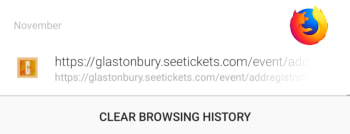
How to clear your Android browser history on Mozilla Firefox

Clear browser history on Firefox for Android

#1 Open Firefox on your Android device and hit the ellipsis menu in the top-right of the screen.

#2 Select History and then hit CLEAR BROWSING HISTORY at the bottom of the screen.

#3 Confirm the action by pressing OK.

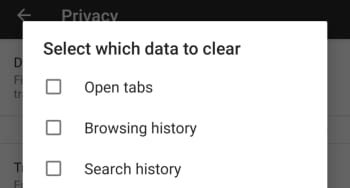
Bonus – You can set Mozilla Firefox to automatically delete selected data including bookmarks, browsing or search history, and saved passwords every time you stop using Firefox and shut the app. To do so follow these instructions:

Delete data when close on Firefox

A – Open Firefox on your Android device and hit the ellipsis menu in the top-right of the screen.

B – Hit the Settings option and then select Privacy.

C – Select the check mark next to the Clear private data option and then select the data you want Firefox to delete every time you close the app.

D – Confirm the action by selecting Set.

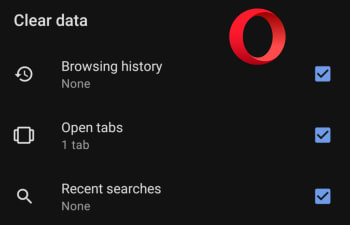
How to clear history on Opera for Android

Delete browser history on Opera for Android

#1 Open the Opera browser on your Android smartphone and hit the Opera button in the bottom-right corner of the screen.

#2 Hit Settings and then scroll all the way down to the Privacy section of the menu.

#3 At the bottom of this section you’ll see the Clear browsing data option… Tap this and then select all the data you want to delete.

#4 Confirm the action by hitting the CLEAR DATA button.

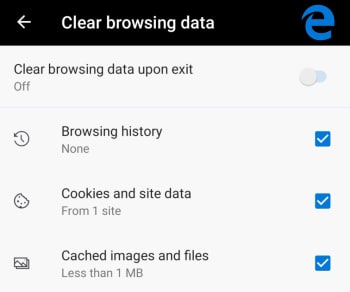
How to delete browsing history on Microsoft Edge for Android

Delete browser history on Edge for Android

#1 Open the Edge browser on your Android phone or tablet and hit the ellipsis menu button in the bottom-right corner of the screen.

#2 Scroll down to the Advanced section of the menu and tap Privacy, which is the first option in the section.

#3 The very last option in the Privacy menu is Clear browsing data. Hit this and then select the data you want to delete.

#4 Tap Clear and then confirm the action by hitting CLEAR.

Bonus – Like with Firefox you can tell Edge to automatically delete all your browsing data every time you close the app. At the top of the Clear browsing data screen, there is a toggle switch for doing this. Simply select all the data you want deleting as normal and then toggle this switch to the on position and Edge will do the rest every time you exit the app.

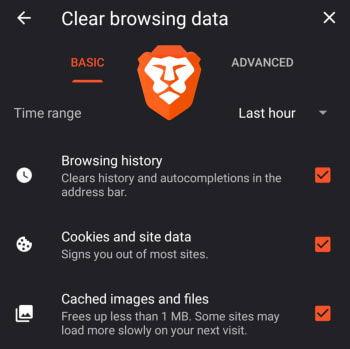
How to clear your Android browser data on Brave

Clear browser hist5ory on Brave

#1 Open the Brave browser on your Android smartphone and tap the ellipsis menu icon in the bottom-right of the screen.

#2 Select Settings and then scroll down to the Advanced section of the Settings menu and select Privacy.

#3 Scroll down to the second to last option, which is Clear browsing data. Select this and then choose the data you want Brave to delete.

#4 Confirm the action by tapping Clear data in the bottom-right corner of the screen.

Enjoy private, secure and fast browsing with Brave.

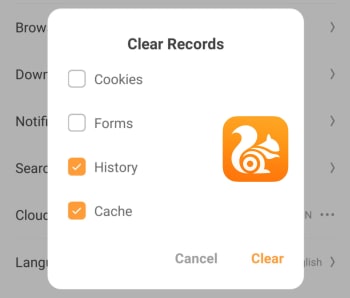
How to clear your Android browser history on UC Browser

Clear browser history on UC Browser

#1 Open the UC Browser on your Android phone and tap the Menu icon, which is the middle option on the bar running across the bottom of the screen.

#2 Then hit the Settings icon, which looks a little like a bolt and is found on the bottom-left of the menu screen.

#3 Tap the Clear Records button and then select the type of Data you want UC Browser to delete.

#4 Confirm the action by hitting the Clear button.

UC Browser Download now
8

Meet Brave, the faster browser

Download and install Brave and enjoy private, secure and fast browsing

Brave Browser

If you’re reading this article on a browser that isn’t Brave, we’ll tell you right now – Brave probably would have loaded this page faster. Don’t take our word for it. Try it for free:

Browse the web up to 3x faster DOWNLOAD NOW ►
9
Enjoy private, secure and fast browsing with Brave.

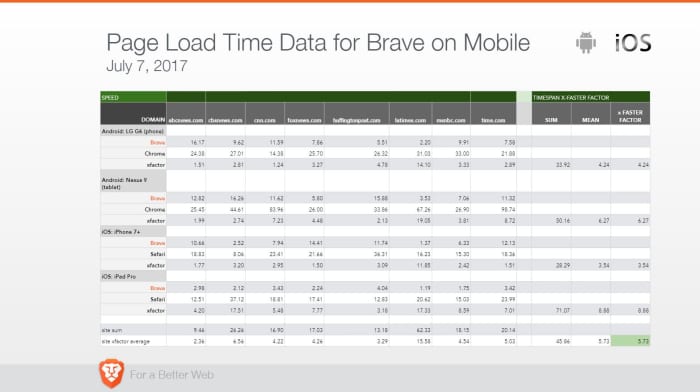
How fast is fast? On a laptop or desktop you’ll see load times anywhere from 50% to 100% faster. It’s even more noticeable on mobile devices, and you could be seeing pages load up to eight times faster than on your smartphone’s default browser (like Safari or Chrome). Check the stats yourself:

Brave mobile page load time data

Speed is about more than page load times

Brave loads pages faster than other browsers, but that’s not all that matters. Browsing eats up time in other, subtler ways: Pop-ups, advertisement videos, banners you have to scroll past – it all bogs down your experience. Brave’s default setting is to shield you from all manner of ads, trackers, banners, cookies, and pop-ups. That means all it has to load is the actual web content, not ads. It doesn’t require you to add additional plug-ins either, so the experience doesn’t get bloated. See it in action:

No bloatware and slimmer pages also means your device’s battery life will last longer than if you used Chrome on mobile. More battery life means fewer trips to recharge you phone, so you’ll be saving time on that front too.

Save time, save money

We probably don’t even need to mention it, but time is money. Since you’re paying for bandwidth you’re also paying for all the ads and slow page load times. When your browser isn’t eating up your bandwidth just to load obtrusive ads, you’re saving money as well.

Try Brave today

When you open a browser you’ve got a goal in mind. Everything that gets in the way of you and the content you’re seeking is unnecessary traffic. Download Brave and you’ll immediately understand why it’s gotten over 28 million downloads on Android alone. Download it here 100% free, and see what the hype is about.

Browse the web up to 3x faster DOWNLOAD NOW ►
9
Browse faster. Choose Brave.

Softonic is proud to partner with Brave. When you download from us, we may earn a commission.

Browse privately with Brave

If you think it’s time to browse the Internet in privacy, it’s time to step up and be Brave. Download and install the Brave browser now.

It’s 2019 and ads are everywhere. Whether you’re watching YouTube or just doing a quick Google search everybody’s trying to watch you work. Incognito mode doesn’t help either. If you think it’s time to browse the Internet in privacy, it’s time to step up and be Brave.

Browse the web up to 3x faster FREE DOWNLOAD ►
9
Surf the net free of unwanted ads

Brave blocks all ads

The Brave browser automatically blocks all trackers, pop-ups, cookies, and banners. This not only frees you from irksome advertisements and interruptions, but also saves you time and money. “It’s hard to believe,” says Brave’s co-founder Brendan Eich, “but we’re paying to be bothered by ads.” You’re paying for bandwidth, technically spending money to load not only the content you view, but all the ads that come with it – ads that you never asked to see in the first place.

Brave’s shield requires no set-up and begins working as soon as you open the browser. They’ve recently improved the ad blocker algorithm to keep your browsing even more private. Check out the details here.

Brave rewards content creators

Brave utilizes an advertising platform built on privacy. As long as you’re on Brave you’ll never have to deal with ads again. Choose to turn them back on, though, and you’ll actually be rewarded for viewing them. “The [Basic Attention] Token is derived from, and therefore denominates, user attention,” explains Eich.

Brave Basic Attention Token

As you view pages and tabs, Brave will accurately and privately monitor where you spend your time. It then compiles the time (and attention) you gave these ads, and rewards you with digital tokens, or BATs. “That’s really just focused mental engagement – on an advertisement, on great content, on whatever the user is looking at.” The result is far fewer instances of fraudulent marketing and malvertising.

Adjust the shield

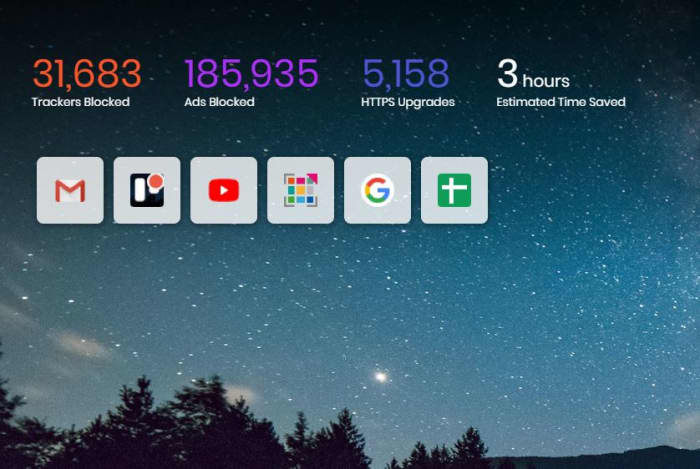
Brave automatically blocks all advertisements and trackers, and even tells you how many it’s succeeded in thwarting every time you open a new tab. Brave even bumps HTTP to HTTPS whenever possible to offer you the highest security possible when you’re online. If you want to personally customize your experience it’s a simple as opening up the Settings menu in-browser. Scroll down to the Shields settings to adjust the level of ads and cookies that make it through. You can even choose to allow or block all fingerprinting.

Brave new tab tracker ad blocked
Brave can save you hours of load times

Right below these options, you can also toggle shields pertaining to social media – Google login buttons, embedded Tweets, and posts from LinkedIn or Facebook. If you’re unsure whether Brave is the right browser for you, we recommend installing it and seeing for yourself. Brave has had over 28 million downloads on Android alone, with over 2 million downloaded every month. The download is 100% free and it’s available for download right here. Give it a try and let us know what you think!

Browse the web up to 3x faster FREE DOWNLOAD ►
9
Surf the net free of unwanted ads

Softonic is proud to partner with Brave. When you download from us, we may earn a commission.

How to earn BAT with Brave

This browser makes it easier than ever to support your favorite online creators.

Brave BAT

Brave is a new browser that offers crazy fast browsing speeds, reinforced security, all the familiarity, and customization that a 2019 internet user can expect, as well as a top-notch privacy filter that shoots down invasive trackers, ads, pop-ups, cookies, and banners. That’s usually where the story stops, but Brave takes modern browsing a step even further: Brave allows its users to convert their attention into tokens that they can seamlessly distribute to their choice of content publishers and advertisers.

This Basic Attention Token is based on Ethereum technology and serves as a unit of account between advertisers, publishers, and users in Brave’s new, blockchain-based digital advertising and services platform. Here’s how you can earn BAT with Brave.

How to earn BAT

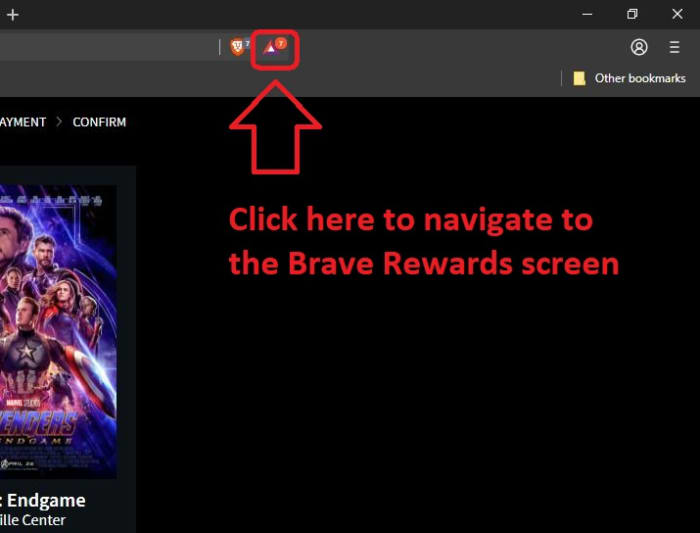
You never have to watch ads with Brave. Period. They’re ignored and blocked by default, but if you choose to turn them back on, you will receive BAT any time you take the time to view them. To begin, turn on Brave Rewards by clicking on the BAT symbol on the right of your main search portal:

Open Brave Rewards

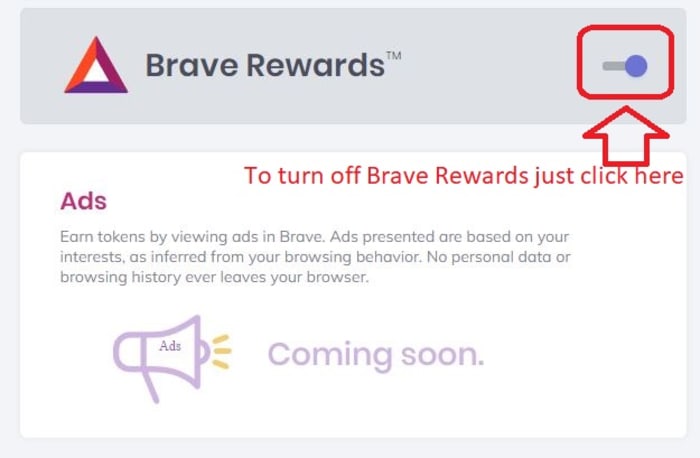
This will take you to the Brave Rewards page where you can toggle on the optional feature and start getting paid for your attention. Just flip the switch at the top of the page and Brave Rewards is turned on!

turn on Brave Rewards

Brave will alert you to any ad offers coming in, and you can choose to watch any you like. Or don’t! It’s up to you. When you do elect to watch an ad, it is opened in a new private tab. Any time that you spend watching the ad generates you BAT. Think of it as compensation for your attention. You’ll receive 70% of the ad revenue, and can spend it on content publishers you like: Your favorite bands, bloggers, podcasters, and publishers. Any malicious ads, trackers, or cookies that try to get their hooks in you or infect you with malware are blocked.

How to spend BAT

Spending BAT is just as easy as earning it. Just tap that same BAT icon to the right of your main search portal again. Then simply select how much you’d like to tip to whatever publisher you’re looking at. This way you get to reward content creators with BAT. Some publishers may even reward you with premium subscriptions for your BAT contribution!

Brave hopes to use the BAT to create an ecosystem that will offer users and publishers a better, more direct way to fund the web. Hundreds of publishers have already joined with Brave (via publishers.brave.com), looking towards a future free of a broken ad-tech ecosystem. Will you join them in taking a stand? Help usher in a Web 3.0 world, and sign up for Brave Rewards today!

Softonic is proud to partner with Brave. When you download from us, we may earn a commission.

Why you need a Brave wallet

Here’s how you can support your favorite sites with a simple browser change.

brave browser

Whether you’re aware of it or not, you are paying to browse the web. Pop-up windows, advertisement videos, and a barrage of banners, callouts, cookies, and trackers are all taking up your attention. Advertisers have been transmitting your valuable private data without your permission, and that data is transmitted through invasive ad technology that you downloaded.

That’s the way things are, but it’s not the way things have to remain: Brave offers a new browsing experience – one that values your time, money, and personal information. How much? Enough for them to pay you for it.

Brave blocks third-party ads, cookies, pop-ups, and trackers by default. The browser is free, and you’re welcome to browse the internet sans impediments and irritations forevermore. That said, there’s the argument that by ignoring ads you’re not giving publishers any way to generate revenue. This will end poorly for both them and you; publishers not generating income means less free content for users. In short, if they can’t afford to give free content anymore, they won’t. Get ready to start paying to watch YouTube videos or paying to read online news articles.

That’s not the future anybody wants. Brave has taken this into serious consideration, and has proposed a solution:

Brave Rewards

Brave Rewards is an optional feature of the browser that allows users to anonymously contribute to their favorite sites. Once enabled, Brave automatically keeps track of the time you spend and the attention you give to any sites you visit. Brave also routinely gives out a monthly grant of free BAT to its users. Put as much in your wallet as you like!

Brave Rewards
Brave Rewards lets you contribute to your favorite content creators.

Brave Rewards divides up that amount once a month, distributing it accordingly to the sites you’ve visited; you finally get to decide which sites benefit from your monetized attention. If you want to contribute money toward a site, this can also be done through Brave: You can send one-off tips to content creators.  Likewise, if there’s a site you visit that you do not want to contribute to, simply remove the site from the list.

Your contributions are anonymous

If you’re concerned about which companies you’re supporting, you’ll be glad to know that Brave Rewards employs a technology called Anonize. This allows for “anonymous-but-accountable transactions.” Anonize utilizes “Zero Knowledge Proofs” to identify that users are authorized to make transactions … but cannot tell who you are specifically. All Anonize knows is that you’re registered to donate your BAT. No one will know which sites you’ve chosen to support – not Brave, and not the sites themselves. All Brave does is tally up the total support for each site and send tokens (Basic Attention Tokens) their way. That said, users are always able to check which sites they’ve previously supported, how much support they’ve given, and decide which they want to support in the coming month.

Brave BAT explainedIf this is confusing, Brave presents a handy analogy: “Someone walks into a polling place, identifies themselves, and gets a ballot and an envelope. They go into a voting booth, mark the ballot, put the ballot in the envelope, and seal it. They then drop the envelope in a ballot box. The people running the polling place and counting the ballots know that each person putting an envelope in the ballot box is authorized to vote, but they aren’t able to determine which envelope in the ballot box goes with which person.”

Help fund YouTube creators

By default, Brave lets you watch YouTube videos without being hassled by ads. Enable Brave Rewards, however, and now you can also help sponsor your favorite YouTubers. Brave has expanded support for the Basic Attention Token to YouTube creators, which enables a direct relationship between the content creators and you: You can support content creators with your BAT, and the content creators can then sell that BAT for profit. While this will help any and all YouTubers, this is especially beneficial to those with under 10,000 views, since they’re not yet receiving ad revenue from YouTube.

So is this like Bitcoin?

No, BAT is not a digital currency; it’s a utility token. BAT is used to indicate exchanges between users, advertisers, and publishers, and allows the Brave browser to directly measure and verify the attention that you spend online. As Brave explains on their FAQ page, “since BAT is a utility token it can be used as a unit of account between advertisers, publishers, and users on the BAT platform, and can be utilized to directly measure, exchange, and verify attention. Bitcoin would not enable this distinct, in-platform problem solving. Finally, using BAT on Ethereum allows for faster scalability than using Bitcoin.”

So it’s not Bitcoin… is it safe?

Short answer: Yes.

Brave’s servers don’t own custody of any funds in a user’s Brave wallet. Moreover, Brave isn’t even able to access that information. That means it’s literally impossible for anyone to steal any of that data from you, or manage it at all. The BAT is yours alone to distribute how you wish.

If you experiment with Brave Rewards and find you don’t like it, no harm done! You can switch it back off via the Rewards Preferences page right here:

Enable Brave RewardsLikewise, you can always re-engage it or alter your monthly contribution amount on the Monthly Payment menu. Users can start calling the shots where their BAT gets to go, and content creators can sign up with Brave Rewards to start receiving BAT from users. Check back with us for updates, and for any additional information about your Brave wallet, you can check out Brave’s FAQ page.

Enjoy private, secure and fast browsing with Brave.

Softonic is proud to partner with Brave. When you download from us, we may earn a commission.

What the Brave browser can do for you

There are better options than Chrome… Learn more about how the Brave browser stacks up the competition.

Not all browsers are created equally, and at this day and age when you’re spending so much time online, you should be using the best browsing tool possible. So which is it? Chrome? Firefox? Edge? The truth is there’s no objective ‘best browser,’ but there are certainly strengths and weaknesses to each. And we’ve got some compelling reasons why Brave could be the best browser yet. We’ve compiled a list of pros and cons for each one. Let’s run through them.

Mozilla Firefox

Pros:

  • More privacy than Chrome
  • Can be as fast as Chrome
  • Less likely to mine for data

Cons:

  • Runs slower on pages with lots of images, pop-ups, and videos
  • Lags behind Chrome once you install plug-ins to block those pop-ups and vids
  • No built-in support for Flash

Google Chrome

Pros:

  • Recognizes all plug-ins
  • Fast
  • Tons of extensions

Cons:

  • Bloated and heavy
  • Taxing on your RAM
  • Lacks trustworthy privacy features

Microsoft Edge

Pros:

  • Lightweight and smoother than Chrome
  • Built-in Cortana is very convenient
  • Reading mode fights distractions and blocks ads

Cons:

  • Unavailable on Mac or any Windows OS less than 10
  • If you have Windows 10, Chrome is still a better option
  • Even Internet Explorer is more popular

Opera

Pros:

  • Turbo mode speeds up page loads dramatically
  • Free, built-in VPN
  • Integrated wallet and messenger services, including WhatsApp and Messenger

Cons:

  • Fewer extensions
  • No parental controls
  • Middle of the road option, lacking where other browsers excel

Safari

Pros:

  • Default browser for Apple, very convenient
  • Works in tandem with all software designed by Apple
  • Default pop-up blocking

Cons:

  • Safari is over 15 years old, and its age is beginning to show
  • Lacking in customization
  • Useless if you don’t use Apple products

Brave

Brave is a relative newcomer for iOS, Android, macOS, Windows, and Linux created by Brian Bondy and Brendan Eich, the inventor of JavaScript and the co-founder of Mozilla.

Brave automatically blocks any third party trackers, shutting down anything that might worsen your browsing experience. Without ads in the way, Brave is up to eight times faster than the mobile competition, and offers numerous extensions as well. Brave also helps you support your favorite publishers.

Softonic is proud to partner with Brave. When you download from us, we may earn a commission.

How Brave eliminates common browser problems

Brave brings you fast, private browsing without many of the drawbacks of other browsers.

Brave

The internet has evolved into an essential component of our daily lives, and its use in American homes has increased by 400% in the past 20 years. According to the USC Annenberg Center for the Digital Future the number of hours we spend on the internet every week has risen from 9.4 (the statistic back in 2000) to 23.6. Overall internet penetration has increased from 67% to 92%. That’s all time that you’re spending on a specific internet browser, whether it’s Firefox, Chrome, Safari, Opera, or what have you. No matter your choice, it’s helpful to know the good, the bad, and the ugly of every choice out there. Not all browsers are created equally, so we’ve compiled a list of each one’s strengths and weaknesses:

Is it time for you to make a switch? Check out the stats below and decide for yourself!

1. Google Chrome
Google ChromePros:

With the monolithic Google behind its creation, it’s no surprise that Chrome is fast, efficient, and user-friendly. It’s got pretty much anything you’d need to make the most of the web, like quick answers in your address bar, one-click translations, and a wide variety of extensions and customization options.

Chrome will also automatically protect you from security issues like scamming and phishing, making it pretty safe to browse with, too. Just as Google is the most popular search engine, Google’s Chrome is currently the most popular browser. Chrome’s popularity has led to a surplus of extensions and websites catered to the browser, making it a highly customizable experience to boot.

Google Chrome Download now ►
7

Cons:

As powerful and popular as Chrome is, the browser is not without fault. In order for it to achieve its impressive speeds, Chrome needs to take extra resources from your PC:

Chrome splits every tab, plugin, and extension into its own process – that’s how it manages crashes so competently. The downside is that means it’s far more taxing on RAM since it’s duplicating tasks for each tab. Chrome is one of the ‘heaviest’ browsers and can get swarmed by bloatware, making it less than ideal for machines with limited RAM. There’s also the mounting suspicion of tying your data to Google, and if privacy is your concern you should likely look elsewhere.

2. Mozilla Firefox
FirefoxPros:

One of the earliest browsers out of the gate, Firefox brings to mind two things: Privacy and speed. While other browsers that capitalize on privacy do so at the cost of loading speed and/or heavier use on system resources, Firefox manages to succeed on both fronts, achieving a browsing experience that gives Chrome a run for its money.

Mozilla is a non-profit organization, meaning it’s got far less interest in mining and selling your data than, say, Google Chrome. Firefox also updates on the regular to bolster user privacy and ad-blocking. Its combined speed and safety put it at the top of TechRadar’s web browser ranking as recently as September 2018, claiming that Firefox has “retaken its crown” in recent months, and is now deserving of another look from avid Chrome users.

Mozilla Firefox Download Now ►
7

Cons:

Firefox is fast, but it’s not always faster than Chrome. This is mostly apparent on pages with tons of images or videos, at which point you’ll probably want to simply install an add-on or extension to either speed it up or block them. This brings us to Firefox’s second weakness: If you start installing extra plug-ins to customize your experience to the same extent as Chrome, Firefox will start to lag noticeably behind the competition.

Lastly, Firefox doesn’t have built-in support for Flash. Flash is notoriously dangerous, so this isn’t so much of an issue in 2018 when the internet is largely abandoning the platform. Even so, just like Apple got a negative response for removing the aux jack, we feel it’s necessary to mention any upgrades that leave old tech in the dust.

3. Microsoft Edge
Microsoft EdgePros:

Microsoft Edge the default browser for Windows 10. As such, it does a decent job of keeping in line with the speed, intuitive UI, and ‘clean’ aesthetic of many facets of Windows 10. Edge holds its own by modern web standards, and additionally offers a few capabilities you won’t get in other browsers: Webpage markup, integrated Cortana features, and a clean-cut reading mode.

Recent updates have also included a Tab Preview, Set Aside, ebook reading, and a handful of nifty extensions. Edge also no longer uses the infamous ActiveX, browser helper objects, or VBScript support that made Explorer slow as dirt. Edge is easily a significant improvement over Internet Explorer in terms of speed, accessibility, and compatibility. It also weighs substantially less than Chrome, meaning you’ll have a less bloated browser experience, albeit a more bare-bones one.

Cons:

Edge has struggled to achieve market share, mindshare, and positive reviews. The first three months of 2018, Microsoft Edge pulled a less-than-impressive 8% of the 1.2 billion visits to government websites from consumer and business PCs and Macs. This figure isn’t wholly reliable for another reason that Edge gets a lot of flak: The browser is not even available on any Windows OS older than 10, or if you’re using a Mac.

The real head-scratcher is why Microsoft feels the need to support multiple browsers for different Windows Operating Systems when they could just work to make Edge backward compatible. Doing so would certainly help give it some much-needed traction. For more reasons why you might find Edge disappointing, check out this article.

4. Opera
Opera browserPros:

Opera is as underrated as it is high-quality, and it’s certainly both of those things. Opera is a Chromium-based software, which means it’ll feel similar to Google Chrome when it comes to facets like rendering, and was the flagship for popular modern browser features such as private browsing and pop-up blocking. Opera also offers a free VPN that will replace your IP address with a new one, making it more difficult for ads to track your location and harass you.

Opera pushes a focus on privacy and like Edge offers a simple, intuitive layout, and has built-in messenger services like WhatsApp, Telegram, and Messenger, making it altogether a quick, smart, intuitive browser that go toe-to-toe with the competition.

Cons:

Opera doesn’t offer as many plug-ins as other browsers and it’s also lacking in parental controls (if such a thing matters to you). Occasionally the browser will also have issues playing videos or have trouble keeping pace with other browsers like Firefox.  Moreover, there’s no shining reason why a person would switch to Opera. It performs everything a browser should, but doesn’t really excel in anything either. For speed, people go to Chrome. For customization,they go to Firefox. With Opera, there’s little pull to use it when compared to the competition; most people have a strong reason for using one browser or another and being caught in the middle isn’t helping its case.

5. Safari
SafariPros:

Safari’s got the home field advantage with the Apple crowd. It’s the default browser for all the company’s products, mobile or otherwise, and Safari has become intertwined with the Apple experience. Apple does a solid job with security, and Safari is no exception. Browsing with Safari is a ‘better safe than sorry’ experience and can be further optimized quite easily to bump your protection even higher. Safari uses default pop-up blocking, which is always a huge plus.

If you’re an Apple user, Safari is still an excellent browser, even 15 years after its release. It’s already preloaded on all Apple products, so it’s at your disposal immediately and seamlessly works in tandem with all software produced by the company.

6

Cons:

If you’re not an Apple user, then Safari is useless to you. Microsoft products want as little to do with the competition as possible, so if you’re in with Microsoft you may never even use Safari. Besides the enhanced security options, there also isn’t a ton you can do to customize Safari, meaning that you’ll get a good, safe experience but not necessarily and adjustable one.

Why we like Brave
BraveIf you haven’t heard of Brave before, it’s likely because its first stable release just landed for iOS back in early August. The platform is now available on iOS, Android, macOS, Windows, and Linux. Who created it? Brian Bondy and Brendan Eich, who you’ll remember as the inventor of JavaScript and the co-founder of Mozilla (makers of Firefox).

Much like Firefox prioritizes user privacy, Brave automatically blocks any third party trackers, shutting down anything that might worsen your browsing experience such as third party cookies, pop-ups, and ads. None of that even makes it past the first line of defense. From that point forward, the rest is up to the user.

Brave is fast (up to eight times faster than the mobile competition), offers extensions that you’re familiar with, shields you from third party trackers, and because Brave blocks excessive third party requests, you’re actually saving money on your data plan. But then we get to the age-old dilemma of publishers and advertisers not generating revenue due to blocked ads.

Brave has an answer for that too:

How Brave solves the ad problem
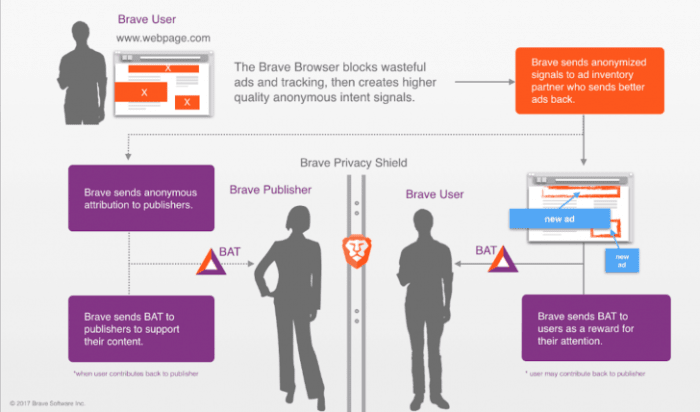
Basic Attention TokenWith Brave, users can always select an ad-free browsing experience. However, Brave introduces a new private advertising platform that users can opt-in to and receive rewards for their attention. Users who elect to view ads earn Brave’s Basic Attention Tokens (BATs) which can then be used to support publishers and content creators, distributing your monetized attention how you see fit. You’ll then benefit from better ad-matching, and your data remains private.
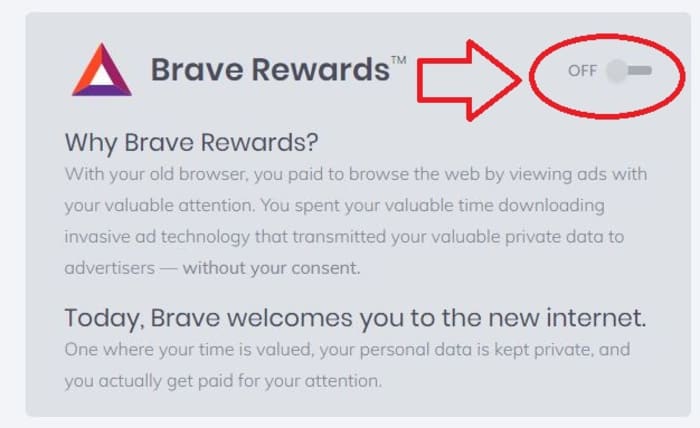
Thirty percent of the ‘revenue’ gained from watching the ads goes to Brave, while the other 70% goes directly to the user. Should you choose to browse with Brave Rewards, your data stays private and you’ll still benefit from more accurate ad-matching and reception of Basic Attention Tokens. If this sounds like a feature you’d be interested in, you’ll be happy to know over 33,000 content creators and publishers are already registered receive tips and contributions from their users.

Softonic is proud to partner with Brave. When you download from us, we may earn a commission.