The Opera AI, Aria, has taken a new step in the development of features, and now it is also capable of summarizing content from the pages where the user is. This function, impossible without the existence of Aria, is responsible for carrying out a summary in which it collects the visible information on the page to break it down to the user by showing them the fundamental parts of said content.
In its official blog, Opera has showcased this striking novelty, which implies that its Artificial Intelligence, Aria, will be able to carry out content summaries on Android devices, giving users a tool with great potential usability at their fingertips anywhere and anytime.
Opera, as a browser, has been working for some time as a contender to be a preferred option among users, although it still has to compete with services like Chrome, Firefox or Safari, which means they continue to seek improvements of this kind to advance in the mobile browser race.
The Summary of Contents in AI
That Opera has implemented this function capable of summarizing content existing on web pages, is a novelty within this application, but in the technology industry there are already many services that have Artificial Intelligence-based technologies capable of carrying out summaries of all kinds. The reason: in times when people are in a hurry for everything, and their attention span is reduced by the immediacy of the Internet, these tools represent a time saving.
In fact, although at a leisure level it can be a useful tool for those who want to save time in their daily use, content summarization through AI also exists in other areas such as the professional one. Microsoft’s AI Copilot has been implementing this type of functions in various services of the company’s productivity ecosystem since 2023, such as Microsoft Teams, or imminently, in the Outlook messaging system.
The use of artificial intelligence is becoming increasingly common in our daily lives, whether it’s for entertainment or work. Ultimately, it’s something that is very much present in our society, and this is something that Opera is well aware of. By now, you may already know that the mentioned browser offers the ability to interact with its own artificial intelligence, Aria. Now, its developers have added new tools that make things even easier.
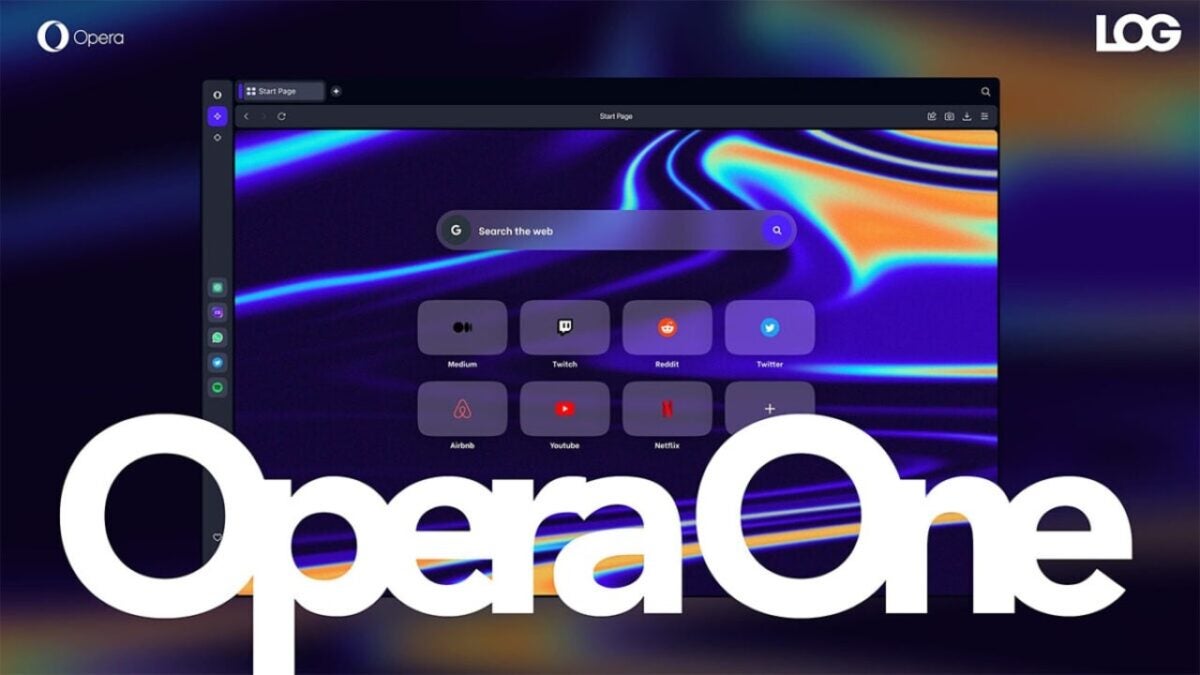
In other words, Opera One now includes new features that will make it easier and simpler for users to interact with its mentioned AI. To begin with, the browser has received a new function that allows Aria to provide more refined answers to users’ questions. Additionally, it also allows users to select a part of that answer, in case it doesn’t suit their needs or is incorrect, and click on ‘Rephrase’ to have it corrected, while the AI retains the rest of the response as it was.
Opera One strengthens its AI with more features for users
On the other hand, now writing messages with certain graphical elements that make it easier for us to communicate what we want will be a fundamental task. In other words, you can now select the type of content you want to convey in your message, add a theme and context, choose a tone (formal, informal, neutral, academic, commercial, or humorous), and refine your style. You can even make the message be written using the specific style of the user in question.
In fact, this latest feature uses AI to emulate the user’s writing style. It does this by asking us to write a formal complaint letter, a product review, and a casual text message. With this, Aria can closely mimic the user’s writing style. Additionally, it now allows us to select the length of our text.
It is expected that these won’t be the only features coming to Opera One, as it is evident that the commitment to AI will bring us more innovations soon. This is because Opera’s own product director stated the following with the arrival of the detailed update: ‘What people want is to create the content they need or get the best possible query results quickly, accurately, and with the least effort possible“.
While there may be plenty of popular browser extensions on the market, such as Firefox and Opera, Chrome is the app that both PC and Mac users lean towards the most. If you’re like us, you probably have it installed on your mobile devices, too.
A handy feature in its arsenal is the Bookmarks Manager. Chrome also has a Bookmarks Bar for easy access to your favorites. While we’re sure you’re aware of all this already, do you know how to export them to a new device? Let us show you how.
Export Chrome bookmarks to another PC or Mac device
Whether you’re using Chrome on PC or Mac, the process remains the same. There are two different methods you can use, so we’ll take you through them both. You can thank us later.
The first method involves exporting bookmarks to a different device. Here are the steps you need to follow:
Launch Chrome on the source device (PC or Mac);
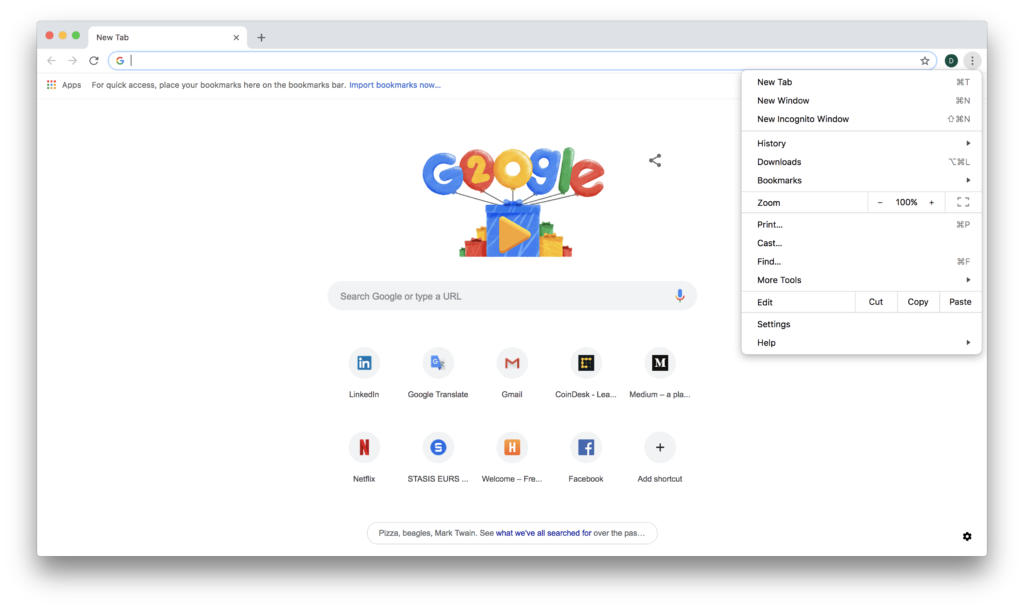
Select the menu icon to the right of the URL bar;
Choose Bookmarks, Bookmarks Manager;
Click on the new menu icon, and select Export Bookmarks;
Export Chrome bookmarks to another web browser on PC and Mac
Another method is to export your bookmarks to a different browser. You can follow the same steps 1 – 5 for Chrome as above, but you’ll change the tasks on your preferred web application.
For instance, here are the steps for exporting bookmarks to Firefox:
After saving your Chrome bookmarks, open Firefox;
Select the Library icon to the right of the URL bar;
Choose Bookmarks, then Bookmarks Manager;
Click on Import and Backup, followed by Import Data from Another Browser;
Ensure that Google Chrome is closed, and select Chrome;
Pick all the options you want to import and then finish the process.
Take your bookmarks with you anywhere
We know how annoying it can be spending years saving bookmarks and then making the heartbreaking decision to move to a new device or web browser. We hope that the above steps will help you restore all your favorite sites and pages. If you use a different method, feel free to let us know.
In recent years, the internet has become an essential tool in our daily lives. We use it to search for information, make purchases, work remotely, and stay in constant contact with our family and friends. Just about anyone would have a hard time getting through a full day without connecting to the internet, but few of us are aware of the importance of a fundamental tool we need to do so: our browser. Without it, we wouldn’t be able to access the web or spend long hours surfing its endless sea of information.
Browsers are the gateway to the internet, and although we all have our favorites (Chrome, Firefox, Edge, etc.), sometimes we wish they had extra features. Just like you need a comfortable pair of shoes to enjoy a long walk, having a good browser is essential to enjoy everything the internet has to offer. So, what features should the ideal browser have?
In today’s article, we’re going to use our imaginations and write a wish list of all the features and characteristics we would like to see in the “perfect browser.” So, without further ado…
It should be fast when searching for and loading websites
One of the main features a good browser needs is the ability to quickly take you to the websites you want to visit. This is important not only when using the internet during your precious free time, but also when you’re trying to perform your best at work.
Right now there are some really fast browsers, such as Chrome and Firefox. While Chrome itself is already quite speedy, it lets you add extensions that will make all your searches exponentially faster. If you’re interested, click here for a roundup of the best extensions to speed up your browser. Firefox is not far behind Chrome in this respect. This browser has always stood out for its speed, and it even includes a native feature that makes it quicker. Want to know how to enable it? Click here to find out.
In short, the perfect browser should be fast and take you to the pages you want to visit without delay. Because, as the saying goes, “time is money”!
It shouldn’t slow down your computer
One of the biggest problems with browsers is that they often end up using a lot of system resources. This leads to your computer slowing down significantly, which can be frustrating for the user. A good browser should not only display search results quickly, but also ensure the PC or mobile devices it’s running on are not affected by its use.
In terms of performance, the browsers that we like the most are the Chromium-based ones. Among them we obviously find Google Chrome and the most recent Brave. Both run seamlessly and barely use any resources from your operating system.
If your browser has been slow lately or seems to be consuming a lot of system resources, there is probably a problem. To solve it, we recommend clearing your history and cache and following some of the tips in the article below.
7 tricks to increase the speed of Chrome you should use right now
The internet is a wonderful place for finding information, shopping, and connecting with your friends. However, the sheer amount of personal data you share online is greater than you could ever imagine. The perfect browser needs to be extremely secure to keep the information you share online out of the hands of hackers and cybercriminals.
With the massive use of the internet, countless threats have arisen, so it’s important to tread carefully. There are types of malicious content that, after contacting your browser, can detect anything you write (including your banking details). Others are even capable of hijacking your browser and redirecting your searches to pages with highly dangerous content for your computer. Your browser must be able to both detect and block these threats.
A browser that excels in this regard is undoubtedly Mozilla Firefox. Over the last few years, Firefox has emerged as one of the safest options on the market, making it possible to navigate the web with total peace of mind.
It should block annoying ads
There are few things more annoying during an internet session than constantly seeing pop-ups and banners on your screen. Although there are extensions that block these irritating ads, wouldn’t it be wonderful if your browser had an integrated ad blocker in its code?
Currently a good option to get rid of ads is Brave, a browser that includes a completely free ad blocker as standard. That way navigating the internet is a far more pleasant experience.
It should have a safe extension store
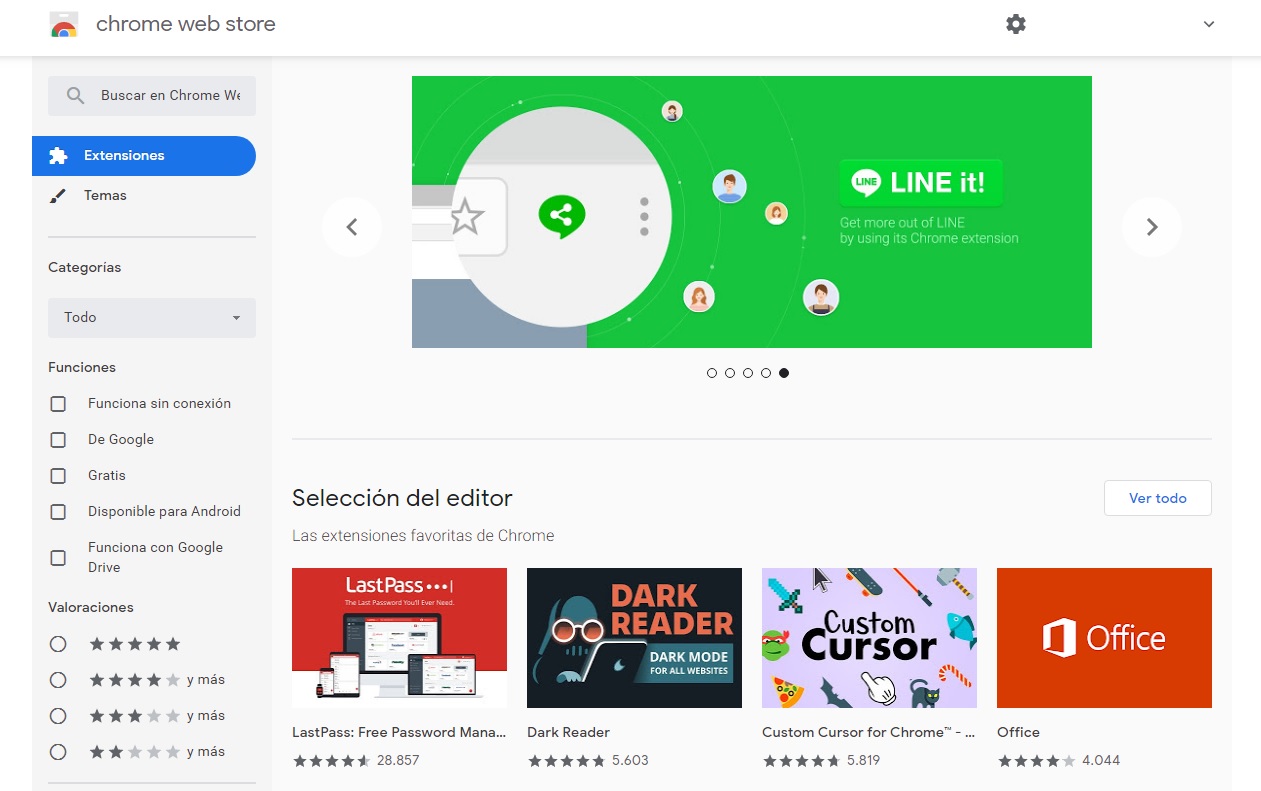
One of the best things about today’s browsers is the fact that they use extensions to add new features to your internet sessions. Browsers such as Google Chrome or Firefox are favorites not only because they’re ultra fast and secure, but also because they let users customize their features in just a few clicks. And this is all possible thanks to extension stores.
For this reason, the perfect browser must guarantee that all the extensions in its store are 100% secure. As useful as they might be, these new downloadable features can be dangerous. Bear in mind that unless they have been previously verified, extensions can put your data and computer at risk. The perfect browser therefore must have an extension store whose extensions have all been vetted by a team of experts.
If you want to find out how to identify a safe extension, we recommend reading the article below.
This Google Chrome extension helps you block out internet trolls
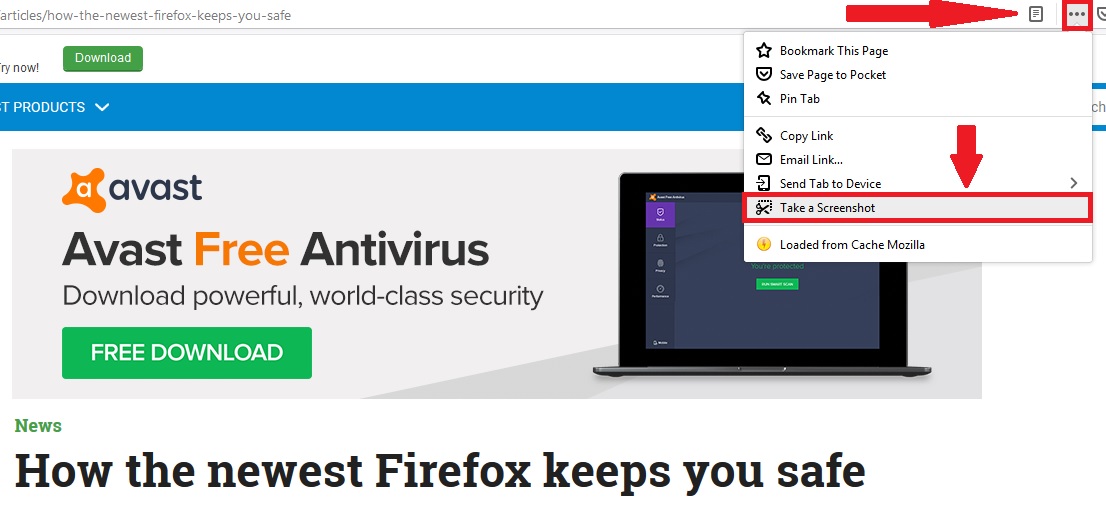
One of the most convenient features when working online is the ability to take screenshots. Although this can be done easily using the “Print Screen” key or the Windows 10 screenshot keyboard shortcut, our perfect browser would have its own embedded screenshot button.
Currently browsers like Mozilla Firefox include this option natively, without the need to install any extension. To find out how to enable it, just look at this.
It should be capable of syncing data across your devices
A truly interesting feature of the latest browsers, such as Firefox, Edge and Chrome, is their ability to sync data. In the case of Chrome, this is especially useful for Android users, as it allows immediate access to all Google services (Gmail, Drive, etc.) and syncs your data and bookmarks from your phone or tablet. In the case of Firefox, syncing lets you export and import all your bookmarks quickly and easily between different devices. Edge, on the other hand, can integrate seamlessly with Windows 10, import and export your bookmarks as well as sync with your Microsoft account. Our perfect browser should be able to do the same thing with any account.
It should have a good password manager with a master password
Over the years, there has been a dramatic increase in the number of subscription-based online services. All of them require a username and password, so ultimately you have to remember hundreds of passwords if you want to continue using them.
A good browser needs an efficient, natively integrated password manager that can remember your login details and enter them automatically whenever you want to access one of these services. However, it’s also important for your browser to have a master password system. This means you’ll need to enter a master password before your browser can autocomplete the login details for any online service you want to access. That way you’ll be sure that even if someone else gets ahold of your computer, they can’t access your passwords.
Among the main browsers on the market, we recommend Mozilla Firefox, which has a good password manager and gives you the option of setting a master password.
The perfect browser doesn’t exist, but here are the best ones
Although there is no perfect browser just yet, there are options that come very close. Among them are Microsoft Edge, Mozilla Firefox, Brave, Opera, and of course, the all-important Google Chrome. All of them have interesting features and are truly secure, so your data will be protected at all times. You can download the latest versions of them below.
We hope you liked our article about the perfect browser. Which features would you like to see on your browser? Tell us about them in the comments section!
Nowadays we spend a large part of our workday and even our free time navigating the internet. That’s why, more often than not, our browsers end up cluttered with bookmarks, whether it’s for that website you’re using to write your next report or the one you always visit for a few laughs. This isn’t a problem when your browser is clean and newly installed, but sooner or later you’ll have so many bookmarks that it frankly gets hard to find the one you’re looking for.
One of the best options for tidying up the bookmark chaos in your browser is to create folders. However, in the long run it becomes as chaotic leaving them on the taskbar. Is there no way to manage bookmarks that doesn’t involve spending several minutes hunting for the one you need?
In today’s article, we’re going to share our roundup of apps and tools that make it easy to organize your bookmarks. Time to tidy up that virtual “junk drawer” in your browser! We hope you find them helpful.
First, make sure your browser is up to date
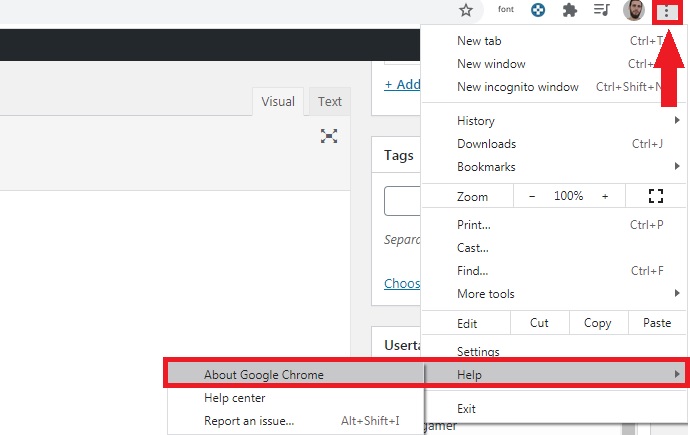
Before we get started with our selection of apps, we highly recommend checking to make sure your browser is up to date. That’s the only way you can be certain the app you’re using works correctly and at the same time, that all your browsing data is safe from hackers.
Updating your browser is easy. All of them use a similar system: just go into the options menu and select “About” or “Information about browser.” Then it will check to see if you have the latest version installed and give you the option of downloading it.
Alternatively, you can manually download the latest version of your favorite browser. Just click below to download them quickly and safely:
Dewey Bookmarks is a complete extension for Google Chrome that will change the way you see your browser bookmarks. It lets you view each and every one of your bookmarks as cards, so it’s much easier to find them at a glance. What’s more, Dewey Bookmarks lets you manage your bookmarks by adding tags, so you can search for them quickly, and they’re always just a click away.
One of the strengths of Dewey Bookmarks is this extension’s internal search engine. Find any bookmark by typing its name, tag or even part of its URL. In addition, you can import bookmarks directly from other Chrome browsers and edit any of them in just a few clicks.
You can download the Dewey Bookmarks extension here.
Pocket
Pocket is an incredible service you can use to save all kinds of articles, videos and stories from any website or even app. It’s the best app by far for managing browser bookmarks, since it’s a multiplatform service you can use to save and easily access anything.
In fact, Pocket’s greatest asset is that it saves bookmarks across your devices, on your PC, phone and tablet, so you’ll never have to search for compatible programs. So, how does it work? Pocket is really easy to use: just click a convenient button on your browser to save anything that interests you in one place. What’s more, its useful tagging system makes it so easy to find your bookmarks. Don’t miss your chance to try it!
Neater Bookmarks is an interesting extension for Chrome that displays all your saved websites in a cleaner, more attractive format. Although at first glance it doesn’t seem particularly innovative, it’s a really useful extension for anyone who uses the Google browser on a daily basis.
Now it will be much easier for you to find your bookmarks thanks to its powerful internal search engine. In addition, Neater Bookmarks remembers the last bookmark you used and shows it first. That way, you’ll always have your most visited pages just a few clicks away.
You can download the Neater Bookmarks extension here.
Evernote
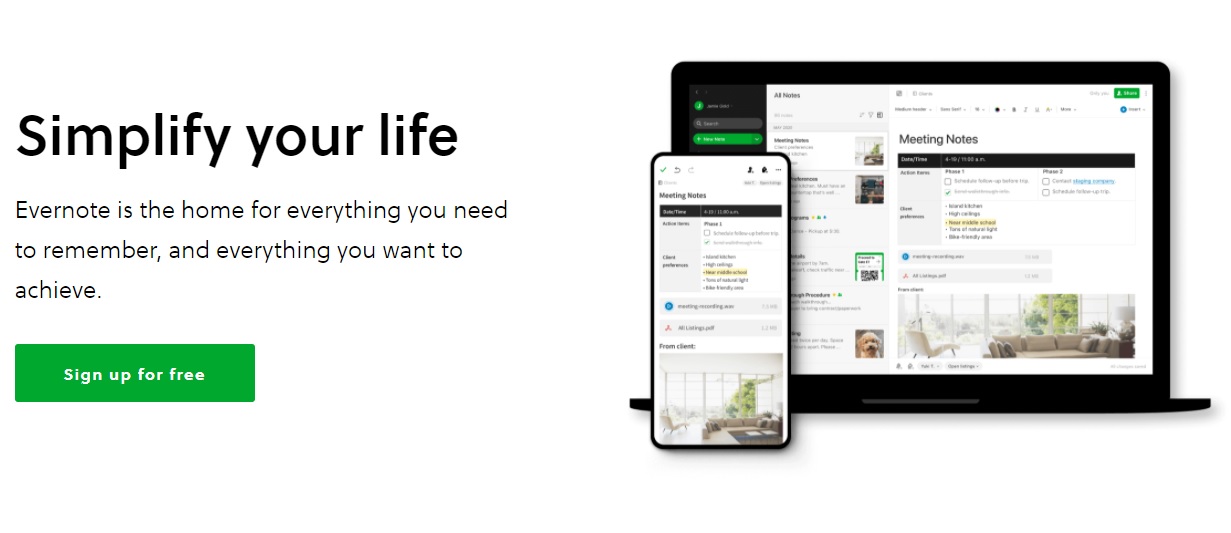
If you’re one of those people who loves to plan your day down to the last detail, you’re probably more than familiar with Evernote, but… did you know this app can also manage your bookmarks? In fact, it’s one of the most comprehensive, complex bookmark managers you can find online.
Evernote is an especially useful application to store all the bookmarks you use, for example, throughout the workday. This is because although it’s a powerful application, it’s not directly integrated into your browser, so you have to open the program to access your bookmarks. Fortunately, this little problem can be solved thanks to convenient extensions.
Another strong point of Evernote is that, since you can use it on your phone, you can save all the bookmarks you want, whether you’re on your way to work or on vacation. You’ll never have to use your PC. What’s more, there are different subscription plans (one is completely free), with new tools to better organize and manage your bookmarks.
You can download Evernote quickly and safely below.
Bookmark Manager is an excellent tool for managing your Google Chrome bookmarks. As it’s an extension for your browser, installing it is as easy as visiting the Chrome Web Store and downloading it to your device. Unlike similar extensions, Bookmark Manager can not only add and organize new bookmarks, but also identify the ones you already have in your browser and put them in perfect order.
Among its most outstanding features, Bookmark Manager provides a much more visible and intuitive interface for your bookmarks. When you have it installed, it lets you restore old browser sessions and eliminate duplicate bookmarks. Using its internal search engine, it becomes much easier to find that website you were looking for.
In terms of usability, Bookmark Manager is very intuitive, so there’s no learning curve for casual internet users. In short, it’s a sure bet for anyone who uses Chrome users and wants a simple, useful bookmark manager for their browser.
You can download Bookmark Manager from the Chrome Web Store here.
Diigo Web Collector
Diigo Web Collector is a browser bookmark manager designed for users who are looking to do far more than just organize their saved websites. Although it’s not one of the most visually stunning apps on our list, it couldn’t be more useful.
Diigo is widely considered to be the benchmark app for annotating and archiving bookmarks. Use it to save websites and visit them whenever you want, and even add notes and even reminders to them. This is especially useful if you use the internet to work or write reports for work.
One really interesting aspect of Diigo Web Collector is that, besides using the service on its website, there is an extension for most browsers (Google Chrome, Mozilla Firefox, Internet Explorer and even Safari). What’s more, Diigo has an app for both Android and iOS devices. That way you can work and organize all your bookmarks whether you are using your PC, tablet or phone.
You can visit the Diigo website here. You can download its extension for Google Chrome and its Android and iOS apps quickly and safely below.
Our final pick is the “crown jewel” of our list. Raindrop.io is a fantastic bookmark manager that stands out for its visually stunning interface. It offers a card-like thumbnail of all your bookmarks, making it incredibly easy to find websites and tell them apart. If you have lots of bookmarks or simply prefer a more minimalist option, Raindrop.io can also display your organized websites in the quick, classic list view.
Here’s how it works: Raindrop.io lets you organize all your bookmarks in collections or folders within the program. You also have the option of tagging your bookmarks to make it much easier to find them. Finally, Raindrop.io is able to analyze all the bookmarks you have stored in your browser and eliminate any duplicated ones, or bookmarks whose URLs no longer work.
You can access Raindrop.io on its website, and this manager is compatible with today’s most popular browsers (Chrome, Firefox, Safari and Opera) and also has apps for Mac, iOS and Android. So, what are you waiting for? Download it today!
We hope our selection of tools for organizing your bookmarks has been helpful to you. Do you use any that don’t appear on our list? Tell us about them in the comments section!
Google Chrome is the most popular major web browser. Here we walk you through all the biggest new features that landed on Google Chrome in 2019.
Modern browsers like Mozilla Firefox, Microsoft Edge, Safari, Opera, and of course Google Chrome are monster programs that can do amazing things. The days of Internet Explorer are long gone. You only have to consider the fact that Google used its web browser Chrome to develop a whole new operating system that runs Google powered laptops called Chromebooks, and rivals the likes of Windows and MacOS. This incredible feat has been made possible by Google’s policy of continually updating the Chrome browser.
It can be hard to keep up with all these updates, however, as they just keep coming. What use is a shiny new updated feature, if you don’t even know that it’s there. Well, that’s what we’re here for today. We’re going to walk you through all the new features that came to the Google Chrome web browser in 2019.
The Google Chrome web browser received a massive 7 updates in 2019 with the first, Chrome 72, landing in January and the last, Chrome 79, arriving just before the new year in December. Let’s look at all the best new Chrome features that these updates brought with them.
Default Flash blocker
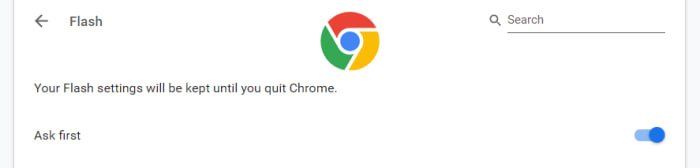
Google has already said that it will remove the Flash plugin from Chrome towards the end of 2020. In 2019, however, Google put the impetus on users to activate Flash in Chrome by making the browser block the plugin by default. You can set the browser to ask you before blocking it, however, on each site you visit. To do so copy and paste chrome://settings/content/flash into the Chrome address bar.
Password checkup tool
Google has integrated a former Chrome plugin directly into the browser, meaning it is now available for all Chrome users. The feature will scan your passwords and then check them against known databases of leaked passwords. Basically, if any of your accounts and passwords have fallen victim to any of the massive data breaches you hear about all the time, Chrome will now tell you. To activate this feature copy and paste chrome://flags/#password-leak-detection into the Chrome address bar.
Send tabs to other devices
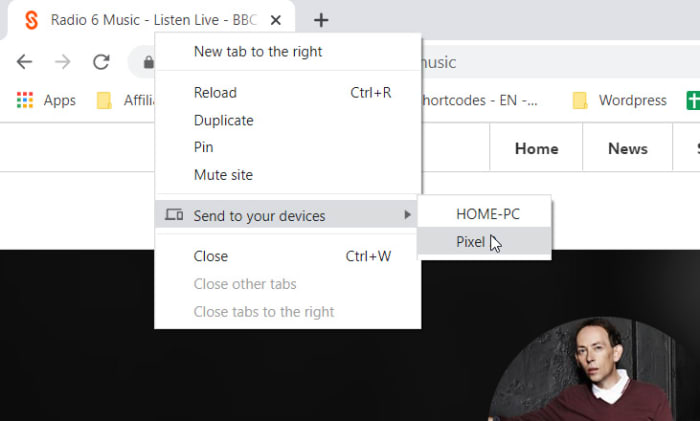
Chrome 77 introduced an interesting feature that allows users to send tabs to other devices that use the same Google account on Chrome. If you use the same Google account on Chrome across different devices, you can now right-click on any of your open tabs on Chrome for desktop and hit the Send to your devices option to see a list of devices you can share the tab with.
Copy and paste across devices
Another cool Chrome Sync feature that was introduced in 2019 is the clipboard synchronization feature across multiple devices. This new feature means you can copy something on one device and then paste it on another that is using the same Google account for Google Chrome. This feature came with Chrome 79, which means both devices will need to be updated to Chrome 79 before it will work. If you have two devices that qualify, however, you’ll be able to right-click anywhere on the webpage and then select Copy to (your device’s name).
Chrome backgrounds and themes
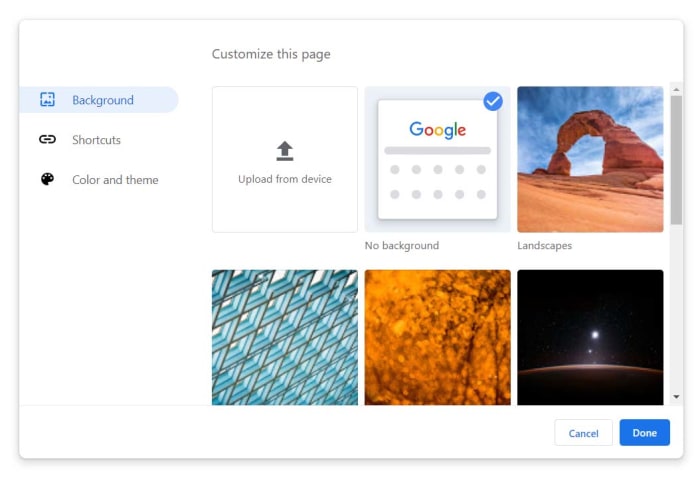
Another cool feature that landed with Chrome 77 is the Customize button you’ll find in the bottom-right corner of the Chrome homepage. Clicking this will give you a series of different customization options including Background, Colors & Themes, and Shortcuts. You can decide on the shortcuts Chrome will show on the homepage, pick from a whole host of interesting background images, and set different themes and color schemes for the browser.
The Dark Mode
Google split the Chrome Dark Mode roll-out over two separate updates with the Mac Dark Mode coming with Chrome 73 and the Windows Dark Mode coming with Chrome 74. Both operating systems now support Chrome’s Dark mode but there are no controls for this on the web browser itself. Instead, Chrome simply copies your system OS color scheme meaning if you’ve set your Mac or Windows system to run in Dark Mode then your Chrome browser will do too. The Chrome support page here shows you how to do so.
Take an early look at WhatsApp’s brand-new dark mode
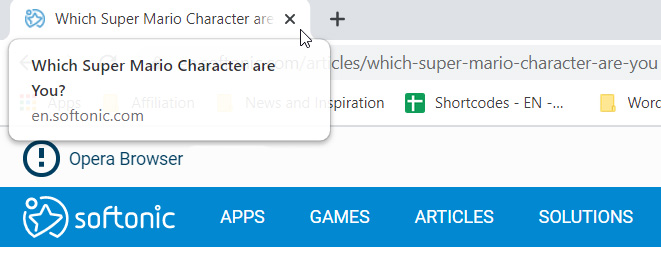
A small but useful change is the introduction of tab info cards. All you need to do here is hover your cursor over an open tab and Chrome will show you the name of the site open on the tab, and its URL.
Dodgy site warning
Chrome’s password protection features were updated again when Chrome 79 landed. Chrome now offers real-time protection and will warn you whenever you enter your passwords on sites that are suspected of phishing.
Hardware support for media controls
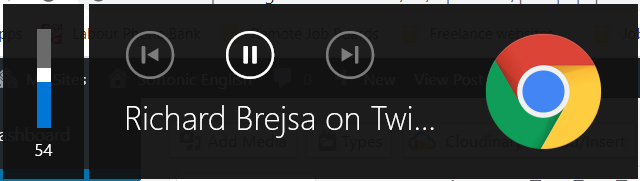
Chrome now supports media control buttons on any hardware you have connected to your device. This means if you have a keyboard with a Play/Pause button, you can now use that button to control playback on any media that is active in Google Chrome. The same goes for other controls and other types of hardware such as headphones etc.
Tab freezing
This updated feature might not sound too exciting, but it will actually make a big difference for laptop users. Basically, Chrome now automatically freezes tabs that you’ve had running in the background for a while. Chrome will no longer load ads or perform other CPU heavy tasks in tabs you’re not using, but will instead pause them and then resume them when you open them again. This is to put less pressure on your device’s CPU and then, accordingly, make your laptop’s battery last longer.
Password manager
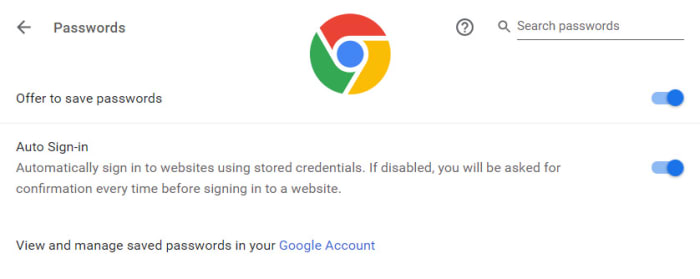
Chrome 75 introduced the built-in password manager to Android and iOS devices meaning Chrome can now generate and store strong and unique passwords for you every time you open a new online account. This is an incredibly useful and essential feature as any time you duplicate a password across different accounts you leave yourself vulnerable to hacking.
This is how to delete your browser history on all the major web browsers for Android.
There are many reasons you might want to delete your web browsing history. You might have been buying gifts online or you could need to delete your cache to get rid of some erroneous code that has been causing your browser problems. At Softonic we’re not bothered about the why, we only care about the how.
There’s a good chance you know how to remove your web browser history from your laptop or desktop PC, but on your Android mobile it is a little bit trickier. Mobile browsers are more compact and accordingly, more complicated to navigate. Don’t worry though, because today we’re going to give you step by step instructions on how to delete your web search history on all the major Android web browsers.
How to clear Android browser history
How to clear your Android browser history on Google Chrome browser
#1 Open Chrome on your Android device and hit the ellipsis (three vertical dots) menu in the top-right corner, then scroll down, and go to Settings.
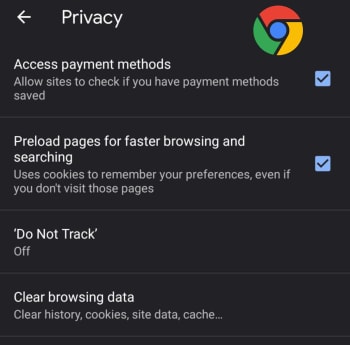
#2 Scroll down to the Advanced section of the menu and hit Privacy.
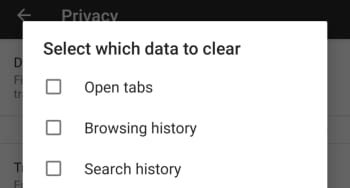
#3 Hit Clear Browsing data and then select the time range you that you want to remove all data from and select the exact type of data you want to remove.
Chrome is a young, fast browser that can browse any web page. It supports all major technologies and standards such as HTML5 and Flash.
How to clear your Android browser history on Mozilla Firefox
#1 Open Firefox on your Android device and hit the ellipsis menu in the top-right of the screen.
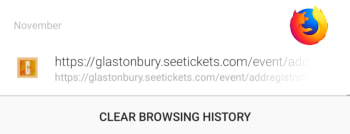
#2 Select History and then hit CLEAR BROWSING HISTORY at the bottom of the screen.
#3 Confirm the action by pressing OK.
Bonus – You can set Mozilla Firefox to automatically delete selected data including bookmarks, browsing or search history, and saved passwords every time you stop using Firefox and shut the app. To do so follow these instructions:
A – Open Firefox on your Android device and hit the ellipsis menu in the top-right of the screen.
B – Hit the Settings option and then select Privacy.
C – Select the check mark next to the Clear private data option and then select the data you want Firefox to delete every time you close the app.
How to delete browsing history on Microsoft Edge for Android
#1 Open the Edge browser on your Android phone or tablet and hit the ellipsis menu button in the bottom-right corner of the screen.
#2 Scroll down to the Advanced section of the menu and tap Privacy, which is the first option in the section.
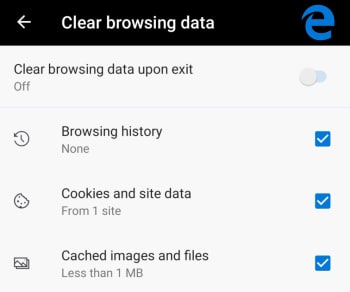
#3 The very last option in the Privacy menu is Clear browsing data. Hit this and then select the data you want to delete.
#4 Tap Clear and then confirm the action by hitting CLEAR.
Bonus – Like with Firefox you can tell Edge to automatically delete all your browsing data every time you close the app. At the top of the Clear browsing data screen, there is a toggle switch for doing this. Simply select all the data you want deleting as normal and then toggle this switch to the on position and Edge will do the rest every time you exit the app.
To celebrate the launch of Opera GX, the world’s first gaming browser, we have teamed up with Opera to give away the top-of-the-line Razer Blade 15 laptop. Join the contest!
To celebrate the launch of Opera GX, the world’s first gaming browser, we have teamed up with Opera to give away a top-of-the-line Razer Blade laptop.
Further down we’ll explain how you can get a chance to win, but first, here’s some essential intel on how Opera GX can transform your gaming experience.
Opera already provides its more than 350 million users with plenty of benefits such as secure browsing through its integrated VPN and rapid page loading thanks to its built-in ad blocker. But Opera GX takes things to another level with a suite of customizable options that will maximize your computer’s performance and enhance your gaming and browsing pleasure:
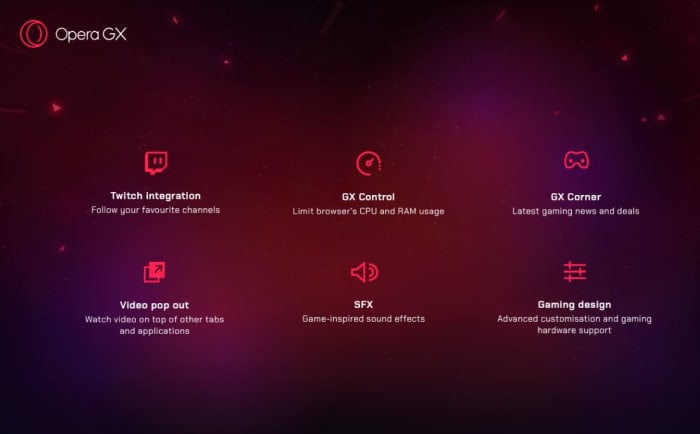
GX Control: Lets you limit your browser’s CPU and RAM usage
Twitch integration: You can follow your favorite streamers and get notified when they go live
Video pop out: Watch video on top of other tabs and applications
Gaming design: Advanced customization and gaming hardware support
GX Corner: Latest gaming news and deals
SFX: Gaming-inspired sound effects in your browser
Games eat up a lot of computing power, and running a browser in parallel to playing a game often leads to game stuttering and lag, especially if you’re streaming as well. So, GX Control solves this problem by enabling you to choose how much of your CPU and RAM is allocated to your browser. Read more about what the Opera GX browser has to offer.
Opera GX is the world’s first gaming browser released by Opera. Try it out for free and enhance your gaming experience.
Opera has always been a cool browser – a turbo mode to speed up page loads, and a free integrated VPN for shielding your activity. The list goes on. It’s great at what it does, there’s no doubt about it, but today it pulled a rabbit out of its hat with Opera GX – the world’s first gaming browser.
Much like the Opera browser is made with user customization in mind, GX is designed for the meticulous gamer. “Opera GX is built for people who love games, and spend a lot of time building their setups,” said Krystian Kolondra, EVP at Opera browsers. “We want to give them a browser to perfectly match their beautiful machines.”
It’s true – every PC gamer worth his salt is proud to run a rig capable of flashy graphics, smooth FPS, and generous RAM. Serious enthusiasts will even opt for multiple GPU integration, water-powered cooling, or glowing keyboards that make you feel like you’re in “The Matrix.” Decking out your hardware is par for the course, but if Opera GX offers new levels of customization through a gaming browser, that’s exciting indeed. “I have a strong feeling this browser will resonate with the gaming world,” said Kolondra. Check out how it aims to do so:
Twitch integration: Follow your favorite channels
GX Control: Limit browser’s CPU and RAM usage
GX Corner: Latest gaming news and deals
Video pop out: Watch video on top of other tabs and applications
SFX: Game-inspired sound effects
Gaming design: Advanced customization and gaming hardware support
Control your gaming experience
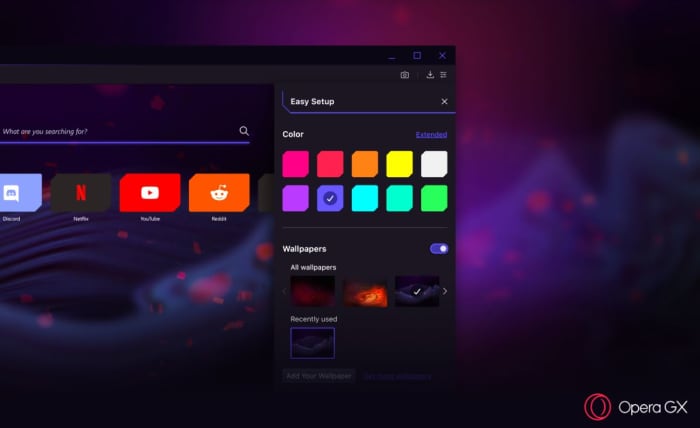
“From the startup sounds to the look of the browser’s speed dial, Opera GX was designed to feel at home on any gaming setup,” said Opera GX product director, Maciej Kocembra. Right upon booting it up, GX is visually stunning with crimson streaks, an elegant UI, and dark shadows. As you’d expect, the color palette can be changed to 10 different suggested colors (and 16 million other possibilities courtesy of the extended color picker). GX is about far more than just looking cool, though (we have to admit we do love the aesthetic)! GX is also about being able to comfortably keep a browser up and running while you’re deep in the game, something that until now has always come with the risk of FPS drops and lag.
Choose a variety of different color schemes and wallpapers
“Running a game might require a lot of effort from your machine. Even more so if you are streaming while you play,” said Kocembra. “Before Opera GX, gamers often shut down their browsers in order to not slow down their gaming experience.” Memory-hungry browsers (like Chrome) are notoriously bloated, sapping a lot of power to function at high speeds. “We came up with the GX Control feature to make people’s games run more smoothly,” said Kocembra, “without requiring them to compromise on what they do on the Web.”
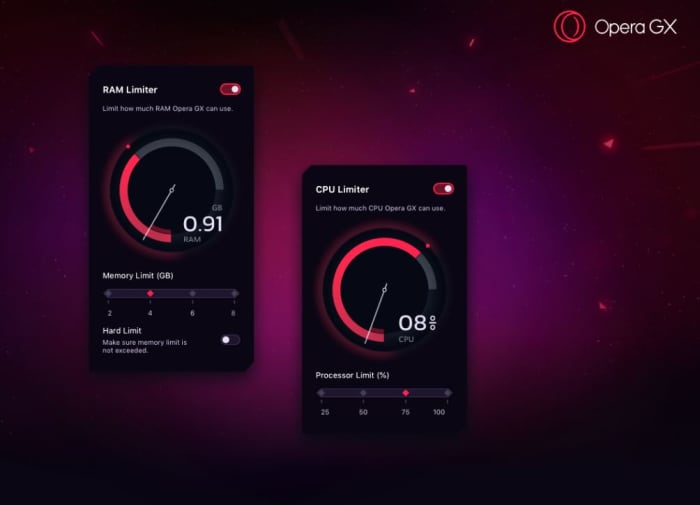
The main hub for this is the new GX Control panel, which allows users to choose how much of their computer’s CPU or RAM they want to dedicate to their browser vs their game. There’s a pair of dials (one for RAM, one for CPU) that you can toggle to decide what percentage of your computer’s resources you want to use for each. Trying to play while keeping a strategy guide open? Crank down the dials. Trying to improve your streaming quality? Dial them back up! Opera GX adjusts to stay within whatever constraints you set.
Adjust how much RAM and CPU you want the browser to use.
Smooth streaming
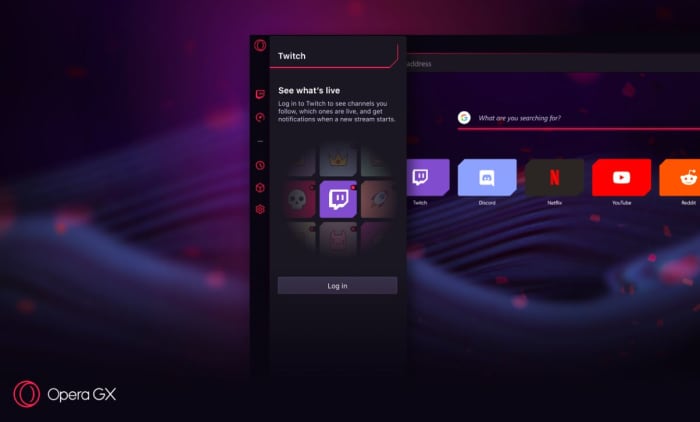
Twitch streaming isn’t the future anymore; it’s the present, especially for younger gamers. Streaming is a lucrative business too, which could make GX a preferred tool for the rising number of professional streamers. Twitch is integrated right into Opera GX, and the browser even lets users log right into their accounts directly from the sidebar. It also notifies you whenever a streamer you follow is going live. It’ll let you keep tabs in real time, and comes with shortcuts to sites like necessary sites like Discord, YouTube, and Reddit.
Seamlessly keep tabs on Twitch, Discord, Reddit, YouTube, and even Netflix.
For gamers and non-gamers
There are over 65 million Opera users, and not all of them are gamers. Like we said before, there’s a lot more draw to Opera than just playing Fortnite. As such, GX includes all the features that brought the browser under the spotlight in the first place: Integration with WhatsApp, Facebook, and Telegram right in the sidebar for easy access. Fans of Opera will also be happy to know that GX retains the popular Video Pop Out function, which will be more handy now than ever since you’ll want to fine-tune and manage your browsing while you’re in-game. You’ll also get the same powerful built-in ad blocker and VPN to keep your browsing session safe, distraction-free, and fast.
There are 1.2 billion PC gamers, and from the sound of it Opera GX is a promising choice for anyone looking for more control and convenience over their experience. Download it here while it’s in Level 1 early access to provide the Opera team with feedback and wish lists. Will you be giving it a try? Let us know in the comments below if this sounds like a browser you’ll be switching to!
There are better options than Chrome… Learn more about how the Brave browser stacks up the competition.
Not all browsers are created equally, and at this day and age when you’re spending so much time online, you should be using the best browsing tool possible. So which is it? Chrome? Firefox? Edge? The truth is there’s no objective ‘best browser,’ but there are certainly strengths and weaknesses to each. And we’ve got some compelling reasons why Brave could be the best browser yet. We’ve compiled a list of pros and cons for each one. Let’s run through them.
Brave is a relative newcomer for iOS, Android, macOS, Windows, and Linux created by Brian Bondy and Brendan Eich, the inventor of JavaScript and the co-founder of Mozilla.
Brave automatically blocks any third party trackers, shutting down anything that might worsen your browsing experience. Without ads in the way, Brave is up to eight times faster than the mobile competition, and offers numerous extensions as well. Brave also helps you support your favorite publishers.