How to Export Chrome Bookmarks

While there may be plenty of popular browser extensions on the market, such as Firefox and Opera, Chrome is the app that both PC and Mac users lean towards the most. If you’re like us, you probably have it installed on your mobile devices, too.

Google Chrome Windows DOWNLOAD
8
Google Chrome Mac DOWNLOAD
8

A handy feature in its arsenal is the Bookmarks Manager. Chrome also has a Bookmarks Bar for easy access to your favorites. While we’re sure you’re aware of all this already, do you know how to export them to a new device? Let us show you how.

Export Chrome bookmarks to another PC or Mac device

Whether you’re using Chrome on PC or Mac, the process remains the same. There are two different methods you can use, so we’ll take you through them both. You can thank us later.

The first method involves exporting bookmarks to a different device. Here are the steps you need to follow:

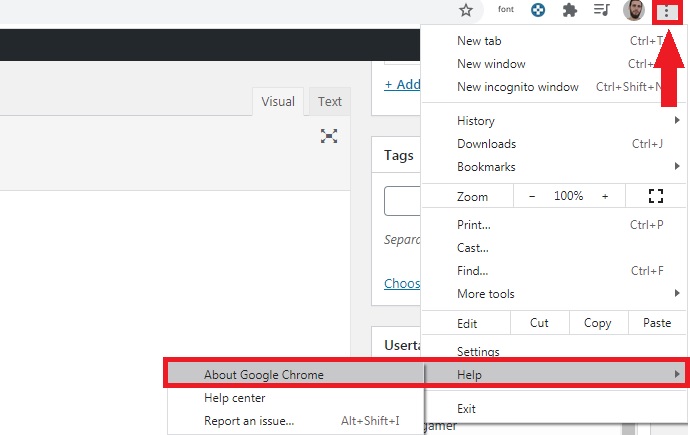
  1. Launch Chrome on the source device (PC or Mac);
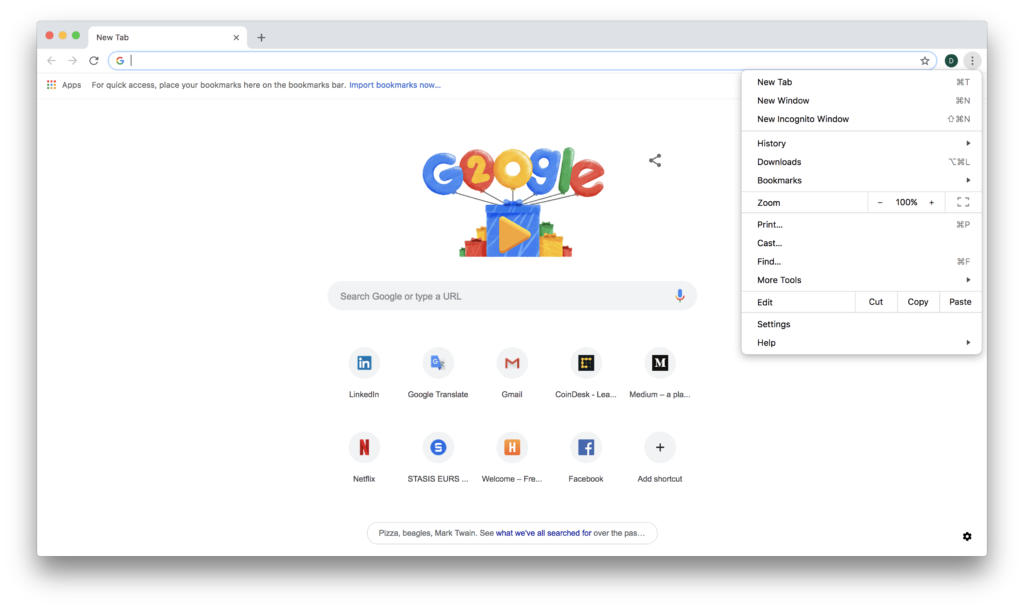
  2. Select the menu icon to the right of the URL bar;
  3. Choose Bookmarks, Bookmarks Manager;
  4. Click on the new menu icon, and select Export Bookmarks;
  5. Choose a destination folder and save;
  6. Open Chrome on the destination device;
  7. Follow steps 1 – 4 above, but select Import Bookmarks instead;
  8. Click on Open.

Export Chrome bookmarks to another web browser on PC and Mac

Another method is to export your bookmarks to a different browser. You can follow the same steps 1 – 5 for Chrome as above, but you’ll change the tasks on your preferred web application. 

For instance, here are the steps for exporting bookmarks to Firefox:

  1. After saving your Chrome bookmarks, open Firefox;
  2. Select the Library icon to the right of the URL bar;
  3. Choose Bookmarks, then Bookmarks Manager;
  4. Click on Import and Backup, followed by Import Data from Another Browser;
  5. Ensure that Google Chrome is closed, and select Chrome;
  6. Pick all the options you want to import and then finish the process.

Take your bookmarks with you anywhere

We know how annoying it can be spending years saving bookmarks and then making the heartbreaking decision to move to a new device or web browser. We hope that the above steps will help you restore all your favorite sites and pages. If you use a different method, feel free to let us know.

Mozilla Firefox DOWNLOAD
8
Opera DOWNLOAD
9

New Tricks and Features You Didn’t Know Existed on Firefox

Mozilla Firefox is one of the world’s most popular browsers. The eternal rival of Google Chrome has been dazzling users for some time with its extraordinary speed and ability to protect browsing data. In fact, for many, Firefox is the safest way to surf the internet with peace of mind and zero risk of hacker attacks.

Logotipo de Firefox

Aside from consuming few resources, Firefox is known for receiving frequent updates. In fact, it seems like every time we open this browser, we notice a new feature that was previously unavailable. And Firefox hasn’t stopped improving to provide a smoother, stabler experience for all users. But do you know about the coolest new features Mozilla Firefox has added lately?

Today’s article contains a roundup of the best features and tricks you can use on Firefox. We hope you find them helpful!

First of all, make sure Firefox is up to date

To enjoy Firefox with all its new features, you’ll need to make sure you are using the latest version. If you don’t know how to check, don’t worry, we’ll teach you how below.

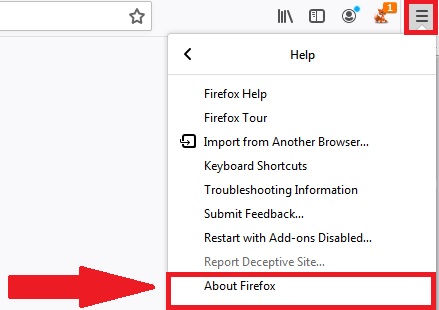
To update Firefox, just open your browser and click “Open menu” (the icon with three horizontal lines in the top right corner of the screen). Then a dropdown menu will open. Click “Help” and then “About Firefox.”

After you follow these steps, a new window will open where you can view which version of the browser you are using. Firefox will automatically check to see if a newer version of the browser exists, and if so, it will download and install it. Then you should restart your browser so the changes take effect.

Alternatively, you can download and install the latest version of Firefox quickly and safely below.

Mozilla Firefox DOWNLOAD
8

The best features and tricks on Mozilla Firefox

Now that you’re certain you have the latest version of Mozilla Firefox installed, it’s time to learn about all the tricks and features you can use with this browser. Let’s have a look!

Primary Password

Master password

Nowadays it’s common to have a vast number of online accounts. Whether you want to read your email, access your bank account, or even make a purchase online, you’ll need to register and choose a password. Since it’s imperative not to use the same password for more than one account, you ultimately end up having hundreds of passwords to remember, which can be a real headache. That’s why most browsers have the option of saving your passwords and entering them automatically when you access the service. However… what if someone besides you uses your computer? Exactly! They’ll also have access to all your passwords.

To fix this major security hole, Firefox has implemented the so-called “Primary Password.” It lets you set a password in Firefox that needs to be entered before the browser autocompletes your passwords on websites. That way, no matter who uses your browser, they won’t have access to your passwords.

To set a Primary Password on Firefox, first click the “Open menu” button in the upper right corner of the screen (it looks like three horizontal lines). Then go to “Options” followed by “Privacy & Security” (in the left side menu). Next simply select the “Use a Primary Password” option, which you’ll find under the “Logins and Passwords” section. It’s that easy.

Customize the toolbar or the overflow menu

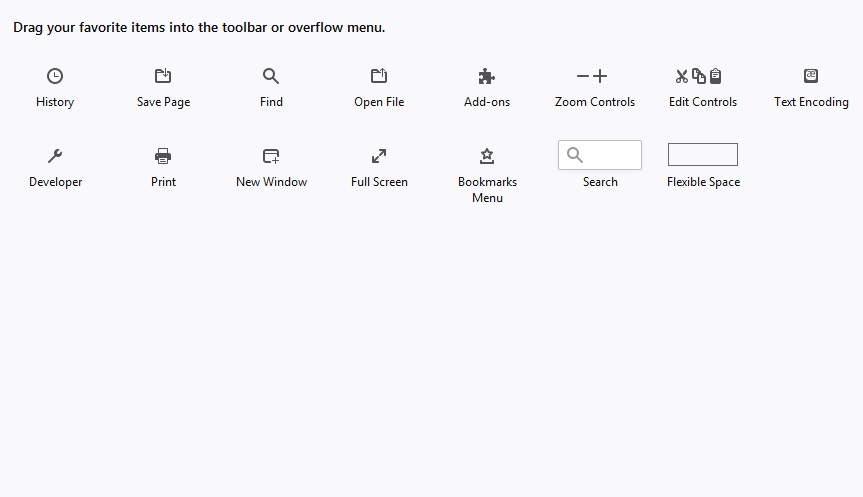
Firefox lets you customize the toolbar or the overflow menu (the menu that appears when you click the “>>” icon, which you’ll find between the user button and “Open menu” button). To do this, just click  “Open menu” (the icon with three horizontal lines in the upper right corner of your browser). Next, click the “Customize” option.

In this new window, you’ll find a selection of items with Firefox’s main features. Just drag your favorite items to whatever location you prefer and enjoy a custom-designed browser.

Navigate between tabs easily

Are you one of those people who always browses the internet with a zillion tabs open? If so, you’ll love this trick. Did you know that when using Firefox, you can switch from one tab to another using keyboard shortcuts? Just use the following commands:

  • Ctrl + Page Up- Move to the tab on the right
  • Ctrl + Page Down-Move to the tab on the left
  • Ctrl + number- Move the number of tabs you have indicated, where 1 is the tab farthest to the left on your browser
  • Ctrl + Tab- Switch to the next tab

Use keyboard shortcuts to watch videos and listen to music

Anyone who likes watching videos and listening to music will love the keyboard shortcuts Firefox has implemented for playing multimedia content. They are as follows:

  • Play- Space bar
  • Increase volume- Up arrow
  • Decrease volume- Down arrow
  • Skip ahead- Right arrow
  • Skip back- Left arrow
  • Start of track- Home key
  • End of track- End key

Porn filter

If you enjoy adult movies or naughty websites, you’ll be glad to know that Firefox has a built-in porn filter. Don’t worry, it won’t keep you from visiting the websites in question, it will simply prevent other people from finding out you have this hobby. Firefox’s porn filter prevents your search history from displaying any adult websites you have visited, even if it’s the last website you were on! This is perfect, for example, if you share your computer with your partner or with your children.

To enable the Firefox porn filter, you don’t have to do anything. It’s enabled by default. However, if for some reason you want to disable it, you need to write “about:config” and change the value “browser.newtabpage.activity-stream.filterAdult” to“false.”

Remove websites from address bar suggestions

Mujer utilizando un portátil

Sometimes it can be annoying to see certain website suggestions appear in the address bar whenever you type a URL. What many people don’t know is that on Firefox you can remove these websites so you never have to see them again. Just scroll through the autocomplete suggestions, highlight the entry and hit “Delete” on your keyboard.

Forget your last searches

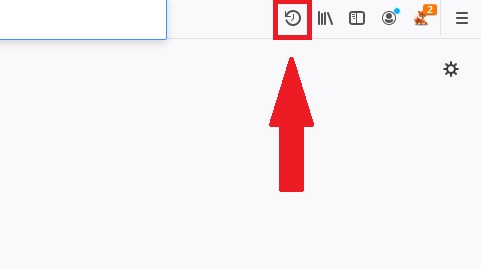
Until now, when you wanted to delete a search, you had to clear your internet history. But rather than deleting your entire history, you probably just want to clear the last five minutes or hours of browsing. For these situations, Firefox has the “Forget” button. This feature lets you clear all the pages you’ve visited in the last five minutes, two hours, or 24 hours.

The “Forget” button doesn’t appear by default on your interface in Firefox, but it’s really easy to add. Just click “Open menu” (the button with the three horizontal bars in the upper right corner of your screen) and then “Customize.” In the new window, find the “Forget” item and drag it to your toolbar. It’s that easy!

Boost performance

Firefox has added an interesting option for anyone who has been noticing that their browser is slower lately. To enable hardware acceleration, just click  the”Open menu” button (in the upper right corner of the screen) and then “Options.” Next, click “General,” which you’ll find on the left side menu, and scroll down to the “Performance” section.

You won’t see a hardware acceleration option, but don’t worry. Uncheck the box labeled “Use recommended performance settings” so that “Use hardware acceleration when available” appears. Restart your browser, and you’ll find that it works faster.

Take screenshots

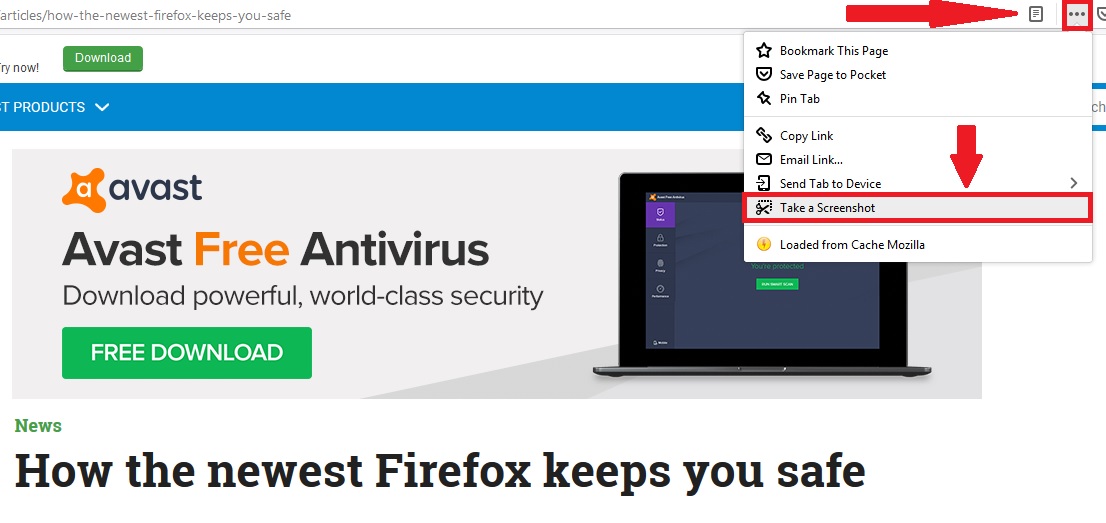
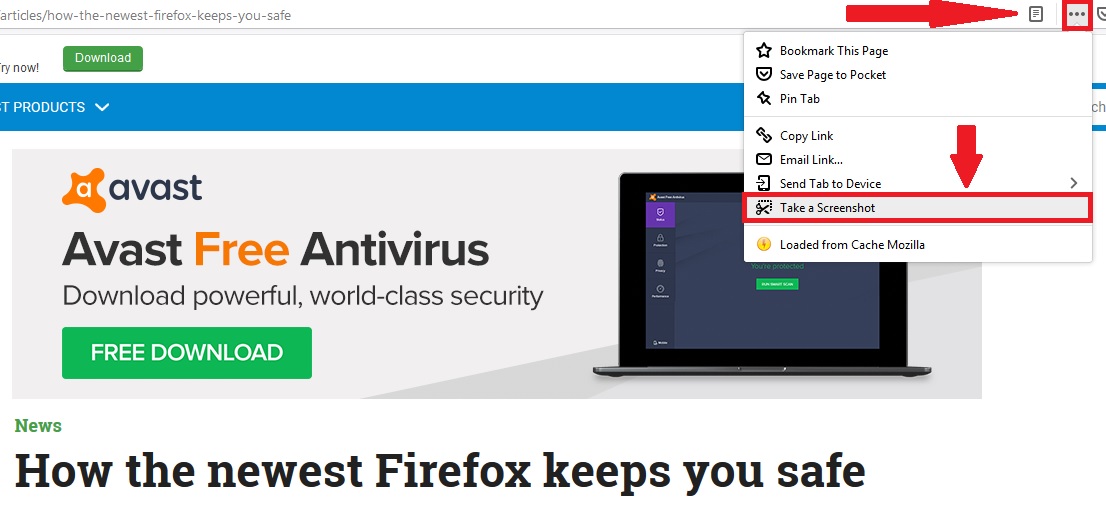
There are a thousand ways to take screenshots, from clicking the “Print Screen” button on your keyboard to using the useful Windows 10 keyboard shortcut that lets you this. But… did you know that Firefox its own way to take screenshots? You just have to click the “Page actions” button in the address bar (it looks like three horizontal dots). This will open a drop-down menu where you should click “Take a screenshot.

Save to Pocket

Pocket has made a name for itself as one of the best bookmark storage services on the internet. Did you know Mozilla owns this service? It therefore comes as no surprise that Firefox has included a button so you can send items directly to Pocket without the need for extensions. Just click the “Save to Pocket” button, which you’ll find in the address bar. If you don’t like Pocket or don’t have an account, you can remove this button by entering “about:config” and then changing the “browser.pocket.enabled” entry to “false.”

We hope you found our selection of tricks and features on Firefox helpful. Do you know of any we didn’t include on our list? Tell us about it in the comments section!

Features and Tools that Make the Perfect Browser

In recent years, the internet has become an essential tool in our daily lives. We use it to search for information, make purchases, work remotely, and stay in constant contact with our family and friends. Just about anyone would have a hard time getting through a full day without connecting to the internet, but few of us are aware of the importance of a fundamental tool we need to do so: our browser. Without it, we wouldn’t be able to access the web or spend long hours surfing its endless sea of information.

Mujer utilizando un navegador

Browsers are the gateway to the internet, and although we all have our favorites (Chrome, Firefox, Edge, etc.), sometimes we wish they had extra features. Just like you need a comfortable pair of shoes to enjoy a long walk, having a good browser is essential to enjoy everything the internet has to offer. So, what features should the ideal browser have?

In today’s article, we’re going to use our imaginations and write a wish list of all the features and characteristics we would like to see in the “perfect browser.” So, without further ado…

It should be fast when searching for and loading websites

Persona usando un portátil

One of the main features a good browser needs is the ability to quickly take you to the websites you want to visit. This is important not only when using the internet during your precious free time, but also when you’re trying to perform your best at work.

Right now there are some really fast browsers, such as Chrome and Firefox. While Chrome itself is already quite speedy, it lets you add extensions that will make all your searches exponentially faster. If you’re interested, click here for a roundup of the best extensions to speed up your browser. Firefox is not far behind Chrome in this respect. This browser has always stood out for its speed, and it even includes a native feature that makes it quicker. Want to know how to enable it? Click here to find out.

In short, the perfect browser should be fast and take you to the pages you want to visit without delay. Because, as the saying goes, “time is money”!

It shouldn’t slow down your computer

One of the biggest problems with browsers is that they often end up using a lot of system resources. This leads to your computer slowing down significantly, which can be frustrating for the user. A good browser should not only display search results quickly, but also ensure the PC or mobile devices it’s running on are not affected by its use.

In terms of performance, the browsers that we like the most are the Chromium-based ones. Among them we obviously find Google Chrome and the most recent Brave. Both run seamlessly and barely use any resources from your operating system.

If your browser has been slow lately or seems to be consuming a lot of system resources, there is probably a problem. To solve it, we recommend clearing your history and cache and following some of the tips in the article below.

It should be very secure

Malware

The internet is a wonderful place for finding information, shopping, and connecting with your friends. However, the sheer amount of personal data you share online is greater than you could ever imagine. The perfect browser needs to be extremely secure to keep the information you share online out of the hands of hackers and cybercriminals.

With the massive use of the internet, countless threats have arisen, so it’s important to tread carefully. There are types of malicious content that, after contacting your browser, can detect anything you write (including your banking details). Others are even capable of hijacking your browser and redirecting your searches to pages with highly dangerous content for your computer. Your browser must be able to both detect and block these threats.

A browser that excels in this regard is undoubtedly Mozilla Firefox. Over the last few years, Firefox has emerged as one of the safest options on the market, making it possible to navigate the web with total peace of mind.

It should block annoying ads

There are few things more annoying during an internet session than constantly seeing pop-ups and banners on your screen. Although there are extensions that block these irritating ads, wouldn’t it be wonderful if your browser had an integrated ad blocker in its code?

Currently a good option to get rid of ads is Brave, a browser that includes a completely free ad blocker as standard. That way navigating the internet is a far more pleasant experience.

It should have a safe extension store

One of the best things about today’s browsers is the fact that they use extensions to add new features to your internet sessions. Browsers such as Google Chrome or Firefox are favorites not only because they’re ultra fast and secure, but also because they let users customize their features in just a few clicks. And this is all possible thanks to extension stores.

For this reason, the perfect browser must guarantee that all the extensions in its store are 100% secure. As useful as they might be, these new downloadable features can be dangerous. Bear in mind that unless they have been previously verified, extensions can put your data and computer at risk. The perfect browser therefore must have an extension store whose extensions have all been vetted by a team of experts.

If you want to find out how to identify a safe extension, we recommend reading the article below.

It should let you take screenshots

One of the most convenient features when working online is the ability to take screenshots. Although this can be done easily using the “Print Screen” key or the Windows 10 screenshot keyboard shortcut, our perfect browser would have its own embedded screenshot button.

Currently browsers like Mozilla Firefox include this option natively, without the need to install any extension. To find out how to enable it, just look at this.

It should be capable of syncing data across your devices

A truly interesting feature of the latest browsers, such as Firefox, Edge and Chrome, is their ability to sync data. In the case of Chrome, this is especially useful for Android users, as it allows immediate access to all Google services (Gmail, Drive, etc.) and syncs your data and bookmarks from your phone or tablet. In the case of Firefox, syncing lets you export and import all your bookmarks quickly and easily between different devices. Edge, on the other hand, can integrate seamlessly with Windows 10, import and export your bookmarks as well as sync with your Microsoft account. Our perfect browser should be able to do the same thing with any account.

It should have a good password manager with a master password 

Contraseña maestra

Over the years, there has been a dramatic increase in the number of subscription-based online services. All of them require a username and password, so ultimately you have to remember hundreds of passwords if you want to continue using them.

A good browser needs an efficient, natively integrated password manager that can remember your login details and enter them automatically whenever you want to access one of these services. However, it’s also important for your browser to have a master password system. This means you’ll need to enter a master password before your browser can autocomplete the login details for any online service you want to access. That way you’ll be sure that even if someone else gets ahold of your computer, they can’t access your passwords.

Among the main browsers on the market, we recommend Mozilla Firefox, which has a good password manager and gives you the option of setting a master password.

The perfect browser doesn’t exist, but here are the best ones

Although there is no perfect browser just yet, there are options that come very close. Among them are Microsoft Edge, Mozilla Firefox, Brave, Opera, and of course, the all-important Google Chrome. All of them have interesting features and are truly secure, so your data will be protected at all times. You can download the latest versions of them below.

  • Google Chrome
Google Chrome DOWNLOAD
8

Mozilla Firefox

Mozilla Firefox DOWNLOAD
8

Microsoft Edge

Microsoft Edge DOWNLOAD
7

Brave

Brave DOWNLOAD
8

Opera

Opera DOWNLOAD
8

We hope you liked our article about the perfect browser. Which features would you like to see on your browser? Tell us about them in the comments section!

The Best Apps to Organize your Browser Bookmarks

Nowadays we spend a large part of our workday and even our free time navigating the internet. That’s why, more often than not, our browsers end up cluttered with bookmarks, whether it’s for that website you’re using to write your next report or the one you always visit for a few laughs. This isn’t a problem when your browser is clean and newly installed, but sooner or later you’ll have so many bookmarks that it frankly gets hard to find the one you’re looking for.

mujer utilizando un portátil

One of the best options for tidying up the bookmark chaos in your browser is to create folders. However, in the long run it becomes as chaotic leaving them on the taskbar. Is there no way to manage bookmarks that doesn’t involve spending several minutes hunting for the one you need?

In today’s article, we’re going to share our roundup of apps and tools that make it easy to organize your bookmarks. Time to tidy up that virtual “junk drawer” in your browser! We hope you find them helpful.

First, make sure your browser is up to date 

Before we get started with our selection of apps, we highly recommend checking to make sure your browser is up to date. That’s the only way you can be certain the app you’re using works correctly and at the same time, that all your browsing data is safe from hackers.

Updating your browser is easy. All of them use a similar system: just go into the options menu and select “About” or “Information about browser.” Then it will check to see if you have the latest version installed and give you the option of downloading it.

Alternatively, you can manually download the latest version of your favorite browser. Just click below to download them quickly and safely:

  • Google Chrome
Google Chrome DOWNLOAD
8
  • Mozilla Firefox
Mozilla Firefox DOWNLOAD
8
  • Microsoft Edge
Microsoft Edge DOWNLOAD
7
  • Opera
Opera DOWNLOAD
8
  • Brave
Brave DOWNLOAD
8

Our favorite bookmark managers

Dewey Bookmarks (Chrome)

Dewey Bookmarks

Dewey Bookmarks is a complete extension for Google Chrome that will change the way you see your browser bookmarks. It lets you view each and every one of your bookmarks as cards, so it’s much easier to find them at a glance. What’s more, Dewey Bookmarks lets you manage your bookmarks by adding tags, so you can search for them quickly, and they’re always just a click away.

One of the strengths of Dewey Bookmarks is this extension’s internal search engine. Find any bookmark by typing its name, tag or even part of its URL. In addition, you can import bookmarks directly from other Chrome browsers and edit any of them in just a few clicks.

You can download the Dewey Bookmarks extension here.

Pocket

Página oficial de Pocket

Pocket is an incredible service you can use to save all kinds of articles, videos and stories from any website or even app. It’s the best app by far for managing browser bookmarks, since it’s a multiplatform service you can use to save and easily access anything.

In fact, Pocket’s greatest asset is that it saves bookmarks across your devices, on your PC, phone and tablet, so you’ll never have to search for compatible programs. So, how does it work? Pocket is really easy to use: just click a convenient button on your browser to save anything that interests you in one place. What’s more, its useful tagging system makes it so easy to find your bookmarks. Don’t miss your chance to try it!

You can visit the official Pocket website here.

Neater Bookmarks (Chrome)

Marcadores elegantes

Neater Bookmarks is an interesting extension for Chrome that displays all your saved websites in a cleaner, more attractive format. Although at first glance it doesn’t seem particularly innovative, it’s a really useful extension for anyone who uses the Google browser on a daily basis.

Now it will be much easier for you to find your bookmarks thanks to its powerful internal search engine. In addition, Neater Bookmarks remembers the last bookmark you used and shows it first. That way, you’ll always have your most visited pages just a few clicks away.

You can download the Neater Bookmarks extension here.

Evernote

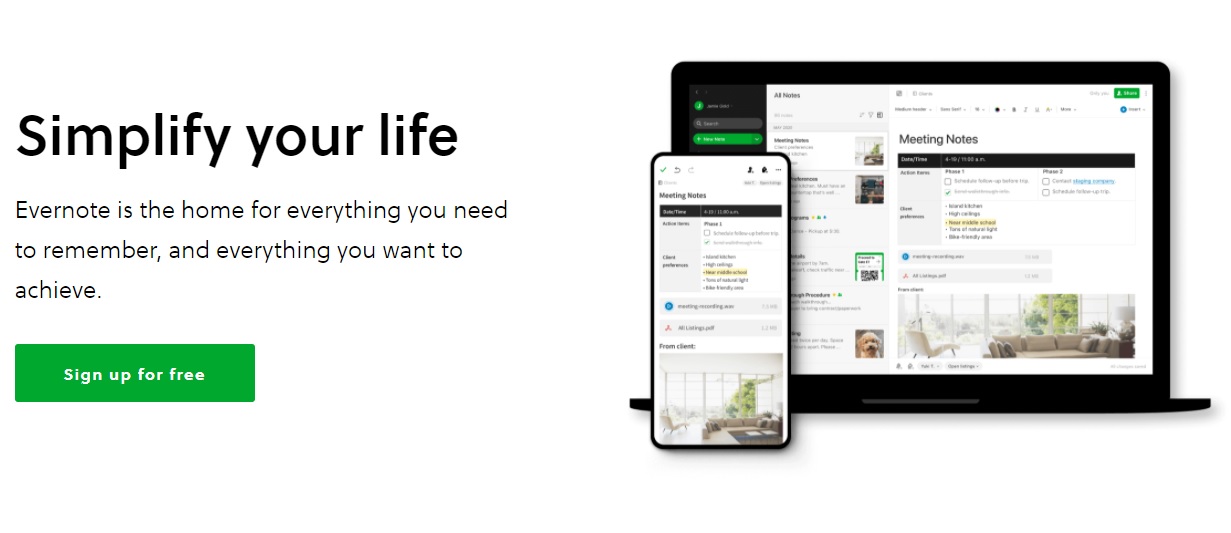
If you’re one of those people who loves to plan your day down to the last detail, you’re probably more than familiar with Evernote, but… did you know this app can also manage your bookmarks? In fact, it’s one of the most comprehensive, complex bookmark managers you can find online.

Evernote is an especially useful application to store all the bookmarks you use, for example, throughout the workday. This is because although it’s a powerful application, it’s not directly integrated into your browser, so you have to open the program to access your bookmarks. Fortunately, this little problem can be solved thanks to convenient extensions.

Another strong point of Evernote is that, since you can use it on your phone, you can save all the bookmarks you want, whether you’re on your way to work or on vacation. You’ll never have to use your PC. What’s more, there are different subscription plans (one is completely free), with new tools to better organize and manage your bookmarks.

You can download Evernote quickly and safely below.

  • Evernote for Windows
Evernote DOWNLOAD
7
  • Evernote for Android
Evernote (Android) DOWNLOAD
6
  • Evernote for iOS
Evernote (iOS) DOWNLOAD
6

Bookmark Manager (Chrome)

Bookmark manager para Chrome

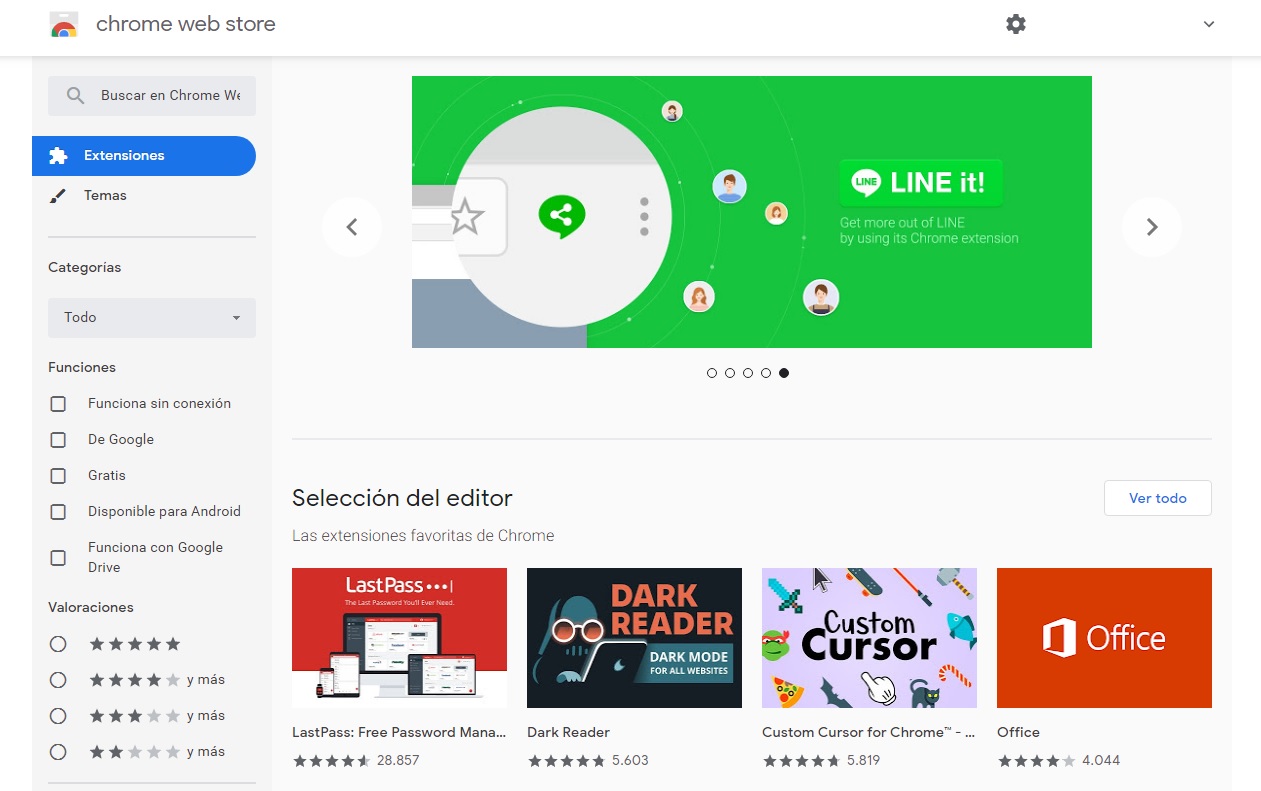
Bookmark Manager is an excellent tool for managing your Google Chrome bookmarks. As it’s an extension for your browser, installing it is as easy as visiting the Chrome Web Store and downloading it to your device. Unlike similar extensions, Bookmark Manager can not only add and organize new bookmarks, but also identify the ones you already have in your browser and put them in perfect order.

Among its most outstanding features, Bookmark Manager provides a much more visible and intuitive interface for your bookmarks. When you have it installed, it lets you restore old browser sessions and eliminate duplicate bookmarks. Using its internal search engine, it becomes much easier to find that website you were looking for.

In terms of usability, Bookmark Manager is very intuitive, so there’s no learning curve for casual internet users. In short, it’s a sure bet for anyone who uses Chrome users and wants a simple, useful bookmark manager for their browser.

You can download Bookmark Manager from the Chrome Web Store here.

Diigo Web Collector

Diigo Web Collector is a browser bookmark manager designed for users who are looking to do far more than just organize their saved websites. Although it’s not one of the most visually stunning apps on our list, it couldn’t be more useful.

Diigo is widely considered to be the benchmark app for annotating and archiving bookmarks. Use it to save websites and visit them whenever you want, and even add notes and even reminders to them. This is especially useful if you use the internet to work or write reports for work.

One really interesting aspect of Diigo Web Collector is that, besides using the service on its website, there is an extension for most browsers (Google Chrome, Mozilla Firefox, Internet Explorer and even Safari). What’s more, Diigo has an app for both Android and iOS devices. That way you can work and organize all your bookmarks whether you are using your PC, tablet or phone.

You can visit the Diigo website here. You can download its extension for Google Chrome and its Android and iOS apps quickly and safely below.

Diigo Web Collector extension for Google Chrome

  • Diigo for Android
Diigo (Android) DOWNLOAD
6
  • Diigo for iOS
Diigo (iOS) DOWNLOAD
8

Raindrop.io

Raindrop.io

Our final pick is the “crown jewel” of our list. Raindrop.io is a fantastic bookmark manager that stands out for its visually stunning interface. It offers a card-like thumbnail of all your bookmarks, making it incredibly easy to find websites and tell them apart. If you have lots of bookmarks or simply prefer a more minimalist option, Raindrop.io can also display your organized websites in the quick, classic list view.

Here’s how it works: Raindrop.io lets you organize all your bookmarks in collections or folders within the program. You also have the option of tagging your bookmarks to make it much easier to find them. Finally, Raindrop.io is able to analyze all the bookmarks you have stored in your browser and eliminate any duplicated ones, or bookmarks whose URLs no longer work.

You can access Raindrop.io on its website, and this manager is compatible with today’s most popular browsers (Chrome, Firefox, Safari and Opera) and also has apps for Mac, iOS and Android. So, what are you waiting for? Download it today!

  • Raindrop.io for Android
Raindrop.io (Android) DOWNLOAD
9
  • Raindrop.io for iOS
Raindrop.io (iOS) DOWNLOAD
9

We hope our selection of tools for organizing your bookmarks has been helpful to you. Do you use any that don’t appear on our list? Tell us about them in the comments section!

Firefox team considers paid news product that would kill ads

A funding model that replaces ads as a revenue driver will ultimately protect user privacy

ad-free news across multiple platforms

If you’re one of those internet users who hates seeing ads, you might be interested in some of the moves the Mozilla Foundation has been making recently. Mozilla is the not-for-profit organization behind the popular Firefox browser that focuses on user privacy above all else.

Mozilla recently introduced a new web browser called Firefox Preview, which makes it very easy for users to protect their data. The foundation has also been making other noises recently, about offering up an alternative to the current ad-based model that powers and pays for the modern internet. The Mozilla model would see us paying a subscription that would fund the sites we visit so that they’re not forced to show us ads when we do.

A funding model that replaces ads as a revenue driver will ultimately protect user privacy

An ad-free internet fits in with Mozilla’s wider privacy protection mandate as the biggest threat to our online privacy is the value our data holds for big tech companies. The more they can learn about us, the more targeted the ads they can show us, which in turn are worth more money towards their bottom line.

Mozilla confirmed the move towards a paid model a few weeks ago when Dave Camp, the senior VP of Firefox at Mozilla said in a statement, “A high-performing, free and private-by-default Firefox browser will continue to be central to our core service offerings. We also recognize that there are consumers who want access to premium offerings, and we can serve those users too.” Camp was responding to an earlier article in t3n.de where the CEO of Firefox said that the subscription model might arrive sometime by October. We’re now getting a look at what that new premium model might look like.

Preview logo
Firefox Preview is currently in the beta testing stage and puts user privacy front and center

Firefox has recently been testing a funding model in partnership with a news subscription startup called Scroll. The test gave users a chance to sign up to an ad-free news subscription for $5 a month. Scroll offers users a subscription to 12 media partners that include some big names like USA Today, Vox, and Buzzfeed.

The Mozilla test is no longer active, but it gave subscribers access to ad-free audio versions of their news stories as well as working with partnered content across different devices and from a variety of sources and platforms including native apps and social media.

Mozilla is no doubt poring over the data it has collected via its recent test as we move closer towards the October launch date the Firefox CEO talked of back in June.

It is worth noting that Apple offers a similar service for $10 a month, which hasn’t been too successful. If you’re looking for an-free internet though, Apple might not be a company you completely trust.

The Mozilla Foundation, on the other hand, has a solid reputation among web users and their version of an ad-free internet could be the one we see more of in the future.

Make sure you stick with us for more developments on this story, and others, as they happen.

How the newest Firefox keeps you safe

Firefox is more than just a browser. Here’s what it does to keep you safe!

If you’re looking for a browser to keep you safe, the latest version of Mozilla Firefox is here to watch your back. From password management to security alerts and beyond, Firefox makes safety and privacy their top priorities.

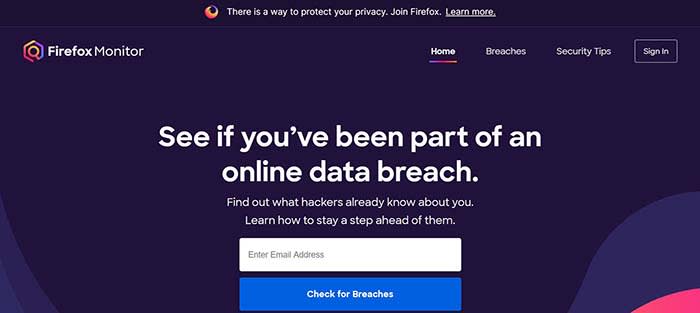
Firefox Monitor alerts you to data breaches

Firefox Monitor

It seems like there’s a new data breach every other day. Have you ever been concerned that you were involved in one, and that your data has been compromised? Firefox Monitor can help you find out!

Simply enter your email address, and Firefox Monitor will tell you if that email address was ever involved in a data breach. Also, when you join Firefox, you can save all of your email addresses in their system, and receive a notification if one is ever involved.

Firefox Lockwise safely saves and syncs your passwords across devices

Many of us have a system for keeping track of our passwords that’s probably less than ideal. Maybe we have a sticky note in the corner of our monitor with a list of them. Maybe we threw them into the notepad on our phone or computer. It could be we just think we have a good enough memory to remember them all. Either way, none of these methods are optimal.

That’s where Firefox Lockwise comes in handy. It keeps all of your passwords safely behind a firewall and autofills them in the login page when you give the okay. The best part? Lockwise can carry those passwords across devices so you’re never locked out or trying to find that Post-It note with the password you created for that site you haven’t visited in three years.

Send big files with Firefox Send

Firefox send

It’s happened to all of us: we have a large file we need to send, but we don’t have a flash drive nearby, and it’s too big to send via email. That’s where Firefox Send comes in handy. Firefox Send allows you to send a file up to 2.5 gigabytes in size just by joining Firefox.

Sync to your Android or iPhone

Maybe you have 12 tabs open on your desktop, but when you jump on your mobile device, you have to remember what those tabs were. Firefox solves that problem by syncing your sessions between desktop and mobile devices.

When you sign in on Firefox on any of your devices, your browser will be personalized the same way thanks to Firefox’s syncing feature. Even better: your sessions are protected by end-to-end encryption.

The newest Firefox is the best version of a trusted browser from a team that puts your privacy first. Give it a spin and see why these features are so groundbreaking!

Softonic is proud to partner with Mozilla. When you download from us, we may earn a commission.

How Firefox can help block cryptomining attacks

Is your computer constantly overheating? There might be a cryptominer hijacking your computing power.

Sometimes while you’re working on your computer, you wonder why the device is running so hot. It could be all that you’re doing is surfing Facebook, or getting something done for work, but your device feels like it could fry an egg, and the fan sounds like a helicopter propeller. This could be a sign that someone is hijacking your device to cryptomine.

Seriously, we’re not kidding.

About 2,000 power-stealing attacks happen every minute. Programs that steal your computing power are making attackers millions of dollars while your phone’s data usage bill climbs higher and higher. Basically, cryptominers are making money while you front the bill.
Luckily, Firefox has the tools for the job to help keep you safe from these attacks. If you’re not a Firefox user, this protection might just change your mind.

How Firefox can help block cryptomining

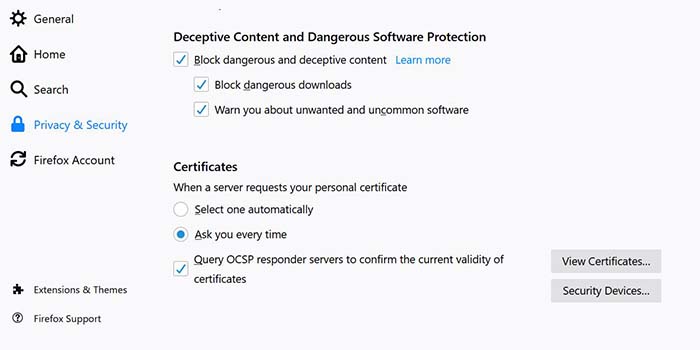
Firefox has partnered with the privacy company Disconnect. Together, they created a list of domains often used by cryptomining scripts. Firefox has given you the chance to block them. Simply select “Privacy and Security” from their menu. From there, scroll down and check the corresponding boxes.

Firefox block

Why you need to block cryptominers

Along with your ever increasing electricity and data bills, there are several reasons why you want to block cryptominers. By hijacking your device, they are rapidly draining your battery. Not only that, if it causes your device to overheat, it can do irreparable damage.

This activity could also pose a threat to the planet. Environmental researchers are concerned about the amount of resources being used up by cryptominers.

Protect yourself now

The bad guys are always working to take advantage of any gaps in your security. Downloading Firefox today can help prevent cryptominers from using your computer to make themselves rich.

Softonic is proud to partner with Mozilla. When you download from us, we may earn a commission.

How Brave eliminates common browser problems

Brave brings you fast, private browsing without many of the drawbacks of other browsers.

Brave

The internet has evolved into an essential component of our daily lives, and its use in American homes has increased by 400% in the past 20 years. According to the USC Annenberg Center for the Digital Future the number of hours we spend on the internet every week has risen from 9.4 (the statistic back in 2000) to 23.6. Overall internet penetration has increased from 67% to 92%. That’s all time that you’re spending on a specific internet browser, whether it’s Firefox, Chrome, Safari, Opera, or what have you. No matter your choice, it’s helpful to know the good, the bad, and the ugly of every choice out there. Not all browsers are created equally, so we’ve compiled a list of each one’s strengths and weaknesses:

Is it time for you to make a switch? Check out the stats below and decide for yourself!

1. Google Chrome
Google ChromePros:

With the monolithic Google behind its creation, it’s no surprise that Chrome is fast, efficient, and user-friendly. It’s got pretty much anything you’d need to make the most of the web, like quick answers in your address bar, one-click translations, and a wide variety of extensions and customization options.

Chrome will also automatically protect you from security issues like scamming and phishing, making it pretty safe to browse with, too. Just as Google is the most popular search engine, Google’s Chrome is currently the most popular browser. Chrome’s popularity has led to a surplus of extensions and websites catered to the browser, making it a highly customizable experience to boot.

Google Chrome Download now ►
7

Cons:

As powerful and popular as Chrome is, the browser is not without fault. In order for it to achieve its impressive speeds, Chrome needs to take extra resources from your PC:

Chrome splits every tab, plugin, and extension into its own process – that’s how it manages crashes so competently. The downside is that means it’s far more taxing on RAM since it’s duplicating tasks for each tab. Chrome is one of the ‘heaviest’ browsers and can get swarmed by bloatware, making it less than ideal for machines with limited RAM. There’s also the mounting suspicion of tying your data to Google, and if privacy is your concern you should likely look elsewhere.

2. Mozilla Firefox
FirefoxPros:

One of the earliest browsers out of the gate, Firefox brings to mind two things: Privacy and speed. While other browsers that capitalize on privacy do so at the cost of loading speed and/or heavier use on system resources, Firefox manages to succeed on both fronts, achieving a browsing experience that gives Chrome a run for its money.

Mozilla is a non-profit organization, meaning it’s got far less interest in mining and selling your data than, say, Google Chrome. Firefox also updates on the regular to bolster user privacy and ad-blocking. Its combined speed and safety put it at the top of TechRadar’s web browser ranking as recently as September 2018, claiming that Firefox has “retaken its crown” in recent months, and is now deserving of another look from avid Chrome users.

Mozilla Firefox Download Now ►
7

Cons:

Firefox is fast, but it’s not always faster than Chrome. This is mostly apparent on pages with tons of images or videos, at which point you’ll probably want to simply install an add-on or extension to either speed it up or block them. This brings us to Firefox’s second weakness: If you start installing extra plug-ins to customize your experience to the same extent as Chrome, Firefox will start to lag noticeably behind the competition.

Lastly, Firefox doesn’t have built-in support for Flash. Flash is notoriously dangerous, so this isn’t so much of an issue in 2018 when the internet is largely abandoning the platform. Even so, just like Apple got a negative response for removing the aux jack, we feel it’s necessary to mention any upgrades that leave old tech in the dust.

3. Microsoft Edge
Microsoft EdgePros:

Microsoft Edge the default browser for Windows 10. As such, it does a decent job of keeping in line with the speed, intuitive UI, and ‘clean’ aesthetic of many facets of Windows 10. Edge holds its own by modern web standards, and additionally offers a few capabilities you won’t get in other browsers: Webpage markup, integrated Cortana features, and a clean-cut reading mode.

Recent updates have also included a Tab Preview, Set Aside, ebook reading, and a handful of nifty extensions. Edge also no longer uses the infamous ActiveX, browser helper objects, or VBScript support that made Explorer slow as dirt. Edge is easily a significant improvement over Internet Explorer in terms of speed, accessibility, and compatibility. It also weighs substantially less than Chrome, meaning you’ll have a less bloated browser experience, albeit a more bare-bones one.

Cons:

Edge has struggled to achieve market share, mindshare, and positive reviews. The first three months of 2018, Microsoft Edge pulled a less-than-impressive 8% of the 1.2 billion visits to government websites from consumer and business PCs and Macs. This figure isn’t wholly reliable for another reason that Edge gets a lot of flak: The browser is not even available on any Windows OS older than 10, or if you’re using a Mac.

The real head-scratcher is why Microsoft feels the need to support multiple browsers for different Windows Operating Systems when they could just work to make Edge backward compatible. Doing so would certainly help give it some much-needed traction. For more reasons why you might find Edge disappointing, check out this article.

4. Opera
Opera browserPros:

Opera is as underrated as it is high-quality, and it’s certainly both of those things. Opera is a Chromium-based software, which means it’ll feel similar to Google Chrome when it comes to facets like rendering, and was the flagship for popular modern browser features such as private browsing and pop-up blocking. Opera also offers a free VPN that will replace your IP address with a new one, making it more difficult for ads to track your location and harass you.

Opera pushes a focus on privacy and like Edge offers a simple, intuitive layout, and has built-in messenger services like WhatsApp, Telegram, and Messenger, making it altogether a quick, smart, intuitive browser that go toe-to-toe with the competition.

Cons:

Opera doesn’t offer as many plug-ins as other browsers and it’s also lacking in parental controls (if such a thing matters to you). Occasionally the browser will also have issues playing videos or have trouble keeping pace with other browsers like Firefox.  Moreover, there’s no shining reason why a person would switch to Opera. It performs everything a browser should, but doesn’t really excel in anything either. For speed, people go to Chrome. For customization,they go to Firefox. With Opera, there’s little pull to use it when compared to the competition; most people have a strong reason for using one browser or another and being caught in the middle isn’t helping its case.

5. Safari
SafariPros:

Safari’s got the home field advantage with the Apple crowd. It’s the default browser for all the company’s products, mobile or otherwise, and Safari has become intertwined with the Apple experience. Apple does a solid job with security, and Safari is no exception. Browsing with Safari is a ‘better safe than sorry’ experience and can be further optimized quite easily to bump your protection even higher. Safari uses default pop-up blocking, which is always a huge plus.

If you’re an Apple user, Safari is still an excellent browser, even 15 years after its release. It’s already preloaded on all Apple products, so it’s at your disposal immediately and seamlessly works in tandem with all software produced by the company.

6

Cons:

If you’re not an Apple user, then Safari is useless to you. Microsoft products want as little to do with the competition as possible, so if you’re in with Microsoft you may never even use Safari. Besides the enhanced security options, there also isn’t a ton you can do to customize Safari, meaning that you’ll get a good, safe experience but not necessarily and adjustable one.

Why we like Brave
BraveIf you haven’t heard of Brave before, it’s likely because its first stable release just landed for iOS back in early August. The platform is now available on iOS, Android, macOS, Windows, and Linux. Who created it? Brian Bondy and Brendan Eich, who you’ll remember as the inventor of JavaScript and the co-founder of Mozilla (makers of Firefox).

Much like Firefox prioritizes user privacy, Brave automatically blocks any third party trackers, shutting down anything that might worsen your browsing experience such as third party cookies, pop-ups, and ads. None of that even makes it past the first line of defense. From that point forward, the rest is up to the user.

Brave is fast (up to eight times faster than the mobile competition), offers extensions that you’re familiar with, shields you from third party trackers, and because Brave blocks excessive third party requests, you’re actually saving money on your data plan. But then we get to the age-old dilemma of publishers and advertisers not generating revenue due to blocked ads.

Brave has an answer for that too:

How Brave solves the ad problem

Basic Attention TokenWith Brave, users can always select an ad-free browsing experience. However, Brave introduces a new private advertising platform that users can opt-in to and receive rewards for their attention. Users who elect to view ads earn Brave’s Basic Attention Tokens (BATs) which can then be used to support publishers and content creators, distributing your monetized attention how you see fit. You’ll then benefit from better ad-matching, and your data remains private.

Thirty percent of the ‘revenue’ gained from watching the ads goes to Brave, while the other 70% goes directly to the user. Should you choose to browse with Brave Rewards, your data stays private and you’ll still benefit from more accurate ad-matching and reception of Basic Attention Tokens. If this sounds like a feature you’d be interested in, you’ll be happy to know over 33,000 content creators and publishers are already registered receive tips and contributions from their users.

Softonic is proud to partner with Brave. When you download from us, we may earn a commission.
How to import Firefox bookmarks

Make your life easier by following these steps to sync your Firefox bookmarks. Learn How to import Firefox bookmarks.

Bookmarks on our browser are a necessity. Whether we are at home or our office, the first thing we do is open all our bookmarks.

When we get a new computer, we have to go through the drag of resaving all of our old bookmarks. With that hassle, we have to remember those obscure URLs and dig through emails to find that one oddball website that we need to do our job.

If you’re using Chrome, you can log into your Gmail account and your bookmarks will be synchronized. However,  Firefox users will have to first export the bookmark file or use its Firefox Sync function. If you do not know how to do it, we’ve got you covered:

Mozilla Firefox Free Download
7
Mozilla Firefox is a free, open-source web browser. Now with new features, faster and more secure.

How to import Firefox bookmarks

If you know how to export your bookmarks but you are not sure about how to make your browser import them, read on.

Importing bookmarks file

Importing the bookmark file in the browser is really simple. First, open Firefox and make sure that the menu bar is visible. If it does not appear, right-click on the top margin of Firefox and click on “Menu Bar.”

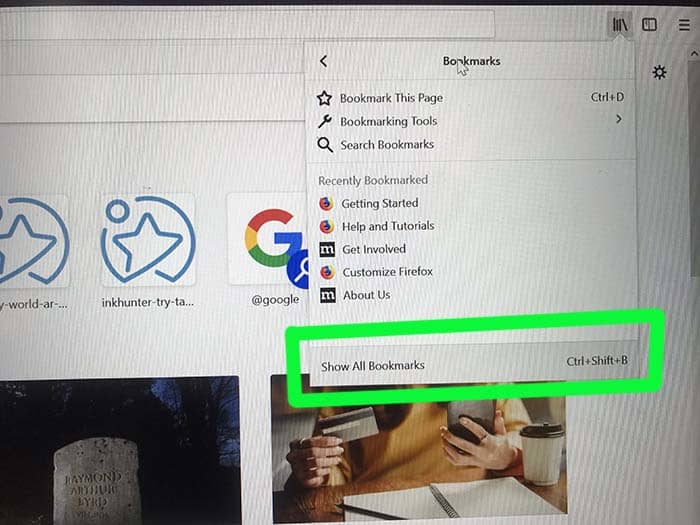
Firefox Show All Bookmarks

After that, click on Bookmarks and then on Show all bookmarks. Alternatively, you can press the Ctrl + Shift + B keys.

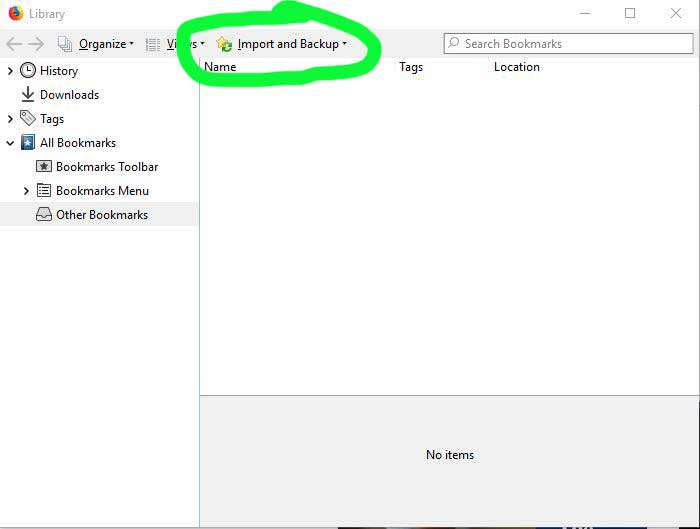
Import and backup

In the Library window that pops up, click on “Import and Backup” followed by “Import bookmarks.”

Select the bookmarks.html file and click “Open .” Once you have done these steps, you will see how your favorite bookmarks will appear in your Firefox browser.

Using Firefox Sync

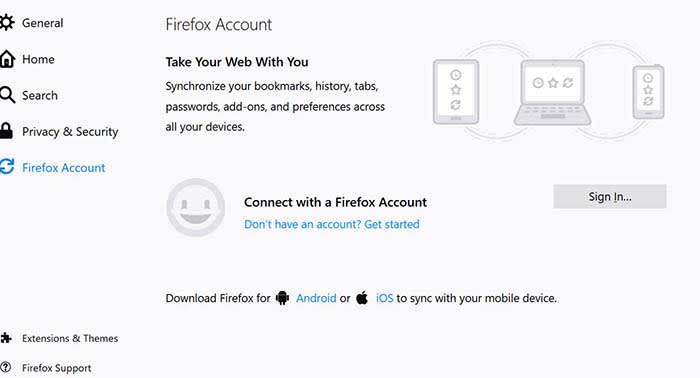
A second option to recover your bookmarks is using Firefox Sync. This function is really useful if we are looking to access our bookmarks from mobile devices or tablets. To use Firefox Sync, we must first make sure that our bookmarks have been synchronized with the browser account.

To do this, click on “Tools” and then“Sign in to Sync.” If you do not have a Firefox Sync account yet, follow the instructions on the screen.

Firefx Sync

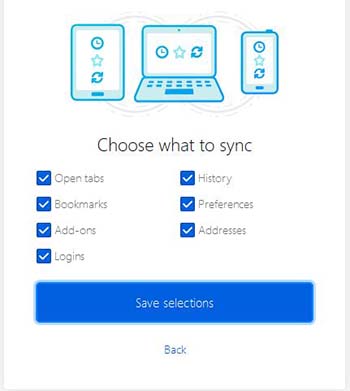
Once done, select the data you want to synchronize with your Firefox account and click on “Save settings.”

Choose what to sync

To import your bookmarks you will only have to connect your mobile, tablet or different PC to Facebook Sync. Click again on “Tools” and “Sign in to Sync” and finally click on “Connect.”

Enter your Firefox credentials and click on “Log in.” Once you have done these steps, your device will have synchronized with Firefox Sync.

Wrapping up

Using Firefox Sync has a lot of added benefits. If you add a new bookmark, you can sync it again, and the new bookmark will appear on the rest of your devices as well. 

Mozilla Firefox Free Download
7
Mozilla Firefox is a free, open-source web browser. Now with new features, faster and more secure.

Softonic is proud to partner with Firefox. When you download from us, we may earn a commission.

Firefox moves to prevent browser spam notifications

If you allow the wrong sites to send you push notifications you will end up receiving a lot of spam messages on your PC or spam notifications on your mobile

Desktop and mobile push notifications from your web browser are a great way to keep yourself up to date with all that is important to you. By signing up for notifications from your favorite websites, you give them permission to bring you all the latest and greatest news and updates direct to your PC or mobile, even when your web browser isn’t open.

Whether you want to stay up to date with all the latest news about apps, software, tech, games, and more like you can with Softonic push notifications or if you want updates any of the thousands of other legitimate websites offering push notification updates, you have the power. You give permission for the site to send you notifications, you receive the notifications, and then if you’re interested in whatever that notification is talking about, you can open the link, or if not, you dismiss it. Easy.
The problem, though, is that illegitimate sites will try to get in on the action, too. Yes, we’re talking about spam. Just like with emails, telephone calls, SMS messaging, and pretty much every other form of communication ever invented, push notifications are also subject to attempts to fill our lives with spam.

Dangerous spam o your desktop via push notification

If you allow the wrong sites to send you push notifications, you will end up receiving a lot of spam messages on your PC or phone

Push notification spam is all about permissions. Whenever you visit a site you like that offers push notifications, it will ask your permission to send you notifications in the future. Without this permission, sites can’t send you anything. Trouble is, we don’t only visit sites we’re happy to receive updates from and there are plenty of disreputable sites out there looking to make their owners a quick buck.

These dark sites are now utilizing push notifications as a way to bombard us with spam. A report by Bleeping Computer shows the types of tactics used to coerce users to sign up for push notifications they don’t want to receive. These include blocking the site content unless you click “Allow” on the push notification permission button, and creating specialized website messages that urge you to enable push notifications before you can access the website’s services. Any users who hit the “allow” button are bombarded with spam message after spam message promising everything from free cash to unbelievable celebrity gossip.

Examples of push notification spam
Image via: Bleeping Computer

The guys at Mozilla are all too aware of this push notification spam problem and they’re now introducing a test to see what will happen if it removes push notification subscription prompts altogether. The test is running on Firefox now; it began April 1 and will end April 29. The main section of the test will put the onus on Firefox users to allow sites to send them push notification subscription messages in by clicking on an icon in the address bar. Unless they take the action shown below, users will not see any push notification subscription messages.

Via: Mozilla

The issue for Mozilla is that whereas only 3% of users accept these subscription requests, 19% of users leave a site as soon as they see the request. There could be an argument that the subscription messages themselves are having an adverse effect on browsing behavior.

Once the test is over, Mozilla will use the data to decide how it will treat push notifications in the future. It could set it so that you have to activate push notification permission requests yourself by default, which would mean you’d never see them unless you changed the setting.

Whatever your relation to push notifications, this news could prove significant in the future. Push notifications can be annoying if you’re getting them from the wrong websites, but as long as you keep on top of your subscriptions, they can provide a great way to stay up to date with the things that matter to you most. This means as long as you know how to unsubscribe to the sites you don’t want to receive notifications from, there is no reason push notifications can’t be the useful tool they’re supposed to be. If Firefox decides to cut off permission requests altogether, it could be a case of cutting one’s nose off to spite one’s face.