AutCraft server for Minecraft tailored for autistic players

Minecraft is a great game for children who can use their creativity to build their own virtual world but it can be stressful for those with autism. Autism Blogger Stuart Duncan has a son with autism and decided to create Autcraft, a Minecraft server tailored for autistic players.

AutCraft works by providing autistic players a place where they can play unencumbered by attacks from monsters or other players. “Minecraft has proven very beneficial for people with autism as it provides the open world, no stress, creative and imaginative sandbox space that they can thrive in…The one area that it’s struggled, however, is in it’s [sic] social game play,” writes Duncan in a blog post.

“Children learn to respect other people’s properties but also have the comfort in knowing that everyone else will respect theirs.”

Minecraft has been designed to be an open and unsupervised sandbox where players can create and play around as they please. This level of freedom can lead to bullying, since players interact with strangers online. AutCraft creates a autism friendly environment by removing monsters for younger players, turning off player damage, removing the ability to hit other players, and having a zero tolerance policy on bullying. Duncan has also made AutCraft invite-only, screening members before allowing them on the server so it could a few days to hear back from the AutCraft staff. For now, AutCraft is free but is taking donations.

Check out the video above and AutCraft.com to see how AutCraft works.

Download Minecraft for PC and Mac

RELATED STORIES

[Source: Autism Daily Newscast | Stuart Duncan]

Report: Snapchat turned down $1 billion+ offer from Facebook

Facebook wants to the be the only messaging platform but competition is stiff. The company purchased Instagram for $1 billion in April 2012 to maintain social photo sharing dominance. A new report from The Wall Street Journal says Facebook approached Snapchat for an acquisition worth over $1 billion but Snapchat CEO Evan Spiegel turned down the offer.

It’s easy to see why Facebook would want to purchase Snapchat. The massively popular photo and video sharing application is frequently used by younger users, which Facebook is losing to competitors like Snapchat and WhatsApp. Snapchat offers social sharing without permanence since pictures and videos disappear after being sent. Facebook, on the other hand, constantly wants users to post publicly, recently allowing teens to do so for the first time on the social network.

Facebook attempted to take on Snapchat last December by releasing Facebook Poke for iOS. The app never took off and Snapchat remains the app of choice for those who want to share self-destructing images and video.

Snapchat is currently considering another round of funding that could drive up the value of the company to between $3 – $4 billion.

RELATED STORIES

[Source: The Wall Street Journal]

River Thames added to Google Street View

The UK’s River Thames has been added to Google Street View, becoming the first river in Europe to be mapped using Google’s technology. The map follows the Thames for almost 30 miles from Woolwich to Richmond, capturing 360 degree views of the river and the many iconic London landmarks that run along it.

The London Eye and Waterloo Bridge as seen from the Thames River


Palace of Westminster

Working with the Port of London Authority, Google UK strapped its Trekker Camera to the hydro graphic surveying vessel Yantlet to capture the images. The Trekker camera allows Google to capture images in areas that its Street View van and Trike can’t access.

Google Street View was first introduced in the US in 2007 and has since expanded to over 3000 cities in 53 countries, going beyond streets to let you inside restaurants and shops, ski resorts and slopes, and now, even taking you along waterways. The River Thames joins Antarctica and the Grand Canyon in Google’s quest to visually capture all corners of the world.

6 tips for shopping online without getting scammed

We’re shopping online more than ever before. According to Forbes magazine, at the end of 2013, e-commerce transactions will add up to an incredible one trillion dollars. And as more money moves around cyberspace, cyberfraud is increasing by the day.

Cyberfraud economic losses from 2001 to 2012 (source)

In a report from CyberSource (VISA), $3.5 billion were lost in 2012 in North America alone. Another report, from JP Morgan, concludes that “there are no signs that the growth of cybercrime is slowing”.

The fine line between fraud and overconfidence

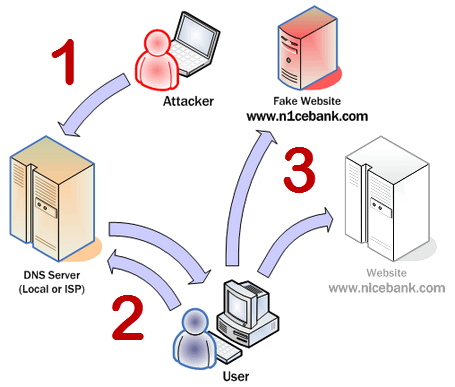
Cybercrime pickpocketers use a variety of techniques and tricks, ranging from personal data theft through email (phishing) or redirection to fake e-commerce sites (pharming).

Pharming: The attacker modifies (“poisons”)  the address servers (1) so that when the user loads a page (2), a fake version appears instead of the genuine website (3)

But scams aren’t the only way money is lost. Transaction errors and ads that exaggerate the quality of products are also guilty.

Six tips for buying online with confidence

Whether due to the poor design of an online store or the existence of con artists, the risk of losing money is real. Luckily, browsers and websites have greatly improved their safety and reliability.

Rather than overwhelm you with an endless list of recommendations, or advice that’s difficult to implement, we’re going to give you six essential tricks that we believe will keep you safe in most cases.

1. Always pay through PayPal or Google Wallet

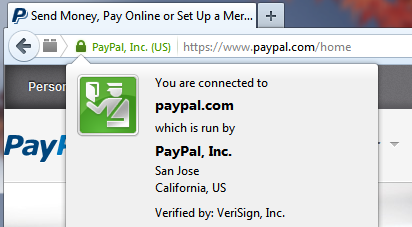
Pay by PayPal, Google Wallet or other services where you don’t need to enter your bank details every time. In addition, both PayPal and Google Wallet have sophisticated anti-fraud controls, and can help you reclaim your money in case of fraud.

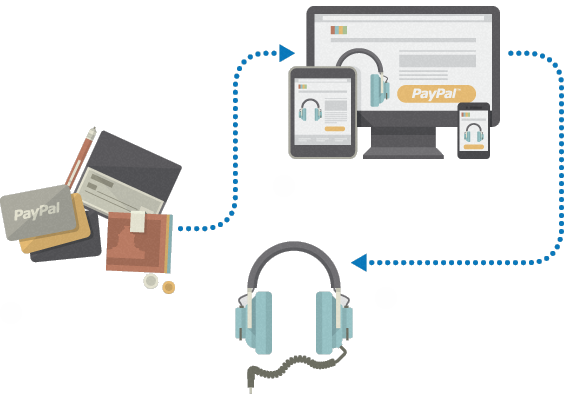
PayPal acts as a payment intermediary, protecting your safety (source)

Regardless of how you pay, we recommend that you get a secondary cash or debit card and use it for your online purchases. It’s not a good idea to use your primary card for online shopping.

2. Investigate the reputation of the online store

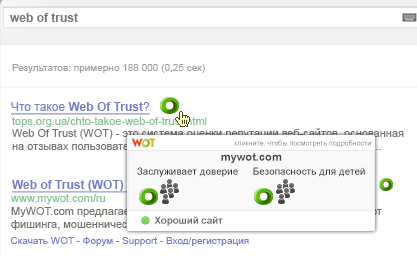
If its your first time buying from a given website, spend some time researching their reputation. Google their name and look at their reputation on WoT and SafeWeb, two services that check the safety of websites.

Another good tip is to look at the bottom of the page to see where the company is located and what certificates they have.

When you first enter an online store, look for the following:

  • “Real life” contact details (address, phone number)
  • Support page with frequently asked questions
  • Links to information about the company
  • Purchase guarantees and legal conditions
  • Electronic commerce certification seals (VeriSign, TRUSTe, etc.)

The presence of these certificates is a good sign, but click on them to be sure of their authenticity. Some scammers put them in without valid links backing them up!

3. Use a modern browser….and make sure it’s updated!

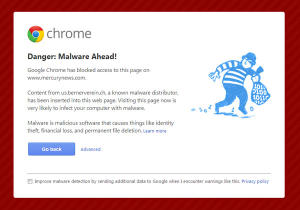
When it comes to avoiding scams, a good updated browser gives you more security than an antivirus. Google Chrome, for example, is able to detect malicious pages, as can Internet Explorer 11 (SmartScreen) and Mozilla Firefox. If you’re using mobile applications to make your purchases, make sure they’re not fake apps. Finally, whenever possible, make sure that the page where you enter payment details has a lock symbol before the address (HTTPS) – this tells you that it’s safe.

In general, you should always look at the web address of the store you’re using. If it looks unusual or suspicious, don’t continue! Most browsers will give you extra information by clicking on the lock icon.

4. Always buy from a secure network

When you’re shopping, try to connect from home and from devices that you trust, using your programs, your antivirus and your favorite browser. Public networks are full of shady characters who are on the lookout for data to steal.

That being said, don’t take it for granted that your home network is safe. Boost your Wifi security, install a good free antivirus and keep receipts and bank details in a password manager with encryption, such as Dashlane – a very well designed password and personal data manager.

5. Compare prices and conditions of sale

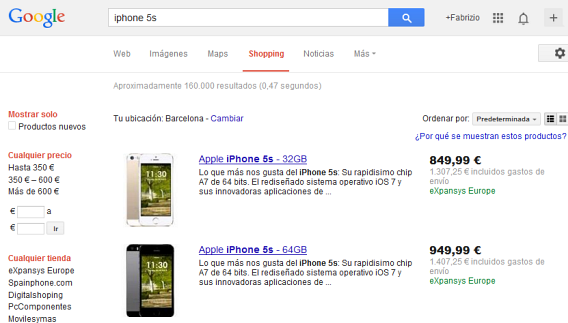
Are you sure it’s a bargain? Compare prices and condition – on Google Shopping, for example – and read reviews on the product sheet, especially the negative ones: these could give you clues about the reliability of the page.

Stores that appear in Google Shopping are generally reliable

Comparing prices and conditions is always a good habit to get into when you’re shopping, and the internet makes this really easy to do. But be careful, even on the comparison sites, because prices can be out of date and sometimes don’t reflect additional costs.

6. Never click on suspicious links

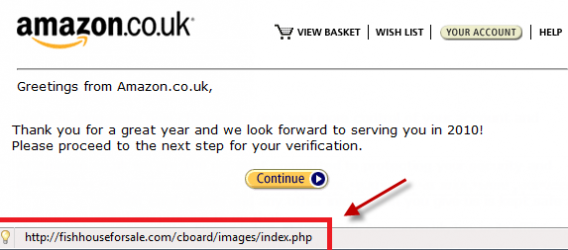
As we said in our article on suspicious emails, if you didn’t request it, don’t click it! It’s a simple rule of thumb that means you can avoid unpleasant surprises, like phishing (data theft).

This is not Amazon.co.uk! Always check if addresses look like they should.

An online store will contact you to provide receipts or invoices, but will never request that you enter passwords or bank details via an email or text message. Those details must be requested from the actual site. This is also true for social networking sites.

A final piece of advice: use common sense and read!

If it seems too good to be true, be suspicious. If the page doesn’t look as professional as you expected, be suspicious. If something, anything, that you see sparks any doubt in your mind, be suspicious. It could be a hoax. When in doubt, it’s better to stop and investigate. Read, read and read – it’s the “Stop. Think. Connect” principle. And just to cover your back, it’s best to save everything – from emails and receipts to screenshots: one day these could serve as important evidence.

Do you feel safe shopping online?

Original article written by Fabrizio Ferri-Benedetti published on Softonic ES.

Windows 8.1: the new smart search

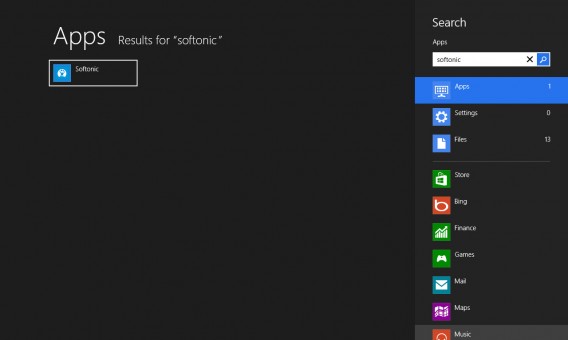
Windows 8.1’s new search function, Bing Smart Search, includes tight integration with Bing, the Windows search engine. In this article, we’ll show you how it works.

How did search work in Windows 8?

Let’s begin by reviewing how this feature worked in Windows 8, so we can better appreciate the changes. The search function in Windows 8 was a major change from previous versions of Windows.

The key features were as follows:

  • You got to it via the Charms Bar or right sidebar
  • You could search apps, settings, and files
  • The search was contextual. So if you were inside an application, the search function would first be applied there. You could also limit the search to a particular app

What’s changed in Windows 8.1?

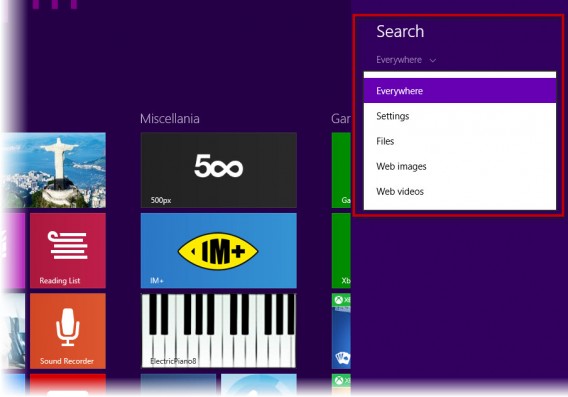
In essence, the Windows search function in 8.1 looks the same, but once you start using it, you’ll see two major new features: integration with Bing and a change in how search operates. As far as the change in operation, you’ll see that the distinction between applications, settings, and files has been replaced by the ability to search globally or limit searches to files, system settings, or images and videos from the web.

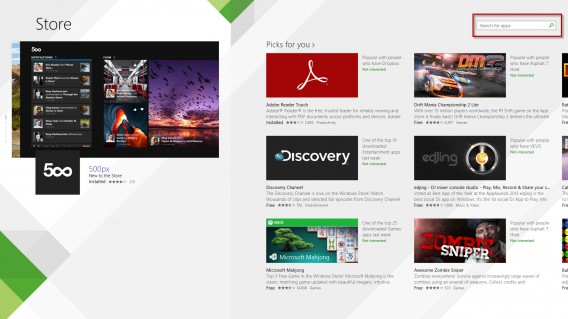
Gone is the ability to search specific apps from the home screen, though context search is still there. For example, if you’re using the Twitter app in Windows 8, the search menu searches there first. Also, apps like Store have included a search field within the app interface itself, which seems like a no-brainer.

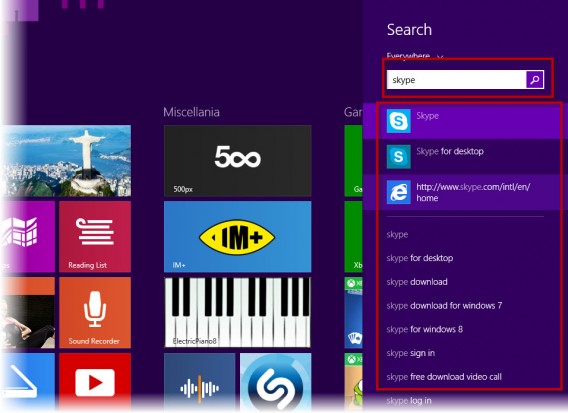
Now, when performing a global search, Windows displays the search results in a list. First sample files, then applications, and finally settings results are displayed. Below those, you’ll see the Bing search results.

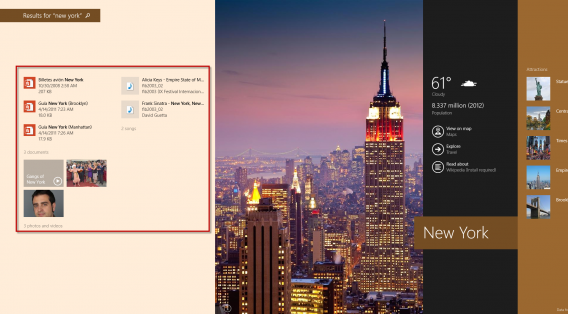
Tight integration with Bing is the other big news. Let’s try a very visual example (Smart Search is connected to Bing Travel, Weather, and other apps). Let’s search for “New York.”

In the screenshot below, you can see a stunning image of New York on the left, along with links to the Weather, Travel, and Wikipedia apps. If we had a file or program on the PC that matched the search criteria, the results would be displayed to the left of the image. If we move to the right side of the screen, we see the search results which appear in this order: Bing.com images, highlights from Bing.com, Windows Store apps, and a list of web results.

If we had a file that referred to New York (movie, song, or PDF document), the search engine would display that first, before the image.

Do I have to use Bing?

The answer is no. We’ve continued to use Bing Smart Search since it launched as part of the Windows 8.1 Preview, and the results are quite satisfactory, but you may find you don’t like the integration with Bing. It can get to be annoying.

In that case, Windows 8.1 offers the ability to remove Bing search results and limit yourself to using the search engine to search only files and applications in use by your computer.

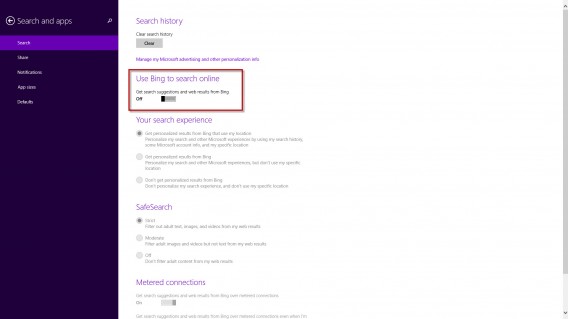
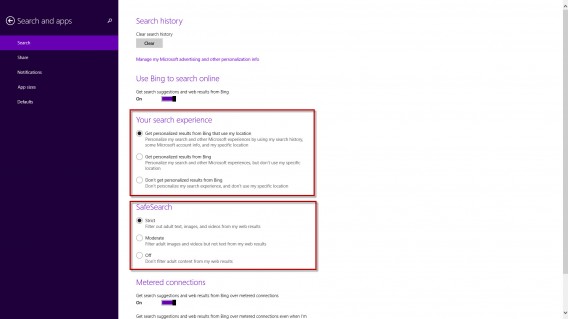
To do this, go the Charms bar and then Change PC Settings. Tap or click Search and apps, then tap or click Search. By default, Use Bing to search online is activated. Uncheck this you don’t want to include Bing in your searches.

From here you can also define the search experience. You can choose if you want the system to use your browsing history and/or your location to provide personalized search results. You can also determine the level of adult content filtering (Strict, Moderate, or Off).

And that’s a roundup of the new Bing Smart Search feature. We think it’s more beautiful, faster, and more efficient, but omnipresent Bing search integration could end up a little overwhelming.

What do you think of the new Windows 8.1 Smart Search feature?

[Original article written by Alberto Cifuentes from Softonic ES]

Learning to program 3 – your 1st steps with Javascript

I’ve wanted to learn how to program for years, but I never got around to actually doing it. In this 3-part series, I’ll take you through the trials and tribulations of programming as a novice.

In the first article, “Looking for a language”, I went through the pros and cons of various languages, while in the second, “And the winner is…” I revealed my chosen language, JavaScript, and explained which resources I was going to use.

Now, it’s time to walk you through the first few steps you’ll take when you’re learning to program!

To refresh your memory: what you need to get started

As I explained in the last article, all you need to get started is a web browser and a text editor. My favorite browser is Chrome, which, even with default settings, has a fantastic set of web developer tools that you can check out by pressing F12.
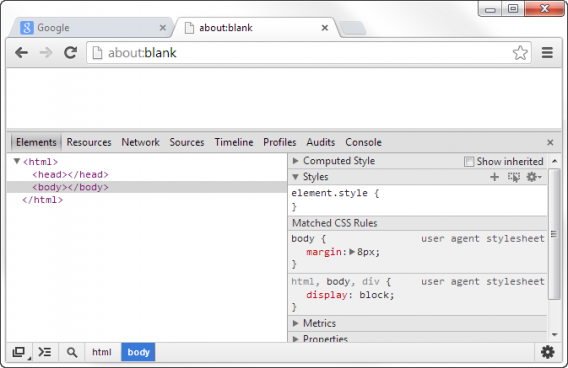
These tools are all that you’ll need to get started with the language. Books, articles and interactive courses are all okay, but the only place to really dig your heels in, is on the actual web browser.

Opening the Chrome console

The Chrome console is where you can really try some coding. When you press F12 on your keyboard, the developer tools will appear in the bottom half of the window. Click on Console to see it.
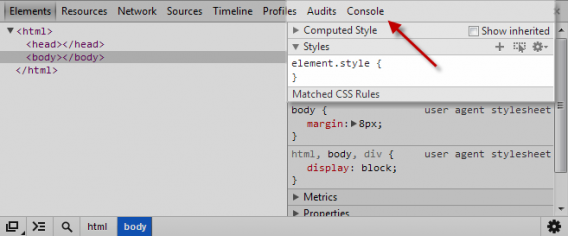
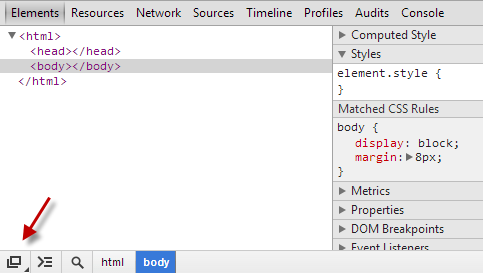
To make things easier, undock the console from the main window; to do so, just click on the button in the bottom left-hand corner of the screen. You don’t need to have Chrome open, so you can minimize it.
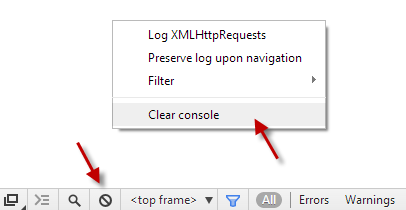
The next step is to clear the console’s log history so you have a blank page. To do that, right click on the fourth button on the toolbar. You can do that as many times as you want to clear the console.
How does the Chrome console work?

Writing in the console is like having a conversation with your browser; you write a command, press Enter and the browser will answer you as quickly as possible.  But in order to communicate, you have to be able to write in code, or more specifically, Javascript.

If you write something which isn’t code, this is what you will see:
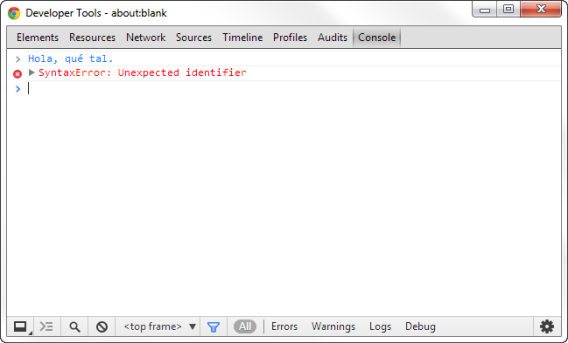
The above photo shows a syntax error. The browser thinks that I’ve just written something which should be defined somewhere, but since it doesn’t understand the reference, it won’t respond. The problem: when you’re talking to a web browser, you have to spell everything out.

Try writing alert(“Hello, world”) and then pressing Enter. You’ll see a pop-up screen appear showing those words. It’s the most basic command there is, but as you can see, it works!
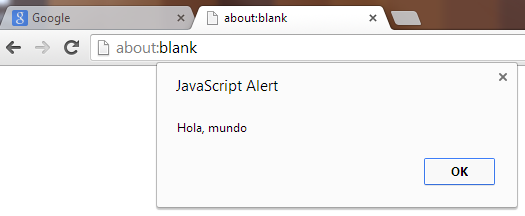
You might have noticed that just underneath the command, the word “undefined” appears. For now, don’t worry about that. It’s Chrome console’s way of saying that the code you’ve entered hasn’t returned a value (officially).

Basically though, that’s how the Chrome console works: you type text, press Enter and see the result.

Parts of a program: let’s get the blender out

A program takes in information, does something with it and gives back a result. In this sense, a program is like an invisible machine inside the computer, a machine made up of words that you enter.

To make this a bit clearer, I’m going to use a metaphor. Suppose we want to create a program called Blender that blends fruit down into delicious smoothies.  It’s a silly example, but it’ll help you understand how computer programs work.

In its most basic form, the Blender program carries out four steps:

  1. Set up and turn on the blender
  2. Put fruit into the jug
  3. Blend the fruit into a smoothie
  4. Serve the smoothie in a glass

In the world of computers, nothing is taken for granted. You have to define everything in advance, including what we’re going to use and what operations must be carried out.  So, what do we need to make this program work?
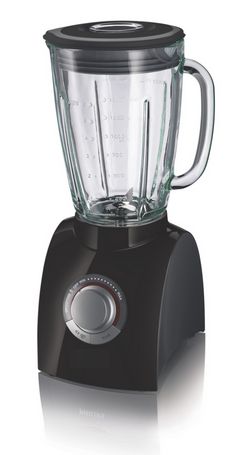
First of all, there’s the process of putting fruit into the blender, or jug.  Next, there’s the actual blending of the fruit. Finally, there’s pouring the smoothie from the processor and serving it in a glass.

The “jug” and the “glass”, where we put the fruit we’re going to blend, are our variables; they are constants because we always have to put the fruit in the jug and pour the smoothie into the glass, no matter what we put in it. What changes, then, are the fruit: these ‘pieces’ of fruit will be our values.

The act of blending the fruit into a smoothie is the blender’s function, or at least one of its many functions.  The function might incorporate conditions (such as ignore anything that isn’t fruit), or loops (blend the fruit down into a liquid).

Obviously, a computer program isn’t the same as a recipe, but the bare bones are the same: there is a series of steps to follow and repeat, some objects which alter other objects, and some conditions which must be fulfilled.

Content and containers: values and variables

In our metaphor, the blender blends fruit in a container (the jug).  The container is the variable, and the content (fruit) is the value.

The data handled by a program is made up of values.  In practice, those values can be either numbers or words. We use numbers to do calculations and words to communicate (inform, ask, say).

Essentially, JavaScript allows two basic (or primitive) types of values: numbers and strings of text.  There are other types of special data, but we’ll come to them later; for the moment let’s focus on numbers and words.

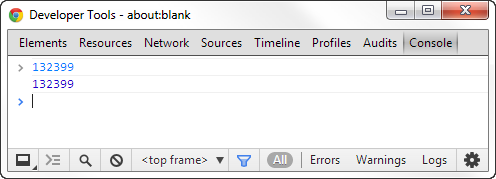
In the console, you can enter numbers directly.  For example, try writing the number 132399 in the Chrome console and press Enter.  You’ll see that Chrome can only repeat this value back to you.  It’s as if Chrome is saying “Roger that”.
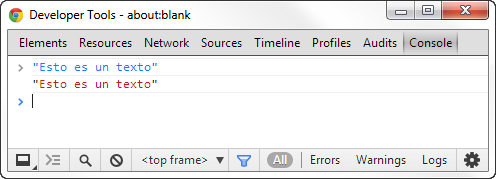
Text chains, on the other hand, need quotation marks.  Why? Because the instructions you use to create programs are also in words.  The quotation marks tell the computer that what you’ve written is text.
In JavaScript, variables are established by writing “var” followed by the name you want to give to the variable (this is also called initializing the variable).  Establishing these variables before using them is a good habit to get into, especially to avoid later confusion. Its almost like cooking- you want to have all the ingredients ready before you start.
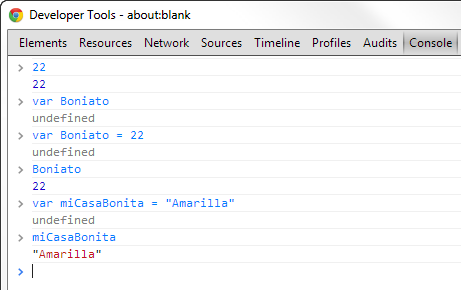
When you put the variable in and identify it, the console will give you its current value.

JavaScript is pretty liberal when it comes to the naming variables, you just have to make sure that they begin with a letter of the alphabet and that there are no spaces.  Your “containers” should be easily recognizable- it makes life easier for you and for the program.

Pour and compare: the many uses of =

As you can see, by initializing a variable (var = “Something”), you are using the equality operator =.  In JavaScript, it has many different uses and meanings depending on the context.  Every time you use =, it’s as if you are placing a tube for the value to travel through.
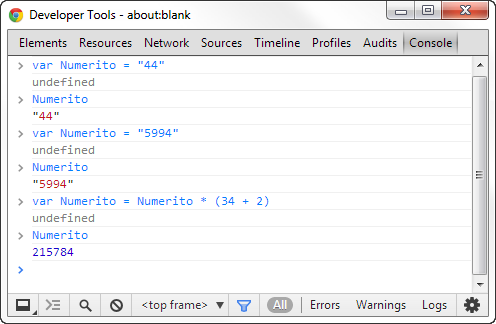
Note how the variable “Numerito” (number) changes value depending on what we tell the console. This is extremely flexible and useful when we want to update a variable while we are running a program.

But if = is used to assign values, then how then do we express equality?  To do this, JavaScript has equality and comparison operators.  The operator == checks that there is equality, while != does the same for inequality. Consider this example:
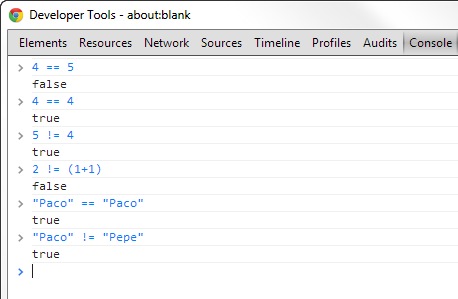
If the values are not equal or unequal, the answer is “false”; if they are equal, the answer is “true”.  The same thing happens if we try to compare two values using the operator “greater than” and “less than”, along with “greater than or equal to”, and “less than or equal to”.

As you can see, it’s even possible to compare strings of text: the character order is based on standard Unicode, and JavaScript follows that Unicode to determine which letter comes before or after the other. In practice, it’s no more than an interesting detail.

Chop up and mix: arithmetic operators

Uploading your data is a good start, but just like you can’t make a bowl of pasta by simply putting the ingredients on the table, you can’t write a program without simple and clear instructions.

Using our food processor example, you have different settings such as chop, mix and blend.  In JavaScript, which is one of the many languages your machine understands, the basic operations are the same as on a pocket calculator.

With numbers, you can do mathematical operations. Try writing a simple arithmetic operation in the console, such as 2 + 2, and press Enter.  As you can see, the answer is 4.
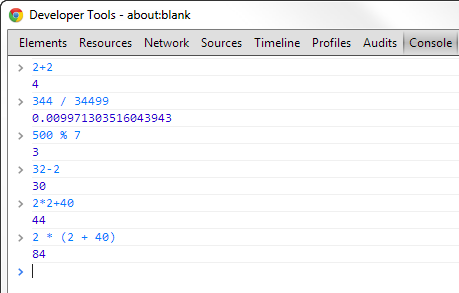
Here, the + sign is an operator.  In JavaScript, there are five main operators:

+ Add

– Subtract

* Multiply

/ Divide

% Modulus (division remainder)

All of these can be used exactly like they are on a calculator. Remember that JavaScript gives different importance to each operator when doing calculations. Thus, multiplication and division is done before subtraction and addition.
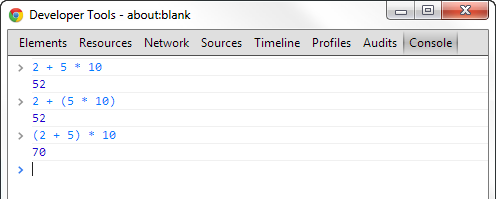
You can also use brackets to make things clearer. Another good habit to get into in terms of style is to put spaces between brackets, values, and operators. This makes your code easier to read.

There’s also one more thing you should know about operators: some can be used for more than one thing.  In programming, this is called “operator overloading”.

Regarding the other main type of value, strings of text, you can use the operator + to join two or more strings of text together.  This action is called “concatenation”, and it comes in handy when working with text.
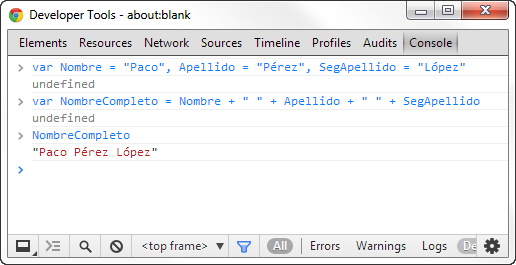
For more complex things like inverting or deleting characters, you have to write your own custom functions.  We’ll look at this later when we come to functions, blocks of code which you can use and reuse as many times as you want.

When using a real editor…

Until now, you have been writing on the Chrome console.  That’s where you can keep trying out your code.  But to create your own programs, it’s easier to use a conditional text editor, such as Sublime Text, which has syntax highlighting and automatic code formatting.
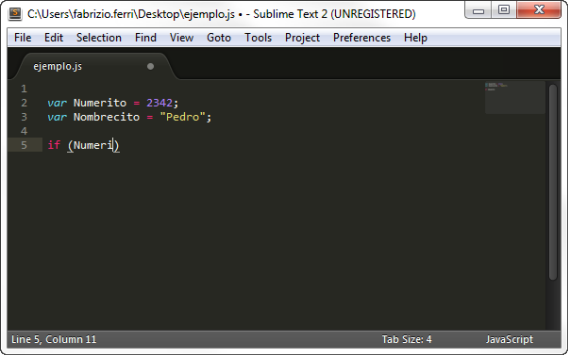
The syntax highlighting really helps with reading the code.  Note, for example, that the text values appear in yellow, while the numbers are in purple.  Also, Sublime Text automatically suggests words (variables, orders) to save time.

The most important thing, however, is the way in which Sublime Text formats code, adding tabs and skipping lines to improve the layout of your code, as well as making it more legible to you and other people reading it.  The best thing about Sublime Text is that the editor does it all for you so that you can concentrate on the code itself.
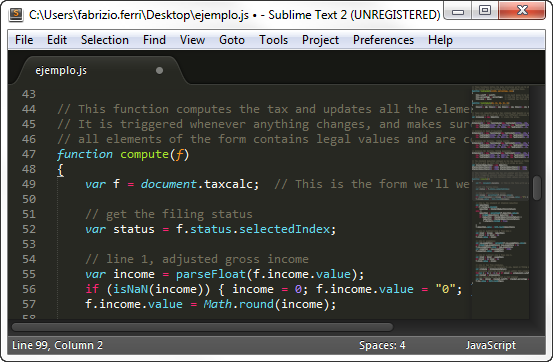
The dark gray lines are comments. They are written with // at the start

While there is no such thing as a standard style guide to follow when writing in JavaScript, I recommend you write in a style you feel comfortable with and which is the clearest. I personally like writing in Idiomatic.js.

Exercises in Codecademy

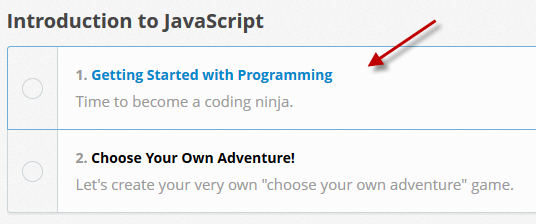
Go to the JavaScript section of Codecademy and complete the unit titled “Getting Started with Programming”. You’ll find some things we’ll look at in the next chapter, but you’ll have no problem understanding it.
Conclusion: ingredients ready!

At this point, we’ve taken a look at all the basic ingredients of JavaScript programming: values, variables and operators. Next time, we’ll take a look at how to make the ‘food processor’ work, thanks to functions and loops.

Of course, if you’ve got any questions or doubts, just let me know in the comments!

Next time: functions and loops

Previous articles:

Learning to program 1 – looking for a language

Learning to program 2 – and the winner is…

Original article written by Fabrizio Ferri-Benedetti for Softonic ES.

LinkedIn Intro called “a dream for attackers” by security researchers

LinkedIn’s attempt to integrate its social network with your email is being called “a dream for attackers” by security researchers. LinkedIn Intro is a plug-in for the iPhone that intercepts your email in order to provide you info about a contact’s LinkedIn profile inside your email app. Intro has a slick interface which pulls important information about a contact like his or her position, company, and education.

“I’m flabbergasted by this. I can’t believe someone thought this was a good idea.”

Security researchers have taken issue with LinkedIn Intro because it acts as “a man in the middle,” grabbing user emails and passing it through LinkedIn’s own servers before sending it off to their inboxes. LinkedIn is acting as a proxy, grabbing your email, injecting their own code and sending it off to you. “I’m flabbergasted by this. I can’t believe someone thought this was a good idea,” said Richard Bejtlich, the chief research officer at computer security company Mandiant.

LinkedIn is taking security measures to protect user emails but security researchers don’t think they’re enough. LinkedIn responded to concerns in a blog post, explaining that customers will have to opt-in to the app and that emails are encrypted to and from the company’s servers. Still, security researchers say that this approach leaves room for insecurity. LinkedIn must decrypt email, inject their own code, and reencrypt the email before sending it to users. The act of decrypting email gives attackers the opportunity to discover its contents.

IT departments should be afraid as well since LinkedIn Intro allows employees to give access to a company’s sensitive email, circumventing security measures. This is most likely going to violate company policy for secure email.

LinkedIn doesn’t have the best track record when it comes to security. Last year, the social network was hacked due to lackluster security measures. Attackers made off with user names and passwords of over six million users.

[Source: New York Times]

PlayStation App coming Nov. 13 for North America, Nov. 22 for Europe

Sony’s PlayStation App for Android and iOS will land in North America on November 13th and in Europe on November 22nd, right on time for the PlayStation 4 launch. The app will serve as a companion app for games on the PS4, allowing players to access things like their profile, trophies, achievements, and friends lists.

The PlayStation App also servers as a remote control for the PlayStation 4. You can put the console into standby mode, start up the console remotely and use the app as a keyboard for the console. This functionality is similar to Microsoft’s SmartGlass app for the Xbox.

PlayStation 3 users aren’t left out completely, as the PlayStation App serves as a chat client for PS3 and Vita users. The app also allows users to purchase games on the PlayStation Network and have it remotely download onto their PS4, PS3, or PS Vita.

[Source: Sony]

iOS vs. Android: Which users are more likely to survive a zombie apocalypse?

A zombie apocalypse seems a likely possibility these days, and the zombie craze that’s sweeping the nation has infiltrated mobile apps too.

With Halloween just around the corner, I thought it would be fun to see, given the quality and availability of zombie-related mobile apps out there, who would be better prepared to survive a zombie apocalypse: iOS or Android users?

Preparation

It’s probably good to know anything and everything there is to know about zombies before you try taking them on. First step: read up on the subject. There’s a ridiculously large amount of zombie literature out there to help you prepare for any type of impending zombie attack. The Zombie Survival Handbook Lite, available for both Android and iOS, is one good source of this kind of information. The apps gives info including reasons for a potential outbreak, the weapons and tools you need to defend yourself, and where to go when the outbreak starts. The full paid-version of the Zombie Survival Handbook has a few extra tips and tricks to help you survive.

Even better though, is the Zombie Survival Guide Scanner. Created by ‘zombieologist’ and author of The Zombie Survival Guide, Max Brooks, the app will scan you and your friend’s photo to see if, and how much, you have been infected. It’s the sure fire way for you to tell who’s still safe, and who to stay away from. Lucky again for both iOS and Android users, as the app is available for both operating systems.

Winner: A tie. Both top-notch apps in the category are available to prepare iOS and Android users with everything they need to know about the undead.

Training

So, now that you know everything there is to know about zombies, the next step is training for battle. There are a ton of zombie-related mobile games, but some are more realistic than others and would do a much better job at preparing you for a real-life apocalyptic showdown.

Contract Killer: Zombies is a perfect practice game for a zombie apocalypse and is available for both both iOS and Android. A massively popular and graphically pleasing game from Glu Games, this first-person shooter is the zombie version of the popular Contract Killer series. As well as shooting zombies, it also lets you help other survivors, gather supplies and build an arsenal of zombie-killing weapons. Contract Killer: Zombies is probably one of the most complete and ‘realistic’ zombie apocalyptic simulators for mobile, if such a thing exists.

Zombie Frontier is another good option for practicing your zombie shooting skills. It’s a basic shooter game where you, the survivor of a serious worldwide T virus infection, must battle the infected who have turned into, what else, zombies. Zombie Frontier is only available for Android, meaning unlucky iPhone users won’t be able to join in on shooting practice.

Zombie Highway is good if you need to practice your escape. It’s a driving game where zombies try to prevent you leaving by hanging onto your car. You lose them by swerving and knocking them off or shooting at them through the window. If you plan to run and not hide, this game for iOS and Android is a good training mechanism.

Winner: Android. Zombie Frontier is massively popular and could give Android users that extra bit of zombie shooting experience they need to get ahead.

Camoflauge

If you can’t beat ’em, join ’em! Blending in is key, and it could be your last chance of escaping the wrath of the undead. Zombie Booth is one of the most popular apps for zombify-ing yourself: choose a photo and add blood, guts and gore to make yourself hideously terrifying and a dead ringer for one of the zombie hoards. Zombie Booth even lets you create 3-D images, turning your 2-D photo into a breathing, growling 3-D zombie. Luckily for all users, Zombie Booth is available for both iOS and Android.

A similar app comes from the massively popular AMC series The Walking Dead. The Walking Dead: Dead Yourself lets you add zombie eyes, mouth and props to turn you into a realistic-looking zombie, at least in photographic form. Again, this key zombie-transformation app is available for both iOS and Android.

The winner: A tie. The most convincingly transformative apps are available for both users.

The verdict

It looks like both Android and iOS users have the apps to properly equip themselves in case of a zombie apocalypse. Android users may have a slight edge with Zombie Frontier, but its still too close to call.

Who do YOU think is more likely to survive a zombie apocalypse?

RELATED ARTICLES:

How to: edit videos in WhatsApp

In the latest version of WhatsApp for Android, you can edit videos before you send them. With a simple trim tool, you’re able to select a particular section of your video in a few easy steps.

1. Record video with WhatsApp

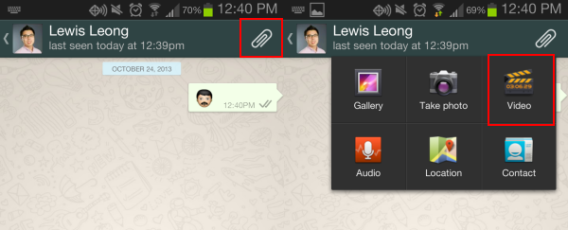
Select a contact and then tap the paperclip icon in the top right corner. Select the video icon. Then click on Video Camera to record a video or on the gallery icon to edit an existing video.

2. Edit your video

This opens the WhatsApp video editor. Using the blue guides, you trim the clip. Move each of the blue arrows to the left or right to set the start and end of the video. Or you can move the entire blue line to select the section of the video you want.

Once you’ve finished the selection, send your video by clicking Send.

Read more about WhatsApp.

[Original article by Wolfgang Harbauer on Softonic DE]