When it comes to Instagram, there’s no better tool than Canva

If you want to boost your business or brand, Canva is one of your most popular, boasting more than 85 million monthly active users in 190 countries. Instagram marketing is an excellent platform for entrepreneurs and influencers to grow their brands organically. Canva’s instinctive Instagram post creator is a great way to keep your Instagram feed updated with posts that match your brand awareness campaign. You can even share your post to your Instagram account without leaving the Canva dashboard.

Design for everyone FREE TRIAL

Storytelling is another part of human nature, from campfire get-togethers to bedtime stories for children. But storytelling has also changed drastically from paperback to social platform. You can use Instagram stories to test new content and ideas. Let us look at how to use Canva for Instagram posts and stories.

How to make Instagram posts in Canva

  1. Launch Canva and select your post template
    How to use canva for instagram

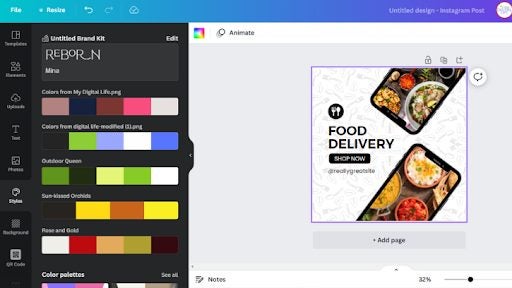
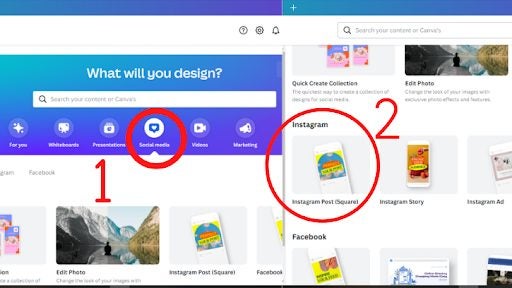
    Open the Canva app and then choose social media, which will list all the social media options to choose from. You will see the Instagram Post in the second row.

    You will see a collection of ready-made, professionally designed post templates. You can then filter your search by style, color, or theme.

  2. Personalize your Instagram design

    How to use canva for instagram

    You can choose any template and make the design yours by choosing different colors and font styles, modifying elements, and customizing the text. It is simple to upload photos or use Canva’s extensive library for vectors, audio, videos, and stock images.

  3. Experiment with different features

    How to use canva for instagram

    Use photo-editing tools to touch up images or enhance pictures by adding filters. Get creative with page transitions, animated stickers, and text.

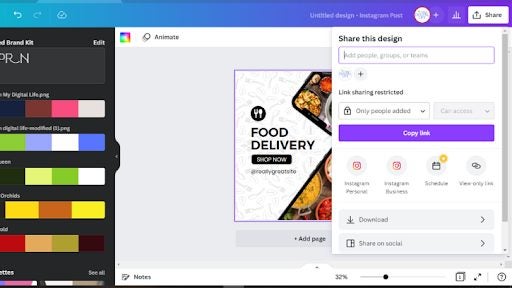
    Now you are good to go. Just hit the share button, and you can download the design in high-resolution PNG, JPG or MP4. If you prefer to share it directly on Instagram, you can do so from the editor. If you opt for Canva Pro, you can schedule your content for later.

Manage your Canva Instagram posts

Build your brand or business by showing your followers your commitment through producing engaging and inspiring content. Organize your feed to promote your style guide and brand. Use Instagram posts to showcase your services and products. 

Make free Instagram posts with Canva’s easy-to-use templates. Create brand awareness with Canva’s eye-catching and creative design elements. Share fresh and creative ideas with followers with their beginner-friendly and intuitive post creator.

What is the best time to post on Instagram in 2022?

  • Monday is 12:00 PM
  • Tuesday is 9:00 AM
  • Wednesday is 11:00 AM
  • Thursday is 12:00 PM
  • Friday is 2:00 PM
  • Saturday is 9:00 AM
  • Sunday is 7:00 PM

Create a Story on Instagram using Canva

Although you can use Instagram’s in-app story builder, you should consider Canva Instagram Stories templated for a professional look. Canva simplifies making batch-produced content which is a great time-saver. Here is a simple step-by-step guide on how to use Canva to create inspiring and engaging Instagram stories.

  • Open the Instagram Story Maker, or you can choose custom dimensions. The standard size is 1920 pixels tall and 1080 pixels wide.
  • Select a template to customize or create your own design.
  • Choose an image from Canva’s image library or upload a photo from your gallery.
  • Once you are happy with your image placement, you can adjust the filters and colors to match your brand.
  • Alternatively, you can edit or add elements like frames, icons, shapes, texts, charts, and lines to the design.
  • If you have completed your design, you can tap on the download icon on your mobile app or the share button on your desktop.
  • You also have the option to share on social media platforms, email, or text messages directly from Canva.

How to use canva for instagram

Add GIFs to Instagram Stories

When Instagram partnered with GIPHY in 2018, it created a library filled with GIF designs. You can add GIFs to your Instagram story when you tap the sticker icon. You can search for any GIF in the search bar.

Although GIFs are amusing, you can use them strategically to grab your follower’s attention through highlighted texts or C-T-A (call to action).

Add links to your Instagram Story

In the past, there was a “swipe up” feature to add links to your stories; however, you had to have more than 10,000 followers and a verified account. But times have changed, and Instagram has rolled out link stickers to replace the old feature making it available to everyone now!

To add links, tap the link sticker and add your preferred destination URL, whether you want to highlight your new article, blog post, or product page.

Add music to Instagram Stories

Thanks to Facebook’s partnerships, you can find almost every major record label to use when you create your Instagram stories. Keep in mind that it is a feature only available in some countries. To add music to your story, select the music sticker and search for songs by genre, name, or mood. Once done, don’t forget the “sound on” GIF or sticker.

New update will stop Google Assistant from interrupting your virtual meetings

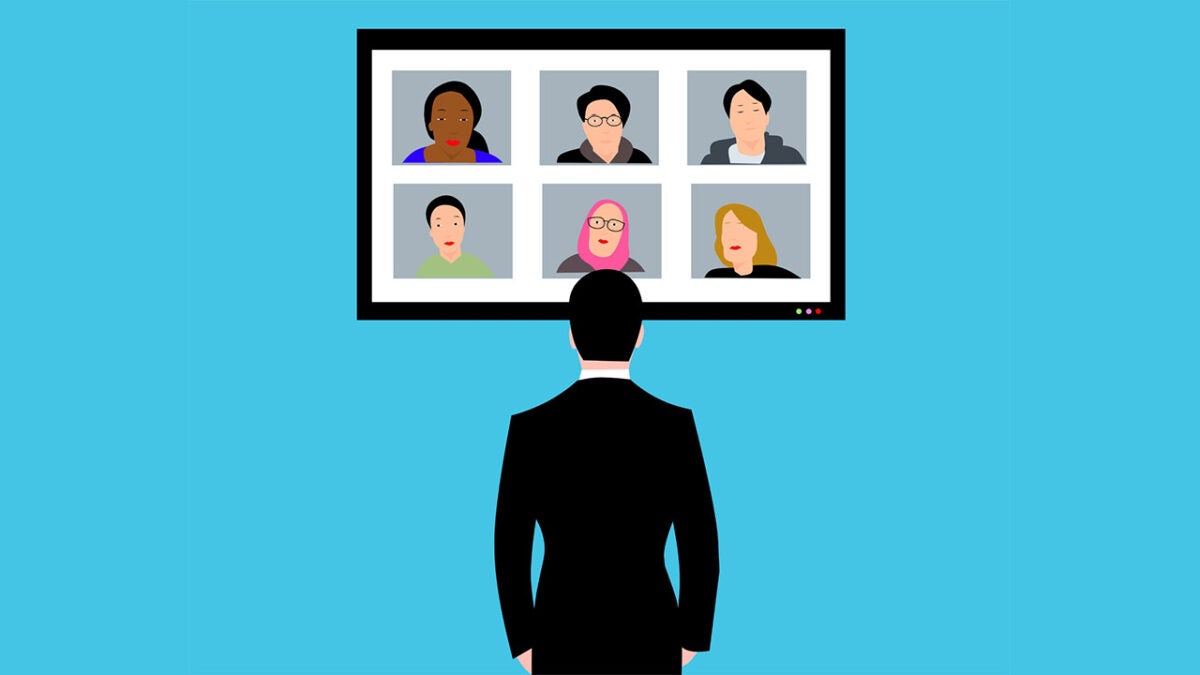
Virtual assistants are great little things in their own way. If you can get past the obvious privacy issues, you can take advantage of the added utility they can add to the home. The privacy issue is not a small one, however. It rears its head every time you, or even a character on the TV or in a movie, accidentally activates your virtual assistant by saying the activation phrase or something sounding similar to it. Unfortunately, on top of all that, sometimes those accidental activations can occur at inopportune moments, such as when you are in the middle of a virtual meeting. Well, Google is now updating Google Assistant to prevent it from interrupting meetings in this way. Let’s check it out.

Google Assistant Download Now

Google has announced details of an update that is more focused on enterprise users than personal users at home. The update will affect Google Meet hardware devices and will block the “Hey Google” activation phrase from kicking in during meetings and in the 10 minutes running up to new meetings. The reasoning behind the update is to prevent accidental activation during meetings.

Interestingly, Google has been working hard to incorporate the “Hey Google” activation phrase as a way an easy and convenient way to join meetings but it has been having unintended consequences. Users have been reporting to users that it has been unintentionally triggering Google Assistant during meetings and disturbing proceedings.

Unfortunately for users who enjoyed the added accessibility offered by asking Google to add you to meetings with your voice, there is no mention in the Google Workspace Updates blog post announcing the update, about any sort of alternative way of accessing your meetings. It seems that Google is purely concentrating on cutting out interruptions to meetings with this update.

In other recent Google Assistant News, the virtual assistant has been getting a natural language upgrade that should improve the conversations you have with it.

LibreOffice adds improved interoperability features with Microsoft Office

Recently we’ve been reporting a lot on new features and updates coming to Google Workspace apps and Microsoft’s Office suite of productivity apps. With more users working from home these days, there is a lot on the table for these two giants to battle it out for. There are other options, however, and today we’re bringing you news of an update to one of the best free productivity suites available, LibreOffice.

Libre Office Download Now

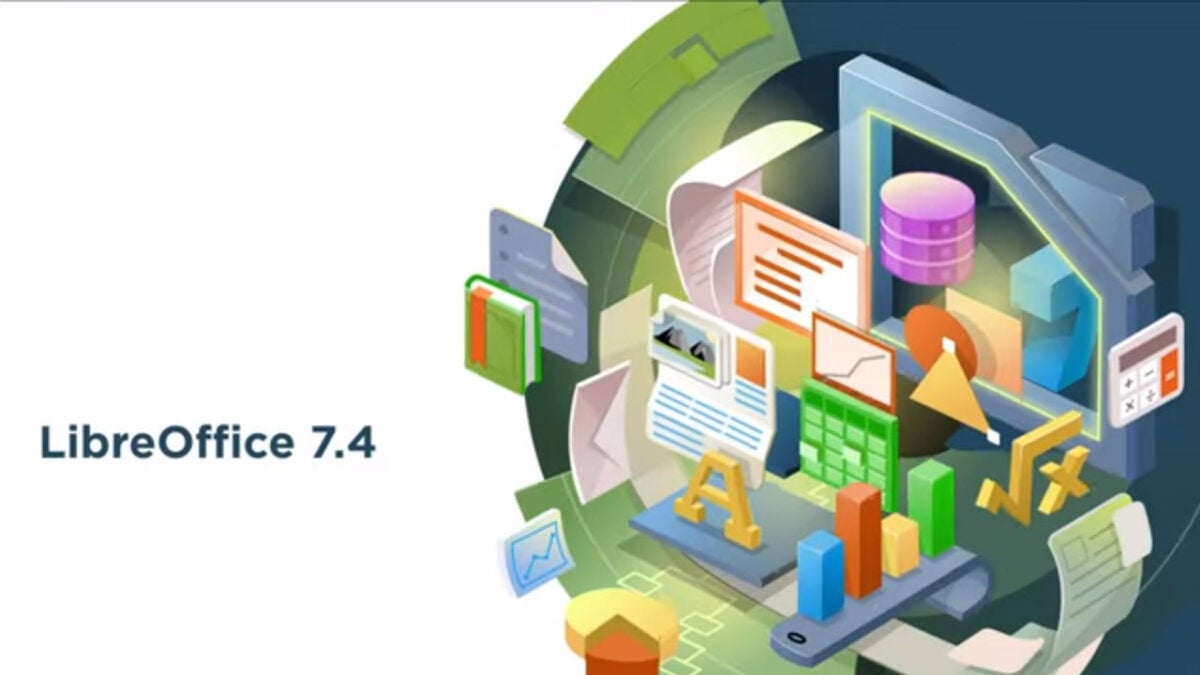
The Document Foundation, which is behind LibreOffice has recently released details of a new version of the free productivity suite. The update contains a variety of tweaks with the most interesting upgrade relating to interoperability with Microsoft Office files.

Building in interoperability with Microsoft Office files has long been a target of The Document Foundation, but it has always presented a set of difficult challenges, which the organization explained in the blog post announcing the update:

“Microsoft files are still based on the proprietary format deprecated by ISO in 2008, and not on the ISO approved standard, so they hide a large amount of artificial complexity. This causes handling issues with LibreOffice, which defaults to a true open standard format (the OpenDocument Format).”

To solve these issues, an army of volunteers has been working long and hard to develop the compatibility updates needed to make Office files completely interoperable with LibreOffice. The result is a series of updates, which will start rolling out regularly soon. Each update will significantly improve the compatibility between the two distinct programs and their respective file types.

This means that if you are a LibreOffice user you should be regularly checking for updates as The Document Foundation says they will be coming out quite quickly.

This news follows a recent Google Workspace announcement that its team is also working hard to bring compatibility with Office files to the likes of Google Docs and Google Sheets.

Microsoft warns against crypto-focused trojanized coin miners

It has been all over the news recently that the cryptocurrency market including Bitcoin, has been losing a lot of value recently. Despite this current reality, Microsoft has put out a warning that scammers are still using cryptojackers to try and hijack user devices in a bid to put them to work mining cryptocurrencies without you knowing about it. Let’s take a look at all you need to know about this threat.

Microsoft Defender Download Now

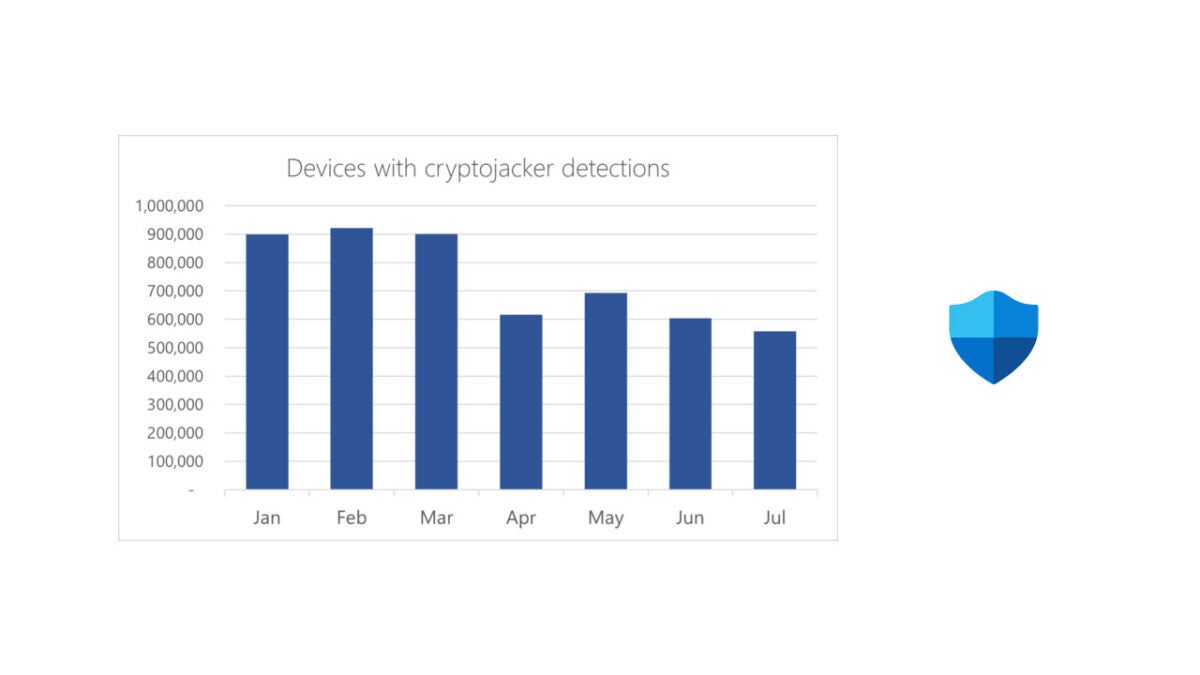
The Microsoft 365 Defender Research Team have access to data on a lot of devices running Windows 10 and 11. According to a recent blog post published to highlight their findings, they detect cryptojacker software on hundreds of thousands of devices every month. Furthermore, the team says that the cryptojackers are becoming increasingly sophisticated, harder to detect, and more difficult to remove.

The cryptojackers work by stealthily infecting user devices and then secretly using the processing units on the devices to mine cryptocurrencies. The more devices they can infect the higher the bounty they can collect. Although this type of malware won’t seek to target personal information or steal from the victims, it will heavily reduce the capabilities of the victim’s machines as most of the device’s resources will be used to mine cryptocurrencies, which will then be sent to a third-party crypto-wallet.

It is interesting to note that cyber-criminals are not only still using cryptojackers but are actively developing and improving them. Despite the massive drop in value across the whole industry, but that they are continuing to develop them for improved effectiveness and performance.

The good news is that most antivirus programs will be able to detect cryptojackers so if you are careful and take your cybersecurity seriously, just like we always say you should, then you should be OK.

In other related news, Microsoft Defender has recently been rated a secure option for enterprise and business users.

Fortnite X Destiny 2 collab inbound, but not in the way you might think

Yes, you read that right. A Destiny 2 X Fortnite collaboration is indeed in the works, but you might be surprised by the form it takes. The usual Fortnite X whatever-franchise-is-popular-at-the-moment collaboration usually sees Batman dropping into Fortnite with various Batmobiles or Marshmellow porting his iconic get-up into the game as a purchasable skin. Not this time. This time, the benefit falls on Destiny 2. For now. 

Destiny 2 DOWNLOAD
Fortnite DOWNLOAD

Ginsor is a dataminer of note. Their most recent datamining hijinx has revealed new content coming to Destiny 2. Before you go off pop about them adding various comical Fortnite assets into Destiny, let me finish. The results of this most recent datamining endeavour have revealed three skins coming to Destiny that actually fit the dramatically different and often more seriously regarded tone of the game. 

The three skins appeared in one of Ginsor’s recent Twitter posts. The posts seem to show a Hunter, and Titan Warlock dressed to the nines in new cosmetics that look to be inspired by Drift, the Dark Night, and Omega. These three are individual skins and may only be the start of a potentially more grandiose collaboration. 

We don’t know whether Fortnite will in-turn receive any Destiny 2-themed apparel, skins, or cosmetics, but today’s Destiny 2 showcase should definitely clear up the ensuing confusion about the scope of the potential collaboration. The showcase is also set to address the Arc 3.0 subclass update and what shape season 18 of the game will take. We should also get a little more clarity on any other plans for the franchise that have yet to be announced. 

Fortnite X Destiny 2 collab inbound

In other news, it seems that Bungie, the developers behind Destiny 2 are working on a new mobile FPS. While we doubt that any information will be released in the showcase regarding this, at least we know that there’s potentially more in the works over at Bungie HQ.

Destiny 2 new mobile FPS READ MORE

Minecraft Steve is finally sporting his iconic beard once again

It’s taken 13 years, but the Minecraft OG protagonist, Steve, has finally got his beard back. Originally, Steve’s beard was a feature that was as ingrained into the design of the intrepid explorer as his cyan shirt and blue pants. Steve wasn’t the only one that received a well-overdue update, though. 

Minecraft DOWNLOAD

Alex, the female protagonist added in the Bountiful Update of September 2014, has also undergone a few changes. The biggest change to the Alex skin is the addition of more three-dimensional parts. These are most noticeable on her arms, as the character now looks to have her sleeves slightly rolled up. Other changes to the character are primarily various rearrangements of the pixels that make up her body and clothing. Her waist looks slightly less cinched, her shoes are more detailed, and her hair looks a little more voluminous. 

While Steve’s beard is by far the biggest change to come to the character in 13 years, it’s not the only change that’s been implemented. Steve, too, has had his pixels slightly rearranged, although these are less noticeable than on the Alex skin. His shirt is still untucked, although slightly more defined and detailed, and his sleeves are also now rolled up. Even Reddit users are posting about the return of the beard.

With these new updates, the question of why Alex exists and the details of the potential relationship she shares with Steve are bound to come up again. To dispel any rumors, Alex is confirmed to have been added due to the lack of female representation within the game. If you think back far enough, you’ll remember that we didn’t have any female mobs until the addition of the villainous witch.

Minecraft Steve is finally sporting his iconic beard once again main

As for any relationship between the two characters, in a practical sense, neither of the characters are entities with personalities, unless you subscribe to the LEGO version of Minecraft lore. Steve was created as a blank slate with no predefined history so that the player may create a history and a legacy of their own. The same goes for Alex. It is also pertinent to mention that neither of these are separate entities, but merely skins of the same entity. 

If you’re wondering why Steve was given a name when he isn’t actually a predefined character, no matter how iconic he is, let me blow your mind. Steve’s name is not Steve. In fact, Notch, also known as Markus Persson, the creator of Mojang, Minecraft, and the game that preceded it, Cave Game, has gone on record to state that Steve’s name is actually ‘Steve?’

This is to denote that the character was not meant to have a name. More evidence of this is that he is referred to as ‘The Player’ in the End Poem. Steve is you. You are Steve. Steve is not Steve. Yet again, LEGO is the entity that promotes Steve as being called Steve; not Mojang. 

Now that your mind has been blown, let’s delve into the depths of the ocean with the emergence of the Minecraft Spongebob Squarepants DLC. Bikini Bottom has finally arrived.

Create your own professional email signature design in Canva

Professionals overlook the importance of email signatures, yet they provide essential information. Most business communication and interactions are via email; your email signature is your digital business card that shares your information and even social media links. You can also make it look unique with Canva.

Canva DOWNLOAD

Keep your email signature informative, professional, and simple when you consider creating your own. Ultimately it is all about the information, but that doesn’t mean it has to be plain and boring. We are here to guide you in creating the best email signatures using Canva’s easy-to-use designs.

How do email signatures on Canva work?

You can sign up with Canva using your Google account, Facebook login, or email. Once you have created a free account, you can choose what you will use it for. With plenty of virtual email signature templates, you can pick a design and make the necessary changes to personalize it to your needs.

Choose your email signature template

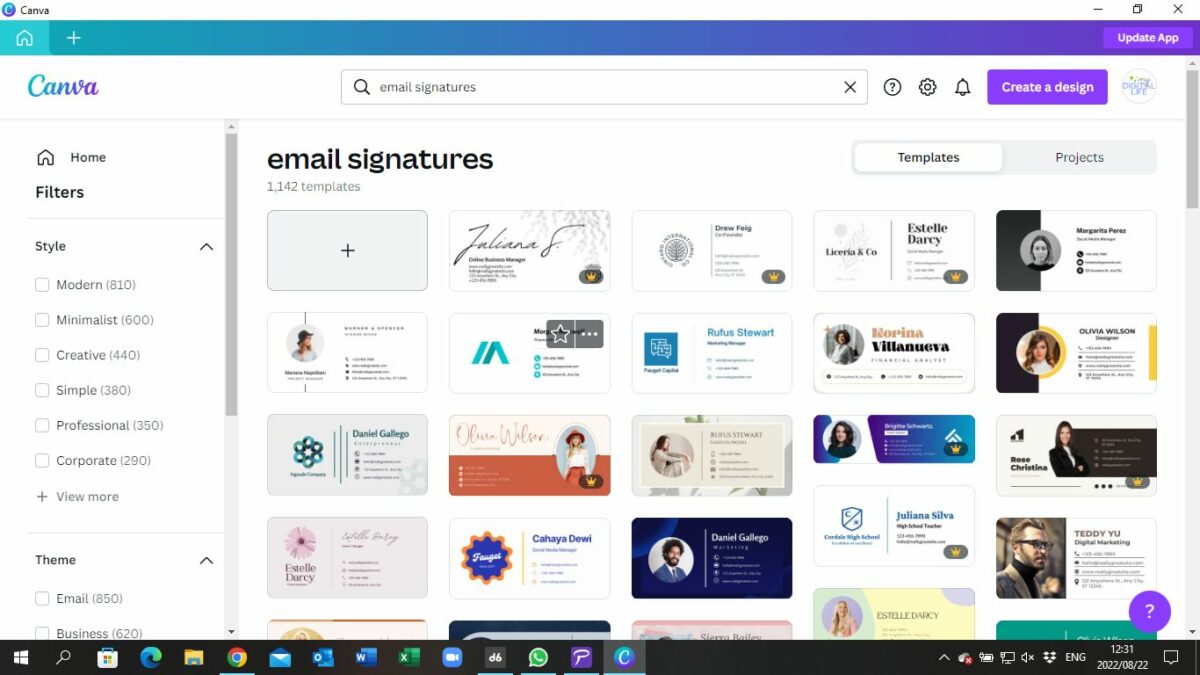
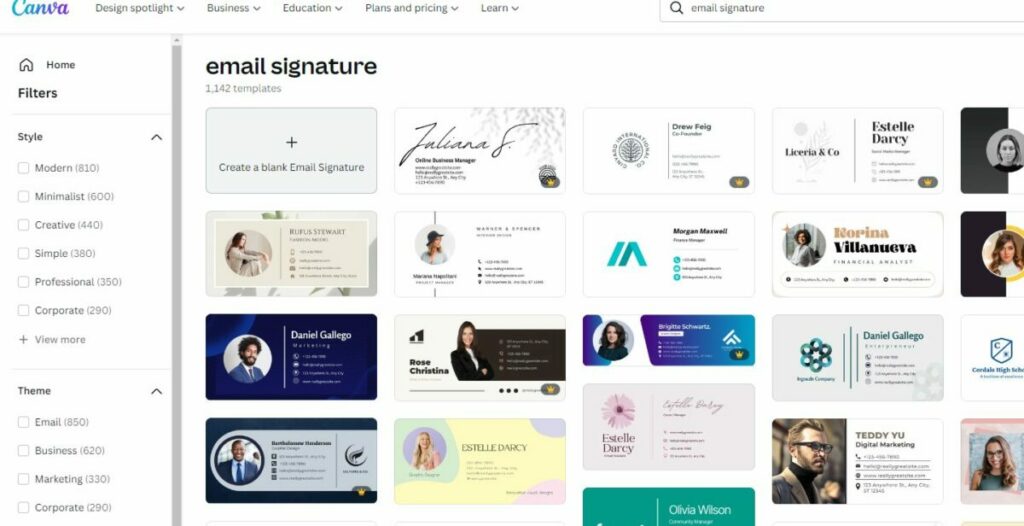
To make the email signature, you can search for email signatures that will offer you all the templates. You can choose the style you want for your signature on the left, and the main templates you can customize on the right. Clicking on your choice will show you a toolbar with editing options, reacting as you make things minimal and straightforward.

What information to include?

A fundamental mistake people tend to make with email signatures is including too much information. Don’t use your signature as a mini-autobiography; include the necessary information and stick to your brand’s style guide. Here are a few essential details you should have on your email signature:

  • Your name and surname
  • Job title | Designation
  • Professional photo
  • Business name
  • Website and email account
  • Clickable social media icons

Although this is vital information to include, it will be dependent if it applies to you or your business needs!

How to create a custom design email signature in Canva

  1. A new design

    Create your own professional email signature design in Canva

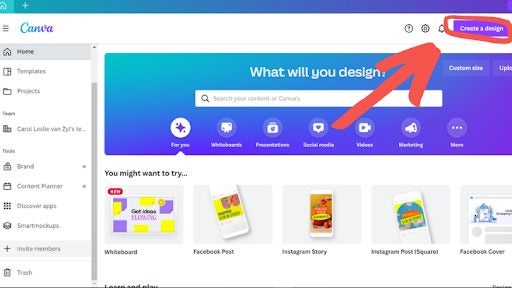
    Create a new design on Canva’s homepage using the Create a Design button.

  2. Custom size

    Create your own professional email signature design in Canva

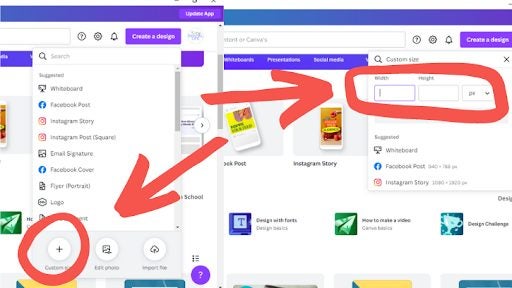
    Select Custom Dimension and use this measurement: 500 x 200 px. Professional signatures range from 70-200 px in height to 300-600 px in width.

  3. Setting the frame

    Create your own professional email signature design in Canva

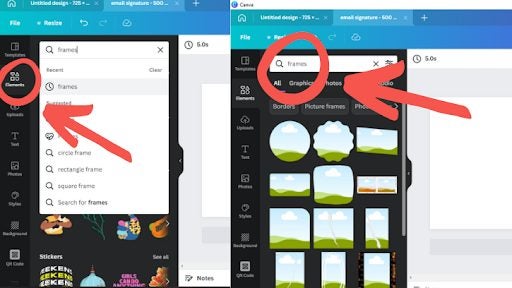
    Once on the editor page, head to Elements and click the Frames category. If you can’t find it, use the search option. Select the frame you would like to use. Typically round frames are used to give a sophisticated look.

  4. Adding photos

    Create your own professional email signature design in Canva

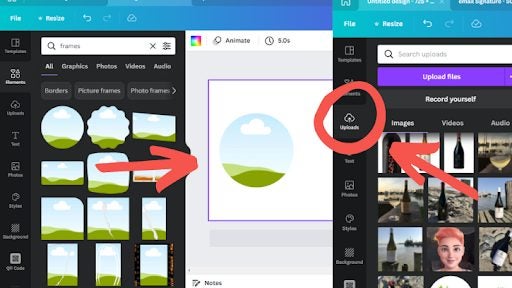
    You can add your frame to your design and resize and position it to where you want it on your signature template. You can then add your photo by using the Upload tab. Once you have uploaded your photo, click on it and drag it towards the frame.

  5. Adding details and links

    Create your own professional email signature design in Canva

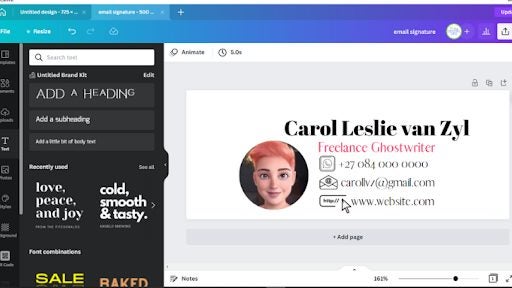
    Add text boxes by tapping the Text tab on the side panel menu. Use the heading box for your name and the subheading for your designation, business name, and contact details. Edit the text boxes by typing your name, business, and contact details.

    Once completed, save the email signature as a PNG file. Make your signature more professional by clicking on the Transparent Background box.

How to set up your Canva email signature in Gmail

It is as simple as 1…2…3 

  • Go to your Gmail settings. Find it in the top right corner.
  • Go to the Signature section and choose the “Create New” signature option.
  • Upload your signature file.
  • Press Enter, and you are all good to go!

How to set up your Canva email signature in Outlook

Again this is pretty straightforward. Just follow these simple steps:

  • Open Outlook and select Settings.
  • Open the email and scroll to the bottom to find the signature button.
  • Click Signature and upload your signature.
  • Press Save.
Canva email sig

What is the difference between Canva Free and Canva Pro?

Elements & Photos

Free: Limited free creative design elements and photos. But you can upload your photos or purchase more.

Pro: There are a lot of free stock elements and photos. 

Templates

Free: has over 8,000 templates.

Pro: has over 20,000 templates.

Fonts

Free: There are Fonts to use, but you can’t upload your own.

Pro: You get a lot of fonts and can upload your own.

Folders

Free: You get three folders for your designs and no folders for uploaded photos. 

Pro: Unlimited folders for your designs and folders for photos.  You can mix your designs and photos in one folder with recent updates.

Resizing

Free: No resize options exist, but you can copy and paste between two different sizes. 

Pro: There is the handy Custom Resize Function and Magic Resize function.

Transparent Backgrounds

You can save PNGs with a transparent background with a Canva Pro subscription only.

Time To Get Creative with Canva!

Email signatures are essential to your professional identity and provide valuable links and information to your email recipients. So, get creative and have fun with Canva’s accessible design elements, and if you are still a little uncertain, you might be interested in reading this feature on how to create professional designs with Canva.

Hackers are targeting hotels with fake reservations

Recently, we have seen a wide range of different types of malware attacks from fake job offers to new attempts that use shortcut icon files to try and lure you into a false sense of security. Often, however, these days many scams are aimed at businesses and enterprise level users and today we are reporting on new types of malware scams and cyber-attacks that are targeting hotels and travel companies such as those found on booking.com.

Booking.com Download App

A report by BleepingComputer has shed on light on a particular hacker who has seemingly been working overtime recently, running phishing campaigns targeting hotels, travel agents, and other firms working in the hospitality and travel sector.

Phishing scams are when a malicious actor attempts to trick people into clicking false links or files, which will either take them to infected websites or install malware directly onto their devices. These types of scams have been becoming increasingly complex with ever increasingly genius ways of catching potential victims out popping up.

Worryingly, according to the report:

“The threat actor uses a set of 15 distinct malware families, usually remote access trojans (RATs), to gain access to the target systems, perform surveillance, steal key data, and eventually siphon money from customers.”

The emails that carry the malicious files carrying the malware have been written in a broad variety of languages including English, Spanish, and Portuguese, and they have been targeting hotels and travel companies in North America, Latin America, and Western Europe. Any unsuspecting staff at the companies who click on the false links will cause ISO files to be installed on their devices and that will then deliver the malware.

To indicate just how serious this threat it, one hotel in Portugal had its Booking.com account hacked in July, which saw roughly €500,000 stolen from customers who thought they were booking a room at the hotel. This just shows why it is more important than ever to take your cyber security serious these days. In this particular instance, making the booking with a credit card would most likely have covered you and allowed you to get your money back. You will have to check the terms and conditions of your own credit card to confirm this, however.

To make sure you yourself don’t fall victim to any credit card scams you should check out anti-phishing infographic.

Google Docs makes it easier to delegate tasks

Google Docs and the Google Drive suite of productivity apps such as Sheets and Slides, ushered in a new era of teamwork collaboration. Microsoft’s Office suite also offers strong collab-friendly features now too, which is more important than ever with more and more people working from home and teams spread across multiple locations. As well as being able to work together, however, management is an important feature working in teams and Google has just introduced a new feature to Docs to help facilitate easier management practices and the delegation of tasks.

Google Docs Download App

There are many different project management programs and apps out there like Asana and Trello that help you manage your own tasks and the tasks of team members and colleagues. Google looks to be implementing some basic project management functionality, commonly found in these types of specialist programs, into Google Docs.

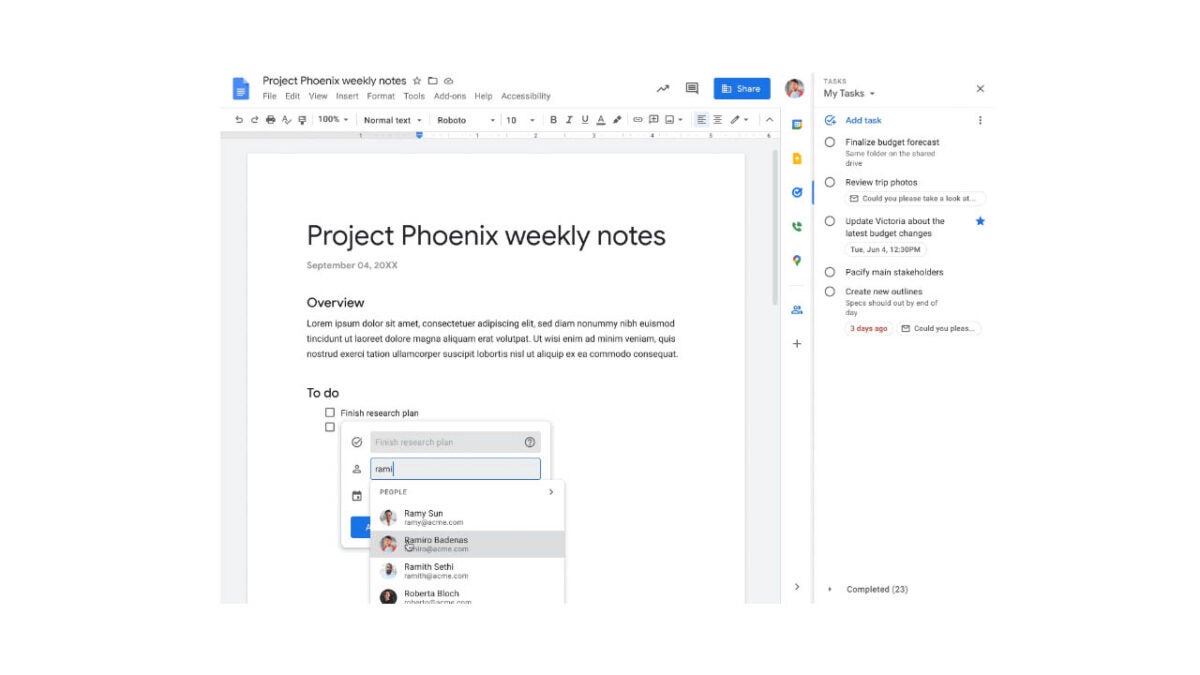
In a Google Workspace Updates blog post, the search giant has released news of an update that will allow you set and assign project checklists. The items in the checklist will then show in your task list or, if you have assigned them somebody else, they will show up in their task list.  Google summarizes the new update like this:

“In Google Docs, you can now assign a checklist item to yourself or a colleague that will then show up in the assignee’s Tasks list. When edits are made to an assigned item in Tasks, such as a change to the title, due date or completion state, those updates will show in the Doc, and vice versa.”

Google already begun rolling out the update with all Rapid Release domains due to receive it by September 1st and Scheduled Release Domains to receive by August 14th. For the new feature to work, however, Google Tasks will need to be switched to on for all team members and this also means that it will only be available for Google Workspace users and not users with personal business accounts.

In other recent Google Docs news, you will soon be able to add official signatures to your Google Docs documents.

Microsoft is bringing more features to its collab-friendly Whiteboard app

Online meetings have become a very normal part of most people’s workdays with more and more teams split across multiple locations. It almost feels like the era of the centralized HQ is behind us. There are elements of face-to-face meetings, however, that haven’t translated quite so well to the virtual world. The whiteboard is one of those areas, but as with most digital alternatives if we can get used to using virtual whiteboards then the possibilities will go way beyond anything you’ve ever written or read on a whiteboard. In this context then, let’s take a look at some of the interesting updates Microsoft is planning to implement on its whiteboard app.

Microsoft Whiteboard Download Now

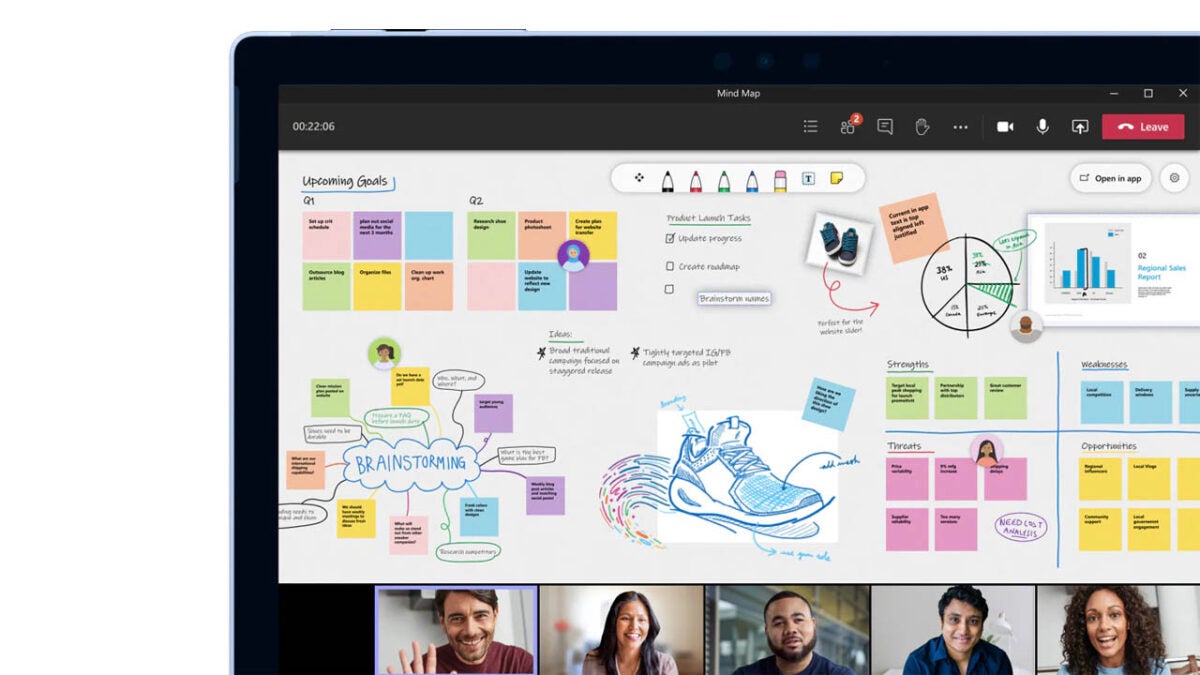
Microsoft Whiteboard is available on Windows, iOS, MacOS, and Android meaning everybody on your team will be able to collaborate no matter where they are. Microsoft has taken to the Microsoft 365 Roadmap to reveal details about upcoming features it is adding to Whiteboard to help facilitate easier and better teamwork among geographically dispersed teams. Let’s go through them now.

The first impressive feature is the ability to embed online videos onto the digital canvas, which will be coming to Teams and Surface devices in September 2022. September will also bring an update that will give you the ability to add clickable links onto the whiteboard also. The other September update of note is the ability to track who is adding what to the digital canvas.

Then in November, Whiteboard users will be able to add comments onto the whiteboard, as a more effective way of communicating about what is taking place. Users will also gain the ability to follow a particular user’s input in November too. Then in December a Timer feature will be added to the app to help users more easily run timed exercises.

These updates will bring a new world of capabilities to the Whiteboard app and open up some really interesting possibilities for virtual meetings from now on. We never thought we’d say this, but we are excited to see what meetings will be like in 2023 and beyond.

In other Microsoft news, Microsoft Teams will soon have its very own Facebook social network inside the app.