The 3 best apps for helping you sleep

Sleep is as important for your health as food, air, and water. Without it, you risk a range of symptoms, ranging from the relatively harmless, such as fatigue and irritability, up to the life-threatening, such as obesity, depression, and illness – even death.

Yet many of us don’t sleep enough. In the U.S., over a third of people don’t get the minimum recommended seven hours. Left untreated, mild sleep loss can quickly become chronic (insomnia), leading to hallucinations, premature aging, and worse.

Thankfully, there are many smartphone apps out there that can help you get a good night’s sleep. We’ve split them into three different categories and chosen the best app for each one.

3 best apps for helping you sleep

1. Preparing for sleep – Buddhify$4.99

At its heart, Buddhify is a meditation app, but it’s so much more than that. Designed to be simple, intuitive, and easy to use, the app lets you choose different meditations based on what you’re doing or feeling. Tapping a segment of meditation wheel opens up a choice of meditations all designed to fit your present mood and circumstances.

You’ll find categories like Traveling, Stress & Difficult Emotion, and Work Break. But most importantly, there are a number of sleep-inducing meditations, including Can’t Sleep and Going to Sleep. You can also choose different meditation wheels, each curated by the Buddhify team (or you can make your own), including a whole wheel dedicated to sleep called Sleep Issues.

Buddhify is an excellent way to prepare your mind for sleep. It calms intense emotions, stops rumination, and relaxes your body – the perfect conditions for a great sleep.

Buddhify Download
7

2. Falling asleep – Noisli$1.99

It’s no secret that many of us find it easier to sleep with background noise. I don’t mean the repetitive thump of a rave next door or the wailing of some drunkard on a karaoke machine, but the sounds of nature, or the proven memory and sleep-enhancing benefits of white or pink noise.

Noisli is a noise generator, and includes sounds such as rain, rustling leaves, railroad tracks, forest, waves, and white, pink, or brown noise. Noisli helps you fall asleep by grounding your brain in a simple sound instead of the tiny, variable noises that interrupt the silence of your bedroom and cause your brain to react.

One of Noisli’s best features is being able to combine different sounds, allowing you to recreate a stormy night, or an island retreat with just a few taps. It’s also got a timer that turns Noisli off after a set period of time, so you won’t wake up to a lifeless smartphone in the morning.

Noisli Download Free
10

3. Waking up and sleep tracking – Sleep Cycle Alarm ClockFree

Sleep Cycle Alarm Clock improves sleep in two different ways.

First, Sleep Cycle helps you wake refreshed and well-rested by only waking you during a light sleep phase.

During the night, your brain goes through different phases of alternating deep and light sleep. If your alarm goes off during a deep sleep phase, you’ll wake feeling groggy and grumpy. 

To prevent this, Sleep Cycle analyses sound and movement through your smartphone’s speaker and accelerometer to decide the best time to sound its alarm (during a 30 minute window before you need to get up). 

Second, Sleep Cycle tracks your sleep patterns, giving you graphs and statistics on your time in bed, different cycles, total hours slept, and many other factors. You can then use this data to improve your sleep.

Sleep Cycle alarm clock Download
7

There’s nothing quite like a good sleep. You feel it in your body and brain, and it can help you start the day with positivity and confidence. If you’d like to know how well you’re sleeping, take the World Sleep Survey. Then download the apps above and enjoy blissful nights of restful sleep. 
 

How to stop Facebook from sharing your data

Mark Zuckerberg’s congressional testimony was a joy to watch. Whether it was the naivete of senators’ questions, or the Facebook creator squirming under oath, you can’t deny it was great TV.

Zuckerberg was testifying as part of a scandal involving data analytics firm, Cambridge Analytica. The London-based firm harvested up to 87 million Facebook users’ personal data, and then sold it to politicians to influence voters in U.S. elections.

Although Facebook admitted their error, Zuckerberg’s apology rings false. Facebook’s business model is based on targeted advertising, so it knows how easy it is to use personal data to manipulate and influence people. In other words, Mark should’ve known better. 

So I’m going to step in and do Mark’s job for him. Here’s our list of tips to prevent Facebook from sharing data about you. (You can send my  $1M check in the mail, Mark.)

Log out of Facebook when you’re not using it

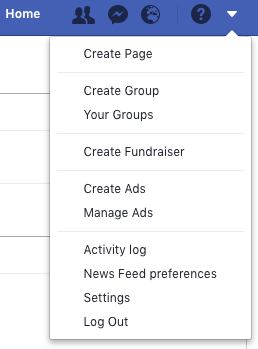
When you’re logged in but browsing other sites, Facebook can track you, so the safest bet is to log out every time you’ve finished using the app.

Settings Log out

Don’t use Facebook to log into other apps and services

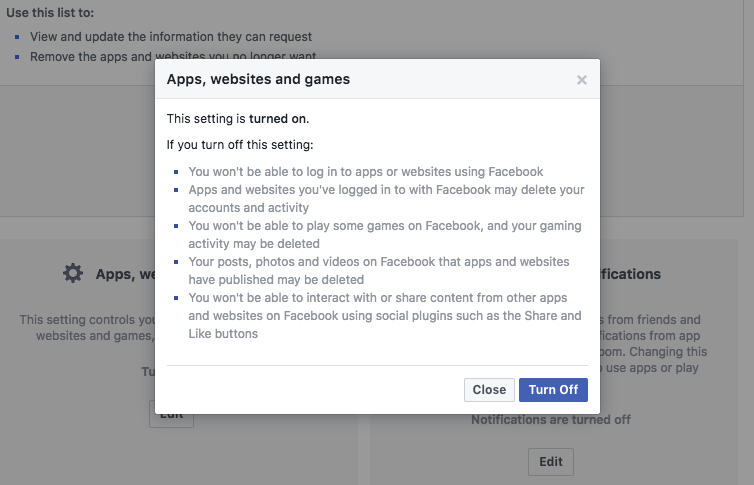
From Facebook Settings, you’ll see an option on the left sidebar for Apps and websites. Click this, and you’ll see all the apps and websites you’ve allowed to use your Facebook data.
You can view and change what you share with these apps and websites individually, but if I were you, I’d remove sharing altogether. To do this, head to Apps, websites and games > edit > Turn off.

This might delete log-ins for apps you sign into using Facebook, so don’t be surprised if you have to start using an email address next time you sign into Spotify, for example. Better that than having your data used against you.

Stop search engines from linking to your profile

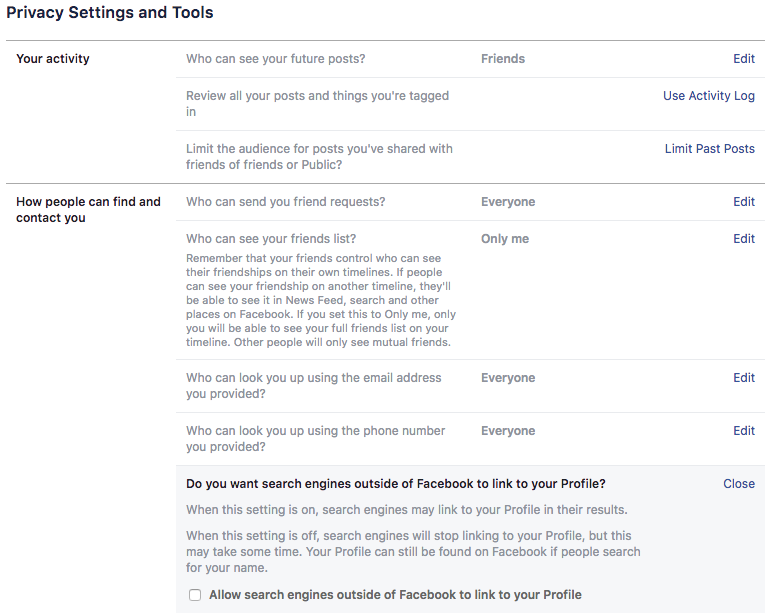
If you don’t want to be found through internet searches, you’d better turn this feature off, too. This allows search engines to link directly to your Facebook profile whenever someone searches for you by name.

Settings > Privacy > Do you want search engines outside of Facebook to link to your profile? > Edit > No

Stop Facebook from recognizing you in photos

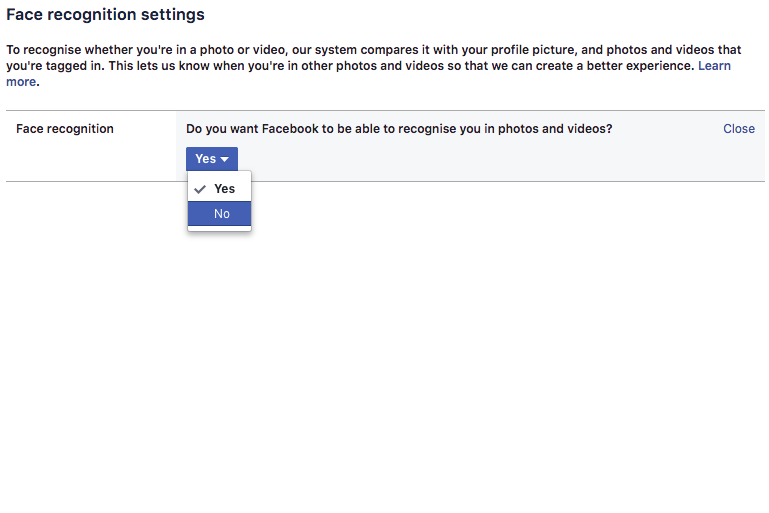
You might find this handy when tagging lots of people in photo albums, but to us, it’s a bit creepy. You wouldn’t tell your boss you were partying all night before work, so why risk Facebook revealing it all with unfortunate tag of you knocking back tequila at the bar?

Settings > Face recognition > Do you want Facebook to be able to recognize you in photos and videos? > Edit > No

Use Mozilla’s Facebook Container extension (or another tracker blocker)

Now Firefox Quantum is here, Chrome has a fight on its hands. It’s blisteringly fast, contains a native screenshot tool, and uses less power (and battery life).

Even better, the Facebook Container extension ring-fences your Facebook activity so nothing gets out. If you’d rather stick with Chrome, you can try tracker blockers like Ghostery or Privacy Badger which do a similar thing.

Don’t share your data for ad purposes

You might be surprised by how much of your information Facebook uses to show you ads. Some people like relevance, but others think it’s manipulation. Either way, you can change the settings to a level you’re comfortable with.

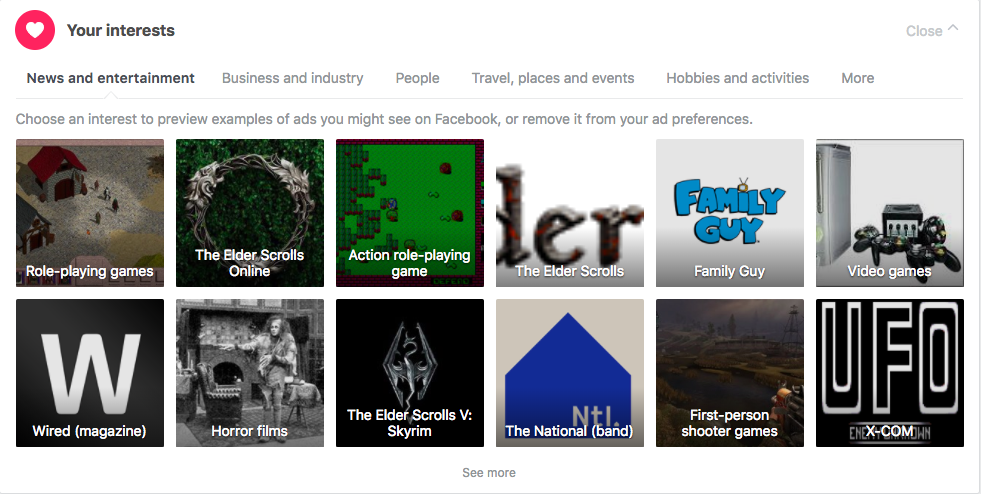
First, remove or change your Facebook interests. You can see an example ad each interest generates, so maybe try that first to see if you’re happy.

Settings > Ads > Your interests

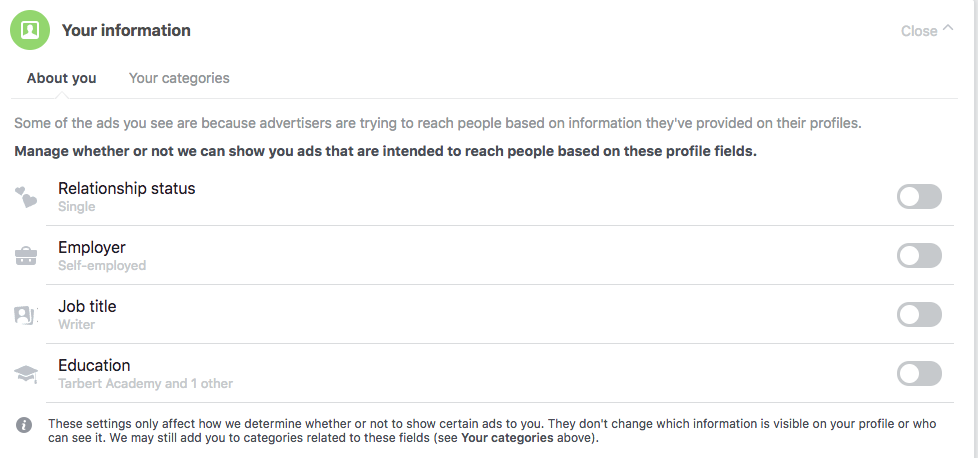
Then review which elements of your Facebook profile you want ads to target.

Settings > Ads > Your information > toggle off or on

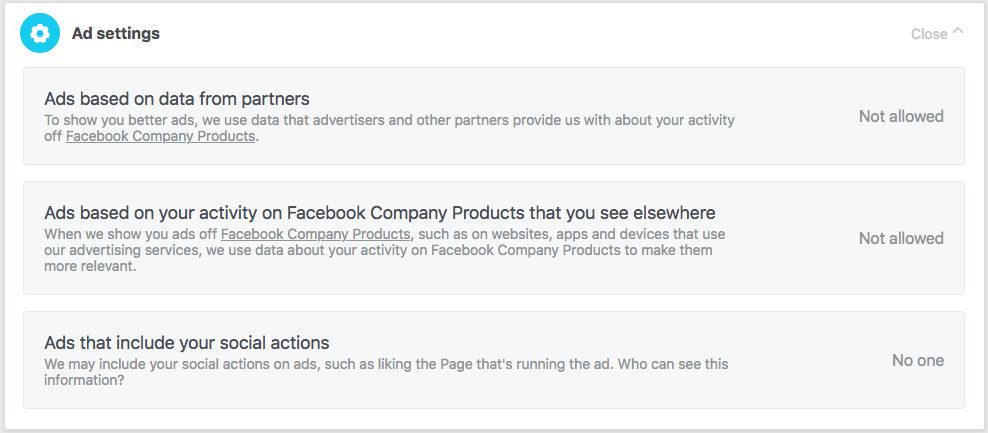
Finally, you can disallow Facebook ads from using data learned about you from other “Facebook Company Products”, such as Messenger, Instagram, and AR Studio.

Settings > Ads > Ad settings > select each section and change to Not allowed or No one

Remember: Facebook isn’t the product, you are the product. Everything you do generates ad revenue. While that’s fine in principle (everyone’s gotta eat – even Mark ” the billionaire” Zuckerberg), taking the steps above will prevent people from using your online behavior to dictate what you think, feel, or do.


How do driverless cars work?

Imagine you’re a passenger in a driverless car. A group of children runs from between parked cars and into the road. The car has no time to brake.

What should it do?

  1. Brake anyway and hope the children aren’t hurt, or
  2. Swerve into the sidewalk, risking your life (or a pedestrian’s) in the process?

If you agree with utilitarianism, a philosophy founded by Jeremy Bentham, the moral answer is sacrificing one person to save the group. A cynic, on the other hand, might argue that the practical answer depends on who’s driving.

Driverless cars could make our roads safer than they are today. Computers don’t get drunk or use drugs. They don’t speed. They don’t get tired. They don’t joyride. But to avoid ethical dilemmas like the one above, they must be able to recognize and monitor their environment and respond quickly and accurately in emergency situations.

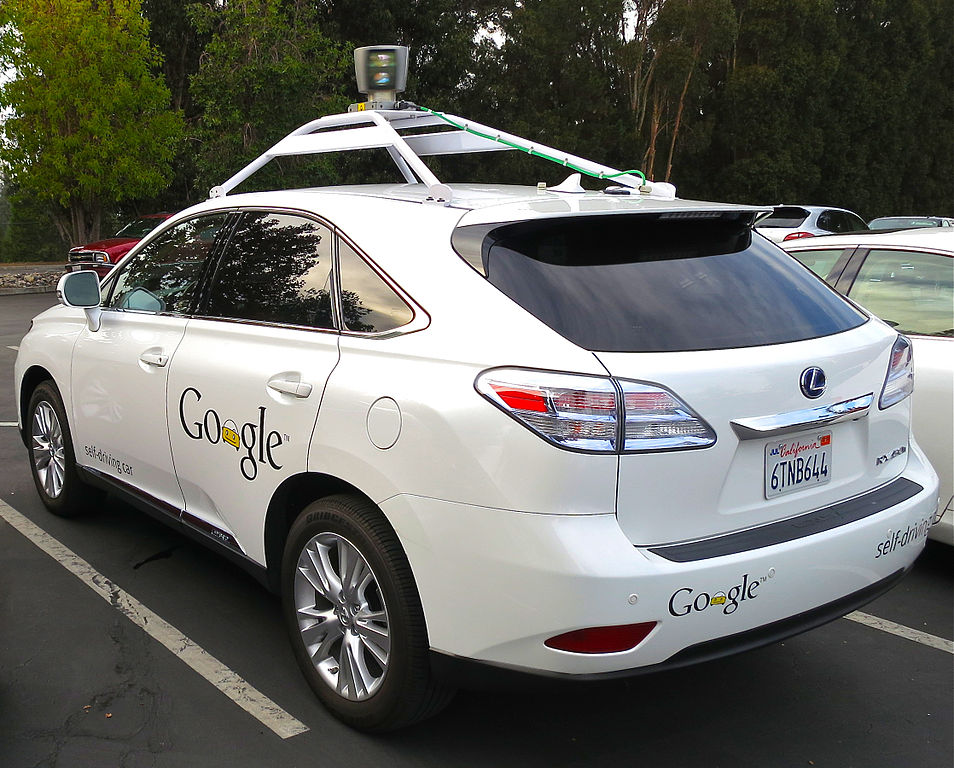
Driverless cars use a range of technology to safeguard themselves and others around them. First, they have cameras that help calculate distances and recognize objects such as other cars, people, and signs.

Since it would take forever to program a driverless car with every conceivable driving scenario, drive computers use deep neural networks to learn through practice. Using preloaded data on roads, vehicles, pedestrians, and so on, they learn to identify others in test and virtual drives.

The cars also use sensors to build a detailed, dynamic representation of their environment. Lidar, an array of lasers that continuously spin through 360 degrees, builds up a real-time image. Radar measures the distance and velocity of nearby objects. These sensors feed into the driving computer, and together with camera data, give the car a thorough understanding of what’s going on around it.

Environmental data doesn’t give its location, however. Upgrades to the Global Positioning System (GPS) will make geolocation accurate to around 30cm, which is better than one to two meters currently, but not sufficient for a car to drive safely on the road. Therefore, as well as GPS, a driverless car uses triangulation algorithms (using road signs, traffic lights, and other landmarks) and high-definition maps to accurately pinpoint its location to within a few centimeters.

Finally, when the drive computer knows where the car is and what’s around it, it can plan a route to the desired destination. When driving, the car responds to other objects, both moving and stationary, and modifies its behavior accordingly (such as slowing down at roundabouts, giving other vehicles way when obliged to, and so on).

Ideally, the car’s projected trajectory and its actual one should be identical, but as other objects can interfere, and precise maneuvering is difficult, they’re sometimes a bit different. In real life, this happens all the time with human drivers, but engineers are shrinking the gap all the time.

Driverless cars are the future. By replacing human drivers with sensors, data, and machine learning code, we remove human error (behind the wheel, at least). This might not resolve every ethical dilemma, but if every vehicle on the road is a driverless one, it should make our roads much safer for everyone. 


What’s the best way to cut the cord?

It seems that cable and satellite prices are forever on the rise, but thankfully there are plenty of alternatives. If you don’t mind changing your viewing habits a bit, you could end up saving time and money by “cutting the cord” and consuming your TV entertainment over the internet.

It doesn’t mean you can’t watch live or network TV. On the contrary, there are lots of streaming sites dedicated to showing just that. So to help you decide how best to cut the cord, we’ve put together some options below. 

Network websites

At the simpler end of the spectrum, you can catch up on your favorite shows directly on network websites. There are usually limitations, such as needing to watch commercials, but it’s a fairly easy way of catching up on the best of NBC, ABC, FOX, and CBS.

PlayStation Vue

No, you don’t need a PlayStation. You can use a computer or your favorite streaming device. PS Vue lets you watch local channels, sports, news, movies, and more with customizable plans. You can add premium channels or subscribe to them separately and add them into your Vue account. Even channels like NFL Red Zone are available. There are no annual contracts or hidden fees, so it’s simple to switch or cancel your plan at any time. It also includes cloud DVR, so you can record live shows and watch them later, even from another device. Packages start at $39.99/month and if you’re not sure, you can give it a spin with a 7-day trial for free.

PlayStation Vue Mobile Download Free
8

Sling

Sling is widely available on TVs, phones, tablets, consoles, and computers. With packages that range from $20-$40, and mini-bundles that add sports, kids, news, and international stations, you get a super-customizable experience that means you only pay for what you want. There’s also a cloud DVR service that lets you record live TV to watch later, which is great for people on the move. Lastly, you can try before you buy: the service offers a 7-day trial so you can see if it’s right for you.

Sling TV Download Free
7

Philo

We know what you’re thinking and no, we’re not talking about Philo of Alexandria, the Hellenistic Jewish philosopher who lived in Alexandria in the Roman province of Egypt. We’re referring to a relative newcomer to the TV streaming market. Philo previously offered on-campus internet TV for universities, but has since launched a $16 per month streaming TV service for everyone.

Philo ditches sports in favor of low subscription fees, which may be a dealbreaker for you. However, its core lineup is large, with add-on packages for other channels, and the service also includes a 30-day DVR, plus options to pause live TV, and watch shows that aired in the past three days.

Hulu

Hulu is a joint venture between Disney, FOX, Comcast, and Time Warner, streaming TV series from each of its network and content partners. Most importantly, there’s a free service that anyone can use, but it’s only available on a PC, and you do have to watch commercials.

Hulu is a direct competitor of Netflix and Amazon, and has started producing its own content too, like critically-acclaimed “The Handmaid’s Tale.” It was also reported recently that the service will soon offer offline viewing and episode downloads, similar to Netflix and Amazon. This will also be available to free users, though you’ll still need to watch ads.

Hulu Plus Download Free
7

That completes our round-up of the best services to help cut the cord. Have fun picking the right one for you, or just get ’em all.


The 4 best (free) calendar apps for iOS and Android

A good calendar app is like a second brain. It remembers things you forget, like birthdays and parties, prioritizes and reminds you of important tasks, and tracks personal goals.

Lots of calendar apps are available for smartphones, and not all are created equal. We’ve tested a bunch of them and put together a list of our favorites below. They’re all free and work on both iOS and Android, so have a read and see which one you prefer. You can always try another later.

1. Google Calendar (free)

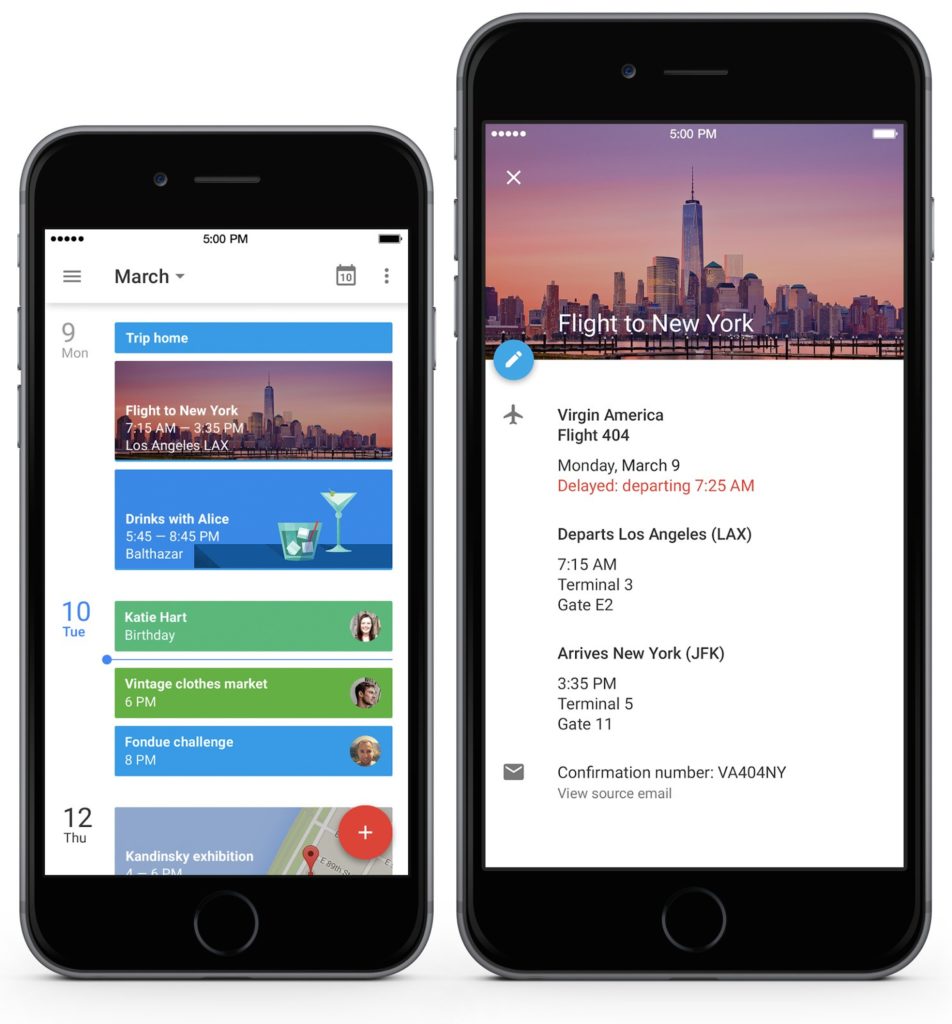
Google Calendar has the clean, familiar look of Google’s other applications, and syncs with them, too. You can view by day, week, or month, and it integrates with your other calendars (like Microsoft Outlook and Apple Calendar).

As expected, Google Calendar lets you create schedules, reminders, and goals to keep on top of your busy lifestyle. Adding them is super fast thanks to their predictive system – just entering “bir”, for example, will bring up “birthday” – and it’s the same for contacts, places, and activities.

Schedule view also adds contextual images to each event, such as a Manhattan skyline if you’ve scheduled a flight to New York. This might sound a bit gimmicky, but adds flair to the calendar’s otherwise plain style, and makes recognizing your events much faster.

Google Calendar Download Free
8

2. TimeTree (free)

TimeTree’s specialism is in combining multiple calendars in one. That means it’s great for families and small businesses, ensuring that busy parents get their kids to soccer practice on time and that no-one double books themselves.

Uniquely, members can chat within the calendar to discuss events, allowing you to discuss and change scheduled appointments with everyone involved. Imagine you want to go on vacation with your partner – just book in the dates and then discuss where to go and what to do, right inside the event.

The app integrates with other calendars, too, and importantly, colors keep multiple calendars, members, and events easy to track, so you won’t get lost.  

TimeTree: Shared Calendar Free Download
7

3. Microsoft Outlook (free)

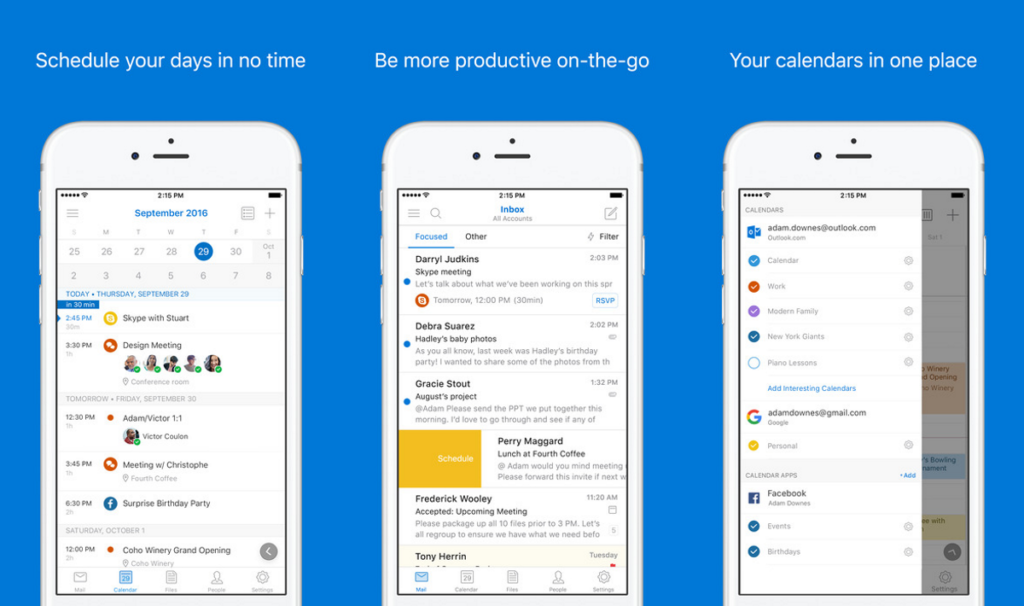
Outlook is more than just a standalone calendar app. It also includes Outlook email, supports cloud storage (DropBox, OneDrive, and so on), and integrates with other Microsoft productivity apps like Word and PowerPoint. It’s particularly useful if you work in a business that uses Microsoft Outlook already, allowing you to share, view, and edit team calendars.

As with the other apps on this list, it’ll pull through calendars from other developers, as well as syncing with your other mailboxes. To keep things neat, you can customize the calendar view, add or remove calendars, and color-code events to know what you’re doing at-a-glance.

If you’re a fan of Microsoft or are already using their Outlook and productivity apps, then this is the calendar app for you.

Microsoft Outlook Download Free
7

4. Wave Calendar (free)


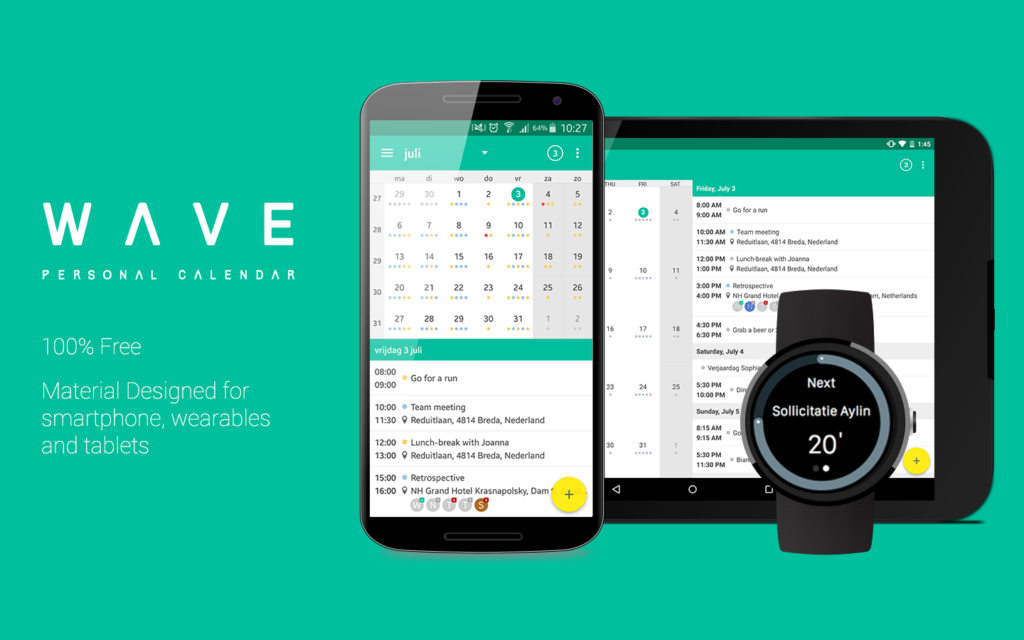
Dutch firm Wave have created a polished, clean-cut look for their calendar, with pastel colors and customizable views. You can add tags and attachments to events, saving time switching between different apps. It also synchronizes with other calendars and works with wearable tech like Apple Watch.

Probably its most interesting feature is the ability to add extra calendars for specific interests like sports leagues, for example. Although you have to pay for these, they’re a quick and easy way to add events for things you’re interested in, from moon phases to religious holidays.

Which is your favorite calendar app? If it’s not on this list, give these others a try and see if your life runs a little smoother. As they’re all free, you’ve got nothing to lose.

WAVE Calendar download free
8


The 5 best gadgets for the bedroom

Ahhh, the bedroom. As the place where we rest after a hard day’s work, the bedroom should be a shrine to serenity. A room where everything plays a part in your pre-sleep routine, and prepares you for morning and a long day ahead.

We’ve picked our favorite bedroom gadgets that do all of the above and more. Check them out and see if you agree with our selection.

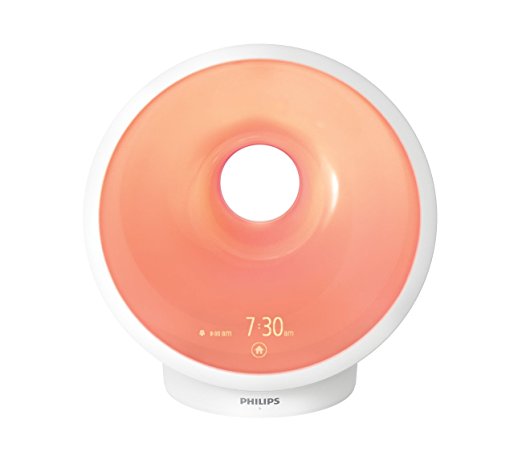
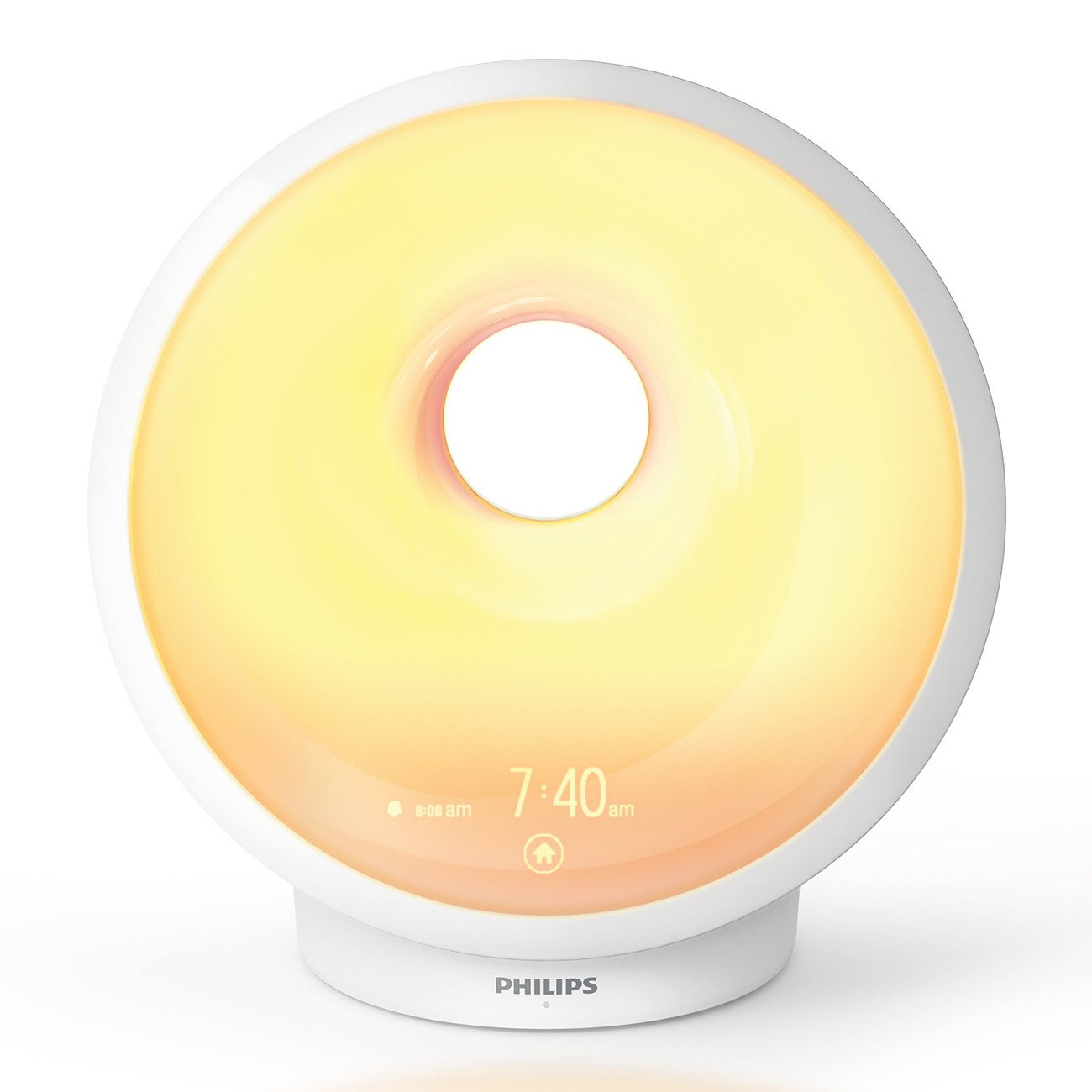
1. Philips Sunrise Wake Up and Sleep Therapy Alarm Clock

Daylight controls our body clock, and therefore, how easy it is to fall asleep or wake up. But unless you live near the equator, chances are you suffer with shorter days in winter, making you feel more like a sun-starved mole than a human being. Worse, you wake up in the dark, feeling groggy and unrested.

Super-charge your snooze with this sleep therapy alarm clock from Philips. Using specific, customizable lighting that mimics both sunrise and sunset, you can wake feeling rested every morning, no matter where you are or what the time of year.

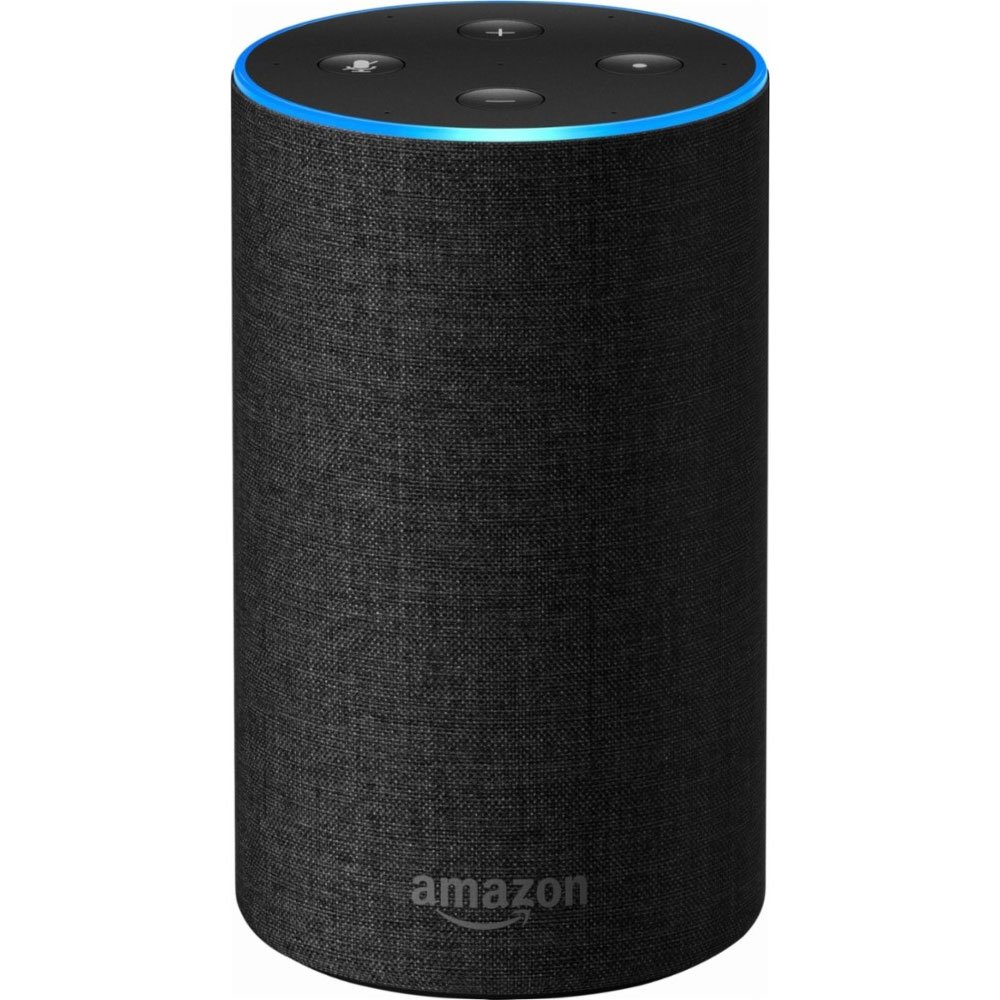
2. Amazon Echo

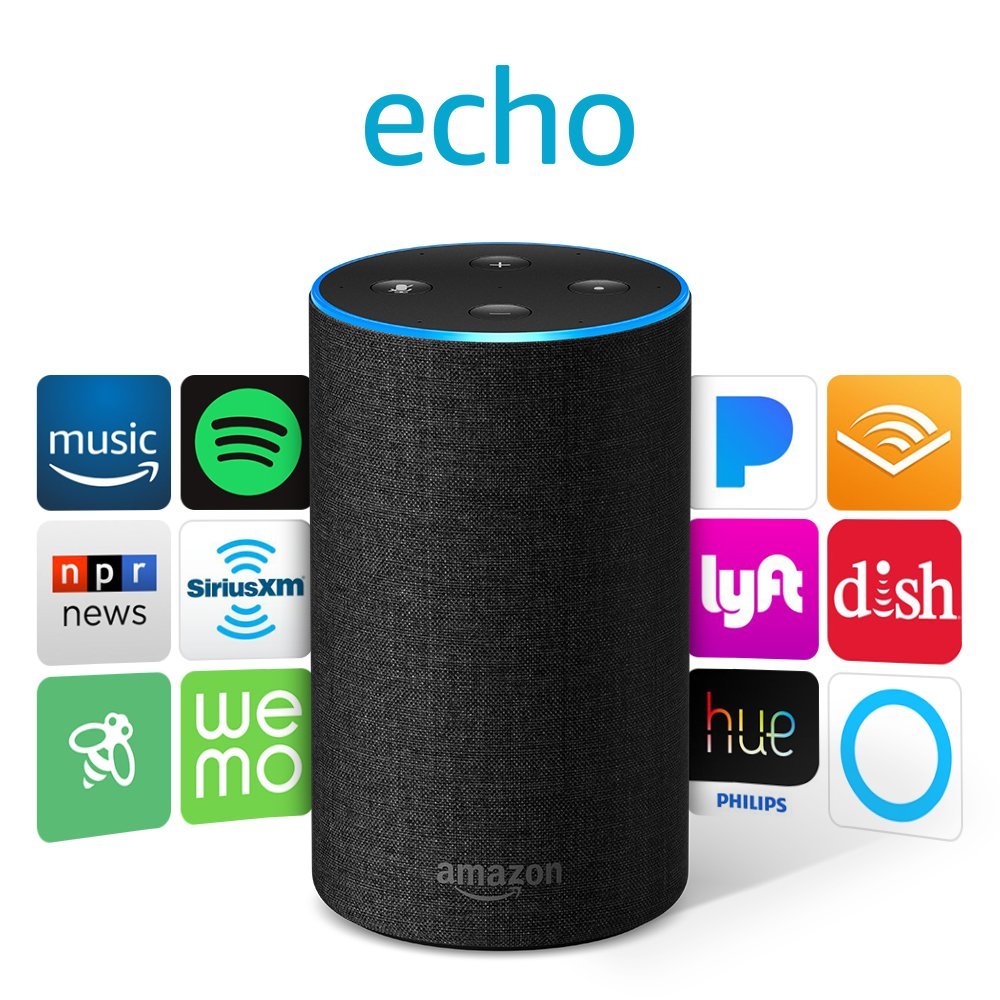
The Amazon Echo smart speaker does wonders for the bedroom. Listen to gentle music as you fall asleep – or even white noise, if that’s your bag. Get the morning’s news and weather as you wake, before your first sip of coffee, and whether you’ll need an umbrella that day. Even control your lights, heating, and other smart home appliances with just a few commands – not bad considering you can do it all without leaving the bed.

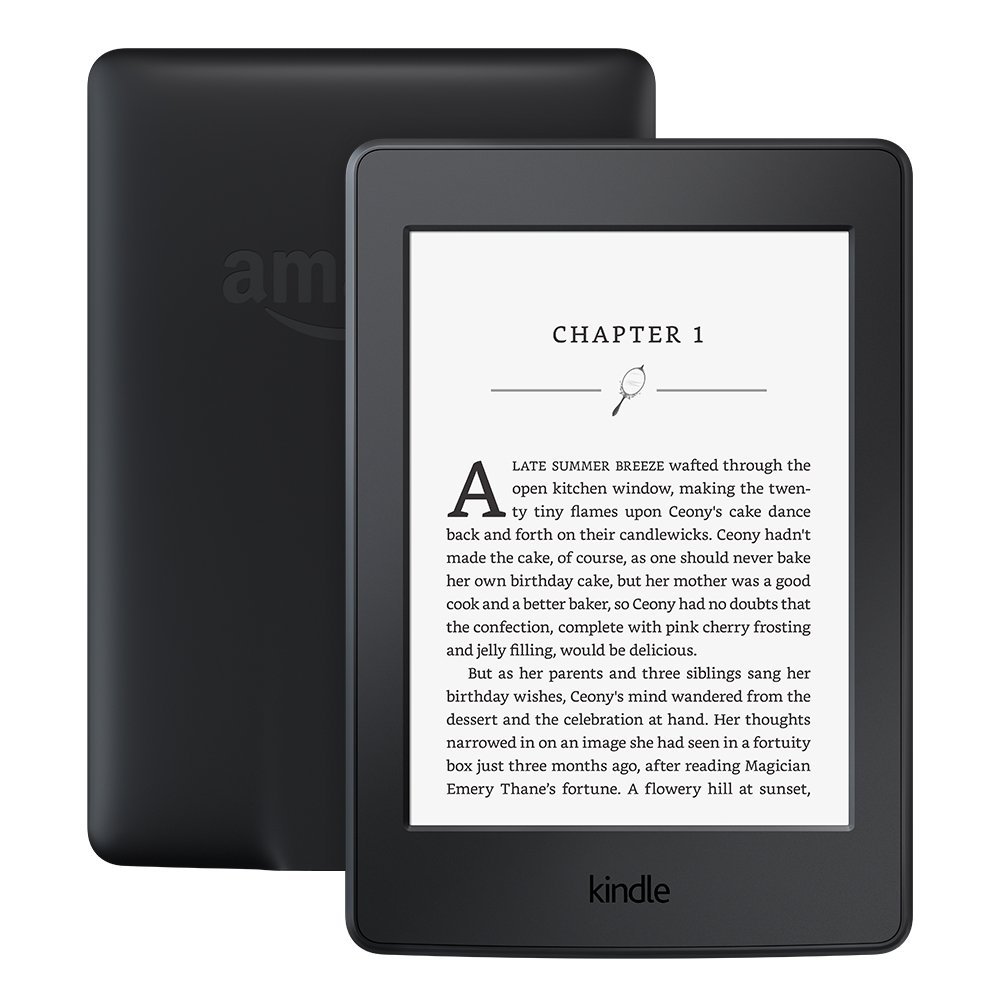
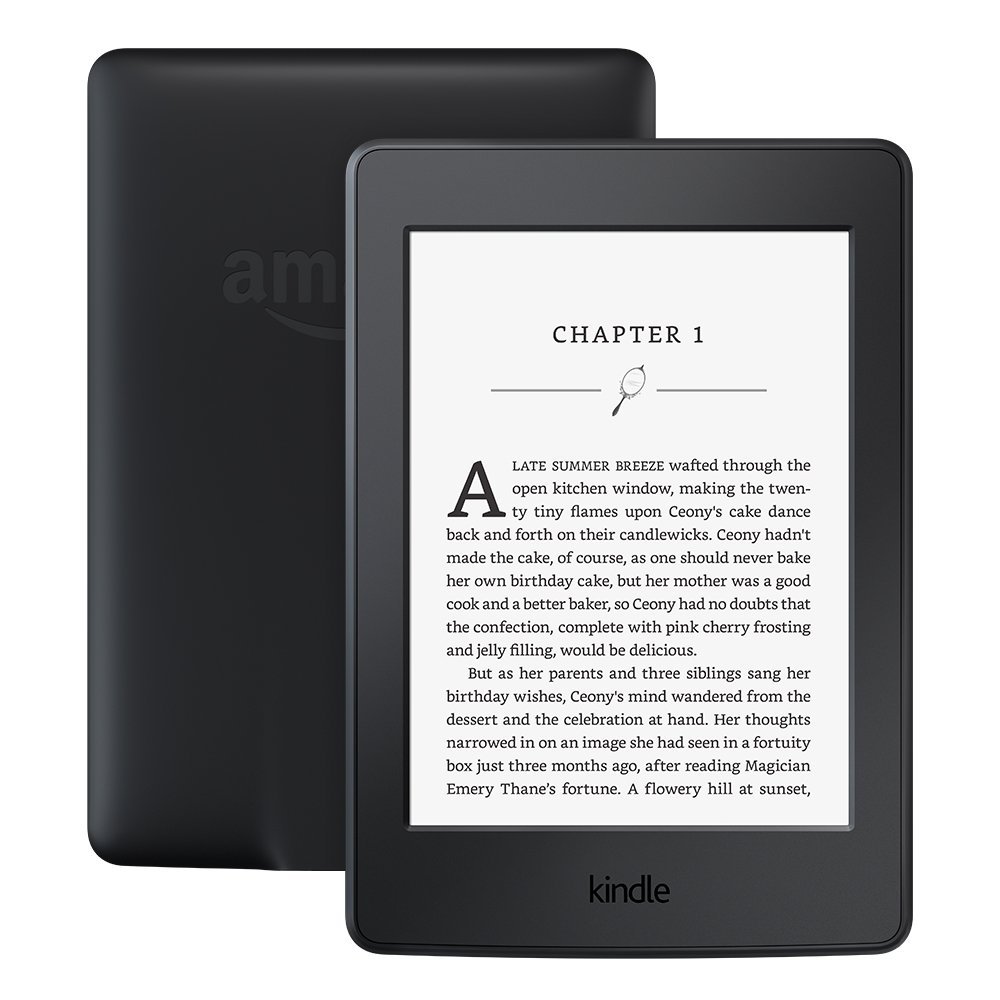
3. Kindle Paperwhite

The Kindle Paperwhite is essential for regular readers. If, like me, you spend the last hour in bed squinting at a paperback in poor lighting, you need this e-reader. The LED downlighting makes reading easier in low light, and means you won’t disturb your partner’s slumber. You can change text size to suit your eyesight, and the 300 dpi resolution is super crisp. Turning pages is as easy as a thumb tap – perfect for one-handed, side-lying reading in bed.

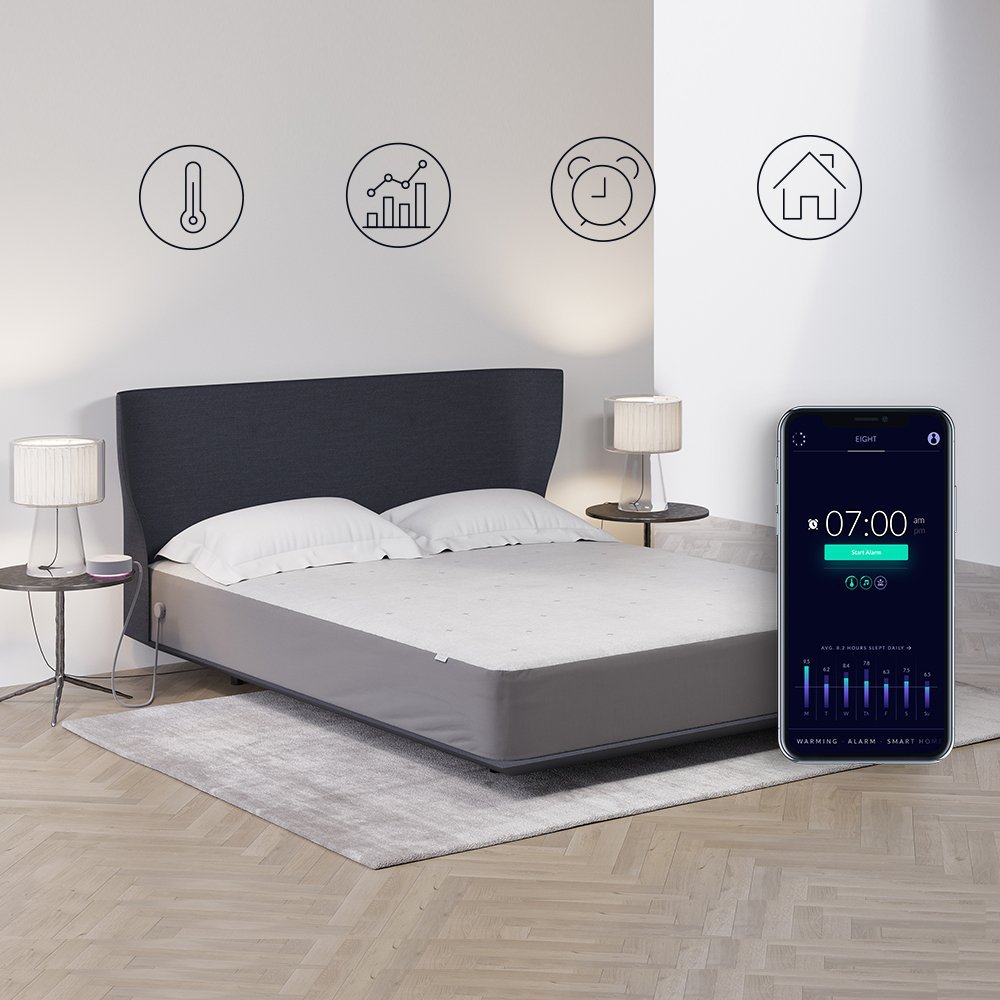
4. Smart mattress

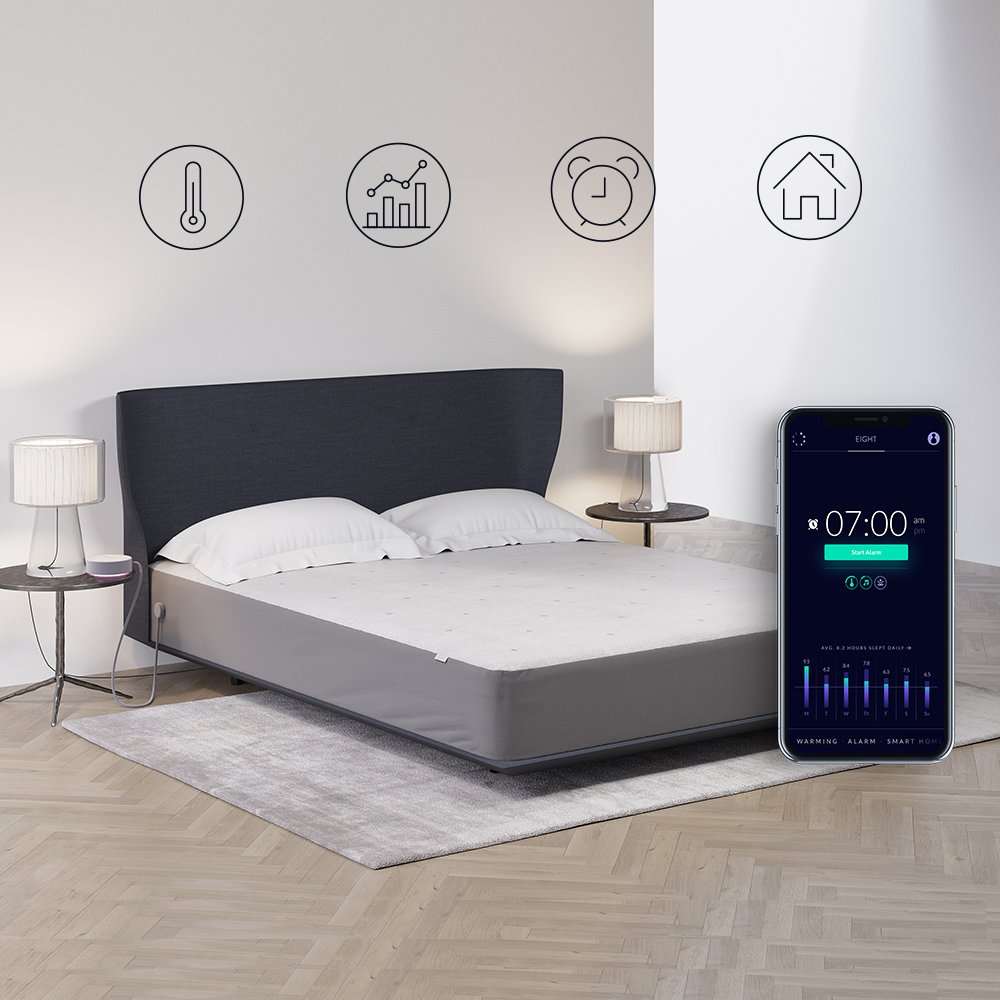
This is an expensive gadget, but a darn useful one if you have trouble sleeping. Aside from the king size memory foam mattress, it’s packed with intelligent sensors to analyze and monitor your sleep patterns. It even comes equipped with a warming layer so those winter nights are a tad more comfortable, and an alarm that wakes you up during your lightest sleep phase so you wake refreshed. Sync it with your Amazon Echo and get all your sleep data without ever touching the smartphone app.  

5. Philips Hue Starter Kit

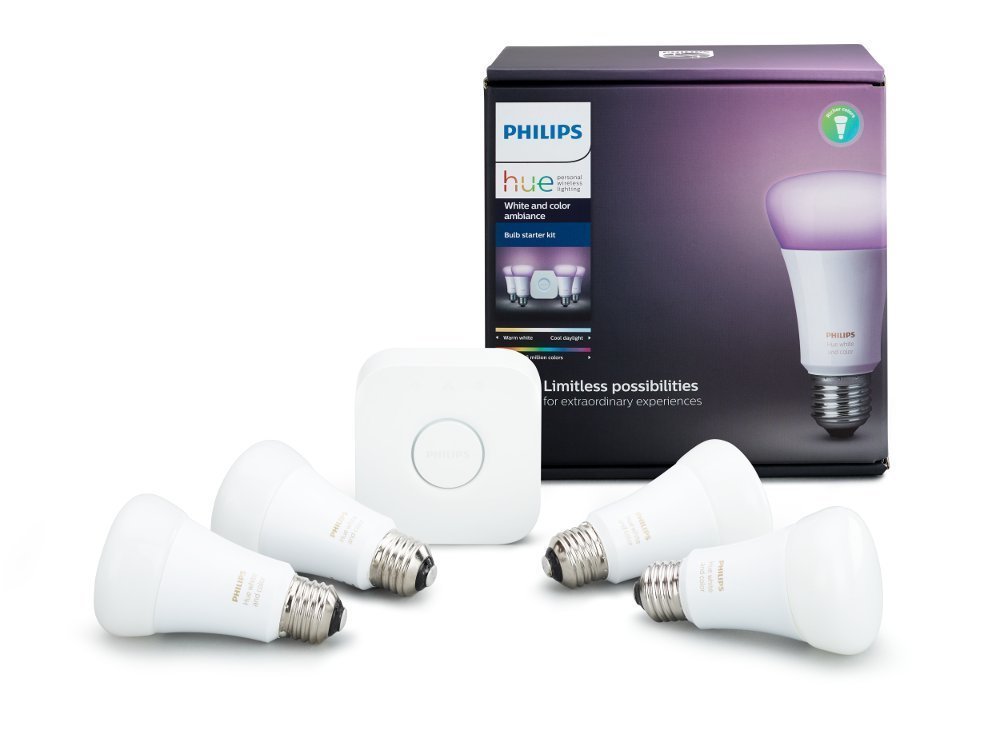
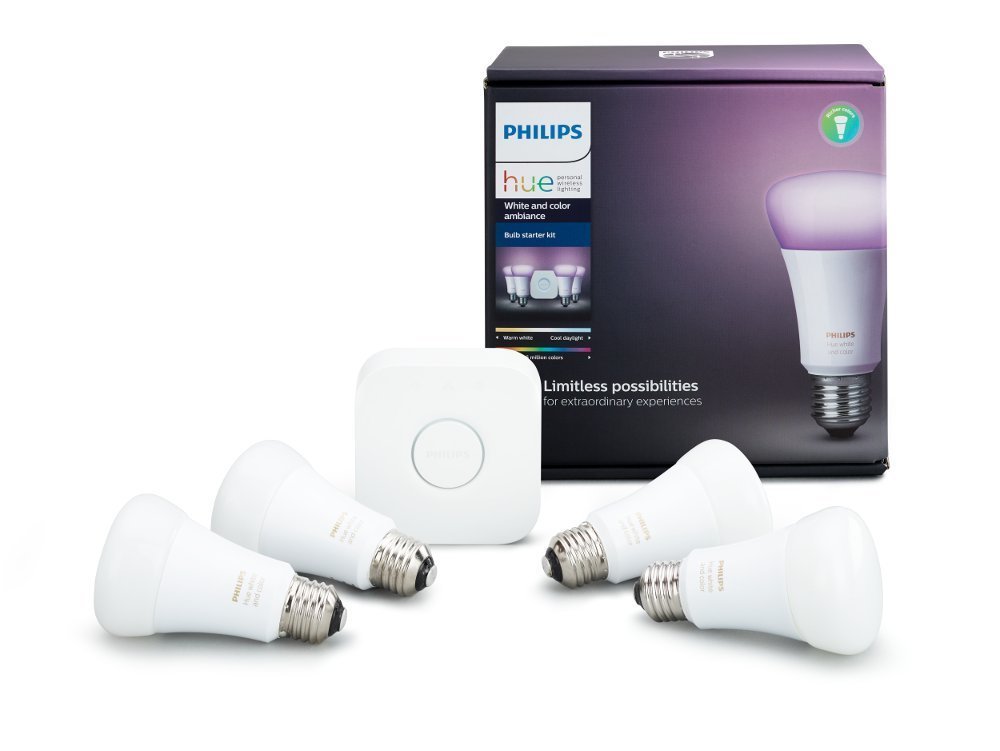
Light your bedroom in all the colors of the rainbow with the Philips Hue Starter Kit. Each of the four included lightbulbs is capable of displaying over 16 million colors, so you’re guaranteed to get into that nocturnal mood. The smart hub lets you control the lights using a smartphone or tablet, and if you hook it up with your Echo or Google Home, you can just tell your lights what to do, and hey presto, they’ll do it.

Well, those are our favorite gadgets for the bedroom – what are yours? Let us know in the comments below (and keep it clean, people!).


5 of the best laptops for around $1,000

Above the $700 mark, it’s hard to find a laptop with hardware that really stands out. Most laptops in this price range offer the same premium components, such as solid-state drives (SSDs), full HD displays, and CPUs clocking over 3GHz. And unless you’re editing a Hollywood blockbuster, animating the next “Toy Story,” or designing 3D games, 8GB RAM is more than enough for your needs.

Still, if you’re going to drop a grand on a laptop, you want it to be a good one. So here are five of our favorite laptops in the $1,000 ballpark. We won’t bore you with a full spec list, but instead, focus on the standout features of each one. Then you can decide if they’re worth extra spend.

1. Dell Inspiron 15

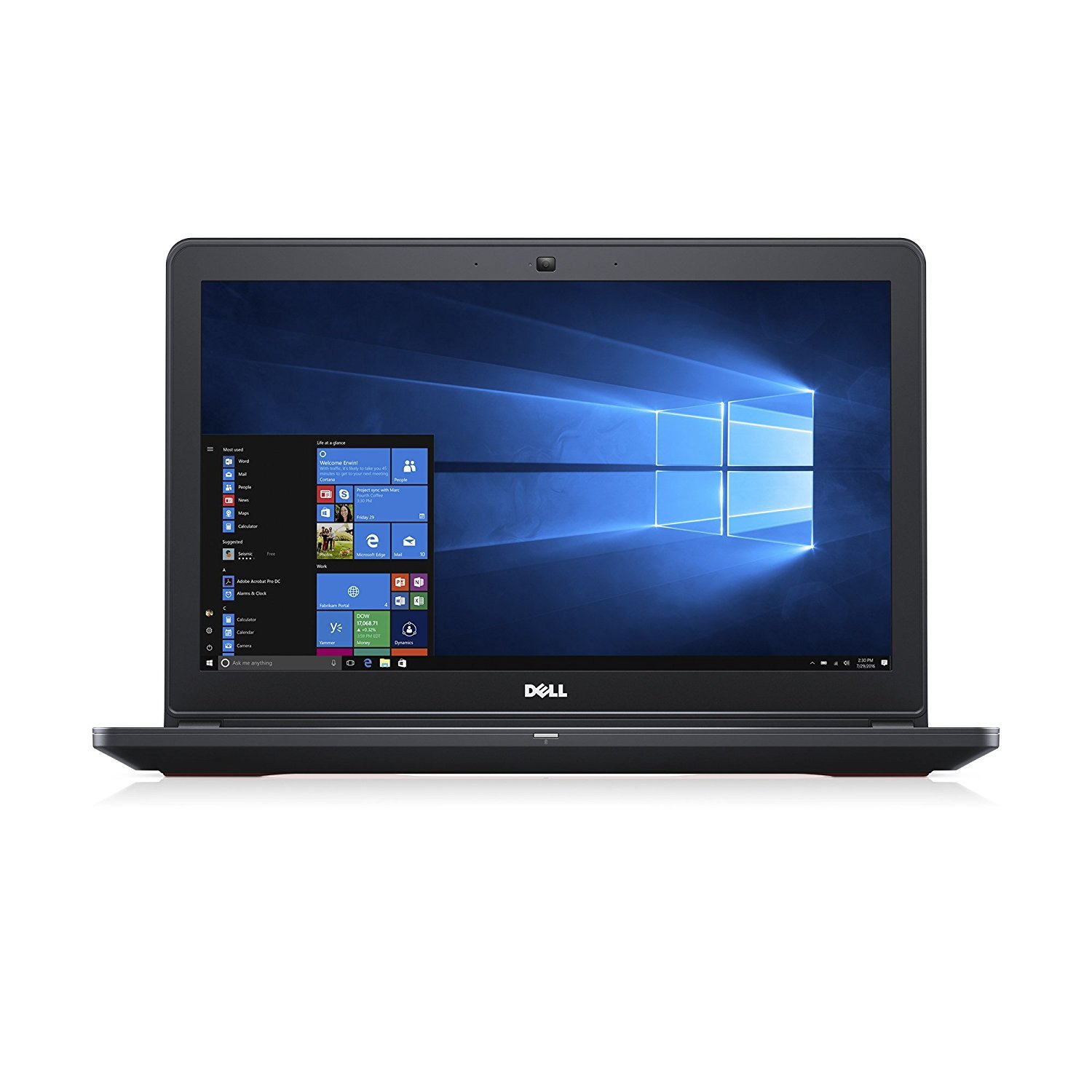
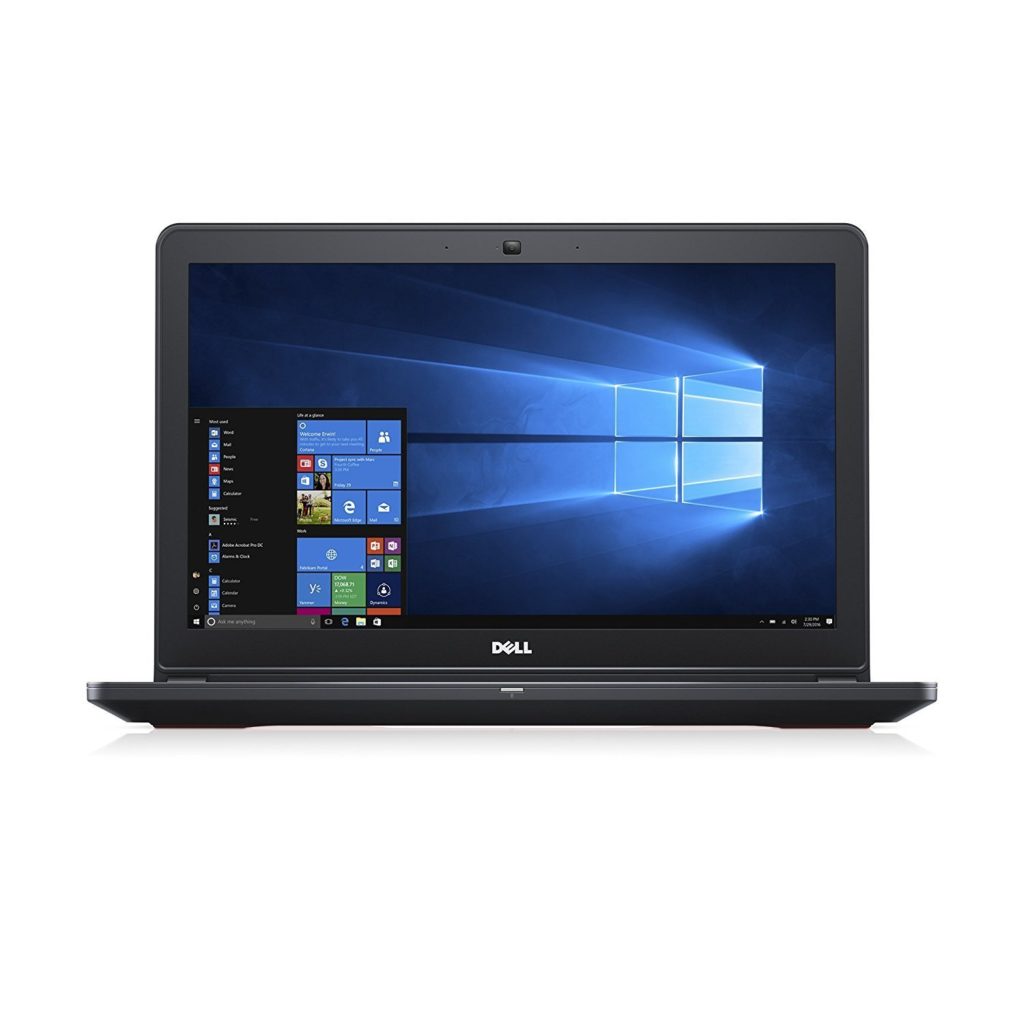
The Dell Inspiron 15 is a gamer’s delight. The NVIDIA GTX 1050 graphics chip (with 4GB of dedicated video memory) and 32GB RAM will easily run the latest games at the highest frame rates and graphics settings, immersing you in the action like never before. And if the graphics card and RAM weren’t enough, there’s an SSD/HDD combo at 128GB and 1TB respectively. That’s more than enough for storing your favorite titles and DLC so you can play them again and again.

2. LG Gram

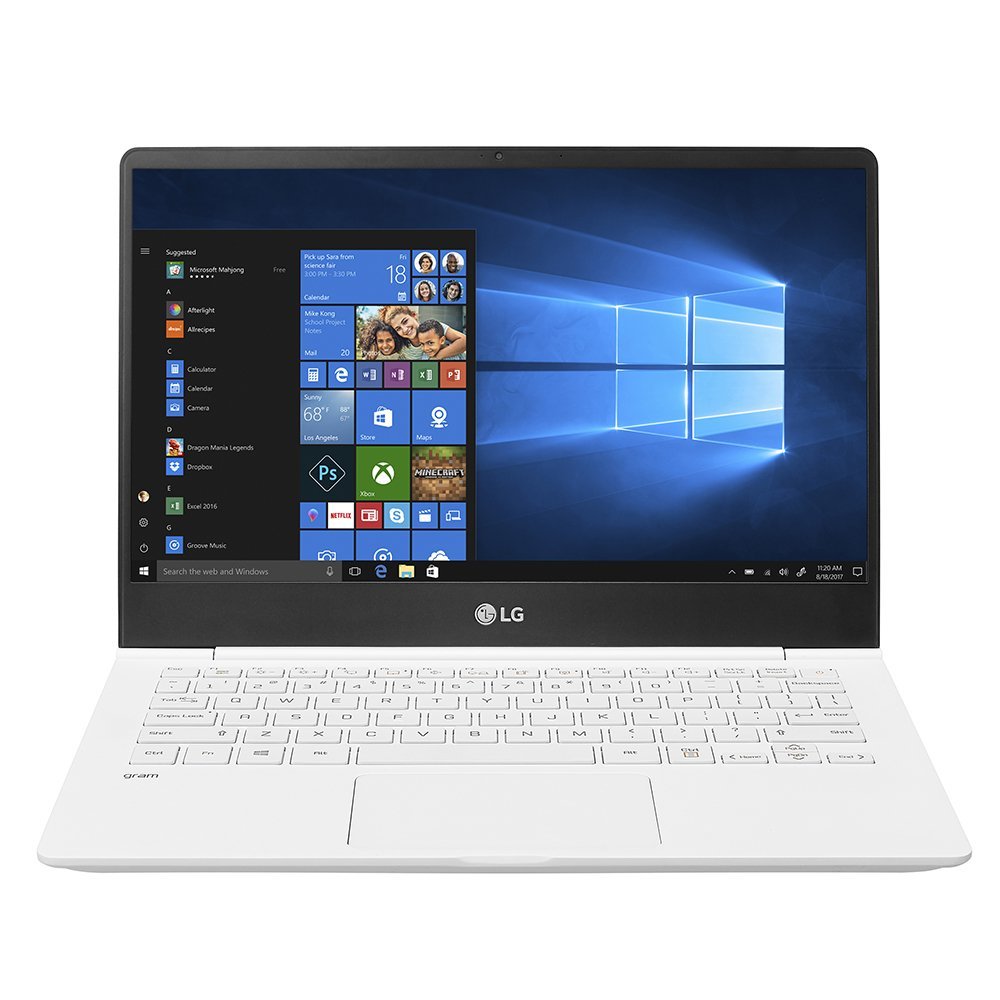
With a battery life rated at 22.5 hours, the LG Gram is clearly for travellers, digital nomads, and businesspeople. Weighing just over two pounds, it’s incredibly light (lighter, in fact, than the Macbook Air). That makes the Gram’s slightly underwhelming performance easier to bear, though it’s by no means a slouch tech-wise. There’s a 256GB SSD and 8GB RAM, along with an Intel i5 processor. But it’s clear this is primarily for those who want portability over, say, intensive gaming or video editing.

3. HP Envy

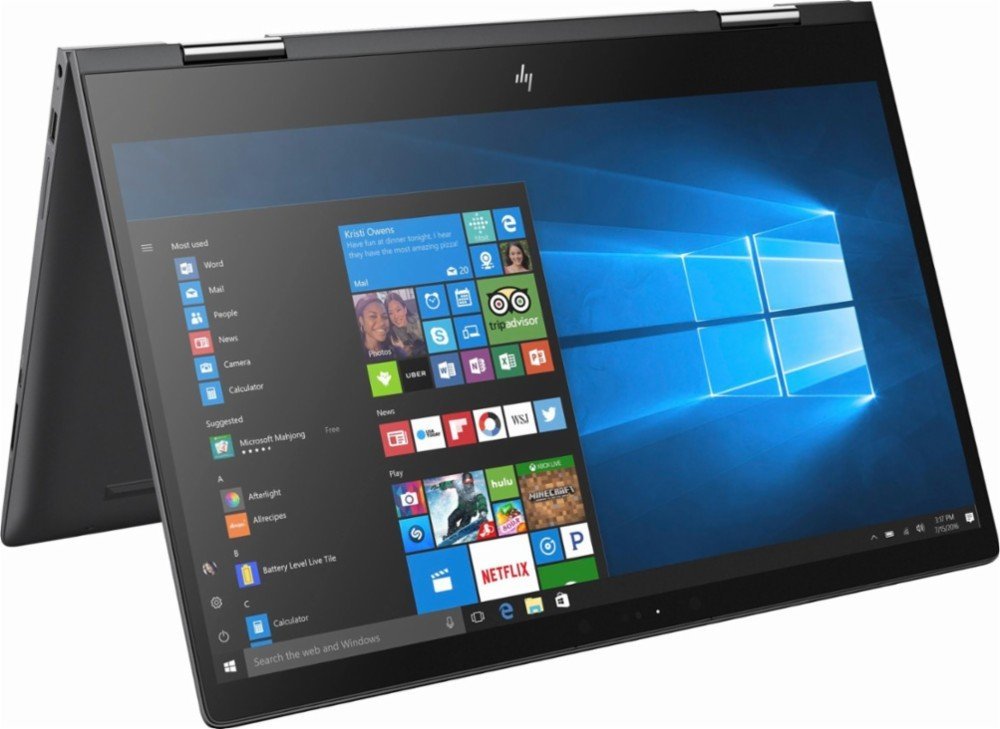
The Envy is a solid all-around rock star. The 16GB RAM, 256GB SSD, 1TB HDD, and AMD Ryzen 5 CPU clocking up to 3.6 GHz make this HP flagship a jack of all trades. With all that power behind you, expect to fly through work, study, or play with the ease of a bird in flight.

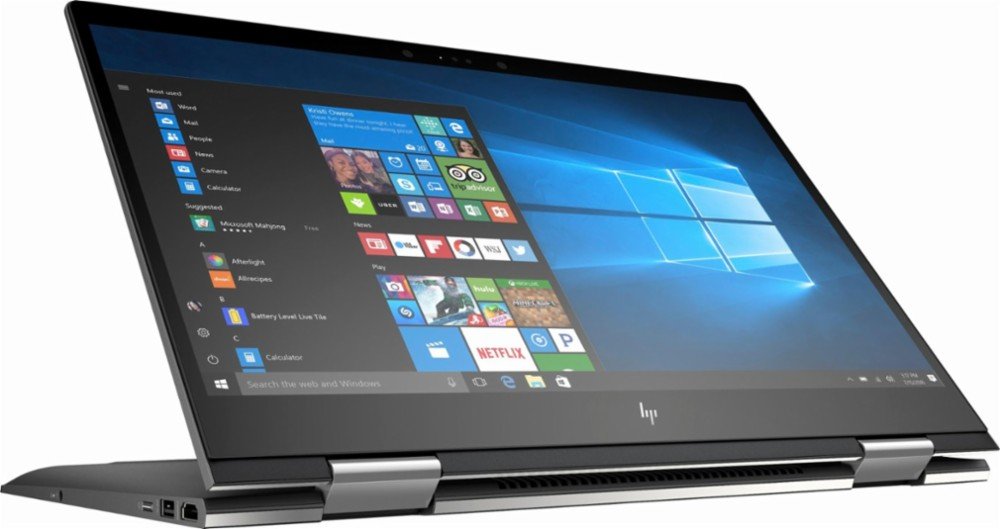
The touchscreen and 360-degree “flip and fold” design lets you turn the laptop into a tablet, which is useful if you want your young kids to be able to play with it. The lack of a discrete graphics chip does let the laptop down a bit, but unless you’re a hardcore gamer, you won’t be disappointed.

3. MacBook Air

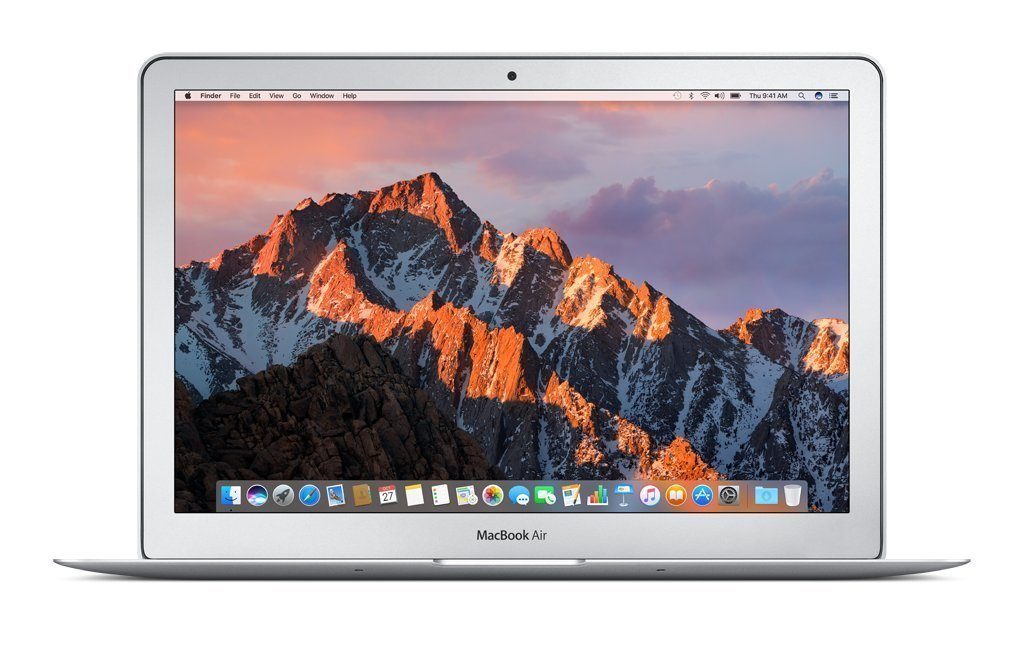
Okay, I know this is controversial. On paper, all the other laptops beat the Air on specs. Indeed, with just a 128GB SSD, 8GB RAM, and a less-than-full HD screen, you’re probably wondering why I’ve included it at all. There’s not even an HDMI port.

But many people love the OS X ecosystem. Although Windows has improved considerably since Vista, Apple’s OS generally works more fluidly and intuitively, and Apple’s bundled software is actually useful, unlike the bloatware found on Windows machines.

Some also enjoy owning a “fashionable” brand, and prefer Apple’s premium construction materials and minimalist aesthetics. The battery life is pretty good, too, lasting about seven to eight hours with browsing or basic office tasks (rejoice, coffee-shop novelists).

5. MSI GL72M

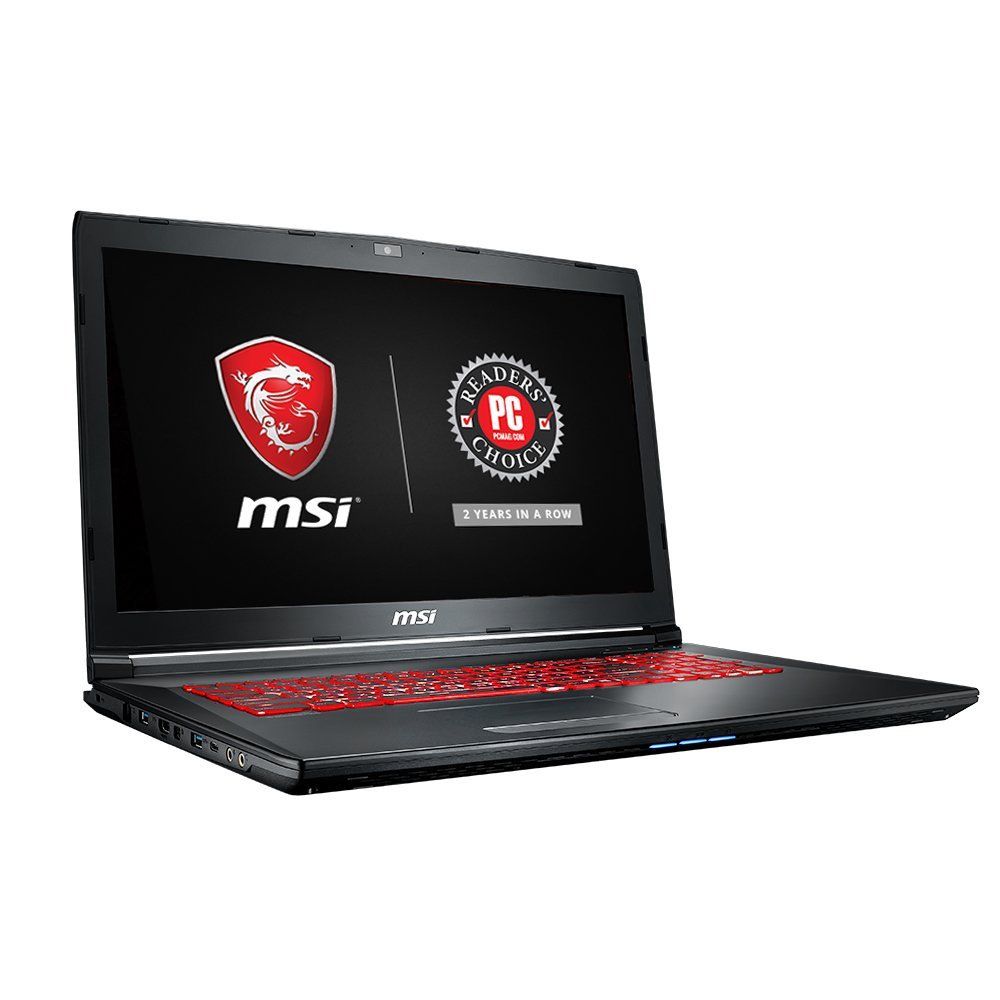
MSI is a company that specialises in gaming laptops. While its specs don’t quite match the Inspiron’s, the reason we included it here is simple: synergy. Everything about this laptop has been designed, first and foremost, for playing games. From the backlit ergonomic keyboard to the massive 17.3” non-reflective full HD screen, MSI’s in-house R&D and design teams have thought of everything. Does that make it a better gaming laptop than the Inspiron? It’s hard to say. But if you’re after a machine that was built for gamers, by gamers, it’s definitely worth a look.

As our digital lives evolve, the demands on our machines increase. Depending on what you do, you could find that investing a bit more in a premium laptop is worth the extra dollars – especially if you’re into gaming, animating, or video editing. Otherwise, think twice before splashing the extra cash – power comes at a price, but you don’t always need it.


The 4 best games for jaw-dropping graphics

After a hard day’s work, there’s nothing quite like relaxing in your favorite gaming chair and blowing off some steam.

We love all sorts of games here at Softonic, but you can’t deny the pretty ones are often the most popular. Although gameplay is important, there’s nothing more satisfying than escaping to a world that looks so real you can almost touch it.

So, let’s explore some of the best CPU-taxing, motherboard-melting, graphic card-smoking games that’ll make your eyes pop.

Far Cry 5

The newest entry in the long-running FPS franchise, Far Cry 5 is already a hit with fans and critics alike. And the graphics? Well, they’re incredible.

The environments are huge, open, and lovingly detailed. The foliage and weather effects are immersive, and explosions are crisp and satisfying. The game reaches a level of photorealism many premium titles can’t match, and even better, it runs well on most systems.

Ubisoft have done a great job with this release – just don’t mess with the turkeys.

The game retails for around $59.99.

Battlefront II

Although gamers were furious with EA’s pay-to-win progression (and their obsession with loot crates), you can’t deny that Battlefront II is absolutely gorgeous. The latest Star Wars films have jaw-dropping design, and this has clearly inspired the graphics team at EA DICE.

The models are detailed, animation is fluid, and the sound design is awesome (as expected from DICE). Videos with no HUD (heads-up display) show just how slick this game looks, on the wonderfully contrasting salt and red soil of the rebel base at Crait.

It’s currently available for around $30.00 on the Microsoft Store.

The Witcher 3

The third entry in the RPG adventure series, players once again take on the mantle of monster hunter, Geralt of Rivia. The series has always been renowned for the depth of its storytelling (and uh, romance), but the latest in the franchise also has a stunning world packed with vistas to explore.

It’s the sheer breadth of different environments that also makes the game notable. From densely-packed, dirty cobbled streets, packed with people going about their day, through to vineyards and dark, deserted forests with tall pines creaking in the wind – there’s a lot to explore. The lighting effects are beautiful, too, so if the monsters ever get a bit much, you can take Roach (your horse) for a sunset stroll along the beach – just watch out for the Drowners!

It’s available on Steam for around $39.99.

Cuphead

Time for something a bit different.

In an age where “best graphics” generally means having the most photorealistic design and animation, Cuphead appears to take a step backwards. A 2D side-scroller where you do battle with boxing frogs, angry bees, and giant paranormal carrots, the game also has a completely unique art style.

Every frame is hand-sketched, inked, and painted like a living 1930’s Max Fleischer cartoon. Although it might seem like a lot of work in an age where everything can be animated so easily, the extra effort elevates the graphics way beyond a quirky gimmick to something truly awesome.

It’s also tough-as-nails, so if you’re looking for a challenge, and hanker for something a bit more retro, you’ll love this game.

It’s currently retailing on the Microsoft Store for around $16.99. Considering the amount of hours put into animating it all, that’s a steal.

Cuphead Download Now
9

That concludes our round-up of our favorite games with the best graphics. Whether you like fleeing from deadly turkeys, shooting Darth Vader, chopping up monsters with a silver sword, or running around with a cup for a head, hopefully, there’s something on the list that will tickle your fancy.


5 tips for saving data on iOS and Android

Arcade Fire was spot-on with Infinite Content. The internet is awash with viral videos, celebrity tweets, and epic fail compilations, all readily available in the palm of our hands. Yes, smartphones are officially our browsing device of choice, and while that might make life more interesting when you’re waiting for the bus, you pay the price in dollars and cents.

Every time you tap an app, whether it’s to watch YouTube, update your status, or find your way home, those gigabytes start crumbling away like a cookie left in milk too long. Unless you’re on an unlimited data plan (which are often expensive), go beyond your allowance and you’re slapped with big bills, throttled speeds, or no internet access at all.

So what can you do about it?

The simplest answer is to save data wherever you can. This is easier than it sounds, and you won’t really need to change your habits too much – just follow our tips below. 

Disable background data and push notifications

Both iOS and Android apps have a nasty habit of gobbling up data when you’re not using them. Also, some apps periodically use data to notify you of a new event (like an email).

How to turn off background app data and notifications on iOS (Apple)

To turn off background app data, navigate to Settings > General > Background App Refresh and change it to Off or Wi-Fi.

To turn off push notifications, head to Settings > Notifications > select an app > toggle Allow Notifications off.

Android (Samsung, HTC, Google, etc.)

To turn off background app data, go to Settings > Data Usage > click the three vertical dots in upper right corner > select Restrict Background Data.

To turn off push notifications, head to Settings > Notifications > select an app and toggle Off.

Track usage, cap data, and set alerts

If you know you’ve only got 2GB of data each month, track your usage and set alerts for when you’ve used it up. On Android, you can even place a data cap that’ll stop all mobile data once you’ve reached your limit.

Both Apple and Android smartphones have data tracking services built in, but only Android includes a native alert and data cap feature (nice work, Google). For alerts on iOS, you’ll need to download a data management app like My Data Manager.

My Data Manager Download Free
7

How to track data usage on iOS

Head to Settings > Mobile Data > scroll down to see your usage for the current period. Make sure you reset data statistics every billing cycle (from within the same menu), as iOS won’t do this automatically.

How to track data usage, cap data, and set alerts on Android

Head to Settings > Connections > Data Usage > Mobile Data Usage

To limit data: toggle Data Limit on > tap Data Limit > set limit value > tap SET

To track usage and set an alert: toggle Data Warning on > set the alert value > Start billing cycle on > set your billing dates > tap SET

Use Wi-Fi wherever possible

Seems obvious, but it’s easy to forget there are millions of free Wi-Fi spots around the globe, most commonly found in restaurants, cafes, public institutions, and shops. Though do use a VPN where possible, as public Wi-Fi is easily exploited by hackers (and don’t use them to transmit sensitive information, such as bank details).

If you’re unsure where to find free Wi-Fi near you, apps like Wifi Map can help. So next time you’re out and about, connect to free Wi-Fi instead of chewing through your data like a beaver on a breadstick. 

WiFi Map Download Now
7

View videos, maps, and webpages offline

Whether it’s Netflix movies or photo albums, download them to your device over Wi-Fi instead of using cellular data. Similarly, Google Maps can also be downloaded for offline use, making it easier to get around your local area without devouring data. Even web pages can be stored for offline viewing with apps like Pocket.

Pocket Download Free
9

Turn off “autoplay”

Facebook, Instagram, and other social media networks do whatever they can to keep you hooked. A particularly clever trick is autoplaying videos that churn through your mobile data without your permission. Thankfully, these apps do give you the option of turning this feature off, so head to the relevant app’s settings and disable autoplay now.

Hopefully these tips keep your data within budget. If all else fails, you can simply disable cellular data completely from your phone’s mobile data settings. It’s an extreme measure, but with so much free Wi-Fi, it’s a valid one.

5 of the strangest IoT devices

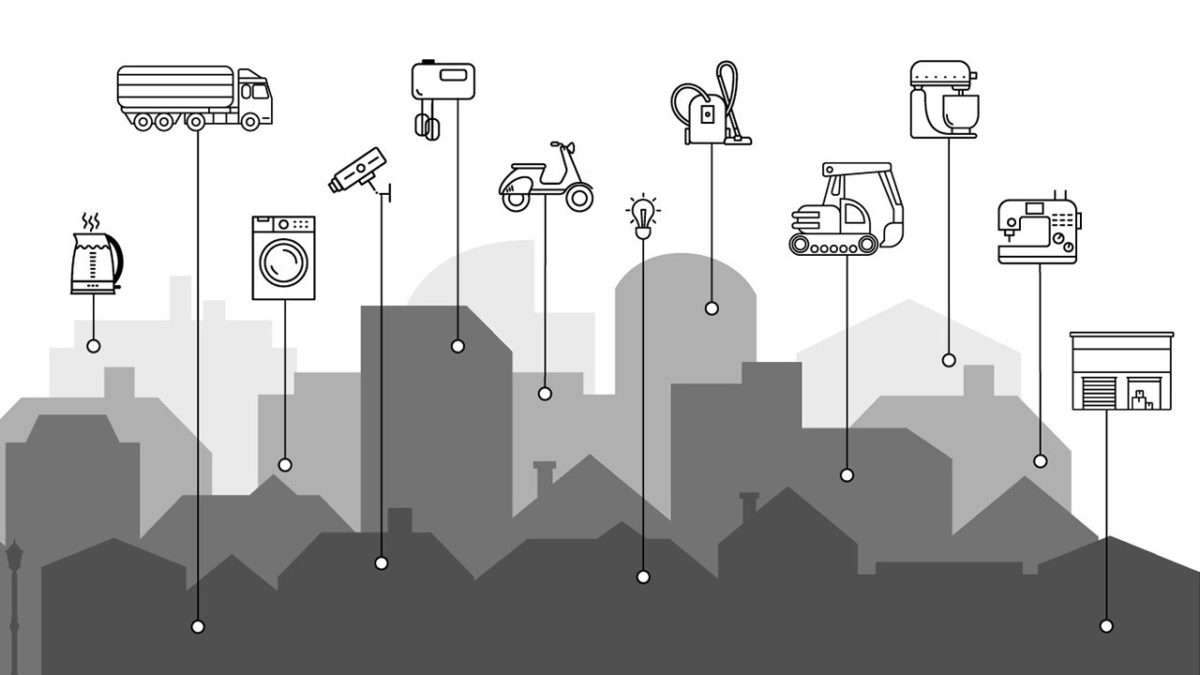
As the march of technology continues, we’re bombarded with new devices claiming to revolutionize our lives through the Internet of Things (IoT).

While some of these products are genuinely innovative – such as bendy phones and AI vacuums – some of the newest IoT devices are… somewhat less useful.

So, let’s take a look at the five weirdest IoT devices. We can’t guarantee they’ll change your life, but they should make for an entertaining chuckle over your morning coffee. 

1. Kuvée Bottle

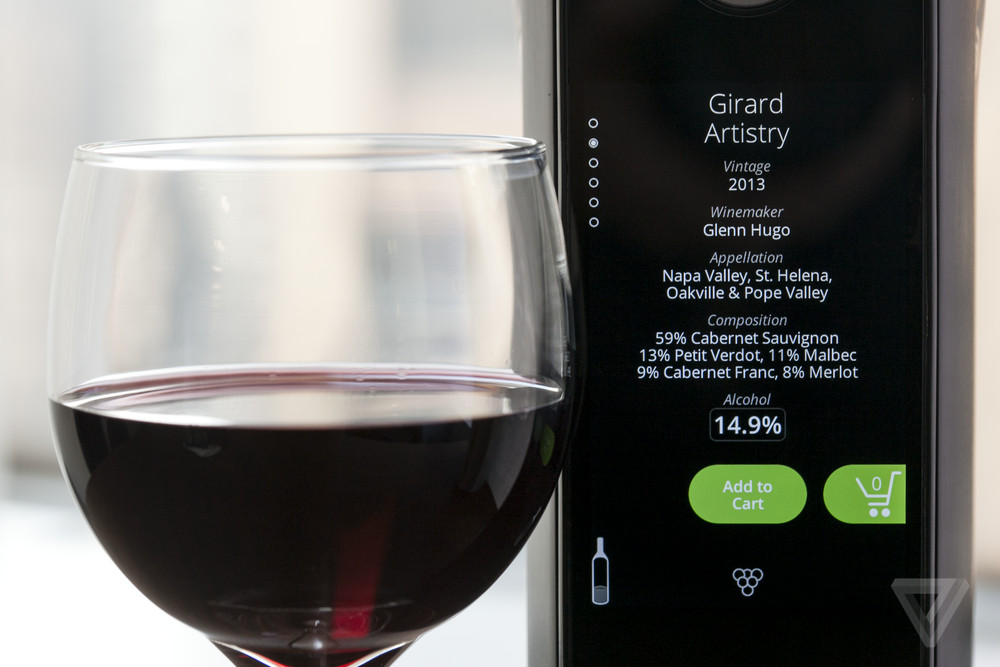
If there’s one thing that definitely needs to be dragged into the future kicking and screaming, it’s – you guessed it – the wine bottle. There are two parts to this IoT device: the bottle itself, and the proprietary wine cartridge that fits inside of it. When loaded, the touchscreen bottle displays a variety of information on the wine, including the logo, grower, grape, and alcohol content.

Until the battery runs out, of course, and the screen dies. Then you’ll probably be left wishing that you had something easier to use, like, I don’t know, a label. We’ve since discovered that the company is shutting down.

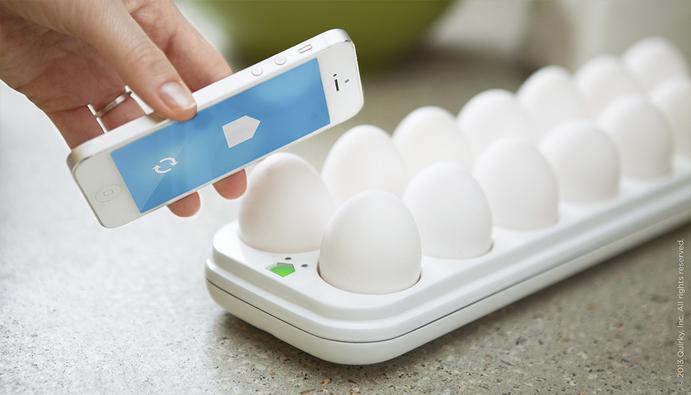
2. Quirky Egg Minder

We’ve all been there. Spending the whole trip home thinking about making some delicious eggs for breakfast. But when you finally get back and open the fridge door, there are’t any left. “No!” you scream, falling to your knees, “If only I had something that could connect wirelessly to my phone and tell me how many eggs I have left!”

Well, thanks to this Wi-Fi connected egg tray, you can whip out your phone at any time and tell your friends and colleagues exactly how many eggs you have left. Oh, how jealous they’ll be.

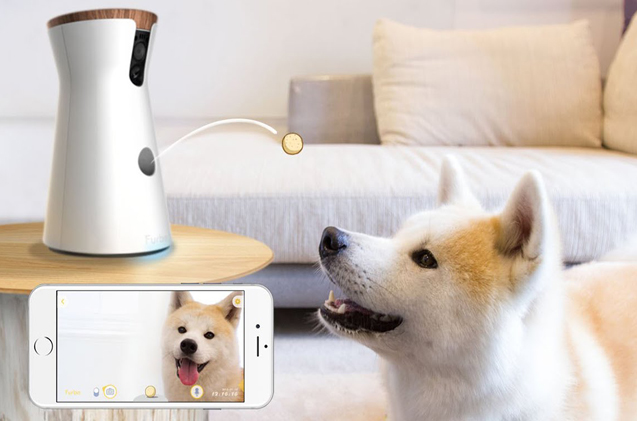
3. Furbo

Although we all love our pets, sometimes we have to leave them alone. It can be a distressing experience for both us and them. Enter Furbo, which I have to assume is derived from famous war-movie character Rambo. But rather than firing hot lead at your enemies, the Furbo fires delicious treats into your beloved pet’s face.

The unit notices when your dog is barking (presumably because you haven’t dispensed a treat for the last five minutes), sends you a push notification, and then you can see your furry friend through the built-in camera and dispense treats from the “treat cannon.” Sounds safe.

Don’t be surprised if in a few years time your dog has more respect and love for this inanimate food-dispenser than you.

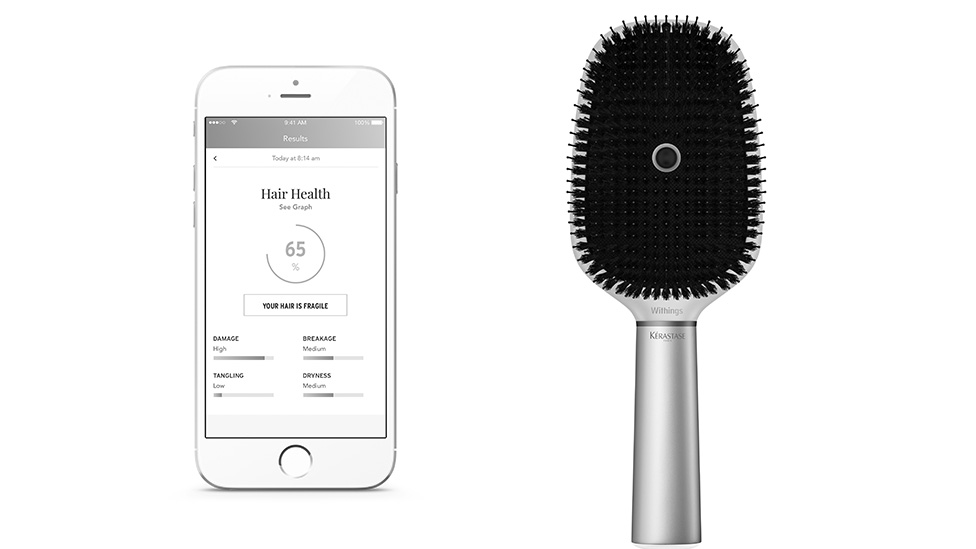
4. Kérastase Hair Coach powered by Withings

When brushing your hair with a regular, dull, boring hairbrush, do you ever think, I wish there was a Wi-Fi enabled smart hairbrush with a microphone and gyroscope to tell me if I’m brushing my hair correctly?

Neither do I, but unsurprisingly there’s an answer to this imaginary problem.

Built-in sensors feed your brushing data to a dedicated mobile app (of course) which monitors local weather factors such as humidity, temperature, UV, and wind. You then get valuable information such as your hair quality score, and the effectiveness of your daily brushing habits.

Just think: you can brag about the effectiveness of your hair brushing right after telling everyone how many eggs you have left in the fridge.

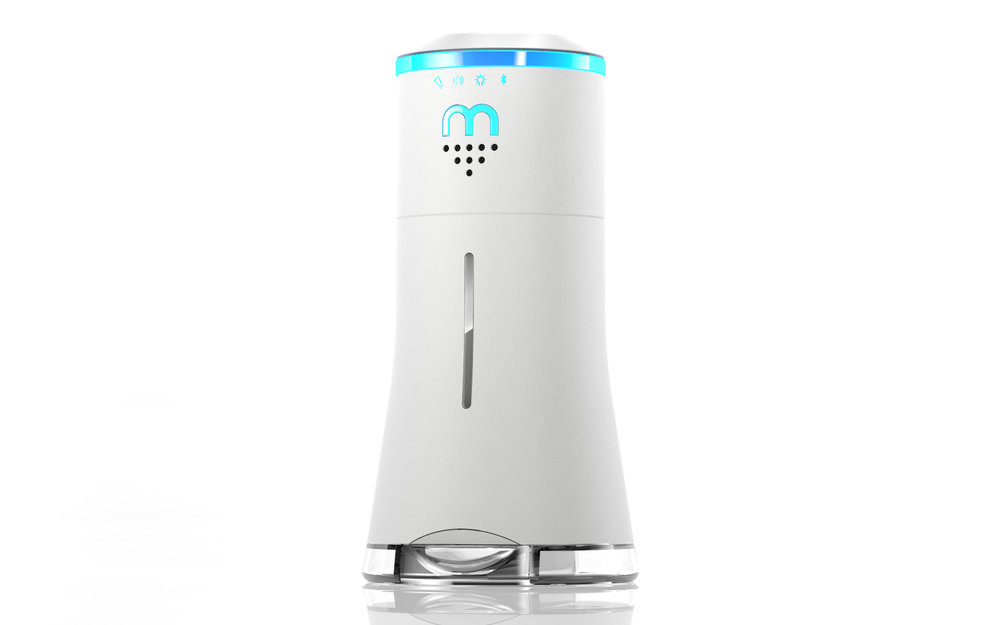
5. Smalt

Do you know what every home needs? A Wi-Fi connected salt shaker, with a Bluetooth speaker, and ambient lighting. Described as the first multi-sensory device to make dining fun, it’s probably also the most over-engineered piece of homeware since the Wi-Fi wine bottle.

By connecting the salt shaker to the included app (who needs space for more photos and music on their phone, anyway?), you can dispense salt simply by turning on your phone, opening the app, pairing it to the shaker via the internet, then pinching your screen.

The only real use you might get out of this is annoying dinner guests by sneakily pinching your phone over and over as they hold the shaker. Gotta get your kicks somewhere, right?