WhatsApp blocked? You may now use a proxy bypass!

WhatsApp is a popular messaging service by Meta, parent company of Facebook. The service is designed to work everywhere, provided that an Internet connection is available on the device.

WhatsApp may be blocked in some regions or environments. Devices connected to a company network may have certain restrictions, and the use of messaging apps like Whatsapp may be one of them.

Similarly, WhatsApp may be blocked temporarily or permanently in certain regions or countries. Governments may block Internet communication temporarily, for example, during election days or demonstrations.

A visit to one of those regions or permanent residency there makes it difficult to use the service. Up until now, use of VPNs could help bypass the block. Now, WhatsApp users have another option at their disposal: proxy servers.

WhatsApp Proxy Server support
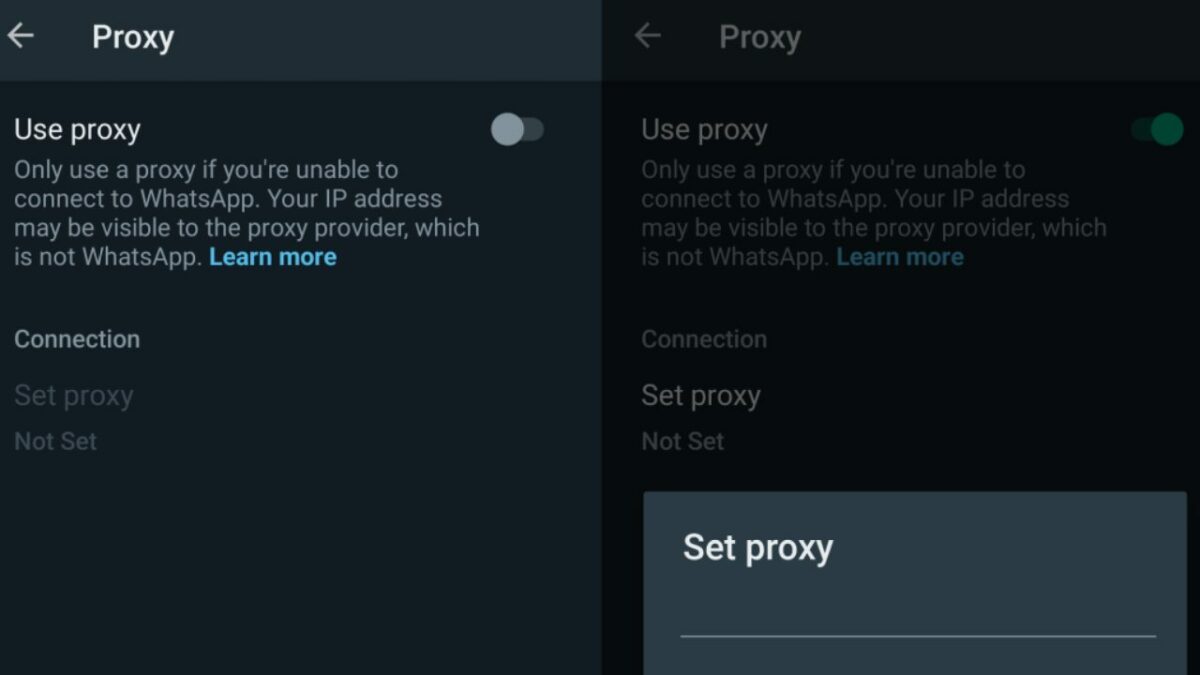
WhatsApp announced support for proxy servers this week. Users of the messaging app may use proxies to bypass blocks.

Announcing the news, the company says:

We’re mindful that just as we’ve celebrated the start to 2023 through private texts or calls, there are many people who continue to be denied the ability to reach their loved ones because of internet shutdowns. To help, today we’re launching proxy support for WhatsApp users all over the world. What this means is we’re putting the power into people’s hands to maintain access to WhatsApp if their connection is blocked or disrupted.

Choosing a proxy enables you to connect to WhatsApp through servers set up by volunteers and organizations around the world dedicated to helping people communicate freely.

A proxy server acts as an intermediary server between the user’s device and the target destination. In the case of WhatsApp, traffic is tunneled through the proxy server to communicate with WhatsApp. The bypass works on the condition that the proxy server is not blocked as well.

User messages and data is protected with the same level of privacy and security as direct WhatsApp connections, according to the announcement. The maintainer of the proxy server sees the IP address of the user’s device, however.

It is essential, therefor, that a trusted proxy provider is selected.

Setting up a proxy in WhatsApp

WhatsApp itself does not maintain any proxies. The company recommends that users search on the Internet to find proxy servers by “trusted sources” to use.

Setting up a proxy on Android

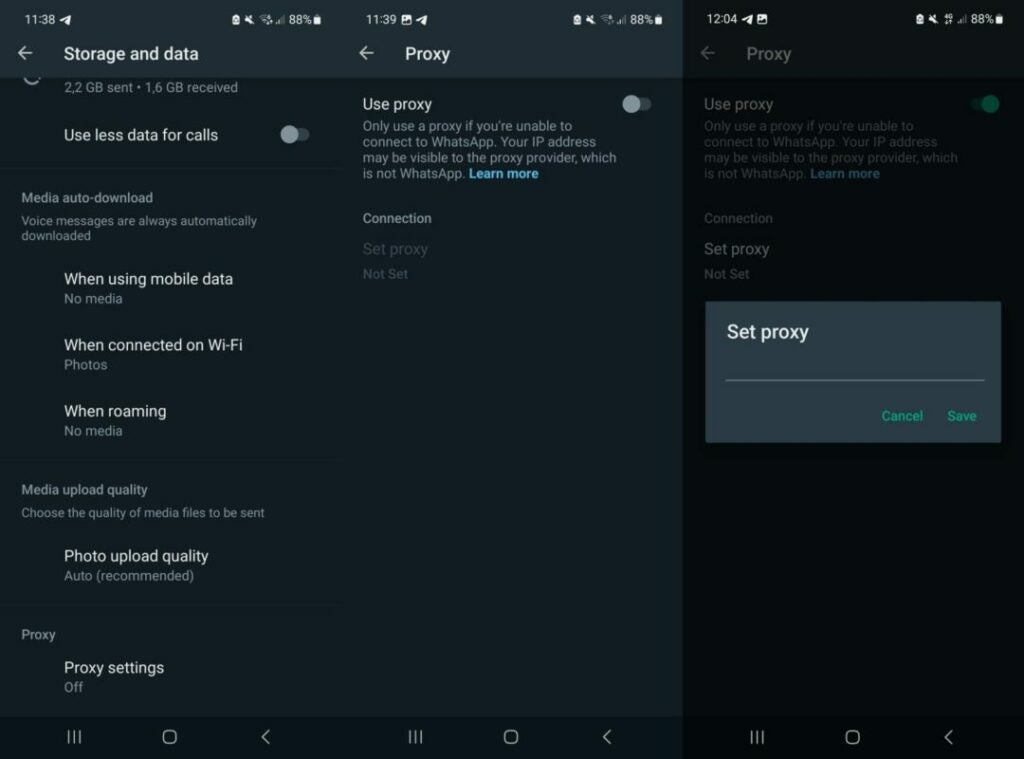
  1. Select the three-dots on the main page and then Settings.
  2. Go to Storage and Data > Proxy.
  3. Select Proxy settings.
  4. Tap the use proxy preference to set it to ON
  5. Tap on Set Proxy.
  6. Enter the proxy address and tap save to connect.

WhatsApp displays a checkmark if the connect is successful.

Setting up a proxy on iOS

  1. Open the WhatsApp Settings.
  2. Go to Storage and Data > Proxy.
  3. Tap Use Proxy.
  4. Type the proxy address and tap save to connect.

WhatsApp displays a checkmark if the connect is successful.

Verdict

Support for proxy servers adds another access option to WhatsApp. While it may be unnecessary for most users of the server, it may be the only option for some.

Finding a trusted proxy provider can be challenging, on the other hand.

WhatsApp explains how to set up a proxy on GitHub. The instructions are technical, and they require access to a server or computer to run the proxy on.
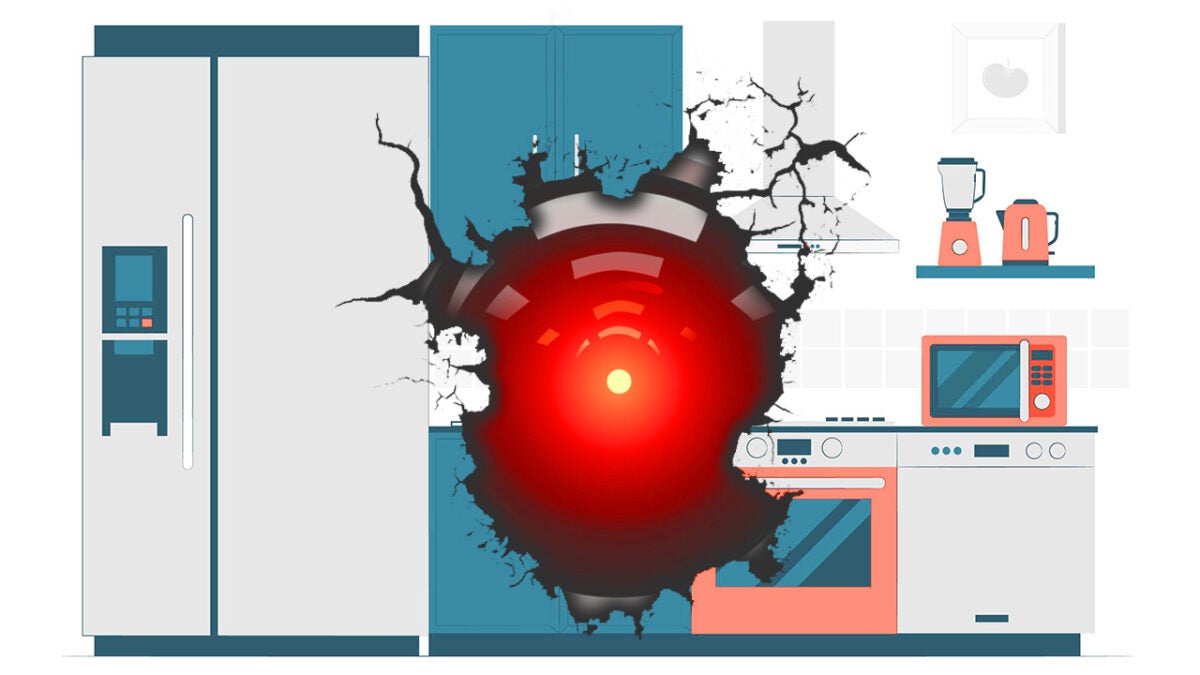

? AI Comes to Your Kitchen!

Korean giant Samsung has shared its new home advances for the Consumer Electronics Show (CES) in 2023. Also known as the Consumer Electronics Fair, it will open its doors to the public on January 5th.

At CES, companies show off new products and technologies related to home automation and the home. In this case, Samsung wanted to go one step further and will show off new smart appliances with a futuristic twist.

This will be done through their Bespoke line, a range of smart home devices. However, on the list of products that Samsung will present at the 2023 CES, one particularly stands out: the Bespoke AI Wall Oven.

As you can guess, it’s an oven with all kinds of extra-fancy features. One of the most striking is the inclusion of an internal AI camera. This can take pictures, detect that you are cooking, make suggestions for that dish, and even live stream. If you’ve ever thought about streaming on Twitch how to make a cake, this is the appliance for you.

However, this is just the tip of the iceberg. The Bespoke AI Wall Oven will allow you to configure every detail of the baking process. It can even alert you if your dish is burning (the best feature of this oven, in my opinion).

According to Samsung, their new smart oven will detect up to 80 different types of dishes. It also has Samsung Health integrated, which will make it easier for you to keep track of your meals.

In addition to their oven, Samsung has presented other appliances that will turn your kitchen into a Star Trek stage. One of them, the Bespoke 4-Door Flex fridge, has 4 doors and a huge 32-inch touchscreen.

If you think about it, it’s basically like having a tablet integrated into your fridge. Through its screen, you will have the possibility to access Internet content and live stream it. The Bespoke 4-Door Flex fridge has a water filtering and refrigeration system, in addition to a series of internal AI-equipped cameras. These will help you identify the food you have and will inform you of the amount of product left.”

Free Fire: January 4, 2023 – Codes for Free Rewards

Garena Free Fire has new reward codes that allow you to have fabulous free rewards to use within the game. For Today, January 4, 2023, we have a bunch of free codes that will allow you to progress in the game faster than your enemies.

Once you have redeemed the codes, the items you receive will be bound to your account forever. Without further ado, here is the list of Free Fire codes (valid for January 4, 2023):

Free Fire: January 4, 2023 Codes for Free Rewards

  • FFICJGW9NKYT
  • FFAC2YXE6RF2
  • ZYPPXWRWIAHD
  • FF10617KGUF9
  • FF11HHGCGK3B
  • Y6ACLK7KUD1N
  • W0JJAFV3TU5E
  • B6IYCTNH4PV3
  • FF11NJN5YS3E
  • ZRJAPH294KV5
  • FF119MB3PFA5
  • SARG886AV5GR
  • MCPTFNXZF4TA
  • WLSGJXS5KFYR
  • FF1164XNJZ2V
  • FF11DAKX4WH
  • YXY3EGTLHGJX
  • FF11WFNPP956
  • 8F3QZKNTLWBZ
  • FF10GCGXRNHY
  • FF9MJ31CXKRG
  • FFCO8BS5JW2D

How to redeem Garena Free Fire codes?

If you do not know how to redeem these codes, do not worry as the process is quite simple. First, you must go to the official Garena Free Fire page where these codes are redeemed.

  • Log in with your Facebook, VK, Google, Huawei, Twitter or Apple ID account (remember that you will not be able to claim the prizes with a guest account).
  • Enter the codes shown above and select the Confirm button to continue.
  • Once you confirm the redemption of the codes, check the game’s mail, as you will receive confirmation of the gifts there.

Do not despair if you do not see the gifts within your account, they can take up to 24 hours to appear. When you already have them, you only have to enjoy the received gifts.

Free Fire: January 3, 2023 Codes for Free Rewards

Garena Free Fire has new reward codes that allow you to have fabulous free rewards to use within the game. Once you have redeemed the codes, the items you receive will be bound to your account forever. Without further ado, here is the list of Free Fire codes (valid for January 3, 2023):

Free Fire: January 3, 2023 Codes for Free Rewards

  • FFCMCPSJ99S3
  • MCPW3D28VZD6
  • ZZZ76NT3PDSH
  • XZJZE25WEFJJ
  • V427K98RUCHZ
  • 3IBBMSL7AK8G
  • J3ZKQ57Z2P2P
  • GCNVA2PDRGRZ
  • 4ST1ZTBE2RP9
  • B3G7A22TWDR7X
  • 6KWMFJVMQQYG
  • FFCMCPSUYUY7E
  • EYH2W3XK8UPG
  • UVX9PYZV54AC

How to redeem Garena Free Fire codes?

If you do not know how to redeem these codes, do not worry as the process is quite simple. First, you will need to go to the official Garena Free Fire page where these codes are redeemed.

  • Log in with your Facebook, VK, Google, Huawei, Twitter or Apple ID account (remember that you will not be able to claim the prizes with a guest account).
  • Enter the codes shown above and select the Confirm button to continue.
  • Once you confirm the redemption of the codes, check the game’s mail, as you will receive confirmation of the gifts there.

Do not despair if you do not see the gifts within your account, they can take up to 24 hours to appear. When you already have them, you only have to enjoy the received gifts.

Free Fire: January 2, 2023 Codes for Free Rewards

Garena Free Fire has new reward codes that allow you to have fabulous free rewards to use within the game. Once you have redeemed the codes, the items you receive will be bound to your account forever. Without further ado, here is the list of Free Fire codes (valid for January 2, 2023):

Free Fire: January 2, 2023 Codes for Free Rewards

  • FFCMCPSJ99S3
  • MCPW3D28VZD6
  • MCPW2D1U3XA3
  • FFCMCPSEN5MX
  • HNC95435FAGJ
  • 6KWMFJVMQQYG
  • FFCMCPSUYUY7
  • EEYH2W3XK8UP
  • GUVX9PYZV54A
  • CBR43FMAPYEZ
  • ZNPYFATT3HGS
  • QFFCMCPSGC9X
  • ZMCPW2D2WKWF
  • 2ZZZ76NT3PDS
  • HXZJZE25WEFJ
  • JV427K98RUCH
  • 3IBBMSL7AK8G
  • J3ZKQ57Z2P2P
  • B3G7A22TWDR7
  • XFF7MUY4ME6S
  • C8F3QZKNTLWB
  • ZWEYVGQC3CT8
  • QGCNVA2PDRGR
  • Z4ST1ZTBE2RP
  • 9X99TK56XDJ4

How to redeem Garena Free Fire codes?

If you do not know how to redeem these codes, do not worry as the process is quite simple. First, you will need to go to the official Garena Free Fire page where these codes are redeemed.

  • Log in with your Facebook, VK, Google, Huawei, Twitter or Apple ID account (remember that you will not be able to claim the prizes with a guest account).
  • Enter the codes shown above and select the Confirm button to continue.
  • Once you confirm the redemption of the codes, check the game’s mail, as you will receive confirmation of the gifts there.

Do not despair if you do not see the gifts within your account, they can take up to 24 hours to appear. When you already have them, you only have to enjoy the received gifts.

Improve your Android phone’s battery life with this tweak

Battery life is one of the most important features of Android devices. The better the device’s battery usage, the longer it is possible to use the device without having to charge it.

Battery and power usage depends on several factors. The battery that is included in the device plays a key role, but so do other factors, for example: installed applications, screen brightness, or use. Playing Android games on full brightness drains battery faster than listening to Spotify in the background.

Android 13 Download Now

A simple change in the Settings may improve battery significantly on Android. Lowering brightness, for example, improves battery significantly.

There is another feature that Android users may activate to improve battery life on their devices: data saving.

Did you know that some apps use more data than others?

The purpose of Data Saving on Android

Data saving, also called data saver by some manufacturers, restricts mobile background data use on Android. Applications may act in the background when they run on Android; this is desired in some cases. Mail and messaging apps may check for new messages, and music apps may continue to play music.

Google separates mobile data from Wi-Fi data.

Background data activity costs power on the other hand, and may not be desirable for all applications. Good news is that it is relatively easy to resolve.

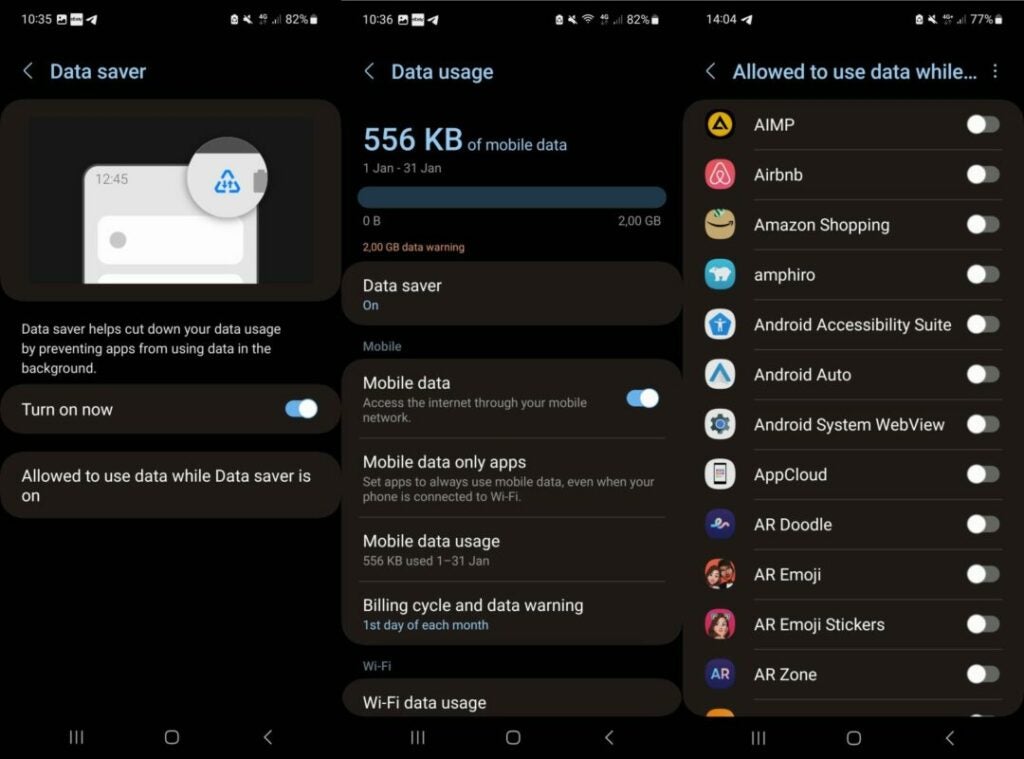
Android includes options to enable data saver in the preferences. Once activated, apps can’t use mobile background data anymore, unless allowed by the user. Power use drops as a consequence, so that the device may be used for longer periods without charging.

The feature blocks mobile data access only. When the device is connected to a wireless hotspot, background data continues to be used by apps.

Enable Data Saver on Android

Data Saver on Samsung devices

Background data saving is not enabled by default. All Android devices support the feature and it is easy to activate.

  1. Open the Settings on the Android device.
  2. The next step depends on the manufacturer:
    • On Samsung devices, select Connections > Data usage.
    • On stock Android devices, like those made by Google, select Network and Internet > Data Saver.
  3. Activate Data Saver so that it is set to the On state.

Setting the feature to on prevents Android apps from using data while in the background. While that is desirable for most apps, some apps may not function properly without background data access.

Android includes an option to exclude those apps from the restriction. Here is how that is done:

  1. Go back to the Data Saver preference in Settings.
    1. On Samsung devices, select “Allowed to use data while Data saver is on”.
    2. On Google Pixel and other stock Android devices, select “Unrestricted data”.

The list of installed apps is displayed on the next page. Select the apps that may use background data.

Note that you may come back to the setting at any time to add more apps to the list of exclusions or remove them again.

Enabling data saver on Android devices may improve battery life, but it also may have an effect on bandwidth usage. Android devices with data plans benefit from this setting as well, as it reduces data usages while using mobile data.

LastPass user password vault and information obtained by hacker

When LastPass disclosed a security breach in August 2022, it sounded harmless enough at first. The attacker managed to obtain proprietary information and source code, but no customer data.

When the same threat actor used the obtained data to attack the company again, things still did not look too bad. The attack on storage volumes within the company’s cloud-based storage service gave the attacker access to user information, but not the password vaults of customers. At least, that is what LastPass concluded after its initial investigation.

LastPass Download Now

Today, LastPass confirmed that the second hack was more serious than initially thought. A security notice on the company’s official blog confirms that the attacker obtained customer information and password vault data.

The following user data was copied by the attacker:

  • Company and end-user names.
  • Billing addresses.
  • Email addresses.
  • Telephone numbers.
  • IP addresses.

Next to that, the attacker managed to obtain a copy of a “backup of customer vault data from the encrypted storage container”. The information includes unencrypted data, such as website addresses, but also “fully encrypted sensitive fields”. These fields include website usernames and passwords, secure notes, and form-fill data.

LastPass found no evidence that unencrypted credit card data was accessed by the attacker. The company does not store “complete credit card numbers” according to the announcement.

The master password, which unlocks all customer data, is known only to the customer. LastPass does not store it and sensitive vault data is encrypted with 256-bit AES encryption.

Worst Case Scenario

LastPass is available on multiple devices

This is the worst case scenario for LastPass customers. The plain text data includes means of communication, and the vault data all stored passwords and sensitive information.

The threat actor may attempt to brute force vault data, which would unlock usernames and passwords for all stored services. Successful attacks may also reveal information stored in secure notes. This may lead to compromised user accounts on the Web or company intranets.

Brute forcing attacks of this scale require vast resources, especially if carried out on such a large number of protected vaults. The attack was sophisticated, and it is not out of the question that the attacker has the required resources to run brute force attacks on the encrypted data obtained during the attack.

A strong master password may prevent successful brute force attacks. LastPass recommends master passwords with at least 12 mixed characters, but customers are free to select theirs during setup.

Next to brute force attacks, customers may also be attacked using phishing or social engineering attacks. The attacker may use these attacks to obtain the master password. Attacks may happen via email, telephone, chat messages, or even letters.

The attacker may impersonate LastPass in these attacks to get users to click on links or part with information directly.

What LastPass customers need to do right now

LastPass customers should assume that their information and vault data has been compromised. The following steps are recommended to secure the data:

  1. Change the LastPass master password. Make it unique and strong, e.g., with 16 or more random characters that include upper-case and lower-case letters, numbers and special characters.
  2. Change the number of password iterations from the default 100100 to 310000 or even more.
  3. Go through each saved login and change all passwords. Make each password strong and unique as well.
  4. Monitor emails, phone calls, chat messages and other forms of communication, and avoid clicking on links.

The process may take a while, especially if dozens or even hundreds of logins are stored in the LastPass vault.

Customers may also consider switching services. Password manager alternatives such as the open source Bitwarden service have not suffered data breaches up to this point. It is still necessary to change passwords.

Tip: check out our top 25 alternatives to LastPass.

Regardless of that, some information is in the attacker’s hands and there is nothing that customers may do about it.

This free Windows 11 tool removes one of the ugliest design quirks

Windows 11 is Microsoft’s newest and most modern looking operating system. Windows users who dig a bit deeper find traces of older versions of the operating system. Some of these go back to the Windows XP era or even earlier.

Windows 11 Download Now

Windows had a clear and concise look for the most part in Windows 7 and earlier versions. The release of Windows 8 changed this significantly, mixing old elements with new ones. Windows 10 made things worse, even, with its modernization of some areas of the operating system, while keeping others unchanged.

Windows 11 is Microsoft’s attempt to launch a modern operating system. The company updated several core applications and elements of the operating system to address glaring design differences.

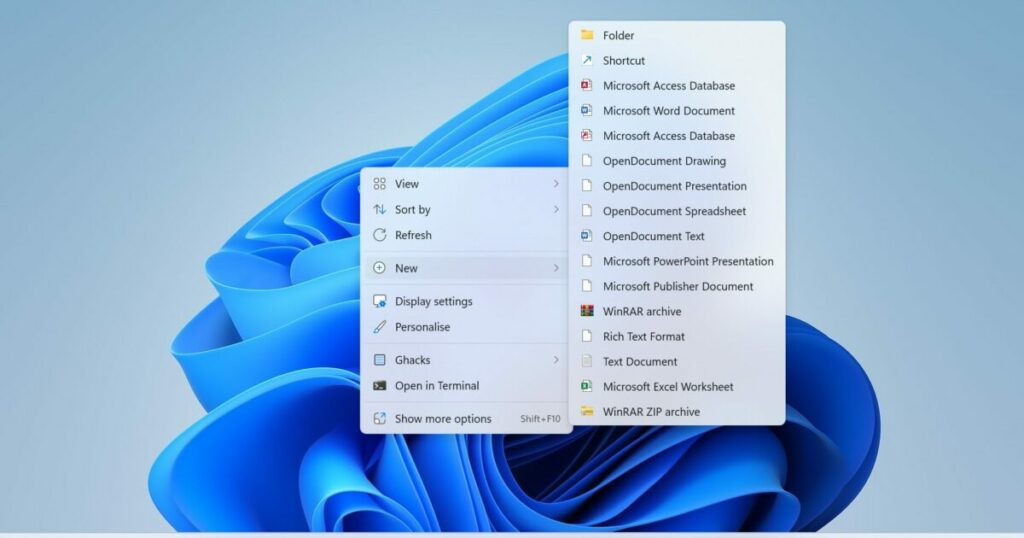
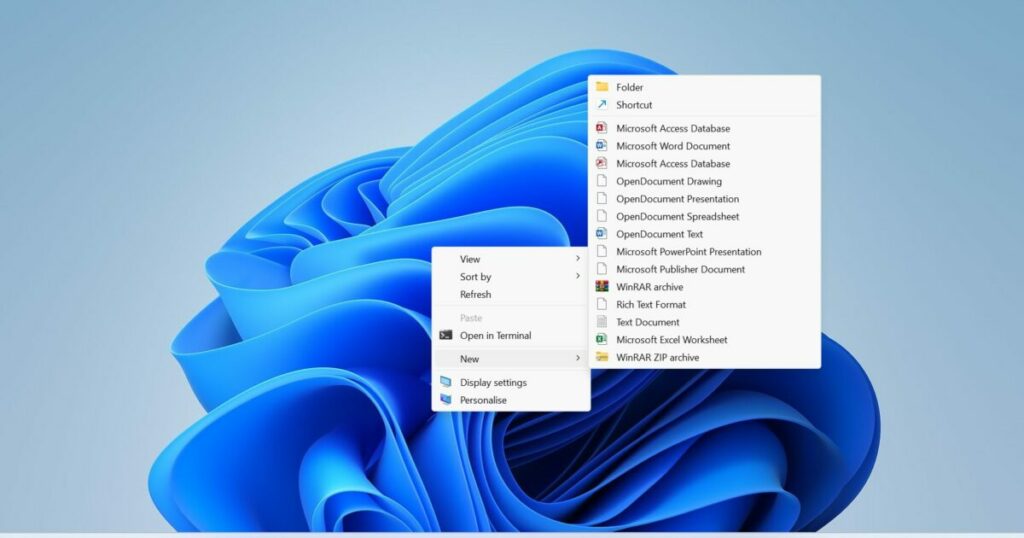
Take the File Explorer context menu as an example. Microsoft introduced a modern looking interface in Windows 11. It fits the overall design philosophy. However, Microsoft kept the classic context menu as the modern one does not hold all the entries available on the system.

Make the entire context menu pretty

The classic context menu is a necessity at the moment, as entries of older applications may only be available through it. Applications such as 7-Zip, the Nvidia Control Panel, or even Microsoft’s own PowerToys tools, are only available in the classic context menu.

Applications like WinRAR resolved this through updates, but many apps are still only accessible through the classic context menu.

The classic version looks dated when it is compared to the modern context menu of Windows 11. Its design is old-fashioned and it lacks transparency effects on top of that.

The classic Windows 11 context menu

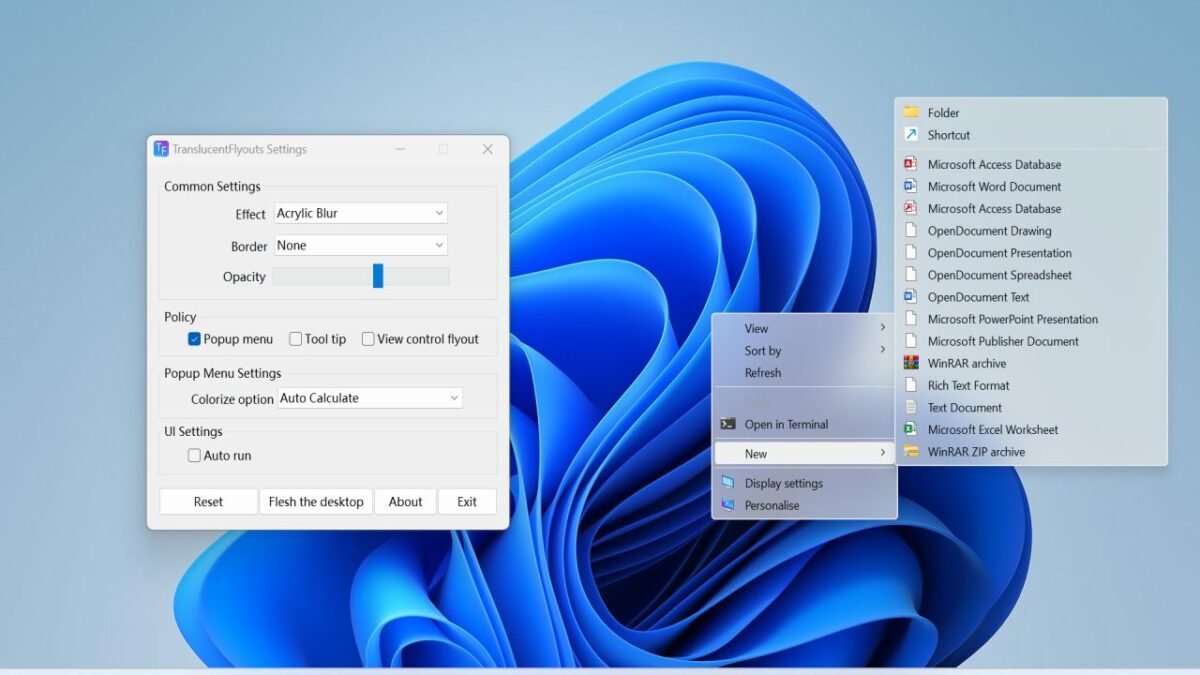
A free utility for Windows 11 comes to the rescue. Translucent Flyouts (via Gamestar) is an open source program for Windows 11 that beautifies several areas of the operating system. The application improves the look of the secondary context menu of the operating system and that of flyouts. Flyouts are used by Windows 11 to display notifications to the user.

The tool makes subtle changes to the operating system. Even better, it uses barely any resources while running. A quick check of the Windows Task Manager revealed that it uses less than 2 Megabytes of RAM while running.

The only requirement to using it is that transparency needs to be enabled in the operating system’s settings; this is the default and should therefore be enabled on most devices.

How to install the application

Installation of TranslucentFlyouts is straightforward. Download the latest version of the program from the project’s GitHub repository. We used version 1.0.5 for the test, but new versions get released regularly by the developer.

The program is provided as a ZIP archive, which you need to extract using a ZIP software. All that is left to do after the extraction is to run the executable file.

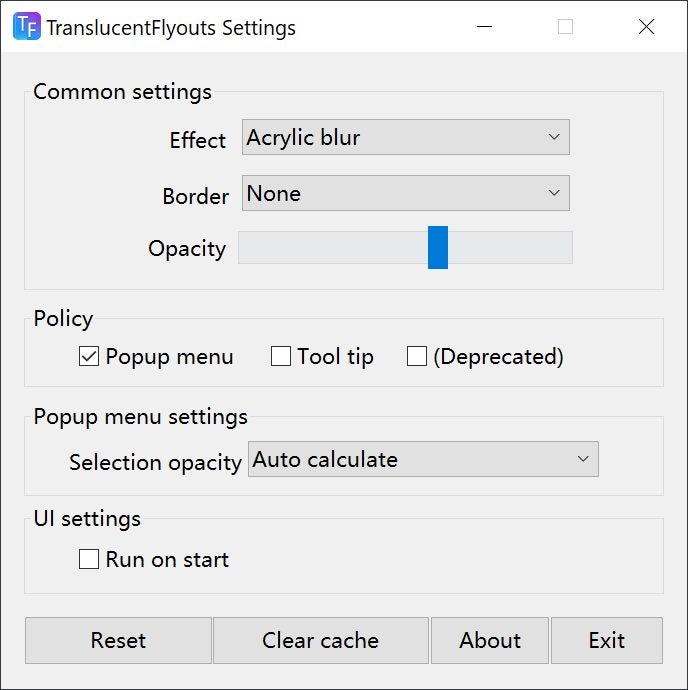
Use the provided tweaking options to change the transparency effect and related settings. Changes take effect immediately, and there is a reset option to start anew using the defaults.

There is a handy option to run the program on start. A right-click on the icon in the system tray area exits it.

How to enable Chrome’s new Memory and Energy Saver modes

Google is rolling out two new features in Chrome Stable that improve the browser’s memory and power usage. The features are part of Chrome 108, which Google released in November 2022 to the public.

Features like these roll out over time to the entire Chrome population. This guide explains how these features work and how Chrome users may enable and configure them at this point in time.

Google Chrome DOWNLOAD

Web browsers are notorious for using lots of system RAM and power. The latter may not be obvious on most desktop systems, but mobile users may notice that web browsers require lots of energy. While it depends somewhat on the visited sites, a video streaming or gaming site uses more than a site with articles, it is fair to say that web browsers are quite power hungry.

Google decided to address the issue by developing Memory and Energy Saver modes for the web browser.

Tip: Load chrome://settings/help in the Chrome address bar to check the installed version of the browser. Chrome updates itself automatically when an update is available.

Memory and Energy Saver explained

Memory Saver frees up memory that Chrome uses by putting inactive tabs to sleep. Until now, all tabs of the Chrome web browser were active and used memory; this guaranteed that users could switch to any of the open tabs without delay.

Sites put to sleep by the feature remain open in Chrome, which means that they can still be accessed with a click. There is a slight loading delay, however, but it should not be noticeable on most devices.

Chrome selects inactive tabs automatically to free up memory when the feature is enabled by the user.

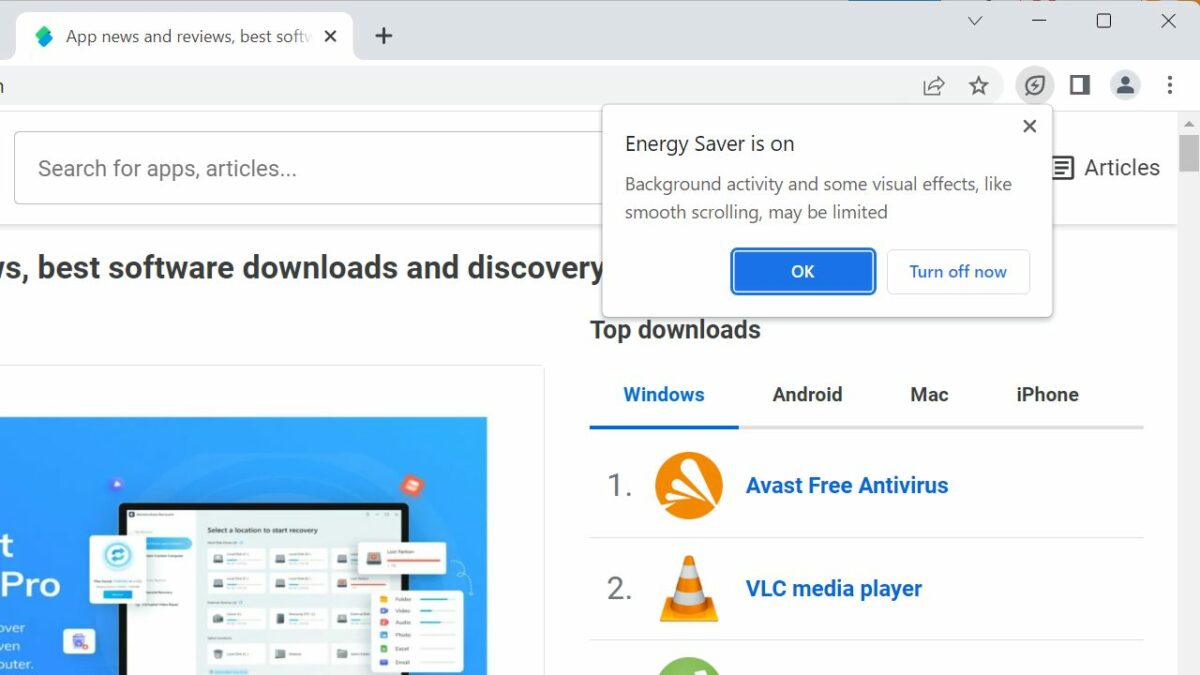
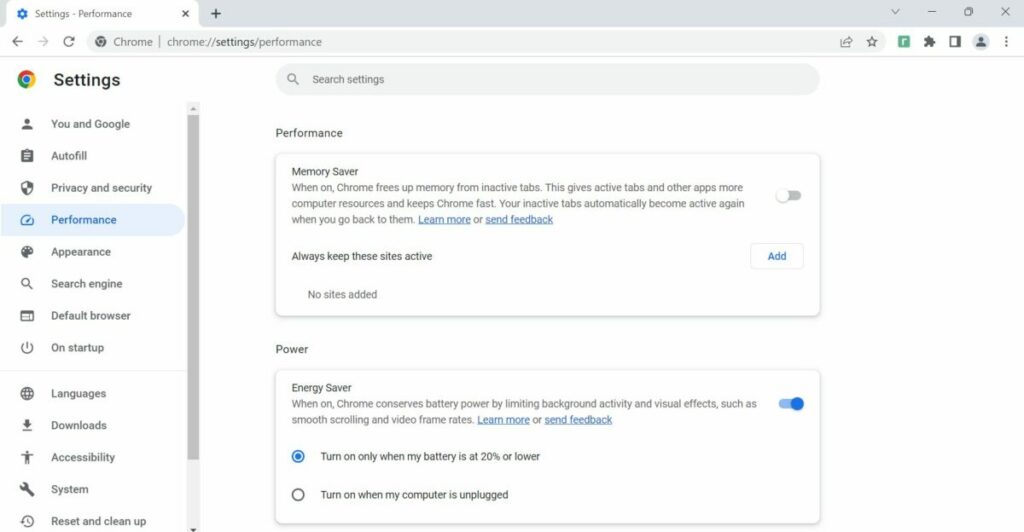
Energy Saver, on the other hand, may reduce the browser’s energy usage. It runs automatically, either when battery is dropping below 20% or when the computer is unplugged. An option to turn it on manually is provided as well.

How to configure Memory Saver in Chrome

Memory Saver needs to be enabled by the user or administrator. Before that can even happen, it needs to be available in Chrome.

To check whether that is the case, load load chrome://settings/performance in the address bar, or select Menu > Settings > Performance to open the Settings. If Performance is not listed yet, do the following to enable it.

  1. Load chrome://flags/#high-efficiency-mode-available in the browser’s address bar.
  2. Set the status of the flag to Enabled.
  3. Restart google Chrome.

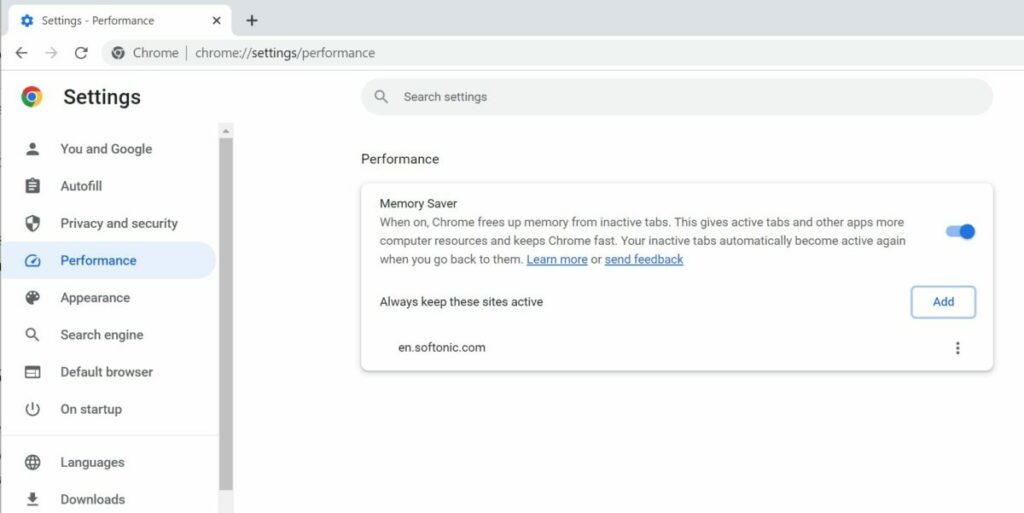
Flip the toggle on the Performance page to enable Memory Saver in Chrome. The browser puts inactive tabs to sleep automatically from that moment on.

There is an option to exclude certain sites from this. Activate the “add” button and type the domain that you want to exclude. Any site listed here is protected from the feature. In other words, it remains active all the time.

How to configure Battery Saver in Chrome

Battery Saver is the second performance enhancing mode. Like Memory Saver, it may not be available yet in Chrome 108. The feature is listed under Performance, when enabled, just like Memory Saver.

Note: the Memory Saver setting appears on battery-powered devices only, even after activation.

If it is not listed, do the following:

  1. Load chrome://flags/#battery-saver-mode-available in the browser’s address bar.
  2. Set the flag of the feature to Enabled.
  3. Restart Google Chrome.

Energy Saver is a new option under Performance after the restart. The feature is enabled by default and set to turn on automatically when the battery is at 20% or lower.

An option is provided to switch Energy Saver on whenever the device is unplugged.

“Chrome conserves battery power by limiting background activity and visual effects, such as smooth scrolling and video frame rates” when the feature is turned on, according to Google.

Conclusion

Both modes improve usage of the browser, especially if low- to medium-powered devices are used, or if Chrome is used in a mobile setting frequently.

It helps users use the browser for longer while unplugged and more efficiently.

Google is not the only company that is introducing these types of improvements. Microsoft added Sleeping Tabs and Energy Efficiency modes to its Edge browser some time ago. These help users of Edge save memory and power, very similarly to the functionality of Chrome.

Microsoft PC Manager promises to give your PC a boost

Microsoft PC Manager is a system application that promises to give Windows PCs a boost, a security check and more. Designed by Microsoft and in beta currently, PC Manager combines performance improving features with security options.

Microsoft plans to release the PC Manager application on the Microsoft Store. It is not listed publicly at the time and officially labeled a beta program.

PC Manager looks similar to CCleaner and other applications of its kind. The program shares some features, albeit more limited, with this type of applications.

It may, for example, be used to delete temporary files, disable startup programs, or run a security scan of the system.

PC Manager by Microsoft

PC Manager is compatible with Windows 10 and 11 devices. The app installs quickly and configures itself to run on system start. An option to disable this is provided in the application’s settings.

Important information is displayed on start. The application lists the current memory use, available storage and the size of temporary files on the startpage. A click on the boost button frees up some memory and cleans all temporary files on the system. The process is quick and it may indeed improve the performance of the system in the short-term. Memory usage goes up again shortly after executing the boost option.

The four main entries on the cleanup tab lead to health check, storage management, process management and startup apps. A click on any of those options executes the function.

Health Check

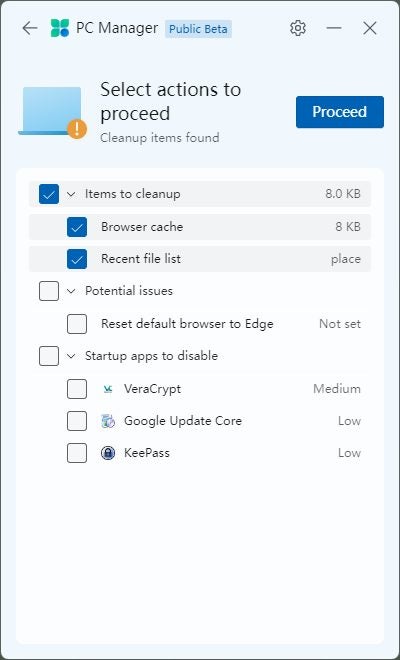
Health Check, for example, scans the system for potential issues. It highlights items to cleanup, which frees up storage space, potential issues, and startup apps to disable, to speed up system start.

In effect, it is giving the system a quick scan to find areas of improvement.

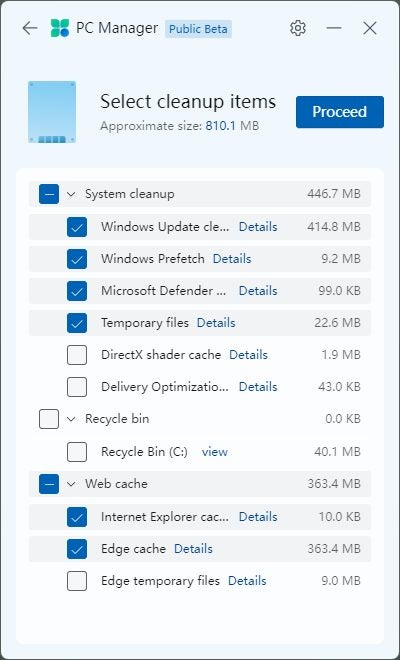
The cleanup recommendations lack depth when compared to programs such as CCleaner or BleachBit. Even Windows’ own Disk Cleanup tool supports more cleanup options.

The most useful option here is probably the startup apps option. Some apps extend system start significantly and PC Manager makes it easy to disable those. Microsoft does not list its own apps here or elsewhere in the app though. A quick opening of the Task Manager’s startup apps tab is equally fast and more helpful.

Storage Management

Storage Management displays four options when it is selected. The first, deep cleanup, scans more locations on the system for leftover and temporary files. These can then be removed in a swift operation. Still not as extensive as other cleaners, but better than the health check’s scan.

There is also a large file management option, which runs scans in File Explorer to find files larger than the specified size. Options to filter by file type are provided as well.

The two remaining options link to two Settings page to manage installed apps and configure automatic storage cleanups.

Process Management and Startup apps

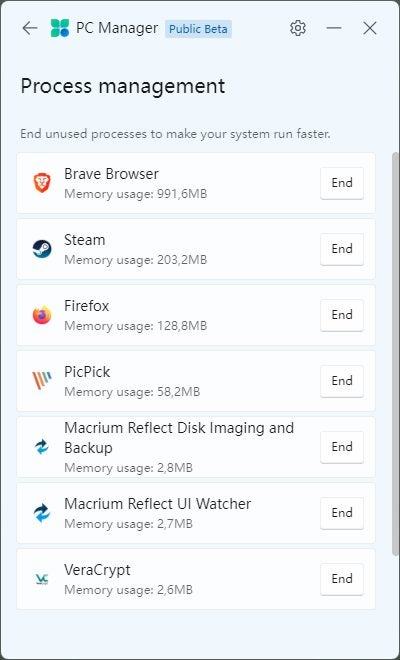
These two options are basic versions of features that Windows’ Task Manager provides. Process management lists user-run processes, their RAM usage, and an option to terminate them.

Startup apps lists some of the apps that start with the system. More than what health check displays, but still less than the Task Manager’s listing.

Security

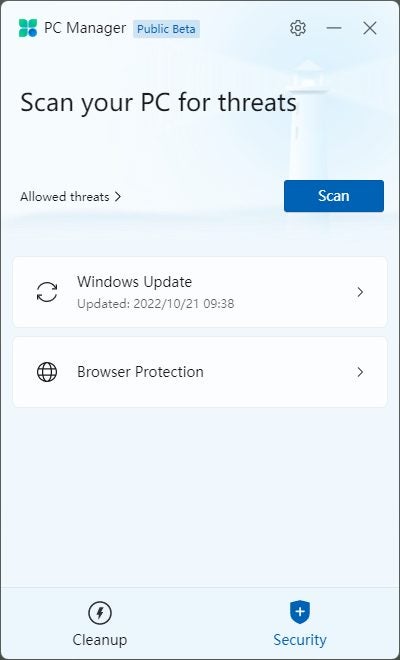
The Security tab of the PC Manager application lists an option to run a thorough security scan on the system. The app scans key locations, such as the startup apps, browser extensions, background services or hardware drivers.

Any threat found during the scan is returned and can be dealt with in the application.

The two other options are less useful. The first runs a check for updates, the second to change the default browser to Microsoft Edge, Chrome or Firefox (if installed).

Verdict

PC Manager left mixed impressions during the review. Several of the application’s features are limited versions of tools that Windows already supports. There are some features, however, that may indeed be useful to some users.

Users may like the security scan feature, or the handy option to search for large files in File Explorer. While the latter is also possible with filters, e.g., by using the size:> filter, it makes things more comfortable to users who do not know about that option or quicker one.

In summary: PC Manager is a beta program that may improve over time. For now, it may be useful to some Windows users, but the majority of users may prefer using more advanced tools for the tasks it offers.