Learn how to snap beautiful shots of fireworks with your phone!
Over the Fourth of July weekend, Instagram will be flooded with pictures of fireworks. The last thing you want is to miss out on free likes, but there’s just one problem; taking pictures of fireworks is hard.
It seems like every time you try to take a photo with your phone, you end up being too early or too late. At the end of the night when you look through your photos, all you have is pictures of a blank night sky and fizzled-out fireworks. Luckily, there are some tricks to take solid pictures of fireworks with your phone. We have compiled the best ones that are easy to pick up and use this holiday weekend.
How to take pictures of fireworks with your phone
Anticipate
Your standard firework follows a basic pattern:
A bang to signify liftoff
Shooting into the air
Exploding
A delayed explosion sound
If you can get the timing right, you can get some great shots. When you hear the initial bang of a firework about to lift off, follow the firework with your camera while keeping your finger over the capture button. Once it bursts, don’t take a picture right away as the firework is still expanding. Instead, time the capture with the delayed explosion sound. By that point, the firework is still bright and pretty, but it is also at its most expanded.
Both iOS and Android have a burst photo mode. Through this method, you can take multiple consecutive photos. This means that you don’t necessarily have to worry about timing.
To take burst photos on both iOS and Android, simply hold down the capture button as your smartphone will take multiple pictures the entire time you hold down the button.
When taking burst photos, make sure that you stay still. Any movement can make your photos blurry. Also, photos taken with burst won’t be as crisp and clean as ones taken the regular way.
Don’t focus just on fireworks
There’s a lot more to photograph on the Fourth of July than just fireworks. If there are little kids nearby, photos of their smiling faces being lit up by fireworks can be more magical than any firework.
Remember, people can play along better than any firework. Are you going out on a boat? Shoot photos of people jet skiing, water skiing, tubing, and swimming!
Watch YouTube tutorials
Aside from the tips we taught you, there is still a wealth of knowledge on the internet for how to take photos of fireworks. USA Today released this video that teaches you about stability, accessories, and more. We’d highly recommend watching it before you start shooting.
If you are looking to shoot photos with a DSLR camera, there are also YouTube videos for that! We especially like this one from Fro Knows Photo:
Wrapping up
Have fun and be safe this Fourth of July. The most important thing you can do is to spend time with your friends and loved ones. Don’t spend all of your time worrying about taking photos. Tweet your best fireworks photos to us! We would love to see them!
Edit unwanted people and objects out of photos with Bye Bye Camera!
It has happened to all of us.
We take a picture and find an unwanted person in the shot. Wouldn’t it be nice to save us the headache of having to edit out people so we don’t get photos like this:
I Costanz-err I mean, I can’t stand when people photobomb like this!
Luckily there is an app that can help us out!
Enter Bye Bye Camera: a brand-new app that can automatically edit unwanted people out of a photo.
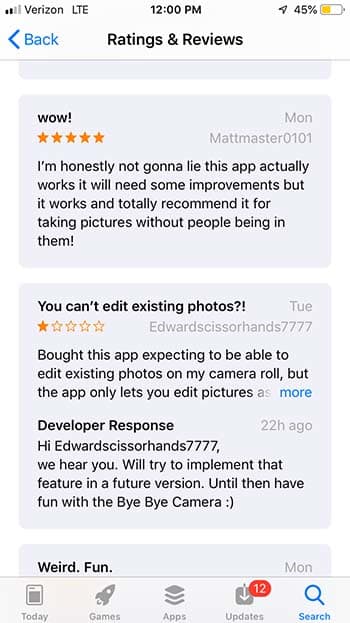
It uses AI technology to paint over people and objects in photos. However, the app is not flawless. Some users have reported that the app will sometimes leave behind a mess of pixels and hair after using it.
Another issue that users have had is that you cannot edit existing photos. You can only edit photos that you take via the app. However, developers have responded to user reviews saying that they will consider adding the ability to edit existing photos in the future.
Those who have enjoyed the app have said that the app has flaws, but it works well for them. If the app sounds like it’s up your alley, it might be a good idea to consider downloading it. Otherwise, it might not be a bad idea to wait for an update.
You can now use Microsoft Photos to search for similar images on Bing
Bing is like the forgotten lost sibling of the search engine world. Sure, it is important to some people, but most don’t even know it is there. Microsoft’s search engine has seen its fair share of problems too, like the recent scandal of the racist results it was showing to otherwise ordinary search queries. There is one key factor, however, that marks Bing out as superior to other search engines, including Google. Bing is an excellent tool for performing image searches.
It makes sense for the software giant to leverage its superiority in the image search field and that is exactly what Microsoft is doing. Microsoft is adding Bing’s image searching powers to Windows 10’s native Photos app.
You can now use Microsoft Photos to search for similar images on Bing
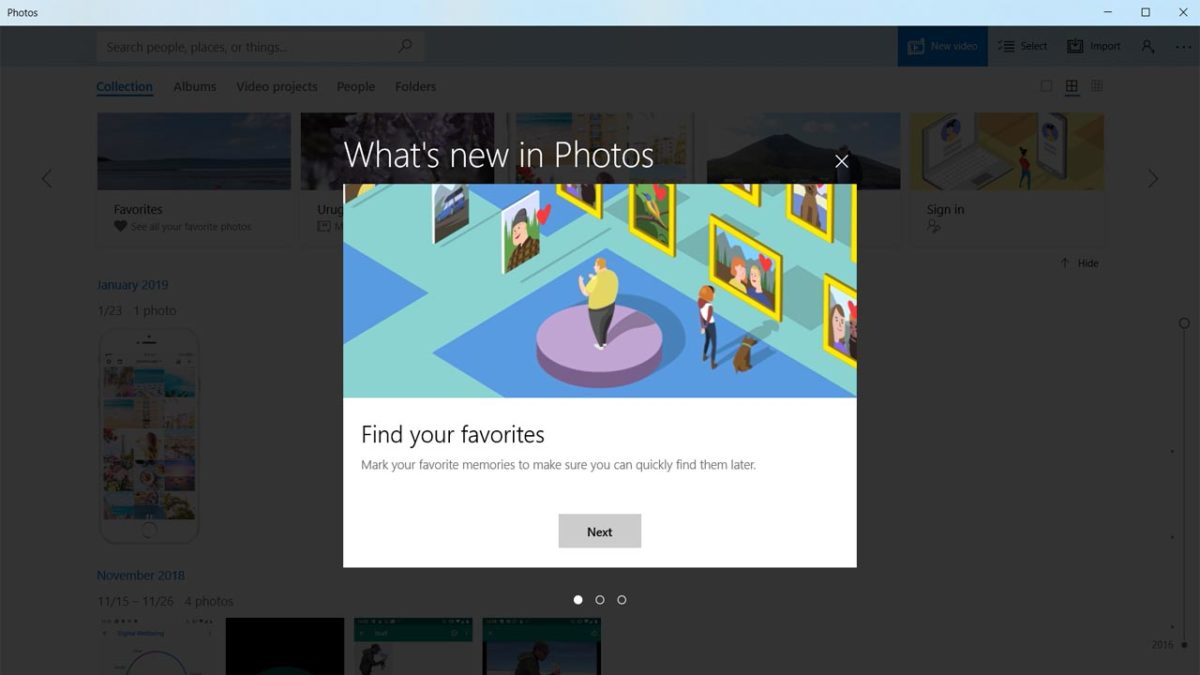
Microsoft’s latest addition to its Photos app is very useful. It allows you to search for similar images to those you have on your device with a simple click of a button. This could be useful if you’re trying to find information about the subject of a certain photo you have, or maybe see what an image would look like from different angles.
A search for similar images is a good way to learn more about the subjects of your photos
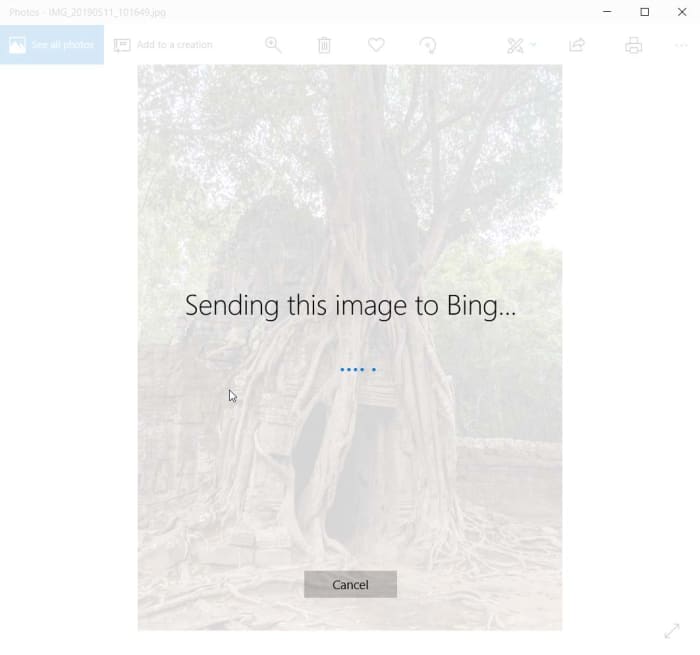
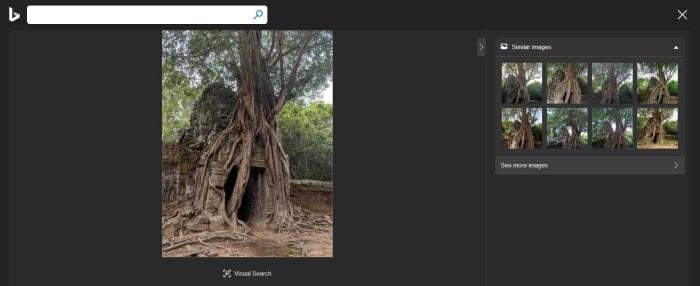
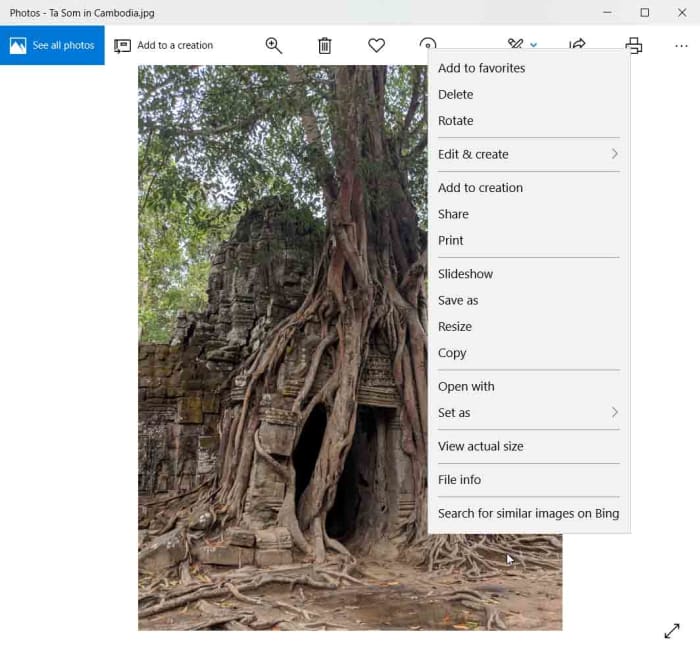
The new feature is very easy to use, too. All you have to do to perform a search for a similar image is open Microsoft Photos and select the image you want to search for. Then you need to right-click the image to open a drop-down menu and the new feature is found at the bottom of this menu. Clicking Search for similar images on Bing will open a dialog box asking for permission for Bing to use the image to improve its image processing services. Agreeing to this will then send the image to Bing and you’ll be shown a results page, on your default web browser, of similar images Bing has found.
Once you’ve done this, you’ll be able to click on the search results to see the web pages the returned images are connected to. In this way, you might be able to put a bit of context to the images you have on your device.
The new “Search for similar images features” is live now, but it is still a little rough around the edges. This is likely to change over the next few weeks as Microsoft refines it further and improves its functionality.
Although Microsoft is ahead of the curve with its image searching capabilities, it still a little behind in all areas. In particular, Microsoft is only now starting to introduce automatic people tagging to its Photos app. Google Photos has had this facility for a while.
All-in-all these two new features add some serious clout to Microsoft Photos, turning it into strong competition for the Google offering.
Google Photos will soon have a colorize feature going into beta testing.
Every year Google’s I/O conference in May lays out all the big things the internet giant is hoping to bring out over the next 12 months. This year’s offering just passed and, well, it wasn’t as exciting as conferences gone by. We got a cheaper smartphone and a bit of shading around the edges on stuff like privacy. Nothing major to grab the headlines.
Fortunately, however, Google has always been a bit slow in the implementation of its I/O conference promises, which means there are still some cool new Google innovations on the way from past I/O conferences. One such promise is now closer to fruition, and it is an absolute cracker.
Google Photos will soon have a colorize feature going into beta testing
At last year’s I/O conference, the buzzword was AI. Google was all about telling the world about the fancy things its impressive AI algorithms could do. There were many brags that grabbed the news, but a particularly cool feature was the AI-assisted colorize feature that Google was going to add to its Photos app.
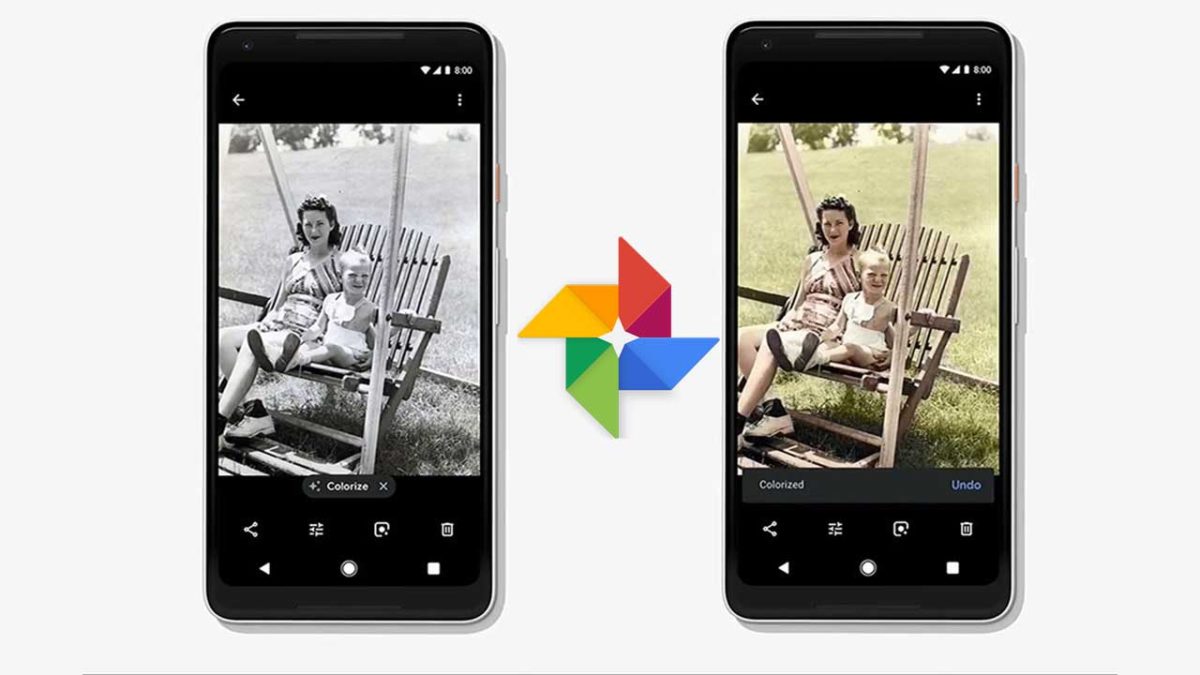
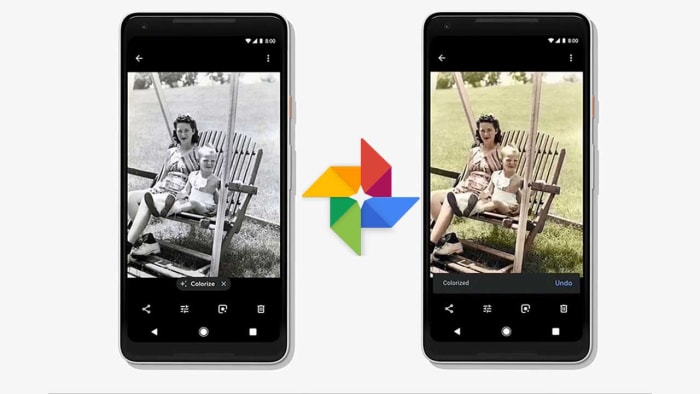
Colorize takes black and white photos and then magically turns them into photos bursting with color. Colorizing black and white photos has been around for a while, but it has always needed a person to go in and decide what colors to add and to which objects. You can see some great examples of colorized images here and here.
The human process can be time-consuming, which must have been one of the reasons Google thought it would be a good idea to teach a machine to do it instead. Trouble is, it looks like training a machine to do it is a time-consuming process, too. Since Google announced the feature over a year ago, it has not been heard of again. In fact, we’re only hearing about the progress the team has made now, because Mashable called the Photos team out on their radio silence. In response to that, the Photos project lead, David Lieb, took to Twitter with a working example of Photo’s new Colorize feature.
2/ Here’s a photo of my 104yo grandmother on her wedding day, colorized with Google Photos on my phone. (You can see we have some work to do; my grandfather didn’t wear pink pants to his wedding!) pic.twitter.com/Ni8v0Bz3vg
Lieb’s working example is quite impressive, but it does show the difficulties he and his team are facing. The AI has done an admirable job of adding colors to the black and white image, but it is clear that, in some instances, it adds the wrong colors.
The example does show, however, how easy it will be to colorize images when the feature finally lands on the Photos app. It looks like Colorize will show in the list of filters you can choose from when editing images.
The bad news though, is that although Lieb did mention that a beta version of the feature will be coming soon, he made no mention of a specific date or an expected time frame for that to happen.
Whether you’re an occasional snapper or a semi-pro fanatic, the loss of a lifetime’s worth of photographs is a disaster nobody wants to face. Hopefully, you’re already in the habit of regularly backing up to a second (or even third) hard disk, and storing this well away from the original files. But in reality, even this level of precaution will not totally safeguard you from potential misfortune; a badly timed combination of technical malfunction and an “act of God” could still conspire to erase all your visual memories in an instant.
Rather than putting all your eggs in a single basket, most professionals advise making an additional backup of all photographs online for extra security and peace of mind. But which cloud storage platform to choose? Check out our online photo backup guide for the full lowdown on the best online file storage, organization and viewing platforms for photographers currently out there.
The 10 best cloud storage services for photographers
Cloud-based photo services: what to look for
Not so long ago, if you wanted to deliver a large number of high-resolution photos to someone, you’d either have to mail them a hard disk or send a couple of gigabytes at a time via suspect file-sharing services such as RapidShare or Megaupload. As these sites would often delete your files after a period of inactivity, they clearly didn’t make for a practical long-term storage solution either. Meanwhile, your best option for an online photo backup and viewing platform was likely something along the lines of Photobucket or Image Shack: ugly, unwieldy, and offering only very limited space.
Now cloud storage services are cheap, convenient and offered by pretty much everyone and their dog. While this is great news for photographers – with our endless gigabytes of data to back up – some of these platforms are more suitable for photo storage than others. This is particularly the case if you’re looking for something a little more sophisticated than merely a virtual storeroom in which to dump all your files and then forget about them.
Thankfully, there are now many cloud storage platforms marketed to photographers, and these tend to offer an array of additional services beyond simple backup. For example, it’s now quite common to find advanced options for viewing, organizing, data-tagging, adding captions, sharing and delivering files. Even selling prints of your photos! However, there’s still a considerable degree of variation even between these photo-specific platforms, and so it pays to first consider what your own needs are as a photographer before then looking into the precise services offered by each of the main contenders.
Of initial concern for most people will likely be the convenience (or otherwise) of a platform’s user interface – not to mention the tasks it will permit you to carry out with your files once they are uploaded. However, there’s also the question of storage format to consider; for any serious photographer, the ability to store RAW files is going to be one of the most important requirements. Yet, surprisingly, this option is not offered even by some of the self-avowedly photo-oriented storage sites.
While we would advise photographers of all levels to shoot their photos as high-resolution RAW files, we realize that for many beginners, casual shooters, or those mostly using smartphones, a lack of support for uploading RAW files is not going to be a deciding factor when choosing cloud storage. For this reason, where a platform is otherwise very photography-friendly and offers some genuine advantages, we have included it in our list even if storage of RAW files is not currently permitted. Aside from this, and even putting RAW support aside, each photographer’s needs will likely differ quite significantly. With that in mind, this guide is designed to offer readers the necessary information to compare currently available cloud storage solutions in order to select the best option for their own uses.
You likely already know of 500px as a social network and “marketplace” for photographers. What you may not know, however, is that by signing up for one of their “Awesome” or “Pro” accounts, you also get access to unlimited storage.
Bizarrely, for a platform that claims to be geared toward the professional as much as the amateur, 500px lacks RAW support. However, if this is not a major concern for you, their pricing is competitive when compared with other storage providers, and becomes even more so if you’re also on the lookout for some of the other services a paid 500px membership includes: a photographer’s profile, public and private galleries, a dedicated app, the ability to collect photos by other photographers, and a listing in the 500px directory.
500px at a glance
Storage: unlimited
RAW support: no
Photo viewing, organizing, tagging: yes
File sharing/sending: yes
Automatic file backup: N/D
Cost: various price plans, from $2.50 to $12.99 per month
Using Amazon for your cloud storage needs might feel a little like going to Home Depot to get burritos: you certainly can, but it’s not necessarily the first place that comes to mind. But while there’s nothing worse than a bad burrito, in many ways storage is just storage, and Amazon offers a good service at reasonable rates.
In fact, if you already have an Amazon Prime account and just need somewhere safe to back up your files, then look no further, as Amazon already has you covered with free unlimited photo storage.
Amazon Drive at a glance
Storage: from 5GB to an unlimited number of photos, depending on the price plan
RAW support: yes
Photo viewing, organizing, tagging: no
File sharing/sending: single images only
Automatic file backup: yes
Cost: Free with Amazon Prime account, which costs $119 per year. Otherwise, you get 5GB of storage free with a regular Amazon account, or you can go for 100GB for a cost of $11.99 per year.
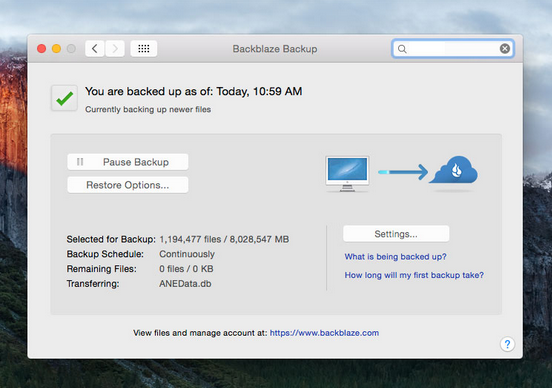
Unlike some of the other platforms we look at here, Backblaze’s cloud storage is not a secondary add-on to some other service, but rather their primary raison d’etre. Backblaze is no more and no less than a serious, dedicated, file sync and backup service provider. From a photographer’s point of view, the downside to this is that there’s no flashy interface, no pretty image galleries, no networking opportunities, no community feedback or pro photography tips.
However, if you’re just in the market for a secure, no-frills vault for your photos, Backblaze is the place. “Unlimited Files. Unlimited File Size. Unlimited Speed” is their tag line, and it’s hard to find fault with that.
Offering secure data backup for individuals and businesses, Carbonite occupies a similar position to Backblaze. Again though, there are no facilities for conveniently viewing, organizing or adding metadata to your photos. However, any such changes you make to your files locally on your computer will be remotely updated by Carbonite’s automatic backup service.
Carbonite at a glance
Storage: unlimited
RAW support: yes
Photo viewing, organizing, tagging: N/D
File sharing/sending: yes
Automatic file backup: yes
Cost: from $59.99 per year to backup one computer, to $269.99 for multiple devices
You’re likely already familiar with Dropbox; for several years they’ve bridged the gap between old-school file-sending services such as Mediafire and the newer breed of large data cloud storage services.
If you haven’t checked Dropbox out for a while, though, you’ll likely find that there have been a few new developments. For example, although it’s been possible to save RAW files on Dropbox for some time, any RAW files you upload to Dropbox now will also be viewable as a preview image, making the platform a much more convenient solution for both backing up and organizing photo libraries.
What’s more, Dropbox has added a bunch of handy tools for sharing and sending images, and you can now design presentations, add captions, logos etc. and even keep tabs on viewer behavior by means of built-in data tracking tools.
While Dropbox has significantly altered their price plans over the last few years, this doesn’t seem to have made services any cheaper, but instead just served to camouflage rising rates. What’s more, their “unlimited” storage plans are in fact initially capped at 1TB of data, with the requisite that you contact them personally asking for an increase to this limit should you require more space.
Dropbox at a glance
Storage limit: 1TB on individual plan; theoretically unlimited on Advanced plans, but for this privilege, you’ll need to pay out for a minimum of 3 users and then write to Dropbox begging for more space.
RAW support: yes
Photo viewing, organizing, tagging: some
File sharing/sending: yes
Automatic file backup: yes
Cost: $8.25 per month for an individual user; $20 per user x3 for Advanced plan (i.e. at least $60 per month)
Flickr is, of course, known first and foremost as a social media platform for uploading, sharing, viewing and commenting on photos. But due to the need to store all those uploaded files somewhere, it is also one of the longest-running cloud storage services for imagery out there. The combination of social media networking opportunities, image viewing and organizing tools, and free file storage space makes Flickr a pretty appealing option for the casual photographer.
However, on the downside, there’s a maximum size limit of 200MB for image files (1GB for videos). And while this won’t be a problem for most users, anyone hoping to upload huge files shot using medium-format cameras, or containing multiple Photoshop layers, will find their attempts blocked. Worse still, Flickr doesn’t allow users to upload RAW files at all.
If you can live with looking at ads each time you log on and don’t need to upload large files, then Flickr makes for a great free photo storage solution. However, as the paid version offers no increase in storage space, has the same file size restrictions as the free version, and doesn’t support the uploading of RAW files, more serious photographers should probably spend their money elsewhere.
While Microsoft’s cloud storage solution shares features such as automatic syncing and easy remote access with many other platforms we look at here, one further advantage of OneDrive Premium is access to the Office 2016 range of apps. Similarly, if you already have Windows 8.1 or later installed, or use Office 365, then you already have access to OneDrive too.
Beyond this, OneDrive offers plenty of options for creating and sharing photo galleries and folders, including time-limited links. However, there is currently no option to protect such links by means of a password. One major drawback: Although RAW files can be uploaded to a OneDrive account without issue, Microsoft currently doesn’t offer any facility for previewing those files online, which many users find frustrating. The limit for a single file uploaded to OneDrive is 10GB, which is more than enough for any photo file you might conceivably need to upload.
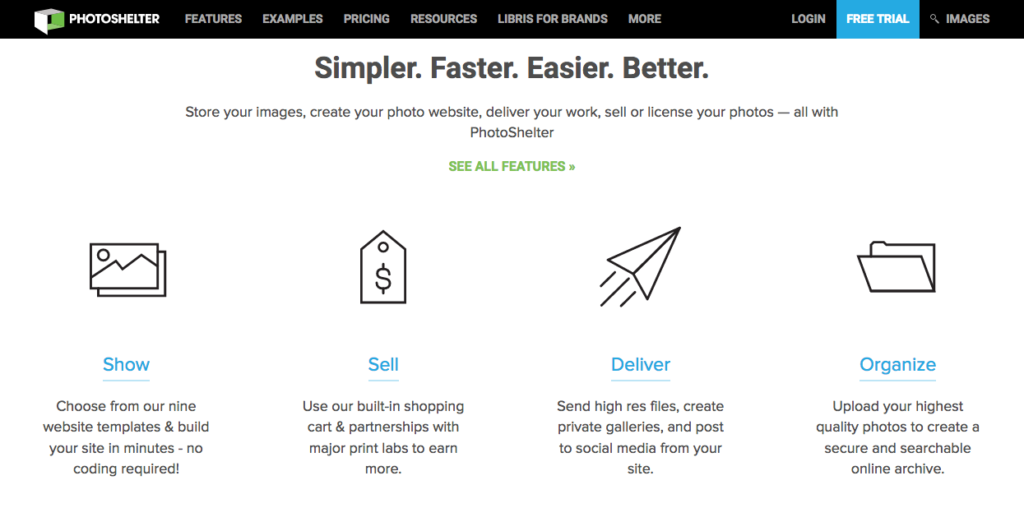
Photoshelter pitches itself as an all-around professional solution for photographers. So while they offer many different services – including websites, marketing tools, and e-commerce capabilities – it also means that they take the provision of cloud storage facilities very seriously, too. Consequently, access is made as easy and convenient as possible, and there are various facilities for tagging, sharing and delivery of images. Not to mention selling and licensing them.
For Pro account holders, there’s no limit to either the size or quantity of files that can be stored in the Photoshelter cloud. Similarly, the platform allows users to upload every possible format of image file – including, of course, RAW. Be warned, though, that you’ll need to pay a high price in order to take advantage of all the excellent services that a Photoshelter Pro account provides.
Photoshelter at a glance
Storage limit: 100GB for a standard account, unlimited for Pro users
SmugMug is very similar to Photoshelter, in that beyond mere cloud storage, the platform also offers services such as website building tools, password-protected galleries, extensive image-tagging and captioning facilities, and even e-commerce solutions. Where SmugMug primarily differs from Photoshelter, though, is in the price: while both offer unlimited storage, an entry-level SmugMug account costs approximately the same per year as you’d pay each month for a Photoshelter Pro account!
SmugMug at a glance
Storage limit: unlimited
RAW support: yes, but need to pay extra for SmugVault extension
Automatic file backup: no
File sharing/sending: yes
Photo viewing, organizing, tagging: yes
Cost: from $3.99 to $25 per month (paying annually)
Zoolz differs a little from the other platforms we look at here. Rather than just being a regular cloud storage service that you can access from anywhere at any time, Zoolz is a more specialized company offering long-term file storage solutions at an affordable price. This means that while storage is secure, it’s a little less convenient for making and retrieving regular backups of your image library. Instead, your original high-resolution files are put into “cold” storage, from where they need to be “ordered” in advance before being taken out of the deep freeze – a process that can take several hours to complete. In the meantime, you are given access to low resolution “hot” copies of these files, which are always instantly available for browsing.
This restriction, of course, means that Zoolz will not be everyone’s first choice for cloud storage provider. However, the platform offers a preview feature for RAW files that not only makes it a better solution for photographers than most other cold storage services around, but in fact more suitable for serious shooters than some of the most-popular instant-access solutions we look at here – many of which don’t allow the uploading of RAW files at all, never mind any kind of preview facility for them.
Zoolz at a glance
Storage limit: from 7GB upwards
RAW support: limited to only Canon, Nikon and Sony RAW files
Automatic file backup: yes
File sharing/sending: yes
Photo viewing, organizing, tagging: no
Cost: free and upwards
Final thoughts
If we just consider quality and range of services, the most serious option for photographers is likely Photoshelter Pro; fulfilling, as it does, all our basic requirements bar automatic backup and excelling at a whole lot more besides. Sadly, Photoshelter Pro also comes with by far the heftiest price tag of any of the platforms we look at. Although, to be fair, by paying this extra premium you get much more than just the cloud storage.
For those unlikely to make use of all of Photoshelter’s extra tools and facilities, or just unwilling to pay out such a huge fee, SmugMug comes a pretty close second place. And, if you go for their cheapest price plan, also makes for a very affordable alternative.
Meanwhile, for more casual photography enthusiasts, other options such as DropBox or Amazon Drive will undoubtedly be up to the job and won’t break the bank.
Finally, for those in need of a good long-term backup solution, but not overly concerned with speedy retrieval times, Zoolz is the one to look into.








 Once you’ve done this, you’ll be able to click on the search results to see the web pages the returned images are connected to. In this way, you might be able to put a bit of context to the images you have on your device.